Replace chassis components


Note


The images in this chapter are only for representation purposes, unless specified otherwise. The chassis' actual appearance and size may vary.

Caution


Whenever you replace any card, you must always ensure to secure the ejector thumbscrews properly.

Replace fan modules

The fan module is designed to be removed and replaced while the system is operating without presenting an electrical hazard or damage to the system. Please keep the replacement fan modules ready prior to attempting this task.

Note


The airflow direction must be the same for all power supply and fan modules in the switch.
Table 1. Supported fan module

Fan Module

PID

Port-side intake airflow

FAN-1RU-PI-C01

Procedure


Step 1

Press the latch on the fan module and grasp the handle of fan module.
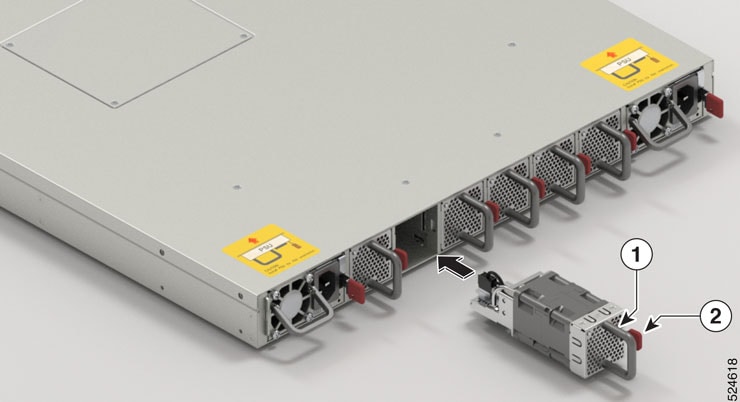
Figure 1. Remove 8101-32FH-O-C01 fan module

1

Fan handle

2

Latch

Step 2

Pull the handle to remove the fan to be replaced.

Step 3

Hold the fan module with the LED and PID label at the top.

Step 4

Align the fan module to the open fan tray slot in the switch, and press the module all the way into the slot until the latch clicks and is locked on the switch.

If the fan module does not go all the way into the slot, do not force it. Remove the fan module and verify that it is the correct type for your switch and in the correct orientation. To verify the status of fans and the speed, use the show environment fan command.

Step 5

If the switch is powered on, listen for the fans. You should immediately hear them operating. If you do not hear them, ensure that the fan module is inserted completely in the switch.

Step 6

Verify that the fan module LED is green. If the LED is not green, one or more fans are faulty. If this situation occurs, contact your customer service representative for replacement parts.


Replace power supply


Note


We recommend that you occupy both the power supply slots of the fixed port switch with power supplies. In case a power module fails, it is recommended to retain the failed power module in its slot until it is replaced with a new power module. This recommendation ensures that the system airflow is not impacted adversely, which may then result in the overheating of the switch and its components.

PSUs are replaced in any one of these conditions:

  • Changing the PSU from one type to another: When there are two PSUs in the switch, you can replace the PSUs to a different type. switches can operate normally only with the same type of PSU in both the power slots. During replacement of PSU from one type to another, the switch exhibits unexpected behaviour and the Cisco IOS XR software raises the PID mismatch alarm due to the presence of different types of PSUs. You must therefore replace the PSUs in both slots with the same type.

  • PSU failure: Ensure that both the PSUs are powered on, while replacing one PSU in case of a failure.

Procedure


Step 1

Replace the PSU.

  • To replace the PSU from one type to another, if the power supply is connected to a AC or DC circuit, shut off the circuit at the circuit breaker or PDU.
  • To replace the PSU in case of failure, ensure that both the PSUs are powered on.

Step 2

Disconnect the power cable of the PSU that must be replaced.

Note

 
To remove the Saf-D-Grid power cord (AC or HVDC) from the power supply, press the latch before pulling the power cord out.

Step 3

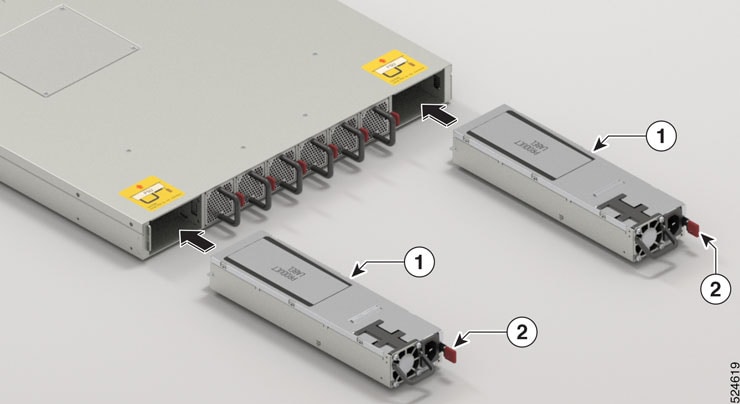
Press the tab inward to unlatch the PSU, and pull the handle to remove the PSU.

Step 4

Insert the new PSU.

Note

 
If the PSU does not go all the way into the slot, do not force it. Remove the PSU and verify that it is the correct type for your switch and in the correct orientation.

Step 5

Connect the PSU cable. If the power supply is connected to an AC or DC circuit, turn on the circuit at the circuit breaker or PDU source. Wait till the PSU LED color turns green. After replacing the PSU, verify the power using the show environment power command.

Step 6

Repeat steps 1 through 5 to replace the PSU in the second slot.

Figure 2. Cisco 8101-32FH-O-C01 — remove power supply

1

Power supply

2

Tab