
New and changed information
The following table provides an overview of the significant changes up to this current release. The table does not provide an exhaustive list of all changes or of the new features up to this release.
| Release Version | Feature | Description |
|---|---|---|
|
Nexus Dashboard 4.2.1 |
ACI interoperability with Border Gateway |
Beginning with Nexus Dashboard 4.2.1, the Nexus One architecture unifies the management and operation of Cisco Application Centric Infrastructure (ACI) and Cisco NX-OS Virtual Extensible LAN (VXLAN) Ethernet VPN (EVPN) fabrics. This architecture provides consistent policy enforcement and operational workflows across domains by using Nexus Dashboard as a centralized management platform. For more information, see Understanding the Nexus One architecture. |
|
Nexus Dashboard 4.2.1 |
Nexus Data Broker (NDB) integration |
Beginning with Nexus Dashboard 4.2.1, Nexus Dashboard supports a new fabric type for Data Broker networks. You can use Nexus 9000 switches as data broker switches to aggregate SPAN and TAP traffic from production fabrics. You can also manage SPAN configurations for these data broker switches directly from Nexus Dashboard. For more information, see Create or onboard a local online LAN fabric. |
Understanding LAN fabrics, ACI fabrics, and fabric groups

The information in this article applies to LAN fabrics, ACI fabrics, and fabric groups. For information on SAN fabrics, see Creating and Editing SAN Fabrics.
Before you begin creating fabrics or fabric groups, it’s helpful to understand more about each.
Understanding LAN and ACI fabrics
Fabrics are on-premises network regions that include a group of switches and other networking devices that provide connectivity to your applications and endpoints. They may be split in different availability zones (such as pods) that are analyzed and managed by Nexus Dashboard.
There are many types of fabrics:
-
LAN — This type of fabric contains either of these switch types:
-
NX-OS switches — These are a group of Nexus switches running NX-OS software. Nexus Dashboard manages and monitors NX-OS switches using best-practice templates. You can add a fresh set of NX-OS switches for greenfield deployments or onboard existing NX-OS switches to an existing fabric for incremental management and monitoring.
-
Non-Nexus switches and devices — Nexus Dashboard supports onboarding a variety of non-Nexus switches and service appliances such as IOS-XE, IOS-XR, firewalls, and load balancers. These devices support campus VXLAN EVPN fabrics, Layer 4 to Layer 7 (L4–L7) services, and external fabrics that enable east-west or north-south connectivity, such as an IP-based network (IPN), inter-site network (ISN), core, and edge.
-
-
ACI — ACI fabric consists of multiple Nexus 9000 switches running ACI software managed by an Application Policy Infrastructure Controller (APIC) cluster.
-
Monitoring and Analysis: Onboard existing ACI fabrics for continuous telemetry streaming. In environments with restricted connectivity, such as air-gapped networks, you can onboard ACI switches as offline snapshots to perform point-in-time analysis without a direct network connection. You can also use Orchestration to manage and coordinate policies across multiple ACI sites.
-
Nexus Dashboard multi-cluster architecture categorizes fabrics as Local or Remote.
-
Local: A fabric that is present in Nexus Dashboard cluster.
-
Remote: A fabric that is not present in this cluster, but rather is present in another cluster that is part of Nexus Dashboard multi-cluster connectivity.
In addition, local fabrics can be broken down in the following manner:
-
Online fabrics: Fabrics that are connected to Nexus Dashboard over the network.
-
Snapshot fabrics: Fabrics that are referenced by a snapshot for use in one-time analysis or demonstrations. They may or may not be connected to Nexus Dashboard over the network.
And finally, you can either create new fabrics or onboard existing fabrics. Note that before Nexus Dashboard and the individual services were unified into a single product (as described in the Nexus Dashboard Deployment and Upgrade Guide), there were fabric types that were available before unification but might not be available as a new fabric type with the unified product, such as the Legacy Classic LAN fabric type. You can still onboard those existing fabric types but you will not be able to create a new fabric with those pre-unification fabric types. See Mapping fabric types for more information.
Security group selector mapping
Security groups use selectors to classify traffic. The fabric type and network model determine how the system translates these selectors. See Mapping between ND, NX-OS and ACI policies for VXLAN-ACI fabric group for more information on security group selector mapping.
Grouping fabrics and clusters
There are several ways to group fabrics and clusters together in Nexus Dashboard:
Grouping fabrics
The method that you use to group fabrics together differs depending on the type of fabric:
-
NX-OS fabrics:
-
A fabric group is a collection of fabrics grouped for visualization or management. The available fabric group types include:
-
VXLAN: A group of Cisco NX-OS fabrics connected to other Cisco NX-OS fabrics.
-
VXLAN-ACI: A group that includes a Cisco ACI fabric connected to one or more Cisco NX-OS fabrics. This type integrates Cisco NX-OS and Cisco ACI fabrics for unified management and policy deployment.
-
LAN or IPFM: A logical group of LAN or IP Fabric for Media (IPFM) fabrics.
-
-
You can also establish inter-fabric connectivity using an Inter-Fabric link type through Connectivity > Links in your NX-OS fabric. You can then choose how you want to establish inter-fabric connectivity, such as connecting two NX-OS fabrics together using inter-fabric links with MACsec or establishing inter-fabric connectivity using VRF Lite, where you would use VRF Lite to establish external connectivity from a LAN fabric to an external Layer 3 domain. For more information, see Create inter-fabric links.
-
-
Cisco ACI fabric management models: You can manage ACI fabrics in Nexus Dashboard using one of two methods:
-
Using Cisco ACI in Nexus Dashboard Orchestration
-
Connects multiple ACI fabrics to function as a single environment.
-
Deploys tenants, networks, and policy configurations across multiple ACI sites.
-
Provides a central point for multisite policy consistency and scale.
-
Constraint: You cannot enable Orchestration on a Cisco ACI fabric that is a member of a VXLAN-ACI fabric group. Similarly, you cannot add a Cisco ACI fabric to a VXLAN-ACI fabric group if Orchestration is enabled. When adding fabrics to a VXLAN-ACI fabric group, any ACI fabrics with Orchestration enabled will not be available to choose.
For more information, see Connecting Multiple ACI Fabrics and Working with Orchestration.
-
-
Using Cisco ACI in a VXLAN-ACI fabric group
-
Enables management and interoperability between Cisco ACI and Cisco NX-OS Virtual Extensible LAN (VXLAN) fabrics.
-
Automates inter-fabric connectivity (IFC) between ACI and NX-OS data center domains.
-
Enforces security and segmentation policies across Cisco ACI and Cisco NX-OS environments.
-
Constraint: You cannot enable Orchestration on a Cisco ACI fabric that is a member of a VXLAN-ACI fabric group. Similarly, you cannot add a Cisco ACI fabric to a VXLAN-ACI fabric group if Orchestration is enabled. When adding fabrics to a VXLAN-ACI fabric group, any ACI fabrics with Orchestration enabled will not be available to choose.
-
-
Grouping Nexus Dashboard clusters
-
Multi-cluster connectivity: You can establish connectivity between multiple Nexus Dashboard and APIC clusters for ease of access to all the clusters, as well as access to any of the fabrics managed by the connected clusters. For more information, see Connecting Clusters.
-
Multi-cluster fabric groups: Create a multi-cluster fabric group that spans multiple Nexus Dashboard clusters to manage VXLAN fabrics across different clusters in a multi-cluster fabric group. For more information, see Create multi-cluster fabric groups.
Mapping fabric types
This table maps fabric types that existed in releases before Nexus Dashboard version 4.1.1 to the new fabric types available in the unified Nexus Dashboard.
-
In some cases, a pre-unification fabric type might not be available as a new deployment type and can only be onboarded into Nexus Dashboard. Those fabric types are marked as "Brownfield onboard only" in this table.
-
Similarly, a new fabric or fabric group type might become available in a unification release that was not available in pre-unification releases. Those fabric or fabric group types are marked as "N/A" in the Pre-unification fabrics fields in this table.
|
Pre-unification fabrics version 3.2.2 and earlier |
Post-unification fabric types version 4.1.1 and later |
|
|
Fabric technologies |
Fabric types |
|
|
LAN |
||
|
N/A |
||
|
VXLAN EVPN |
VXLAN EVPN Multi-Site |
|
|
Multi-Fabric Domain |
Fabric Group |
|
|
VXLAN EVPN |
Data Center VXLAN EVPN |
|
|
eBGP VXLAN EVPN |
BGP fabric |
|
|
VXLAN EVPN |
Campus VXLAN EVPN |
|
|
eBGP Routed |
BGP fabric |
|
|
Classic LAN |
Enhanced Classic LAN |
|
|
Classic LAN |
Classic LAN |
Legacy Classic LAN (Brownfield onboard only) |
|
Custom |
External connectivity network |
|
|
Custom |
Custom network |
|
|
Custom |
Multi-site external network |
|
|
LAN Monitor |
LAN Monitor |
|
|
IPFM |
||
|
IPFM |
IPFM |
|
|
IPFM |
IPFM Classic |
|
|
Generic Multicast |
IPFM Classic |
|
|
Multi-Fabric Domain |
Fabric Group |
|
Guidelines and limitations
-
MTU requirements when onboarding ACI fabrics: Nexus Dashboard, when used with remote leaf switches and Multi-Site architectures in Cisco ACI, requires jumbo MTU (Maximum Transmission Unit) settings on the network switches and on the Nexus Dashboard data interfaces.
Viewing LAN fabric information
These sections describe how to view fabric information.
View information on local online fabrics
Follow these steps to view information on local online fabrics.
-
Navigate to the Fabrics page.
Manage > Fabrics
-
Choose the local scope:
-
For Nexus Dashboard federation: Click the Fabrics tab, then click the Local subtab for the fabrics details page.
-
For standalone cluster: The Local and Remote tabs are not displayed; proceed directly to the next step.
-
-
Choose the fabric type:
-
For snapshot enabled: In the drop-down list underneath the Local tab, choose Online fabrics.
-
For snapshot disabled: The online fabrics and snapshot fabrics options are not displayed. The page displays online fabrics by default.
The table displays this information on already-configured local online fabrics.
Field Description Name
Displays the name of the fabric.
Type
Displays the type of the fabric.
Anomaly level
Displays the highest level of anomalies currently detected in the fabric. Anomalies are classified into these levels.
-
Critical: Shown when the network is down, such as when a fabric is not operational.
-
Major: Shown when connectivity to a given prefix or endpoint could be compromised, such as overlapping IP addresses or subnets.
-
Warning: Shown when the network is impacted, such as when connectivity to a given prefix or endpoint is degraded.
Advisory level
Displays the highest level of advisories currently detected in the fabric. Advisories are classified into these levels.
Advisory levels display only if you have enabled telemetry. Otherwise, Nexus Dashboard displays NA as the advisory level.
-
Critical: Shown when there are unsupported infrastructure and the severity of the bugs associated with notices is Severity1, such as when switches in a fabric are running under End-of-Life conditions or when a critical (Severity1) field notice or security advisory has been issued for a switch or software version currently running in your network.
-
Major: Shown when the severity of the bugs associated with notices is Severity2, such as when a critical (Severity2) field notice or security advisory has been issued for a switch or software version currently running in your network.
-
Warning: Shown when there is support for potentially at-risk infrastructure and the severity of the bugs associated with notices is Severity3, such as when switches in a fabric are approaching end-of-life conditions, or when a Severity3 field notice or security advisory has been issued for a switch or software version currently running in your network.
License tier
Displays the license tier for the software features that is being used in the fabric.
ASN
Displays the ASN for the fabric.
Connectivity status
Shows whether the fabric is reachable from the Nexus Dashboard cluster.
Fabric group
Shows when a fabric is a member of a fabric group.
Features
Shows the features that are enabled on the fabric.
-
-
-
If you want to modify the columns shown in the table, click the gear icon at the top right of the table, then choose the columns that you want to display in the table.
You can also perform these actions on the fabrics list page.
| Action | Description |
|---|---|
|
Actions > Create fabric |
Choose from the category to create a new fabric or onboard and automate configuration of an existing fabric.
|
|
Actions > Edit fabric settings |
Choose a fabric to edit, then click Actions > Edit fabric settings.
|
|
Actions > Delete fabric |
Choose a fabric to delete, then click Actions > Delete Fabric. Click Confirm to delete the fabric. |
|
Actions > Re-register (supports Cisco ACI fabrics only) |
Click Re-register to re-register the connection between Nexus Dashboard and a fabric. |
View information on local snapshot fabrics
Follow these steps to view information on local snapshot fabrics.
-
Navigate to the Fabrics page. Manage > Fabrics
-
Click the Fabrics tab, then click the Local subtab.
-
In the drop-down list underneath the Local tab, choose Snapshot fabrics.
The table displays this information on already-configured local snapshot fabrics.
Field Description Name
Displays the name of the fabric.
Anomaly level
Displays the anomaly level of the fabric. Anomalies are classified into these levels.
-
Critical: Shown when the network is down, such as when a fabric is not operational.
-
Major: Shown when connectivity to a given prefix or endpoint could be compromised, such as overlapping IP addresses or subnets.
-
Warning: Shown when the network is impacted, such as when connectivity to a given prefix or endpoint is degraded.
Advisory level
Displays the advisory level of the fabric. Advisories are classified into these levels.
Advisory levels display only if you have enabled telemetry. Otherwise, Nexus Dashboard displays NA as the advisory level.
-
Critical: Shown when there are unsupported infrastructure and the severity of the bugs associated with notices is Severity1, such as when switches in a fabric are running under End-of-Life conditions or when a critical (Severity1) field notice or security advisory has been issued for a switch or software version currently running in your network.
-
Major: Shown when the severity of the bugs associated with notices is Severity2, such as when a critical (Severity2) field notice or security advisory has been issued for a switch or software version currently running in your network.
-
Warning: Shown when there is support for potentially at-risk infrastructure and the severity of the bugs associated with notices is Severity3, such as when switches in a fabric are approaching end-of-life conditions, or when a Severity3 field notice or security advisory has been issued for a switch or software version currently running in your network.
Type
Displays the type of the fabric.
Connectivity to Nexus Dashboard Insights
Shows the connectivity status for this snapshot fabric.
Features
Shows the features that are enabled on the fabric.
Onboarding Time
Shows the date and time when this snapshot fabric was onboarded.
-
-
If you want to modify the columns shown in the table, click the gear icon at the top right of the table, then select the columns that you want to display in the table.
You can also perform this action on this page.
| Action | Description |
|---|---|
|
Actions > Delete fabric |
Choose a fabric to delete, then click Actions > Delete Fabric. Click Confirm to delete the fabric. |
View information on remote fabrics
Follow these steps to view information on remote fabrics.
-
Navigate to the Fabrics page. Manage > Fabrics
-
Click the Fabrics tab, then click the Remote subtab.
The Remote view on the Fabrics page is visible only when the Nexus Dashboard cluster is part of a multi-cluster federation. In a standalone cluster, the system does not display this Remote view.
The table displays this information on already-configured remote fabrics.
Field Description Name
Displays the name of the fabric.
Type
Displays the type of the fabric.
Owner
Nexus Dashboard cluster where the fabric was created.
License tier
Displays the license tier for the software features enabled on the fabric.
Features
Shows the features that are enabled on the fabric.
-
If you want to modify the columns shown in the table, click the gear icon at the top right of the table, then select the columns that you want to display in the table.
You can also perform this action on this page.
| Action | Description |
|---|---|
|
Actions > Edit fabric settings |
Choose a fabric to edit, then click Actions > Edit fabric settings. |
Creating or onboarding local online LAN fabrics
Guidelines and limitations: Creating or onboarding LAN fabrics
Following are the guidelines and limitations when creating or onboarding local online LAN fabrics:
-
NAT is not supported between the cluster IP addresses and switch management IP addresses.
-
Flow telemetry and in-band management is not supported on Enhanced Classic LAN fabrics.
Create or onboard a local online LAN fabric
Follow these steps to create a local online LAN fabric:
-
Click Manage > Fabrics to navigate to the Fabrics page.
You can view, create, delete, and modify fabrics and fabric groups in this page.
-
Choose Create fabric from Actions drop-down list.
The Create/Onboard Fabric page appears. Navigate through the Create/Onboard Fabric wizard to create a local online fabric.
Select a category
Follow these steps to select a category.
-
Determine what sort of fabric you want to create.
-
Create new LAN fabric: Choose this option to provision a new network comprising of Cisco NX-OS, IOS-XE, or IOS-XR devices through Nexus Dashboard.
-
Onboard existing LAN fabric: Choose this option to preserve an existing Cisco NX-OS, IOS-XE, or IOS-XR devices network’s configuration, and to monitor and automate the deployment of VXLAN, IP media, and Ethernet fabrics through Nexus Dashboard.
-
-
Click Next.
You advance to Select a type.
Select a type
Follow these steps to select a type. See Mapping fabric types for mapping information between pre-4.1.1 fabric types and the fabric types that are available in Nexus Dashboard 4.1.1.
-
Choose the type of fabric that you want to create.
Fabric type Description VXLAN
Used to automate a VXLAN BGP EVPN fabric for Cisco Nexus (NX-OS) or Catalyst (IOS-XE) switches.
Choose which type of VXLAN fabric you want to create:
-
Data Center VXLAN EVPN: Used for a VXLAN EVPN deployment with Nexus 3000 and 9000 switches.
-
Campus VXLAN EVPN: Used for VXLAN EVPN campus deployments with Catalyst 9000 and Nexus 9000 switches as border gateways.
Classic LAN
Used to automate the provisioning of a two- or three-tier traditional classic Ethernet network. This is a fabric for Nexus 3000/7000/9000-based Access-Aggregation-Core Classic LAN architectures. This type is also known as enhanced classic LAN.
AI
Not shown when onboarding an existing LAN fabric. Used to automate the provisioning of a Nexus (NX-OS) fabric for top performance artificial intelligence and machine learning (AI) networks using RoCEv2.
Choose which type of AI fabric that you want to create:
-
AI Routed: Used for eBGP-based CLOS fabrics using Nexus 9000 switches optimized for AI deployments.
-
AI VXLAN EVPN: Used for a VXLAN EVPN deployment with Nexus 3000 and 9000 switches optimized for AI deployments.
The new AI Fabric type deployment options are only available for greenfield deployments.
External and Inter-fabric connectivity
Used to automate provisioning of a network that might include Cisco NX-OS, IOS-XE, IOS-XR, or third-party devices for monitoring or provisioning. This includes use cases for external connectivity and multi-site inter-connectivity (IPNs or ISNs).
Routed
Not shown when onboarding an existing LAN fabric. Used to automate provisioning of BGP-based CLOS fabric on Cisco Nexus (NX-OS) switches.
IP Fabric for Media
Used to automate the creation of IP-based broadcast production networks on Cisco Nexus (NX-OS) switches.
Data Broker
Used to automate the deployment and management of Cisco Nexus Data Broker (NDB) fabrics on Cisco NX-OS switches, enabling efficient TAP and SPAN traffic aggregation. Simplifies the configuration process, streamlines network visibility, and supports scalable monitoring solutions for modern data centers. For more information, refer to Create NDB fabrics.
-
-
Click Next.
You advance to Settings.
Settings
Follow these steps to configure the settings.
-
Configure the parameters and capabilities of the new fabric.
Field Description Configuration Mode
Determine which type of configuration mode that you want to use to configure this fabric.
-
Default: If you use the Default (basic) mode to create the fabric, you will provide a minimal number of configuration entries during this process so that you are able to create a fabric quickly and easily, and default recommended entries, based on Cisco best practices, are used for the remaining configuration entries that are available for this fabric type. You can then modify those remaining default entries at any point after you’ve created the fabric using the information provided in Editing fabric settings.
-
Advanced: If you use the Advanced mode to create the fabric, you see several more advanced configuration settings in this page. In addition, another step appears in the Create/Onboard Fabric workflow (Advanced settings), where you can create the fabric using more advanced configuration settings.
Nexus Dashboard does not allow you to choose a configuration mode for an NDB fabric. By default, the Default option is chosen. NDB fabric does not support the Advanced mode.
Name
Enter a unique name for the fabric. In Nexus Dashboard 4.2.1, fabric name length is limited to 64 characters.
Location
Choose the location for the fabric.
Overlay routing protocol
Shown in the following situations:
-
You chose one of the Data Center VXLAN EVPN fabric types in 2. Select a type (either Data Center VXLAN EVPN or AI Data Center VXLAN EVPN).
-
You clicked Advanced in the Configuration Mode field above.
Choose the type of overlay routing protocol:
-
iBGP: Interior Border Gateway Protocol. Used to set up a link between the same Autonomous Systems (AS).
-
eBGP: Exterior Border Gateway Protocol. Used to establish a connection between two distinct Autonomous Systems.
VRF-Lite protocol
Shown in the following situations:
-
You chose Classic as the fabric type in 2. Select a type.
-
You clicked Advanced in the Configuration Mode field above.
Choose the VRF-Lite Agg-Core/Edge or Collapsed Core-WAN peering protocol:
-
EBGP
-
OSPF
-
None: Nexus Dashboard does not configure the peering protocol if the None option is selected. You must manually configure the peering protocol with this option, if necessary.
BGP ASN/BGP ASN for spines
Available for these fabric types.
-
VXLAN (BGP ASN for spines)
-
Classic (BGP ASN)
-
AI (BGP ASN for spines)
-
External and inter-fabric connectivity (BGP ASN)
-
Routed (BGP ASN for spines)
Enter the BGP autonomous system number (ASN) for the fabric’s spine switches. Valid entries are:
1-4294967295 | 1-65535[.0-65535]where:
-
1-4294967295denotes an integer (whole) value from 1 to 4294967295 (inclusive), or -
1-65535[.0-65535]denotes a decimal value, where the left side of the decimal is a number from 1 to 65535 (inclusive) and the right side of the decimal is a value from 0 to 65535 (inclusive).
Following are examples of valid entries that would fall into either category above:
-
1 -
31 -
7654321 -
1.1 -
1.65535 -
2.999 -
65535.1
Following are examples of invalid entries that would violate the guidelines shown above:
-
-5 -
1.300000 -
65536.1
The BGP ASN field is not supported for NDB fabrics.
License tier for fabric
Choose the licensing tier for the fabric:
-
Essentials
-
Advantage
-
Premier
Click on the information icon (i) next to License tier to see what functionality is enabled for each license tier.
NDB fabric currently supports only the Essentials license tier.
Fabric designer
This option allows you to design and build your fabric before purchasing the equipment. To enable Fabric Designer option, check the Quickly build a cable prior to equipment purchase check box.
Once you check the Quickly build and cable prior to equipment purchase check box, the Fabric designer settings option appears in the left navigation pane. Note that the Fabric designer option is applicable only for data center VXLAN EVPN fabrics. For more information, see Working with Fabric Designer in Nexus Dashboard.
The Fabric designer settings option appears after the Settings step in the left navigation pane, when you choose the Default configuration mode. If you choose Advanced configuration mode, this option appears after Advanced settings step.
Enabled features
Check the Telemetry check box to enable telemetry for the fabric. This is the equivalent of enabling the Nexus Dashboard Insights service in previous releases. The Telemetry option is only visible if you have checked the Telemetry check box in the Settings page while configuring parameters during fabric creation.
Enabling telemetry in Default configuration mode supports only in-band mode. To enable out-of-band (OOB) telemetry collection, you must select Advanced configuration mode.
For NDB fabrics, Auto network adaptation - Dynamically adapts to changes in the network layout without manual intervention option is available. If the inter-switch links between devices change, Nexus Dashboard updates the involved interfaces to deny traffic and redeploys user connections using the new route. You can edit this option as needed. NDB fabrics does not support telemetry. For more information, see Editing NDB Fabric Settings.
The following fields appear if:
-
You enabled Telemetry in the Enabled features field, and
-
You clicked Advanced in the Configuration Mode field.
Telemetry collection
This option becomes available if you choose to enable Telemetry in the Enabled features field above.
Choose either Out-of-band or In-band for telemetry collection.
Telemetry streaming via
This option becomes available if you choose to enable Telemetry in the Enabled features field above.
Choose either IPv4 or IPv6 for telemetry streaming.
Telemetry source interface
This option becomes available if you choose to enable Telemetry in the Enabled features field above.
Enter the source interface for telemetry streaming. For more information, see EVPN VXLAN fabric spine and telemetry streaming considerations.
Telemetry VRF
This option becomes available if you choose to enable Telemetry in the Enabled features field above.
Enter the appropriate VRF instance in this field.
Security domain
Choose the security domain for the fabric.
EVPN VXLAN fabric spine and telemetry streaming considerationsIn EVPN VXLAN fabrics, Nexus Dashboard assigns VTEP capabilities to spine switches only when they are configured as border spines. If a spine is not configured as a border spine, keep it in an EVPN-only role. In this configuration, you cannot create non-default VRFs on the spines for telemetry streaming.
You can use one of the following approaches to connect the fabric switches to Nexus Dashboard for telemetry streaming.
-
Use an existing or dedicated loopback interface in the default VRF and ensure that it routes directly to the data interfaces of Nexus Dashboard.
-
Use an existing or dedicated loopback interface in the default VRF for telemetry streaming, then route the Nexus Dashboard data network across other VRFs from the access switches. In this case, configure route leaking between the default VRF and the routed VRFs so that the switch loopback network can communicate with the data interfaces of Nexus Dashboard.
-
-
Click Next to advance to the next step in the fabric creation process.
-
If you chose Default in the Configuration Mode field above, the next step in the Create/Onboard Fabric workflow is Fabric summary.
-
If you chose Advanced in the Configuration Mode field above, the next step in the Create/Onboard Fabric workflow is Advanced settings.
-
Advanced settings
When you create a fabric using these procedures, the standard workflow allows you to create a fabric using the bare minimum settings so that you are able to create a fabric quickly and easily. However, you can make more advanced configurations on this fabric, either by clicking Advanced in the Configuration Mode field as part of this fabric creation workflow or after you have completed this fabric configuration workflow.
Follow these steps to configure the advanced settings.
-
Locate the article that provides information on each of the available fields for the configuration settings for your fabric type.
See Editing fabric settings for more information on these advanced configuration settings for different types of fabrics.
-
Make the necessary advanced configuration changes for your fabric using the Editing Fabric Settings article for your fabric type.
-
Return to these procedures after you have completed the advanced configurations for your fabric type, then click Next.
You advance to Fabric summary.
Fabric summary
Follow these steps to view the fabric summary.
-
Verify all of the information that is shown in the Fabric summary page is correct.
-
If all of the information shown in the page looks correct, click Submit.
You advance to Fabric creation.
Fabric creation
Follow these steps to monitor the fabric creation.
-
Monitor the creation of the fabric.
You can see the fabric creation progress in this page. If you close the session, your fabric will still be created.
-
When the fabric creation is completed, determine your next step.
-
To bring up the Overview page for the fabric that you just created, click View fabric details.
-
To go back to the main Fabrics page with all of the configured fabrics in your cluster listed, click View all fabrics.
-
If you want to create another fabric at this time, click Create another fabric, then repeat these procedures.
-
Add switches to the fabric
Follow these procedures to add switches to the fabric:
-
Navigate to the Overview page for the fabric.
-
Click Manage > Fabrics > Fabrics.
-
Click on the fabric where you want to add a switch.
-
-
Click the Inventory tab.
-
Click the Switches subtab.
-
Click Actions > Add Switches, then enter the necessary information to add the switch to the fabric. Refer to the "Adding Switches to Your Fabric" article for more information.
Editing fabric settings
The following table provides pointers to articles that describe how to edit fabric settings for each type of fabric.
|
Type of Fabric |
Detailed Procedures |
|
ACI fabric |
|
|
AI Data Center Routed fabric |
|
|
AI Data Center VXLAN fabric |
|
|
Campus VXLAN fabric |
|
|
Classic fabric |
|
|
Data Center VXLAN fabric |
|
|
External fabric |
|
|
IPFM fabric |
|
|
Routed fabric |
|
|
Data Broker fabric |
Onboard ACI fabrics
Follow these steps to onboard ACI fabrics.
-
Navigate to the Fabrics page.
Manage > Fabrics
-
Choose Fabrics > Local.
-
In the drop-down underneath the Local tab, choose Online fabrics.
See ACI fabrics, and fabric groups for more information on the different types of local fabrics.
-
Click Create Fabric.
The Select a category step in the fabric creation process appears.
-
In the Onboard ACI fabric area, click Connect APIC cluster to set up multi-cluster connectivity for your ACI by onboarding your APIC cluster.
The Connect Cluster page appears. Refer to the Connecting Clusters article for the procedures on connecting the APIC cluster.
You can also navigate to the Connect Cluster page by navigating to:
Admin > System Settings > Multi-cluster connectivity
and clicking on Connect Cluster.
Onboard ACI fabrics for VXLAN-ACI
Follow these steps to onboard ACI fabrics for VXLAN-ACI.
-
Navigate to Manage > Fabrics
-
From the Actions drop-down list, choose Create fabric.
-
On the Create/Onboard Fabric page, choose Onboard ACI fabric.
-
On the Select type section, choose ACI, and then click Next.
-
On the Settings section, perform these actions:
-
Enter the Hostname/IP address.
-
Enter the Username and Password.
-
(Optional) Enter the Login domain — if you leave this field empty, the site’s local login is used.
-
(Optional) Check the Validate peer certificate — allows Nexus Dashboard to verify that the certificates of hosts to which it connects (such as site controllers) are valid and are signed by a trusted Certificate Authority (CA)checkbox.
-
-
Click Next.
-
On the Onboard fabric section, perform these actions:
-
Enter the Fabric name and Location details.
-
(Optional) Choose Essentials from the License tier option.
-
(Optional) In Enable Telemetry, check the Telemetry check box.
Telemetry must be enabled for Nexus One implementation.
-
(Optional) Choose the Telemetry collection option.
-
(Optional) Choose the Telemetry streaming option.
-
(Optional) In the Advance options section, choose from the Security domain drop-down list.
-
-
Click Next.
-
Review the details on Summary page and click Connect. After successful creation, the Create/Onboard Fabric page appears.
Onboard snapshot LAN fabrics
To onboard a local snapshot LAN fabric:
-
Enable the snapshot feature at the system level, if necessary.
-
Navigate to Admin > System Settings.
-
With the General tab selected, locate the Advanced Settings area.
-
Determine if the Fabric snapshot creation feature is enabled or not.
-
If you see Enabled under the Fabric snapshot creation field, this feature has already been enabled. Go to Step 2.
-
If you see Disabled under the Fabric snapshot creation field, continue with these procedures.
-
-
Click Edit in the Advanced Settings area.
The Advanced settings slide-in pane appears.
-
Click the checkbox next to Enable fabric snapshot creation to enable this feature, then click Save.
You will now see Enabled under the Fabric snapshot creation field.
-
-
Navigate to the Fabrics page.
Click Manage > Fabrics to navigate to the Fabrics page. You can view, create, delete, and modify fabrics and fabric groups in this page.
-
Click the Fabrics tab, then click the Local subtab.
-
In the dropdown underneath the Local tab, choose Snapshot fabrics.
See ACI fabrics, and fabric groups for more information on the different types of local fabrics.
-
Click Create fabric.
The Create Fabric page appears. Navigate through the Create Fabric wizard to create a local snapshot fabric.
Select a category
-
Click Onboard Snapshot fabric.
This allows you to onboard a snapshot fabric, which will have no Internet connectivity on the controllers or switches.
-
Click Next.
You advance to Basic settings.
Basic settings
-
Determine if you have a fabric snapshot file.
-
If you have a fabric snapshot file, choose that file or drag and drop to upload the file into the Upload file area.
-
If you don’t have a fabric snapshot file yet:
-
Click Download Script to download the
data-collectors.tar.gzto your machine. -
Extract the file you downloaded and run the data collection script. Follow the instructions provided in the readme.md file. After the script is completed successfully, the data is collected in a
<filename>.tar.gzfile.
The collection script requires that you have Python3 installed on your system.
-
Choose the file or drag and drop to upload the file into the Upload file area.
-
-
-
Click Next
-
Enter the fabric name to identify the fabric on Nexus Dashboard.
-
Choose the fabric location from the map to identify the fabric on Nexus Dashboard.
-
Click Next.
-
Verify the configuration.
-
Click Submit.
After your fabric is onboarded and fully prepared, Nexus Dashboard will start the analysis to collect data from your fabric and display the fabric information in the Fabrics page. For more information, see Fabric summary. The Fabric Analysis banner displays the progress of the analysis. The time to run the analysis depends on the size of the fabric.
-
Click Next.
You advance to Fabric summary.
Fabric summary
-
Verify all of the information that is shown in the Fabric summary page is correct.
-
If all of the information shown in the page looks correct, click Submit.
Create fabric groups
You can create groups of VXLAN fabrics to form a VXLAN fabric group or to support logical groups of LAN or IPFM fabrics for simplified management.
-
Navigate to the Fabric groups page.
Click Manage > Fabric to navigate to the Fabric page. You can view, create, delete, and modify fabrics and fabric groups on this page.
-
Click the Fabric groups tab.
You can see fabric groups that have already been created on the Fabric groups page.
-
Click Create Fabric Group.
The Create Fabric Group page appears. Navigate through the Create Fabric Group wizard to create a fabric group.
Settings
-
Enter a name for the fabric group in the Name field.
-
Choose the type of fabric group that you want to create.
If you choose VXLAN as the fabric group type, an additional step in the Create fabric group workflow appears (Advanced settings). Advanced settings are available only for VXLAN fabric group types and not for any other fabric group types.
Type Description VXLAN
A VXLAN fabric group can contain individual VXLAN, external, or enhanced classic LAN fabrics. This type of fabric group allows for shared deployments for VXLAN overlays (networks and VRFs) and fabric interconnectivity.
VXLAN-ACI
A VXLAN-ACI fabric group, part of the Nexus One, integrates VXLAN, external, enhanced classic LAN, and ACI fabrics. The fabric manager manages this specialized VXLAN fabric group across heterogeneous ACI and NX-OS fabrics, and supports shared deployments for VXLAN overlays (networks and VRFs) and inter-fabric connectivity.
Classic
A classic fabric group can contain enhanced classic LAN, clasic LAN, or external fabrics. This fabric group allows for a combined visualization at a topology level. No group level deployments are available in this fabric group.
IPFM
An IPFM fabric group can contain individual IPFM, IPFM classic, or classic LAN fabrics. This type of fabric group allows for shared host and flow definitions.
-
Click Next to advance to the next step in the fabric group creation process.
-
If you chose VXLAN or VXLAN-ACI in the Type field above, the next step in the Create fabric group workflow is Advanced settings.
-
If you chose Classic or IPFM in the Type field above, the next step in the Create fabric group workflow is Fabric group summary.
-
Advanced settings
-
Locate the Editing Fabric Settings for Fabric Groups article, which provides information on each of the available fields for the configuration settings for the VXLAN fabric group.
-
Make the necessary advanced configuration changes for your fabric group using the information provided in "Editing Fabric Settings for Fabric Groups" article.
-
Return to these procedures after you have completed the advanced configurations for your fabric group, then click Next.
You advance to Fabric group summary.
Fabric group summary
-
Verify all of the information that is shown on the Fabric group summary page is correct.
-
If all of the information shown in the page looks correct, click Submit.
You advance to Fabric group creation.
Fabric group creation
-
Monitor the creation of the fabric group.
You can see the fabric group creation progress on this page. If you close the session, your fabric group will still be created.
-
When the fabric group creation is completed, determine your next step.
-
To bring up the Overview page for the fabric group that you just created, click View fabric group details.
-
To go back to the main Fabric groups page with all of the configured fabric groups in your cluster listed, click View all fabric groups.
-
If you want to create another fabric group at this time, click Create another fabric group, then repeat these steps.
-
Add member fabrics to the fabric group
-
If the member fabric is a VXLAN EVPN fabric, make sure that the Underlay Routing Loopback IP Range and the Underlay VTEP Loopback IP Range pool values do not overlap with any existing member fabric within the fabric group, so there is no IP address conflict on the routing loopback interface or the VTEP loopback interface.
-
Before you add a Cisco NX-OS fabric to a VXLAN-ACI fabric group, enable Security Groups Pre-provisioning in the Cisco NX-OS fabric settings. If you do not enable this setting, an error occurs when you add the fabric to the group.
-
Ensure that these parameters are the same across Cisco NX-OS fabrics and in each VXLAN-ACI fabric group:
-
anycast gateway MAC address - This address must match the APIC default bridge domain (BD) MAC address (0022.bdf8.19ff).
-
security group name prefix, and
-
security group tag (SGT) ID range.
-
Follow these steps to add member fabrics to a fabric group.
-
Navigate to the Overview page for the fabric group.
-
Click Manage > Fabrics > Fabric Groups.
-
Click on the fabric group where you want to add member fabrics.
-
-
Click the Inventory tab.
-
Click the Member fabrics subtab.
-
Click Actions > Add member fabric.
A list of available member fabrics appears.
-
On the Add member fabric page, click a member fabric that you want to add to the fabric group.
You can add only one member fabric at a time on this page.
-
Click Select.
The member fabric now appears under the Member fabrics tab for this fabric group.
-
From the Actions drop-down list, click Recalculate and deploy.
-
Repeat steps 4 - 7 to add additional member fabrics to this fabric group.
When adding member fabrics to a VXLAN-ACI fabric group, you must add the ACI fabric first. ACI fabrics require border gateways, must not have Orchestration enabled, and can belong to only one VXLAN-ACI fabric group.
Delete fabric groups
Follow these steps to delete fabric groups.
Prior to deletion, you must remove all member fabrics from the fabric group, with the ACI fabric being the last one.
-
Navigate to the Fabric groups page.
-
Click Manage > Fabric to navigate to the Fabric page.
-
Click Fabric groups.
-
-
Choose the fabric group that you want to delete, then choose Actions > Delete Fabric Group.
Connect ACI and NX-OS fabrics
-
Choose Connectivity > Links verify that the link between your external fabric and the ACI fabric name is listed. For more information, see Grouping fabrics and clusters.
Follow these steps to configure inter-fabric underlay and overlay connectivity.
-
Navigate to Manage > Fabrics > Fabric groups
-
From the Name column, click the fabric.
-
Choose Recalculate and deploy from the Actions drop-down list.
The system displays the progress percentage as the recalculation moves through several stages. When the process completes, the Deploy Configuration page displays the fabric names and their statuses.
-
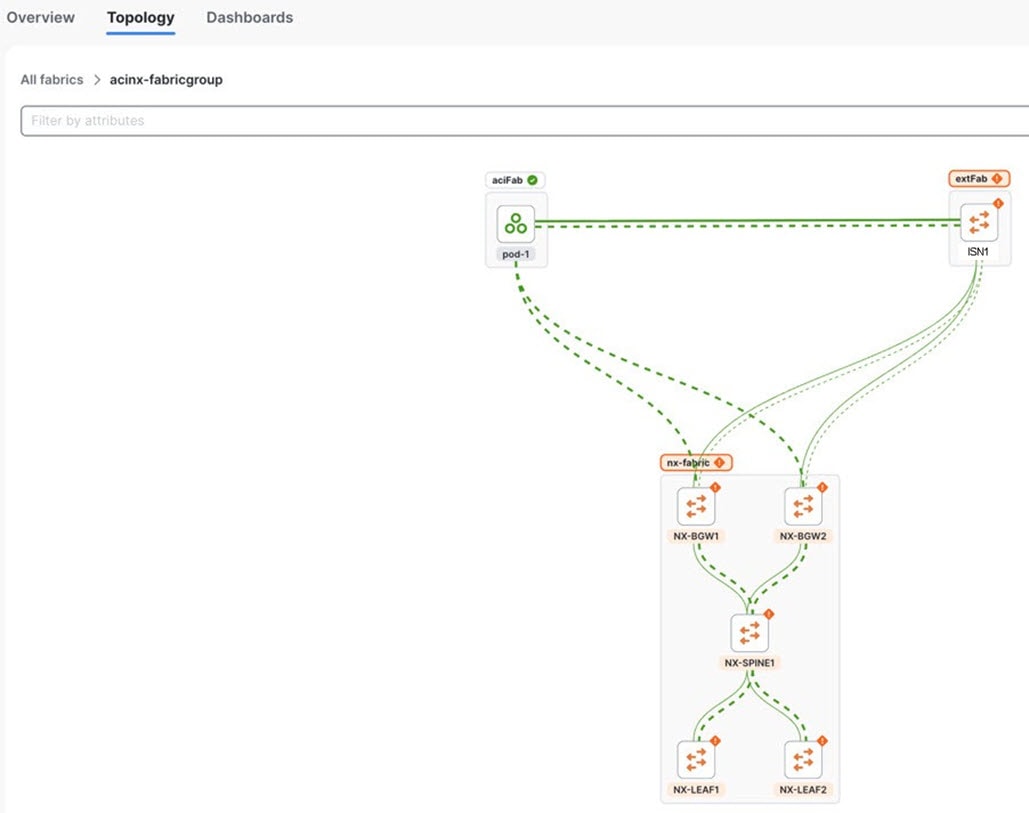
Choose Connectivity > Links for the fabric group. Verify that the following logical and physical links are displayed:
-
Underlay links: Locate the
vxlanAciMultisiteUnderlaypolicy name, which represents the border gateway (BGW) to inter-fabric network (IFN) connectivity. -
Overlay links: Locate the
vxlanAciOverlaypolicy name, which represents the full-mesh Ethernet VPN (EVPN) adjacencies between the ACI and Cisco NX-OS border gateways.
-
-
Choose Home > Topology to verify the links.
Create multi-cluster fabric groups
A multi-cluster fabric group is a logical container for VXLAN fabrics that are managed across multiple Nexus Dashboard clusters. To create a multi-cluster fabric group, you must integrate the participating Nexus Dashboard clusters into a federation (also known as one-manage).
-
Multi-cluster fabric group requirement: You must establish multi-cluster connectivity and federate the clusters before you can create a multi-cluster fabric group.
-
Primary cluster dependency: Create and manage multi-cluster fabric groups from the federation primary cluster. The primary cluster automatically synchronizes settings to all secondary clusters in the federation.
-
Fabric type limitation: Multi-cluster fabric groups support standard VXLAN fabrics only. VXLAN-ACI fabric group type is restricted to a single Nexus Dashboard cluster and does not support federation or multi-cluster management.
Guidelines and limitations for creating a multi-cluster fabric group
-
If you are viewing a single cluster, you can create fabrics and fabric group within a single cluster.
-
On the All Clusters > Fabrics page, you can view all the fabrics from all the member clusters. On the Fabric groups tab, you can view all the fabric groups from all the member clusters.
-
Even though the button displays as Create fabric group on the All Clusters > Multi-cluster fabric groups page, Nexus Dashboard creates a multi-cluster fabric group rather than a fabric group.
-
On the All Clusters page, if you click on Primary, you see the member fabrics for the primary cluster.
-
The health status for an NX-OS fabric will be shown if that fabric is owned by the cluster that you are viewing, but the health status will not be shown for an NX-OS fabric that is owned by another cluster in a multi-cluster fabric group.
-
Multi-cluster fabric groups support only standard Data Center VXLAN EVPN, including iBGP and External and Inter-Fabric Connectivity member fabric types.
-
Managing the same physical switch from more than one cluster is not supported in multi-cluster fabric group configurations. This unsupported configuration can affect topology views and deployment of inter-fabric connections in multi-cluster fabric groups.
Configure a multi-cluster fabric group
Follow these steps to configure a multi-cluster fabric group.
-
Ensure that you have configured multiple clusters for multi-cluster connectivity. For more information on multi-cluster connectivity in Nexus Dashboard, see the section "Connecting Nexus Dashboard clusters" in Connecting Clusters.
-
Navigate to All Clusters > Clusters and click on All Clusters.
-
Click Manage > Fabrics to navigate to the Fabrics page. You can view, create, delete, and modify fabrics and fabric groups on this page.
-
Click the Multi-cluster fabric groups tab.
You can see the multi-cluster fabric groups that have already been created on the Multi-cluster fabric groups page.
-
Click Create Fabric Group.
The Create multi-cluster fabric group page appears.
-
Navigate through the Create multi-cluster fabric group wizard to create a multi-cluster fabric group.
VXLAN is the default domain for creating multiple VXLAN and External fabrics.
-
Click Next.
-
Follow the steps for creating a fabric group. For more information, see Create fabric groups.
Add member fabrics to a multi-cluster fabric group
Follow these steps to add member fabrics to a multi-cluster fabric group.
-
Navigate to the All Clusters page for a multi-cluster fabric group.
-
Click Manage > Fabrics > Multi-Cluster fabric groups.
-
Click on the multi-cluster fabric group where you want to add a member fabric.
-
Click the Inventory tab.
-
Click the Member Fabrics subtab.
-
Click on the member fabric that you want to add to the multi-cluster fabric group.
-
Click Actions > Add member fabric.
A list of eligible member fabrics appears on the Add member fabric page.
-
On the Add member fabric page, click a member fabric that you want to add to a multi-cluster fabric group.
You can add only one member fabric at a time on this page.
-
Click Select.
The member fabric now appears under the Member Fabrics tab for this multi-cluster fabric group.
-
From the Actions drop-down list, click Recalculate and deploy.
-
Repeat steps 6 - 10 to add additional member fabrics to this multi-cluster fabric group.
Remove member fabrics from a multi-cluster fabric group
Follow these steps to remove member fabrics from a multi-cluster fabric group.
-
Navigate to the All Clusters page for a multi-cluster fabric group.
-
Click Manage > Fabrics > Multi-Cluster fabric groups.
-
Click on the multi-cluster fabric group where you want to remove a member fabric.
-
Click the Inventory tab.
-
Click the Member Fabrics subtab.
-
Click on the member fabric that you want to remove from the multi-cluster fabric group.
-
From the Actions drop-down list, click Actions > Remove member fabric.
-
Click Ok.
The member fabric no longer displays under the Member Fabrics tab for this multi-cluster fabric group.
-
From the Actions drop-down list, click Recalculate and deploy.
-
Repeat steps 5 - 9 to remove additional member fabrics from this multi-cluster fabric group.
Back up and restore multi-cluster fabric group configurations
Back up multi-cluster fabric group configurations
Follow these steps to back up a multi-cluster fabric group configuration.
-
Navigate to the All Clusters page for a multi-cluster fabric group.
-
Click Manage > Fabrics > Multi-Cluster fabric groups.
-
Click on the appropriate multi-cluster fabric group to display the overview information for that fabric group.
-
Click Actions > Maintenance > Backup Fabric Group.
The Create Fabric Backup window appears.
-
In the Backup Tag area, enter a name for the backup, then click Create Backup.
Restore multi-cluster fabric group configurations
Follow these steps to restore a multi-cluster fabric group configuration.
-
Navigate to the All Clusters page for a multi-cluster fabric group.
-
Click Manage > Fabrics > Multi-Cluster fabric groups.
-
Click on the appropriate multi-cluster fabric group to display the overview information for that fabric group.
-
Click Actions > Maintenance > Restore Fabric Group.
The Restore Fabric Group window appears.
-
Review the backups shown on this page.
This table describes the columns that appear on the Select Backup tab.
Fields Descriptions Backup Date
Specifies the backup date.
Backup Version
Specifies the version of backup.
Backup Tag
Specifies the backup name.
Backup Type
Specifies the backup type (for example, a golden backup).
This table describes the fields that appear on the Action tab.
Actions Descriptions Mark as golden
To mark an existing backup as a golden backup, choose Mark as golden. Click Confirm in the confirmation window.
Remove as golden
To remove an existing backup from a golden backup, choose Remove as golden. Click Confirm in the confirmation window.
-
In the Select Backup step, click the radio button for the fabric backup that you want to restore, then click Next.
-
In the Restore Preview step, verify that the information is correct for the backup that you want to restore.
You can preview the details about the configuration in the backup file. You can also view the name and serial numbers for the switches in the Fabric backup. Click on Delta Config to view the configuration difference on the switches in the fabric.
-
Click Restore Intent.
-
In the Restore Status step, you can view the status of restoring the intent.
-
Click Next to view the preview configuration.
-
In the Configuration Preview step, you can resync the configurations on specific switches.
For the desired switch, check the Switch Name check box, and click ReSync.
-
Click Deploy to complete the Restore Fabric Group operation.
Migrate a Nexus Dashboard 3.2.x Orchestration-managed fabric to a multi-cluster fabric group
You can migrate a Nexus Dashboard 3.2.x Orchestration-managed fabric to a Nexus Dashboard 4.2.1 multi-cluster fabric group. For more information on a Nexus Dashboard 3.2.x multi-cluster fabric, see Managing and Monitoring Multi-Cluster Fabrics Using One Manage, Release 12.2.2/12.2.3.
Prerequisites for migrating a Nexus Dashboard 3.2.x Orchestration-managed fabric to a multi-cluster fabric group
-
Upgrade from Nexus Dashboard 3.2.x to Nexus Dashboard 4.2.1. For more information, see Upgrade from Nexus Dashboard 3.2.x to Nexus Dashboard 4.2.1.
-
Configure at least two clusters for multi-cluster connectivity. For more information, see the section "Create or onboard a local online LAN Fabric" in Creating Fabrics and Fabric Groups.
-
Onboard all the clusters that were managed by Nexus Dashboard Orchestrator. For more information, see Connecting Clusters, Release 4.1.1
-
You can add either a remote user or a local user accessing from primary cluster using the multi-cluster login domain. For more information, see the section "Add primary cluster as remote authentication domain" in Configuring Users, Roles, and Security.
You need to add a local user for the VXLAN multi-cluster fabric group domain.
Guidelines and limitations for migrating a Nexus Dashboard 3.2.x Orchestration-managed fabric to a multi-cluster fabric group
-
You can migrate any Nexus Dashboard 3.2.x Orchestration-managed fabric to a Nexus Dashboard 4.2.1 multi-cluster fabric group.
-
After upgrading to Nexus Dashboard 4.2.1, we do not recommend adding VRFs or networks before migrating to a multi-cluster fabric group.
Upgrade from Nexus Dashboard 3.2.x to Nexus Dashboard 4.2.1
Refer to the "Upgrading an Existing Nexus Dashboard Cluster to This Release" section in the Cisco Nexus Dashboard Deployment and Upgrade Guide, Release 4.1.x for upgrade procedures.
How to migrate a Nexus Dashboard 3.2.x Orchestration-managed fabric to a multi-cluster fabric group
Follow these steps to migrate a Nexus Dashboard 3.2.x Orchestration-managed fabric to a Nexus Dashboard 4.2.1 multi-cluster fabric group.
-
Connect your Nexus Dashboard clusters. For more information, see the section "Connecting multiple ACI fabrics through the Orchestration page" in Connecting Multiple ACI Fabrics and Working with Orchestration.
After migration, Nexus Dashboard converts the Multi-Site Orchestration (MSO) fabric type to a VXLAN fabric type.
You now have two connected clusters using the VXLAN fabric type.
-
Log in as a super-admin, admin, or fabric-admin.
Nexus Dashboard requires a fabric admin in a multi-cluster fabric group.
-
Configure a multi-cluster fabric group as a regular user from the primary cluster. For more information, see Create multi-cluster fabric groups.
-
Ensure that all the Orchestration-managed fabrics are in-sync before adding the Orchestration-managed fabrics to a multi-cluster fabric group.
-
Add the fabric groups managed by Nexus Dashboard Orchestration as a member to a multi-cluster fabric group. You should migrate Orchestration-managed fabrics from all the clusters managed by Nexus Dashboard Orchestration. For more information, see Add member fabrics to a multi-cluster fabric group.
-
Perform a Recalculate and deploy operation.
This will migrate the multisite overlay links to the multi-cluster fabric group. You can manage the multisite underlay port configuration pushed by NDO in the future by editing the policies with the template name
multisite_dci_underlay_sitelocal_jythonfrom the individual fabrics. For more information, see Working with Configuration Policies for Your Nexus Dashboard LAN or IPFM Fabrics.
+ After migrating an Orchestration-managed fabric from Nexus Dashboard 3.2.x, we do not expect there to be a difference in the configurations.
-
Ensure that there are no pending configurations after performing a Recalculate and deploy operation.
-
Create a network or add a VRF. For more information, see the sections "Working with VRFs" and "Working with networks" in Working with Segmentation and Security for Your Nexus Dashboard VXLAN Fabric.
View the migrated multi-cluster fabric group on the Topology page
You can view the migrated multi-cluster fabric group on the Topology page after migrating your Nexus Dashboard 3.2.x Orchestration-managed fabric to a Nexus Dashboard 4.2.1 multi-cluster fabric group.
Follow these steps to view the migrated multi-cluster fabric group details on the Topology page.
-
Navigate to All Clusters > Clusters and click on All Clusters.
-
Navigate to Home > Topology.
Nexus Dashboard displays the network topology from the connected clusters.
Additional settings
The following sections provide information for additional settings that might be necessary when creating LAN fabrics or fabric groups.
Understanding the Fabric Summary page
Click on a fabric to open the side kick panel. The following sections display the summary of the fabric:
-
Health - Shows the health of the Fabric.
-
Alarms - Displays the alarms based on the categories.
-
Fabric Info - Provides basic about the Fabric.
-
Inventory - Provides information about Switch Configuration and Switch Health.
Click the Launch icon to the right top corner to view the Fabric Overview.
Advanced settings
Follow these steps to enable the advanced settings option.
-
Navigate to Admin > System Settings.
-
With General selected, locate the Advanced settings area.
-
Determine if the Display advanced settings and options for TAC support feature is enabled or not.
-
If you see Enabled under the Display advanced settings and options for TAC support field, this feature has already been enabled.
-
If you see Disabled under the Display advanced settings and options for TAC support field:
-
Click Edit in the Advanced settings area.
The Advanced settings page appears.
-
Check the Display advanced settings and options for TAC support check box to enable, then click Save.
You will now see Enabled under the Display advanced settings and options for TAC support field.
-
-
-
In the Routes area, click Edit.
The Routes page appears.
-
On the Management network routes area, click + Add management network route and enter the IP address.
-
Click Save.
Prerequisites to creating a fabric
-
The ESXi host default setting on the vSphere Client for promiscuous mode is supported. For more information, see ESXi Networking for Promiscuous Mode section. The vNIC of the POD that has the Persistent IP shares the same MAC address of Nexus Dashboard bond0 or bond1 interface. Therefore, the POD sources the packets using the same MAC address of Nexus Dashboard bond0 or bond1 interfaces that are known by the VMware ESXi system.
-
Configure the persistent IP addresses in Cisco Nexus Dashboard. For more information, see Cluster Configuration section in Cisco Nexus Dashboard User Guide.
Change persistent IP address
You can change the persistent IP addresses that are assigned for mandatory pods, such as POAP-SCP and SNMP traps.
To change the persistent IP address, perform the following steps:
-
On the Nexus Dashboard Web UI, navigate to Admin > System Settings > Fabric Management.
-
Under Advanced Settings, click Admin.
-
In the LAN Device Management Connectivity field, change Management to Data or vice versa.
Changing the option results in a migration of SNMP and POAP-SCP pods to the persistent IP addresses associated with External Service Pool on Nexus Dashboard associated with the new LAN Device Management Connectivity option. After the completion of this process, the following message is displayed:
Some features have been updated. Reload the page to see latest changes.Click Reload the page.
-
On the Nexus Dashboard Web UI, navigate to Admin > System Settings > General.
-
In the External pools card, click Edit to change the required IP addresses for Persistent management IPs or Persistent data IPs.
-
Navigate back to Admin > System Settings > Fabric Management > Advanced Settings > Admin, then change the option in LAN Device Management Connectivity drop-down list to its initial selection.
Restoring this option to initial settings results in migration of the SNMP and POAP-SCP pods to use the updated persistent IP address from the appropriate external Service IP pool.
Configuring overlay mode
You can create a VRF or network in CLI or config-profile mode at the fabric level. The overlay mode of member fabrics in a VXLAN fabric group is set individually at the member-fabric level. Overlay mode can only be changed before deploying overlay configurations to the switches. After the overlay configuration is deployed, you cannot change the mode unless all the VRF and network attachments are removed.
If the switch has config-profile based overlays, you can import it in the config-profile overlay mode only. If you import it in the cli overlay mode, an error appears during brownfield import.
For brownfield import, if overlay is deployed as config-profile mode, it can be imported in config-profile mode only. However, if overlay is deployed as cli, it can be imported in either config-profile or cli modes.
To choose the overlay mode of VRFs or networks in a fabric, perform the following steps:
-
Navigate to the Edit Fabric page.
-
Go to the Advanced tab.
-
From the Overlay Mode drop-down list, choose config-profile or cli.
The default mode is cli.
Configuring Netflow support
Configuring Netflow at the fabric level allows you to collect, record, export, and monitor network flow and data to determine network traffic flow and volume for further analysis and troubleshooting. You can configure Netflow for VXLAN, Routed (BGP), External/inter-fabric connectivity, and Classic LAN fabric templates.
After Netflow is enabled for fabric, you can configure Netflow on a network, or an interface (VLAN, SVI, physical interface, sub-interface, or port-channel). Before enabling Netflow on the interface or network, ensure that the specified monitor name is defined in the fabric settings.
When Netflow is enabled at the fabric level, the configuration is generated for Netflow capable switches (FX/GX/EX) in the fabric except for spine/super-spine or switches with no_netflow policy. In a Multi-Site domain configuration, Netflow is configured per Easy Fabric and not for the entire Multi-Site domain.
Nexus Dashboard does not validate the Netflow Monitor name.
The following are the guidelines for Netflow configuration on other network elements:
-
For VRF Lite IFC, the Netflow configuration is not inside the configuration profile, regardless of overlay mode.
-
For networks, Netflow configurations are not inside the configuration profile, regardless of overlay mode.
-
You can configure Netflow for Layer 2 Interface on trunk ports, access ports, dot1q tunnels, Layer2 port-channel, and VPC ports.
-
You can configure Netflow for the Layer 3 interface on SVI, Routed host, L3 Port-Channel, and sub-interfaces.
-
Netflow configuration for VLANs uses vlan_netflow Record Template. In Brownfield deployment, the Netflow configuration for VLANs is in switch freeform.
-
You can enable Netflow under SVI (for routed traffic) or Vlan Configuration (for switched traffic).
-
To configure IPv6 flow monitoring, use switch_freeform or interface freeform.
-
Netflow configuration under the trunk or routed port is in interface freeform.
-
For Host port resync, Netflow configuration is captured in interface freeform.
-
There is no explicit support for Netflow in Intra-Fabric link or Multisite Underlay IFC. Note that you can use freeform configuration.
Netflow support for brownfield deployments
For brownfield deployments, global Netflow configuration for export, record, and monitor are not captured due to the telemetry use case. After brownfield import, to avoid global level Netflow command being removed, you can perform the following actions:
-
Do not turn on strict CC.
-
Include the Netflow global configuration in switch freeform.
-
Enable Netflow in the fabric setting matching with the switch configuration.
Interface and VLAN-level Netflow configuration on the switch is captured in freeform.
-
SVI Netflow config is captured in switch_freeform tied to the network.
-
Netflow configuration for trunk or routed ports is in the interface freeform.
-
Netflow configuration for VLANs is in the switch_freeform.
-
The sub-interface configuration for VRF-Lite extensions is in int_freeform.
VXLAN OAM
In Nexus Dashboard, VXLAN OAM is supported on VXLAN, Routed (eBGP), External/interfabric-connectivity, and Classic LAN fabrics. You can track details such as reachability and actual path of the flows in a VXLAN EVPN based-fabric topology.
Guidelines
-
OAM must be enabled on the switches before using the OAM trace.
-
VXLAN OAM IPv6 is now supported.
-
NX-API and NX-API on HTTP port must be enabled.
-
vPC advertise-pip must be enabled.
-
For switch-to-switch OAM, ensure that the VRFs are configured along with loopback interfaces with IPv4 and/or IPv6 addresses under those VRFs.
-
For host-to-host OAM, ensure that the Networks are configured along with IPv4 and/or IPv6 gateway configuration.
-
IPv6 underlay is supported with VXLAN OAM. To enable the VXLAN OAM support over IPv6 underlay, perform any one of the following steps:
-
On the Topology window:
-
Choose Actions > Add Fabric.
-
On the General Parameters tab, check the Enable IPv6 Underlay check box.
-
-
On the Fabrics window:
-
Choose Actions > Create Fabric.
-
On the General Parameters tab, check the Enable IPv6 Underlay check box.
Changing of IPv4 to IPv6 underlay is not supported for existing fabric settings.
-
To change the fabric settings from IPv4 to IPv6 underlay, delete the existing fabric and create new fabric with Underlay IPV6 enabled.
-
UI Navigation
-
In the Topology window: Click Actions. Choose VXLAN OAM option from the drop-down list.
-
From the Fabrics window: Choose Manage > Fabrics. Navigate to the fabric overview window of a fabric. Click Actions. Choose VXLAN OAM option from the drop-down list.
The VXLAN OAM window appears. The Path Trace Settings pane on the left displays the Switch to Switch and Host to Host tabs. Nexus Dashboard highlights the route on the topology between the source and destination switch for these two options.
The Switch to Switch option provides the VXLAN OAM ping and traceroute test results for the VTEP-to-VTEP use-case. Provide the following values to enable search by using the Switch to Switch option:
-
In the Source Switch drop-down list, choose the source switch.
-
In the Destination Switch drop-down list, choose the destination switch.
-
From the VRF drop-down list, choose or enter the VRF details.
-
Check the All paths included check box to include all the paths in the search results.
The Host to Host option provides the VXLAN OAM path trace results for the exact path that is taken by a given flow from the VTEP or switch that is connected to the source host to VTEP or switch that is connected to the destination host. For the Host to Host use-case, there are two options:
-
VRF or SVI for a network is instantiated on the switches in the VXLAN EVPN fabric. In such a scenario, the IP address information of the end hosts is required.
-
Layer 2 configuration for a given network is instantiated on the switches in the VXLAN EVPN fabric. In such a scenario, both the MAC and IP address information of the end hosts are required.
Provide the following values to enable search using the Host to Host option:
-
From the Source Host IP field, enter the IPv4/IPv6 address of the source host.
-
From the Destination Host IP field, enter the IPv4/IPv6 address of the destination host.
-
In the VRF field, choose VRF from the drop-down list or enter the VRF name that is associated with the hosts.
-
In the Source Port field, choose Layer 4 source port number from the drop-down list or enter its value.
-
In the Destination Port field, choose destination port number or enter its value.
-
In the Protocol field, choose the protocol value from the drop-down list or enter its value. This is the Layer 4 protocol, usually TCP or UDP.
-
Check the Layer 2 only check box to search the VXLAN-EVPN fabric that is deployed in Layer 2 only mode for some networks, that is, Layer 2 VNIs. No SVIs or VRFs should be instantiated in the fabric for these networks when you use this search option. When you check this option, you have to enter details of the source MAC address, destination MAC address, and VNI too.
Click Run Path Trace to view the path trace from switch to switch or host to host.
You can view the forward path and reverse path as well in the topology. The summary of the path trace appears in the Summary tab. You can view the details of the forward and reverse paths as well under Forward Path or Reverse Path tabs. Filter the results by attributes, if needed.
AI QoS classification and queuing policies
These sections provide information about the AI QoS classification and queuing policies.
Understanding AI QoS classification and queuing policies
Support is available for configuring a low latency, high throughput, and lossless fabric configuration that can be used for artificial intelligence (AI) fabric based traffic.
The AI QoS feature allows you to:
-
Easily configure a network with homogeneous interface speeds, where most or all of the links run at 400Gb, 100Gb, or 25Gb speeds.
-
Provide customizations to override the predominate queuing policy for a host interface.
When you apply the AI QoS policy, Nexus Dashboard will automatically pre-configure any inter-fabric links with QoS and system queuing policies, and will also enable Priority Flow Control (PFC). If you enable the AI QoS feature on a VXLAN EVPN fabric, then the Network Virtual (NVE) interface will have the attached AI QoS policies.
You can enable this feature and set queuing policy parameters based on interface speed using new fields available during BGP fabric configuration.
+ Policies defined with these custom Classification and Queuing templates can be used in various host interface polices. For more information, see Create a policy using the custom QoS templates.
When enabling the AI feature, priority-flow-control watchdog-interval on is enabled on all of your configured devices, intra-fabric links, and all your host interfaces where Priority Flow Control (PFC) is also enabled. The PFC watchdog interval is for detecting whether packets in a no-drop queue are being drained within a specified time period. This release also adds the Priority flow control watch-dog interval field on the Advanced tab. When you create or edit a Data Center VXLAN EVPN fabric or other fabrics and AI is enabled, you can set the Priority flow control watch-dog interval field to a non-system default value (the default is 100 milliseconds). For more information on the PFC watchdog interval for Cisco NX-OS, see Configuring a priority flow control watchdog Interval in the Cisco Nexus 9000 Series NX-OS Quality of Service Configuration Guide.
If you perform an upgrade from an earlier release, and then do a Recalculate and deploy, you may see additional priority-flow-control watchdog-interval on configurations.
Guidelines and limitations for AI QoS classification and queuing policies
Following are the guidelines and limitations for the AI QoS and queuing policy feature:
-
Apply AI QoS policies at the fabric level rather than on individual switches to ensure consistent traffic classification and uniform policy enforcement.
-
On Cisco Nexus N9K-C9808 and N9K-C9804 series switches, the command priority-flow-control watch-dog-interval is not supported in either global or interface configuration modes and the command hardware qos nodrop-queue-thresholds queue-green is not supported in global configuration mode.
-
Cisco Nexus N9K-C9808 and N9K-C9804 series switches only support AI fabric type from NX-OS version 10.5(1) and later.
-
This feature does not automate any per-interface speed settings.
-
This feature is supported only on Nexus devices with Cisco Cloud Scale technology, such as the Cisco Nexus 9300-FX2, 9300-FX3, 9300-GX, and 9300-GX2 series switches.
-
This feature is not supported in fabrics with devices that are assigned with a ToR role.
Configure AI QoS classification and queuing policies
Follow these steps to configure AI QoS and queuing policies:
-
Enable AI QoS and queuing policies at the fabric level.
-
Create a fabric as you normally would.
-
In the Advanced tab in those instructions, make the necessary selections to configure AI QoS and queuing policies at the fabric level.
-
Configure any remaining fabric-level settings as necessary in the remaining tabs.
-
When you have completed all the necessary fabric-level configurations, click Save, then click Recalculate and deploy.
At this point in the process, the network QoS and queuing policies are configured on each device, the classification policy is configured on NVE interfaces (if applicable), and priority flow control and classification policy is configured on all intra-fabric link interfaces.
-
-
For host interfaces, selectively enable priority flow control, QoS, and queuing by editing the policy associated with that host interface.
See Working with Connectivity for LAN Fabrics for more information.
-
Within a fabric where you enabled AI QoS and queuing policies in the previous step, click the Interfaces tab.
The configured interfaces within this fabric are displayed.
-
Locate the host interface where you want to enable AI QoS and queuing policies, then click the box next to that host interface to select it and click Actions > Edit.
The Edit Interfaces page is displayed.
-
In the Policy field, verify that the policy that is associated with this interface contains the necessary fields that will allow you to enable AI QoS and queuing policies on this host interface.
For example, these policy templates contain the necessary AI QoS and queuing policies fields:
-
int_access_host
-
int_dot1q_tunnel_host
-
int_pvlan_host
-
int_routed_host
-
int_trunk_host
-
-
Locate the Enable priority flow control field and click the box next to this field to enable Priority Flow Control for this host interface.
-
In the Enable QoS Configuration field, click the box next to this field to enable AI QoS for this host interface.
This enables the QoS classification on this interface if AI queuing is enabled at the fabric level.
-
If you checked the box next to the Enable QoS Configuration field in the previous step and you created a custom QoS policy using the procedures provided in Create a policy using the custom QoS templates, enter that custom QoS classification policy in the Custom QoS Policy for this interface field to associate that custom QoS policy with this host interface, if necessary.
If this field is left blank, then Nexus Dashboard will use the default QOS_CLASSIFICATION policy, if available.
-
If you created a custom queuing policy using the procedures provided in Create a policy using the custom QoS templates, enter that custom queuing policy in the Custom Queuing Policy for this interface field to associate that custom queuing policy with this host interface, if desired.
-
Click Save when you have completed the AI QoS and queuing policy configurations for this host interface.
-
Create a policy using the custom QoS templates
Follow these procedures to use the custom QoS templates to create a policy, if desired. See Managing Your Template Library for general information on templates.
-
Within a fabric where you enabled AI QoS and queuing policies, click Inventory > Switches, then double-click the switch that has the host interface where you enabled AI QoS and queuing policies.
The Switch Overview page for that switch appears.
-
Choose Configuration Policies > Policies.
-
Click Actions > Add policy.
The Create Policy page appears.
-
Set the priority and enter a description for the new policy.
Note that the priority for this policy must be lower (must come before) the priority that was set for the host interface.
-
In the Select Template field, click the No Policy Selected text.
The Select Policy Template page appears.
-
Make the necessary QoS classification or queuing configurations in the template that you selected, then click Save.
Any custom QoS policy created using these procedures are now available to use when you configure QoS and queuing policies for the host interface.
Configuring downstream VNI
In a VXLAN fabric, the Layer 3 and Layer 2 virtual network identifier (VNIs) are centrally managed using a VXLAN fabric group for inter-fabric connectivity. All the VXLAN fabrics within the VXLAN fabric group use the same VNI value for the Layer 3 or Layer 2 network. The problem is that before the fabrics are brought in for inter-fabric connectivity, the fabrics have been managed as standalone fabrics with existing VRFs and networks. The Layer 2 and Layer 3 overlays have been configured independently and have conflicting VNIs among fabrics.
There are two types of VNI conflicts:
-
The same VNI is used by different VRFs or networks in different VXLAN fabrics.
-
The same VRF or network uses different VNIs in different VXLAN fabrics.
This feature is supported when creating or editing fabric types:
-
VXLAN
-
Campus VXLAN Prior to Nexus Dashboard release 4.1.1, you could not add a VXLAN fabric to a VXLAN fabric group if there was a VNI conflict. With Nexus Dashboard release 4.1.1, downstream VNI (DSVNI) allows VXLAN fabrics with a VNI conflict to communicate with each other. On the border gateway, Nexus Dashboard uses different VNIs for exchanging intra-fabric and inter-fabric traffic. The existing VNI continues to be used for intra-fabric traffic. Stitching of the VNI occurs at the border gateways for inter-fabric traffic between fabrics using different VNIs.
Nexus Dashboard added downstream VNI options in a VXLAN fabric group for configuring a global Layer 2 VNI and a Layer 3 VNI pool. The two ranges should not conflict with VNIs already in use in existing VXLAN fabrics. We suggest picking from the high end of the VNI range for the global Layer 3 VXLAN VNI Global Range and the Layer 2 VXLAN VNI Global Range in the General Parameters page for the fabric. Nexus Dashboard generates a new VRF and a network VNI allocation based on these two ranges.
Enabling downstream VNI in a VXLAN fabric group does not affect existing VRFs and networks.
When Nexus Dashboard allocates a VNI for a VRF or a network, and its intra-fabric VNI is different from the downstream VNI, Nexus Dashboard requires additional configuration on the border gateway.
VRF CLIs on border gateways for downstream VNI
ip extcommunity-list standard <vrf-name> seq 10 permit rt 2324:50005
route-map MS-FABRIC-TO-EXTERNAL-RMAP permit 100
  match extcommunity <vrf-name>
  set extcomm-list <vrf-name> delete

vrf context <vrf-name>
  address-family ipv4 unicast
    route-target both <local-asn>:<DSVNI>
    route-target both <local-asn>:<DSVNI> evpn
  address-family ipv6 unicast
    route-target both <local-asn>:<DSVNI>
    route-target both <local-asn>:<DSVNI> evpn
Network CLIs on border gateways for downstream VNI
ip extcommunity-list standard <network-name> permit rt 27:30001
route-map MS-FABRIC-TO-EXTERNAL-RMAP permit 200
  match extcommunity <network-name>
  set extcomm-list <network-name> delete
route-map MS-FABRIC-TO-EXTERNAL-RMAP permit 65535
evpn
  vni <local-VNI> l2
  route-target both <local-asn>:<DSVNI>
Nexus Dashboard generates an additional route target containing the downstream VNI allowing border gateways in different fabrics to exchange routes.
extcommunity-list and route-map removes the local VNI from the BGP updates towards Data Center Interconnectivity (DCI). This prevents route leaking if the same VNI is used in a different fabric for a different VRF or network. route-map MS-FABRIC-TO-EXTERNAL-RMAP is applied to all multi-site overlay inter-fabric links if downstream VNI is enabled in the fabric group, regardless of whether the inter-fabric link is manually created or auto-generated by Nexus Dashboard.
Benefits of downstream VNI
-
Resolves overlapping VNIs when using conflicted VNIs for a VRF or a network in different fabrics because of not changing the default VNI pool, which is the same for all VXLAN fabrics
-
Supports route exchange using a route target
-
Prevents route leaking
-
The downstream VNI feature provides normalized VNI ID support for both Layer 2 and Layer 3 VNIs, helping manage VNI consistency and prevent conflicts.
Use cases for downstream VNI
When you add a new VXLAN fabric to a VXLAN fabric group for inter-fabric connectivity, and if Nexus Dashboard detects a VNI conflict, Nexus Dashboard allocates a new downstream VNI range.
-
If the same VNI is used by a VRF or a network in a VXLAN fabric group and the incoming VXLAN fabric (vrf1 in the fabric group and vrf2 in the incoming VXLAN fabric), Nexus Dashboard allocates a new VNI from the global VNI pool for both the VRF and the network. In this example, Nexus Dashboard allocates a new VNI for vrf1 and vrf2.
-
If a VRF or a network use a different VNI in a VXLAN fabric group and the incoming VXLAN fabric, Nexus Dashboard allocates a new VNI, if the VNI in the VXLAN fabric group is not already in the global VNI range.
-
In these two use cases, if there is a VNI conflict between the VXLAN fabric group and the incoming VXLAN fabric, and the VNI in the incoming VXLAN fabric is already in the global VNI range, you cannot add the VXLAN fabric to the VXLAN fabric group. In this use case, you can edit the global L2 VNI and or the L3 VNI range so that the VNI range does not overlap with the VNIs already used in the incoming VXLAN fabric.
Supported platforms
Ensure that all border gateways have the correct platform and NX-OS version that supports downstream VNI. For the list of supported platforms and NX-OS versions, see the Cisco Nexus 9000 Series NX-OS VXLAN Configuration Guide.
Guidelines and limitations for downstream VNI
-
You must use unique names for VRFS and networks.
This means that vrf foo on fabric1 and vrf foo on fabric2 refer to the same VRF. The same applies for network names.
-
You cannot disable downstream VNI in a VXLAN fabric group if there are any existing VRFs or networks with a fabric VNI that differs from the VNI of the VXLAN fabric group.
These features are not supported for downstream VNI:
-
Using the same VRF or network but using a different VRF name or network name in a different VXLAN fabric
-
IPv6 underlay
-
Security groups
-
PVLAN
-
TRM and TRMv6
-
CloudSec VXLAN tunnel encryption
-
Brownfield deployment where downstream VNI is already configured on a switch
Understanding the Nexus One architecture
In Nexus Dashboard Release 4.2.1 introduces the Nexus One architecture to unify the management and operation of Cisco Application Centric Infrastructure (ACI) and Cisco NX-OS Virtual Extensible LAN (VXLAN) Ethernet VPN (EVPN) fabrics. This architecture provides consistent policy enforcement and operational workflows across domains using a single management plane: Nexus Dashboard.
The Nexus One architecture eliminates operational silos between Cisco ACI and Cisco NX-OS environments. It provides policy enforcement, automated inter-fabric connectivity, and Layer 2 and Layer 3 stretching.
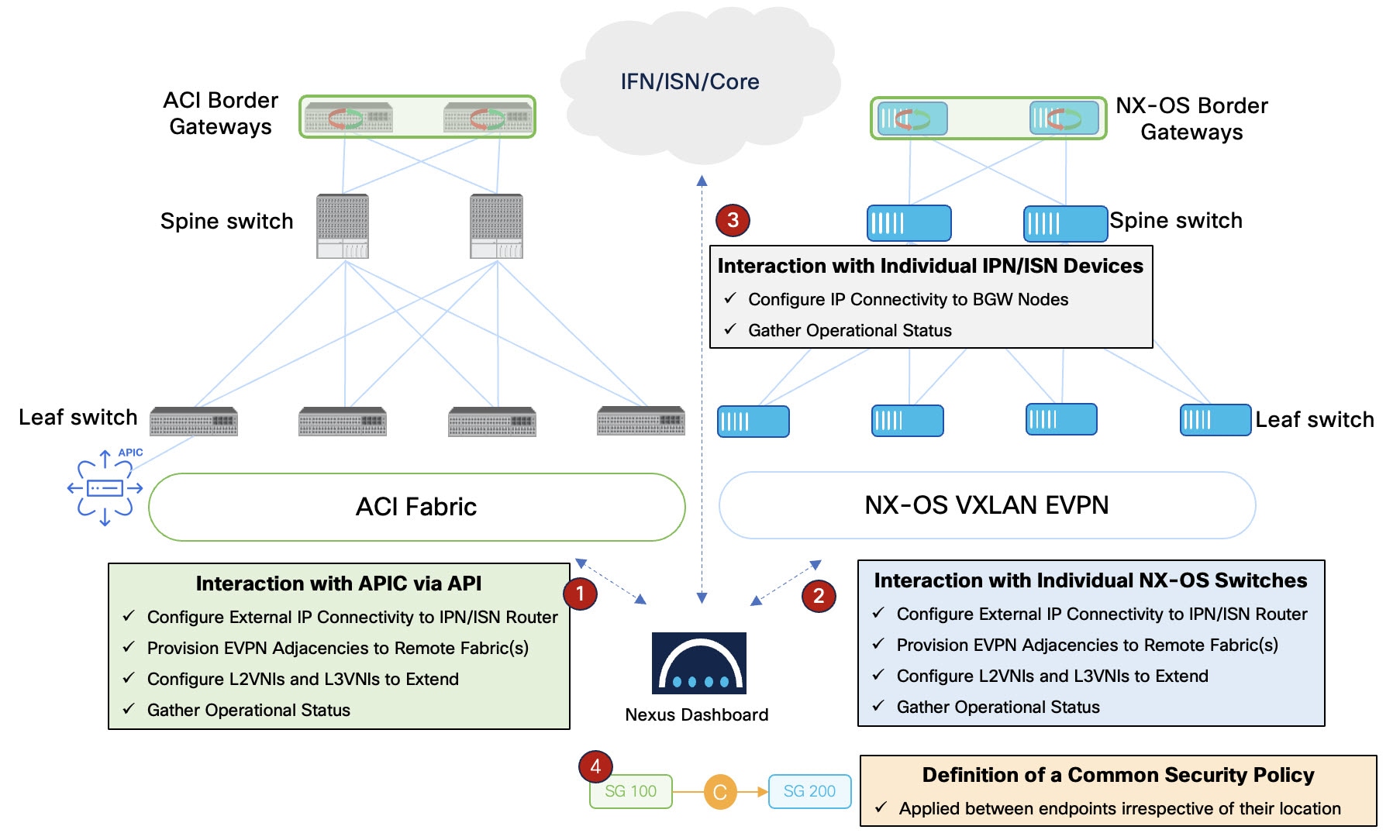
Architectural components
The Nexus One framework relies on these architectural components:
-
Management plane (Nexus Dashboard): The management plane acts as the central controller for the VXLAN-ACI fabric group. It handles the mapping of intents to specific Cisco ACI and Cisco NX-OS configurations.
-
Control plane and data plane interoperability: The system uses Cisco ACI and Cisco NX-OS border gateways to establish the control plane and the data plane between fabrics. The control plane exchanges reachability information through Multiprotocol-Border Gateway Protocol (MP-BGP) EVPN. The data plane provides reachability through VXLAN tunnels.
-
Inter-fabric network (IFN): This is the external routed Layer 3 network that provides the physical underlay connectivity between the Cisco ACI and Cisco NX-OS sites.
-
A "VXLAN-ACI" type of fabric group that manages this specialized VXLAN fabric group across heterogeneous ACI and NX-OS fabrics.
Nexus One topology The Nexus One architecture uses a model to establish direct Multiprotocol-Border Gateway Protocol (MP-BGP) Ethernet VPN (EVPN) peering between Cisco ACI and Cisco NX-OS fabrics.
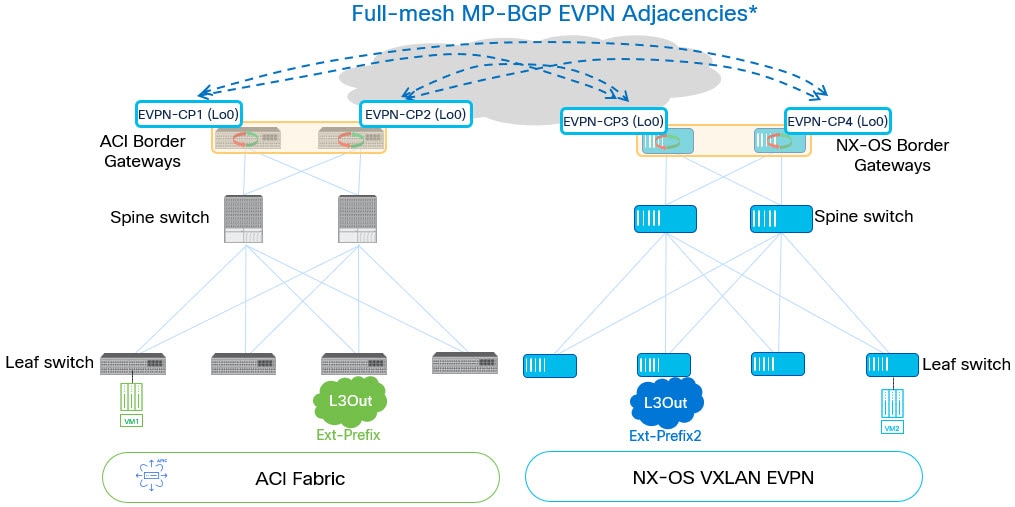
The diagram illustrates these elements:
-
A Nexus Dashboard cluster manages the group.
-
A Cisco ACI fabric has at least one border gateway per pod.
-
Cisco ACI and Cisco NX-OS VXLAN EVPN fabrics use border gateways to establish inter-fabric connectivity.
-
An inter-fabric network (IFN) connects both fabrics.
-
The system establishes logical BGP EVPN peerings directly between Cisco ACI BGWs and Cisco NX-OS BGWs.
Topology and architectural limitations
Observe these topological constraints when you use Nexus One:
-
Multi-cluster fabric group support: VXLAN-ACI fabric groups are restricted to a single Nexus Dashboard cluster. The VXLAN-ACI group type does not support multi-cluster fabric group (although a Nexus Dashboard cluster can be part of a multi-cluster fabric group, a VXLAN-ACI fabric group must reside on a single cluster.).
-
Fabric type restrictions: A VXLAN-ACI fabric group cannot contain Campus VXLAN EVPN fabrics. Use this group type for Data Center VXLAN EVPN and Cisco ACI interoperability.
-
Telemetry requirement: You must enable telemetry for the Cisco ACI fabric during onboarding to support the Nexus One operational model.
Mapping between ND, NX-OS and ACI policies for VXLAN-ACI fabric group
This table provides mapping information between Nexus Dashboard, NX-OS and ACI policies for VXLAN-ACI fabric groups.
| Nexus Dashboard | NX-OS | ACI |
|---|---|---|
|
VRF |
VRF |
VRF |
|
Network |
Network |
BD, EPG |
|
Network attachment |
Network attachment |
EPG’s static port binding |
|
Security Group |
Security Group |
Endpoint Security Group |
|
Security Contract |
Security Policy Map |
Subject of ACI contract |
|
Protocol definition and protocol definition entry |
Security Class-map and match |
Filter and filter entry |
|
Security association name |
Not used |
ACI contract name |
|
Source of security association |
The source security group in a security association |
Consumer of ACI contract |
|
Destination of security association |
The destination security group in a security association |
Provider of ACI contract |
|
Network selector for security groups that uses a normal network as the selector |
VLAN selector |
EPG selector |
|
Network selector for security groups that uses a child network as the selector |
Port, VLAN selector |
EPG selector |
|
IP selector for security groups |
IP selector |
IP subnet selector |
|
External subnet selector |
External subnet selector |
External subnet selector |
Prerequisites and requirements for Nexus One
To implement the Nexus One architecture and establish interoperability between ACI and Cisco NX-OS fabrics within a VXLAN-ACI fabric group, meet these software, hardware, and system configurations:
Software version requirements
All components in the architecture must run the minimum software versions to support automated inter-fabric connectivity (IFC) and policy mapping:
-
Cisco Nexus Dashboard: Release 4.2.1 or later.
-
Cisco Application Policy Infrastructure Controller (APIC): Release 6.1.4 or later.
-
Cisco NX-OS: Release 10.5(3) or later.
Hardware and connectivity requirements
The physical infrastructure must support border gateway functions and inter-fabric communication.
-
Cisco ACI border gateways (BGWs): At least one border gateway is required in every Cisco ACI pod in the fabric group.
-
Inter-fabric network (IFN): An external Layer 3 network, must interconnect the Cisco ACI and Cisco NX-OS sites.
-
MTU settings: Configure jumbo MTU (9216) on the ISN or IFN switches.
System and fabric settings
Enable specific global and fabric-level settings in Nexus Dashboard to allow for automated discovery and telemetry collection.
-
Telemetry: You must enable telemetry for all Cisco ACI fabrics during onboarding. This is required for Nexus Dashboard to manage Cisco ACI as part of a Nexus One architecture.
-
LLDP link discovery: Enable Link Layer Discovery Protocol (LLDP) discovery in the Nexus Dashboard advanced settings (Admin > System Settings > General > Advanced settings).
-
Monitor mode: When you onboard fabrics of type External Connectivity (used for ISN or IFN switches), disable Monitor Mode to allow Nexus Dashboard to automate underlay and overlay configurations.
-
Fabric group membership: Add the ACI fabric, the external connectivity fabric (ISN or IFN), and the Cisco NX-OS fabrics to the same VXLAN-ACI fabric group to automate underlay and overlay configurations.
Supported switch roles
Nexus Dashboard automates connectivity based on the roles assigned to the switches during onboarding. Assign these supported roles to the switches:
-
For Cisco ACI fabrics:
-
Border gateway: At least one border gateway is required in every Cisco ACI pod.
-
-
For external connectivity fabrics (IFN):
-
Core router
-
Edge router
-
VXLAN-ACI fabric group configuration workflow
Follow these steps to deploy a VXLAN-ACI fabric group:
-
Onboard fabrics (ACI, Cisco NX-OS, ISN): Onboard the ACI fabric through the APIC, the Cisco NX-OS fabric, and the external connectivity inter-switch network (ISN) fabric into Nexus Dashboard. See Onboard ACI fabrics for those procedures.
-
Assign Cisco NX-OS roles: Assign the Border Gateway role to the appropriate switches in the Cisco NX-OS fabric. See Assign switch roles for those procedures.
-
Assign ISN roles: Assign the Core Router or Edge Router role to the switches in the external connectivity (ISN) fabric. See Assign switch roles for those procedures.
-
Create a VXLAN-ACI fabric group: Create a VXLAN-ACI fabric group. Ensure that you add the ACI fabric as the first member. See Create fabric groups for those procedures.
-
Create and associate a tenant: On the Multi-tenancy page, create a tenant and associate it with the VXLAN-ACI fabric group. See Configuring Tenants and Tenant Domains for those procedures.
-
Define and stretch a VRF: Create a VRF instance within the fabric group and stretch it to the ACI and Cisco NX-OS Border Gateways. See Working with VRFs for those procedures.
-
Define and stretch a network: Create a Layer 2 or Layer 3 network and stretch it across the fabric group to enable cross-domain connectivity. See Working with networks for those procedures.
The Layer 2 with VRF option appears only if the Security Groups MAC Segmentation option is enabled in the fabric settings.
-
Create security groups: Define security groups and add network or IP selectors to classify endpoints across the fabrics. See Working with security groups for those procedures.
-
Define protocol definitions: Create protocol definitions to specify the traffic filters, such as TCP, UDP, or ICMP, required for security rules. See Working with protocol definitions for those procedures.
-
Create security contracts: Define security contracts that reference protocol definitions and specify the traffic direction, such as Unidirectional or Bidirectional. See Working with security contracts for those procedures.
-
Establish security associations: Link source and destination security groups through a security association to apply the defined contract. See Working with security associations for those procedures.
-
Perform a tenant deploy: Preview the configuration intent and perform a Tenant Deploy to push all settings to the ACI and Cisco NX-OS fabrics. See Deploying tenants for those procedures.
Create VXLAN-ACI fabric group
Follow these steps to create VXLAN-ACI fabric group.
-
Navigate to Manage > Fabrics > Fabric groups
-
From the Actions drop-down list, choose Create fabric group.
-
On the Select a type section, perform these actions:
-
Enter the Name.
-
Choose VXLAN from Type section.
-
Choose VXLAN-ACI option from Fabric group type section.
-
-
Click Next.
-
On the Advanced fabric group settings page, perform these actions:
-
General Parameters: Review and update the fields as needed.
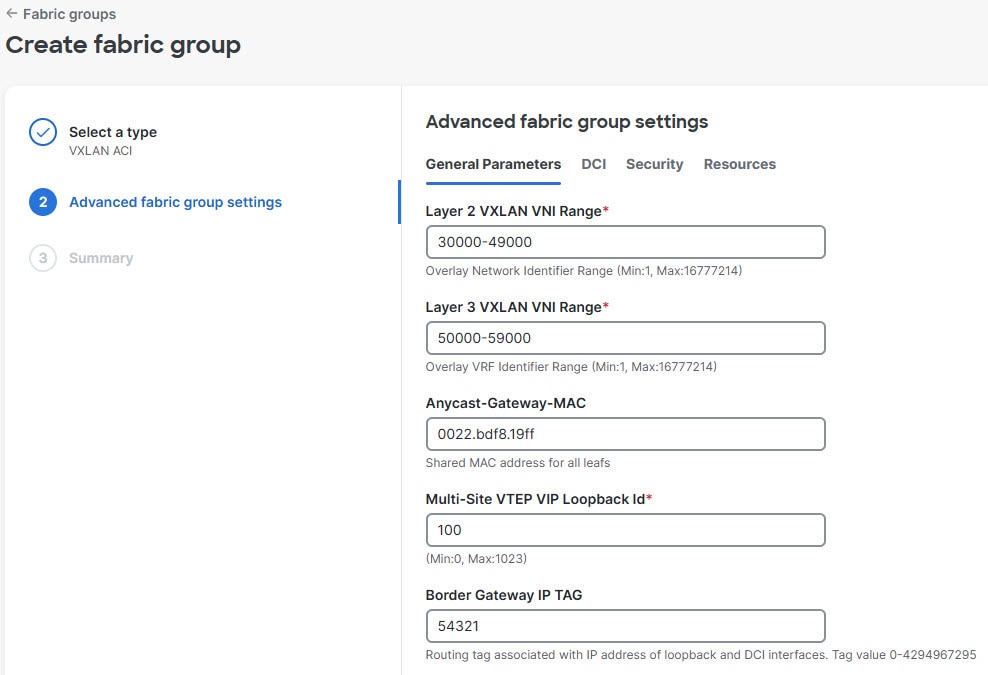
-
Enter the Anycast-Gateway-MAC as 0022.bdf8.19ff.
This address is the default MAC address for the Cisco APIC. Ensure that all Cisco NX-OS member fabrics use this same MAC address to maintain consistency across the VXLAN-ACI fabric group.
-
DCI: We recommend these:
-
Choose directPeering from the Multi-Site Overlay IFC Deployment Method drop-down list.
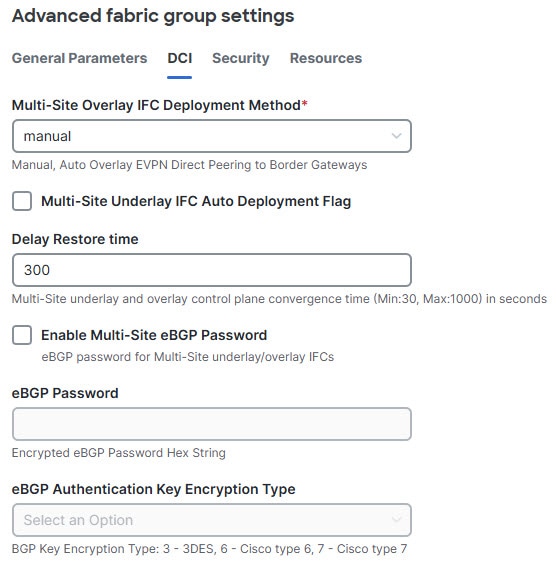
-
Check Multi-Site Underlay IFC Auto Deployment Flag check box.
-
-
Security: Review and update the fields as needed.
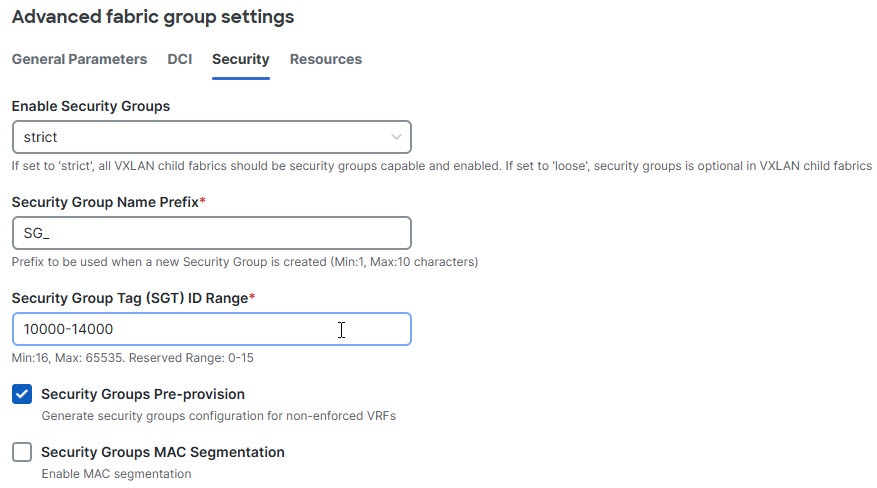
-
Ensure Enable Security Groups option is Strict.
-
Check the Security Groups MAC Segmentation check box. We recommend enabling this feature.
-
-
Resources: Review and update the fields as needed, and then click Next.
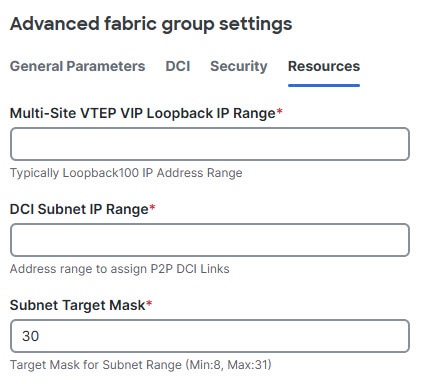
-
-
Review the details on Summary page and click Submit. After successful creation, the Create fabric group page appears.
-
Click Add member fabric.
The Add member fabric page appears.
-
From the Name column, click the ACI fabric. Always add the ACI fabric first.
After successful creation, the Add member fabric page appears with the confirmation message.
-
Click Add another member fabric, to repeat the procedure to add NX-OS fabric and external IFN fabrics.
Guidelines and limitations for VXLAN-ACI fabric groups
-
VXLAN-ACI fabric group restrictions: Observe the following restrictions when managing VXLAN-ACI fabric groups:
-
Nexus Dashboard does not support external Border Gateway Protocol (eBGP) passwords.
-
Add the Cisco ACI fabric as the first member fabric and remove it as the last member fabric.
-
Detach all policies created and owned by Nexus Dashboard and deploy before you remove the Cisco ACI fabric.
-
In Nexus Dashboard 4.2.1, add the Cisco NX-OS fabric to the VXLAN-ACI fabric group before you associate a tenant.
-
In Nexus Dashboard 4.2.1, a fabric group supports a maximum of one Cisco ACI fabric, which can be a multi-pod fabric, and two Cisco NX-OS fabrics.
-
VXLAN-ACI fabric groups do not support multi-cluster fabric groups or one-manage functionality. A VXLAN-ACI fabric group must contain fabrics managed by the same Nexus Dashboard cluster. It cannot span multiple clusters.
-
You cannot change a fabric group sub-type from VXLAN-ACI to VXLAN, nor can you change it from VXLAN to VXLAN-ACI.
-
-
Feature and configuration support:
-
VXLAN-ACI fabric group does not support route servers. In Nexus Dashboard 4.2.1, you must establish full-mesh EVPN adjacencies between the border gateway (BGW) devices in the same fabric group.
-
Nexus Dashboard does not support Layer 3 out (L3Out) configurations for Cisco ACI fabrics.
-
-
VRF policy enforcement: See "Guidelines and limitations: VRFs and VXLAN-ACI fabric groups" in Working with Segmentation and Security for Your Nexus Dashboard VXLAN Fabric for those guidelines.
-
Security policy limitations: See "Guidelines and limitations: Security groups and VXLAN-ACI fabric groups" in Working with Segmentation and Security for Your Nexus Dashboard VXLAN Fabric for those guidelines.
-
Tenant and policy management:
-
Deleting a tenant in Nexus Dashboard does not delete the corresponding tenant in the Cisco Application Policy Infrastructure Controller (APIC).
-
Deleting the last bridge domain (BD) or endpoint security group (ESG) does not delete the application network profile (ANP) in APIC.
-
The system does not support the migration of Cisco ACI Layer 3 out (L3Out) external endpoint groups (External EPGs) to security groups.
-
Policies in one user tenant cannot reference policies from another user tenant.
-
-
Operational and monitoring:
-
Nexus Dashboard does not support change control, ticketing, or rollback.
-
Nexus Dashboard does not display faults or anomalies originating from ACI.
-
The Cisco ACI fabric view displays telemetry data streamed directly from the APIC. It does not show configurations in the VXLAN-ACI fabric group that has not been deployed to the APIC.
-
-
Network restrictions for VXLAN-ACI fabric groups: See "Guidelines and limitations: Networks and VXLAN-ACI fabric groups" in Working with Segmentation and Security for Your Nexus Dashboard VXLAN Fabric for those guidelines.
-
Security group MAC segmentation limitations: Observe these limitations for security group MAC segmentation in Nexus Dashboard 4.2.1:
-
Supported fabric types: The security group MAC segmentation feature is supported only for VXLAN-ACI fabric groups. It is not supported for NX-OS only fabrics or fabric groups.
-
Unsupported configurations: Although the Security Groups MAC Segmentation option is visible on the Security page for all VXLAN fabrics, do not enable it for non-ACI VXLAN fabrics.
-
Functional impact: Enabling this feature on unsupported fabrics allows the creation of ‘Layer 2 with VRF’ networks, which are not supported. This prevents member add/remove operations and causes functional conflicts when using security group loose mode.
-
Recommendation: If you enabled this feature and deployed Layer 2 with VRF networks, remove those networks and disable Security Groups MAC Segmentation in the fabric settings to restore standard functionality.
-
Understanding the process for importing tenant policies from ACI fabrics into VXLAN-ACI fabric groups
This feature provides the ability to migrate endpoint groups (EPGs) on APIC to endpoint security groups (ESGs) using the ESG Migration Assistant script, and import those ESGs, as well as VRFs, BDs, and so on, into Nexus Dashboard.
Mapping between ACI and Nexus Dashboard policies
Use the information in this table to understand how ACI components map to Nexus Dashboard components when importing tenant policies from existing ACI fabrics into Nexus Dashboard VXLAN-ACI fabric groups. For a more extensive set of mapping information, see Mapping between ND, NX-OS and ACI policies for VXLAN-ACI fabric groups.
| ACI (before import) | Nexus Dashboard (after import) |
|---|---|
|
Bridge domain (BD) + 1 endpoint group (EPG) (Network-centric design) |
Network (normal) |
|
BD + 2 or more EPGs (Application-centric design) |
Normal network + child networks:
|
|
EPG contract (original EPG contract, pre-migration) |
Security contract |
|
ESG contract |
Security association |
Import tenant policies from ACI fabrics
This section walks you through the process of importing tenant policies from ACI fabrics into Nexus Dashboard.
Guidelines and limitations: ESG Migration Assistant script
-
Migrating the EPGs on APIC to ESGs using the ESG Migration Assistant script will cause traffic disruptions because the pcTag associated to the classified resources will change as part of the process. If you do not want to have that traffic impact, you can temporarily "open up" the security policies in a VRF by creating a vzAny-to-vzAny permit-all contract.
Using the ESG Migration Assistant script
Download and extract the ESG Migration Assistant script
-
Log into your APIC as the
adminuser.$ ssh -l admin apic-ip-address admin@apic-ip-address's password:
-
In your APIC, change directories to
/data/techsupport:# cd /data/techsupport -
Locate or download the ESG Migration Assistant script.
For APIC release 6.1(4) or later, manually download the image from this location:
https://github.com/datacenter/ACI-ESG-Migration-Assistant
-
Copy or download the
ESGMigrationAssistant-<version>.zipfile to the/data/techsupportdirectory in your APIC. -
Extract the
ESGMigrationAssistant-<version>.zipfile.# unzip ESGMigrationAssistant-<version>.zip -
Change directories to the
ESGMigrationAssistant-<version>directory.# cd ESGMigrationAssistant-<version>These contents become available after you extract the zip file.
-
deps (directory)
-
ESGMigrationAssistant
-
ESGMigrationAssistant.py
-
README.md
-
util.py
-
version.txt
-
Run the ESG Migration Assistant script in the ACI fabric APIC
There are three phases in the ESG Migration Assistant script, as described below:
-
Dry run analysis phase
-
Conversion phase
-
Cleanup phase
You have to run the ESG Migration Assistant script in the order provided above, but you do not have to run each phase within a certain timeframe from the previous phase.
In the ACI fabric:
-
Perform a dry run analysis.
You can perform a dry run analysis of the user configurations and groups similar EPGs into ESGs. The analysis is outputted to a YAML file.
Use the information provided with the
--helpoption to determine how you want to perform the dry run../ESGMigrationAssistant dryrun --help usage: ESGMigrationAssistant dryrun [-h] [--json JSON | --xml XML | --targz TARGZ | --dbxml DBXML] [--disableNdMode] [--apic APIC] [--username USERNAME] [--password PASSWORD] [--mode {optimized,one-to-one}] [--tenantdns TENANTDNS] [--vrfdns VRFDNS] [--outYaml OUTYAML] [--prefix PREFIX] [--suffix SUFFIX] options: -h, --help show this help message and exit --json JSON Configuration snapshot JSON file --xml XML Configuration snapshot XML file --targz TARGZ Configuration snapshot TAR.GZ file --dbxml DBXML ifc_policydist.db.xml file coming from DB conversion phase [INTERNAL ONLY USE] --disableNdMode Disable Nexus Dashboard compatibility mode --apic APIC APIC IP address or hostname to connect to --username USERNAME Username for APIC --password PASSWORD Password for APIC --mode {optimized,one-to-one} Select the mode of analysis: optimized (default) or one-to-one --tenantdns TENANTDNS Filter analysis to all the VRFs configured inside to the specified Tenants. Use comma separated Tenant DNs without spaces. Example: uni/tn-T1,uni/tn-T2 --vrfdns VRFDNS Filter analysis to a subset of VRFs. Use comma separated VRF DNs without spaces. Example: uni/tn-T1/ctx-ctx1,uni/tn-T2/ctx-ctx2 --outYaml OUTYAML YAML file in which we report the execution plan --prefix PREFIX Prefix to add to cloned names (default: empty). Example: contract name is "web" and prefix is "e", cloned contract will be named "e_web" --suffix SUFFIX Suffix to add to cloned names (default: e). Example: contract name is "web" and suffix is "e", cloned contract will be named "web_e"where the
--modeoption gives you these options:-
one-to-one: Migrates a single EPG to a single ESG. -
optimized: The default option. The script analyzes the contract relationships and tries to optimize the number of ESGs created. In other words, the script won’t necessarily create 10 ESGs if it finds 10 EPGs; rather, it analyzes how your EPGs are providing and consuming contracts and optimizes the result. For example, if two EPGs are consuming the same contracts and providing the same contract, then the script groups those together into a single ESG. Note that if the relationships are too complex, theoptimizedoption falls back to the more basicone-to-onemode.
-
Do not use the
--disableNdModeoption. The Nexus Dashboard compatibility mode (NdMode) is enabled by default and should be left enabled for these procedures. -
Since you are running this script on an APIC, you will not need to use these options:
-
--apic APIC -
--username USERNAME -
--password PASSWORD
You would only use those options if you are running the script outside of your APIC.
-
For example, if you wanted to:
-
Use the tenant
import(uni/tn-import) as the tenant of interest to analyze all the EPGs -
Use the filename
migrate.yamlfor the outputthen you would enter this command:
./ESGMigrationAssistant dryrun --tenantdns uni/tn-import --outYaml migrate.yaml
Similarly, if you wanted to:
-
Filter the analysis to the VRF
uni/tn-common/ctx-vrf-common -
Use the filename
migrate.yamlfor the outputthen you would enter this command:
./ESGMigrationAssistant dryrun --vrfdns uni/tn-common/ctx-vrf-common --outYaml migrate.yaml
Do not enter the
dryruncommand with both--tenantdnsand--vrfdnsoptions. TheESGMigrationAssistantscript is designed so that the--tenantdnsoption will migrate the EPGs to ESGs for all VRFs in that tenant, whereas the--vrfdnsoption will migrate the EPGs to ESGs for all the VRFs, and those VRFs might be used by multiple tenants (user/common).
-
After you enter the command to perform the dry run analysis, the script takes a snapshot of the APIC configuration and asks you if you want to POST this configuration.
-
-
Review the output from the dry run analysis.
-
Locate the YAML file that was produced in the step above and edit it, if necessary.
If you see any EPG to ESG migration from the output of the dry run analysis that you want to change, such as the names of the cloned ESG contracts, you can make those changes in the YAML file.
There is a section
contractClonesat the end of the YAML file. Clones essentially means that there is an original EPG contract, which is denoted bycloneFromDn, and the script uses this EPG contract to create the ESG contract. ThecloneNamefields in this section provide the name of the cloned ESG contracts, along information on the original EPG that it was cloned from. -
Run the conversion phase of the ESG Migration Assistant script using the YAML file that was produced in the step above.
The conversion phase in the process converts the EPGs to ESGs, and EPG contracts to ESG contracts.
Use the information provided with the
--helpoption to determine how you want to run the ESG Migration Assistant conversion script../ESGMigrationAssistant conversion --help usage: ESGMigrationAssistant conversion [-h] --inYaml INYAML --apic APIC [--username USERNAME] [--password PASSWORD] [--noConfig] [--configStrategy {interactive,vrf}] [--outputFile OUTPUTFILE] options: -h, --help show this help message and exit --inYaml INYAML YAML file in which we report the execution plan --apic APIC APIC IP address or hostname to connect to --username USERNAME Username for APIC --password PASSWORD Password for APIC --noConfig Proposed configuration is not applied to APIC --configStrategy {interactive,vrf} Select the configuration strategy mode: in interactive mode (default) EPGs/External EPGs are migrated one by one, in vrf mode all EPGs/External EPGs assigned to a single VRF are migrated in a single transaction --outputFile OUTPUTFILE Output file for generated configuration (default: output.xml). Use .xml or .json extension to save in respective format-
If you don’t want to deploy these changes to the APIC just yet and you want to see a preview of the changes, enter the command using the
--noConfigoption. The changes are saved to an XML or JSON file in that case, where you can review the changes that would be made using this script. -
Run the conversion phase again without the
--noConfigoption when you are comfortable with the changes.This is an example entry for the conversion phase:
./ESGMigrationAssistant conversion --inYaml migrate.yaml --configStrategy vrf --outputFile apic-config.xml
After you enter the command to perform the conversion phase, the script takes a snapshot of the APIC configuration and asks you if you want to POST this configuration.
The script also prompts you at each step of the conversion phase.
-
If you want to make all the conversions shown in a step, enter
Afor Yes to All. -
If you want to split the conversion into pieces in a step, enter
Yfor Yes. -
If you do not want to make any of the changes in this step in the conversion phase, enter
Nfor No. -
If you want to quit out of the conversion phase entirely, enter 1 for Quit.
-
-
Run the cleanup phase of the ESG Migration Assistant script.
The cleanup phase in the process removes all of the unused EPG contracts.
Use the information provided with the
--helpoption to determine how you want to run the cleanup phase of the ESG Migration Assistant script../ESGMigrationAssistant cleanup --help usage: ESGMigrationAssistant cleanup [-h] --apic APIC [--username USERNAME] [--password PASSWORD] [--noConfig] [--configStrategy {interactive,vrf,global}] [--outputFile OUTPUTFILE] options: -h, --help show this help message and exit --apic APIC APIC IP address or hostname to connect to --username USERNAME Username for APIC --password PASSWORD Password for APIC --noConfig Proposed configuration is not applied to APIC --configStrategy {interactive,vrf,global} Select the configuration strategy mode: in interactive mode (default) EPGs/External EPGs are cleaned up one by one, in vrf mode all EPGs/External EPGs assigned to a single VRF are cleaned up in a single transaction, in global mode (not recommended unless noConfig option is used) all EPGs/External EPGs are cleaned up in a single transaction --outputFile OUTPUTFILE Output file for generated configuration (default: output.xml). Use .xml or .json extension to save in respective format.This is an example entry for the cleanup phase:
./ESGMigrationAssistant conversion --inYaml migrate.yaml --configStrategy vrf --outputFile apic-config.xml
Verify the migration updates in APIC
-
Log into your APIC and navigate to the tenant that you used in the dry run analysis in the EPG-to-ESG migration procedures.
-
Verify that the new Endpoint Security Groups (ESGs) were created successfully.
-
Navigate to:
import > Application Profiles > app_profile > Endpoint Security Groups
-
Verify that the Endpoint Security Groups (ESGs) are displayed on this page.
-
-
Verify that the ESG contracts were cloned successfully.
-
Navigate to:
import > Contracts > Standard
-
For each contract, verify that the contract and ESG relationships are configured correctly.
For each contract, in the contracts page, access the topology view to see the ESGs that are providing and consuming that contract.
-
Create fabric group and associate fabrics
In Nexus Dashboard:
-
If the ACI fabric is not already added to the Nexus Dashboard, onboard it to the Nexus Dashboard using multi-cluster connectivity.
See Connecting Clusters for more information.
-
Create the fabric group and associate the fabrics.
You will import tenant policies from ACI fabrics and you will integrate both ACI and NX-OS fabrics into a single VXLAN-ACI fabric group. For more information, see Create fabric groups.
-
Create a VXLAN-ACI fabric group.
-
Add the ACI and VXLAN fabrics to the VXLAN-ACI fabric group in the correct order.
You must add the ACI and VXLAN fabrics to the VXLAN-ACI fabric group in this order:
-
First, add the ACI fabric to the new VXLAN-ACI fabric group.
-
Then add the VXLAN fabric to the new VXLAN-ACI fabric group.
-
-
Import the tenant and tenant policies from ACI into Nexus Dashboard
Use these procedures to:
-
Create an APIC tenant into the Nexus Dashboard and associate the tenant to the ACI fabric.
Because the ACI fabric is a member of the VXLAN-ACI fabric group, these procedures associate the tenant to the VXLAN-ACI fabric group as well.
-
Import tenant policies from the ACI fabric.
In Nexus Dashboard:
-
Import the first tenant from ACI into the Nexus Dashboard.
-
Follow the procedures provided in the "Import a tenant from ACI" section in Configuring Tenants and Tenant Domains to complete this task.
Enter these values in this procedure:
-
Fabric: Choose the ACI fabric that you added to the VXLAN-ACI fabric group in Create fabric group and associate fabrics.
-
ACI tenants on fabric: Choose the first tenant from ACI that you want to import into the Nexus Dashboard.
-
-
Enter the necessary values for the remaining fields in the Import tenant (ACI) page, then click Save.
-
-
Repeat this step to import the remaining tenants from ACI into the Nexus Dashboard, if necessary.
Once you have imported all the necessary tenants from ACI into Nexus Dashboard, navigate into the VXLAN-ACI fabric group and click Segmentation and security > Tenants to verify that all of the imported tenants are associated with this fabric group.
-
Choose the first tenant that you imported from ACI into the Nexus Dashboard.
-
Import the tenant policies from the ACI fabric.
Follow the procedures provided in the section "Import tenant policies" in Working with Segmentation and Security for Your Nexus Dashboard VXLAN Fabric to complete this task.
-
Review or edit the policies that you’ve created.
Once you have completed all of the tasks in this Import tenant policies from ACI fabrics section, you can now review the policies that you’ve created and edit them, if necessary (for example, you might want to stretch a VRF from the policy). Refer to these sections in the Working with Segmentation and Security for Your Nexus Dashboard VXLAN Fabric for more information:
-
Deploy the tenant, if necessary.
After importing the tenant policies, you can deploy the tenant that you used when you imported the policies. See the section "Deploy tenants" in Working with Segmentation and Security for Your Nexus Dashboard VXLAN Fabric for more information.
Copyright
THE SPECIFICATIONS AND INFORMATION REGARDING THE PRODUCTS IN THIS MANUAL ARE SUBJECT TO CHANGE WITHOUT NOTICE. ALL STATEMENTS, INFORMATION, AND RECOMMENDATIONS IN THIS MANUAL ARE BELIEVED TO BE ACCURATE BUT ARE PRESENTED WITHOUT WARRANTY OF ANY KIND, EXPRESS OR IMPLIED. USERS MUST TAKE FULL RESPONSIBILITY FOR THEIR APPLICATION OF ANY PRODUCTS.
THE SOFTWARE LICENSE AND LIMITED WARRANTY FOR THE ACCOMPANYING PRODUCT ARE SET FORTH IN THE INFORMATION PACKET THAT SHIPPED WITH THE PRODUCT AND ARE INCORPORATED HEREIN BY THIS REFERENCE. IF YOU ARE UNABLE TO LOCATE THE SOFTWARE LICENSE OR LIMITED WARRANTY, CONTACT YOUR CISCO REPRESENTATIVE FOR A COPY.
The Cisco implementation of TCP header compression is an adaptation of a program developed by the University of California, Berkeley (UCB) as part of UCB’s public domain version of the UNIX operating system. All rights reserved. Copyright © 1981, Regents of the University of California.
NOTWITHSTANDING ANY OTHER WARRANTY HEREIN, ALL DOCUMENT FILES AND SOFTWARE OF THESE SUPPLIERS ARE PROVIDED “AS IS" WITH ALL FAULTS. CISCO AND THE ABOVE-NAMED SUPPLIERS DISCLAIM ALL WARRANTIES, EXPRESSED OR IMPLIED, INCLUDING, WITHOUT LIMITATION, THOSE OF MERCHANTABILITY, FITNESS FOR A PARTICULAR PURPOSE AND NONINFRINGEMENT OR ARISING FROM A COURSE OF DEALING, USAGE, OR TRADE PRACTICE.
IN NO EVENT SHALL CISCO OR ITS SUPPLIERS BE LIABLE FOR ANY INDIRECT, SPECIAL, CONSEQUENTIAL, OR INCIDENTAL DAMAGES, INCLUDING, WITHOUT LIMITATION, LOST PROFITS OR LOSS OR DAMAGE TO DATA ARISING OUT OF THE USE OR INABILITY TO USE THIS MANUAL, EVEN IF CISCO OR ITS SUPPLIERS HAVE BEEN ADVISED OF THE POSSIBILITY OF SUCH DAMAGES.
Any Internet Protocol (IP) addresses and phone numbers used in this document are not intended to be actual addresses and phone numbers. Any examples, command display output, network topology diagrams, and other figures included in the document are shown for illustrative purposes only. Any use of actual IP addresses or phone numbers in illustrative content is unintentional and coincidental.
The documentation set for this product strives to use bias-free language. For the purposes of this documentation set, bias-free is defined as language that does not imply discrimination based on age, disability, gender, racial identity, ethnic identity, sexual orientation, socioeconomic status, and intersectionality. Exceptions may be present in the documentation due to language that is hardcoded in the user interfaces of the product software, language used based on RFP documentation, or language that is used by a referenced third-party product.
Cisco and the Cisco logo are trademarks or registered trademarks of Cisco and/or its affiliates in the U.S. and other countries. To view a list of Cisco trademarks, go to this URL: https://www.cisco.com/go/trademarks. Third-party trademarks mentioned are the property of their respective owners. The use of the word partner does not imply a partnership relationship between Cisco and any other company. (1110R)
© 2017-2026 Cisco Systems, Inc. All rights reserved.
Americas Headquarters
Cisco Systems, Inc.
170 West Tasman Drive
San Jose, CA 95134-1706
USA
https://www.cisco.com
Tel: 408 526-4000
800 553-NETS (6387)
Fax: 408 527-0883