Upgrading or Downgrading with APIC Releases 4.x or 5.0 Using the GUI


Note


Ensure that you check and follow these guidelines:


Downloading APIC and Switch Images on APICs

This procedure is to download firmware images of APICs and ACI switches into APIC’s firmware repository from an external file server or from your local machine.

If you are downgrading the software on the Cisco APICs, the process is identical to the process for upgrading the software, except that the target release that you choose will be earlier than the currently installed release. The text for dialogs, fields, buttons, and other controls in the Cisco APIC GUI specify “upgrade” even though you are downgrading the software.

Procedure


Step 1

On the menu bar, choose Admin > Firmware.

The Summary window appears, which provides the following information:
  • Nodes tile — Provides information on the firmware versions used by the physical nodes.

  • Virtual Nodes tile — Provides information on the firmware versions used by the virtual nodes.

  • Controller tile — Provides information on the firmware version used by this controller. Also provides information on the catalog version.

  • Controller Storage tile — Provides information on the storage capacity of each controller.

Step 2

Click the Images tab, then click the Actions icon and select Add Firmware to APIC from the scrolldown menu.

The Add Firmware to APIC popup window appears.

Step 3

Determine if you want to import the firmware image from a local or a remote location.

  • If you want to import the firmware image from a local location, click the Local radio button in the Firmware Image Location field. Click the Browse... button, then navigate to the folder on your local system with the firmware image that you want to import. Go to Step 4.

  • If you want to import the firmware image from a remote location, click the Remote radio button in the Firmware Image Location field, then perform the following actions:

  1. In the Download Name field, either select an existing download using the options provided in the scrolldown menu, or enter a name for the Cisco APIC image file to create a new download (for example, apic_image).

    Note


    You can also delete an existing download task by entering the existing download name in the Download Name field, then clicking on the trash icon next to the field.

    The following fields appear if you are creating a new download.

  2. In the Protocol field, click either the HTTP or the Secure copy radio button.

  3. In the URL field, enter the URL from where the image will be downloaded.

    • If you selected the HTTP radio button in the previous step, enter the http source that you want to use to download the software image.

    • If you selected the Secure copy radio button in the previous step, enter the Secure Copy Protocol (SCP) source that you want to use to download the software image.

    The format for both HTTP and SCP source is:

    <HTTP/SCP server IP or FQDN>:/<path>/<filename>

    An example URL is 10.1.2.3:/path/to/the/image/aci-apic-dk9.5.0.1a.iso.

    If you selected SCP as the protocol, the following fields appear.

  4. In the Username field, enter your username for secure copy.

  5. In the Authentication Type field, select the type of authentication for the download. The type can be:

    • Use Password

    • Use SSH Public/Private Key Files

    The default is Use Password.

  6. If you selected Use Password, in the Password field, enter your password for secure copy.

  7. If you selected SSH Key, enter the following information:

    • SSH Key Content: The SSH Private Key Content.

    • SSH Key Passphrase: The SSH Key Passphrase that is used for generating the SSH Private Key.

      Note


      Based on the provided SSH Private Key, APIC internally creates a temporary SSH public key just for this transaction to establish a connection with the remote server. You must ensure that the remote server has the corresponding public key as one of the "authorized_keys". After the authentication check is performed, the temporary public key on APIC is deleted.

    You can generate an SSH Private Key (~/.ssh/id_rsa) and a corresponding SSH Public Key (~/.ssh/id_rsa.pub) on one of the APICs by entering the following:

    ssh-keygen -t rsa -b 2048 -C "<username>@<apic_name>"

    Or you can generate them on another machine. For either method, you need to provide the generated private key for each download configuration.

Step 4

Click Submit.

Wait for the Cisco APIC firmware images to download.

Step 5

Click the Images tab again, if necessary, to view the download status of the images.

After the download reaches 100%, double-click on the row in the table for the firmware image that you downloaded to bring up the Firmware Details page for that particular firmware image.

Upgrading or Downgrading the Cisco APIC From Releases 4.x or 5.0

Use these GUI-based upgrade or downgrade procedures to upgrade or downgrade the software on the APICs in your fabric.

If you are not able to upgrade or downgrade the software on the Cisco APICs in your fabric using these GUI-based upgrade or downgrade procedures for some reason (such as if you received an Cisco APIC through a new order or Product Returns & Replacements (RMA), and the version is old and not able to join the fabric to perform an upgrade or downgrade using the GUI), you can perform a clean installation of the software on the Cisco APICs through the CIMC instead to upgrade or downgrade your Cisco APIC software. See Installing Cisco APIC Software Using Virtual Media for those procedures.

If you are downgrading the software on the Cisco APICs, the process is identical to the process for upgrading the software, except that the target release that you choose will be earlier than the currently installed release. The text for dialogs, fields, buttons, and other controls in the Cisco APIC GUI specify “upgrade” even though you are downgrading the software.

Before you begin

Ensure that you check and follow these guidelines:

  • Upgrading or Downgrading Cisco ACI Fabrics

  • Pre-Upgrade/Downgrade Checklists

  • Guidelines and limitations for upgrading or downgrading

  • You must decomission an unsupported leaf switch that is connected to the Cisco APIC and move the cables to the other leaf switch that is part of the fabric before you upgrade the image.

  • If you are upgrading from a Cisco APIC release earlier than 5.0 to a 5.0 or later release and you have an IPv4 host route (/32) or IPv6 host route (/128) that is learned using MP-BGP, if those host routes overlap with a local attached non-pervasive subnet, such as an L3Out SVI subnet, the forwarding information base (FIB) process skips the hardware programming for those host routes. This behavior is intentional. You can avoid this situation by using one of the following workarounds:

    • Do not advertise in the /32 or /128 host route that overlaps with an L3Out interface subnet.

    • Advertise using any subnet other than /32 or /128.

    • Peer directly from the border leaf switches to the same peers as the original nodes where there is peering.

Procedure


Step 1

On the menu bar, choose Admin > Firmware.

The Summary window appears, which provides the following information:
  • Nodes tile—Provides information on the firmware versions that are used by the physical nodes.

  • Virtual Nodes tile—Provides information on the firmware versions that are used by the virtual nodes.

  • Controller tile—Provides information on the firmware version that is used by this controller. Also provides information on the catalog version.

  • Controller Storage tile—Provides information on the storage capacity of each controller.

Step 2

Click the Infrastructure tab, then click the Controllers sub-tab, if it isn't already selected.

Step 3

Choose Actions > Schedule Controller Upgrade.

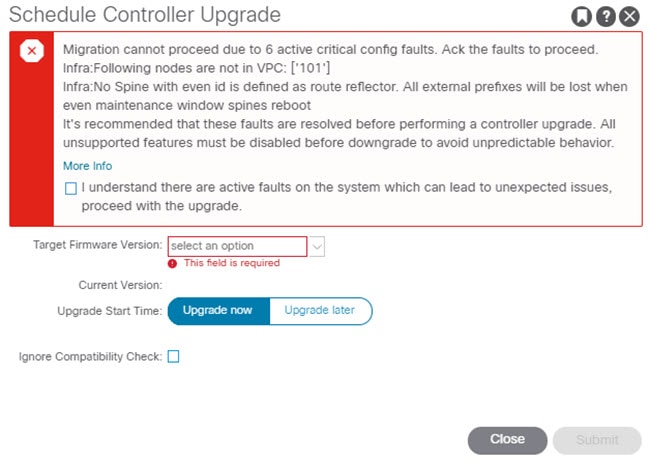
The Schedule Controller Upgrade dialog box appears.

In some situations, you might see an error message, similar to the following:

See the Pre-Upgrade/Downgrade Checklists for items that are checked by the Cisco APIC pre-upgrade validator in your version and other items you should check through the AppCenter pre-upgrade validator, either using a script or manually.

Step 4

In the Schedule Controller Upgrade dialog box, perform the following actions:

  1. In the Target Firmware Version field, from the drop-down list, choose the image version to which you want to upgrade or downgrade.

  2. In the Upgrade Start Time field, click one of the two radio buttons:

    • Upgrade now

    • Upgrade later—Select the day and time when you want the upgrade or downgrade to occur.

      Following are example scenarios for different entries in the Upgrade later field and how the system will react in each scenario:

      • You set the Start Time to a point that is earlier than the current time: The upgrade or downgrade point is set to a point in the past, so the configuration will be rejected by the system.

      • You set the Start Time to a point that is later than the current time: The upgrade or downgrade starts at the point that you set.

  3. In the Ignore Compatibility Check field, leave the setting in the default off (unchecked) setting, unless you are specifically told to disable the compatibility check feature.

    Note


    If you choose to disable the compatibility check feature by entering a check mark in the box next to the Ignore Compatibility Check field, you run the risk of making an unsupported upgrade or downgrade to your system, which could result in your system going to an unavailable state.

The Status dialog box displays the Changes Saved Successfully message, and the upgrade or downgrade process begins. The Cisco APICs are upgraded or downgraded serially so that the controller cluster is available during the upgrade or downgrade.

Step 5

Verify the status of the upgrade or downgrade by clicking the Controllers sub-tab again, if necessary, in the Infrastructure pane.

The controllers upgrade or downgrade sequentially, in a random order. After a controller image is upgraded or downgraded, it drops from the cluster, and it reboots with the newer version while the other Cisco APICs in the cluster are still operational. After the controller reboots, it joins the cluster again. Then the cluster converges, and the next controller image starts to upgrade or downgrade. If the cluster does not immediately converge and is not fully fit, the upgrade or downgrade waits until the cluster converges and is fully fit. During this period, a Waiting for Cluster Convergence message is displayed in the Status column for each Cisco APIC as it upgrades or downgrades.

Beginning with Cisco APIC release 4.2(5), additional information may be provided on the status of the upgrade process for the controllers. See Understanding APIC Upgrade and Downgrade Stages for a complete description of the different stages for Cisco APIC upgrades.

Note


The actual upgrade process remains the same with release 4.2(5) as it was with previous releases. However, starting with release 4.2(5), additional information is now provided that shows you the stage that you are in during the upgrade process.

Step 6

In the browser URL field, enter the URL for the Cisco APIC that has already been upgraded, and sign in to the Cisco APIC as prompted.


Upgrading or Downgrading the Leaf and Spine Switches Through a Cisco APIC Running Releases 4.x or 5.0

This is a switch upgrade or downgrade procedure using the Cisco Application Policy Infrastructure Controller (APIC) GUI that is running on release 4.x or 5.0. If your Cisco APICs are already upgraded to the release 5.1 or later, the GUI procedure is different even if switches are still running releases prior to 14.x or 15.0. In such a case, check the corresponding section, such as Upgrading or Downgrading with APIC Release 5.1 or Later Using the GUI.

If you are downgrading the software on the Cisco APICs, the process is identical to the process for upgrading the software, except that the target release that you choose will be earlier than the currently installed release. The text for dialogs, fields, buttons, and other controls in the Cisco APIC GUI specify “upgrade” even though you are downgrading the software.

Before you begin

Ensure that you check and follow these guidelines:

Procedure


Step 1

Verify that all the controllers are upgraded or downgraded to the new firmware release before proceeding.

Do not upgrade or downgrade the switch firmware until all the controllers are upgraded or downgraded to the new firmware release first.

Step 2

On the menu bar, choose Admin > Firmware.

The Summary window appears, which provides the following information:
  • Nodes tile — Provides information on the firmware releases used by the physical nodes.

  • Virtual Nodes tile — Provides information on the firmware releases used by the virtual nodes.

  • Controller tile — Provides information on the firmware release used by this controller. Also provides information on the catalog version.

  • Controller Storage tile — Provides information on the storage capacity of each controller.

Step 3

Click the Infrastructure tab, then click the Nodes sub-tab.

Step 4

Click Actions, then select Schedule Node Upgrade, and perform the following actions.

In some situations, you might see an error message, similar to the following:

See the Pre-Upgrade/Downgrade Checklists for items that are checked by the Cisco APIC pre-upgrade validator in your release and other items you should check through the AppCenter pre-upgrade validator, either using a script or manually.

  1. In the Group Type field, select either Switch or vPod.

  2. In the Upgrade Group field, select either Existing or New, if this field is available.

    Beginning with Release 4.1(2), you can use the Upgrade Group field to select whether you are using an existing or new upgrade group.

    • Existing—Select to use an existing upgrade group. Select the existing upgrade group in the Upgrade Group Name field below in this case, then make any changes in the remaining fields in this page if you want to modify any properties for the existing upgrade group.

    • New—Select to create a new upgrade group. Enter the name of the new upgrade group in the Upgrade Group Name field below in this case, then enter information for the remaining fields in this page to create a new upgrade group.

  3. In the Upgrade Group Name field, select the upgrade group name from the scrolldown menu for an existing upgrade group, or enter a name in the textbox for a new upgrade group.

    For releases prior to 4.1(2), either select an existing upgrade group using the options provided in the scrolldown menu, or, to create a new upgrade group, click the x in the corner of the field to clear out the field, then enter a name for the new upgrade group.

    Note that if you select an existing POD maintenance group, fields associated with that maintenance group are automatically filled in.

  4. Determine if you want to perform a silent roll package upgrade.

    Note


    Choose Manual Silent Roll Package Upgrade (SR package upgrade) only when you need to perform an internal package upgrade for ACI switch hardware SDK, drivers, and so on, instead of a normal switch software upgrade. When performing an SR package upgrade, the maintenance group is dedicated for SR package upgrade and a normal switch software upgrade cannot be performed. Refer to Silent Roll Package Upgrade for details.

  5. In the Target Firmware Version field, from the drop-down list, choose the desired image version to which you want to upgrade the switches.

  6. In the Ignore Compatibility Check field, leave the setting in the default off (unchecked) setting, unless you are specifically told to disable the compatibility check feature.

    Note


    If you choose to disable the compatibility check feature by entering a check mark in the box next to the Ignore Compatibility Check field, you run the risk of making an unsupported upgrade to your system, which could result in your system going to an unavailable state.

  7. Check the Graceful Maintenance check box if you want to isolate the node from the fabric prior to the reboot that occurs during the upgrade operation so that traffic is pro-actively diverted to other available switches.

  8. In the Run Mode field, choose the run mode to proceed automatically to the next set of nodes once the set of nodes has gone through the maintenance process successfully.

    The options are:

    • Do not pause on failure and do not wait on cluster health

    • Pause upon upgrade failure

    The default is Pause only Upon Upgrade Failure.

  9. In the Upgrade Start Time field, select either Now or Schedule for Later.

    The number of switches that can be upgraded at a time varies depending on release:

    • For releases prior to Release 4.2(5), the default concurrency in a group is set at 20. Therefore, up to 20 switches at a time will get upgraded, and then the next set of 20 switches are upgraded.

    • For Release 4.2(5) and forward, the default concurrency in a group has changed from 20 to unlimited (the default number of leaf or spine switches that can be upgraded at one time is unlimited).

    The values above apply for both Now and Schedule for Later.

    If you select Schedule for Later, either select an existing trigger scheduler, or click Create Trigger Scheduler to create a new trigger scheduler.

  10. For Release 4.1(2) or later, click the + icon at the right of the All Nodes area.

    The Add Nodes to Upgrade Group page appears.

  11. In the Add Nodes to Upgrade Group page (Release 4.1(2) or later), or in the Node Selection field (for releases prior to 4.1(2)), select either Range or Manual.

    • If you select Range, enter the range in the Group Node Ids field.

    • If you select Manual, a list of available leaf switches and spine switches appears in the All Nodes area. Select the nodes that you want to include in this upgrade.

      Note that the nodes displayed are physical leaf switches and spine switches if you selected Switch in the Group Type field, or virtual leaf switches or virtual spine switches if you selected Vpod.

  12. Click Submit.

    You are then returned to the main Firmware page.

    Beginning with Cisco APIC release 4.2(5), a Download Progress field is available in the Work pane, which provides a status on the progress of the download of the firmware for the node upgrade.

    • If the firmware download fails for any reason, the status in the Download Progress field will show as red. An error popup will be displayed when you hover your cursor over the status bar in this case, with the message Download Status: download-failed displayed.

    • If the firmware download is successful, the status bar in the Download Progress field will change to green and will display 100%. If you hover your cursor over the status bar in this case, the message Download Status: downloaded is displayed.

    You might also get a notification in this screen if you do not have enough space in the /firmware partition for the image to download. Confirm that the /firmware partition is not filled beyond 75%. If the partition is filled beyond 75%, you might have to remove some unused firmware files from the repository. This accommodates the compressed image and provides adequate space to extract the image.

In the table under Admin > Firmware > Infrastructure > Nodes, there is a column for Upgrade Group (formerly displayed as POD maintenance group) to show which upgrade group each node belongs to. You can see the following options by right-clicking this column for a specific node.

  • Edit Upgrade Group (releases prior to 4.1(2))

  • View Upgrade Group (For Release 4.1(2) or later)

  • Delete Upgrade Group

Prior to release 4.1(2), you can edit the upgrade group using this option to change the target version and trigger the upgrade of nodes. For release 4.1(2) or later, this column can only be used to view the existing upgrade group details. You can delete a selected upgrade group in any release.

Step 5

For release 4.1(2) or later, to remove nodes from the upgrade group:

  1. Select the nodes in the table that you want to remove from the upgrade group.

  2. Click the trashcan icon at the right of the All Nodes area.

  3. Click Submit.