Cisco Modeling Labs OVA Installation

Prepare for an OVA File Installation

There is a number of key prerequisites that must be in place in order to successfully install Cisco Modeling Labs using an OVA file.

These prerequisites are:

  • The host must support Intel VT-x/EPT virtualization extensions, and these extensions must be enabled in the BIOS.

  • The target disk must be at least 250 GB.

  • For installations to a VM, the following hypervisors are supported:


    Note

    The implementation of Cisco Modeling Labs within a VM is limited to the listed VMware vSphere ESXi versions. Other hypervisors such as Oracle VirtualBox, Microsoft HyperV, XenServer, etc. are not supported. Depending on network speed and target platform performance, an installation can take between 30 and 60 minutes.

Important

Check that the above requirements are in place before proceeding to the next step in the installation process. If at any time the installation appears to fail or you do not see the expected results, we recommend that you delete the virtual machine and restart the installation.

Download the Cisco Modeling Labs OVA File

You must download the Cisco Modeling Labs OVA file using the link provided in your purchase confirmation email.

The OVA files are large (~4 GB), so rather than HTTP downloads using a web browser, the use of a download manager for Mac or Windows is recommended.

An MD5 hash sum for the OVA file is provided along with the download link on the download website. You must calculate and verify that the hash sum of the downloaded OVA file matches the source file:

  • On OS X, use the command 'md5 <filename>'.
  • On Linux, use the command 'md5sum <filename>'.
  • On Windows, use Microsoft File Checksum Integrity Verifier (FCIV).

Important

Verify that the hash sum of the downloaded OVA file matches the source file before proceeding to the next step in the installation process.

Configure Security and Network Settings


Note

You must enable Intel VT in the BIOS for Cisco Modeling Labs to operate correctly.

The ESXi host must be enabled for remote access using SSH sessions. This is necessary for Cisco’s Technical Support staff to provide diagnostic and corrective assistance should the need arise.

The Cisco Modeling Labs virtual machine requires connections to five distinct virtual network port groups. The first connection is for Cisco Modeling Labs server management, and is named VM_Network, by default. Depending on the vSphere deployment policies, this port group may be assigned to the same address space as the host’s VMkernel port (placing it on the same network), or on a distinct VLAN if isolation from the ESXi management is required. The other four port groups FLAT, FLAT1, SNAT, and INT are used by Cisco Modeling Labs for external communications. These ESXi port groups must be prepared prior to initiating the installation of Cisco Modeling Labs.

The following steps illustrates the most common deployment method of Cisco Modeling Labs in a VM environment.

Before you begin

  • Ensure that you have met the requirements as specified in the section Cisco Modeling Labs Server Requirements.
  • Ensure that you have administrator access to the VMware ESXi server in which you plan to deploy the Cisco Modeling Labs OVA in order to enable nested virtualization.

Procedure


Step 1

Log in as administrator to the VMware ESXi server using the VMware vSphere Client.

Step 2

Click the Configuration tab.

Step 3

Choose Software > Security Profile.

Step 4

Click Properties to edit the properties associated with security services.

Step 5

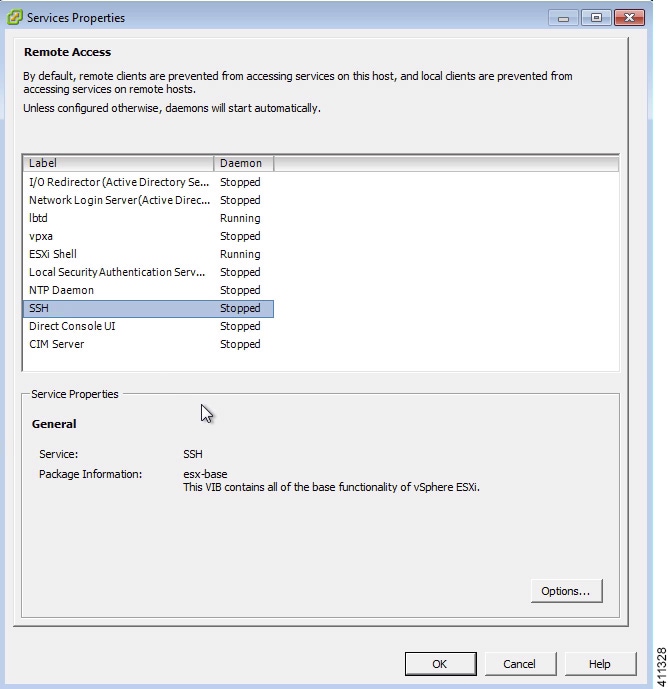
The Services Properties dialog box is displayed. Enable SSH access, ESXi Shell , and Direct Console UI as follows:

  1. Click Options .

  2. Click the Start and Stop with Host radio button.

  3. Click Start .

  4. Click OK .

    Figure 1. Services Properties


Step 6

Click OK .

Step 7

To add the four additional port groups—FLAT , FLAT1 , SNAT , and INT , which are required for external Layer-2 and Layer-3 connectivity and configure network settings, choose Networking > Properties.

Step 8

Click Add .

Step 9

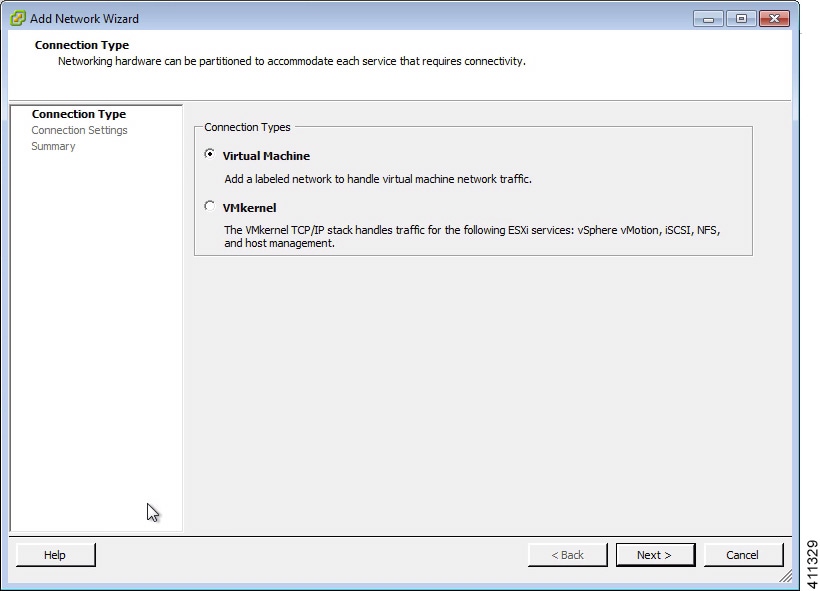
In the Add Network wizard, choose the Virtual Machine connection type.

Figure 2. Connection Type


Step 10

Click Next .

Step 11

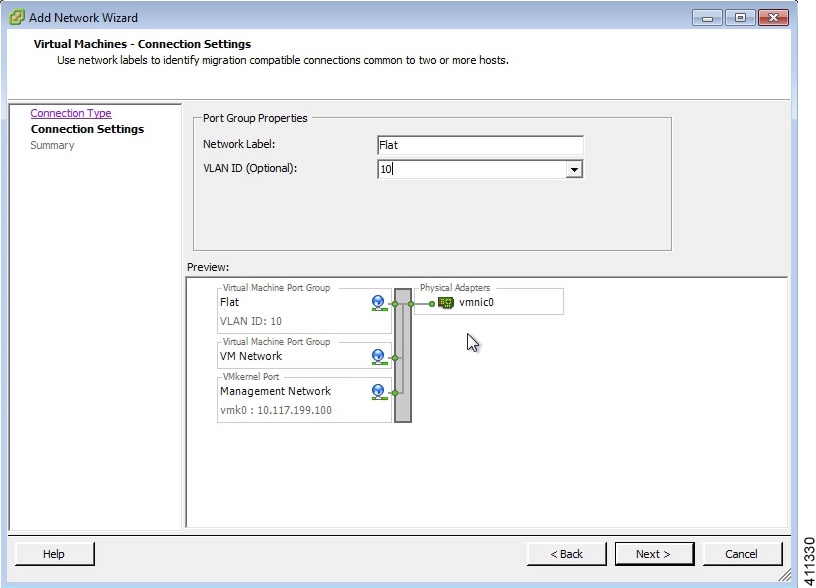
Under Port Group Properties, in the Network Label field, enter Flat and assign a site-relevant VLAN ID, for example, 19, in the VLAN ID field.

Note 
VLAN IDs are unique for each port group. A VLAN ID is used to identify which VLAN a packet belongs to; specifically, switches use the VLAN ID to determine which port(s), or interface(s), to send a broadcast packet to.
Figure 3. Flat Connection Settings


Step 12

Click Finish to add the port group.

Step 13

Repeat Step 7 through Step 13 to add the remaining port groups.

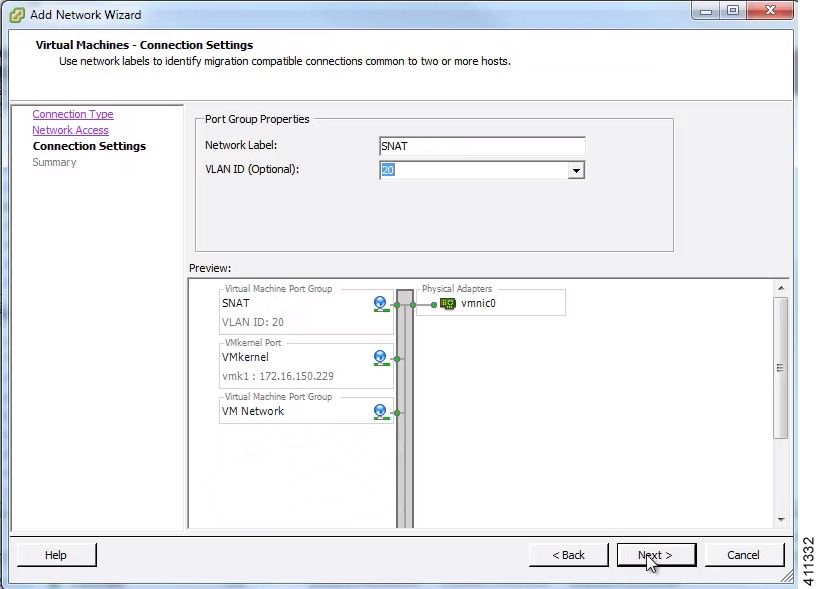
Figure 4. SNAT Port Group Assigned


Note 

Ensure that the SNAT port group has been created.

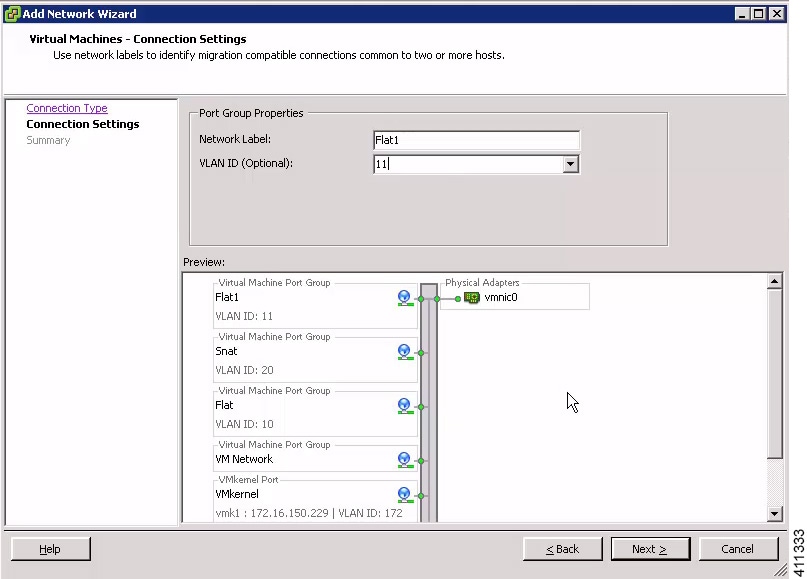
Figure 5. Flat1 Port Group Assigned


Note 

Ensure that the Flat1 port group has been created.

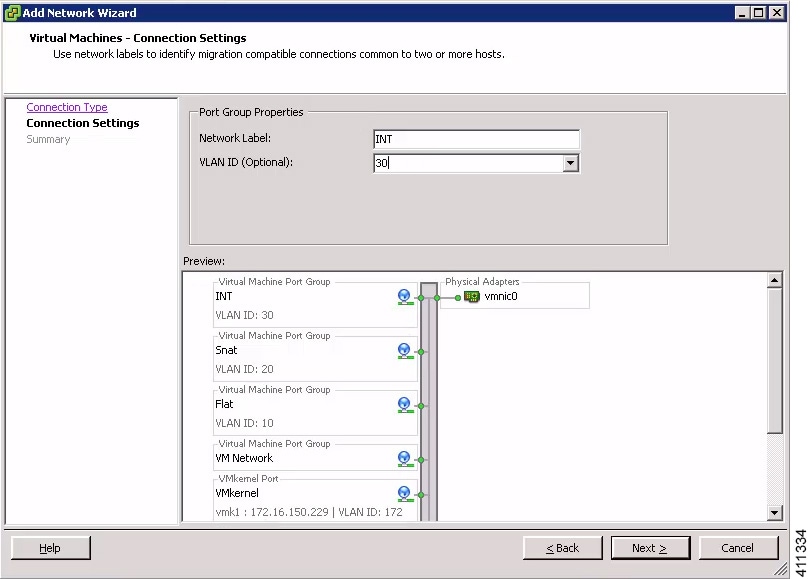
Figure 6. INT Port Group Assigned


Note 

Ensure that the INT port group has been created.

Step 14

Configure all the port groups to allow promiscuous mode:

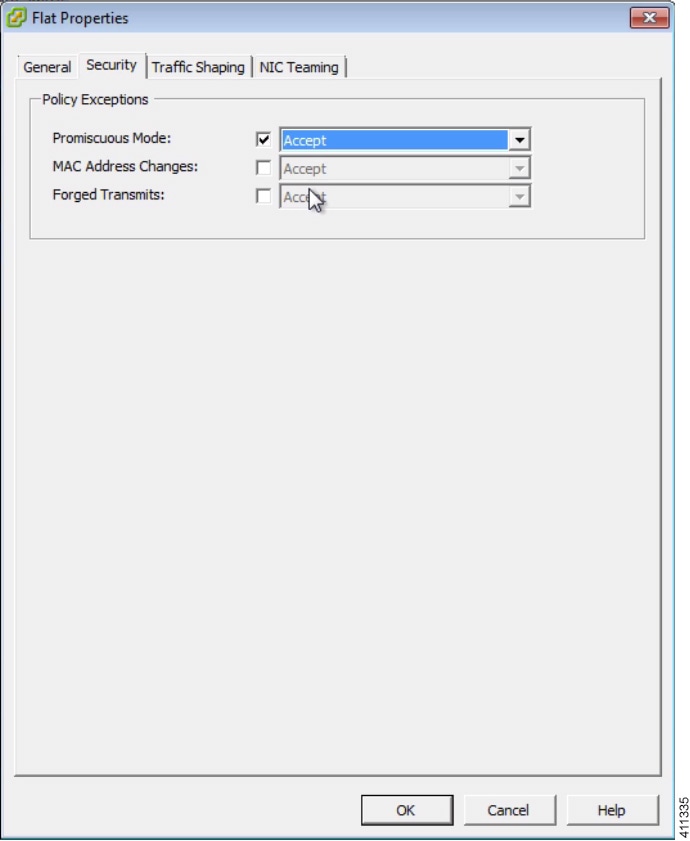
  1. Under the Configuration tab, choose Hardware > Networking and click Properties of the port group for which you want to enable promiscuous mode, for example, Flat1.

  2. Select the Flat1 port group and click Edit.

  3. Click the Security tab.

  4. Check the Promiscuous Mode check box, and from the Promiscuous Mode drop-down list, choose Accept.

    Note 
    Ensure that the values for MAC Address Changes and Forged Transmits are also set to their default value of Accept.
    Figure 7. Promiscuous Mode for the Flat1 Port Group


  5. Click OK.

Note 
Promiscuous mode permits traffic to flow between Cisco Modeling Labs simulated nodes and other virtual machines running on the ESXi host.
Step 15

Repeat the previous step to set the promiscuous mode for all port groups.

Step 16

Click Close .

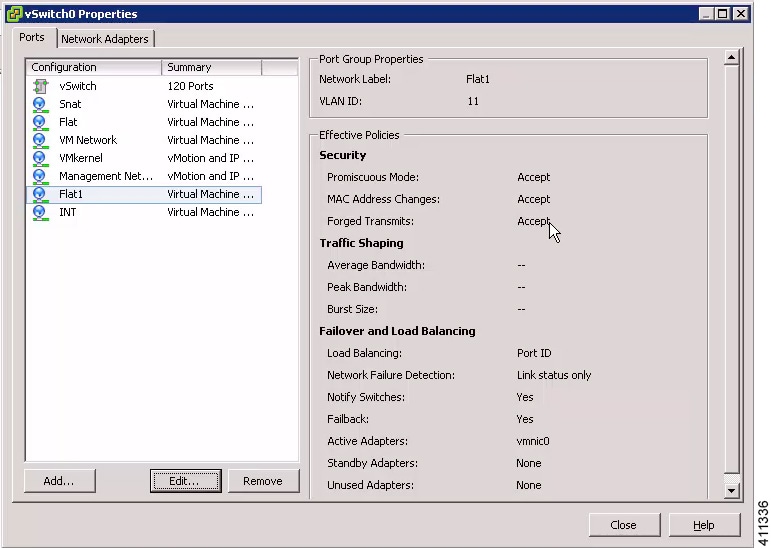
Figure 8. Available Port Groups


Important 
Check that the following requirements are in place before proceeding to the next step in the installation process.
  • All five unique virtual network port-groups have been created.

  • Intel VT in the BIOS has been enabled.

  • The port group parameters Promiscuous Mode, MAC Address Changes and Forged Transmits are all set to Accept.

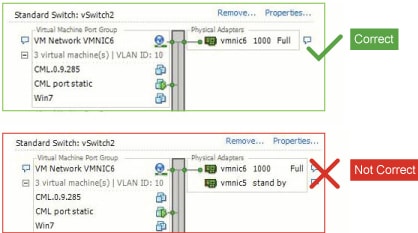
  • Only single VMNICs are used for the Flat, Flat1, and SNAT interfaces. NIC-teaming should not be employed for external connections.

Figure 9. Single VMNIC Requirement


Deploy the Cisco Modeling Labs OVA


Attention

Verify your vSphere Client. Please verify that you are using vSphere Client v5.1 Update 2 (Build 1483097) or later before deploying Cisco Modeling Labs. Failure to use the minimum version will result in a failed deployment that will not support nested virtualization.

Before you begin

  • Ensure that you have configured the necessary security and network settings.

Procedure


Step 1

To install the OVA, log in to the VMware ESXi server.

Step 2

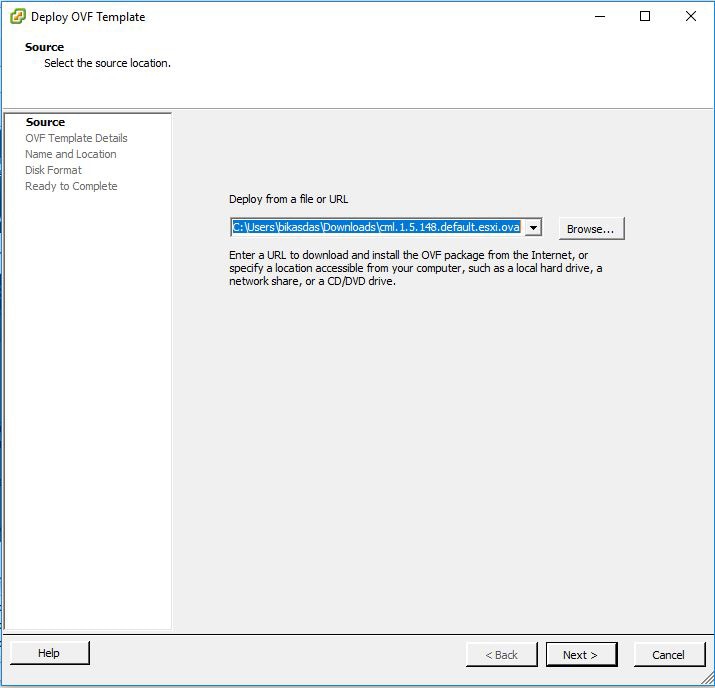
From the vSphere client menu, choose File > Deploy OVF Template.

The Deploy OVF Template > Source window is displayed.
Figure 10. Source Details


Step 3

In the Source window, click Browse to navigate to the OVA package.

Step 4

In the dialog box displayed, click Open .

Step 5

Click Next .

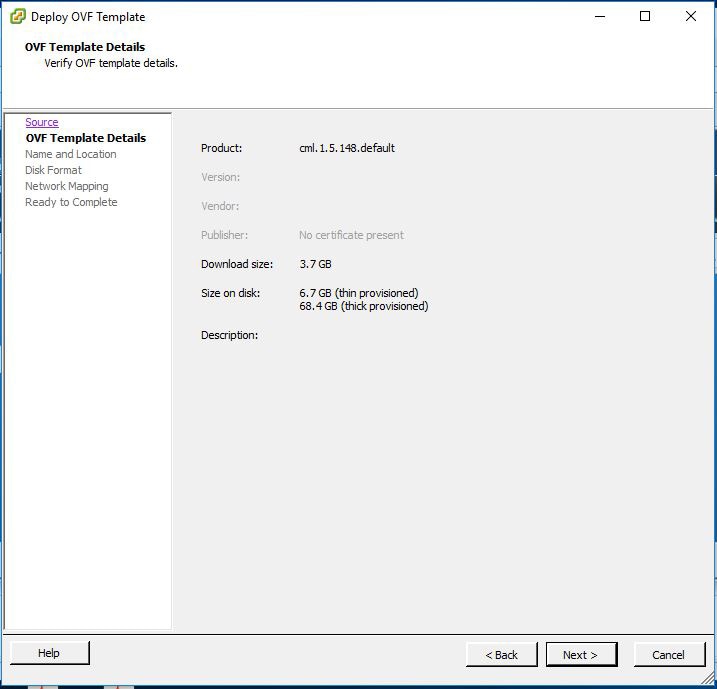
Figure 11. OVF Template Details


Information about the OVA you are about to deploy is displayed.
Step 6

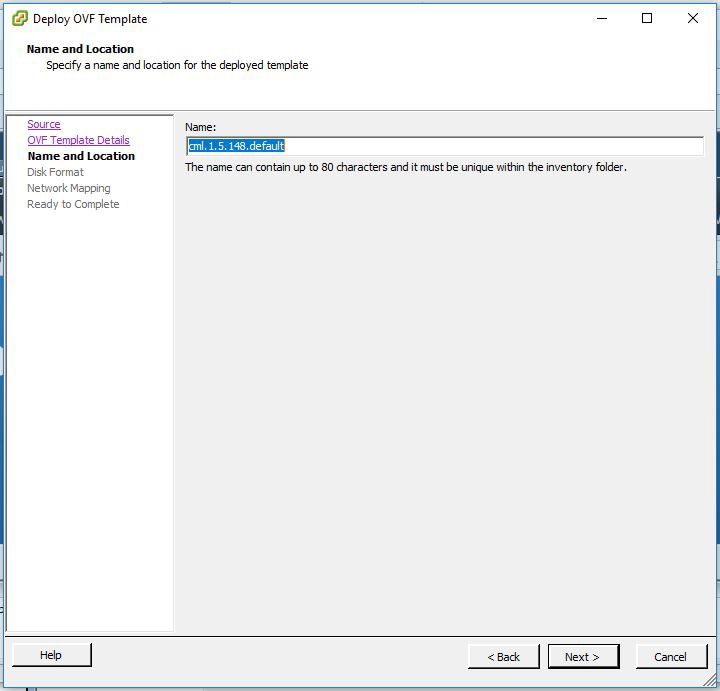
In the Name and Location window, provide a name for the virtual machine and click Next .

Figure 12. Name and Location Details


Step 7

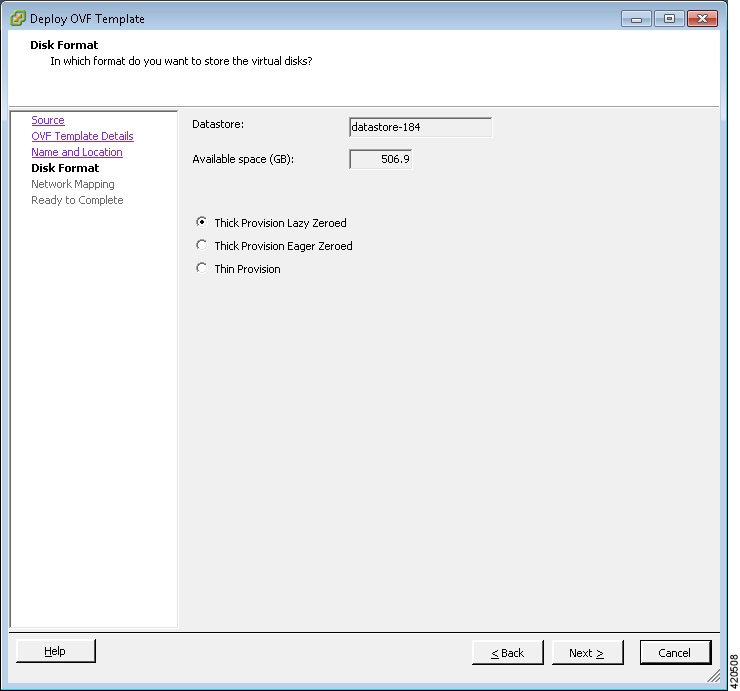
In the Disk Format window, choose the target data storage (Datastore) disk format, and click Next .

Figure 13. Disk Format Details


Step 8

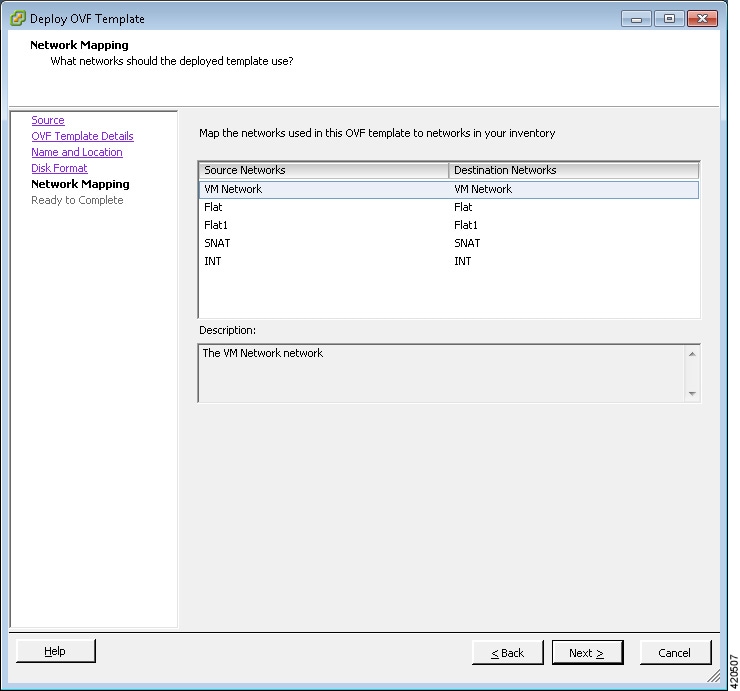
In the Network Mapping window, map the virtual networks defined in the OVA, with those present in the host, and click Next .

Figure 14. Network Mapping Details


Step 9

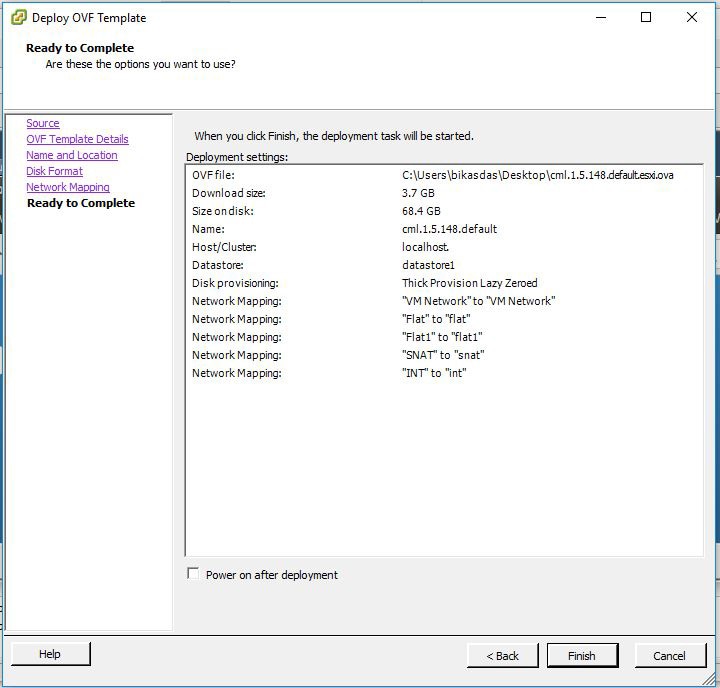
In the Ready to Complete window, ensure that the Power on after deployment check box remains unchecked to allow the virtual machine settings to be updated before it is powered on.

Step 10

Click Finish to start the OVA deployment.

Figure 15. Ready to Complete Details


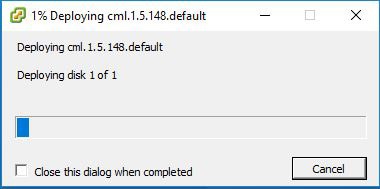
OVA deployment starts.

Figure 16. Deploying the OVA


Step 11

When the deployment completes, click Close.

Important 
Check that the following requirements are in place before proceeding to the next step in the installation process.
  • You have verified your version of vSphere client in use.

  • The VM network port-group is mapped to a valid site-relevant port-group used for virtual machine management and Internet access. All others are mapped one-to-one to the port-group of the same name.


Edit the Virtual Machine Settings

Procedure


Step 1

In the vSphere client, click Edit Virtual Machine Settings.

The Virtual Machine Properties dialog box is displayed.
Step 2

In addition, confirm that the network adapters have been setup correctly.

Step 3

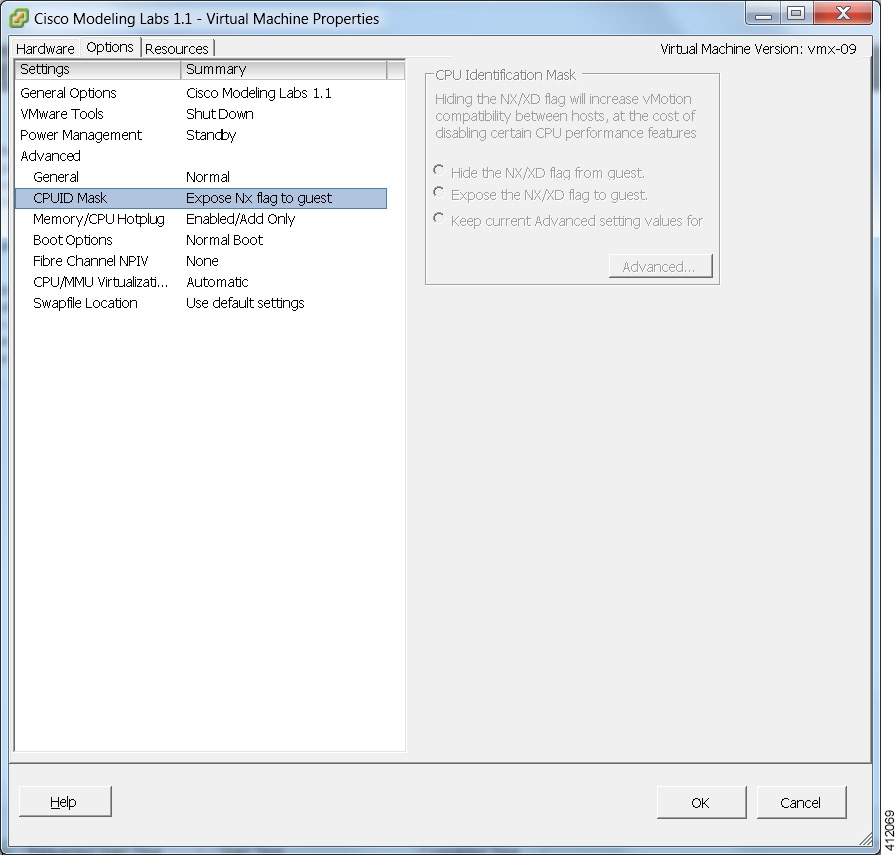
Under the Options tab, ensure that the setting CPUID Mask is set to Expose Nx flag to guest as shown.

Figure 17. CPUID Mask Setting


Step 4

Click OK to save the changes.


Customize the Cisco Modeling Labs Server Deployment

Following the software installation, the Cisco Modeling Labs server must be customized for the environment within which it will operate and desired integration with existing lab/test devices. This customization includes setting the following attributes:

  • The interface configurations associated with external communications (Ethernet1 [Flat], Ethernet2 [Flat1], and Ethernet3 [SNAT]), if required.

  • Application details such as ports associated with the VIRL-services, internal passwords, resource over-commit ratios, and access/download proxy details.

In previous releases, the Cisco Modeling Labs server was customized via GUI/CLI invoked scripts using the server’s console. This release of Cisco Modeling Labs incorporates the system configuration into the User Workspace Management > CML Server > System Configuration interface accessible via a web browser session to the server’s management address.

Note

When deploying Cisco Modeling Labs using the OVA-formatted install file, the installed application is preconfigured to use DHCP services to acquire an IP address for the management port, Ethernet0.

Start the Cisco Modeling Labs Server for the First Time

On initial startup of Cisco Modeling Labs, a virtual console session is started to ascertain the assigned IP address, or to set the static addressing details to the Ethernet0 interface. Complete the following steps to start the Cisco Modeling Labs server for the first time.

Procedure


Step 1

In the vSphere client, click Power On the Virtual Machine.

The virtual machine starts up.
Step 2

Open a console window by right-clicking on Cisco Modeling Labs 1.5 and choose Open Console from the list.

In the Console window, you can see the virtual machine starting up.
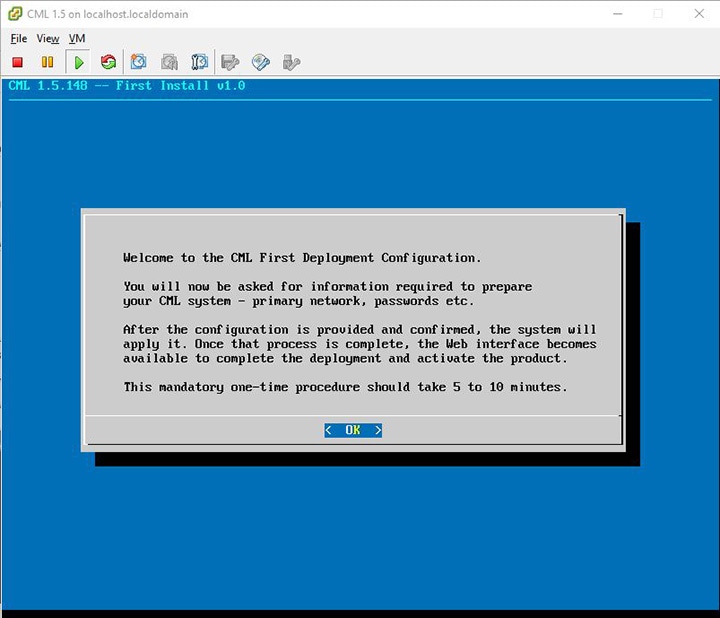
When the virtual machine has started, the CML First Deployment Configuration screen is displayed, as shown.
Figure 18. Installation Tool Welcome


Upon first boot, you will be asked a few questions. The deployment assistant will do the rest.

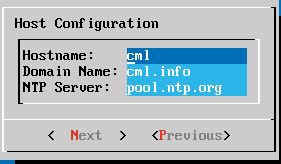
Configure the host by entering the Hostname, Domain Name, and NTP Server.

Figure 19. Hostname Configuration


Note 
The CML Host Name cannot be changed in the future. If you need to change the CML Host Name in the future, then a deploy is recommended.
The following sections outline the steps involved for assigning static IP addressing or DHCP deployment. Click the applicable section as required.

Static IP Address Assignment

From the ESXi virtual machine console, assign the static IP address as follows:

Procedure

Step 1

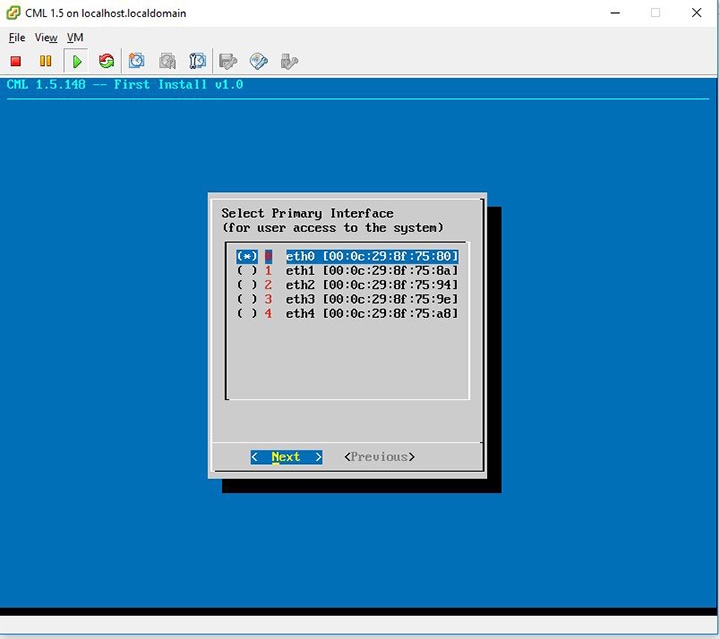
On the interface configuration screen, select Primary Interface eth0.

Figure 20. Interface Configuration Screen


Step 2

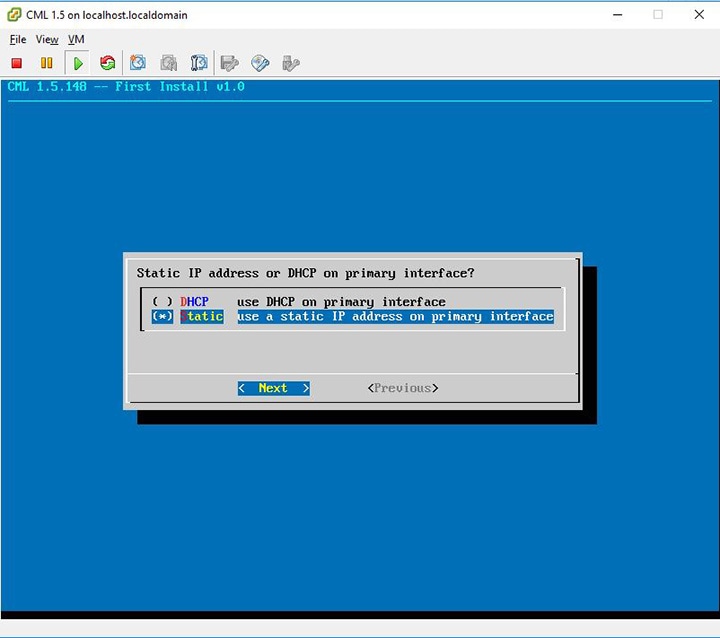
Select the Static IP and then Next.

Figure 21. Static IP Assignment


Note 
The IP assignment cannot be changed in the future. If you need to change the IP assignment from Static to DHCP in the future, then a complete redeployment must be performed.
Step 3

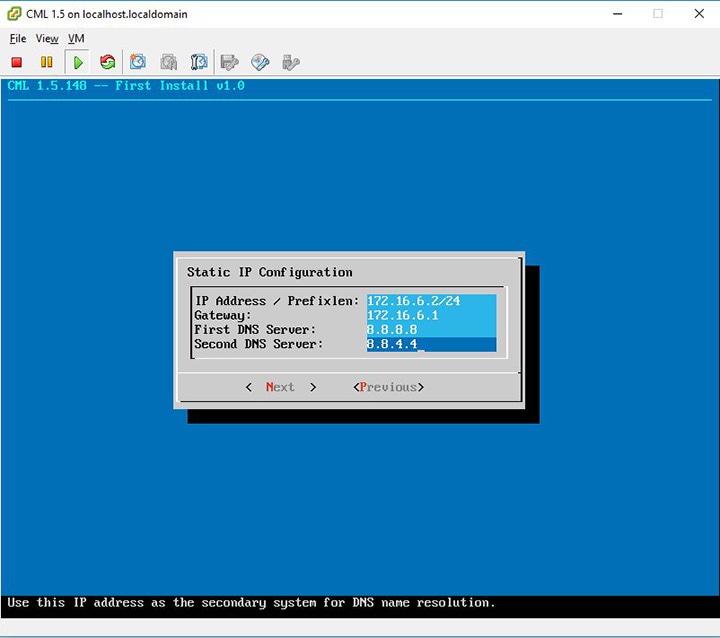
Assign the IP in CIDR format.

Figure 22. Static IP Configuration


Step 4

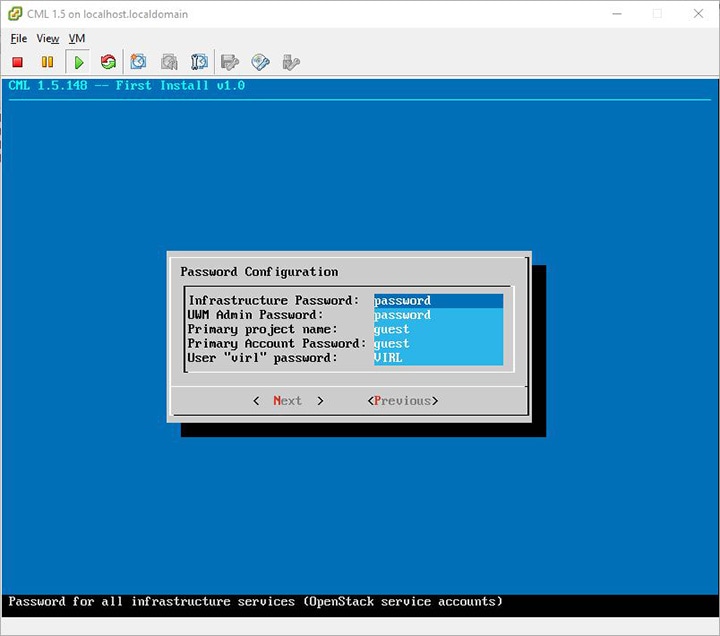
Configure the password for the infrastructure.

Figure 23. Password Configuration


Step 5

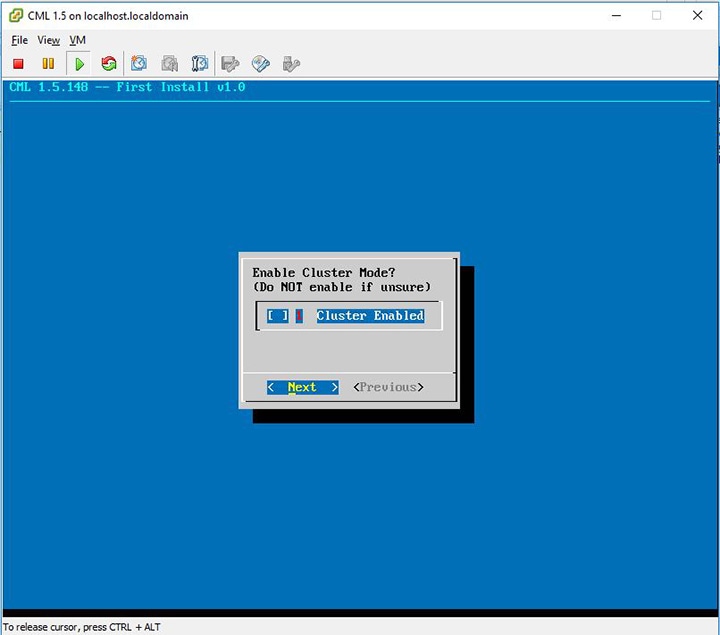
Select the cluster setting.

Figure 24. Cluster Enable Configuration


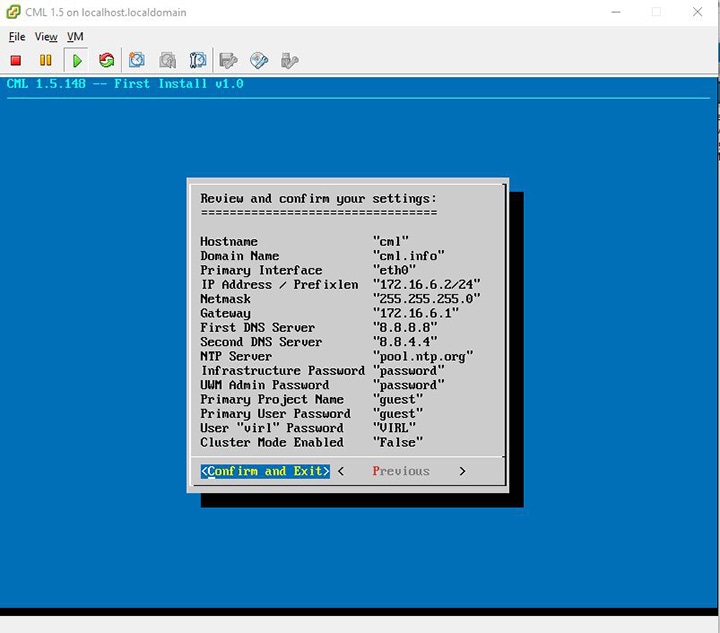
Complete the initial settings.

Figure 25. Completing the Initial Setting


Step 6

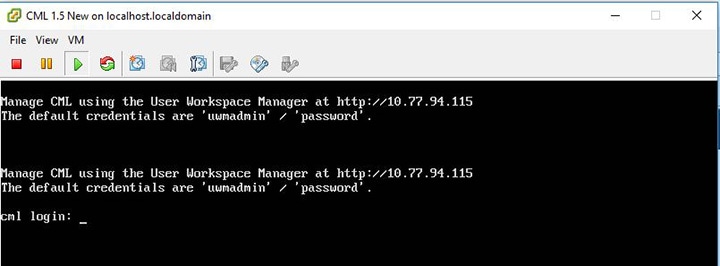
Once the virtual machine completes the reboot cycle, the login screen provides information on how to establish a browser session to the Cisco Modeling Labs server’s management interface, using the static address http://<static_ip_address> added to the eth0 interface.

Figure 26. CML Login Screen


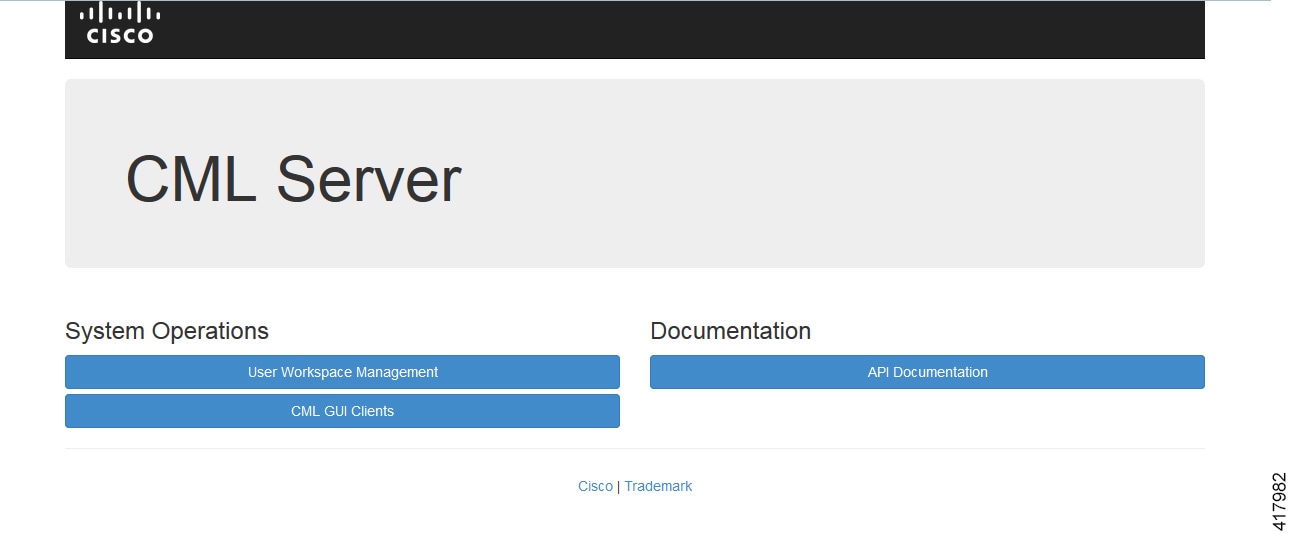
The CML Server main menu is displayed.

Figure 27. CML Server Main Menu


Step 7

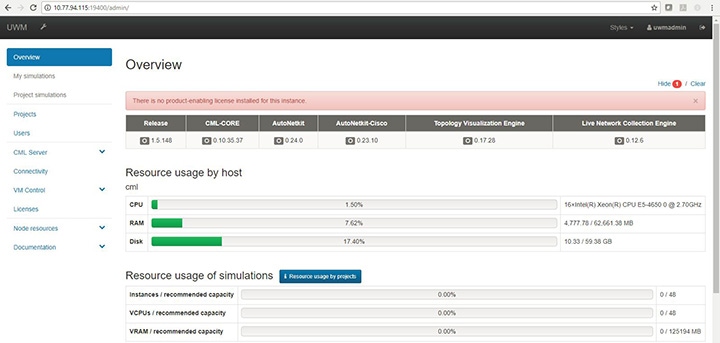
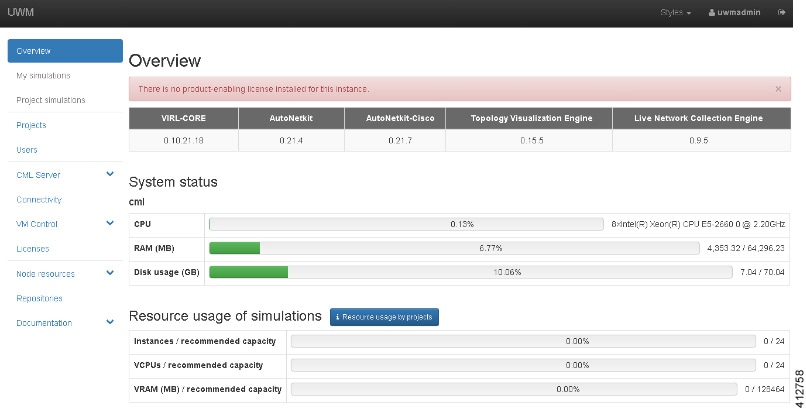
Click the User Workspace Management interface link. Login with the default credentials (username= uwmadmin, password=password). The User Workspace Management Overview page is displayed.

Figure 28. User Workspace Management Overview


Step 8

From the options on the left, expand the CML Server option and select System Configuration.

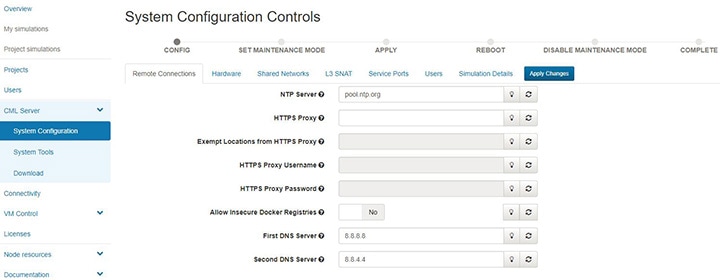
Update the system configuration as required.
Figure 29. System Configuration Controls


Table 1. System Configuration Parameters

Parameter

Default

Description

NTP Server

pool.ntp.org

An NTP resource is required. If behind a firewall/proxy, this parameter should point to an NTP server that is reachable by this device.

HTTPS Proxy

blank

The proxy server to use when downloading system installation packages, VMs, or Docker images from public repositories and when accessing remote git repositories. This value must be configured if this machine cannot reach the public Internet directly. Only an appropriate firewall and HTTPS proxy setup, which is external to this server, can enforce restrictions on the content downloaded from the public Internet by logged-in users. Replace with the URL of the Internet Access Proxy, in the format "http://<proxy IP or name>:<port number>/".

Exempt Locations from HTTPS Proxy

blank

List of addresses or names that are reachable from this server without using the configured HTTPS proxy, such as servers on the local intranet. Use commas to separate the host names, domain names, and IP addresses.

HTTPS Proxy Username

blank

If the configured HTTPS proxy requires authentication, specify the username.

HTTPS Proxy Password

blank

If the configured HTTPS proxy requires authentication, specify the password.

Allow Insecure Docker Registries

blank

Allow Docker image downloads from local and remote repositories, which are not configured with an SSL certificate.

First DNS Server

8.8.8.8

Enter the primary DNS server IP address.

Second DNS Server

8.8.4.4

Enter the secondary DNS server IP address. Ensure you do not set the same address as you set for the primary DNS server IP address.

Step 9

Click Hardware to manage the memory.

Table 2. Hardware Configuration Parameters

Parameter

Default

Description

Store Simulation VM Drives in RAM

No

Each simulation VM node had at least one simulated hard drive, initially a shared copy of that node&#39;s image file, with changes made by individual nodes written to that node&#39;s separate file. Storing all these files in RAM significantly speeds up nodes&#39; performance, especially on startup. Enabling this option is recommended only on systems with plenty of memory to spare, especially if very slow startup times are observed (nodes become ACTIVE but remain inoperational-unreachable, or not getting to CLI prompts).

Enable (U)KSM

No

(Ultra) Kernel Samepage Merging [(U)KSM] is a Linux feature that allows multiple VM nodes to share the same memory pages for data that they hold in common.

Enabling (U)KSM comes at a cost of more CPU time used by the host system at the expense of the VM nodes in the network simulation. Enabling this option may allow small, memory-constrained systems to run a few more VM nodes of the same kind (e.g. IOSv, same image version), even if they do use the memory allotted to them.

It is not recommended to enable this option on larger installations that have the capacity to run dozens of nodes without enabling (U)KSM.

Step 10

Click Networks to configure the other interfaces for external communications.

Table 3. Networks Configuration Parameters

Parameter

Default

Description

Flat Network Port

Eth1

Enter the Flat network port.

Flat Network Address

172.16.1.254/24

Enter the Flat network address.

Flat Network Address/Mask

172.16.1.0/24

Enter the Flat network address/mask.

Flat Network Netmask

255.255.255.0

Enter the Flat network netmask.

Flat Network Gateway IP Address

172.16.1.1

Enter the Flat network gateway IP address.

Flat Address Pool Start Address

172.16.1.50

Enter the Flat address pool start address.

Flat Address Pool End Address

172.16.1.253

Enter the Flat address pool end address.

Flat Primary DNS server IP address

8.8.8.8

Enter the Flat primary DNS server IP address.

Flat Secondary DNS server IP address

8.8.4.4

Enter the Flat secondary DNS server IP address. Ensure you do not set the same address as you set for the primary DNS server IP address.

2nd Flat Network Enabled

Unchecked

Use this option if a second Flat network, Flat1, is to be enabled.

2nd Flat Network Port

Eth2

Enter the name of the host's physical port used for the L2 Flat network, Flat1.

2nd Flat Network Address

172.16.2.254/24

Enter the IP address for the second Flat network, Flat1.

2nd Flat Network Address/Mask

172.16.2.0/24

Enter the Flat network address/mask for Flat1.

2nd Flat Network Netmask

255.255.255.0

Enter the Flat network netmask for Flat1.

2nd Flat Network Gateway IP Address

172.16.2.1

Enter the Flat network gateway IP address for Flat1.

2nd Flat Address Pool Start Address

172.16.2.50

Enter the Flat address pool start address for Flat1.

2nd Flat Address Pool End Address

172.16.2.253

Enter the Flat address pool end address for Flat1.

2nd Flat Primary DNS server IP address

8.8.8.8

Enter the Flat primary DNS server IP address for Flat1.

2nd Flat Secondary DNS server IP address

8.8.4.4

Enter the Flat secondary DNS server IP address for Flat1. Ensure you do not set the same address as you set for the primary DNS server IP address.

Snat Network Port

Eth3

Enter the name of the host's physical port used for L3 Snat network, ext-net.

Snat Network Address

172.16.3.254/24

Enter the IP address for the CML host in the L3 Snat network.

Snat Network Address/Mask

172.16.3.0/24

Enter the Snat network address/mask.

Snat Network Netmask

255.255.255.0

Enter the Snat network netmask.

Snat Network Gateway IP Address

72.16.3.1

Enter the Snat network gateway IP address.

Snat Address Pool Start Address

172.16.3.50

Enter the Snat address pool start address.

Snat Address Pool End Address

172.16.3.253

Enter the Snat address pool end address.

Snat Primary DNS server IP address

8.8.8.8

Enter the Snat primary DNS server IP address.

Snat Secondary DNS server IP address

8.8.4.4

Enter the Snat secondary DNS server IP address. Ensure you do not set the same address as you set for the primary DNS server IP address.

Step 11

Click Service Ports to configure the port numbers for VIRL services.

Table 4. Services Configuration Parameters

Parameter

Default

Description

Apache Server Port

80

Enter the number of the Apache server port.

Start Host-granted TCP Port

10000

Host grants TCP ports to the simulations starting from this value.

End Host-granted TCP Port

17000

Host grants TCP ports to the simulations starting ending with this value.

First VM Serial Console TCP Port

17000

Simulated VMs with serial consoles use TCP ports starting from this value.

Last VM Serial Console TCP Port

18000

Simulated VMs with serial consoles use TCP ports ending with this value.

VIRL Web Services Port

19399

Enter the TCP port number for the simulation engine services.

UWM Port

19400

Enter the TCP port number for the User Workspace Management interface.

AutoNetkit Webserver Port

19401

Enter the TCP port number for the configuration engine preview interface.

Live Visualization Webserver Port

19402

Enter the TCP port number for the Live Visualization interface.

UWM Web-SSH Port

19403

Enter the TCP port number for the User Workspace Management SSH web interface.

Nova Websocket Serial Port

19406

Enter the TCP port number for the websocket-based serial console connections.

Disable Serial Timeout

Unchecked

Disable timeout of serial consoles after 15 minutes of inactivity.

Nova Websocket VNC Port

19407

Enter the TCP port number for the websocket-based VNC console connections.

Docker Registry Port

19397

Enter the port number for the docker registry.

Step 12

Click Users to configure the other infrastructure passwords.

Table 5. Infrastructure Configuration Parameters

Parameter

Default

Description

Enable Primary Project

Yes

Create a main project used for running simulations.

Primary Project Name

guest

Name for the primary project. Avoid using the reserved values: admin, cinder, glance, keystone, neutron, nova, and uwmadmin.

Primary Account Password

guest

Password for primary project user account.

UWM Admin Password

password

Password used by the UWM admin user for UWM administration.

Restrict System Configuration and Upgrades to System Admin

Yes

If disabled, any admin user may make changes and operate this system configuration.

Users Allowed Resource Management

Any active user

Select which users may manage node resources, such as Images and LXC Templates. Also may further restrict admin management of Flavors and Subtypes.

Infrastructure Password

password

Password used for all infrastructure services (OpenStack service accounts).

Step 13

Click Simulation Details and select Serial Port inactivity timeout, which is No by default. This is required because simulated VM serial console (telnet) connections can normally be interrupted by the client. An inactivity timeout of 15 minutes protects each serial connection against hogging by possibly unreachable clients.

Step 14

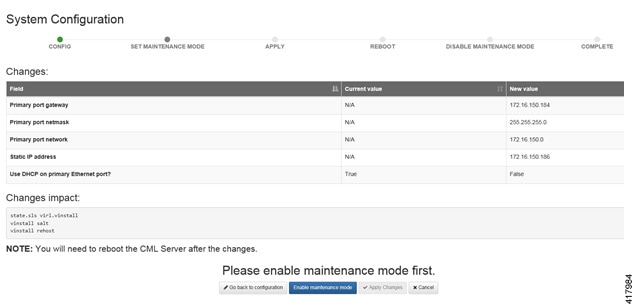
With all configuration options set, click Apply Changes. At this point, the system will ask you to please enable maintenance mode first as shown.

Figure 30. Enable Maintenance Mode


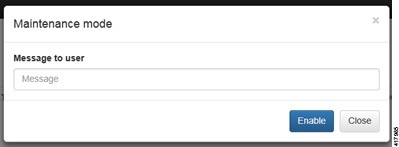
Click Enable Maintenance Mode as requested.
A Maintenance Mode dialog box is displayed.
Figure 31. Maintenance Mode Dialog Box


Click Enable. The system is now in maintenance mode.

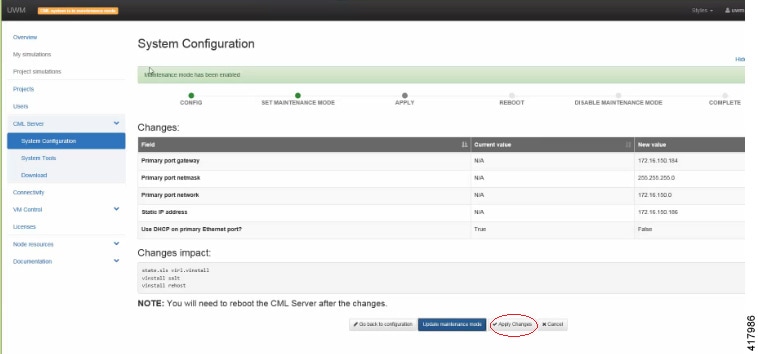
Step 15

Click Apply Changes as shown.

Figure 32. Apply Changes Made


Note 
You must click Apply Changes at this point in order for your configuration updates to take effect.
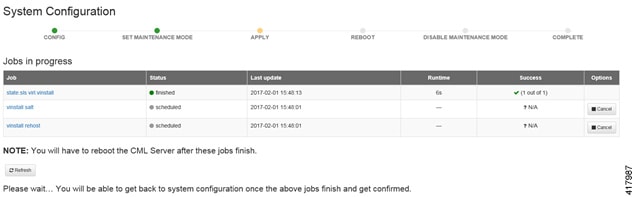
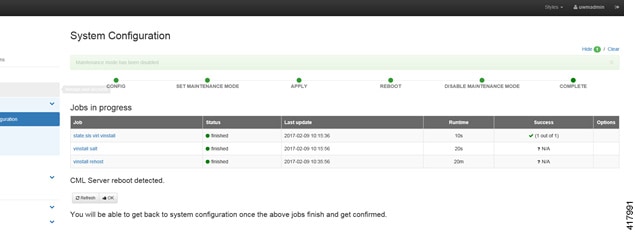
Under the Jobs in Progress panel, you can see the progress of the rehost operations as the page refreshes periodically, as shown.
Figure 33. Jobs in Progress


Step 16

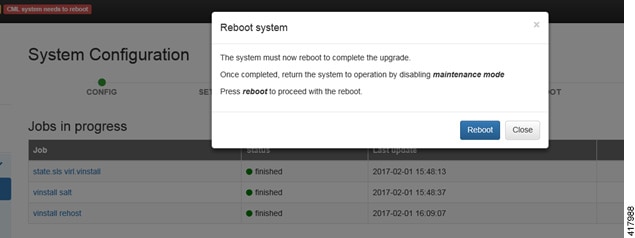
When completed, click Reboot to reboot the system.

The Reboot System dialog box is displayed.
Figure 34. Reboot System Dialog Box


Step 17

Click Reboot to reboot the system.

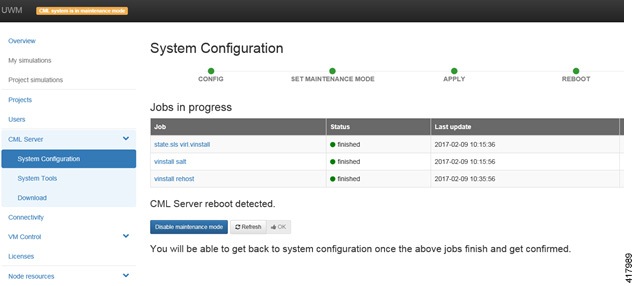
The System Configuration page is displayed.
Figure 35. System Configuration Page


Step 18

Click Disable Maintenance Mode.

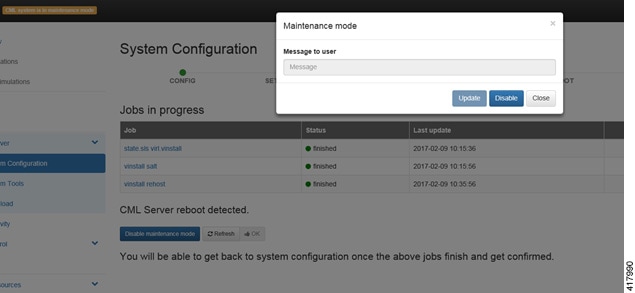
A Maintenance Mode dialog box is displayed.
Figure 36. Maintenance Mode Dialog Box


Step 19

Click Disable. The system is no longer in maintenance mode.

Your configuration is complete.
Figure 37. System Configuration Completed


Step 20

Click OK on the System Configuration page to return to the System Configuration Controls page.


DHCP Deployment

On initial startup of Cisco Modeling Labs, a virtual console session is started to ascertain the assigned IP address, or to set the static addressing details to the Ethernet0 interface. Complete the following steps to start the Cisco Modeling Labs server for the first time.

Procedure

Step 1

In the vSphere client, click Power On the Virtual Machine.

The virtual machine starts up.
Step 2

Open a console window by right-clicking Cisco Modeling Labs 1.5 and choose Open Console from the list.

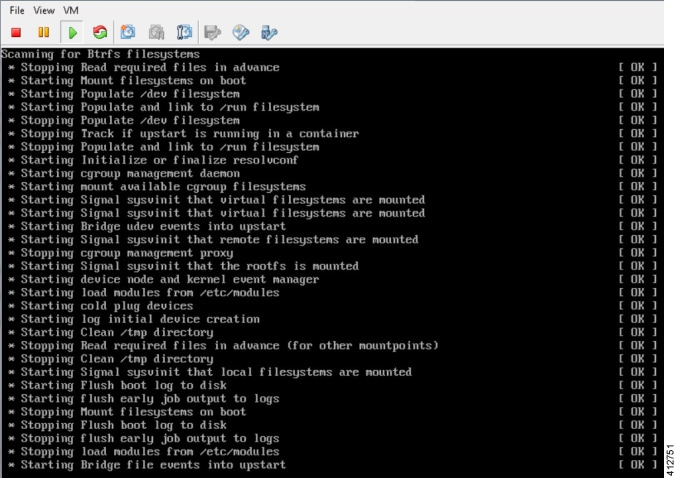
In the Console window, you can see the virtual machine starting up.
Figure 38. Virtual Machine Starting Up


Step 3

From the ESXi virtual machine console, deploy DHCP as follows:

  1. Select Use DHCP on Primary Interface.

  2. Select DHCP and click Next.

    Figure 39. DHCP IP Assignment


To finish the setup, perform Step 3 to Step 20 as detailed in the section Static IP Address Assignment.


Determine License Key Requirements

Returning to the User Workplace Management interface shows the server’s current licensing status; the red banner indicates that there is no product licensing in place.

To license the Cisco Modeling Labs server, complete the following steps:

Procedure


Step 1

In the left pane, click Licenses .

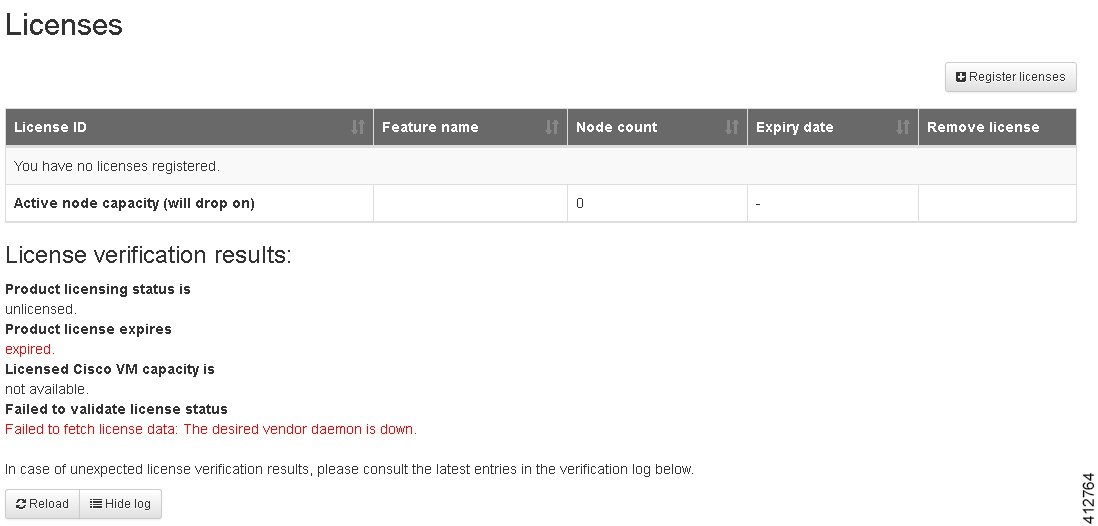
The Licenses page is displayed.
Figure 40. Licenses Page


Step 2

In the Licenses page, click Register Licenses .

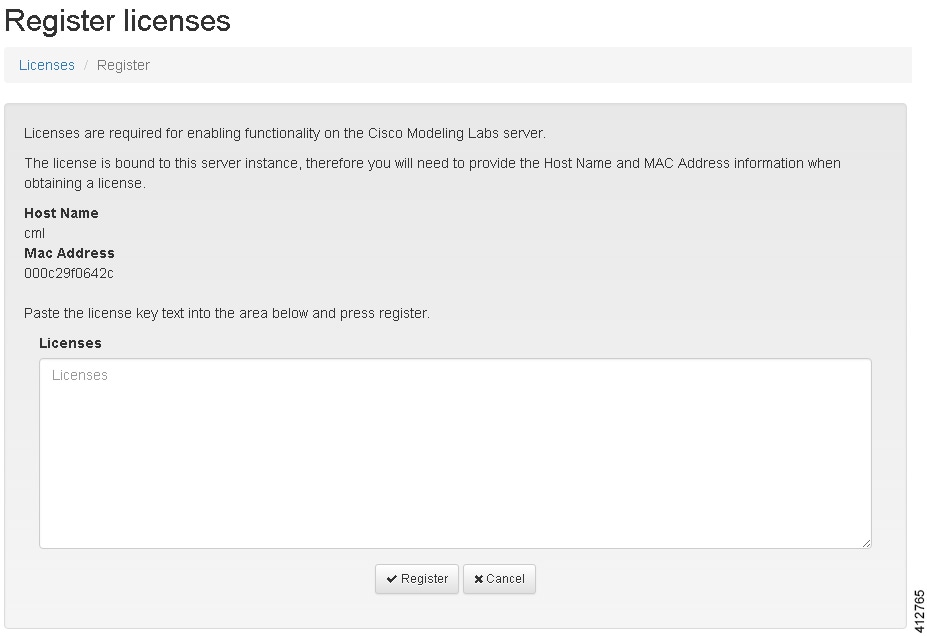
Step 3

Record the Host Name and Mac Address for license key registration.

Figure 41. Information for License Key Registration


Use this information when completing the Register Claim Certificates instructions in the eDelivery Order Notification email to request your license key for use with the Cisco Modeling Labs server.

Two types of licenses are available, as shown in the following table.
Table 6. License Types
License Type Description
Base Subscription 15-node capacity for initial deployment.
Capacity Subscription 10-node, 50-node, and 100-node bundles available.
Note 
You can have any number or type of licenses. Licenses are determined by the node capacity you want to deploy.

You will receive your license key as an attachment via an email.

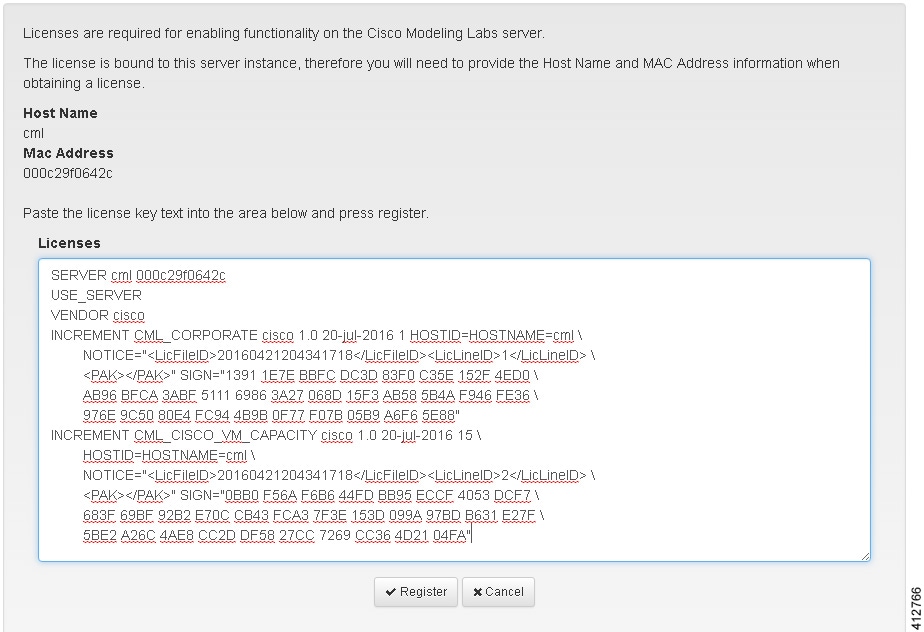
Step 4

Open the attachment in a text editor and copy all of the contents.

Step 5

Return to the Register Licenses page and paste the details into the Licenses text area.

Figure 42. License Key Details


Step 6

Click Register to register the license key.

Note 

We recommend that you add the Base Subscription license first.

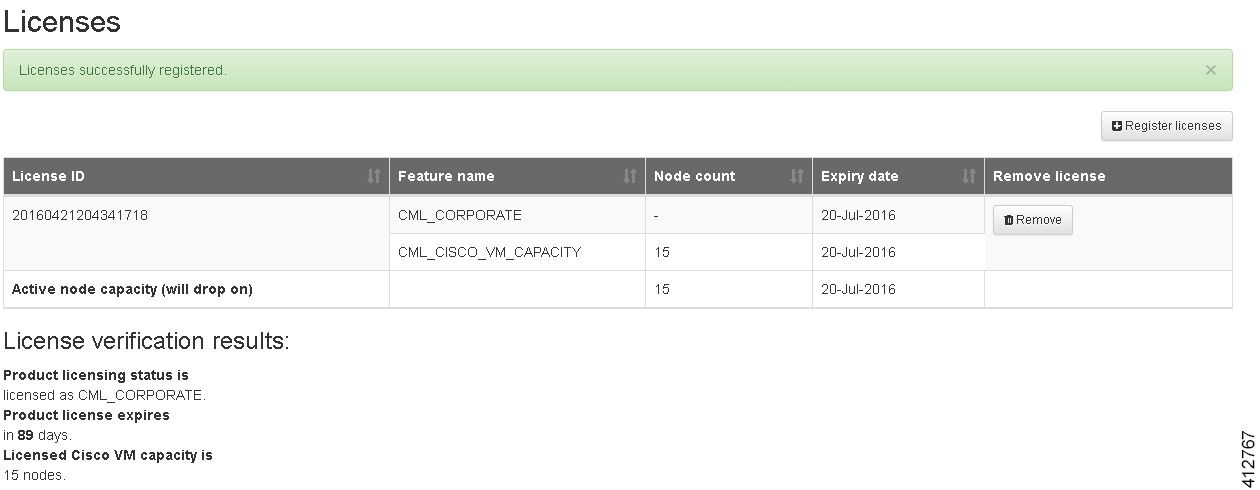
Under Licenses, you will see the license that is added, the number of nodes permissible, and an expiry date for the license.
Figure 43. Licenses Applied


Step 7

Repeat Steps 4 – 6 for each license file received from the registration process. Verify that the Licenses page correctly reports the applied node count and expiration dates.

Step 8

Click Log Out to exit the User Workspace Management interface.