Network Configuration

This chapter contains the following sections:

About Network Configuration

The Network Configuration pages allow you to define various configuration parameters that typically apply to some or all devices in the network. These parameters include configuration such as time settings, domain name services, administrator authentication, and Virtual LANs and Wireless LANs. You can create configuration profiles for each of these areas separately, or you can use the wizard to create profiles for each area in a single workflow. The configuration profiles are applied to one or more device groups, and then pushed out to the devices.

Using the Wizard

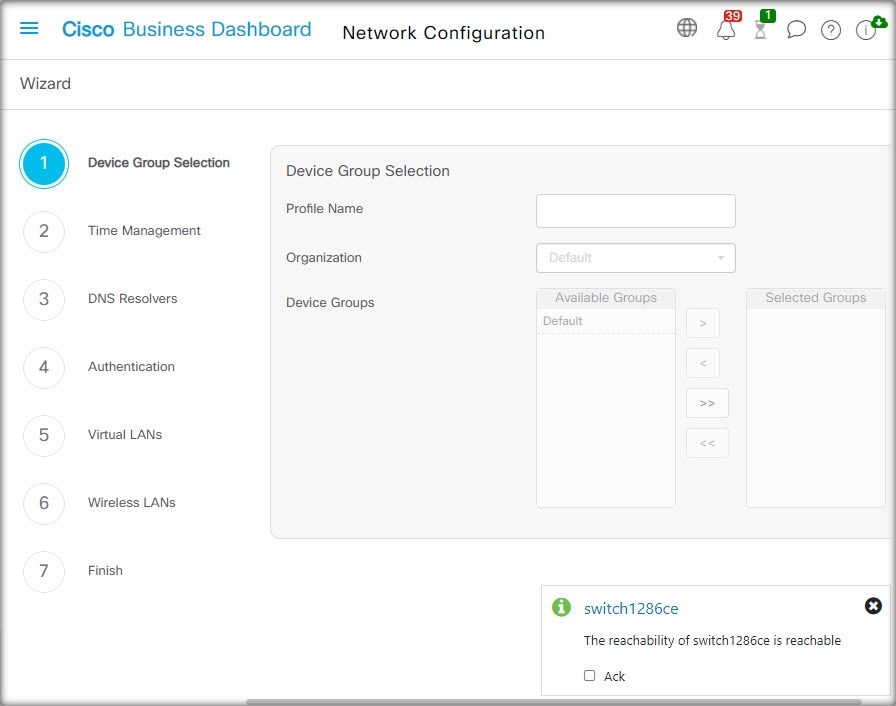
Use the wizard to create configuration profiles for each of the Network Configuration elements, and assign those profiles to one or more device groups in a single workflow.

  1. Navigate to Network Configuration > Wizard.

  2. In the Device Group Selection screen, enter a profile name for this configuration, choose an organization and select one or more device groups to be configured.

  3. Click Next.

    In each of the screens that follow, select the configuration as required. For more details on these parameters, see the following sections.

  4. Complete the configuration settings on each screen and click Next.

    If you do not wish to configure settings on a particular screen for this profile, click Skip.

  5. Click Back to visit the previous screens or you may click the headings on the left.
  6. Complete the configuration and review the settings on the final screen. Click Finish to apply the configuration to the selected devices.

Configuring Time Management

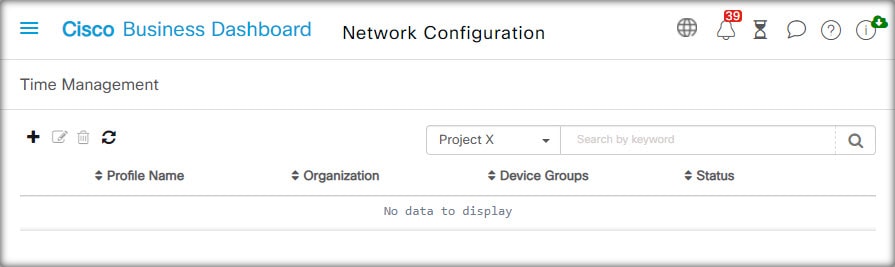
The Time Management page allows you to configure timezones, daylight saving, and NTP servers for the network. The following sections provide instructions on creating, modifying and deleting the Time Settings configuration profile.

Create a Time Management Configuration Profile

  1. Navigate to Network Configuration > Time Management.

  2. Click the ✚(plus) icon to add a new profile.

  3. On the Device Group Selection section, enter a profile name for this configuration, choose an organization and select one or more device groups to be configured.

  4. In the Time Setting section, select an appropriate timezone from the drop-down list.

  5. Optionally enable Daylight Saving by checking the check box, and then specify the parameters for daylight saving in the fields provided. You may choose to specify fixed dates or a recurring pattern. You may also specify the offset to be used.

  6. Optionally enable the Network Time Protocol (NTP) in the Use NTP section for clock synchronization by checking the check box. In the boxes provided specify at least one NTP server address.

  7. Click Save.

Modify a Time Management Configuration Profile

  1. Select the radio button next to the profile to be changed, and click the edit icon.

  2. Make the required changes to the profile settings and click Update.

Remove a Time Management Configuration Profile

  1. Select the radio button next to the profile which needs to be removed.

  2. Click the delete icon.

Configuring DNS Resolvers

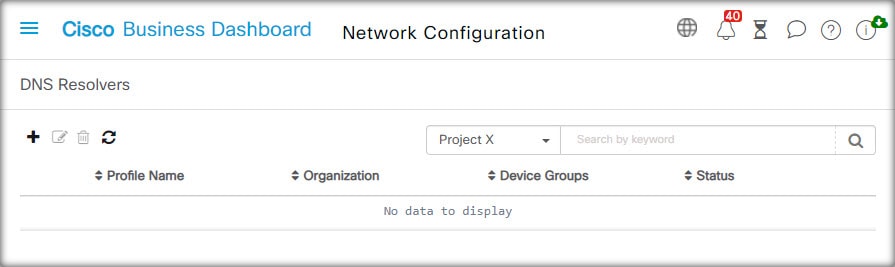
The DNS Resolvers page allows you to configure the domain name and domain name servers for the network. The following sections provide instructions on creating, modifying and deleting the DNS resolvers configuration profile.

Create a DNS Resolver Configuration Profile

  1. Navigate to Network Configuration > DNS Resolvers.

  2. Click the ✚(plus) icon to add a new profile.

  3. On the Device Group Selection section, enter a profile name for this configuration, choose an organization and select one or more device groups to be configured.

  4. Specify the domain name for the network.

  5. Specify at least one DNS server address.

  6. Click Save.

Modify a DNS Resolver Configuration Profile

  1. Select the radio button next to the profile to be changed, and click the edit icon.

  2. Make the required changes to the profile settings and click Update.

Remove a DNS Resolver Configuration Profile

  1. Select the radio button next to the profile to be removed.

  2. Click the delete icon.

Configuring Authentication

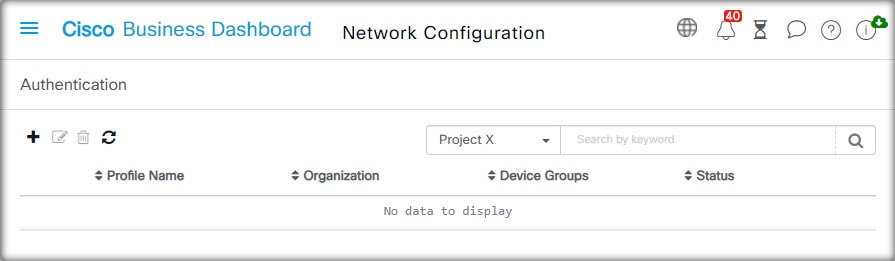
The Authentication page allows you to configure administrative user access to network devices and set authentication servers (RADIUS servers) to use when authenticating network access based on users. The following sections provide instructions on creating, modifying and deleting the authentication configuration profile.

Create an Authentication Configuration Profile

  1. Navigate to Network Configuration > Authentication.

  2. Click the ✚(plus) icon to add a new profile.

  3. On the Device Group Selection section, enter a profile name for this configuration, choose an organization and select one or more device groups to be configured.

  4. Optionally, specify one or more username and password combinations for local user authentication. Additional users may be added by clicking the ✚ (plus) icon.

  5. You may also choose to require the use of complex passwords.

  6. Optionally specify one or more RADIUS servers to use for authentication. You can check the checkbox to enable the use of Cisco Business Dashboard for authentication.

  7. Click Save.


Note


Users requiring network access must be granted the Network Access permission. See Users for more information.


Note


When using Cisco Business Dashboard for network access authentication, it is strongly recommended that the dashboard have a certificate signed by a public certificate authority. If this is not done, most client devices will present a certificate warning to the user, and some clients will not proceed with authentication at all.


Modify an Authentication Configuration Profile

  1. Select the radio button next to the profile to be changed, and click the edit icon.

  2. Make the required changes to the profile settings and click Update.

Remove an Authentication Configuration Profile

  1. Select the radio button next to the profile which needs to be removed.

  2. Click the delete icon.

Configuring Virtual LANs

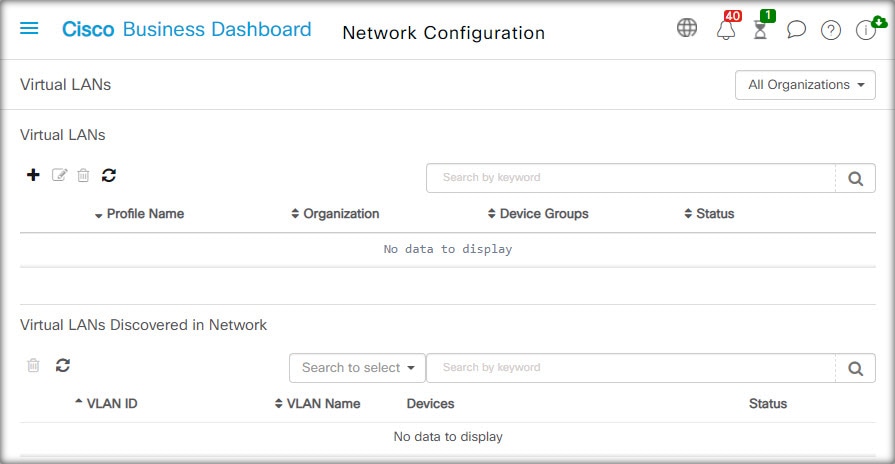
The Virtual LANs page allows you to divide your switch network into multiple virtual networks or VLANs. You can find the existing VLANs in the network that were not configured by Cisco Business Dashboard also displayed on this page in a separate table. The following sections provide instructions on creating, modifying and deleting Virtual LAN configuration profiles.


Create a Virtual LAN

  1. Navigate to Network Configuration > Virtual LANs.

  2. Click the ✚(plus) icon to add a new VLAN.

  3. On the Device Group Selection section, enter a profile name for this configuration, choose an organization and select one or more device groups to be configured.

  4. Specify a descriptive name for the VLAN, and the VLAN ID to be used. The VLAN ID should be a number in the range 1-4094.

  5. You may create multiple VLANs using a single profile. If you want to create additional VLANs in this profile, click Add Another and go back to step 4.

  6. Click Save. The new VLAN will be created on all VLAN-capable devices in the selected groups.

If the VLAN ID of the newly created VLAN matches an existing VLAN already present on devices in the device group, that VLAN will be adopted by Cisco Business Dashboard and removed from the discovered Virtual LANs table.

Modify a VLAN

  1. Check the radio button next to the VLAN to be changed, and click the edit icon.

  2. Make the required changes to the VLAN settings and click Update.

Remove a VLAN

Check the radio button next to the VLAN to be removed, and click the delete icon.

Remove a VLAN not created by Cisco Business Dashboard

In the table of discovered VLANs, click the delete icon next to the VLAN or VLANs to be removed.


Note


VLAN 1 may not be deleted.


Configuring Wireless LANs

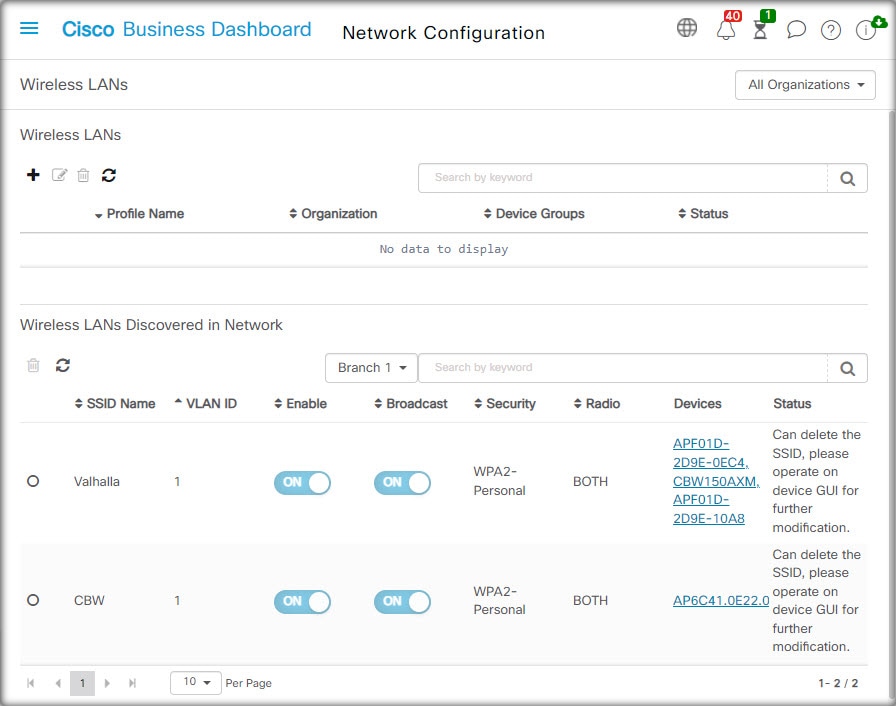
The Wireless LANs page allows you to manage the wireless networks in your environment. You can find the existing Wireless LANs in the network that were not configured by Cisco Business Dashboard also displayed in a separate table. The following sections provide you instructions on creating, modifying and deleting Wireless LAN configuration profiles.


Create a Wireless LAN

  1. Navigate to Network Configuration>Wireless LANs.

  2. Click the ✚(plus) icon to add a new Wireless LAN profile.

  3. On the Device Group Selection section, enter a profile name, choose an organization and select one or more device groups to be configured.

  4. Click the ✚(plus) icon to add a new SSID.

  5. Specify an SSID name for the Wireless LAN, and the VLAN ID that it should be associated with. The VLAN ID should be a number in the range 1-4095, and if it does not already exist in the network, a new VLAN will be created automatically.

  6. Select the type of security required.

    If you select Guest as the security type, you then need to specify the type of authentication to be used with the guest portal. The options include Username/Password, Web Consent, and Email Address. More information on these options can be found in Configuring Guest Portals.


    Note


    SSIDs with a security setting of Guest will only be applied to CBWxxx access points.


    If you select an Enterprise security type, then make sure to assign an authentication profile to the device containing the preferred RADIUS server(s) to use. If one has not been defined for this device, the Cisco Business Dashboard will be used by default.

  7. Optionally, click to expand the Advanced Settings to change the Broadcast, Application Visibility, Local Profiling and Radio settings to match your requirements.

  8. Click Save to continue or Cancel to discard your changes.

  9. You can create multiple Wireless LANs using a single profile. If you want to create additional Wireless LANs in this profile, go back to step 4.

  10. Click Save. The new WLAN will be created on all devices with wireless access point capabilities in the selected groups.

If the Wireless LAN configuration of the newly created profile matches an existing Wireless LAN already present on devices in the device group, that Wireless LAN will be adopted by Cisco Business Dashboard and removed from the discovered Wireless LANs table.

Modify a Wireless LAN

  1. Check the radio button next to the Wireless LAN to be changed, and click the edit icon.

  2. Make the required changes to the Wireless LAN settings and click Update.

Remove a Wireless LAN

Select the radio button next to the Wireless LANs to be removed, and then click the delete icon.


Note


If a Virtual LAN was created automatically when creating the Wireless LAN, the Virtual LAN will not be deleted when the Wireless LAN is deleted. The Virtual LAN may be deleted on the Virtual LANs page.


Remove a Wireless LAN Not Created By Cisco Business Dashboard

In the table of discovered Wireless LANs, click the radio button for the Wireless LAN to be removed and then click the delete icon. In some cases, a WLAN may not be able to be deleted from certain devices. In these cases, it will be necessary to make changes to the device configuration directly.

Configuring Wireless Radios

The Wireless Radios page allows you to manage radio frequency (RF) optimization across the wireless networks in your environment. A Wireless Radio profile allows you to control whether the access points should automatically adjust their wireless radio settings to suit the environment, as well as enabling the detection and reporting of rogue access points and interferers.

The following sections provide you instructions on creating, modifying and deleting Wireless Radio profiles.

Create a Wireless Radio Profile

  1. Navigate to Network Configuration > Wireless Radios.

  2. Click the ✚(plus) icon to add a new Wireless Radio profile.

  3. On the Device Group Selection section complete the following:

    • Enter a profile name for this configuration.

    • choose an organization.

    • Select one or more device groups to be configured.

  4. Choose whether automatic RF Optimization should be performed by the access points in the network. If you enable RF Optimization, be sure to select appropriate values for Client Density and Traffic Type.

  5. Optionally enable the detection of rogue access points.

  6. Optionally enable the detection of interferers.

  7. Click Save.

    The new Wireless Optimization settings will be applied to all wireless access points with RF optimization capabilities in the selected groups.

Modify a Wireless Radio Profile

  1. Check the radio button next to the Wireless Radio Profile to be changed and click the edit icon.

  2. Make the required changes to the RF optimization settings and click Update

Remove a Wireless Radio Profile

  1. Select the radio button next to the Wireless Radio Profile to be removed, and then click the delete icon.

Configuring Guest Portals

The Guest Portals page allows you to centrally manage the web page presented to a guest user when connecting to a guest wireless network. Cisco Business Dashboard hosts a single guest portal for each organization, and each portal may be individually customized to represent the identity of the organization.

The guest portals support multiple methods of authenticating the user, and the same portal can present a different authentication method on different networks. The authentication methods supported are:

  • Username/Password – Each guest user must be defined ahead of time in the dashboard and assigned a username and password. The username and password must then be entered into the guest portal when connecting to the wireless network.

  • Web Consent – The guest user is presented with the organization’s Acceptable Use Policy and must accept the policy in order to access the network.

  • Email Address – The guest user is prompted to provide an email address prior to gaining access to the network. The email address is recorded as the username for the client and may be seen in the wireless client report and the device user interface.

The appearance of each guest portal may be customized by changing all of the text fields including the font used, modifying colors, and updating the background and logo images.

To customize a guest portal, do the following:

  1. Navigate to Network Configuration > Guest Portals.

  2. Select the radio button for the guest portal to be customized and click the edit icon

  3. Use the form presented to update the appearance of the captive portal. You may modify any of the text fields, upload new images to use as background and logo, and modify the colors and font used.

    The guest portal has slightly different content depending on the authentication method chosen. Select the tabs at the bottom of the page to update the fields for the different versions of the portal.

    You may view your changes before saving them by clicking the Preview button on each of the different authentication methods. To restore the portal to the default appearance, click the Reset to defaults button at the top right.

  4. Click Update to save your changes or Cancel to discard them.