Deploy Using AWS Marketplace

Manual deployment using AWS Marketplace

This chapter explains how to manually deploy Catalyst Center on your AWS account using AWS Marketplace.

This deployment method is an option for those who

  • are familiar with AWS administration, and

  • have existing VPCs.

Manual deployment using AWS Marketplace workflow

Follow these high-level steps to deploy Catalyst Center on AWS using AWS Marketplace:

  1. Meet the prerequisites. See Prerequisites for manual deployment using AWS Marketplace.

  2. (Optional) Integrate Cisco ISE on AWS and your Catalyst Center VA together. See Guidelines for integrating Cisco ISE on AWS with Catalyst Center on AWS.

  3. Deploy Catalyst Center on AWS using AWS Marketplace. See Deploy Catalyst Center on AWS manually using AWS Marketplace.

  4. Verify that your environment setup and the Catalyst Center VA configuration are installed correctly and working as expected. See Validate the deployment.

Prerequisites for manual deployment using AWS Marketplace

Before deploying Catalyst Center on AWS, ensure you meet these network, AWS, and Catalyst Center requirements.

Network environment requirements

You have this information about your network environment on hand:

  • Enterprise DNS server IP address

  • (Optional) HTTPS network proxy details

AWS account requirements

You must meet these AWS account requirements:

  • You have valid credentials to access your AWS account.


    Tip


    We recommend that your AWS account be a subaccount (a child account) to maintain resource independence and isolation. A subaccount ensures that the Catalyst Center deployment does not impact your existing resources.


  • Important: Your AWS account is subscribed to Cisco Catalyst Center Virtual Appliance - Bring Your Own License (BYOL) in AWS Marketplace.

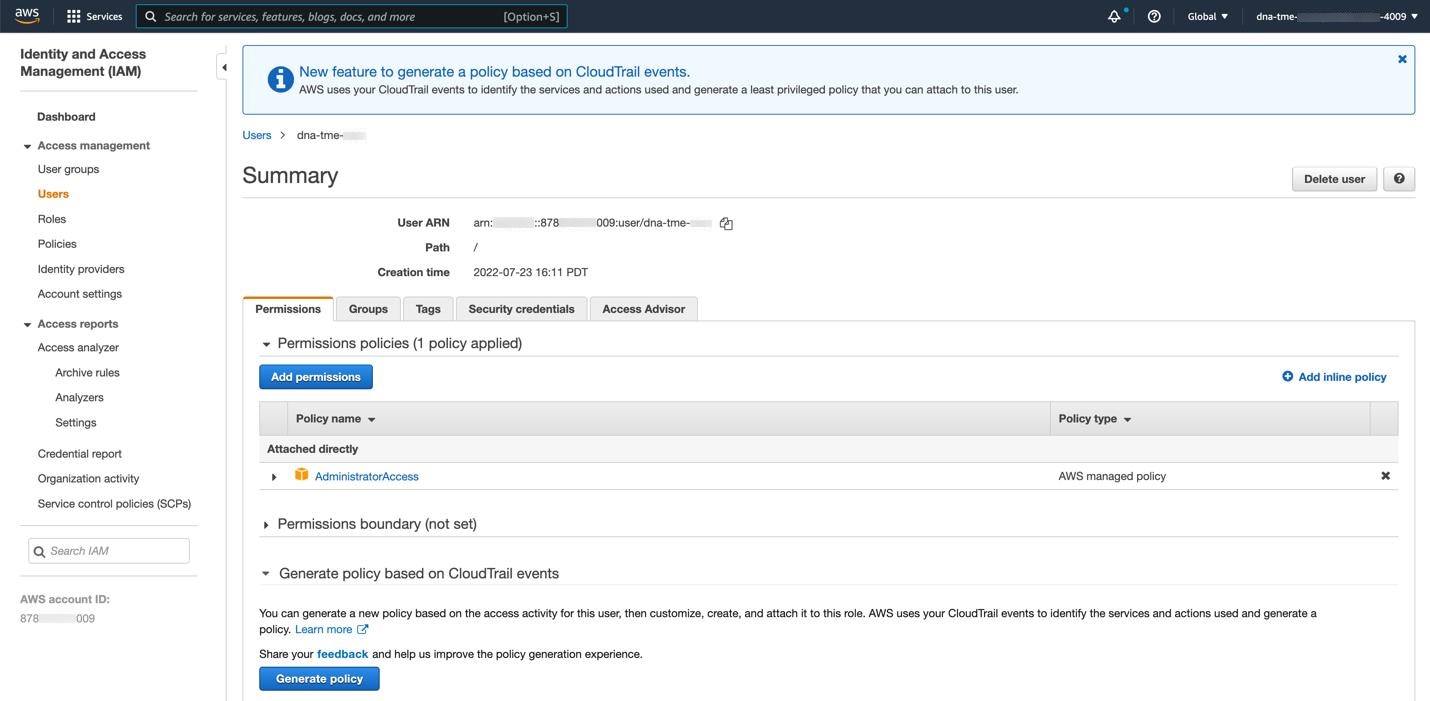
  • You have administrator access permission for your AWS account. In AWS, the policy name is displayed as AdministratorAccess.

    In AWS, on the Summary window for users, the permissions policies are listed, including AdministratorAccess.

AWS network infrastructure requirements

You must set up these resources and services in AWS:

  • VPC: The recommended CIDR range is /25. In IPv4 CIDR notation, the last octet (the fourth octet) of the IP address can only be 0 or 128. For example, x.x.x.0 or x.x.x.128 are valid options.

  • Subnets: The recommended subnet range is /28, and it should not overlap with your corporate subnet.

  • Route tables: Make sure that your VPC subnet is allowed to communicate with your enterprise network through your VPN Gateway (VPN GW) or Transit Gateway (TGW).

  • Security groups: For communication between Catalyst Center on AWS and the devices in your enterprise network, the AWS security group attached to Catalyst Center on AWS must allow these ports:

    • TCP ports: 22, 80, 443, 9991, 25,103, and 32,626

    • UDP ports: 123, 162, 514, 6007, and 21,730

    For more information about the ports that Catalyst Center uses, see "Communication ports" in the "Plan the Deployment" chapter in the Cisco Catalyst Center Installation Guide.

  • VPN GW or TGW: You must have an existing connection to your enterprise network, which is your Customer Gateway (CGW).

    For your existing connection from the CGW to AWS, ensure that the correct ports are open for traffic flow to and from your Catalyst Center VA. You can open them using either the firewall settings or a proxy gateway. For information about well-known network service ports that the appliance uses, see "Required network ports" in the "Plan the Deployment" chapter of the Cisco Catalyst Center Appliance Installation Guide.

  • Site-to-site VPN connection: You can use TGW attachments and TGW route tables.

AWS region configuration requirement

Your AWS environment must be configured with one of these regions:

  • ap-northeast-1 (Tokyo)

  • ap-northeast-2 (Seoul)

  • ap-south-1 (Mumbai)

  • ap-southeast-1 (Singapore)

  • ap-southeast-2 (Sydney)

  • ca-central-1 (Canada)

  • eu-central-1 (Frankfurt)

  • eu-south-1 (Milan)

  • eu-west-1 (Ireland)

  • eu-west-2 (London)

  • eu-west-3 (Paris)

  • us-east-1 (Virginia)

  • us-east-2 (Ohio)

  • us-west-1 (N. California)

  • us-west-2 (Oregon)

IAM user group requirement (optional)

If you want to enable multiple IAM users with the ability to configure Catalyst Center using the same environment setup, you need to create a group with these policies and then add the required users to that group:

  • IAMReadOnlyAccess

  • AmazonEC2FullAccess

  • AWSCloudFormationFullAccess

Catalyst Center instance requirements

The Catalyst Center instance size must meet these minimum resource requirements:

  • r5a.8xlarge


    Important


    Catalyst Center supports only the r5a.8xlarge instance size. Any changes to this configuration aren't supported. Additionally, the r5a.8xlarge instance size isn't supported in specific availability zones. To view the list of unsupported availability zones, see the Release Notes for Cisco Global Launchpad.


  • 32 virtual CPUs (vCPUs)

  • 256-GB RAM

  • 4-terabyte (TB) storage (EBS-gp3)

  • 2500 disk input and output operations per second (IOPS)

  • 180-MBps disk bandwidth

Catalyst Center backup instance requirements

The Catalyst Center backup instance must meet these minimum resource requirements based on if you use a cloud server or an enterprise (on-premises) server:

AWS information requirements

You have this AWS information on hand:

  • Subnet ID

  • Security group ID

  • Keypair ID

  • Environment name

  • CIDR reservation

Catalyst Center environment requirements

You must meet these requirements for your Catalyst Center environment:

  • You have access to the Catalyst Center GUI.

  • You have this Catalyst Center information on hand:

    • NTP setting

    • Default gateway setting

    • CLI password

    • UI username and password

    • Static IP

    • FQDN for the Catalyst Center VA IP address

Deploy Catalyst Center on AWS manually using AWS Marketplace

For instructions on how to deploy Catalyst Center on AWS using AWS Marketplace, go to the Cisco Software Download site and download this file:

Deploy-cisco-dna-center-using-aws-marketplace-2.0.1.tar.gz

Validate the deployment

Perform these validation checks to ensure that your environment setup and Catalyst Center VA configuration work.

Before you begin

Ensure that your stack creation on AWS Marketplace has no errors.

Procedure


Step 1

From the Amazon EC2 console, validate the network and system configuration and then verify that the Catalyst Center IP address is correct.

Step 2

Send a ping to the Catalyst Center IP address to ensure that your host details and network connection are valid.

Step 3

Establish an SSH connection with Catalyst Center to verify that Catalyst Center is authenticated.

Step 4

Test HTTPS accessibility to the Catalyst Center GUI using one of these methods: