Deploy Using AWS CloudFormation

Manual deployment using AWS CloudFormation

This chapter explains how to manually deploy the Catalyst Center AMI on your AWS account using AWS CloudFormation. You will create the AWS infrastructure, establish a VPN tunnel, and deploy Catalyst Center.

This deployment method is an option for those who

  • are familiar with AWS administration, and

  • have existing VPCs.

Manual deployment using AWS CloudFormation workflow

Follow these high-level steps to deploy Catalyst Center on AWS using AWS CloudFormation:

  1. Meet the prerequisites. See Prerequisites for manual deployment using AWS CloudFormation.

  2. (Optional) Integrate Cisco ISE and your Catalyst Center VA together. See Guidelines for integrating Cisco ISE on AWS with Catalyst Center on AWS.

  3. Deploy Catalyst Center on AWS using AWS CloudFormation. See Deploy Catalyst Center on AWS manually using AWS CloudFormation.

  4. Verify that your environment setup and the Catalyst Center VA configuration are installed correctly and working as expected. See Validate the deployment.

Prerequisites for manual deployment using AWS CloudFormation

Before deploying Catalyst Center on AWS, ensure you meet these network, AWS, and Catalyst Center requirements.

Network environment requirements

You have this information about your network environment on hand:

  • Enterprise DNS server IP address

  • (Optional) HTTPS network proxy details

AWS account requirements

You must meet these AWS account requirements:

  • You have valid credentials to access your AWS account.


    Tip


    We recommend that your AWS account be a subaccount (a child account) to maintain resource independence and isolation. A subaccount ensures that the Catalyst Center deployment does not impact your existing resources.


  • Important: Your AWS account is subscribed to Cisco Catalyst Center Virtual Appliance - Bring Your Own License (BYOL) in AWS Marketplace.

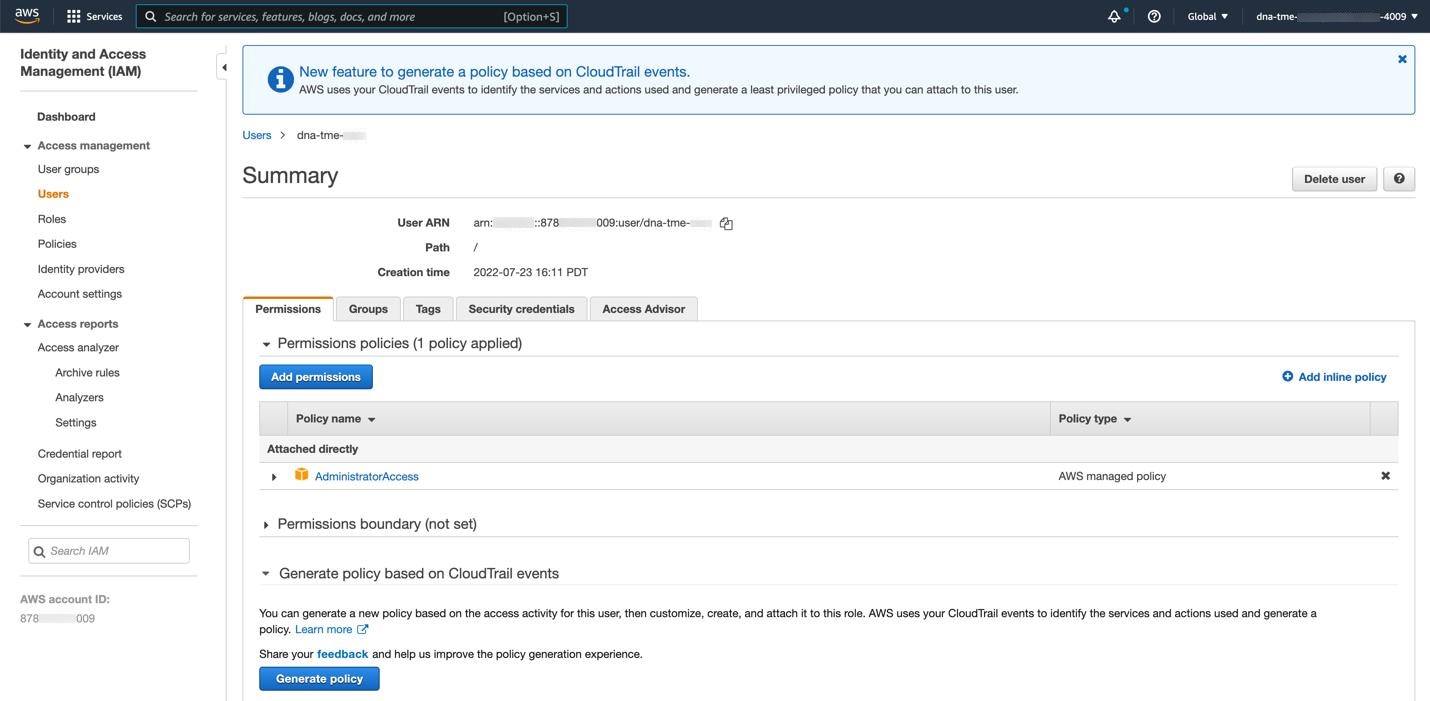
  • You have administrator access permission for your AWS account. In AWS, the policy name is displayed as AdministratorAccess.

    In AWS, on the Summary window for users, the permissions policies are listed, including AdministratorAccess.

AWS network infrastructure requirements

You must set up these resources and services in AWS:

  • VPC: The recommended CIDR range is /25. In IPv4 CIDR notation, the last octet (the fourth octet) of the IP address can only be 0 or 128. For example, x.x.x.0 or x.x.x.128 are valid options.

  • Subnets: The recommended subnet range is /28, and it should not overlap with your corporate subnet.

  • Route tables: Make sure that your VPC subnet is allowed to communicate with your enterprise network through your VPN Gateway (VPN GW) or Transit Gateway (TGW).

  • Security groups: For communication between Catalyst Center on AWS and the devices in your enterprise network, the AWS security group attached to Catalyst Center on AWS must allow these ports:

    • TCP ports: 22, 80, 443, 9991, 25,103, and 32,626

    • UDP ports: 123, 162, 514, 6007, and 21,730

    For more information about the ports that Catalyst Center uses, see "Communication ports" in the "Plan the Deployment" chapter in the Cisco Catalyst Center Installation Guide.

  • VPN GW or TGW: You must have an existing connection to your enterprise network, which is your Customer Gateway (CGW).

    For your existing connection from the CGW to AWS, ensure that the correct ports are open for traffic flow to and from your Catalyst Center VA. You can open them using either the firewall settings or a proxy gateway. For information about the well-known network service ports that the appliance uses, see "Required network ports" in the "Plan the Deployment" chapter of the Cisco Catalyst Center Appliance Installation Guide.

  • Site-to-Site VPN connection: You can use TGW attachments and TGW route tables.

AWS region configuration requirement

Your AWS environment must be configured with one of these regions:

  • ap-northeast-1 (Tokyo)

  • ap-northeast-2 (Seoul)

  • ap-south-1 (Mumbai)

  • ap-southeast-1 (Singapore)

  • ap-southeast-2 (Sydney)

  • ca-central-1 (Canada)

  • eu-central-1 (Frankfurt)

  • eu-south-1 (Milan)

  • eu-west-1 (Ireland)

  • eu-west-2 (London)

  • eu-west-3 (Paris)

  • us-east-1 (Virginia)

  • us-east-2 (Ohio)

  • us-west-1 (Northern California)

  • us-west-2 (Oregon)

IAM user group requirement (optional)

If you want to enable multiple IAM users with the ability to configure Catalyst Center using the same environment setup, you need to create a group with these policies and then add the required users to that group:

  • IAMReadOnlyAccess

  • AmazonEC2FullAccess

  • AWSCloudFormationFullAccess

Catalyst Center instance requirements

The Catalyst Center instance size must meet these minimum resource requirements:

  • r5a.8xlarge


    Important


    Catalyst Center supports only the r5a.8xlarge instance size. Any changes to this configuration aren't supported. Additionally, the r5a.8xlarge instance size isn't supported in specific availability zones. To view the list of unsupported availability zones, see the Release Notes for Cisco Global Launchpad.


  • 32 virtual CPUs (vCPUs)

  • 256-GB RAM

  • 4-terabyte (TB) storage (EBS-gp3)

  • 2500 disk input and output operations per second (IOPS)

  • 180-MBps disk bandwidth

Catalyst Center backup instance requirements

The Catalyst Center backup instance must meet these minimum resource requirements based on if you use a cloud server or an enterprise (on-premises) server:

AWS information requirements

You have this AWS information on hand:

  • Subnet ID

  • Security group ID

  • Keypair ID

  • Environment name

  • CIDR reservation

Catalyst Center environment requirements

You must meet these requirements for your Catalyst Center environment:

  • You have access to the Catalyst Center GUI.

  • You have this Catalyst Center information on hand:

    • Default gateway setting

    • CLI password

    • FQDN for the Catalyst Center VA IP address

Deploy Catalyst Center on AWS manually using AWS CloudFormation

Follow these steps to manually deploy Catalyst Center on AWS using AWS CloudFormation. The provided AWS CloudFormation template contains the relevant details for all required parameters.

Before you begin

Ensure that

Procedure


Step 1

Go to the Cisco Software Download site and download the required file:

Catalyst_Center_2.3.7.7_VA_InstanceLaunch_CFT-2.0.1.tar.gz
Catalyst_Center_2.3.7.6_VA_InstanceLaunch_CFT-2.0.1.tar.gz

The TAR file contains the AWS CloudFormation template that you use to create your Catalyst Center VA instance. The AWS CloudFormation template contains several AMIs, each with a different AMI ID based on a specific region. Use the appropriate AMI ID for your region:

Region Catalyst Center AMI ID

2.3.7.7

ap-north-east-1 (Tokyo)

ami-05075aa903866775f

ap-northeast-2 (Seoul)

ami-0744232fb85e1e6dd

ap-south-1 (Mumbai)

ami-0849e21a92d7a9169

ap-southeast-1 (Singapore)

ami-0ece4e2de41dc36cd

ap-southeast-2 (Sydney)

ami-041be10622357da11

ca-central-1 (Canada)

ami-06c317bd03a7011dc

eu-central-1 (Frankfurt)

ami-0798f49f910aba4e8

eu-south-1 (Milan)

ami-0521e46d211700fce

eu-west-1 (Ireland)

ami-0db1b1b1fdd0ca2ce

eu-west-2 (London)

ami-0bf147263b8dc6307

eu-west-3 (Paris)

ami-016098505ae363956

us-east-1 (Virginia)

ami-088f34e9566dd6aae

us-east-2 (Ohio)

ami-0b816d6043e715eca

us-west-1 (Northern California)

ami-0dbd9780afda8b0a6

us-west-2 (Oregon)

ami-05a8f0bcd39ebcf99

2.3.7.6

ap-northeast-1 (Tokyo)

ami-08ad4bd10d070c09a

ap-northeast-2 (Seoul)

ami-0ec2a639f930691b7

ap-south-1 (Mumbai)

ami-07485e862164f326d

ap-southeast-1 (Singapore)

ami-00b5bc52d24c09f12

ap-southeast-2 (Sydney)

ami-0575952d1ff2cc022

ca-central-1 (Canada)

ami-03c57cfff0af7fd85

eu-central-1 (Frankfurt)

ami-0fa7805ddb7fc499e

eu-south-1 (Milan)

ami-0be6aa7f3c5be37db

eu-west-1 (Ireland)

ami-08a54e16cf62ba31f

eu-west-2 (London)

ami-0e3d36b0ed7ac30c5

eu-west-3 (Paris)

ami-0bc76a7a77134fa22

us-east-1 (Virginia)

ami-0028fe42e8d42234c

us-east-2 (Ohio)

ami-011ea8960d9266ab3

us-west-1 (Northern California)

ami-04581c0954527a2f5

us-west-2 (Oregon)

ami-080cdcf6ee76059d9

Step 2

Verify that the TAR file is genuine and from Cisco Systems, Inc.

For detailed steps, see Verify the Catalyst Center VA TAR file.

Step 3

Log in to the AWS console.

The AWS console is displayed.

Step 4

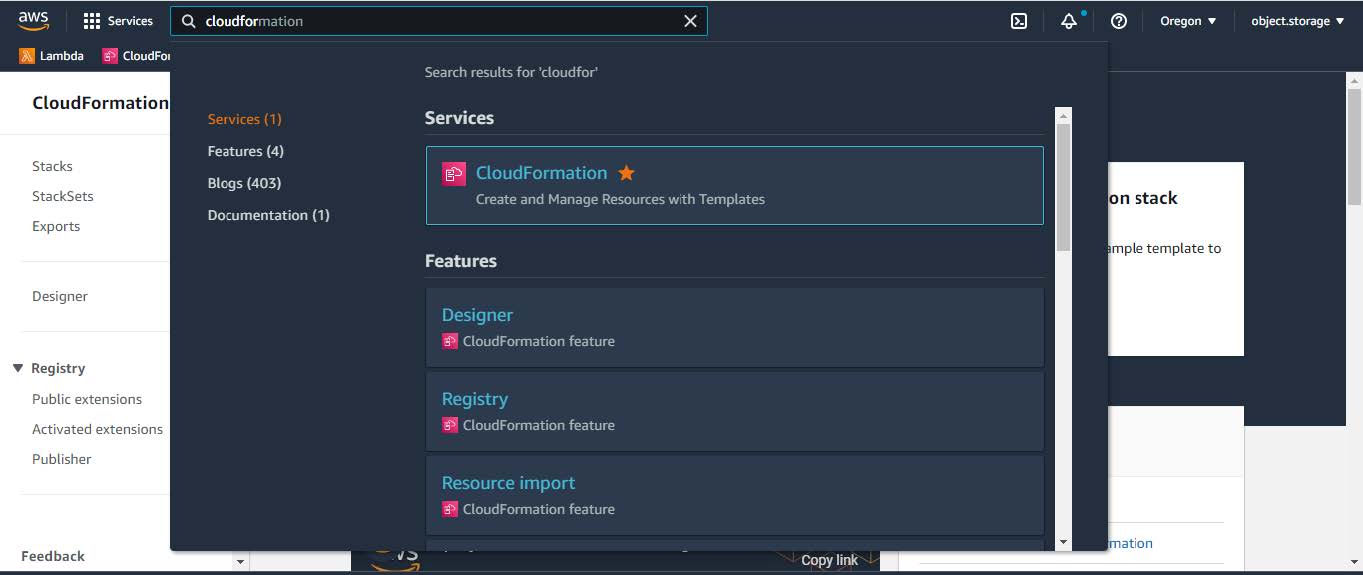
In the search bar, enter cloudformation.

Step 5

From the drop-down menu, choose CloudFormation.

Step 6

Click Create stack and choose With new resources (standard).

Step 7

Under Specify template, select Upload a template file, and choose the AWS CloudFormation template that you downloaded in Step 1.

Step 8

Enter a stack name and review these parameters:

  • EC2 Instance Configuration

    • Environment Name: Assign a unique environment name.

      The environment name is used to differentiate the deployment and is prepended to your AWS resource names. If you use the same environment name as a previous deployment, the current deployment will fail.

    • Private Subnet ID: Enter the VPC subnet to be used for Catalyst Center.

    • Security Group: Enter the security group to be attached to the Catalyst Center VA that you are deploying.

    • Keypair: Enter the SSH keypair used to access the CLI of Catalyst Center VA that you are deploying.

  • Catalyst Center Configuration: Enter this information:

    • CatalystCenterInstanceIP: Catalyst Center IP address.

    • CatalystCenterNetmask: Catalyst Center netmask.

    • CatalystCenterGateway: Catalyst Center gateway address.

    • CatalystCenterDnsServer: Enterprise DNS Server.

    • CatalystCenterPassword: Catalyst Center password.

      Note


      You can use the Catalyst Center password to access the Catalyst Center VA CLI through the AWS EC2 Serial Console.

      The password must

      • omit any tab or line breaks

      • have at least eight characters, and

      • contain characters from at least three of these categories.

        • Lowercase letters (a-z)

        • Uppercase letters (A-Z)

        • Numbers (0-9)

        • Special characters (for example, ! or #)

    • CatalystCenterFQDN: Catalyst Center FQDN.

    • CatalystCenterHttpsProxy: (Optional) Enterprise HTTPS proxy.

    • CatalystCenterHttpsProxyUsername: (Optional) HTTPS proxy username.

    • CatalystCenterHttpsProxyPassword: (Optional) HTTPS proxy password.

Step 9

(Optional) Click Next to configure the stack options.

Step 10

Click Next to review your stack information.

Step 11

Click Submit when you are satisfied with the configuration.

Stack creation usually takes 45 to 60 minutes.


Verify the Catalyst Center VA TAR file

Before deploying the Catalyst Center VA, we recommend that you verify that the TAR file that you downloaded is a genuine Cisco TAR file.

Before you begin

Ensure that you downloaded the Catalyst Center VA TAR file from the Cisco Software Download site.

Procedure


Step 1

Download the Cisco public key (cisco_image_verification_key.pub) for signature verification from the location specified by Cisco.

Step 2

Download the secure hash algorithm (SHA512) checksum file for the TAR file from the location specified by Cisco.

Step 3

Obtain the signature file (.sig) for the TAR file from Cisco support through email or by download from the secure Cisco website (if available).

Step 4

(Optional) Perform an SHA verification to determine whether the TAR file is corrupted due to a partial download.

Depending on your operating system, enter one of these commands:

  • On a Linux system: sha512sum <tar-file-filename>

  • On a macOS system: shasum -a 512 <tar-file-filename>

On Microsoft Windows, use the certutil tool because it does not include a built-in checksum utility:

certutil -hashfile <filename> sha256

For example:

certutil -hashfile D:\Customers\Launchpad-desktop-server-1.x.0.tar.gz sha256

On Windows, you can also use Windows PowerShell to generate the digest. For example:

PS C:\Users\Administrator> Get-FileHash -Path D:\Customers\Launchpad-desktop-server-1.x.0.tar.gz

Algorithm Hash Path
SHA256 <string> D:\Customers\Launchpad-desktop-server-1.x.0.tar.gz

Compare the command output to the SHA512 checksum file that you downloaded. If the command output does not match the SHA512 checksum file, download the TAR file again and run the appropriate command again. If the output still does not match, contact Cisco support.

Step 5

Verify that the TAR file is genuine and from Cisco by verifying its signature:

openssl dgst -sha512 -verify cisco_image_verification_key.pub -signature <signature-filename> <tar-file-filename>

Note


This command works in both Mac and Linux environments. For Windows, you must download and install OpenSSL (available on the OpenSSL Downloads site) if you have not already done so.

If the TAR file is genuine, running this command displays a Verified OK message. If this message fails to appear, do not install the TAR file and contact Cisco support.


Validate the deployment

Perform these validation checks to ensure that your environment setup and Catalyst Center VA configuration work.

Before you begin

Ensure that your stack creation on AWS CloudFormation has no errors.

Procedure


Step 1

From the Amazon EC2 console, validate the network and system configuration and verify that the Catalyst Center IP address is correct.

Step 2

Send a ping to the Catalyst Center IP address to ensure that your host details and network connection are valid.

Step 3

Establish an SSH connection with Catalyst Center to verify that Catalyst Center is authenticated.

Step 4

Test HTTPS accessibility to the Catalyst Center GUI using one of these methods: