Customize Heuristic Packages

This section explains the following topics:

Heuristic Packages

Service Health uses Heuristic Packages as the core logic to monitor and report the health of services. Heuristic Packages define a list of rules, configuration profiles, supported subservices, and associated metrics for each service type.

To access the Heuristic Packages, select Administration > Heuristic Packages from the Main Menu.

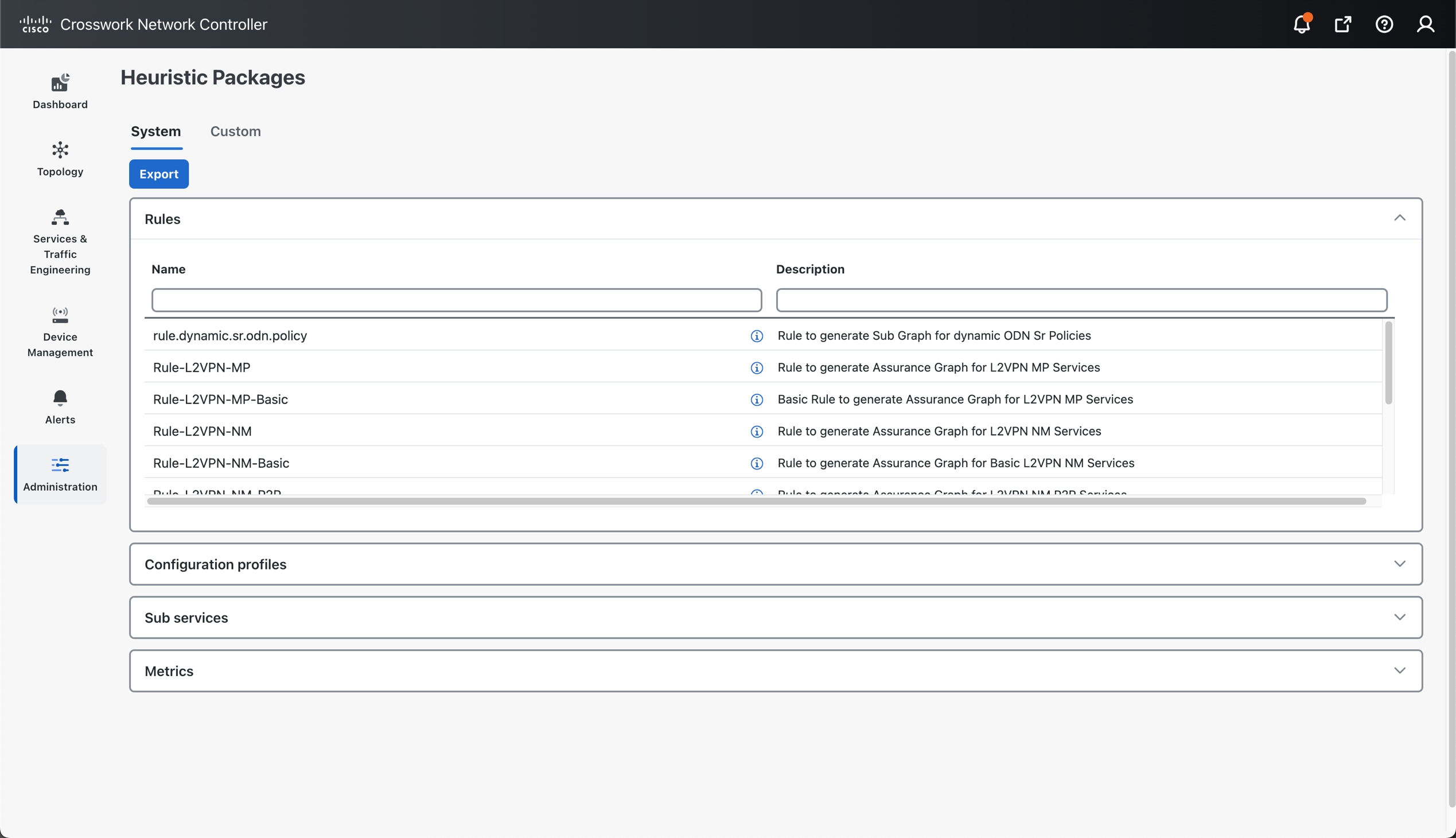
The Heuristic Packages page has two tabs: System and Custom. The default set of Heuristic Packages provided with Service Health is called system packages. These packages are available in the System tab and cannot be modified. To modify a system package, export it, make your changes, and import it as a custom package that matches your preferences.

You can view the custom packages in the Custom tab.

Expand each section on this screen to see more details on monitored services and the thresholds used to generate alerts. For finer details and definitions, hover your mouse over the information i icon.

  • Rules: Rules are used to structure services and the dependent subservices and metrics within a specific service type. Dependencies within these rules help define the subservices and the metrics that are required to generate the data used to assess the health of the service. A service can depend on an individual subservice, a list of subservices of the same type, or subservices of different types.

    For a list of rules supported in Service Health, see Basic and advanced monitoring rules, subservices, and metrics.

  • Configuration Profiles: Configuration Profiles define threshold values that act as benchmarks for assessing the health of the service. By setting specific threshold values, Configuration Profiles establish the criteria for determining when a monitored parameter is within an acceptable range or deviates from the norm.

    The system heuristics package in Service Health includes two configuration profiles—Silver and Gold—for each service type (L2VPN and L3VPN). You can choose a profile option that aligns with your specific monitoring requirements. A Silver profile has more lenient thresholds than a Gold profile. You can create custom configuration profiles as needed.

  • Sub Services: Sub services are characterized by a list of metrics to fetch and a list of computations to apply to these metrics in order to produce a health status and associated symptoms for the service.

    For example, the subservice subservice.evpn.health monitors EVPN health. It is dependent on the metric metric.l2vpn.xconnect.pw.state. It evaluates an expression to check if evpn_state is Up. If the state is degraded, it raises a symptom.

    For list of subservices supported in Service Health, see Supported VPN services with associated subservices.

  • Metrics : Metrics define the operational data that should be fetched from different device types. Service Health uses a metric engine to map device-independent metrics to device-specific implementations, supporting multiple combinations of platforms and operating systems.

    For example, fetching the metricresource.cpu depends on the device type. For Cisco IOS XR devices, it uses Model-Driven Telemetry (MDT), while for Cisco IOS XE devices, it relies on CLI scraping using the command show platform resources.

Rules, Configuration Profiles, Sub services, and Metrics have a hierarchical relationship. Each Rule is mapped to a service type and depends on several subservices to compute service health. Subservices use metrics, and configuration profiles set threshold values for the metrics. Service Health assesses the health of the service using these values and then builds the Assurance Graph.
The service and subservice dependency example illustrates the hierarchical relationship between Rules, Sub services, and Metrics.

Customize the Heuristic Packages

The Heuristic Package bundled with Service Health functions as an assurance model for monitoring L2VPN and L3VPN services. However, the configurations of underlay and overlay networking services may vary across deployments. The Heuristic Package can adapt automatically to certain configuration variations, but other variations cannot be seamlessly absorbed. These variations include changes in the service function pack model, introducing a new device type in VPN service deployment, or adding new network features that require monitoring. In these scenarios, you may need to customize configuration profiles, rules, metrics, or subservice class definitions.

Refer to the section Create the custom Heuristic Package for a basic example of how to create a custom package by customizing the configuration profile for a service. For details or help building a custom package based on rules, metrics, or subservices, contact the Cisco Customer Experience (CX) team or your Cisco account team.
Create the custom Heuristic Package

Create a custom Heuristic Package and modify the CPU_THRESHOLD_MAX parameter in the Gold_L2VPN_ConfigProfile to set the maximum acceptable CPU usage for L2VPN services.

Procedure


Step 1

From the main menu, choose Administration > Heuristic Packages. The Heuristic Packages page opens with System and Custom tabs.

Step 2

Click the System tab and then click Export.

The exportAPI.tar.gz package is downloaded to your system.

Step 3

Extract the exportAPI.tar.gz file contents. This action provides the system folder.

Step 4

In the ConfigProfile folder, open the Gold_L2VPN_ConfigProfile-system.json file.

Step 5

Edit the file as described in these steps:

  1. Change the namespace attribute for the profile to custom.

  2. Increase the version attribute number to 2.0.

  3. Search for CPU_THRESHOLD_MAX and update the threshold value to eighty (80).

{
"id": "Gold_L2VPN_ConfigProfile system”,  
"name": "Gold_L2VPN_ConfigProfile",
  "namespace": "custom",
  "version": "2.0",
  "description":  "Thresholds to use for Gold L2VPN services",
  "rules": [
    {
      "name": "Rule-L2VPN-NM",
      "namespace": "system"
    },
    {
      "name": "Rule-L2VPN-NM-P2P",
      "namespace": "system"
    },
    {
      "name": "Rule-L2VPN-NM-Basic",
      "namespace": "system"
    },
    {
      "name": "Rule-L2VPN-NM-P2P-Basic",
      "namespace": "system"
    },
    {
      "name": "Rule-L2VPN-MP-Basic",
      "namespace": "system"
    },
    {
      "name": "Rule-L2VPN-MP",
      "namespace": "system"
    }
  ],
  "values": {
    "MAX_ACCEPTABLE_IN_OUT_PKT_DELTA": {
      "description": "Max allowed difference between packets received and packets transmitted",
      "type": "VAL_INT",
      "intVal": {
        "unit": "NA",
        "val":  100
      }
    },
    "VPN_INTF_PKT_ERROR_THRESHOLD": {
      "description": "Acceptable delta of in(or out) packet errors expected between polling intervals",
      "type": "VAL_INT",
      "intVal": {
        "unit": "NA",
        "val":  10
      }
    },
    "VPN_INTF_PKT_DISCARDS_THRESHOLD": {
      "description": "Acceptable delta of in(or out) packet discards expected between polling intervals",
      "type": "VAL_INT",
      "intVal": {
        "unit": "NA",
        "val":  10
      }
    },
    "LATENCY_RT_THRESHOLD": {
      "description": "High Threshold for latency health checks",
      "type": "VAL_INT",
      "intVal": {
        "unit": "MSEC",
        "val":  500
      }
    },
    "JITTER_RT_THRESHOLD": {
      "description": "Threshold for acceptable jitter",
      "type": "VAL_FLOAT",
      "floatVal": {
        "unit": "MSEC",
        "val":  80
      }
    },
    "PACKET_LOSS_THRESHOLD": {
      "description": "Threshold for acceptable packet loss rate",
      "type": "VAL_FLOAT",
      "floatVal": {
        "unit": "PERCENT",
        "val":  1
      }
    },
    "SRPM_DELAY_THRESHOLD": {
      "description": "High Threshold for SR-PM latency health checks",
      "type": "VAL_INT",
      "intVal": {
        "unit": "MSEC",
        "val":  200
   
      }
    },
    "CPU_THRESHOLD_MAX": {
      "description": "Threshold for acceptable CPU usage on the device.",
      "type": "VAL_FLOAT",
      "floatVal": {
        "unit": "PERCENT",
        "val":  80
      }
    },
    "MEMFREE_THRESHOLD_MIN": {
      "description": "Threshold for minimum free memory to be available on the device.",
      "type": "VAL_FLOAT",
      "floatVal": {
        "unit": "BYTES",
        "val":  2000000000
      }
    }
  }
} 

Step 6

Save the file after making the changes.

Step 7

Create a compressed tar.gz file from the system folder.


What to do next

Import the custom Heuristic Package into Crosswork Network Controller. See Import the custom Heuristic Packages.

Import the custom Heuristic Packages

Import the custom Heuristic Package into Crosswork Network Controller.

Procedure


Step 1

From the main menu, choose Administration > Heuristic Packages. The Heuristic Packages page opens with System and Custom tabs.

Step 2

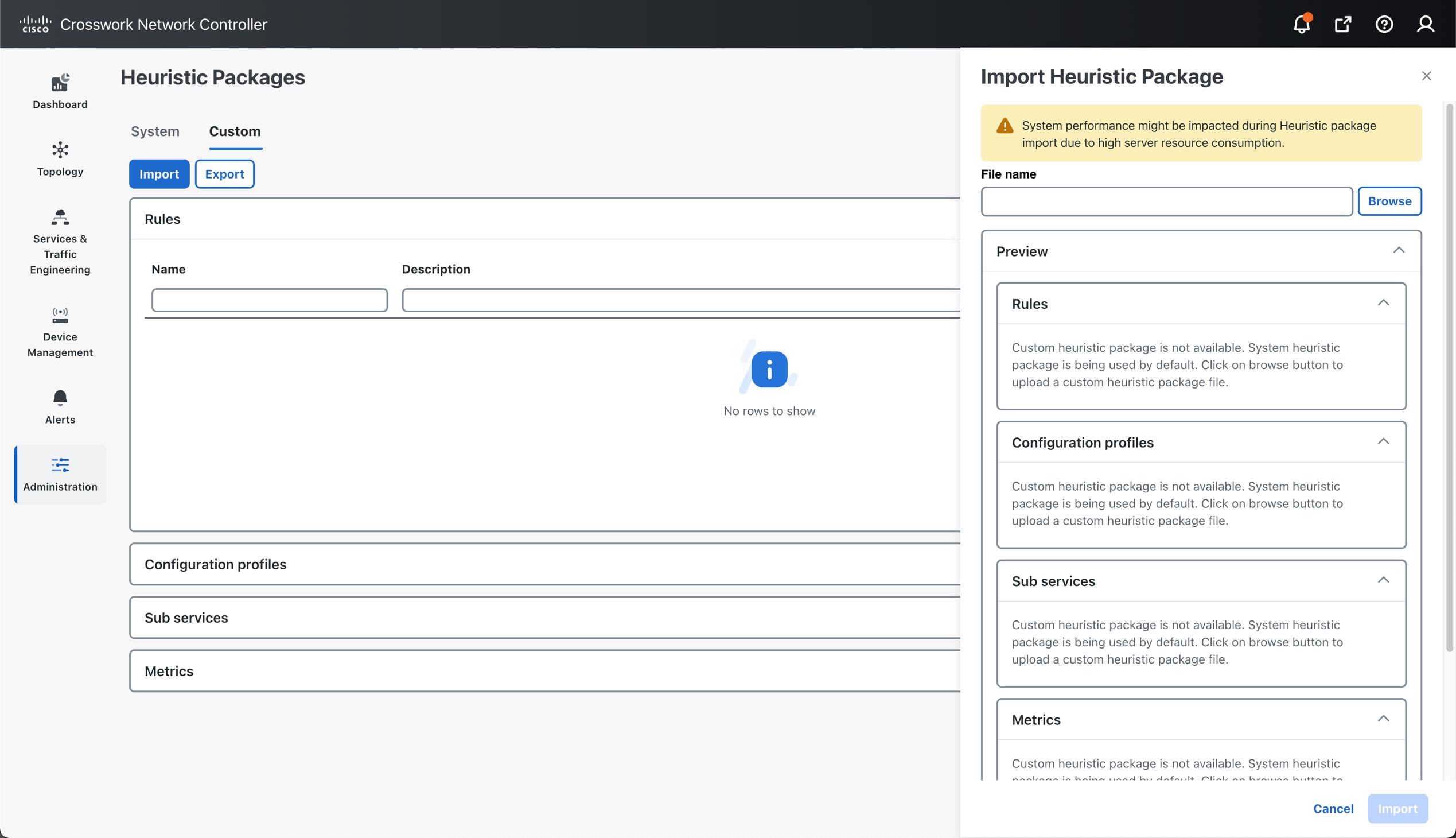
Click the Custom tab and then click Import. The Import Heuristic Packages panel appears.

Step 3

Click Browse to locate the custom package archive file (*.tar.gz file) on your system.

Step 4

Select your custom package and click Preview to review the details of the package to be imported. Information for the package’s Rules, Configuration Profiles, Sub Services, and Metrics appears.

Note

 
High server resource consumption during Heuristic Package import might impact your system performance.

Select each option to preview the details of the custom package. Crosswork Network Controller will validate the package and display an error message if it finds issues or display a success message if validation is successful.

Step 5

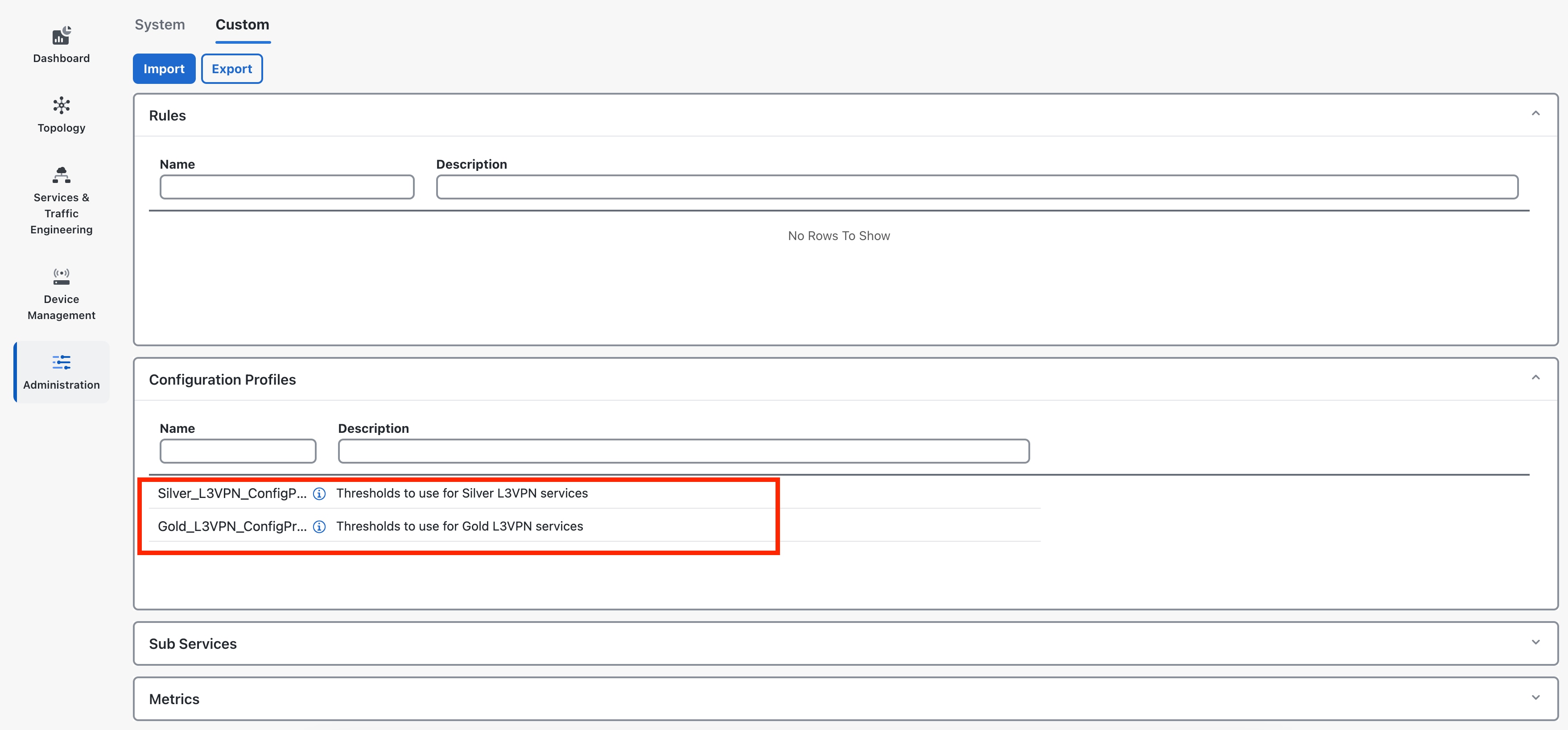
Select the check box to acknowledge the warning and click Import. The package is imported into Crosswork Network Controller and appears in the Custom tab in the Configuration profiles section.


What to do next

Stop monitoring the service before using custom heuristic packages. To resume monitoring, select the custom package and click Start monitoring. See Step 3 in the procedure Start the Service Health monitoring for more information.

Custom Heuristic Packages and rule mismatches

When you upload a custom Heuristic Package, it immediately becomes the standard for all new monitoring sessions, replacing the default system Heuristic Package. To ensure monitoring consistency and prevent rule mismatches, you must manage your existing and new monitoring sessions after the upload.

Key actions and considerations:

  • Activation of custom Heuristic Package:

    • All monitoring sessions started after the upload will automatically use the new custom Heuristic Package.

  • Handling existing monitoring sessions:

    • Any monitoring session that began before the custom Heuristic Package upload will continue using the previous rules.

    • You must stop and restart these sessions to ensure they align with the new custom Heuristic Package.

  • Editing Restriction:

    • The Edit Monitoring Settings option does not function for sessions created with previous system Heuristic Packages.

    • Attempting to edit such sessions will result in a monitoring rule mismatch error and prompt you to restart the session.

After uploading, immediately identify and manually stop all monitoring sessions that began before the custom Heuristic Package upload.

Then, start new monitoring sessions to utilize the updated custom Heuristic Package. If you receive a monitoring rule mismatch error when editing, restart the session.

Example user workflow

  1. Upload the custom Heuristic Package.

  2. Stop any monitoring sessions that started before the upload.

  3. Start new monitoring sessions (these will use the custom package).

  4. If prompted by a mismatch error, restart the affected session.


Note


Always manage monitoring sessions promptly after uploading a custom Heuristic Package to maintain rule alignment and prevent errors.


Custom Heuristic Packages after Crosswork Network Controller upgrades

Crosswork Network Controller supports both system and user-defined (custom) Heuristic Packages.

When you upgrade Crosswork Network Controller, your custom Heuristic Packages are not automatically updated with new system package changes. Manual updates are required to access the latest metrics and improvements.

In this release, these system Heuristic Package changes impact SR-PM (Segment Routing Performance Monitoring) and RSVP-TE (Resource Reservation Protocol-Traffic Engineering) subservices:

New metric classes

  • heuristic_packages/MetricClass/metricSrPmRxPackets.json

  • heuristic_packages/MetricClass/metricSrPmTxPackets.json

  • heuristic_packages/MetricClass/metricMplsRsvpTeRxPackets.json

Updated subservices

  • heuristic_packages/SubserviceClass/subserviceSrPolicyPccPmHealth.json

  • heuristic_packages/SubserviceClass/subserviceSrPolicyPmHealth.json

  • heuristic_packages/SubserviceClass/subserviceSrPolicyPcePmHealth.json

If you have imported or modified a custom Heuristic Package, review and manually update your package to include these new metric classes and subservice changes.

This ensures your customizations remain compatible and you continue to receive complete service health data for SR-PM and RSVP-TE features. For more information on creating custom Heuristic Packages, see Create the custom Heuristic Package.