Set Up and Monitor Alarms and Events

By configuring alarms and events, you can effectively manage system performance and promptly address emerging issues. Navigate to Alerts > Alarms and Events page from the main menu. The Alarms and Events window is displayed.

Navigating alarms and events

  • Switch views: On the Alarms and Events page, use the Alarms or Events button next to the Show option to toggle between the Alarms and Events windows.

  • Alarm categories: Access the Category drop-down list to view different alarm types, including system, network, and device alarms.

    • System alarms: Concerned with overall system infrastructure. For information on system alarms, refer to the View system alarms section in the Cisco Crosswork Network Controller 7.1 Administrator Guide.

    • Network alarms: Related to network performance and connectivity.

    • Device alarms: Specific to individual network devices.

Customizing alarms using REST APIs:

  • You can use the Crosswork Representational State Transfer (REST) APIs to access system, network and device fault information, configure syslogs, and set up trap and packet infrastructure (PKT-FM-INFRA) alarms.

  • See the Crosswork Alarms and Events APIs and Crosswork Element Management Functions Fault APIs documentation for instructions on how to create, update, acknowledge, and clear alarms using REST APIs.

This section contains the following topics:

Alarms and Events

An event is a network incident that occurs at a specific point in time, such as a port status change, or a device becoming unreachable. Events can indicate an error, failure, or exceptional condition in the network. Events can also indicate the clearing of those errors, failures, or conditions. Events have associated severities which you can be adjusted.

An alarm is triggered in response to one or more related events. Each alarm has a state, which can be either cleared or uncleared, and a severity level of Critical, Major, or Minor. The alarm adopts the severity of its most recent associated event. It remains active until a clearing event occurs or it is manually cleared.

Interpret Event and Alarm Badges and Colors

When there is a problem in the network, Crosswork flags the problem by displaying an alarm or event icon with the element that is experiencing the problem. The following table lists the icons and their colors.

The table below lists the alarm colors and their respective severity levels for the icons displayed in various parts of the web GUI.

Severity Icon

Description

Color


Critical alarm

Red


Major alarm

Orange


Minor alarm

Yellow


Warning alarm

Light Blue


Alarm cleared; normal, OK

Green


Informational alarm

Medium Blue

Which Events Are Supported?

To view the supported alarms and events within Cisco Crosswork, access the following link: Cisco Crosswork Supported Alarms and Events. This document contains a detailed list of the alarms and events that are compatible with the Cisco Crosswork platform.

Set Alarm Thresholds to Manage How Alarms are Triggered

You can modify performance policies to customize how often information is gathered (polling interval), the threshold value that indicates a problem, and whether Crosswork Network Controller should generate an informational event or an alarm (of a severity) when a problem is detected. Not all policies have all of these settings. For example, a policy may only collect statistics, so it would not have any thresholds or alarms associated with it.

Procedure


Step 1

Choose Device Management > Performance Policies and select the policy you want to edit.

Step 2

Click on the Threshold tab and locate the parameter you want to change.

Step 3

Click on the Actions tab and select Edit.

Step 4

Choose the device or the device group or the port group for the polling interval and click Next.

Step 5

To adjust the polling interval, select the new interval from the Polling Frequency drop-down list. To disable polling, choose No Polling. Note that some polling frequencies are applied to groups of parameters. Changing the group interval will change the polling for all settings in the group.

Step 6

To change a threshold value, expand the parameter and choose a value from the parameter’s drop-down list.

Step 7

To specify what Crosswork Network Controller should do when the threshold is surpassed, choose an alarm value from the parameter’s drop-down list. You can configure Crosswork Network Controller to generate an alarm of a specified severity, generate an informational event, or do nothing (if no reaction is configured).

Step 8

Click Save.

Note


When a threshold crossing alarm (TCA) is created for the first time, it is not forwarded to an NBI destination or OSS. This is because the event type is not available in the notification policy filter until it has been generated once.


Configure the Settings for Alarms and Events

Configure and customize your settings for alarms and events in Crosswork Network Controller to effectively monitor your devices. You can customize alarm notification destinations, device notifications, or adjust gNMI settings, among other available options. These customizations allow you to receive timely alerts and tailor notifications to specific devices.

Customize Alarm Auto Clear

Crosswork lets you customize whether an alarm can be automatically cleared and how many minutes to wait before automatically clearing it.

Procedure


Step 1

From the main menu, choose Administration > Settings > Alarms and Events > Severity and auto clear. Crosswork displays the Severity and auto clear window, showing the list of all the standard alarm types.

Step 2

(Optional) Filter the list of alarms by entering or selecting values in one or more of the Name, Category, Severity, and Auto clear duration column filter fields. You can toggle the filter fields on and off by clicking on the Set Filter icon.

Step 3

To assign a time after which an alarm will be automatically cleared, click on the check box shown next to that alarm's name in the list. Then click Alarm auto clear.

Step 4

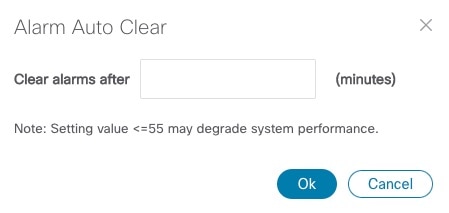
With the Alarm auto clear window displayed, enter the number of minutes to wait before clearing in the Clear alarms after field. Then click OK.

Figure 1. Alarm Auto Clear Window
Alarm Auto Clear Window

Step 5

To stop an alarm from being automatically cleared, first select it in the list and then click Revert auto clear.

Step 6

When you are finished making changes, click Save to apply them.


Customize Alarm Severity

You can customize the Crosswork alarm database to assign your choice of severity levels to particular alarms.

Procedure


Step 1

From the main menu, choose Administration > Settings > Alarms and Events > Severity and auto clear. Crosswork displays the Severity and auto clear window, showing the list of all the standard alarm types.

Step 2

(Optional) Filter the list of alarms by entering or selecting values in one or more of the Name, Category, Severity, and Auto clear duration column filter fields. You can toggle the filter fields on and off by clicking on the Set Filter icon.

Step 3

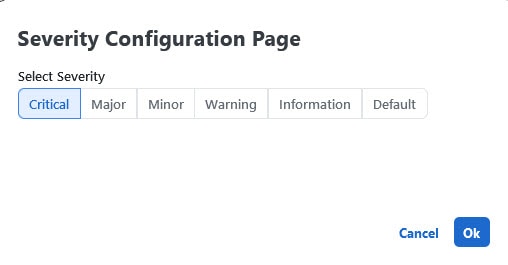
To customize the severity of an alarm, click on the check box shown next to that alarm's name in the list. Then click Actions > Severity configuration to display Severity Configuration Page.

Figure 2. Severity Configuration Page
Severity Configuration Page

Step 4

Click on the severity level you want to assign to the alarm. Then click OK.

Step 5

When you are finished making changes, click Save to apply them. Changes to severity levels will only affect new alarms generated after the update.


Manage cleanup options for alarms, events, and audit logs

Alarms, events, and audit logs are automatically deleted based on the default settings that is configured in the Cleanup options page. The settings are enabled by default and are designed to maintain efficiency. When adjusting these settings, exercise caution, especially if managing a very large network. To access and modify these settings, follow these steps:

Procedure


Step 1

From the main menu, choose Administration > Settings > Alarm and events settings > Alarms and events > Cleanup options.

You can see the default values and the valid range for each setting.

Step 2

Review and choose to retain these default values or adjust them within the permissible range specified in the UI.

Step 3

Click Save to apply any changes.


Customize device alarm manager settings

Crosswork Network Controller lets you customize the set of Cisco devices from which you want to receive alerts. These alarms are generated by the Device alarm manager for Cisco IOS XR devices. Crosswork Network Controller polls the alarm manager within these devices to detect any outstanding alarms or events.
  • The devices for which the alarm manager has been enabled are polled every five minutes.

  • The show alarms command is executed during the polling process to retrieve all open alarms currently present on the device. Using the data retrieved by this command, the Crosswork Network Controller performs a comparison process. This process matches the alarms reported by the device with the alarms already recorded in the Crosswork Network Controller, ensuring synchronization.

  • As part of this comparison, the Crosswork Network Controller clears alarms that have been resolved or creates new alarms to accurately reflect the device's current state.

  • These alarms have a fixed severity level that cannot be overridden in the system settings.

  • Alarms raised by the alarm manager are displayed with the source labeled as Synthetic_Event.

Procedure


Step 1

From the main menu, choose Administration > Settings > Alarms and events > Device alarm manager. Crosswork displays a list of all the supported Cisco devices from which Crosswork can receive alerts.

Step 2

(Optional) Filter the list of devices by filtering on the Name and Status column filter fields. You can toggle the filter fields on and off by clicking on the Set Filter icon.

Step 3

To start receiving alerts from a device type, click the checkbox shown next to the device type's name and then click Enable.

When enabled, all alarms generated by the device alarm manager will appear in the UI.

Step 4

To stop receiving alerts from a device type, click the selection checkbox shown next to the device type's name and then click Disable.

When disabled, Crosswork Network Controller will no longer poll the devices. However, the device manager alarms will be visible in the UI. You can clear these alarms manually.

Step 5

Click Save.


Customize Device Notifications

Adjust notification settings to control which device-generated events, such as traps and syslogs, trigger alerts in Crosswork Network Controller.

Customizing notification preferences helps you manage alert volume by determining the traps and syslog messages that Crosswork Network Controller processes from your network devices.

Before you begin

Identify whether you want to enable or disable notifications for traps or syslogs based on your monitoring needs.

Procedure


Step 1

Choose Administration > Alarm and Events > General.

Step 2

Enable or disable notification processing for traps and syslogs as required.

Step 3

If you need to temporarily disable and then re-enable notification processing for maintenance or troubleshooting:

  1. Disable the respective Trap or Syslog notification.

  2. Wait until all related collection jobs finish and are no longer listed in the jobs dashboard.

  3. Re-enable notification processing if needed.

Step 4

Save your changes.


Crosswork Network Controller updates its notification handling according to your preferences, processing traps and syslogs as configured.

Customize gNMI Settings

Crosswork lets you customize the set of Cisco devices from which you want to receive gNMI alerts. Note that this feature is enabled for third-party platforms. If you want to enable this functionality for Cisco platforms, you have to activate it manually.

Note


gNMI support is not available on Cisco IOS XE devices and limited to the openconfig-system/alarms path on Nexus devices.


Procedure


Step 1

From the main menu, choose Administration > Settings > Alarms and Events Settings > Alarms and Events > GNMI. Crosswork displays the GNMI window, with a list of supported vendors from which Crosswork Network Controller can receive alerts.

Step 2

(Optional) Filter the list of vendors by filtering on the Name and Status column filter fields. You can toggle the filter fields on and off by clicking on the Set Filter icon.

Step 3

To start receiving alerts from a vendor, click the checkbox shown next to the vendor's name and then click Enable.

Step 4

To stop receiving alerts from a vendor, click the selection checkbox shown next to the vendor's name and then click Disable.

Step 5

Click Save to apply the changes.


Configure Alarms Notification Destination

You can configure the Northbound trap or syslog receiver settings to forward the alarms generated by Crosswork Network Controller. You can also forward your notifications to an external Kafka server.

Procedure


Step 1

From the main menu, choose Administration > Settings > Alarms and Events Settings > Notification Destination.

Step 2

Click the Add icon to create a new notification destination.

Step 3

To configure a Northbound trap receiver using IP Address, follow these steps-

  1. From the Destination dropdown, choose Trap receiver.

  2. Select the IP address radio button and enter the IP address.

  3. Enter the Port number, and choose the SNMP version.

  4. If you choose the SNMP Version as v2c, enter the Community settings as required.

  5. If you choose the SNMP version as v3, enter the Username, Mode, Auth. type, Auth.Password, Confirm auth. password, Privacy type, Privacy password and Confirm privacy password.

  6. Click Save.

Step 4

To configure a Northbound trap receiver using DNS, follow these steps-

  1. From the Select contact type, choose Northbound trap receiver.

  2. Select the DNS radio button and enter the DNS Name.

  3. Choose the required Receiver Type and Notification type.

  4. Enter the Port number, and choose the SNMP version.

  5. If you choose the SNMP version as v2c, enter the Community settings as required.

  6. If you choose the SNMP Version as v3, enter the Username, Mode, Auth. type, Auth. password, Confirm Auth. password, Privacy type, Privacy password and Confirm Privacy password.

  7. Click Save.

Step 5

To publish notification messages for alarms to external Kafka server, follow these steps.

  1. Execute APIs to configure external Kafka destination.

    POST: https://{{cwvip}}:{{port}}/crosswork/notification/v2/externalkafka/destination
    • For IPv4/IPv6 address:
      {
          "batchSize": 1048576,
          "bufferMemory": 104857600,
          "compressionType": "snappy",
          "destinationName": "ExtKafkaDest",
          "enableSecureCommunication": false,
          "kafkaServerIPAddress": "xxx.xxx.xxx.xxx",
          "kafkaServerIPAddressFamily": "IPv4",
          "kafkaServerPort": 9192,
          "linger": 2000,
          "maxMessageSize": 10485760,
          "requestTimeout": 30
      }
    • For FQDN:
      {
          "batchSize": 1048576,
          "bufferMemory": 104857600,
          "compressionType": "snappy",
          "destinationName": "ExtKafkaDest",
          "enableSecureCommunication": false,
          "kafkaServer": "mykafka.cisco.com",
          "kafkaServerPort": 9192,
          "linger": 2000,
          "maxMessageSize": 10485760,
          "requestTimeout": 30
      }
  2. Execute the following API to create the subscription.

    POST: https://{{cwvip}}:{{port}}/crosswork/notification/v1/externalkafka/subscription

    {
        "destinationName": "ExtKafkaDest",
        "destinationType": "ALARM",
        "topicName": "rao_alarm_emf_kafka"
    }
  3. From the Destination drop-down list, choose External Kafka.

  4. Select a Kafka topic name created by Crosswork Network Controller REST API.

  5. Click Save.

Note

 
  • While updating the Notification Destination Trap Receiver, the operational status of the previous Trap Receiver remains until the status is updated by the next polling.

  • You cannot delete Notification Destinations which are associated with Notification Policies.

  • If you reinstall an already existing external Kafka data destination with the same IP address, then the collectors need to be restarted for changes to take place.

  • If your external data destination requires a TLS connection, keep the public certificate ready or if it requires client authentication, keep the client certificate and key files ready. The client key might be password-encrypted which will need to be configured as part of the data destination provisioning. Currently, Crosswork supports IP-based certificates only.

  • Ensure that the certificates are PEM encoded and the key file is in PKCS#8 format when generating them with your Certificate Authority.

  • Crosswork logs may display exceptions related to non-existent topics during the dispatching of collected data to an external Kafka. These exceptions can occur if the specified topic within the external Kafka has not been created or was deleted before the data collection job was completed and the data dispatch began.

  • The alarm notifications are filtered based on the alarm policy that you have configured for the destination.


Create a Notification Policy for Network and Devices

This topic explains the steps to create a notification policy for network and devices. With these policies, you can control the alarms and events generated based on conditions you specify.

For information on notification policies for system events, see the Create Notification Policy for System Event section in the Cisco Crosswork Network Controller 7.1 Administration Guide.

Procedure


Step 1

From the main menu, choose Alerts > Notification Policies.

The Notification Policies window is displayed.

Step 2

Click Create and select Devices alarms and events or System/Network events.

The Create window is displayed.

Step 3

Under Policy attributes, enter relevant values for the following fields:

  • Policy name

  • Description

Step 4

Click Next.

Step 5

If you have selected Devices alarms and events:

  1. Under Alarm/Event types, select the event type(s) for the notification policy and click Next.

  2. Select one of the device groups to be part of the alarm policy.

Step 6

Under Destination, select the destination(s) for the notification policy. The destination can be a trap receiver, syslog receiver, or an external kafka. Add the details of the notification destination and click Save.

If there are no destinations available, click the Add icon to add a destination. Refer to the next section, Configure Alarms Notification Destination in this guide.

Step 7

Click Next and review the summary details.

Step 8

Click Save to confirm the policy details.


Manage Alarm Suppression Policy

When you need to temporarily disable notifications for specific conditions such as system maintenance or known issues, you can implement an alarm suppression policy to prevent unnecessary alerts. Alarm suppression is supported only for device alarms.

Follow these steps to suppress an alarm:

Before you begin

Identify which device groups and event types to target for suppressing alarms.

Procedure


Step 1

From the main menu, go to Alerts > Alarm Suppression Policy.

Step 2

Give your policy a name and description and choose if you want to suppress Alarms or Alarms and Events. Click Next.

Step 3

Select the device groups to which you want the policy applied and click Next.

Step 4

Select one or more event types for your policy and click Next.

Step 5

You can see the summary of your policy in the Summary window. Click Save to save your alarm suppression policy.


Manage Alarms

Manage your alarms effectively to maintain network health and ensure prompt responses to potential issues. Crosswork allows you to acknowledge, unacknowledge, clear, and annotate alarms within the controller.

Procedure


Step 1

From the main menu, choose Alerts > Alarms and Events. Crosswork displays the Alarms and Events window.

Step 2

(Optional) Filter the list of alarms by filtering columns, or by adding or removing columns using the Settings icon and then filtering again. Use the More options dropdown to choose whether you want to see only current alarms, and how often the window syncs the displayed list with the Crosswork database. Check the Active alarms only checkbox to show all alarms.

Step 3

Check the check box next to the ID of the alarm(s) for which you want to take action.

Step 4

Click Actions and select one of following the options:

  • Acknowledge: Acknowledge alarms to indicate that they have been recognized and are being addressed. Acknowledged alarms are not cleared and continue to be listed in the Alarms and Events window.

  • Unacknowledge: Unacknowledge alarms to revert their status to indicate they need further attention.

  • Clear: Clear alarms once the issues have been resolved, ensuring your dashboard reflects current network status. Clearing an alarm removes it from the Alarms and Events window, but the alarm will be generated again if the triggering event recurs.

  • Notes: Annotate alarms by adding notes and comments for better tracking. Notes are permanently attached to the alarm and are retrievable until the alarm is cleared from the database or deleted by a user. The user ID of the note taker is stored with the note.

Step 5

Enter an appropriate note and click the applicable button to complete the action.


Clear Alarms

Follow these steps to clear device alarms. You can clear one or multiple alarms by selecting their check boxes. You can also choose to clear all alarms reporting the same alarm condition such as "lostFlow" or "mplsTunnelDown".

Clearing an alarm removes it from the Device Alarms window, but the alarm will be generated again if the triggering event recurs.


Attention


  • In Crosswork Network Controller, when a monitoring policy is modified, the performance service is restarted, or a geo redundancy switchover occurs, existing alarms may remain active and are not automatically cleared even after conditions return to normal. After these events, only alarms that are newly generated will automatically clear themselves when the threshold conditions are no longer met. You may manually clear the older alarms or wait for the next polling interval for them to be updated.

  • Before applying a policy to both Events and Alarms, make sure to clear all active alarms of the relevant type.


Procedure


Step 1

From the main menu, choose Alerts > Alarms and Events. Crosswork displays the Alarms and Events window.

Step 2

(Optional) Filter the list of alarms by filtering columns, changing the Active Alarms Only slider to show all alarms, or by adding or removing columns using the Settings icon. Use the More Options dropdown to choose whether you want to see only current alarms or all alarms, and how often the window syncs the displayed list with the Crosswork database.

Step 3

Check the check box next to the ID of the alarm(s) you want to clear, then select Actions > Clear.

Step 4

Click OK to complete the clear action.

Step 5

To clear all alarms sharing the same condition:

  1. Check the check box next to the ID of one or more alarms sharing the conditions you want to clear (you may select alarms with different conditions).

  2. Select Actions > Clear all of this condition.

  3. Click OK to complete the clear-all action.


Annotate Alarms

Alarm notes are a handy way to share information and record important information missed by automated monitoring. Notes are permanently attached to the alarm and are retrievable until the alarm is cleared from the database or deleted by a user. The user ID of the note taker is stored with the note.

Follow the steps below to annotate device alarms. You can annotate multiple alarms at the same time by selecting their check boxes before choosing to add a note. Notes support entries in plain text only.

Procedure


Step 1

From the main menu, choose Alerts > Alarms and Events. Crosswork displays the Alarms and Events window.

Step 2

(Optional) Filter the list of alarms by filtering columns, changing the Active Alarms Only slider to show all alarms, or by adding or removing columns using the Settings icon. Use the More Options dropdown to choose whether you want to see only current alarms or all alarms, and how often the window syncs the displayed list with the Crosswork database.

Step 3

Check the check box next to the ID of the alarm(s) you want to annotate.

Step 4

Select Actions > Notes. Crosswork displays the Add annotation popup.

Step 5

Enter the text of the note you want to add to the selected alarm(s).

Step 6

Click Add to add the note.


Export Alarms

Follow these steps to export device alarms for offline storage and analysis.

You must be viewing alarms to export alarms, or events if you want to export events. You can choose to export alerts to comma-separated values (CSV) or PDF file formats.

By default, Crosswork Network Controller exports all the alarms currently visible in the Alarms and Events list. You can limit the contents of the exported file to just the alerts you want by filtering the list, or selecting the checkbox next to the alerts you want, before clicking the Export icon.

Procedure


Step 1

From the main menu, choose Alerts > Alarms and Events. Crosswork displays the Alarms and Events window.

If you want to export events instead of alarms: In the Show dropdown, select Events.

Step 2

(Optional) Filter the list of events to be exported by filtering columns, or by adding or removing columns using the Settings icon and then filtering again. Use the More options dropdown to choose whether you want to see only current alerts or all alerts, and how often the window syncs the displayed list with the Crosswork database.

For alarms only: Check the Active alarms only checkbox. You can also check the check box next to the ID of the alerts you want to export.

Step 3

Click Export icon. Crosswork displays an export popup window appropriate for the type of alert you want to export.

Step 4

In the File name field, enter the name of the destination file (don't include a filename extension).

Step 5

Using the Format button, select CSV or PDF.

Step 6

Click Export to begin the export, and specify the storage location for the new file.

If you manually select the alarms, only 100 records can be exported. If no alarms are selected, 20,000 records can be exported at a time.