
Multicloud Fabric Onboarding
Introduction
Multicloud Fabric is Cisco’s fully managed networking service for connecting site-to-cloud and cloud-to-cloud networks. It supports networks in AWS, Azure, and Google Cloud, as well as Meraki sites.
In Multicloud Fabric, you:
-
Authorize cloud access for the cloud providers you use.
-
Onboard the networks you want to include in the fabric.
-
Choose which resources should communicate.
Multicloud Fabric then provisions the routing, tunnels, and policies needed to realize those connections. It simplifies multicloud networking by giving you a way to:
-
Discover and manage network resources.
-
Define specific connectivity between the resources you choose.
-
Monitor connection health and events, including event history, to help you investigate connectivity issues.
Rather than automatically connecting every onboarded network, Multicloud Fabric’s Zero Trust Routing capability distributes only the routes authorized by your connection choices.
Cloud account integration requirement
Your AWS, Azure, or Google Cloud environment is administered outside Multicloud Fabric. As a result, Multicloud Fabric needs an explicit, customer-authorized cloud identity to call the selected provider’s control-plane APIs for the approved scope. This authorization lets Multicloud Fabric discover your network inventory, as well as create and manage the Multicloud Fabric-owned cloud connectivity resources needed for integration.
What cloud account integration enables
Refer to this table for a description of what cloud account integration enables for Multicloud Fabric.
| Enabled capability | What Multicloud Fabric is authorized to do | When it takes effect |
|---|---|---|
|
Cloud discovery |
Read the data required to show eligible resources in Multicloud Fabric, such as the authorized account, subscription, CIDR, and related inventory. |
Initial discovery starts after the integration validates. |
|
Network onboarding |
Create and manage the connectivity resources for a selected network, such as the supported cloud-side VPN, gateway, and tunnel. |
Only after you select a discovered network and submit onboarding. |
|
Connections and route exchange |
Use onboarded cloud networks as connection endpoints, and apply the explicit route-exchange intent. |
Only after the endpoints are onboarded and you create a connection. |
|
Operations and lifecycle |
Correlate status for items such as integration, discovery, attachment, and events. Support approved update and offboarding workflows |
As resources and operations exist, and only when you initiate the applicable lifecycle action. |
Before you start
You need access to create or modify the required identity and access resources. Based on your company policies, you may need your IT or cloud administration team to provision these rights.
Refer to this table for a description of what you configure for your cloud account.
| Provider | Your scope | Identity you configure | How Multicloud Fabric uses it |
|---|---|---|---|
|
AWS |
Your AWS account |
A cross-account IAM role ARN with the Multicloud Fabric principal and external ID in its trust relationship. |
Multicloud Fabric assumes the role through AWS STS and validates the requested access. |
|
Azure |
Your Azure subscription |
A Microsoft Entra service principal: Tenant ID, client/application ID, client secret, and the intended subscription role assignment. |
Multicloud Fabric authenticates the service principal and validates Azure Resource Manager access. |
|
Google Cloud |
Your Google Cloud project or a supported parent scope |
A service-account identity or material with the required IAM roles and enabled APIs. |
Multicloud Fabric authenticates the service account and validates access to the selected Google Cloud scope. |
Integration workflow
Complete these tasks to access and set up Multicloud Fabric for use:
-
Onboard to Cisco Cloud Control. Refer to Cisco Cloud Control Getting Started.
-
Integrate your cloud service provider (CSP) account by completing the relevant procedure:
Activate your Multicloud Fabric trial subscription
Before you begin
-
You must be a Cisco Cloud Control user with the Tenant Full Admin role.
-
If you are accessing Multicloud Fabric from the Meraki Dashboard, you must be a Meraki organization administrator.
Follow these steps to activate your trial subscription:
-
Open Cisco Cloud Control and sign in with your existing Meraki credentials.
-
Select
 .
. -
Under Apps, select Multicloud Fabric.
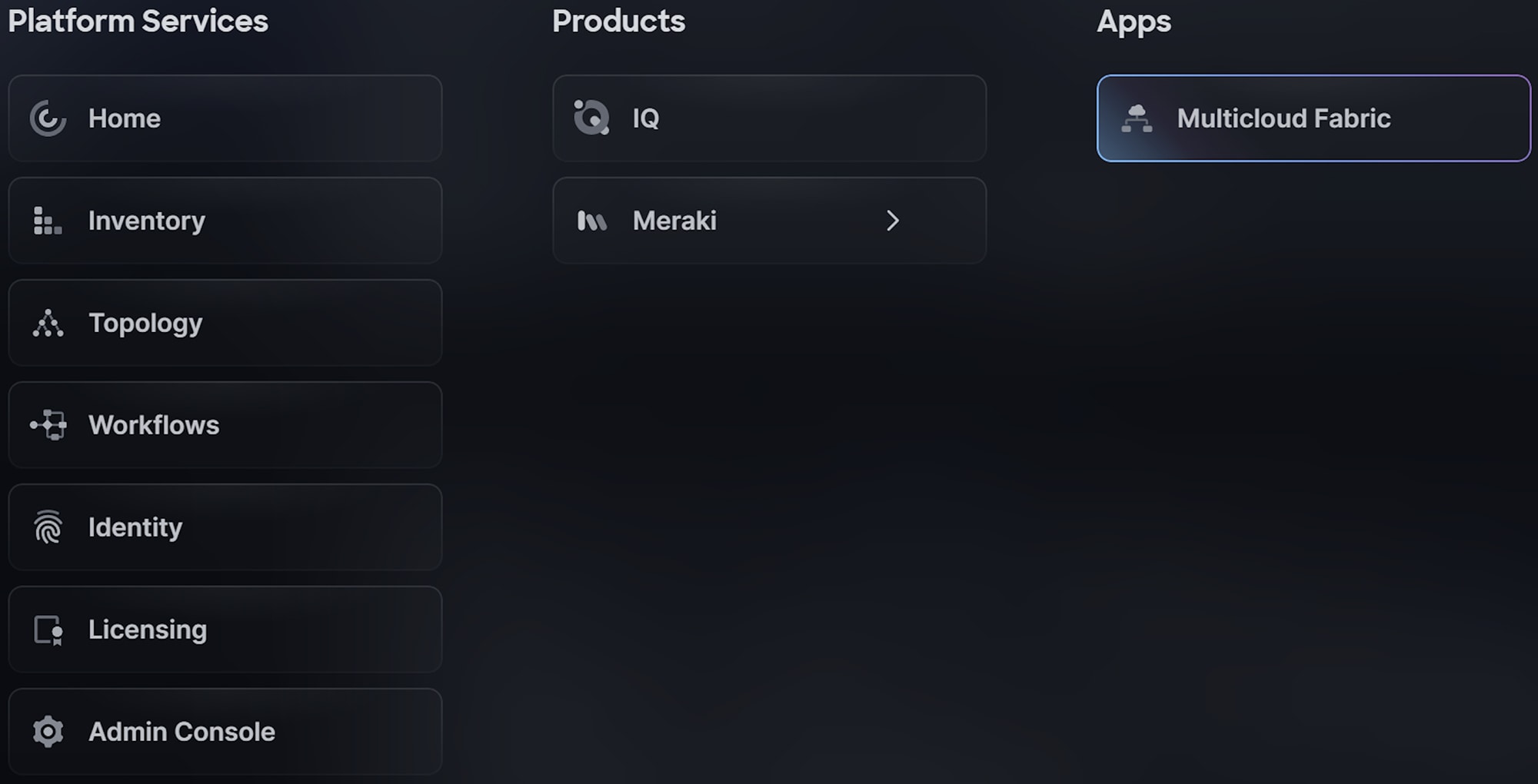
-
If Multicloud Fabric is already enabled for you, Multicloud Fabric’s overview page opens and you should not be prompted to sign in a second time. Skip ahead to Step 7.
-
If you are not yet authorized to access Multicloud Fabric, a splash page opens.
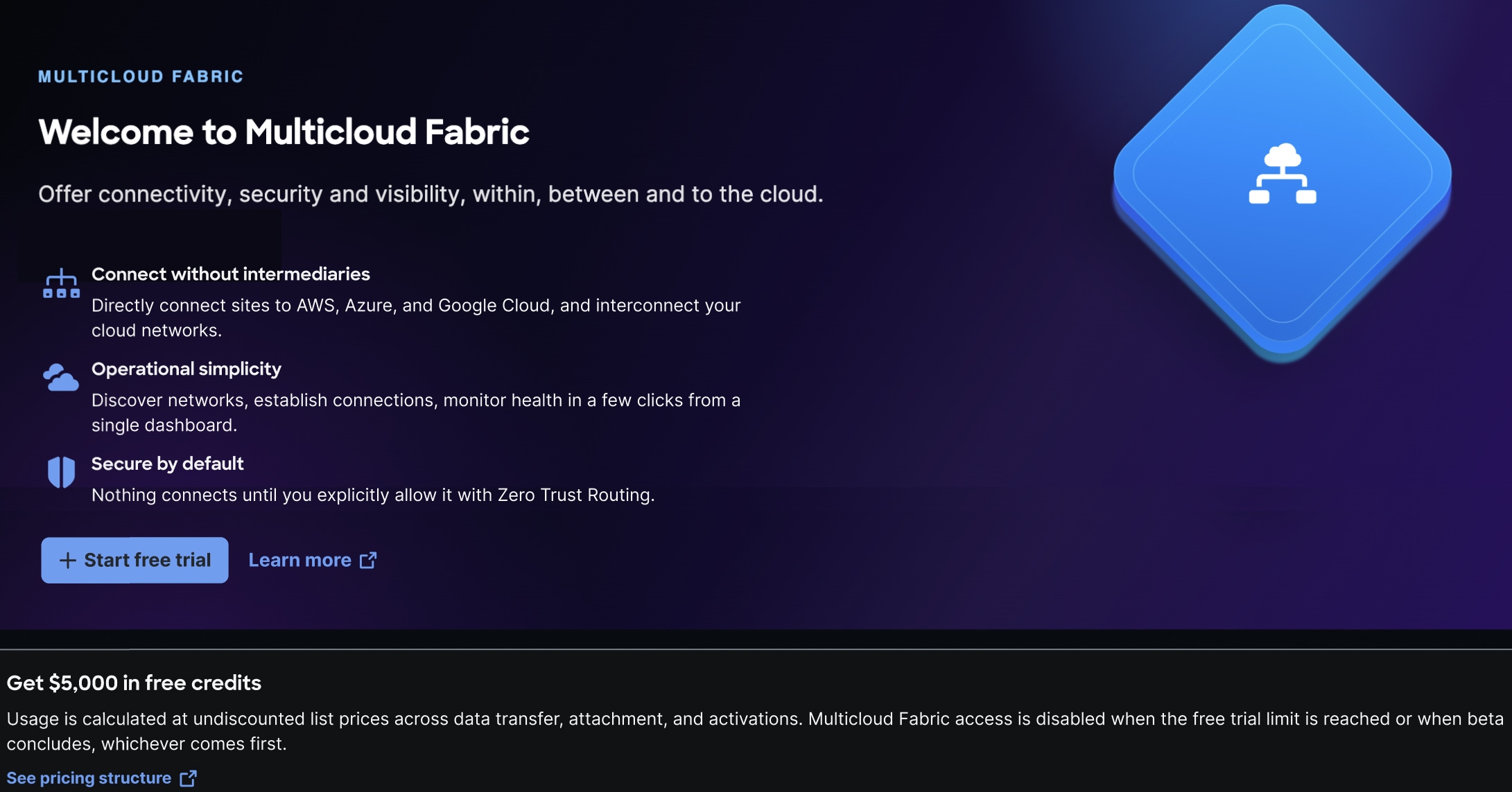
Proceed to Step 4.
-
-
Select Start free trial.
-
Complete these actions:
-
Select the tenant you want to enable Multicloud Fabric for.
If you have grouped tenants, select the single Meraki tenant in which you want to enable Multicloud Fabric. -
Review Multicloud Fabric’s terms and conditions.
-
Check the check boxes.
-
Type
Subscribe, then select Confirm.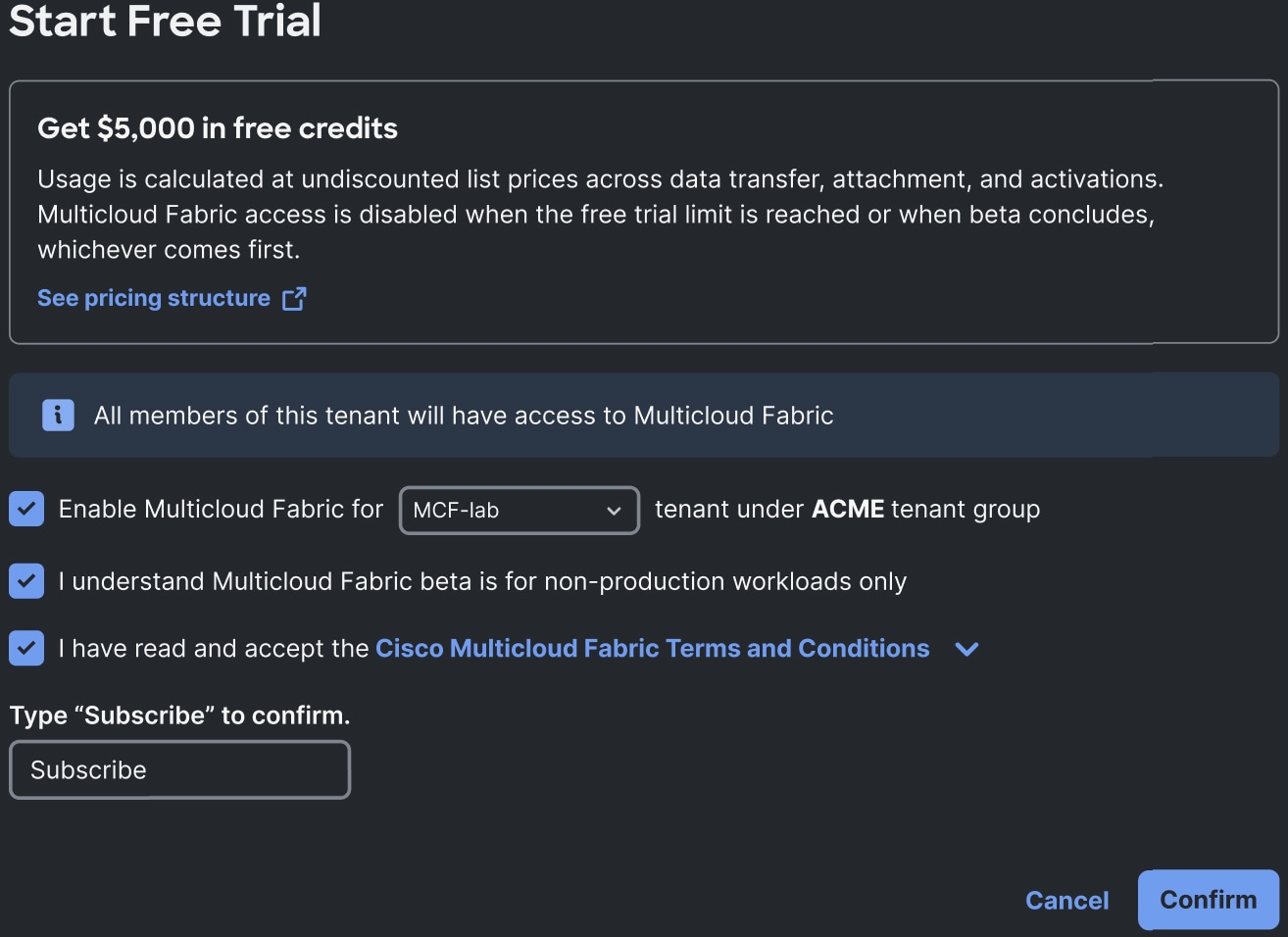
After your access is enabled, the Welcome to Multicloud Fabric slider opens.
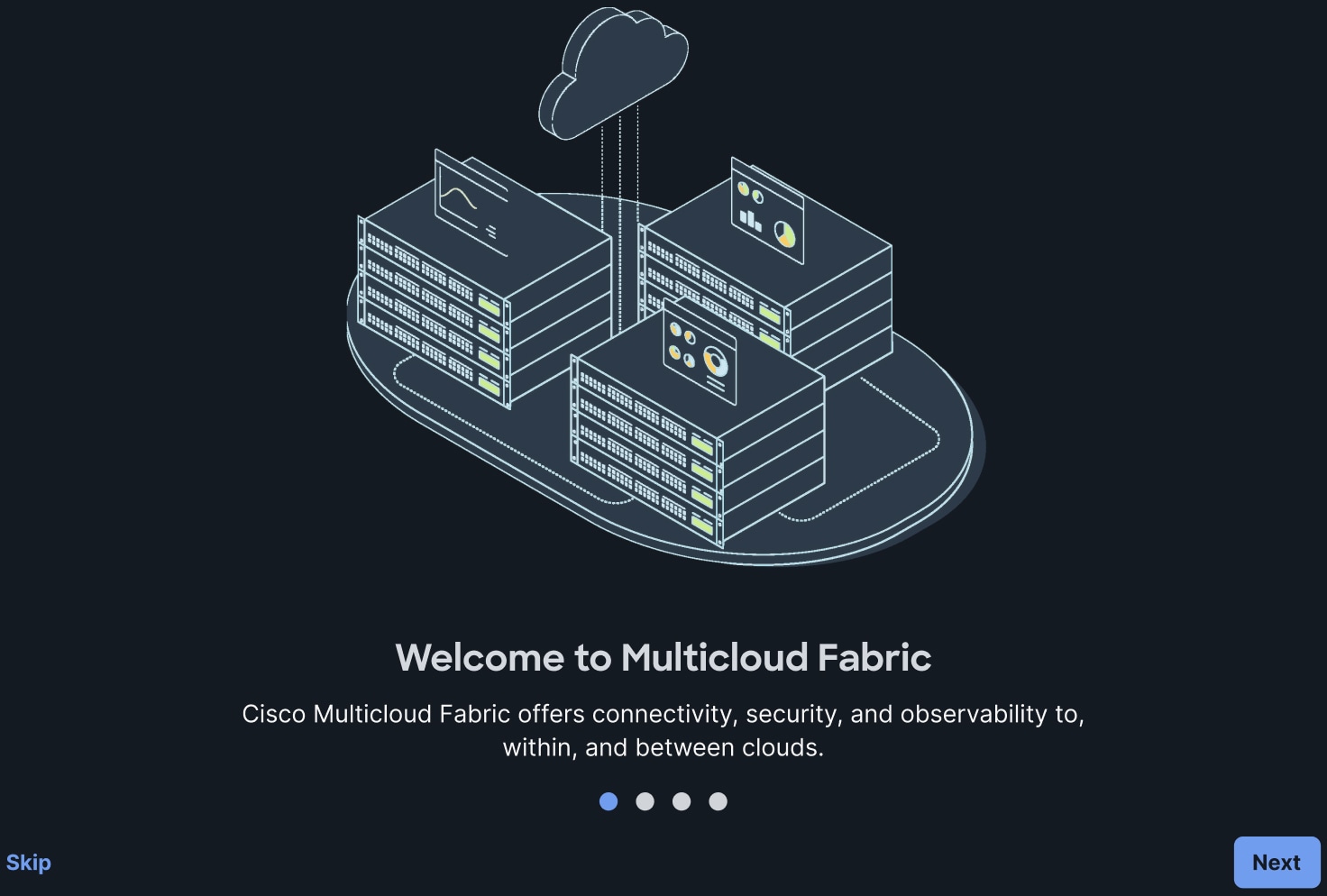
-
-
Select Next to cycle through the slider’s screens, which describe Multicloud Fabric’s core features.
-
In the last screen, select Onboard network to open Multicloud Fabric’s Overview.
Integrate an AWS account
Complete the AWS integration workflow to establish IAM access for Multicloud Fabric and provide the necessary role Amazon Resource Name (ARN).
-
In Multicloud Fabric’s left navigation, select Cloud Access.
-
Select Add cloud integration > AWS.
Review access rights opens.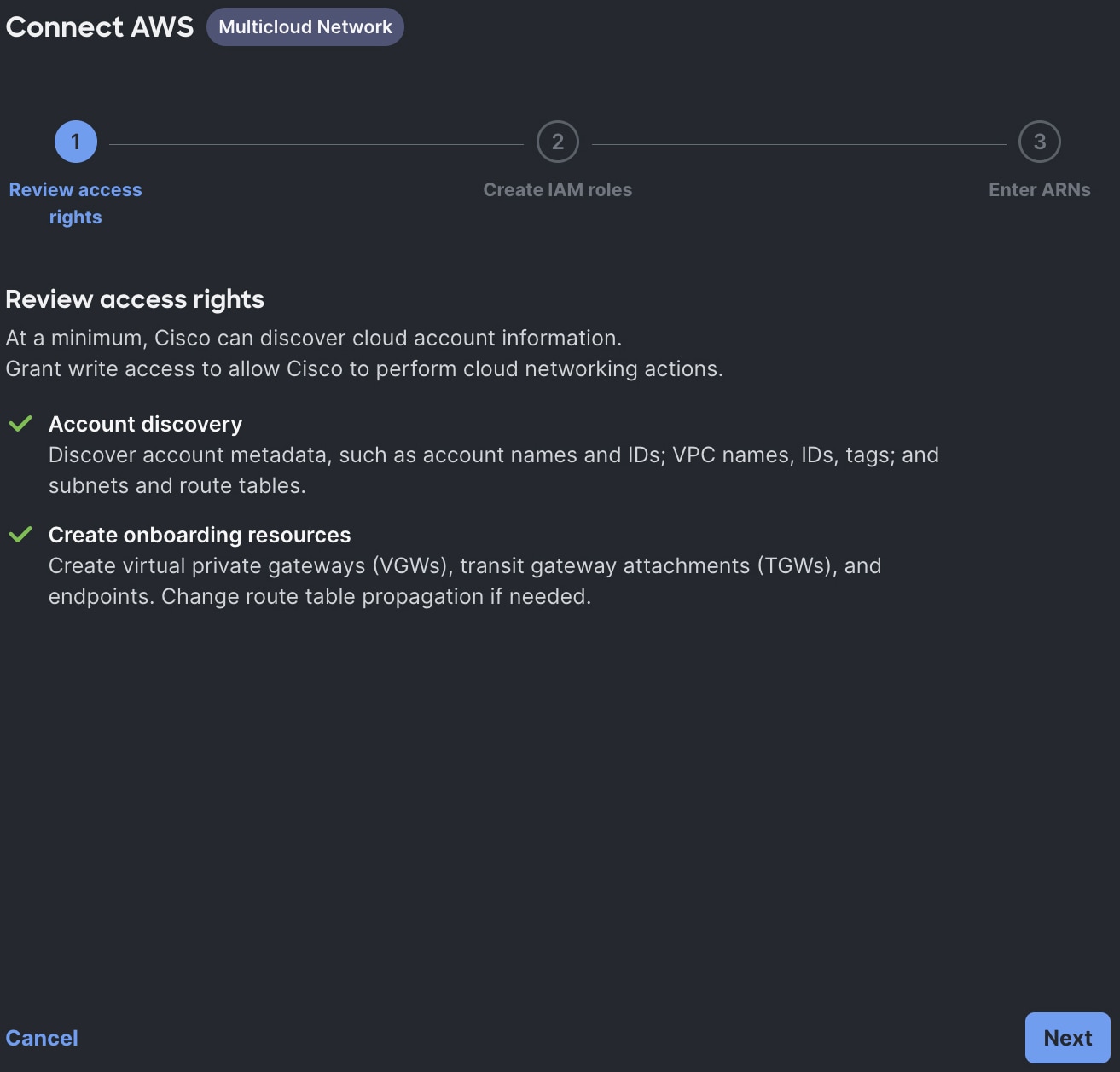
-
Review the access rights that you are granting Multicloud Fabric, then select Next.
Create IAM roles opens.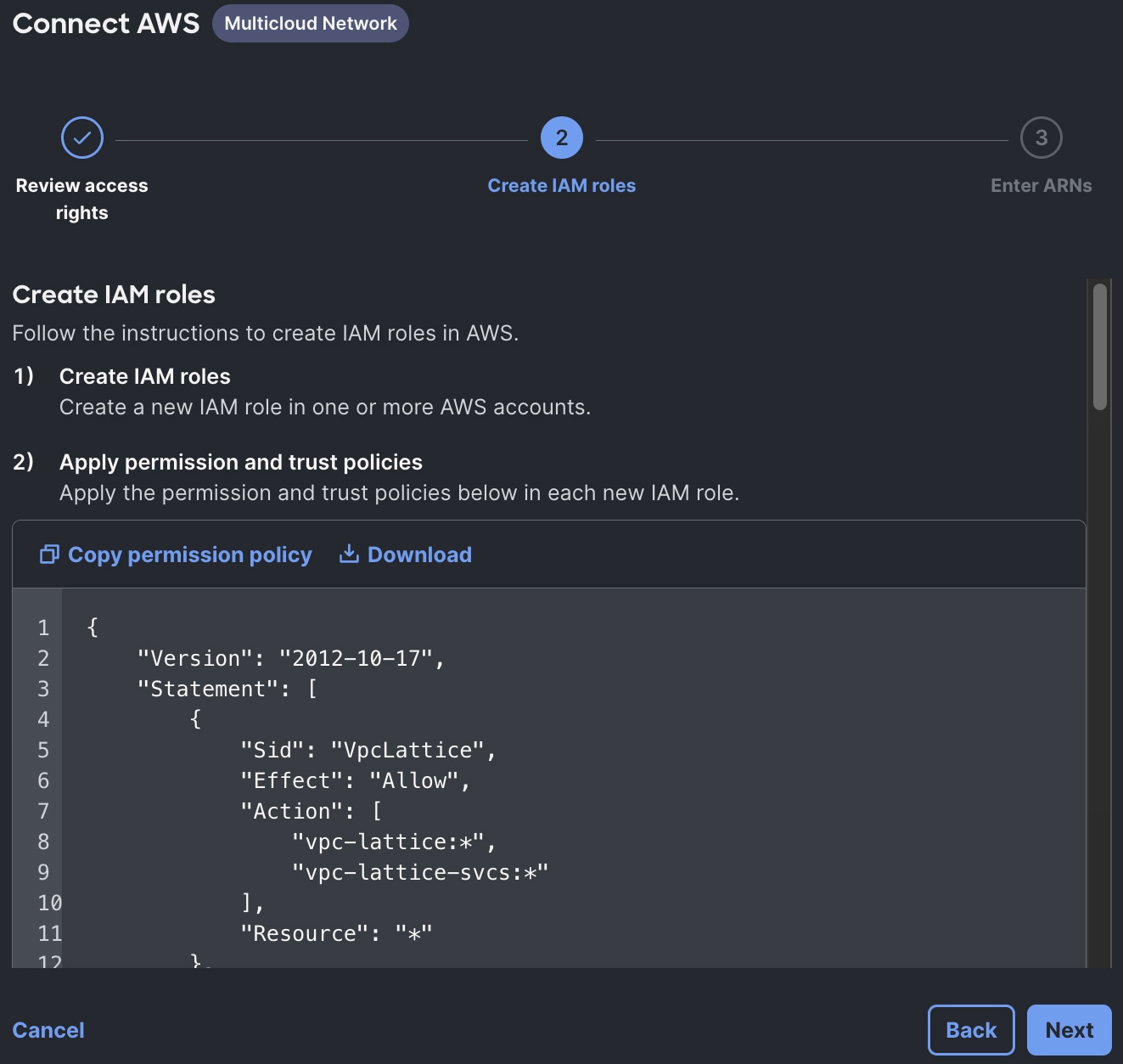

For Beta, an IAM role is already configured, as well as the required permission and trust policies.
-
In the trust policy, copy the role’s ARN (
arn:aws:iam::xxxxxxxxxxxx:role/mcn-integrations-role) and then select Next.Amazon Resource Names (ARNs) opens.
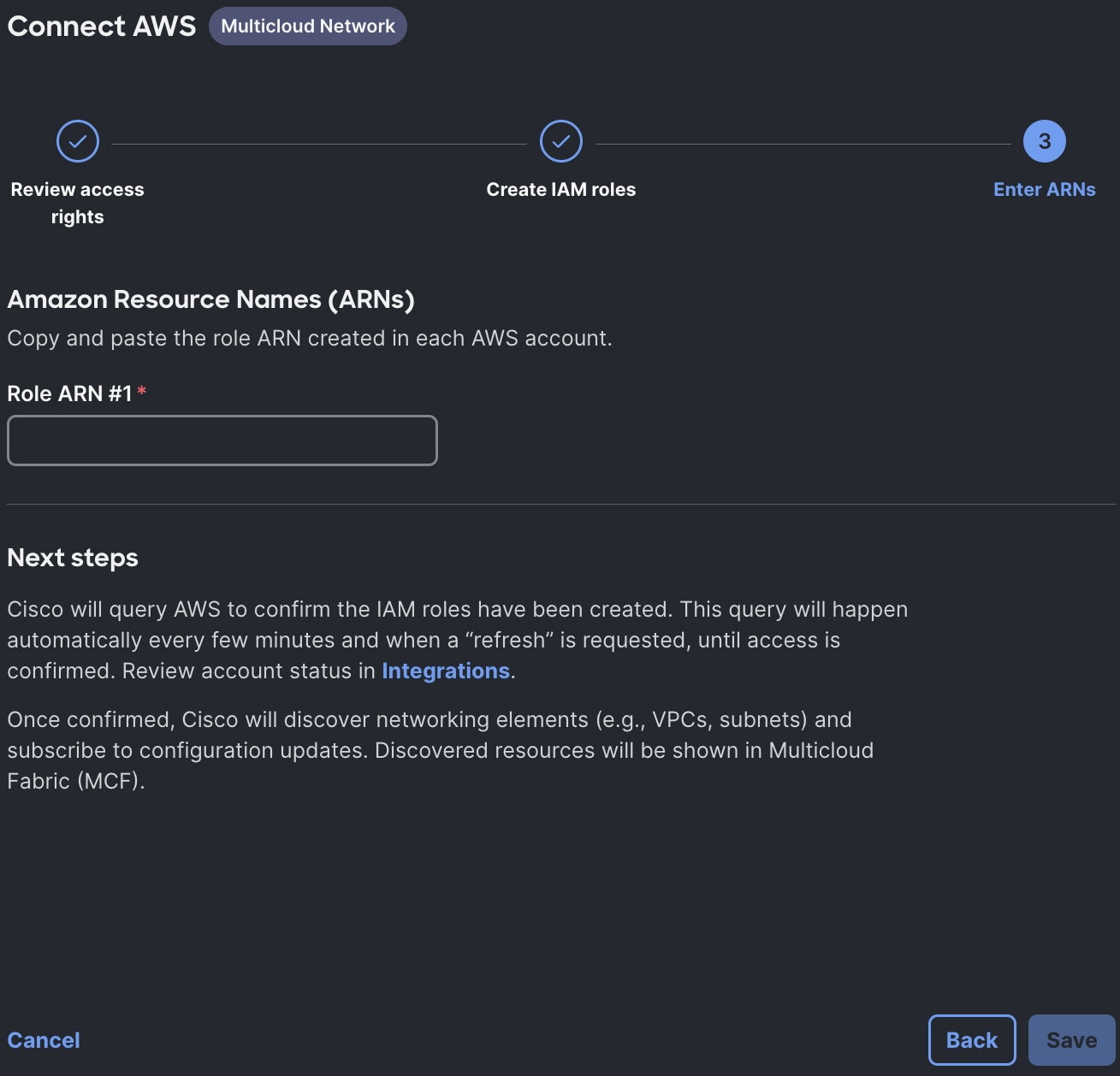
-
Paste the role’s ARN into Role ARN #1, then select Save.
Integrate an Azure account
The Azure integration workflow consists of these tasks:
Azure VNets that are onboarded to Multicloud Fabric must not use or overlap the 10.254.0.0/16 address range. Multicloud Fabric’s Beta release reserves this range for internal IPsec tunnel addressing and BGP peering. If an Azure VNet’s address space overlaps this range, the VNet cannot be onboarded successfully. Choose a non-overlapping address range before onboarding.
Create an Azure gateway subnet
Before integrating Azure, create a gateway subnet in the Azure virtual network that Multicloud Fabric should attach to.
-
In the Azure portal, search for and select virtual networks.
-
In Virtual networks, select the virtual network you want to add a subnet to.
-
In the left navigation, select Subnets.
-
Select + Subnet.
-
Enter this information for the subnet, then select Save:
-
Subnet purpose: enter Virtual Network Gateway
-
Name: enter GatewaySubnet
-
Include an IPv4 address space: select this option
-
IPv4 address range: enter the appropriate address range
-
Starting address: enter the range’s starting IP address
-
Size: enter a subnet size of /27 or larger
-
Multicloud Fabric relies on the GatewaySubnet name to select the correct attachment subnet. Multicloud Fabric does not automatically choose the subnet address range because that range must come from your Azure virtual network space.
Create a service principal
To create a service principal and grant access to subscriptions in Azure, complete these tasks:
Register a new application
-
In the Azure portal, select Microsoft Entra ID.
-
From the left navigation, select App registrations.
-
Select New registration.
-
Enter the application’s name.
-
In Supported account types, select Accounts in this organization directory only (Default Directory only - Single tenant).
-
Select Register.
Create a client secret
-
In the Azure portal, select Manage > Certificates & secrets > Client secrets.
-
Select New Client Secret.
-
In Add a client secret:
-
Enter a description for the secret.
-
Set how long the secret will be valid.
-
Select Add.
Make sure to record the secret’s value.
-
Add a role assignment to a subscription
-
From the left navigation, select Access control (IAM).
-
Select Add > Add role assignment.
-
In Job function roles, select Network Contributor, and then select Next.
-
Select Members.
-
In Assign access to, select User, group, or service principal.
-
Choose Select members.
-
Select the application you created previously, and then choose Save.
-
Select Next.
-
Select Review + assign, and then select Review + assign.
Connect an Azure subscription to Multicloud Fabric
Complete the Azure integration workflow to provide service principal credentials to Multicloud Fabric and grant Multicloud Fabric access to the Azure subscriptions that it should connect to.
-
In Multicloud Fabric’s left navigation, select Cloud Access.
-
Select Add cloud integration > Azure.
Access rights opens.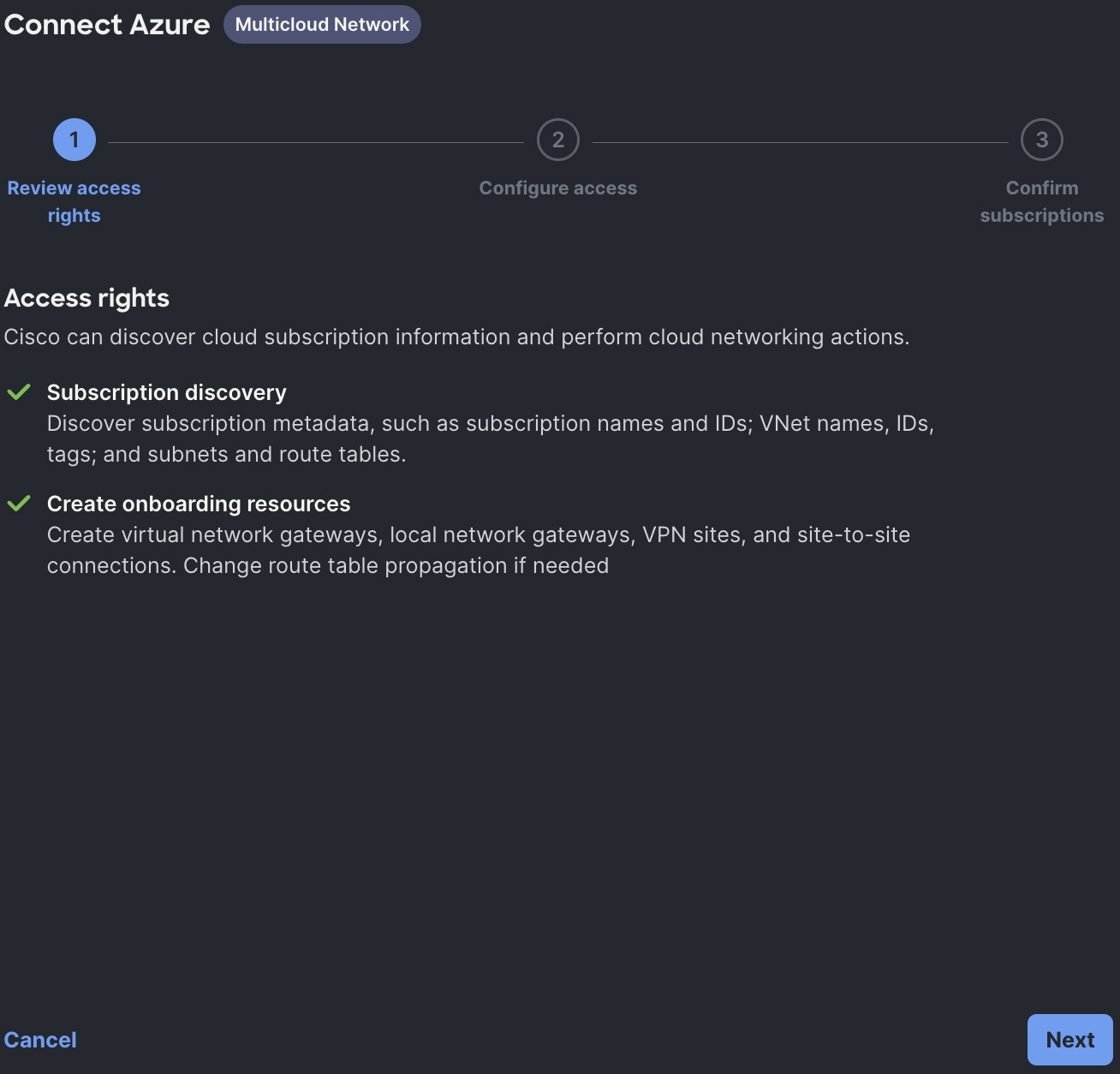
-
Review the access rights that you are granting Multicloud Fabric, then select Next.
Configure access to Azure subscriptions opens.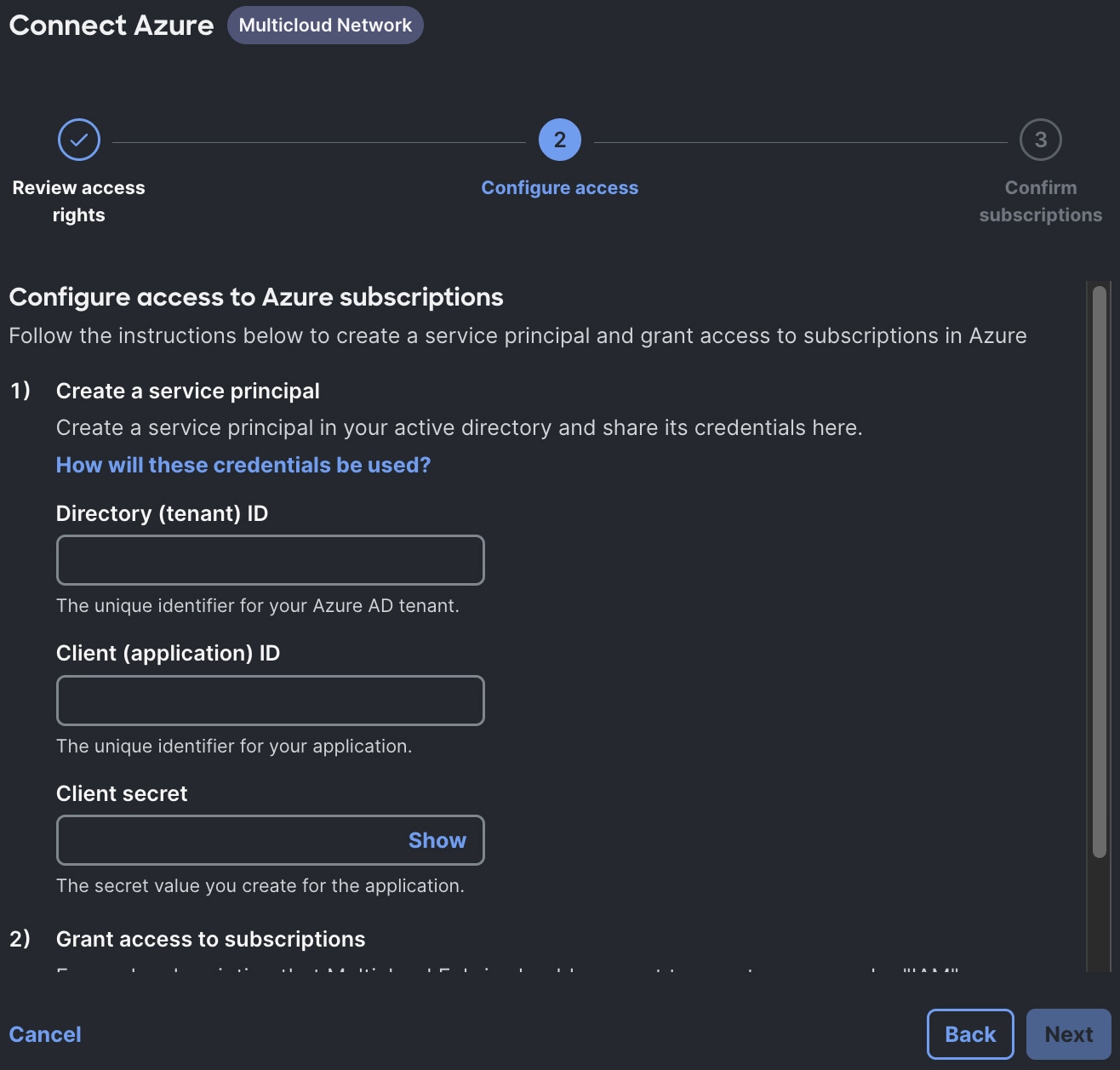
-
Enter this information, then select Next:
-
Your Azure tenant’s ID and client ID (in the Azure portal, select Overview to view these values)
-
Your application’s client secret (in the Azure portal, select Manage > Certificates & secrets > Client secrets).
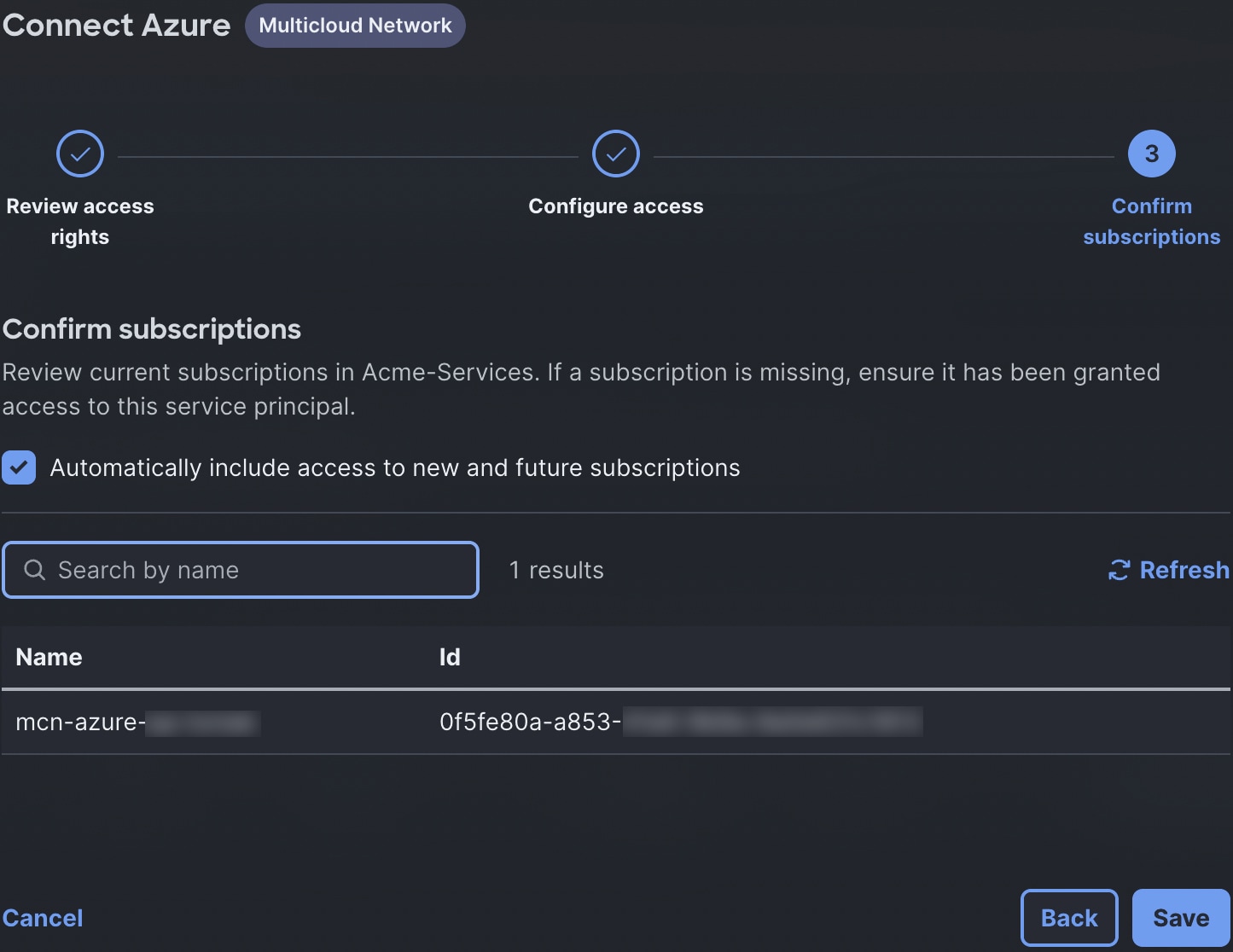
Confirm subscriptions opens.
-
-
Confirm that the subscriptions configured for your Azure account are displayed. Then select Save.
Integrate a Google Cloud account
To onboard a Google Cloud account, complete these tasks:
Create a service account
-
In your Google Cloud project, ensure these APIs are enabled:
-
Compute Engine API
-
Cloud Resource Manager API
-
Logs API
-
-
Sign in to the Google Cloud console and select Identity & Access > Service Accounts.
-
Select Create project.
-
Enter a service account name and description, then select Create and continue.
The Google Cloud console generates a service account ID based on the name you enter. If you need to, change the ID. You will not be able to do so later. -
Set these permissions:
-
Logs Viewer
-
Network Administrator
-
Viewer
-
-
Select Continue, then select Done.
Generate a JSON key
-
In Identity & Access > Service Accounts, select
 > Manage keys.
 -
Select Add key > Create new key.
-
Ensure JSON is set as the key type, then select Create.
-
Download a copy of the JSON file.
Connect a Google Cloud account to Multicloud Fabric
-
In Multicloud Fabric’s left navigation, select Cloud Access.
-
Select Add cloud integration > Google Cloud.
Review access rights opens.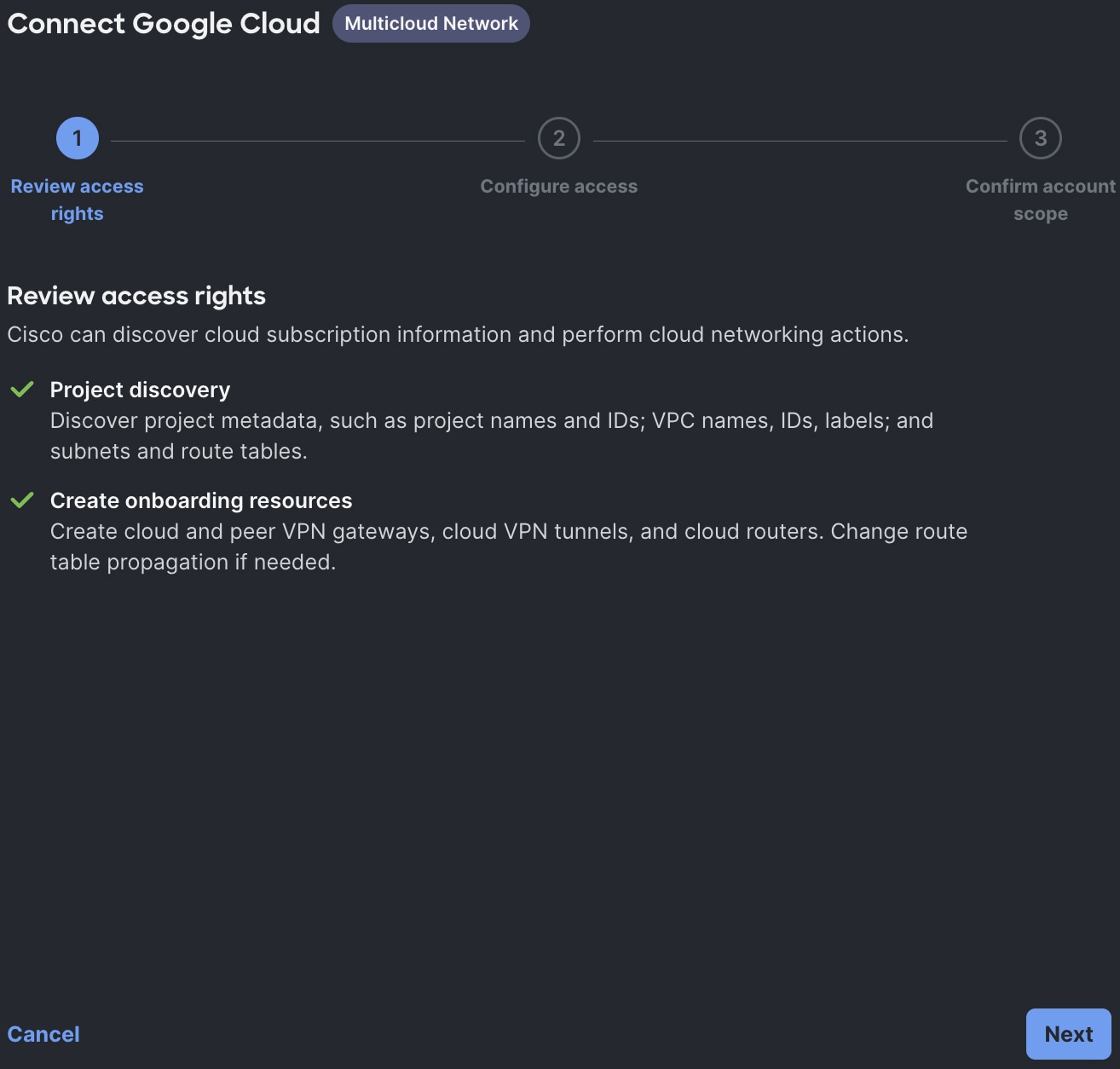
-
Review the access rights that you are granting Multicloud Fabric, then select Next.
Configure access to Google projects opens.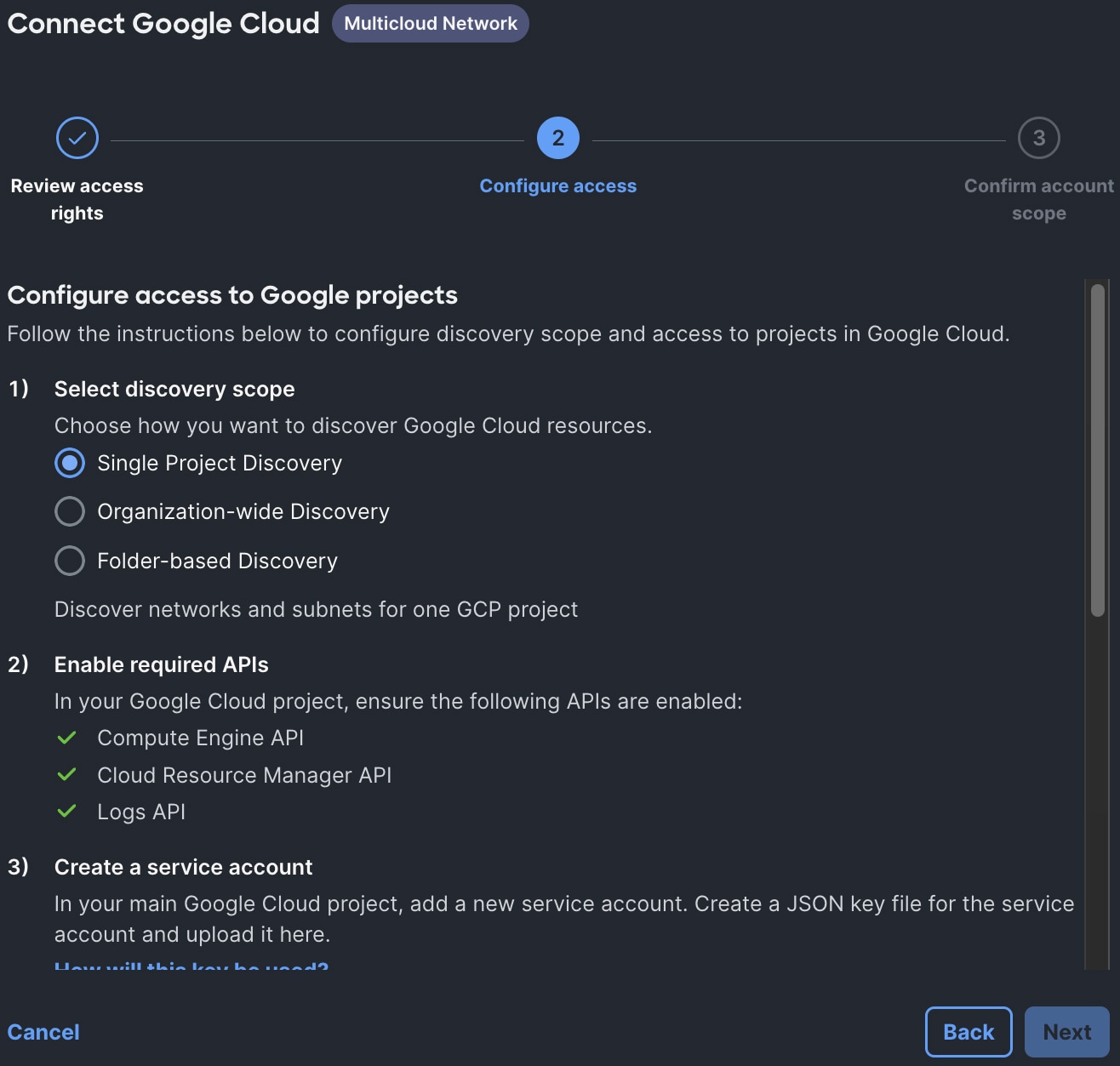
-
Complete these tasks, then select Next.
-
Set Single Project Discovery as the discovery scope.
-
In Create a service account, drag the JSON key you created previously.
Confirm projects opens.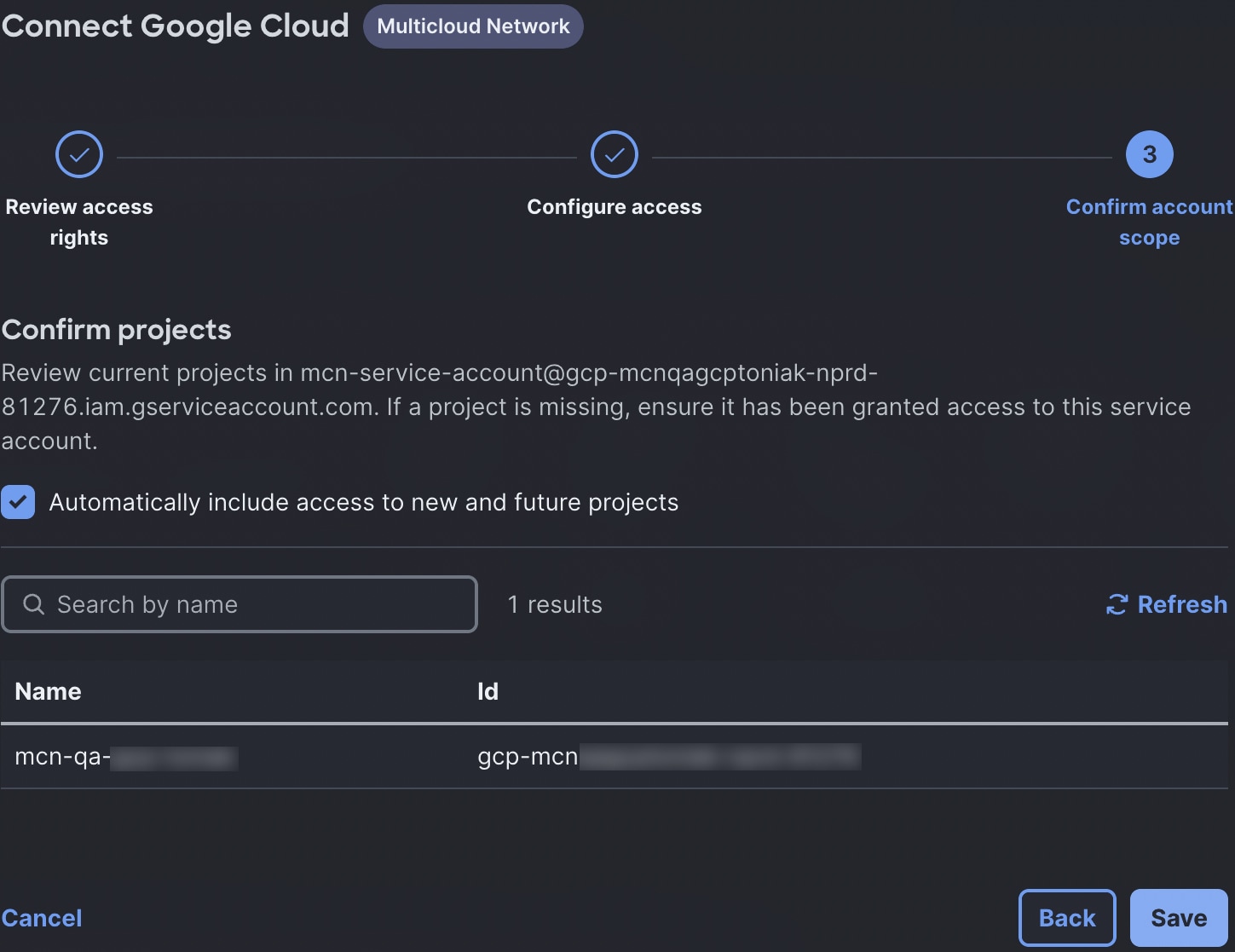
-
-
Confirm that the projects configured for your Google Cloud account are displayed. Then select Save.
Verify cloud access in your provider console
If an integration does not validate, or if you want to confirm the configured scope, compare the values shown in your provider console against those in Cloud Access.
AWS
-
In AWS, select AWS Console > IAM > Roles.
-
Select the same role that is shown in Cloud Access.
-
In Trust relationships, confirm that the Multicloud Fabric principal and external ID match the values presented by Multicloud Fabric.
-
In Permissions, confirm that the attached or inline policy corresponds to the access rights you selected.
Azure
-
In the Azure portal, select Subscriptions.
-
Select the target subscription.
-
Select Access control (IAM) > Role assignments or Check access.
-
Select the Multicloud Fabric service principal.
-
Compare the subscription, tenant, client/application ID, role, and assignment scope values with those provided in Cloud Access.
-
Select Microsoft Entra ID > App registrations to confirm application identity and secret expiry.
Google Cloud
-
In the Google Cloud console, select the target project.
-
View these pages:
-
Select IAM & Admin > IAM to confirm the service-account principal and roles.
-
Select IAM & Admin > Service Accounts to confirm the service-account email and key status.
-
Select APIs & Services > Enabled APIs & services to confirm that the required APIs are enabled.
-
-
Compare the project ID and service-account identity with the values displayed in Cloud Access.
Access provider console information
Refer to these pages for more information about verifying cloud access in your provider’s console:
Manage cloud account integrations
View cloud account details
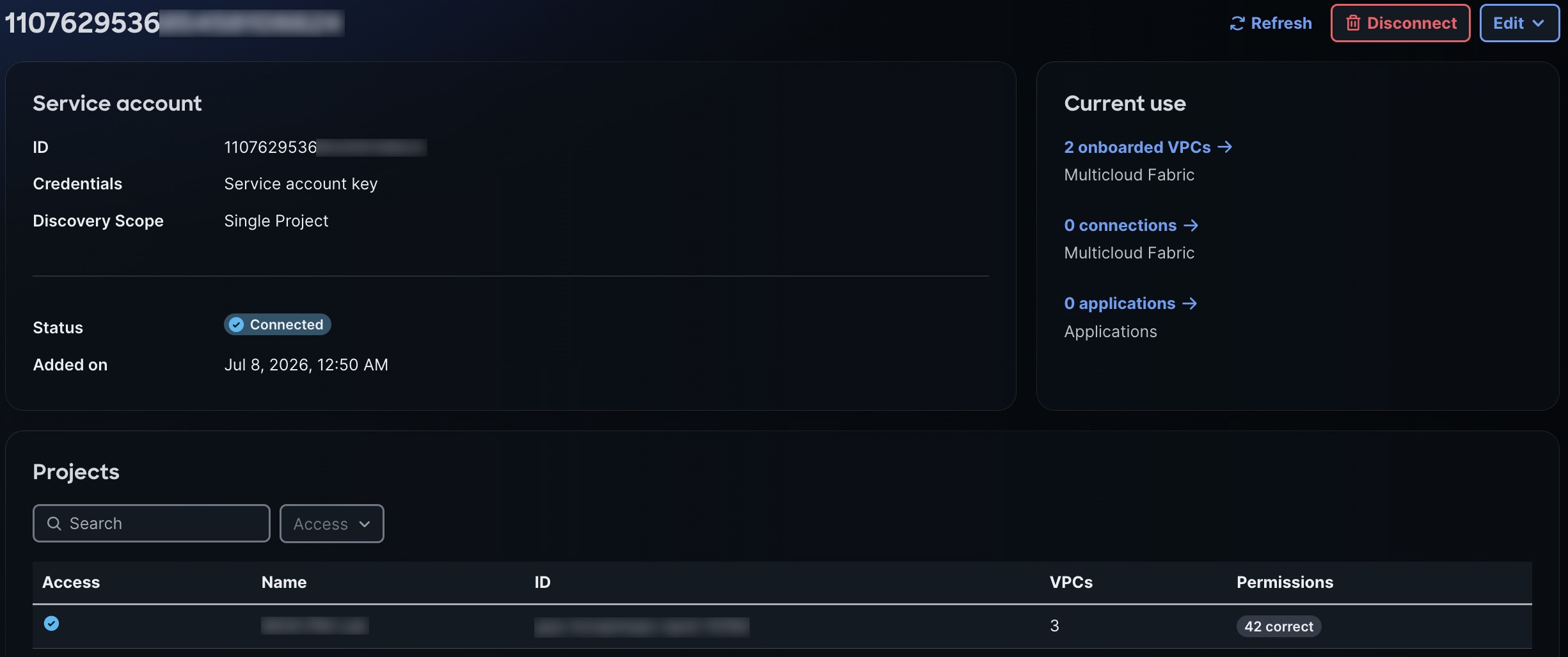
From the details page for a cloud account that has been integrated with Multicloud Fabric, you can:
-
View information such as the account’s ID, current status, and configured projects or subscriptions.
-
Update the account’s inventory information (in Multicloud Fabric Deployment, refer to the "Configure and verify discovery" topic)
To open a cloud account’s details page, select its link in Cloud Access. You can also select  > See details.
Update cloud account access credentials
Follow these steps to update the access credentials for either an Azure or Google Cloud account.
-
Select Cloud Access.
-
Select the account whose access credentials you want to update to open its details page.
-
Select Edit > Rotate credentials.
-
Update the account’s credentials:
-
For an Azure account, enter the new client secret.
-
For a Google Cloud account, upload the new service account key (.json).
-
-
Select Save.
Disconnect a cloud account
Follow these steps if you need to disconnect a cloud account that has been integrated with Multicloud Fabric.
-
Select Cloud Access.
-
Select the account you want to disconnect to open its details page.
-
Select Disconnect.
-
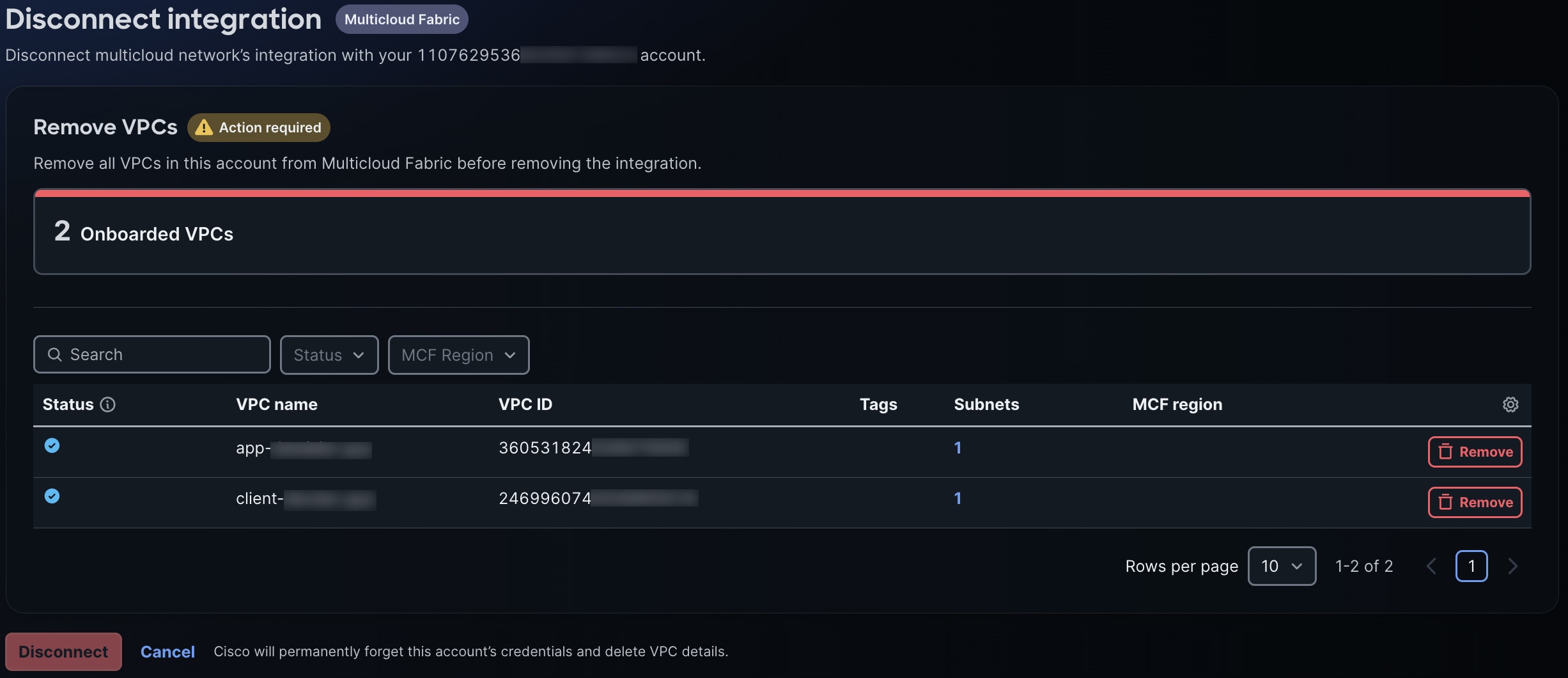
In Disconnect integration:
-
Select Remove for every VPC or VNet that was onboarded with this account.
You will not be able to disconnect the account without doing this first. -
Select Disconnect.
-
Navigate Multicloud Fabric
Three components comprise Multicloud Fabric’s UI:
Overview
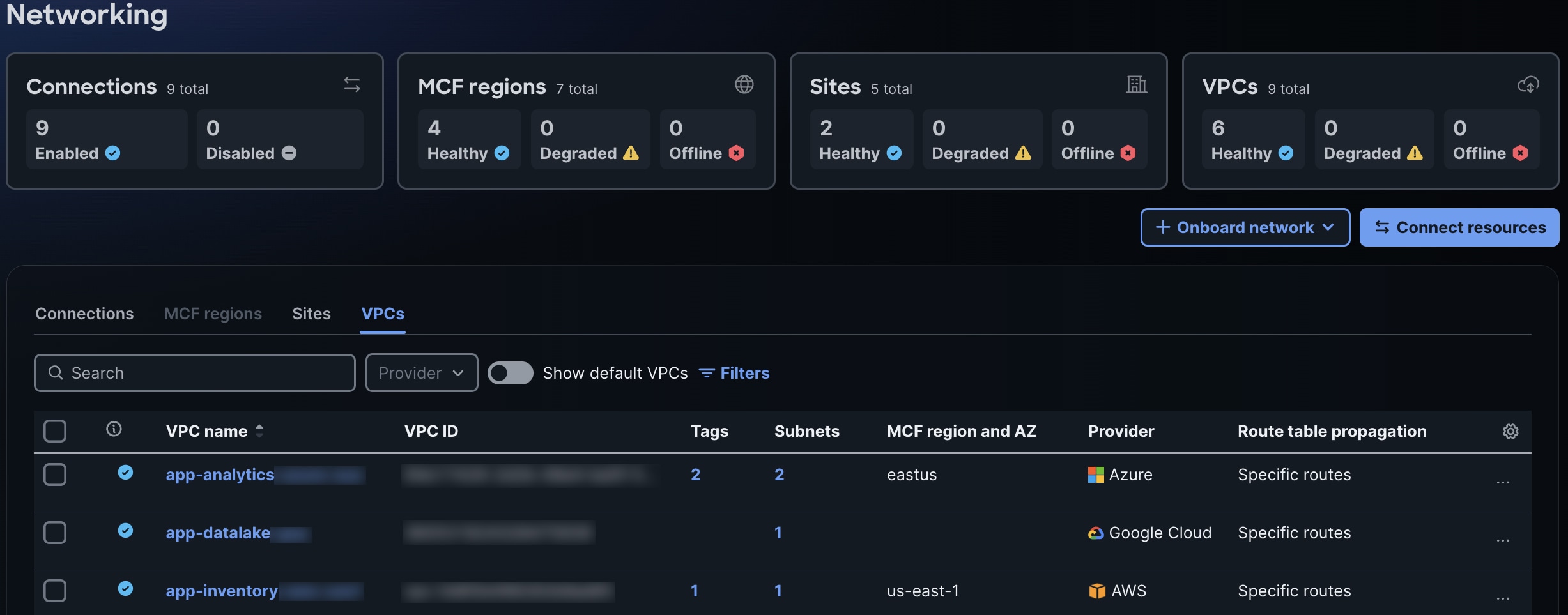
Overview serves as the starting point for your Multicloud Fabric session:
-
Scan the tiles at the top of this page to quickly determine the status of the connections, Multicloud Fabric regions, sites, and VPCs that are managed by Multicloud Fabric.
-
Select Onboard network to initiate the onboarding workflow for new VPCs/VNets and Meraki networks.
-
Select Connect resources to connect cloud resources and sites.
-
Select Connections, Sites, or VPCs to view the items that have been configured for these categories and manage them.
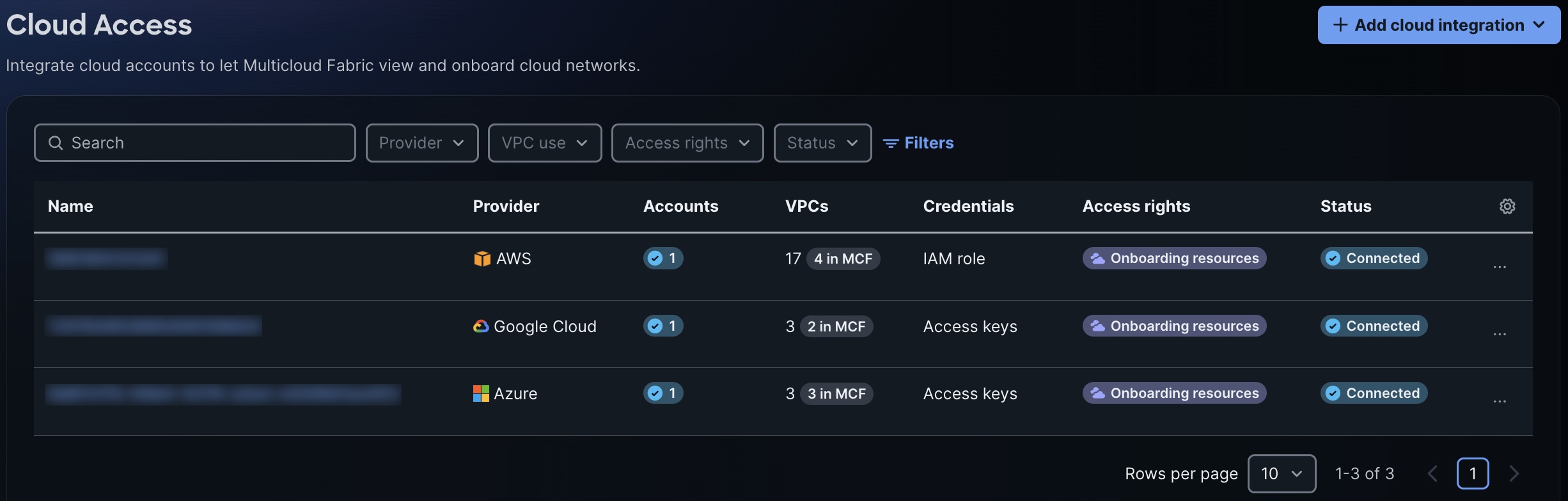
Cloud Access
In Cloud Access, you can view the cloud accounts that have been onboarded with Multicloud Fabric. From here, you can:
-
Onboard new cloud accounts.
-
Select a cloud account to view its details page.
Event Log
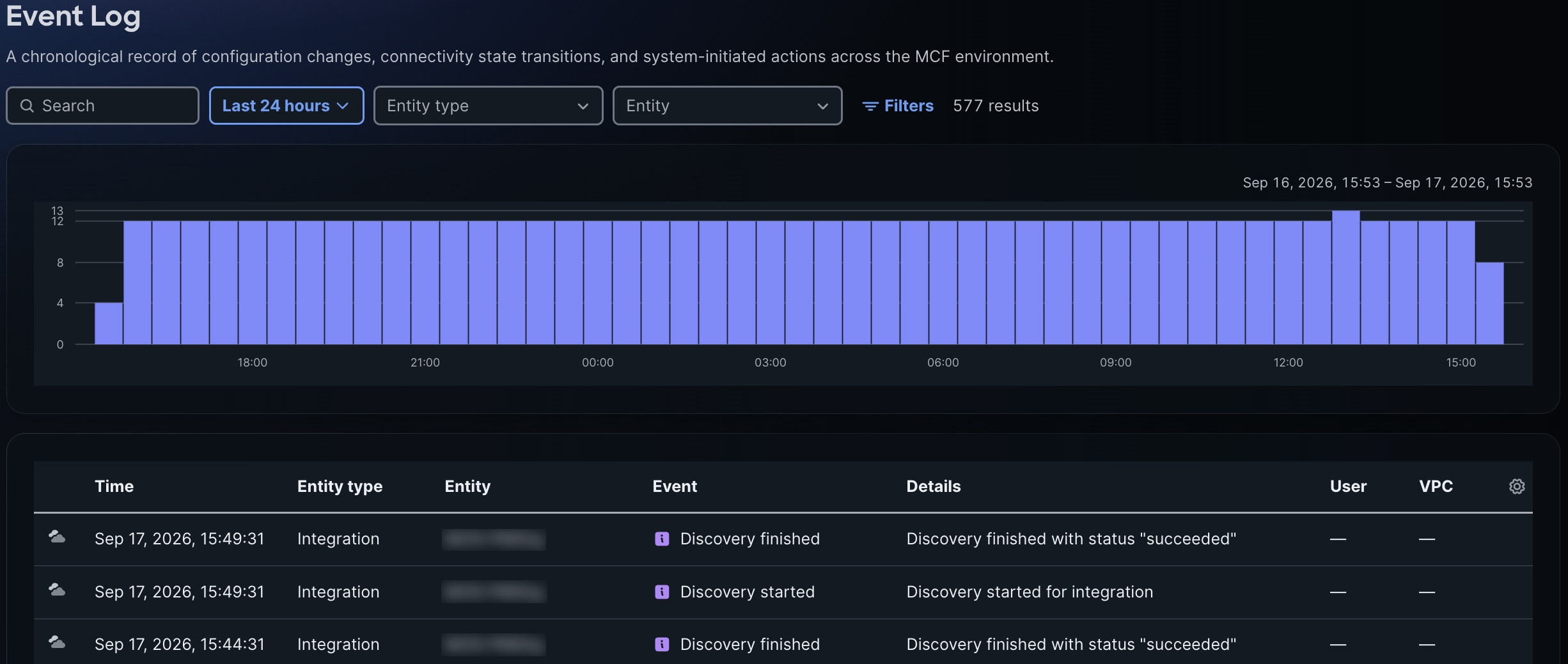
The Event Log lists all the events that have taken place in your Multicloud Fabric environment over the time period you specify. From here, you can:
-
View the chart to quickly identify times where there has been more activity than usual.
-
Select an event to view its details.
Access Multicloud Fabric pages
The navigation paths for Multicloud Fabric pages vary slightly, depending on whether you are a North American customer accessing Multicloud Fabric through Cisco Cloud Control or a European customer accessing Multicloud Fabric through the Meraki Dashboard. The available functionality is identical in both.
Cisco Cloud Control (North American customers)
-
In the Cisco Cloud Control top navigation bar, select
. -
Under Apps, select Multicloud Fabric.
-
From the left navigation, select Overview, Cloud Access, or Event Log to open the corresponding page.
Meraki Dashboard (European customers)
-
From the left navigation, select WAN & Cloud.
-
Select Overview, Cloud Access, or Event Log to open the corresponding page.
Beta usage guidelines and limitations
Be aware of these guidelines and limitations for Multicloud Fabric’s Beta release:
-
Non-production policy: The public Beta is strictly for non-production evaluation. You must not use production data or production workloads.
-
Spend cap: Usage includes data transfer costs, attachment costs, and Multicloud Fabric-region activation costs. Access is disabled when the trial usage threshold, set by Cisco, is reached. All connections are disabled, and Multicloud Fabric-routed traffic is stopped. However, your configuration settings are preserved.
-
Usage warnings:
-
Threshold notifications: A notification appears when usage reaches 50% and again at 90% of the usage limit configured for Multicloud Fabric’s Beta release. The 90% notification reappears after each login until you dismiss it.
-
Usage visibility: Notifications are the only indicator of consumption. The dashboard displays a warning banner when a usage threshold is crossed, but it does not display your actual dollar amount of usage.
-
End-of-program warnings: Warnings begin two weeks before the public Beta ends and include a daily countdown until the program concludes.
-
For more information, review the Multiple Use Beta Test Agreement.
Subscription and usage management
The information in this section is relevant to the General Availability (GA) release of Multicloud Fabric.
Pricing
Multicloud Fabric will use a consumption-based pricing model that is tracked through drawdown PIDs. This model mirrors cloud-native billing, so your costs align precisely with your infrastructure usage.
Subscription models
Two subscription models will be available:
-
MCF-UNCOMMITTED: A pay-as-you-go option suited for variable usage, or for cases where an upfront commitment is not feasible.
-
MCF-COMMITTED: A subscription suited for cases where usage can be estimated in advance and higher discounts are desirable. This option requires an upfront commitment of at least $10,000, which is drawn down as usage is reported.
You will not need to manage individual drawdown PIDs. The platform will track usage automatically.
Usage calculation
Usage will be calculated from the following meters:
-
Attachments: Billed per hour for each attached site, VPC, and Multicloud Fabric region.
-
Data transfer: Billed per GB. Refer to Data Transfer Charges for more information.
-
Premium services: Billed per service used, such as NAT and security service chaining.
Data transfer charges
Data transfer will be priced according to a rate table that varies by cloud provider and by the direction of egress. Charges apply to traffic sent:
-
Across availability zones
-
Across regions
-
Across clouds or to the internet (internet-out)
Ingress to a cloud will never billed, so you pay only for outbound traffic and service usage. This transparent, consumption-driven structure lets you align networking spend with your organization’s multicloud traffic patterns.
General Availability transition
-
Retirement: The public Beta program will end when Multicloud Fabric achieves GA.
-
Commercial conversion: At GA, free trial access is disabled. You can transition to commercial access by purchasing a license through Cisco Commerce Workspace (CCW) or a supported CSP marketplace.
-
License claiming: To claim your Multicloud Fabric license:
-
With Multicloud Fabric open, select Subscription in the left navigation.
-
Select Claim license key.
-
Enter the key for your organization or tenant.
A valid claim replaces free trial access with commercial access.
-
-
Retention window: After GA, Beta environments and connection settings are retained for 30 days. A valid claim within this window restores your previous Multicloud Fabric connection configuration. If no claim is made by the 30-day deadline, all retained Beta environments and settings are deleted.
To move Beta network configurations to a commercial subscription, you must complete the standard license claim process.