
Multicloud Fabric Monitoring and Troubleshooting
About health monitoring
In Multicloud Fabric, you can monitor the current and historical health of connected VPCs/VNets and MX sites. You can monitor things like IPsec or AutoVPN connectivity, tunnel and regional members, and BGP status. Use it to distinguish between the various health states, as well as correlating state transitions with events or the reported impact.

-
A healthy tunnel and BGP state proves that the monitored Multicloud Fabric attachment and control relationship are available.
It does not prove:-
That a particular application, protocol, port, security rule, destination listener, forward route, or return route will pass traffic.
-
That application reachability, firewall or security policy, route realization, or return-path correctness are in place.
If traffic still fails while health is reported as healthy, refer to Routing and reachability issues.
-
-
No separate enablement is required. Health monitoring is available after VPCs/VNets and MX sites have been onboarded.
-
Do not retry, delete, disconnect, or re-onboard while another operation is active. Capture the original state first. When you test reachability, test the actual protocol and port, because ICMP may be intentionally blocked.
View site and VPC health
-
Open the details page for the resource you want to inspect:
-
In the left navigation, select Overview.
-
Select Sites or VPCs, then select the relevant MX site or VPC/VNet.
-
-
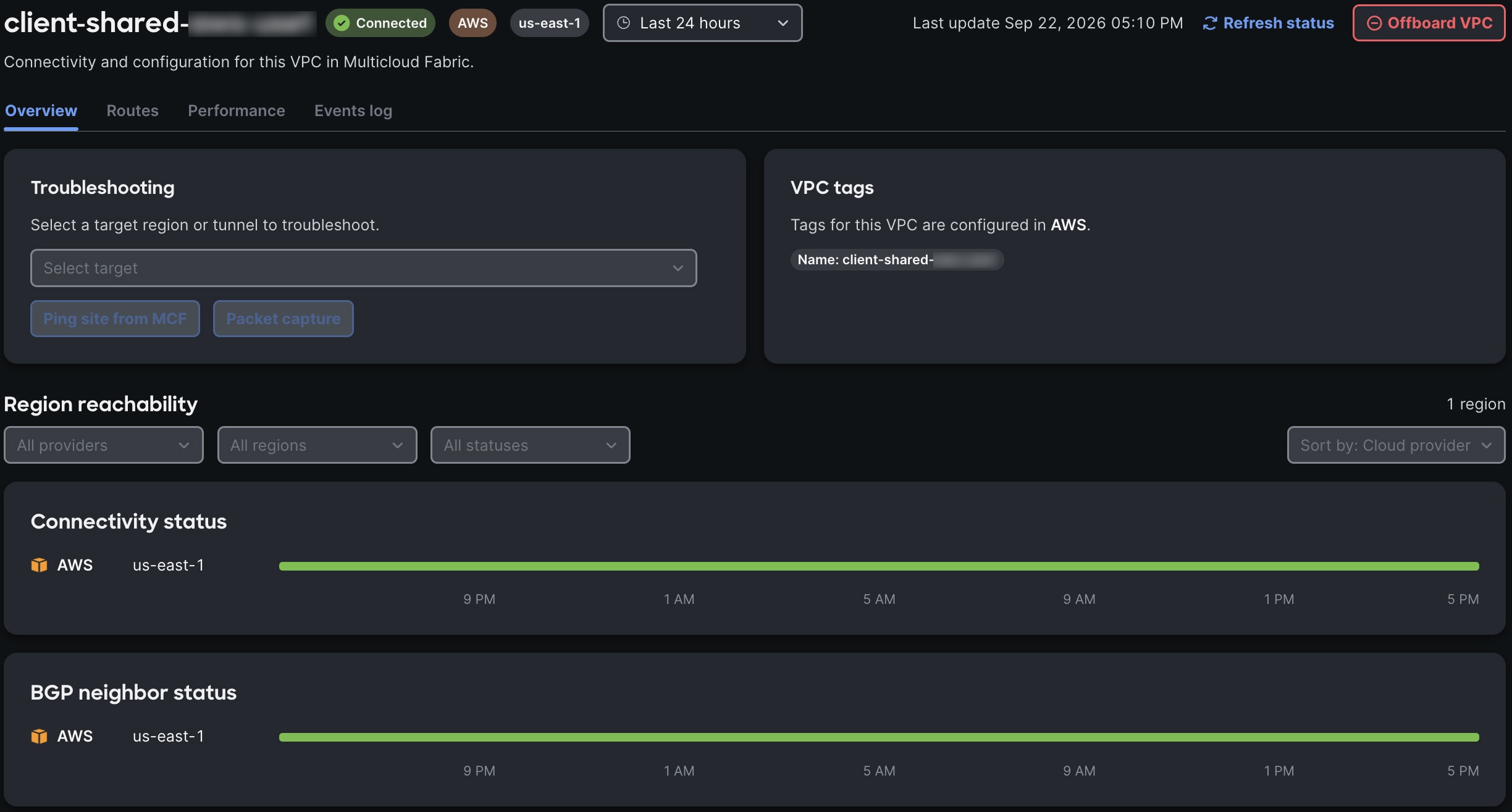
In the resource’s details page:
-
View its connectivity status.
-
View the status of its connection with its BGP neighbors.
-
-
Set the time range to 24 hours, and extend the range up to one month for intermittent flaps.
Record the exact time zone and window. -
Correlate the events displayed in the Meraki Dashboard history with Multicloud Fabric’s Event Log entries, your underlay and CSP changes, and the exact impact timestamps.
Interpret health states
| State | What you see | What to do |
|---|---|---|
|
Healthy |
The required tunnel members and BGP are healthy for the selected time range. |
No action is required. If traffic still fails, refer to Routing and reachability issues. |
|
Degraded |
One redundant member or path is down while another remains available. |
Correlate your underlay and CSP events with the traffic impact. Refer to Provider console checks. |
|
Down |
All required tunnel members or BGP are unavailable. |
Complete the applicable provider and MX underlay checks in Provider console checks. If Multicloud Fabric remains down, contact Support. Refer to Get support and share feedback. |
|
Unknown or no data |
The Meraki Dashboard cannot provide a reliable state, or it has no samples. |
Do not interpret this state as healthy or down:
If the state persists for a resource that you expect to be active, contact Support. Refer to Get support and share feedback. |
View the Event Log
The Event Log provides a chronological record of configuration changes, connectivity state transitions, and system-initiated actions across the Multicloud Fabric environment.
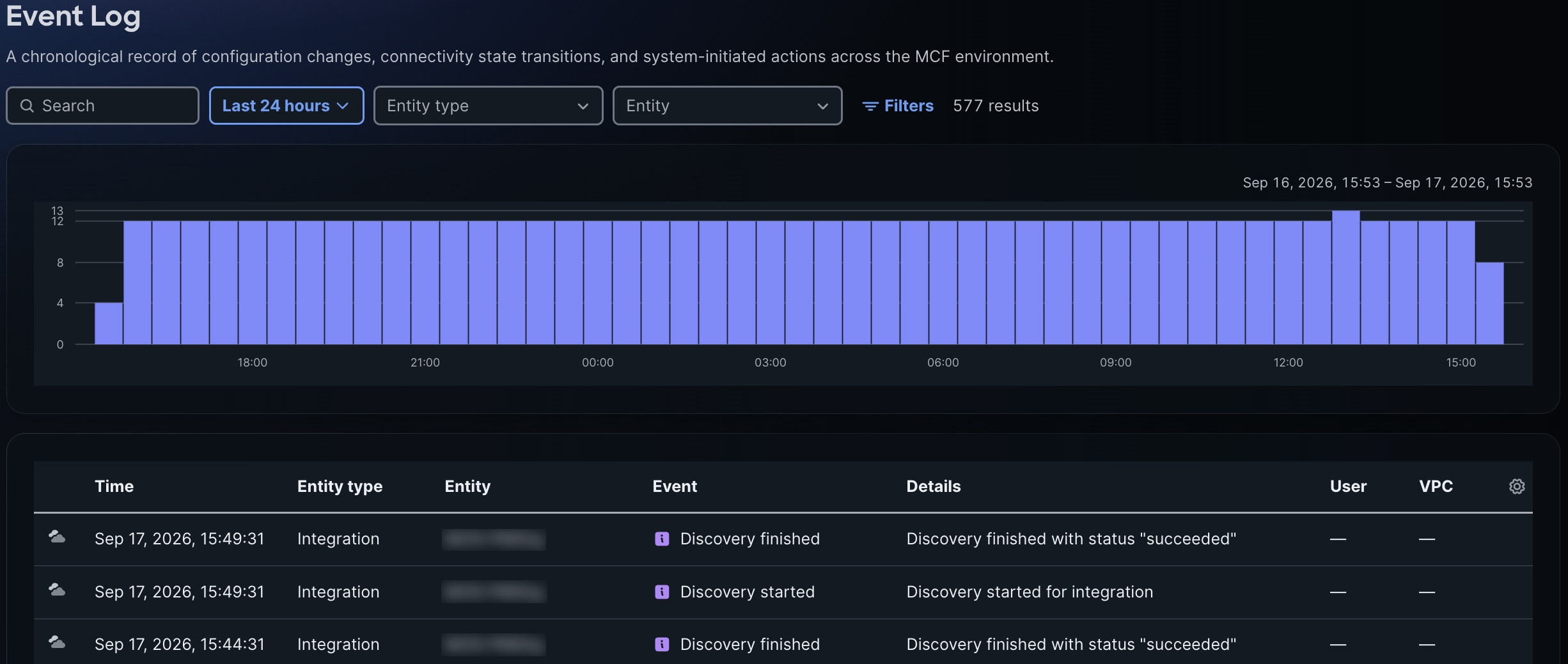
Use the fields at the top of the Event Log to narrow the set of events shown in its chart and table:
-
Enter a search string to display only the events that match it.
-
Choose a time range to display only the events that took place during a specific period. You can choose a predefined range, such as the last 7 days, or enter an exact start and end date and time. You can also display times in either your local time zone or UTC.
-
Choose an entity type or a specific entity to display only the events that apply to it. The number of matching events is shown next to each option in the dropdown list.
-
Select Filters to display the full set of event filters.
The total number of events that match your current selections is displayed next to the Filters button.
Correlate events with impact
The Event Log’s chart displays the distribution of events across the selected time range. View this chart to identify times where there has been more activity than usual. Then align the Event Log timeline with Multicloud Fabric’s health history, as well as your own underlay and CSP change records. Keep the intent, status, and packet paths separate before correlating.
View event details
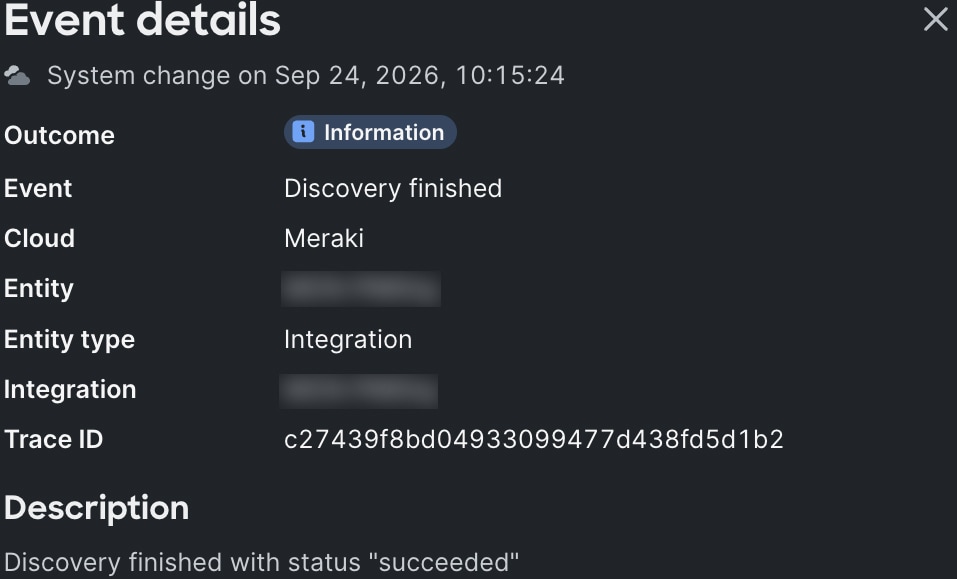
Select an event to open Event details, which provides the complete record for that event. Each event has a unique trace ID that you can provide to Support when investigating an issue.
Troubleshoot Multicloud Fabric issues
Refer to this section for a description of issues you may encounter in Multicloud Fabric and how to troubleshoot them.
Cloud integration issues
- Wrong scope or provider identity
-
-
Compare the immutable account, subscription, or project ID, as well as the identity that is configured in Cloud Access, against the values configured in your provider console. Refer to Multicloud Fabric Onboarding’s "Verify cloud access in your provider console" topic.
-
Make corrections by completing the Add cloud integration workflow for your provider.
-
- Permission denied
-
-
In Multicloud Fabric’s left navigation, select Cloud Access > Add cloud integration.
-
Complete the workflow for your provider, ensuring that you enter the right settings for your provider.
-
- Stale status after a provider or IAM change
-
-
Record the time of the change.
-
Confirm that the new assignment is visible in the provider console.
-
Wait 5-10 minutes, then refresh Cloud Access in Multicloud Fabric.
-
Retry validation once.
-
This is an operating guideline, not a provider SLA. If the state remains stale after 30 minutes, contact Support.
- Generic or internal failure
-
-
Capture the exact rolled-up UI error, the integration detail, the Event Log entry, and the timestamp.
-
Contact Support.
-
Interpret integration states
Refer to this table to determine whether your integration was successful and identify how to proceed.
| State | What you see | What to do |
|---|---|---|
|
Healthy |
Cloud Access shows |
Continue to cloud discovery. Refer to Multicloud Fabric Deployment’s "Configure and verify discovery" topic. |
|
Correctable by you |
Multicloud Fabric identifies trust, authentication, permission, expired-secret, or wrong-scope guidance. |
Correct the CSP or Multicloud Fabric configuration, then retry once. |
|
Needs support |
Your provider console matches the guidance shown in Multicloud Fabric, but validation still fails or the state is contradictory. |
Contact Support with the integration ID, the exact error, and the timestamp. |
|
Unknown |
The required identifier or error information is unavailable. |
Do not treat the integration as healthy. Contact Support to report the evidence gap. |
Discovery issues
- A resource is missing from the inventory
-
-
Confirm that the resource exists in the provider console under the authorized scope. Refer to Multicloud Fabric Deployment’s "Verify your inventory in your provider’s console" topic.
-
If you intend to attach the resource, confirm it is in a supported region.
-
Run a manual discovery and allow reconciliation to complete. Refer to Multicloud Fabric Deployment’s "Configure and verify discovery" topic.
-
- Inventory looks stale after a cloud-side change
-
When enabled, auto-discovery depends on supported provider change history: AWS CloudTrail, Azure Activity Log, or Google Cloud Admin Activity. If these items are not enabled in your account, changes converge on a periodic reconciliation cycle instead. Run a manual discovery to converge your inventory immediately. Refer to Multicloud Fabric Deployment’s "Configure and verify discovery" topic.
- Discovery reports an error or warning
-
-
From the left navigation, select Cloud Access.
-
Select the relevant cloud integration to view the rolled-up error listed in its details page.
-
Open your provider’s console and confirm that you have cloud access. Refer to Multicloud Fabric Onboarding’s "Verify cloud access in your provider console" topic.
-
Permission and API errors are the most common cause for this issue.
MX attachment issues
- Network is not selectable
-
Verify the organization, and confirm that the site meets every requirement listed in Multicloud Fabric Deployment’s "Onboarding requirements and limitations" topic.
- Site is selectable but does not come online
-
Multicloud Fabric’s public Beta only supports SL0 connectivity mode. Some second-generation MX models or firmware combinations may only support only SL2. They can appear selectable but never come online.
- Wrong regions or hubs
-
-
Compare the selected placement with the VPC and VNet regions, as well as the hub and spoke placement rules described in Multicloud Fabric’s "How attachment works" topic.
-
Inspect the regional Multicloud Fabric hubs.
-
- AutoVPN tunnel or site health degraded
-
Compare the current and historical site health, and capture authorized site-to-site packet captures plus relevant WAN-interface packet captures.
- No cloud routes
-
Multicloud Fabric imports only BGP-learned routes. It does not import static routes. Verify the ZTR intent and, if necessary, create a connection. Refer to Multicloud Fabric Deployment’s "Create a connection" topic.
- Spoke-only organization
-
Spoke-only organizations are not supported for Multicloud Fabric’s public Beta. Do not attempt to work around the topology requirement by onboarding spokes without an eligible MX hub.
VPC and VNet attachment issues
- Onboarding is stuck in progress
-
This operation typically takes around 10 minutes to complete for both AWS and Google Cloud, and around 45 minutes for Azure. If the operation takes much longer than this, do not retry it while the original operation is still active. Repeated retries can obscure the original operation.
- The network is not eligible for onboarding
-
Multicloud Fabric supports the onboarding of these regions:
-
AWS:
us-west-2,us-east-1, andeu-west-1 -
Azure:
westus2,eastus, andwesteurope -
Google Cloud:
us-west2,us-east1, andeurope-west1Networks outside these regions are discoverable but disabled for onboarding.
-
- Azure onboarding cannot place the Virtual Network Gateway
-
When configuring an Azure VNet, it must contain a correctly named and sufficiently sized
GatewaySubnet. Without it, Multicloud Fabric cannot place the Azure VNet Gateway that terminates the redundant VPN attachment. Refer to Multicloud Fabric Onboarding’s "Create an Azure gateway subnet" topic for a description of how to create it. - The resource already exists
-
This error most commonly occurs when an onboarded VPC or VNet is removed, but offboarding was interrupted, lacked sufficient permissions, or otherwise failed before every Multicloud Fabric-created CSP resource was cleaned up. Because Multicloud Fabric assigns each resource a deterministic identity, the new onboarding attempt finds a residual gateway, connection, tunnel, public IP, router, or related object already using that identity, and it cannot safely overwrite or adopt that object.
To resolve this issue, identify and remove the residual Multicloud Fabric-created resources. Refer to this table for a description of the resources to check, based on your provider.
| Provider | Multicloud Fabric-created resources to check | Resources you should not delete |
|---|---|---|
|
AWS |
|
A compatible, pre-existing VGW that Multicloud Fabric reused. This remains customer-owned. |
|
Azure |
|
The |
|
Google Cloud |
|
The External VPN gateway, when shared across relationships. It intentionally does not carry a |
Compare the exact provider resource ID against the provider-specific Multicloud Fabric ownership metadata described in Multicloud Fabric Deployment’s "What Multicloud Fabric creates in your cloud" topic to confirm that Multicloud Fabric created the object. Only delete a resource you have proven to be a residual Multicloud Fabric-created resource, in dependency order, with explicit authorization. Shared, reused, pre-existing, and customer-created resources must not be removed. Retry onboarding once, after you have verified that cleanup is complete.
Never delete a pre-existing, shared, or customer-owned gateway.
- Onboarding succeeds but the tunnel or BGP is unhealthy
-
Allow a short convergence interval, then:
Routing and reachability issues
- No routes after onboarding
-
This is expected until a connection or ZTR intent is created.
- Everything is green, but there is no traffic
-
-
Complete the steps described in Recommended troubleshooting flow.
-
Verify the connection:
-
Open the detail pages for the connection and endpoints. Compare the tunnel, BGP, route visibility, and event history with the intended path.
-
Test the configured protocol and port. Security policy and a valid return path are still required.
-
Confirm route visibility on the MX or CSP side.
For MX-to-VPC traffic, capture the site-to-site interface and the relevant WAN interface.
-
-
- A new MX VLAN is absent
-
Allow 5-10 minutes for discovery and reconciliation. Then complete these steps to edit the connection the VLAN is associated with.
-
From the left navigation, select Overview.
-
Select Connections, then select the connection’s link.
-
In Edit Connection, make the necessary setting changes.
-
Select Review connection and verify that the changes you made are reflected.
-
Select Confirm and save connection.
-
Verify that the VLAN now appears.
-
- Day-N overlap
-
A new Google Cloud subnet or MX VLAN can collide with existing prefixes after onboarding.
-
Compare all connection CIDRs explicitly, then remove or renumber the overlapping subnet or VLAN so that every participating prefix is unique.
-
After you fix the address plan, allow discovery and ZTR reconciliation to converge.
-
Verify the connection:
-
Open the detail pages for the connection and endpoints. Compare the tunnel, BGP, route visibility, and event history with the intended path.
-
Test the configured protocol and port. Security policy and a valid return path are still required.
-
Confirm route visibility on the MX or CSP side.
-
-
If necessary, edit the connection (as described here).
-
- Action required — policy or path
-
The route is visible, but a security group, NSG, NACL, firewall, ACL, the destination service, NAT, or the return path blocks traffic. Correct the CSP, MX, or application path.
- Action required — intent error
-
A disabled connection, overlap, or an incorrect endpoint, VLAN, or prefix choice is visible. Edit the settings for the relevant connection (refer to A new MX VLAN is absent for instructions).
Recommended troubleshooting flow
Use this workflow to troubleshoot routing and reachability issues that are not already described in this section.
-
Define the actual flow.
Name the source and destination IPs, the protocol and port, the direction, the start time, and the expected path.Cannot reachis not enough to determine which system should carry the packet. -
Check the source endpoint and your network.
DNS, source selection, the application, the host firewall, the VLAN or subnet, the gateway, the MX or CSP route, the ACL, NAT, the underlay, and any non-Meraki device must admit the flow. -
Check the attachment between your network and Multicloud Fabric.
The MX site or cloud network you selected must be onboarded, its tunnel members and BGP sessions must be up, and your route must point toward the attachment. -
Check Multicloud Fabric route authorization and forwarding.
A connection or ZTR intent must include the correct endpoints and prefixes. Multicloud Fabric must realize those routes in the intended regional fabric, and forward the packet toward the destination attachment. -
Check the destination network and application.
Check these items:-
Destination route table
-
Security group, NSG, NACL, or firewall
-
Host policy
-
Listener
-
Confirm that the application accepts the actual protocol and port
-
-
Check the return path.
The destination must send the response through an allowed, routable path back to the original source. A missing or asymmetric return route can look identical to a forward-path failure.
Where to look
Refer to this table to determine where in Multicloud Fabric to find information for a specific item.
| Item | Where to navigate | What it answers |
|---|---|---|
|
Cloud identity |
From the left navigation, select Cloud Access. |
|
|
Inventory and onboarding |
From the left navigation, select Overview. |
|
|
VPC or VNet health |
|
|
|
MX site health |
|
|
|
Events |
From the left navigation, select Event Log. |
|
|
Connection intent |
|
|
Provider console checks
When IPsec or BGP is degraded, check these items in your provider console for the same time window that you reviewed in Multicloud Fabric to verify runtime tunnel and BGP telemetry.
- AWS
-
Check the relevant site-to-site VPN connection, the tunnel telemetry, the customer gateway state, route-table changes, the security policy, and provider health events.
- Azure
-
Check the virtual network gateway connection, the local network gateway and BGP settings, the public IP address, route changes, resource health, and the activity log.
- Google Cloud
-
Check the Cloud VPN tunnel status, the Cloud Router and BGP session state, routes, firewall changes, the operations and activity history, and provider incidents.
Get support and share feedback
-
Contact Support when Multicloud Fabric remains down after you complete the provider and MX underlay checks described here, or when an unknown or no-data state persists for a resource that you expect to be active.
Capture this information before you contact Support:
-
A description of the events that took place.
-
The exact time zone and period of time you reviewed.
-
The request or onboarding ID displayed in Multicloud Fabric.
-
The immutable provider resource IDs for the affected network or site.
-
The terminal error text, if returned by the operation.
-
-
For Beta support, use the Webex Teams room created for your customer or partner team. The room may include Cisco Product Management, Cisco Technical Marketing, Cisco Engineering, and customer or partner participants.
-
For Multicloud Fabric-specific issues, notify the team in the Webex room. Support is best effort during Beta, with a target acknowledgment in 1 day and engineering response in 3 days.
-
Do not use the Meraki feedback form for Multicloud Fabric-specific feedback. Use the Webex room and monthly check-in process instead.