
Multicloud Fabric Deployment
About cloud discovery
A cloud account integration gives Multicloud Fabric permission to read an approved provider scope, but Multicloud Fabric still needs a current, provider-authoritative map of the networks inside that scope. Discovery provides an inventory that Multicloud Fabric can use to:
-
Show the correct VPCs and VNets.
-
Preserve immutable provider relationships.
-
Evaluate region and CIDR context.
-
Supply accurate inputs to onboarding and later connection workflows.
Its intent is to identify what could be connected, and to keep that view current as your cloud topology changes.

Discovery reads and catalogs cloud network control-plane metadata in the scope that you authorize. It does not create gateways, tunnels, or BGP sessions. It does not onboard a VPC/VNet. Nor does it advertise routes. These actions require separate onboarding and a connection/ZTR intent.
What Multicloud Fabric discovers
Refer to this table for a description of the provider data that Multicloud Fabric collects during the discovery process.
| Inventory category | Provider data that Multicloud Fabric records | Purpose |
|---|---|---|
|
Provider scope |
|
Proves that Multicloud Fabric is reading the intended boundary. |
|
Placement |
Provider regions and, where applicable, availability zones |
Determines where a network exists and whether it is eligible for a supported Multicloud Fabric region |
|
Cloud networks |
VPC/VNet name, immutable external ID, provider and account, default-network flag, CIDR blocks, and tags or labels |
Creates the selectable network inventory shown in Multicloud Fabric |
|
Subnets |
Subnet name and ID, CIDR, parent VPC/VNet, region or zone, and related metadata |
Shows the address and placement detail used by onboarding and by later topology reconciliation |
|
Routing metadata |
Route tables and provider-specific network relationships or attributes, where supported |
Provides context for eligibility, onboarding, and post-change comparison |
|
Freshness and lifecycle |
Discovery status, last-run and completion time, normalized error, and resource-change hashes |
Lets Multicloud Fabric distinguish current, delayed, failed, or stale inventory |
How discovery works
Here is a high-level summary of the discovery process:
-
Multicloud Fabric begins by querying the provider control plane. Using the identity configured for the integration, Multicloud Fabric calls the approved AWS, Azure, or Google Cloud inventory APIs for accounts and projects, placement, networks, subnets, routing metadata, and identifiers.
-
Multicloud Fabric then normalizes and compares the results. Provider-specific results are converted into a common Multicloud Fabric inventory, related to your organization and integration, compared with the prior resource hashes, and stored with status and freshness timestamps.
-
Finally, Multicloud Fabric presents the result. The expected resources appear in Multicloud Fabric’s Overview as well as in the supported onboarding workflows.
When discovery runs
There are four situations when Multicloud Fabric performs a discovery:
-
Initial discovery: Runs automatically after a new integration validates. Multicloud Fabric scans the authorized scope and builds the first normalized inventory, so the integration status advances and discovered resources become visible.
-
Manual refresh: Triggered when you select Refresh for a cloud integration in Cloud Access. Multicloud Fabric updates the integration’s last-run status and resource inventory.
-
Auto-discovery: When enabled, This is triggered when Multicloud Fabric observes a supported provider change in AWS CloudTrail, Azure Activity Log, or Google Cloud Admin Activity. Multicloud Fabric identifies the affected resource and triggers a targeted rediscovery instead of waiting for another full scan. This way, a new or changed supported resource is folded into Multicloud Fabric’s inventory without manual re-entry.
-
Periodic reconciliation: This scheduled full discovery acts as a safety net. Multicloud Fabric rescans the authorized scope to recover changes missed by provider signals, advancing inventory freshness and converging missed resources.
Configure and verify discovery
-
After discovery completes, return to Multicloud Fabric’s Overview and compare the expected provider inventory with the items displayed in your provider’s console.
Discovery is complete when Multicloud Fabric reflects the current provider scope, regions, VPCs/VNets, immutable IDs, CIDRs, subnets, and related metadata under the correct integration. Once this data is current, eligible resources become available for selection and onboarding.
-
Verify your inventory in your provider’s console.
For integration, discovery, and onboarding permissions, open the appropriate workflow and use the embedded provider-specific requirements it indicates. Cloud Access remains the release-specific authority for required rights.
- AWS
-
-
In the VPC console, confirm that the expected VPC, CIDRs, subnets, route tables, and region exist in the account connected with Multicloud Fabric.
-
If Cloud Access identifies a missing permission, select IAM > Roles in AWS and compare the role with the checklist.
-
- Azure
-
-
With the target subscription selected, select Virtual networks to confirm the expected VNet, address space, subnets, region, and subscription.
-
For permission or auto-discovery errors, select Access control (IAM) > Check access for the Multicloud Fabric service principal.
-
- Google Cloud
-
-
Select the target project.
-
Select VPC network > VPC networks and Subnets to confirm the expected project, network, CIDRs, regions, and subnets.
-
Check IAM and enabled APIs when Cloud Access reports a permission or API error.
-
About attachments
Cloud account integration gives Multicloud Fabric authorized provider access, and cloud discovery catalogs the networks that exist, but neither connects your cloud network to the Multicloud Fabric fabric. Onboard a specific VPC or VNet when you want that network to become an Multicloud Fabric connectivity endpoint. Onboarding creates the supported cloud-side attachment, establishes redundant encrypted paths and BGP control connectivity to an Multicloud Fabric region, and makes the network operationally visible in Multicloud Fabric. This is the transport foundation you need before you can create connections and use Zero Trust Routing (ZTR) to exchange selected routes.
How attachment works
Here is a summary of what takes place when an attachment is created between Multicloud Fabric and a VPC or VNet:
-
Multicloud Fabric begins by validating the eligibility of the selected network, confirming that it meets these requirements.
-
It then determines which region to connect the MX hub with. An MX hub is connected to every participating Multicloud Fabric region in which the organization has an onboarded VPC or VNet. An MX spoke is connected to the selected Multicloud Fabric regions, subject to limitations listed here.
-
Next, Multicloud Fabric prepares regional Multicloud Fabric hubs, ensuring that the required hub networks and fabric-side placement are available for the selected topology.
-
Multicloud Fabric establishes redundant AutoVPN and BGP, building the redundant AutoVPN paths between the selected MX and the applicable Multicloud Fabric hubs. It then establishes BGP control connectivity. Multicloud Fabric learns supported BGP routes from the MX. Static MX routes are not imported.
-
And finally, Multicloud Fabric records onboarding progress and makes the resulting site, placement, current health, historical health, and events available for verification.
Onboarding requirements and limitations
-
Confirm that any MX site you want to onboard meets these requirements:
-
The site is online.
-
The site uses a supported MX model and firmware.
-
Site-to-site VPN is enabled for the hub or spoke, with the intended participating VLANs enabled.
-
Multicloud Fabric’s public Beta supports SL0 connectivity mode only. Any MX model and firmware combination that can operate only in SL2 mode — including some second-generation MX models — is unsupported. These combinations can appear selectable but never come online.
-
Multicloud Fabric does not support spoke-only organizations. Do not attempt to work around the topology requirement by onboarding spokes without an eligible MX hub.
-
-
A spoke can connect to a maximum of five regions.
-
Multicloud Fabric supports the onboarding of these regions:
-
AWS:
us-west-2,us-east-1, andeu-west-1 -
Azure:
westus2,eastus, andwesteurope -
Google Cloud:
us-west2,us-east1, andeurope-west1Networks outside these regions are discoverable but disabled for onboarding.
-
-
Also confirm that these cloud-specific requirements have been met:
-
The eligible AWS VPC, Azure VNet, or Google Cloud VPC must be visible under the intended provider scope.
-
When configuring an Azure VNet, it must contain a correctly named and sufficiently sized
GatewaySubnet. Without it, Multicloud Fabric cannot place the Azure VNet Gateway that terminates the redundant VPN attachment. You create, size, and own this subnet; Multicloud Fabric does not tag or own it.
-
Onboard a VPC or VNet
-
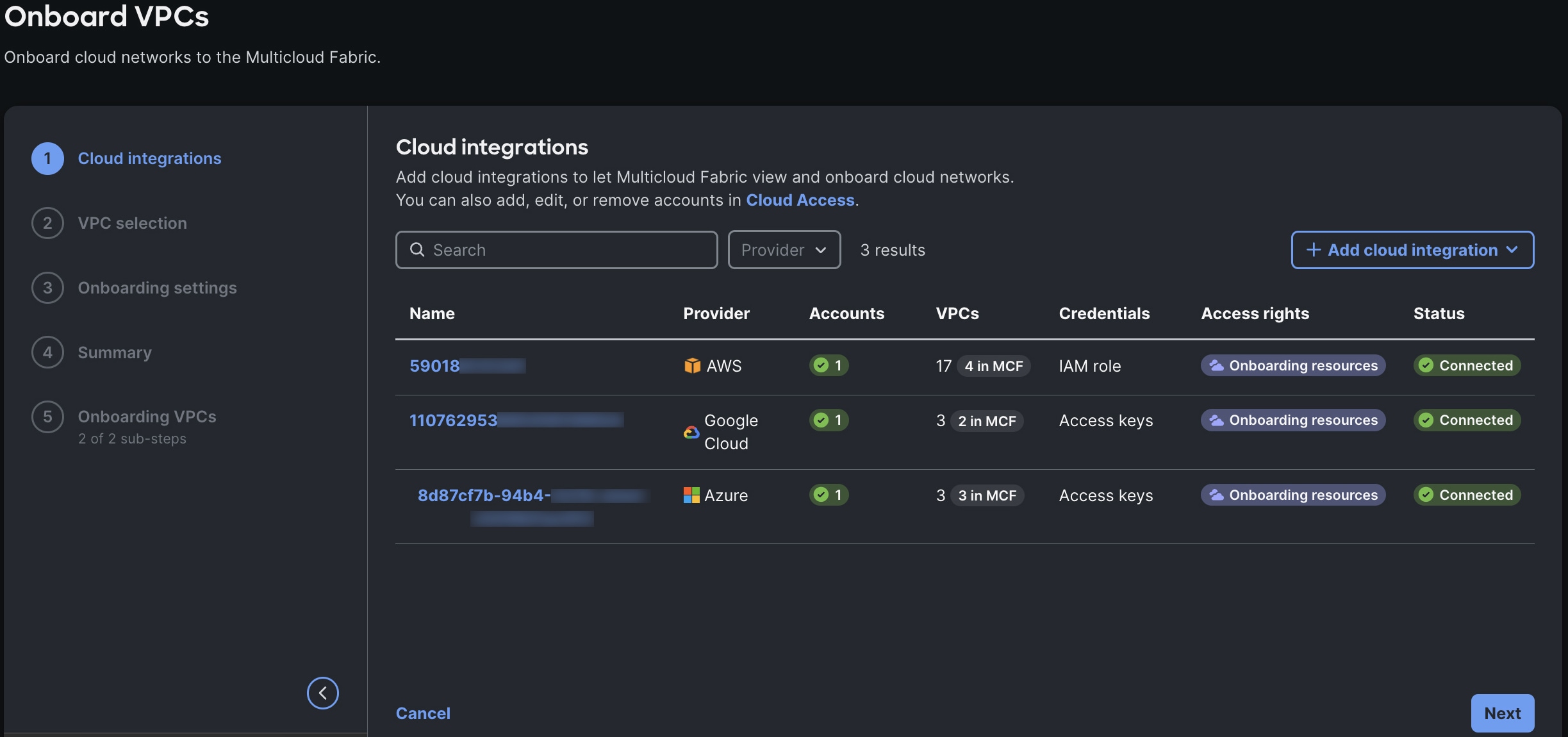
From the left navigation, select Overview. Then select Onboard network > VPCs.
-
Confirm that your cloud integration is listed. Then select Next.
-
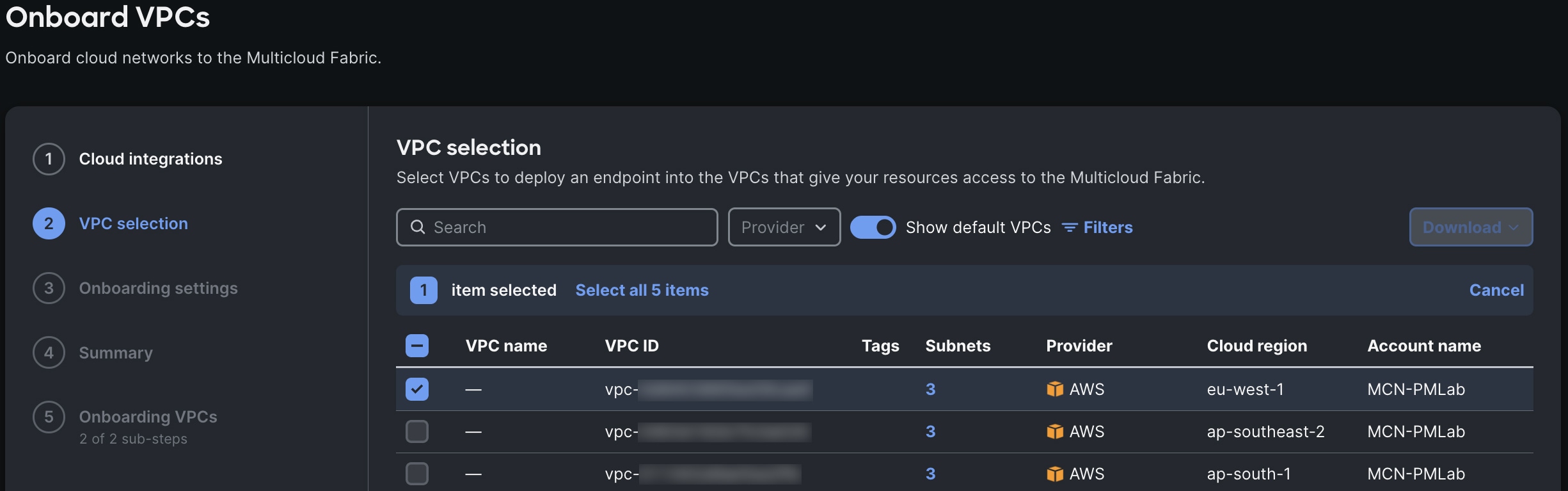
Select the VPCs or VNets you want to onboard, then select Next.
-
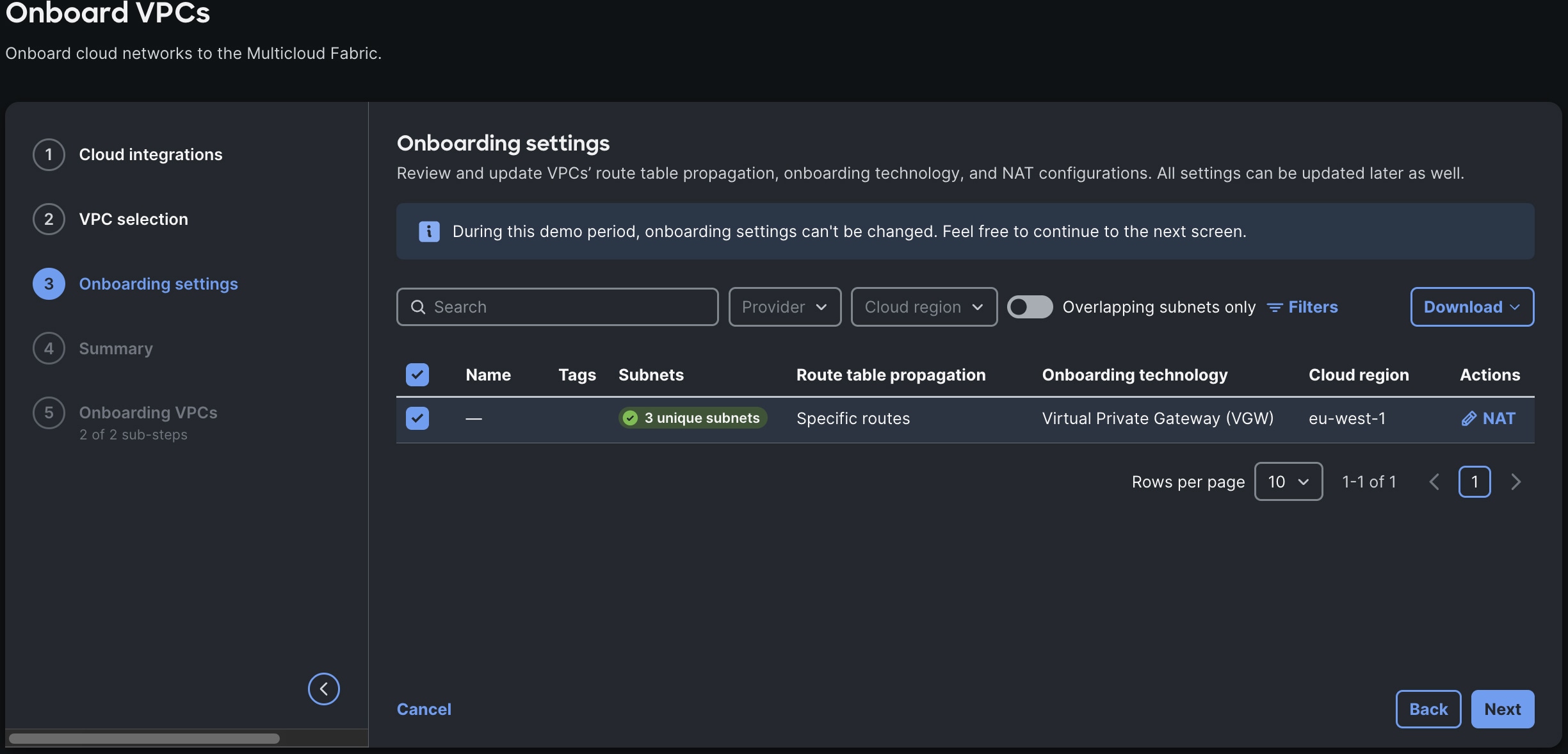
Review the onboarding settings that are displayed, then select Next.
For public Beta, you will not be able to change any of these settings.
-
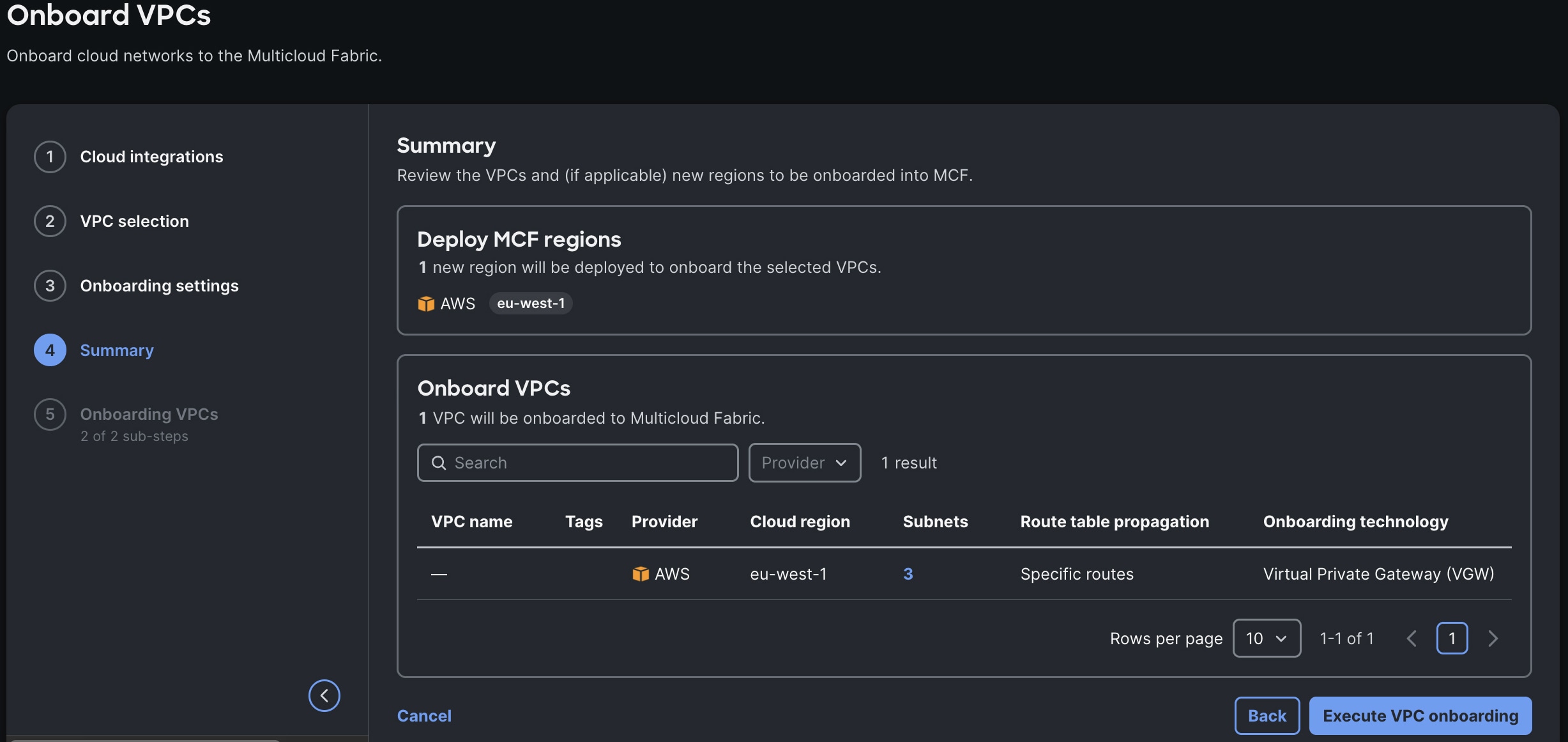
Confirm that the VPCs or VNets you selected are displayed, then select Execute VPC onboarding.
-
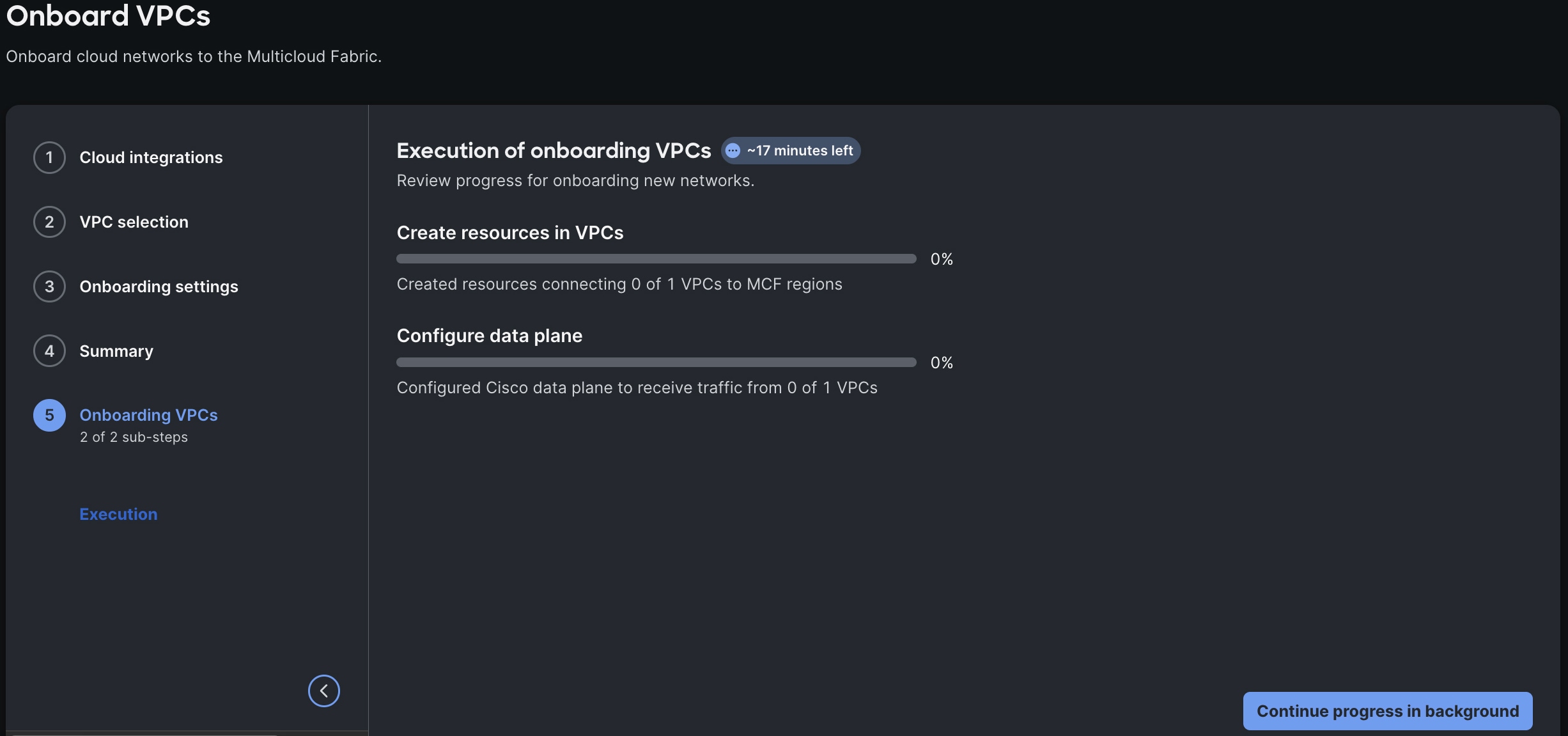
Monitor the progress of the operation, capturing any errors that occur.
-
This operation typically takes around 10 minutes to complete for both AWS and Google Cloud, and around 45 minutes for Azure. If the operation takes much longer than this, do not retry it while the original operation is still active. Repeated retries can obscure the original operation.
-
Select Continue progress in background to close the wizard.
-
-
Verify that onboarding was successful:
-
From the left navigation, select Overview. Then select VPCs.
-
Select the link for the relevant VPC or VNet to open its details page.
-
Confirm that its status is listed as
Onboardingand has connectivity with Multicloud Fabric.
-
Remove a VPC or VNet
Follow these steps if you need to remove a VPC or VNet that was onboarded previously.
-
From the left navigation, select Overview.
VPCs should already be selected, by default. -
For the VPC/VNet you want to remove, select
 > Remove.
You can also select the VPC/VNet you want to remove to open its details page. Then select Offboard VPC. -
Select Remove VPC.
Onboard an MX hub or spoke network
- Before you begin
-
The proposed region set is derived from your existing cloud attachments. If you have not already onboarded a VPC or VNet, do so before before you complete this procedure.
Follow these steps to onboard an MX hub or spoke network to Multicloud Fabric.
There are four use cases for MX hub/spoke network onboarding:
-
Onboard hub networks
-
Onboard spoke networks
-
Onboard templated hub networks
-
Onboard templated spoke network
Be aware that you cannot onboard an individual hub network. All hub networks are onboarded across all deployed regions to create a full mesh topology.
-
From the left navigation, select Overview > Onboard network > Meraki networks.
-
Select the Meraki spoke networks you want to onboard, then select Next.
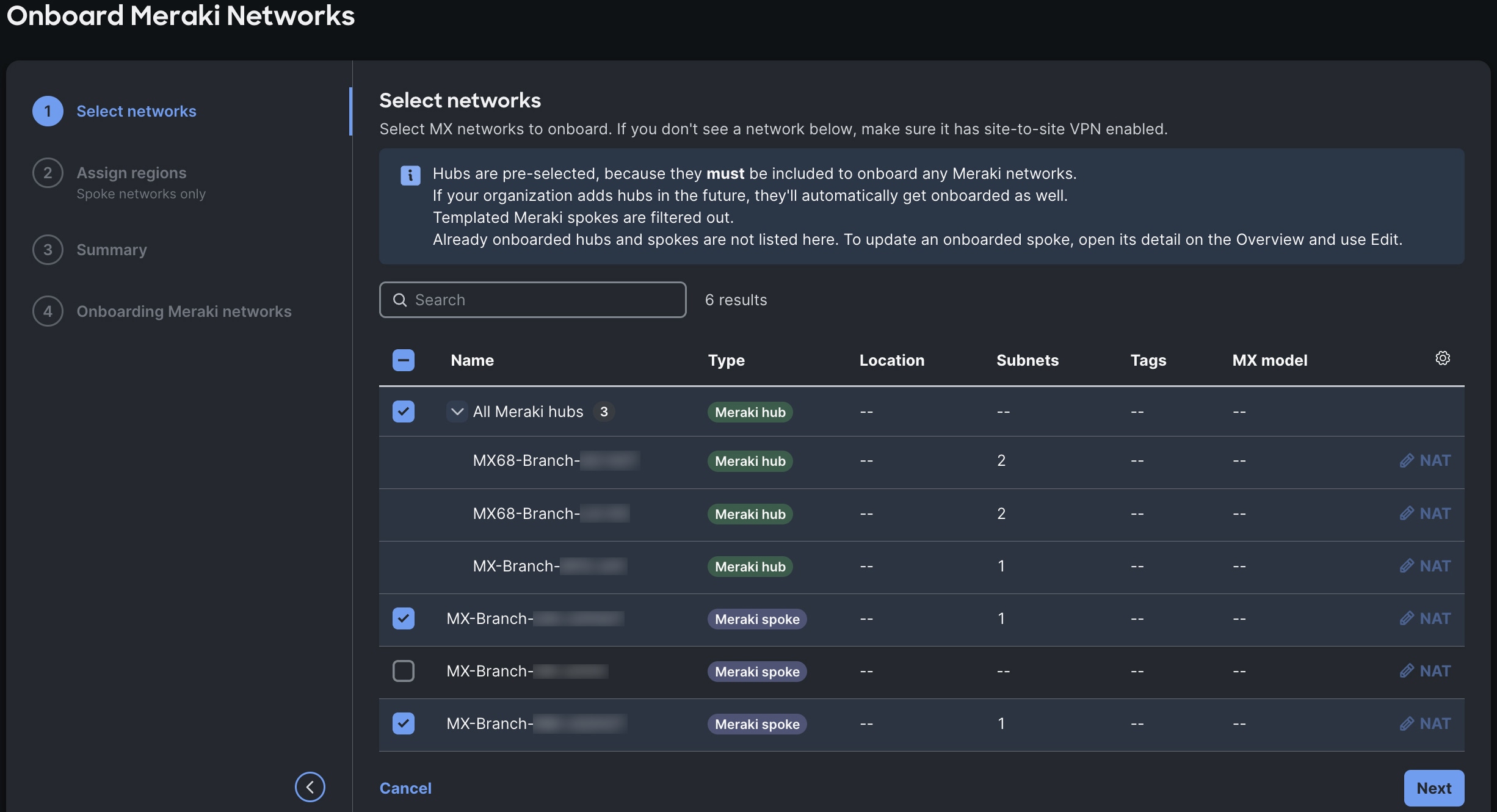
Hubs are already selected because they must be included to onboard Meraki networks. If your organization add hubs later, they will also be automatically onboarded.
-
Select the regions to which you want to onboard the spoke networks you selected, then select Set regions.
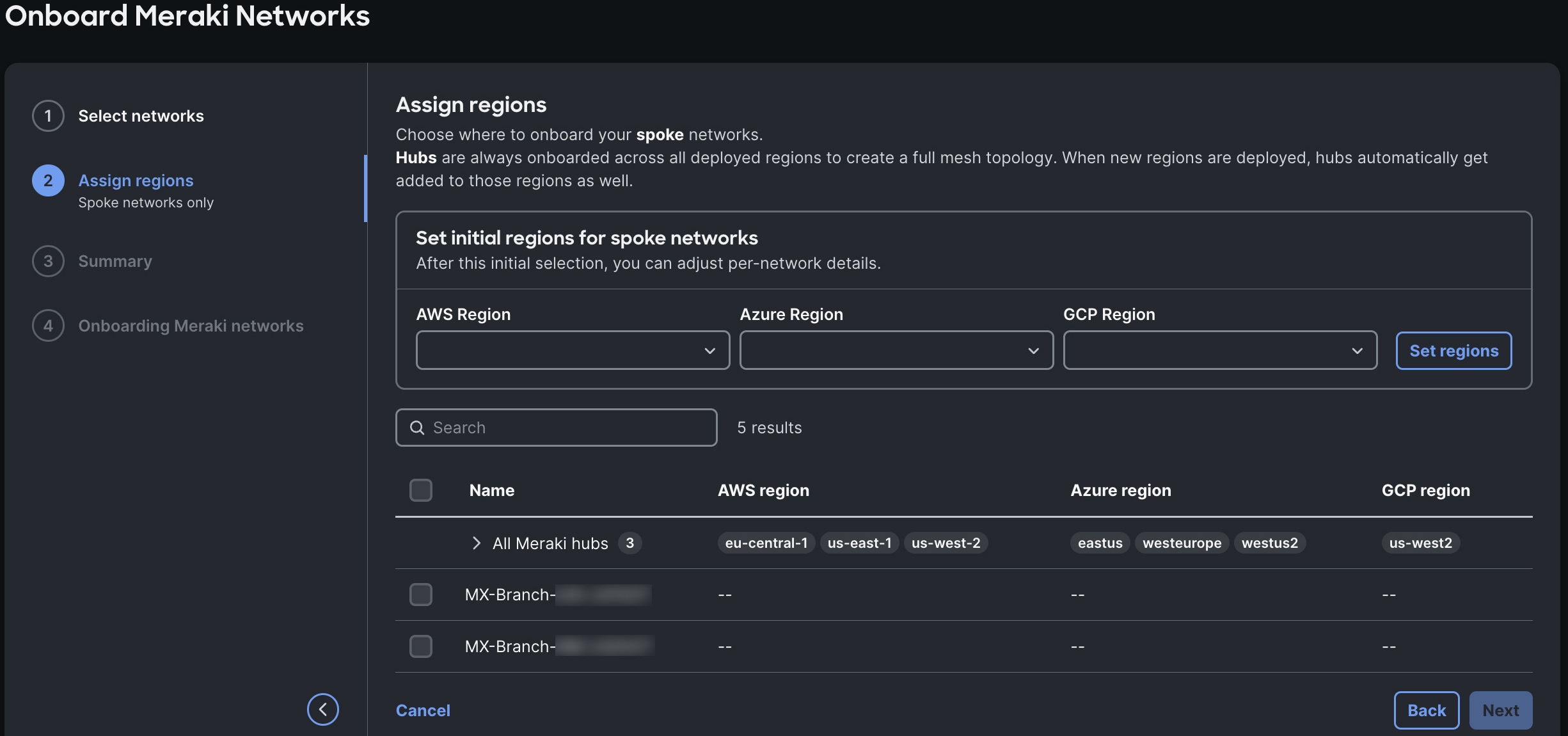
Hub networks are automatically added to any new regions that are deployed.
-
Select Next.
-
Confirm that the selections you made are displayed, then select Execute onboarding.
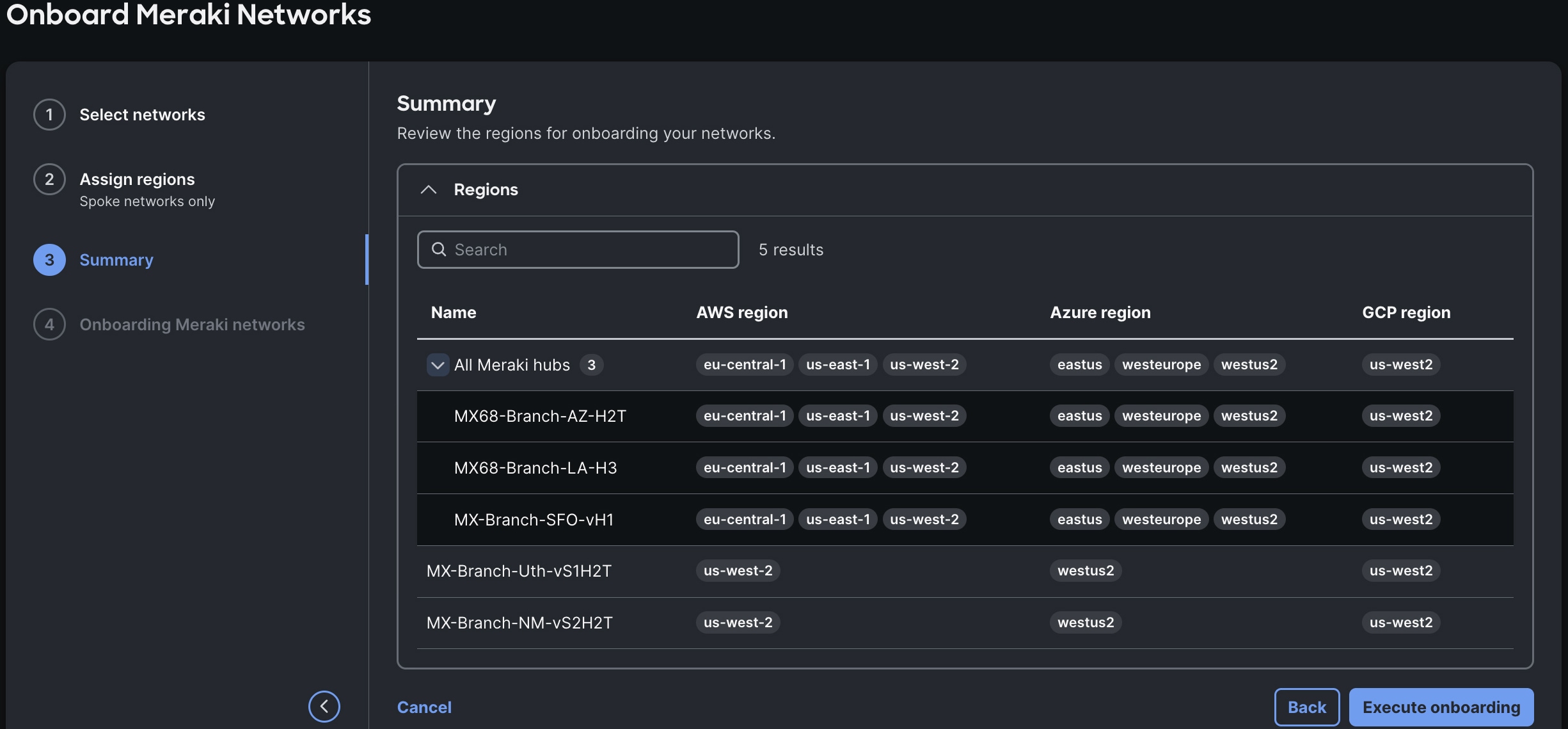
Multicloud Fabric validates, places, and connects the site as described in How attachment works. Route exchange begins only when an applicable connection/ZTR intent exists.
The wizard updates after the network is successfully onboarded.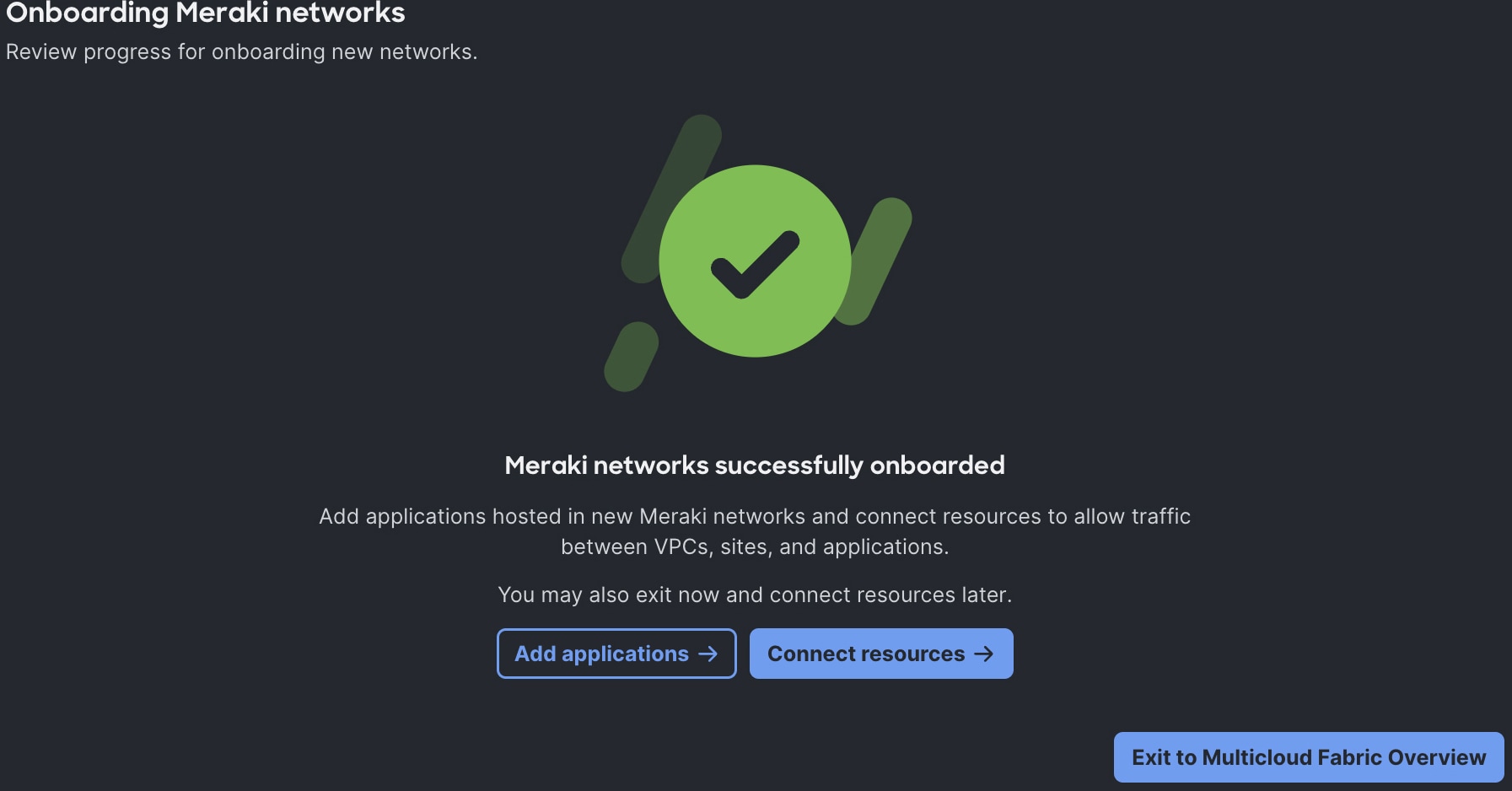
-
Select Connect resources to connect VPCs, Vnets, and sites. Refer to Create a connection.
If you want to do this later, select Exit to Multicloud Fabric Overview to return to Multicloud Fabric’s Overview.
Remove an MX hub or spoke network
Follow these steps if you need to remove an MX hub or spoke network that was onboarded previously.
-
From the left navigation, select Overview.
-
Select Sites.
-
For the hub or spoke network you want to remove, select
> Remove. -
Check the check box to confirm that you want to remove this network.
-
Select Remove.
What Multicloud Fabric creates in your cloud
The Multicloud Fabric fabric needs a provider-native, encrypted, and redundant attachment to the selected network. The objects below form the cloud half of that attachment, and they do not publish your routes until a separate connection or ZTR intent exists. Resource counts can vary with the active HA plan.
Use the exact provider resource ID plus the metadata in this section before you treat an object as Multicloud Fabric-owned. A deterministic name alone is not proof, so never infer ownership from a display name, and never delete by name alone. Shared, reused, pre-existing, and customer-created resources must not be removed as Multicloud Fabric residuals.
AWS
AWS requires a customer-side gateway anchor, a representation of the remote Multicloud Fabric regional peer, and Site-to-Site VPN objects that join them. Multicloud Fabric also enables route propagation on the applicable VPC route tables, so routes learned later through BGP can enter the VPC routing domain after a Connection or ZTR intent exists.
| CSP resource or configuration | Why it is required | Multicloud Fabric ownership and correlation metadata |
|---|---|---|
|
Customer gateways |
Represent the Multicloud Fabric regional public IP and BGP peer in AWS. |
|
|
Virtual private gateway (VGW) |
Attaches the VPN endpoint to the selected VPC and terminates the AWS side of the attachment. |
|
|
Site-to-site VPN connections and tunnels |
Create the encrypted IPsec paths and BGP sessions between the Customer Gateway and the VGW. |
|
|
VGW route propagation |
Allows route tables to learn BGP routes from the VGW. |
This is a configuration change on a route table. It is not a separately tagged resource. |
Azure
Azure places a route-based, BGP-enabled Virtual Network Gateway in your GatewaySubnet. Public IPs provide the Azure tunnel endpoints, Local Network Gateways describe the remote Multicloud Fabric peers, and connections bind both sides into the redundant IPsec attachment.
| CSP resource or configuration | Why it is required | Multicloud Fabric ownership and correlation metadata |
|---|---|---|
|
Local network gateways |
Represent the remote Multicloud Fabric regional gateway addresses and BGP peers. |
|
|
Public IP addresses |
Provide Azure-side public endpoints for the active-active VPN gateway. |
|
|
Virtual network gateway |
Terminates route-based IPsec in the selected VNet and establishes BGP. Multicloud Fabric configures active-active behavior for redundancy. |
|
|
Virtual network gateway connections |
Bind the VNet gateway to the Local Network Gateways and hold the IPsec connection relationship. |
|
Google Cloud
Google Cloud uses an HA VPN Gateway on the selected VPC, an External VPN Gateway representation of the Multicloud Fabric regional peers, and a Cloud Router for BGP. VPN tunnels, router interfaces, and BGP peers join those objects into redundant encrypted paths and dynamic route exchange.
| CSP resource or configuration | Why it is required | Multicloud Fabric ownership and correlation metadata |
|---|---|---|
|
External VPN gateway |
Represents the Multicloud Fabric regional external peer interfaces in Google Cloud. |
Label: It may be shared across relationships, so it intentionally has no |
|
HA VPN gateway |
Provides redundant Google Cloud-side tunnel endpoints attached to the selected VPC. |
Labels: |
|
Cloud router |
Terminates BGP and dynamically exchanges routes for the VPN attachment. |
Description: The current implementation does not apply the per-onboarding labels used on the HA gateway and tunnels. |
|
VPN tunnels |
Create encrypted IKEv2 paths between the HA VPN Gateway and the Multicloud Fabric external peer interfaces. |
Labels: |
|
Router interfaces and BGP peers |
Bind each tunnel to the Cloud Router and establish the corresponding BGP session. |
This is a child configuration on the Cloud Router rather than separately tagged resources. |
Routing and policy
About Zero Trust Routing
Onboarding a VPC, VNet, or MX site establishes its encrypted transport and BGP attachment to Multicloud Fabric. However, Multicloud Fabric intentionally does not publish routes simply because an endpoint has been onboarded. You create a connection when you want two specific onboarded networks — and the eligible address scopes represented by that intent — to exchange routes. ZTR realizes that explicit relationship, so Multicloud Fabric distributes only the routes that your intent authorizes instead of automatically creating broad connectivity between every attached network.
What happens after you create a connection
After you create a connection in Overview, Multicloud Fabric completes these actions:
-
Multicloud Fabric begins by validating the intent. It verifies that:
-
The selected source and destination are supported.
-
The endpoints are onboarded, and that the requested address scopes belong to those endpoints.
-
No visible overlap or eligibility error blocks realization of the connection.
Multicloud Fabric either accepts the connection or presents a rolled-up configuration/conflict error.
-
-
Multicloud Fabric then records your policy, storing the connection name, enabled state, endpoint relationship, and the selected network, VLAN, or prefix scope as your desired route-exchange policy.
-
Next, Multicloud Fabric computes ZTR route authorization. It maps your intent to the currently learned and eligible prefixes for both endpoints, and computes the route policy that permits those prefixes to be exchanged.
-
Multicloud Fabric then distributes authorized routes, applying the ZTR policy across the endpoints' existing AutoVPN or IPsec/BGP attachments that are healthy.
-
And finally, Multicloud Fabric reports and reconciles the result. It updates the connection’s status and events. It then reconciles supported topology changes against the saved intent. A new resource may require discovery convergence before its prefixes can be realized.
A realized connection authorizes routes. It does not guarantee application traffic. At the end of a successful connection or ZTR operation, Multicloud Fabric has authorized and distributed the intended route set across endpoint attachments that are already healthy. ZTR is not a firewall, and it does not override any of these items:
-
AWS security groups or NACLs
-
Azure NSGs or firewalls
-
Google Cloud firewall policy
-
MX ACL/firewall behavior
-
An intervening NVA
-
NAT
-
The destination service
-
The return path
If the routes are present but traffic fails, troubleshoot those layers that you control before treating the symptom as an Multicloud Fabric route-realization issue.
Create a connection
-
Confirm that the required VPCs, VNets, and MX sites are integrated, discovered, or onboarded, and that they are healthy.
-
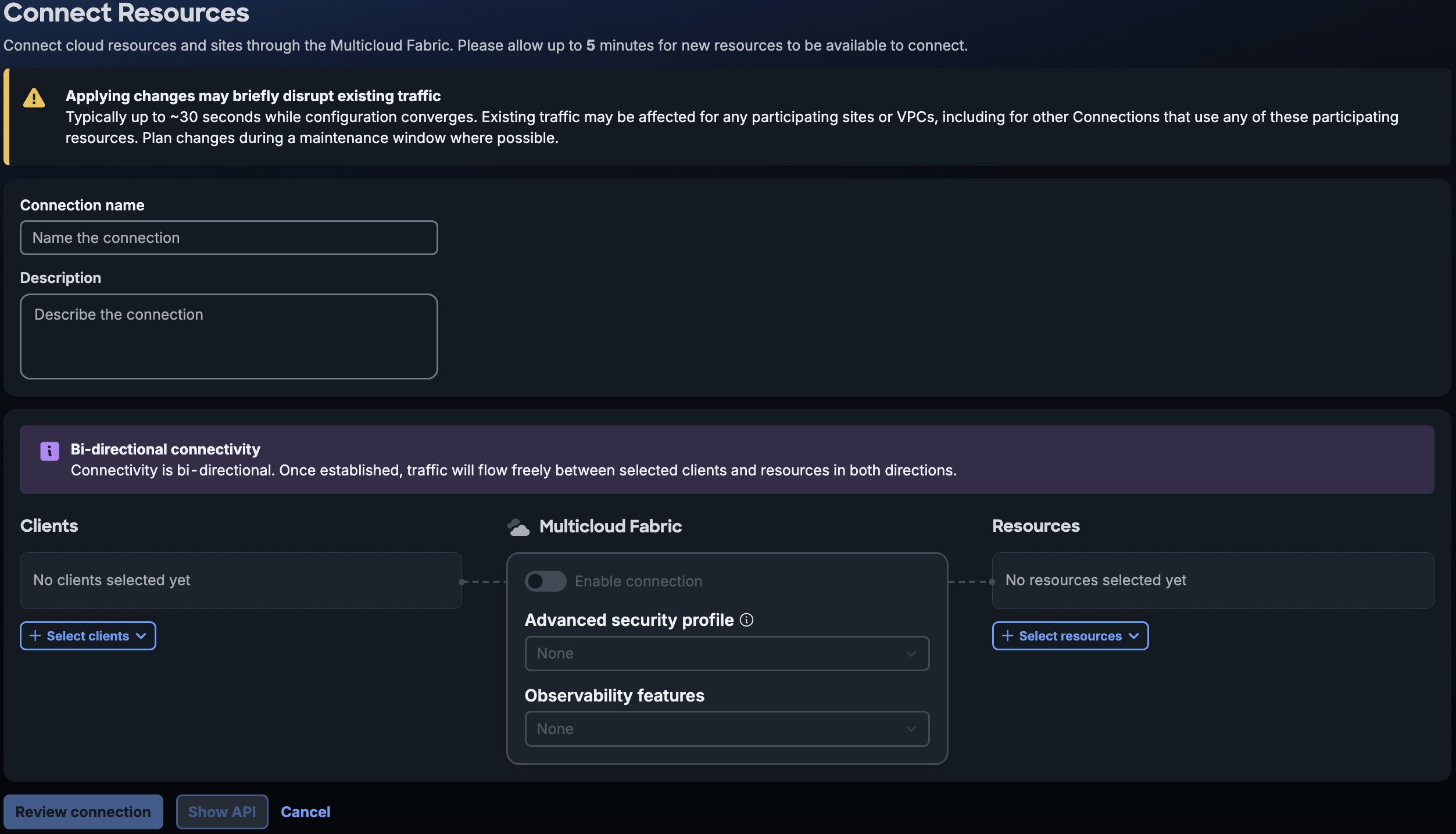
From the left navigation, select Overview. Then select Connect resources.
-
Define the intent:
-
Name the connection.
-
(Optional) Enter a short description of the connection.
-
Select the clients and resources you want to pair.
-
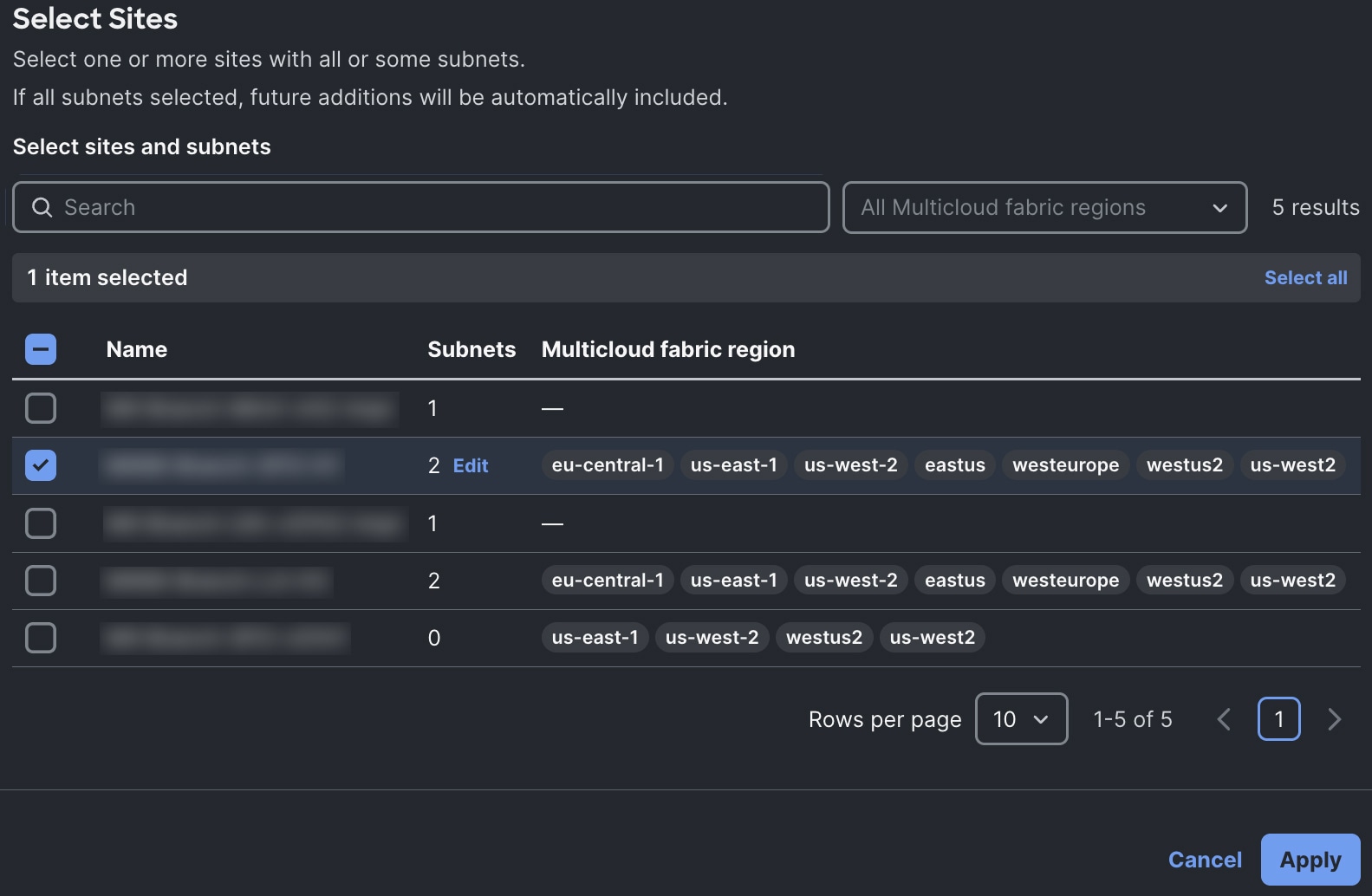
When selecting sites, select Edit to specify which subnets to include site for a particular site.
-
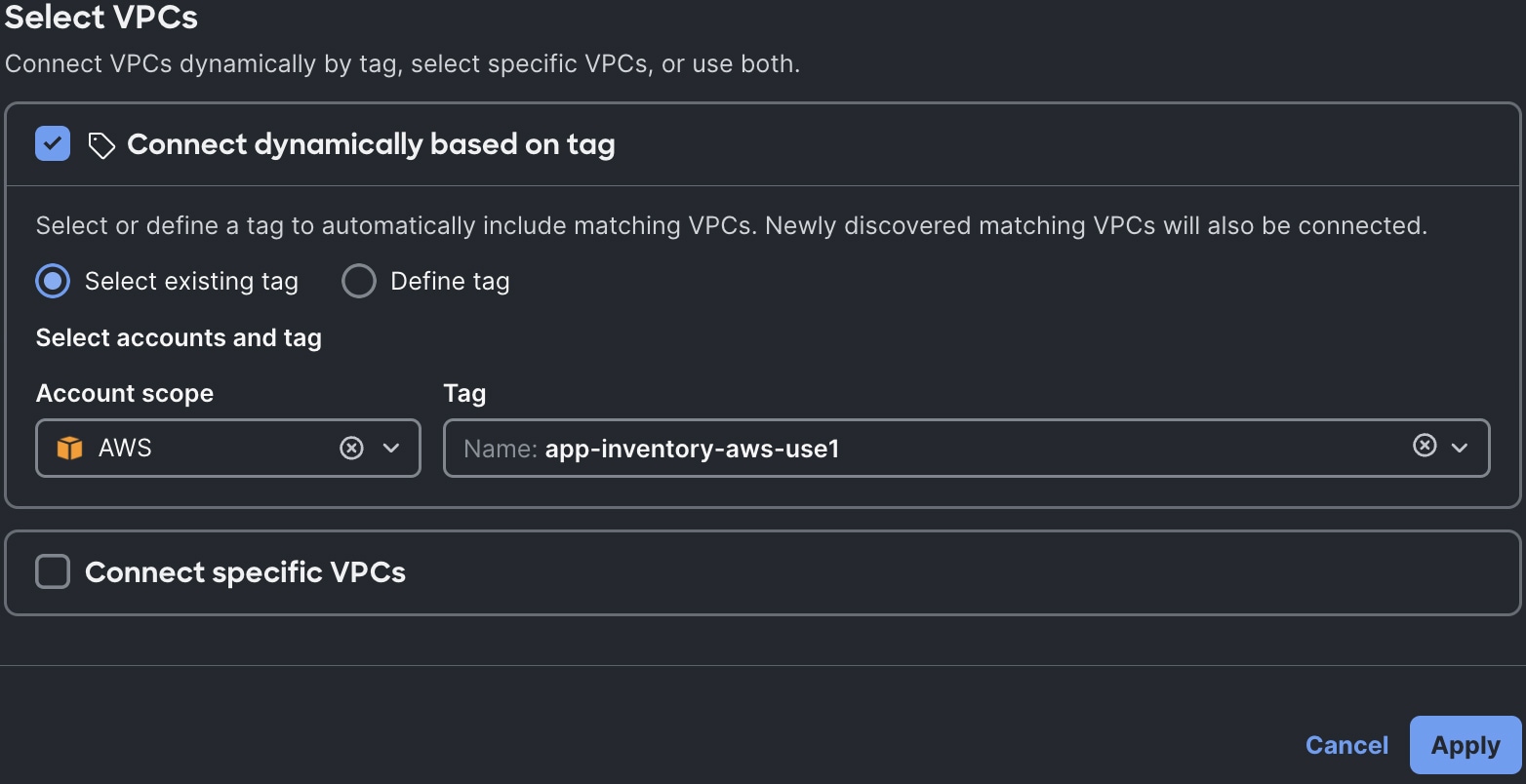
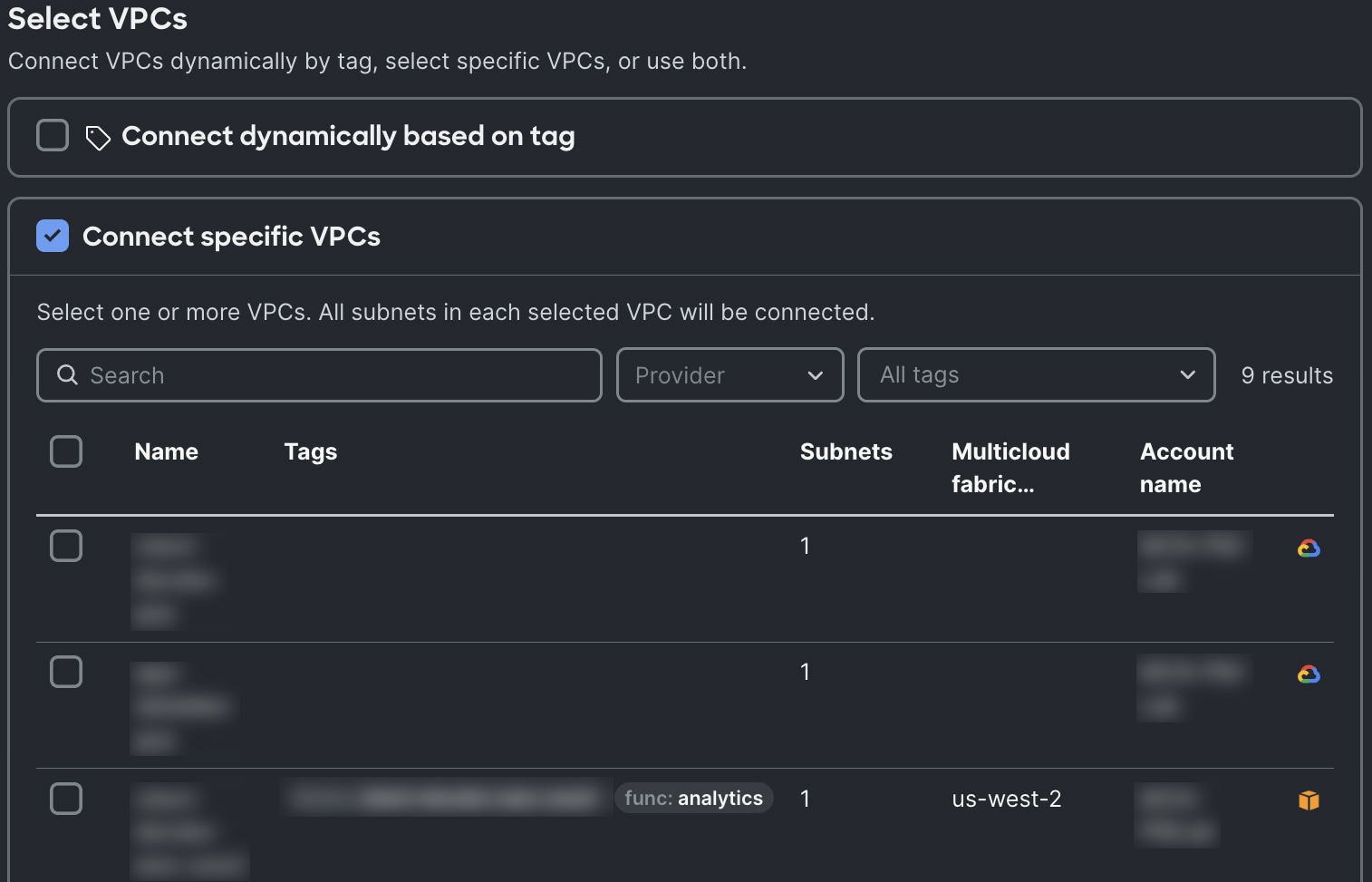
When selecting VPCs:
-
You can instruct Multicloud Fabric to connect the VPCs configured with a particular tag. Choose an existing tag, or define a new one by specifying its account scope, key, and value.
-
You can also select the specific VPCs to include.
-
-
Multicloud Fabric does not support site-to-site or site-to-VLAN connections. To add a site or VLAN as a resource, you must first remove all sites and VLANs currently selected as a client.
-
Ensure that you set the Enable connection option.
-
-
-
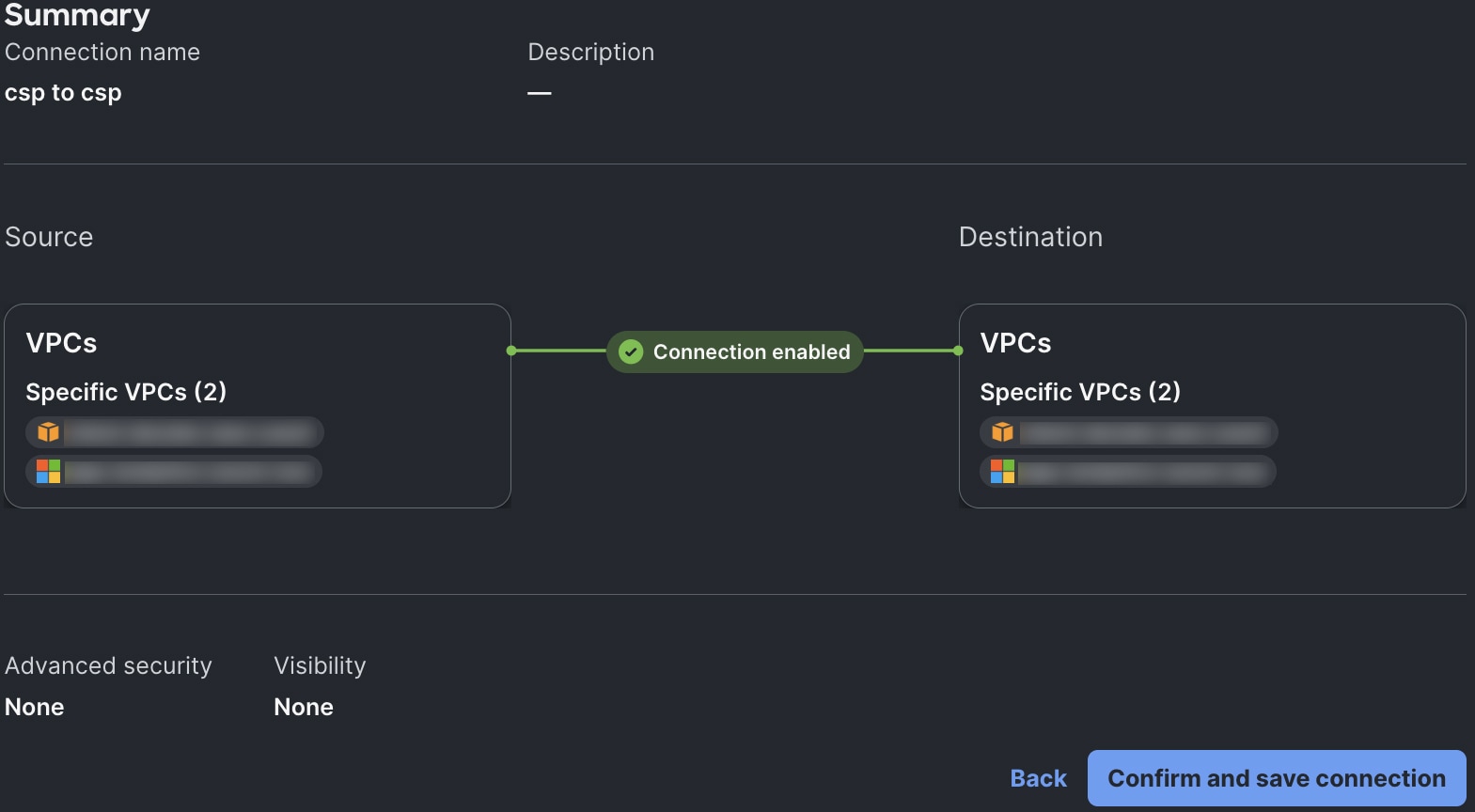
Select Review connection to check that the selected endpoints and address scopes match the traffic to be permitted.
-
Select Confirm and save connection.
Multicloud Fabric validate the intent and realizes the ZTR route policy. -
Verify the connection:
-
Open the detail pages for the connection and endpoints. Compare the tunnel, BGP, route visibility, and event history with the intended path.
-
Test the configured protocol and port. Security policy and a valid return path are still required.
-
Confirm route visibility on the MX or CSP side.
-
Edit a connection
Follow these steps to update the settings for a connection that has already been configured.
-
From the left navigation, select Overview.
-
Select Connections.
-
Select the connection’s name.
You can also select .
. -
Make the necessary setting changes in Edit Connection.
-
Select Review connection.
-
Confirm that the changes you made are reflected in Summary. Then select Confirm and save connection.
Remove a connection
Follow these steps to remove an active connection from Multicloud Fabric.
-
From the left navigation, select Overview.
-
Select Connections.
-
For the connection you want to remove, select
 .
. -
Check the check box to confirm that you want to remove this connection.
-
Select Remove.