- Preface
- Overview
- Installing the Server Operating System or Hypervisor
- Managing the Server
- Viewing Server Properties
- Viewing Server Sensors
- Managing Remote Presence
- Managing User Accounts
- Configuring Network-Related Settings
- Configuring Communication Services
- Managing Certificates
- Configuring Platform Event Filters
- CIMC Firmware Management
- Viewing Logs
- Server Utilities
- Diagnostic Tests
- Index
Viewing Logs
This chapter includes the following sections:
CIMC Log
Viewing the CIMC Log
Clearing the CIMC Log
You must log in as a user with user privileges to clear the CIMC log.
| Step 1 | In the Navigation pane, click the Admin tab. |
| Step 2 | On the Admin tab, click CIMC Log. |
| Step 3 | In the CIMC Log pane, click Clear Log. |
| Step 4 | In the dialog box that appears, click OK. |
Sending the CIMC Log to a Remote Server
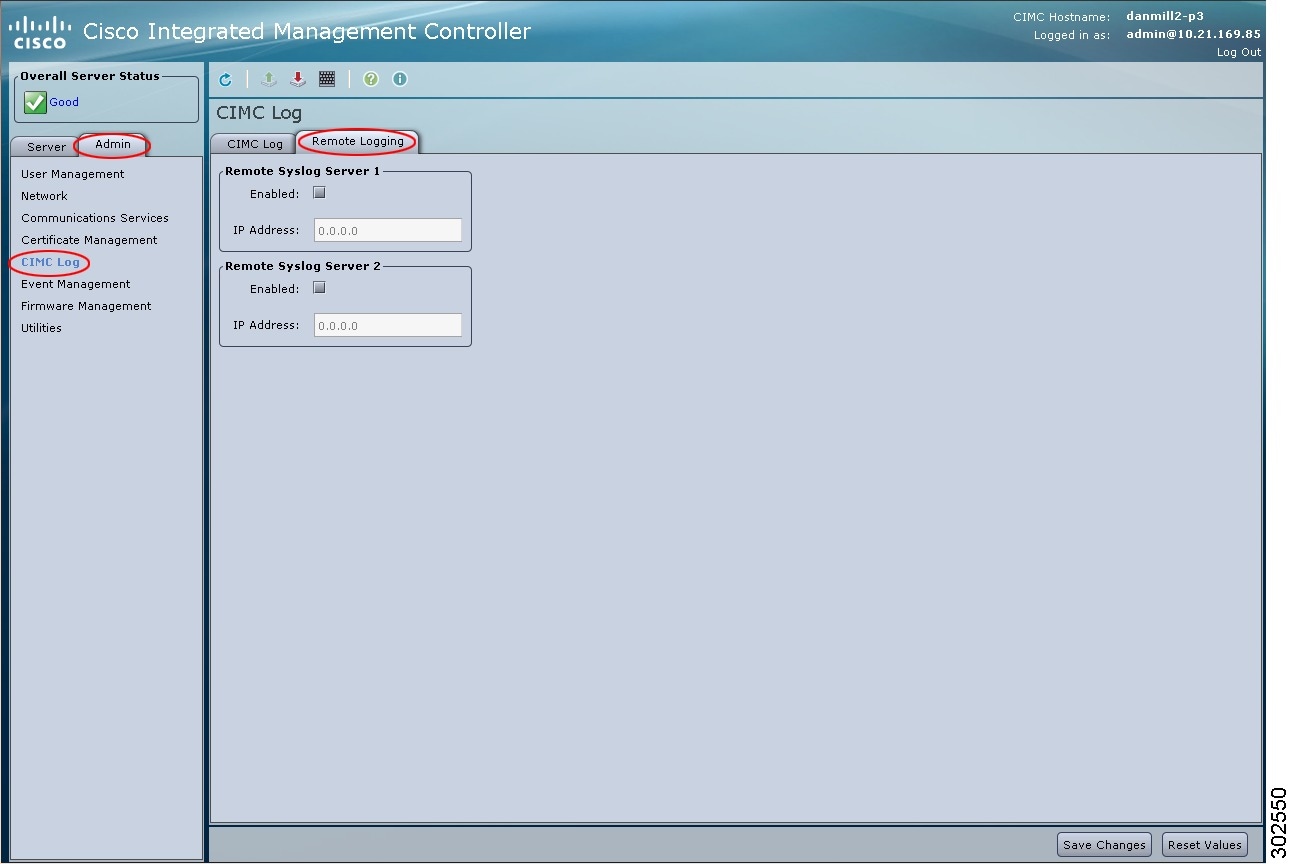
You can configure profiles for one or two remote syslog servers to receive CIMC log entries.
You can configure profiles for one or two remote servers to receive CIMC log entries.
| Step 1 | In the Navigation pane, click the Admin tab. | ||||||
| Step 2 | On the Admin tab, click CIMC Log. | ||||||
| Step 3 |
In the CIMC Log pane, click the Remote Logging tab.
|
||||||
| Step 4 |
In either of the Remote Syslog Server dialog boxes, complete the following fields:
|
||||||
| Step 5 | Click Save Changes. |
System Event Log
Viewing the System Event Log
| Step 1 | In the Navigation pane, click the Server tab. | ||||||||||||||
| Step 2 | On the Server tab, click System Event Log. | ||||||||||||||
| Step 3 |
Review the following information for each system event in the log:
|
||||||||||||||
| Step 4 | From the Entries Per Page drop-down list, select the number of system events to display on each page. | ||||||||||||||
| Step 5 | Click <Newer and Older> to move backward and forward through the pages of system events, or click <<Newest to move to the top of the list. By default, the newest system events are displayed at the top if the list. |
Clearing the System Event Log
You must log in as a user with user privileges to clear the system event log.
| Step 1 | In the Navigation pane, click the Server tab. |
| Step 2 | On the Server tab, click System Event Log. |
| Step 3 | In the System Event Log pane, click Clear Log. |
| Step 4 | In the dialog box that appears, click OK. |
 Feedback