- Preface
- Overview
- Installing the Server Operating System or Hypervisor
- Managing the Server
- Viewing Server Properties
- Viewing Server Sensors
- Managing Remote Presence
- Managing User Accounts
- Configuring Network-Related Settings
- Configuring Communication Services
- Managing Certificates
- Configuring Platform Event Filters
- CIMC Firmware Management
- Viewing Logs
- Server Utilities
- Diagnostic Tests
- Index
CIMC Firmware Management
This chapter includes the following sections:
- Overview of CIMC Firmware
- Obtaining Software from Cisco Systems
- Installing CIMC Firmware from the TFTP Server
- Installing CIMC Firmware Through the Browser
- Activating Installed CIMC Firmware
- Viewing CIMC Information
Overview of CIMC Firmware
E-Series Servers use firmware downloaded from cisco.com. This firmware is certified by Cisco to upgrade on a E-Series Server.
The CIMC firmware you download is packaged in a .zip file. After you have downloaded a firmware .zip from Cisco, you can use it to update the firmware on your server. Cisco also provides release notes with each image, which you can obtain from the same website from which you obtained the image.
 Caution |
Do not use the .zip file to update your server. |
You use a .bin file to reimage. You must extract the proper .bin upgrade file from this .zip file. You can extract this .bin to a TFTP server or your local machine. You can update using a TFTP server or a browser on your local machine.
 Note |
When you update the firmware, you can either upgrade an older firmware version to a newer one, or downgrade a newer firmware version to an older one. |
The CIMC separates the firmware update process into stages to ensure that you can install the firmware to a component while the server is running without affecting its uptime. Because you do not need to reboot the server until after you activate, you can perform that task overnight or during other maintenance periods. When you update firmware, the following stages occur:
Install
During this stage, the CIMC transfers the selected firmware version to the server. The install process always overwrites the firmware in the non-active slot on the server. You can install the firmware using either of the following methods:
Activate
During this stage, the CIMC sets the non-active firmware version as active and reboots the server. When the server reboots, the non-active slot becomes the active slot, and the active slot becomes the non-active slot. The firmware in the new active slot becomes the running version.
Obtaining Software from Cisco Systems
Use this procedure to download drivers, BIOS and CIMC firmware, and the diagnostics image.
| Step 1 | Navigate to http://www.cisco.com/. |
| Step 2 | If you are not already logged in, click Log In at the top right-hand edge of the page and log in using your Cisco.com credentials. |
| Step 3 |
In the menu bar at the top, click Support. A roll-down menu appears. |
| Step 4 |
From the Downloads (center) pane, click All Downloads (located at the bottom right corner). The Download Software page appears. |
| Step 5 | From the left pane, click Products. |
| Step 6 | From the center pane, click Unified Computing and Servers. |
| Step 7 | From the right pane, click Cisco UCS E-Series Software. |
| Step 8 |
From the right pane, click the name of the server model for which you want to download the software. The Download Software page appears with the following list of software categories that you can download: |
| Step 9 | Click the appropriate software category link. |
| Step 10 |
Click the Download button associated with software image that you want to download. The End User License Agreement dialog box appears. |
| Step 11 |
(Optional) To download multiple software images, do the following:
|
| Step 12 | Click Accept License Agreement. |
| Step 13 | Do one of the following as appropriate: |
What to Do Next
Install the software image.
Installing CIMC Firmware from the TFTP Server
- You must log in as a user with admin privileges to install CIMC firmware through the browser.
- Obtain the CIMC firmware file from Cisco Systems. See Obtaining Software from Cisco Systems.
- Unzip the proper .bin upgrade file on your TFTP server.
What to Do Next
Activate the CIMC firmware.
Installing CIMC Firmware Through the Browser
- You must log in as a user with admin privileges to install the CIMC firmware through the browser.
- Obtain the CIMC firmware file from Cisco Systems. See Obtaining Software from Cisco Systems.
- Unzip the proper .bin upgrade file to your local machine.
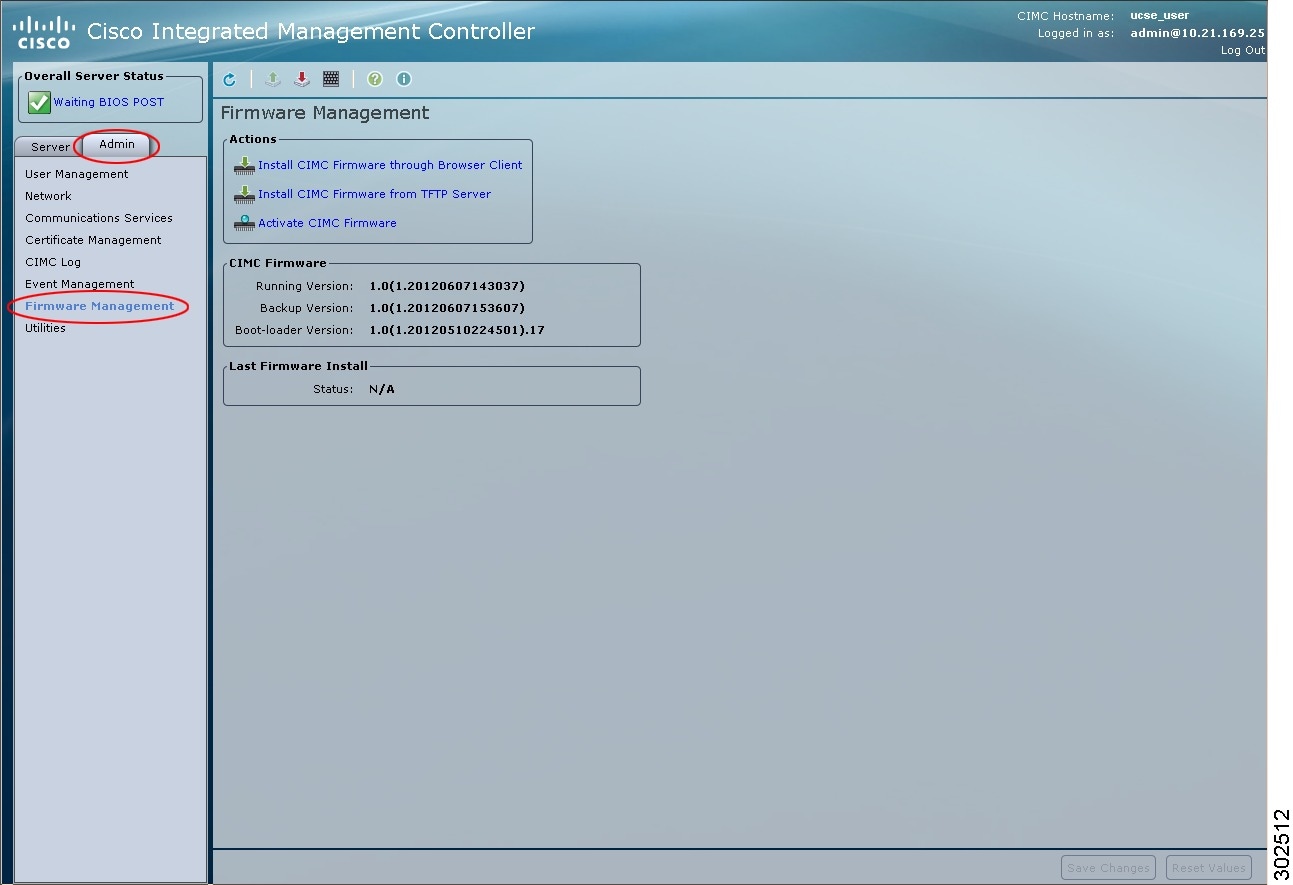
| Step 1 | In the Navigation pane, click the Admin tab. |
| Step 2 |
On the Admin tab, click Firmware Management.
|
| Step 3 | In the Actions area, click Install CIMC Firmware through Browser Client. |
| Step 4 | In the Install CIMC Firmware dialog box, click Browse and use the Choose File dialog box to select the .bin file you want to install. |
| Step 5 | Click Install Firmware. |
What to Do Next
Activate the CIMC firmware.
Activating Installed CIMC Firmware
| Step 1 | In the Navigation pane, click the Admin tab. |
| Step 2 |
On the Admin tab, click Firmware Management.
|
| Step 3 |
In the Actions area, click Activate CIMC Firmware. The Activate Firmware dialog box appears. |
| Step 4 | In the Activate Firmware dialog box, choose the firmware image to activate. |
| Step 5 | Click Activate Firmware. |
Viewing CIMC Information
| Step 1 | In the Navigation pane, click the Server tab. | ||||||||||||||||
| Step 2 | On the Server tab, click Summary. | ||||||||||||||||
| Step 3 |
In the Cisco Integrated Management Controller (CIMC) Information area of the Server Summary pane, review the following information:
|
 Feedback