- Preface
- Overview
- Installing the Server Operating System or Hypervisor
- Managing the Server
- Viewing Server Properties
- Viewing Server Sensors
- Managing Remote Presence
- Managing User Accounts
- Configuring Network-Related Settings
- Configuring Communication Services
- Managing Certificates
- Configuring Platform Event Filters
- CIMC Firmware Management
- Viewing Logs
- Server Utilities
- Diagnostic Tests
- Index
- Viewing Overall Server Status
- Configuring the Server Boot Order Using the CIMC GUI
- Configuring the Boot Order Using the BIOS Setup Menu
- Resetting the Server
- Shutting Down the Server
- Managing Server Power
- Managing RAID
- Configuring BIOS Settings
Managing the Server
This chapter includes the following sections:
- Viewing Overall Server Status
- Configuring the Server Boot Order Using the CIMC GUI
- Configuring the Boot Order Using the BIOS Setup Menu
- Resetting the Server
- Shutting Down the Server
- Managing Server Power
- Managing RAID
- Configuring BIOS Settings
Viewing Overall Server Status
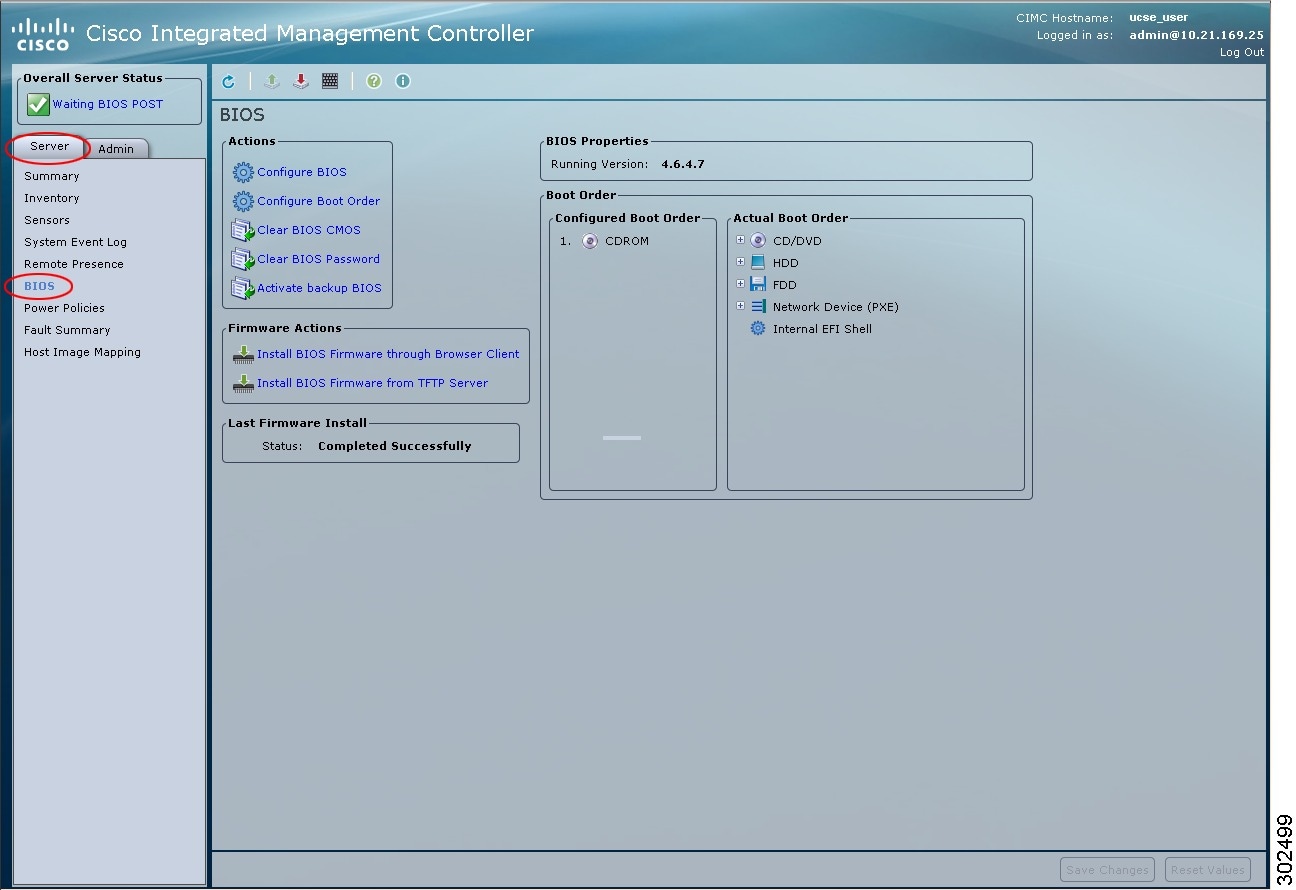
Configuring the Server Boot Order Using the CIMC GUI
Log into CIMC as a user with admin privileges.
| Step 1 | In the Navigation pane, click the Server tab. | ||||||||||||||||
| Step 2 |
On the Server tab, click BIOS.
|
||||||||||||||||
| Step 3 |
In the Actions area, click Configure Boot Order. The Configure Boot Order dialog box appears. 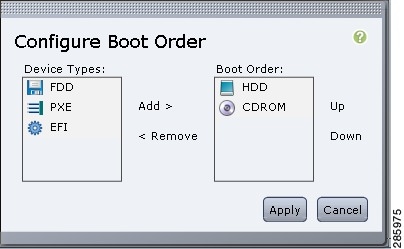
|
||||||||||||||||
| Step 4 |
In the Configure Boot Order dialog box, complete the following fields as appropriate:
|
||||||||||||||||
| Step 5 |
Click Apply. Additional device types may be appended to the actual boot order, depending on what devices you have connected to your server. |
What to Do Next
- Reboot the server to boot with your new boot order.
- If you want the server to boot from an external bootable device, such as an USB or an external CD ROM drive, which is directly connected to the E-Series Server, you must change the boot order priority. See Configuring the Boot Order Using the BIOS Setup Menu.
Configuring the Boot Order Using the BIOS Setup Menu
Use this procedure if you want the server to boot from an external bootable device, such as an USB or an external CD ROM drive that is directly connected to the E-Series Server.
| Step 1 | In the Navigation pane, click the Server tab. |
| Step 2 | On the Server tab, click Summary. |
| Step 3 |
From the Actions area, click Launch KVM Console. The KVM Console opens in a separate window. |
| Step 4 | From the Server Summary page, click Power Cycle Server to reboot the server. |
| Step 5 |
When prompted, press F2 during bootup to access the BIOS setup menu. The Aptio Setup Utility appears, which provides the BIOS setup menu options. 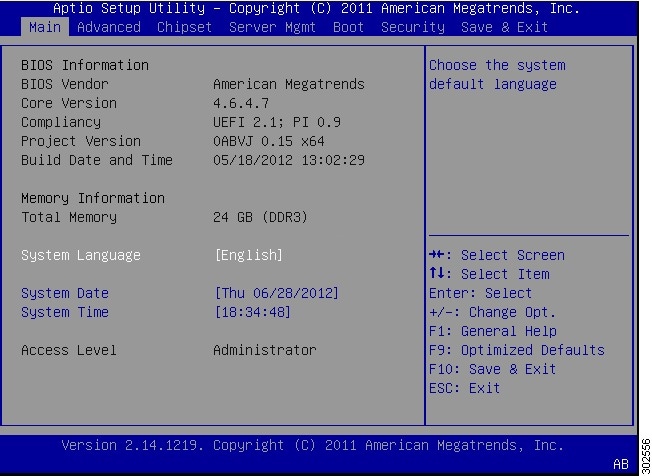
|
| Step 6 | Click the Boot tab. |
| Step 7 |
Scroll down to the bottom of the page below the Boot Options Priority area. The following boot option priorities are listed:
|
| Step 8 | Use the Up or Down arrow keys on your keyboard to highlight the appropriate option. |
| Step 9 | Press Enter to select the highlighted field. |
| Step 10 | Choose the appropriate device as Boot Option 1. |
| Step 11 |
Press F4 to save changes and exit. The Main tab of the BIOS setup displays the device that you configured as Boot Option 1. |
Resetting the Server
You must log in with user or admin privileges to perform this task.
| Step 1 | In the Navigation pane, click the Server tab. |
| Step 2 | On the Server tab, click Summary. |
| Step 3 |
In the Actions area, click Hard Reset Server. A dialog box with the message Hard Reset the Server? appears. |
| Step 4 | Click OK. |
Shutting Down the Server
You must log in with user or admin privileges to perform this task.
| Step 1 | In the Navigation pane, click the Server tab. | ||
| Step 2 | On the Server tab, click Summary. | ||
| Step 3 |
In the Actions area, click Shut Down Server. A dialog box with the message Shut Down the Server? appears.
|
||
| Step 4 | Click OK. |
Managing Server Power
Powering On the Server
 Note |
If the server was powered off by any means other than through CIMC, it will not become active immediately when powered on. The server will remain in standby mode until CIMC completes initialization. |
You must log in with user or admin privileges to perform this task.
| Step 1 | In the Navigation pane, click the Server tab. |
| Step 2 | On the Server tab, click Summary. |
| Step 3 |
In the Actions area, click Power On Server. A dialog box with the message Power on the server? appears. |
| Step 4 | Click OK. |
Powering Off the Server
You must log in with user or admin privileges to perform this task.
| Step 1 | In the Navigation pane, click the Server tab. |
| Step 2 | On the Server tab, click Summary. |
| Step 3 |
In the Actions area, click Power Off Server. A dialog box with the message Power Off the Server? appears. |
| Step 4 | Click OK. |
Power Cycling the Server
You must log in with user or admin privileges to perform this task.
| Step 1 | In the Navigation pane, click the Server tab. |
| Step 2 | On the Server tab, click Summary. |
| Step 3 |
In the Actions area, click Power Cycle Server. A dialog box with the message Power Cycle the Server? appears. |
| Step 4 | Click OK. |
Managing RAID
RAID Options
You can choose to store the E-Series Server data files on local Redundant Array of Inexpensive Disks (RAID). The following RAID levels are supported:
- Single-wide E-Series Server supports RAID 0 and RAID 1 levels.
- Double-wide E-Series Server supports RAID 0, RAID 1, and RAID 5 levels.
- Double-wide E-Series Server with PCIe option supports RAID 0 and RAID 1 levels.
RAID 0
With RAID 0, the data is stored evenly in stripe blocks across one or more disk drives without redundancy (mirroring). The data in all of the disk drives is different.
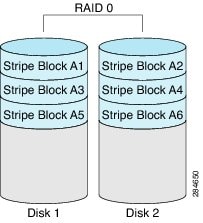
Compared to RAID 1, RAID 0 provides additional storage because both disk drives are used to store data. The performance is improved because the read and write operation occurs in parallel within the two disk drives.
However, there is no fault tolerance, error checking, hot spare, or hot-swapping. If one disk drive fails, the data in the entire array is destroyed. Because there is no error checking or hot-swapping, the array is susceptible to unrecoverable errors.
RAID 1
RAID 1 creates a mirrored set of disk drives, where the data in both the disk drives is identical providing redundancy and high availability. If one disk drive fails, the other disk drive takes over, preserving the data.
RAID 1 also allows you to use a hot spare disk drive. The hot spare drive is always active and is held in readiness as a hot standby drive during a failover.
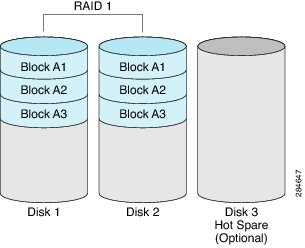
RAID 1 supports fault tolerance and hot-swapping. When one disk drive fails, you can remove the faulty disk drive and replace it with a new disk drive.
However, compared to RAID 0, there is less storage space because only half of the total potential disk space is available for storage and there is an impact on performance.
RAID 5
With RAID 5, the data is stored in stripe blocks with parity data staggered across all disk drives providing redundancy at a low cost.
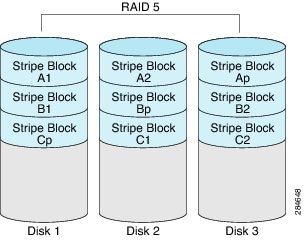
RAID 5 provides more data storage capacity than RAID 1 and better data protection than RAID 0. It also supports hot swapping; however, RAID 1 offers better performance.
NON-RAID
When the disk drives of a computer are not configured as RAID, the computer is in non-RAID mode. Non-RAID mode is also referred to as Just a Bunch of Disks or Just a Bunch of Drives (JBOD). Non-RAID mode does not support fault tolerance, error checking, hot-swapping, hot spare, or redundancy.
Summary of RAID Options
| RAID Options | Description | Advantages | Disadvantages |
RAID 0 |
Data stored evenly in stripe blocks without redundancy |
||
RAID 1 |
Mirrored set of disk drives and an optional hot spare disk drive |
||
RAID 5 |
Data stored in stripe blocks with parity data staggered across all disk drives |
||
Non-RAID |
Disk drives not configured for RAID Also referred to as JBOD |
Configuring RAID Using the CIMC GUI
Use this procedure to configure the RAID level, strip size, host access privileges, drive caching, and initialization parameters on a virtual drive. You can also use this procedure to designate the drive as a hot spare drive and to make the drive bootable.
| Step 1 | In the Navigation pane, click the Server tab. | ||||||||||||||||||||
| Step 2 | On the Server tab, click Inventory. | ||||||||||||||||||||
| Step 3 | In the Inventory pane, click the Storage tab. | ||||||||||||||||||||
| Step 4 |
In the Storage Adapters area, select the storage card. If the server is powered on, the resources of the selected storage adapter appear in the tabbed menu in the Storage Card area. |
||||||||||||||||||||
| Step 5 | To configure RAID, make sure that the status of each of the physical drives that you want to configure as RAID is unconfigured good. To change the physical drive status, do the following: | ||||||||||||||||||||
| Step 6 |
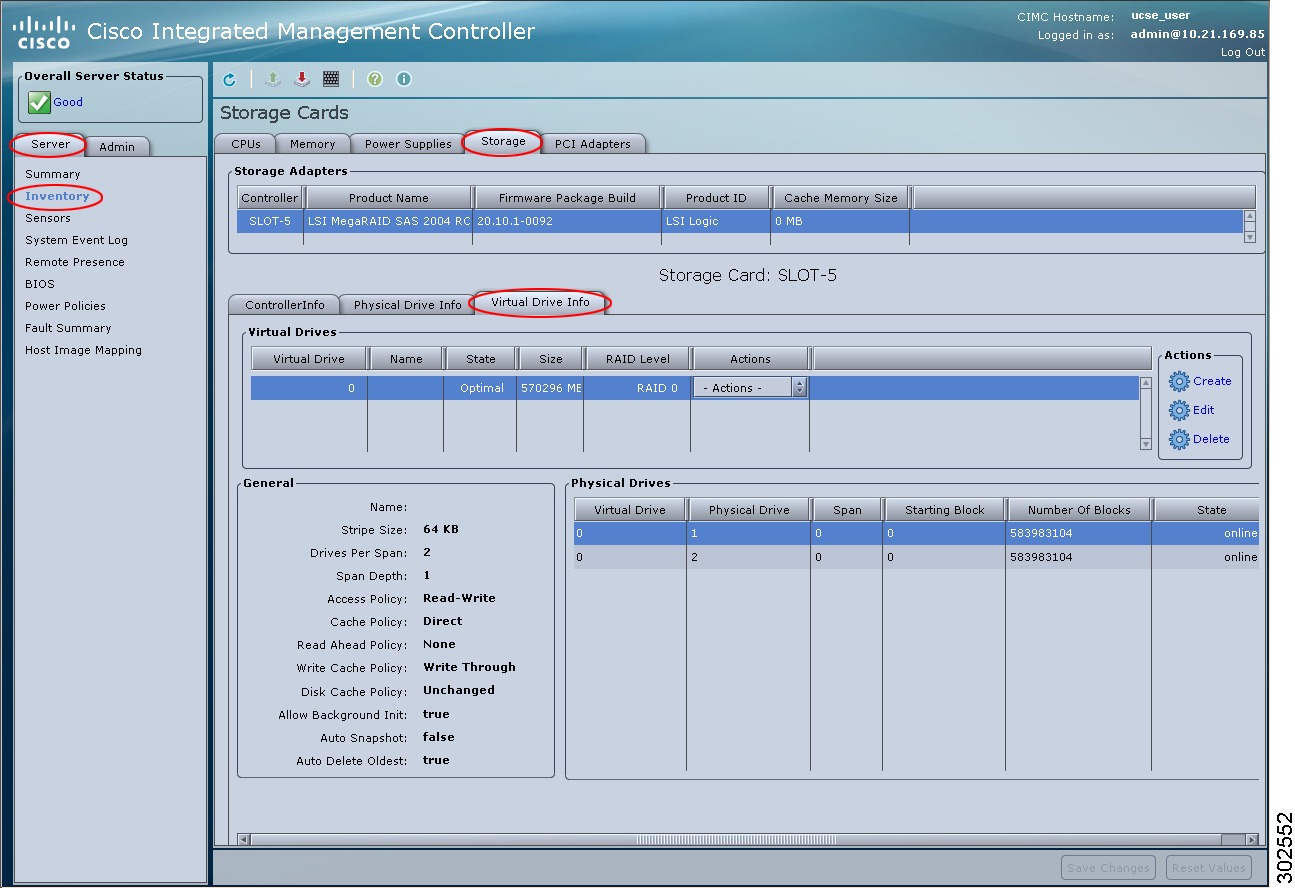
In the tabbed menu of the Storage Card area, click the Virtual Drive Info tab.
|
||||||||||||||||||||
| Step 7 |
In the Actions area of the Virtual Drive Info tab, click Create. The Configure Virtual Drive dialog box appears. Complete the following fields as appropriate:
|
||||||||||||||||||||
| Step 8 |
Click Next. The Configure RAID Parameters dialog box appears. Complete the following fields as appropriate:
|
||||||||||||||||||||
| Step 9 |
Click Next. The Confirm RAID Configuration dialog box appears. |
||||||||||||||||||||
| Step 10 | Review the RAID configuration, and then click Submit to accept the changes. |
Modifying RAID Configuration
Use this procedure to enable or disable auto rebuild on the storage controller, to verify disk drives for consistency, and to reconstruct a virtual drive.
| Step 1 | In the Navigation pane, click the Server tab. | ||||||||||||||||||
| Step 2 | On the Server tab, click Inventory. | ||||||||||||||||||
| Step 3 | In the Inventory pane, click the Storage tab. | ||||||||||||||||||
| Step 4 |
In the Storage Adapters area, select the storage card. If the server is powered on, the resources of the selected storage adapter appear in the tabbed menu in the Storage Card area. |
||||||||||||||||||
| Step 5 |
In the tabbed menu of the Storage Card area, click the Virtual Drive Info tab.
|
||||||||||||||||||
| Step 6 |
In the Actions area of the Virtual Drive Info tab, click Edit. The Modify RAID Configuration dialog box appears. Do the following as appropriate:
|
Reconstructing the Virtual Drive Options
To migrate (reconstruct) the virtual drive to a new RAID level, you must add or remove physical drives. When you add or remove the physical drives, the size of the virtual drive is either retained or increased.
You can retain or increase the size of the virtual drive but you cannot decrease its size. For example, if you have two physical drives with RAID 0, you cannot migrate to RAID 1 with the same number of drives. Because RAID 1 creates a mirrored set of disk drives, the RAID 0 to RAID 1 migration would cause the size of the virtual drive to decrease, which is not supported.
 Caution |
The virtual drive reconstruction process might take several hours to complete. You can continue to use the system during the reconstruction process. |
Retaining the Size of the Virtual Drive Options
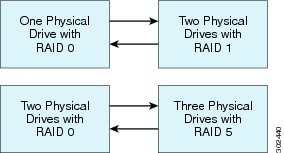
The following table lists the options that retain the size of the virtual drive and provides information about how many physical drives you must add or remove to migrate the virtual drive to a specific RAID level.
| From: |
Migrate to: |
Add or Remove Disks |
|---|---|---|
| One physical drive with RAID 0 |
Two physical drives with RAID 1 |
Add one disk. |
| Two physical drives with RAID 1 |
One physical drive with RAID 0 |
Remove one disk. |
| Two physical drives with RAID 0 |
Three physical drives with RAID 5 |
Add one disk. |
| Three physical drives with RAID 5 |
Two physical drives with RAID 0 |
Remove one disk. |
Increasing the Size of the Virtual Drive Options
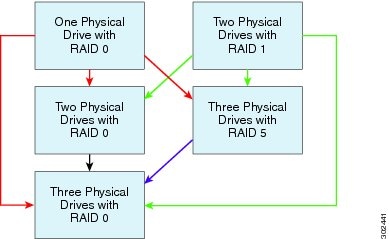
The following table lists the options that increase the size of the virtual drive and provides information about how many physical drives you must add or remove to migrate the virtual drive to a specific RAID level.
| From: |
Migrate to: |
Add or Remove Disks |
|---|---|---|
| One physical drive with RAID 0 See the Red arrows in the figure. |
Two physical drives with RAID 0 |
Add one disk. |
| Three physical drives with RAID 5 |
Add two disks. |
|
| Three physical drives with RAID 0 |
Add two disks. |
|
| Two physical drives with RAID 1 See the Green arrows in the figure. |
Two physical drives with RAID 0 |
— |
| Three physical drives with RAID 5 |
Add one disk. |
|
| Three physical drives with RAID 0 |
Add one disk. |
|
| Two physical drives with RAID 0 See the Black arrow in the figure. |
Three physical drives with RAID 0 |
Add one disk. |
| Three physical drives with RAID 5 See the Purple arrow in the figure. |
Three physical drives with RAID 0 |
— |
Reconstructing the Virtual Drive
Use this procedure to migrate (reconstruct) the virtual drive to a new RAID level.
| Step 1 | In the Navigation pane, click the Server tab. | ||||||||||||||||||||
| Step 2 | On the Server tab, click Inventory. | ||||||||||||||||||||
| Step 3 | In the Inventory pane, click the Storage tab. | ||||||||||||||||||||
| Step 4 |
In the Storage Adapters area, select the storage card. If the server is powered on, the resources of the selected storage adapter appear in the tabbed menu in the Storage Card area. |
||||||||||||||||||||
| Step 5 |
In the tabbed menu of the Storage Card area, click the Virtual Drive Info tab.
|
||||||||||||||||||||
| Step 6 |
In the Actions area of the Virtual Drive Info tab, click Edit. The Modify RAID Configuration dialog box opens. |
||||||||||||||||||||
| Step 7 |
Click the Reconstruct Virtual Drive button. The Reconstruct Virtual Drive dialog box appears. Complete the following as appropriate:
|
Deleting RAID Configuration
Use this procedure to clear all RAID or foreign configurations.
| Step 1 | In the Navigation pane, click the Server tab. | ||||||||||||
| Step 2 | On the Server tab, click Inventory. | ||||||||||||
| Step 3 | In the Inventory pane, click the Storage tab. | ||||||||||||
| Step 4 |
In the Storage Adapters area, select the storage card. If the server is powered on, the resources of the selected storage adapter appear in the tabbed menu in the Storage Card area. |
||||||||||||
| Step 5 |
In the tabbed menu of the Storage Card area, click the Virtual Drive Info tab.
|
||||||||||||
| Step 6 |
In the Actions area of the Virtual Drive Info tab, click Delete. The Clear Configurations dialog box appears. Do the following as appropriate:
|
Changing the Physical Drive State
| Step 1 | In the Navigation pane, click the Server tab. |
| Step 2 | On the Server tab, click Inventory. |
| Step 3 | In the Inventory pane, click the Storage tab. |
| Step 4 |
In the Storage Adapters area, select the storage card. If the server is powered on, the resources of the selected storage adapter appear in the tabbed menu in the Storage Card area. |
| Step 5 |
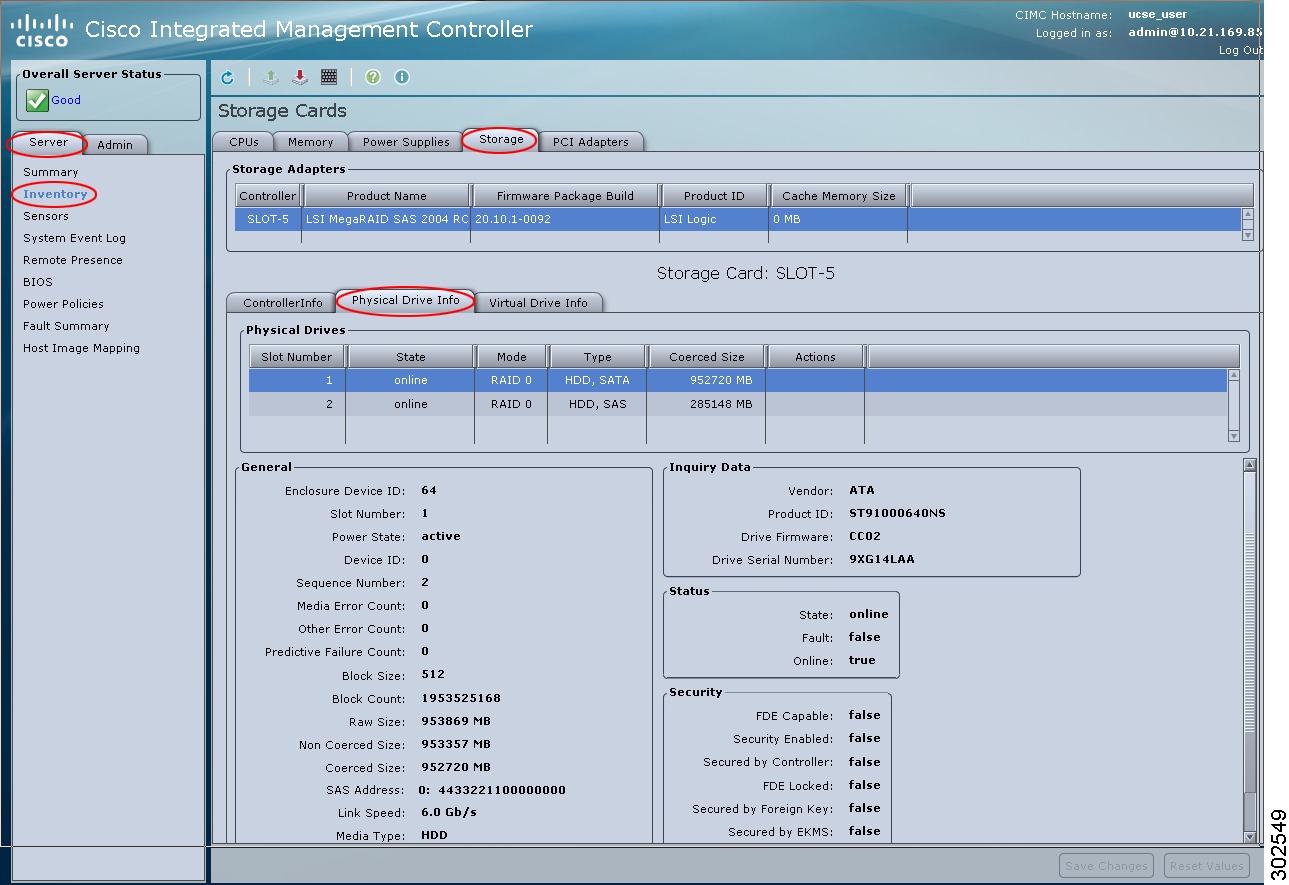
In the tabbed menu of the Storage Card area, click the Physical Drive Info tab.
|
| Step 6 |
From the Actions column in the Physical Drives pane, choose Set State from the drop-down list. The Change Physical Drive State dialog box appears. |
| Step 7 | From the Change Physical Drive State to drop-down list, choose one of the following: |
| Step 8 | Click Confirm. |
Enabling Auto Rebuild on the Storage Controller
Use this procedure to rebuild a disk drive automatically. If one of the disk drives that is configured with RAID gets degraded, and a new drive is plugged it, the rebuild process on the new drive starts automatically.
| Step 1 | In the Navigation pane, click the Server tab. | ||
| Step 2 | On the Server tab, click Inventory. | ||
| Step 3 | In the Inventory pane, click the Storage tab. | ||
| Step 4 |
In the Storage Adapters area, select the storage card. If the server is powered on, the resources of the selected storage adapter appear in the tabbed menu in the Storage Card area. |
||
| Step 5 |
In the tabbed menu of the Storage Card area, click the Virtual Drive Info tab.
|
||
| Step 6 |
In the Actions area of the Virtual Drive Info tab, click Edit. The Modify RAID Configuration dialog box appears. |
||
| Step 7 |
Make sure the Enable Auto Rebuild button appears, otherwise, click the Disable Auto Rebuild to enable it.
|
Rebuilding the Physical Drive
Use this procedure to manually start the rebuild process on the physical drive.
| Step 1 | In the Navigation pane, click the Server tab. |
| Step 2 | On the Server tab, click Inventory. |
| Step 3 | In the Inventory pane, click the Storage tab. |
| Step 4 |
In the Storage Adapters area, select the storage card. If the server is powered on, the resources of the selected storage adapter appear in the tabbed menu in the Storage Card area. |
| Step 5 |
In the tabbed menu of the Storage Card area, click the Physical Drive Info tab.
|
| Step 6 |
From the Actions column in the Physical Drives pane, choose Rebuild Physical Drive from the drop-down list. The Rebuild Physical Drive dialog box appears. |
| Step 7 | In the Rebuild Physical Drive dialog box, click Confirm. |
Making the Disk Drive Bootable
When you configure RAID, the RAID configuration wizard has a check box that allows you to make the disk drive bootable. If for some reason you did not check the Set Bootable checkbox during the RAID configuration process, you can use this procedure to make the disk drive bootable.
| Step 1 | In the Navigation pane, click the Server tab. |
| Step 2 | On the Server tab, click Inventory. |
| Step 3 | In the Inventory pane, click the Storage tab. |
| Step 4 |
In the Storage Adapters area, select the storage card. If the server is powered on, the resources of the selected storage adapter appear in the tabbed menu in the Storage Card area. |
| Step 5 | To make a virtual drive bootable, do the following: |
| Step 6 | To make a physical drive bootable, do the following: |
| Step 7 | To verify which drive is bootable, click the Controller Info tab, and see the Current Boot Drive information in the Settings area. |
Configuring BIOS Settings
Installing BIOS Firmware Through the Browser
- Log into CIMC as a user with admin privileges.
- Obtain the BIOS firmware file from Cisco Systems. See Obtaining Software from Cisco.
- Unzip the proper upgrade file to your local machine.
| Step 1 | In the Navigation pane, click the Server tab. |
| Step 2 |
On the Server tab, click BIOS.
|
| Step 3 | In the Firmware Actions area, click Install BIOS Firmware through Browser Client. |
| Step 4 | In the Install BIOS Firmware dialog box, click Browse and use the Choose File dialog box to select the file to install. |
| Step 5 |
Click Install Firmware. The BIOS is downloaded, the host is powered off, the BIOS is upgraded, and then the host is powered on. |
Installing the BIOS Firmware From a TFTP Server
- Log into CIMC as a user with admin privileges.
- Obtain the BIOS firmware file from Cisco Systems. See Obtaining Software from Cisco Systems.
- Unzip the proper upgrade file on your TFTP server.
| Step 1 | In the Navigation pane, click the Server tab. | ||||||
| Step 2 |
On the Server tab, click BIOS.
|
||||||
| Step 3 | In the Firmware Actions area, click Install BIOS Firmware from TFTP Server. | ||||||
| Step 4 |
In the Install BIOS Firmware dialog box, complete the following fields:
|
||||||
| Step 5 |
Click Install Firmware. The BIOS is downloaded, the host is powered off, the BIOS is upgraded, and then the host is powered on. |
Activating the Backup BIOS
On rare occasions, the BIOS image might get corrupted. To recover from a corrupt BIOS image, activate the backup BIOS to boot the system.
Note |
The backup BIOS image is factory installed. It cannot be upgraded. |
| Step 1 | In the Navigation pane, click the Server tab. |
| Step 2 |
On the Server tab, click BIOS.
|
| Step 3 | In the Actions area, click Activate Backup BIOS. |
| Step 4 | In the confirmation window, click OK. |
Configuring Advanced BIOS Settings
Note |
Depending on your installed hardware, some configuration options described in this topic may not appear. |
You must log in with admin privileges to perform this task.
| Step 1 | In the Navigation pane, click the Server tab. |
| Step 2 |
On the Server tab, click BIOS.
|
| Step 3 |
In the Actions area, click Configure BIOS. The Configure BIOS Parameters dialog box appears. |
| Step 4 |
In the Configure BIOS Parameters dialog box, click the Advanced tab.

|
| Step 5 |
Check or clear the Reboot Host Immediately checkbox. If checked, the server is rebooted immediately after you make changes to the BIOS parameters. To specify that the server should not reboot automatically, clear this check box. Any parameter changes will take effect the next time the server is rebooted. |
| Step 6 |
In the Advanced tab, update the BIOS settings fields. For descriptions and information about the options for each BIOS setting, see the following topics: |
| Step 7 | Click Save Changes. |
Configuring Server Management BIOS Settings
You must log in with admin privileges to perform this task.
| Step 1 | In the Navigation pane, click the Server tab. |
| Step 2 |
On the Server tab, click BIOS.
|
| Step 3 |
In the Actions area, click Configure BIOS. The Configure BIOS Parameters dialog box appears. |
| Step 4 |
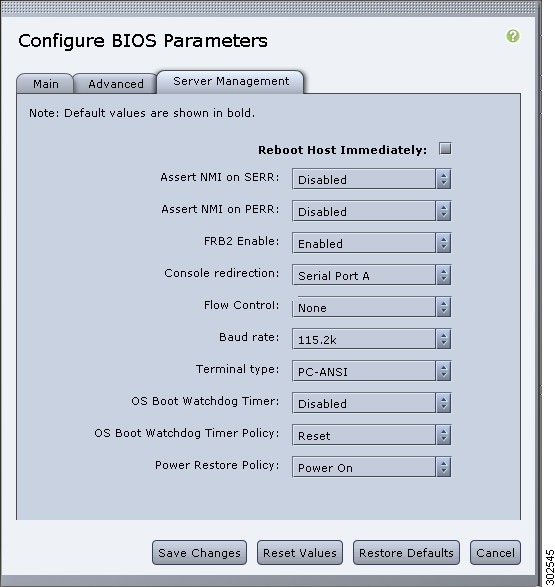
In the Configure BIOS Parameters dialog box, click the Server Management tab.
|
| Step 5 |
Check or clear the Reboot Host Immediately checkbox. If checked, the server is rebooted immediately after you make changes to the BIOS parameters. To specify that the server should not reboot automatically, clear this check box. Any parameter changes will take effect the next time the server is rebooted. |
| Step 6 |
In the Server Management tab, update the BIOS settings fields. For descriptions and information about the options for each BIOS setting, see the following topic: |
| Step 7 | Click Save Changes. |
Clearing the BIOS CMOS
Note |
On rare occasions, troubleshooting a server may require you to clear the server's BIOS CMOS memory. This procedure is not part of the normal maintenance of a server. |
| Step 1 | In the Navigation pane, click the Server tab. |
| Step 2 |
On the Server tab, click BIOS.
|
| Step 3 | In the Actions area, click Clear BIOS CMOS. |
| Step 4 | In the confirmation window, click OK. |
Clearing the BIOS Password
| Step 1 | In the Navigation pane, click the Server tab. |
| Step 2 |
On the Server tab, click BIOS.
|
| Step 3 | In the Actions area, click Clear BIOS Password. |
| Step 4 | In the confirmation window, click OK. |
What to Do Next
Reboot the server for the clear password operation to take effect. You are prompted to create a new password when the server reboots.
Server BIOS Settings
The tables in the following sections list the server BIOS settings that you can view and configure.
Note |
We recommend that you verify the support for BIOS settings in your server. Depending on your installed hardware, some settings may not be supported. |
Main BIOS Settings
| Name | Description |
|---|---|
| Reboot Host Immediately |
If checked, the server is rebooted immediately after you click Save Changes. To specify that the server should not reboot automatically, clear this check box. Any parameter changes will take effect the next time the server is rebooted. |
Advanced: Processor BIOS Settings
| Name | Description | ||
|---|---|---|---|
| Intel Turbo Boost Technology |
Whether the processor uses Intel Turbo Boost Technology, which allows the processor to automatically increase its frequency if it is running below power, temperature, or voltage specifications. This can be one of the following: |
||
| Enhanced Intel Speedstep Technology |
Whether the processor uses Enhanced Intel SpeedStep Technology, which allows the system to dynamically adjust processor voltage and core frequency. This technology can result in decreased average power consumption and decreased average heat production. This can be one of the following:
We recommend that you contact your operating system vendor to make sure the operating system supports this feature. |
||
| Intel Hyper-Threading Technology |
Whether the processor uses Intel Hyper-Threading Technology, which allows multithreaded software applications to execute threads in parallel within each processor. This can be one of the following:
We recommend that you contact your operating system vendor to make sure the operating system supports this feature. |
||
| Number of Enabled Cores |
Sets the state of logical processor cores in a package. If you disable this setting, Hyper Threading is also disabled. This can be one of the following:
We recommend that you contact your operating system vendor to make sure the operating system supports this feature. |
||
| Execute Disable |
Classifies memory areas on the server to specify where application code can execute. As a result of this classification, the processor disables code execution if a malicious worm attempts to insert code in the buffer. This setting helps to prevent damage, worm propagation, and certain classes of malicious buffer overflow attacks. This can be one of the following:
We recommend that you contact your operating system vendor to make sure the operating system supports this feature. |
||
| Intel Virtualization Technology |
Whether the processor uses Intel Virtualization Technology (VT), which allows a platform to run multiple operating systems and applications in independent partitions. This can be one of the following:
|
||
| Intel VT for Directed IO |
Whether the processor uses Intel Virtualization Technology for Directed I/O (VT-d). This can be one of the following: |
||
| Intel VT-d Interrupt Remapping |
Whether the processor supports Intel VT-d Interrupt Remapping. This can be one of the following: |
||
| Intel VT-d Coherency Support |
Whether the processor supports Intel VT-d Coherency. This can be one of the following: |
||
| Intel VT-d Address Translation Services |
Whether the processor supports Intel VT-d Address Translation Services (ATS). This can be one of the following: |
||
| Intel VT-d PassThrough DMA |
Whether the processor supports Intel VT-d Pass-through DMA. This can be one of the following: |
||
| Direct Cache Access |
Allows processors to increase I/O performance by placing data from I/O devices directly into the processor cache. This setting helps to reduce cache misses. This can be one of the following: |
||
| Processor C3 Report |
Whether the processor sends the C3 report to the operating system. This can be one of the following: |
||
| Processor C6 Report |
Whether the processor sends the C6 report to the operating system. This can be one of the following: |
||
| Hardware Prefetcher |
Whether the processor allows the Intel hardware prefetcher to fetch streams of data and instruction from memory into the unified second-level cache when necessary. This can be one of the following:
|
||
Package C State Limit |
The amount of power available to the server components when they are idle. This can be one of the following:
|
||
Patrol Scrub |
Whether the system actively searches for, and corrects, single bit memory errors even in unused portions of the memory on the server. This can be one of the following:
|
||
Demand Scrub |
Whether the system allows you to perform a memory scrub on demand. This can be one of the following:
|
||
Device Tagging |
Whether the system allows you to group devices and interfaces based on a variety of information, including descriptions, addresses, and names. This can be one of the following: |
Advanced: Memory BIOS Settings
| Name | Description |
|---|---|
| Select Memory RAS |
How the memory reliability, availability, and serviceability (RAS) is configured for the server. This can be one of the following: |
Advanced: Serial Port BIOS Settings
| Name | Description |
|---|---|
| Serial A Enable |
Whether serial port A is enabled or disabled. This can be one of the following: |
Advanced: USB BIOS Settings
| Name | Description |
|---|---|
| USB Port 0 |
Whether the processor uses USB port 0. This can be one of the following: |
| USB Port 1 |
Whether the processor uses USB port 1. This can be one of the following: |
Server Management BIOS Settings
| Name | Description | ||
|---|---|---|---|
| Reboot Host Immediately |
If checked, the server is rebooted immediately after you click Save Changes. To specify that the server should not reboot automatically, clear this check box. Any parameter changes will take effect the next time the server is rebooted. |
||
| Assert NMI on SERR |
Whether the BIOS generates a non-maskable interrupt (NMI) and logs an error when a system error (SERR) occurs. This can be one of the following: |
||
| Assert NMI on PERR |
Whether the BIOS generates a non-maskable interrupt (NMI) and logs an error when a processor bus parity error (PERR) occurs. This can be one of the following: |
||
| FRB2 Enable |
Whether the FRB2 timer is used by CIMC to recover the system if it hangs during POST. This can be one of the following: |
||
| Console Redirection |
Allows a serial port to be used for console redirection during POST and BIOS booting. After the BIOS has booted and the operating system is responsible for the server, console redirection is irrelevant and has no effect. This can be one of the following:
|
||
| Flow Control |
Whether a handshake protocol is used for flow control. Request to Send/Clear to Send (RTS/CTS) helps to reduce frame collisions that can be introduced by a hidden terminal problem. This can be one of the following:
|
||
| Baud Rate |
What BAUD rate is used for the serial port transmission speed. If you disable Console Redirection, this option is not available. This can be one of the following:
|
||
| Terminal Type |
What type of character formatting is used for console redirection. This can be one of the following:
|
||
OS Boot Watchdog Timer |
Whether the BIOS programs the watchdog timer with a specified timeout value. If the operating system does not complete booting before the timer expires, the CIMC resets the system and an error is logged. This can be one of the following:
|
||
OS Boot Watchdog Timer Policy |
The action the system takes when the watchdog timer expires. This can be one of the following:
|
||
Power Restore Policy |
The action the system takes when the AC power is restored. This can be one of the following: |
Common Controls
The buttons described in the following table are available in all Configure BIOS Parameters tabs.
| Name | Description |
|---|---|
| Save Changes button |
Saves the settings for the BIOS parameters on all three tabs and closes the wizard. If the Reboot Host Immediately check box is checked, the server is rebooted immediately and the new BIOS settings go into effect. Otherwise the changes are saved until the server is manually rebooted. |
| Reset Values button |
Restores the values for the BIOS parameters on all three tabs to the settings that were in effect when this dialog box was first opened. |
| Restore Defaults button |
Sets the BIOS parameters on all three tabs to their default settings. |
| Cancel button |
Closes the dialog box without making any changes. |
 Feedback