- Preface
- Overview
- Installing the Server Operating System or Hypervisor
- Managing the Server
- Viewing Server Properties
- Viewing Server Sensors
- Managing Remote Presence
- Managing User Accounts
- Configuring Network-Related Settings
- Configuring Communication Services
- Managing Certificates
- Configuring Platform Event Filters
- CIMC Firmware Management
- Viewing Logs
- Server Utilities
- Diagnostic Tests
- Index
Overview
This chapter includes the following sections:
Cisco UCS E-Series Servers Overview
The Cisco UCS E-Series Servers (E-Series Servers) are the next generation of Cisco UCS Express servers. E-Series Servers are a family of size, weight, and power efficient blade servers that are housed within the Generation 2 Cisco Integrated Services Routers (ISR G2). These servers provide a general purpose compute platform for branch-office applications deployed either as bare-metal on operating systems, such as Microsoft Windows or Linux; or as virtual machines on hypervisors, such as VMware vSphere Hypervisor™, Microsoft Hyper-V, or Citrix XenServer.
E-Series Servers reside in the Cisco 2900 series or 3900 series ISR G2. The following E-Series Servers are supported:
- UCS-E140S—Single-wide E-Series Server
- UCS-E140D—Double-wide E-Series Server, 4 core CPU
- UCS-E160D—Double-wide E-Series Server, 6 core CPU
- UCS-E140DP—Double-wide E-Series Server, 4 core CPU, with PCIe
- UCS-E160DP—Double-wide E-Series Server, 6 core CPU, with PCIe
 Note |
For information about the maximum number of E-Series Servers that can be installed per ISR G2, see the "Server Hardware" section in the Getting Started Guide for Cisco UCS E-Series Servers. |
Server Software
E-Series Servers require three major software systems:
CIMC Firmware
Cisco Integrated Management Controller (CIMC) is a separate management module built into the motherboard. A dedicated ARM-based processor, separate from the main server CPU, runs the CIMC firmware. The system ships with a running version of the CIMC firmware. You can update the CIMC firmware, but no initial installation is needed.
CIMC is the management service for the E-Series Servers. You can use a web-based GUI or SSH-based CLI to access, configure, administer, and monitor the server.
BIOS Firmware
BIOS initializes the hardware in the system, discovers bootable devices, and boots them in the provided sequence. It boots the operating system and configures the hardware for the operating system to use. BIOS manageability features allow you to interact with the hardware and use it. In addition, BIOS provides options to configure the system, manage firmware, and create BIOS error reports.
The system ships with a running version of the BIOS firmware. You can update the BIOS firmware, but no initial installation is needed.
Operating System or Hypervisor
The main server CPU runs on an operating system, such as Microsoft Windows or Linux; or on a Hypervisor. You can purchase an E-Series Server with pre-installed Microsoft Windows Server or VMware vSphere Hypervisor™, or you can install your own platform.
The following platforms have been tested on the E-Series Servers:
CIMC Overview
The Cisco Integrated Management Controller (CIMC) is the management service for the E-Series Servers. CIMC runs within the server. You can use a web-based GUI or the SSH-based CLI to access, configure, administer, and monitor the server.
You can use CIMC to perform the following server management tasks:
- Power on, power off, power cycle, reset and shut down the server
- Configure the server boot order
- Manage RAID levels
- View server properties and sensors
- Manage remote presence
- Create and manage local user accounts, and enable remote user authentication through the Active Directory
- Configure network-related settings, including NIC properties, IPv4, VLANs, and network security
- Configure communication services, including HTTP, SSH, IPMI Over LAN, and SNMP
- Manage certificates
- Configure platform event filters
- Update CIMC firmware
- Update BIOS firmware
- Install the host image from an internal repository
- Monitor faults, alarms, and server status
- Collect technical support data in the event of server failure
Almost all tasks can be performed in either the GUI interface or CLI interface, and the results of tasks performed in one interface are displayed in another. However, you cannot do the following:
CIMC GUI
The CIMC GUI is a web-based management interface for E-Series Servers. You can launch the CIMC GUI and manage the server from any remote host that meets the following minimum requirements:
Logging Into the CIMC GUI
| Step 1 | In your web browser, enter the IP address that you configured to access CIMC during initial setup. | ||
| Step 2 | If a security dialog box displays, do the following: | ||
| Step 3 |
In the log in window, enter your username and password.
|
||
| Step 4 |
Click Log In. The Change Password dialog box appears.
|
||
| Step 5 | In the New Password field, enter your new password. | ||
| Step 6 | In the Confirm Password field, enter the password again to confirm it. | ||
| Step 7 |
Click Save Changes. The Server Summary page appears, which is the CIMC home page. See CIMC Home Page.. |
CIMC Home Page
The following figure shows the CIMC home page.
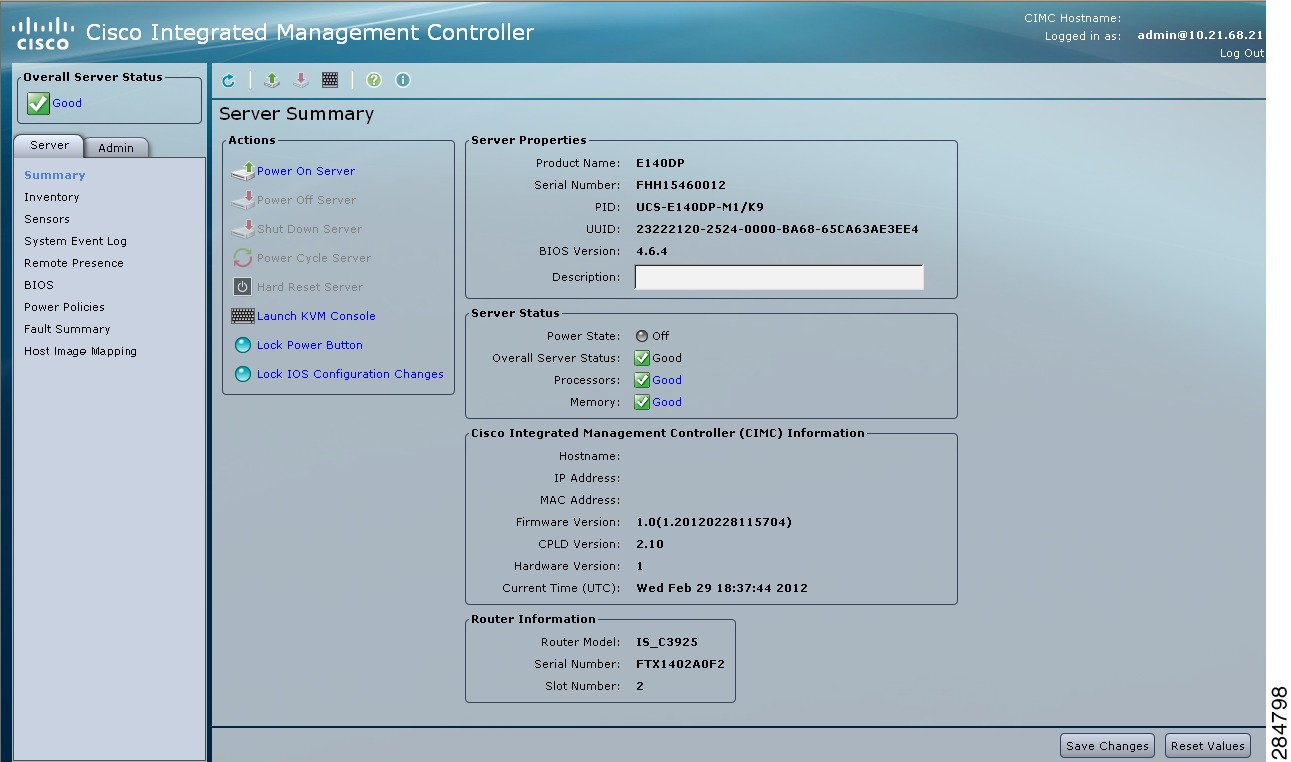
Navigation Pane
The Navigation pane displays on the left side in the CIMC user interface. Clicking links on the Server or Admin tabs in the Navigation pane displays the selected pages in the Work pane on the right side of the CIMC user interface.
The following table describes the elements in the Navigation pane:
Work Pane
The Work pane displays on the right side of the UI. Different pages appear in the Work pane, depending on what link you click on the Server or Admin tab.
The following table describes the elements and pages in the Work pane.
Toolbar
The toolbar displays above the Work pane.
| Element Name |
Description |
| Refresh | Refreshes the current page. |
| Power On Server | Powers on the server. |
| Power Off Server | Powers off the server. |
| Launch KVM Console | Launches the KVM console. |
| Help | Launches help. |
| Info | Displays CIMC information. |
CIMC Online Help
The CIMC user interface is divided into two main sections, a Navigation pane on the left and a Work pane on the right. To access online help for a page, do the following:
Logging Out of CIMC GUI
| Step 1 |
In the upper right of CIMC, click Log Out. Logging out returns you to the CIMC log in page. |
| Step 2 | (Optional)Log back in or close your web browser. |
 Feedback