Product Overview
The Cisco IE 5000 hardened aggregator provides a rugged and secure switching infrastructure for harsh environments. It is suitable for industrial Ethernet applications, including process manufacturing, intelligent transportation systems (ITSs), rail transportation, and other similar deployments.
In industrial environments, you can connect the switch to any Ethernet-enabled industrial communication devices, including programmable logic controllers (PLCs), human-machine interfaces (HMIs), drives, sensors, and input and output (IO) devices.
For detailed specifications, see the IE 5000 Data Sheet.
Switch Models
|
|
|
|
|
|
|
|
|---|---|---|---|---|---|---|
|
|
|
|
|
|
|
|
|
|
|
|
|
|
|
|
|
2.Can be upgraded to IP Services at a fee. IP Services License Product Numbers are the following: L-IE5000-RTU= (Electronic SW License for IE5000 Switches) |
Cable Side
Figure 1 Cisco IE-5000 Cable-Side View
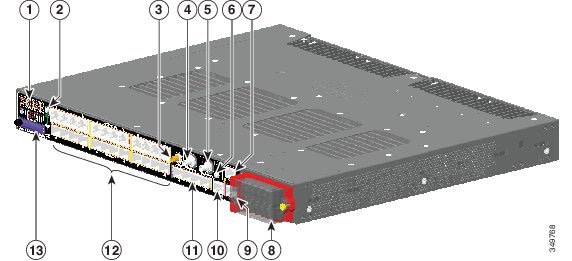
LEDs
For detailed information about LEDs see LEDs.
Display Mode Button
For detailed functionality see Display Mode Button.
GPS Antenna Port
GNSS Module RF Input Requirements
The GPS/GNSS input requires a GPS/GNSS receive antenna with built-in Low-Noise Amplifier (LNA) for optimal performance. The LNA amplifies the received satellite signals to:
■ Increase the signal amplitude to a suitable range for the receiver front-end
The amplification required is 22dB gain + cable loss + connector loss.
The recommended range of LNA gain (LNA gain minus all cable and connector losses) at the connector of the receiver input is 22dB to 30dB with a minimum of 20dB and a maximum of 35dB.
■The GPS/GNSS input on the IE 5000 provides 3.3 or 5VDC (software configurable) to the antenna through the same RF connector. The antenna should draw between 10 and 100mA. An antenna that draws less than 10mA may wrongly report and "Antenna Open" fault even though the antenna is operating properly.
Power Requirements
When deployed in a hazardous environment the antenna shall only use power provided by the RF input from a single IE 5000. No additional power may be supplied to the antenna and associated equipment.
Caution: Supplying additional power, such as with a powered splitter or amplified repeater, may provide enough energy to create an arc that could ignite the explosive atmosphere.
Surge requirement:
The GPS/GNSS input has built-in ESD protection. If an outdoor antenna is being connected, additional surge protection will be required to meet the regulations and standards for lightning protection in the countries where the end-product is installed.
The lightning protection must be mounted at the place where the antenna cable enters the building. The primary lightning protection must be certified for conducting all potentially dangerous electrical energy to PE (Protective Earth). Surge arrestors should support DC-pass and be suitable for the GPS/GNSS frequency range with low RF attenuation.
Caution: The antenna terminal should be earthed at the building entrance in accordance with the ANSI/NFPA 70, the National Electrical Code (NEC), in particular Section 820.93, Grounding of Outer Conductive Shield of a Coaxial Cable.
Antenna Sky visibility:
GPS signals require a direct line of sight between antenna and satellite. The antenna should see as much of the sky as possible. Fixed installations require four satellites in view for an initial time fix, while subsequent updates may be possible with fewer satellites.
Console Ports
You can connect the switch to a PC running Microsoft Windows or to a terminal server through either the RJ-45 console port or the USB console port.
■RJ-45 console port. The RJ-45 connection uses an RJ-45-to-DB-9 female cable.
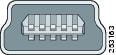
■USB mini-Type B console port (5-pin connector). The USB connection uses a USB Type A-to-5-pin mini-Type B cable.
The USB console interface speeds are the same as the RJ-45 console interface speeds.
To use the USB console port, you must install the Cisco Windows USB device driver on the device that is connected to the USB console port (device running with Microsoft Windows). See Installing the Cisco Microsoft Windows XP, 2000, Vista, 7, 8, and 10 USB Device Driver for more information.
With the Cisco Windows USB device driver, connecting and disconnecting the USB cable from the console port does not affect Windows HyperTerminal operations. Mac OS X or Linux require no special drivers.
Note: The 5-pin mini-Type B connectors resemble the 4-pin mini-Type B connectors. They are not compatible. Use only the 5-pin mini-Type B.
The configurable inactivity timeout reactivates the RJ-45 console port if the USB console port is activated, but no input activity occurs on it for a specified time period. When the USB console port deactivates due to a timeout, you can restore its operation by disconnecting and reconnecting the USB cable. For information on using the CLI to configure the USB console interface, see the switch software guide.
Power-Input Terminal
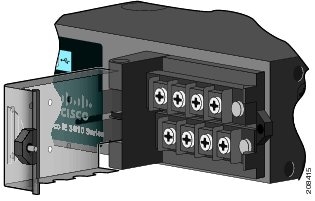
The power-input terminal provides screw terminals for the AC and DC power connections. The switch can operate with one or two power supplies. If one of the power sources fail, the other continues to power the switch. See Power Supply Installation for information.
Alarm Ports
Alarm Input
The alarm input is a dry-contact alarm port. You can connect up to four alarm inputs from devices, such as a door, a temperature gauge, or a fire alarm, to the alarm port. You can use the CLI to set the alarm severity to minor, or major. An alarm generates a system message and turns on an LED. See the Alarm LEDs for the LED descriptions.
Alarm Output
The alarm output can be configured as a major alarm. Output alarms often control an external alarm, such as a bell or a light. To connect an external alarm device to the relay, you connect two relay contact wires to complete the electrical circuit. See for information on the alarm pinouts. see the Alarm Port.
Four 1000 SFP/10G SFP+ Ports (Uplinks)
Depending on the switch model, the uplink ports support either GE optics and 10G optics, or only GE optics. When using a 1000BaseT SFP, the port only operates at 1000 mbps.
For more information about SFP/SFP+ modules and cables, see Transceiver Modules. See Switch Models for model information.
100/1000 SFP Ports (Downlinks)
The switch Ethernet SFP modules provide connections to other devices. These field-replaceable transceiver modules provide the downlink interfaces. The IE 5000 supports both FE and GE optics in the downlinks. SFP modules have local connectors (LCs) for fiber-optic connections or RJ-45 connectors for copper connections.
For the most up-to-date list of supported SFP models, see the IE 5000 Data Sheet.
For information about SFP modules, see your SFP module documentation and the Installing and Removing SFP Modules. For more information about SFP/SFP+ modules and cables, see Transceiver Modules.
10/100/1000 PoE/PoE+ Ports (Downlinks)
You can set the 10/100/1000 ports on the switch to operate in any combination of half duplex, full duplex, or 10 or 100 Mb/s. You can set the ports for speed and duplex autonegotiation. The default setting is autonegotiate.
When set for autonegotiation, the switch determines the speed and duplex settings of the attached device and advertises its own capabilities. If the connected device also supports autonegotiation, the switch negotiates the best connection (the fastest line speed that both devices support and full-duplex transmission if the attached device supports it) and configures itself accordingly. In all cases, the attached device must be within 328 feet (100 meters).
Warning: Voltages that present a shock hazard may exist on Power over Ethernet (PoE) circuits if interconnections are made using uninsulated exposed metal contacts, conductors, or terminals. Avoid using such interconnection methods, unless the exposed metal parts are located within a restricted access location and users and service people who are authorized within the restricted access location are made aware of the hazard. A restricted access area can be accessed only through the use of a special tool, lock and key or other means of security. Statement 1072
The 10/100/1000 PoE ports on the Cisco IE-5000 switches provide PoE support for devices that are compliant with IEEE 802.3af/802.3at. The Cisco prestandard PoE is also supported for Cisco IP Phones and Cisco Aironet Access Points. The PoE ports on the switch deliver up to 30 W of PoE+ power. All twelve ports are PoE ports and can be assigned a port priority.
Refer to Table 15 for power supply configuration and PoE power budget information.
On a per-port basis, you control whether or not a port automatically provides power when an IP phone or an access point is connected.
The 10/100/1000 PoE ports use RJ-45 connectors with Ethernet pinouts. The maximum cable length is 328 feet (100 meters). The 100BASE-TX and 1000BASE-T traffic requires CA5, CAT5e, or CAT6 unshielded twisted pair (UTP) cable. The 10BASE-T traffic can use CAT3 or CAT4 UTP cable.
For information about configuring and monitoring PoE ports, see the switch software configuration guide on Cisco.com.
For information about port connections and port specifications, see Connecting Devices to the Ethernet Ports.
Note: The output of the PoE circuit has been evaluated as a Limited Power Source (LPS) per IEC 60950-1.
SD Flash Memory Card
The switch supports a flash memory card that makes it possible to replace a failed switch without reconfiguring the new switch. The slot for the flash memory card is on the front of the switch. The flash card is hot swappable and can be accessed on the front panel in non hazardous locations only. A cover protects the flash card and holds the card firmly in place. The cover is hinged and closed with a captive screw. This prevents the card from coming loose and protects against shock and vibration.
For more information on inserting and removing the flash memory card, see Power-Supply Side.
LEDs
You can use the switch system and port LEDs to monitor switch activity and performance.
Switch Panel LEDs
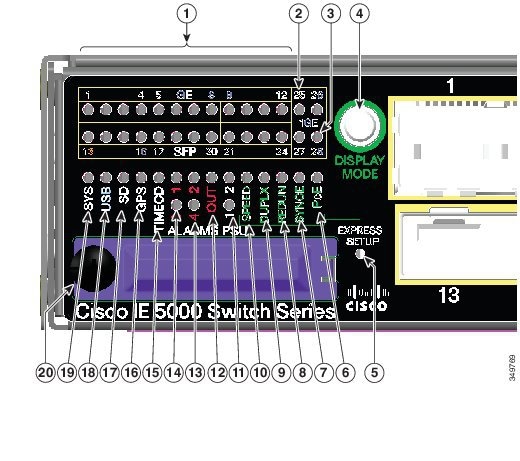
Figure 4 Switch LEDs (Cable Side)
Port LEDs
Each Ethernet port has a port LED. These port LEDs, display information about the individual ports. The port mode determines the type of information shown by the port LEDs. Table 2 lists the mode LEDs and their associated port modes and meanings.
To select or change a mode, press the Mode button until the desired mode is highlighted. The Mode LED will turn ON solid green when a mode is selected and turn OFF when timeout (5 seconds) or a different mode is selected. When you change port modes, the meanings of the port LED colors also change. Table 3 explains how to interpret the port LED colors in different port modes.
Display Mode Button
The Display Mode Button allows you to choose the mode you want displayed by the port LEDs (items 1-3 in Figure 4). The LEDs with green text to the left of the Button indicate the chosen display mode. Each time you press the switch, the mode indicator moves from SPEED, DUPLX, REDUN, SYNCE, and PoE respectively.
Power-Supply Module LEDs
The switch power-supply module LEDs are labeled PSU1 and PSU2 (on the switch) and PSU OK (on the power-supply module). They show whether power-supply modules 1 and 2 are receiving power.
Alarm LEDs
|
|
|
|---|---|
|
|
|
|
|
|
SD Flash Memory Card LED
|
|
|
|---|---|
USB LED
The USB LED indicates the console port is in use.
If you connect a cable to the console port, the switch automatically uses that port for console communication. If you connect two console cables, the USB console port has priority.
|
|
|
|
|---|---|---|
System LED
Power-Supply Side
The power-supply side has the LED panel and two power-supply slots for the removable power supplies.
Figure 5 Switch with Both Power-Supply Modules
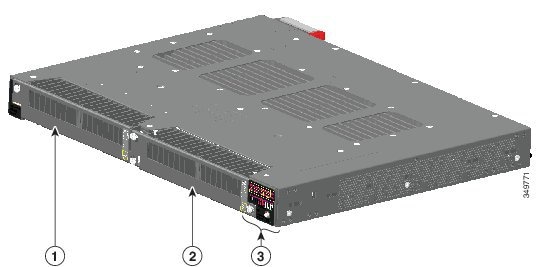
Note: The 250 W Power Supply is 1.2 in (30 mm) longer than the 150 W versions. Ensure there is adequate space behind the switch for the extra length.
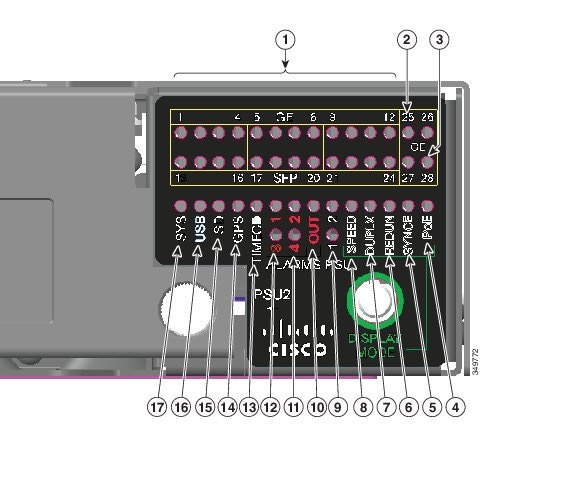
Power-Supply Side LEDs
|
|
|
|
|
|
|
|
|
|
|
|
|
|
|
|
|
|
|
|
|
|
|
|
|
|
|
|
|
|
|
|
|
|
|
|
|
|
|
For more information about these LEDs, see Switch Panel LEDs.
Power Supply Features
The switch has two slots for power-supply modules:
■PWR-RGD-LOW-DC-H: low-voltage DC
■PWR-RGD-AC-DC-H: high-voltage AC or DC
■PWR-RGD-AC-DC-250: high-voltage AC or DC
Note: For detailed specifications, see the IE 5000 Data Sheet.
Caution: Only the -H and -250 version power supplies are certified safe for hazardous environments.
The switch supports these power-supply module combinations:
■One high-voltage AC or DC and one low-voltage DC
For information on installing the power-supply modules, see Power Supply Installation.
See Power-Supply Module LEDs for information on the power supply LEDs.
Management Options
You can configure and monitor the switch from the CLI. Connect your management station to the switch console port or use Telnet from a remote management station. See the switch command reference on Cisco.com for information.
You can manage switches from a Simple Network Management Protocol (SNMP)-compatible management station. The switch supports a comprehensive set of Management Information Base (MIB) extensions and four Remote Monitoring (RMON) groups. See the switch software configuration guide on Cisco.com and the documentation that came with your SNMP application for information.
You can use Device Manager, which is in the switch memory, to manage individual and standalone switches. This web interface offers quick configuration and monitoring. You can access Device Manager from anywhere in your network through a web browser. For more information, see the Device Manager online help.
Cisco Prime Infrastructure simplifies the management of wireless and wired networks. It offers Day 0 and 1 provisioning, as well as Day N assurance from the branch to the data center. We call it One Management. With this single view and point of control, you can reap the benefits of One Management across both network and compute.
Network Configurations
See the switch software configuration guide on Cisco.com for an explanation of network configuration concepts. The software configuration guide also provides network configuration examples for creating dedicated network segments that are interconnected through Ethernet connections.
 Feedback