
Note |
We recommend that you do not upgrade any underlying third-party software separately.
All the necessary software components will be updated during the inline upgrade
procedure. Upgrading the components outside of DCNM upgrade will cause performance
issues.
|
This section describes the various system requirements for proper functioning of your
Cisco DCNM, Release 11.4(1).
Note |
If you are deploying Network Insights applications on the Cisco DCNM Compute cluster,
refer to the app-specific Release Notes for additional CPU/memory requirements for
the Computes.
|
Java Requirements
The Cisco DCNM Server is distributed with JRE 11.0.6 into the following directory:
DCNM_root_directory/java/jdk11
Server Requirements
Cisco DCNM, Release 11.4(1), supports the Cisco DCNM Server on these 64-bit operating
systems:
Database Requirements
Cisco DCNM Release 11.4(1) supports the following databases:
Note |
The ISO/OVA installation only supports the embedded PostgreSQL database.
|
Hypervisors
Cisco DCNM supports the ISO installation on a bare-metal server (no hypervisor) on
the following server platforms:
|
Server
|
Product ID (PID)
|
Recommended minimum memory, drive capacity, and CPU count 12
|
|
Cisco UCS C240M4
|
UCSC-C240-M4S
|
32G / 500G 16 vCPUs
|
|
Cisco UCS C240M4
|
UCSC-C240-M4L
|
32G / 500G 16 vCPUs
|
|
Cisco UCS C240 M5S
|
UCSC-C240-M5SX
|
32G / 500G 16 vCPUs
|
|
Cisco UCS C220 M5L
|
UCSC-C220-M5L
|
32G / 500G 16 vCPUs
|
Note |
Cisco DCNM can work on an alternative computing hardware with appropriate
specifications, despite Cisco is only testing on Cisco UCS.
|
Supported Hypervisors
From Release 11.4(1), Cisco DCNM supports the running of the Cisco DCNM Server on the
following hypervisors:
|
Hypervisor supported
|
Data Center Manager server application
|
Supported deployments
|
|
ESXi 7.0
|
vCenter 7.0
| Note
|
VMM visualization on vCenter 7.0 is not supported with Cisco
DCNM 11.4(1).
|
|
All
|
|
ESXi 6.7 P01
|
vCenter 6.7 P01
|
All
|
|
ESXi 6.5
|
vCenter 6.5
|
All
|
|
ESXi 6.0
|
vCenter 6.0
|
All
|
|
RedHat 7.6 KVM with QEMU version
1.5.3
|
Virtual Machine Manager (comes with RHEL 7.6)
|
LAN Fabric
|
|
Hyper-V on Windows Server 2019
|
Hyper-V Manager (comes with Windows Server 2019)
|
LAN Fabric
This is supported with Native HA mode, and not in Cluster
mode.
|
VMware Snapshot Support for Cisco DCNM
Snapshots capture the entire state of the virtual
machine at the time you take the snapshot. You can take a snapshot when a virtual
machine is powered on, powered off. The following table shows snapshot support for
your deployment.
|
VMware vSphere Hypervisor (ESXi)
|
6.0
|
6.5
|
6.7
|
6.7 P01
|
7.0
|
|
VMware vCenter Server
|
6.0
|
6.5
|
6.7
|
6.7 P01
|
For DCNM3
|
Note |
vCenter server is mandatory to deploy the Cisco DCNM OVA Installer.
|
To take a snapshot on the VM, perform the following steps:
-
Right-click the virtual machine the inventory and select Snapshots
> Take Snapshot.
-
In the Take Snapshot dialog box, enter a Name and
description for the snapshot.
-
Click OK to save the snapshot.
The following snapshots are available for VMs.
Note |
Cisco DCNM supports snapshots when VM is either powered on or powered off. DCNM
doesn’t support snapshots when the Virtual Machine memory option is
selected.
|
Note that the Snapshot the Virtual Machine's memory check box must not be selected,
as shown in the following figure. However, it is grayed out when the VM is powered
off.
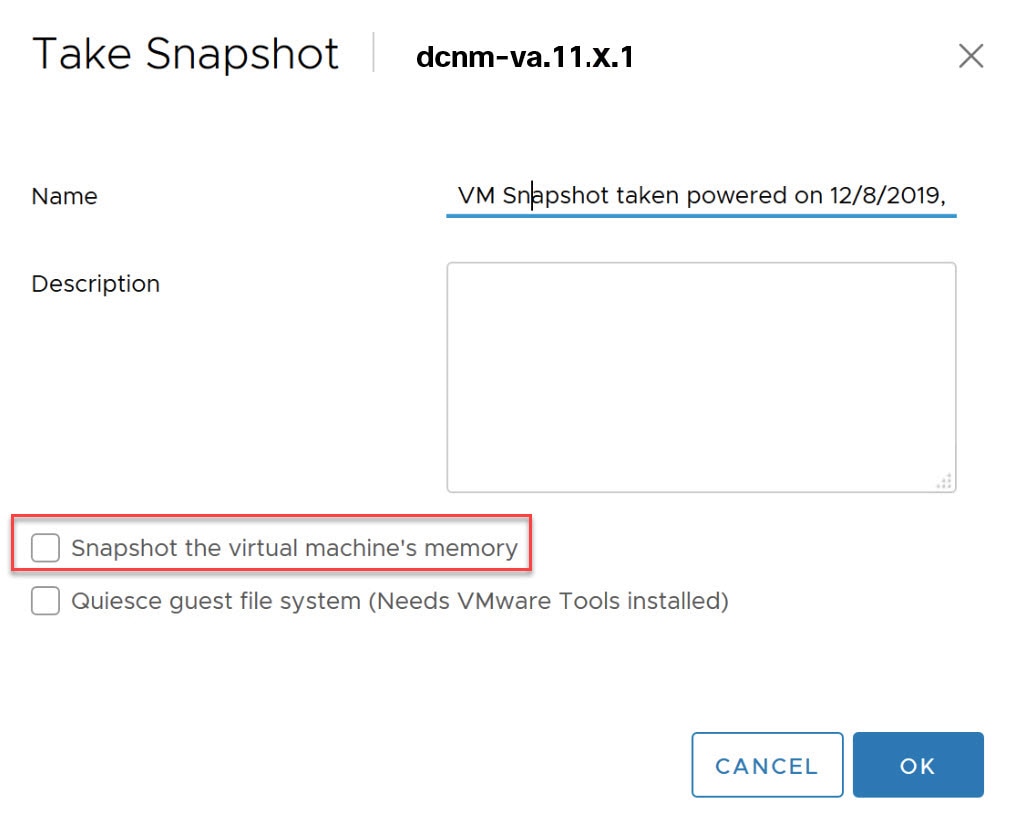
You can restore VM to the state in a Snapshot.
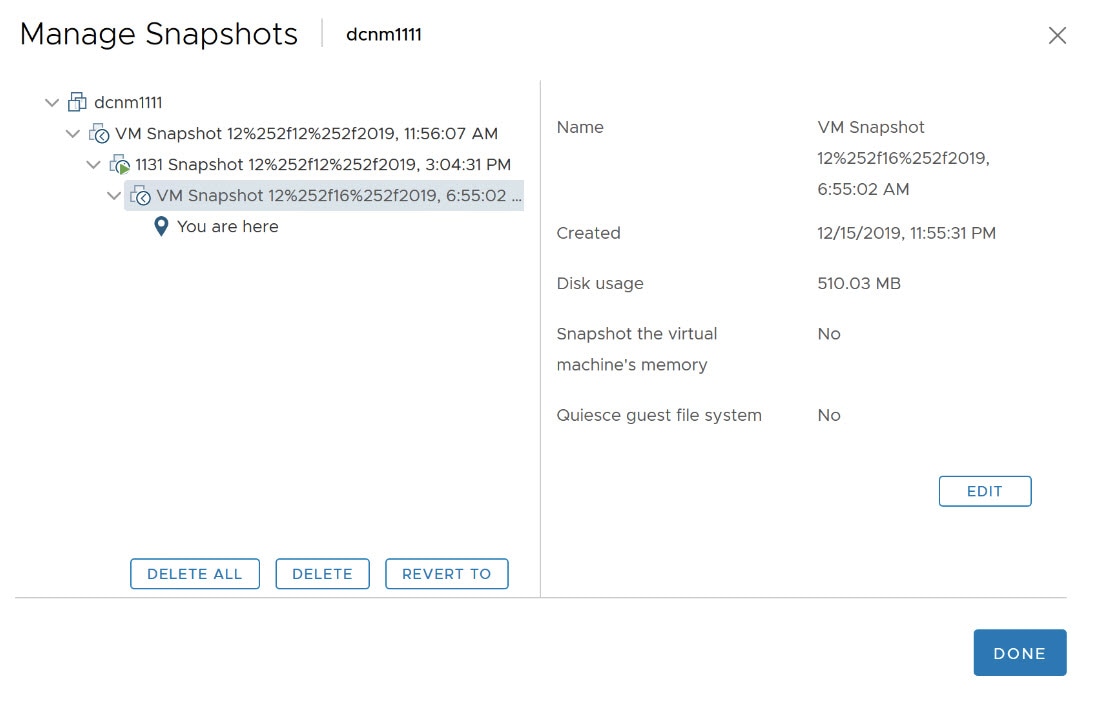
Right-click on the Virtual Machine and select Manage Snapshot.
Select the snapshot to restore, and click Done.
Server Resource (CPU/Memory) Requirements
Note |
If you install Cisco DCNM on a virtual machine, you must reserve resources equal
to the server resource requirements to ensure a baseline with the physical
machines.
|
| Deployment |
Deployment Type |
Small (Lab or POC) |
Large (Production) |
Huge (Production) |
Compute |
ComputeHuge |
|
LAN Fabric
|
-
OVA
-
ISO
-
Hyper-V on Windows
|
CPU: 8 vCPUs
RAM: 24 GB
DISK: 500 GB
|
CPU: 16 vCPUs
RAM: 32 GB
DISK: 500 GB
|
Not Applicable |
CPU: 16 vCPUs
RAM: 64 GB
DISK: 500 GB
|
CPU: 32vCPUs
RAM: 128GB
DISK: 2TB
for Network Insights Applications
|
Note |
For Huge and Compute deployments, you can add extra disk. The size of the disk
can range from a minimum of 32GB to a maximum of 1.5TB.
|
Allocate sufficient disk space to
the root partition to complete DCNM installation and for stable continuous operation
of the DCNM applications. Refer to the applications’ User guides for disk space
requirements. You can mount another disk where the /tmp
directory can be mounted during the installation or upgrade. You can also add
additional disk space and the disk file system using appmgr system
scan-disks-and-extend-fs command.
Cisco DCNM LAN Fabric Deployment Without Network Insights (NI)
Note |
For information about various system requirements for proper functioning of Cisco DCNM LAN Fabric deployment, see System Requirements.
Refer to Network Insights User guide for sizing information for Cisco DCNM LAN Deployment with Network Insights (NI).
To see the verified scale limits for Cisco DCNM 11.4(1) for managing LAN Fabric deployments, see Verified Scale Limits for Cisco DCNM LAN Fabric Deployment.
|
Table 2. Upto 80 Switches
| Node |
CPU Deployment Mode |
CPU |
Memory |
Storage |
Network |
| DCNM |
OVA/ISO |
16 vCPUs |
32G |
500G HDD |
3xNIC |
| Computes |
NA |
— |
— |
— |
— |
Table 3. 81–350 Switches
| Node |
CPU Deployment Mode |
CPU |
Memory |
Storage |
Network |
| DCNM |
OVA/ISO |
16 vCPUs |
32G |
500G HDD |
3xNIC |
| Computes |
OVA/ISO |
16 vCPUs |
64G |
500G HDD |
3xNIC |
Supported Web Browsers
Cisco DCNM supports the following web browsers:
-
Google Chrome Version 83.0.4103.97
-
Mozilla Firefox Version 77.0.1 (64-bit)
-
Microsoft Edge Version 83.0.478.45
Other Supported Software
The following table lists the other software that is supported by Cisco DCNM, Release
11.4(1).
Table 4. Other Supported Software
|
Component
|
Features
|
|
Security
|
-
ACS versions 4.0, 5.1, 5.5, and 5.8
-
ISE version 2.6
-
Telnet Disabled: SSH Version 1, SSH Version 2, Global
Enforce SNMP Privacy Encryption.
-
Web Client Encryption: HTTPS with TLS 1,
1.1 and 1.2
-
TLS 1.3
|
|
OVA\ISO Installers
|
CentOS 7.8/Linux Kernel 3.10.x
|
Also, Cisco DCNM supports call-home events, fabric change events, and events that are
forwarded by traps and email.
 Feedback