Contents

Configuring FCoE

This chapter describes how to configure Fibre Channel over Ethernet (FCoE) on Cisco Nexus 5000 Series switches. It contains the following sections:

Information About FCoE

Fibre Channel over Ethernet (FCoE) provides a method of transporting Fibre Channel traffic over a physical Ethernet connection. FCoE requires the underlying Ethernet to be full duplex and to provide lossless behavior for Fibre Channel traffic.


Note


Lossless behavior on Ethernet is provided by using a priority flow control (PFC) mechanism that prevents packet loss during congestion conditions.


Cisco Nexus 5000 Series switches support T11-compliant FCoE on all 10-Gigabit Ethernet interfaces.

Information About FCoE and FIP

FCoE Initiation Protocol

The FCoE Initialization Protocol (FIP) allows the switch to discover and initialize FCoE-capable entities that are connected to an Ethernet LAN. Two versions of FIP are supported by the Cisco Nexus 5000 Series switch:

  • FIP—The Converged Enhanced Ethernet Data Center Bridging Exchange (CEE-DCBX) protocol supports T11-compliant Gen-2 CNAs.

  • Pre-FIP—The Cisco, Intel, Nuova Data Center Bridging Exchange (CIN-DCBX) protocol supports Gen-1 converged network adapters (CNAs).

The Cisco Nexus 5000 Series switch detects the capabilities of the attached CNA and switches to the correct FIP mode.

FIP Virtual Link Instantiation

Cisco NX-OS Release 4.1(3)N1(1) adds support for the T11-compliant FIP on the Cisco Nexus 5000 Series switch.

FIP is used to perform device discovery, initialization, and link maintenance. FIP performs the following protocols:

  • FIP Discovery—When a FCoE device is connected to the fabric, it sends out a Discovery Solicitation message. A Fibre Channel Forwarder (FCF) or a switch responds to the message with a Solicited Advertisement that provides an FCF MAC address to use for subsequent logins.

  • FCoE Virtual Link instantiation— FIP defines the encapsulation of fabric login (FLOGI) , fabric discovery (FDISC), logout (LOGO), and exchange link parameters (ELP) frames along with the corresponding reply frames. The FCoE devices use these messages to perform a fabric login.

  • FCoE Virtual Link maintenance— FIP periodically sends maintenance messages between the switch and the CNA to ensure the connection is still valid.

FCoE Frame Format

FCoE is encapsulated in an Ethernet packet with a dedicated EtherType, 0x8906. That packet has a 4-bit version field. The other header fields in the frame (the source and destination MAC addresses, VLAN tags, and frame markers) are all standard Ethernet fields. Reserved bits pad the FCoE frame to the IEEE 802.3 minimum packet length of 64 bytes.

A Fibre Channel frame consists of 36 bytes of headers and up to 2112 bytes of data for a total maximum size of 2148 bytes. The encapsulated Fibre Channel frame has all the standard headers, which allow it to be passed to the storage network without further modification. To accomodate the maximum Fibre Channel frame in an FC0E frame, the class-fcoe is defined with a default MTU of 2240 bytes.

VLAN Tagging for FCoE Frames

The Ethernet frames that are sent by the switch to the adapter may include the IEEE 802.1Q tag. This tag includes a field for the class of service (CoS) value used by the priority flow control (PFC). The IEEE 802.1Q tag also includes a VLAN field.

The Cisco Nexus 5000 Series switch expects frames from a FIP T11-compliant CNA to be tagged with the VLAN tag for the FCoE VLAN. Frames that are not correctly tagged are discarded.

The switch expects frames from a pre-FIP CNA to be priority tagged with the FCoE CoS value. The switch will still accept untagged frames from the CNA.

FIP Ethernet Frame Format

FIP is encapsulated in an Ethernet packet with a dedicated EtherType, 0x8914. The packet has a 4-bit version field. Along with the source and destination MAC addresses, the FIP packet also contains a FIP operation code and a FIP operation subcode. The following table describes the FIP operation codes.

Table 1 FIP Operation Codes

FIP Operation Code

FIP Subcode

FIP Operation

0x0001

0x01

Discovery Solicitation

0x02

Discovery Advertisement

0x0002

0x01

Virtual Link Instantiation Request

0x02

Virtual Link Instantiation Reply

0x0003

0x01

FIP Keep Alive

0x02

FIP Clear Virtual Links

0x0004

0x01

FIP VLAN Request

0x02

FIP VLAN Notification

Pre-FIP Virtual Link Instantiation

Pre-FIP virtual link instantiation consists of two phases; link discovery using the Data Center Bridging Exchange protocol (DCBX), which is followed by Fabric Login.

The Cisco Nexus 5000 Series switch is backward compatible with Gen-1 CNAs that operate in pre-FIP mode.


Note


Pre-FIP is also known as the Cisco, Intel, Nuova Data Center Bridging Exchange (CIN-DCBX) protocol.


Information About DCBX

Data Center Bridging Exchange Protocol

The Data Center Bridging Exchange (DCBX) protocol is an extension of the Link Layer Discovery Protocol (LLDP). DCBX end points exchange request and acknowledgment messages. For flexibility, parameters are coded in a type-length-value (TLV) format.

The Cisco Nexus 5000 Series switch supports two versions of DCBX:

  • CEE-DCBX—The Converged Enhanced Ethernet DCBX is supported on all T11-compliant Gen-2 CNAs

  • CIN-DCBX—The Cisco, Intel, Nuova DCBX is supported on Gen-1 converged network adapters (CNAs). CIN-DCBX is used to perform link detection in addition to other functions.

DCBX runs on the physical Ethernet link between the Cisco Nexus 5000 Series switch and the CNA. By default, DCBX is enabled on Ethernet interfaces. When an Ethernet interface is brought up, the switch automatically starts to communicate with the CNA.

During the normal operation of FCoE between the switch and the CNA, DCBX provides link-error detection.

DCBX is also used to negotiate capabilities between the switch and the CNA and to send configuration values to the CNA.

The CNAs that are connected to a Cisco Nexus 5000 Series switch are programmed to accept the configuration values sent by the switch, allowing the switch to distribute configuration values to all attached CNAs, which reduces the possibility of configuration errors and simplifies CNA administration.

DCBX Feature Negotiation

The switch and CNA exchange capability information and configuration values. The Cisco Nexus 5000 Series switches support the following capabilities:

  • FCoE—If the CNA supports FCoE capability, the switch sends the IEEE 802.1p CoS value to be used with FCoE packets.

  • Priority Flow Control (PFC)—If the adapter supports PFC, the switch sends the IEEE 802.1p CoS values to be enabled with PFC.

  • Priority group type-length-value (TLV)

  • Ethernet logical link up and down signal

  • FCoE logical link up and down signal for pre-FIP CNAs

The following rules determine whether the negotiation results in a capability being enabled:

  • If a capability and its configuration values match between the switch and the CNA, the feature is enabled.

  • If a capability matches, but the configuration values do not match, the following occurs:

    • If the CNA is configured to accept the switch configuration value, the capability is enabled using the switch value.

    • If the CNA is not configured to accept the switch configuration value, the capability remains disabled.

  • If the CNA does not support a DCBX capability, that capability remains disabled.

  • If the CNA does not implement DCBX, all capabilities remain disabled.


Note


The Cisco Nexus 5000 Series switch provides CLI commands to manually override the results of the PFC negotiation with the adapter. On a per-interface basis, you can force capabilities to be enabled or disabled.


Lossless Ethernet

Standard Ethernet is a best-effort medium which means that it lacks any form of flow control. In the event of congestion or collisions, Ethernet will drop packets. The higher level protocols detect the missing data and retransmit the dropped packets.

To properly support Fibre Channel, Ethernet has been enhanced with a priority flow control (PFC) mechanism.

Logical Link Up/Down

The optional N5K-M1404 or N5K-M1008 expansion modules provide native 1/2/4-Gigabit Fibre Channel ports to connect the Cisco Nexus 5000 Series switch to other Fibre Channel devices. On a native Fibre Channel link, some configuration actions (such as changing the VSAN) require that you reset the interface status. When you reset the interface status, the switch disables the interface and then immediately reenables the interface.

If an Ethernet link provides FCoE service, do not reset the physical link because this action is disruptive to all traffic on the link.

The logical link up/down feature allows the switch to reset an individual virtual link. The logical link down is signaled with a FIP Clear Virtual Link message.

For pre-FIP CNAs, the switch sends a DCBX message to request the CNA to reset only the virtual Fibre Channel interface.


Note


If the CNA does not support the logical link level up/down feature, the CNA resets the physical link. In this case, all traffic on the Ethernet interface is disrupted.

DCBX-based FC Logical Link Status signaling only applies to FCoE sessions to pre-FIP CNAs.


Converged Network Adapters

The following types of CNAs are available:

  • Hardware adapter

    • Works with the existing Fibre Channel host bus adapter (HBA) driver and Ethernet Network Interface Card (NIC) driver in the server.

    • Server operating system view of the network is unchanged; the CNA presents a SAN interface and a LAN interface to the operating system.

  • FCoE software stack

    • Runs on existing 10-Gigabit Ethernet adapters.

Two generations of CNAs are supported by the Cisco Nexus 5000 Series switch:

  • A FIP adapter uses the FIP to exchange information about its available capabilities and to negotiate the configurable values with the switch.

  • A pre-FIP adapter uses DCBX to exchange information about its available capabilities and to negotiate the configurable values with the switch.

To reduce configuration errors and simplify administration, the switch distributes the configuration data to all the connected adapters.

FCoE Topologies

Directly Connected CNA Topology

The Cisco Nexus 5000 Series switch can be deployed as a Fibre Channel Forwarder (FCF) as shown in the following figure.
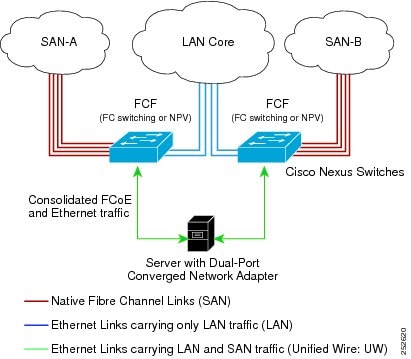
Figure 1. Directly Connected Fibre Channel Forwarder

The following rules are used to process FIP frames to avoid the FCF being used as a transit between an FCoE node (ENode) and another FCF. These rules also prevent login sessions between ENodes and FCFs in different fabrics.

  • FIP solicitation and login frames received from the CNAs are processed by the FCF and are not forwarded.

  • If an FCF receives solicitations and advertisements from other FCFs over an interface, the following occurs:

    • The frames are ignored and discarded if the FC-MAP value in the frame matches the value of the FCF (the FCF is in the same fabric)

    • The interface is placed in the "FCoE Isolated" state if the FC-MAP value in the FIP frame does not match that of the FCF (the FCF is in a different fabric)

CNAs cannot discover or login to FCFs that are reachable only through a transit Cisco Nexus 5000 Series FCF. The Cisco Nexus 5000 Series switch cannot perform the FCoE transit function between a CNA and another FCF due to hardware limitations.

Because the Cisco Nexus 5000 Series FCF cannot perform the transit FCoE function, you must design your network topology so that the active STP path of FCoE VLANs is always over the directly connected links between the CNA and the FCF. Make sure that you configure the FCoE VLAN on the directly connected links only.

Remotely Connected CNA Topology

The Cisco Nexus 5000 Series switch can be deployed as a Fibre Channel Forwarder (FCF) for remotely connected CNAs, but not as a FIP Snooping Bridge, as shown in the following figure.
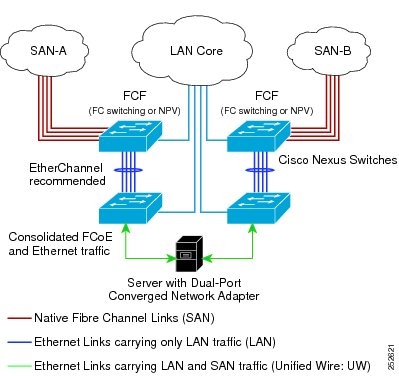
Figure 2. Remotely Connected Fibre Channel Forwarder

The following rules are used to process FIP frames to avoid the FCF being used as a transit between an ENode and another FCF. These rules also prevent login sessions between ENodes and FCFs in different fabrics.

  • FIP solicitation and login frames received from the CNAs are processed by the FCF and are not forwarded.

  • If an FCF receives solicitations and advertisements from other FCFs over an interface, the following occurs:

    • The frames are ignored and discarded if the FC-MAP value in the frame matches the value of the FCF (the FCF is in the same fabric)

    • The interface is placed in the "FCoE Isolated" state if the FC-MAP value in the FIP frame does not match that of the FCF (the FCF is in a different fabric)

Because the Cisco Nexus 5000 Series FCF cannot perform the transit FCoE function, you must design your network topology so that the active STP path of FCoE VLANs is always over the directly connected links between the CNA and the FCF. Make sure that you configure the FCoE VLAN on the directly connected links only.

FCoE Best Practices

Directly Connected CNA Best Practice

The following figure shows a best practices topology for an access network using directly connected CNAs with Cisco Nexus 5000 Series switches.
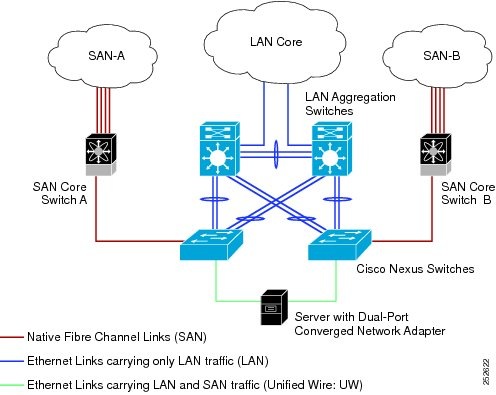
Figure 3. Directly Connected CNA

Follow these configuration best practices for the deployment topology in the preceding figure:

  1. You must configure a unique dedicated VLAN at every converged access switch to carry traffic for each Virtual Fabric (VSAN) in the SAN (for example, VLAN 1002 for VSAN 1, VLAN 1003 for VSAN 2, and so on). If you enable MST, you must use a separate MST instance for FCoE VLANs.

  2. You must configure the unified fabric (UF) links as trunk ports. Do not configure the FCoE VLAN as a native VLAN. You must configure all FCoE VLANs as members of the UF links to allow extensions for VF_Port trunking and VSAN management for the virtual Fibre Channel interfaces.


    Note


    A unified fabric link carries both Ethernet and FCoE traffic.


  3. You must configure the UF links as spanning-tree edge ports.

  4. You must not configure the FCoE VLANs as members of Ethernet links that are not designated to carry FCoE traffic because you want to ensure the scope of the STP for the FCoE VLANs is limited to UF links only.

  5. If the converged access switches (in the same SAN fabric or in another) need to be connected to each other over Ethernet links for a LAN alternate path, then such links must explicitly be configured to exclude all FCoE VLANs from membership. This action ensures that the scope of the STP for the FCoE VLANs is limited to UF links only.

  6. You must use separate FCoE VLANs for FCoE in SAN-A and SAN-B.


Note


All Gen-1 (pre-FIP) and Gen-2 (FIP) CNAs are supported in a directly connected topology.


Remotely Connected CNA Best Practice

The following figure shows a best practices topology for an access network using remotely connected CNAs with Cisco Nexus 5000 Series switches.
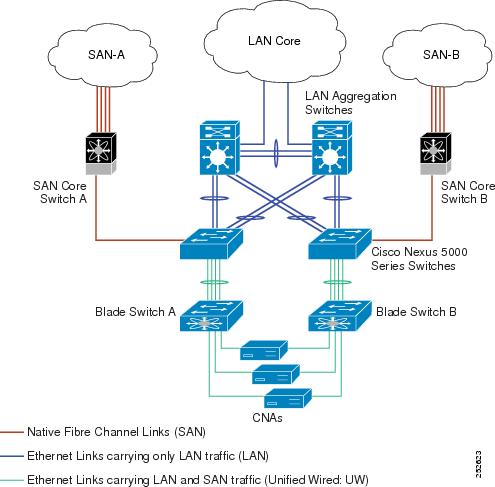
Figure 4. Remotely Connected CNAs

Follow these configuration best practices for the deployment topology in the preceding figure:

  1. You must configure a unique dedicated VLAN at every converged access switch to carry traffic for each Virtual Fabric (VSAN) in the SAN (for example, VLAN 1002 for VSAN 1, VLAN 1003 for VSAN 2, and so on). If you enable MST, you must use a separate MST instance for FCoE VLANs.

  2. You must configure the unified fabric (UF) links as trunk ports. Do not configure the FCoE VLAN as a native VLAN. You must configure all FCoE VLANs as members of the UF links to allow extensions for VF_Port trunking and VSAN management for the virtual Fibre Channel interfaces.


    Note


    A unified fabric link carries both Ethernet and FCoE traffic.


  3. You must configure the CNAs and the blade switches as spanning-tree edge ports.

  4. A blade switch must connect to exactly one Cisco Nexus 5000 Series converged access switch, preferably over an EtherChannel, to avoid disruption due to STP reconvergence on events such as provisioning new links or blade switches.

  5. You must configure the Cisco Nexus 5000 Series converged access switch with a better STP priority than the blade switches that are connected to it. This requirement allows you to create an island of FCoE VLANs where the converged access switch is the spanning-tree root and all the blade switches connected to it become downstream nodes.

  6. Do not configure the FCoE VLANs as members of Ethernet links that are not designated to carry FCoE traffic because you want to ensure that the scope of the STP for the FCoE VLANs is limited to UF links only.

  7. If the converged access switches and/or the blade switches need to be connected to each over Ethernet links for the purposes of LAN alternate pathing, then such links must explicitly be configured to exclude all FCoE VLANs from membership. This will ensure the scope of the spanning-tree protocol for FCoE VLANs is limited to UF links only.

  8. You must use separate FCoE VLANs for FCoE in SAN-A and SAN-B.


Note


A remotelyconnected topology is supported only with Gen-2 (FIP) CNAs.


Licensing Requirements for FCoE

On Cisco Nexus 5000 Series switches, FCoE capability is included in the Storage Protocol Services License.

Before using FCoE capabilities, you must ensure the following:

  • The correct license is installed (N5010SS or N5020SS).

  • You activated FCoE by entering the feature fcoe command in configuration mode.

Configuring FCoE

Enabling FCoE

You can enable FCoE on the switch.


Note


All the Fibre Channel features of the Cisco Nexus 5000 Series switch are packaged in the FC Plugin. When you enable FCoE, the switch software checks for the FC_FEATURES_PKG license. If it finds the license, the software loads the plugin. If the license is not found, the software loads the plugin with a grace period of 180 days.

After the FC Plugin is loaded, the following occurs:

  • All Fibre Channel and FCoE related CLI are available

  • The Fibre Channel interfaces of any installed Expansion Modules are available

If after 180 days, a valid license is not found, the FC Plugin is disabled. At the next switch reboot, all FCoE commands are removed from the CLI and the FCoE configuration is deleted.


Before You Begin

You need to have the FC_FEATURES_PKG (N5010SS or N5020SS) license installed.

SUMMARY STEPS

    1.    switch# configure terminal

    2.    switch(config)# feature fcoe


DETAILED STEPS
     Command or ActionPurpose
    Step 1 switch# configure terminal
     

    Enters configuration mode.

     
    Step 2 switch(config)# feature fcoe
     

    Enables the FCoE capability.


    This example shows how to enable FCoE on the switch:

    switch# configure terminal
    switch(config)# feature fcoe
     

    Disabling FCoE

    After you disable FCoE, all FCoE commands are removed from the CLI and the FCoE configuration is deleted .

    SUMMARY STEPS

      1.    switch# configure terminal

      2.    switch(config)# no feature fcoe


    DETAILED STEPS
       Command or ActionPurpose
      Step 1 switch# configure terminal
       

      Enters configuration mode.

       
      Step 2 switch(config)# no feature fcoe
       

      Disables the FCoE capability.


      This example shows how to disable FCoE on the switch:

      switch# configure terminal
      switch(config)# no feature fcoe
       

      Disabling LAN Traffic on an FCoE Link

      You can disable LAN traffic on an FCoE link.

      DCBX allows the switch to send a LAN Logical Link Status (LLS) message to a directly-connected CNA. Enter the shutdown lan command to send an LLS-Down message to the CNA. This command causes all VLANs on the interface that are not enabled for FCoE to be brought down. If a VLAN on the interface is enabled for FCoE, it continues to carry SAN traffic without any interruption.

      SUMMARY STEPS

        1.    switch# configure terminal

        2.    switch(config)# interface ethernet slot/port

        3.    switch(config-if)# shutdown lan

        4.    (Optional) switch(config-if)# no shutdown lan


      DETAILED STEPS
         Command or ActionPurpose
        Step 1 switch# configure terminal
         

        Enters configuration mode.

         
        Step 2 switch(config)# interface ethernet slot/port
         

        Specifies an interface to configure, and enters interface configuration mode.

         
        Step 3switch(config-if)# shutdown lan
         

        Shuts down Ethernet traffic on the interface. If the interface is part of an FCoE VLAN, the shutdown has no impact on the FCoE traffic.

         
        Step 4switch(config-if)# no shutdown lan
         
        (Optional)

        Reenables Ethernet traffic on the interface.


        Configuring the FC-Map

        You can prevent data corruption due to cross-fabric talk by configuring an FC-Map which identifies the Fibre Channel fabric for this Cisco Nexus 5000 Series switch. When the FC-Map is configured, the switch discards the MAC addresses that are not part of the current fabric.

        SUMMARY STEPS

          1.    switch# configure terminal

          2.    switch(config)# fcoe fcmap fabric-map

          3.    (Optional) switch(config)# no fcoe fcmap fabric-map


        DETAILED STEPS
           Command or ActionPurpose
          Step 1 switch# configure terminal
           

          Enters configuration mode.

           
          Step 2 switch(config)# fcoe fcmap fabric-map
           

          Configures the global FC-Map. The default value is 0E.FC.00. The range is from 0E.FC.00 to 0E.FC.FF.

           
          Step 3 switch(config)# no fcoe fcmap fabric-map
           
          (Optional)

          Resets the global FC-Map to the default value of 0E.FC.00.


          This example shows how to configure the global FC-Map:

          switch# configure terminal
          switch(config)# fcoe fcmap 0e.fc.2a
           

          Configuring the Fabric Priority

          The Cisco Nexus 5000 Series switch advertises its priority. The priority is used by the CNAs in the fabric to determine the best switch to connect to.

          SUMMARY STEPS

            1.    switch# configure terminal

            2.    switch(config)# fcoe fcf-priority fabric-priority

            3.    (Optional) switch(config)# no fcoe fcf-priority fabric-priority


          DETAILED STEPS
             Command or ActionPurpose
            Step 1 switch# configure terminal
             

            Enters configuration mode.

             
            Step 2 switch(config)# fcoe fcf-priority fabric-priority
             

            Configures the global fabric priority. The default value is 128. The range is from 0 (higher) to 255 (lower).

             
            Step 3 switch(config)# no fcoe fcf-priority fabric-priority
             
            (Optional)

            Resets the global fabric priority to the default value of 128.


            This example shows how to configure the global fabric priority:

            switch# configure terminal
            switch(config)# fcoe fcf-priority 42
             

            Setting the Advertisment Interval

            You can configure the interval for Fibre Channel fabric advertisment on the switch.

            SUMMARY STEPS

              1.    switch# configure terminal

              2.    switch(config)# fcoe fka-adv-period inverval

              3.    (Optional) switch(config)# no fcoe fka-adv-period interval


            DETAILED STEPS
               Command or ActionPurpose
              Step 1 switch# configure terminal
               

              Enters configuration mode.

               
              Step 2 switch(config)# fcoe fka-adv-period inverval
               

              Configures the advertisement interval for the fabric. The default value is 8 seconds. The range is from 4 to 60 seconds.

               
              Step 3 switch(config)# no fcoe fka-adv-period interval
               
              (Optional)

              Resets the advertisement interval for the fabric to its default value of 8 seconds.


              This example shows how to configure the advertisement interval for the fabric:

              switch# configure terminal
              switch(config)# fcoe fka-adv-period 42
               

              Configuring LLDP

              Configuring Global LLDP Commands

              You can set global LLDP settings. These settings include the length of time before discarding LLDP information received from peers, the length of time to wait before performing LLDP initialization on any interface, and the rate at which LLDP packets are sent.

              To configure LLDP settings, perform this task:

              SUMMARY STEPS

                1.    switch# configure terminal

                2.    switch(config)# lldp {holdtime seconds | reinit seconds | timer seconds}

                3.    switch(config)# no lldp {holdtime | reinit | timer}


              DETAILED STEPS
                 Command or ActionPurpose
                Step 1 switch# configure terminal
                 

                Enters configuration mode.

                 
                Step 2 switch(config)# lldp {holdtime seconds | reinit seconds | timer seconds}
                 

                Configures LLDP options.

                Use the holdtime option to set the length of time (10 to 255 seconds, default 120 seconds) that a device should save LLDP information received before discarding it.

                Use the reinit option to set the length of time (1 to 10 seconds, default 2 seconds) to wait before performing LLDP initialization on any interface.

                Use the timer option to set the rate (5 to 254 seconds, default 30 seconds) at which LLDP packets are sent.

                 
                Step 3 switch(config)# no lldp {holdtime | reinit | timer}
                 

                Reset the LLDP values to their defaults.


                This example shows how to set LLDP timer option to 15 seconds:

                switch# configure terminal
                switch(config)# lldp timer 15
                 

                Configuring Interface LLDP Commands

                To configure the LLDP feature for a physical Ethernet interface, perform this task:

                SUMMARY STEPS

                  1.    switch# configure terminal

                  2.    switch(config)# interface type slot/port

                  3.    switch(config-if)# [no] lldp {receive | transmit}


                DETAILED STEPS
                   Command or ActionPurpose
                  Step 1 switch# configure terminal
                   

                  Enters configuration mode.

                   
                  Step 2 switch(config)# interface type slot/port
                   

                  Selects the interface to change.

                   
                  Step 3 switch(config-if)# [no] lldp {receive | transmit}
                   

                  Sets the selected interface to either receive or transmit.

                  The no form of the command disables the LLDP transmit or receive.


                  This example shows how to set an interface to transmit LLDP packets:

                  switch# configure terminal
                  switch(config)# interface ethernet 1/2
                  switch(config-if)# lldp transmit
                   

                  This example shows how to configure an interface to disable LLDP:

                  switch# configure terminal
                  switch(config)# interface ethernet 1/2
                  switch(config-if)# no lldp transmit
                  switch(config-if)# no lldp receive
                   

                  Verifying FCoE Configuration

                  To verify FCoE configuration information, perform one of these tasks:

                  Command

                  Purpose

                  switch# show fcoe

                  Displays whether FCoE is enabled on the switch.

                  switch# show fcoe database

                  Displays the contents of the FCoE database.

                  switch# show interface [interface number] fcoe

                  Displays the FCoE settings for an interface or all interfaces.

                  switch# show lldp

                  Displays LLDP configuration.

                  This example shows how to verify that the FCoE capability is enabled:

                  switch# show fcoe
                  Global FCF details
                          FCF-MAC is 00:0d:ec:6d:95:00
                          FC-MAP is 0e:fc:00
                          FCF Priority is 128
                          FKA Advertisement period for FCF is 8 seconds
                   

                  This example shows how to display the FCoE database:

                  switch# show fcoe database
                  -------------------------------------------------------------------------------
                  INTERFACE       FCID            PORT NAME               MAC ADDRESS
                  -------------------------------------------------------------------------------
                  vfc3            0x490100        21:00:00:1b:32:0a:e7:b8 00:c0:dd:0e:5f:76
                   

                  This example shows how to display the FCoE settings for an interface.

                  switch# show interface ethernet 1/37 fcoe
                  Ethernet1/37 is FCoE UP
                      vfc3 is Up
                          FCID is 0x490100
                          PWWN is 21:00:00:1b:32:0a:e7:b8
                          MAC addr is 00:c0:dd:0e:5f:76
                   

                  This example shows how to display LLDP interface information:

                  switch# show lldp interface ethernet 1/2
                  tx_enabled: TRUE
                  rx_enabled: TRUE
                  dcbx_enabled: TRUE
                  Port MAC address:    00:0d:ec:a3:5f:48
                  Remote Peers Information
                  No remote peers exist
                   

                  This example shows how to display LLDP neighbor information:

                  switch# show lldp neighbors
                  LLDP Neighbors
                   
                  Remote Peers Information on interface Eth1/40
                  Remote peer's MSAP: length 12 Bytes:
                  00    c0    dd    0e    5f    3a    00    c0    dd    0e    5f    3a
                   
                  LLDP TLV's
                  LLDP TLV type:Chassis ID  LLDP TLV Length: 7
                  LLDP TLV type:Port ID  LLDP TLV Length: 7
                  LLDP TLV type:Time to Live  LLDP TLV Length: 2
                  LLDP TLV type:LLDP Organizationally Specific  LLDP TLV Length: 55
                  LLDP TLV type:LLDP Organizationally Specific  LLDP TLV Length: 5
                  LLDP TLV type:END of LLDPDU  LLDP TLV Length: 0
                   
                  Remote Peers Information on interface Eth1/34
                  Remote peer's MSAP: length 12 Bytes:
                  00    0d    ec    a3    27    40    00    0d    ec    a3    27    69
                   
                  LLDP TLV's
                  LLDP TLV type:Chassis ID  LLDP TLV Length: 7
                  LLDP TLV type:Port ID  LLDP TLV Length: 7
                  LLDP TLV type:Time to Live  LLDP TLV Length: 2
                  LLDP TLV type:LLDP Organizationally Specific  LLDP TLV Length: 55
                  LLDP TLV type:LLDP Organizationally Specific  LLDP TLV Length: 5
                  LLDP TLV type:END of LLDPDU  LLDP TLV Length: 0
                   
                  Remote Peers Information on interface Eth1/33
                  Remote peer's MSAP: length 12 Bytes:
                  00    0d    ec    a3    27    40    00    0d    ec    a3    27    68
                   
                  LLDP TLV's
                  LLDP TLV type:Chassis ID  LLDP TLV Length: 7
                  LLDP TLV type:Port ID  LLDP TLV Length: 7
                  LLDP TLV type:Time to Live  LLDP TLV Length: 2
                  LLDP TLV type:LLDP Organizationally Specific  LLDP TLV Length: 55
                  LLDP TLV type:LLDP Organizationally Specific  LLDP TLV Length: 5
                  LLDP TLV type:END of LLDPDU  LLDP TLV Length: 0
                   

                  This example shows how to display LLDP timer information:

                  switch# show lldp timers
                  LLDP Timers
                  holdtime 120 seconds
                  reinit 2 seconds
                  msg_tx_interval 30 seconds
                   

                  This example shows how to display LLDP counters:

                  switch# show lldp traffic
                  LLDP traffic statistics:
                   
                      Total frames out: 8464
                      Total Entries aged: 6
                      Total frames in: 6342
                      Total frames received in error: 2
                      Total frames discarded: 2
                      Total TLVs unrecognized: 0
                   

                  Configuring FCoE

                  Contents

                  Configuring FCoE

                  This chapter describes how to configure Fibre Channel over Ethernet (FCoE) on Cisco Nexus 5000 Series switches. It contains the following sections:

                  Information About FCoE

                  Fibre Channel over Ethernet (FCoE) provides a method of transporting Fibre Channel traffic over a physical Ethernet connection. FCoE requires the underlying Ethernet to be full duplex and to provide lossless behavior for Fibre Channel traffic.


                  Note


                  Lossless behavior on Ethernet is provided by using a priority flow control (PFC) mechanism that prevents packet loss during congestion conditions.


                  Cisco Nexus 5000 Series switches support T11-compliant FCoE on all 10-Gigabit Ethernet interfaces.

                  Information About FCoE and FIP

                  FCoE Initiation Protocol

                  The FCoE Initialization Protocol (FIP) allows the switch to discover and initialize FCoE-capable entities that are connected to an Ethernet LAN. Two versions of FIP are supported by the Cisco Nexus 5000 Series switch:

                  • FIP—The Converged Enhanced Ethernet Data Center Bridging Exchange (CEE-DCBX) protocol supports T11-compliant Gen-2 CNAs.

                  • Pre-FIP—The Cisco, Intel, Nuova Data Center Bridging Exchange (CIN-DCBX) protocol supports Gen-1 converged network adapters (CNAs).

                  The Cisco Nexus 5000 Series switch detects the capabilities of the attached CNA and switches to the correct FIP mode.

                  FIP Virtual Link Instantiation

                  Cisco NX-OS Release 4.1(3)N1(1) adds support for the T11-compliant FIP on the Cisco Nexus 5000 Series switch.

                  FIP is used to perform device discovery, initialization, and link maintenance. FIP performs the following protocols:

                  • FIP Discovery—When a FCoE device is connected to the fabric, it sends out a Discovery Solicitation message. A Fibre Channel Forwarder (FCF) or a switch responds to the message with a Solicited Advertisement that provides an FCF MAC address to use for subsequent logins.

                  • FCoE Virtual Link instantiation— FIP defines the encapsulation of fabric login (FLOGI) , fabric discovery (FDISC), logout (LOGO), and exchange link parameters (ELP) frames along with the corresponding reply frames. The FCoE devices use these messages to perform a fabric login.

                  • FCoE Virtual Link maintenance— FIP periodically sends maintenance messages between the switch and the CNA to ensure the connection is still valid.

                  FCoE Frame Format

                  FCoE is encapsulated in an Ethernet packet with a dedicated EtherType, 0x8906. That packet has a 4-bit version field. The other header fields in the frame (the source and destination MAC addresses, VLAN tags, and frame markers) are all standard Ethernet fields. Reserved bits pad the FCoE frame to the IEEE 802.3 minimum packet length of 64 bytes.

                  A Fibre Channel frame consists of 36 bytes of headers and up to 2112 bytes of data for a total maximum size of 2148 bytes. The encapsulated Fibre Channel frame has all the standard headers, which allow it to be passed to the storage network without further modification. To accomodate the maximum Fibre Channel frame in an FC0E frame, the class-fcoe is defined with a default MTU of 2240 bytes.

                  VLAN Tagging for FCoE Frames

                  The Ethernet frames that are sent by the switch to the adapter may include the IEEE 802.1Q tag. This tag includes a field for the class of service (CoS) value used by the priority flow control (PFC). The IEEE 802.1Q tag also includes a VLAN field.

                  The Cisco Nexus 5000 Series switch expects frames from a FIP T11-compliant CNA to be tagged with the VLAN tag for the FCoE VLAN. Frames that are not correctly tagged are discarded.

                  The switch expects frames from a pre-FIP CNA to be priority tagged with the FCoE CoS value. The switch will still accept untagged frames from the CNA.

                  FIP Ethernet Frame Format

                  FIP is encapsulated in an Ethernet packet with a dedicated EtherType, 0x8914. The packet has a 4-bit version field. Along with the source and destination MAC addresses, the FIP packet also contains a FIP operation code and a FIP operation subcode. The following table describes the FIP operation codes.

                  Table 1 FIP Operation Codes

                  FIP Operation Code

                  FIP Subcode

                  FIP Operation

                  0x0001

                  0x01

                  Discovery Solicitation

                  0x02

                  Discovery Advertisement

                  0x0002

                  0x01

                  Virtual Link Instantiation Request

                  0x02

                  Virtual Link Instantiation Reply

                  0x0003

                  0x01

                  FIP Keep Alive

                  0x02

                  FIP Clear Virtual Links

                  0x0004

                  0x01

                  FIP VLAN Request

                  0x02

                  FIP VLAN Notification

                  Pre-FIP Virtual Link Instantiation

                  Pre-FIP virtual link instantiation consists of two phases; link discovery using the Data Center Bridging Exchange protocol (DCBX), which is followed by Fabric Login.

                  The Cisco Nexus 5000 Series switch is backward compatible with Gen-1 CNAs that operate in pre-FIP mode.


                  Note


                  Pre-FIP is also known as the Cisco, Intel, Nuova Data Center Bridging Exchange (CIN-DCBX) protocol.


                  Information About DCBX

                  Data Center Bridging Exchange Protocol

                  The Data Center Bridging Exchange (DCBX) protocol is an extension of the Link Layer Discovery Protocol (LLDP). DCBX end points exchange request and acknowledgment messages. For flexibility, parameters are coded in a type-length-value (TLV) format.

                  The Cisco Nexus 5000 Series switch supports two versions of DCBX:

                  • CEE-DCBX—The Converged Enhanced Ethernet DCBX is supported on all T11-compliant Gen-2 CNAs

                  • CIN-DCBX—The Cisco, Intel, Nuova DCBX is supported on Gen-1 converged network adapters (CNAs). CIN-DCBX is used to perform link detection in addition to other functions.

                  DCBX runs on the physical Ethernet link between the Cisco Nexus 5000 Series switch and the CNA. By default, DCBX is enabled on Ethernet interfaces. When an Ethernet interface is brought up, the switch automatically starts to communicate with the CNA.

                  During the normal operation of FCoE between the switch and the CNA, DCBX provides link-error detection.

                  DCBX is also used to negotiate capabilities between the switch and the CNA and to send configuration values to the CNA.

                  The CNAs that are connected to a Cisco Nexus 5000 Series switch are programmed to accept the configuration values sent by the switch, allowing the switch to distribute configuration values to all attached CNAs, which reduces the possibility of configuration errors and simplifies CNA administration.

                  DCBX Feature Negotiation

                  The switch and CNA exchange capability information and configuration values. The Cisco Nexus 5000 Series switches support the following capabilities:

                  • FCoE—If the CNA supports FCoE capability, the switch sends the IEEE 802.1p CoS value to be used with FCoE packets.

                  • Priority Flow Control (PFC)—If the adapter supports PFC, the switch sends the IEEE 802.1p CoS values to be enabled with PFC.

                  • Priority group type-length-value (TLV)

                  • Ethernet logical link up and down signal

                  • FCoE logical link up and down signal for pre-FIP CNAs

                  The following rules determine whether the negotiation results in a capability being enabled:

                  • If a capability and its configuration values match between the switch and the CNA, the feature is enabled.

                  • If a capability matches, but the configuration values do not match, the following occurs:

                    • If the CNA is configured to accept the switch configuration value, the capability is enabled using the switch value.

                    • If the CNA is not configured to accept the switch configuration value, the capability remains disabled.

                  • If the CNA does not support a DCBX capability, that capability remains disabled.

                  • If the CNA does not implement DCBX, all capabilities remain disabled.


                  Note


                  The Cisco Nexus 5000 Series switch provides CLI commands to manually override the results of the PFC negotiation with the adapter. On a per-interface basis, you can force capabilities to be enabled or disabled.


                  Lossless Ethernet

                  Standard Ethernet is a best-effort medium which means that it lacks any form of flow control. In the event of congestion or collisions, Ethernet will drop packets. The higher level protocols detect the missing data and retransmit the dropped packets.

                  To properly support Fibre Channel, Ethernet has been enhanced with a priority flow control (PFC) mechanism.

                  Logical Link Up/Down

                  The optional N5K-M1404 or N5K-M1008 expansion modules provide native 1/2/4-Gigabit Fibre Channel ports to connect the Cisco Nexus 5000 Series switch to other Fibre Channel devices. On a native Fibre Channel link, some configuration actions (such as changing the VSAN) require that you reset the interface status. When you reset the interface status, the switch disables the interface and then immediately reenables the interface.

                  If an Ethernet link provides FCoE service, do not reset the physical link because this action is disruptive to all traffic on the link.

                  The logical link up/down feature allows the switch to reset an individual virtual link. The logical link down is signaled with a FIP Clear Virtual Link message.

                  For pre-FIP CNAs, the switch sends a DCBX message to request the CNA to reset only the virtual Fibre Channel interface.


                  Note


                  If the CNA does not support the logical link level up/down feature, the CNA resets the physical link. In this case, all traffic on the Ethernet interface is disrupted.

                  DCBX-based FC Logical Link Status signaling only applies to FCoE sessions to pre-FIP CNAs.


                  Converged Network Adapters

                  The following types of CNAs are available:

                  • Hardware adapter

                    • Works with the existing Fibre Channel host bus adapter (HBA) driver and Ethernet Network Interface Card (NIC) driver in the server.

                    • Server operating system view of the network is unchanged; the CNA presents a SAN interface and a LAN interface to the operating system.

                  • FCoE software stack

                    • Runs on existing 10-Gigabit Ethernet adapters.

                  Two generations of CNAs are supported by the Cisco Nexus 5000 Series switch:

                  • A FIP adapter uses the FIP to exchange information about its available capabilities and to negotiate the configurable values with the switch.

                  • A pre-FIP adapter uses DCBX to exchange information about its available capabilities and to negotiate the configurable values with the switch.

                  To reduce configuration errors and simplify administration, the switch distributes the configuration data to all the connected adapters.

                  FCoE Topologies

                  Directly Connected CNA Topology

                  The Cisco Nexus 5000 Series switch can be deployed as a Fibre Channel Forwarder (FCF) as shown in the following figure.

                  Figure 1. Directly Connected Fibre Channel Forwarder

                  The following rules are used to process FIP frames to avoid the FCF being used as a transit between an FCoE node (ENode) and another FCF. These rules also prevent login sessions between ENodes and FCFs in different fabrics.

                  • FIP solicitation and login frames received from the CNAs are processed by the FCF and are not forwarded.

                  • If an FCF receives solicitations and advertisements from other FCFs over an interface, the following occurs:

                    • The frames are ignored and discarded if the FC-MAP value in the frame matches the value of the FCF (the FCF is in the same fabric)

                    • The interface is placed in the "FCoE Isolated" state if the FC-MAP value in the FIP frame does not match that of the FCF (the FCF is in a different fabric)

                  CNAs cannot discover or login to FCFs that are reachable only through a transit Cisco Nexus 5000 Series FCF. The Cisco Nexus 5000 Series switch cannot perform the FCoE transit function between a CNA and another FCF due to hardware limitations.

                  Because the Cisco Nexus 5000 Series FCF cannot perform the transit FCoE function, you must design your network topology so that the active STP path of FCoE VLANs is always over the directly connected links between the CNA and the FCF. Make sure that you configure the FCoE VLAN on the directly connected links only.

                  Remotely Connected CNA Topology

                  The Cisco Nexus 5000 Series switch can be deployed as a Fibre Channel Forwarder (FCF) for remotely connected CNAs, but not as a FIP Snooping Bridge, as shown in the following figure.

                  Figure 2. Remotely Connected Fibre Channel Forwarder

                  The following rules are used to process FIP frames to avoid the FCF being used as a transit between an ENode and another FCF. These rules also prevent login sessions between ENodes and FCFs in different fabrics.

                  • FIP solicitation and login frames received from the CNAs are processed by the FCF and are not forwarded.

                  • If an FCF receives solicitations and advertisements from other FCFs over an interface, the following occurs:

                    • The frames are ignored and discarded if the FC-MAP value in the frame matches the value of the FCF (the FCF is in the same fabric)

                    • The interface is placed in the "FCoE Isolated" state if the FC-MAP value in the FIP frame does not match that of the FCF (the FCF is in a different fabric)

                  Because the Cisco Nexus 5000 Series FCF cannot perform the transit FCoE function, you must design your network topology so that the active STP path of FCoE VLANs is always over the directly connected links between the CNA and the FCF. Make sure that you configure the FCoE VLAN on the directly connected links only.

                  FCoE Best Practices

                  Directly Connected CNA Best Practice

                  The following figure shows a best practices topology for an access network using directly connected CNAs with Cisco Nexus 5000 Series switches.

                  Figure 3. Directly Connected CNA

                  Follow these configuration best practices for the deployment topology in the preceding figure:

                  1. You must configure a unique dedicated VLAN at every converged access switch to carry traffic for each Virtual Fabric (VSAN) in the SAN (for example, VLAN 1002 for VSAN 1, VLAN 1003 for VSAN 2, and so on). If you enable MST, you must use a separate MST instance for FCoE VLANs.

                  2. You must configure the unified fabric (UF) links as trunk ports. Do not configure the FCoE VLAN as a native VLAN. You must configure all FCoE VLANs as members of the UF links to allow extensions for VF_Port trunking and VSAN management for the virtual Fibre Channel interfaces.


                    Note


                    A unified fabric link carries both Ethernet and FCoE traffic.


                  3. You must configure the UF links as spanning-tree edge ports.

                  4. You must not configure the FCoE VLANs as members of Ethernet links that are not designated to carry FCoE traffic because you want to ensure the scope of the STP for the FCoE VLANs is limited to UF links only.

                  5. If the converged access switches (in the same SAN fabric or in another) need to be connected to each other over Ethernet links for a LAN alternate path, then such links must explicitly be configured to exclude all FCoE VLANs from membership. This action ensures that the scope of the STP for the FCoE VLANs is limited to UF links only.

                  6. You must use separate FCoE VLANs for FCoE in SAN-A and SAN-B.


                  Note


                  All Gen-1 (pre-FIP) and Gen-2 (FIP) CNAs are supported in a directly connected topology.


                  Remotely Connected CNA Best Practice

                  The following figure shows a best practices topology for an access network using remotely connected CNAs with Cisco Nexus 5000 Series switches.

                  Figure 4. Remotely Connected CNAs

                  Follow these configuration best practices for the deployment topology in the preceding figure:

                  1. You must configure a unique dedicated VLAN at every converged access switch to carry traffic for each Virtual Fabric (VSAN) in the SAN (for example, VLAN 1002 for VSAN 1, VLAN 1003 for VSAN 2, and so on). If you enable MST, you must use a separate MST instance for FCoE VLANs.

                  2. You must configure the unified fabric (UF) links as trunk ports. Do not configure the FCoE VLAN as a native VLAN. You must configure all FCoE VLANs as members of the UF links to allow extensions for VF_Port trunking and VSAN management for the virtual Fibre Channel interfaces.


                    Note


                    A unified fabric link carries both Ethernet and FCoE traffic.


                  3. You must configure the CNAs and the blade switches as spanning-tree edge ports.

                  4. A blade switch must connect to exactly one Cisco Nexus 5000 Series converged access switch, preferably over an EtherChannel, to avoid disruption due to STP reconvergence on events such as provisioning new links or blade switches.

                  5. You must configure the Cisco Nexus 5000 Series converged access switch with a better STP priority than the blade switches that are connected to it. This requirement allows you to create an island of FCoE VLANs where the converged access switch is the spanning-tree root and all the blade switches connected to it become downstream nodes.

                  6. Do not configure the FCoE VLANs as members of Ethernet links that are not designated to carry FCoE traffic because you want to ensure that the scope of the STP for the FCoE VLANs is limited to UF links only.

                  7. If the converged access switches and/or the blade switches need to be connected to each over Ethernet links for the purposes of LAN alternate pathing, then such links must explicitly be configured to exclude all FCoE VLANs from membership. This will ensure the scope of the spanning-tree protocol for FCoE VLANs is limited to UF links only.

                  8. You must use separate FCoE VLANs for FCoE in SAN-A and SAN-B.


                  Note


                  A remotelyconnected topology is supported only with Gen-2 (FIP) CNAs.


                  Licensing Requirements for FCoE

                  On Cisco Nexus 5000 Series switches, FCoE capability is included in the Storage Protocol Services License.

                  Before using FCoE capabilities, you must ensure the following:

                  • The correct license is installed (N5010SS or N5020SS).

                  • You activated FCoE by entering the feature fcoe command in configuration mode.

                  Configuring FCoE

                  Enabling FCoE

                  You can enable FCoE on the switch.


                  Note


                  All the Fibre Channel features of the Cisco Nexus 5000 Series switch are packaged in the FC Plugin. When you enable FCoE, the switch software checks for the FC_FEATURES_PKG license. If it finds the license, the software loads the plugin. If the license is not found, the software loads the plugin with a grace period of 180 days.

                  After the FC Plugin is loaded, the following occurs:

                  • All Fibre Channel and FCoE related CLI are available

                  • The Fibre Channel interfaces of any installed Expansion Modules are available

                  If after 180 days, a valid license is not found, the FC Plugin is disabled. At the next switch reboot, all FCoE commands are removed from the CLI and the FCoE configuration is deleted.


                  Before You Begin

                  You need to have the FC_FEATURES_PKG (N5010SS or N5020SS) license installed.

                  SUMMARY STEPS

                    1.    switch# configure terminal

                    2.    switch(config)# feature fcoe


                  DETAILED STEPS
                     Command or ActionPurpose
                    Step 1 switch# configure terminal
                     

                    Enters configuration mode.

                     
                    Step 2 switch(config)# feature fcoe
                     

                    Enables the FCoE capability.


                    This example shows how to enable FCoE on the switch:

                    switch# configure terminal
                    switch(config)# feature fcoe
                     

                    Disabling FCoE

                    After you disable FCoE, all FCoE commands are removed from the CLI and the FCoE configuration is deleted .

                    SUMMARY STEPS

                      1.    switch# configure terminal

                      2.    switch(config)# no feature fcoe


                    DETAILED STEPS
                       Command or ActionPurpose
                      Step 1 switch# configure terminal
                       

                      Enters configuration mode.

                       
                      Step 2 switch(config)# no feature fcoe
                       

                      Disables the FCoE capability.


                      This example shows how to disable FCoE on the switch:

                      switch# configure terminal
                      switch(config)# no feature fcoe
                       

                      Disabling LAN Traffic on an FCoE Link

                      You can disable LAN traffic on an FCoE link.

                      DCBX allows the switch to send a LAN Logical Link Status (LLS) message to a directly-connected CNA. Enter the shutdown lan command to send an LLS-Down message to the CNA. This command causes all VLANs on the interface that are not enabled for FCoE to be brought down. If a VLAN on the interface is enabled for FCoE, it continues to carry SAN traffic without any interruption.

                      SUMMARY STEPS

                        1.    switch# configure terminal

                        2.    switch(config)# interface ethernet slot/port

                        3.    switch(config-if)# shutdown lan

                        4.    (Optional) switch(config-if)# no shutdown lan


                      DETAILED STEPS
                         Command or ActionPurpose
                        Step 1 switch# configure terminal
                         

                        Enters configuration mode.

                         
                        Step 2 switch(config)# interface ethernet slot/port
                         

                        Specifies an interface to configure, and enters interface configuration mode.

                         
                        Step 3switch(config-if)# shutdown lan
                         

                        Shuts down Ethernet traffic on the interface. If the interface is part of an FCoE VLAN, the shutdown has no impact on the FCoE traffic.

                         
                        Step 4switch(config-if)# no shutdown lan
                         
                        (Optional)

                        Reenables Ethernet traffic on the interface.


                        Configuring the FC-Map

                        You can prevent data corruption due to cross-fabric talk by configuring an FC-Map which identifies the Fibre Channel fabric for this Cisco Nexus 5000 Series switch. When the FC-Map is configured, the switch discards the MAC addresses that are not part of the current fabric.

                        SUMMARY STEPS

                          1.    switch# configure terminal

                          2.    switch(config)# fcoe fcmap fabric-map

                          3.    (Optional) switch(config)# no fcoe fcmap fabric-map


                        DETAILED STEPS
                           Command or ActionPurpose
                          Step 1 switch# configure terminal
                           

                          Enters configuration mode.

                           
                          Step 2 switch(config)# fcoe fcmap fabric-map
                           

                          Configures the global FC-Map. The default value is 0E.FC.00. The range is from 0E.FC.00 to 0E.FC.FF.

                           
                          Step 3 switch(config)# no fcoe fcmap fabric-map
                           
                          (Optional)

                          Resets the global FC-Map to the default value of 0E.FC.00.


                          This example shows how to configure the global FC-Map:

                          switch# configure terminal
                          switch(config)# fcoe fcmap 0e.fc.2a
                           

                          Configuring the Fabric Priority

                          The Cisco Nexus 5000 Series switch advertises its priority. The priority is used by the CNAs in the fabric to determine the best switch to connect to.

                          SUMMARY STEPS

                            1.    switch# configure terminal

                            2.    switch(config)# fcoe fcf-priority fabric-priority

                            3.    (Optional) switch(config)# no fcoe fcf-priority fabric-priority


                          DETAILED STEPS
                             Command or ActionPurpose
                            Step 1 switch# configure terminal
                             

                            Enters configuration mode.

                             
                            Step 2 switch(config)# fcoe fcf-priority fabric-priority
                             

                            Configures the global fabric priority. The default value is 128. The range is from 0 (higher) to 255 (lower).

                             
                            Step 3 switch(config)# no fcoe fcf-priority fabric-priority
                             
                            (Optional)

                            Resets the global fabric priority to the default value of 128.


                            This example shows how to configure the global fabric priority:

                            switch# configure terminal
                            switch(config)# fcoe fcf-priority 42
                             

                            Setting the Advertisment Interval

                            You can configure the interval for Fibre Channel fabric advertisment on the switch.

                            SUMMARY STEPS

                              1.    switch# configure terminal

                              2.    switch(config)# fcoe fka-adv-period inverval

                              3.    (Optional) switch(config)# no fcoe fka-adv-period interval


                            DETAILED STEPS
                               Command or ActionPurpose
                              Step 1 switch# configure terminal
                               

                              Enters configuration mode.

                               
                              Step 2 switch(config)# fcoe fka-adv-period inverval
                               

                              Configures the advertisement interval for the fabric. The default value is 8 seconds. The range is from 4 to 60 seconds.

                               
                              Step 3 switch(config)# no fcoe fka-adv-period interval
                               
                              (Optional)

                              Resets the advertisement interval for the fabric to its default value of 8 seconds.


                              This example shows how to configure the advertisement interval for the fabric:

                              switch# configure terminal
                              switch(config)# fcoe fka-adv-period 42
                               

                              Configuring LLDP

                              Configuring Global LLDP Commands

                              You can set global LLDP settings. These settings include the length of time before discarding LLDP information received from peers, the length of time to wait before performing LLDP initialization on any interface, and the rate at which LLDP packets are sent.

                              To configure LLDP settings, perform this task:

                              SUMMARY STEPS

                                1.    switch# configure terminal

                                2.    switch(config)# lldp {holdtime seconds | reinit seconds | timer seconds}

                                3.    switch(config)# no lldp {holdtime | reinit | timer}


                              DETAILED STEPS
                                 Command or ActionPurpose
                                Step 1 switch# configure terminal
                                 

                                Enters configuration mode.

                                 
                                Step 2 switch(config)# lldp {holdtime seconds | reinit seconds | timer seconds}
                                 

                                Configures LLDP options.

                                Use the holdtime option to set the length of time (10 to 255 seconds, default 120 seconds) that a device should save LLDP information received before discarding it.

                                Use the reinit option to set the length of time (1 to 10 seconds, default 2 seconds) to wait before performing LLDP initialization on any interface.

                                Use the timer option to set the rate (5 to 254 seconds, default 30 seconds) at which LLDP packets are sent.

                                 
                                Step 3 switch(config)# no lldp {holdtime | reinit | timer}
                                 

                                Reset the LLDP values to their defaults.


                                This example shows how to set LLDP timer option to 15 seconds:

                                switch# configure terminal
                                switch(config)# lldp timer 15
                                 

                                Configuring Interface LLDP Commands

                                To configure the LLDP feature for a physical Ethernet interface, perform this task:

                                SUMMARY STEPS

                                  1.    switch# configure terminal

                                  2.    switch(config)# interface type slot/port

                                  3.    switch(config-if)# [no] lldp {receive | transmit}


                                DETAILED STEPS
                                   Command or ActionPurpose
                                  Step 1 switch# configure terminal
                                   

                                  Enters configuration mode.

                                   
                                  Step 2 switch(config)# interface type slot/port
                                   

                                  Selects the interface to change.

                                   
                                  Step 3 switch(config-if)# [no] lldp {receive | transmit}
                                   

                                  Sets the selected interface to either receive or transmit.

                                  The no form of the command disables the LLDP transmit or receive.


                                  This example shows how to set an interface to transmit LLDP packets:

                                  switch# configure terminal
                                  switch(config)# interface ethernet 1/2
                                  switch(config-if)# lldp transmit
                                   

                                  This example shows how to configure an interface to disable LLDP:

                                  switch# configure terminal
                                  switch(config)# interface ethernet 1/2
                                  switch(config-if)# no lldp transmit
                                  switch(config-if)# no lldp receive
                                   

                                  Verifying FCoE Configuration

                                  To verify FCoE configuration information, perform one of these tasks:

                                  Command

                                  Purpose

                                  switch# show fcoe

                                  Displays whether FCoE is enabled on the switch.

                                  switch# show fcoe database

                                  Displays the contents of the FCoE database.

                                  switch# show interface [interface number] fcoe

                                  Displays the FCoE settings for an interface or all interfaces.

                                  switch# show lldp

                                  Displays LLDP configuration.

                                  This example shows how to verify that the FCoE capability is enabled:

                                  switch# show fcoe
                                  Global FCF details
                                          FCF-MAC is 00:0d:ec:6d:95:00
                                          FC-MAP is 0e:fc:00
                                          FCF Priority is 128
                                          FKA Advertisement period for FCF is 8 seconds
                                   

                                  This example shows how to display the FCoE database:

                                  switch# show fcoe database
                                  -------------------------------------------------------------------------------
                                  INTERFACE       FCID            PORT NAME               MAC ADDRESS
                                  -------------------------------------------------------------------------------
                                  vfc3            0x490100        21:00:00:1b:32:0a:e7:b8 00:c0:dd:0e:5f:76
                                   

                                  This example shows how to display the FCoE settings for an interface.

                                  switch# show interface ethernet 1/37 fcoe
                                  Ethernet1/37 is FCoE UP
                                      vfc3 is Up
                                          FCID is 0x490100
                                          PWWN is 21:00:00:1b:32:0a:e7:b8
                                          MAC addr is 00:c0:dd:0e:5f:76
                                   

                                  This example shows how to display LLDP interface information:

                                  switch# show lldp interface ethernet 1/2
                                  tx_enabled: TRUE
                                  rx_enabled: TRUE
                                  dcbx_enabled: TRUE
                                  Port MAC address:    00:0d:ec:a3:5f:48
                                  Remote Peers Information
                                  No remote peers exist
                                   

                                  This example shows how to display LLDP neighbor information:

                                  switch# show lldp neighbors
                                  LLDP Neighbors
                                   
                                  Remote Peers Information on interface Eth1/40
                                  Remote peer's MSAP: length 12 Bytes:
                                  00    c0    dd    0e    5f    3a    00    c0    dd    0e    5f    3a
                                   
                                  LLDP TLV's
                                  LLDP TLV type:Chassis ID  LLDP TLV Length: 7
                                  LLDP TLV type:Port ID  LLDP TLV Length: 7
                                  LLDP TLV type:Time to Live  LLDP TLV Length: 2
                                  LLDP TLV type:LLDP Organizationally Specific  LLDP TLV Length: 55
                                  LLDP TLV type:LLDP Organizationally Specific  LLDP TLV Length: 5
                                  LLDP TLV type:END of LLDPDU  LLDP TLV Length: 0
                                   
                                  Remote Peers Information on interface Eth1/34
                                  Remote peer's MSAP: length 12 Bytes:
                                  00    0d    ec    a3    27    40    00    0d    ec    a3    27    69
                                   
                                  LLDP TLV's
                                  LLDP TLV type:Chassis ID  LLDP TLV Length: 7
                                  LLDP TLV type:Port ID  LLDP TLV Length: 7
                                  LLDP TLV type:Time to Live  LLDP TLV Length: 2
                                  LLDP TLV type:LLDP Organizationally Specific  LLDP TLV Length: 55
                                  LLDP TLV type:LLDP Organizationally Specific  LLDP TLV Length: 5
                                  LLDP TLV type:END of LLDPDU  LLDP TLV Length: 0
                                   
                                  Remote Peers Information on interface Eth1/33
                                  Remote peer's MSAP: length 12 Bytes:
                                  00    0d    ec    a3    27    40    00    0d    ec    a3    27    68
                                   
                                  LLDP TLV's
                                  LLDP TLV type:Chassis ID  LLDP TLV Length: 7
                                  LLDP TLV type:Port ID  LLDP TLV Length: 7
                                  LLDP TLV type:Time to Live  LLDP TLV Length: 2
                                  LLDP TLV type:LLDP Organizationally Specific  LLDP TLV Length: 55
                                  LLDP TLV type:LLDP Organizationally Specific  LLDP TLV Length: 5
                                  LLDP TLV type:END of LLDPDU  LLDP TLV Length: 0
                                   

                                  This example shows how to display LLDP timer information:

                                  switch# show lldp timers
                                  LLDP Timers
                                  holdtime 120 seconds
                                  reinit 2 seconds
                                  msg_tx_interval 30 seconds
                                   

                                  This example shows how to display LLDP counters:

                                  switch# show lldp traffic
                                  LLDP traffic statistics:
                                   
                                      Total frames out: 8464
                                      Total Entries aged: 6
                                      Total frames in: 6342
                                      Total frames received in error: 2
                                      Total frames discarded: 2
                                      Total TLVs unrecognized: 0