Contents

Configuring Fibre Channel Interfaces

This chapter contains the following sections:

Configuring Fibre Channel Interfaces

Information About Fibre Channel Interfaces

Licensing Requirements for Fibre Channel

On Cisco Nexus 5000 Series switches, Fibre Channel capability is included in the Storage Protocol Services license.

Ensure that you have the correct license installed (N5010SS or N5020SS) before using Fibre Channel interfaces and capabilities.


Note


You can configure virtual Fibre Channel interfaces without a Storage Protocol Services license, but these interfaces will not become operational until the license is activated.


Physical Fibre Channel Interfaces

Cisco Nexus 5000 Series switches provide up to sixteen physical Fibre Channel uplinks. The Fibre Channel interfaces are supported on optional expansion modules. The Fibre Channel expansion module contains eight Fibre Channel interfaces. The Fibre Channel plus Ethernet expansion module contains four Fibre Channel interfaces.

Each Fibre Channel port can be used as a downlink (connected to a server) or as an uplink (connected to the data center SAN network). The Fibre Channel interfaces support the following modes: F, NP, E, TE, and SD.

Virtual Fibre Channel Interfaces

Fibre Channel over Ethernet (FCoE) encapsulation allows a physical Ethernet cable to simultaneously carry Fibre Channel and Ethernet traffic. In Cisco Nexus 5000 Series switches, an FCoE-capable physical Ethernet interface can carry traffic for one virtual Fibre Channel interface.

Native Fibre Channel and virtual Fibre Channel interfaces are configured using the same CLI commands. Virtual Fibre Channel interfaces support only F mode, and offer a subset of the features that are supported on native Fibre Channel interfaces.

The following capabilities are not supported for virtual Fibre Channel interfaces:

  • SAN port channels.

  • VSAN trunking. The virtual Fibre Channel is associated with one VSAN.

  • The SPAN destination cannot be a virtual Fibre Channel interface.

  • Buffer-to-buffer credits.

  • Exchange link parameters (ELP), or Fabric Shortest Path First (FSPF) protocol.

  • Configuration of physical attributes (speed, rate, mode, transmitter information, MTU size).

  • Port tracking.

Interface Modes

Each physical Fibre Channel interface in a switch may operate in one of several port modes: E mode, TE mode, F mode, and SD mode (see the figure below). A physical Fibre Channel interface can be configured as an E port, an F port, or an SD port. Interfaces may also be configured in Auto mode; the port type is determined during interface initialization.

In NPV mode, Fibre Channel interfaces may operate in NP mode, F mode or SD mode.

Virtual Fibre Channel interfaces can only be configured in F mode.
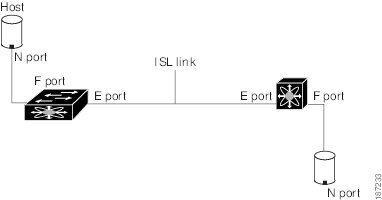
Figure 1. Switch Port Modes


Note


Interfaces are automatically assigned VSAN 1 by default.


Each interface has an associated administrative configuration and an operational status:

  • The administrative configuration does not change unless you modify it. This configuration has various attributes that you can configure in administrative mode.

  • The operational status represents the current status of a specified attribute such as the interface speed. This status cannot be changed and is read-only. Some values may not be valid when the interface is down (for example, the operational speed).

Related Information
Configuring and Managing VSANs
Configuring N Port Virtualization

E Port

In expansion port (E port) mode, an interface functions as a fabric expansion port. This port may be connected to another E port to create an Inter-Switch Link (ISL) between two switches. E ports carry frames between switches for configuration and fabric management. They serve as a conduit between switches for frames destined to remote N ports. E ports support class 3 and class F service.

An E port connected to another switch may also be configured to form a SAN port channel.

Related Information
Configuring SAN Port Channel

F Port

In fabric port (F port) mode, an interface functions as a fabric port. This port may be connected to a peripheral device (host or disk) operating as a node port (N port). An F port can be attached to only one N port. F ports support class 3 service.

NP Port

When the switch is operating in NPV mode, the interfaces that connect the switch to the core network switch are configured as NP ports. NP ports operate like N ports that function as proxies for multiple physical N ports.

Related Information
Configuring N Port Virtualization

TE Port

In trunking E port (TE port) mode, an interface functions as a trunking expansion port. It may be connected to another TE port to create an extended ISL (EISL) between two switches. TE ports connect to another Cisco Nexus 5000 Series switch or a Cisco MDS 9000 Family switch. They expand the functionality of E ports to support the following:

  • VSAN trunking

  • Fibre Channel trace (fctrace) feature

In TE port mode, all frames are transmitted in EISL frame format, which contains VSAN information. Interconnected switches use the VSAN ID to multiplex traffic from one or more VSANs across the same physical link. This feature is referred to as VSAN trunking in the Cisco Nexus 5000 Series switch. TE ports support class 3 and class F service.

Related Information
Configuring VSAN Trunking

SD Port

In SPAN destination port (SD port) mode, an interface functions as a switched port analyzer (SPAN). The SPAN feature monitors network traffic that passes though a Fibre Channel interface. This monitoring is done using a standard Fibre Channel analyzer (or a similar switch probe) that is attached to an SD port. SD ports do not receive frames, instead they transmit a copy of the source traffic. The SPAN feature is nonintrusive and does not affect switching of network traffic for any SPAN source ports.

Auto Mode

Interfaces configured in auto mode can operate in one of the following modes: F port, E port, or TE port. The port mode is determined during interface initialization. For example, if the interface is connected to a node (host or disk), it operates in F port mode. If the interface is attached to a third-party switch, it operates in E port mode. If the interface is attached to another switch in the Cisco Nexus 5000 Series or Cisco MDS 9000 Family, it may become operational in TE port mode.

SD ports are not determined during initialization and are administratively configured.

Related Information
Configuring VSAN Trunking

Interface States

The interface state depends on the administrative configuration of the interface and the dynamic state of the physical link.

Administrative States

The administrative state refers to the administrative configuration of the interface. The table below describes the administrative states.

Table 1 Administrative States

Administrative State

Description

Up

Interface is enabled.

Down

Interface is disabled. If you administratively disable an interface by shutting down that interface, the physical link layer state change is ignored.

Operational States

The operational state indicates the current operational state of the interface. The table below describes the operational states.

Table 2 Operational States

Operational State

Description

Up

Interface is transmitting or receiving traffic as desired. To be in this state, an interface must be administratively up, the interface link layer state must be up, and the interface initialization must be completed.

Down

Interface cannot transmit or receive (data) traffic.

Trunking

Interface is operational in TE mode.

Reason Codes

Reason codes are dependent on the operational state of the interface. The following table describes the reason codes for operational states.

Table 3  Reason Codes for Interface States

Administrative Configuration

Operational Status

Reason Code

Up

Up

None.

Down

Down

Administratively down. If you administratively configure an interface as down, you disable the interface. No traffic is received or transmitted.

Up

Down

See the table below.

If the administrative state is up and the operational state is down, the reason code differs based on the nonoperational reason code. The table below describes the reason codes for nonoperational states.


Note


Only some of the reason codes are listed in the table.


Table 4 Reason Codes for Nonoperational States

Reason Code (long version)

Description

Applicable Modes

Link failure or not connected

The physical layer link is not operational.

All

SFP not present

The small form-factor pluggable (SFP) hardware is not plugged in.

All

Initializing

The physical layer link is operational and the protocol initialization is in progress.

All

Reconfigure fabric in progress

The fabric is currently being reconfigured.

Offline

The switch software waits for the specified R_A_TOV time before retrying initialization.

Inactive

The interface VSAN is deleted or is in a suspended state.

To make the interface operational, assign that port to a configured and active VSAN.

Hardware failure

A hardware failure is detected.

Error disabled

Error conditions require administrative attention. Interfaces may be error-disabled for various reasons. For example:

  • Configuration failure.

  • Incompatible buffer-to-buffer credit configuration.

To make the interface operational, you must first fix the error conditions causing this state and then administratively shut down or enable the interface.

Isolation because limit of active port channels is exceeded.

The interface is isolated because the switch is already configured with the maximum number of active SAN port channels.

Isolation due to ELP failure

The port negotiation failed.

Only E ports and TE ports

Isolation due to ESC failure

The port negotiation failed.

Isolation due to domain overlap

The Fibre Channel domains (fcdomain) overlap.

Isolation due to domain ID assignment failure

The assigned domain ID is not valid.

Isolation due to the other side of the link E port isolated

The E port at the other end of the link is isolated.

Isolation due to invalid fabric reconfiguration

The port is isolated due to fabric reconfiguration.

Isolation due to domain manager disabled

The fcdomain feature is disabled.

Isolation due to zone merge failure

The zone merge operation failed.

Isolation due to VSAN mismatch

The VSANs at both ends of an ISL are different.

port channel administratively down

The interfaces belonging to the SAN port channel are down.

Only SAN port channel interfaces

Suspended due to incompatible speed

The interfaces belonging to the SAN port channel have incompatible speeds.

Suspended due to incompatible mode

The interfaces belonging to the SAN port channel have incompatible modes.

Suspended due to incompatible remote switch WWN

An improper connection is detected. All interfaces in a SAN port channel must be connected to the same pair of switches.

Bound physical interface down

The Ethernet interface bound to a virtual Fibre Channel interface is not operational.

Only virtual Fibre Channel interfaces

STP not forwarding in FCoE mapped VLAN

The Ethernet interface bound to a virtual Fibre Channel interface is not in an STP forwarding state for the VLAN associated with the virtual Fibre Channel interface

Only virtual Fibre Channel interfaces

Buffer-to-Buffer Credits

Buffer-to-buffer credits (BB_credits) are a flow-control mechanism to ensure that Fibre Channel interfaces do not drop frames. BB_credits are negotiated on a per-hop basis.

In Cisco Nexus 5000 Series switches, the BB_credit mechanism is used on Fibre Channel interfaces but not on virtual Fibre Channel interfaces. Virtual Fibre Channel interfaces provide flow control based on capabilities of the underlying physical Ethernet interface.

The receive BB_credit value (fcrxbbcredit) may be configured for each Fibre Channel interface. In most cases, you do not need to modify the default configuration.


Note


The receive BB_credit values depend on the port mode. For physical Fibre Channel interfaces, the default value is 16 for F mode and E mode interfaces. This value can be changed as required. The maximum value is 64.

For virtual Fibre Channel interfaces, BB_credits are not used.


Configuring Fibre Channel Interfaces

Configuring a Fibre Channel Interface

To configure a Fibre Channel interface, perform this task:

SUMMARY STEPS

    1.    switch# configuration terminal

    2.    switch(config)# interface {fc slot/port}|{vfc vfc-id}


DETAILED STEPS
     Command or ActionPurpose
    Step 1 switch# configuration terminal
     

    Enters configuration mode.

     
    Step 2 switch(config)# interface {fc slot/port}|{vfc vfc-id}
     

    Selects a Fibre Channel interface and enters interface configuration mode.

    Note   

    When a Fibre Channel interface is configured, it is automatically assigned a unique world wide name (WWN). If the interface’s operational state is up, it is also assigned a Fibre Channel ID (FC ID).


    Configuring a Range of Fibre Channel Interfaces

    To configure a range of Fibre Channel interfaces, perform this task:

    SUMMARY STEPS

      1.    switch# configuration terminal

      2.    switch(config)# interface { fc slot/port - port [ , fc slot/port - port ] | vfc vfc-id - vfc-id [ , vfc vfc-id - vfc-id ] }


    DETAILED STEPS
       Command or ActionPurpose
      Step 1 switch# configuration terminal
       

      Enters configuration mode.

       
      Step 2 switch(config)# interface { fc slot/port - port [ , fc slot/port - port ] | vfc vfc-id - vfc-id [ , vfc vfc-id - vfc-id ] }
       

      Selects the range of Fibre Channel interfaces and enters interface configuration mode.


      Setting the Interface Administrative State

      To gracefully shut down an interface, perform this task:

      To enable traffic flow, perform this task:

      SUMMARY STEPS

        1.    switch# configuration terminal

        2.    switch(config)# interface {fc slot/port}|{vfc vfc-id}

        3.    switch(config-if)# shutdown


      DETAILED STEPS
         Command or ActionPurpose
        Step 1 switch# configuration terminal
         

        Enters configuration mode.

         
        Step 2 switch(config)# interface {fc slot/port}|{vfc vfc-id}
         

        Selects a Fibre Channel interface and enters interface configuration mode.

         
        Step 3 switch(config-if)# shutdown
         

        Gracefully shuts down the interface and administratively disables traffic flow (default).


        Configuring Interface Modes

        To configure the interface mode, perform this task:

        SUMMARY STEPS

          1.    switch# configuration terminal

          2.    switch(config)# interface {fc slot/port}|{vfc vfc-id}

          3.    switch(config-if)# switchport mode E | F | SD | auto


        DETAILED STEPS
           Command or ActionPurpose
          Step 1 switch# configuration terminal
           

          Enters configuration mode.

           
          Step 2 switch(config)# interface {fc slot/port}|{vfc vfc-id}
           

          Selects a Fibre Channel interface and enters interface configuration mode.

           
          Step 3 switch(config-if)# switchport mode E | F | SD | auto
           

          For a Fibre Channel interface, you can set the mode to E, F, or SD port mode. Set the mode to auto to auto-negotiate an E, F, TE port mode (not SD port mode) of operation.

          Note   

          SD ports cannot be configured automatically. They must be administratively configured.

          For a virtual Fibre Channel, only the F port mode is supported.


          Configuring the Interface Description

          Interface descriptions should help you identify the traffic or use for that interface. The interface description can be any alphanumeric string.

          To configure a description for an interface, perform this task:

          SUMMARY STEPS

            1.    switch# configuration terminal

            2.    switch(config)# interface {fc slot/port}|{vfc vfc-id}

            3.    switch(config-if)# switchport description cisco-HBA2

            4.    switch(config-if)# no switchport description


          DETAILED STEPS
             Command or ActionPurpose
            Step 1 switch# configuration terminal
             

            Enters configuration mode.

             
            Step 2 switch(config)# interface {fc slot/port}|{vfc vfc-id}
             

            Selects a Fibre Channel interface and enters interface configuration mode.

             
            Step 3 switch(config-if)# switchport description cisco-HBA2
             

            Configures the description of the interface. The string can be up to 80 characters long.

             
            Step 4 switch(config-if)# no switchport description
             

            Clears the description of the interface.


            Configuring Port Speeds

            Port speed can be configured on a physical Fibre Channel interface but not on a virtual Fibre Channel interface. By default, the port speed for an interface is automatically calculated by the switch.


            Caution


            Changing the interface speed is a disruptive operation.


            To configure the port speed of the interface, perform this task:

            SUMMARY STEPS

              1.    switch# configuration terminal

              2.    switch(config)# interface fc slot/port

              3.    switch(config-if)# switchport speed 1000

              4.    switch(config-if)# no switchport speed


            DETAILED STEPS
               Command or ActionPurpose
              Step 1 switch# configuration terminal
               

              Enters configuration mode.

               
              Step 2 switch(config)# interface fc slot/port
               

              Selects the specified interface and enters interface configuration mode.

              Note   

              You cannot configure the port speed of a virtual Fibre Channel interface.

               
              Step 3 switch(config-if)# switchport speed 1000
               

              Configures the port speed of the interface to 1000 Mbps.

              The number indicates the speed in megabits per second (Mbps). You can set the speed to 1000 (for 1-Gbps interfaces), 2000 (for 2-Gbps interfaces), 4000 (for 4-Gbps interfaces), or auto (default).

               
              Step 4 switch(config-if)# no switchport speed
               

              Reverts to the factory default (auto) administrative speed of the interface.


              Autosensing

              Autosensing speed is enabled on all 4-Gbps interfaces by default. This configuration enables the interfaces to operate at speeds of 1 Gbps, 2 Gbps, or 4 Gbps on the 4-Gbps ports. When autosensing is enabled for an interface operating in dedicated rate mode, 4-Gbps of bandwidth is reserved, even if the port negotiates at an operating speed of 1-Gbps or 2-Gbps.

              Configuring SD Port Frame Encapsulation

              The switchport encap eisl command only applies to SD port interfaces. This command determines the frame format for all frames transmitted by the interface in SD port mode. If the encapsulation is set to EISL, all outgoing frames are transmitted in the EISL frame format, for all SPAN sources.

              The switchport encap eisl command is disabled by default. If you enable encapsulation, all outgoing frames are encapsulated, and you will see a new line (Encapsulation is eisl) in the show interface SD_port_interface command output.

              Configuring Receive Data Field Size

              You can configure the receive data field size for native Fibre Channel interfaces (but not for virtual Fibre Channel interfaces). If the default data field size is 2112 bytes, the frame length will be 2148 bytes.

              To configure the receive data field size, perform this task:

              SUMMARY STEPS

                1.    switch# configuration terminal

                2.    switch(config)# interface fc slot/port

                3.    switch(config-if)# switchport fcrxbufsize 2000


              DETAILED STEPS
                 Command or ActionPurpose
                Step 1 switch# configuration terminal
                 

                Enters configuration mode.

                 
                Step 2 switch(config)# interface fc slot/port
                 

                Selects a Fibre Channel interface and enters interface configuration mode.

                 
                Step 3 switch(config-if)# switchport fcrxbufsize 2000
                 

                Reduces the data field size for the selected interface to 2000 bytes. The default is 2112 bytes and the range is from 256 to 2112 bytes.


                Understanding Bit Error Thresholds

                The bit error rate threshold is used by the switch to detect an increased error rate before performance degradation seriously affects traffic.

                The bit errors can occur for the following reasons:

                • Faulty or bad cable.
                • Faulty or bad GBIC or SFP.
                • GBIC or SFP is specified to operate at 1 Gbps but is used at 2 Gbps.
                • GBIC or SFP is specified to operate at 2 Gbps but is used at 4 Gbps.
                • Short haul cable is used for long haul or long haul cable is used for short haul.
                • Momentary synchronization loss.
                • Loose cable connection at one or both ends.
                • Improper GBIC or SFP connection at one or both ends.

                A bit error rate threshold is detected when 15 error bursts occur in a 5-minute period. By default, the switch disables the interface when the threshold is reached.

                You can enter the shutdown/no shutdown command sequence to reenable the interface.

                You can configure the switch to not disable an interface when the threshold is crossed.


                Note


                The switch generates a syslog message when bit error threshold events are detected, even if the interface is configured not to be disabled by bit-error threshold events.


                To disable the bit error threshold for an interface, perform this task:

                SUMMARY STEPS

                  1.    switch# configuration terminal

                  2.    switch(config)# interface fc slot/port

                  3.    switch(config-if)# switchport ignore bit-errors

                  4.    switch(config-if)# no switchport ignore bit-errors


                DETAILED STEPS
                   Command or ActionPurpose
                  Step 1 switch# configuration terminal
                   

                  Enters configuration mode.

                   
                  Step 2 switch(config)# interface fc slot/port
                   

                  Selects a Fibre Channel interface and enters interface configuration mode.

                   
                  Step 3 switch(config-if)# switchport ignore bit-errors
                   

                  Prevents the detection of bit error threshold events from disabling the interface.

                   
                  Step 4 switch(config-if)# no switchport ignore bit-errors
                   

                  Prevents the detection of bit error threshold events from enabling the interface.


                  Configuring Buffer-to-Buffer Credits

                  To configure BB_credits for a Fibre Channel interface, perform this task:

                  SUMMARY STEPS

                    1.    switch# configuration terminal

                    2.    switch(config)# interface fc slot/port

                    3.    switch(config-if)# switchport fcrxbbcredit default

                    4.    switch(config-if)# switchport fcrxbbcredit 5

                    5.    switch(config-if)# switchport fcrxbbcredit 5 mode E

                    6.    switch(config-if)# switchport fcrxbbcredit 5 mode Fx

                    7.    switch(config-if# do show int fc slot/port


                  DETAILED STEPS
                     Command or ActionPurpose
                    Step 1 switch# configuration terminal
                     

                    Enters configuration mode.

                     
                    Step 2 switch(config)# interface fc slot/port
                     

                    Selects a Fibre Channel interface and enters interface configuration mode.

                     
                    Step 3 switch(config-if)# switchport fcrxbbcredit default
                     

                    Applies the default operational value to the selected interface. The operational value depends on the port mode. The default values are assigned based on the port capabilities.

                     
                    Step 4 switch(config-if)# switchport fcrxbbcredit 5
                     

                    Assigns a BB_credit of 5 to the selected interface. The range to assign BB_credits is between 1 and 64.

                     
                    Step 5 switch(config-if)# switchport fcrxbbcredit 5 mode E
                     

                    Assigns this value if the port is operating in E or TE mode. The range to assign BB_credits is between 1 and 64.

                     
                    Step 6 switch(config-if)# switchport fcrxbbcredit 5 mode Fx
                     

                    Assigns this value if the port is operating in F mode. The range to assign BB_credits is between 1 and 64.

                     
                    Step 7 switch(config-if# do show int fc slot/port
                     

                    Displays the receive and transmit BB_credit along with other pertinent interface information for this interface.

                    Note   

                    The BB_credit values are correct at the time the registers are read. They are useful to verify situations when the data traffic is slow.


                    Configuring Global Attributes for Fibre Channel Interfaces

                    Configuring Switch Port Attribute Default Values

                    You can configure attribute default values for various switch port attributes. These attributes will be applied globally to all future switch port configurations, even if you do not individually specify them at that time.

                    To configure switch port attributes, perform this task:

                    SUMMARY STEPS

                      1.    switch# configuration terminal

                      2.    switch(config)# no system default switchport shutdown san

                      3.    switch(config)# system default switchport shutdown san

                      4.    switch(config)# system default switchport trunk mode auto


                    DETAILED STEPS
                       Command or ActionPurpose
                      Step 1 switch# configuration terminal
                       

                      Enters configuration mode.

                       
                      Step 2 switch(config)# no system default switchport shutdown san
                       

                      Configures the default setting for administrative state of an interface as Up. (The factory default setting is Down).

                      Tip   

                      This command is applicable only to interfaces for which no user configuration exists for the administrative state.

                       
                      Step 3 switch(config)# system default switchport shutdown san
                       

                      Configures the default setting for administrative state of an interface as Down. This is the factory default setting.

                      Tip   

                      This command is applicable only to interfaces for which no user configuration exists for the administrative state.

                       
                      Step 4 switch(config)# system default switchport trunk mode auto
                       

                      Configures the default setting for administrative trunk mode state of an interface as Auto.

                      Note   

                      The default setting is trunk mode on.


                      About N Port Identifier Virtualization

                      N port identifier virtualization (NPIV) provides a means to assign multiple FC IDs to a single N port. This feature allows multiple applications on the N port to use different identifiers and allows access control, zoning, and port security to be implemented at the application level. The following figure shows an example application using NPIV.
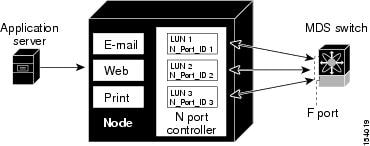
                      Figure 2. NPIV Example

                      Enabling N Port Identifier Virtualization

                      To enable or disable NPIV on the switch, perform this task:

                      Before You Begin

                      You must globally enable NPIV for all VSANs on the switch to allow the NPIV-enabled applications to use multiple N port identifiers.


                      Note


                      All of the N port identifiers are allocated in the same VSAN.


                      SUMMARY STEPS

                        1.    switch# configuration terminal

                        2.    switch(config)# feature npiv

                        3.    switch(config)# no npiv enable


                      DETAILED STEPS
                         Command or ActionPurpose
                        Step 1 switch# configuration terminal
                         

                        Enters configuration mode.

                         
                        Step 2 switch(config)# feature npiv
                         

                        Enables NPIV for all VSANs on the switch.

                         
                        Step 3 switch(config)# no npiv enable
                         

                        Disables (default) NPIV on the switch.


                        Verifying Fibre Channel Interfaces

                        Verifying SFP Transmitter Types

                        The SPF transmitter type can be displayed for a physical Fibre Channel interface (but not for a virtual Fibre Channel).

                        The small form-factor pluggable (SFP) hardware transmitters are identified by their acronyms when displayed in the show interface brief command. If the related SFP has a Cisco-assigned extended ID, then the show interface and show interface brief commands display the ID instead of the transmitter type. The show interface transceiver command and the show interface fc slot/port transceiver command display both values for Cisco supported SFPs.

                        Verifying Interface Information

                        The show interface command displays interface configurations. If no arguments are provided, this command displays the information for all the configured interfaces in the switch.

                        You can also specify arguments (a range of interfaces or multiple, specified interfaces) to display interface information. You can specify a range of interfaces by entering a command with the following example format:

                        interface fc2/1 - 4 , fc3/2 - 3
                        

                        The following example shows how to display all interfaces:

                        switch# show interface
                        
                        fc3/1 is up
                        ...
                        fc3/3 is up
                        ...
                        Ethernet1/3 is up
                        ...
                        mgmt0 is up
                        ...
                        vethernet1/1 is up
                        ...
                        vfc 1 is up
                        ...

                        The following example shows how to display multiple specified interfaces:

                        switch# show interface fc3/1 , fc3/3
                        
                        fc3/1 is up
                        ...
                        fc3/3 is up
                        ...

                        The following example shows how to display a specific interface:

                        switch# show interface vfc 1
                        
                        vfc 1 is up
                        ...

                        The following example shows how to display interface descriptions:

                        switch# show interface description
                        
                        -------------------------------------------------------------------------------
                        Interface          Description
                        -------------------------------------------------------------------------------
                        fc3/1              test intest
                        Ethernet1/1              --
                        vfc 1              --
                        ...

                        The following example shows how to display all interfaces in brief:

                        switch# show interface brief
                        

                        The following example shows how to display interface counters:

                        switch# show interface counters
                        

                        The following example shows how to display transceiver information for a specific interface:

                        switch# show interface fc3/1 transceiver
                        

                        Note


                        The show interface transceiver command is only valid if the SFP is present.


                        The show running-configuration command displays the entire running configuration with information for all interfaces. The interfaces have multiple entries in the configuration files to ensure that the interface configuration commands execute in the correct order when the switch reloads. If you display the running configuration for a specific interface, all the configuration commands for that interface are grouped together.

                        The following example shows the interface display when showing the running configuration for all interfaces:

                        switch# show running configuration
                        
                        ...
                        interface fc3/5
                          switchport speed 2000
                        ...
                        interface fc3/5
                          switchport mode E 
                        ...
                        interface fc3/5
                          channel-group 11 force
                          no shutdown

                        The following example shows the interface display when showing the running configuration for a specific interface:

                        switch# show running configuration fc3/5
                        
                        interface fc3/5
                          switchport speed 2000
                          switchport mode E
                          channel-group 11 force
                          no shutdown

                        Verifying BB_Credit Information

                        The following example shows how to display the BB_credit information for all Fibre Channel interfaces:

                        switch# show interface bbcredit
                        
                        ...
                        fc2/3 is trunking
                            Transmit B2B Credit is 255
                            Receive B2B Credit is 12
                            Receive B2B Credit performance buffers is 375
                              12 receive B2B credit remaining
                              255 transmit B2B credit remaining

                        Default Fibre Channel Interface Settings

                        The following table lists the default settings for native Fibre Channel interface parameters.

                        Table 5  Default Native Fibre Channel Interface Parameters

                        Parameters

                        Default

                        Interface mode

                        Auto

                        Interface speed

                        Auto

                        Administrative state

                        Shutdown (unless changed during initial setup)

                        Trunk mode

                        On (unless changed during initial setup)

                        Trunk-allowed VSANs

                        1 to 4093

                        Interface VSAN

                        Default VSAN (1)

                        Beacon mode

                        Off (disabled)

                        EISL encapsulation

                        Disabled

                        Data field size

                        2112 bytes

                        The following table lists the default settings for virtual Fibre Channel interface parameters.

                        Table 6  Default Virtual Fibre Channel Interface Parameters

                        Parameters

                        Default

                        Interface mode

                        Auto

                        Interface speed

                        n/a

                        Administrative state

                        Shutdown (unless changed during initial setup)

                        Trunk mode

                        n/a

                        Trunk-allowed VSANs

                        n/a

                        Interface VSAN

                        Default VSAN (1)

                        EISL encapsulation

                        n/a

                        Data field size

                        n/a


                        Configuring Fibre Channel Interfaces

                        Contents

                        Configuring Fibre Channel Interfaces

                        This chapter contains the following sections:

                        Configuring Fibre Channel Interfaces

                        Information About Fibre Channel Interfaces

                        Licensing Requirements for Fibre Channel

                        On Cisco Nexus 5000 Series switches, Fibre Channel capability is included in the Storage Protocol Services license.

                        Ensure that you have the correct license installed (N5010SS or N5020SS) before using Fibre Channel interfaces and capabilities.


                        Note


                        You can configure virtual Fibre Channel interfaces without a Storage Protocol Services license, but these interfaces will not become operational until the license is activated.


                        Physical Fibre Channel Interfaces

                        Cisco Nexus 5000 Series switches provide up to sixteen physical Fibre Channel uplinks. The Fibre Channel interfaces are supported on optional expansion modules. The Fibre Channel expansion module contains eight Fibre Channel interfaces. The Fibre Channel plus Ethernet expansion module contains four Fibre Channel interfaces.

                        Each Fibre Channel port can be used as a downlink (connected to a server) or as an uplink (connected to the data center SAN network). The Fibre Channel interfaces support the following modes: F, NP, E, TE, and SD.

                        Virtual Fibre Channel Interfaces

                        Fibre Channel over Ethernet (FCoE) encapsulation allows a physical Ethernet cable to simultaneously carry Fibre Channel and Ethernet traffic. In Cisco Nexus 5000 Series switches, an FCoE-capable physical Ethernet interface can carry traffic for one virtual Fibre Channel interface.

                        Native Fibre Channel and virtual Fibre Channel interfaces are configured using the same CLI commands. Virtual Fibre Channel interfaces support only F mode, and offer a subset of the features that are supported on native Fibre Channel interfaces.

                        The following capabilities are not supported for virtual Fibre Channel interfaces:

                        • SAN port channels.

                        • VSAN trunking. The virtual Fibre Channel is associated with one VSAN.

                        • The SPAN destination cannot be a virtual Fibre Channel interface.

                        • Buffer-to-buffer credits.

                        • Exchange link parameters (ELP), or Fabric Shortest Path First (FSPF) protocol.

                        • Configuration of physical attributes (speed, rate, mode, transmitter information, MTU size).

                        • Port tracking.

                        Interface Modes

                        Each physical Fibre Channel interface in a switch may operate in one of several port modes: E mode, TE mode, F mode, and SD mode (see the figure below). A physical Fibre Channel interface can be configured as an E port, an F port, or an SD port. Interfaces may also be configured in Auto mode; the port type is determined during interface initialization.

                        In NPV mode, Fibre Channel interfaces may operate in NP mode, F mode or SD mode.

                        Virtual Fibre Channel interfaces can only be configured in F mode.

                        Figure 1. Switch Port Modes


                        Note


                        Interfaces are automatically assigned VSAN 1 by default.


                        Each interface has an associated administrative configuration and an operational status:

                        • The administrative configuration does not change unless you modify it. This configuration has various attributes that you can configure in administrative mode.

                        • The operational status represents the current status of a specified attribute such as the interface speed. This status cannot be changed and is read-only. Some values may not be valid when the interface is down (for example, the operational speed).

                        E Port

                        In expansion port (E port) mode, an interface functions as a fabric expansion port. This port may be connected to another E port to create an Inter-Switch Link (ISL) between two switches. E ports carry frames between switches for configuration and fabric management. They serve as a conduit between switches for frames destined to remote N ports. E ports support class 3 and class F service.

                        An E port connected to another switch may also be configured to form a SAN port channel.

                        Related Information

                        F Port

                        In fabric port (F port) mode, an interface functions as a fabric port. This port may be connected to a peripheral device (host or disk) operating as a node port (N port). An F port can be attached to only one N port. F ports support class 3 service.

                        NP Port

                        When the switch is operating in NPV mode, the interfaces that connect the switch to the core network switch are configured as NP ports. NP ports operate like N ports that function as proxies for multiple physical N ports.

                        TE Port

                        In trunking E port (TE port) mode, an interface functions as a trunking expansion port. It may be connected to another TE port to create an extended ISL (EISL) between two switches. TE ports connect to another Cisco Nexus 5000 Series switch or a Cisco MDS 9000 Family switch. They expand the functionality of E ports to support the following:

                        • VSAN trunking

                        • Fibre Channel trace (fctrace) feature

                        In TE port mode, all frames are transmitted in EISL frame format, which contains VSAN information. Interconnected switches use the VSAN ID to multiplex traffic from one or more VSANs across the same physical link. This feature is referred to as VSAN trunking in the Cisco Nexus 5000 Series switch. TE ports support class 3 and class F service.

                        Related Information

                        SD Port

                        In SPAN destination port (SD port) mode, an interface functions as a switched port analyzer (SPAN). The SPAN feature monitors network traffic that passes though a Fibre Channel interface. This monitoring is done using a standard Fibre Channel analyzer (or a similar switch probe) that is attached to an SD port. SD ports do not receive frames, instead they transmit a copy of the source traffic. The SPAN feature is nonintrusive and does not affect switching of network traffic for any SPAN source ports.

                        Auto Mode

                        Interfaces configured in auto mode can operate in one of the following modes: F port, E port, or TE port. The port mode is determined during interface initialization. For example, if the interface is connected to a node (host or disk), it operates in F port mode. If the interface is attached to a third-party switch, it operates in E port mode. If the interface is attached to another switch in the Cisco Nexus 5000 Series or Cisco MDS 9000 Family, it may become operational in TE port mode.

                        SD ports are not determined during initialization and are administratively configured.

                        Related Information

                        Interface States

                        The interface state depends on the administrative configuration of the interface and the dynamic state of the physical link.

                        Administrative States

                        The administrative state refers to the administrative configuration of the interface. The table below describes the administrative states.

                        Table 1 Administrative States

                        Administrative State

                        Description

                        Up

                        Interface is enabled.

                        Down

                        Interface is disabled. If you administratively disable an interface by shutting down that interface, the physical link layer state change is ignored.

                        Operational States

                        The operational state indicates the current operational state of the interface. The table below describes the operational states.

                        Table 2 Operational States

                        Operational State

                        Description

                        Up

                        Interface is transmitting or receiving traffic as desired. To be in this state, an interface must be administratively up, the interface link layer state must be up, and the interface initialization must be completed.

                        Down

                        Interface cannot transmit or receive (data) traffic.

                        Trunking

                        Interface is operational in TE mode.

                        Reason Codes

                        Reason codes are dependent on the operational state of the interface. The following table describes the reason codes for operational states.

                        Table 3  Reason Codes for Interface States

                        Administrative Configuration

                        Operational Status

                        Reason Code

                        Up

                        Up

                        None.

                        Down

                        Down

                        Administratively down. If you administratively configure an interface as down, you disable the interface. No traffic is received or transmitted.

                        Up

                        Down

                        See the table below.

                        If the administrative state is up and the operational state is down, the reason code differs based on the nonoperational reason code. The table below describes the reason codes for nonoperational states.


                        Note


                        Only some of the reason codes are listed in the table.


                        Table 4 Reason Codes for Nonoperational States

                        Reason Code (long version)

                        Description

                        Applicable Modes

                        Link failure or not connected

                        The physical layer link is not operational.

                        All

                        SFP not present

                        The small form-factor pluggable (SFP) hardware is not plugged in.

                        All

                        Initializing

                        The physical layer link is operational and the protocol initialization is in progress.

                        All

                        Reconfigure fabric in progress

                        The fabric is currently being reconfigured.

                        Offline

                        The switch software waits for the specified R_A_TOV time before retrying initialization.

                        Inactive

                        The interface VSAN is deleted or is in a suspended state.

                        To make the interface operational, assign that port to a configured and active VSAN.

                        Hardware failure

                        A hardware failure is detected.

                        Error disabled

                        Error conditions require administrative attention. Interfaces may be error-disabled for various reasons. For example:

                        • Configuration failure.

                        • Incompatible buffer-to-buffer credit configuration.

                        To make the interface operational, you must first fix the error conditions causing this state and then administratively shut down or enable the interface.

                        Isolation because limit of active port channels is exceeded.

                        The interface is isolated because the switch is already configured with the maximum number of active SAN port channels.

                        Isolation due to ELP failure

                        The port negotiation failed.

                        Only E ports and TE ports

                        Isolation due to ESC failure

                        The port negotiation failed.

                        Isolation due to domain overlap

                        The Fibre Channel domains (fcdomain) overlap.

                        Isolation due to domain ID assignment failure

                        The assigned domain ID is not valid.

                        Isolation due to the other side of the link E port isolated

                        The E port at the other end of the link is isolated.

                        Isolation due to invalid fabric reconfiguration

                        The port is isolated due to fabric reconfiguration.

                        Isolation due to domain manager disabled

                        The fcdomain feature is disabled.

                        Isolation due to zone merge failure

                        The zone merge operation failed.

                        Isolation due to VSAN mismatch

                        The VSANs at both ends of an ISL are different.

                        port channel administratively down

                        The interfaces belonging to the SAN port channel are down.

                        Only SAN port channel interfaces

                        Suspended due to incompatible speed

                        The interfaces belonging to the SAN port channel have incompatible speeds.

                        Suspended due to incompatible mode

                        The interfaces belonging to the SAN port channel have incompatible modes.

                        Suspended due to incompatible remote switch WWN

                        An improper connection is detected. All interfaces in a SAN port channel must be connected to the same pair of switches.

                        Bound physical interface down

                        The Ethernet interface bound to a virtual Fibre Channel interface is not operational.

                        Only virtual Fibre Channel interfaces

                        STP not forwarding in FCoE mapped VLAN

                        The Ethernet interface bound to a virtual Fibre Channel interface is not in an STP forwarding state for the VLAN associated with the virtual Fibre Channel interface

                        Only virtual Fibre Channel interfaces

                        Buffer-to-Buffer Credits

                        Buffer-to-buffer credits (BB_credits) are a flow-control mechanism to ensure that Fibre Channel interfaces do not drop frames. BB_credits are negotiated on a per-hop basis.

                        In Cisco Nexus 5000 Series switches, the BB_credit mechanism is used on Fibre Channel interfaces but not on virtual Fibre Channel interfaces. Virtual Fibre Channel interfaces provide flow control based on capabilities of the underlying physical Ethernet interface.

                        The receive BB_credit value (fcrxbbcredit) may be configured for each Fibre Channel interface. In most cases, you do not need to modify the default configuration.


                        Note


                        The receive BB_credit values depend on the port mode. For physical Fibre Channel interfaces, the default value is 16 for F mode and E mode interfaces. This value can be changed as required. The maximum value is 64.

                        For virtual Fibre Channel interfaces, BB_credits are not used.


                        Configuring Fibre Channel Interfaces

                        Configuring a Fibre Channel Interface

                        To configure a Fibre Channel interface, perform this task:

                        SUMMARY STEPS

                          1.    switch# configuration terminal

                          2.    switch(config)# interface {fc slot/port}|{vfc vfc-id}


                        DETAILED STEPS
                           Command or ActionPurpose
                          Step 1 switch# configuration terminal
                           

                          Enters configuration mode.

                           
                          Step 2 switch(config)# interface {fc slot/port}|{vfc vfc-id}
                           

                          Selects a Fibre Channel interface and enters interface configuration mode.

                          Note   

                          When a Fibre Channel interface is configured, it is automatically assigned a unique world wide name (WWN). If the interface’s operational state is up, it is also assigned a Fibre Channel ID (FC ID).


                          Configuring a Range of Fibre Channel Interfaces

                          To configure a range of Fibre Channel interfaces, perform this task:

                          SUMMARY STEPS

                            1.    switch# configuration terminal

                            2.    switch(config)# interface { fc slot/port - port [ , fc slot/port - port ] | vfc vfc-id - vfc-id [ , vfc vfc-id - vfc-id ] }


                          DETAILED STEPS
                             Command or ActionPurpose
                            Step 1 switch# configuration terminal
                             

                            Enters configuration mode.

                             
                            Step 2 switch(config)# interface { fc slot/port - port [ , fc slot/port - port ] | vfc vfc-id - vfc-id [ , vfc vfc-id - vfc-id ] }
                             

                            Selects the range of Fibre Channel interfaces and enters interface configuration mode.


                            Setting the Interface Administrative State

                            To gracefully shut down an interface, perform this task:

                            To enable traffic flow, perform this task:

                            SUMMARY STEPS

                              1.    switch# configuration terminal

                              2.    switch(config)# interface {fc slot/port}|{vfc vfc-id}

                              3.    switch(config-if)# shutdown


                            DETAILED STEPS
                               Command or ActionPurpose
                              Step 1 switch# configuration terminal
                               

                              Enters configuration mode.

                               
                              Step 2 switch(config)# interface {fc slot/port}|{vfc vfc-id}
                               

                              Selects a Fibre Channel interface and enters interface configuration mode.

                               
                              Step 3 switch(config-if)# shutdown
                               

                              Gracefully shuts down the interface and administratively disables traffic flow (default).


                              Configuring Interface Modes

                              To configure the interface mode, perform this task:

                              SUMMARY STEPS

                                1.    switch# configuration terminal

                                2.    switch(config)# interface {fc slot/port}|{vfc vfc-id}

                                3.    switch(config-if)# switchport mode E | F | SD | auto


                              DETAILED STEPS
                                 Command or ActionPurpose
                                Step 1 switch# configuration terminal
                                 

                                Enters configuration mode.

                                 
                                Step 2 switch(config)# interface {fc slot/port}|{vfc vfc-id}
                                 

                                Selects a Fibre Channel interface and enters interface configuration mode.

                                 
                                Step 3 switch(config-if)# switchport mode E | F | SD | auto
                                 

                                For a Fibre Channel interface, you can set the mode to E, F, or SD port mode. Set the mode to auto to auto-negotiate an E, F, TE port mode (not SD port mode) of operation.

                                Note   

                                SD ports cannot be configured automatically. They must be administratively configured.

                                For a virtual Fibre Channel, only the F port mode is supported.


                                Configuring the Interface Description

                                Interface descriptions should help you identify the traffic or use for that interface. The interface description can be any alphanumeric string.

                                To configure a description for an interface, perform this task:

                                SUMMARY STEPS

                                  1.    switch# configuration terminal

                                  2.    switch(config)# interface {fc slot/port}|{vfc vfc-id}

                                  3.    switch(config-if)# switchport description cisco-HBA2

                                  4.    switch(config-if)# no switchport description


                                DETAILED STEPS
                                   Command or ActionPurpose
                                  Step 1 switch# configuration terminal
                                   

                                  Enters configuration mode.

                                   
                                  Step 2 switch(config)# interface {fc slot/port}|{vfc vfc-id}
                                   

                                  Selects a Fibre Channel interface and enters interface configuration mode.

                                   
                                  Step 3 switch(config-if)# switchport description cisco-HBA2
                                   

                                  Configures the description of the interface. The string can be up to 80 characters long.

                                   
                                  Step 4 switch(config-if)# no switchport description
                                   

                                  Clears the description of the interface.


                                  Configuring Port Speeds

                                  Port speed can be configured on a physical Fibre Channel interface but not on a virtual Fibre Channel interface. By default, the port speed for an interface is automatically calculated by the switch.


                                  Caution


                                  Changing the interface speed is a disruptive operation.


                                  To configure the port speed of the interface, perform this task:

                                  SUMMARY STEPS

                                    1.    switch# configuration terminal

                                    2.    switch(config)# interface fc slot/port

                                    3.    switch(config-if)# switchport speed 1000

                                    4.    switch(config-if)# no switchport speed


                                  DETAILED STEPS
                                     Command or ActionPurpose
                                    Step 1 switch# configuration terminal
                                     

                                    Enters configuration mode.

                                     
                                    Step 2 switch(config)# interface fc slot/port
                                     

                                    Selects the specified interface and enters interface configuration mode.

                                    Note   

                                    You cannot configure the port speed of a virtual Fibre Channel interface.

                                     
                                    Step 3 switch(config-if)# switchport speed 1000
                                     

                                    Configures the port speed of the interface to 1000 Mbps.

                                    The number indicates the speed in megabits per second (Mbps). You can set the speed to 1000 (for 1-Gbps interfaces), 2000 (for 2-Gbps interfaces), 4000 (for 4-Gbps interfaces), or auto (default).

                                     
                                    Step 4 switch(config-if)# no switchport speed
                                     

                                    Reverts to the factory default (auto) administrative speed of the interface.


                                    Autosensing

                                    Autosensing speed is enabled on all 4-Gbps interfaces by default. This configuration enables the interfaces to operate at speeds of 1 Gbps, 2 Gbps, or 4 Gbps on the 4-Gbps ports. When autosensing is enabled for an interface operating in dedicated rate mode, 4-Gbps of bandwidth is reserved, even if the port negotiates at an operating speed of 1-Gbps or 2-Gbps.

                                    Configuring SD Port Frame Encapsulation

                                    The switchport encap eisl command only applies to SD port interfaces. This command determines the frame format for all frames transmitted by the interface in SD port mode. If the encapsulation is set to EISL, all outgoing frames are transmitted in the EISL frame format, for all SPAN sources.

                                    The switchport encap eisl command is disabled by default. If you enable encapsulation, all outgoing frames are encapsulated, and you will see a new line (Encapsulation is eisl) in the show interface SD_port_interface command output.

                                    Configuring Receive Data Field Size

                                    You can configure the receive data field size for native Fibre Channel interfaces (but not for virtual Fibre Channel interfaces). If the default data field size is 2112 bytes, the frame length will be 2148 bytes.

                                    To configure the receive data field size, perform this task:

                                    SUMMARY STEPS

                                      1.    switch# configuration terminal

                                      2.    switch(config)# interface fc slot/port

                                      3.    switch(config-if)# switchport fcrxbufsize 2000


                                    DETAILED STEPS
                                       Command or ActionPurpose
                                      Step 1 switch# configuration terminal
                                       

                                      Enters configuration mode.

                                       
                                      Step 2 switch(config)# interface fc slot/port
                                       

                                      Selects a Fibre Channel interface and enters interface configuration mode.

                                       
                                      Step 3 switch(config-if)# switchport fcrxbufsize 2000
                                       

                                      Reduces the data field size for the selected interface to 2000 bytes. The default is 2112 bytes and the range is from 256 to 2112 bytes.


                                      Understanding Bit Error Thresholds

                                      The bit error rate threshold is used by the switch to detect an increased error rate before performance degradation seriously affects traffic.

                                      The bit errors can occur for the following reasons:

                                      • Faulty or bad cable.
                                      • Faulty or bad GBIC or SFP.
                                      • GBIC or SFP is specified to operate at 1 Gbps but is used at 2 Gbps.
                                      • GBIC or SFP is specified to operate at 2 Gbps but is used at 4 Gbps.
                                      • Short haul cable is used for long haul or long haul cable is used for short haul.
                                      • Momentary synchronization loss.
                                      • Loose cable connection at one or both ends.
                                      • Improper GBIC or SFP connection at one or both ends.

                                      A bit error rate threshold is detected when 15 error bursts occur in a 5-minute period. By default, the switch disables the interface when the threshold is reached.

                                      You can enter the shutdown/no shutdown command sequence to reenable the interface.

                                      You can configure the switch to not disable an interface when the threshold is crossed.


                                      Note


                                      The switch generates a syslog message when bit error threshold events are detected, even if the interface is configured not to be disabled by bit-error threshold events.


                                      To disable the bit error threshold for an interface, perform this task:

                                      SUMMARY STEPS

                                        1.    switch# configuration terminal

                                        2.    switch(config)# interface fc slot/port

                                        3.    switch(config-if)# switchport ignore bit-errors

                                        4.    switch(config-if)# no switchport ignore bit-errors


                                      DETAILED STEPS
                                         Command or ActionPurpose
                                        Step 1 switch# configuration terminal
                                         

                                        Enters configuration mode.

                                         
                                        Step 2 switch(config)# interface fc slot/port
                                         

                                        Selects a Fibre Channel interface and enters interface configuration mode.

                                         
                                        Step 3 switch(config-if)# switchport ignore bit-errors
                                         

                                        Prevents the detection of bit error threshold events from disabling the interface.

                                         
                                        Step 4 switch(config-if)# no switchport ignore bit-errors
                                         

                                        Prevents the detection of bit error threshold events from enabling the interface.


                                        Configuring Buffer-to-Buffer Credits

                                        To configure BB_credits for a Fibre Channel interface, perform this task:

                                        SUMMARY STEPS

                                          1.    switch# configuration terminal

                                          2.    switch(config)# interface fc slot/port

                                          3.    switch(config-if)# switchport fcrxbbcredit default

                                          4.    switch(config-if)# switchport fcrxbbcredit 5

                                          5.    switch(config-if)# switchport fcrxbbcredit 5 mode E

                                          6.    switch(config-if)# switchport fcrxbbcredit 5 mode Fx

                                          7.    switch(config-if# do show int fc slot/port


                                        DETAILED STEPS
                                           Command or ActionPurpose
                                          Step 1 switch# configuration terminal
                                           

                                          Enters configuration mode.

                                           
                                          Step 2 switch(config)# interface fc slot/port
                                           

                                          Selects a Fibre Channel interface and enters interface configuration mode.

                                           
                                          Step 3 switch(config-if)# switchport fcrxbbcredit default
                                           

                                          Applies the default operational value to the selected interface. The operational value depends on the port mode. The default values are assigned based on the port capabilities.

                                           
                                          Step 4 switch(config-if)# switchport fcrxbbcredit 5
                                           

                                          Assigns a BB_credit of 5 to the selected interface. The range to assign BB_credits is between 1 and 64.

                                           
                                          Step 5 switch(config-if)# switchport fcrxbbcredit 5 mode E
                                           

                                          Assigns this value if the port is operating in E or TE mode. The range to assign BB_credits is between 1 and 64.

                                           
                                          Step 6 switch(config-if)# switchport fcrxbbcredit 5 mode Fx
                                           

                                          Assigns this value if the port is operating in F mode. The range to assign BB_credits is between 1 and 64.

                                           
                                          Step 7 switch(config-if# do show int fc slot/port
                                           

                                          Displays the receive and transmit BB_credit along with other pertinent interface information for this interface.

                                          Note   

                                          The BB_credit values are correct at the time the registers are read. They are useful to verify situations when the data traffic is slow.


                                          Configuring Global Attributes for Fibre Channel Interfaces

                                          Configuring Switch Port Attribute Default Values

                                          You can configure attribute default values for various switch port attributes. These attributes will be applied globally to all future switch port configurations, even if you do not individually specify them at that time.

                                          To configure switch port attributes, perform this task:

                                          SUMMARY STEPS

                                            1.    switch# configuration terminal

                                            2.    switch(config)# no system default switchport shutdown san

                                            3.    switch(config)# system default switchport shutdown san

                                            4.    switch(config)# system default switchport trunk mode auto


                                          DETAILED STEPS
                                             Command or ActionPurpose
                                            Step 1 switch# configuration terminal
                                             

                                            Enters configuration mode.

                                             
                                            Step 2 switch(config)# no system default switchport shutdown san
                                             

                                            Configures the default setting for administrative state of an interface as Up. (The factory default setting is Down).

                                            Tip   

                                            This command is applicable only to interfaces for which no user configuration exists for the administrative state.

                                             
                                            Step 3 switch(config)# system default switchport shutdown san
                                             

                                            Configures the default setting for administrative state of an interface as Down. This is the factory default setting.

                                            Tip   

                                            This command is applicable only to interfaces for which no user configuration exists for the administrative state.

                                             
                                            Step 4 switch(config)# system default switchport trunk mode auto
                                             

                                            Configures the default setting for administrative trunk mode state of an interface as Auto.

                                            Note   

                                            The default setting is trunk mode on.


                                            About N Port Identifier Virtualization

                                            N port identifier virtualization (NPIV) provides a means to assign multiple FC IDs to a single N port. This feature allows multiple applications on the N port to use different identifiers and allows access control, zoning, and port security to be implemented at the application level. The following figure shows an example application using NPIV.

                                            Figure 2. NPIV Example

                                            Enabling N Port Identifier Virtualization

                                            To enable or disable NPIV on the switch, perform this task:

                                            Before You Begin

                                            You must globally enable NPIV for all VSANs on the switch to allow the NPIV-enabled applications to use multiple N port identifiers.


                                            Note


                                            All of the N port identifiers are allocated in the same VSAN.


                                            SUMMARY STEPS

                                              1.    switch# configuration terminal

                                              2.    switch(config)# feature npiv

                                              3.    switch(config)# no npiv enable


                                            DETAILED STEPS
                                               Command or ActionPurpose
                                              Step 1 switch# configuration terminal
                                               

                                              Enters configuration mode.

                                               
                                              Step 2 switch(config)# feature npiv
                                               

                                              Enables NPIV for all VSANs on the switch.

                                               
                                              Step 3 switch(config)# no npiv enable
                                               

                                              Disables (default) NPIV on the switch.


                                              Verifying Fibre Channel Interfaces

                                              Verifying SFP Transmitter Types

                                              The SPF transmitter type can be displayed for a physical Fibre Channel interface (but not for a virtual Fibre Channel).

                                              The small form-factor pluggable (SFP) hardware transmitters are identified by their acronyms when displayed in the show interface brief command. If the related SFP has a Cisco-assigned extended ID, then the show interface and show interface brief commands display the ID instead of the transmitter type. The show interface transceiver command and the show interface fc slot/port transceiver command display both values for Cisco supported SFPs.

                                              Verifying Interface Information

                                              The show interface command displays interface configurations. If no arguments are provided, this command displays the information for all the configured interfaces in the switch.

                                              You can also specify arguments (a range of interfaces or multiple, specified interfaces) to display interface information. You can specify a range of interfaces by entering a command with the following example format:

                                              interface fc2/1 - 4 , fc3/2 - 3
                                              

                                              The following example shows how to display all interfaces:

                                              switch# show interface
                                              
                                              fc3/1 is up
                                              ...
                                              fc3/3 is up
                                              ...
                                              Ethernet1/3 is up
                                              ...
                                              mgmt0 is up
                                              ...
                                              vethernet1/1 is up
                                              ...
                                              vfc 1 is up
                                              ...

                                              The following example shows how to display multiple specified interfaces:

                                              switch# show interface fc3/1 , fc3/3
                                              
                                              fc3/1 is up
                                              ...
                                              fc3/3 is up
                                              ...

                                              The following example shows how to display a specific interface:

                                              switch# show interface vfc 1
                                              
                                              vfc 1 is up
                                              ...

                                              The following example shows how to display interface descriptions:

                                              switch# show interface description
                                              
                                              -------------------------------------------------------------------------------
                                              Interface          Description
                                              -------------------------------------------------------------------------------
                                              fc3/1              test intest
                                              Ethernet1/1              --
                                              vfc 1              --
                                              ...

                                              The following example shows how to display all interfaces in brief:

                                              switch# show interface brief
                                              

                                              The following example shows how to display interface counters:

                                              switch# show interface counters
                                              

                                              The following example shows how to display transceiver information for a specific interface:

                                              switch# show interface fc3/1 transceiver
                                              

                                              Note


                                              The show interface transceiver command is only valid if the SFP is present.


                                              The show running-configuration command displays the entire running configuration with information for all interfaces. The interfaces have multiple entries in the configuration files to ensure that the interface configuration commands execute in the correct order when the switch reloads. If you display the running configuration for a specific interface, all the configuration commands for that interface are grouped together.

                                              The following example shows the interface display when showing the running configuration for all interfaces:

                                              switch# show running configuration
                                              
                                              ...
                                              interface fc3/5
                                                switchport speed 2000
                                              ...
                                              interface fc3/5
                                                switchport mode E 
                                              ...
                                              interface fc3/5
                                                channel-group 11 force
                                                no shutdown

                                              The following example shows the interface display when showing the running configuration for a specific interface:

                                              switch# show running configuration fc3/5
                                              
                                              interface fc3/5
                                                switchport speed 2000
                                                switchport mode E
                                                channel-group 11 force
                                                no shutdown

                                              Verifying BB_Credit Information

                                              The following example shows how to display the BB_credit information for all Fibre Channel interfaces:

                                              switch# show interface bbcredit
                                              
                                              ...
                                              fc2/3 is trunking
                                                  Transmit B2B Credit is 255
                                                  Receive B2B Credit is 12
                                                  Receive B2B Credit performance buffers is 375
                                                    12 receive B2B credit remaining
                                                    255 transmit B2B credit remaining

                                              Default Fibre Channel Interface Settings

                                              The following table lists the default settings for native Fibre Channel interface parameters.

                                              Table 5  Default Native Fibre Channel Interface Parameters

                                              Parameters

                                              Default

                                              Interface mode

                                              Auto

                                              Interface speed

                                              Auto

                                              Administrative state

                                              Shutdown (unless changed during initial setup)

                                              Trunk mode

                                              On (unless changed during initial setup)

                                              Trunk-allowed VSANs

                                              1 to 4093

                                              Interface VSAN

                                              Default VSAN (1)

                                              Beacon mode

                                              Off (disabled)

                                              EISL encapsulation

                                              Disabled

                                              Data field size

                                              2112 bytes

                                              The following table lists the default settings for virtual Fibre Channel interface parameters.

                                              Table 6  Default Virtual Fibre Channel Interface Parameters

                                              Parameters

                                              Default

                                              Interface mode

                                              Auto

                                              Interface speed

                                              n/a

                                              Administrative state

                                              Shutdown (unless changed during initial setup)

                                              Trunk mode

                                              n/a

                                              Trunk-allowed VSANs

                                              n/a

                                              Interface VSAN

                                              Default VSAN (1)

                                              EISL encapsulation

                                              n/a

                                              Data field size

                                              n/a