Set Up Users

As part of Secure Workload onboarding:

  • Create users and assign user roles

  • Configure licenses

  • Install software agents

Before you begin, ensure that:

  • The cluster is deployed and configured. For the initial deployment and configuration, contact Cisco Advanced Services.

  • You can login to the cluster.

  • Valid Cisco Secure Workload licenses are reflecting under the Smart Software Manager Virtual accounts. Cisco Secure Workload offers two modes for licensing–Connected mode and Air-Gapped mode.

    For more information, see Cisco Smart Licensing in the Secure Workload user guide.

  • The following firewall ports must remain open to ensure the proper functioning of the cluster:

    • Outbound Firewall Rules:

      • Port 25: Allow traffic from AppServer-1 and AppServer-2 to the customer's SMTP server.

      • Port 389/636: Allow traffic from AppServer-1 and AppServer-2 to the customer's LDAP server.

      • NTP (UDP Port 123): Allow traffic from collectordatamovers to the customer's NTP servers.

    • Inbound Firewall Rules:

      • Port 9000: Allow traffic from the customer's administrator source IP addresses to the penultimate IP address in the cluster subnet, to enable upgrades or reboots.


        Note


        Restrict the source IP addresses only to the administration team's machines. Do not allow the entire enterprise access to port 9000.


  • The following ports must remain open for CIMC GUI access and KVM access on a cluster:

    • For external CIMC GUI access:

      • For 39RU: 8901–8936

      • For 8RU: 8901–8906

    • For external Kernel-based Virtual Machine (KVM) access:

      • For 39RU: 2068–2103

      • For 8RU: 2068–2073

  • The following ports are recommended to be whitelisted:

    Protocol

    Port

    TCP

    443

    TCP

    5640

    UDP

    5640

    TCP

    5660

    TCP

    25

    UDP

    123

    UDP

    53

    TCP

    389/386

    UDP

    514

    TCP

    22

    TCP

    9000

    TCP

    8001–8006

Add a User

Before you begin

  • A default username is created with site administrator privileges while setting up the cluster. As a first-time user, you can log in using this default username, then click Forgot Password to create a password. After logging in, the first-time user is assigned the site administrator privileges.

  • You must be a Site Admin to add users in Secure Workload.

  • If a user is assigned a scope for multitenancy, only roles that are assigned to the same scope may be selected.

  • To recover passwords for users, a Site Admin with an email account can use the username of the user to generate a random password to recover the password.


Note


This page is filtered by the scope preference that is selected on the page header.


Procedure


Step 1

If applicable, select the appropriate root scope from the page header.

Step 2

From the navigation pane, choose Manage > User Access > Users.

Step 3

Click Create New User.

The User Details page is displayed.

Step 4

Update the following fields under User Details.

Table 1. User Details Field Descriptions

Field

Description

Email or Username

Enter the email ID of the user. The email addresses are non-case sensitive. If your email contains letters, we use the lowercase version of the letters.

Enter the username of the user; usernames are non-case sensitive and cannot contain @ or spaces.

First Name

Enter the user’s first name.

Last Name

Enter the user’s last name.

Scope

Root scope that is assigned to the user for multitenancy. (Available to Site Admins)

SSH Public Key

(Optional) Click Import to import an SSH public key or you can import a key later.

Step 5

Click Next.

Step 6

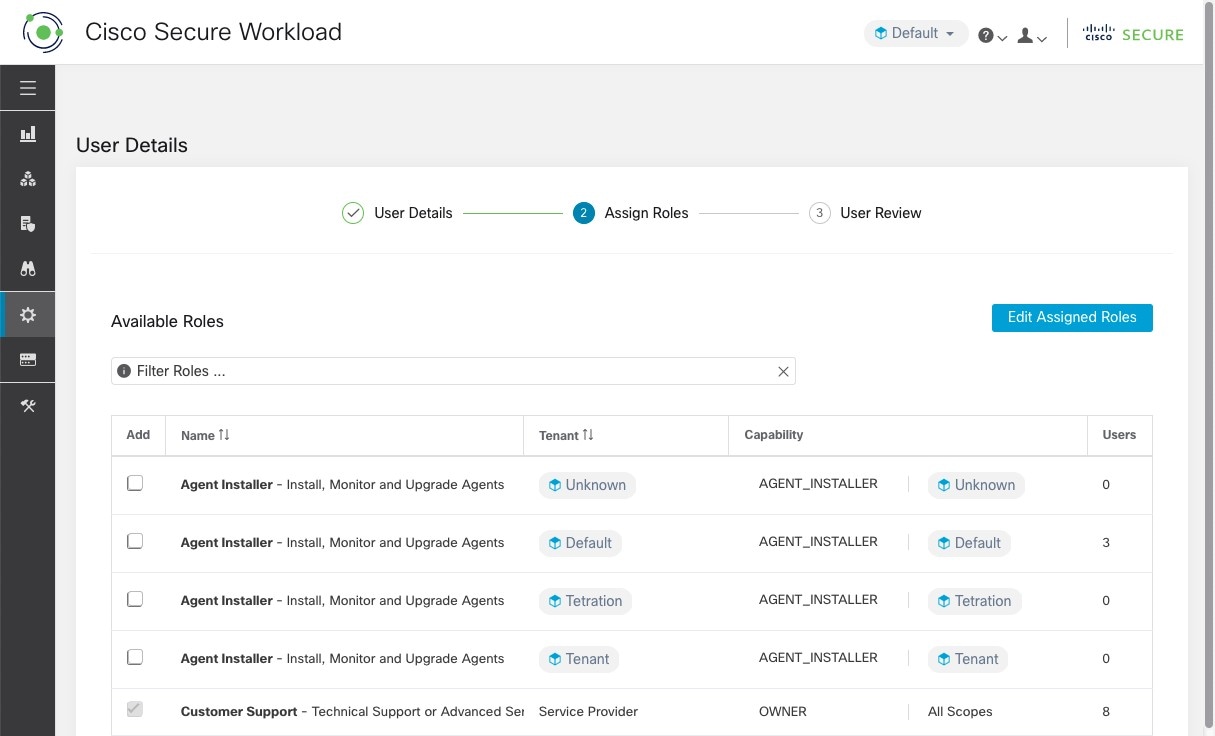
Under Assign Roles, add or remove assigned roles to the user.

  • Click Add Roles to assign new roles, and then click the Add check box.

    Figure 1. Assigned User Roles
    Assigned User Roles
  • Select the assigned roles, click Edit Assigned Roles, and then click the Remove icon.

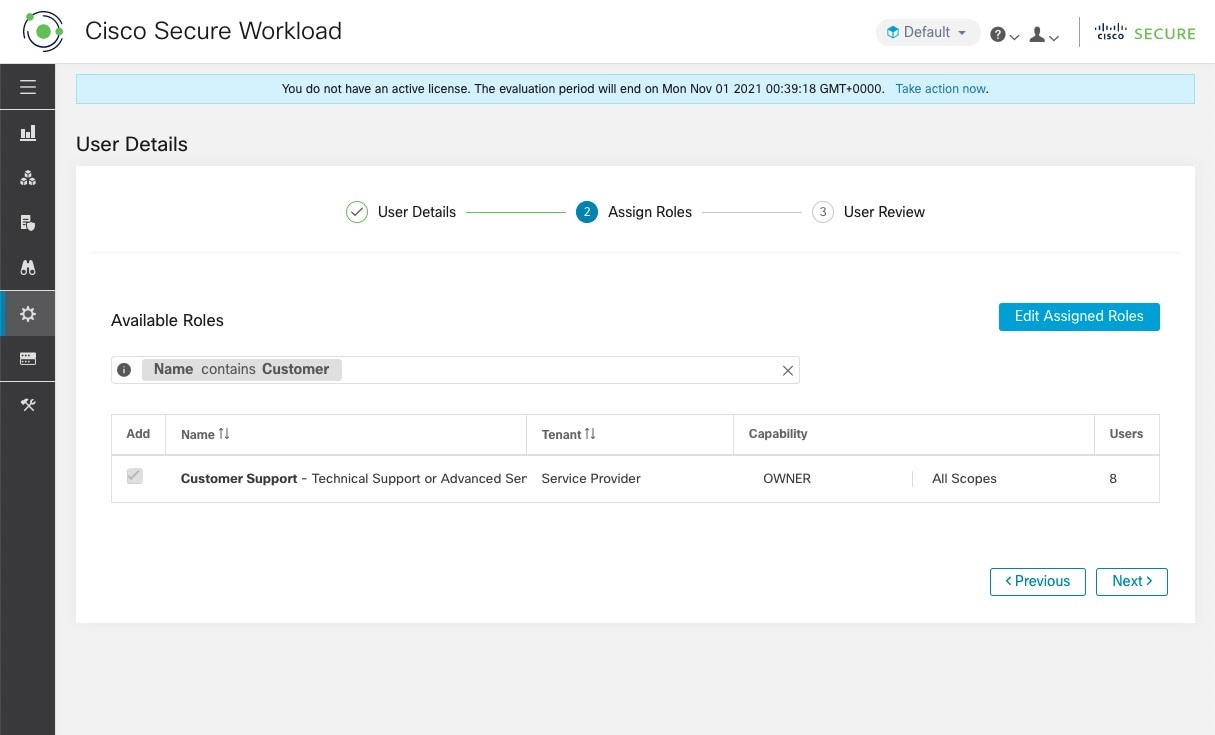
  • You can filter the user roles using Name or Tenant.

    Figure 2. Filter User Roles
    Filter User Roles

Step 7

Click Next.

Step 8

Under User Review, review the user details and the assigned roles. Click Create.

If external authentication is enabled, the authentication details are displayed.

After the user is added in Secure Workload, an activation email is sent to the registered email ID to set up the password.

Note


Users without an email ID can log in using the username and the temporary password shared by the Site Admin. At first login, users are redirected to set their permanent password.


Add a User when SMTP is Disabled

Before you begin

  • You must be a Site Admin to add users in Secure Workload.

  • If a user is assigned a scope for multitenancy, only roles that are assigned to the same scope may be selected.

  • To recover passwords for users, a Site Admin with an email account can use the username of the user to generate a random password to recover the password.


Note


This page is filtered by the scope preference that is selected on the page header.


Procedure


Step 1

If applicable, select the appropriate root scope from the page header.

Step 2

From the navigation pane, choose Manage > User Access > Users.

Step 3

Click Create New User.

The User Details page is displayed.

Step 4

Update the following fields under User Details.

Table 2. User Details Field Descriptions

Field

Description

Username

Enter the username of the user; usernames must be non-case sensitive and witthout @ or spaces.

Note


If the SMTP server is configured as disabled, Site Admins can create users only with a username.

First Name

Enter the user’s first name.

Last Name

Enter the user’s last name.

Generate Temporary Password

Generate a temporary password for the username created for the user.

Note


Site Admins will need to share the temporary password with the user.

Scope

Root scope that is assigned to the user for multitenancy (available to Site Admins).

SSH Public Key

(Optional) Click Import to import an SSH public key or you can import a key later.

Step 5

Click Next.

Step 6

Under Assign Roles, add or remove assigned roles to the user.

  • Click Add Roles to assign new roles, and then click the Add check box.

    Figure 3. Assigned User Roles
    Assigned User Roles
  • Select the assigned roles, click Edit Assigned Roles, and then click the Remove icon.

  • You can filter the user roles using Name or Tenant.

    Figure 4. Filter User Roles
    Filter User Roles

Step 7

Click Next.

Step 8

Review the user details and the assigned roles in User Review.

Step 9

Click Create.


User Login

To login to Secure Workload, use the username and the temporary password provided by the Site Admin.

Procedure

  Command or Action Purpose

Step 1

After you login to Secure Workload, create a permanent password in the Reset password page.

Note


If SMTP is disabled for site configuration, the Forgot password button will be disabled for users at login.

Step 2

To secure the account, enter a new password on the Reset password page. After resetting the password, enter the username and the newly set password in the login page.

Note


New password must meet the following conditions:

  • Length of the password must be at least 8 characters.

  • Password must contain at least one upper-case letter.

  • Password must contain at least one lower-case letter.

  • Password must contain at least number.

  • Password must contain at least one of the special characters: !@#$%^*&-_+={}[/}|\?:;",'

Tip

 
  • Note that if SMTP server configuration is disabled, existing users logging in with their email addresses can continue to do so using their current passwords. However, new users cannot be created using email addresses if SMTP server configuration is disabled.

  • In Secure Workload 3.10 release, when SMTP is disabled, only LDAP authentication is supported for external authentication, however, SSO authentication is not available for this configuration.

  • Existing users can change their email addresses to usernames using the User Edit page if they choose to, though this is not mandatory.

Edit User Details or Roles

Before you begin

You must be a Site Admin to edit users in Secure Workload.


Note


This page is filtered by the scope preference that is selected on the page header.


Procedure


Step 1

If applicable, select the appropriate root scope from the page header.

Step 2

From the navigation pane, choose Manage > User Access > Users.

Step 3

For the required user account, under Actions, click Edit.

The User Details page is displayed.

Step 4

Update the following fields under User Details.

Table 3. User Details Field Descriptions

Field

Description

Email or Username

Update the email ID of the user. The usernames are non-case sensitive and cannot contain @ or spaces in the username.

Note


In case of users without an email ID, a Site Admin uses the username of the user. The maximum length of a username is 255 characters.

First Name

Update the user’s first name.

Last Name

Update the user’s last name.

Scope

Root scope that is assigned to the user for multitenancy. (Available to Site Admins)

Note


Users with username will have the option to update their login ID from a username to an email address, or vice versa. After upgrade, existing users with email address will have the option to update their login ID from email to username.

Step 5

Click Next.

Step 6

Under Assign Roles, add or remove assigned roles to the user.

  • Click Add Roles to assign new roles, and then click the Add check box.

  • Select the assigned roles, click Edit Assigned Roles, and then click the Remove icon.

Step 7

Under User Review, review the user details and the assigned roles. Click Update to update the user account.

If external authentication is enabled, the authentication details are displayed.

Step 8

Click Next.


Deactivating a User Account


Note


To maintain consistency of change log audits, users can only be deactivated, they are not deleted from database.


Before you begin

You must be a Site Admin or Root Scope Owner user.


Note


This page is filtered by the scope preference that is selected on the page header.


Procedure


Step 1

In the navigation bar on the left, click Manage > User Access > Users.

Step 2

If applicable, select the appropriate root scope from the top right of the page.

Step 3

In the row of the account you want to deactivate, click Deactivate button in the right-hand column.

To view deactivated users, toggle Hide Deleted Users button.


Reactivating a User Account

If a user has been deactivated, you can reactivate the user.

Before you begin

You must be a Site Admin or Root Scope Owner user.


Note


This page is filtered by the scope preference that is selected on the page header.


Procedure


Step 1

In the navigation bar on the left, click Manage > User Access > Users.

Step 2

If applicable, select the appropriate root scope from the top right of the page.

Step 3

Toggle Hide Deleted Users to display all users, including deactivated users.

Step 4

For the required deactivated account, click Restore in the right-hand column to reactivate the account.


Import SSH Public Key

To enable SSH access as ta_guest user via one of the collector IP addresses, SSH public key can be imported for each user. This menu will only be available to Site Admins and users with the SCOPE_OWNER ability on the root scope. The SSH Public Key automatically expires in 7 days.

Login Page Message

Site Admins and Customer Support users can enter a message of up to 1600 characters that users see on the sign-in page.

To create or change the login page message:

  1. In the left navigation page, click Platform > Login Page Message.

  2. Enter or edit the message. The character limit is less than or equal to 1600 characters.

  3. Click Save.

Change Log – Users

Site Admins and users with the Scope Owner ability on the root scope can view the change logs for each user by clicking on the Change Log icon under the Actions column.

For more information, see Change Log. Root scope owners are restricted to viewing only change log entries for entities belonging to their scope.

Roles

You can restrict access to features and data using role-based access control (RBAC) model.

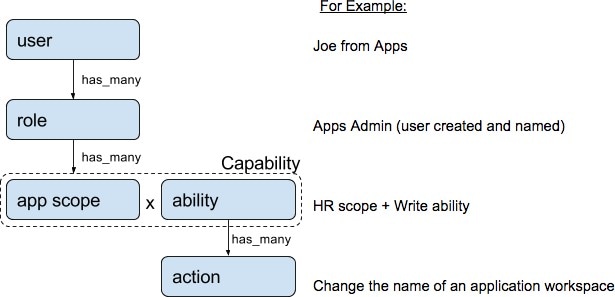
  • User - someone with login access to Cisco Secure Workload.

  • Role - user created set of capabilities that is assigned to a user.

  • Capability - scope + ability pair

  • Ability - collections of actions

  • Action - low-level user action such as “change workspace name”

Figure 5. Role Model
Role model

A user can have any number of roles. Roles can have any number of capabilities. For example, the “HR Search Engineer” role could have two capabilities: “Read on the HR Scope” to give visibility and context and “Execute on “HR:Search” capability to allow the engineers assigned this role to make specific changes that are related to their applications.

Use the Users page to assign users to the different roles. Roles have several capabilities and you can assign users to any number of roles.

System roles are defined to allow users to get started more quickly. They define different levels of access to all Scopes, that is, all data on the system. These system roles are defined below.

Role

Description

Agent Installer

Provide the ability to manage agents life cycle including install, monitor, upgrade, and convert, but cannot delete agents and access agent config profile.

Customer Support

For Technical Support or Advanced Services. Provides access to cluster maintenance features. Allows the same access as Site Admin, but cannot modify users.

Customer Support Read Only

For Technical Support or Advanced Services. Provides access to cluster maintenance features. Allows the same access as Site Admin, but cannot modify users.

Site Admin

Provides the ability to manage users, agents, and so on. Can view and edit all features and data. There must be at least one site admin.

Global Application Enforcement

Provides the Enforce ability on every scope.

Global Application Management

Provides the Execute ability on every scope.

Global Read Only

Provides the Read ability on every scope.


Note


If required, you can create a SecOps user role to provide the ability to access flows, alerts, vulnerabilities, and forensics events within a specific scope.


Abilities and Capabilities

Roles are made up of capabilities which include a scope and an ability. These define the allowed actions and the set of data that they apply to. For example, the (HR, Read) capability should be read and interpreted as “Read ability on the HR scope”. This capability would allow access to the HR scope and all its children.

Ability

Description

Installer

Install, monitor, and upgrade software agents.

Audit

Global appliance data read support and access to change logs.

Read

Read all data including flows, application, and inventory filters.

Write

Make changes to applications and inventory filters.

Execute

Perform Automatically discover policies run and publish policies for analysis.

Enforce

Enforce policies that are defined in application workspaces that are associated with the given scope.

Owner

Required to toggle an application workspace from secondary to primary. Access to Data Tap Admin abilities, such as managing User App sessions, adding Data Taps, and creating Visualization Data Sources.

SecOps Read

Read all flows, alerts, vulnerabilities, and forensics events for the assigned scope.


Important


Abilities are inherited, for example, the Execute ability allows all the Read, Write, and Execute actions.


Important


Abilities apply to the scope and all the scope’s children.


Menu Access by Role

The menu items you see and use on the navigation pane depend on the assigned role:

Table 4. Overview Menu

Menu

Option

Site Admin

Customer Support

Customer Support Read Only

Global Application Enforcement

Global Application Management

Global Read Only

Agent Installer

Overview

Overview

Yes

Yes

Yes

Yes

Yes

Yes

No

Table 5. Organize Menu

Menu

Option

Site Admin

Customer Support

Customer Support Read Only

Global Application Enforcement

Global Application Management

Global Read Only

Agent Installer

Organize

Scopes and Inventory

Yes

Yes

Yes

Yes

Yes

Yes

No

Organize

Label Management

Yes

Yes

Yes

Yes

Yes

Yes

No

Organize

Inventory Filters

Yes

Yes

Yes

Yes

Yes

Yes

No

Table 6. Defend Menu

Menu

Option

Site Admin

Customer Support

Customer Support Read Only

Global Application Enforcement

Global Application Management

Global Read Only

Agent Installer

Defend

Segmentation

Yes

Yes

Yes

Yes

Yes

Yes

No

Defend

Enforcement Status

Yes

Yes

Yes

Yes

Yes

Yes

No

Defend

Policy Templates

Yes

Yes

Yes

Yes

Yes

Yes

No

Defend

Forensic Rules

Yes

Yes

Yes

Yes

Yes

Yes

No

Table 7. Investigate Menu

Menu

Option

Site Admin

Customer Support

Customer Support Read Only

Global Application Enforcement

Global Application Management

Global Read Only

Agent Installer

SecOps

Investigate

Traffic

Yes

Yes

Yes

Yes

Yes

Yes

No

Yes

Alerts

Yes

Yes

Yes

Yes

Yes

Yes

No

Yes

Vulnerabilities

Yes

Yes

Yes

Yes

Yes

Yes

No

Yes

Forensics

Yes

Yes

Yes

Yes

Yes

Yes

No

Yes

Table 8. Reporting Menu

Menu

Option

Tenant Owner

Agent Installer

SecOps

Reporting

Reporting Dashboard

Yes

No

Yes

Table 9. Manage Menu

Menu

Option

Site Admin

Customer Support

Customer Support Read Only

Global Application Enforcement

Global Application Management

Global Read Only

Agent Installer

Manage

Alerts Configs

Yes

Yes

Yes

Yes

Yes

Yes

No

Manage

Change Logs

Yes

No

Yes

No

No

No

No

Manage

Connectors

Yes

Yes

No

No

No

No

No

Manage

External Orchestrators

Yes

Yes

No

No

No

No

No

Manage

Secure Connector

Yes

Yes

No

No

No

No

No

Manage

Virtual Appliances

Yes

Yes

No

No

No

No

No

Manage

Users

Yes

No

No

No

No

No

No

Manage

Roles

Yes

Yes

Yes

No

No

No

No

Manage

Threat Intelligence

Yes

Yes

Yes

No

No

No

No

Manage

Licenses

Yes

No

No

No

No

No

No

Manage

Collection Rules

Yes

Yes

Yes

Yes

Yes

Yes

No

Manage

Session Configuration

Yes

Yes

No

No

No

No

No

Manage

Usage Analytics

Yes

Yes

No

No

No

No

No

Manage

Data Tap Admin

Yes

No

No

No

No

No

No

Table 10. Platform menu

Menu

Option

Site Admin

Customer Support

Customer Support Read Only

Global Application Enforcement

Global Application Management

Global Read Only

Agent Installer

Platform

Tenants

Yes

Yes

No

No

No

No

No

Platform

Cluster Configuration

Yes

Yes

No

No

No

No

No

Platform

Outbound HTTP

Yes

Yes

No

No

No

No

No

Platform

Collectors

Yes

Yes

No

No

No

No

No

Platform

External Authentication

Yes

Yes

No

No

No

No

No

Platform

SSL Certificate

Yes

Yes

No

No

No

No

No

Platform

Login Page Message

Yes

Yes

No

No

No

No

No

Platform

Federation

See below

See below

No

No

No

No

No

Platform

Data Backup

See below

See below

No

No

No

No

No

Platform

Data Restore

See below

See below

No

No

No

No

No

Platform

Upgrade/ Reboot/ Shutdown

Yes

Yes

No

No

No

No

No


Note


  • Enable the Federation option to make Federation available for Site Admin and Customer Support roles.

  • Enable the Data Backup and Restore option to make data backup and restore available for Site Admin and Customer Support roles.


Table 11. Troubleshoot Menu

Menu

Option

Site Admin

Customer Support

Customer Support Read Only

Global Application Enforcement

Global Application Management

Global Read Only

Agent Installer

Troubleshoot

Service Status

Yes

Yes

Yes

No

No

No

No

Troubleshoot

Cluster Status

See below

See below

No

No

No

No

No

Troubleshoot

Virtual Machine

Yes

Yes

Yes

No

No

No

No

Troubleshoot

Snapshots

Yes

Yes

No

No

No

No

No

Troubleshoot

Maintenance Explorer

Yes

Yes

No

No

No

No

No

Troubleshoot

Resque

Yes

Yes

No

No

No

No

No

Troubleshoot

Hawkeye (Charts)

Yes

Yes

Yes

No

No

No

No

Troubleshoot

Abyss (Pipeline)

Yes

Yes

Yes

No

No

No

No


Note


The Cluster Status option is available to Site Admin and Customer Support roles for physical clusters.


Create a Role

Before you begin

You must have a Site Admin or a Customer Support role.

  1. From the navigation pane, choose Manage > User Access > Roles.

  2. Click Create New Role. The Roles panel appears.

Creating a role using the Create Role Wizard is three-step process.

Procedure


Step 1

  1. Enter the appropriate values in the following fields:

    Field

    Description

    Name

    The name to identify the role.

    Description

    A short description to add context about the role.

  2. Click the Next button to move to the next step or Back to Roles Page to go back to Roles Page.

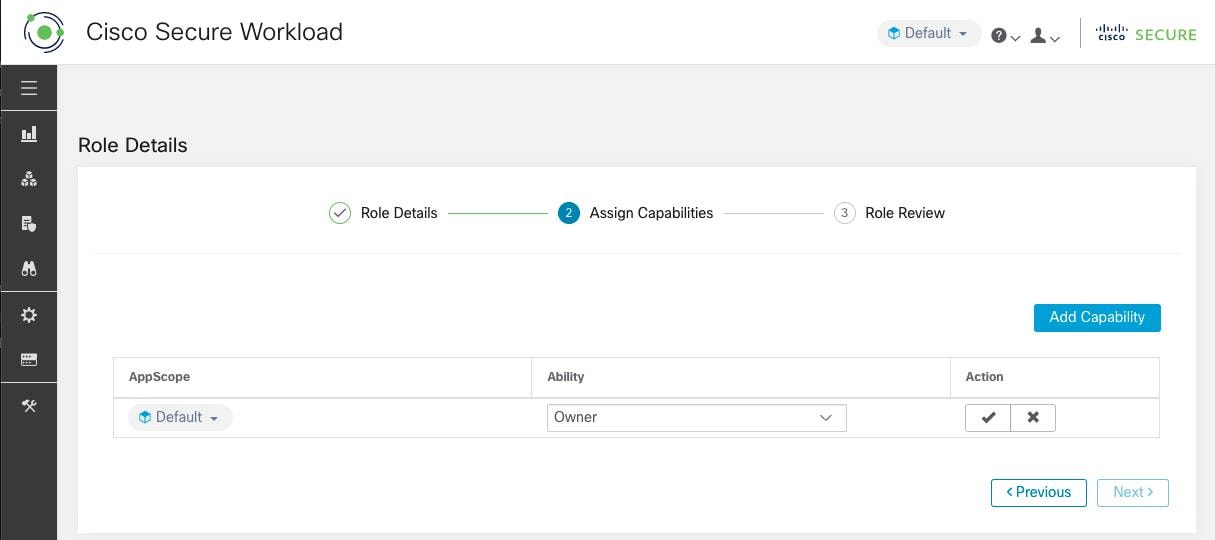
Step 2

  1. Click the Add Capability button to show the creation form in the top row.

  2. Select scope and ability.

  3. Click the Checkmark button to create a new capability or Cancel button to cancel.

  4. Click Next to review role details or Previous to go back and edit.

Figure 6. Capability Assignment
Capability Assignment

Step 3

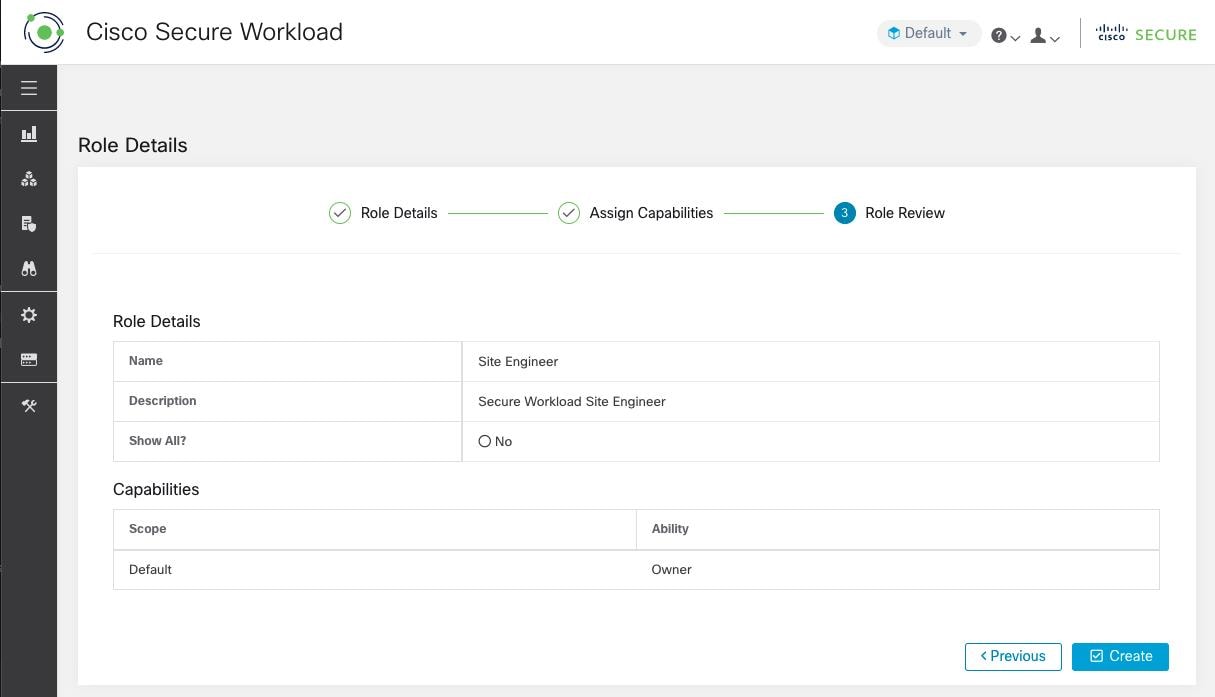
  1. Review the role details and capabilities.

  2. Click Create to create role.

Figure 7. Role Review
Role Review

Edit a Role

This section explains how Site Admins and Customer Support users can edit roles.

Before you begin

You must be Site Admin or Customer Support User.

  1. In the navigation bar on the left, click Manage > User Access > Roles.

  2. In the row of the role to edit, click the Edit button in the right-hand column. The Roles panel appears.

Editing a role using the Edit Role Wizard is three-step process.

Procedure


Step 1

  1. Update the name or description if desired.

  2. Click the Next button to move to the next step or Back to Roles Page to go back to Roles Page.

Step 2

  1. Remove any capability as needed. In the row of the capability to delete, click the Delete icon in the right-hand column.

  2. To add, click the Add Capability button to show the creation form in the top row.

  3. Select scope and ability.

  4. Click Next to review role details or Previous to go back and edit.

Step 3

  1. Review the role details and capabilities.

  2. Click Update to create the role or Previous to go back and edit. Changes to role details and capability assignment are saved after Update.

Note


Capabilities cannot be edited, they must be deleted and recreated.


Change Log

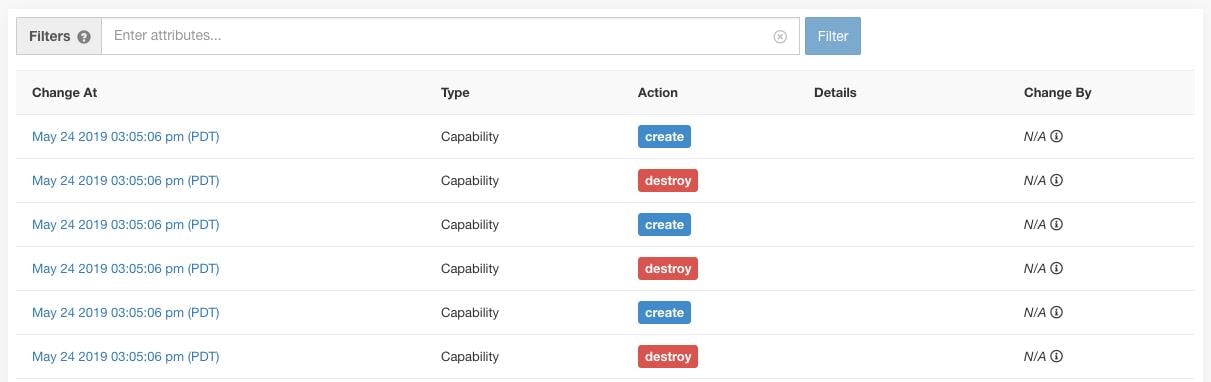
Site Admins can access the Change Log page under the Manage menu in the navigation bar at the left side of the window. This page displays the most recent changes that are made within Cisco Secure Workload.


Note


Change Log Retention Period: Secure Workload manages change logs for a duration of up to one year on both SaaS and On-premises clusters. An hourly job deletes change logs that exceed a one-year timeframe.


Figure 8. Change Log Page
Change Log Page

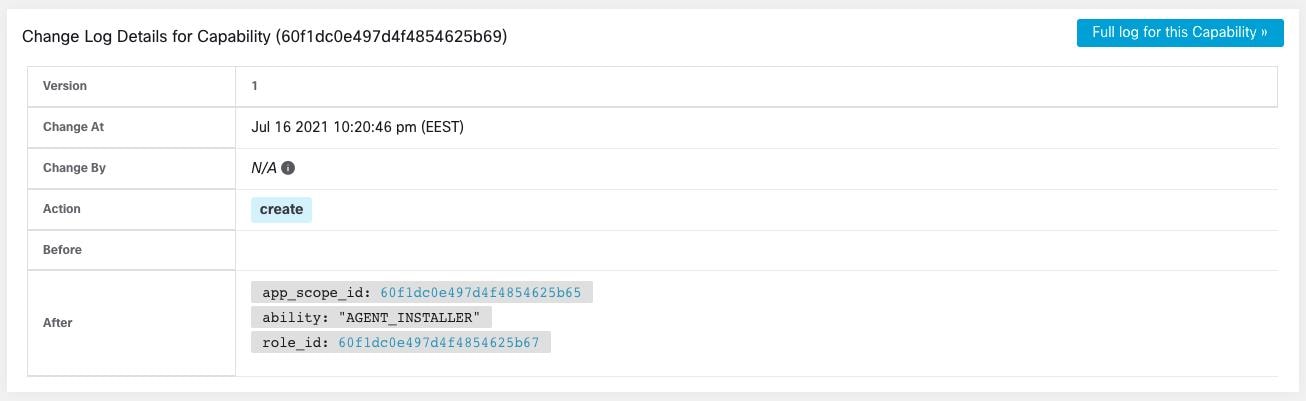
The details of each change log entry can be viewed by clicking on the link in the Change At column. This page includes a Before and After snapshot of the fields changed. The fields may include technical names that require some interpretation to understand how they are surfaced elsewhere throughout Secure Workload.

Figure 9. Change Log Details Page
Change Log Details Page

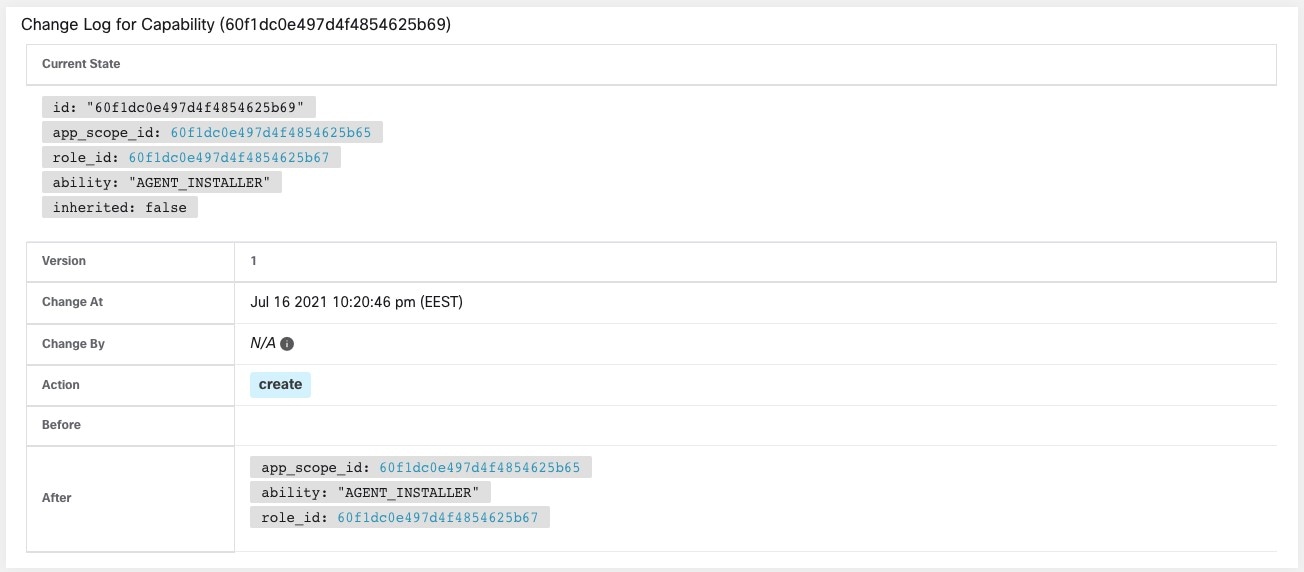
The complete list of changes for an entity can be viewed by clicking the button in the upper-right corner, titled Full log for this <entity type>. This page displays the details of each change. It also includes the Current State of the entity, when available.

Figure 10. Full Change Log for Entity
Full Change Log for Entity

Collection Rules

Site Admins and Customer Support users can access the Collection Rules page under the Manage > Service Settings menu in the navigation bar at the left side of the window. This page displays the hardware collection rules by VRF that is used by switches running the Cisco Secure Workload agent. There is a row in the table for each VRF.

Rules

Click the Edit button on a VRF to modify its collection rules. By default, every VRF is configured with two default catch-all rules, one for IPv4 (0.0.0.0/0 INCLUDE) and one for IPv6 (::/0 INCLUDE). These default rules can be removed, but do so with caution.

Extra include and exclude rules can be added. Enter a valid subnet, select include or exclude, and click Add Rule. The priority of these rules can be adjusted via drag-and-drop. Click-and-hold on a rule in the list and drag it to adjust the order.

Changes may take several minutes to propagate to your switches. Click the Back button in the upper-right corner to return to the VRF list.

Priority

Collection Rules are ordered in decreasing order priority. No longest prefix match is done to determine the priority. The rule appearing first has higher priority over all the subsequent rules. Example:

  1. 1.1.0.0/16 INCLUDE

  2. 1.0.0.0/8 EXCLUDE

  3. 0.0.0.0/0 INCLUDE

In the earlier example, all addresses belonging to 1.0.0.0/8 subnet are excluded except subnet 1.1.0.0/16 which is included.

Another Example with changed order:

  1. 1.0.0.0/8 EXCLUDE

  2. 1.1.0.0/16 INCLUDE

  3. 0.0.0.0/0 INCLUDE

In the above example, all addresses belonging to 1.0.0.0/8 subnet are excluded. Rule number-2 does not get exercised here because of a higher-order rule already defined for its subnet.

Collectors

Site Admins and Customer Support users can access the Collectors page under the Platform menu in the navigation bar at the left side of the window. This page displays the currently configured collectors. The Secure Workload agents send flow data to the commissioned collectors, so it is important for all of the commissioned collectors to be available. By default, all collectors are periodically checked for their health and they are either commissioned or decommissioned based on their health. You can opt out of this automated process using the toggle Auto Commission Opt Out. With this toggle on, the Play and Stop icons under the far right column can be used to commission and decommission respectively.

Figure 11. Collectors Page
Collectors Page

Session Configuration

UI User Authentication idle session timeout can be configured here. This config applies to all the users of the appliance. The default idle session duration is 1 hour. The idle session duration can be set within the range of 5 minutes to 24 hours. The session timeout takes effect on a user’s authenticated session when this value is saved.

Site Admins and Customer Support users can access this setting. In the left navigation pane, click Manage > Service Settings > Session Configuration.

Preferences

The Preferences page displays your account details and enables you to update your display preferences, change your landing page, change your password, and configure two-factor authentication.

Change Your Landing Page Preference

To change the page you see when you sign in:

Procedure


Step 1

On the top-right corner of the window, click the user icon and choose User Preferences.

Step 2

Choose a landing page from the drop-down menu. Your preference is saved as the default or home page when you log in. To see the change, click the Secure Workload logo at the top-left corner of the page.


Change a Password

Procedure


Step 1

Click on the user icon in the top-right corner.

Step 2

Select User Preferences.

Step 3

In the Change Password pane, enter your current password in the Old Password field.

Step 4

Enter your new password in the Password field.

Step 5

Re-enter your new password in the Confirm Password field.

Step 6

Click Change Password to submit the change.

Note


Password must be 8–128 characters and contain at least one of the each following:

  • Lower case letters ( a b c d . . . )

  • Upper case letters ( A B C D . . . )

  • Numbers (0 1 2 3 4 5 6 7 8 9 )

  • Special characters ( ! " # $ % & ’ ( ) * + , - . / : ; < = > ? @ [ \ ] ^ _ ‘ { | } ~ ), space included


Recovery Codes

Procedure
  Command or Action Purpose

Step 1

Download the recovery codes from the User Preferences page.​

Note


Only admins have the ability to generate recovery codes. Note that if external authentication is enabled, recovery code generation is not supported.​

Step 2

Each admin user will have to download their recovery codes after login and will be provided with six recovery codes.​

Step 3

At login, enter the recovery code in the password field. Recovery codes must be used during login in conjunction with the username.

Step 4

When logging in with the username and recovery code as the password, users will be redirected to the password reset screen to set a new password.

Note


The used recovery code will no longer be valid for subsequent logins.​ We suggest users regenerate their recovery codes before exhausting all available codes.​

Recover Password

This section explains how to reset your password if you have forgotten the password.

Before you begin

To reset a password, you must have an account. Only a Site Admin has the priviledge to create new accounts.

Procedure


Step 1

Point your browser to the Cisco Secure Workload URL and click the Forgot Password link. The Forgot your password? dialog box is displayed.

Step 2

Step 3

Enter the email ID to which the password must be sent.

Step 4

Click Reset Password.

Password reset instructions are sent to your email.

Note


The password recovery procedure using two-factor authentication requires contacting Cisco Technical Assurance Center for a temporary one-time password.


Reset Password

This section explains how to reset password for users without an email ID.


Note


If SMTP is disabled, at login, the Forgot Password button will be disabled for users.


Procedure

Step 1

As a Site Admin, log in to Secure Workload, and from the navigation pane, choose Manage > User Access > Users.

Step 2

Under the Actions column, click the Pencil icon. The User Details page is displayed.

Table 12. User Details Field Descriptions

Field

Description

Email or Username

Enter the username of the user; the usernames are non-case sensitive, but should not contain @ or spaces in the username.

Note


If the SMTP configuration is switched OFF, email-based authentication will be affected as you will not be able to send the password reset instructions to the users.

Note


As a Site Admin, you can use the username to generate temporary passwords for users who want to recover them.

The maximum length of a username cannot exceed 255 characters.

First Name

Enter the user’s first name.

Last Name

Enter the user’s last name.

Scope

Root scope that is assigned to the user for multitenancy. (Available to site admins)

SSH Public Key

(Optional) Click Import to import an SSH public key or you can import a key later.

Step 3

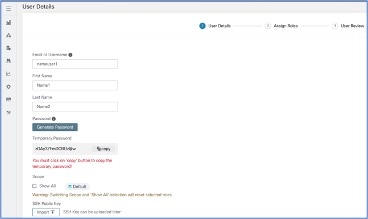
To generate a temporary password, click Generate Password. Copy the password and share it with users who request them.

Note


To reset the password, use the username and the temporary password to login to Secure Workload. After you login, create a permanent password in the Reset password page.

Figure 12. User Details

Step 4

To secure the account, enter the new password in the Reset password page. After resetting the password, enter the username and the newly set password in the login page.

Note


New password must meet the following conditions:

  • Length of the password must be at least 8 characters.

  • Password must contain at least one upper-case letter.

  • Password must contain at least one lower-case letter.

  • Password must contain at least number.

  • Password must contain at least one of the special characters: !@#$%^*&-_+={}[/}|\?:;",'


Enable Two-Factor Authentication

This section explains how to enable two-factor authentication.

Procedure


Step 1

Click on the user icon to .

Step 2

Select User Preferences.

Step 3

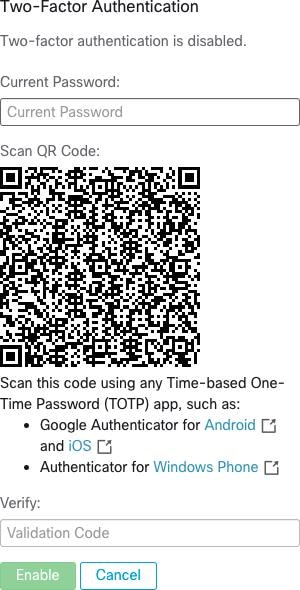
Click the Enable button in the Two-Factor Authentication pane. A new Two-Factor Authentication page is displayed.

Step 4

Enter your password.

Step 5

Scan the QR code that is displayed under the Current Password field using a time-based one-time password (TOTP) app, such as Google Authenticator (Android or iOS) or Authenticator (Windows phone).

Step 6

Enter the validation code that is shown by your chosen TOTP app.

Step 7

Click Enable.

Figure 13. Two-Factor Authentication Pane
Two-Factor Authentication Pane

Select the Use two-factor authentication check box when you log into the system and enter the verification code that is shown in your TOTP app to sign in.

Note


In case you need to recover the password for the two-factor authentication, contact your Site Admin or Secure Workload Customer Support.


Disabling Two-Factor Authentication

This section explains how to disable two-factor authentication.

Procedure


Step 1

Click on the user icon in the top-right corner.

Step 2

Select User Preferences.

Step 3

Under two-factor authentication, click the Disable button. The Two-Factor Authentication pane appears.

Step 4

Enter your password.

Step 5

Click the Disable button again.

You will no longer be required to enter a two-factor verification code during login.


Idle Session

For those who are authenticating using a local database, this section explains how failed login attempts may lock the user account:

Procedure


Step 1

Five failed login attempts using email and password result in locking the account.

Note


As a security measure against probing, no specific message indicating the lock will be provided in the login interface when trying to sign in a locked account.

Step 2

Lock out interval is set at 30 minutes. After the account is unlocked, use the correct password to log in or initiate password recovery by clicking Forgot password?

Note


Once a user is successfully signed in, one hour of inactivity logs out the user. This timeout is configured from Manage > Service Settings > Session Configuration.