Cisco Secure Workload User Guide On–Premises, Release 4.0
Bias-Free Language
The documentation set for this product strives to use bias-free language. For the purposes of this documentation set, bias-free is defined as language that does not imply discrimination based on age, disability, gender, racial identity, ethnic identity, sexual orientation, socioeconomic status, and intersectionality. Exceptions may be present in the documentation due to language that is hardcoded in the user interfaces of the product software, language used based on RFP documentation, or language that is used by a referenced third-party product. Learn more about how Cisco is using Inclusive Language.
SMTP Server Configuration for Cluster and Site Configurations
SMTP server configuration in Cisco Secure Workload enables automated email notifications by allowing administrators to activate or deactivate SMTP settings from the Site Config
page during cluster setup. When SMTP is enabled, admins can specify server details, set alert recipient emails, and optionally
configure authentication using a username and password. For unauthenticated SMTP, the server will connect without credentials,
but secure connections can be enforced using TLS/SSL if required. Disabling SMTP removes all related email fields, though
credential management for admin and support users remains accessible. Alert emails are sent to default or customized recipient
lists as defined in the alert connector settings.
To configure the SMTP server in the cluster, use either of the following methods:
Basic SMTP Authentication
Microsoft Modern Authentication (OAuth)
To use the Microsoft Modern Authentication (OAuth) for SMTP configuration, the Secure Workload application is registered in the Azure Active Directory (Azure AD) to generate a client secret, API permissions are configured
and the Service Principal for Exchange Online is set up for authentication of client credentials. You can configure the SMTP
server settings at the time of deploying the cluster or upgrading to the next version or if there are any changes to the configurations.
Azure AD Application Registration and Client Secret Generation
In Modern Microsoft Authentication (OAuth 2.0) based authorization, a client application must be granted specific permissions,
such as the ability to send mails on behalf of users. To perform this, the client must first obtain an access token from an
authorization server. Modern Microsoft Authentication specification defines multiple grant types to acquire this access token.
Authorization code grant: The user configuring the system is redirected to the authorization server, for example, Azure Active
Directory, to authenticate and explicitly authorize Secure Workload to send emails on their behalf. Upon approval, an authorization code is exchanged for an access token..
Client credentials: Secure Workload uses its own credentials directly as an authorization grant to request an access token from the authorization server without
user interaction.
The Modern Microsoft Authentication flows ensure secure, delegated access control, enabling Secure Workload to send alert emails.
To register Secure Workload as an application in Azure Active Directory, perform the following steps:
Procedure
Step 1
Log in to the Exchange Online Azure portal with admin permissions. Navigate to Azure Active Directory, choose Azure Active Directory > App registrations > New registration.
Fill the following details:
Name: Enter a name for the application. Choose a descriptive name for your application (for example, "SMTP Service App" or "CSW
SMTP OAuth2".
Supported account types: Select the supported account types that aligns with the organization's requirements. Choose the supported account types
based on your organization, for example:
Single tenant (accounts in the organizational directory)
Multi-tenant (any organizational directory)
Personal Microsoft accounts
Redirect URI: Leave this blank for client credentials flow.
Copy the following IDs from the application's Overview page, which are crucial for the cluster configuration:
Application (client) ID
Directory (tenant) ID
Note
In Advanced settings, set Allow public client flows to No.
Click Register to complete the process.
Step 2
Create a client secret
In your newly registered application's page, choose Manage > Certificates & secrets within the Azure portal.
Click New client secret to initiate secret creation.
Provide a meaningful description and specify the secret's expiration period. We recommend selecting an expiry suitable for
your use case and rotating secrets regularly for enhanced security. The options include:
6 months
12 months
24 months
Custom (set an expiry suited to your security policies)
Click Add and then copy and store the generated secret value.
Note
After you copy the generated secret value, ensure that you securely store it because the secret value will not be displayed
again. The secret value will not be available after you leave this page and is essential for your cluster configuration.
Step 3
Configure API permissions for client credentials grant:
Choose Manage > API permissions.
Click Add a permission and select Select the APIs (for example, Microsoft Graph or custom APIs).
Search for and choose Office 365 Exchange Online.
Choose Application permissions for daemon or service applications. Do not choose Delegated permissions for user context.
Add the required permissions as per your protocol needs.
Your Azure administrator must Grant admin consent for your tenant to become effective.
Permissions for SMTP with Modern Microsoft Authentication Client Credentials Flow
For applications sending emails using SMTP with Modern Microsoft Authentication authentication, the following permission is
required:
Permission Name: SMTP.SendAsApp
Purpose: Allows the application to send emails on behalf of any user using SMTP with OAuth authentication.
Scope for Token Request: <https://outlook.office365.com/.default>
This permission must be added under Application permissions in the Azure AD app registration for SMTP sending functionality.
Service Principal and Exchange Online Setup
After the app. registration, Azure AD automatically creates a service principal to represent the app's identity within your tenant. This service principal is used to authenticate the application with the
granted permissions via the client credentials flow.
Register the service principal in Exchange Online:
Replace <ApplicationId> with the Application (client) ID copied from Azure AD (Step 1, point 6).
Replace <ObjectId> with the Object ID of the service principal instance, which can be found in Azure AD under Enterprise applications for your registered app.
Purpose: Allows the application to send emails on behalf of any user using SMTP with OAuth authentication.
Scope for Token Request: <https://outlook.office365.com/.default>
Grant mailbox permissions to the service principal:
Replace "user@domain.com" with the actual email address of the mailbox you want the service principal to access.
Replace <ServicePrincipalId> with the identity of the service principal in Exchange. This is often the ObjectId used in the New-ServicePrincipal command or the AppId itself, depending on the Exchange version and configuration.
These steps allow the service principal to send mail and access mailboxes as configured, leveraging the permissions granted
in Azure AD.
Site Configuration in Secure Workload Setup
After you have registered the Azure AD application, configure the SMTP server for Secure Workload clusters either using the Basic SMTP configuration or Microsoft Modern authentication along with the Microsoft SMTP server.
This section explains how Site Admins set up a site during the Secure Workload set up process. During the cluster setup, Site Admins use the SMTP Configuration switch to disable or enable the SMTP settings.
From Secure Workload software release, 3.10 and later, users can configure the email notifier in the Site Config page for managing email and SMTP related configurations.
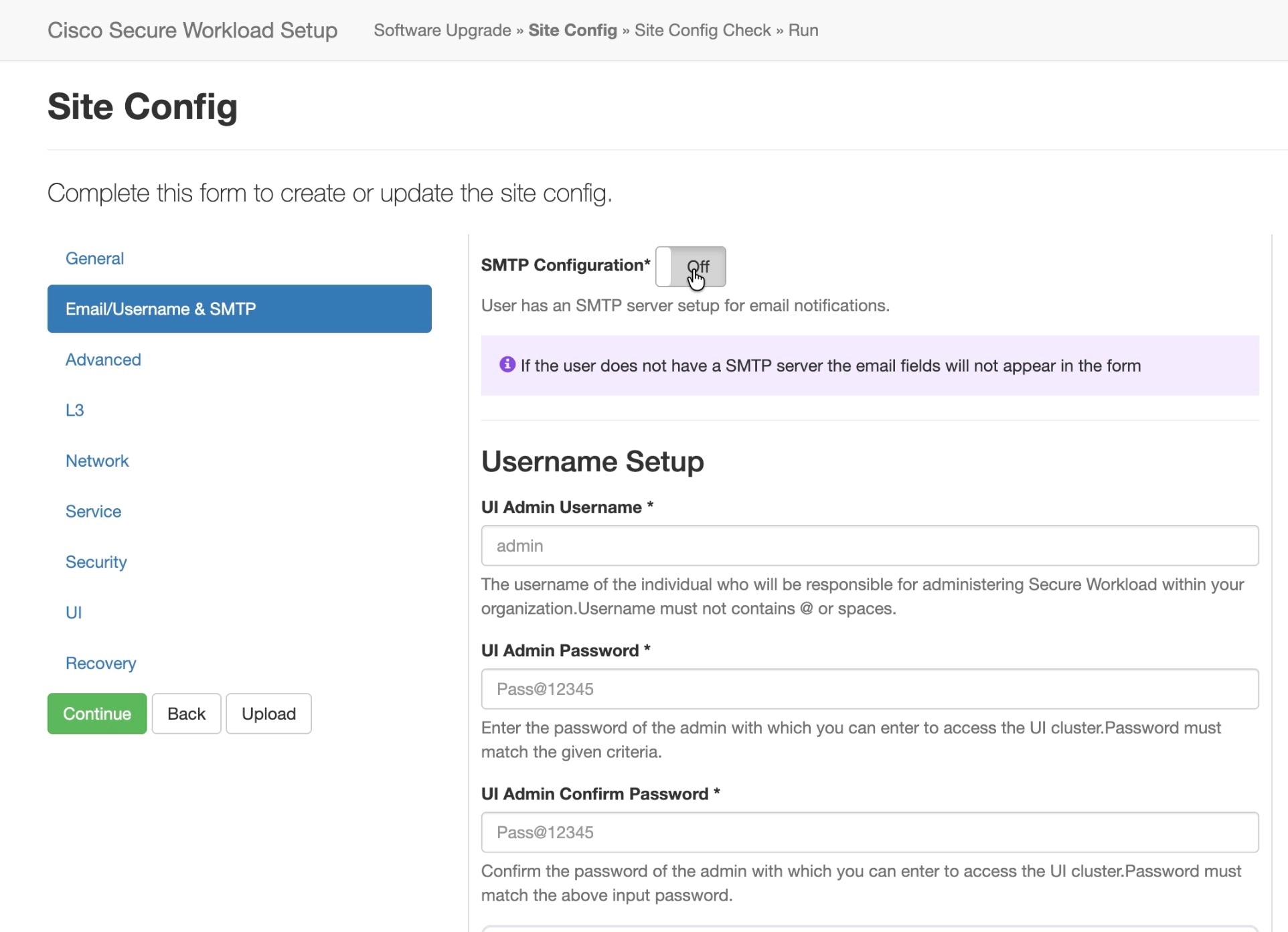
When SMTP Configuration is Off: Displays the current logged-in admin user (read-only) and mandatory downloadable recovery codes for that user. If the SMTP
configuration is disabled, all email and SMTP related fields in the Site Config page will not be available for configurations. However, the UI Admin Username and UI Primary Customer Support Username fields are available to setup passwords and usernames.
Figure 1. Configure Username and Generate Passwords
Field
Description
UI Admin Username
The username of the individual who will be responsible for administering Secure Workload within your organization.
You can edit this field only when SMTP Configuration is disabled.
Note
If the entered UI admin username does not exist in the system, a new user is created with the same username, and the field
will be updated with the newly created user.
UI Admin Password
Enter the password of the admin to access the UI cluster. Password must match the password criteria.
UI Admin Confirm Password
Confirm the password of the admin to access the UI cluster. The password must match the password entered for the UI Admin
password.
Recovery Codes
Generate recovery codes for Site Admins during deployment and from the User Preferences option after the deployment is complete.
Note
Recovery codes are used for enabling password reset by the Site Admins in the event of forgotten passwords. Recovery codes are for one-time use only and can be regenerated.
UI Primary Customer Support username
The username of the individual for the primary point of contact for customer support. This username is used during configuration
to streamline support interactions.
Note
The username of the primary customer support must be different from the UI Admin Username.
UI Primary Customer Support Password
Enter the password of the UI primary customer support to access the UI cluster. Password must match the password criteria.
UI Primary Customer Support Confirm Password
Confirm the password of the UI primary customer support to access the UI cluster. Password must match the password criteria.
Note
The email addresses are non case-sensitive, use the lowercase version of the email if it contains letters.
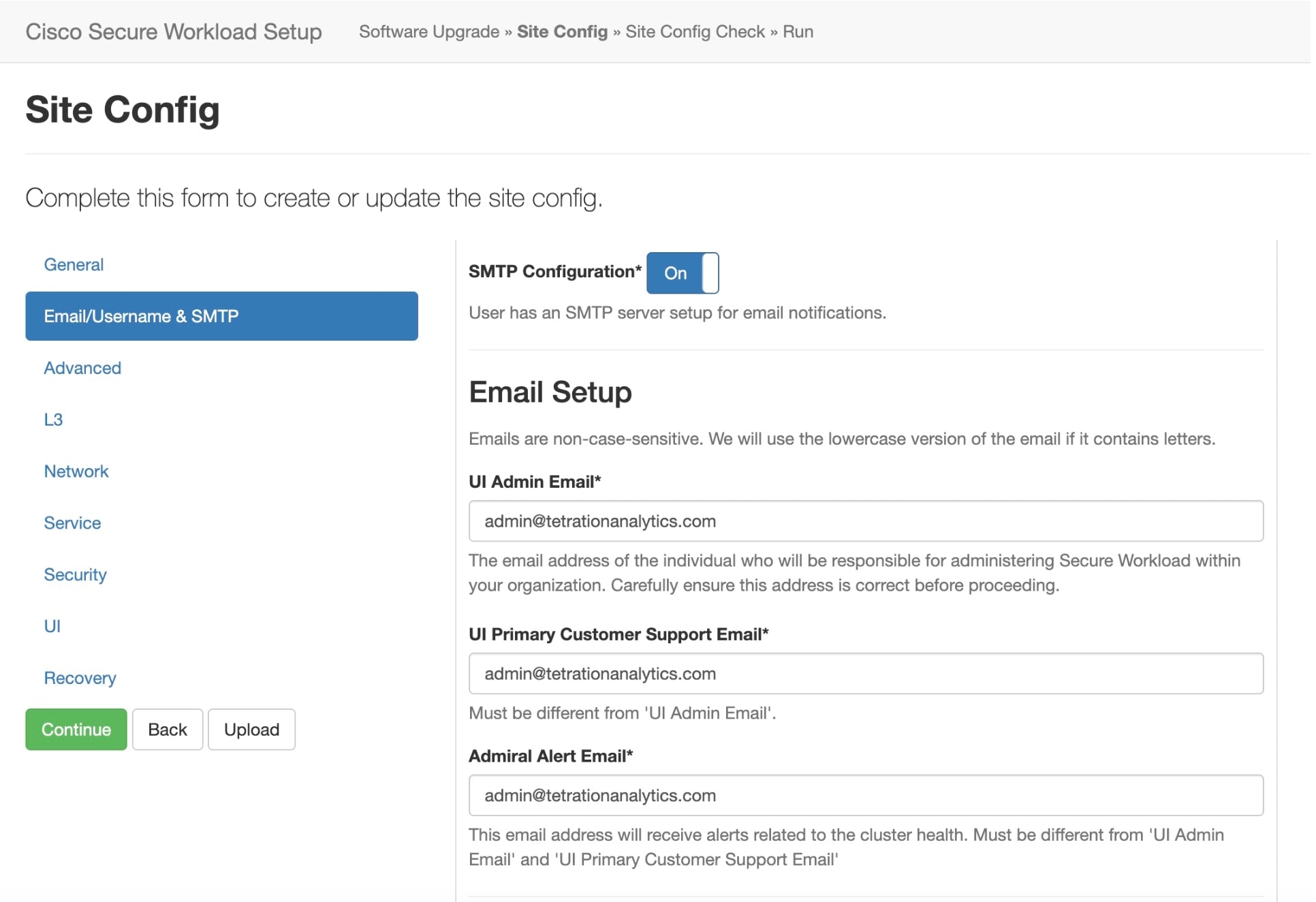
If the SMTP configuration is switched On: Users can set up the Email notifier configuration and the SMTP server configurations.
To configure the SMTP server in the cluster, use either of the following methods:
Basic SMTP Authentication
Microsoft Modern Authentication (OAuth)
The Basic SMTP Authentication method uses SMTP server, SMTP username and SMTP password for authentication. The following parameters are configured for
Basic SMTP configuration:
Figure 3. SMTP Username and Password for Authentication
Parameter
Type
Description
SMTP Username
String
(Optional) SMTP server username
SMTP Password
String
(Optional) SMTP server password for the user (if given)
SMTP Server
String
IP address or hostname of the SMTP server
SMTP Port
Number
Listening port of the SMTP server
Secure Connection
Check box
Email address from which alerts are sent
Default Recipients
String
Comma-separated list of recipient email addresses
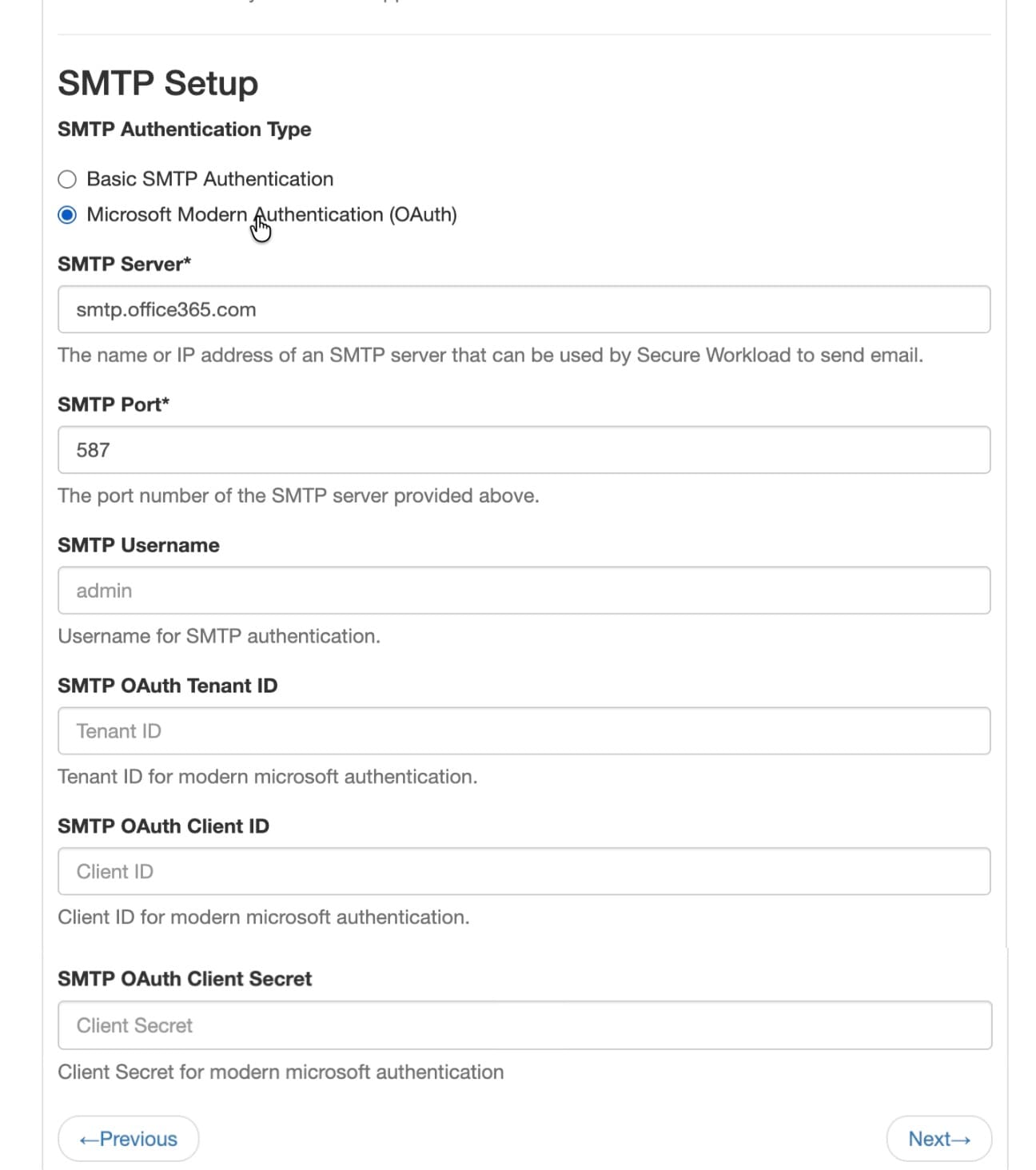
The Microsoft Modern Authentication (OAuth) method uses SMTP username and password for authentication. The following parameters are configured for Microsoft Modern Authentication:
Figure 4. Configure SMTP Using the Microsoft Modern Authentication
Field
Description
SMTP Server
The name or IP adddress of an SMTP server that can be used by Secure Workload to send email.
SMTP Port
The port number of the SMTP server provided above.
SMTP Username
The username for SMTP authentication.
SMTP OAuth Tenant ID
Enter the tenant Id for operating mails via SMTP in microsoft modern authentication. This can be copied from your azure application.
SMTP OAuth Client ID
Enter the client Id for operating mails via SMTP in microsoft modern authentication . This can be copied from your azure application.
SMTP OAuth Client Secret
Enter the client secret for operating mails via SMTP in microsoft modern authentication. This can be copied from your azure
application.
Field
Description
UI Admin Email
The email address of the individual who will be responsible for administering Secure Workload within your organization.
UI Primary Customer Support Email
The email address of primary support. The email must be different from the UI Admin email.
Admiral Alert Email
This email address receives alerts that are related to the cluster health. Must be different from UI Admin Email and UI Primary
Customer Support Email.
Configure SMTP in Secure Workload for Microsoft Modern Authentication
After you have registered Secure Workload as an Azure AD application, configure the SMTP server for Secure Workload clusters using either the Basic SMTP configuration or Microsoft Modern authentication along with the Microsoft SMTP server.
Enter the client ID for operating mails through SMTP in microsoft modern authentication. This can be copied from your azure
application.
SMTP OAuth Client Secret
Enter the client secret for operating mails through SMTP in microsoft modern authentication. This can be copied from your
azure application.
SMTP OAuth Tenant ID
Enter the tenant ID for operating mails through SMTP in microsoft modern authentication. This can be copied from your azure
application.
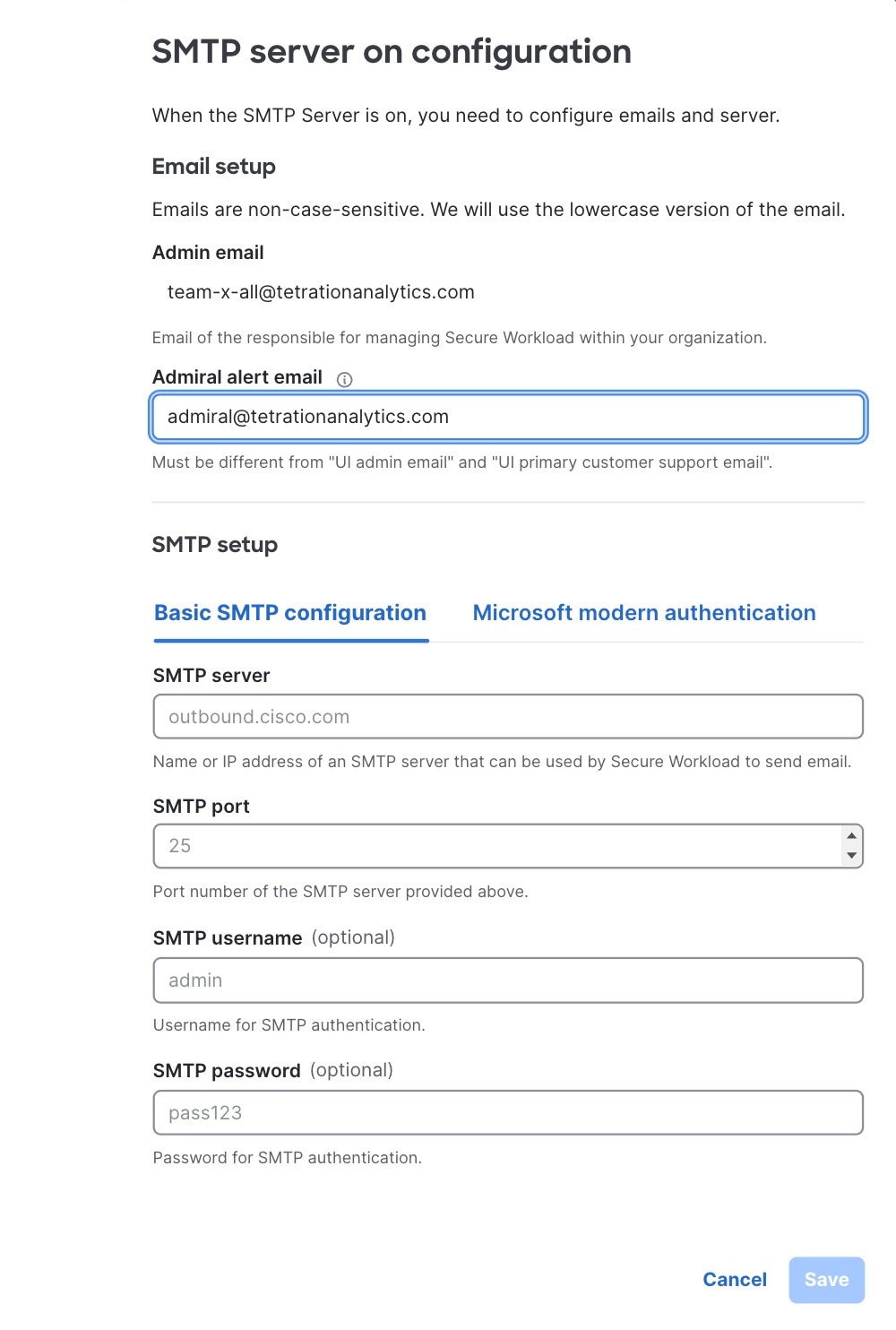
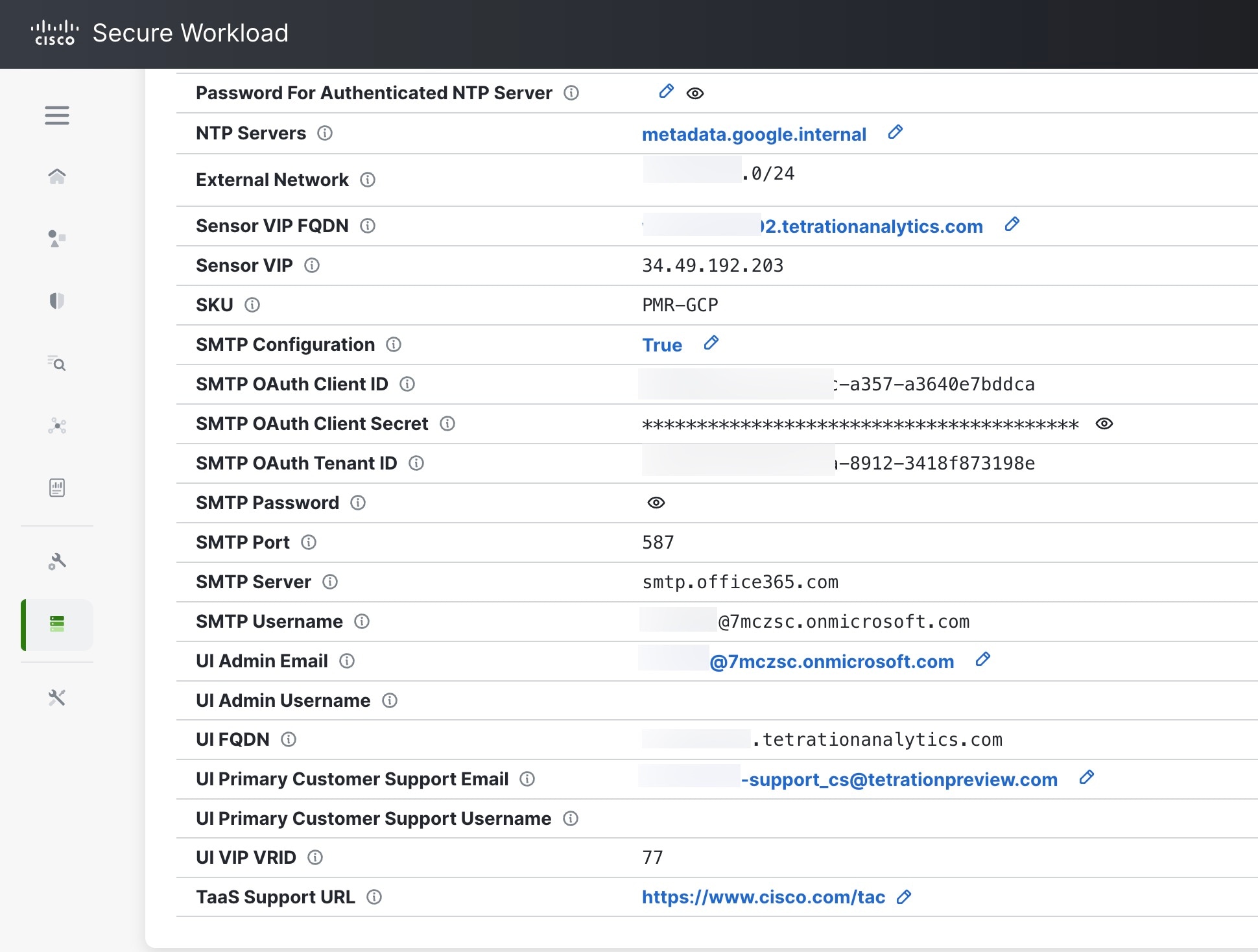
To configure the SMTP server configuration, click the pencil icon next to the SMTP Configuration field. Click the edit check to confirm the edit settings. Use either of the following methods to configure the SMTP configurations:
Basic SMTP Configuration
Microsoft Modern Authentication (OAuth)
The Basic SMTP Authentication method uses SMTP server, SMTP username and SMTP password for authentication. The following parameters are configured for
Basic SMTP configuration:
Figure 6. SMTP Username and Password for Authentication
Parameter
Type
Description
SMTP Username
String
(Optional) SMTP server username
SMTP Password
String
(Optional) SMTP server password for the user (if given)
SMTP Server
String
IP address or hostname of the SMTP server
SMTP Port
Number
Listening port of the SMTP server
Secure Connection
Check box
Email address from which alerts are sent
Default Recipients
String
Comma-separated list of recipient email addresses
The Microsoft Modern Authentication (OAuth) method uses SMTP username and password for authentication. The following parameters are configured for Microsoft Modern Authentication:
Configure SMTP server settings using the Microsoft Modern Authentication for Secure Workload clusters with the following details:
Client ID: The Application (client) ID copied during registration.
Tenant ID: The Directory (tenant) ID copied earlier.
Client Secret: The secret value copied when creating the client secret.
Note
The SMTP server: office365.microsoft.com and SMTP Port: 587 are the only values that are supported for Modern Microsoft Authentication at this point.
The token endpoint in the Modern Microsoft Authentication scenario would be:

 Feedback