Install Windows Agents for Deep Visibility and Enforcement

Prerequisites for Installing Windows Agent

  • For platform requirements, see the Supported Platforms and Prerequisites section.

  • To install and execute the agent services, you require root or administrator privileges.

  • Install Npcap on workloads running Windows 2008 R2 or when the installed agent version is earlier than version 3.8. If the Npcap driver is not already installed, the agent installs the recommended Npcap version in the background after the service starts. For more information, see the Npcap version information.

  • The agent and log files require 1 GB of storage space.

  • Enable the Windows services required for agent installation. Some Windows services could have been disabled if your Windows hosts have been security hardened, or have deviated from the default configurations. For more information, see the Required Windows Services section.

  • Configure security exclusions on security applications that are monitoring the host and that could block agent installation or agent activity. For more information, see Security Exclusions.

Supported Methods to Install Windows Agents

There are two methods to install Windows agents for deep visibility and enforcement.

You can also install using a golden image. For more information, see Deploying Agents on a VDI Instance or VM Template (Windows).

Install Windows Agent using the Agent Script Installer Method

We recommend the script installer method to deploy Windows agents for deep visibility and enforcement.


Note


To install a Windows agent using the script installer method:

Procedure


Step 1

Navigate to Agent Installation Methods:

  • If you are a first-time user, launch the Quick Start wizard and click Install Agents.

  • From the navigation pane, choose Manage > Agents, and select the Installer tab.

Step 2

Click Agent Script Installer.

Step 3

From the Select Platform drop-down menu, choose Windows.

To view the supported Windows platforms, click Show Supported Platforms.

Step 4

Choose the tenant to install the agents.

Note


Selecting a tenant is not required for Secure Workload SaaS clusters.

Step 5

If you want to assign labels to the workload, choose the label keys and enter label values.

When the installed agent reports IP addresses on the host, the installer CMDB labels selected here, along with other uploaded CMDB labels that have been assigned to IPs reported by this host, would be assigned to the new IP address. If there are conflicts between uploaded CMDB labels and installer CMDB labels:

  • Labels assigned to an exact IP address take precedence over labels assigned to the subnet.

  • Existing labels assigned to an exact IP address take precedence over installer CMDB labels.

Step 6

If HTTP proxy is required to communicate with Secure Workload, choose Yes, and then enter a valid proxy URL.

Step 7

Under the Installer expiration section, select one from the available options:

  • No expiration: The installer script can be used multiple times.

  • One time: The installer script can be used only once.

  • Time bound: You can set the number of days for which the installer script can be used.

  • Number of deployments: You can set the number of times the installer script can be used.

Step 8

Click Download and save the file to the local disk.

Step 9

Copy the installer PowerShell script to all the Windows hosts for deployment and run the script with administrative privileges.

Note

 
  • Depending on the system settings, the command Unblock-File may need to be run before other commands.

  • The script does not run if the agent is already installed on the tenant.


We recommend running the pre-check, as specified in the script usage details.
Windows installer script usage details:
# powershell -ExecutionPolicy Bypass -File tetration_windows_installer.ps1 [-preCheck] [-skipPreCheck <Option>] [-noInstall] [-logFile <FileName>] [-proxy <ProxyString>] [-noProxy] [-help] [-version] [-sensorVersion <VersionInfo>] [-ls] [-file <FileName>] [-save <FileName>] [-new] [-reinstall] [
-npcap] [-forceUpgrade] [-upgradeLocal] [-upgradeByUUID <FileName>] [-visibility] [-goldenImage] [-installFolder <Installation Path>]
  -preCheck: run pre-check only
  -skipPreCheck <Option>: skip pre-installation check by given option; Valid options include 'all', 'ipv6' and 'enforcement'; e.g.: '-skipPreCheck all' will skip all pre-installation checks; All pre-checks will be performed by default
  -noInstall: will not download and install sensor package onto the system
  -logFile <FileName>: write the log to the file specified by <FileName>
  -proxy <ProxyString>: set the value of HTTPS_PROXY, the string should be formatted as http://<proxy>:<port>
  -noProxy: bypass system wide proxy; this flag will be ignored if -proxy flag was provided
  -help: print this usage
  -version: print current script's version
  -sensorVersion <VersionInfo>: select sensor's version; e.g.: '-sensorVersion 3.4.1.0.win64'; will download the latest version by default if this flag was not provided
  -ls: list all available sensor versions for your system (will not list pre-3.1 packages); will not download any package
  -file <FileName>: provide local zip file to install sensor instead of downloading it from cluster
  -save <FileName>: downloaded and save zip file as <FileName>
  -new: remove any previous installed sensor;
  -reinstall: reinstall sensor and retain the same identity with cluster; this flag has higher priority than -new
  -npcap: overwrite existing npcap
  -forceUpgrade: force sensor upgrade to version given by -sensorVersion flag; e.g.: '-sensorVersion 3.4.1.0.win64 -forceUpgrade'; apply the latest version by default if -sensorVersion flag was not provided
  -upgradeLocal: trigger local sensor upgrade to version given by -sensorVersion flag; e.g.: '-sensorVersion 3.4.1.0.win64 -upgradeLocal'; apply the latest version by default if -sensorVersion flag was not provided
  -upgradeByUUID <FileName>: trigger sensor whose uuid is listed in <FileName> upgrade to version given by -sensorVersion flag; e.g.: '-sensorVersion 3.4.1.0.win64 -upgradeByUUID "C:\\Program Files\\Cisco Tetration\\sensor_id"'; apply the latest version by default if -sensorVersion flag was not provided
  -visibility: install deep visibility agent only; -reinstall would overwrite this flag if previous installed agent type was enforcer
  -goldenImage: install Cisco Secure Workload Agent but do not start the Cisco Secure Workload Services; use to install Cisco Secure Workload Agent on Golden Images in VDI environment or Template VM. On VDI/VM instance created from golden image with different host name, Cisco Secure Workload Services will work normally
  -installFolder: install Cisco Secure Workload Agent in a custom folder specified by -installFolder e.g.: '-installFolder "c:\\custom sensor path"'; default path is "C:\Program Files\Cisco Tetration"

Install Windows Agent using the Agent Image Installer Method

We recommend the automated installer script method for installing Windows agents. Use the image installer method if you have a specific reason for using this manual method.


Note


Do not manually deploy an older MSI agent version when an existing agent is already running on the host.


Site-related files that are in the package:

  • ca.cert—Mandatory—CA certificate for sensor communications.

  • enforcer.cfg—Mandatory only when installing enforcement sensor—Contains configuration of enforcement endpoints.

  • sensor_config—Mandatory—Configuration for deep visibility sensor.

  • sensor_type—Type of the sensor (enforcement or deep visibility).

  • site.cfg—Mandatory—Global site endpoint configuration.

  • user.cfg—Mandatory for SaaS—Sensor activation key and proxy configuration.

Prerequisite:

Configure the ACTIVATION_KEY and HTTPS_PROXY in the user.cfg file for SaaS clusters and when you are installing the agent on a non-default tenant of on-premises clusters with multiple tenants. For more information, see (Manual Installations Only) Update the User Configuration File.

To install a Windows agent using the agent image method:

Procedure


Step 1

Navigate to Agent Installation Methods:

  • If you are a first-time user, launch the Quick Start wizard and click Install Agents.

  • From the navigation pane, choose Manage > Agents, and select the Installer tab.

Step 2

Click Agent Image Installer.

Step 3

In the Platform field, enter Windows.

Step 4

Enter the required agent type and the version of the agent, and then from the results, download the required version of the agent.

Step 5

Copy the tet-win-sensor<version>.win64-<clustername>.zip file to all the Windows hosts for deployment.

Step 6

Ensure that you have administrative privileges and extract the ZIP file.

Step 7

In the extracted folder, run the following command to install the agent: msiexec.exe /i TetrationAgentInstaller.msi

Additionally, the following options are available for MSI installer.

Table 1. Available Options for MSI Installer

Options

Description

agenttype=<AgentType>

AgentType should be either sensor or enforcer, depending on whether enforcement is required. By default, the installer checks the content of the sensor_type file in the same folder and uses the content to overwrite the passed parameter. However, if agent is installed in /quiet mode, the option is required.

overwritenpcap=yes

For Windows 2008 R2, by default, the agent does not attempt to upgrade Npcap if Npcap already exists. Pass this parameter to upgrade the existing Npcap. If this option is used, subsequent agent auto-upgrades also upgrade Npcap to newer supported versions.

nostart=yes

Pass this parameter, when installing the agent using a golden image in a VDI environment or VM template, to prevent agent service— CswAgent from starting automatically. On VDI/VM instances created using the golden image and with a different host name, these services, as expected, start automatically.

installfolder=<FullPathCustomFolder>

Use this parameter, at the end of the install command, to install the agent in a custom folder.

serviceuser=<Service UserName>

Use this parameter, at the end of the install command, to configure the service user. The default service user is “LocalSystem”.

For local user, serviceuser=.\<Service UserName>

For domain user, serviceuser=<domain_name>\<samaccount name>

Service user must have local administrative privileges.

The Service account must have local administrative or domain admin group privileges.

servicepassword=<Service UserPassword>

Use this parameter, at the end of the install command, to configure the password for the service user. The password must be in plain-text format.

proxy=”<proxy_address>”

Use this parameter to set the HTTPS proxy for accessing the Secure Workload cluster.

activationkey=<activation Key>

Use this parameter to specify the tenant if agent is not being installed under the default tenant.


Note


  • If activation key and proxy options are used during manual installation, you do not need to manually configure user.cfg.

  • For Windows OS other than Windows 2008 R2, when you upgrade to version 3.8, the installed Npcap is automatically uninstalled by the Windows agent.

  • If the agent is already installed on the host, do not reinstall the agent. To upgrade the agent, see Upgrading Software Agents section.


Verify Windows Agent Installation

Procedure


Step 1

Ensure that the folder C:\\Program Files\\Cisco Tetration (or the custom folder) exists.

Step 2

Ensure that the service— CswAgent, for deep visibility and enforcement, exists and is in the running state. Run command cmd.exe with administrative privileges.

Run the command sc.exe query CswAgent

Check if the status is Running

Run the command sc qc cswagent

Check if the DISPLAY-NAME is Cisco Secure Workload Deep Visibility

OR

Run the command services.msc

Find the name Cisco Secure Workload Deep Visibility

Check if the status is Running


Verify Windows Agent in the Configured Service User Context

  1. Ensure that the service CswAgent running in the configured service user context. CswAgent runs in the same service user context.

    Run the command cmd.exe with Admin privileges

    Run the command sc qc cswagent

    Check SERVICE_START_NAME <configured service user>

    OR

    Run the command services.msc

    Find the name Cisco Secure Workload Deep Visibility

    Check Log On As for the <configured service user>

    Find the name Cisco Secure Workload Enforcement

    Check Log On As for the <configured service user>

    OR

    Run the command tasklist /v | find /i “cswengine”

    Check the user context for the running processes (5th column)

Modify Service Account

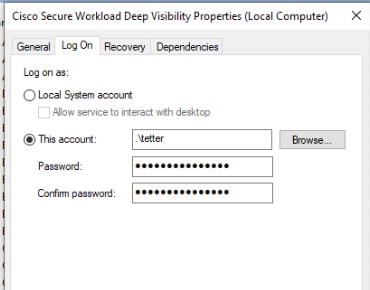
After installing Windows Agents, use one of the following methods to modify the existing CswAgent service.

  • Use services.msc.

    Figure 1. Modify Service Account based on services.msc Account
  • Use any third party application to configure the services.

  • Use the following commands:

    1. Run cmd as an administrator.

    2. Modify the services using the service account name by running the following commands:

      • sc config cswagent obj= <service user name> password= <password>

    3. Verify service configurations by running the following commands:

      • sc qc cswagent

    4. Restart the CswAgent service by running the following commands:

      1. sc.exe cswagent

      2. sc.exe cswagent

Deploying Agents on a VDI Instance or VM Template (Windows)

By default, agent services start automatically after agents are installed. When installing on a golden image, you must use installer flags to prevent these services from starting. When instances are cloned from the golden image, agent services, as expected, start automatically.

Agent will not install Npcap on golden VMs, but will be automatically installed if needed on VM instances cloned from a golden image. For more information, see Windows Agent Installer and Npcap.

Install the agent on a golden image in a VDI environment or VM template

Procedure


Step 1

Install the agent on a golden image in a VDI environment or VM template using an MSI installer or PowerShell installer script:

Use MSI installer with nostart=yes

OR

Use PowerShell installer with the -goldenImage flag.

Step 2

Ensure that the folder C:\\Program Files\\Cisco Tetration (or the custom folder) exists.

Step 3

Ensure that the service CswAgent exists and is stopped:

Run the command cmd.exe with Admin privileges.

Run the command sc.exe query CswAgent

Check if the STATE is Stopped.

Step 4

The VM template is now configured.

Step 5

Shut down the VM template.


Create a new VDI instance VM

Procedure


Step 1

Create a new VDI instance VM by cloning the VM template.

Step 2

Reboot the VDI instance VM.

Step 3

After rebooting the VDI instance VM, ensure that the service CswAgent is running in the configured service context. See Verify the Agent is Installed.

Step 4

On the VDI instance VM, ensure that the NPCAP driver is installed and running:

Run the command cmd.exe with Admin privileges

Run the command sc query npcap

Check if STATE is Running

Step 5

On the VDI instance VM, ensure that the agent is registered using a valid sensor_id:

  • Check the sensor_id file in the installation folder.

  • If the sensor_id starts with “uuid”, it is not a valid sensor_id.

  • If the agent fails to register but the Secure Workload web interface shows that the agent is registered:

  • Delete the agent using OpenAPI. For more information, see Deploy Software Agents.

Note

 
  • Do not change the host name of the golden image or VM template.

  • If the golden image or VM template is rebooted after installing the agent, Secure Workload services start running after the reboot.

  • If the VDI instance VM fails to report network flows, see the VDI Instance VM in Network Flows section.

.

Windows Agent Installer and Npcap—For Windows 2008 R2

  1. For supported Npcap versions, see the Support Matrix at https://www.cisco.com/go/secure-workload/requirements/agents.

  2. Installation:

    If Npcap is not installed, the agent installs the supported version ten seconds after the service starts. If User has Npcap installed but the version is older than the supported version, Npcap is not be upgraded. Manually upgrade or uninstall Npcap, run the agent installer with the option overwritenpcap=yes, or run installer script with -npcap to get the supported Npcap version. If Npcap driver is in use by any application, the agent upgrades Npcap at a later time.

  3. Upgrade:

    If Npcap is installed by Windows Agent and the version is older than the supported version, Npcap is upgraded to the supported version ten seconds after the service starts. If Npcap driver is in use by any application, the agent upgrades Npcap at a later time. If Npcap is not installed by Windows Agent, Npcap is not upgraded.

  4. Uninstall:

    If Npcap is installed by the Windows Agent, the agent uninstalls Npcap. If Npcap is installed by the user, but upgraded by the agent installer with overwritenpcap=yes, Npcap is not uninstalled. If Npcap driver is in use by any application, the agent does not uninstall Npcap.

Windows Agent Flow Captures: For All Windows OS Excluding Windows Server 2008 R2

From the latest version of Windows, the agent uses ndiscap.sys (Microsoft in-built) driver and Events Tracing using Windows (ETW) framework to capture the network flows.

During the upgrade to the latest version:

  • The agent switches to ndiscap.sys from npcap.sys.

  • The agent installer uninstalls Npcap if:

    • Npcap is installed by the agent.

    • Npcap is not in use.

    • OS version is not Windows Server 2008 R2.

After the agent services are started, the agent creates ETW sessions, CSW_MonNet, and CSW_MonDns (for DNS data), and initiates the capture of network flows.


Note


  • On Windows Server 2012, network packets are parsed for DNS data.

  • The Windows agent on hosts with Windows Server 2012 and later capture consumer and provider usernames and the usernames are available in the flow observations. This feature is not supported on Windows Server 2008 R2 because of limitations in the OS. In the agent configuration profile, configure the following to capture the usernames:

    • Enable PID/ User Lookup.

    • Set Flow Analysis Fidelity to Detailed.