Tenants

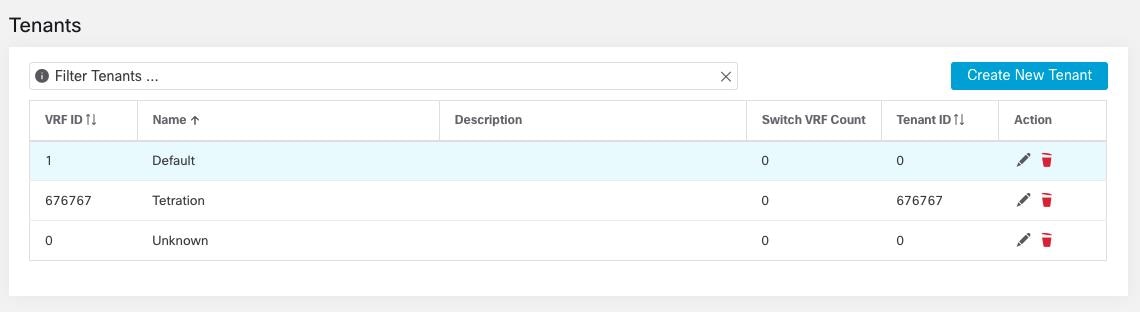
From the navigation pane, Site Admins and Customer Support users can access the Tenants page under the Platform > Tenants menu. The Tenants page displays the currently configured Tenants and VRFs. Secure Workload is preconfigured with one or more Tenants and VRFs, and you can add, edit, and delete tenants.


Note


These values affect the results of the cluster output. We recommend consulting Cisco TAC before changing these values to understand the system impact.


Figure 1. Tenants Page
Tenants Page

Add a Tenant

Before you begin

You must be a Site Admin or Customer Support user.

Procedure


Step 1

In the left navigation pane, click Platform > Tenants.

Step 2

Click Create New Tenant.

Step 3

Enter the appropriate values in the following fields:

Field

Description

Name

Enter a desired name for the tenant.

Description

(Optional) The description field contains additional information about the tenant.

Step 4

Click Create.


Edit a Tenant

Before you begin

You must be a Site Admin or Customer Support user.

Procedure


Step 1

In the left navigation pane, click Platform > Tenants.

Step 2

Find the tenant that you want to edit and click the pencil icon in the column on the right.

Field

Description

Name

Update a name for the tenant.

Description

(Optional) Update the description field contains additional information about the tenant.

VRF ID

Displays the ID for this particular Tenant or VRF.

Change log

Clicking the change log icons displays a new page which displays the change log for the Tenant or VRF.

Step 3

Click Update.