Firepower 1010 ASA Getting Started

PDF

Configure licensing

Want to summarize with AI?

Log in

Overview

Learn how to configure Smart Licensing in ASDM for Firepower 1010 by enabling Essentials entitlements and registering the device with a Cisco Smart Software Manager token.

Register the firewall with the Smart Software Manager.

Before you begin

Obtain licenses for your firewall according to Obtain licenses.

Procedure

1.

In the Cisco Smart Software Manager, request and copy a registration token for the virtual account to which you want to add this device.

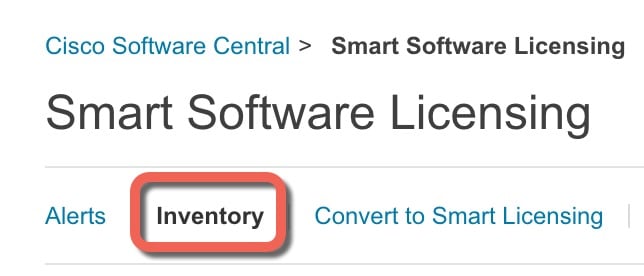
  1. Click Inventory.

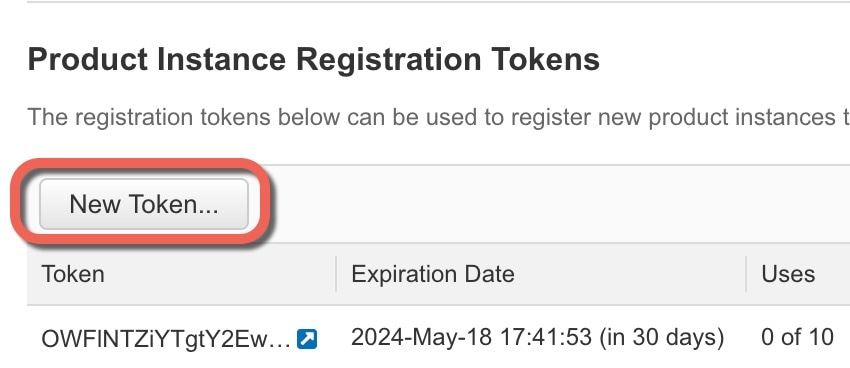
  2. On the General tab, click New Token.

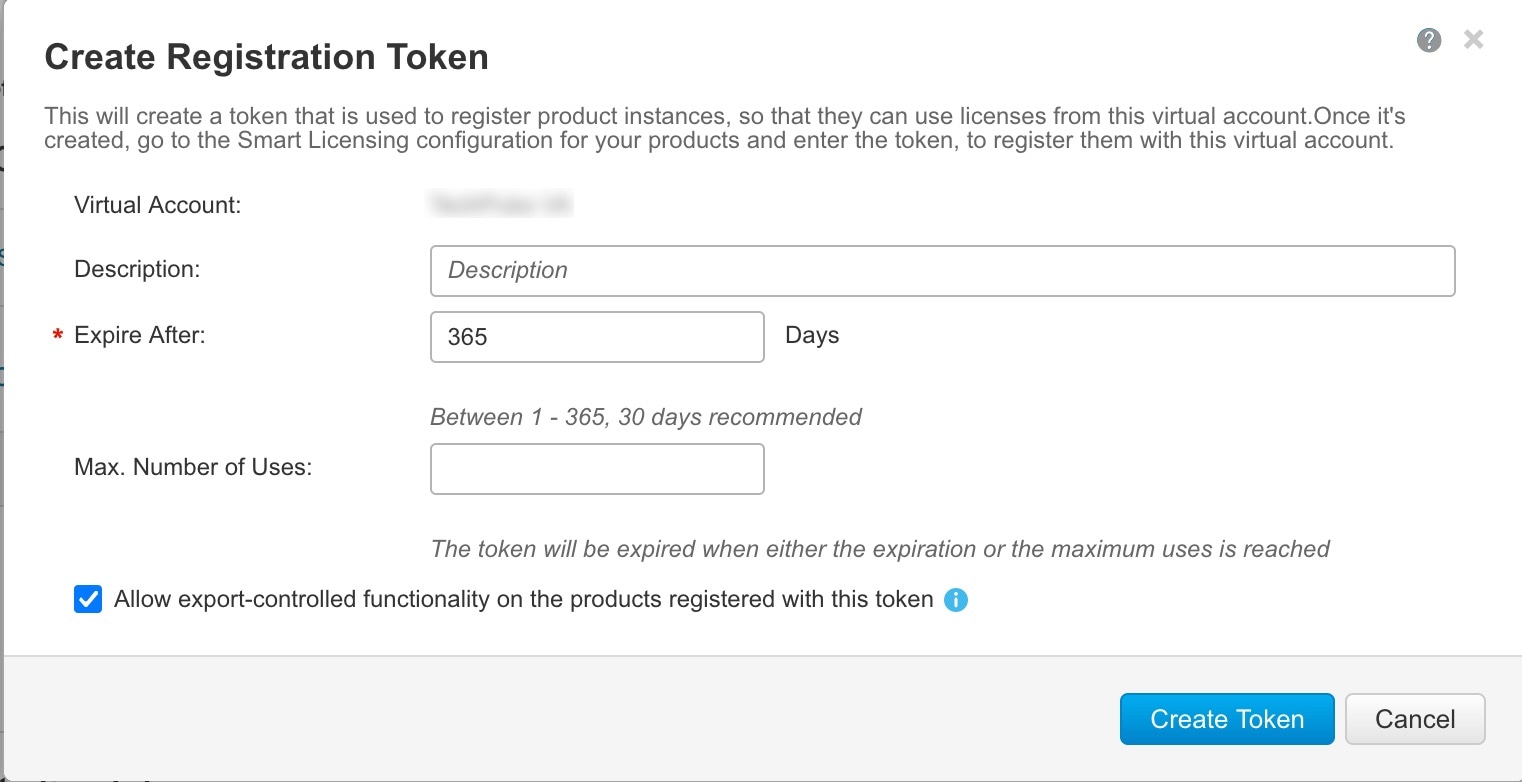
  3. On the Create Registration Token dialog box enter the following settings, and then click Create Token:

    • Description

    • Expire After—Cisco recommends 30 days.

    • Max. Number of Uses

    • Allow export-controlled functionaility on the products registered with this token—Enables the export-compliance flag.

    The token is added to your inventory.

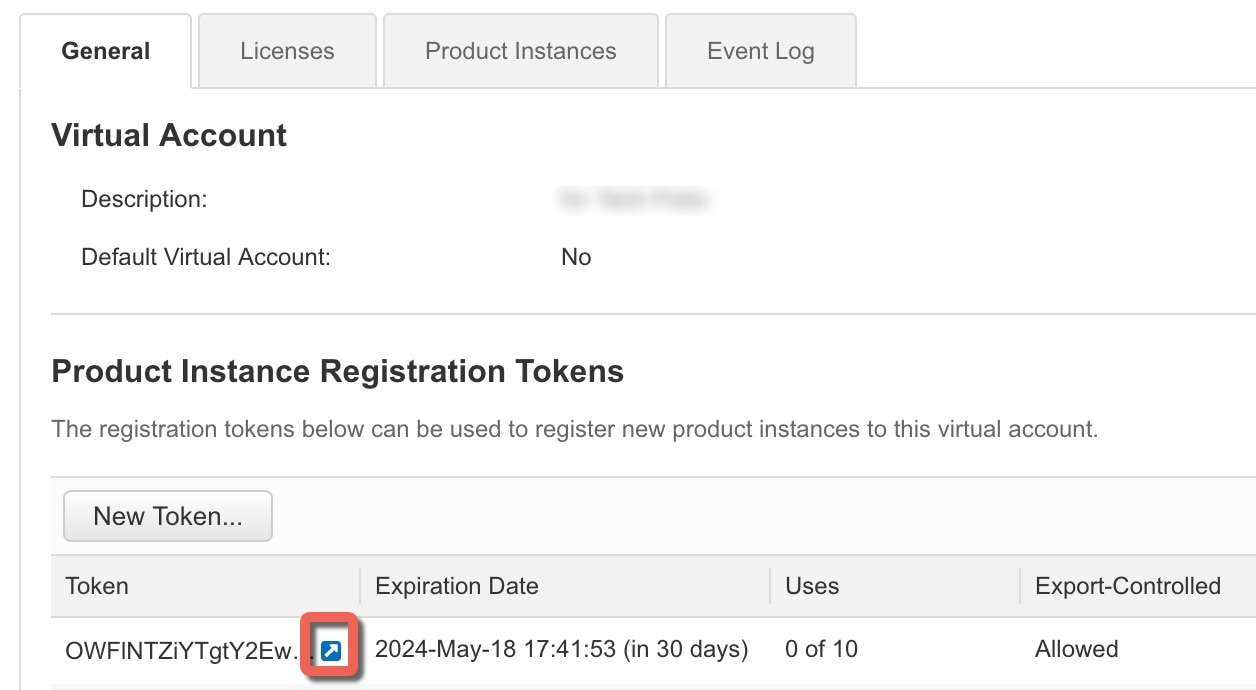
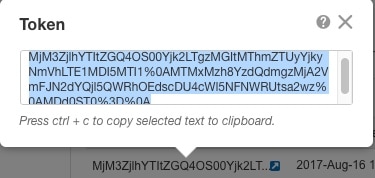
  4. Click the arrow icon to the right of the token to open the Token dialog box so you can copy the token ID to your clipboard. Keep this token ready for later in the procedure when you need to register the ASA.

    Figure 1. View Token
    Figure 2. Copy Token
2.

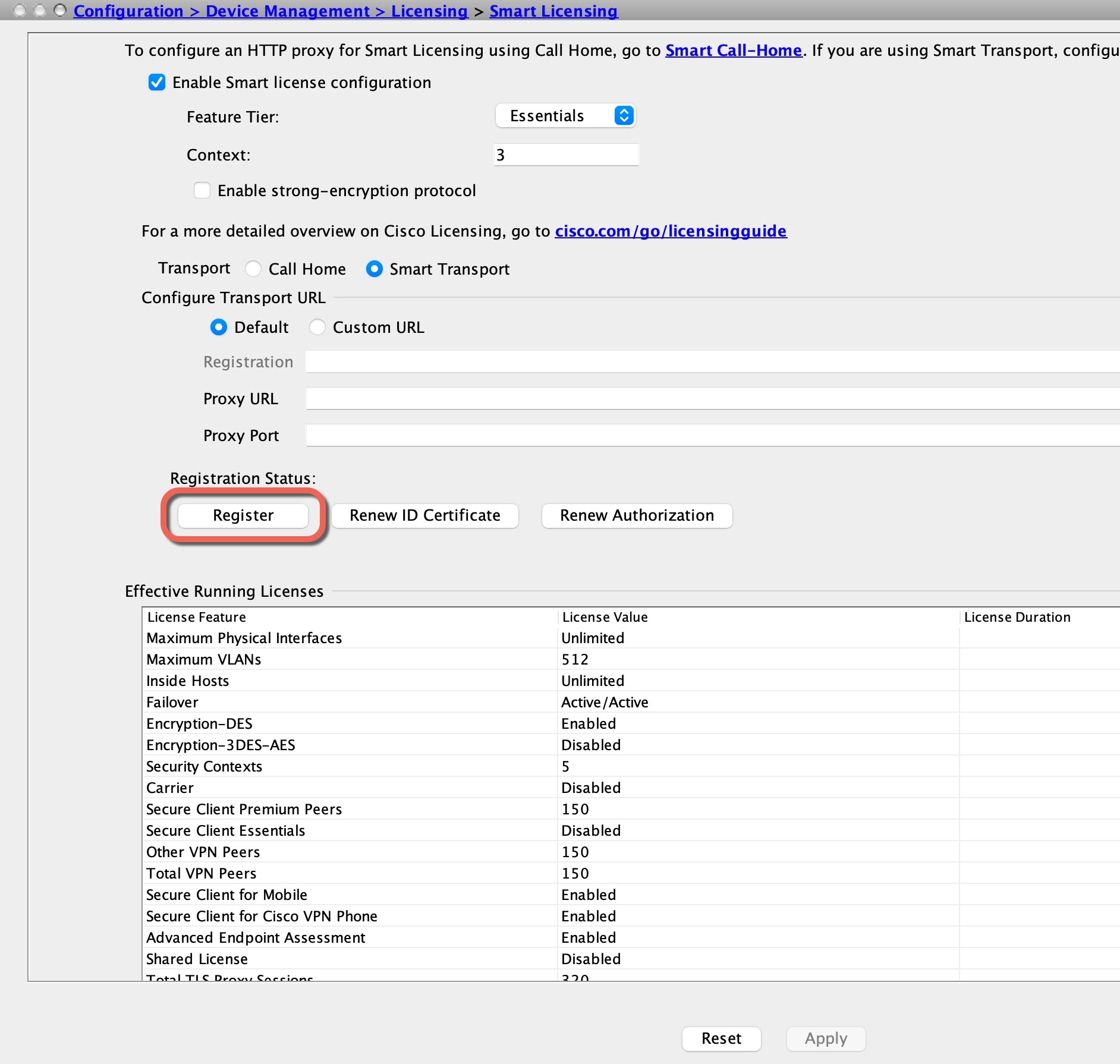
In ASDM, choose Configuration > Device Management > Licensing > Smart Licensing.

3.

Set the licensing entitlements.

  1. Check Enable Smart license configuration.

  2. From the Feature Tier drop-down list, choose Essentials.

    Only the Essentials tier is available.

  3. (Optional) Check the Enable Security Plus check box.

    The Security Plus tier enables failover.

  4. Click Apply.

  5. Click the Save icon in the toolbar.

4.

Click Register.

5.

Enter the registration token from the Cisco Smart Software Manager in the ID Token field.

6.

Click Register.

ASDM refreshes the page when the license status is updated. You can also choose Monitoring > Properties > Smart License to check the license status, particularly if the registration fails.

7.

Quit ASDM and relaunch it.

When you change licenses, you need to relaunch ASDM to show updated screens.