Cisco Security Cloud Control: Network Devices with Generic SSH Access Management

PDF

Cisco Security Cloud Control: Network Devices with Generic SSH Access Management

Contact Security Cloud Control support

Want to summarize with AI?

Log in

Learn how to contact Security Cloud Control support, export workflow details, open a Cisco TAC support ticket, and check the Security Cloud Control service status page.


This chapter covers the following sections:


Export the workflow

Export the workflow for a device that is experiencing issues before opening a support ticket to help the support team identify and correct troubleshooting efforts more efficiently.

We strongly recommend exporting the workflow of a device that is experience issues prior to opening a support ticket. This additional information can help the support team expeditiously identify and correct any troubleshooting efforts.

Use this procedure to export the workflow:

Before you begin

Follow these steps to export the workflow:

Procedure

  1. In the left pane, click Security Devices.

  2. Click the Devices tab to locate your device.

  3. Click the appropriate device type tab and select the device you need to troubleshoot.

    Use the filter or search bar to locate the device you need to troubleshoot. Select the device so it is highlighted.

  4. In the Device Actions pane, select Workflows.

  5. Click the Export button located at the top right of the page, above the table of events. The file automatically saves locally as a .json file. Attach this to any emails or tickets you open with TAC.

The workflow exports and a .json file is saved locally. Attach the file to TAC emails or support tickets to accelerate troubleshooting.

What to do next

Attach the exported .json file to TAC emails or support tickets.


Support tickets with TAC


Open a support ticket with TAC from a Security Cloud Control tenant

Enable customers using a licensed Security Cloud Control tenant to create and submit a Cisco TAC support case through the Support Case Manager in order to receive technical assistance.

This section explains how a customer using a licensed Security Cloud Control tenant can open a support ticket with Cisco's Technical Assistance Center (TAC).

Follow these steps to open a support ticket with TAC:

Procedure

  1. Log in to Security Cloud Control.

  2. Next to your tenant name, click the help button and select Contact Support.
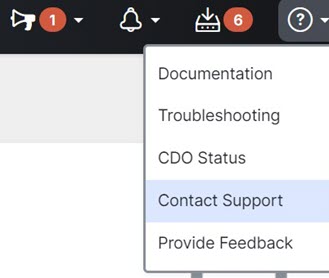
    The image illustrates the step-by-step process for opening a support ticket with Cisco's Technical Assistance Center (TAC) from a licensed tenant. It highlights key actions and options available to the user.
  3. Click Support Case Manager.

  4. Click the blue Open New Case button.

  5. Click Open Case.

  6. Select Products and Services and then click Open Case.

  7. Choose a Request Type.

  8. Expand Find Product by Service Agreement row.

  9. Fill in all the fields. Many of the fields are obvious. This is some additional information:

    • Product Name (PID) - If you no longer have this number, see the Security Cloud Control Data Sheet.

    • Product Description - This is the description of the PID.

    • Site Name - Enter your site name. If you are a Cisco Partner opening a case for one of your customers, enter the customer's name.

    • Service Contract - Enter your service contract number.

      • Important: In order for your case to be associated with your Cisco.com account, you need to associate your contract number to your Cisco.com profile. Use this procedure to associate your contract number to your Cisco.com profile.

        1. Open to Cisco Profile Manager.

        2. Click the Access Management tab.

        3. Click Add Access.

        4. Choose TAC and RMA case creation, Software Download, support tools, and entitled content on Cisco.com and click Go.

        5. Enter service contracts number(s) in the space provided and click Submit. You will receive notification via email that the service contract associations have been completed. Service contract association can take up to 6 hours to complete.

    Important: If you are not able to access any of the links below, please contact your authorized Cisco partner or re-seller, your Cisco account representative, or the individual in your company who manages Cisco service agreement information.

  10. Click Next.

  11. In the Describe Problem screen, scroll down to Manually select a Technology, click it, and type Security Cloud Control in the search field.

  12. Select the category that best matches your request, and click Select.
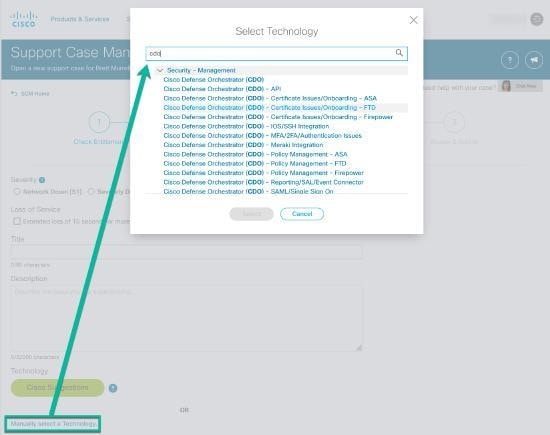
    The Cisco TAC support case submission process is illustrated, showing the confirmation message and case number for tracking.
  13. Complete the remainder of the service request and click Submit.

A Cisco TAC support case is created and submitted through Support Case Manager. You should see confirmation that the request was submitted and, if applicable, receive a case number for tracking and further communication.


Open a support ticket with TAC for your Security Cloud Control trial tenant

Open a support request with Cisco's Technical Assistance Center during a free trial to obtain technical help for your tenant.

This section explains how a customer using a free trial of a Security Cloud Control tenant can open a support ticket with Cisco's Technical Assistance Center (TAC).

Perform this task when you need technical assistance during a trial and want to contact TAC from the tenant interface.

Before you begin

Follow these steps to open a support ticket with TAC for a trial tenant:

Procedure

  1. Log in to Security Cloud Control.

  2. Next to your tenant and account name, click the help button and select Contact Support.

    The image illustrates the steps to open a support ticket with TAC from the trial tenant interface, highlighting the submission process and the involvement of a technical support engineer.
  3. In the Enter Issue or request below field, specify the issue that you are facing or your request and click Submit.

    Your request, along with the technical information, will be sent to the support team, and a technical support engineer will respond to your query.

Your support request is submitted to TAC with relevant technical details, and a support engineer responds to assist with your issue.


Verify the Security Cloud Control service status

Monitor the operational status of the Security Cloud Control service and review uptime history and service interruptions using the customer-facing status page.

Security Cloud Control maintains a customer-facing service status page that shows you if the Security Cloud Control service is up and any service interruptions it may have had.

You can view up-time information with daily, weekly, or monthly graphs.

Follow these steps to verify the service status and subscribe to notifications:

Procedure

  1. Click Security Cloud Control Status in the help menu on any page in Security Cloud Control to open the Security Cloud Control status page.

  2. On the status page, click Subscribe to Updates.

    You receive a notification if the Security Cloud Control service goes down.

The status page opens, displaying uptime graphs and any recent service interruptions. If you subscribed, you receive notifications when the service goes down.