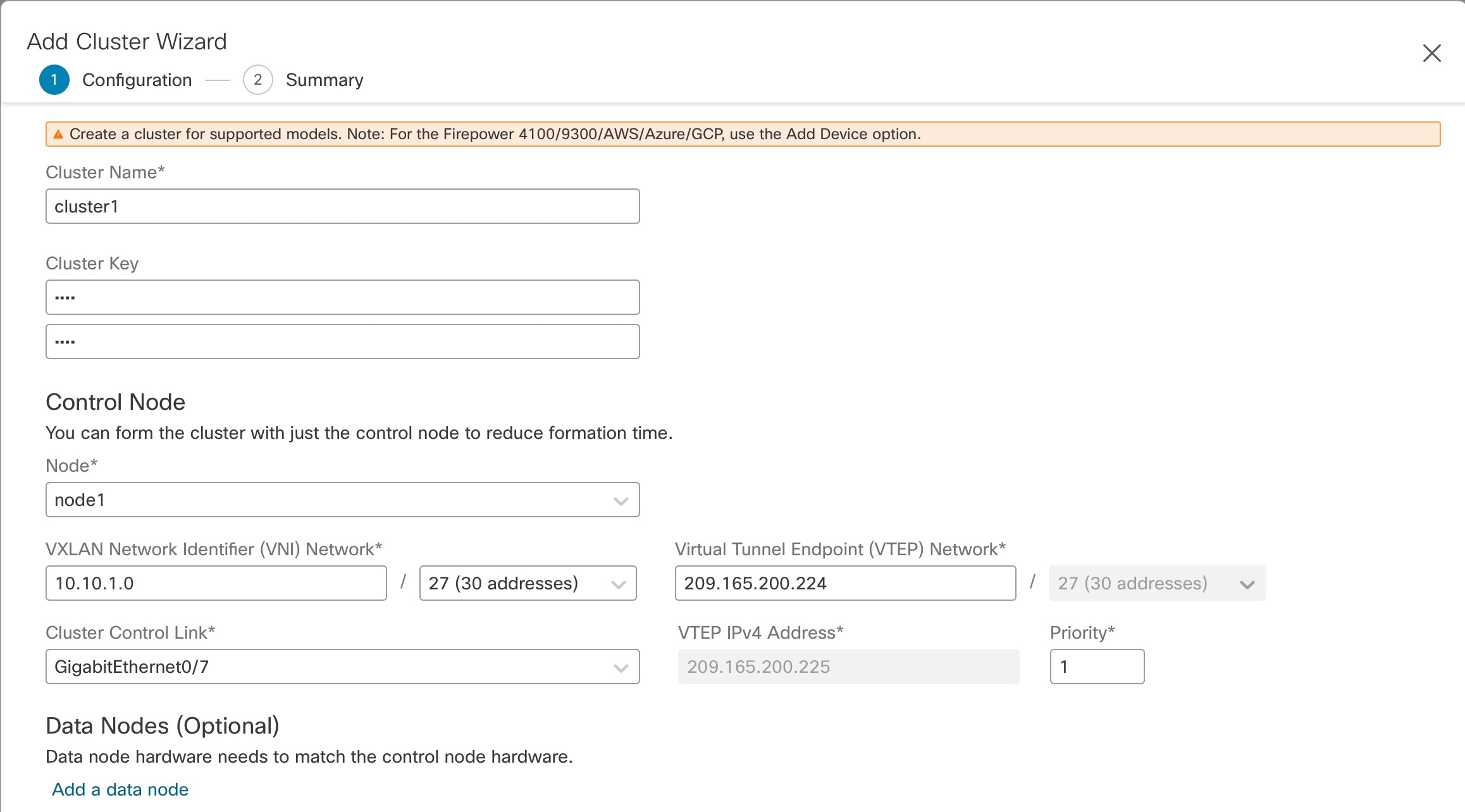
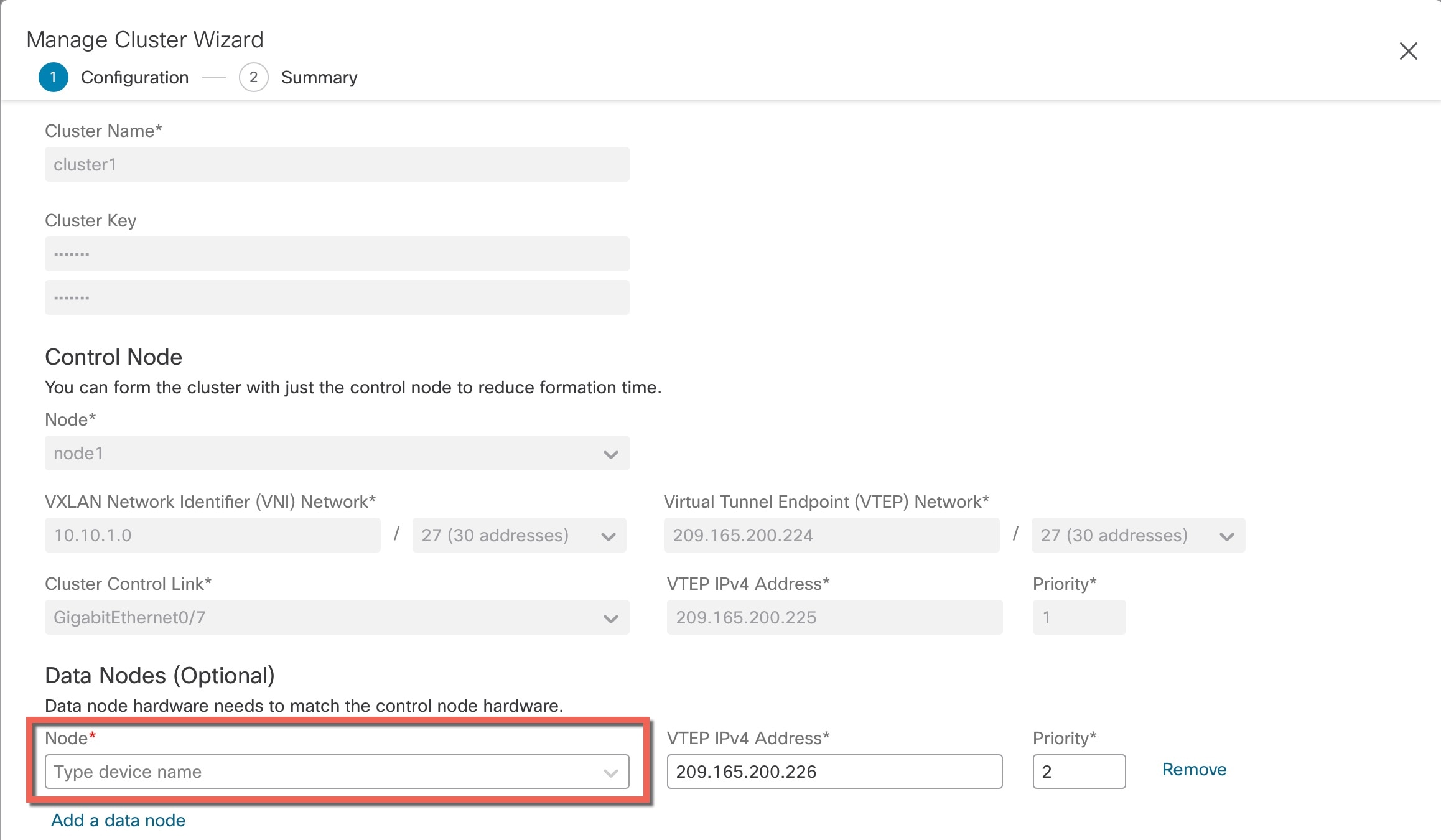
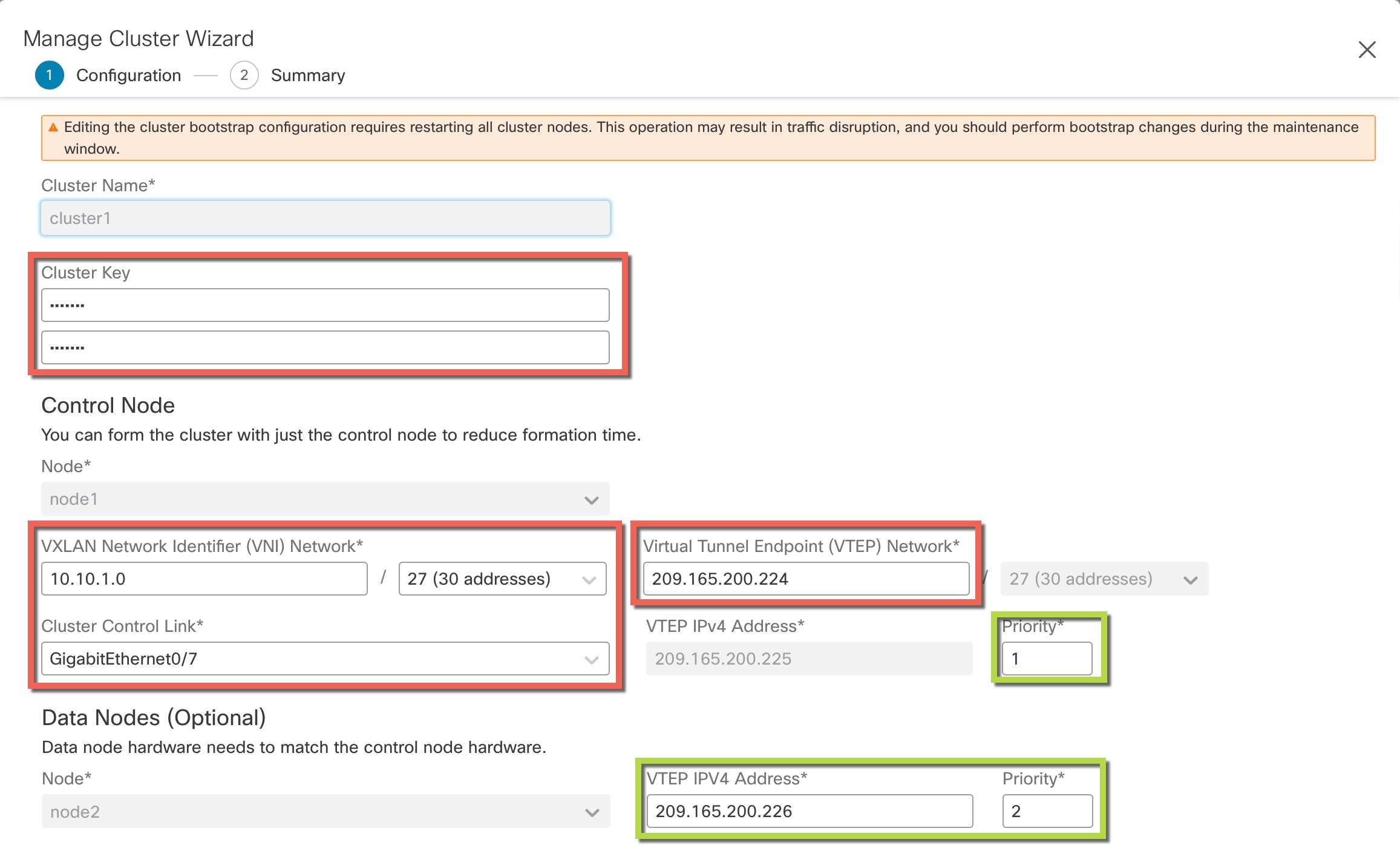
Clustering

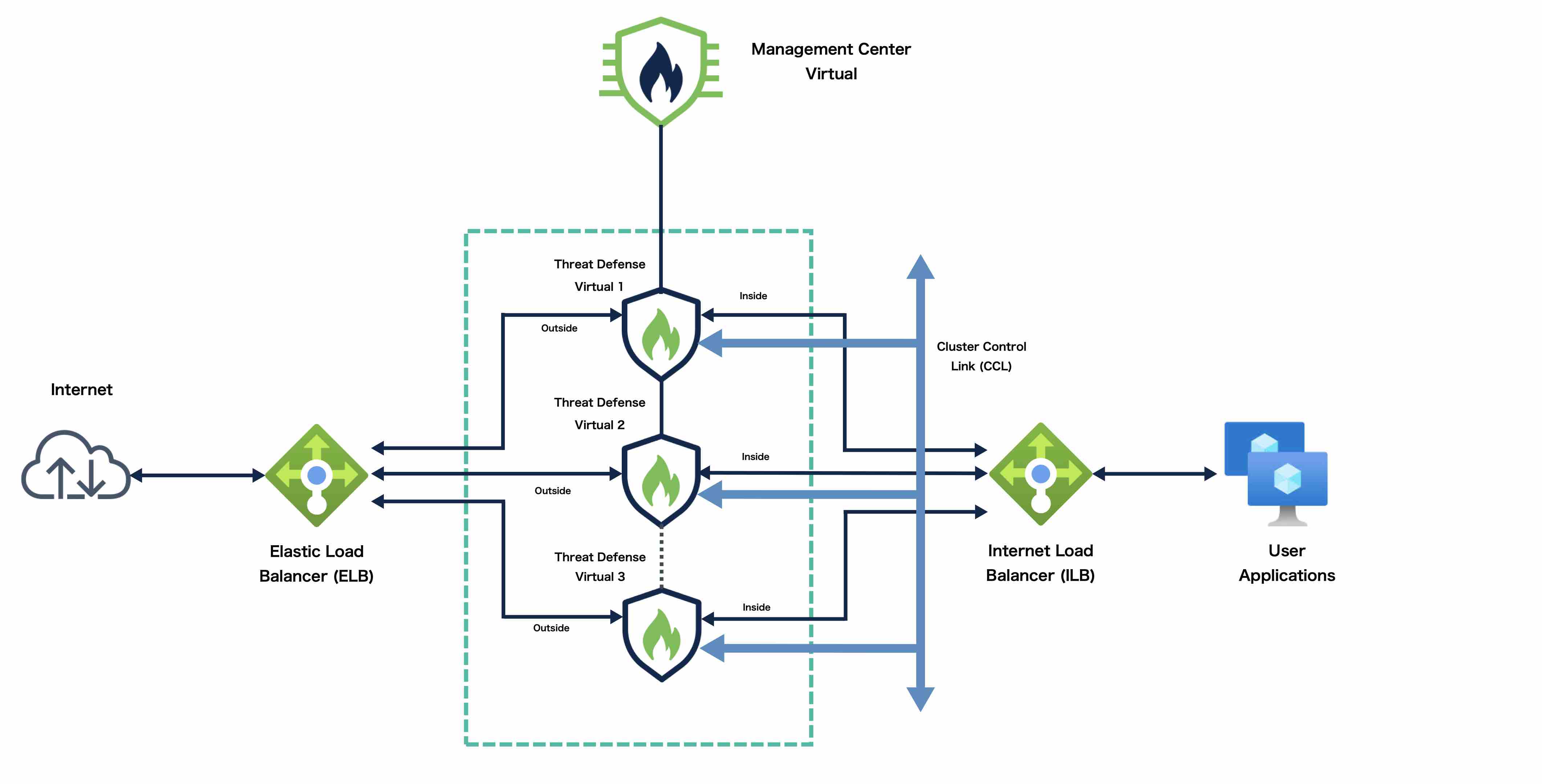
Clustering lets you group multiple threat defense units together as a single logical device. A cluster provides all the convenience of a single device (management, integration into a network) while achieving the increased throughput and redundancy of multiple devices.

This section describes the clustering architecture for supported devices and how it works.

About Clustering on the Firepower 4100/9300 Chassis

When you deploy a cluster on the Firepower 4100/9300 chassis, it does the following:

  • For native instance clustering: Creates a cluster-control link (by default, port-channel 48) for node-to-node communication.

    For multi-instance clustering: You should pre-configure subinterfaces on one or more cluster-type EtherChannels; each instance needs its own cluster control link.

    For a cluster isolated to security modules within one Firepower 9300 chassis, this link utilizes the Firepower 9300 backplane for cluster communications.

    For clustering with multiple chassis, you need to manually assign physical interface(s) to this EtherChannel for communications between chassis.

  • Creates the cluster bootstrap configuration within the application.

    When you deploy the cluster, the chassis supervisor pushes a minimal bootstrap configuration to each unit that includes the cluster name, cluster control link interface, and other cluster settings.

  • Assigns data interfaces to the cluster as Spanned interfaces.

    For a cluster isolated to security modules within one Firepower 9300 chassis, spanned interfaces are not limited to EtherChannels, like it is for clustering with multiple chassis. The Firepower 9300 supervisor uses EtherChannel technology internally to load-balance traffic to multiple modules on a shared interface, so any data interface type works for Spanned mode. For clustering with multiple chassis, you must use Spanned EtherChannels for all data interfaces.


    Note


    Individual interfaces are not supported, with the exception of a management interface.


  • Assigns a management interface to all units in the cluster.

See the following sections for more information about clustering.

Bootstrap Configuration

When you deploy the cluster, the Firepower 4100/9300 chassis supervisor pushes a minimal bootstrap configuration to each unit that includes the cluster name, cluster control link interface, and other cluster settings.

Cluster Members

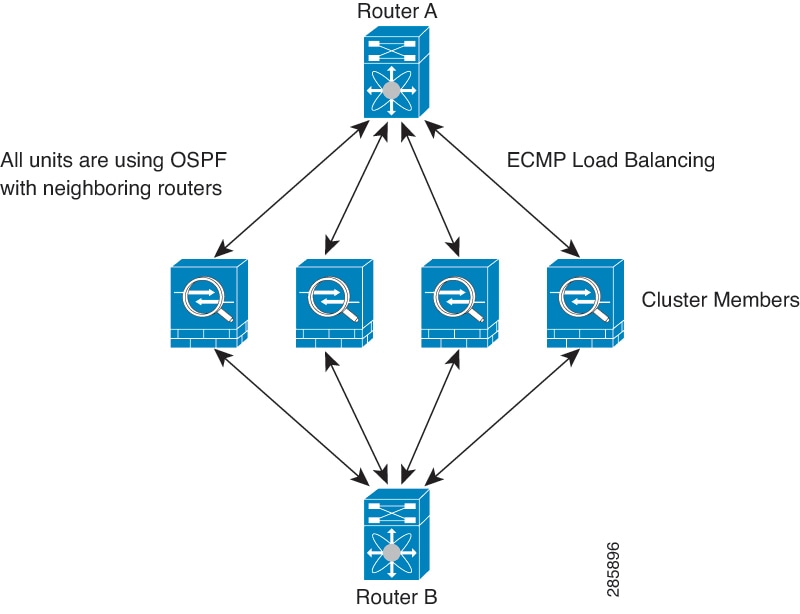
Cluster members work together to accomplish the sharing of the security policy and traffic flows.

One member of the cluster is the control unit. The control unit is determined automatically. All other members are data units.

You must perform all configuration on the control unit only; the configuration is then replicated to the data units.

Some features do not scale in a cluster, and the control unit handles all traffic for those features. .

Cluster Control Link

For native instance clustering: The cluster control link is automatically created using the Port-channel 48 interface.

For multi-instance clustering: You should pre-configure subinterfaces on one or more cluster-type EtherChannels; each instance needs its own cluster control link.

For a cluster isolated to security modules within one Firepower 9300 chassis, this interface has no member interfaces. This Cluster type EtherChannel utilizes the Firepower 9300 backplane for cluster communications. For clustering with multiple chassis, you must add one or more interfaces to the EtherChannel.

For a cluster with two chassis, do not directly connect the cluster control link from one chassis to the other chassis. If you directly connect the interfaces, then when one unit fails, the cluster control link fails, and thus the remaining healthy unit fails. If you connect the cluster control link through a switch, then the cluster control link remains up for the healthy unit.

Cluster control link traffic includes both control and data traffic.

Size the Cluster Control Link

If possible, you should size the cluster control link to match the expected throughput of each chassis so the cluster control link can handle the worst-case scenarios.

Cluster control link traffic is comprised mainly of state update and forwarded packets. The amount of traffic at any given time on the cluster control link varies. The amount of forwarded traffic depends on the load-balancing efficacy or whether there is a lot of traffic for centralized features. For example:

  • NAT results in poor load balancing of connections, and the need to rebalance all returning traffic to the correct units.

  • When membership changes, the cluster needs to rebalance a large number of connections, thus temporarily using a large amount of cluster control link bandwidth.

A higher-bandwidth cluster control link helps the cluster to converge faster when there are membership changes and prevents throughput bottlenecks.


Note


If your cluster has large amounts of asymmetric (rebalanced) traffic, then you should increase the cluster control link size.


Cluster Control Link Redundancy

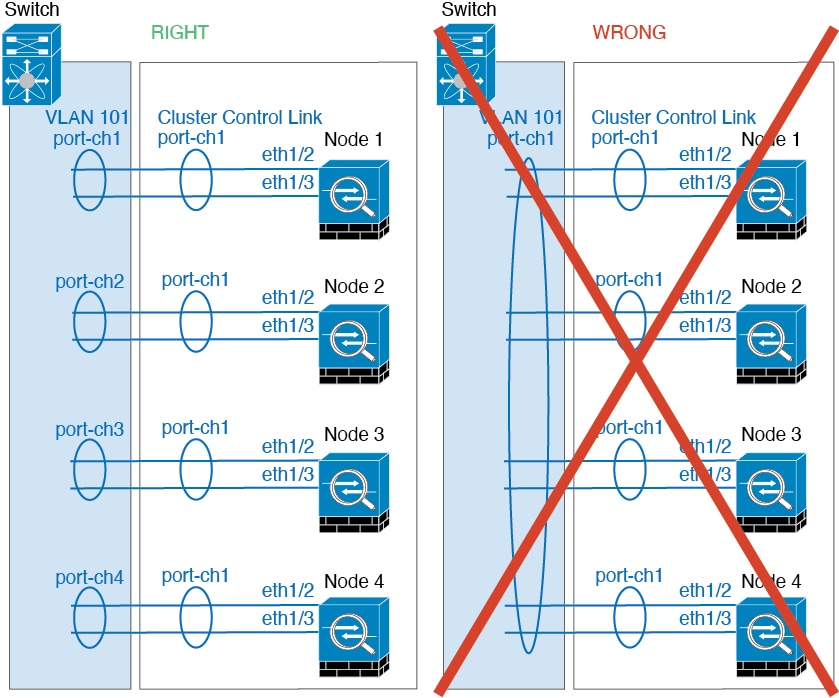
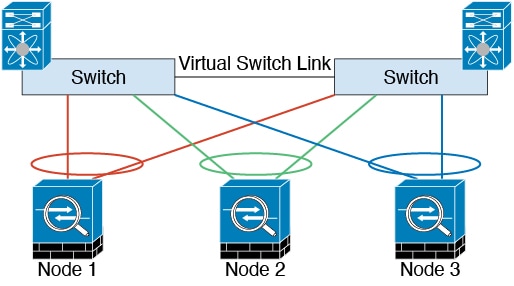
The following diagram shows how to use an EtherChannel as a cluster control link in a Virtual Switching System (VSS), Virtual Port Channel (vPC), StackWise, or StackWise Virtual environment. All links in the EtherChannel are active. When the switch is part of a redundant system, then you can connect firewall interfaces within the same EtherChannel to separate switches in the redundant system. The switch interfaces are members of the same EtherChannel port-channel interface, because the separate switches act like a single switch. Note that this EtherChannel is device-local, not a Spanned EtherChannel.
Cluster Control Link Reliability for Inter-Chassis Clustering

To ensure cluster control link functionality, be sure the round-trip time (RTT) between units is less than 20 ms. This maximum latency enhances compatibility with cluster members installed at different geographical sites. To check your latency, perform a ping on the cluster control link between units.

The cluster control link must be reliable, with no out-of-order or dropped packets; for example, for inter-site deployment, you should use a dedicated link.

Cluster Control Link Network

The Firepower 4100/9300 chassis auto-generates the cluster control link interface IP address for each unit based on the chassis ID and slot ID: 127.2.chassis_id.slot_id. For multi-instance clusters, which typically use different VLAN subinterfaces of the same EtherChannel, the same IP address can be used for different clusters because of VLAN separation. The cluster control link network cannot include any routers between units; only Layer 2 switching is allowed.

Management Network

We recommend connecting all units to a single management network. This network is separate from the cluster control link.

Management Interface

You must assign a Management type interface to the cluster. This interface is a special individual interface as opposed to a Spanned interface. The management interface lets you connect directly to each unit. This Management logical interface is separate from the other interfaces on the device. It is used to set up and register the device to the Secure Firewall Management Center. It uses its own local authentication, IP address, and static routing. Each cluster member uses a separate IP address on the management network that you set as part of the bootstrap configuration.

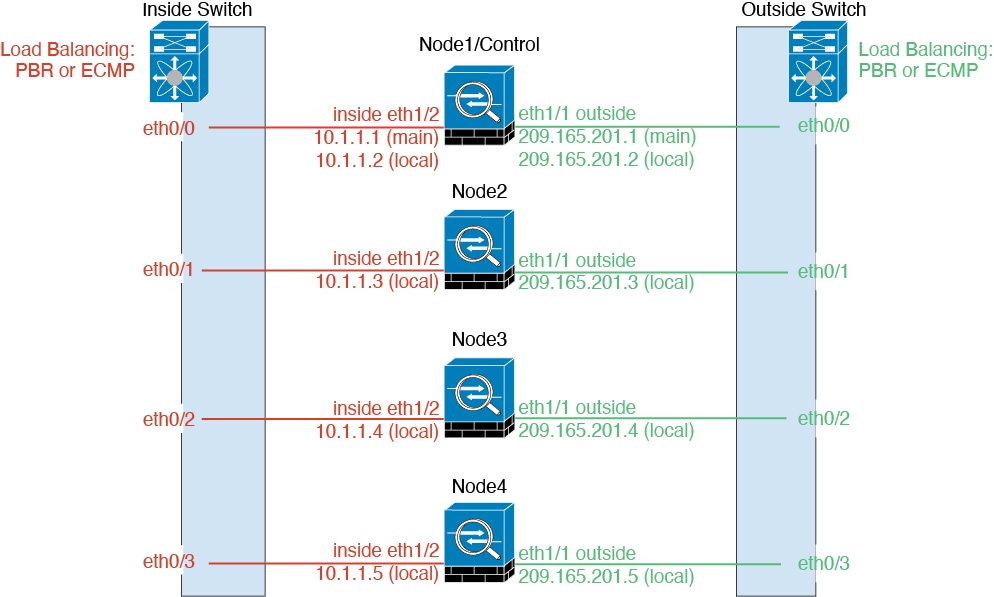
The management interface is shared between the Management logical interface and the Diagnostic logical interface. The Diagnostic logical interface is optional and is not configured as part of the bootstrap configuration. The Diagnostic interface can be configured along with the rest of the data interfaces. If you choose to configure the Diagnostic interface, configure a Main cluster IP address as a fixed address for the cluster that always belongs to the current control unit. You also configure a range of addresses so that each unit, including the current control unit, can use a Local address from the range. The Main cluster IP address provides consistent diagnostic access to an address; when a control unit changes, the Main cluster IP address moves to the new control unit, so access to the cluster continues seamlessly. For outbound management traffic such as TFTP or syslog, each unit, including the control unit, uses the Local IP address to connect to the server.

Cluster Interfaces

For a cluster isolated to security modules within one Firepower 9300 chassis, you can assign both physical interfaces or EtherChannels (also known as port channels) to the cluster. Interfaces assigned to the cluster are Spanned interfaces that load-balance traffic across all members of the cluster.

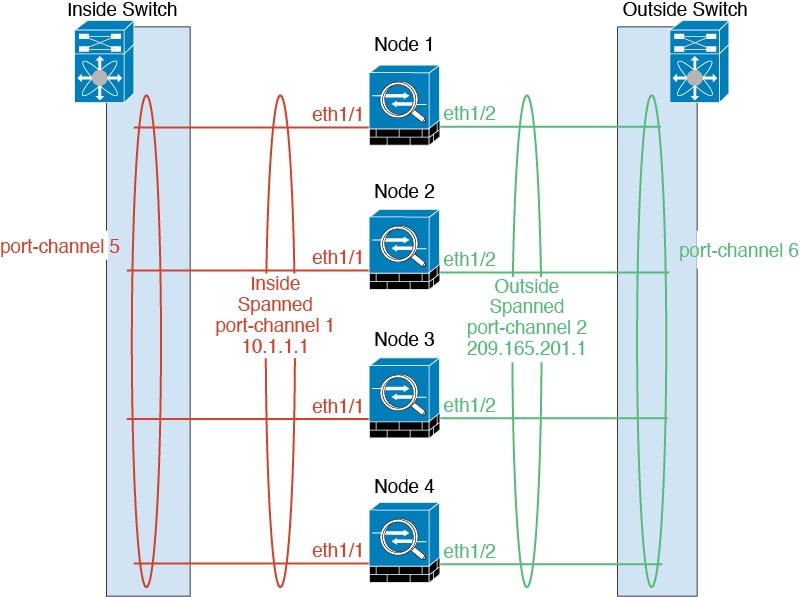
For clustering with multiple chassis, you can only assign data EtherChannels to the cluster. These Spanned EtherChannels include the same member interfaces on each chassis; on the upstream switch, all of these interfaces are included in a single EtherChannel, so the switch does not know that it is connected to multiple devices.

Individual interfaces are not supported, with the exception of a management interface.

Spanned EtherChannels

You can group one or more interfaces per chassis into an EtherChannel that spans all chassis in the cluster. The EtherChannel aggregates the traffic across all the available active interfaces in the channel. A Spanned EtherChannel can be configured in both routed and transparent firewall modes. In routed mode, the EtherChannel is configured as a routed interface with a single IP address. In transparent mode, the IP address is assigned to the BVI, not to the bridge group member interface. The EtherChannel inherently provides load balancing as part of basic operation.

For multi-instance clusters, each cluster requires dedicated data EtherChannels; you cannot use shared interfaces or VLAN subinterfaces.
Configuration Replication

All nodes in the cluster share a single configuration. You can only make configuration changes on the control node (with the exception of the bootstrap configuration), and changes are automatically synced to all other nodes in the cluster.
Licenses for Clustering

You assign feature licenses to the cluster as a whole, not to individual nodes. However, each node of the cluster consumes a separate license for each feature. The clustering feature itself does not require any licenses.

When you add a cluster node to the management center, you can specify the feature licenses you want to use for the cluster. You can modify licenses for the cluster in the Devices > Device Management > Cluster > License area.


Note


If you add the cluster before the management center is licensed (and running in Evaluation mode), then when you license the management center, you can experience traffic disruption when you deploy policy changes to the cluster. Changing to licensed mode causes all data units to leave the cluster and then rejoin.


Requirements and Prerequisites for Clustering

Cluster Model Support

The Threat Defense supports clustering on the following models:

  • Firepower 9300You can include up to 16 nodes in the cluster. For example, you can use 1 module in 16 chassis, or 2 modules in 8 chassis, or any combination that provides a maximum of 16 modules. Supports clustering with multiple chassis and clustering isolated to security modules within one chassis.

  • Firepower 4100—Supported for up to 16 nodes using clustering with multiple chassis.

User Roles

  • Admin

  • Access Admin

  • Network Admin

Clustering Hardware and Software Requirements

All chassis in a cluster:

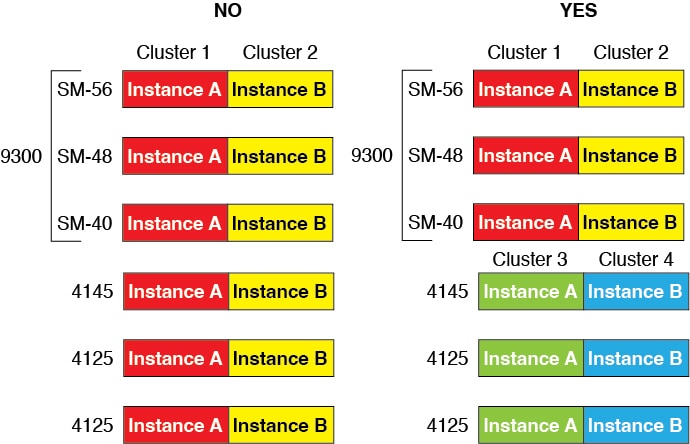
  • Native instance clustering—For the Firepower 4100: All chassis must be the same model. For the Firepower 9300: All security modules must be the same type. For example, if you use clustering, all modules in the Firepower 9300 must be SM-40s. You can have different quantities of installed security modules in each chassis, although all modules present in the chassis must belong to the cluster including any empty slots.

  • Container instance clustering—We recommend that you use the same security module or chassis model for each cluster instance. However, you can mix and match container instances on different Firepower 9300 security module types or Firepower 4100 models in the same cluster if required. You cannot mix Firepower 9300 and 4100 instances in the same cluster. For example, you can create a cluster using an instance on a Firepower 9300 SM-56, SM-48, and SM-40. Or you can create a cluster on a Firepower 4145 and a 4125.

  • Must run the identical FXOS and application software except at the time of an image upgrade. Mismatched software versions can lead to poor performance, so be sure to upgrade all nodes in the same maintenance window.

  • Must include the same interface configuration for interfaces you assign to the cluster, such as the same Management interface, EtherChannels, active interfaces, speed and duplex, and so on. You can use different network module types on the chassis as long as the capacity matches for the same interface IDs and interfaces can successfully bundle in the same spanned EtherChannel. Note that all data interfaces must be EtherChannels in clusters with multiple chassis. If you change the interfaces in FXOS after you enable clustering (by adding or removing interface modules, or configuring EtherChannels, for example), then perform the same changes on each chassis, starting with the data nodes, and ending with the control node.

  • Must use the same NTP server. For threat defense, the management center must also use the same NTP server. Do not set the time manually.

Multi-Instance Clustering Requirements

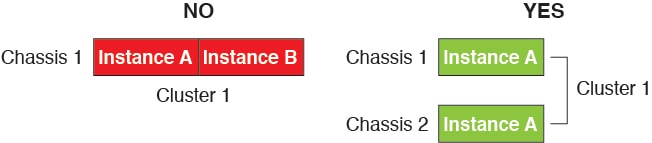
  • No intra-security-module/engine clustering—For a given cluster, you can only use a single container instance per security module/engine. You cannot add 2 container instances to the same cluster if they are running on the same module.

  • Mix and match clusters and standalone instances—Not all container instances on a security module/engine need to belong to a cluster. You can use some instances as standalone or High Availability nodes. You can also create multiple clusters using separate instances on the same security module/engine.

  • All 3 modules in a Firepower 9300 must belong to the cluster—For the Firepower 9300, a cluster requires a single container instance on all 3 modules. You cannot create a cluster using instances on module 1 and 2, and then use a native instance on module 3, or example.

  • Match resource profiles—We recommend that each node in the cluster use the same resource profile attributes; however, mismatched resources are allowed when changing cluster nodes to a different resource profile, or when using different models.

  • Dedicated cluster control link—For clusters with multiple chassis, each cluster needs a dedicated cluster control link. For example, each cluster can use a separate subinterface on the same cluster-type EtherChannel, or use separate EtherChannels.

  • No shared interfaces—Shared-type interfaces are not supported with clustering. However, the same Management and Eventing interfaces can used by multiple clusters.

  • No subinterfaces—A multi-instance cluster cannot use FXOS-defined VLAN subinterfaces. An exception is made for the cluster control link, which can use a subinterface of the Cluster EtherChannel.

  • Mix chassis models—We recommend that you use the same security module or chassis model for each cluster instance. However, you can mix and match container instances on different Firepower 9300 security module types or Firepower 4100 models in the same cluster if required. You cannot mix Firepower 9300 and 4100 instances in the same cluster. For example, you can create a cluster using an instance on a Firepower 9300 SM-56, SM-48, and SM-40. Or you can create a cluster on a Firepower 4145 and a 4125.

  • Maximum 6 nodes—You can use up to six container instances in a cluster.

Switch Requirements

  • Be sure to complete the switch configuration and successfully connect all the EtherChannels from the chassis to the switch(es) before you configure clustering on the Firepower 4100/9300 chassis.

  • For supported switch characteristics, see Cisco FXOS Compatibility.

Clustering Guidelines and Limitations

Switches for Clustering

  • Make sure connected switches match the MTU for both cluster data interfaces and the cluster control link interface. You should configure the cluster control link interface MTU to be at least 100 bytes higher than the data interface MTU, so make sure to configure the cluster control link connecting switch appropriately. Because the cluster control link traffic includes data packet forwarding, the cluster control link needs to accommodate the entire size of a data packet plus cluster traffic overhead.

  • For Cisco IOS XR systems, if you want to set a non-default MTU, set the IOS XR interface MTU to be 14 bytes higher than the cluster device MTU. Otherwise, OSPF adjacency peering attempts may fail unless the mtu-ignore option is used. Note that the cluster device MTU should match the IOS XR IPv4 MTU. This adjustment is not required for Cisco Catalyst and Cisco Nexus switches.

  • On the switch(es) for the cluster control link interfaces, you can optionally enable Spanning Tree PortFast on the switch ports connected to the cluster unit to speed up the join process for new units.

  • On the switch, we recommend that you use one of the following EtherChannel load-balancing algorithms: source-dest-ip or source-dest-ip-port (see the Cisco Nexus OS and Cisco IOS-XE port-channel load-balance command). Do not use a vlan keyword in the load-balance algorithm because it can cause unevenly distributed traffic to the devices in a cluster.

  • If you change the load-balancing algorithm of the EtherChannel on the switch, the EtherChannel interface on the switch temporarily stops forwarding traffic, and the Spanning Tree Protocol restarts. There will be a delay before traffic starts flowing again.

  • Switches on the cluster control link path should not verify the L4 checksum. Redirected traffic over the cluster control link does not have a correct L4 checksum. Switches that verify the L4 checksum could cause traffic to be dropped.

  • Port-channel bundling downtime should not exceed the configured keepalive interval.

  • On Supervisor 2T EtherChannels, the default hash distribution algorithm is adaptive. To avoid asymmetric traffic in a VSS design, change the hash algorithm on the port-channel connected to the cluster device to fixed:

    router(config)# port-channel id hash-distribution fixed

    Do not change the algorithm globally; you may want to take advantage of the adaptive algorithm for the VSS peer link.

  • Firepower 4100/9300 clusters support LACP graceful convergence. So you can leave LACP graceful convergence enabled on connected Cisco Nexus switches.

  • When you see slow bundling of a Spanned EtherChannel on the switch, you can enable LACP rate fast for an individual interface on the switch. FXOS EtherChannels have the LACP rate set to fast by default. Note that some switches, such as the Nexus series, do not support LACP rate fast when performing in-service software upgrades (ISSUs), so we do not recommend using ISSUs with clustering.

EtherChannels for Clustering

    • In Catalyst 3750-X Cisco IOS software versions earlier than 15.1(1)S2, the cluster unit did not support connecting an EtherChannel to a switch stack. With default switch settings, if the cluster unit EtherChannel is connected cross stack, and if the control unit switch is powered down, then the EtherChannel connected to the remaining switch will not come up. To improve compatibility, set the stack-mac persistent timer command to a large enough value to account for reload time; for example, 8 minutes or 0 for indefinite. Or, you can upgrade to more a more stable switch software version, such as 15.1(1)S2.

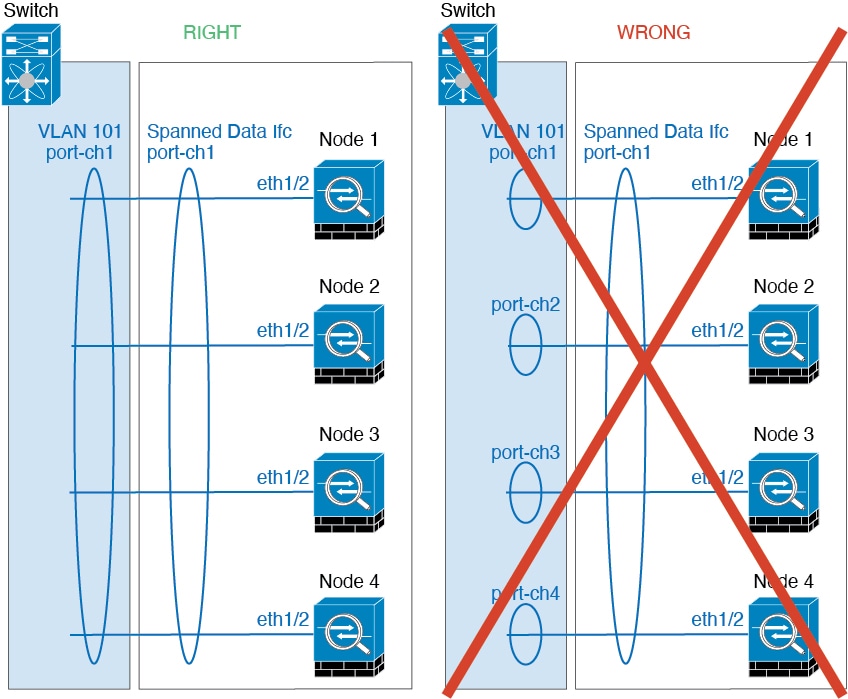
    • Spanned vs. Device-Local EtherChannel Configuration—Be sure to configure the switch appropriately for Spanned EtherChannels vs. Device-local EtherChannels.

      • Spanned EtherChannels—For cluster unit Spanned EtherChannels, which span across all members of the cluster, the interfaces are combined into a single EtherChannel on the switch. Make sure each interface is in the same channel group on the switch.

      • Device-local EtherChannels—For cluster unit Device-local EtherChannels including any EtherChannels configured for the cluster control link, be sure to configure discrete EtherChannels on the switch; do not combine multiple cluster unit EtherChannels into one EtherChannel on the switch.

    Additional Guidelines

    • When significant topology changes occur (such as adding or removing an EtherChannel interface, enabling or disabling an interface on the Firepower 4100/9300 chassis or the switch, adding an additional switch to form a VSS, vPC, StackWise, or StackWise Virtual) you should disable the health check feature, and also disable interface monitoring for the disabled interfaces . When the topology change is complete, and the configuration change is synced to all units, you can re-enable the health check feature.

    • When adding a unit to an existing cluster, or when reloading a unit, there will be a temporary, limited packet/connection drop; this is expected behavior. In some cases, the dropped packets can hang connections; for example, dropping a FIN/ACK packet for an FTP connection will make the FTP client hang. In this case, you need to reestablish the FTP connection.

    • If you use a Windows 2003 server connected to a Spanned EtherChannel interface, when the syslog server port is down, and the server does not throttle ICMP error messages, then large numbers of ICMP messages are sent back to the cluster. These messages can result in some units of the cluster experiencing high CPU, which can affect performance. We recommend that you throttle ICMP error messages.

    • We recommend connecting EtherChannels to a VSS, vPC, StackWise, or StackWise Virtual for redundancy.

    • Within a chassis, you cannot cluster some security modules and run other security modules in standalone mode; you must include all security modules in the cluster.

    • For decrypted TLS/SSL connections, the decryption states are not synchronized, and if the connection owner fails, then decrypted connections will be reset. New connections will need to be established to a new unit. Connections that are not decrypted (they match a do-not-decrypt rule) are not affected and are replicated correctly.

    Defaults

    • The cluster health check feature is enabled by default with the holdtime of 3 seconds. Interface health monitoring is enabled on all interfaces by default.

    • The cluster auto-rejoin feature for a failed cluster control link is set to unlimited attempts every 5 minutes.

    • The cluster auto-rejoin feature for a failed data interface is set to 3 attempts every 5 minutes, with the increasing interval set to 2.

    • Connection replication delay of 5 seconds is enabled by default for HTTP traffic.

    Configure Clustering

    You can easily deploy the cluster from the Firepower 4100/9300 supervisor. All initial configuration is automatically generated for each unit. You can then add the units to the management center and group them into a cluster.

    FXOS: Add a Threat Defense Cluster

    In native mode: You can add a cluster to a single Firepower 9300 chassis that is isolated to security modules within the chassis, or you can use multiple chassis.

    In multi-instance mode: You can add one or more clusters to a single Firepower 9300 chassis that are isolated to security modules within the chassis (you must include an instance on each module), or add one or more clusters on multiple chassis.

    For clusters on multiple chassis, you must configure each chassis separately. Add the cluster on one chassis; you can then copy the bootstrap configuration from the first chassis to the next chassis for ease of deployment

    Create a Threat Defense Cluster

    You can easily deploy the cluster from the Firepower 4100/9300 chassis supervisor. All initial configuration is automatically generated for each unit.

    For clustering on multiple chassis, you must configure each chassis separately. Deploy the cluster on one chassis; you can then copy the bootstrap configuration from the first chassis to the next chassis for ease of deployment.

    In a Firepower 9300 chassis, you must enable clustering for all 3 module slots, or for container instances, a container instance in each slot, even if you do not have a module installed. If you do not configure all 3 modules, the cluster will not come up.

    Before you begin
    • Download the application image you want to use for the logical device from Cisco.com, and then upload that image to the Firepower 4100/9300 chassis.

    • For container instances, if you do not want to use the default profile, add a resource profile according to Add a Resource Profile for Container Instances.

    • For container instances, before you can install a container instance for the first time, you must reinitialize the security module/engine so that the disk has the correct formatting. Choose Security Modules or Security Engine, and click the Reinitialize icon (reinitialize icon). An existing logical device will be deleted and then reinstalled as a new device, losing any local application configuration. If you are replacing a native instance with container instances, you will need to delete the native instance in any case. You cannot automatically migrate a native instance to a container instance.

    • Gather the following information:

      • Management interface ID, IP addresses, and network mask

      • Gateway IP address

      • management center IP address and/or NAT ID of your choosing

      • DNS server IP address

      • Threat Defense hostname and domain name

    Procedure

    Step 1

    Configure interfaces.

    1. Add at least one Data type interface or EtherChannel (also known as a port-channel) before you deploy the cluster. See Add an EtherChannel (Port Channel) or Configure a Physical Interface.

      For clustering on multiple chassis, all data interfaces must be Spanned EtherChannels with at least one member interface. Add the same EtherChannels on each chassis. Combine the member interfaces from all cluster units into a single EtherChannel on the switch. See Clustering Guidelines and Limitations for more information about EtherChannels.

      For multi-instance clustering, you cannot use FXOS-defined VLAN subinterfaces or data-sharing interfaces in the cluster. Only application-defined subinterfaces are supported. See FXOS Interfaces vs. Application Interfaces for more information.

    2. Add a Management type interface or EtherChannel. See Add an EtherChannel (Port Channel) or Configure a Physical Interface.

      The management interface is required. Note that this management interface is not the same as the chassis management interface that is used only for chassis management (in FXOS, you might see the chassis management interface displayed as MGMT, management0, or other similar names).

      For clustering on multiple chassis, add the same Management interface on each chassis.

      For multi-instance clustering, you can share the same management interface across multiple clusters on the same chassis, or with standalone instances.

    3. For clustering on multiple chassis, add a member interface to the cluster control link EtherChannel (by default, port-channel 48). See Add an EtherChannel (Port Channel).

      Do not add a member interface for a cluster isolated to security modules within one Firepower 9300 chassis. If you add a member, the chassis assumes this cluster will be using multiple chassis, and will only allow you to use Spanned EtherChannels, for example.

      On the Interfaces tab, the port-channel 48 cluster type interface shows the Operation State as failed if it does not include any member interfaces. For a cluster isolated to security modules within one Firepower 9300 chassis, this EtherChannel does not require any member interfaces, and you can ignore this Operational State.

      Add the same member interfaces on each chassis. The cluster control link is a device-local EtherChannel on each chassis. Use separate EtherChannels on the switch per device. See Clustering Guidelines and Limitations for more information about EtherChannels.

      For multi-instance clustering, you can create additional Cluster type EtherChannels. Unlike the Management interface, the cluster control link is not sharable across multiple devices, so you will need a Cluster interface for each cluster. However, we recommend using VLAN subinterfaces instead of multiple EtherChannels; see the next step to add a VLAN subinterface to the Cluster interface.

    4. For multi-instance clustering, add VLAN subinterfaces to the cluster EtherChannel so you have a subinterface for each cluster. See Add a VLAN Subinterface for Container Instances.

      If you add subinterfaces to a Cluster interface, you cannot use that interface for a native cluster.

    5. (Optional) Add an eventing interface. See Add an EtherChannel (Port Channel) or Configure a Physical Interface.

      This interface is a secondary management interface for the threat defense devices. To use this interface, you must configure its IP address and other parameters at the threat defense CLI. For example, you can separate management traffic from events (such as web events). See the configure network commands in the threat defense command reference.

      For clustering on multiple chassis, add the same eventing interface on each chassis.

    Step 2

    Choose Logical Devices.

    Step 3

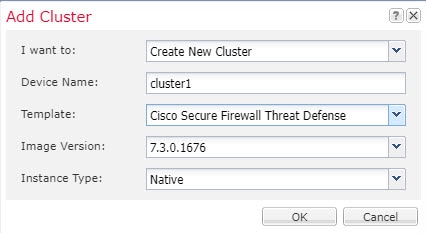
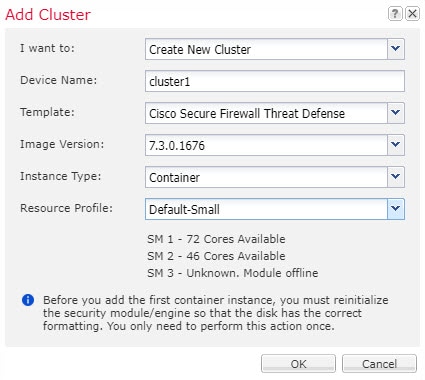
    Click Add > Cluster, and set the following parameters:

    Figure 1. Native Cluster
    Figure 2. Multi-Instance Cluster
    1. Choose I want to: > Create New Cluster

    2. Provide a Device Name.

      This name is used internally by the chassis supervisor to configure management settings and to assign interfaces; it is not the device name used in the application configuration.

    3. For the Template, choose Cisco Firepower Threat Defense.

    4. Choose the Image Version.

    5. For the Instance Type, choose either Native or Container.

      A native instance uses all of the resources (CPU, RAM, and disk space) of the security module/engine, so you can only install one native instance. A container instance uses a subset of resources of the security module/engine, so you can install multiple container instances.

    6. (Container Instance only) For the Resource Type, choose one of the resource profiles from the drop-down list.

      For the Firepower 9300, this profile will be applied to each instance on each security module. You can set different profiles per security module later in this procedure; for example, if you are using different security module types, and you want to use more CPUs on a lower-end model. We recommend choosing the correct profile before you create the cluster. If you need to create a new profile, cancel out of the cluster creation, and add one using Add a Resource Profile for Container Instances.

    7. Click OK.

      You see the Provisioning - device name window.

    Step 4

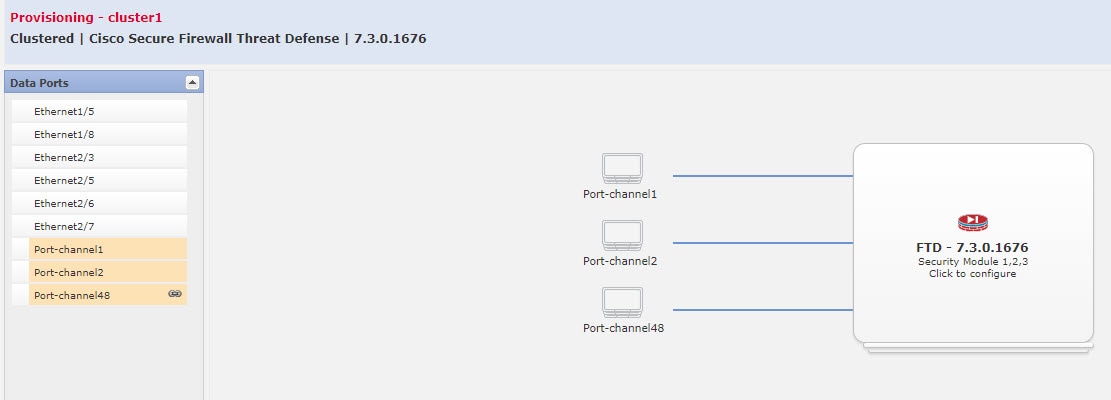
    Choose the interfaces you want to assign to this cluster.

    For native mode clustering: All valid interfaces are assigned by default. If you defined multiple Cluster type interfaces, deselect all but one.

    For multi-instance clustering: Choose each data interface you want to assign to the cluster, and also choose the Cluster type port-channel or port-channel subinterface.

    Step 5

    Click the device icon in the center of the screen.

    A dialog box appears where you can configure initial bootstrap settings. These settings are meant for initial deployment only, or for disaster recovery. For normal operation, you can later change most values in the application CLI configuration.

    Step 6

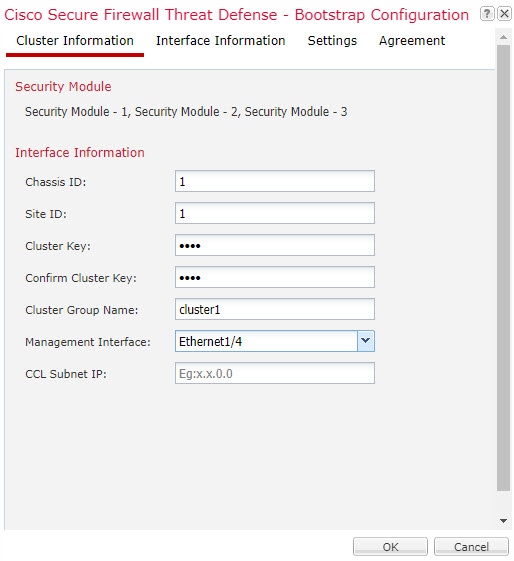
    On the Cluster Information page, complete the following.

    Figure 3. Native Cluster
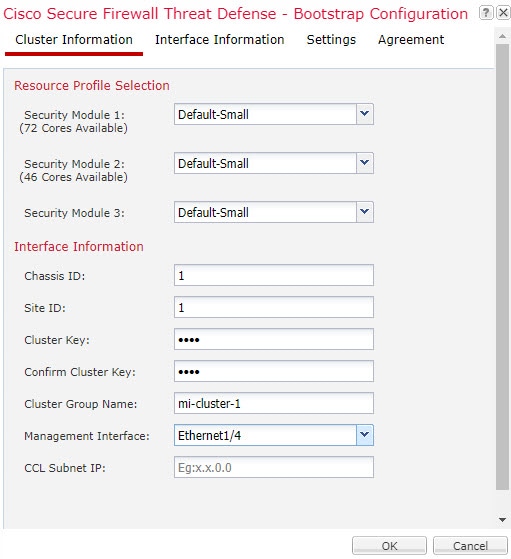
    Figure 4. Multi-Instance Cluster
    1. (Container Instance for the Firepower 9300 only) In the Security Module (SM) and Resource Profile Selection area, you can set a different resource profile per module; for example, if you are using different security module types, and you want to use more CPUs on a lower-end model.

    2. For clustering on multiple chassis, in the Chassis ID field, enter a chassis ID. Each chassis in the cluster must use a unique ID.

      This field only appears if you added a member interface to cluster control link Port-Channel 48.

    3. For inter-site clustering, in the Site ID field, enter the site ID for this chassis between 1 and 8. FlexConfig feature. Additional inter-site cluster customizations to enhance redundancy and stability, such as director localization, site redundancy, and cluster flow mobility, are only configurable using the management center FlexConfig feature.

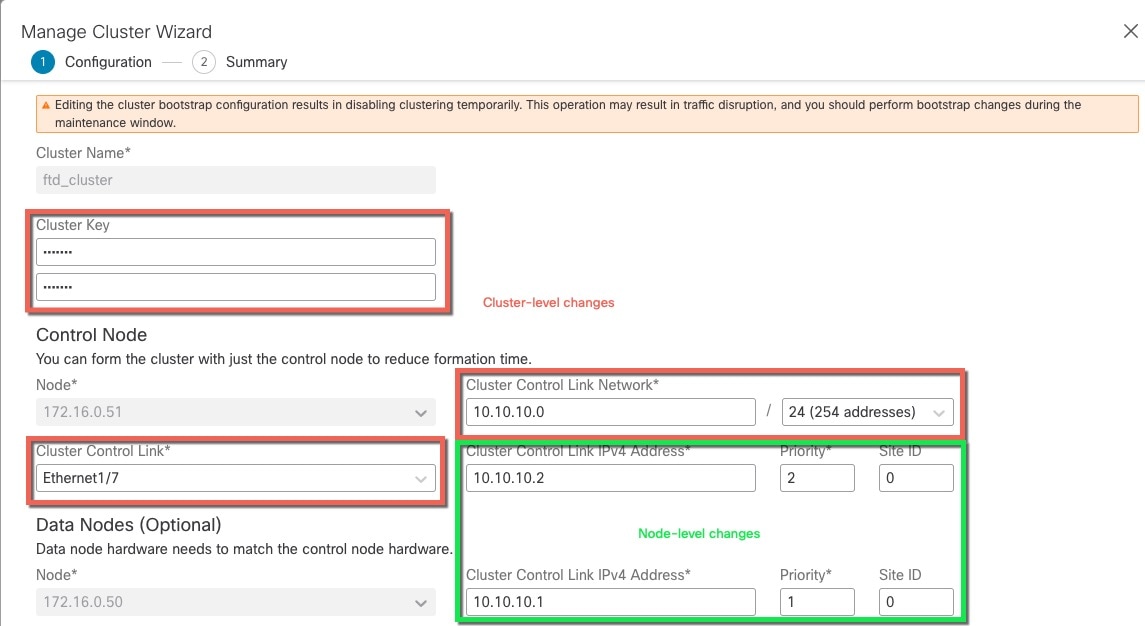
    4. In the Cluster Key field, configure an authentication key for control traffic on the cluster control link.

      The shared secret is an ASCII string from 1 to 63 characters. The shared secret is used to generate the key. This option does not affect datapath traffic, including connection state update and forwarded packets, which are always sent in the clear.

    5. Set the Cluster Group Name, which is the cluster group name in the logical device configuration.

      The name must be an ASCII string from 1 to 38 characters.

      Important


      From 2.4.1, spaces in cluster group name will be considered as special characters and may result in error while deploying the logical devices. To avoid this issue, you must rename the cluster group name without a space.

    6. Choose the Management Interface.

      This interface is used to manage the logical device. This interface is separate from the chassis management port.

      If you assign a Hardware Bypass-capable interface as the Management interface, you see a warning message to make sure your assignment is intentional.

    7. (Optional) Set the CCL Subnet IP as a.b.0.0.

      By default, the cluster control link uses the 127.2.0.0/16 network. However, some networking deployments do not allow 127.2.0.0/16 traffic to pass. In this case, specify any /16 network address on a unique network for the cluster, except for loopback (127.0.0.0/8), multicast (224.0.0.0/4), and internal (169.254.0.0/16) addresses. If you set the value to 0.0.0.0, then the default network is used.

      The chassis auto-generates the cluster control link interface IP address for each unit based on the chassis ID and slot ID: a.b.chassis_id.slot_id.

    Step 7

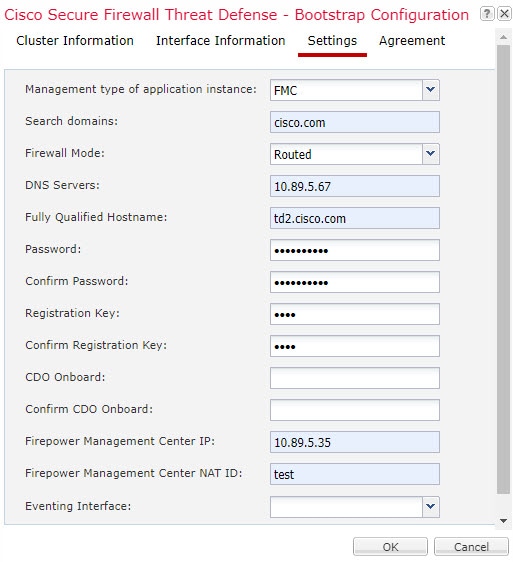
    On the Settings page, complete the following.

    1. In the Registration Key field, enter the key to be shared between the management center and the cluster members during registration.

      You can choose any text string for this key between 1 and 37 characters; you will enter the same key on the management center when you add the threat defense.

    2. Enter a Password for the threat defense admin user for CLI access.

    3. In the Firepower Management Center IP field, enter the IP address of the managing management center. If you do not know the management center IP address, leave this field blank and enter a passphrase in the Firepower Management Center NAT ID field.

    4. (Optional) For a container instance, Permit Expert mode from FTD SSH sessions: Yes or No. Expert Mode provides threat defense shell access for advanced troubleshooting.

      If you choose Yes for this option, then users who access the container instance directly from an SSH sesssion can enter Expert Mode. If you choose No, then only users who access the container instance from the FXOS CLI can enter Expert Mode. We recommend choosing No to increase isolation between instances.

      Use Expert Mode only if a documented procedure tells you it is required, or if the Cisco Technical Assistance Center asks you to use it. To enter this mode, use the expert command in the threat defense CLI.

    5. (Optional) In the Search Domains field, enter a comma-separated list of search domains for the management network.

    6. (Optional) From the Firewall Mode drop-down list, choose Transparent or Routed.

      In routed mode, the threat defense is considered to be a router hop in the network. Each interface that you want to route between is on a different subnet. A transparent firewall, on the other hand, is a Layer 2 firewall that acts like a “bump in the wire,” or a “stealth firewall,” and is not seen as a router hop to connected devices.

      The firewall mode is only set at initial deployment. If you re-apply the bootstrap settings, this setting is not used.

    7. (Optional) In the DNS Servers field, enter a comma-separated list of DNS servers.

      The threat defense uses DNS if you specify a hostname for the management center, for example.

    8. (Optional) In the Firepower Management Center NAT ID field, enter a passphrase that you will also enter on the management center when you add the cluster as a new device.

      Normally, you need both IP addresses (along with a registration key) for both routing purposes and for authentication: the management center specifies the device IP address, and the device specifies the management center IP address. However, if you only know one of the IP addresses, which is the minimum requirement for routing purposes, then you must also specify a unique NAT ID on both sides of the connection to establish trust for the initial communication and to look up the correct registration key. You can specify any text string as the NAT ID, from 1 to 37 characters. The management center and device use the registration key and NAT ID (instead of IP addresses) to authenticate and authorize for initial registration.

    9. (Optional) In the Fully Qualified Hostname field, enter a fully qualified name for the threat defense device.

      Valid characters are the letters from a to z, the digits from 0 to 9, the dot (.), and the hyphen (-); maximum number of characters is 253.

    10. (Optional) From the Eventing Interface drop-down list, choose the interface on which events should be sent. If not specified, the management interface will be used.

      To specify a separate interface to use for events, you must configure an interface as a firepower-eventing interface. If you assign a Hardware Bypass-capable interface as the Eventing interface, you see a warning message to make sure your assignment is intentional.

    Step 8

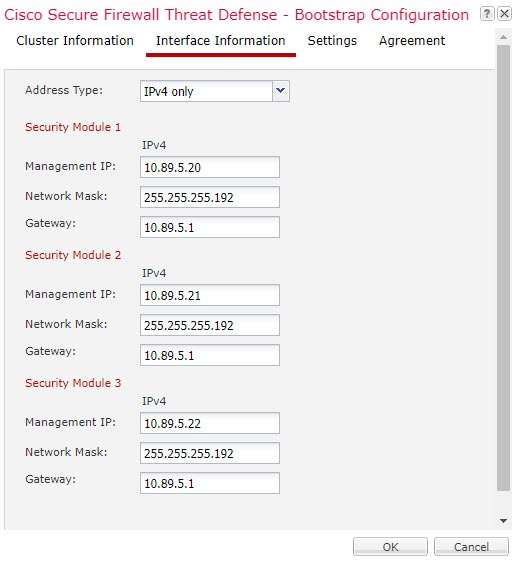
    On the Interface Information page, configure a management IP address for each security module in the cluster. Select the type of address from the Address Type drop-down list and then complete the following for each security module.

    Note


    You must set the IP address for all 3 module slots in a chassis, even if you do not have a module installed. If you do not configure all 3 modules, the cluster will not come up.

    1. In the Management IP field, configure an IP address.

      Specify a unique IP address on the same network for each module.

    2. Enter a Network Mask or Prefix Length.

    3. Enter a Network Gateway address.

    Step 9

    On the Agreement tab, read and accept the end user license agreement (EULA).

    Step 10

    Click OK to close the configuration dialog box.

    Step 11

    Click Save.

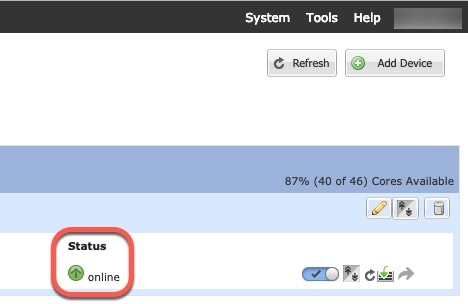
    The chassis deploys the logical device by downloading the specified software version and pushing the bootstrap configuration and management interface settings to the application instance. Check the Logical Devices page for the status of the new logical device. When the logical device shows its Status as online, you can add the remaining cluster chassis, or for a cluster isolated to security modules within one Firepower 9300 chassis, start configuring the cluster in the application. You may see the "Security module not responding" status as part of the process; this status is normal and is temporary.

    Step 12

    For clustering on multiple chassis, add the next chassis to the cluster:

    1. On the first chassis of the chassis manager, click the Show Configuration icon at the top right; copy the displayed cluster configuration.

    2. Connect to the chassis manager on the next chassis, and add a logical device according to this procedure.

    3. Choose I want to: > Join an Existing Cluster.

    4. Click OK.

    5. In the Copy Cluster Details box, paste in the cluster configuration from the first chassis, and click OK.

    6. Click the device icon in the center of the screen. The cluster information is mostly pre-filled, but you must change the following settings:

      • Chassis ID—Enter a unique chassis ID.

      • Site ID—For inter-site clustering, enter the site ID for this chassis between 1 and 8. Additional inter-site cluster customizations to enhance redundancy and stability, such as director localization, site redundancy, and cluster flow mobility, are only configurable using the management center FlexConfig feature.

      • Cluster Key—(Not prefilled) Enter the same cluster key.

      • Management IP—Change the management address for each module to be a unique IP address on the same network as the other cluster members.

      Click OK.

    7. Click Save.

      The chassis deploys the logical device by downloading the specified software version and pushing the bootstrap configuration and management interface settings to the application instance. Check the Logical Devices page for each cluster member for the status of the new logical device. When the logical device for each cluster member shows its Status as online, you can start configuring the cluster in the application. You may see the "Security module not responding" status as part of the process; this status is normal and is temporary.

    Step 13

    Add the control unit to the management center using the management IP address.

    All cluster units must be in a successfully-formed cluster on FXOS prior to adding them to management center.

    The management center then automatically detects the data units.


    Add More Cluster Nodes

    Add or replace the threat defense cluster node in an existing cluster. When you add a new cluster node in FXOS, the management center adds the node automatically.


    Note


    The FXOS steps in this procedure only apply to adding a new chassis; if you are adding a new module to a Firepower 9300 where clustering is already enabled, the module will be added automatically.


    Before you begin
    • In the case of a replacement, you must delete the old cluster node from the management center. When you replace it with a new node, it is considered to be a new device on the management center.

    • The interface configuration must be the same on the new chassis. You can export and import FXOS chassis configuration to make this process easier.

    Procedure

    Step 1

    If you previously upgraded the threat defense image using the management center, perform the following steps on each chassis in the cluster.

    When you upgraded from the management center, the startup version in the FXOS configuration was not updated, and the standalone package was not installed on the chassis. Both of these items need to be set manually so the new node can join the cluster using the correct image version.

    Note


    If you only applied a patch release, you can skip this step. Cisco does not provide standalone packages for patches.

    1. Install the running threat defense image on the chassis using the System > Updates page.

    2. Click Logical Devices and click the Set Version icon (Set Version icon). For a Firepower 9300 with multiple modules, set the version for each module.

      The Startup Version shows the original package you deployed with. The Current Version shows the version you upgraded to.

    3. In the New Version drop-down menu, choose the version that you uploaded. This version should match the Current Version displayed, and will set the startup version to match the new version.

    4. On the new chassis, make sure the new image package is installed.

    Step 2

    On an existing cluster chassis chassis manager, click Logical Devices.

    Step 3

    Click the Show Configuration icon at the top right; copy the displayed cluster configuration.

    Step 4

    Connect to the chassis manager on the new chassis, and click Add > Cluster.

    Step 5

    For the Device Name, provide a name for the logical device.

    Step 6

    Click OK.

    Step 7

    In the Copy Cluster Details box, paste in the cluster configuration from the first chassis, and click OK.

    Step 8

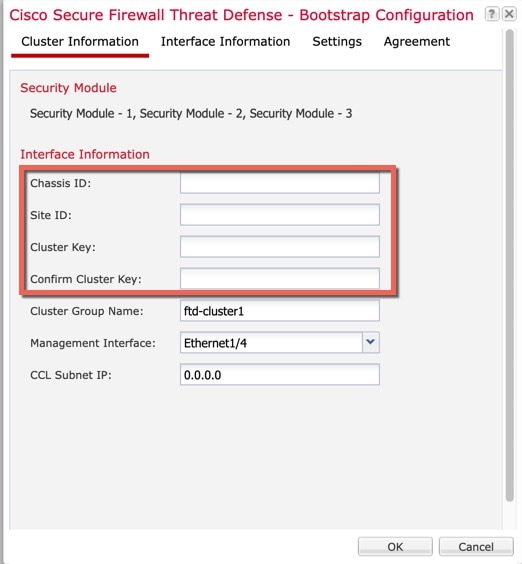
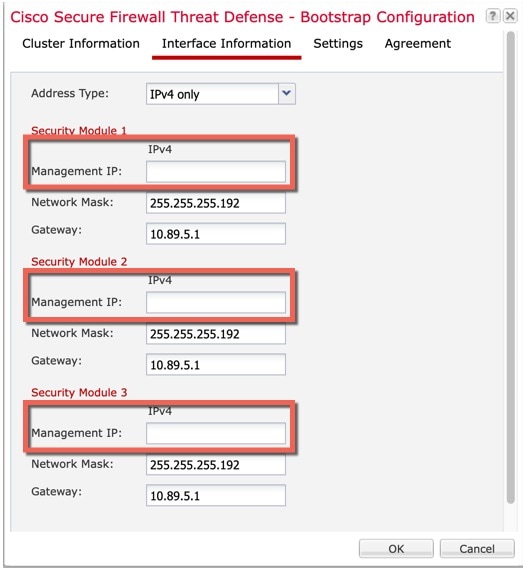
    Click the device icon in the center of the screen. The cluster information is partly pre-filled, but you must fill in the following settings:

    Figure 5. Cluster Information
    Cluster Information
    Figure 6. Interface Information
    Interface Information
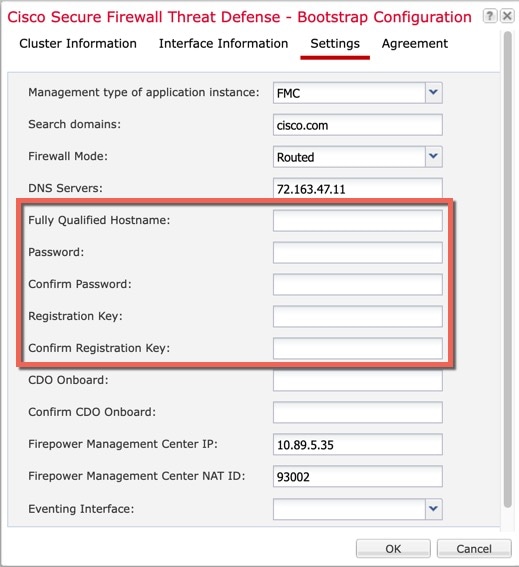
    Figure 7. Settings
    Settings
    • Chassis ID—Enter a unique chassis ID.

    • Site ID—For inter-site clustering, enter the site ID for this chassis between 1 and 8. This feature is only configurable using the management center FlexConfig feature.

    • Cluster Key—Enter the same cluster key.

    • Management IP—Change the management address for each module to be a unique IP address on the same network as the other cluster members.

    • Fully Qualified Hostname—Enter the same hostname.

    • Password—Enter the same password.

    • Registration Key—Enter the same registration key.

    Click OK.

    Step 9

    Click Save.

    The chassis deploys the logical device by downloading the specified software version and pushing the bootstrap configuration and management interface settings to the application instance. Check the Logical Devices page for each cluster member for the status of the new logical device. When the logical device for each cluster member shows its Status as online, you can start configuring the cluster in the application. You may see the "Security module not responding" status as part of the process; this status is normal and is temporary.


    Management Center: Add a Cluster

    Add one of the cluster units as a new device to the Secure Firewall Management Center; the management center auto-detects all other cluster members.

    Before you begin

    • All cluster units must be in a successfully-formed cluster on FXOS prior to adding the cluster to the management center. You should also check which unit is the control unit. Refer to the chassis manager Logical Devices screen or use the threat defense show cluster info command.

    Procedure


    Step 1

    In the management center, choose Devices > Device Management, and then choose Add > Add Device to add the control unit using the unit's management IP address you assigned when you deployed the cluster.

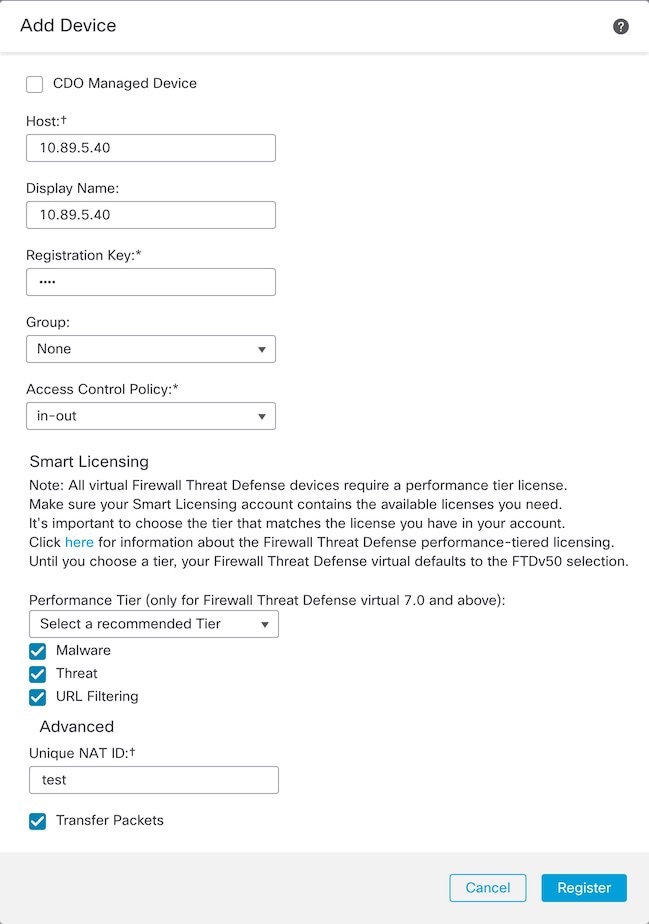
    Figure 8. Add Device
    Add Device
    1. In the Host field, enter the IP address or hostname of the control unit.

      We recommend adding the control unit for the best performance, but you can add any unit of the cluster.

      If you used a NAT ID during device setup, you may not need to enter this field.

    2. In the Display Name field, enter a name for the control unit as you want it to display in the management center.

      This display name is not for the cluster; it is only for the control unit you are adding. You can later change the name of other cluster members and the cluster display name.

    3. In the Registration Key field, enter the same registration key that you used when you deployed the cluster in FXOS. The registration key is a one-time-use shared secret.

    4. In a multidomain deployment, regardless of your current domain, assign the device to a leaf Domain.

      If your current domain is a leaf domain, the device is automatically added to the current domain. If your current domain is not a leaf domain, post-registration, you must switch to the leaf domain to configure the device.

    5. (Optional) Add the device to a device Group.

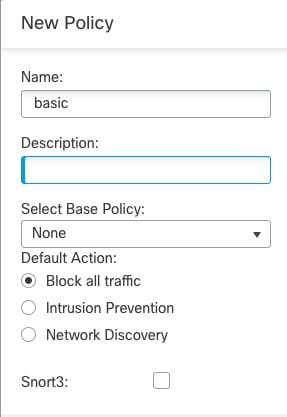
    6. Choose an initial Access Control Policy to deploy to the device upon registration, or create a new policy.

      If you create a new policy, you create a basic policy only. You can later customize the policy as needed.

    7. Choose licenses to apply to the device.

    8. If you used a NAT ID during device setup, expand the Advanced section and enter the same NAT ID in the Unique NAT ID field.

    9. Check the Transfer Packets check box to allow the device to transfer packets to the management center.

      This option is enabled by default. When events like IPS or Snort are triggered with this option enabled, the device sends event metadata information and packet data to the management center for inspection. If you disable it, only event information will be sent to the management center but packet data is not sent.

    10. Click Register.

      The management center identifies and registers the control unit, and then registers all data units. If the control unit does not successfully register, then the cluster is not added. A registration failure can occur if the cluster was not up on the chassis, or because of other connectivity issues. In this case, we recommend that you try re-adding the cluster unit.

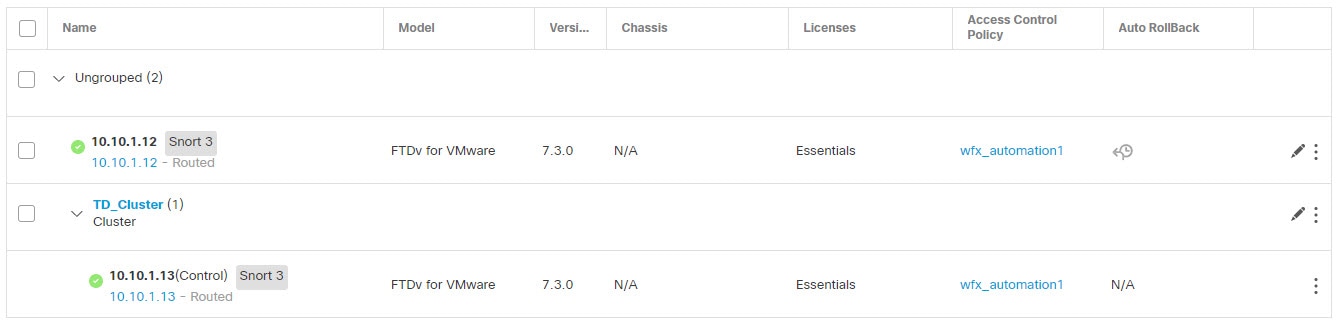
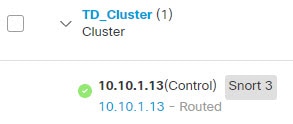
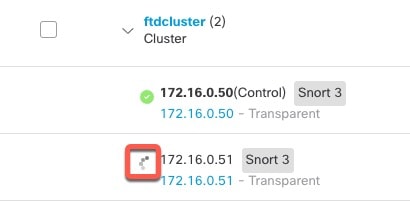
      The cluster name shows on the Devices > Device Management page; expand the cluster to see the cluster units.

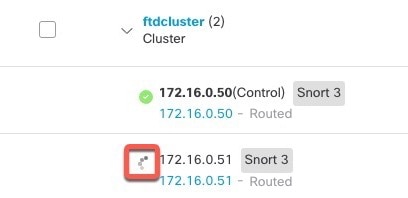
      A unit that is currently registering shows the loading icon.

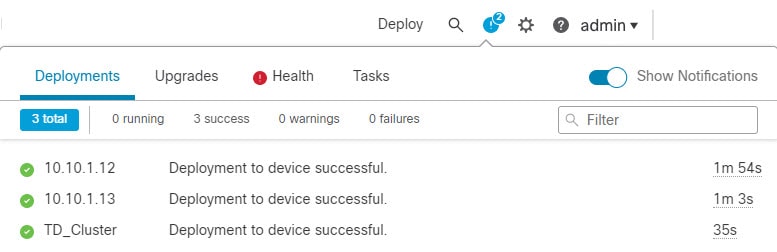
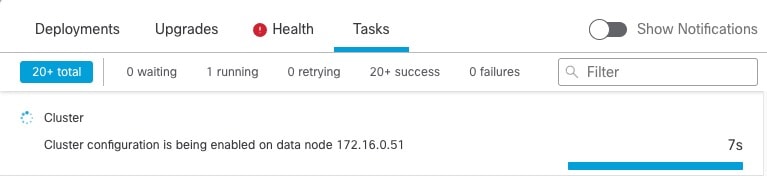
      You can monitor cluster unit registration by clicking the Notifications icon and choosing Tasks. The management center updates the Cluster Registration task as each unit registers. If any units fail to register, see Reconcile Cluster Members.

    Step 2

    Configure device-specific settings by clicking the Edit (edit icon) for the cluster.

    Most configuration can be applied to the cluster as a whole, and not member units in the cluster. For example, you can change the display name per unit, but you can only configure interfaces for the whole cluster.

    Step 3

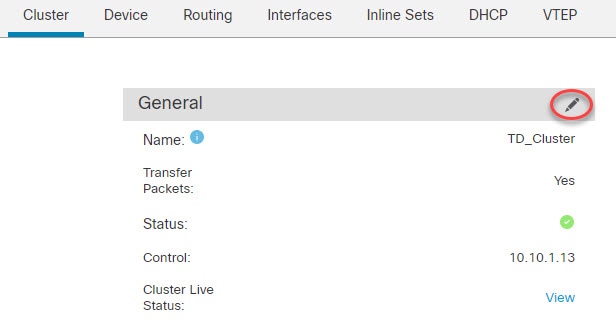
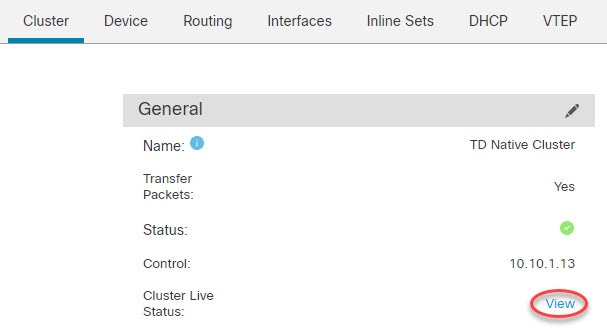
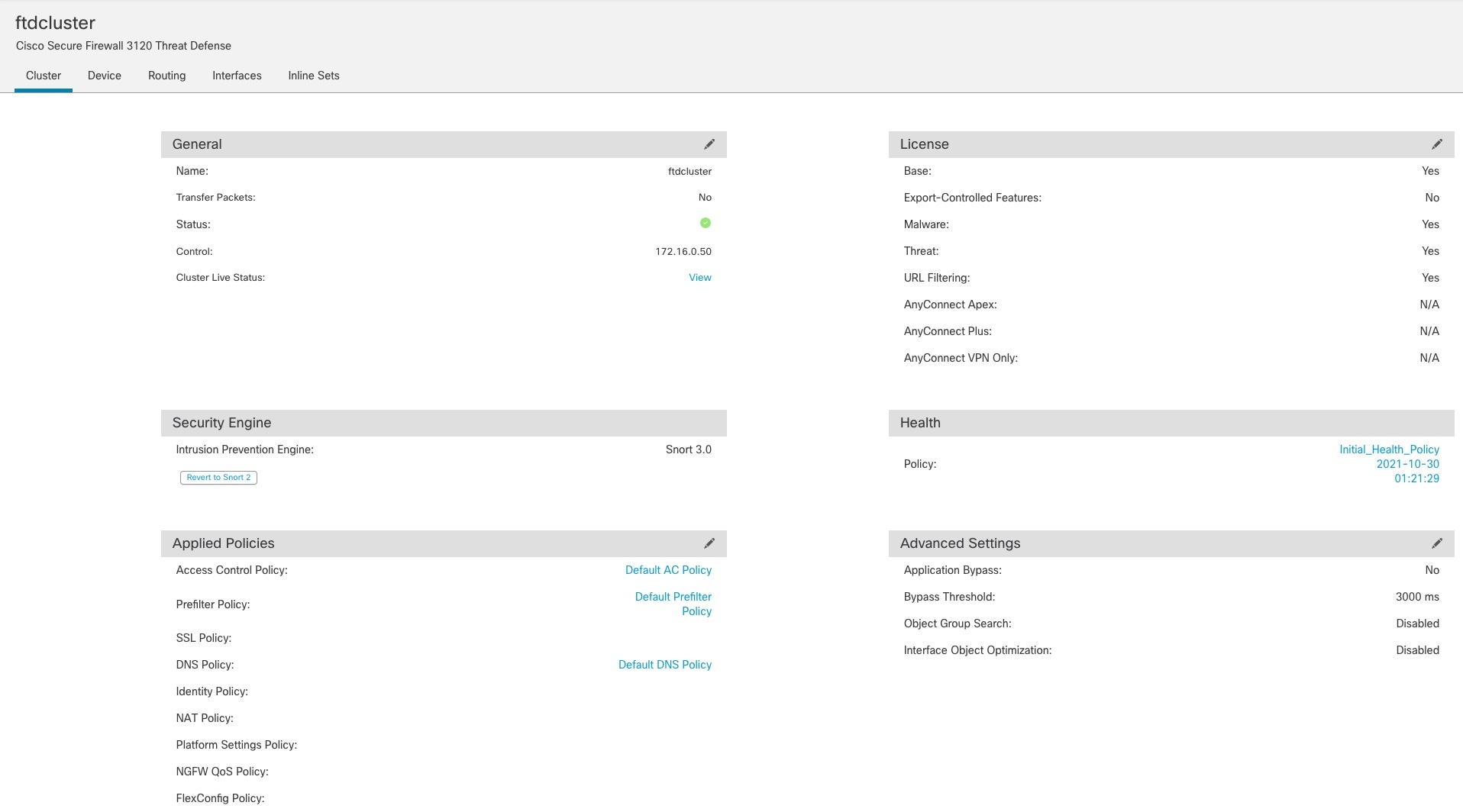
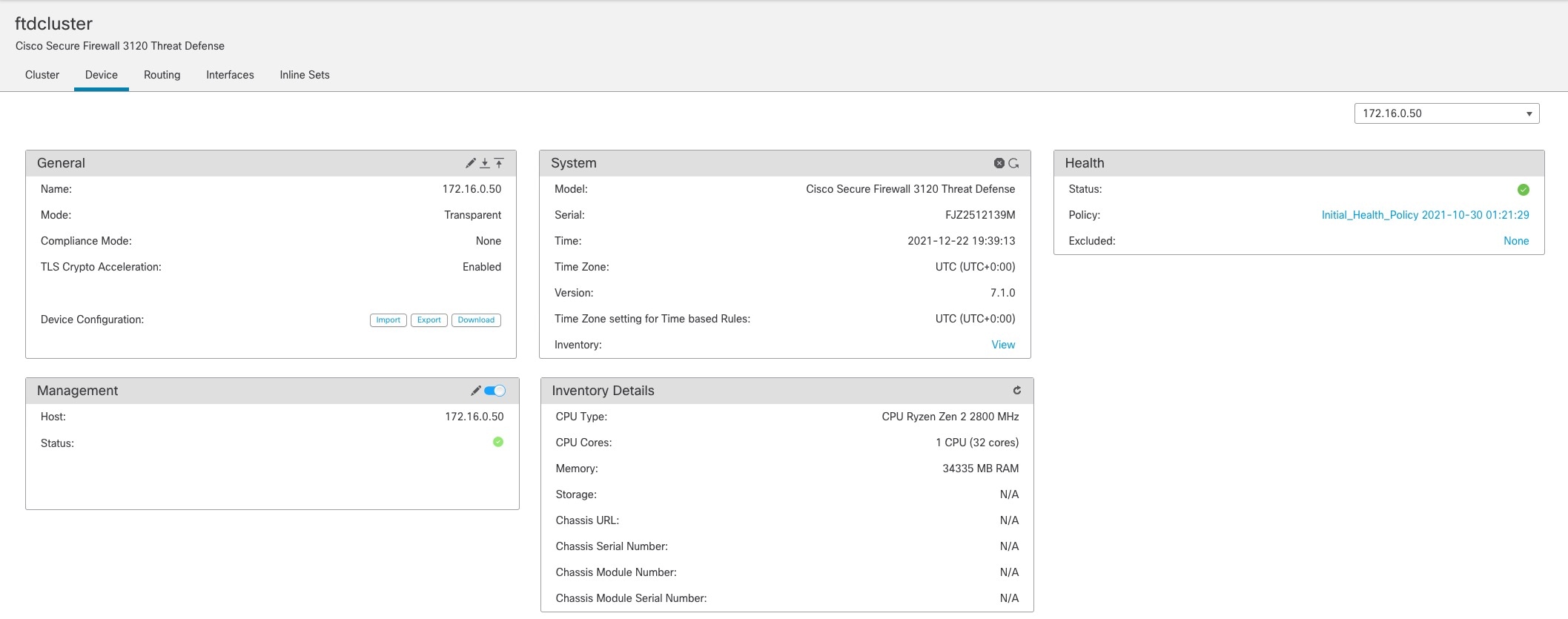
    On the Devices > Device Management > Cluster screen, you see General, License, System, and Health settings.

    See the following cluster-specific items:

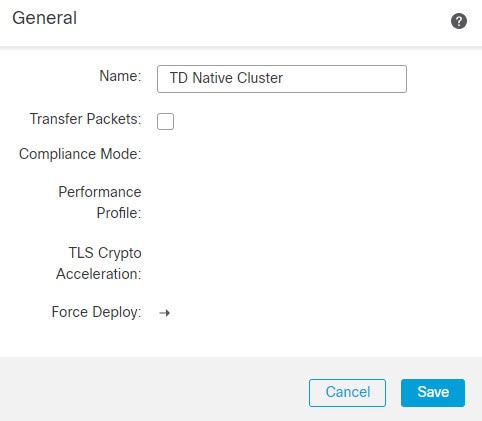
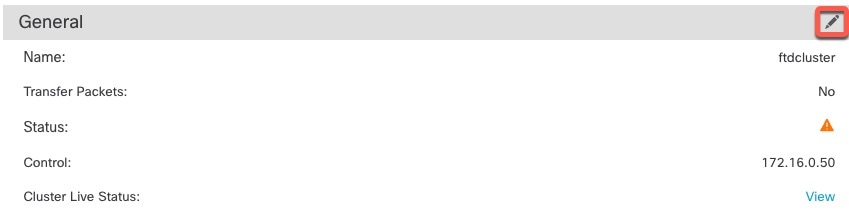
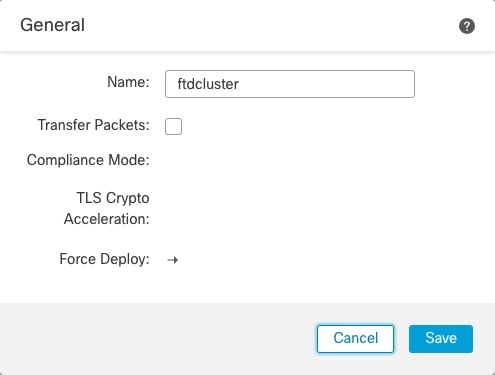
    • General > Name—Change the cluster display name by clicking the Edit (edit icon).

      Then set the Name field.

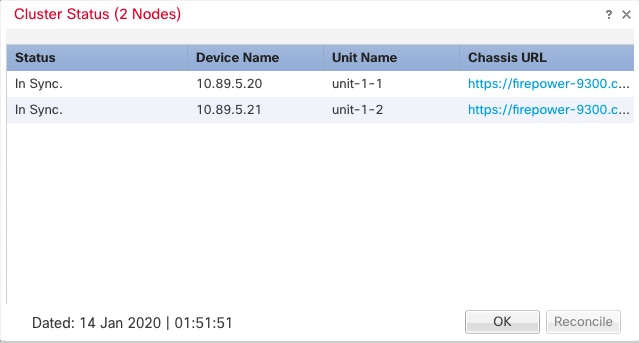
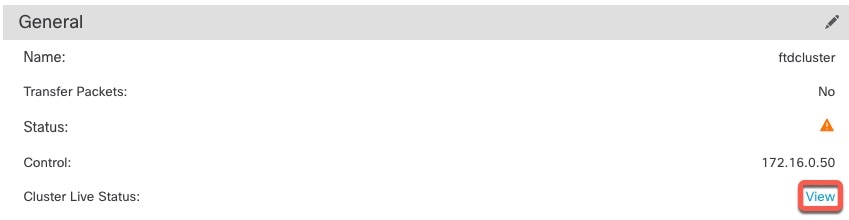
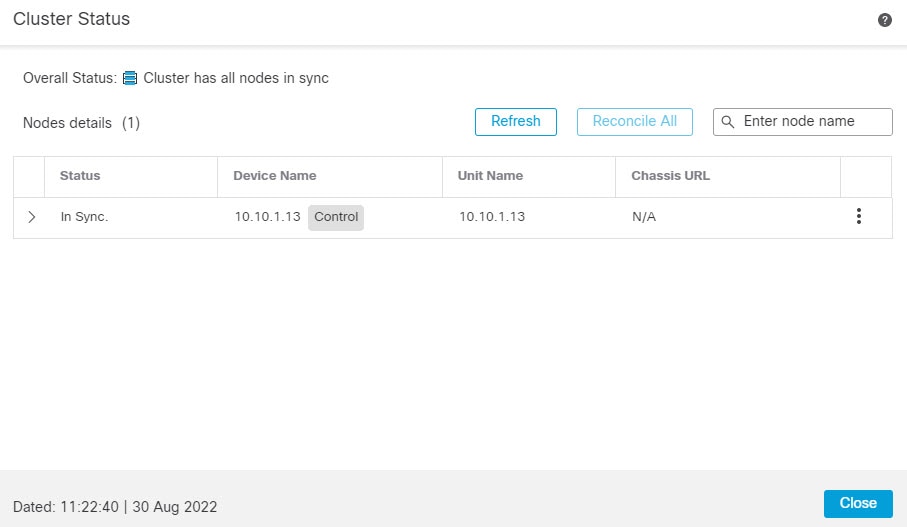
    • General > View cluster status—Click the View cluster status link to open the Cluster Status dialog box.

      The Cluster Status dialog box also lets you retry data unit registration by clicking Reconcile.

    • License—Click Edit (edit icon) to set license entitlements.

    Step 4

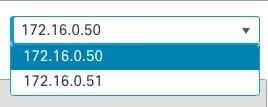
    On the Devices > Device Management > Devices, you can choose each member in the cluster from the top right drop-down menu and configure the following settings.

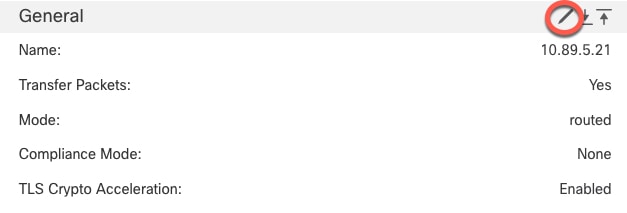
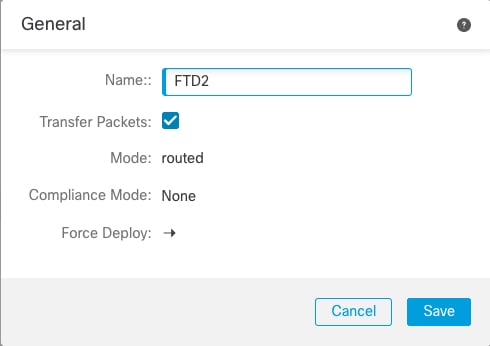
    • General > Name—Change the cluster member display name by clicking the Edit (edit icon).

      Then set the Name field.

    • Management > Host—If you change the management IP address in the device configuration, you must match the new address in the management center so that it can reach the device on the network; edit the Host address in the Management area.


    Management Center: Configure Cluster, Data, and Diagnostic Interfaces

    This procedure configures basic parameters for each data interface that you assigned to the cluster when you deployed it in FXOS. For clustering on multiple chassis, data interfaces are always Spanned EtherChannel interfaces. For the cluster control link interface for a cluster isolated to security modules within one Firepower 9300 chassis, you must increase the MTU from the default. You can also configure the Diagnostic interface, which is the only interface that can run as an individual interface.


    Note


    When using Spanned EtherChannels for clustering on multiple chassis, the port-channel interface will not come up until clustering is fully enabled. This requirement prevents traffic from being forwarded to a unit that is not an active unit in the cluster.


    Procedure


    Step 1

    Choose Devices > Device Management, and click Edit (edit icon) next to the cluster.

    Step 2

    Click Interfaces.

    Step 3

    Configure the cluster control link.

    For clustering on multiple chassis, set the cluster control link MTU to be at least 100 bytes higher than the highest MTU of the data interfaces. Because the cluster control link traffic includes data packet forwarding, the cluster control link needs to accommodate the entire size of a data packet plus cluster traffic overhead. We suggest setting the MTU to the maximum of 9184; the minimum value is 1400 bytes. For example, because the maximum MTU is 9184, then the highest data interface MTU can be 9084, while the cluster control link can be set to 9184.

    For native clusters: The cluster control link interface is Port-Channel48 by default. If you don't know which interface is the cluster control link, check the FXOS configuration for chassis for the Cluster-type interface assigned to the cluster.

    1. Click Edit (edit icon) for the cluster control link interface.

    2. On the General page, in the MTU field, enter a value between 1400 and 9184. We suggest using the maximum, 9184.

    3. Click OK.

    Step 4

    Configure data interfaces.

    1. (Optional) Configure VLAN subinterfaces on the data interface. The rest of this procedure applies to the subinterfaces. See Add a Subinterface.

    2. Click Edit (edit icon) for the data interface.

    3. Configure the name, IP address, and other parameters according to Configure Routed Mode Interfaces or Configure Bridge Group Interfaces.

      Note


      If the cluster control link interface MTU is not at least 100 bytes higher than the data interface MTU, you will see an error that you must reduce the MTU of the data interface. See step Step 3 to increase the cluster control link MTU, after which you can continue configuring the data interfaces.

    4. For clustering on multiple chassis, set a manual global MAC address for the EtherChannel. Click Advanced, and in the Active Mac Address field, enter a MAC address in H.H.H format, where H is a 16-bit hexadecimal digit.

      For example, the MAC address 00-0C-F1-42-4C-DE would be entered as 000C.F142.4CDE. The MAC address must not have the multicast bit set, that is, the second hexadecimal digit from the left cannot be an odd number.

      Do not set the Standby Mac Address; it is ignored.

      You must configure a MAC address for a Spanned EtherChannel to avoid potential network connectivity problems. With a manually-configured MAC address, the MAC address stays with the current control unit. If you do not configure a MAC address, then if the control unit changes, the new control unit uses a new MAC address for the interface, which can cause a temporary network outage.

    5. Click OK. Repeat the above steps for other data interfaces.

    Step 5

    (Optional) Configure the Diagnostic interface.

    The Diagnostic interface is the only interface that can run in Individual interface mode. You can use this interface for syslog messages or SNMP, for example.

    1. Choose Objects > Object Management > Address Pools to add an IPv4 and/or IPv6 address pool. See Address Pools.

      Include at least as many addresses as there are units in the cluster. The Virtual IP address is not a part of this pool, but needs to be on the same network. You cannot determine the exact Local address assigned to each unit in advance.

    2. On Devices > Device Management > Interfaces, click Edit (edit icon) for the Diagnostic interface.

    3. On the IPv4, enter the IP Address and mask. This IP address is a fixed address for the cluster, and always belongs to the current control unit.

    4. From the IPv4 Address Pool drop-down list, choose the address pool you created.

    5. On IPv6 > Basic, from the IPv6 Address Pool drop-down list, choose the address pool you created.

    6. Configure other interface settings as normal.

    Step 6

    Click Save.

    You can now go to Deploy > Deployment and deploy the policy to assigned devices. The changes are not active until you deploy them.


    Management Center: Configure Cluster Health Monitor Settings

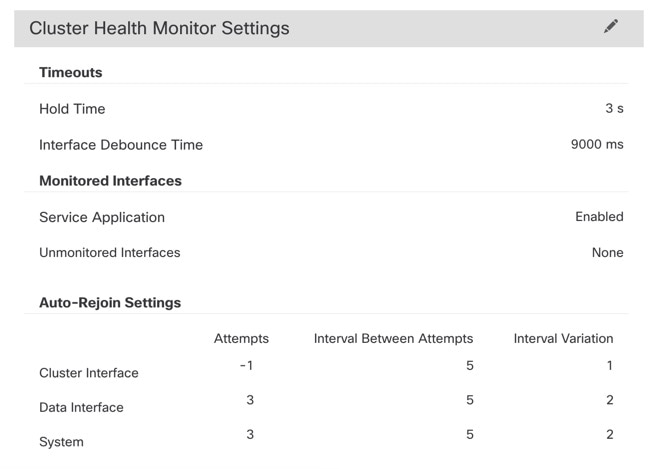
    The Cluster Health Monitor Settings section of the Cluster page displays the settings described in the table below.

    Figure 9. Cluster Health Monitor Settings
    Cluster Health Monitor Settings
    Table 1. Cluster Health Monitor Settings Section Table Fields

    Field

    Description

    Timeouts

    Hold Time

    To determine node system health, the cluster nodes send heartbeat messages on the cluster control link to other nodes. If a node does not receive any heartbeat messages from a peer node within the hold time period, the peer node is considered unresponsive or dead.

    Interface Debounce Time

    The interface debounce time is the amount of time before the node considers an interface to be failed, and the node is removed from the cluster.

    Monitored Interfaces

    The interface health check monitors for link failures. If all physical ports for a given logical interface fail on a particular node, but there are active ports under the same logical interface on other nodes, then the node is removed from the cluster. The amount of time before the node removes a member from the cluster depends on the type of interface and whether the node is an established node or is joining the cluster.

    Service Application

    Shows whether the Snort and disk-full processes are monitored.

    Unmonitored Interfaces

    Shows unmonitored interfaces.

    Auto-Rejoin Settings

    Cluster Interface

    Shows the auto-rejoin settings for a cluster control link failure.

    Data Interfaces

    Shows the auto-rejoin settings for a data interface failure.

    System

    Shows the auto-rejoin settings for internal errors. Internal failures include: application sync timeout; inconsistent application statuses; and so on.


    Note


    If you disable the system health check, fields that do not apply when the system health check is disabled will not show.


    You can these settings from this section.

    You can monitor any port-channel ID, single physical interface ID, as well as the Snort and disk-full processes. Health monitoring is not performed on VLAN subinterfaces or virtual interfaces such as VNIs or BVIs. You cannot configure monitoring for the cluster control link; it is always monitored.

    Procedure


    Step 1

    Choose Devices > Device Management

    Step 2

    Next to the cluster you want to modify, click Edit (edit icon)

    In a multidomain deployment, if you are not in a leaf domain, the system prompts you to switch.

    Step 3

    Click Cluster.

    Step 4

    In the Cluster Health Monitor Settings section, click Edit (edit icon)

    Step 5

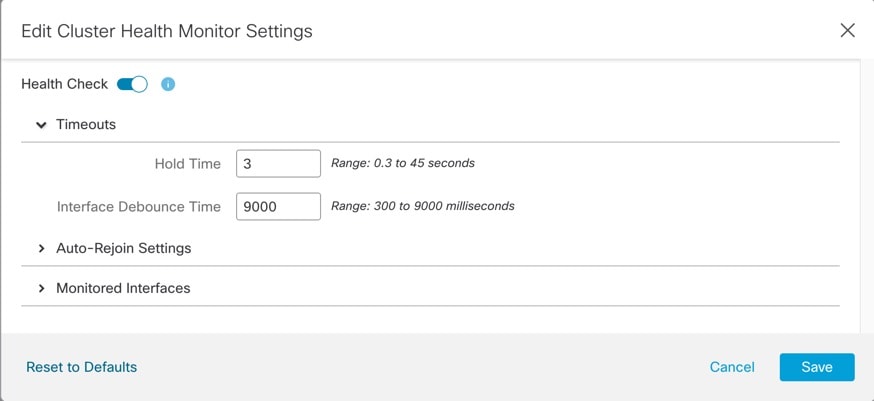
    Disable the system health check by clicking the Health Check slider .

    Figure 10. Disable the System Health Check
    Disable the System Health Check

    When any topology changes occur (such as adding or removing a data interface, enabling or disabling an interface on the node or the switch, or adding an additional switch to form a VSS or vPC) you should disable the system health check feature and also disable interface monitoring for the disabled interfaces. When the topology change is complete, and the configuration change is synced to all nodes, you can re-enable the system health check feature and monitored interfaces.

    Step 6

    Configure the hold time and interface debounce time.

    • Hold Time—Set the hold time to determine the amount of time between node heartbeat status messages, between .3 and 45 seconds; The default is 3 seconds.

    • Interface Debounce Time—Set the debounce time between 300 and 9000 ms. The default is 500 ms. Lower values allow for faster detection of interface failures. Note that configuring a lower debounce time increases the chances of false-positives. When an interface status update occurs, the node waits the number of milliseconds specified before marking the interface as failed, and the node is removed from the cluster. In the case of an EtherChannel that transitions from a down state to an up state (for example, the switch reloaded, or the switch enabled an EtherChannel), a longer debounce time can prevent the interface from appearing to be failed on a cluster node just because another cluster node was faster at bundling the ports.

    Step 7

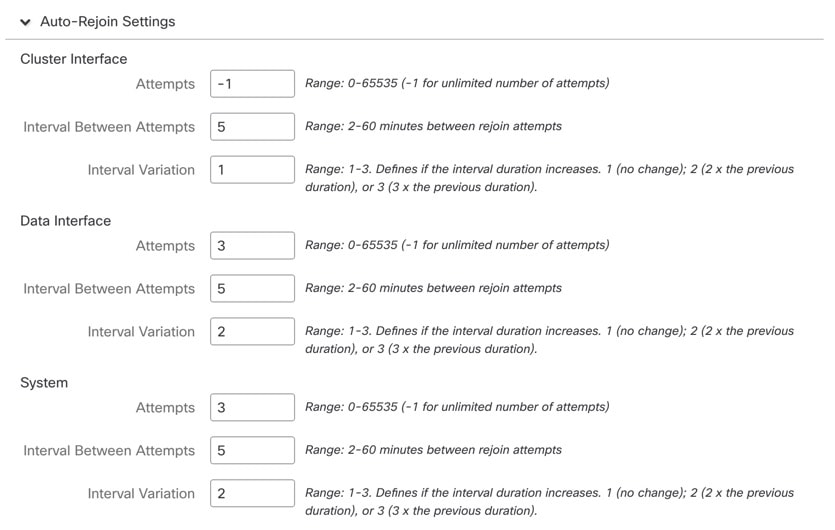
    Customize the auto-rejoin cluster settings after a health check failure.

    Figure 11. Configure Auto-Rejoin Settings
    Configure Auto-Rejoin Settings
    Set the following values for the Cluster Interface, Data Interface, and System (internal failures include: application sync timeout; inconsistent application statuses; and so on):
    • Attempts—Sets the number of rejoin attempts, between -1 and 65535. 0 disables auto-rejoining. The default for the Cluster Interface is -1 (unlimited). The default for the Data Interface and System is 3.

    • Interval Between Attempts—Defines the interval duration in minutes between rejoin attempts, between 2 and 60. The default value is 5 minutes. The maximum total time that the node attempts to rejoin the cluster is limited to 14400 minutes (10 days) from the time of last failure.

    • Interval Variation—Defines if the interval duration increases. Set the value between 1 and 3: 1 (no change); 2 (2 x the previous duration), or 3 (3 x the previous duration). For example, if you set the interval duration to 5 minutes, and set the variation to 2, then the first attempt is after 5 minutes; the 2nd attempt is 10 minutes (2 x 5); the 3rd attempt 20 minutes (2 x 10), and so on. The default value is 1 for the Cluster Interface and 2 for the Data Interface and System.

    Step 8

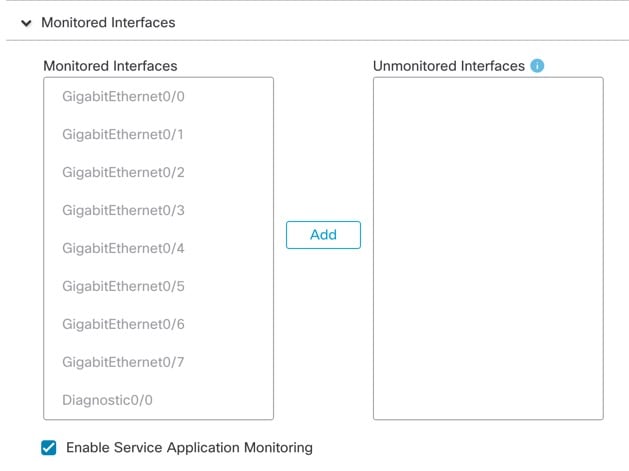
    Configure monitored interfaces by moving interfaces in the Monitored Interfaces or Unmonitored Interfaces window. You can also check or uncheck Enable Service Application Monitoring to enable or disable monitoring of the Snort and disk-full processes.

    Figure 12. Configure Monitored Interfaces
    Configure Monitored Interfaces

    The interface health check monitors for link failures. If all physical ports for a given logical interface fail on a particular node, but there are active ports under the same logical interface on other nodes, then the node is removed from the cluster. The amount of time before the node removes a member from the cluster depends on the type of interface and whether the node is an established node or is joining the cluster. Health check is enabled by default for all interfaces and for the Snort and disk-full processes.

    You might want to disable health monitoring of non-essential interfaces, for example, the Diagnostic interface.

    When any topology changes occur (such as adding or removing a data interface, enabling or disabling an interface on the node or the switch, or adding an additional switch to form a VSS or vPC) you should disable the system health check feature and also disable interface monitoring for the disabled interfaces. When the topology change is complete, and the configuration change is synced to all nodes, you can re-enable the system health check feature and monitored interfaces.

    Step 9

    Click Save.

    Step 10

    Deploy configuration changes.


    FXOS: Remove a Cluster Node

    The following sections describe how to remove nodes temporarily or permanently from the cluster.

    Temporary Removal

    A cluster node will be automatically removed from the cluster due to a hardware or network failure, for example. This removal is temporary until the conditions are rectified, and it can rejoin the cluster. You can also manually disable clustering.

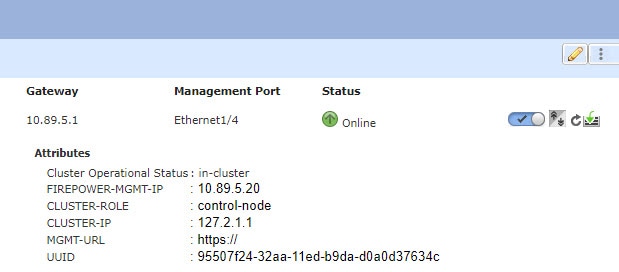
    To check whether a device is currently in the cluster, check the cluster status on the chassis manager Logical Devices page:

    For threat defense using the management center, you should leave the device in the management center device list so that it can resume full functionality after you reenable clustering.

    • Disable clustering in the application—You can disable clustering using the application CLI. Enter the cluster remove unit name command to remove any node other than the one you are logged into. The bootstrap configuration remains intact, as well as the last configuration synced from the control node, so you can later re-add the node without losing your configuration. If you enter this command on a data node to remove the control node, a new control node is elected.

      When a device becomes inactive, all data interfaces are shut down; only the Management interface can send and receive traffic. To resume traffic flow, re-enable clustering. The Management interface remains up using the IP address the node received from the bootstrap configuration. However if you reload, and the node is still inactive in the cluster , the Management interface is disabled.

      To reenable clustering, on the threat defense enter cluster enable .

    • Disable the application instance—In the chassis manager on the Logical Devices page, click the Slider enabled (slider enabled). You can later reenable it using the Slider disabled (slider disabled).

    • Shut down the security module/engineIn the chassis manager on the Security Module/Engine page, click the Power Off icon.

    • Shut down the chassis—In the chassis manager on the Overview page, click the Shut Down icon.

    Permanent Removal

    You can permanently remove a cluster node using the following methods.

    For threat defense using the management center, be sure to remove the node from the management center device list after you disable clustering on the chassis.

    • Delete the logical device—In the chassis manager on the Logical Devices page, click the Delete (delete icon). You can then deploy a standalone logical device, a new cluster, or even add a new logical device to the same cluster.

    • Remove the chassis or security module from service—If you remove a device from service, you can add replacement hardware as a new node of the cluster.

    Management Center: Manage Cluster Members

    After you deploy the cluster, you can change the configuration and manage cluster members.

    Add a New Cluster Member

    When you add a new cluster member in FXOS, the Secure Firewall Management Center adds the member automatically.

    Before you begin

    • Make sure the interface configuration is the same on the replacement unit as for the other chassis.

    Procedure


    Step 1

    Add the new unit to the cluster in FXOS. See the FXOS configuration guide.

    Wait for the new unit to be added to the cluster. Refer to the chassis manager Logical Devices screen or use the threat defense show cluster info command to view cluster status.

    Step 2

    The new cluster member is added automatically. To monitor the registration of the replacement unit, view the following:

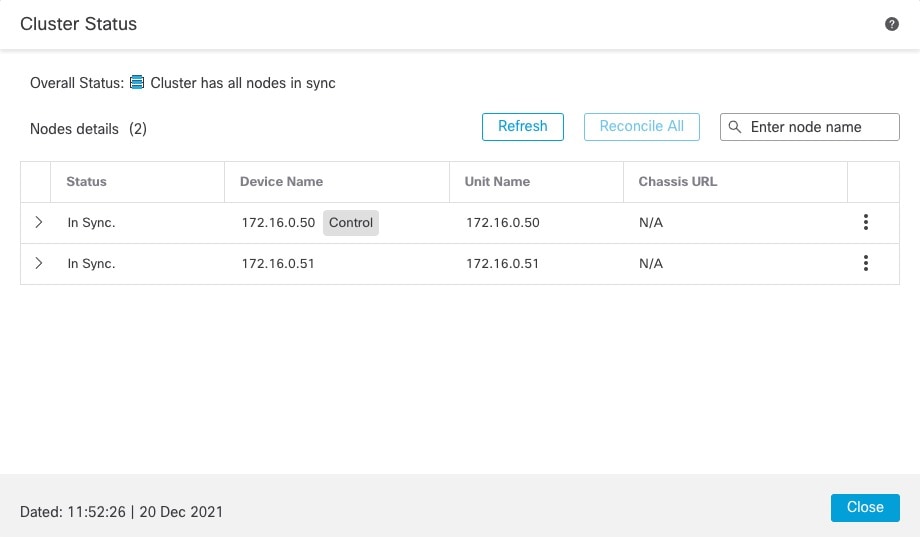
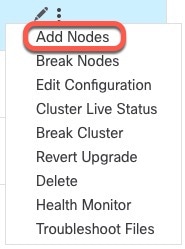
    • Cluster Status dialog box (which is available from the Devices > Device Management More (more icon) icon or from the Devices > Device Management > Cluster tab > General area > Cluster Live Status link)—A unit that is joining the cluster on the chassis shows "Joining cluster..." After it joins the cluster, the management center attempts to register it, and the status changes to "Available for Registration". After it completes registration, the status changes to "In Sync." If the registration fails, the unit will stay at "Available for Registration". In this case, force a re-registration by clicking Reconcile.

    • System status > Tasks —The management center shows all registration events and failures.

    • Devices > Device Management—When you expand the cluster on the devices listing page, you can see when a unit is registering when it has the loading icon to the left.


    Replace a Cluster Member

    You can replace a cluster member in an existing cluster. The management center auto-detects the replacement unit. However, you must manually delete the old cluster member in the management center. This procedure also applies to a unit that was reinitialized; in this case, although the hardware remains the same, it appears to be a new member.

    Before you begin

    • Make sure the interface configuration is the same on the replacement unit as for other chassis.

    Procedure


    Step 1

    For a new chassis, if possible, backup and restore the configuration from the old chassis in FXOS.

    If you are replacing a module in a Firepower 9300, you do not need to perform these steps.

    If you do not have a backup FXOS configuration from the old chassis, first perform the steps in Add a New Cluster Member.

    For information about all of the below steps, see the FXOS configuration guide.

    1. Use the configuration export feature to export an XML file containing logical device and platform configuration settings for your Firepower 4100/9300 chassis.

    2. Import the configuration file to the replacement chassis.

    3. Accept the license agreement.

    4. If necessary, upgrade the logical device application instance version to match the rest of the cluster.

    Step 2

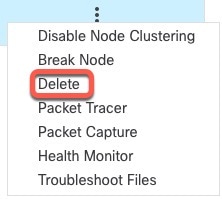
    In the management center for the old unit, choose Devices > Device Management > More (more icon) > Delete .

    Step 3

    Confirm that you want to delete the unit.

    The unit is removed from the cluster and from the management center devices list.

    Step 4

    The new or reinitialized cluster member is added automatically. To monitor the registration of the replacement unit, view the following:

    • Cluster Status dialog box (Devices > Device Management > More (more icon) icon or Devices > Device Management > Cluster page > General area > Cluster Live Status link)—A unit that is joining the cluster on the chassis shows "Joining cluster..." After it joins the cluster, the management center attempts to register it, and the status changes to "Available for Registration". After it completes registration, the status changes to "In Sync." If the registration fails, the unit will stay at "Available for Registration". In this case, force a re-registration by clicking Reconcile All.

    • System (system gear icon) > Tasks—The management center shows all registration events and failures.

    • Devices > Device Management—When you expand the cluster on the devices listing page, you can see when a unit is registering when it has the loading icon to the left.


    Deactivate a Member

    You may want to deactivate a member in preparation for deleting the unit, or temporarily for maintenance. This procedure is meant to temporarily deactivate a member; the unit will still appear in the management center device list.


    Note


    When a unit becomes inactive, all data interfaces are shut down; only the Management interface can send and receive traffic. To resume traffic flow, reenable clustering. The Management interface remains up using the IP address the unit received from the bootstrap configuration. However if you reload, and the unit is still inactive in the cluster, the management interface is disabled. You must use the console for any further configuration.


    Procedure


    Step 1

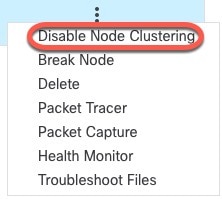
    For the unit you want to deactivate, choose Devices > Device Management > More (more icon) > Disable Clustering.

    You can also deactivate a unit from the Cluster Status dialog box (Devices > Device Management > More (more icon) > Cluster Live Status).

    Step 2

    Confirm that you want to disable clustering on the unit.

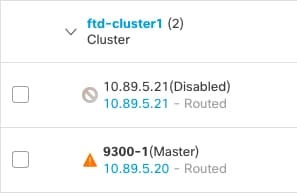
    The unit will show (Disabled) next to its name in the Devices > Device Management list.

    Step 3

    To reenable clustering, see Rejoin the Cluster.


    Rejoin the Cluster

    If a unit was removed from the cluster, for example for a failed interface or if you manually disabled clustering, you must manually rejoin the cluster.

    Procedure


    Step 1

    For the unit you want to reactivate, choose Devices > Device Management > More (more icon) > Enable Clustering.

    You can also reactivate a unit from the Cluster Status dialog box (Devices > Device Management > More (more icon) > Cluster Live Status).

    Step 2

    Confirm that you want to enable clustering on the unit.


    Delete (Unregister) a Data Node

    If you need to permanently remove a cluster node (for example, if you remove a module on the Firepower 9300, or remove a chassis), then you should unregister it from the management center.

    Do not unregister the node if it is still a healthy part of the cluster, or if you only want to disable the node temporarily. To remove it permanently from the cluster in FXOS, see FXOS: Remove a Cluster Node. If you unregister it from the management center, and it is still part of the cluster, it will continue to pass traffic, and could even become the control node—a control node that the management center can no longer manage.

    Before you begin

    To manually deactivate the node, see Deactivate a Member. Before you unregister a node, the node must be inactive, either manually or because of a health failure.

    Procedure


    Step 1

    Make sure the node is ready to be unregistered from the management center. On Devices > Device Management, make sure the node shows (Disabled).

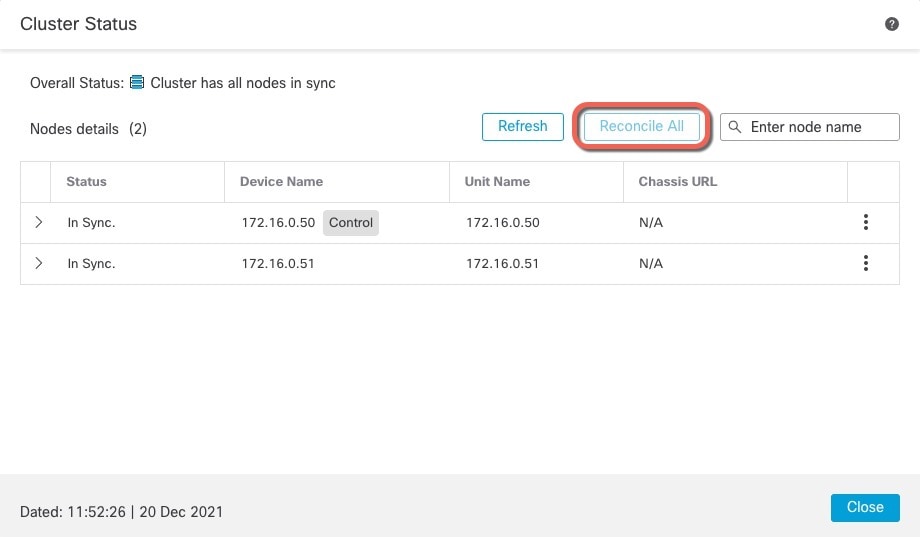
    You can also view each node's status on the Cluster Status dialog box available from More (more icon). If the status is stale, click Reconcile All on the Cluster Status dialog box to force an update.

    Step 2

    In the management center for the data node you want to delete, choose Devices > Device Management > More (more icon) > Delete .

    Step 3

    Confirm that you want to delete the node.

    The node is removed from the cluster and from the management center devices list.


    Change the Control Unit


    Caution


    The best method to change the control unit is to disable clustering on the control unit, wait for a new control election, and then re-enable clustering. If you must specify the exact unit you want to become the control unit, use the procedure in this section. Note that for centralized features, if you force a control unit change, then all connections are dropped, and you have to re-establish the connections on the new control unit.


    To change the control unit, perform the following steps.

    Procedure


    Step 1

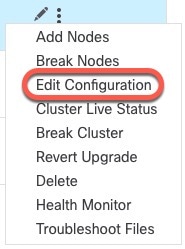
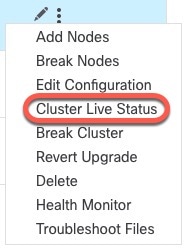
    Open the Cluster Status dialog box by choosing Devices > Device Management > More (more icon) > Cluster Live Status.

    You can also access the Cluster Status dialog box from Devices > Device Management > Cluster page > General area > Cluster Live Status link.

    Step 2

    For the unit you want to become the control unit, choose More (more icon) > Change Role to Control.

    Step 3

    You are prompted to confirm the role change. Check the checkbox, and click OK.


    Reconcile Cluster Members

    If a cluster member fails to register, you can reconcile the cluster membership from the chassis to the Secure Firewall Management Center. For example, a data unit might fail to register if the management center is occupied with certain processes, or if there is a network issue.

    Procedure


    Step 1

    Choose Devices > Device Management > More (more icon) for the cluster, and then choose Cluster Live Status to open the Cluster Status dialog box.

    You can also open the Cluster Status dialog box from the Devices > Device Management > Cluster page > General area > Cluster Live Status link.

    Step 2

    Click Reconcile All.

    For more information about the cluster status, see Management Center: Monitoring the Cluster.


    Management Center: Monitoring the Cluster

    You can monitor the cluster in Secure Firewall Management Center and at the threat defense CLI.

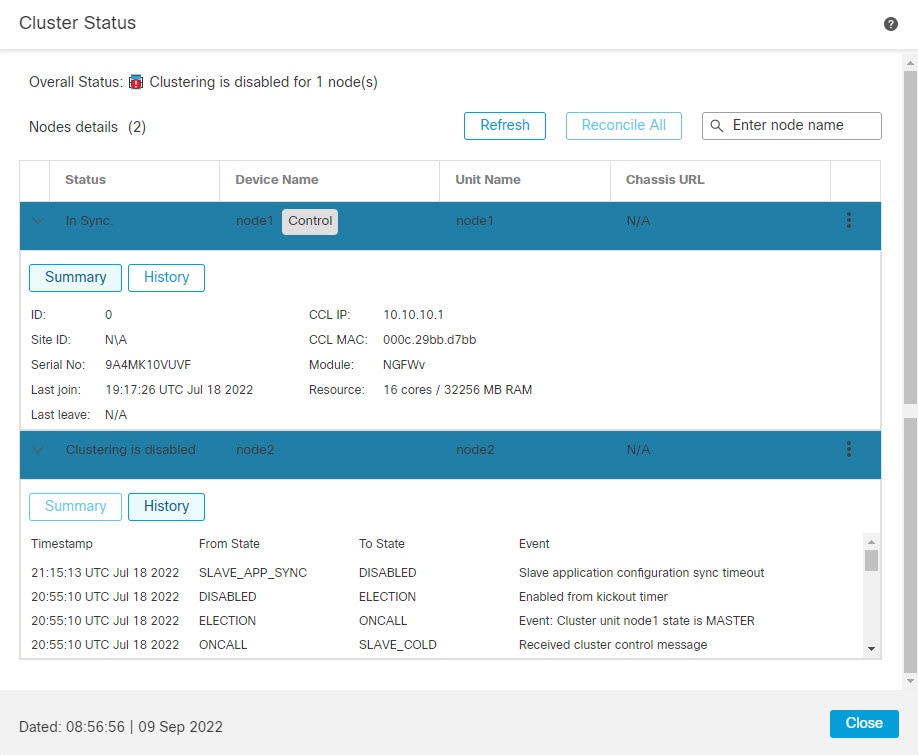
    • Cluster Status dialog box, which is available from the Devices > Device Management > More (more icon) icon or from the Devices > Device Management > Cluster page > General area > Cluster Live Status link.

      The Control unit has a graphic indicator identifying its role.

      Cluster member Status includes the following states:

      • In Sync.—The unit is registered with the management center.

      • Pending Registration—The unit is part of the cluster, but has not yet registered with the management center. If a unit fails to register, you can retry registration by clicking Reconcile All.

      • Clustering is disabled—The unit is registered with the management center, but is an inactive member of the cluster. The clustering configuration remains intact if you intend to later re-enable it, or you can delete the unit from the cluster.

      • Joining cluster...—The unit is joining the cluster on the chassis, but has not completed joining. After it joins, it will register with the management center.

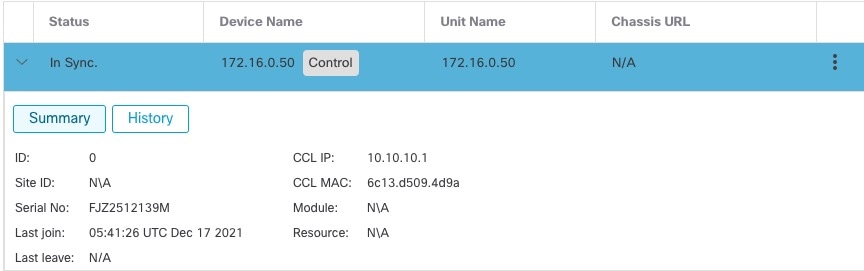
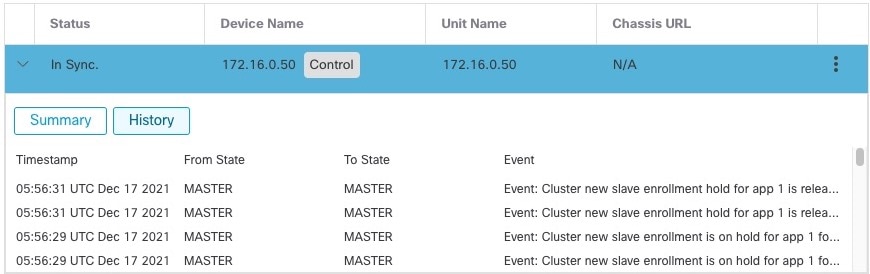
      For each unit, you can view the Summary or the History.

      For each unit from the More (more icon) menu , you can perform the following status changes:

      • Disable Clustering

      • Enable Clustering

      • Change Role to Control

    • System (system gear icon) > Tasks page.

      The Tasks page shows updates of the Cluster Registration task as each unit registers.

    • Devices > Device Management > cluster_name.

      When you expand the cluster on the devices listing page, you can see all member units, including the control unit shown with its role next to the IP address. For units that are still registering, you can see the loading icon.

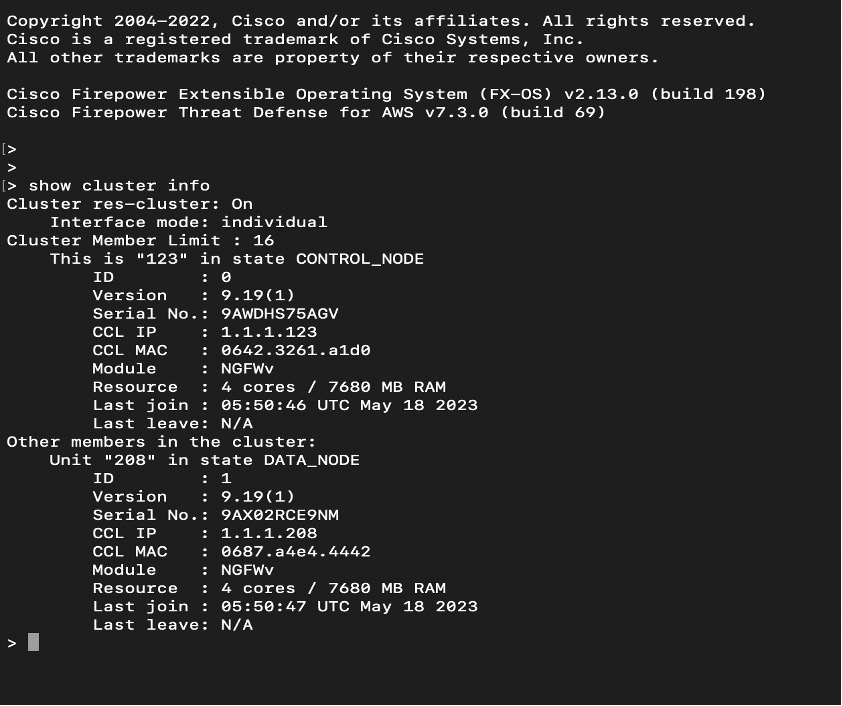
    • show cluster {access-list [acl_name] | conn [count] | cpu [usage] | history | interface-mode | memory | resource usage | service-policy | traffic | xlate count}

      To view aggregated data for the entire cluster or other information, use the show cluster command.

    • show cluster info [auto-join | clients | conn-distribution | flow-mobility counters | goid [options] | health | incompatible-config | loadbalance | old-members | packet-distribution | trace [options] | transport { asp | cp}]

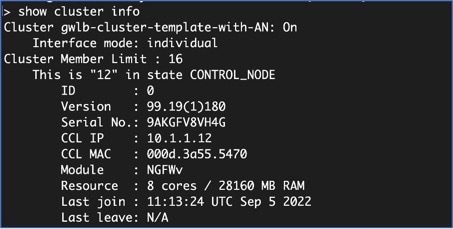
      To view cluster information, use the show cluster info command.

    Cluster Health Monitor Dashboard

    Cluster Health Monitor

    When a threat defense is the control node of a cluster, the management center collects various metrics periodically from the device metric data collector. The cluster health monitor is comprised of the following components:

    • Overview dashboard―Displays information about the cluster topology, cluster statistics, and metric charts:

      • The topology section displays a cluster's live status, the health of individual threat defense, threat defense node type (control node or data node), and the status of the device. The status of the device could be Disabled (when the device leaves the cluster), Added out of box (in a public cloud cluster, the additional nodes that do not belong to the management center), or Normal (ideal state of the node).

      • The cluster statistics section displays current metrics of the cluster with respect to the CPU usage, memory usage, input rate, output rate, active connections, and NAT translations.


        Note


        The CPU and memory metrics display the individual average of the data plane and snort usage.


      • The metric charts, namely, CPU Usage, Memory Usage, Throughput, and Connections, diagrammatically display the statistics of the cluster over the specified time period.

    • Load Distribution dashboard―Displays load distribution across the cluster nodes in two widgets:

      • The Distribution widget displays the average packet and connection distribution over the time range across the cluster nodes. This data depicts how the load is being distributed by the nodes. Using this widget, you can easily identify any abnormalities in the load distribution and rectify it.

      • The Node Statistics widget displays the node level metrics in table format. It displays metric data on CPU usage, memory usage, input rate, output rate, active connections, and NAT translations across the cluster nodes. This table view enables you to correlate data and easily identify any discrepancies.

    • Member Performance dashboard―Displays current metrics of the cluster nodes. You can use the selector to filter the nodes and view the details of a specific node. The metric data include CPU usage, memory usage, input rate, output rate, active connections, and NAT translations.

    • CCL dashboard―Displays, graphically, the cluster control link data namely, the input, and output rate.

    • Troubleshooting and Links ― Provides convenient links to frequently used troubleshooting topics and procedures.

    • Time range―An adjustable time window to constrain the information that appears in the various cluster metrics dashboards and widgets.

    • Custom Dashboard―Displays data on both cluster-wide metrics and node-level metrics. However, node selection only applies for the threat defense metrics and not for the entire cluster to which the node belongs.

    Viewing Cluster Health

    You must be an Admin, Maintenance, or Security Analyst user to perform this procedure.

    The cluster health monitor provides a detailed view of the health status of a cluster and its nodes. This cluster health monitor provides health status and trends of the cluster in an array of dashboards.

    Before you begin
    • Ensure you have created a cluster from one or more devices in the management center.

    Procedure

    Step 1

    Choose System (system gear icon) > Health > Monitor.

    Use the Monitoring navigation pane to access node-specific health monitors.

    Step 2

    In the device list, click Expand (expand icon) and Collapse (collapse icon) to expand and collapse the list of managed cluster devices.

    Step 3

    To view the cluster health statistics, click on the cluster name. The cluster monitor reports health and performance metrics in several predefined dashboards by default. The metrics dashboards include:

    • Overview ― Highlights key metrics from the other predefined dashboards, including its nodes, CPU, memory, input and output rates, connection statistics, and NAT translation information.

    • Load Distribution ― Traffic and packet distribution across the cluster nodes.

    • Member Performance ― Node-level statistics on CPU usage, memory usage, input throughput, output throughput, active connection, and NAT translation.

    • CCL ― Interface status and aggregate traffic statistics.

    You can navigate through the various metrics dashboards by clicking on the labels. For a comprehensive list of the supported cluster metrics, see Cisco Secure Firewall Threat Defense Health Metrics.

    Step 4

    You can configure the time range from the drop-down in the upper-right corner. The time range can reflect a period as short as the last hour (the default) or as long as two weeks. Select Custom from the drop-down to configure a custom start and end date.

    Click the refresh icon to set auto refresh to 5 minutes or to toggle off auto refresh.

    Step 5

    Click on deployment icon for a deployment overlay on the trend graph, with respect to the selected time range.

    The deployment icon indicates the number of deployments during the selected time-range. A vertical band indicates the deployment start and end time. For multiple deployments, multiple bands/lines appear. Click on the icon on top of the dotted line to view the deployment details.

    Step 6

    (For node-specific health monitor) View the Health Alerts for the node in the alert notification at the top of page, directly to the right of the device name.

    Hover your pointer over the Health Alerts to view the health summary of the node. The popup window shows a truncated summary of the top five health alerts. Click on the popup to open a detailed view of the health alert summary.

    Step 7

    (For node-specific health monitor) The device monitor reports health and performance metrics in several predefined dashboards by default. The metrics dashboards include:

    • Overview ― Highlights key metrics from the other predefined dashboards, including CPU, memory, interfaces, connection statistics; plus disk usage and critical process information.

    • CPU ― CPU utilization, including the CPU usage by process and by physical cores.

    • Memory ― Device memory utilization, including data plane and Snort memory usage.

    • Interfaces ― Interface status and aggregate traffic statistics.

    • Connections ― Connection statistics (such as elephant flows, active connections, peak connections, and so on) and NAT translation counts.

    • Snort ― Statistics that are related to the Snort process.

    • ASP drops ― Statistics related to the dropped packets against various reasons.

    You can navigate through the various metrics dashboards by clicking on the labels. See Cisco Secure Firewall Threat Defense Health Metrics for a comprehensive list of the supported device metrics.

    Step 8

    Click the plus sign (+) in the upper right corner of the health monitor to create a custom dashboard by building your own variable set from the available metric groups.

    For cluster-wide dashboard, choose Cluster metric group, and then choose the metric.


    Cluster Metrics

    The cluster health monitor tracks statistics that are related to a cluster and its nodes, and aggregate of load distribution, performance, and CCL traffic statistics.

    Table 2. Cluster Metrics

    Metric

    Description

    Format

    CPU

    Average of CPU metrics on the nodes of a cluster (individually for data plane and snort).

    percentage

    Memory

    Average of memory metrics on the nodes of a cluster (individually for data plane and snort).

    percentage

    Data Throughput

    Incoming and outgoing data traffic statistics for a cluster.

    bytes

    CCL Throughput

    Incoming and outgoing CCL traffic statistics for a cluster.

    bytes

    Connections

    Count of active connections in a cluster.

    number

    NAT Translations

    Count of NAT translations for a cluster.

    number

    Distribution

    Connection distribution count in the cluster for every second.

    number

    Packets

    Packet distribution count in the cluster for every second.

    number

    History for Clustering

    Feature

    Version

    Details

    Cluster health monitor settings

    7.3

    You can now edit cluster health monitor settings.

    New/Modified screens: Devices > Device Management > Cluster > Cluster Health Monitor Settings

    Note


    If you previously configured these settings using FlexConfig, be sure to remove the FlexConfig configuration before you deploy. Otherwise the FlexConfig configuration will overwrite the management center configuration.

    Cluster health monitor dashboard

    7.3

    You can now view cluster health on the cluster health monitor dashboard.

    New/Modified screens: System (system gear icon) > Health > Monitor

    Support for 16-node clusters

    7.2

    You can now configure 16 node clusters for the Firepower 4100/9300.

    New/Modified screens: none.

    Supported platforms: Firepower 4100/9300

    Cluster deployment for firewall changes completes faster

    7.1

    Cluster deployment for firewall changes now completes faster.

    New/Modified screens: none.

    Improved PAT port block allocation for clustering

    7.0

    The improved PAT port block allocation ensures that the control unit keeps ports in reserve for joining nodes, and proactively reclaims unused ports. To best optimize the allocation, you can set the maximum nodes you plan to have in the cluster using the cluster-member-limit command using FlexConfig. The control unit can then allocate port blocks to the planned number of nodes, and it will not have to reserve ports for extra nodes you don't plan to use. The default is 16 nodes. You can also monitor syslog 747046 to ensure that there are enough ports available for a new node.

    New/Modified commands: cluster-member-limit (FlexConfig), show nat pool cluster [summary] , show nat pool ip detail

    Cluster deployment for Snort changes completes faster, and fails faster when there is an event

    6.7

    Cluster deployment for Snort changes now completes faster. Also, when a cluster has an event that causes a management center deployment to fail, the failure now occurs more quickly.

    New/Modified screens: none.

    Improved cluster management in Management Center

    6.7

    Management Center has improved cluster management functionality that formerly you could only accomplish using the CLI, including:

    • Enable and disable cluster units

    • Show cluster status from the Device Management page, including History and Summary per unit

    • Change the role to the control unit

    New/Modified screens:

    • Devices > Device Management > More menu

    • Devices > Device Management > Cluster > General area > Cluster Live Status link Cluster Status

    Supported platforms: Firepower 4100/9300

    Multi-instance clustering

    6.6

    You can now create a cluster using container instances. On the Firepower 9300, you must include one container instance on each module in the cluster. You cannot add more than one container instance to the cluster per security engine/module. We recommend that you use the same security module or chassis model for each cluster instance. However, you can mix and match container instances on different Firepower 9300 security module types or Firepower 4100 models in the same cluster if required. You cannot mix Firepower 9300 and 4100 instances in the same cluster.

    New/Modified FXOS commands: set port-type cluster

    New/modified Firepower Chassis Manager screens:

    • Logical Devices > Add Cluster

    • Interfaces > All Interfaces > Add New drop-down menu > Subinterface > Type field

    Supported platforms: threat defense on the Firepower 4100/9300

    Configuration sync to data units in parallel

    6.6

    The control unit now syncs configuration changes with data units in parallel by default. Formerly, synching occurred sequentially.

    New/Modified screens: none.

    Messages for cluster join failure or eviction added to show cluster history

    6.6

    New messages were added to the show cluster history command for when a cluster unit either fails to join the cluster or leaves the cluster.

    New/Modified commands: show cluster history

    New/Modified screens: none.

    Initiator and responder information for Dead Connection Detection (DCD), and DCD support in a cluster.

    6.5

    If you enable Dead Connection Detection (DCD), you can use the show conn detail command to get information about the initiator and responder. Dead Connection Detection allows you to maintain an inactive connection, and the show conn output tells you how often the endpoints have been probed. In addition, DCD is now supported in a cluster.

    New/Modified commands: show conn (output only).

    Supported platforms: threat defense on the Firepower 4100/9300

    Improved threat defense cluster addition to the management center

    6.3

    You can now add any unit of a cluster to the management center, and the other cluster units are detected automatically. Formerly, you had to add each cluster unit as a separate device, and then group them into a cluster in the Management Center. Adding a cluster unit is also now automatic. Note that you must delete a unit manually.

    New/Modified screens:

    Devices > Device Management > Add drop-down menu > Device > Add Device dialog box

    Devices > Device Management > Cluster tab > General area > Cluster Registration Status > Current Cluster Summary link > Cluster Status dialog box

    Supported platforms: threat defense on the Firepower 4100/9300

    Support for Site-to-Site VPN with clustering as a centralized feature

    6.2.3.3

    You can now configure site-to-site VPN with clustering. Site-to-site VPN is a centralized feature; only the control unit supports VPN connections.

    Supported platforms: threat defense on the Firepower 4100/9300

    Automatically rejoin the cluster after an internal failure

    6.2.3

    Formerly, many internal error conditions caused a cluster unit to be removed from the cluster, and you were required to manually rejoin the cluster after resolving the issue. Now, a unit will attempt to rejoin the cluster automatically at the following intervals: 5 minutes, 10 minutes, and then 20 minutes. Internal failures include: application sync timeout; inconsistent application statuses; and so on.

    New/Modified command: show cluster info auto-join

    No modified screens.

    Supported platforms: threat defense on the Firepower 4100/9300

    Clustering on multiple chassis for 6 modules; Firepower 4100 support

    6.2

    With FXOS 2.1.1, you can now enable clustering on multiple chassis of the Firepower 9300 and 4100. For the Firepower 9300, you can include up to 6 modules. For example, you can use 1 module in 6 chassis, or 2 modules in 3 chassis, or any combination that provides a maximum of 6 modules. For the Firepower 4100, you can include up to 6 chassis.

    Note


    Inter-site clustering is also supported. However, customizations to enhance redundancy and stability, such as site-specific MAC and IP addresses, director localization, site redundancy, and cluster flow mobility, are only configurable using the FlexConfig feature.

    No modified screens.

    Supported platforms: threat defense on the Firepower 4100/9300

    Clustering on multiple modules with one Firepower 9300 chassis

    6.0.1

    You can cluster up to 3 security modules within the Firepower 9300 chassis. All modules in the chassis must belong to the cluster.

    New/Modified screens:

    Devices > Device Management > Add > Add Cluster

    Devices > Device Management > Cluster

    Supported platforms: threat defense on the Firepower 9300

    About Clustering for the Secure Firewall 3100

    This section describes the clustering architecture and how it works.

    How the Cluster Fits into Your Network

    The cluster consists of multiple firewalls acting as a single unit. To act as a cluster, the firewalls need the following infrastructure:

    • Isolated, high-speed backplane network for intra-cluster communication, known as the cluster control link.

    • Management access to each firewall for configuration and monitoring.

    When you place the cluster in your network, the upstream and downstream routers need to be able to load-balance the data coming to and from the cluster using Spanned EtherChannels. Interfaces on multiple members of the cluster are grouped into a single EtherChannel; the EtherChannel performs load balancing between units.

    Control and Data Node Roles

    One member of the cluster is the control node. If multiple cluster nodes come online at the same time, the control node is determined by the priority setting; the priority is set between 1 and 100, where 1 is the highest priority. All other members are data nodes. When you first create the cluster, you specify which node you want to be the control node, and it will become the control node simply because it is the first node added to the cluster.

    All nodes in the cluster share the same configuration. The node that you initially specify as the control node will overwrite the configuration on the data nodes when they join the cluster, so you only need to perform initial configuration on the control node before you form the cluster.

    Some features do not scale in a cluster, and the control node handles all traffic for those features.

    Cluster Interfaces

    You can group one or more interfaces per chassis into an EtherChannel that spans all chassis in the cluster. The EtherChannel aggregates the traffic across all the available active interfaces in the channel. A Spanned EtherChannel can be configured in both routed and transparent firewall modes. In routed mode, the EtherChannel is configured as a routed interface with a single IP address. In transparent mode, the IP address is assigned to the BVI, not to the bridge group member interface. The EtherChannel inherently provides load balancing as part of basic operation.

    Cluster Control Link

    Each unit must dedicate at least one hardware interface as the cluster control link. We recommend using an EtherChannel for the cluster control link if available.

    Cluster Control Link Traffic Overview

    Cluster control link traffic includes both control and data traffic.

    Control traffic includes:

    • Control node election.

    • Configuration replication.

    • Health monitoring.

    Data traffic includes:

    • State replication.

    • Connection ownership queries and data packet forwarding.

    Cluster Control Link Interfaces and Network

    You can use any physical interface or EtherChannel for the cluster control link. You cannot use a VLAN subinterface as the cluster control link. You also cannot use the Management/Diagnostic interface.

    Each cluster control link has an IP address on the same subnet. This subnet should be isolated from all other traffic, and should include only the cluster control link interfaces.


    Note


    For a 2-member cluster, do not directly-connect the cluster control link from one node to the other node. If you directly connect the interfaces, then when one unit fails, the cluster control link fails, and thus the remaining healthy unit fails. If you connect the cluster control link through a switch, then the cluster control link remains up for the healthy unit. If you need to directly-connect the units (for testing purposes, for example), then you should configure and enable the cluster control link interface on both nodes before you form the cluster.


    Size the Cluster Control Link

    If possible, you should size the cluster control link to match the expected throughput of each chassis so the cluster control link can handle the worst-case scenarios.

    Cluster control link traffic is comprised mainly of state update and forwarded packets. The amount of traffic at any given time on the cluster control link varies. The amount of forwarded traffic depends on the load-balancing efficacy or whether there is a lot of traffic for centralized features. For example:

    • NAT results in poor load balancing of connections, and the need to rebalance all returning traffic to the correct units.

    • When membership changes, the cluster needs to rebalance a large number of connections, thus temporarily using a large amount of cluster control link bandwidth.

    A higher-bandwidth cluster control link helps the cluster to converge faster when there are membership changes and prevents throughput bottlenecks.


    Note


    If your cluster has large amounts of asymmetric (rebalanced) traffic, then you should increase the cluster control link size.


    Cluster Control Link Redundancy

    The following diagram shows how to use an EtherChannel as a cluster control link in a Virtual Switching System (VSS), Virtual Port Channel (vPC), StackWise, or StackWise Virtual environment. All links in the EtherChannel are active. When the switch is part of a redundant system, then you can connect firewall interfaces within the same EtherChannel to separate switches in the redundant system. The switch interfaces are members of the same EtherChannel port-channel interface, because the separate switches act like a single switch. Note that this EtherChannel is device-local, not a Spanned EtherChannel.

    Cluster Control Link Reliability

    To ensure cluster control link functionality, be sure the round-trip time (RTT) between units is less than 20 ms. This maximum latency enhances compatibility with cluster members installed at different geographical sites. To check your latency, perform a ping on the cluster control link between units.

    The cluster control link must be reliable, with no out-of-order or dropped packets; for example, for inter-site deployment, you should use a dedicated link.

    Configuration Replication

    All nodes in the cluster share a single configuration. You can only make configuration changes on the control node (with the exception of the bootstrap configuration), and changes are automatically synced to all other nodes in the cluster.
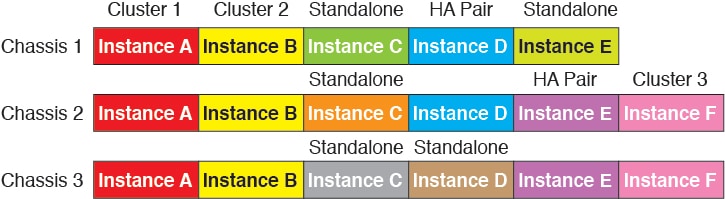
    Management Network

    You must manage each node using the Management interface; management from a data interface is not supported with clustering.

    Licenses for Clustering

    You assign feature licenses to the cluster as a whole, not to individual nodes. However, each node of the cluster consumes a separate license for each feature. The clustering feature itself does not require any licenses.

    When you add the control node to the management center, you can specify the feature licenses you want to use for the cluster. Before you create the cluster, it doesn't matter which licenses are assigned to the data nodes; the license settings for the control node are replicated to each of the data nodes. You can modify licenses for the cluster in the Devices > Device Management > Cluster > License area.


    Note


    If you add the cluster before the management center is licensed (and running in Evaluation mode), then when you license the management center, you can experience traffic disruption when you deploy policy changes to the cluster. Changing to licensed mode causes all data units to leave the cluster and then rejoin.


    Requirements and Prerequisites for Clustering

    Model Requirements

    • Secure Firewall 3100—Maximum 8 units

    User Roles

    • Admin

    • Access Admin

    • Network Admin

    Hardware and Software Requirements

    All units in a cluster:

    • Must be the same model.

    • Must include the same interfaces.

    • The management center access must be from the Management interface; data interface management is not supported.

    • Must run the identical software except at the time of an image upgrade. Hitless upgrade is supported.

    • Must be in the same firewall mode, routed or transparent.

    • Must be in the same domain.

    • Must be in the same group.

    • Must not have any deployment pending or in progress.

    • The control node must not have any unsupported features configured (see Unsupported Features with Clustering).

    • Data nodes must not have any VPN configured. The control node can have site-to-site VPN configured.

    Switch Requirements

    • Be sure to complete the switch configuration before you configure clustering. Make sure the ports connected to the cluster control link have the correct (higher) MTU configured. By default, the cluster control link MTU is set to 100 bytes higher than the data interfaces. If the switches have an MTU mismatch, the cluster formation will fail.

    Guidelines for Clustering

    Firewall Mode

    The firewall mode must match on all units.

    High Availability

    High Availability is not supported with clustering.

    IPv6

    The cluster control link is only supported using IPv4.

    Switches

    • Make sure connected switches match the MTU for both cluster data interfaces and the cluster control link interface. You should configure the cluster control link interface MTU to be at least 100 bytes higher than the data interface MTU, so make sure to configure the cluster control link connecting switch appropriately. Because the cluster control link traffic includes data packet forwarding, the cluster control link needs to accommodate the entire size of a data packet plus cluster traffic overhead.

    • For Cisco IOS XR systems, if you want to set a non-default MTU, set the IOS XR interface MTU to be 14 bytes higher than the cluster device MTU. Otherwise, OSPF adjacency peering attempts may fail unless the mtu-ignore option is used. Note that the cluster device MTU should match the IOS XR IPv4 MTU. This adjustment is not required for Cisco Catalyst and Cisco Nexus switches.

    • On the switch(es) for the cluster control link interfaces, you can optionally enable Spanning Tree PortFast on the switch ports connected to the cluster unit to speed up the join process for new units.

    • On the switch, we recommend that you use one of the following EtherChannel load-balancing algorithms: source-dest-ip or source-dest-ip-port (see the Cisco Nexus OS and Cisco IOS-XE port-channel load-balance command). Do not use a vlan keyword in the load-balance algorithm because it can cause unevenly distributed traffic to the devices in a cluster.

    • If you change the load-balancing algorithm of the EtherChannel on the switch, the EtherChannel interface on the switch temporarily stops forwarding traffic, and the Spanning Tree Protocol restarts. There will be a delay before traffic starts flowing again.

    • Switches on the cluster control link path should not verify the L4 checksum. Redirected traffic over the cluster control link does not have a correct L4 checksum. Switches that verify the L4 checksum could cause traffic to be dropped.

    • Port-channel bundling downtime should not exceed the configured keepalive interval.

    • On Supervisor 2T EtherChannels, the default hash distribution algorithm is adaptive. To avoid asymmetric traffic in a VSS design, change the hash algorithm on the port-channel connected to the cluster device to fixed:

      router(config)# port-channel id hash-distribution fixed

      Do not change the algorithm globally; you may want to take advantage of the adaptive algorithm for the VSS peer link.

    • You should disable the LACP Graceful Convergence feature on all cluster-facing EtherChannel interfaces for Cisco Nexus switches.

    EtherChannels

    • In Catalyst 3750-X Cisco IOS software versions earlier than 15.1(1)S2, the cluster unit did not support connecting an EtherChannel to a switch stack. With default switch settings, if the cluster unit EtherChannel is connected cross stack, and if the control unit switch is powered down, then the EtherChannel connected to the remaining switch will not come up. To improve compatibility, set the stack-mac persistent timer command to a large enough value to account for reload time; for example, 8 minutes or 0 for indefinite. Or, you can upgrade to more a more stable switch software version, such as 15.1(1)S2.

    • Spanned vs. Device-Local EtherChannel Configuration—Be sure to configure the switch appropriately for Spanned EtherChannels vs. Device-local EtherChannels.

      • Spanned EtherChannels—For cluster unit Spanned EtherChannels, which span across all members of the cluster, the interfaces are combined into a single EtherChannel on the switch. Make sure each interface is in the same channel group on the switch.

      • Device-local EtherChannels—For cluster unit Device-local EtherChannels including any EtherChannels configured for the cluster control link, be sure to configure discrete EtherChannels on the switch; do not combine multiple cluster unit EtherChannels into one EtherChannel on the switch.

    Additional Guidelines

    • When significant topology changes occur (such as adding or removing an EtherChannel interface, enabling or disabling an interface on the threat defense or the switch, adding an additional switch to form a VSS or vPC) you should disable the health check feature and also disable interface monitoring for the disabled interfaces. When the topology change is complete, and the configuration change is synced to all units, you can re-enable the interface health check feature.

    • When adding a unit to an existing cluster, or when reloading a unit, there will be a temporary, limited packet/connection drop; this is expected behavior. In some cases, the dropped packets can hang your connection; for example, dropping a FIN/ACK packet for an FTP connection will make the FTP client hang. In this case, you need to reestablish the FTP connection.

    • If you use a Windows 2003 server connected to a Spanned EtherChannel, when the syslog server port is down and the server does not throttle ICMP error messages, then large numbers of ICMP messages are sent back to the ASA cluster. These messages can result in some units of the ASA cluster experiencing high CPU, which can affect performance. We recommend that you throttle ICMP error messages.

    • For decrypted TLS/SSL connections, the decryption states are not synchronized, and if the connection owner fails, then decrypted connections will be reset. New connections will need to be established to a new unit. Connections that are not decrypted (they match a do-not-decrypt rule) are not affected and are replicated correctly.

    Defaults for Clustering

    • The cLACP system ID is auto-generated, and the system priority is 1 by default.

    • The cluster health check feature is enabled by default with the holdtime of 3 seconds. Interface health monitoring is enabled on all interfaces by default.

    • The cluster auto-rejoin feature for a failed cluster control link is unlimited attempts every 5 minutes.

    • The cluster auto-rejoin feature for a failed data interface is 3 attempts every 5 minutes, with the increasing interval set to 2.

    • Connection replication delay of 5 seconds is enabled by default for HTTP traffic.

    Configure Clustering

    To add a cluster to the management center, add each node to the management center as a standalone unit, configure interfaces on the unit you want to make the control node, and then form the cluster.

    Cable and Add Devices to the Management Center

    Before configuring clustering, cable the cluster control link network, management network, and data networks. Add the devices as standalone units on the management center. You can also configure the cluster control link as an EtherChannel.

    Procedure


    Step 1

    Cable the cluster control link network, management network, and data networks.

    You should also configure the upstream and downstream equipment. See Cluster Interfaces for information about how to cable Spanned EtherChannels. See Cluster Control Link Interfaces and Network for cluster control link requirements.

    Step 2

    Add each node to the management center as a standalone device in the same domain and group.

    You can create a cluster with a single device, and then add more nodes later. The initial settings (licensing, access control policy) that you set when you add a device will be inherited by all cluster nodes from the control node. You will choose the control node when forming the cluster.

    Step 3

    (Optional) Configure the cluster control link as an EtherChannel.

    1. On the device you want to be the control node, choose Devices > Device Management, and click Edit (edit icon).

    2. Click Interfaces.

    3. Enable the member interfaces. See Enable the Physical Interface and Configure Ethernet Settings.

    4. Add an EtherChannel. See Configure an EtherChannel.

      We recommend using the On mode for cluster control link member interfaces to reduce unnecessary traffic on the cluster control link (Active mode is the default). The cluster control link does not need the overhead of LACP traffic because it is an isolated, stable network. Note: We recommend setting data EtherChannels to Active mode.

      Do not configure the name or IP addressing for the cluster control link. You cannot yet set the MTU for the cluster control link (because it does not have a name). After you form the cluster, you can come back and set the MTU, which needs to be at least 100 bytes higher than data interfaces.

    5. Click Save.

      You can now go to Deploy > Deployment and deploy the policy to assigned devices. The changes are not active until you deploy them.


    Create a Cluster

    Form a cluster from one or more devices in the management center.

    Procedure


    Step 1

    Choose Devices > Device Management, and then choose Add > Add Cluster.

    The Add Cluster Wizard appears.

    Figure 13. Add Cluster Wizard
    Add Cluster Wizard

    Step 2

    Specify a Cluster Name and an authentication Cluster Key for control traffic.

    • Cluster Name—An ASCII string from 1 to 38 characters.

    • Cluster Key—An ASCII string from 1 to 63 characters. The Cluster Key value is used to generate the encryption key. This encryption does not affect datapath traffic, including connection state update and forwarded packets, which are always sent in the clear.

    Step 3

    For the Control Node, set the following:

    • Node—Choose the device that you want to be the control node initially. When the management center forms the cluster, it will add this node to the cluster first so it will be the control node.

      Note


      If you see an Error (error icon) icon next to the node name, click the icon to view configuration issues. You must cancel cluster formation, resolve the issues, and then return to cluster formation. For example:

      Figure 14. Configuration Issues
      Configuration Issues

      To resolve the above issues, remove the unsupported VPN license and deploy pending configuration changes to the device.

    • Cluster Control Link Network—Specify an IPv4 subnet; IPv6 is not supported for this interface. Specify a 24, 25, 26, or 27 subnet.

    • Cluster Control Link—Choose the physical interface or EtherChannel you want to use for the cluster control link.

      Note


      The MTU of the cluster control link interface is automatically set to 100 bytes more than the highest data interface MTU; by default, the MTU is 1600 bytes. If you want to increase the MTU, see the Devices > Device Management > Interfaces page.

      Make sure you configure switches connected to the cluster control link to the correct (higher) MTU; otherwise, cluster formation will fail.

    • Cluster Control Link IPv4 Address—This field will be auto-populated with the first address on the cluster control link network. You can edit the host address if desired.

    • Priority—Set the priority of this node for control node elections. The priority is between 1 and 100, where 1 is the highest priority. Even if you set the priority to be lower than other nodes, this node will still be the control node when the cluster is first formed.

    • Site ID—(FlexConfig feature) Enter the site ID for this node between 1 and 8. A value of 0 disables inter-site clustering. Additional inter-site cluster customizations to enhance redundancy and stability, such as director localization, site redundancy, and cluster flow mobility, are only configurable using the FlexConfig feature.

    Step 4

    For Data Nodes (Optional), click Add a data node to add a node to the cluster.

    You can form the cluster with only the control node for faster cluster formation, or you can add all nodes now. Set the following for each data node:

    • Node—Choose the device that you want to add.

      Note


      If you see an Error (error icon) icon next to the node name, click the icon to view configuration issues. You must cancel cluster formation, resolve the issues, and then return to cluster formation.

    • Cluster Control Link IPv4 Address—This field will be auto-populated with the next address on the cluster control link network. You can edit the host address if desired.

    • Priority—Set the priority of this node for control node elections. The priority is between 1 and 100, where 1 is the highest priority.

    • Site ID—(FlexConfig feature) Enter the site ID for this node between 1 and 8. A value of 0 disables inter-site clustering. Additional inter-site cluster customizations to enhance redundancy and stability, such as director localization, site redundancy, and cluster flow mobility, are only configurable using the FlexConfig feature.

    Step 5

    Click Continue. Review the Summary, and then click Save.

    The cluster name shows on the Devices > Device Management page; expand the cluster to see the cluster nodes.

    Figure 15. Cluster Management
    Cluster Management

    A node that is currently registering shows the loading icon.

    Figure 16. Node Registration
    Node Registration

    You can monitor cluster node registration by clicking the Notifications icon and choosing Tasks. The management center updates the Cluster Registration task as each node registers.

    Step 6

    Configure device-specific settings by clicking the Edit (edit icon) for the cluster.

    Most configuration can be applied to the cluster as a whole, and not nodes in the cluster. For example, you can change the display name per node, but you can only configure interfaces for the whole cluster.

    Step 7

    On the Devices > Device Management > Cluster screen, you see General and other settings for the cluster.

    Figure 17. Cluster Settings
    Cluster Settings
    See the following cluster-specific items in the General area:
    • General > Name—Change the cluster display name by clicking the Edit (edit icon).

      Then set the Name field.

    • General > View—Click the View link to open the Cluster Status dialog box.

      The Cluster Status dialog box also lets you retry data unit registration by clicking Reconcile All.

    Step 8

    On the Devices > Device Management > Devices, you can choose each member in the cluster from the top right drop-down menu and configure the following settings.

    Figure 18. Device Settings
    Device Settings
    Figure 19. Choose Node
    Choose Node
    • General > Name—Change the cluster member display name by clicking the Edit (edit icon).

      Then set the Name field.

    • Management > Host—If you change the management IP address in the device configuration, you must match the new address in the management center so that it can reach the device on the network. First disable the connection, edit the Host address in the Management area, then re-enable the connection.


    Configure Interfaces

    Configure data interfaces as Spanned EtherChannels. You can also configure the Diagnostic interface, which is the only interface that can run as an individual interface.

    Procedure


    Step 1

    Choose Devices > Device Management, and click Edit (edit icon) next to the cluster.

    Step 2

    Click Interfaces.

    Step 3

    Configure Spanned EtherChannel data interfaces.

    1. Configure one or more EtherChannels. See Configure an EtherChannel.

      You can include one or more member interfaces in the EtherChannel. Because this EtherChannel is spanned across all of the nodes, you only need one member interface per node; however, for greater throughput and redundancy, multiple members are recommended.

    2. (Optional) Configure VLAN subinterfaces on the EtherChannel. The rest of this procedure applies to the subinterfaces. See Add a Subinterface.

    3. Click Edit (edit icon) for the EtherChannel interface.

    4. Configure the name, IP address, and other parameters according to Configure Routed Mode Interfaces or, for transparent mode, Configure Bridge Group Interfaces.

      Note


      If the cluster control link interface MTU is not at least 100 bytes higher than the data interface MTU, you will see an error that you must reduce the MTU of the data interface. By default, the cluster control link MTU is 1600 bytes. If you want to increase the MTU of data interfaces, first increase the cluster control link MTU.

    5. Set a manual global MAC address for the EtherChannel. Click Advanced, and in the Active Mac Address field, enter a MAC address in H.H.H format, where H is a 16-bit hexadecimal digit.

      For example, the MAC address 00-0C-F1-42-4C-DE would be entered as 000C.F142.4CDE. The MAC address must not have the multicast bit set, that is, the second hexadecimal digit from the left cannot be an odd number.

      Do not set the Standby Mac Address; it is ignored.

      You must configure a MAC address for a Spanned EtherChannel to avoid potential network connectivity problems. With a manually-configured MAC address, the MAC address stays with the current control unit. If you do not configure a MAC address, then if the control unit changes, the new control unit uses a new MAC address for the interface, which can cause a temporary network outage.

    6. Click OK. Repeat the above steps for other data interfaces.

    Step 4

    (Optional) Configure the Diagnostic interface.

    The Diagnostic interface is the only interface that can run in Individual interface mode. You can use this interface for syslog messages or SNMP, for example.

    1. Choose Objects > Object Management > Address Pools to add an IPv4 and/or IPv6 address pool. See Address Pools.

      Include at least as many addresses as there are units in the cluster. The Virtual IP address is not a part of this pool, but needs to be on the same network. You cannot determine the exact Local address assigned to each unit in advance.

    2. On Devices > Device Management > Interfaces, click Edit (edit icon) for the Diagnostic interface.

    3. On the IPv4, enter the IP Address and mask. This IP address is a fixed address for the cluster, and always belongs to the current control unit.

    4. From the IPv4 Address Pool drop-down list, choose the address pool you created.

    5. On IPv6 > Basic, from the IPv6 Address Pool drop-down list, choose the address pool you created.

    6. Configure other interface settings as normal.

    Step 5

    Click Save.

    You can now go to Deploy > Deployment and deploy the policy to assigned devices. The changes are not active until you deploy them.


    Configure Cluster Health Monitor Settings

    The Cluster Health Monitor Settings section of the Cluster page displays the settings described in the table below.

    Figure 20. Cluster Health Monitor Settings
    Cluster Health Monitor Settings
    Table 3. Cluster Health Monitor Settings Section Table Fields

    Field

    Description

    Timeouts

    Hold Time

    To determine node system health, the cluster nodes send heartbeat messages on the cluster control link to other nodes. If a node does not receive any heartbeat messages from a peer node within the hold time period, the peer node is considered unresponsive or dead.

    Interface Debounce Time

    The interface debounce time is the amount of time before the node considers an interface to be failed, and the node is removed from the cluster.

    Monitored Interfaces

    The interface health check monitors for link failures. If all physical ports for a given logical interface fail on a particular node, but there are active ports under the same logical interface on other nodes, then the node is removed from the cluster. The amount of time before the node removes a member from the cluster depends on the type of interface and whether the node is an established node or is joining the cluster.

    Service Application

    Shows whether the Snort and disk-full processes are monitored.

    Unmonitored Interfaces

    Shows unmonitored interfaces.

    Auto-Rejoin Settings

    Cluster Interface

    Shows the auto-rejoin settings for a cluster control link failure.

    Data Interfaces

    Shows the auto-rejoin settings for a data interface failure.

    System

    Shows the auto-rejoin settings for internal errors. Internal failures include: application sync timeout; inconsistent application statuses; and so on.


    Note


    If you disable the system health check, fields that do not apply when the system health check is disabled will not show.


    You can these settings from this section.

    You can monitor any port-channel ID, single physical interface ID, as well as the Snort and disk-full processes. Health monitoring is not performed on VLAN subinterfaces or virtual interfaces such as VNIs or BVIs. You cannot configure monitoring for the cluster control link; it is always monitored.

    Procedure


    Step 1

    Choose Devices > Device Management

    Step 2

    Next to the cluster you want to modify, click Edit (edit icon)

    In a multidomain deployment, if you are not in a leaf domain, the system prompts you to switch.

    Step 3

    Click Cluster.

    Step 4

    In the Cluster Health Monitor Settings section, click Edit (edit icon)

    Step 5

    Disable the system health check by clicking the Health Check slider .

    Figure 21. Disable the System Health Check
    Disable the System Health Check

    When any topology changes occur (such as adding or removing a data interface, enabling or disabling an interface on the node or the switch, or adding an additional switch to form a VSS or vPC) you should disable the system health check feature and also disable interface monitoring for the disabled interfaces. When the topology change is complete, and the configuration change is synced to all nodes, you can re-enable the system health check feature and monitored interfaces.

    Step 6

    Configure the hold time and interface debounce time.

    • Hold Time—Set the hold time to determine the amount of time between node heartbeat status messages, between .3 and 45 seconds; The default is 3 seconds.

    • Interface Debounce Time—Set the debounce time between 300 and 9000 ms. The default is 500 ms. Lower values allow for faster detection of interface failures. Note that configuring a lower debounce time increases the chances of false-positives. When an interface status update occurs, the node waits the number of milliseconds specified before marking the interface as failed, and the node is removed from the cluster. In the case of an EtherChannel that transitions from a down state to an up state (for example, the switch reloaded, or the switch enabled an EtherChannel), a longer debounce time can prevent the interface from appearing to be failed on a cluster node just because another cluster node was faster at bundling the ports.

    Step 7

    Customize the auto-rejoin cluster settings after a health check failure.

    Figure 22. Configure Auto-Rejoin Settings
    Configure Auto-Rejoin Settings
    Set the following values for the Cluster Interface, Data Interface, and System (internal failures include: application sync timeout; inconsistent application statuses; and so on):
    • Attempts—Sets the number of rejoin attempts, between -1 and 65535. 0 disables auto-rejoining. The default for the Cluster Interface is -1 (unlimited). The default for the Data Interface and System is 3.

    • Interval Between Attempts—Defines the interval duration in minutes between rejoin attempts, between 2 and 60. The default value is 5 minutes. The maximum total time that the node attempts to rejoin the cluster is limited to 14400 minutes (10 days) from the time of last failure.

    • Interval Variation—Defines if the interval duration increases. Set the value between 1 and 3: 1 (no change); 2 (2 x the previous duration), or 3 (3 x the previous duration). For example, if you set the interval duration to 5 minutes, and set the variation to 2, then the first attempt is after 5 minutes; the 2nd attempt is 10 minutes (2 x 5); the 3rd attempt 20 minutes (2 x 10), and so on. The default value is 1 for the Cluster Interface and 2 for the Data Interface and System.

    Step 8

    Configure monitored interfaces by moving interfaces in the Monitored Interfaces or Unmonitored Interfaces window. You can also check or uncheck Enable Service Application Monitoring to enable or disable monitoring of the Snort and disk-full processes.

    Figure 23. Configure Monitored Interfaces
    Configure Monitored Interfaces

    The interface health check monitors for link failures. If all physical ports for a given logical interface fail on a particular node, but there are active ports under the same logical interface on other nodes, then the node is removed from the cluster. The amount of time before the node removes a member from the cluster depends on the type of interface and whether the node is an established node or is joining the cluster. Health check is enabled by default for all interfaces and for the Snort and disk-full processes.

    You might want to disable health monitoring of non-essential interfaces, for example, the Diagnostic interface.

    When any topology changes occur (such as adding or removing a data interface, enabling or disabling an interface on the node or the switch, or adding an additional switch to form a VSS or vPC) you should disable the system health check feature and also disable interface monitoring for the disabled interfaces. When the topology change is complete, and the configuration change is synced to all nodes, you can re-enable the system health check feature and monitored interfaces.

    Step 9

    Click Save.

    Step 10

    Deploy configuration changes.


    Manage Cluster Nodes

    After you deploy the cluster, you can change the configuration and manage cluster nodes.

    Add a New Cluster Node

    You can add one or more new cluster nodes to an existing cluster.

    Procedure


    Step 1

    Choose Devices > Device Management, click the More (more icon) for the cluster, and choose Add Nodes.

    Figure 24. Add Nodes
    Add Nodes

    The Manage Cluster Wizard appears.

    Step 2

    From the Node menu, choose a device, adjust the IP address, priority, and Site ID if desired.

    Figure 25. Manage Cluster Wizard
    Manage Cluster Wizard

    Step 3

    To add additional nodes, click Add a data node.

    Step 4

    Click Continue. Review the Summary, and then click Save

    The node that is currently registering shows the loading icon.

    Figure 26. Node Registration
    Node Registration

    You can monitor cluster node registration by clicking the Notifications icon and choosing Tasks.


    Break a Node

    You can remove a node from the cluster so that it becomes a standalone device. You cannot break the control node unless you break the entire cluster. The data node has its configuration erased.

    Procedure


    Step 1

    Choose Devices > Device Management, click the More (more icon) for the node you want to break, and choose Break Node.

    Figure 27. Break a Node
    Break a Node

    You can optionally break one or more nodes from the cluster More menu by choosing Break Nodes.

    Step 2

    You are prompted to confirm the break; click Yes.

    Figure 28. Confirm Break
    Confirm Break

    You can monitor the cluster node break by clicking the Notifications icon and choosing Tasks.


    Break the Cluster

    You can break the cluster and convert all nodes to standalone devices. The control node retains the interface and security policy configuration, while data nodes have their configuration erased.

    Procedure


    Step 1

    Make sure all cluster nodes are being managed by the management center by reconciling nodes. See Reconcile Cluster Nodes.

    Step 2

    Choose Devices > Device Management, click the More (more icon) for the cluster, and choose Break Cluster.

    Figure 29. Break Cluster
    Break Cluster

    Step 3

    You are prompted to break the cluster; click Yes.

    Figure 30. Confirm Break
    Confirm Break

    You can monitor the cluster break by clicking the Notifications icon and choosing Tasks.


    Disable Clustering

    You may want to deactivate a node in preparation for deleting the node, or temporarily for maintenance. This procedure is meant to temporarily deactivate a node; the node will still appear in the management center device list. When a node becomes inactive, all data interfaces are shut down.

    Procedure


    Step 1

    For the unit you want to disable, choose Devices > Device Management, click the More (more icon), and choose Disable Node Clustering.

    Figure 31. Disable Clustering
    Disable Clustering

    If you disable clustering on the control node, one of the data nodes will become the new control node. Note that for centralized features, if you force a control node change, then all connections are dropped, and you have to re-establish the connections on the new control node. You cannot disable clustering on the control node if it is the only node in the cluster.

    Step 2

    Confirm that you want to disable clustering on the node.

    The node will show (Disabled) next to its name in the Devices > Device Management list.

    Step 3

    To reenable clustering, see Rejoin the Cluster.


    Rejoin the Cluster

    If a node was removed from the cluster, for example for a failed interface or if you manually disabled clustering, you must manually rejoin the cluster. Make sure the failure is resolved before you try to rejoin the cluster.

    Procedure


    Step 1

    For the unit you want to reactivate, choose Devices > Device Management, click the More (more icon), and choose Enable Node Clustering.

    Step 2

    Confirm that you want to enable clustering on the unit.


    Change the Control Node


    Caution


    The best method to change the control node is to disable clustering on the control node, wait for a new control election, and then re-enable clustering. If you must specify the exact unit you want to become the control node, use the procedure in this section. Note that for centralized features, if you force a control node change using either method, then all connections are dropped, and you have to re-establish the connections on the new control node.


    To change the control node, perform the following steps.

    Procedure


    Step 1

    Open the Cluster Status dialog box by choosing Devices > Device Management > More (more icon) > Cluster Live Status.

    Figure 32. Cluster Status
    Cluster Status

    Step 2

    For the unit you want to become the control unit, choose More (more icon) > Change Role to Control.

    Step 3

    You are prompted to confirm the role change. Check the checkbox, and click OK.


    Edit the Cluster Configuration

    You can edit the cluster configuration. If you change the cluster key, cluster control link interface, or cluster control link network, the cluster will be broken and reformed automatically. Until the cluster is reformed, you may experience traffic disruption. If you change the cluster control link IP address for a node, node priority, or site ID, only the affected nodes are broken and readded to the cluster.

    Procedure


    Step 1

    Choose Devices > Device Management, click the More (more icon) for the cluster, and choose Edit Configuration.

    Figure 33. Edit Configuration
    Edit Configuration

    The Manage Cluster Wizard appears.

    Step 2

    Update the cluster configuration.

    Figure 34. Manage Cluster Wizard
    Manage Cluster Wizard

    If the cluster control link is an EtherChannel, you can edit the interface membership and LACP configuration by clicking Edit (edit icon) next to the interface drop-down menu.

    Step 3

    Click Continue. Review the Summary, and then click Save


    Reconcile Cluster Nodes

    If a cluster node fails to register, you can reconcile the cluster membership from the device to the management center. For example, a data node might fail to register if the management center is occupied with certain processes, or if there is a network issue.

    Procedure


    Step 1

    Choose Devices > Device Management > More (more icon) for the cluster, and then choose Cluster Live Status to open the Cluster Status dialog box.

    Figure 35. Cluster Live Status
    Cluster Live Status

    Step 2

    Click Reconcile All.

    Figure 36. Reconcile All
    Reconcile All

    For more information about the cluster status, see Monitoring the Cluster.


    Delete (Unregister) the Cluster or Nodes and Register to a New Management Center

    You can unregister the cluster from the management center, which keeps the cluster intact. You might want to unregister the cluster if you want to add the cluster to a new management center.

    You can also unregister a node from the management center without breaking the node from the cluster. Although the node is not visible in the management center, it is still part of the cluster, and it will continue to pass traffic and could even become the control node. You cannot unregister the current control node. You might want to unregister the node if it is no longer reachable from the management center, but you still want to keep it as part of the cluster while you troubleshoot management connectivity.

    Unregistering a cluster:

    • Severs all communication between the management center and the cluster.

    • Removes the cluster from the Device Management page.

    • Returns the cluster to local time management if the cluster's platform settings policy is configured to receive time from the management center using NTP.

    • Leaves the configuration intact, so the cluster continues to process traffic.

      Policies, such as NAT and VPN, ACLs, and the interface configurations remain intact.

    Registering the cluster again to the same or a different management center causes the configuration to be removed, so the cluster will stop processing traffic at that point; the cluster configuration remains intact so you can add the cluster as a whole. You can choose an access control policy at registration, but you will have to re-apply other policies after registration and then deploy the configuration before it will process traffic again.

    Before you begin

    This procedure requires CLI access to one of the nodes.

    Procedure


    Step 1

    Choose Devices > Device Management, click the More (more icon) for the cluster or node, and choose Delete.

    Figure 37. Delete Cluster or Node
    Delete Cluster or Node

    Step 2

    You are prompted to delete the cluster or node; click Yes.

    Step 3

    You can register the cluster to a new (or the same) management center by adding one of the cluster members as a new device.

    1. Connect to one cluster node's CLI, and identify the new management center using the configure manager add command. See Modify Threat Defense Management Interfaces at the CLI.

    2. Choose Devices > Device Management, and then click Add Device.

      You only need to add one of the cluster nodes as a device, and the rest of the cluster nodes will be discovered.

    Step 4

    To re-add a deleted node, see Reconcile Cluster Nodes.


    Monitoring the Cluster

    You can monitor the cluster in the management center and at the threat defense CLI.

    • Cluster Status dialog box, which is available from the Devices > Device Management > More (more icon) icon or from the Devices > Device Management > Cluster page > General area > Cluster Live Status link.

      Figure 38. Cluster Status
      Cluster Status

      The Control node has a graphic indicator identifying its role.

      Cluster member Status includes the following states:

      • In Sync.—The node is registered with the management center.

      • Pending Registration—The node is part of the cluster, but has not yet registered with the management center. If a node fails to register, you can retry registration by clicking Reconcile All.

      • Clustering is disabled—The node is registered with the management center, but is an inactive member of the cluster. The clustering configuration remains intact if you intend to later re-enable it, or you can delete the node from the cluster.

      • Joining cluster...—The node is joining the cluster on the chassis, but has not completed joining. After it joins, it will register with the management center.

      For each node, you can view the Summary or the History.

      Figure 39. Node Summary
      Node Summary
      Figure 40. Node History
      Node History
    • System (system gear icon) > Tasks page.

      The Tasks page shows updates of the Cluster Registration task as each node registers.

    • Devices > Device Management > cluster_name.

      When you expand the cluster on the devices listing page, you can see all member nodes, including the control node shown with its role next to the IP address. For nodes that are still registering, you can see the loading icon.

    • show cluster {access-list [acl_name] | conn [count] | cpu [usage] | history | interface-mode | memory | resource usage | service-policy | traffic | xlate count}

      To view aggregated data for the entire cluster or other information, use the show cluster command.

    • show cluster info [auto-join | clients | conn-distribution | flow-mobility counters | goid [options] | health | incompatible-config | loadbalance | old-members | packet-distribution | trace [options] | transport { asp | cp}]

      To view cluster information, use the show cluster info command.

    Cluster Health Monitor Dashboard

    Cluster Health Monitor

    When a threat defense is the control node of a cluster, the management center collects various metrics periodically from the device metric data collector. The cluster health monitor is comprised of the following components:

    • Overview dashboard―Displays information about the cluster topology, cluster statistics, and metric charts:

      • The topology section displays a cluster's live status, the health of individual threat defense, threat defense node type (control node or data node), and the status of the device. The status of the device could be Disabled (when the device leaves the cluster), Added out of box (in a public cloud cluster, the additional nodes that do not belong to the management center), or Normal (ideal state of the node).

      • The cluster statistics section displays current metrics of the cluster with respect to the CPU usage, memory usage, input rate, output rate, active connections, and NAT translations.


        Note


        The CPU and memory metrics display the individual average of the data plane and snort usage.


      • The metric charts, namely, CPU Usage, Memory Usage, Throughput, and Connections, diagrammatically display the statistics of the cluster over the specified time period.

    • Load Distribution dashboard―Displays load distribution across the cluster nodes in two widgets:

      • The Distribution widget displays the average packet and connection distribution over the time range across the cluster nodes. This data depicts how the load is being distributed by the nodes. Using this widget, you can easily identify any abnormalities in the load distribution and rectify it.

      • The Node Statistics widget displays the node level metrics in table format. It displays metric data on CPU usage, memory usage, input rate, output rate, active connections, and NAT translations across the cluster nodes. This table view enables you to correlate data and easily identify any discrepancies.

    • Member Performance dashboard―Displays current metrics of the cluster nodes. You can use the selector to filter the nodes and view the details of a specific node. The metric data include CPU usage, memory usage, input rate, output rate, active connections, and NAT translations.

    • CCL dashboard―Displays, graphically, the cluster control link data namely, the input, and output rate.

    • Troubleshooting and Links ― Provides convenient links to frequently used troubleshooting topics and procedures.

    • Time range―An adjustable time window to constrain the information that appears in the various cluster metrics dashboards and widgets.

    • Custom Dashboard―Displays data on both cluster-wide metrics and node-level metrics. However, node selection only applies for the threat defense metrics and not for the entire cluster to which the node belongs.

    Viewing Cluster Health

    You must be an Admin, Maintenance, or Security Analyst user to perform this procedure.

    The cluster health monitor provides a detailed view of the health status of a cluster and its nodes. This cluster health monitor provides health status and trends of the cluster in an array of dashboards.

    Before you begin
    • Ensure you have created a cluster from one or more devices in the management center.

    Procedure

    Step 1

    Choose System (system gear icon) > Health > Monitor.

    Use the Monitoring navigation pane to access node-specific health monitors.

    Step 2

    In the device list, click Expand (expand icon) and Collapse (collapse icon) to expand and collapse the list of managed cluster devices.

    Step 3

    To view the cluster health statistics, click on the cluster name. The cluster monitor reports health and performance metrics in several predefined dashboards by default. The metrics dashboards include:

    • Overview ― Highlights key metrics from the other predefined dashboards, including its nodes, CPU, memory, input and output rates, connection statistics, and NAT translation information.

    • Load Distribution ― Traffic and packet distribution across the cluster nodes.

    • Member Performance ― Node-level statistics on CPU usage, memory usage, input throughput, output throughput, active connection, and NAT translation.

    • CCL ― Interface status and aggregate traffic statistics.

    You can navigate through the various metrics dashboards by clicking on the labels. For a comprehensive list of the supported cluster metrics, see Cisco Secure Firewall Threat Defense Health Metrics.

    Step 4

    You can configure the time range from the drop-down in the upper-right corner. The time range can reflect a period as short as the last hour (the default) or as long as two weeks. Select Custom from the drop-down to configure a custom start and end date.

    Click the refresh icon to set auto refresh to 5 minutes or to toggle off auto refresh.

    Step 5

    Click on deployment icon for a deployment overlay on the trend graph, with respect to the selected time range.

    The deployment icon indicates the number of deployments during the selected time-range. A vertical band indicates the deployment start and end time. For multiple deployments, multiple bands/lines appear. Click on the icon on top of the dotted line to view the deployment details.

    Step 6

    (For node-specific health monitor) View the Health Alerts for the node in the alert notification at the top of page, directly to the right of the device name.

    Hover your pointer over the Health Alerts to view the health summary of the node. The popup window shows a truncated summary of the top five health alerts. Click on the popup to open a detailed view of the health alert summary.

    Step 7

    (For node-specific health monitor) The device monitor reports health and performance metrics in several predefined dashboards by default. The metrics dashboards include:

    • Overview ― Highlights key metrics from the other predefined dashboards, including CPU, memory, interfaces, connection statistics; plus disk usage and critical process information.

    • CPU ― CPU utilization, including the CPU usage by process and by physical cores.

    • Memory ― Device memory utilization, including data plane and Snort memory usage.

    • Interfaces ― Interface status and aggregate traffic statistics.

    • Connections ― Connection statistics (such as elephant flows, active connections, peak connections, and so on) and NAT translation counts.

    • Snort ― Statistics that are related to the Snort process.

    • ASP drops ― Statistics related to the dropped packets against various reasons.

    You can navigate through the various metrics dashboards by clicking on the labels. See Cisco Secure Firewall Threat Defense Health Metrics for a comprehensive list of the supported device metrics.

    Step 8

    Click the plus sign (+) in the upper right corner of the health monitor to create a custom dashboard by building your own variable set from the available metric groups.

    For cluster-wide dashboard, choose Cluster metric group, and then choose the metric.


    Cluster Metrics

    The cluster health monitor tracks statistics that are related to a cluster and its nodes, and aggregate of load distribution, performance, and CCL traffic statistics.

    Table 4. Cluster Metrics

    Metric

    Description

    Format

    CPU

    Average of CPU metrics on the nodes of a cluster (individually for data plane and snort).

    percentage

    Memory

    Average of memory metrics on the nodes of a cluster (individually for data plane and snort).

    percentage

    Data Throughput

    Incoming and outgoing data traffic statistics for a cluster.

    bytes

    CCL Throughput

    Incoming and outgoing CCL traffic statistics for a cluster.

    bytes

    Connections

    Count of active connections in a cluster.

    number

    NAT Translations

    Count of NAT translations for a cluster.

    number

    Distribution

    Connection distribution count in the cluster for every second.

    number

    Packets

    Packet distribution count in the cluster for every second.

    number

    Reference for Clustering

    This section includes more information about how clustering operates.

    Threat Defense Features and Clustering

    Some threat defense features are not supported with clustering, and some are only supported on the control unit. Other features might have caveats for proper usage.

    Unsupported Features with Clustering

    These features cannot be configured with clustering enabled, and the commands will be rejected.


    Note


    To view FlexConfig features that are also not supported with clustering, for example WCCP inspection, see the ASA general operations configuration guide. FlexConfig lets you configure many ASA features that are not present in the management center GUI. See FlexConfig Policies.


    • Remote access VPN (SSL VPN and IPsec VPN)

    • DHCP client, server, and proxy. DHCP relay is supported.

    • Virtual Tunnel Interfaces (VTIs)

    • High Availability

    • Integrated Routing and Bridging

    • Management Center UCAPL/CC mode

    Centralized Features for Clustering

    The following features are only supported on the control node, and are not scaled for the cluster.


    Note


    Traffic for centralized features is forwarded from member nodes to the control node over the cluster control link.

    If you use the rebalancing feature, traffic for centralized features may be rebalanced to non-control nodes before the traffic is classified as a centralized feature; if this occurs, the traffic is then sent back to the control node.

    For centralized features, if the control node fails, all connections are dropped, and you have to re-establish the connections on the new control node.


    Note


    To view FlexConfig features that are also centralized with clustering, for example RADIUS inspection, see the ASA general operations configuration guide. FlexConfig lets you configure many ASA features that are not present in the management center GUI. See FlexConfig Policies.


    • The following application inspections:

      • DCERPC

      • ESMTP

      • NetBIOS

      • PPTP

      • RSH

      • SQLNET

      • SUNRPC

      • TFTP

      • XDMCP

    • Static route monitoring

    • Site-to-site VPN

    • IGMP multicast control plane protocol processing (data plane forwarding is distributed across the cluster)

    • PIM multicast control plane protocol processing (data plane forwarding is distributed across the cluster)

    • Dynamic routing

    Connection Settings and Clustering

    Connection limits are enforced cluster-wide. Each node has an estimate of the cluster-wide counter values based on broadcast messages. Due to efficiency considerations, the configured connection limit across the cluster might not be enforced exactly at the limit number. Each node may overestimate or underestimate the cluster-wide counter value at any given time. However, the information will get updated over time in a load-balanced cluster.

    FTP and Clustering

    • If FTP data channel and control channel flows are owned by different cluster members, then the data channel owner will periodically send idle timeout updates to the control channel owner and update the idle timeout value. However, if the control flow owner is reloaded, and the control flow is re-hosted, the parent/child flow relationship will not longer be maintained; the control flow idle timeout will not be updated.

    NAT and Clustering

    NAT can affect the overall throughput of the cluster. Inbound and outbound NAT packets can be sent to different threat defenses in the cluster, because the load balancing algorithm relies on IP addresses and ports, and NAT causes inbound and outbound packets to have different IP addresses and/or ports. When a packet arrives at the threat defense that is not the NAT owner, it is forwarded over the cluster control link to the owner, causing large amounts of traffic on the cluster control link. Note that the receiving node does not create a forwarding flow to the owner, because the NAT owner may not end up creating a connection for the packet depending on the results of security and policy checks.

    If you still want to use NAT in clustering, then consider the following guidelines:

    • PAT with Port Block Allocation—See the following guidelines for this feature:

      • Maximum-per-host limit is not a cluster-wide limit, and is enforced on each node individually. Thus, in a 3-node cluster with the maximum-per-host limit configured as 1, if the traffic from a host is load-balanced across all 3 nodes, then it can get allocated 3 blocks with 1 in each node.

      • Port blocks created on the backup node from the backup pools are not accounted for when enforcing the maximum-per-host limit.

      • On-the-fly PAT rule modifications, where the PAT pool is modified with a completely new range of IP addresses, will result in xlate backup creation failures for the xlate backup requests that were still in transit while the new pool became effective. This behavior is not specific to the port block allocation feature, and is a transient PAT pool issue seen only in cluster deployments where the pool is distributed and traffic is load-balanced across the cluster nodes.

      • When operating in a cluster, you cannot simply change the block allocation size. The new size is effective only after you reload each device in the cluster. To avoid having to reload each device, we recommend that you delete all block allocation rules and clear all xlates related to those rules. You can then change the block size and recreate the block allocation rules.

    • NAT pool address distribution for dynamic PAT—When you configure a PAT pool, the cluster divides each IP address in the pool into port blocks. By default, each block is 512 ports, but if you configure port block allocation rules, your block setting is used instead. These blocks are distributed evenly among the nodes in the cluster, so that each node has one or more blocks for each IP address in the PAT pool. Thus, you could have as few as one IP address in a PAT pool for a cluster, if that is sufficient for the number of PAT’ed connections you expect. Port blocks cover the 1024-65535 port range, unless you configure the option to include the reserved ports, 1-1023, on the PAT pool NAT rule.

    • Reusing a PAT pool in multiple rules—To use the same PAT pool in multiple rules, you must be careful about the interface selection in the rules. You must either use specific interfaces in all rules, or "any" in all rules. You cannot mix specific interfaces and "any" across the rules, or the system might not be able to match return traffic to the right node in the cluster. Using unique PAT pools per rule is the most reliable option.

    • No round-robin—Round-robin for a PAT pool is not supported with clustering.

    • No extended PAT—Extended PAT is not supported with clustering.

    • Dynamic NAT xlates managed by the control node—The control node maintains and replicates the xlate table to data nodes. When a data node receives a connection that requires dynamic NAT, and the xlate is not in the table, it requests the xlate from the control node. The data node owns the connection.

    • Stale xlates—The xlate idle time on the connection owner does not get updated. Thus, the idle time might exceed the idle timeout. An idle timer value higher than the configured timeout with a refcnt of 0 is an indication of a stale xlate.

    • No static PAT for the following inspections—

      • FTP

      • RSH

      • SQLNET

      • TFTP

      • XDMCP

      • SIP

    • If you have an extremely large number of NAT rules, over ten thousand, you should enable the transactional commit model using the asp rule-engine transactional-commit nat command in the device CLI. Otherwise, the node might not be able to join the cluster.

    Dynamic Routing

    The routing process only runs on the control node, and routes are learned through the control node and replicated to data nodes. If a routing packet arrives at a data node, it is redirected to the control node.

    Figure 41. Dynamic Routing in Clustering

    After the data node learn the routes from the control node, each node makes forwarding decisions independently.

    The OSPF LSA database is not synchronized from the control node to data nodes. If there is a control node switchover, the neighboring router will detect a restart; the switchover is not transparent. The OSPF process picks an IP address as its router ID. Although not required, you can assign a static router ID to ensure a consistent router ID is used across the cluster. See the OSPF Non-Stop Forwarding feature to address the interruption.

    SIP Inspection and Clustering

    A control flow can be created on any node (due to load balancing); its child data flows must reside on the same node.

    SNMP and Clustering

    An SNMP agent polls each individual threat defense by its Diagnostic interface Local IP address. You cannot poll consolidated data for the cluster.

    You should always use the Local address, and not the Main cluster IP address for SNMP polling. If the SNMP agent polls the Main cluster IP address, if a new control node is elected, the poll to the new control node will fail.

    When using SNMPv3 with clustering, if you add a new cluster node after the initial cluster formation, then SNMPv3 users are not replicated to the new node. You must remove the users, and re-add them, and then redeploy your configuration to force the users to replicate to the new node.

    Syslog and Clustering

    • Each node in the cluster generates its own syslog messages. You can configure logging so that each node uses either the same or a different device ID in the syslog message header field. For example, the hostname configuration is replicated and shared by all nodes in the cluster. If you configure logging to use the hostname as the device ID, syslog messages generated by all nodes look as if they come from a single node. If you configure logging to use the local-node name that is assigned in the cluster bootstrap configuration as the device ID, syslog messages look as if they come from different nodes.

    Cisco TrustSec and Clustering

    Only the control node learns security group tag (SGT) information. The control node then populates the SGT to data nodes, and data nodes can make a match decision for SGT based on the security policy.

    VPN and Clustering

    Site-to-site VPN is a centralized feature; only the control node supports VPN connections.


    Note


    Remote access VPN is not supported with clustering.


    VPN functionality is limited to the control node and does not take advantage of the cluster high availability capabilities. If the control node fails, all existing VPN connections are lost, and VPN users will see a disruption in service. When a new control node is elected, you must reestablish the VPN connections.

    When you connect a VPN tunnel to a Spanned EtherChannel address, connections are automatically forwarded to the control node.

    VPN-related keys and certificates are replicated to all nodes.

    Performance Scaling Factor

    When you combine multiple units into a cluster, you can expect the total cluster performance to be approximately 80% of the maximum combined throughput.

    For example, if your model can handle approximately 10 Gbps of traffic when running alone, then for a cluster of 8 units, the maximum combined throughput will be approximately 80% of 80 Gbps (8 units x 10 Gbps): 64 Gbps.

    Control Node Election

    Nodes of the cluster communicate over the cluster control link to elect a control node as follows:

    1. When you enable clustering for a node (or when it first starts up with clustering already enabled), it broadcasts an election request every 3 seconds.

    2. Any other nodes with a higher priority respond to the election request; the priority is set between 1 and 100, where 1 is the highest priority.

    3. If after 45 seconds, a node does not receive a response from another node with a higher priority, then it becomes the control node.


      Note


      If multiple nodes tie for the highest priority, the cluster node name and then the serial number is used to determine the control node.


    4. If a node later joins the cluster with a higher priority, it does not automatically become the control node; the existing control node always remains as the control node unless it stops responding, at which point a new control node is elected.

    5. In a "split brain" scenario when there are temporarily multiple control nodes, then the node with highest priority retains the role while the other nodes return to data node roles.


    Note


    You can manually force a node to become the control node. For centralized features, if you force a control node change, then all connections are dropped, and you have to re-establish the connections on the new control node.


    High Availability Within the Cluster

    Clustering provides high availability by monitoring node and interface health and by replicating connection states between nodes.

    Node Health Monitoring

    Each node periodically sends a broadcast heartbeat packet over the cluster control link. If the control node does not receive any heartbeat packets or other packets from a data node within the configurable timeout period, then the control node removes the data node from the cluster. If the data nodes do not receive packets from the control node, then a new control node is elected from the remaining nodes.

    If nodes cannot reach each other over the cluster control link because of a network failure and not because a node has actually failed, then the cluster may go into a "split brain" scenario where isolated data nodes will elect their own control nodes. For example, if a router fails between two cluster locations, then the original control node at location 1 will remove the location 2 data nodes from the cluster. Meanwhile, the nodes at location 2 will elect their own control node and form their own cluster. Note that asymmetric traffic may fail in this scenario. After the cluster control link is restored, then the control node that has the higher priority will keep the control node’s role.

    See Control Node Election for more information.

    Interface Monitoring

    Each node monitors the link status of all named hardware interfaces in use, and reports status changes to the control node.

    • Spanned EtherChannel—Uses cluster Link Aggregation Control Protocol (cLACP). Each node monitors the link status and the cLACP protocol messages to determine if the port is still active in the EtherChannel. The status is reported to the control node.

    When you enable health monitoring, all physical interfaces (including the main EtherChannel) are monitored by default; you can optionally disable monitoring per interface. Only named interfaces can be monitored. For example, the named EtherChannel must fail to be considered failed, which means all member ports of an EtherChannel must fail to trigger cluster removal.

    A node is removed from the cluster if its monitored interfaces fail. The amount of time before the threat defense removes a member from the cluster depends on whether the node is an established member or is joining the cluster. If the interface is down on an established member, then the threat defense removes the member after 9 seconds. The threat defense does not monitor interfaces for the first 90 seconds that a node joins the cluster. Interface status changes during this time will not cause the threat defense to be removed from the cluster.

    Status After Failure

    When a node in the cluster fails, the connections hosted by that node are seamlessly transferred to other nodes; state information for traffic flows is shared over the control node's cluster control link.

    If the control node fails, then another member of the cluster with the highest priority (lowest number) becomes the control node.

    The threat defense automatically tries to rejoin the cluster, depending on the failure event.


    Note


    When the threat defense becomes inactive and fails to automatically rejoin the cluster, all data interfaces are shut down; only the Management/Diagnostic interface can send and receive traffic.


    Rejoining the Cluster

    After a cluster member is removed from the cluster, how it can rejoin the cluster depends on why it was removed:

    • Failed cluster control link when initially joining—After you resolve the problem with the cluster control link, you must manually rejoin the cluster by re-enabling clustering.

    • Failed cluster control link after joining the cluster—The threat defense automatically tries to rejoin every 5 minutes, indefinitely.

    • Failed data interface—The threat defense automatically tries to rejoin at 5 minutes, then at 10 minutes, and finally at 20 minutes. If the join is not successful after 20 minutes, then the threat defense application disables clustering. After you resolve the problem with the data interface, you have to manually enable clustering.

    • Failed node—If the node was removed from the cluster because of a node health check failure, then rejoining the cluster depends on the source of the failure. For example, a temporary power failure means the node will rejoin the cluster when it starts up again as long as the cluster control link is up. The threat defense application attempts to rejoin the cluster every 5 seconds.

    • Internal error—Internal failures include: application sync timeout; inconsistent application statuses; and so on.

    • Failed configuration deployment—If you deploy a new configuration from management center, and the deployment fails on some cluster members but succeeds on others, then the nodes that failed are removed from the cluster. You must manually rejoin the cluster by re-enabling clustering. If the deployment fails on the control node, then the deployment is rolled back, and no members are removed. If the deployment fails on all data nodes, then the deployment is rolled back, and no members are removed.

    Data Path Connection State Replication

    Every connection has one owner and at least one backup owner in the cluster. The backup owner does not take over the connection in the event of a failure; instead, it stores TCP/UDP state information, so that the connection can be seamlessly transferred to a new owner in case of a failure. The backup owner is usually also the director.

    Some traffic requires state information above the TCP or UDP layer. See the following table for clustering support or lack of support for this kind of traffic.

    Table 5. Features Replicated Across the Cluster

    Traffic

    State Support

    Notes

    Up time

    Yes

    Keeps track of the system up time.

    ARP Table

    Yes

    MAC address table

    Yes

    User Identity

    Yes

    IPv6 Neighbor database

    Yes

    Dynamic routing

    Yes

    SNMP Engine ID

    No

    How the Cluster Manages Connections

    Connections can be load-balanced to multiple nodes of the cluster. Connection roles determine how connections are handled in both normal operation and in a high availability situation.

    Connection Roles

    See the following roles defined for each connection:

    • Owner—Usually, the node that initially receives the connection. The owner maintains the TCP state and processes packets. A connection has only one owner. If the original owner fails, then when new nodes receive packets from the connection, the director chooses a new owner from those nodes.

    • Backup owner—The node that stores TCP/UDP state information received from the owner, so that the connection can be seamlessly transferred to a new owner in case of a failure. The backup owner does not take over the connection in the event of a failure. If the owner becomes unavailable, then the first node to receive packets from the connection (based on load balancing) contacts the backup owner for the relevant state information so it can become the new owner.

      As long as the director (see below) is not the same node as the owner, then the director is also the backup owner. If the owner chooses itself as the director, then a separate backup owner is chosen.

      For clustering on the Firepower 9300, which can include up to 3 cluster nodes in one chassis, if the backup owner is on the same chassis as the owner, then an additional backup owner will be chosen from another chassis to protect flows from a chassis failure.

    • Director—The node that handles owner lookup requests from forwarders. When the owner receives a new connection, it chooses a director based on a hash of the source/destination IP address and ports (see below for ICMP hash details), and sends a message to the director to register the new connection. If packets arrive at any node other than the owner, the node queries the director about which node is the owner so it can forward the packets. A connection has only one director. If a director fails, the owner chooses a new director.

      As long as the director is not the same node as the owner, then the director is also the backup owner (see above). If the owner chooses itself as the director, then a separate backup owner is chosen.

      ICMP/ICMPv6 hash details:

      • For Echo packets, the source port is the ICMP identifier, and the destination port is 0.

      • For Reply packets, the source port is 0, and the destination port is the ICMP identifier.

      • For other packets, both source and destination ports are 0.

    • Forwarder—A node that forwards packets to the owner. If a forwarder receives a packet for a connection it does not own, it queries the director for the owner, and then establishes a flow to the owner for any other packets it receives for this connection. The director can also be a forwarder. Note that if a forwarder receives the SYN-ACK packet, it can derive the owner directly from a SYN cookie in the packet, so it does not need to query the director. (If you disable TCP sequence randomization, the SYN cookie is not used; a query to the director is required.) For short-lived flows such as DNS and ICMP, instead of querying, the forwarder immediately sends the packet to the director, which then sends them to the owner. A connection can have multiple forwarders; the most efficient throughput is achieved by a good load-balancing method where there are no forwarders and all packets of a connection are received by the owner.


      Note


      We do not recommend disabling TCP sequence randomization when using clustering. There is a small chance that some TCP sessions won't be established, because the SYN/ACK packet might be dropped.


    • Fragment Owner—For fragmented packets, cluster nodes that receive a fragment determine a fragment owner using a hash of the fragment source IP address, destination IP address, and the packet ID. All fragments are then forwarded to the fragment owner over the cluster control link. Fragments may be load-balanced to different cluster nodes, because only the first fragment includes the 5-tuple used in the switch load balance hash. Other fragments do not contain the source and destination ports and may be load-balanced to other cluster nodes. The fragment owner temporarily reassembles the packet so it can determine the director based on a hash of the source/destination IP address and ports. If it is a new connection, the fragment owner will register to be the connection owner. If it is an existing connection, the fragment owner forwards all fragments to the provided connection owner over the cluster control link. The connection owner will then reassemble all fragments.

    New Connection Ownership

    When a new connection is directed to a node of the cluster via load balancing, that node owns both directions of the connection. If any connection packets arrive at a different node, they are forwarded to the owner node over the cluster control link. If a reverse flow arrives at a different node, it is redirected back to the original node.

    Sample Data Flow for TCP

    The following example shows the establishment of a new connection.

    1. The SYN packet originates from the client and is delivered to one threat defense (based on the load balancing method), which becomes the owner. The owner creates a flow, encodes owner information into a SYN cookie, and forwards the packet to the server.

    2. The SYN-ACK packet originates from the server and is delivered to a different threat defense (based on the load balancing method). This threat defense is the forwarder.

    3. Because the forwarder does not own the connection, it decodes owner information from the SYN cookie, creates a forwarding flow to the owner, and forwards the SYN-ACK to the owner.

    4. The owner sends a state update to the director, and forwards the SYN-ACK to the client.

    5. The director receives the state update from the owner, creates a flow to the owner, and records the TCP state information as well as the owner. The director acts as the backup owner for the connection.

    6. Any subsequent packets delivered to the forwarder will be forwarded to the owner.

    7. If packets are delivered to any additional nodes, it will query the director for the owner and establish a flow.

    8. Any state change for the flow results in a state update from the owner to the director.

    Sample Data Flow for ICMP and UDP

    The following example shows the establishment of a new connection.

    1. Figure 42. ICMP and UDP Data Flow
      ICMP and UDP Data Flow
      The first UDP packet originates from the client and is delivered to one threat defense (based on the load balancing method).
    2. The node that received the first packet queries the director node that is chosen based on a hash of the source/destination IP address and ports.

    3. The director finds no existing flow, creates a director flow and forwards the packet back to the previous node. In other words, the director has elected an owner for this flow.

    4. The owner creates the flow, sends a state update to the director, and forwards the packet to the server.

    5. The second UDP packet originates from the server and is delivered to the forwarder.

    6. The forwarder queries the director for ownership information. For short-lived flows such as DNS, instead of querying, the forwarder immediately sends the packet to the director, which then sends it to the owner.

    7. The director replies to the forwarder with ownership information.

    8. The forwarder creates a forwarding flow to record owner information and forwards the packet to the owner.

    9. The owner forwards the packet to the client.

    History for Clustering

    Feature

    Version

    Details

    Cluster health monitor settings

    7.3

    You can now edit cluster health monitor settings.

    New/Modified screens: Devices > Device Management > Cluster > Cluster Health Monitor Settings

    Note


    If you previously configured these settings using FlexConfig, be sure to remove the FlexConfig configuration before you deploy. Otherwise the FlexConfig configuration will overwrite the management center configuration.

    Cluster health monitor dashboard

    7.3

    You can now view cluster health on the cluster health monitor dashboard.

    New/Modified screens: System (system gear icon) > Health > Monitor

    Automatic configuration of the cluster control link MTU

    7.2

    The MTU of the cluster control link interface is now automatically set to 100 bytes more than the highest data interface MTU; by default, the MTU is 1600 bytes.

    Clustering for the Secure Firewall 3100

    7.1

    The Secure Firewall 3100 supports Spanned EtherChannel clustering for up to 8 nodes.

    New/Modified screens:

    • Devices > Device Management > Add Cluster

    • Devices > Device Management > More menu

    • Devices > Device Management > Cluster

    Supported platforms: Secure Firewall 3100

    About Threat Defense Virtual Clustering in the Public Cloud

    This section describes the clustering architecture and how it works.

    How the Cluster Fits into Your Network

    The cluster consists of multiple firewalls acting as a single device. To act as a cluster, the firewalls need the following infrastructure:

    • Isolated network for intra-cluster communication, known as the cluster control link, using VXLAN interfaces. VXLANs, which act as Layer 2 virtual networks over Layer 3 physical networks, let the Threat Defense Virtual send broadcast/multicast messages over the cluster control link.

    • Load Balancer(s)—For external load balancing, you have the following options depending on your public cloud:

      • AWS Gateway Load Balancer

        The AWS Gateway Load Balancer combines a transparent network gateway and a load balancer that distributes traffic and scales virtual appliances on demand. The Threat Defense Virtual supports the Gateway Load Balancer centralized control plane with a distributed data plane (Gateway Load Balancer endpoint) using a Geneve interface single-arm proxy.

      • Azure Gateway Load Balancer

        In an Azure service chain, Threat Defense Virtuals act as a transparent gateway that can intercept packets between the internet and the customer service. The Threat Defense Virtual defines an external interface and an internal interface on a single NIC by utilizing VXLAN segments in a paired proxy.

      • Native GCP load balancers, internal and external

      • Equal-Cost Multi-Path Routing (ECMP) using inside and outside routers such as Cisco Cloud Services Router

        ECMP routing can forward packets over multiple “best paths” that tie for top place in the routing metric. Like EtherChannel, a hash of source and destination IP addresses and/or source and destination ports can be used to send a packet to one of the next hops. If you use static routes for ECMP routing, then the Threat Defense failure can cause problems; the route continues to be used, and traffic to the failed Threat Defense will be lost. If you use static routes, be sure to use a static route monitoring feature such as Object Tracking. We recommend using dynamic routing protocols to add and remove routes, in which case, you must configure each Threat Defense to participate in dynamic routing.


      Note


      Layer 2 Spanned EtherChannels are not supported for load balancing.


    Individual Interfaces

    You can configure cluster interfaces as Individual interfaces.

    Individual interfaces are normal routed interfaces, each with their own local IP address. Interface configuration must be configured only on the control node, and each interface uses DHCP.


    Note


    Layer 2 Spanned EtherChannels are not supported.


    Control and Data Node Roles

    One member of the cluster is the control node. If multiple cluster nodes come online at the same time, the control node is determined by the priority setting; the priority is set between 1 and 100, where 1 is the highest priority. All other members are data nodes. When you first create the cluster, you specify which node you want to be the control node, and it will become the control node simply because it is the first node added to the cluster.

    All nodes in the cluster share the same configuration. The node that you initially specify as the control node will overwrite the configuration on the data nodes when they join the cluster, so you only need to perform initial configuration on the control node before you form the cluster.

    Some features do not scale in a cluster, and the control node handles all traffic for those features.

    Cluster Control Link

    Each node must dedicate one interface as a VXLAN (VTEP) interface for the cluster control link. For more information about VXLAN, see Configure VXLAN Interfaces.

    VXLAN Tunnel Endpoint

    VXLAN tunnel endpoint (VTEP) devices perform VXLAN encapsulation and decapsulation. Each VTEP has two interface types: one or more virtual interfaces called VXLAN Network Identifier (VNI) interfaces, and a regular interface called the VTEP source interface that tunnels the VNI interfaces between VTEPs. The VTEP source interface is attached to the transport IP network for VTEP-to-VTEP communication.

    VTEP Source Interface

    The VTEP source interface is a regular threat defense virtual interface with which you plan to associate the VNI interface. You can configure one VTEP source interface to act as the cluster control link. The source interface is reserved for cluster control link use only. Each VTEP source interface has an IP address on the same subnet. This subnet should be isolated from all other traffic, and should include only the cluster control link interfaces.

    VNI Interface

    A VNI interface is similar to a VLAN interface: it is a virtual interface that keeps network traffic separated on a given physical interface by using tagging. You can only configure one VNI interface. Each VNI interface has an IP address on the same subnet.

    Peer VTEPs

    Unlike regular VXLAN for data interfaces, which allows a single VTEP peer, The threat defense virtual clustering allows you to configure multiple peers.

    Cluster Control Link Traffic Overview

    Cluster control link traffic includes both control and data traffic.

    Control traffic includes:

    • Control node election.

    • Configuration replication.

    • Health monitoring.

    Data traffic includes:

    • State replication.

    • Connection ownership queries and data packet forwarding.

    Configuration Replication

    All nodes in the cluster share a single configuration. You can only make configuration changes on the control node (with the exception of the bootstrap configuration), and changes are automatically synced to all other nodes in the cluster.
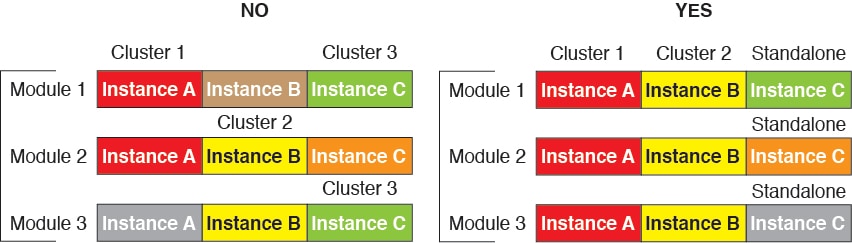
    Management Network

    You must manage each node using the Management interface; management from a data interface is not supported with clustering.

    Licenses for Threat Defense Virtual Clustering

    Each threat defense virtual cluster node requires the same performance tier license. We recommend using the same number of CPUs and memory for all members, or else peformance will be limited on all nodes to match the least capable member. The throughput level will be replicated from the control node to each data node so they match.

    You assign feature licenses to the cluster as a whole, not to individual nodes. However, each node of the cluster consumes a separate license for each feature. The clustering feature itself does not require any licenses.

    When you add the control node to the Management Center, you can specify the feature licenses you want to use for the cluster. You can modify licenses for the cluster in the Devices > Device Management > Cluster > License area.


    Note


    If you add the cluster before the Management Center is licensed (and running in Evaluation mode), then when you license the Management Center, you can experience traffic disruption when you deploy policy changes to the cluster. Changing to licensed mode causes all data units to leave the cluster and then rejoin.


    Requirements and Prerequisites for Threat Defense Virtual Clustering

    Model Requirements

    • FTDv5, FTDv10, FTDv20, FTDv30, FTDv50, FTDv100


      Note


      FTDv5 and FTDv10 do not support Amazon Web Services (AWS) Gateway Load Balancer (GWLB) and Azure GWLB.


    • The following public cloud services:

      • Amazon Web Services (AWS)

      • Microsoft Azure

      • Google Cloud Platform (GCP)

    • Maximum 16 nodes

    See also the general requirements for the Threat Defense Virtual in the Cisco Secure Firewall Threat Defense Virtual Getting Started Guide.

    User Roles

    • Admin

    • Access Admin

    • Network Admin

    Hardware and Software Requirements

    All units in a cluster:

    • Must be in the same performance tier. We recommend using the same number of CPUs and memory for all nodes, or else peformance will be limited on all nodes to match the least capable node.

    • The Management Center access must be from the Management interface; data interface management is not supported.

    • Must run the identical software except at the time of an image upgrade. Hitless upgrade is supported.

    • All units in a cluster must be deployed in the same availability zone.

    • Cluster control link interfaces of all units must be in the same subnet.

    MTU

    Make sure the ports connected to the cluster control link have the correct (higher) MTU configured. If there is an MTU mismatch, the cluster formation will fail. The cluster control link MTU should be 154 bytes higher than the data interfaces. Because the cluster control link traffic includes data packet forwarding, the cluster control link needs to accommodate the entire size of a data packet plus cluster traffic overhead (100 bytes) plus VXLAN overhead (54 bytes).

    For AWS with GWLB, the data interface uses Geneve encapsulation. In this case, the entire Ethernet datagram is being encapsulated, so the new packet is larger and requires a larger MTU. You should set the source interface MTU to be the network MTU + 306 bytes. So for the standard 1500 MTU network path, the source interface MTU should be 1806, and the cluster control link MTU should be +154, 1960.

    For Azure with GWLB, the data interface uses VXLAN encapsulation. In this case, the entire Ethernet datagram is being encapsulated, so the new packet is larger and requires a larger MTU. You should set the cluster control link MTU to be the source interface MTU + 80 bytes.

    The following table shows the default values for the cluster control link MTU and the data interface MTU.

    Table 6. Default MTU

    Public Cloud

    Cluster Control Link MTU

    Data Interface MTU

    AWS with GWLB

    1960

    1806

    AWS

    1654

    1500

    Azure with GWLB

    1554

    1454

    Azure

    1554

    1400

    GCP

    1554

    1400

    Guidelines for Threat Defense Virtual Clustering

    High Availability

    High Availability is not supported with clustering.

    IPv6

    The cluster control link is only supported using IPv4.

    Additional Guidelines

    • When significant topology changes occur (such as adding or removing an EtherChannel interface, enabling or disabling an interface on the Threat Defense or the switch, adding an additional switch to form a VSS or vPC) you should disable the health check feature and also disable interface monitoring for the disabled interfaces. When the topology change is complete, and the configuration change is synced to all units, you can re-enable the interface health check feature.

    • When adding a node to an existing cluster, or when reloading a node, there will be a temporary, limited packet/connection drop; this is expected behavior. In some cases, the dropped packets can hang your connection; for example, dropping a FIN/ACK packet for an FTP connection will make the FTP client hang. In this case, you need to reestablish the FTP connection.

    • Do not power off a node without first disabling clustering on the node.

    • For decrypted TLS/SSL connections, the decryption states are not synchronized, and if the connection owner fails, then decrypted connections will be reset. New connections will need to be established to a new node. Connections that are not decrypted (they match a do-not-decrypt rule) are not affected and are replicated correctly.

    • Dynamic scaling is not supported.

    • Stateful Target Failover is not supported when you deploy the cluster on AWS.

    • Perform a global deployment after the completion of each maintenance window.

    • Ensure that you do not remove more than one device at a time from the auto scale group (AWS) / instance group (GCP) / scale set (Azure). We also recommend that you run the cluster disable command on the device before removing the device from the auto scale group (AWS) / instance group (GCP) / scale set (Azure).

    • If you want to disable data nodes and the control node in a cluster, we recommend that you disable the data nodes before disabling the control node. If a control node is disabled while there are other data nodes in the cluster, one of the data nodes has to be promoted to be the control node. Note that the role change could disturb the cluster.

    • In the customized day 0 configuration scripts given in this guide, you can change the IP addresses as per your requirement, provide custom interface names, and change the sequence of the CCL-Link interface.

    • If you experience CCL instability issues, such as intermittent ping failures, after deploying a Threat Defense Virtual cluster on a cloud platform, we recommend that you address the reasons that are causing CCL instability. Also, you can increase the hold time as a temporary workaround to mitigate CCL instability issues to a certain extent. For more information on how to change the hold time, see Edit Cluster Health Monitor Settings.

    • When you are configuring your security firewall rule or security group for the Management Center virtual, you must include both Private and Public IP addresses of the Threat Defense Virtual in the Source IP address range. Also, ensure to specify the Private and Public IP addresses of the Management Center Virtual in the security firewall rule or security group of the Threat Defense Virtual. This is important to ensure proper registration of nodes during clustering deployment.

    Defaults for Clustering

    • The cLACP system ID is auto-generated, and the system priority is 1 by default.

    • The cluster health check feature is enabled by default with the holdtime of 3 seconds. Interface health monitoring is enabled on all interfaces by default.

    • The cluster auto-rejoin feature for a failed cluster control link is unlimited attempts every 5 minutes.

    • The cluster auto-rejoin feature for a failed data interface is 3 attempts every 5 minutes, with the increasing interval set to 2.

    • Connection replication delay of 5 seconds is enabled by default for HTTP traffic.

    Deploy the Cluster in AWS

    To deploy a cluster in AWS, you can either manually deploy or use CloudFormation templates to deploy a stack. You can use the cluster with AWS Gateway Load Balancer, or with a non-native load-balancer such as the Cisco Cloud Services Router.

    AWS Gateway Load Balancer and Geneve Single-Arm Proxy


    Note


    This use case is the only currently supported use case for Geneve interfaces.


    The AWS Gateway Load Balancer combines a transparent network gateway and a load balancer that distributes traffic and scales virtual appliances on demand. The Threat Defense Virtual supports the Gateway Load Balancer centralized control plane with a distributed data plane (Gateway Load Balancer endpoint). The following figure shows traffic forwarded to the Gateway Load Balancer from the Gateway Load Balancer endpoint. The Gateway Load Balancer balances traffic among multiple Threat Defense Virtuals, which inspect the traffic before either dropping it or sending it back to the Gateway Load Balancer (U-turn traffic). The Gateway Load Balancer then sends the traffic back to the Gateway Load Balancer endpoint and to the destination.

    Figure 43. Geneve Single-Arm Proxy

    Sample Topology

    The topology given below depicts both inbound and outbound traffic flow. There are three Threat Defense Virtual instances in the cluster that is connected to a GWLB. A Management Center Virtual instance is used to manage the cluster.

    Inbound traffic from the internet goes to the GWLB endpoint which then transmits the traffic to the GWLB. Traffic is then forwarded to the Threat Defense Virtual cluster. After the traffic has been inspected by a Threat Defense Virtual instance in the cluster, it is forwarded to the application VM, App1 /App2.

    Outbound traffic from App1/App2 is transmitted to the GWLB endpoint which then sends it out to the internet.

    End-to-End Process for Deploying Threat Defense Virtual Cluster on AWS

    Template-based Deployment

    The following flowchart illustrates the workflow for template-based deployment of the Threat Defense Virtual cluster on AWS.

    Workspace

    Steps

    Local Host Download templates and files from GitHub.
    Local Host Modify infrastructure.yaml and deploy_ngfw_cluster.yaml templates.
    Local Host Update the Configuration.json file with initial settings.
    Linux Host Create cluster_layer.zip file.
    Local Host Copy cluster_layer.zip file to the Lambda python files folder.
    Local Host Create cluster_manager.zip and cluster_lifecycle.zip files.
    Local Host Build zip files from Python files for Lambda functions and copy to target folder.
    AWS Console Deploy infrastructure.yaml template.
    AWS Console Upload cluster_layer.zip, cluster_lifecycle.zip, and cluster_manager.zip, to the S3 bucket.
    AWS Console Deploy deploy_ngfw_cluster.yaml template.
    AWS Console Log in and verify cluster deployment.

    Manual Deployment

    The following flowchart illustrates the workflow for manual deployment of the Threat Defense Virtual cluster on AWS.

    Workspace

    Steps

    Local Host Create day 0 configuration script.
    AWS Console Deploy Threat Defense Virtual instance.
    AWS Console Attach interfaces to instance.
    AWS Console Verify if nodes have joined cluster.
    AWS Console Create target group and GWLB; attach target group to the GWLB.
    AWS Console Register instances with the target group using data interface IP.
    Management Center Register control node.

    Templates

    The templates given below are available in GitHub. The parameter values are self-explanatory with the parameter names, default values, allowed values, and description, given in the template.


    Note


    Ensure that you check the list of supported AWS instance types before deploying cluster nodes. This list is found in the deploy_ngfw_cluster.yaml template, under allowed values for the parameter InstanceType.


    Deploy the Stack in AWS Using a CloudFormation Template

    Deploy the stack in AWS using the customized CloudFormation template.

    Before you begin

    • You need a Linux computer with Python 3.

    • To allow the cluster to auto-register with the management center, you need to create a user with administrative privileges on the management center that can use the REST API. See the Cisco Secure Firewall Management Center Administration Guide.

    • Add an access policy in the management center that matches the name of the policy that you specified in Configuration.JSON.

    Procedure


    Step 1

    Prepare the template.

    1. Clone the github repository to your local folder. See https://github.com/CiscoDevNet/cisco-ftdv/tree/master/cluster/aws.

    2. Modify infrastructure.yaml and deploy_ngfw_cluster.yaml with the required parameters.

    3. Modify cloud-clustering/ftdv-cluster/lambda-python-files/Configuration.json with initial settings.

      For example:

      
      {
        "licenseCaps": ["BASE", "MALWARE", "THREAT"],
        "performanceTier": "FTDv50",
        "fmcIpforDeviceReg": "DONTRESOLVE",
        "RegistrationId": "cisco",
        "NatId": "cisco",
        "fmcAccessPolicyName": "AWS-ACL"
      }
      
      • Keep the fmcIpforDeviceReg setting as DONTRESOLVE.

      • The fmcAccessPolicyName needs to match an access policy on the management center.

      Note


      FTDv5 and FTDv10 tiers are not supported.

    4. Create a file named cluster_layer.zip to provide essential Python libraries to Lambda functions.

      You can create the cluster_layer.zip file in a Linux environment - Ubuntu 18.04 with Python 3.9 installed.

      Run the following shell script to create cluster_layer.zip:

      
      #!/bin/bash
      mkdir -p layer
      virtualenv -p /usr/bin/python3.9 ./layer/
      source ./layer/bin/activate
      pip3 install pycryptodome==3.17.0
      pip3 install paramiko==2.7.1
      pip3 install requests==2.23.0
      pip3 install scp==0.13.2
      pip3 install jsonschema==3.2.0
      pip3 install cffi==1.15.1
      pip3 install zipp==3.1.0
      pip3 install importlib-metadata==1.6.0
      echo "Copy from ./layer directory to ./python\n"
      mkdir -p ./python/
      cp -r ./layer/lib/python3.9/site-packages/* ./python/
      zip -r cluster_layer.zip ./python
      deactivate
      
    5. Copy the resulting cluster_layer.zip file to the lambda python files folder.

    6. Create the cluster_manager.zip and cluster_lifecycle.zip files.

      A make.py file can be found in the cloned repository. This will zip the python files into a Zip file and copy to a target folder.

      python3 make.py build

    Step 2

    Deploy infrastructure.yaml and note the output values for cluster deployment.

    1. On the AWS Console, go to CloudFormation and click Create stack; select With new resources(standard).

    2. Select Upload a template file, click Choose file, and select infrastructure.yaml from the target folder.

    3. Click Next and provide the required information.

    4. Click Next, then Create stack.

    5. After the deployment is complete, go to Outputs and note the S3 BucketName.

    Figure 44. Output of infrastructure.yaml
    Output of infrastructure.yaml

    Step 3

    Upload cluster_layer.zip, cluster_lifecycle.zip, and cluster_manager.zip to the S3 bucket created by infrastructure.yaml.

    Figure 45. S3 Bucket
    S3 Bucket

    Step 4

    Deploy deploy_ngfw_cluster.yaml.

    1. Go to CloudFormation and click on Create stack; select With new resources(standard).

    2. Select Upload a template file, click Choose file, and select deploy_ngfw_cluster.yaml from the target folder.

    3. Click Next and provide the required information.

    4. Click Next, then Create stack.

      The Lambda functions manage the rest of the process, and the threat defense virtuals will automatically register with the management center.

    Figure 46. Deployed Resources
    Resources

    Step 5

    Verify the cluster deployment by logging into any one of the nodes and using the show cluster info command.

    Figure 47. Cluster Nodes
    Cluster Nodes
    Figure 48. show cluster info

    Deploy the Cluster in AWS Manually

    To deploy the cluster manually, prepare the day 0 configuration, deploy each node, and then add the control node to the management center.

    Create the Day0 Configuration for AWS

    You can use either a fixed configuration or a customized configuration. We recommend using the fixed configuration.

    Create the Day0 Configuration With a Fixed Configuration for AWS

    The fixed configuration will auto-generate the cluster bootstrap configuration.

    
    {
        "AdminPassword": "password",
        "Hostname": "hostname",
        "FirewallMode": "Routed",
        "ManageLocally": "No",
        "Cluster": {
            "CclSubnetRange": "ip_address_start ip_address_end",
            "ClusterGroupName": "cluster_name",
            [For Gateway Load Balancer] "Geneve": "{Yes | No}",
            [For Gateway Load Balancer] "HealthProbePort": "port"
        }
    }
    

    For example:

    
    {
    	"AdminPassword": "Sup3rnatural",
    	"Hostname": "ciscoftdv",
    	"FirewallMode": "Routed",
    	"ManageLocally": "No",
    	"Cluster": {
    		"CclSubnetRange": "10.10.55.4 10.10.55.30",    //mandatory user input
    		"ClusterGroupName": "ftdv-cluster",            //mandatory user input
    		"Geneve": "Yes",
    		"HealthProbePort": "7777"
    	}
    }

    Note


    If you are copying and pasting the configuration given above, ensure that you remove //mandatory user input from the configuration.


    For the CclSubnetRange variable, specify a range of IP addresses starting from x.x.x.4. Ensure that you have at least 16 available IP addresses for clustering. Some examples of start (ip_address_start) and end (ip_address_end) IP addresses given below.

    Table 7. Examples of Start and End IP addresses
    CIDR Start IP Address End IP Address

    10.1.1.0/27

    10.1.1.4

    10.1.1.30

    10.1.1.32/27

    10.1.1.36

    10.1.1.62

    10.1.1.64/27

    10.1.1.68

    10.1.1.94

    10.1.1.96/27

    10.1.1.100

    10.1.1.126

    10.1.1.128/27

    10.1.1.132

    10.1.1.158

    10.1.1.160/27

    10.1.1.164

    10.1.1.190

    10.1.1.192/27

    10.1.1.196

    10.1.1.222

    10.1.1.224/27

    10.1.1.228

    10.1.1.254

    10.1.1.0/24

    10.1.1.4

    10.1.1.254

    Create the Day0 Configuration With a Customized Configuration for AWS
    You can enter the entire cluster bootstrap configuration using commands.
    
    {
        "AdminPassword": "password",
        "Hostname": "hostname",
        "FirewallMode": "Routed",
        "ManageLocally": "No",
        "run_config": [comma_separated_threat_defense_configuration]
        }
    
    Gateway Load Balancer Example

    The following example creates a configuration for a Gateway Load Balancer with one Geneve interface for U-turn traffic and one VXLAN interface for the cluster control link. Note the values in bold that need to be unique per node.

    
    {
    	"AdminPassword": "Sam&Dean",
    	"Hostname": "ftdv1",
    	"FirewallMode": "Routed",
    	"ManageLocally": "No",
    	"run_config": [
    		"cluster interface-mode individual force",
    		"interface TenGigabitEthernet0/0",
    		"nameif geneve-vtep-ifc",
    		"ip address dhcp",
    		"no shutdown",
    		"interface TenGigabitEthernet0/1",
    		"nve-only cluster",
    		"nameif ccl_link",
    		"ip address dhcp",
    		"no shutdown",
    		"interface vni1",
    		"description Clustering Interface",
    		"segment-id 1",
    		"vtep-nve 1",
    		"interface vni2",
    		"proxy single-arm",
    		"nameif uturn-ifc",
    		"vtep-nve 2",
    		"object network ccl_link",
    		"range 10.1.90.4 10.1.90.19",
    		"object-group network cluster_group",
    		"network-object object ccl_link",
    		"nve 2",
    		"encapsulation geneve",
    		"source-interface geneve-vtep-ifc",
    		"nve 1",
    		"encapsulation vxlan",
    		"source-interface ccl_link",
    		"peer-group cluster_group",
    		"jumbo-frame reservation",
    		"mtu geneve-vtep-ifc 1806",
    		"mtu ccl_link 1960",
    		"cluster group ftdv-cluster",
    		"local-unit 1",
    		"cluster-interface vni1 ip 10.1.1.1 255.255.255.0",
    		"priority 1",
    		"enable",
    		"aaa authentication listener http geneve-vtep-ifc port 7777"
    	]
    }

    Note


    For the CCL subnet range, specify IP addresses from the CCL subnet CIDR, excluding reserved IP addresses. Refer the table given above for some examples.

    For the AWS health check settings, ensure that you specify the aaa authentication listener http port you set here.


    Non-Native Load Balancer Example

    The following example creates a configuration for use with non-native load balancers with Management, Inside, and Outside interfaces, and a VXLAN interface for the cluster control link. Note the values in bold that need to be unique per node.

    
    {
    	"AdminPassword": "W1nch3sterBr0s",
    	"Hostname": "ftdv1",
    	"FirewallMode": "Routed",
    	"ManageLocally": "No",
    	"run_config": [
    		"cluster interface-mode individual force",
    		"interface Management0/0",
    		"management-only",
    		"nameif management",
    		"ip address dhcp",
    		"interface GigabitEthernet0/0",
    		"no shutdown",
    		"nameif outside",
    		"ip address dhcp",
    		"interface GigabitEthernet0/1",
    		"no shutdown",
    		"nameif inside",
    		"ip address dhcp",
    		"interface GigabitEthernet0/2",
    		"nve-only cluster",
    		"nameif ccl_link",
    		"ip address dhcp",
    		"no shutdown",
    		"interface vni1",
    		"description Clustering Interface",
    		"segment-id 1",
    		"vtep-nve 1",
    		"jumbo-frame reservation",
    		"mtu ccl_link 1654",
    		"object network ccl_link",
    		"range 10.1.90.4 10.1.90.19",          //mandatory user input 
    		"object-group network cluster_group",
    		"network-object object ccl_link",
    		"nve 1",
    		"encapsulation vxlan",
    		"source-interface ccl_link",
    		"peer-group cluster_group",
    		"cluster group ftdv-cluster",          //mandatory user input 
    		"local-unit 1",
    		"cluster-interface vni1 ip 10.1.1.1 255.255.255.0",
    		"priority 1",
    		"enable"
    	]
    }

    For the cluster control link network object, specify only as many addresses as you need (up to 16). A larger range can affect performance.


    Note


    If you are copying and pasting the configuration given above, ensure that you remove //mandatory user input from the configuration.


    Deploy Cluster Nodes

    Deploy the cluster nodes so they form a cluster.

    Procedure

    Step 1

    Deploy the Threat Defense Virtual instance by using the cluster day 0 configuration with the required number of interfaces - four interfaces if you are using Gateway Load Balancer (GWLB), or five interfaces if you are using non-native load balancer. To do this, in the Configure Instance Details > Advanced Details section, paste the cluster day 0 configuration.

    Note


    Ensure that you attach interfaces to the instances in the order given below.

    • AWS Gateway Load Balancer - four interfaces - management, diagnostic, inside, and cluster control link.

    • Non-native load balancers - five interfaces - management, diagnostic, inside, outside, and cluster control link.

    For more information on deploying Threat Defense Virtual on AWS, see Deploy the Threat Defense Virtual on AWS.

    Step 2

    Repeat Step 1 to deploy the required number of additional nodes.

    Step 3

    Use the show cluster info command on the Threat Defense Virtual console to verify if all nodes have successfully joined the cluster.

    Step 4

    Configure the AWS Gateway Load Balancer.

    1. Create a target group and GWLB.

    2. Attach the target group to the GWLB.

      Note


      Ensure that you configure the GWLB to use the correct security group, listener configuration, and health check settings.

    3. Register the data interface (inside interface) with the Target Group using IP addresses.

    For more information, see Create a Gateway Load Balancer.

    Step 5

    Add the control node to the Management Center. See Add the Cluster to the Management Center (Manual Deployment).


    Deploy the Cluster in Azure

    You can use the cluster with the Azure Gateway Load Balancer (GWLB), or with a non-native load-balancer. To deploy a cluster in Azure, use Azure Resource Manager (ARM) templates to deploy a Virtual Machine Scale Set.

    Sample Topology for GWLB-based Cluster Deployment

    Figure 49. Inbound Traffic Use Case and Topology with GWLB
    Figure 50. Outbound Traffic Use Case and Topology with GWLB

    Azure Gateway Load Balancer and Paired Proxy

    In an Azure service chain, Threat Defense Virtuals act as a transparent gateway that can intercept packets between the internet and the customer service. The Threat Defense Virtual defines an external interface and an internal interface on a single NIC by utilizing VXLAN segments in a paired proxy.

    The following figure shows traffic forwarded to the Azure Gateway Load Balancer from the Public Gateway Load Balancer on the external VXLAN segment. The Gateway Load Balancer balances traffic among multiple Threat Defense Virtuals, which inspect the traffic before either dropping it or sending it back to the Gateway Load Balancer on the internal VXLAN segment. The Azure Gateway Load Balancer then sends the traffic back to the Public Gateway Load Balancer and to the destination.

    Figure 51. Azure Gateway Load Balancer with Paired Proxy

    End-to-End Process for Deploying Threat Defense Virtual Cluster in Azure with GWLB

    Template-based Deployment

    The following flowchart illustrates the workflow for template-based deployment of the Threat Defense Virtual cluster in Azure with GWLB.

    Workspace

    Steps

    Local Host Download templates and files from GitHub.
    Local Host Modify azure_ftdv_gwlb_cluster.json and azure_ftdv_gwlb_cluster_parameters.json with the required parameters.
    Azure Cloud Create the resource group, virtual network, and subnets.
    Azure Cloud Deploy custom template.
    Azure Cloud Configure instance details.
    Cluster Node Verify cluster deployment.
    Azure Cloud Use the Function app to register the cluster with the Management Center.
    Azure Cloud Create FTPS credentials.
    Local Host Upload Cluster_Function.zip file to the Function app.

    Manual Deployment

    The following flowchart illustrates the workflow of manual deployment of Threat Defense Virtual cluster in Azure with GWLB.

    Workspace

    Steps

    Local Host Create a VMSS from the Marketplace image.
    Local Host Attach interfaces.
    Local Host Add day 0 configuration in the customData field.
    Local Host Update scaling instance count.
    Local Host Configure GWLB.
    Management Center Add control node.

    Templates

    The templates given below are available in GitHub. The parameter values are self-explanatory with the parameter names, and values, given in the template.

    Prerequisites

    • To allow the cluster to auto-register to the management center, create a user with Network Admin & Maintenance User privileges on the management center. Users with these privileges can use REST API. See the Cisco Secure Firewall Management Center Administration Guide.

    • Add an access policy in the management center that matches the name of the policy that you will specify during template deployment.

    • Ensure that the Management Center Virtual is licensed appropriately.

    • Perform the steps given below after the cluster is added to the Management Center Virtual:

      1. Configure platform settings with the health check port number in the Management Center. For more information on configuring this, see Platform Settings.

      2. Create a static route for data traffic. For more information on creating a static route, see Add a Static Route.

        Sample static route configuration:
        
        Network: any-ipv4
        Interface: vxlan_tunnel
        Leaked from Virtual Router: Global
        Gateway: vxlan_tunnel_gw
        Tunneled: false
        Metric: 2
        

      Note


      vxlan_tunnel_gw is the data subnet's gateway IP address.


    Deploy Cluster on Azure with GWLB Using an Azure Resource Manager Template

    Deploy the Virtual Machine Scale Set for Azure GWLB using the customized Azure Resource Manager (ARM) template.

    Procedure


    Step 1

    Prepare the template.

    1. Clone the github repository to your local folder. See https://github.com/CiscoDevNet/cisco-ftdv/tree/master/cluster/azure.

    2. Modify azure_ftdv_gwlb_cluster.json and azure_ftdv_gwlb_cluster_parameters.json with the required parameters.

    Step 2

    Log into the Azure Portal: https://portal.azure.com.

    Step 3

    Create a Resource Group.

    1. In the Basics tab, choose the Subscription and Resource Group from the drop-down lists.

    2. Choose the required Region.

    Step 4

    Create a virtual network with 4 subnets: Management, Diagnostic, Outside, and Cluster Control Link (CCL).

    1. Create the virtual network.

      1. In the Basics tab, choose the Subscription and Resource Group from the drop-down lists.

      2. Choose the required Region. Click Next: IP addresses.

      In the IP Addresses tab, click Add subnet and add the following subnets – Management, Diagnostic, Data, and Cluster Control Link.
    2. Add the subnets.

    Step 5

    Deploy the custom template.

    1. Click Create > Template deployment (deploy using custom templates).

    2. Click Build your own template in the editor.

    3. Click Load File, and upload azure_ftdv_gwlb_cluster.json.

    4. Click Save.

    Step 6

    Configure the Instance details.

    1. Enter the required values and then click Review + create.

    2. Click Create after the validation is passed.

    Step 7

    After the instance is running, verify the cluster deployment by logging into any one of the nodes and entering the show cluster info command.

    Figure 52. show cluster info
    show cluster info

    Step 8

    In the Azure Portal, click the Function app to register the cluster with the Management Center.

    Note


    If you do not want to use the Function app, you can alternatively register the control node to the management center directly by using Add > Device (not Add > Cluster). The rest of the cluster nodes will register automatically.

    Step 9

    Create FTPS Credentials by clicking Deployment Center > FTPS credentials > User scope > Configure Username and Password, and then click Save.

    Step 10

    Upload the Cluster_Function.zip file to the Function app by executing the following curl command in the local terminal.

    curl -X POST -u username --data-binary @"Cluster_Function.zip" https:// Function_App_Name.scm.azurewebsites.net/api/zipdeploy

    Note


    The curl command might take few minutes (~2 to 3 minutes) to complete command execution.

    The function will be uploaded to the Function app. The function will start, and you can see the logs in the storage account’s outqueue. The device registration with the Management Center will be initiated.

    Figure 53. Functions
    Cluster Function Upload
    Figure 54. Queues
    Output Queue
    Figure 55. Outqueue
    Outqueue

    Sample Topology for NLB-based Cluster Deployment

    This topology depicts both inbound and outbound traffic flow. The Threat Defense Virtual cluster is sandwiched between the internal and external load balancers. A Management Center Virtual instance is used to manage the cluster.

    Inbound traffic from the internet goes to the external load balancer which then transmits the traffic to the Threat Defense Virtual cluster. After the traffic has been inspected by a Threat Defense Virtual instance in the cluster, it is forwarded to the application VM.

    Outbound traffic from the application VM is transmitted to the internal load balancer. Traffic is then forwarded to the Threat Defense Virtual cluster and then sent out to the internet.

    End-to-End Process for Deploying Threat Defense Virtual Cluster in Azure with NLB

    Template-based Deployment

    The following flowchart illustrates the workflow of template-based deployment of Threat Defense Virtual cluster in Azure with NLB.

    Workspace

    Steps

    Local Host Download templates and files from GitHub.
    Local Host Modify azure_ftdv_nlb_cluster.json and azure_ftdv_nlb_cluster_parameters.json with the required parameters.
    Azure Cloud Create the resource group, virtual network, and subnets.
    Azure Cloud Deploy custom template.
    Azure Cloud Configure instance details.
    Cluster Node Verify cluster deployment.
    Azure Cloud Use the Function app to register the cluster with the Management Center.
    Azure Cloud Create FTPS credentials.
    Local Host Upload Cluster_Function.zip file to the Function app.

    Manual Deployment

    The following flowchart illustrates the workflow of manual deployment of Threat Defense Virtual cluster in Azure with NLB.

    Workspace

    Steps

    Local Host Create a VMSS from the Marketplace image.
    Local Host Attach interfaces.
    Local Host Add day 0 configuration in the customData field.
    Local Host Update scaling instance count.
    Local Host Configure NLB.
    Management Center Add control node.

    Templates

    The templates given below are available in GitHub. The parameter values are self-explanatory with the parameter names, and values, given in the template.

    Prerequisites

    • To allow the cluster to auto-register with the Management Center, create a user with Network Admin & Maintenance User privileges on the Management Center. Users with these privileges can use REST API. See the Cisco Secure Firewall Management Center Administration Guide.

    • Add an access policy in the Management Center that matches the name of the policy that you will specify during template deployment.

    • Ensure that the Management Center Virtual is licensed appropriately.

    • After the cluster is added to the Management Center Virtual:

      1. Configure platform settings with the health check port number in the Management Center. For more information on configuring this, see Platform Settings.

      2. Create static routes for traffic from outside and inside interfaces. For more information on creating a static route, see Add a Static Route.

        Sample static route configuration for the outside interface:
        
        Network: any-ipv4
        Interface: outside
        Leaked from Virtual Router: Global
        Gateway: ftdv-cluster-outside
        Tunneled: false
        Metric: 10

        Note


        ftdv-cluster-outside is the outside subnet's gateway IP address.


        Sample static route configuration for the inside interface:

        
        Network: any-ipv4
        Interface: inside
        Leaked from Virtual Router: Global
        Gateway: ftdv-cluster-inside-gw
        Tunneled: false
        Metric: 11

        Note


        ftdv-cluster-inside-gw is the inside subnet's gateway IP address.


      3. Configure NAT rule for data traffic. For more information on configuring NAT rules, see Network Address Translation.

    Deploy Cluster on Azure with NLB Using an Azure Resource Manager Template

    Deploy the cluster for Azure NLB using the customized Azure Resource Manager (ARM) template.

    Procedure


    Step 1

    Prepare the template.

    1. Clone the github repository to your local folder. See https://github.com/CiscoDevNet/cisco-ftdv/tree/master/cluster/azure.

    2. Modify azure_ftdv_nlb_cluster.json and azure_ftdv_nlb_cluster_parameters.json with the required parameters.

    Step 2

    Log into the Azure Portal: https://portal.azure.com.

    Step 3

    Create a Resource Group.

    1. In the Basics tab, choose the Subscription and Resource Group from the drop-down lists.

    2. Choose the required Region.

    Step 4

    Create a virtual network with 5 subnets: Management, Diagnostic, Inside, Outside, and Cluster Control Link.

    1. Create the virtual network.

      1. In the Basics tab, choose the Subscription and Resource Group from the drop-down lists.

      2. b) Choose the required Region. Click Next: IP addresses.

    2. Add the subnets.

      In the IP Addresses tab, click Add subnet and add the following subnets – Management, Diagnostic, Inside, Outside, and Cluster Control Link.

    Step 5

    Deploy the custom template.

    1. Click Create > Template deployment (deploy using custom templates).

    2. Click Build your own template in the editor.

    3. Click Load File, and upload azure_ftdv_nlb_cluster.json.

    4. Click Save.

    Step 6

    Configure the instance details.

    1. Enter the required values and then click Review + create.

      Note


      For the cluster control link starting and ending addresses, specify only as many addresses as you need (up to 16). A larger range can affect performance.

    2. Click Create after the validation is passed.

    Step 7

    After the instance is running, verify the cluster deployment by logging into any one of the nodes and using the show cluster info command.

    Figure 56. show cluster info
    show cluster info

    Step 8

    In the Azure Portal, click the Function app to register the cluster to the management center.

    Note


    If you do not want to use the Function app, you can alternatively register the control node with the Management Center directly by using Add > Device (not Add > Cluster). The rest of the cluster nodes will register automatically.

    Step 9

    Create FTPS Credentials by clicking Deployment Center > FTPS credentials > User scope > Configure Username and Password, and then click Save.

    Step 10

    Upload the Cluster_Function.zip file to the Function app by executing the following curl command in the local terminal.

    curl -X POST -u username --data-binary @"Cluster_Function.zip" https:// Function_App_Name.scm.azurewebsites.net/api/zipdeploy

    Note


    The curl command might take a few minutes (~2 to 3 minutes) to complete command execution.

    The function will be uploaded to the Function app. The function will start, and you can see the logs in the storage account’s outqueue. The device registration with the Management Center will be initiated.


    Deploy the Cluster in Azure Manually

    To deploy the cluster manually, prepare the day0 configuration, deploy each node, and then add the control node to the management center.

    Create the Day0 Configuration for Azure

    You can use either a fixed configuration or a customized configuration.

    Create the Day0 Configuration With a Fixed Configuration for Azure

    The fixed configuration will auto-generate the cluster bootstrap configuration.

    
    {
    	"AdminPassword": "password",
    	"FirewallMode": "Routed",
    	"ManageLocally": "No",
    	"FmcIp": "<FMC_IP>",
    	"FmcRegKey": "<REGISTRATION_KEY>",
    	"FmcNatId": "<NAT_ID>",
    	"Cluster": {
    		"CclSubnetRange": "ip_address_start ip_address_end",
    		"ClusterGroupName": "cluster_name",
    		"HealthProbePort": "port_number",
    		"GatewayLoadBalancerIP": "ip_address",
    		"EncapsulationType": "vxlan",
    		"InternalPort": "internal_port_number",
    		"ExternalPort": "external_port_number",
    		"InternalSegId": "internal_segment_id",
    		"ExternalSegId": "external_segment_id"
    	}
    }
    Example

    A sample day 0 configuration is given below.

    
    {
    	"AdminPassword": "password",
    	"FirewallMode": "routed",
    	"ManageLocally": "No",
    	"FmcIp":"<FMC_IP>",
    	"FmcRegKey":"<REGISTRATION_KEY>",
    	"FmcNatId":"<NAT_ID>",
    	"Cluster": {
    		"CclSubnetRange": "10.45.3.4 10.45.3.30",    //mandatory user input
    		"ClusterGroupName": "ngfwv-cluster",         //mandatory user input
    		"HealthProbePort": "7777",                   //mandatory user input
    		"GatewayLoadBalanceIP": "10.45.2.4",         //mandatory user input
    		"EncapsulationType": "vxlan",
    		"InternalPort": "2000",
    		"ExternalPort": "2001",
    		"InternalSegId": "800",
    		"ExternalSegId": "801"
    	}
    }

    Note


    If you are copying and pasting the configuration given above, ensure that you remove //mandatory user input from the configuration

    For the Azure health check settings, be sure to specify the HealthProbePort you set here.


    For the CclSubnetRange variable, specify a range of IP addresses starting from x.x.x.4. Ensure that you have at least 16 available IP addresses for clustering. Some examples of start and end IP addresses are given below.

    Table 8. Examples of Start and End IP addresses
    CIDR Start IP Address End IP Address
    10.1.1.0/27 10.1.1.4 10.1.1.30
    10.1.1.32/27 10.1.1.36 10.1.1.62
    10.1.1.64/27 10.1.1.68 10.1.1.94
    10.1.1.96/27 10.1.1.100 10.1.1.126
    10.1.1.128/27 10.1.1.132 10.1.1.158
    10.1.1.160/27 10.1.1.164 10.1.1.190
    10.1.1.192/27 10.1.1.196 10.1.1.222
    10.1.1.224/27 10.1.1.228 10.1.1.254
    Create the Day0 Configuration With a Customized Configuration for Azure
    You can enter the entire cluster bootstrap configuration using commands.
    
    {
    	"AdminPassword": "password",
    	"FirewallMode": "Routed",
    	"ManageLocally": "No",
    	"FmcIp": "<FMC_IP>",
    	"FmcRegKey": "<REGISTRATION_KEY>",
    	"FmcNatId": "<NAT_ID>",
    	"Cluster": {
    		"CclSubnetRange": "ip_address_start ip_address_end",
    		"ClusterGroupName": "cluster_name",
    		"HealthProbePort": "port_number",
    		"GatewayLoadBalancerIP": "ip_address",
    		"EncapsulationType": "vxlan",
    		"InternalPort": "internal_port_number",
    		"ExternalPort": "external_port_number",
    		"InternalSegId": "internal_segment_id",
    		"ExternalSegId": "external_segment_id"
    	}
    }
    Example

    A sample day 0 configuration is given below.

    
    {
    	"AdminPassword": "Sup3rnatural",
    	"Hostname": "clusterftdv",
    	"FirewallMode": "routed",
    	"ManageLocally": "No",
    	"FmcIp": "<FMC_IP>",
    	"FmcRegKey": "<REGISTRATION_KEY>",
    	"FmcNatId": "<NAT_ID>",
    	"run_config": [
    		"cluster interface-mode individual force",
    		"policy-map global_policy",
    		"class inspection_default",
    		"no inspect h323 h225",
    		"no inspect h323 ras",
    		"no inspect rtsp",
    		"no inspect skinny",
    		"interface Management0/0",
    		"management-only",
    		"nameif management",
    		"security-level 0",
    		"ip address dhcp",
    		"interface GigabitEthernet0/0",
    		"no shutdown",
    		"nameif vxlan_tunnel",
    		"security-level 0",
    		"ip address dhcp",
    		"interface GigabitEthernet0/1",
    		"no shutdown",
    		"nve-only cluster",
    		"nameif ccl_link",
    		"security-level 0",
    		"ip address dhcp",
    		"interface vni1",
    		"description Clustering Interface",
    		"segment-id 1",
    		"vtep-nve 1",
    		"interface vni2",
    		"proxy paired",
    		"nameif GWLB-backend-pool",
    		"internal-segment-id 800",
    		"external-segment-id 801",
    		"internal-port 2000",
    		"external-port 2001",
    		"security-level 0",
    		"vtep-nve 2",
    		"object network ccl_link",
    		"range 10.45.3.4 10.45.3.30",                         //mandatory user input
    		"object-group network cluster_group",
    		"network-object object ccl_link",
    		"nve 1 ",
    		"encapsulation vxlan",
    		"source-interface ccl_link",
    		"peer-group cluster_group",
    		"nve 2 ",
    		"encapsulation vxlan",
    		"source-interface vxlan_tunnel",
    		"peer ip <GatewayLoadbalancerIP>",
    		"cluster group ftdv-cluster",                         //mandatory user input
    		"local-unit 1",
    		"cluster-interface vni1 ip 1.1.1.1 255.255.255.0",
    		"priority 1",
    		"enable",
    		"mtu vxlan_tunnel 1454",
    		"mtu ccl_link 1554"
    	]
    }

    Note


    If you are copying and pasting the configuration given above, ensure that you remove //mandatory user input from the configuration.


    Deploy Cluster Nodes Manually - GWLB-based Deployment

    Deploy the cluster nodes so they form a cluster.

    Procedure

    Step 1

    Create a Virtual Machine Scale Set from the Marketplace image with 0 instance count using the az vmss create CLI.

    az vmss create --resource-group <ResourceGroupName> --name <VMSSName> --vm-sku <InstanceSize> --image <FTDvImage> --instance-count 0 --admin-username <AdminUserName> --admin-password <AdminPassword> --plan-name <ftdv-azure-byol/ftdv-azure-payg> --plan-publisher cisco --plan-product cisco-ftdv --plan-promotion-code <ftdv-azure-byol/ftdv-azure-payg> --vnet-name <VirtualNetworkName> --subnet <MgmtSubnetName>

    Step 2

    Attach three interfaces—Diagnostic, Data, and Cluster Control Link.

    Step 3

    Go to the virtual machine scale set you have created and perform the following steps:

    1. Under the Operating system section, add the day 0 configuration in the customData field.

    2. Click Save.

    3. Under the Scaling section, update the instance count with the required cluster node. You can set the instance count range of minimum 1 and maximum 16.

    Step 4

    Configure the Azure Gateway Load Balancer. See Auto Scale with Azure Gateway Load Balancer Use Case for more information.

    Step 5

    Add the control node to the management center. See Add the Cluster to the Management Center (Manual Deployment).


    Deploy Cluster Nodes Manually - NLB-based Deployment

    Deploy the cluster nodes so they form a cluster.

    Procedure


    Step 1

    Create a Virtual Machine Scale Set from the Marketplace image with 0 instance count using the az vmss create CLI.

    az vmss create --resource-group <ResourceGroupName> --name <VMSSName> --vm-sku <InstanceSize> --image <FTDvImage> --instance-count 0 --admin-username <AdminUserName> --admin-password <AdminPassword> --plan-name <ftdv-azure-byol/ftdv-azure-payg> --plan-publisher cisco --plan-product cisco-ftdv --plan-promotion-code <ftdv-azure-byol/ftdv-azure-payg> --vnet-name <VirtualNetworkName> --subnet <MgmtSubnetName>

    Step 2

    Attach 4 interfaces—Diagnostic, Inside, Outside, and Cluster Control Link.

    Step 3

    Go to the virtual machine scale set you have created and perform the following:

    1. Under the Operating system section, add the day0 configuration in the customData field.

    2. Click Save.

    3. Under the Scaling section, update the instance count with the required cluster node. You can set the instance count range of minimum 1 and maximum 16.

    Step 4

    Add the control node to the Management Center. See Add the Cluster to the Management Center (Manual Deployment).


    Troubleshooting Cluster Deployment in Azure

    • Issue: No traffic flow

      Troubleshooting:

      • Check if the health probe status of the Threat Defense Virtual instances deployed with a GWLB is healthy.

      • If the Threat Defense Virtual instance's health probe status is unhealthy-

        • Check if the static route is configured in the Management Center Virtual.

        • Check if the default gateway is the data subnet's gateway IP.

        • Check if the Threat Defense Virtual instance is receiving health probe traffic.

        • Check if the access list configured in the Management Center Virtual allows health probe traffic.

    • Issue: Cluster is not formed

      Troubleshooting:

      • Check the IP address of the nve-only cluster interface. Ensure that you can ping the nve-only cluster interface of other nodes.

      • Check the IP address of the nve-only cluster interfaces are part of the object group.

      • Ensure that the NVE interface is configured with the object group .

      • Ensure that the cluster interface in the cluster group has the right VNI interface. This VNI interface has the NVE with the corresponding object group.

      • Ensure that the nodes are pingable from each other. Since each node has its own cluster interface IP, these should be pingable from each other.

      • Check if the CCL Subnet's Start and End Address mentioned during template deployment is correct. The start address should begin with the first available IP address in the subnet. For example, if the subnet is 192.168.1.0/24. The start address should be 192.168.1.4 (the three IP addresses at the start are reserved by Azure).

      • Check if the Management Center Virtual has a valid license.

    • Issue: Role-related error while deploying resources again in the same resource group.

      Troubleshooting: Remove the roles given below by using the following commands on the terminal.

      Error message:
      
      "error": {
      "code": "RoleAssignmentUpdateNotPermitted",
      "message": "Tenant ID, application ID, principal ID, and scope are not allowed to be
      updated.”}
      • az role assignment delete --resource-group <Resource Group Name > --role "Storage Queue Data Contributor"

      • az role assignment delete --resource-group <Resource Group Name > --role "Contributor"

    Deploy the Cluster in GCP

    To deploy a cluster in GCP, you can either manually deploy or use an instance template to deploy an instance group. You can use the cluster with native GCP load-balancers, or non-native load balancers such as the Cisco Cloud Services Router.


    Note


    Outbound traffic requires interface NAT and is limited to 64K connections.


    Sample Topology

    This topology depicts both inbound and outbound traffic flow. The Threat Defense Virtual cluster is sandwiched between the internal and external load balancers. A Management Center Virtual instance is used to manage the cluster.

    Inbound traffic from the internet goes to the external load balancer which then transmits the traffic to the Threat Defense Virtual cluster. After the traffic has been inspected by a Threat Defense Virtual instance in the cluster, it is forwarded to the application VM.

    Outbound traffic from the application VM is transmitted to the internal load balancer. Traffic is then forwarded to the Threat Defense Virtual cluster and then sent out to the internet.

    End-to-End Process for Deploying Threat Defense Virtual Cluster in GCP

    Template-based Deployment

    The following flowchart illustrates the workflow for template-based deployment of the Threat Defense Virtual cluster on GCP.

    Workspace

    Steps

    Local Host Download templates and files from GitHub.
    Local Host Edit template parameters.
    Google Cloud Platform Create GCP bucket.
    Local Host Create Google Cloud function source archive file ftdv_cluster_function.zip.
    Google Cloud Platform Upload the Google function source archive file.
    Google Cloud Platform Deploy infrastructure.yaml.
    Google Cloud Platform If private IP addresses are used, create VPC connector.
    Google Cloud Platform If external IP addresses are used, set deployWithExternalIP to True in cluster_function_infra.yaml.
    Google Cloud Platform Deploy cluster function infrastructure template.
    Google Cloud Platform Deploy cluster.

    Manual Deployment

    The following flowchart illustrates the workflow for manual deployment of the Threat Defense Virtual cluster on GCP.

    Workspace

    Steps

    Local Host Create day 0 configuration script.
    Google Cloud Platform Create instance template using day 0 configuration.
    Google Cloud Platform Configure the interfaces.
    Google Cloud Platform Create instance group and attach instance template.
    Google Cloud Platform Create NLB and attach to instance group.
    Google Cloud Platform Create firewall rules for NLB.
    Management Center Create access rules for health check traffic.
    Management Center Add control node.

    Templates

    The templates given below are available in GitHub. The parameter values are self-explanatory with the parameter names, and values, given in the template.

    Deploy the Instance Group in GCP Using an Instance Template

    Deploy the instance group in GCP using an instance template.

    Before you begin

    • Use Google Cloud Shell for deployment. Alternatively, you can use Google SDK on any macOS/Linux/Windows machine.

    • To allow the cluster to auto-register with the Management Center, you need to create a user with administrative privileges on the Management Center that can use the REST API. See the Cisco Secure Firewall Management Center Administration Guide.

    • Add an access policy in the Management Center that matches the name of the policy that you specified in cluster_function_infra.yaml.

    Procedure


    Step 1

    Download the templates from GitHub to your local folder.

    Step 2

    Edit infrastructure.yaml , cluster_function_infra.yaml and deploy_ngfw_cluster.yaml with the required resourceNamePrefix parameter (for example, ngfwvcls) and other required user inputs.

    Note that there is a deploy_ngfw_cluster.yaml file in both the east-west and north-south folders in GitHub. Download the appropriate template as per your traffic flow requirement.

    Step 3

    Create a bucket using Google Cloud Shell to upload the Google cloud function source archive file ftdv_cluster_function.zip.

    gsutil mb --pap enforced gs://resourceNamePrefix-ftdv-cluster-bucket/

    Ensure that the resourceNamePrefix variable here matches the resourceNamePrefix variable that you specified in cluster_function_infra.yaml.

    Step 4

    Create an archive file for the cluster infrastructure.

    Example:

    
    zip -j ftdv_cluster_function.zip ./cluster-function/*
    

    Step 5

    Upload the Google source archive that you created earlier.

    gsutil cp ftdv_cluster_function.zip gs://resourceNamePrefix-ftdv-cluster-bucket/

    Step 6

    Deploy infrastructure for the cluster.

    gcloud deployment-manager deployments create cluster_name --config infrastructure.yaml

    Step 7

    If you are using private IP addresses, perform the steps given below:

    1. Launch and set up the Management Center Virtual with a Threat Defense Virtual management VPC.

    2. Create a VPC connector to connect the Google Cloud functions with the Threat Defense Virtual management VPC.

      gcloud compute networks vpc-access connectors create vpc-connector-name --region us-central1 --subnet resourceNamePrefix-ftdv-mgmt-subnet28

    Step 8

    If the Management Center is remote from the Threat Defense Virtual, and the Threat Defense Virtual needs an external IP address, ensure that you set deployWithExternalIP to True in cluster_function_infra.yaml.

    Step 9

    Deploy the cluster function infrastructure.

    gcloud deployment-manager deployments create cluster_name --config cluster_function_infra.yaml

    Step 10

    Deploy the cluster.

    1. For North-South topology deployment:

      gcloud deployment-manager deployments create cluster_name --config north-south/deploy_ngfw_cluster.yaml

    2. For East-West topology deployment:

      gcloud deployment-manager deployments create cluster_name --config east-west/deploy_ngfw_cluster.yaml


    Deploy the Cluster in GCP Manually

    To deploy the cluster manually, prepare the day0 configuration, deploy each node, and then add the control node to the management center.

    Create the Day0 Configuration for GCP

    You can use either a fixed configuration or a customized configuration.

    Create the Day0 Configuration With a Fixed Configuration for GCP

    The fixed configuration will auto-generate the cluster bootstrap configuration.

    
    {
        "AdminPassword": "password",
        "Hostname": "hostname",
        "FirewallMode": "Routed",
        "ManageLocally": "No",
        "Cluster": {
            "CclSubnetRange": "ip_address_start ip_address_end",
            "ClusterGroupName": "cluster_name"
        }
    }
    

    For example:

    
    {
        "AdminPassword": "DeanW1nche$ter",
        "Hostname": "ciscoftdv",
        "FirewallMode": "Routed",
        "ManageLocally": "No",
        "Cluster": {
            "CclSubnetRange": "10.10.55.2 10.10.55.253",     //mandatory user input
            "ClusterGroupName": "ftdv-cluster"               //mandatory user input
        }
    }
    

    Note


    If you are copying and pasting the configuration given above, ensure that you remove //mandatory user input from the configuration.


    For the CclSubnetRange variable, note that you cannot use the first two IP addresses and the last two IP addresses in the subnet. See Reserved IP addresses in IPv4 subnets for more information. Ensure that you have at least 16 available IP addresses for clustering. Some examples of start and end IP addresses are given below.

    Table 9. Examples of Start and End IP addresses
    CIDR Start IP Address End IP Address
    10.1.1.0/27 10.1.1.2 10.1.1.29
    10.1.1.32/27 10.1.1.34 10.1.1.61
    10.1.1.64/27 10.1.1.66 10.1.1.93
    10.1.1.96/27 10.1.1.98 10.1.1.125
    10.1.1.128/27 10.1.1.130 10.1.1.157
    10.1.1.160/27 10.1.1.162 10.1.1.189
    10.1.1.192/27 10.1.1.194 10.1.1.221
    10.1.1.224/27 10.1.1.226 10.1.1.253
    10.1.1.0/24 10.1.1.2 10.1.1.253
    Create the Day0 Configuration With a Customized Configuration for GCP
    You can enter the entire cluster bootstrap configuration using commands.
    
    {
        "AdminPassword": "password",
        "Hostname": "hostname",
        "FirewallMode": "Routed",
        "ManageLocally": "No",
        "run_config": [comma_separated_threat_defense_configuration]
        }
    

    The following example creates a configuration with Management, Inside, and Outside interfaces, and a VXLAN interface for the cluster control link. Note the values in bold that need to be unique per node.

    
    {
    	"AdminPassword": "W1nch3sterBr0s",
    	"Hostname": "ftdv1",
    	"FirewallMode": "Routed",
    	"ManageLocally": "No",
    	"run_config": [
    		"cluster interface-mode individual force",
    		"interface Management0/0",
    		"management-only",
    		"nameif management",
    		"ip address dhcp",
    		"interface GigabitEthernet0/0",
    		"no shutdown",
    		"nameif outside",
    		"ip address dhcp",
    		"interface GigabitEthernet0/1",
    		"no shutdown",
    		"nameif inside",
    		"ip address dhcp",
    		"interface GigabitEthernet0/2",
    		"nve-only cluster",
    		"nameif ccl_link",
    		"ip address dhcp",
    		"no shutdown",
    		"interface vni1",
    		"description Clustering Interface",
    		"segment-id 1",
    		"vtep-nve 1",
    		"object network ccl_link",
    		"range 10.1.90.2 10.1.90.17",
    		"object-group network cluster_group",
    		"network-object object ccl_link",
    		"nve 1",
    		"encapsulation vxlan",
    		"source-interface ccl_link",
    		"peer-group cluster_group",
    		"cluster group ftdv-cluster",
    		"local-unit 1",
    		"cluster-interface vni1 ip 10.1.1.1 255.255.255.0",
    		"priority 1",
    		"enable",
    		"mtu outside 1400",
    		"mtu inside 1400"
    	]
    }

    Note


    For the cluster control link network object, specify only as many addresses as you need (up to 16). A larger range can affect performance.


    Deploy Cluster Nodes Manually

    Deploy the cluster nodes so they form a cluster. For clustering on GCP, you cannot use the 4 vCPU machine type. The 4 vCPU machine type only supports four interfaces, and five are needed. Use a machine type that supports five interfaces, such as c2-standard-8.

    Procedure

    Step 1

    Create an instance template using the day 0 configuration (in the Metadata > Startup Script section) with 5 interfaces: outside, inside, management, diagnostic, and cluster control link.

    See Cisco Secure Firewall Threat Defense Virtual Getting Started Guide.

    Step 2

    Create an instance group, and attach the instance template.

    Step 3

    Create GCP network load balancers (internal and external), and attach the instance group.

    Step 4

    For GCP network load balancers, allow health checks in your security policy on the Management Center. See Allow Health Checks for GCP Network Load Balancers.

    Step 5

    Add the control node to the Management Center. See Add the Cluster to the Management Center (Manual Deployment).


    Allow Health Checks for GCP Network Load Balancers

    Google Cloud provides health checks to determine if backends respond to traffic.

    See https://cloud.google.com/load-balancing/docs/health-checks to create firewall rules for network load balancers. Then in the management center, create access rules to allow the health check traffic. See https://cloud.google.com/load-balancing/docs/health-check-concepts for the required network ranges. See Access Control Rules.

    You also need to configure dynamic manual NAT rules to redirect the health check traffic to the Google metadata server at 169.254.169.254. See Configure Dynamic Manual NAT.

    North-South NAT Rules Sample Configuration

    
    nat (inside,outside) source dynamic GCP-HC ILB-SOUTH destination static ILB-SOUTH METADATA
    nat (outside,outside) source dynamic GCP-HC ELB-NORTH destination static ELB-NORTH METADATA
    
    nat (outside,inside) source static any interface destination static ELB-NORTH Ubuntu-App-VM
    nat (inside,outside) source dynamic any interface destination static obj-any obj-any
    
    object network Metadata
     host 169.254.169.254
    
    object network ILB-SOUTH
    host <ILB_IP>
    object network ELB-NORTH
    host <ELB_IP>
    
    object-group network GCP-HC
     network-object 35.191.0.0 255.255.0.0
     network-object 130.211.0.0 255.255.252.0
     network-object 209.85.204.0 255.255.252.0
     network-object 209.85.152.0 255.255.252.0
    

    East-West NAT Rules Sample Configuration

    
    nat (inside,outside) source dynamic GCP-HC ILB-East destination static ILB-East Metadata
    nat (outside,outside) source dynamic GCP-HC ILB-West destination static ILB-West Metadata
    
    object network Metadata
     host 169.254.169.254
    
    object network ILB-East
    host <ILB_East_IP>
    object network ILB-West
    host <ILB_West_IP>
    
    object-group network GCP-HC
     network-object 35.191.0.0 255.255.0.0
     network-object 130.211.0.0 255.255.252.0
     network-object 209.85.204.0 255.255.252.0
     network-object 209.85.152.0 255.255.252.0
    

    Add the Cluster to the Management Center (Manual Deployment)

    Use this procedure to add the cluster to the management center if you manually deployed the cluster. If you used a template, the cluster will auto-register on the management center.

    Add one of the cluster units as a new device to the management center; the management center auto-detects all other cluster members.

    Before you begin

    • All cluster units must be in a successfully-formed cluster prior to adding the cluster to the management center. You should also check which unit is the control unit. Use the threat defense show cluster info command.

    Procedure


    Step 1

    In the management center, choose Devices > Device Management, and then choose Add > Add Device to add the control unit using the unit's management IP address.

    Figure 57. Add Device
    Add Device
    1. In the Host field, enter the IP address or hostname of the control unit.

      We recommend adding the control unit for the best performance, but you can add any unit of the cluster.

      If you used a NAT ID during device setup, you may not need to enter this field.

    2. In the Display Name field, enter a name for the control unit as you want it to display in the management center.

      This display name is not for the cluster; it is only for the control unit you are adding. You can later change the name of other cluster members and the cluster display name.

    3. In the Registration Key field, enter the same registration key that you used during device setup. The registration key is a one-time-use shared secret.

    4. In a multidomain deployment, regardless of your current domain, assign the device to a leaf Domain.

      If your current domain is a leaf domain, the device is automatically added to the current domain. If your current domain is not a leaf domain, post-registration, you must switch to the leaf domain to configure the device.

    5. (Optional) Add the device to a device Group.

    6. Choose an initial Access Control Policy to deploy to the device upon registration, or create a new policy.

      If you create a new policy, you create a basic policy only. You can later customize the policy as needed.

    7. Choose licenses to apply to the device.

    8. If you used a NAT ID during device setup, expand the Advanced section and enter the same NAT ID in the Unique NAT ID field.

    9. Check the Transfer Packets check box to allow the device to transfer packets to the management center.

      This option is enabled by default. When events like IPS or Snort are triggered with this option enabled, the device sends event metadata information and packet data to the management center for inspection. If you disable it, only event information will be sent to the management center but packet data is not sent.

    10. Click Register.

      The management center identifies and registers the control unit, and then registers all data units. If the control unit does not successfully register, then the cluster is not added. A registration failure can occur if the cluster was not up, or because of other connectivity issues. In this case, we recommend that you try re-adding the cluster unit.

      The cluster name shows on the Devices > Device Management page; expand the cluster to see the cluster units.

      Figure 58. Cluster Management
      Cluster Management

      A unit that is currently registering shows the loading icon.

      Figure 59. Node Registration
      Node Registration

      You can monitor cluster unit registration by clicking the Notifications icon and choosing Tasks. The management center updates the Cluster Registration task as each unit registers. If any units fail to register, see Reconcile Cluster Nodes.

    Step 2

    Configure device-specific settings by clicking the Edit (edit icon) for the cluster.

    Most configuration can be applied to the cluster as a whole, and not nodes in the cluster. For example, you can change the display name per node, but you can only configure interfaces for the whole cluster.

    Step 3

    On the Devices > Device Management > Cluster screen, you see General, License, System, and Health settings.

    See the following cluster-specific items:

    • General > Name—Change the cluster display name by clicking the Edit (edit icon).

      Then set the Name field.

    • General > View cluster status—Click the View cluster status link to open the Cluster Status dialog box.

      The Cluster Status dialog box also lets you retry data unit registration by clicking Reconcile.

    • License—Click Edit (edit icon) to set license entitlements.

    Step 4

    On the Devices > Device Management > Devices, you can choose each member in the cluster from the top right drop-down menu and configure the following settings.

    • General > Name—Change the cluster member display name by clicking the Edit (edit icon).

      Then set the Name field.

    • Management > Host—If you change the management IP address in the device configuration, you must match the new address in the management center so that it can reach the device on the network; edit the Host address in the Management area.


    Configure Cluster Health Monitor Settings

    The Cluster Health Monitor Settings section of the Cluster page displays the settings described in the table below.

    Figure 60. Cluster Health Monitor Settings
    Cluster Health Monitor Settings
    Table 10. Cluster Health Monitor Settings Section Table Fields

    Field

    Description

    Timeouts

    Hold Time

    To determine node system health, the cluster nodes send heartbeat messages on the cluster control link to other nodes. If a node does not receive any heartbeat messages from a peer node within the hold time period, the peer node is considered unresponsive or dead.

    Interface Debounce Time

    The interface debounce time is the amount of time before the node considers an interface to be failed, and the node is removed from the cluster.

    Monitored Interfaces

    The interface health check monitors for link failures. If all physical ports for a given logical interface fail on a particular node, but there are active ports under the same logical interface on other nodes, then the node is removed from the cluster. The amount of time before the node removes a member from the cluster depends on the type of interface and whether the node is an established node or is joining the cluster.

    Service Application

    Shows whether the Snort and disk-full processes are monitored.

    Unmonitored Interfaces

    Shows unmonitored interfaces.

    Auto-Rejoin Settings

    Cluster Interface

    Shows the auto-rejoin settings for a cluster control link failure.

    Data Interfaces

    Shows the auto-rejoin settings for a data interface failure.

    System

    Shows the auto-rejoin settings for internal errors. Internal failures include: application sync timeout; inconsistent application statuses; and so on.


    Note


    If you disable the system health check, fields that do not apply when the system health check is disabled will not show.


    You can these settings from this section.

    You can monitor any port-channel ID, single physical interface ID, as well as the Snort and disk-full processes. Health monitoring is not performed on VLAN subinterfaces or virtual interfaces such as VNIs or BVIs. You cannot configure monitoring for the cluster control link; it is always monitored.

    Procedure


    Step 1

    Choose Devices > Device Management

    Step 2

    Next to the cluster you want to modify, click Edit (edit icon)

    In a multidomain deployment, if you are not in a leaf domain, the system prompts you to switch.

    Step 3

    Click Cluster.

    Step 4

    In the Cluster Health Monitor Settings section, click Edit (edit icon)

    Step 5

    Disable the system health check by clicking the Health Check slider .

    Figure 61. Disable the System Health Check
    Disable the System Health Check

    When any topology changes occur (such as adding or removing a data interface, enabling or disabling an interface on the node or the switch, or adding an additional switch to form a VSS or vPC) you should disable the system health check feature and also disable interface monitoring for the disabled interfaces. When the topology change is complete, and the configuration change is synced to all nodes, you can re-enable the system health check feature and monitored interfaces.

    Step 6

    Configure the hold time and interface debounce time.

    • Hold Time—Set the hold time to determine the amount of time between node heartbeat status messages, between .3 and 45 seconds; The default is 3 seconds.

    • Interface Debounce Time—Set the debounce time between 300 and 9000 ms. The default is 500 ms. Lower values allow for faster detection of interface failures. Note that configuring a lower debounce time increases the chances of false-positives. When an interface status update occurs, the node waits the number of milliseconds specified before marking the interface as failed, and the node is removed from the cluster. In the case of an EtherChannel that transitions from a down state to an up state (for example, the switch reloaded, or the switch enabled an EtherChannel), a longer debounce time can prevent the interface from appearing to be failed on a cluster node just because another cluster node was faster at bundling the ports.

    Step 7

    Customize the auto-rejoin cluster settings after a health check failure.

    Figure 62. Configure Auto-Rejoin Settings
    Configure Auto-Rejoin Settings
    Set the following values for the Cluster Interface, Data Interface, and System (internal failures include: application sync timeout; inconsistent application statuses; and so on):
    • Attempts—Sets the number of rejoin attempts, between -1 and 65535. 0 disables auto-rejoining. The default for the Cluster Interface is -1 (unlimited). The default for the Data Interface and System is 3.

    • Interval Between Attempts—Defines the interval duration in minutes between rejoin attempts, between 2 and 60. The default value is 5 minutes. The maximum total time that the node attempts to rejoin the cluster is limited to 14400 minutes (10 days) from the time of last failure.

    • Interval Variation—Defines if the interval duration increases. Set the value between 1 and 3: 1 (no change); 2 (2 x the previous duration), or 3 (3 x the previous duration). For example, if you set the interval duration to 5 minutes, and set the variation to 2, then the first attempt is after 5 minutes; the 2nd attempt is 10 minutes (2 x 5); the 3rd attempt 20 minutes (2 x 10), and so on. The default value is 1 for the Cluster Interface and 2 for the Data Interface and System.

    Step 8

    Configure monitored interfaces by moving interfaces in the Monitored Interfaces or Unmonitored Interfaces window. You can also check or uncheck Enable Service Application Monitoring to enable or disable monitoring of the Snort and disk-full processes.

    Figure 63. Configure Monitored Interfaces
    Configure Monitored Interfaces

    The interface health check monitors for link failures. If all physical ports for a given logical interface fail on a particular node, but there are active ports under the same logical interface on other nodes, then the node is removed from the cluster. The amount of time before the node removes a member from the cluster depends on the type of interface and whether the node is an established node or is joining the cluster. Health check is enabled by default for all interfaces and for the Snort and disk-full processes.

    You might want to disable health monitoring of non-essential interfaces, for example, the Diagnostic interface.

    When any topology changes occur (such as adding or removing a data interface, enabling or disabling an interface on the node or the switch, or adding an additional switch to form a VSS or vPC) you should disable the system health check feature and also disable interface monitoring for the disabled interfaces. When the topology change is complete, and the configuration change is synced to all nodes, you can re-enable the system health check feature and monitored interfaces.

    Step 9

    Click Save.

    Step 10

    Deploy configuration changes.


    Manage Cluster Nodes

    Disable Clustering

    You may want to deactivate a node in preparation for deleting the node, or temporarily for maintenance. This procedure is meant to temporarily deactivate a node; the node will still appear in the management center device list. When a node becomes inactive, all data interfaces are shut down.


    Note


    Do not power off the node without first disabling clustering.


    Procedure


    Step 1

    For the unit you want to disable, choose Devices > Device Management, click the More (more icon), and choose Disable Node Clustering.

    Step 2

    Confirm that you want to disable clustering on the node.

    The node will show (Disabled) next to its name in the Devices > Device Management list.

    Step 3

    To reenable clustering, see Rejoin the Cluster.


    Rejoin the Cluster

    If a node was removed from the cluster, for example for a failed interface or if you manually disabled clustering, you must manually rejoin the cluster. Make sure the failure is resolved before you try to rejoin the cluster.

    Procedure


    Step 1

    For the unit you want to reactivate, choose Devices > Device Management, click the More (more icon), and choose Enable Node Clustering.

    Step 2

    Confirm that you want to enable clustering on the node.


    Reconcile Cluster Nodes

    If a cluster node fails to register, you can reconcile the cluster membership from the device to the management center. For example, a data node might fail to register if the management center is occupied with certain processes, or if there is a network issue.

    Procedure


    Step 1

    Choose Devices > Device Management > More (more icon) for the cluster, and then choose Cluster Live Status to open the Cluster Status dialog box.

    Step 2

    Click Reconcile All.

    Figure 64. Reconcile All
    Reconcile All

    For more information about the cluster status, see Monitoring the Cluster.


    Delete (Unregister) the Cluster or Nodes and Register to a New Management Center

    You can unregister the cluster from the management center, which keeps the cluster intact. You might want to unregister the cluster if you want to add the cluster to a new management center.

    You can also unregister a node from the management center without breaking the node from the cluster. Although the node is not visible in the management center, it is still part of the cluster, and it will continue to pass traffic and could even become the control node. You cannot unregister the current control node. You might want to unregister the node if it is no longer reachable from the management center, but you still want to keep it as part of the cluster while you troubleshoot management connectivity.

    Unregistering a cluster:

    • Severs all communication between the management center and the cluster.

    • Removes the cluster from the Device Management page.

    • Returns the cluster to local time management if the cluster's platform settings policy is configured to receive time from the management center using NTP.

    • Leaves the configuration intact, so the cluster continues to process traffic.

      Policies, such as NAT and VPN, ACLs, and the interface configurations remain intact.

    Registering the cluster again to the same or a different management center causes the configuration to be removed, so the cluster will stop processing traffic at that point; the cluster configuration remains intact so you can add the cluster as a whole. You can choose an access control policy at registration, but you will have to re-apply other policies after registration and then deploy the configuration before it will process traffic again.

    Before you begin

    This procedure requires CLI access to one of the nodes.

    Procedure


    Step 1

    Choose Devices > Device Management, click the More (more icon) for the cluster or node, and choose Delete.

    Step 2

    You are prompted to delete the cluster or node; click Yes.

    Step 3

    You can register the cluster to a new (or the same) management center by adding one of the cluster members as a new device.

    1. Connect to one cluster node's CLI, and identify the new management center using the configure manager add command.

    2. Choose Devices > Device Management, and then click Add Device.

      You only need to add one of the cluster nodes as a device, and the rest of the cluster nodes will be discovered.

    Step 4

    To re-add a deleted node, see Reconcile Cluster Nodes.


    Monitoring the Cluster

    You can monitor the cluster in the management center and at the threat defense CLI.

    • Cluster Status dialog box, which is available from the Devices > Device Management > More (more icon) icon or from the Devices > Device Management > Cluster page > General area > Cluster Live Status link.

      Figure 65. Cluster Status
      Cluster Status

      The Control node has a graphic indicator identifying its role.

      Cluster member Status includes the following states:

      • In Sync.—The node is registered with the management center.

      • Pending Registration—The node is part of the cluster, but has not yet registered with the management center. If a node fails to register, you can retry registration by clicking Reconcile All.

      • Clustering is disabled—The node is registered with the management center, but is an inactive member of the cluster. The clustering configuration remains intact if you intend to later re-enable it, or you can delete the node from the cluster.

      • Joining cluster...—The node is joining the cluster on the chassis, but has not completed joining. After it joins, it will register with the management center.

      For each node, you can view the Summary or the History.

      Figure 66. Node Summary
      Node Summary
      Figure 67. Node History
      Node History
    • System (system gear icon) > Tasks page.

      The Tasks page shows updates of the Cluster Registration task as each node registers.

    • Devices > Device Management > cluster_name.

      When you expand the cluster on the devices listing page, you can see all member nodes, including the control node shown with its role next to the IP address. For nodes that are still registering, you can see the loading icon.

    • show cluster {access-list [acl_name] | conn [count] | cpu [usage] | history | interface-mode | memory | resource usage | service-policy | traffic | xlate count}

      To view aggregated data for the entire cluster or other information, use the show cluster command.

    • show cluster info [auto-join | clients | conn-distribution | flow-mobility counters | goid [options] | health | incompatible-config | loadbalance | old-members | packet-distribution | trace [options] | transport { asp | cp}]

      To view cluster information, use the show cluster info command.

    Cluster Health Monitor Dashboard

    Cluster Health Monitor

    When a threat defense is the control node of a cluster, the management center collects various metrics periodically from the device metric data collector. The cluster health monitor is comprised of the following components:

    • Overview dashboard―Displays information about the cluster topology, cluster statistics, and metric charts:

      • The topology section displays a cluster's live status, the health of individual threat defense, threat defense node type (control node or data node), and the status of the device. The status of the device could be Disabled (when the device leaves the cluster), Added out of box (in a public cloud cluster, the additional nodes that do not belong to the management center), or Normal (ideal state of the node).

      • The cluster statistics section displays current metrics of the cluster with respect to the CPU usage, memory usage, input rate, output rate, active connections, and NAT translations.


        Note


        The CPU and memory metrics display the individual average of the data plane and snort usage.


      • The metric charts, namely, CPU Usage, Memory Usage, Throughput, and Connections, diagrammatically display the statistics of the cluster over the specified time period.

    • Load Distribution dashboard―Displays load distribution across the cluster nodes in two widgets:

      • The Distribution widget displays the average packet and connection distribution over the time range across the cluster nodes. This data depicts how the load is being distributed by the nodes. Using this widget, you can easily identify any abnormalities in the load distribution and rectify it.

      • The Node Statistics widget displays the node level metrics in table format. It displays metric data on CPU usage, memory usage, input rate, output rate, active connections, and NAT translations across the cluster nodes. This table view enables you to correlate data and easily identify any discrepancies.

    • Member Performance dashboard―Displays current metrics of the cluster nodes. You can use the selector to filter the nodes and view the details of a specific node. The metric data include CPU usage, memory usage, input rate, output rate, active connections, and NAT translations.

    • CCL dashboard―Displays, graphically, the cluster control link data namely, the input, and output rate.

    • Troubleshooting and Links ― Provides convenient links to frequently used troubleshooting topics and procedures.

    • Time range―An adjustable time window to constrain the information that appears in the various cluster metrics dashboards and widgets.

    • Custom Dashboard―Displays data on both cluster-wide metrics and node-level metrics. However, node selection only applies for the threat defense metrics and not for the entire cluster to which the node belongs.

    Viewing Cluster Health

    You must be an Admin, Maintenance, or Security Analyst user to perform this procedure.

    The cluster health monitor provides a detailed view of the health status of a cluster and its nodes. This cluster health monitor provides health status and trends of the cluster in an array of dashboards.

    Before you begin
    • Ensure you have created a cluster from one or more devices in the management center.

    Procedure

    Step 1

    Choose System (system gear icon) > Health > Monitor.

    Use the Monitoring navigation pane to access node-specific health monitors.

    Step 2

    In the device list, click Expand (expand icon) and Collapse (collapse icon) to expand and collapse the list of managed cluster devices.

    Step 3

    To view the cluster health statistics, click on the cluster name. The cluster monitor reports health and performance metrics in several predefined dashboards by default. The metrics dashboards include:

    • Overview ― Highlights key metrics from the other predefined dashboards, including its nodes, CPU, memory, input and output rates, connection statistics, and NAT translation information.

    • Load Distribution ― Traffic and packet distribution across the cluster nodes.

    • Member Performance ― Node-level statistics on CPU usage, memory usage, input throughput, output throughput, active connection, and NAT translation.

    • CCL ― Interface status and aggregate traffic statistics.

    You can navigate through the various metrics dashboards by clicking on the labels. For a comprehensive list of the supported cluster metrics, see Cisco Secure Firewall Threat Defense Health Metrics.

    Step 4

    You can configure the time range from the drop-down in the upper-right corner. The time range can reflect a period as short as the last hour (the default) or as long as two weeks. Select Custom from the drop-down to configure a custom start and end date.

    Click the refresh icon to set auto refresh to 5 minutes or to toggle off auto refresh.

    Step 5

    Click on deployment icon for a deployment overlay on the trend graph, with respect to the selected time range.

    The deployment icon indicates the number of deployments during the selected time-range. A vertical band indicates the deployment start and end time. For multiple deployments, multiple bands/lines appear. Click on the icon on top of the dotted line to view the deployment details.

    Step 6

    (For node-specific health monitor) View the Health Alerts for the node in the alert notification at the top of page, directly to the right of the device name.

    Hover your pointer over the Health Alerts to view the health summary of the node. The popup window shows a truncated summary of the top five health alerts. Click on the popup to open a detailed view of the health alert summary.

    Step 7

    (For node-specific health monitor) The device monitor reports health and performance metrics in several predefined dashboards by default. The metrics dashboards include:

    • Overview ― Highlights key metrics from the other predefined dashboards, including CPU, memory, interfaces, connection statistics; plus disk usage and critical process information.

    • CPU ― CPU utilization, including the CPU usage by process and by physical cores.

    • Memory ― Device memory utilization, including data plane and Snort memory usage.

    • Interfaces ― Interface status and aggregate traffic statistics.

    • Connections ― Connection statistics (such as elephant flows, active connections, peak connections, and so on) and NAT translation counts.

    • Snort ― Statistics that are related to the Snort process.

    • ASP drops ― Statistics related to the dropped packets against various reasons.

    You can navigate through the various metrics dashboards by clicking on the labels. See Cisco Secure Firewall Threat Defense Health Metrics for a comprehensive list of the supported device metrics.

    Step 8

    Click the plus sign (+) in the upper right corner of the health monitor to create a custom dashboard by building your own variable set from the available metric groups.

    For cluster-wide dashboard, choose Cluster metric group, and then choose the metric.


    Cluster Metrics

    The cluster health monitor tracks statistics that are related to a cluster and its nodes, and aggregate of load distribution, performance, and CCL traffic statistics.

    Table 11. Cluster Metrics

    Metric

    Description

    Format

    CPU

    Average of CPU metrics on the nodes of a cluster (individually for data plane and snort).

    percentage

    Memory

    Average of memory metrics on the nodes of a cluster (individually for data plane and snort).

    percentage

    Data Throughput

    Incoming and outgoing data traffic statistics for a cluster.

    bytes

    CCL Throughput

    Incoming and outgoing CCL traffic statistics for a cluster.

    bytes

    Connections

    Count of active connections in a cluster.

    number

    NAT Translations

    Count of NAT translations for a cluster.

    number

    Distribution

    Connection distribution count in the cluster for every second.

    number

    Packets

    Packet distribution count in the cluster for every second.

    number

    Upgrading the Cluster

    Perform the following steps to upgrade a threat defense virtual cluster:

    Procedure


    Step 1

    Upload the target image version to the cloud image storage.

    Step 2

    Update the cloud instance template of the cluster with the updated target image version.

    1. Create a copy of the instance template with the target image version.

    2. Attach the newly created template to cluster instance group.

    Step 3

    Upload the target image version upgrade package to the management center.

    Step 4

    Perform readiness check on the cluster that you want to upgrade.

    Step 5

    After successful readiness check, initiate installation of upgrade package.

    Step 6

    The management center upgrades the cluster nodes one at a time.

    Step 7

    The management center displays a notification after successful upgrade of the cluster.

    There is no change in the serial number and UUID of the instance after the upgrade.

    Note

     
    • If you initiate the cluster upgrade from the management center, ensure that no threat defense virtual device is accidentally terminated or replaced by the auto scaling group during the post-upgrade reboot process. To prevent this, go to the AWS console, click Auto scaling group -> Advanced configurations, and suspend the processes - Health Check and Replace Unhealthy. After the upgrade is completed, go to Advanced configurations again and remove any suspended processes to detect unhealthy instances.

    • If you upgrade a cluster deployed on AWS from a major release to a patch release and then scale up the cluster, the new nodes will come up with the major release version instead of the patch release. You have to then manually upgrade each node to the patch release from the management center.

      Alternatively, you can also create an Amazon Machine Image (AMI) from a snapshot of a standalone threat defense virtual instance on which the patch has been applied and which does not have a day 0 configuration. Use this AMI in the cluster deployment template. Any new nodes that come up when you scale up the cluster will have the patch release.


    Reference for Clustering

    This section includes more information about how clustering operates.

    Threat Defense Features and Clustering

    Some threat defense features are not supported with clustering, and some are only supported on the control unit. Other features might have caveats for proper usage.

    Unsupported Features and Clustering

    These features cannot be configured with clustering enabled, and the commands will be rejected.


    Note


    To view FlexConfig features that are also not supported with clustering, for example WCCP inspection, see the ASA general operations configuration guide. FlexConfig lets you configure many ASA features that are not present in the management center GUI. See FlexConfig Policies.


    • Remote access VPN (SSL VPN and IPsec VPN)

    • DHCP client, server, and proxy. DHCP relay is supported.

    • Virtual Tunnel Interfaces (VTIs)

    • High Availability

    • Integrated Routing and Bridging

    • Management Center UCAPL/CC mode

    Centralized Features for Clustering

    The following features are only supported on the control node, and are not scaled for the cluster.


    Note


    Traffic for centralized features is forwarded from member nodes to the control node over the cluster control link.

    If you use the rebalancing feature, traffic for centralized features may be rebalanced to non-control nodes before the traffic is classified as a centralized feature; if this occurs, the traffic is then sent back to the control node.

    For centralized features, if the control node fails, all connections are dropped, and you have to re-establish the connections on the new control node.


    Note


    To view FlexConfig features that are also centralized with clustering, for example RADIUS inspection, see the ASA general operations configuration guide. FlexConfig lets you configure many ASA features that are not present in the management center GUI. See FlexConfig Policies.


    • The following application inspections:

      • DCERPC

      • ESMTP

      • NetBIOS

      • PPTP

      • RSH

      • SQLNET

      • SUNRPC

      • TFTP

      • XDMCP

    • Static route monitoring

    Cisco Trustsec and Clustering

    Only the control node learns security group tag (SGT) information. The control node then populates the SGT to data nodes, and data nodes can make a match decision for SGT based on the security policy.

    Connection Settings and Clustering

    Connection limits are enforced cluster-wide. Each node has an estimate of the cluster-wide counter values based on broadcast messages. Due to efficiency considerations, the configured connection limit across the cluster might not be enforced exactly at the limit number. Each node may overestimate or underestimate the cluster-wide counter value at any given time. However, the information will get updated over time in a load-balanced cluster.

    Dynamic Routing and Clustering

    In Individual interface mode, each node runs the routing protocol as a standalone router, and routes are learned by each node independently.

    Figure 68. Dynamic Routing in Individual Interface Mode
    Dynamic Routing in Individual Interface Mode

    In the above diagram, Router A learns that there are 4 equal-cost paths to Router B, each through a node. ECMP is used to load balance traffic between the 4 paths. Each node picks a different router ID when talking to external routers.

    You must configure a cluster pool for the router ID so that each node has a separate router ID.

    FTP and Clustering

    • If FTP data channel and control channel flows are owned by different cluster members, then the data channel owner will periodically send idle timeout updates to the control channel owner and update the idle timeout value. However, if the control flow owner is reloaded, and the control flow is re-hosted, the parent/child flow relationship will not longer be maintained; the control flow idle timeout will not be updated.

    NAT and Clustering

    For NAT usage, see the following limitations.

    NAT can affect the overall throughput of the cluster. Inbound and outbound NAT packets can be sent to different threat defenses in the cluster, because the load balancing algorithm relies on IP addresses and ports, and NAT causes inbound and outbound packets to have different IP addresses and/or ports. When a packet arrives at the threat defense that is not the NAT owner, it is forwarded over the cluster control link to the owner, causing large amounts of traffic on the cluster control link. Note that the receiving node does not create a forwarding flow to the owner, because the NAT owner may not end up creating a connection for the packet depending on the results of security and policy checks.

    If you still want to use NAT in clustering, then consider the following guidelines:

    • No Proxy ARP—For Individual interfaces, a proxy ARP reply is never sent for mapped addresses. This prevents the adjacent router from maintaining a peer relationship with an ASA that may no longer be in the cluster. The upstream router needs a static route or PBR with Object Tracking for the mapped addresses that points to the Main cluster IP address.

    • PAT with Port Block Allocation—See the following guidelines for this feature:

      • Maximum-per-host limit is not a cluster-wide limit, and is enforced on each node individually. Thus, in a 3-node cluster with the maximum-per-host limit configured as 1, if the traffic from a host is load-balanced across all 3 nodes, then it can get allocated 3 blocks with 1 in each node.

      • Port blocks created on the backup node from the backup pools are not accounted for when enforcing the maximum-per-host limit.

      • On-the-fly PAT rule modifications, where the PAT pool is modified with a completely new range of IP addresses, will result in xlate backup creation failures for the xlate backup requests that were still in transit while the new pool became effective. This behavior is not specific to the port block allocation feature, and is a transient PAT pool issue seen only in cluster deployments where the pool is distributed and traffic is load-balanced across the cluster nodes.

      • When operating in a cluster, you cannot simply change the block allocation size. The new size is effective only after you reload each device in the cluster. To avoid having to reload each device, we recommend that you delete all block allocation rules and clear all xlates related to those rules. You can then change the block size and recreate the block allocation rules.

    • NAT pool address distribution for dynamic PAT—When you configure a PAT pool, the cluster divides each IP address in the pool into port blocks. By default, each block is 512 ports, but if you configure port block allocation rules, your block setting is used instead. These blocks are distributed evenly among the nodes in the cluster, so that each node has one or more blocks for each IP address in the PAT pool. Thus, you could have as few as one IP address in a PAT pool for a cluster, if that is sufficient for the number of PAT’ed connections you expect. Port blocks cover the 1024-65535 port range, unless you configure the option to include the reserved ports, 1-1023, on the PAT pool NAT rule.

    • Reusing a PAT pool in multiple rules—To use the same PAT pool in multiple rules, you must be careful about the interface selection in the rules. You must either use specific interfaces in all rules, or "any" in all rules. You cannot mix specific interfaces and "any" across the rules, or the system might not be able to match return traffic to the right node in the cluster. Using unique PAT pools per rule is the most reliable option.

    • No round-robin—Round-robin for a PAT pool is not supported with clustering.

    • No extended PAT—Extended PAT is not supported with clustering.

    • Dynamic NAT xlates managed by the control node—The control node maintains and replicates the xlate table to data nodes. When a data node receives a connection that requires dynamic NAT, and the xlate is not in the table, it requests the xlate from the control node. The data node owns the connection.

    • Stale xlates—The xlate idle time on the connection owner does not get updated. Thus, the idle time might exceed the idle timeout. An idle timer value higher than the configured timeout with a refcnt of 0 is an indication of a stale xlate.

    • No static PAT for the following inspections—

      • FTP

      • RSH

      • SQLNET

      • TFTP

      • XDMCP

      • SIP

    • If you have an extremely large number of NAT rules, over ten thousand, you should enable the transactional commit model using the asp rule-engine transactional-commit nat command in the device CLI. Otherwise, the node might not be able to join the cluster.

    SIP Inspection and Clustering

    A control flow can be created on any node (due to load balancing); its child data flows must reside on the same node.

    SNMP and Clustering

    An SNMP agent polls each individual threat defense by its Diagnostic interface Local IP address. You cannot poll consolidated data for the cluster.

    You should always use the Local address, and not the Main cluster IP address for SNMP polling. If the SNMP agent polls the Main cluster IP address, if a new control node is elected, the poll to the new control node will fail.

    When using SNMPv3 with clustering, if you add a new cluster node after the initial cluster formation, then SNMPv3 users are not replicated to the new node. You must remove the users, and re-add them, and then redeploy your configuration to force the users to replicate to the new node.

    Syslog and Clustering

    • Each node in the cluster generates its own syslog messages. You can configure logging so that each node uses either the same or a different device ID in the syslog message header field. For example, the hostname configuration is replicated and shared by all nodes in the cluster. If you configure logging to use the hostname as the device ID, syslog messages generated by all nodes look as if they come from a single node. If you configure logging to use the local-node name that is assigned in the cluster bootstrap configuration as the device ID, syslog messages look as if they come from different nodes.

    VPN and Clustering

    Site-to-site VPN is a centralized feature; only the control node supports VPN connections.


    Note


    Remote access VPN is not supported with clustering.


    VPN functionality is limited to the control node and does not take advantage of the cluster high availability capabilities. If the control node fails, all existing VPN connections are lost, and VPN users will see a disruption in service. When a new control node is elected, you must reestablish the VPN connections.

    For connections to an Individual interface when using PBR or ECMP, you must always connect to the Main cluster IP address, not a Local address.

    VPN-related keys and certificates are replicated to all nodes.

    Performance Scaling Factor

    When you combine multiple units into a cluster, you can expect the total cluster performance to be approximately 80% of the maximum combined throughput.

    For example, if your model can handle approximately 10 Gbps of traffic when running alone, then for a cluster of 8 units, the maximum combined throughput will be approximately 80% of 80 Gbps (8 units x 10 Gbps): 64 Gbps.

    Control Node Election

    Nodes of the cluster communicate over the cluster control link to elect a control node as follows:

    1. When you enable clustering for a node (or when it first starts up with clustering already enabled), it broadcasts an election request every 3 seconds.

    2. Any other nodes with a higher priority respond to the election request; the priority is set between 1 and 100, where 1 is the highest priority.

    3. If after 45 seconds, a node does not receive a response from another node with a higher priority, then it becomes the control node.


      Note


      If multiple nodes tie for the highest priority, the cluster node name and then the serial number is used to determine the control node.


    4. If a node later joins the cluster with a higher priority, it does not automatically become the control node; the existing control node always remains as the control node unless it stops responding, at which point a new control node is elected.

    5. In a "split brain" scenario when there are temporarily multiple control nodes, then the node with highest priority retains the role while the other nodes return to data node roles.


    Note


    You can manually force a node to become the control node. For centralized features, if you force a control node change, then all connections are dropped, and you have to re-establish the connections on the new control node.


    High Availability within the Cluster

    Clustering provides high availability by monitoring node and interface health and by replicating connection states between nodes.

    Node Health Monitoring

    Each node periodically sends a broadcast heartbeat packet over the cluster control link. If the control node does not receive any heartbeat packets or other packets from a data node within the configurable timeout period, then the control node removes the data node from the cluster. If the data nodes do not receive packets from the control node, then a new control node is elected from the remaining nodes.

    If nodes cannot reach each other over the cluster control link because of a network failure and not because a node has actually failed, then the cluster may go into a "split brain" scenario where isolated data nodes will elect their own control nodes. For example, if a router fails between two cluster locations, then the original control node at location 1 will remove the location 2 data nodes from the cluster. Meanwhile, the nodes at location 2 will elect their own control node and form their own cluster. Note that asymmetric traffic may fail in this scenario. After the cluster control link is restored, then the control node that has the higher priority will keep the control node’s role.

    Interface Monitoring

    Each node monitors the link status of all named hardware interfaces in use, and reports status changes to the control node.

    All physical interfaces are monitored; only named interfaces can be monitored. You can optionally disable monitoring per interface.

    A node is removed from the cluster if its monitored interfaces fail. The node is removed after 500 ms.

    Status After Failure

    If the control node fails, then another member of the cluster with the highest priority (lowest number) becomes the control node.

    The Threat Defense automatically tries to rejoin the cluster, depending on the failure event.


    Note


    When the Threat Defense becomes inactive and fails to automatically rejoin the cluster, all data interfaces are shut down; only the Management/Diagnostic interface can send and receive traffic.


    Rejoining the Cluster

    After a cluster member is removed from the cluster, how it can rejoin the cluster depends on why it was removed:

    • Failed cluster control link when initially joining—After you resolve the problem with the cluster control link, you must manually rejoin the cluster by re-enabling clustering.

    • Failed cluster control link after joining the cluster—The threat defense automatically tries to rejoin every 5 minutes, indefinitely.

    • Failed data interface—The threat defense automatically tries to rejoin at 5 minutes, then at 10 minutes, and finally at 20 minutes. If the join is not successful after 20 minutes, then the threat defense application disables clustering. After you resolve the problem with the data interface, you have to manually enable clustering.

    • Failed node—If the node was removed from the cluster because of a node health check failure, then rejoining the cluster depends on the source of the failure. For example, a temporary power failure means the node will rejoin the cluster when it starts up again as long as the cluster control link is up. The threat defense application attempts to rejoin the cluster every 5 seconds.

    • Internal error—Internal failures include: application sync timeout; inconsistent application statuses; and so on.

    • Failed configuration deployment—If you deploy a new configuration from management center, and the deployment fails on some cluster members but succeeds on others, then the nodes that failed are removed from the cluster. You must manually rejoin the cluster by re-enabling clustering. If the deployment fails on the control node, then the deployment is rolled back, and no members are removed. If the deployment fails on all data nodes, then the deployment is rolled back, and no members are removed.

    Data Path Connection State Replication

    Every connection has one owner and at least one backup owner in the cluster. The backup owner does not take over the connection in the event of a failure; instead, it stores TCP/UDP state information, so that the connection can be seamlessly transferred to a new owner in case of a failure. The backup owner is usually also the director.

    Some traffic requires state information above the TCP or UDP layer. See the following table for clustering support or lack of support for this kind of traffic.

    Table 12. Features Replicated Across the Cluster

    Traffic

    State Support

    Notes

    Up time

    Yes

    Keeps track of the system up time.

    ARP Table

    Yes

    MAC address table

    Yes

    User Identity

    Yes

    IPv6 Neighbor database

    Yes

    Dynamic routing

    Yes

    SNMP Engine ID

    No

    How the Cluster Manages Connections

    Connections can be load-balanced to multiple nodes of the cluster. Connection roles determine how connections are handled in both normal operation and in a high availability situation.

    Connection Roles

    See the following roles defined for each connection:

    • Owner—Usually, the node that initially receives the connection. The owner maintains the TCP state and processes packets. A connection has only one owner. If the original owner fails, then when new nodes receive packets from the connection, the director chooses a new owner from those nodes.

    • Backup owner—The node that stores TCP/UDP state information received from the owner, so that the connection can be seamlessly transferred to a new owner in case of a failure. The backup owner does not take over the connection in the event of a failure. If the owner becomes unavailable, then the first node to receive packets from the connection (based on load balancing) contacts the backup owner for the relevant state information so it can become the new owner.

      As long as the director (see below) is not the same node as the owner, then the director is also the backup owner. If the owner chooses itself as the director, then a separate backup owner is chosen.

      For clustering on the Firepower 9300, which can include up to 3 cluster nodes in one chassis, if the backup owner is on the same chassis as the owner, then an additional backup owner will be chosen from another chassis to protect flows from a chassis failure.

    • Director—The node that handles owner lookup requests from forwarders. When the owner receives a new connection, it chooses a director based on a hash of the source/destination IP address and ports (see below for ICMP hash details), and sends a message to the director to register the new connection. If packets arrive at any node other than the owner, the node queries the director about which node is the owner so it can forward the packets. A connection has only one director. If a director fails, the owner chooses a new director.

      As long as the director is not the same node as the owner, then the director is also the backup owner (see above). If the owner chooses itself as the director, then a separate backup owner is chosen.

      ICMP/ICMPv6 hash details:

      • For Echo packets, the source port is the ICMP identifier, and the destination port is 0.

      • For Reply packets, the source port is 0, and the destination port is the ICMP identifier.

      • For other packets, both source and destination ports are 0.

    • Forwarder—A node that forwards packets to the owner. If a forwarder receives a packet for a connection it does not own, it queries the director for the owner, and then establishes a flow to the owner for any other packets it receives for this connection. The director can also be a forwarder. Note that if a forwarder receives the SYN-ACK packet, it can derive the owner directly from a SYN cookie in the packet, so it does not need to query the director. (If you disable TCP sequence randomization, the SYN cookie is not used; a query to the director is required.) For short-lived flows such as DNS and ICMP, instead of querying, the forwarder immediately sends the packet to the director, which then sends them to the owner. A connection can have multiple forwarders; the most efficient throughput is achieved by a good load-balancing method where there are no forwarders and all packets of a connection are received by the owner.


      Note


      We do not recommend disabling TCP sequence randomization when using clustering. There is a small chance that some TCP sessions won't be established, because the SYN/ACK packet might be dropped.


    • Fragment Owner—For fragmented packets, cluster nodes that receive a fragment determine a fragment owner using a hash of the fragment source IP address, destination IP address, and the packet ID. All fragments are then forwarded to the fragment owner over the cluster control link. Fragments may be load-balanced to different cluster nodes, because only the first fragment includes the 5-tuple used in the switch load balance hash. Other fragments do not contain the source and destination ports and may be load-balanced to other cluster nodes. The fragment owner temporarily reassembles the packet so it can determine the director based on a hash of the source/destination IP address and ports. If it is a new connection, the fragment owner will register to be the connection owner. If it is an existing connection, the fragment owner forwards all fragments to the provided connection owner over the cluster control link. The connection owner will then reassemble all fragments.

    New Connection Ownership

    When a new connection is directed to a node of the cluster via load balancing, that node owns both directions of the connection. If any connection packets arrive at a different node, they are forwarded to the owner node over the cluster control link. If a reverse flow arrives at a different node, it is redirected back to the original node.

    Sample Data Flow for TCP

    The following example shows the establishment of a new connection.

    1. The SYN packet originates from the client and is delivered to one threat defense (based on the load balancing method), which becomes the owner. The owner creates a flow, encodes owner information into a SYN cookie, and forwards the packet to the server.

    2. The SYN-ACK packet originates from the server and is delivered to a different threat defense (based on the load balancing method). This threat defense is the forwarder.

    3. Because the forwarder does not own the connection, it decodes owner information from the SYN cookie, creates a forwarding flow to the owner, and forwards the SYN-ACK to the owner.

    4. The owner sends a state update to the director, and forwards the SYN-ACK to the client.

    5. The director receives the state update from the owner, creates a flow to the owner, and records the TCP state information as well as the owner. The director acts as the backup owner for the connection.

    6. Any subsequent packets delivered to the forwarder will be forwarded to the owner.

    7. If packets are delivered to any additional nodes, it will query the director for the owner and establish a flow.

    8. Any state change for the flow results in a state update from the owner to the director.

    Sample Data Flow for ICMP and UDP

    The following example shows the establishment of a new connection.

    1. Figure 69. ICMP and UDP Data Flow
      ICMP and UDP Data Flow
      The first UDP packet originates from the client and is delivered to one threat defense (based on the load balancing method).
    2. The node that received the first packet queries the director node that is chosen based on a hash of the source/destination IP address and ports.

    3. The director finds no existing flow, creates a director flow and forwards the packet back to the previous node. In other words, the director has elected an owner for this flow.

    4. The owner creates the flow, sends a state update to the director, and forwards the packet to the server.

    5. The second UDP packet originates from the server and is delivered to the forwarder.

    6. The forwarder queries the director for ownership information. For short-lived flows such as DNS, instead of querying, the forwarder immediately sends the packet to the director, which then sends it to the owner.

    7. The director replies to the forwarder with ownership information.

    8. The forwarder creates a forwarding flow to record owner information and forwards the packet to the owner.

    9. The owner forwards the packet to the client.

    History for Threat Defense Virtual Clustering in the Public Cloud

    Feature

    Version

    Details

    Cluster health monitor settings

    7.3

    You can now edit cluster health monitor settings.

    New/Modified screens: Devices > Device Management > Cluster > Cluster Health Monitor Settings

    Note


    If you previously configured these settings using FlexConfig, be sure to remove the FlexConfig configuration before you deploy. Otherwise the FlexConfig configuration will overwrite the management center configuration.

    Cluster health monitor dashboard

    7.3

    You can now view cluster health on the cluster health monitor dashboard.

    New/Modified screens: System (system gear icon) > Health > Monitor

    Clustering for the threat defense virtual in Azure

    7.3

    You can now configure clustering for up to 16 nodes the threat defense virtual in Azure for the Azure Gateway Load Balancer or for external load balancers.

    New/modified screens:

    • Devices > Device Management > Add Cluster

    • Devices > Device Management > More menu

    • Devices > Device Management > Cluster

    Supported platforms: Threat Defense Virtual in Azure

    Clustering for the Threat Defense Virtual in the Public Cloud (Amazon Web Services and Google Cloud Platform)

    7.2

    The threat defense virtual supports Individual interface clustering for up to 16 nodes in the public cloud (AWS and GCP).

    New/Modified screens:

    • Devices > Device Management > Add Device

    • Devices > Device Management > More menu

    • Devices > Device Management > Cluster

    Supported platforms: Threat Defense Virtual in AWS and GCP

    About Threat Defense Virtual Clustering in the Private Cloud

    This section describes the clustering architecture and how it works.

    How the Cluster Fits into Your Network

    The cluster consists of multiple firewalls acting as a single device. To act as a cluster, the firewalls need the following infrastructure:

    • Isolated network for intra-cluster communication, known as the cluster control link, using VXLAN interfaces. VXLANs, which act as Layer 2 virtual networks over Layer 3 physical networks, let the threat defense virtual send broadcast/multicast messages over the cluster control link.

    • Management access to each firewall for configuration and monitoring. The threat defense virtual deployment includes a Management 0/0 interface that you will use to manage the cluster nodes.

    When you place the cluster in your network, the upstream and downstream routers need to be able to load-balance the data coming to and from the cluster using Layer 3 Individual interfaces and one of the following methods:

    • Policy-Based Routing—The upstream and downstream routers perform load balancing between nodes using route maps and ACLs.

    • Equal-Cost Multi-Path Routing—The upstream and downstream routers perform load balancing between nodes using equal cost static or dynamic routes.


    Note


    Layer 2 Spanned EtherChannels are not supported.


    Control and Data Node Roles

    One member of the cluster is the control node. If multiple cluster nodes come online at the same time, the control node is determined by the priority setting; the priority is set between 1 and 100, where 1 is the highest priority. All other members are data nodes. When you first create the cluster, you specify which node you want to be the control node, and it will become the control node simply because it is the first node added to the cluster.

    All nodes in the cluster share the same configuration. The node that you initially specify as the control node will overwrite the configuration on the data nodes when they join the cluster, so you only need to perform initial configuration on the control node before you form the cluster.

    Some features do not scale in a cluster, and the control node handles all traffic for those features.

    Individual Interfaces

    You can configure cluster interfaces as Individual interfaces.

    Individual interfaces are normal routed interfaces, each with their own Local IP address. Because interface configuration must be configured only on the control node, the interface configuration lets you set a pool of IP addresses to be used for a given interface on the cluster nodes, including one for the control node. The Main cluster IP address is a fixed address for the cluster that always belongs to the current control node. The Local IP address is always the control node address for routing. The Main cluster IP address provides consistent management access to an address; when a control node changes, the Main cluster IP address moves to the new control node, so management of the cluster continues seamlessly. Load balancing, however, must be configured separately on the upstream switch in this case.


    Note


    Layer 2 Spanned EtherChannels are not supported.


    Policy-Based Routing

    When using Individual interfaces, each threat defense interface maintains its own IP address and MAC address. One method of load balancing is Policy-Based Routing (PBR).

    We recommend this method if you are already using PBR, and want to take advantage of your existing infrastructure.

    PBR makes routing decisions based on a route map and ACL. You must manually divide traffic between all threat defenses in a cluster. Because PBR is static, it may not achieve the optimum load balancing result at all times. To achieve the best performance, we recommend that you configure the PBR policy so that forward and return packets of a connection are directed to the same threat defense. For example, if you have a Cisco router, redundancy can be achieved by using Cisco IOS PBR with Object Tracking. Cisco IOS Object Tracking monitors each threat defense using ICMP ping. PBR can then enable or disable route maps based on reachability of a particular threat defense. See the following URLs for more details:

    http://www.cisco.com/c/en/us/solutions/data-center-virtualization/intelligent-traffic-director/index.html

    http://www.cisco.com/en/US/products/ps6599/products_white_paper09186a00800a4409.shtml

    Equal-Cost Multi-Path Routing

    When using Individual interfaces, each threat defense interface maintains its own IP address and MAC address. One method of load balancing is Equal-Cost Multi-Path (ECMP) routing.

    We recommend this method if you are already using ECMP, and want to take advantage of your existing infrastructure.

    ECMP routing can forward packets over multiple “best paths” that tie for top place in the routing metric. Like EtherChannel, a hash of source and destination IP addresses and/or source and destination ports can be used to send a packet to one of the next hops. If you use static routes for ECMP routing, then the threat defense failure can cause problems; the route continues to be used, and traffic to the failed threat defense will be lost. If you use static routes, be sure to use a static route monitoring feature such as Object Tracking. We recommend using dynamic routing protocols to add and remove routes, in which case, you must configure each threat defense to participate in dynamic routing.

    Cluster Control Link

    Each node must dedicate one interface as a VXLAN (VTEP) interface for the cluster control link. For more information about VXLAN, see Configure VXLAN Interfaces.

    VXLAN Tunnel Endpoint

    VXLAN tunnel endpoint (VTEP) devices perform VXLAN encapsulation and decapsulation. Each VTEP has two interface types: one or more virtual interfaces called VXLAN Network Identifier (VNI) interfaces, and a regular interface called the VTEP source interface that tunnels the VNI interfaces between VTEPs. The VTEP source interface is attached to the transport IP network for VTEP-to-VTEP communication.

    VTEP Source Interface

    The VTEP source interface is a regular threat defense virtual interface with which you plan to associate the VNI interface. You can configure one VTEP source interface to act as the cluster control link. The source interface is reserved for cluster control link use only. Each VTEP source interface has an IP address on the same subnet. This subnet should be isolated from all other traffic, and should include only the cluster control link interfaces.

    VNI Interface

    A VNI interface is similar to a VLAN interface: it is a virtual interface that keeps network traffic separated on a given physical interface by using tagging. You can only configure one VNI interface. Each VNI interface has an IP address on the same subnet.

    Peer VTEPs

    Unlike regular VXLAN for data interfaces, which allows a single VTEP peer, The threat defense virtual clustering allows you to configure multiple peers.

    Cluster Control Link Traffic Overview

    Cluster control link traffic includes both control and data traffic.

    Control traffic includes:

    • Control node election.

    • Configuration replication.

    • Health monitoring.

    Data traffic includes:

    • State replication.

    • Connection ownership queries and data packet forwarding.

    Configuration Replication

    All nodes in the cluster share a single configuration. You can only make configuration changes on the control node (with the exception of the bootstrap configuration), and changes are automatically synced to all other nodes in the cluster.
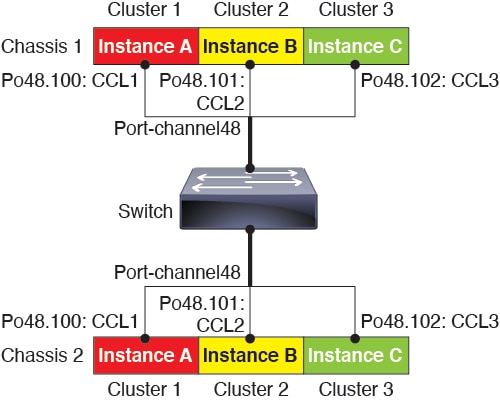
    Management Network

    You must manage each node using the Management interface; management from a data interface is not supported with clustering.

    Licenses for Threat Defense Virtual Clustering

    Each threat defense virtual cluster node requires the same performance tier license. We recommend using the same number of CPUs and memory for all members, or else peformance will be limited on all nodes to match the least capable member. The throughput level will be replicated from the control node to each data node so they match.

    You assign feature licenses to the cluster as a whole, not to individual nodes. However, each node of the cluster consumes a separate license for each feature. The clustering feature itself does not require any licenses.

    When you add the control node to the management center, you can specify the feature licenses you want to use for the cluster. Before you create the cluster, it doesn't matter which licenses are assigned to the data nodes; the license settings for the control node are replicated to each of the data nodes. You can modify licenses for the cluster in the Devices > Device Management > Cluster > License area.


    Note


    If you add the cluster before the management center is licensed (and running in Evaluation mode), then when you license the management center, you can experience traffic disruption when you deploy policy changes to the cluster. Changing to licensed mode causes all data units to leave the cluster and then rejoin.


    Requirements and Prerequisites for Threat Defense Virtual Clustering

    Model Requirements

    • FTDv5, FTDv10, FTDv20, FTDv30, FTDv50, FTDv100

    • VMware or KVM

    • A maximum of four nodes in a cluster on two hosts in a 2x2 deployment configuration. We recommend you to deploy a maximum of two threat defense virtual on each of the two hosts (2x2), which results in a cluster of four nodes.

    User Roles

    • Admin

    • Access Admin

    • Network Admin

    Hardware and Software Requirements

    All units in a cluster:

    • Must have jumbo frame reservation enabled for the cluster control link. You can enable jumbo frame reservation in the Day 0 configuration when you deploy the threat defense virtual by setting "DeploymentType": "Cluster". Otherwise, you will need to restart each node to enable jumbo frames after the cluster has formed and is healthy.

    • For KVM, must use CPU hard partitioning (CPU pinning).

    • Must be the same performance tier. We recommend using the same number of CPUs and memory for all nodes, or else peformance will be limited on all nodes to match the least capable node.

    • The management center access must be from the Management interface; data interface management is not supported.

    • Must run the identical software except at the time of an image upgrade. Hitless upgrade is supported.

    • Must be in the same domain.

    • Must be in the same group.

    • Must not have any deployment pending or in progress.

    • The control node must not have any unsupported features configured (see Unsupported Features and Clustering).

    • Data nodes must not have any VPN configured. The control node can have site-to-site VPN configured.

    Management Center Requirements

    • Make sure the management center NTP server is set to a reliable server that is reachable by all cluster nodes. By default, the threat defense virtual uses the same NTP server as the management center. If the time is not set to be the same on all cluster nodes, then they can be removed from the cluster.

    Switch Requirements

    • Be sure to complete the switch configuration before you configure clustering. Make sure the ports connected to the cluster control link have the correct (higher) MTU configured. By default, the cluster control link MTU is set to 154 bytes higher than the data interfaces. If the switches have an MTU mismatch, the cluster formation will fail.

    Guidelines for Threat Defense Virtual Clustering

    High Availability

    High Availability is not supported with clustering.

    IPv6

    The cluster control link is only supported using IPv4.

    Additional Guidelines

    • When significant topology changes occur (such as adding or removing an EtherChannel interface, enabling or disabling an interface on the threat defense or the switch, adding an additional switch to form a VSS or vPC) you should disable the health check feature and also disable interface monitoring for the disabled interfaces. When the topology change is complete, and the configuration change is synced to all units, you can re-enable the interface health check feature.

    • When adding a unit to an existing cluster, or when reloading a unit, there will be a temporary, limited packet/connection drop; this is expected behavior. In some cases, the dropped packets can hang your connection; for example, dropping a FIN/ACK packet for an FTP connection will make the FTP client hang. In this case, you need to reestablish the FTP connection.

    • For decrypted TLS/SSL connections, the decryption states are not synchronized, and if the connection owner fails, then decrypted connections will be reset. New connections will need to be established to a new unit. Connections that are not decrypted (they match a do-not-decrypt rule) are not affected and are replicated correctly.

    • We do not support VXLANs for data interfaces; only the cluster control link supports VXLAN.

    Defaults for Clustering

    • The cLACP system ID is auto-generated, and the system priority is 1 by default.

    • The cluster health check feature is enabled by default with the holdtime of 3 seconds. Interface health monitoring is enabled on all interfaces by default.

    • The cluster auto-rejoin feature for a failed cluster control link is unlimited attempts every 5 minutes.

    • The cluster auto-rejoin feature for a failed data interface is 3 attempts every 5 minutes, with the increasing interval set to 2.

    • Connection replication delay of 5 seconds is enabled by default for HTTP traffic.

    Configure Threat Defense Virtual Clustering

    To configure clustering after you deploy your threat defense virtuals, perform the following tasks.

    Add Devices to the Management Center

    Before configuring clustering, deploy each cluster node, then add the devices as standalone units on the management center.

    Procedure


    Step 1

    Deploy each cluster node according the Cisco Secure Firewall Threat Defense Virtual Getting Started Guide.

    All units in a cluster:

    • Must have jumbo frame reservation enabled for the cluster control link. You can enable jumbo frame reservation in the Day 0 configuration when you deploy the threat defense virtual by setting "DeploymentType": "Cluster". Otherwise, you will need to restart each node to enable jumbo frames after the cluster has formed and is healthy.

    • For KVM, must use CPU hard partitioning (CPU pinning).

    Step 2

    Add each node to the management center as a standalone device in the same domain and group.

    You can create a cluster with a single device, and then add more nodes later. The initial settings (licensing, access control policy) that you set when you add a device will be inherited by all cluster nodes from the control node. You will choose the control node when forming the cluster.


    Create a Cluster

    Form a cluster from one or more devices in the management center.

    Before you begin

    Some features are not compatible with clustering, so you should wait to perform configuration until after you enable clustering. Some features will block cluster creation if they are already configured. For example, do not configure any IP addresses on interfaces, or unsupported interface types such as BVIs.

    Procedure


    Step 1

    Choose Devices > Device Management, and then choose Add > Add Cluster.

    The Add Cluster Wizard appears.

    Figure 70. Add Cluster Wizard
    Add Cluster Wizard

    Step 2

    Specify a Cluster Name and an authentication Cluster Key for control traffic.

    • Cluster Name—An ASCII string from 1 to 38 characters.

    • Cluster Key—An ASCII string from 1 to 63 characters. The Cluster Key value is used to generate the encryption key. This encryption does not affect datapath traffic, including connection state update and forwarded packets, which are always sent in the clear.

    Step 3

    For the Control Node, set the following:

    • Node—Choose the device that you want to be the control node initially. When the management center forms the cluster, it will add this node to the cluster first so it will be the control node.

      Note


      If you see an Error (error icon) icon next to the node name, click the icon to view configuration issues. You must cancel cluster formation, resolve the issues, and then return to cluster formation. For example:

      Figure 71. Configuration Issues
      Configuration Issues

      To resolve the above issues, remove the unsupported VPN license and deploy pending configuration changes to the device.

    • VXLAN Network Identifier (VNI) Network—Specify an IPv4 subnet for the VNI network; IPv6 is not supported for this network. Specify a 24, 25, 26, or 27 subnet. An IP address will be auto-assigned to each node on this network. The VNI network is the encrypted virtual network that runs on top of the physical VTEP network.

    • Cluster Control Link—Choose the physical interface you want to use for the cluster control link.

    • Virtual Tunnel Endpoint (VTEP) Network—Specify an IPv4 subnet for the physical interface network; IPv6 is not supported for this network. The VTEP network is a different network than the VNI network, and it is used for the physical cluster control link.

    • VTEP IPv4 Address—This field will be auto-populated with the first address on the VTEP network.

    • Priority—Set the priority of this node for control node elections. The priority is between 1 and 100, where 1 is the highest priority. Even if you set the priority to be lower than other nodes, this node will still be the control node when the cluster is first formed.

    Step 4

    For Data Nodes (Optional), click Add a data node to add a node to the cluster.

    You can form the cluster with only the control node for faster cluster formation, or you can add all nodes now. Set the following for each data node:

    • Node—Choose the device that you want to add.

      Note


      If you see an Error (error icon) icon next to the node name, click the icon to view configuration issues. You must cancel cluster formation, resolve the issues, and then return to cluster formation.

    • VTEP IPv4 Address—This field will be auto-populated with the next address on the VTEP network.

    • Priority—Set the priority of this node for control node elections. The priority is between 1 and 100, where 1 is the highest priority.

    Step 5

    Click Continue. Review the Summary, and then click Save.

    The cluster bootstrap configuration is saved to the cluster nodes. The bootstrap configuration includes the VXLAN interface used for the cluster control link.

    The cluster name shows on the Devices > Device Management page; expand the cluster to see the cluster nodes.

    Figure 72. Cluster Management
    Cluster Management

    A node that is currently registering shows the loading icon.

    Figure 73. Node Registration
    Node Registration
    You can monitor cluster node registration by clicking the Notifications icon and choosing Tasks. The management center updates the Cluster Registration task as each node registers.

    Step 6

    Configure device-specific settings by clicking the Edit (edit icon) for the cluster.

    Most configuration can be applied to the cluster as a whole, and not nodes in the cluster. For example, you can change the display name per node, but you can only configure interfaces for the whole cluster.

    Step 7

    On the Devices > Device Management > Cluster screen, you see General and other settings for the cluster.

    Figure 74. Cluster Settings
    Cluster Settings
    See the following cluster-specific items in the General area:
    • General > Name—Change the cluster display name by clicking the Edit (edit icon).

      Then set the Name field.

    • General > View—Click the View link to open the Cluster Status dialog box.

      The Cluster Status dialog box also lets you retry data unit registration by clicking Reconcile All.

    Step 8

    On the Devices > Device Management > Devices, you can choose each member in the cluster from the top right drop-down menu and configure the following settings.

    Figure 75. Device Settings
    Device Settings
    Figure 76. Choose Node
    Choose Node
    • General > Name—Change the cluster member display name by clicking the Edit (edit icon).

      Then set the Name field.

    • Management > Host—If you change the management IP address in the device configuration, you must match the new address in the management center so that it can reach the device on the network. First disable the connection, edit the Host address in the Management area, then re-enable the connection.

    Step 9

    If you deployed your cluster nodes without enabling jumbo-frame reservation, then restart all cluster nodes to enable jumbo frames, which are required for the cluster control link. See Shut Down or Restart the Device.

    If you previously enabled jumbo-frame reservation, you can skip this step.

    Because the cluster control link traffic includes data packet forwarding, the cluster control link needs to accommodate the entire size of a data packet plus cluster traffic overhead (100 bytes) and VXLAN overhead (54 bytes). When you create the cluster, the MTU is set to 154 bytes higher than the highest data interface MTU (1654 by default). If you later increase the data interface MTU, be sure to also increase the cluster control link MTU. For example, because the maximum MTU is 9198 bytes, then the highest data interface MTU can be 9044, while the cluster control link can be set to 9198. See Configure the MTU.

    Note


    Make sure you configure switches connected to the cluster control link to the correct (higher) MTU; otherwise, cluster formation will fail.


    Configure Interfaces

    This section describes how to configure interfaces to be Individual interfaces compatible with clustering. Individual interfaces are normal routed interfaces, each with their own IP address taken from a pool of IP addresses. The Main cluster IP address is a fixed address for the cluster that always belongs to the current control node. All data interfaces must be Individual interfaces.

    For the Diagnostic interface, you can configure an IP address pool or you can use DHCP; only the Diagnostic interface supports getting an address from DHCP. To use DHCP, do not use this procedure; instead configure it as usual (see Configure Routed Mode Interfaces).


    Note


    You cannot use subinterfaces.


    Procedure


    Step 1

    Choose Objects > Object Management > Address Pools to add an IPv4 and/or IPv6 address pool. See Address Pools.

    Include at least as many addresses as there are units in the cluster. The Virtual IP address is not a part of this pool, but needs to be on the same network. You cannot determine the exact Local address assigned to each unit in advance.

    Step 2

    Choose Devices > Device Management, and click Edit (edit icon) next to the cluster.

    Step 3

    Click Interfaces, and then click Edit (edit icon) for a data interface.

    Step 4

    On the IPv4, enter the IP Address and mask. This IP address is a fixed address for the cluster, and always belongs to the current control unit.

    Step 5

    From the IPv4 Address Pool drop-down list, choose the address pool you created.

    Note


    If you want to manually assign a MAC address to this interface, you need to create a mac-address pool using FlexConfig.

    Step 6

    On IPv6 > Basic, from the IPv6 Address Pool drop-down list, choose the address pool you created.

    Step 7

    Configure other interface settings as normal.

    Step 8

    Click Save.

    You can now go to Deploy > Deployment and deploy the policy to assigned devices. The changes are not active until you deploy them.


    Configure Cluster Health Monitor Settings

    The Cluster Health Monitor Settings section of the Cluster page displays the settings described in the table below.

    Figure 77. Cluster Health Monitor Settings
    Cluster Health Monitor Settings
    Table 13. Cluster Health Monitor Settings Section Table Fields

    Field

    Description

    Timeouts

    Hold Time

    To determine node system health, the cluster nodes send heartbeat messages on the cluster control link to other nodes. If a node does not receive any heartbeat messages from a peer node within the hold time period, the peer node is considered unresponsive or dead.

    Interface Debounce Time

    The interface debounce time is the amount of time before the node considers an interface to be failed, and the node is removed from the cluster.

    Monitored Interfaces

    The interface health check monitors for link failures. If all physical ports for a given logical interface fail on a particular node, but there are active ports under the same logical interface on other nodes, then the node is removed from the cluster. The amount of time before the node removes a member from the cluster depends on the type of interface and whether the node is an established node or is joining the cluster.

    Service Application

    Shows whether the Snort and disk-full processes are monitored.

    Unmonitored Interfaces

    Shows unmonitored interfaces.

    Auto-Rejoin Settings

    Cluster Interface

    Shows the auto-rejoin settings for a cluster control link failure.

    Data Interfaces

    Shows the auto-rejoin settings for a data interface failure.

    System

    Shows the auto-rejoin settings for internal errors. Internal failures include: application sync timeout; inconsistent application statuses; and so on.


    Note


    If you disable the system health check, fields that do not apply when the system health check is disabled will not show.


    You can these settings from this section.

    You can monitor any port-channel ID, single physical interface ID, as well as the Snort and disk-full processes. Health monitoring is not performed on VLAN subinterfaces or virtual interfaces such as VNIs or BVIs. You cannot configure monitoring for the cluster control link; it is always monitored.

    Procedure


    Step 1

    Choose Devices > Device Management

    Step 2

    Next to the cluster you want to modify, click Edit (edit icon)

    In a multidomain deployment, if you are not in a leaf domain, the system prompts you to switch.

    Step 3

    Click Cluster.

    Step 4

    In the Cluster Health Monitor Settings section, click Edit (edit icon)

    Step 5

    Disable the system health check by clicking the Health Check slider .

    Figure 78. Disable the System Health Check
    Disable the System Health Check

    When any topology changes occur (such as adding or removing a data interface, enabling or disabling an interface on the node or the switch, or adding an additional switch to form a VSS or vPC) you should disable the system health check feature and also disable interface monitoring for the disabled interfaces. When the topology change is complete, and the configuration change is synced to all nodes, you can re-enable the system health check feature and monitored interfaces.

    Step 6

    Configure the hold time and interface debounce time.

    • Hold Time—Set the hold time to determine the amount of time between node heartbeat status messages, between .3 and 45 seconds; The default is 3 seconds.

    • Interface Debounce Time—Set the debounce time between 300 and 9000 ms. The default is 500 ms. Lower values allow for faster detection of interface failures. Note that configuring a lower debounce time increases the chances of false-positives. When an interface status update occurs, the node waits the number of milliseconds specified before marking the interface as failed, and the node is removed from the cluster. In the case of an EtherChannel that transitions from a down state to an up state (for example, the switch reloaded, or the switch enabled an EtherChannel), a longer debounce time can prevent the interface from appearing to be failed on a cluster node just because another cluster node was faster at bundling the ports.

    Step 7

    Customize the auto-rejoin cluster settings after a health check failure.

    Figure 79. Configure Auto-Rejoin Settings
    Configure Auto-Rejoin Settings
    Set the following values for the Cluster Interface, Data Interface, and System (internal failures include: application sync timeout; inconsistent application statuses; and so on):
    • Attempts—Sets the number of rejoin attempts, between -1 and 65535. 0 disables auto-rejoining. The default for the Cluster Interface is -1 (unlimited). The default for the Data Interface and System is 3.

    • Interval Between Attempts—Defines the interval duration in minutes between rejoin attempts, between 2 and 60. The default value is 5 minutes. The maximum total time that the node attempts to rejoin the cluster is limited to 14400 minutes (10 days) from the time of last failure.

    • Interval Variation—Defines if the interval duration increases. Set the value between 1 and 3: 1 (no change); 2 (2 x the previous duration), or 3 (3 x the previous duration). For example, if you set the interval duration to 5 minutes, and set the variation to 2, then the first attempt is after 5 minutes; the 2nd attempt is 10 minutes (2 x 5); the 3rd attempt 20 minutes (2 x 10), and so on. The default value is 1 for the Cluster Interface and 2 for the Data Interface and System.

    Step 8

    Configure monitored interfaces by moving interfaces in the Monitored Interfaces or Unmonitored Interfaces window. You can also check or uncheck Enable Service Application Monitoring to enable or disable monitoring of the Snort and disk-full processes.

    Figure 80. Configure Monitored Interfaces
    Configure Monitored Interfaces

    The interface health check monitors for link failures. If all physical ports for a given logical interface fail on a particular node, but there are active ports under the same logical interface on other nodes, then the node is removed from the cluster. The amount of time before the node removes a member from the cluster depends on the type of interface and whether the node is an established node or is joining the cluster. Health check is enabled by default for all interfaces and for the Snort and disk-full processes.

    You might want to disable health monitoring of non-essential interfaces, for example, the Diagnostic interface.

    When any topology changes occur (such as adding or removing a data interface, enabling or disabling an interface on the node or the switch, or adding an additional switch to form a VSS or vPC) you should disable the system health check feature and also disable interface monitoring for the disabled interfaces. When the topology change is complete, and the configuration change is synced to all nodes, you can re-enable the system health check feature and monitored interfaces.

    Step 9

    Click Save.

    Step 10

    Deploy configuration changes.


    Manage Cluster Nodes

    Add a New Cluster Node

    You can add one or more new cluster nodes to an existing cluster.

    Procedure


    Step 1

    Choose Devices > Device Management, click the More (more icon) for the cluster, and choose Add Nodes.

    Figure 81. Add Nodes
    Add Nodes

    The Manage Cluster Wizard appears.

    Step 2

    From the Node menu, choose a device, and adjust the IP address and priority if desired.

    Figure 82. Manage Cluster Wizard
    Manage Cluster Wizard

    Step 3

    To add additional nodes, click Add a data node.

    Step 4

    Click Continue. Review the Summary, and then click Save

    The node that is currently registering shows the loading icon.

    Figure 83. Node Registration
    Node Registration

    You can monitor cluster node registration by clicking the Notifications icon and choosing Tasks.


    Break a Node

    You can remove a node from the cluster so that it becomes a standalone device. You cannot break the control node unless you break the entire cluster. The data node has its configuration erased.

    Procedure


    Step 1

    Choose Devices > Device Management, click the More (more icon) for the node you want to break, and choose Break Node.

    Figure 84. Break a Node
    Break a Node

    You can optionally break one or more nodes from the cluster More menu by choosing Break Nodes.

    Step 2

    You are prompted to confirm the break; click Yes.

    Figure 85. Confirm Break
    Confirm Break

    You can monitor the cluster node break by clicking the Notifications icon and choosing Tasks.


    Break the Cluster

    You can break the cluster and convert all nodes to standalone devices. The control node retains the interface and security policy configuration, while data nodes have their configuration erased.

    Procedure


    Step 1

    Make sure all cluster nodes are being managed by the management center by reconciling nodes. See Reconcile Cluster Nodes.

    Step 2

    Choose Devices > Device Management, click the More (more icon) for the cluster, and choose Break Cluster.

    Figure 86. Break Cluster
    Break Cluster

    Step 3

    You are prompted to break the cluster; click Yes.

    Figure 87. Confirm Break
    Confirm Break

    You can monitor the cluster break by clicking the Notifications icon and choosing Tasks.


    Disable Clustering

    You may want to deactivate a node in preparation for deleting the node, or temporarily for maintenance. This procedure is meant to temporarily deactivate a node; the node will still appear in the management center device list. When a node becomes inactive, all data interfaces are shut down.

    Procedure


    Step 1

    For the unit you want to disable, choose Devices > Device Management, click the More (more icon), and choose Disable Node Clustering.

    Figure 88. Disable Clustering
    Disable Clustering

    If you disable clustering on the control node, one of the data nodes will become the new control node. Note that for centralized features, if you force a control node change, then all connections are dropped, and you have to re-establish the connections on the new control node. You cannot disable clustering on the control node if it is the only node in the cluster.

    Step 2

    Confirm that you want to disable clustering on the node.

    The node will show (Disabled) next to its name in the Devices > Device Management list.

    Step 3

    To reenable clustering, see Rejoin the Cluster.


    Rejoin the Cluster

    If a node was removed from the cluster, for example for a failed interface or if you manually disabled clustering, you must manually rejoin the cluster. Make sure the failure is resolved before you try to rejoin the cluster.

    Procedure


    Step 1

    For the unit you want to reactivate, choose Devices > Device Management, click the More (more icon), and choose Enable Node Clustering.

    Step 2

    Confirm that you want to enable clustering on the node.


    Change the Control Node


    Caution


    The best method to change the control node is to disable clustering on the control node, wait for a new control election, and then re-enable clustering. If you must specify the exact unit you want to become the control node, use the procedure in this section. Note that for centralized features, if you force a control node change using either method, then all connections are dropped, and you have to re-establish the connections on the new control node.


    To change the control node, perform the following steps.

    Procedure


    Step 1

    Open the Cluster Status dialog box by choosing Devices > Device Management > More (more icon) > Cluster Live Status.

    Figure 89. Cluster Status
    Cluster Status

    Step 2

    For the unit you want to become the control unit, choose More (more icon) > Change Role to Control.

    Step 3

    You are prompted to confirm the role change. Check the checkbox, and click OK.


    Edit the Cluster Configuration

    You can edit the cluster configuration. If you change any values other than the VTEP IP address for a node or node priority, the cluster will be broken and reformed automatically. Until the cluster is reformed, you may experience traffic disruption. If you change the VTEP IP address for a node or node priority, only the affected nodes are broken and readded to the cluster.

    Procedure


    Step 1

    Choose Devices > Device Management, click the More (more icon) for the cluster, and choose Edit Configuration.

    Figure 90. Edit Configuration
    Edit Configuration

    The Manage Cluster Wizard appears.

    Step 2

    Update the cluster configuration.

    Figure 91. Manage Cluster Wizard
    Manage Cluster Wizard

    Step 3

    Click Continue. Review the Summary, and then click Save


    Reconcile Cluster Nodes

    If a cluster node fails to register, you can reconcile the cluster membership from the device to the management center. For example, a data node might fail to register if the management center is occupied with certain processes, or if there is a network issue.

    Procedure


    Step 1

    Choose Devices > Device Management > More (more icon) for the cluster, and then choose Cluster Live Status to open the Cluster Status dialog box.

    Figure 92. Cluster Live Status
    Cluster Live Status

    Step 2

    Click Reconcile All.

    Figure 93. Reconcile All
    Reconcile All

    For more information about the cluster status, see Monitoring the Cluster.


    Delete the Cluster or Nodes from the Management Center

    You can delete the cluster from the CDO, which keeps the cluster intact. You might want to delete the cluster if you want to add the cluster to a new CDO.

    You can also delete a node from the CDO without breaking the node from the cluster. Although the node is not visible in the CDO, it is still part of the cluster, and it will continue to pass traffic and could even become the control node. You cannot delete the current control node. You might want to delete the node if it is no longer reachable from the CDO, but you still want to keep it as part of the cluster.

    Procedure


    Step 1

    Log into CDO and click Inventory.

    Step 2

    Click the FTD tab and locate the cluster you want. Select it so the device row is highlighted.

    Step 3

    Do the following:

    • To delete a node within the cluster, in the Cluster pane to the right, click the delete icon appearing beside the device you want to delete.

    • To delete the cluster, in the Device Actions pane to the right, click Remove.

    Step 4

    When prompted, select OK to confirm the removal of the selected device.


    Monitoring the Cluster

    You can monitor the cluster in the management center and at the threat defense CLI.

    • Cluster Status dialog box, which is available from the Devices > Device Management > More (more icon) icon or from the Devices > Device Management > Cluster page > General area > Cluster Live Status link.

      Figure 94. Cluster Status
      Cluster Status

      The Control node has a graphic indicator identifying its role.

      Cluster member Status includes the following states:

      • In Sync.—The node is registered with the management center.

      • Pending Registration—The node is part of the cluster, but has not yet registered with the management center. If a node fails to register, you can retry registration by clicking Reconcile All.

      • Clustering is disabled—The node is registered with the management center, but is an inactive member of the cluster. The clustering configuration remains intact if you intend to later re-enable it, or you can delete the node from the cluster.

      • Joining cluster...—The node is joining the cluster on the chassis, but has not completed joining. After it joins, it will register with the management center.

      For each node, you can view the Summary or the History.

      Figure 95. Node Summary
      Node Summary
      Figure 96. Node History
      Node History
    • System (system gear icon) > Tasks page.

      The Tasks page shows updates of the Cluster Registration task as each node registers.

    • Devices > Device Management > cluster_name.

      When you expand the cluster on the devices listing page, you can see all member nodes, including the control node shown with its role next to the IP address. For nodes that are still registering, you can see the loading icon.

    • show cluster {access-list [acl_name] | conn [count] | cpu [usage] | history | interface-mode | memory | resource usage | service-policy | traffic | xlate count}

      To view aggregated data for the entire cluster or other information, use the show cluster command.

    • show cluster info [auto-join | clients | conn-distribution | flow-mobility counters | goid [options] | health | incompatible-config | loadbalance | old-members | packet-distribution | trace [options] | transport { asp | cp}]

      To view cluster information, use the show cluster info command.

    Cluster Health Monitor Dashboard

    Cluster Health Monitor

    When a threat defense is the control node of a cluster, the management center collects various metrics periodically from the device metric data collector. The cluster health monitor is comprised of the following components:

    • Overview dashboard―Displays information about the cluster topology, cluster statistics, and metric charts:

      • The topology section displays a cluster's live status, the health of individual threat defense, threat defense node type (control node or data node), and the status of the device. The status of the device could be Disabled (when the device leaves the cluster), Added out of box (in a public cloud cluster, the additional nodes that do not belong to the management center), or Normal (ideal state of the node).

      • The cluster statistics section displays current metrics of the cluster with respect to the CPU usage, memory usage, input rate, output rate, active connections, and NAT translations.


        Note


        The CPU and memory metrics display the individual average of the data plane and snort usage.


      • The metric charts, namely, CPU Usage, Memory Usage, Throughput, and Connections, diagrammatically display the statistics of the cluster over the specified time period.

    • Load Distribution dashboard―Displays load distribution across the cluster nodes in two widgets:

      • The Distribution widget displays the average packet and connection distribution over the time range across the cluster nodes. This data depicts how the load is being distributed by the nodes. Using this widget, you can easily identify any abnormalities in the load distribution and rectify it.

      • The Node Statistics widget displays the node level metrics in table format. It displays metric data on CPU usage, memory usage, input rate, output rate, active connections, and NAT translations across the cluster nodes. This table view enables you to correlate data and easily identify any discrepancies.

    • Member Performance dashboard―Displays current metrics of the cluster nodes. You can use the selector to filter the nodes and view the details of a specific node. The metric data include CPU usage, memory usage, input rate, output rate, active connections, and NAT translations.

    • CCL dashboard―Displays, graphically, the cluster control link data namely, the input, and output rate.

    • Troubleshooting and Links ― Provides convenient links to frequently used troubleshooting topics and procedures.

    • Time range―An adjustable time window to constrain the information that appears in the various cluster metrics dashboards and widgets.

    • Custom Dashboard―Displays data on both cluster-wide metrics and node-level metrics. However, node selection only applies for the threat defense metrics and not for the entire cluster to which the node belongs.

    Viewing Cluster Health

    You must be an Admin, Maintenance, or Security Analyst user to perform this procedure.

    The cluster health monitor provides a detailed view of the health status of a cluster and its nodes. This cluster health monitor provides health status and trends of the cluster in an array of dashboards.

    Before you begin
    • Ensure you have created a cluster from one or more devices in the management center.

    Procedure

    Step 1

    Choose System (system gear icon) > Health > Monitor.

    Use the Monitoring navigation pane to access node-specific health monitors.

    Step 2

    In the device list, click Expand (expand icon) and Collapse (collapse icon) to expand and collapse the list of managed cluster devices.

    Step 3

    To view the cluster health statistics, click on the cluster name. The cluster monitor reports health and performance metrics in several predefined dashboards by default. The metrics dashboards include:

    • Overview ― Highlights key metrics from the other predefined dashboards, including its nodes, CPU, memory, input and output rates, connection statistics, and NAT translation information.

    • Load Distribution ― Traffic and packet distribution across the cluster nodes.

    • Member Performance ― Node-level statistics on CPU usage, memory usage, input throughput, output throughput, active connection, and NAT translation.

    • CCL ― Interface status and aggregate traffic statistics.

    You can navigate through the various metrics dashboards by clicking on the labels. For a comprehensive list of the supported cluster metrics, see Cisco Secure Firewall Threat Defense Health Metrics.

    Step 4

    You can configure the time range from the drop-down in the upper-right corner. The time range can reflect a period as short as the last hour (the default) or as long as two weeks. Select Custom from the drop-down to configure a custom start and end date.

    Click the refresh icon to set auto refresh to 5 minutes or to toggle off auto refresh.

    Step 5

    Click on deployment icon for a deployment overlay on the trend graph, with respect to the selected time range.

    The deployment icon indicates the number of deployments during the selected time-range. A vertical band indicates the deployment start and end time. For multiple deployments, multiple bands/lines appear. Click on the icon on top of the dotted line to view the deployment details.

    Step 6

    (For node-specific health monitor) View the Health Alerts for the node in the alert notification at the top of page, directly to the right of the device name.

    Hover your pointer over the Health Alerts to view the health summary of the node. The popup window shows a truncated summary of the top five health alerts. Click on the popup to open a detailed view of the health alert summary.

    Step 7

    (For node-specific health monitor) The device monitor reports health and performance metrics in several predefined dashboards by default. The metrics dashboards include:

    • Overview ― Highlights key metrics from the other predefined dashboards, including CPU, memory, interfaces, connection statistics; plus disk usage and critical process information.

    • CPU ― CPU utilization, including the CPU usage by process and by physical cores.

    • Memory ― Device memory utilization, including data plane and Snort memory usage.

    • Interfaces ― Interface status and aggregate traffic statistics.

    • Connections ― Connection statistics (such as elephant flows, active connections, peak connections, and so on) and NAT translation counts.

    • Snort ― Statistics that are related to the Snort process.

    • ASP drops ― Statistics related to the dropped packets against various reasons.

    You can navigate through the various metrics dashboards by clicking on the labels. See Cisco Secure Firewall Threat Defense Health Metrics for a comprehensive list of the supported device metrics.

    Step 8

    Click the plus sign (+) in the upper right corner of the health monitor to create a custom dashboard by building your own variable set from the available metric groups.

    For cluster-wide dashboard, choose Cluster metric group, and then choose the metric.


    Cluster Metrics

    The cluster health monitor tracks statistics that are related to a cluster and its nodes, and aggregate of load distribution, performance, and CCL traffic statistics.

    Table 14. Cluster Metrics

    Metric

    Description

    Format

    CPU

    Average of CPU metrics on the nodes of a cluster (individually for data plane and snort).

    percentage

    Memory

    Average of memory metrics on the nodes of a cluster (individually for data plane and snort).

    percentage

    Data Throughput

    Incoming and outgoing data traffic statistics for a cluster.

    bytes

    CCL Throughput

    Incoming and outgoing CCL traffic statistics for a cluster.

    bytes

    Connections

    Count of active connections in a cluster.

    number

    NAT Translations

    Count of NAT translations for a cluster.

    number

    Distribution

    Connection distribution count in the cluster for every second.

    number

    Packets

    Packet distribution count in the cluster for every second.

    number

    Reference for Clustering

    This section includes more information about how clustering operates.

    Threat Defense Features and Clustering

    Some threat defense features are not supported with clustering, and some are only supported on the control unit. Other features might have caveats for proper usage.

    Unsupported Features and Clustering

    These features cannot be configured with clustering enabled, and the commands will be rejected.


    Note


    To view FlexConfig features that are also not supported with clustering, for example WCCP inspection, see the ASA general operations configuration guide. FlexConfig lets you configure many ASA features that are not present in the management center GUI. See FlexConfig Policies.


    • Remote access VPN (SSL VPN and IPsec VPN)

    • DHCP client, server, and proxy. DHCP relay is supported.

    • Virtual Tunnel Interfaces (VTIs)

    • High Availability

    • Integrated Routing and Bridging

    • Management Center UCAPL/CC mode

    Centralized Features for Clustering

    The following features are only supported on the control node, and are not scaled for the cluster.


    Note


    Traffic for centralized features is forwarded from member nodes to the control node over the cluster control link.

    If you use the rebalancing feature, traffic for centralized features may be rebalanced to non-control nodes before the traffic is classified as a centralized feature; if this occurs, the traffic is then sent back to the control node.

    For centralized features, if the control node fails, all connections are dropped, and you have to re-establish the connections on the new control node.


    Note


    To view FlexConfig features that are also centralized with clustering, for example RADIUS inspection, see the ASA general operations configuration guide. FlexConfig lets you configure many ASA features that are not present in the management center GUI. See FlexConfig Policies.


    • The following application inspections:

      • DCERPC

      • ESMTP

      • NetBIOS

      • PPTP

      • RSH

      • SQLNET

      • SUNRPC

      • TFTP

      • XDMCP

    • Static route monitoring

    Connection Settings and Clustering

    Connection limits are enforced cluster-wide. Each node has an estimate of the cluster-wide counter values based on broadcast messages. Due to efficiency considerations, the configured connection limit across the cluster might not be enforced exactly at the limit number. Each node may overestimate or underestimate the cluster-wide counter value at any given time. However, the information will get updated over time in a load-balanced cluster.

    Dynamic Routing and Clustering

    In Individual interface mode, each node runs the routing protocol as a standalone router, and routes are learned by each node independently.

    Figure 97. Dynamic Routing in Individual Interface Mode
    Dynamic Routing in Individual Interface Mode

    In the above diagram, Router A learns that there are 4 equal-cost paths to Router B, each through a node. ECMP is used to load balance traffic between the 4 paths. Each node picks a different router ID when talking to external routers.

    You must configure a cluster pool for the router ID so that each node has a separate router ID.

    FTP and Clustering

    • If FTP data channel and control channel flows are owned by different cluster members, then the data channel owner will periodically send idle timeout updates to the control channel owner and update the idle timeout value. However, if the control flow owner is reloaded, and the control flow is re-hosted, the parent/child flow relationship will not longer be maintained; the control flow idle timeout will not be updated.

    NAT and Clustering

    NAT can affect the overall throughput of the cluster. Inbound and outbound NAT packets can be sent to different threat defenses in the cluster, because the load balancing algorithm relies on IP addresses and ports, and NAT causes inbound and outbound packets to have different IP addresses and/or ports. When a packet arrives at the threat defense that is not the NAT owner, it is forwarded over the cluster control link to the owner, causing large amounts of traffic on the cluster control link. Note that the receiving node does not create a forwarding flow to the owner, because the NAT owner may not end up creating a connection for the packet depending on the results of security and policy checks.

    If you still want to use NAT in clustering, then consider the following guidelines:

    • No Proxy ARP—For Individual interfaces, a proxy ARP reply is never sent for mapped addresses. This prevents the adjacent router from maintaining a peer relationship with an ASA that may no longer be in the cluster. The upstream router needs a static route or PBR with Object Tracking for the mapped addresses that points to the Main cluster IP address.

    • No interface PAT on an Individual interface—Interface PAT is not supported for Individual interfaces.

    • PAT with Port Block Allocation—See the following guidelines for this feature:

      • Maximum-per-host limit is not a cluster-wide limit, and is enforced on each node individually. Thus, in a 3-node cluster with the maximum-per-host limit configured as 1, if the traffic from a host is load-balanced across all 3 nodes, then it can get allocated 3 blocks with 1 in each node.

      • Port blocks created on the backup node from the backup pools are not accounted for when enforcing the maximum-per-host limit.

      • On-the-fly PAT rule modifications, where the PAT pool is modified with a completely new range of IP addresses, will result in xlate backup creation failures for the xlate backup requests that were still in transit while the new pool became effective. This behavior is not specific to the port block allocation feature, and is a transient PAT pool issue seen only in cluster deployments where the pool is distributed and traffic is load-balanced across the cluster nodes.

      • When operating in a cluster, you cannot simply change the block allocation size. The new size is effective only after you reload each device in the cluster. To avoid having to reload each device, we recommend that you delete all block allocation rules and clear all xlates related to those rules. You can then change the block size and recreate the block allocation rules.

    • NAT pool address distribution for dynamic PAT—When you configure a PAT pool, the cluster divides each IP address in the pool into port blocks. By default, each block is 512 ports, but if you configure port block allocation rules, your block setting is used instead. These blocks are distributed evenly among the nodes in the cluster, so that each node has one or more blocks for each IP address in the PAT pool. Thus, you could have as few as one IP address in a PAT pool for a cluster, if that is sufficient for the number of PAT’ed connections you expect. Port blocks cover the 1024-65535 port range, unless you configure the option to include the reserved ports, 1-1023, on the PAT pool NAT rule.

    • Reusing a PAT pool in multiple rules—To use the same PAT pool in multiple rules, you must be careful about the interface selection in the rules. You must either use specific interfaces in all rules, or "any" in all rules. You cannot mix specific interfaces and "any" across the rules, or the system might not be able to match return traffic to the right node in the cluster. Using unique PAT pools per rule is the most reliable option.

    • No round-robin—Round-robin for a PAT pool is not supported with clustering.

    • No extended PAT—Extended PAT is not supported with clustering.

    • Dynamic NAT xlates managed by the control node—The control node maintains and replicates the xlate table to data nodes. When a data node receives a connection that requires dynamic NAT, and the xlate is not in the table, it requests the xlate from the control node. The data node owns the connection.

    • Stale xlates—The xlate idle time on the connection owner does not get updated. Thus, the idle time might exceed the idle timeout. An idle timer value higher than the configured timeout with a refcnt of 0 is an indication of a stale xlate.

    • No static PAT for the following inspections—

      • FTP

      • RSH

      • SQLNET

      • TFTP

      • XDMCP

      • SIP

    • If you have an extremely large number of NAT rules, over ten thousand, you should enable the transactional commit model using the asp rule-engine transactional-commit nat command in the device CLI. Otherwise, the node might not be able to join the cluster.

    SIP Inspection and Clustering

    A control flow can be created on any node (due to load balancing); its child data flows must reside on the same node.

    SNMP and Clustering

    An SNMP agent polls each individual threat defense by its Diagnostic interface Local IP address. You cannot poll consolidated data for the cluster.

    You should always use the Local address, and not the Main cluster IP address for SNMP polling. If the SNMP agent polls the Main cluster IP address, if a new control node is elected, the poll to the new control node will fail.

    When using SNMPv3 with clustering, if you add a new cluster node after the initial cluster formation, then SNMPv3 users are not replicated to the new node. You must remove the users, and re-add them, and then redeploy your configuration to force the users to replicate to the new node.

    Syslog and Clustering

    • Each node in the cluster generates its own syslog messages. You can configure logging so that each node uses either the same or a different device ID in the syslog message header field. For example, the hostname configuration is replicated and shared by all nodes in the cluster. If you configure logging to use the hostname as the device ID, syslog messages generated by all nodes look as if they come from a single node. If you configure logging to use the local-node name that is assigned in the cluster bootstrap configuration as the device ID, syslog messages look as if they come from different nodes.

    Cisco Trustsec and Clustering

    Only the control node learns security group tag (SGT) information. The control node then populates the SGT to data nodes, and data nodes can make a match decision for SGT based on the security policy.

    VPN and Clustering

    VPN functionality is limited to the control node and does not take advantage of the cluster high availability capabilities. If the control node fails, all existing VPN connections are lost, and VPN users will see a disruption in service. When a new control node is elected, you must reestablish the VPN connections.

    For connections to an Individual interface when using PBR or ECMP, you must always connect to the Main cluster IP address, not a Local address.

    VPN-related keys and certificates are replicated to all nodes.


    Note


    Remote access VPN is not supported with clustering.


    Performance Scaling Factor

    When you combine multiple units into a cluster, you can expect the total cluster performance to be approximately 80% of the maximum combined throughput.

    For example, if your model can handle approximately 10 Gbps of traffic when running alone, then for a cluster of 8 units, the maximum combined throughput will be approximately 80% of 80 Gbps (8 units x 10 Gbps): 64 Gbps.

    Control Node Election

    Nodes of the cluster communicate over the cluster control link to elect a control node as follows:

    1. When you enable clustering for a node (or when it first starts up with clustering already enabled), it broadcasts an election request every 3 seconds.

    2. Any other nodes with a higher priority respond to the election request; the priority is set between 1 and 100, where 1 is the highest priority.

    3. If after 45 seconds, a node does not receive a response from another node with a higher priority, then it becomes the control node.


      Note


      If multiple nodes tie for the highest priority, the cluster node name and then the serial number is used to determine the control node.


    4. If a node later joins the cluster with a higher priority, it does not automatically become the control node; the existing control node always remains as the control node unless it stops responding, at which point a new control node is elected.

    5. In a "split brain" scenario when there are temporarily multiple control nodes, then the node with highest priority retains the role while the other nodes return to data node roles.


    Note


    You can manually force a node to become the control node. For centralized features, if you force a control node change, then all connections are dropped, and you have to re-establish the connections on the new control node.


    High Availability within the Cluster

    Clustering provides high availability by monitoring node and interface health and by replicating connection states between nodes.

    Node Health Monitoring

    Each node periodically sends a broadcast heartbeat packet over the cluster control link. If the control node does not receive any heartbeat packets or other packets from a data node within the configurable timeout period, then the control node removes the data node from the cluster. If the data nodes do not receive packets from the control node, then a new control node is elected from the remaining nodes.

    If nodes cannot reach each other over the cluster control link because of a network failure and not because a node has actually failed, then the cluster may go into a "split brain" scenario where isolated data nodes will elect their own control nodes. For example, if a router fails between two cluster locations, then the original control node at location 1 will remove the location 2 data nodes from the cluster. Meanwhile, the nodes at location 2 will elect their own control node and form their own cluster. Note that asymmetric traffic may fail in this scenario. After the cluster control link is restored, then the control node that has the higher priority will keep the control node’s role.

    Interface Monitoring

    Each node monitors the link status of all named hardware interfaces in use, and reports status changes to the control node.

    All physical interfaces are monitored; only named interfaces can be monitored. You can optionally disable monitoring per interface.

    A node is removed from the cluster if its monitored interfaces fail. The node is removed after 500 ms.

    Status After Failure

    When a node in the cluster fails, the connections hosted by that node are seamlessly transferred to other nodes; state information for traffic flows is shared over the control node's cluster control link.

    If the control node fails, then another member of the cluster with the highest priority (lowest number) becomes the control node.

    The threat defense automatically tries to rejoin the cluster, depending on the failure event.


    Note


    When the threat defense becomes inactive and fails to automatically rejoin the cluster, all data interfaces are shut down; only the Management/Diagnostic interface can send and receive traffic.


    Rejoining the Cluster

    After a cluster member is removed from the cluster, how it can rejoin the cluster depends on why it was removed:

    • Failed cluster control link when initially joining—After you resolve the problem with the cluster control link, you must manually rejoin the cluster by re-enabling clustering.

    • Failed cluster control link after joining the cluster—The threat defense automatically tries to rejoin every 5 minutes, indefinitely.

    • Failed data interface—The threat defense automatically tries to rejoin at 5 minutes, then at 10 minutes, and finally at 20 minutes. If the join is not successful after 20 minutes, then the threat defense application disables clustering. After you resolve the problem with the data interface, you have to manually enable clustering.

    • Failed node—If the node was removed from the cluster because of a node health check failure, then rejoining the cluster depends on the source of the failure. For example, a temporary power failure means the node will rejoin the cluster when it starts up again as long as the cluster control link is up. The threat defense application attempts to rejoin the cluster every 5 seconds.

    • Internal error—Internal failures include: application sync timeout; inconsistent application statuses; and so on.

    • Failed configuration deployment—If you deploy a new configuration from management center, and the deployment fails on some cluster members but succeeds on others, then the nodes that failed are removed from the cluster. You must manually rejoin the cluster by re-enabling clustering. If the deployment fails on the control node, then the deployment is rolled back, and no members are removed. If the deployment fails on all data nodes, then the deployment is rolled back, and no members are removed.

    Data Path Connection State Replication

    Every connection has one owner and at least one backup owner in the cluster. The backup owner does not take over the connection in the event of a failure; instead, it stores TCP/UDP state information, so that the connection can be seamlessly transferred to a new owner in case of a failure. The backup owner is usually also the director.

    Some traffic requires state information above the TCP or UDP layer. See the following table for clustering support or lack of support for this kind of traffic.

    Table 15. Features Replicated Across the Cluster

    Traffic

    State Support

    Notes

    Up time

    Yes

    Keeps track of the system up time.

    ARP Table

    Yes

    MAC address table

    Yes

    User Identity

    Yes

    IPv6 Neighbor database

    Yes

    Dynamic routing

    Yes

    SNMP Engine ID

    No

    How the Cluster Manages Connections

    Connections can be load-balanced to multiple nodes of the cluster. Connection roles determine how connections are handled in both normal operation and in a high availability situation.

    Connection Roles

    See the following roles defined for each connection:

    • Owner—Usually, the node that initially receives the connection. The owner maintains the TCP state and processes packets. A connection has only one owner. If the original owner fails, then when new nodes receive packets from the connection, the director chooses a new owner from those nodes.

    • Backup owner—The node that stores TCP/UDP state information received from the owner, so that the connection can be seamlessly transferred to a new owner in case of a failure. The backup owner does not take over the connection in the event of a failure. If the owner becomes unavailable, then the first node to receive packets from the connection (based on load balancing) contacts the backup owner for the relevant state information so it can become the new owner.

      As long as the director (see below) is not the same node as the owner, then the director is also the backup owner. If the owner chooses itself as the director, then a separate backup owner is chosen.

      For clustering on the Firepower 9300, which can include up to 3 cluster nodes in one chassis, if the backup owner is on the same chassis as the owner, then an additional backup owner will be chosen from another chassis to protect flows from a chassis failure.

    • Director—The node that handles owner lookup requests from forwarders. When the owner receives a new connection, it chooses a director based on a hash of the source/destination IP address and ports (see below for ICMP hash details), and sends a message to the director to register the new connection. If packets arrive at any node other than the owner, the node queries the director about which node is the owner so it can forward the packets. A connection has only one director. If a director fails, the owner chooses a new director.

      As long as the director is not the same node as the owner, then the director is also the backup owner (see above). If the owner chooses itself as the director, then a separate backup owner is chosen.

      ICMP/ICMPv6 hash details:

      • For Echo packets, the source port is the ICMP identifier, and the destination port is 0.

      • For Reply packets, the source port is 0, and the destination port is the ICMP identifier.

      • For other packets, both source and destination ports are 0.

    • Forwarder—A node that forwards packets to the owner. If a forwarder receives a packet for a connection it does not own, it queries the director for the owner, and then establishes a flow to the owner for any other packets it receives for this connection. The director can also be a forwarder. Note that if a forwarder receives the SYN-ACK packet, it can derive the owner directly from a SYN cookie in the packet, so it does not need to query the director. (If you disable TCP sequence randomization, the SYN cookie is not used; a query to the director is required.) For short-lived flows such as DNS and ICMP, instead of querying, the forwarder immediately sends the packet to the director, which then sends them to the owner. A connection can have multiple forwarders; the most efficient throughput is achieved by a good load-balancing method where there are no forwarders and all packets of a connection are received by the owner.


      Note


      We do not recommend disabling TCP sequence randomization when using clustering. There is a small chance that some TCP sessions won't be established, because the SYN/ACK packet might be dropped.


    • Fragment Owner—For fragmented packets, cluster nodes that receive a fragment determine a fragment owner using a hash of the fragment source IP address, destination IP address, and the packet ID. All fragments are then forwarded to the fragment owner over the cluster control link. Fragments may be load-balanced to different cluster nodes, because only the first fragment includes the 5-tuple used in the switch load balance hash. Other fragments do not contain the source and destination ports and may be load-balanced to other cluster nodes. The fragment owner temporarily reassembles the packet so it can determine the director based on a hash of the source/destination IP address and ports. If it is a new connection, the fragment owner will register to be the connection owner. If it is an existing connection, the fragment owner forwards all fragments to the provided connection owner over the cluster control link. The connection owner will then reassemble all fragments.

    New Connection Ownership

    When a new connection is directed to a node of the cluster via load balancing, that node owns both directions of the connection. If any connection packets arrive at a different node, they are forwarded to the owner node over the cluster control link. If a reverse flow arrives at a different node, it is redirected back to the original node.

    Sample Data Flow for TCP

    The following example shows the establishment of a new connection.

    1. The SYN packet originates from the client and is delivered to one threat defense (based on the load balancing method), which becomes the owner. The owner creates a flow, encodes owner information into a SYN cookie, and forwards the packet to the server.

    2. The SYN-ACK packet originates from the server and is delivered to a different threat defense (based on the load balancing method). This threat defense is the forwarder.

    3. Because the forwarder does not own the connection, it decodes owner information from the SYN cookie, creates a forwarding flow to the owner, and forwards the SYN-ACK to the owner.

    4. The owner sends a state update to the director, and forwards the SYN-ACK to the client.

    5. The director receives the state update from the owner, creates a flow to the owner, and records the TCP state information as well as the owner. The director acts as the backup owner for the connection.

    6. Any subsequent packets delivered to the forwarder will be forwarded to the owner.

    7. If packets are delivered to any additional nodes, it will query the director for the owner and establish a flow.

    8. Any state change for the flow results in a state update from the owner to the director.

    Sample Data Flow for ICMP and UDP

    The following example shows the establishment of a new connection.

    1. Figure 98. ICMP and UDP Data Flow
      ICMP and UDP Data Flow
      The first UDP packet originates from the client and is delivered to one threat defense (based on the load balancing method).
    2. The node that received the first packet queries the director node that is chosen based on a hash of the source/destination IP address and ports.

    3. The director finds no existing flow, creates a director flow and forwards the packet back to the previous node. In other words, the director has elected an owner for this flow.

    4. The owner creates the flow, sends a state update to the director, and forwards the packet to the server.

    5. The second UDP packet originates from the server and is delivered to the forwarder.

    6. The forwarder queries the director for ownership information. For short-lived flows such as DNS, instead of querying, the forwarder immediately sends the packet to the director, which then sends it to the owner.

    7. The director replies to the forwarder with ownership information.

    8. The forwarder creates a forwarding flow to record owner information and forwards the packet to the owner.

    9. The owner forwards the packet to the client.

    History for Threat Defense Virtual Clustering in a Private Cloud

    Feature

    Version

    Details

    Cluster health monitor settings

    7.3

    You can now edit cluster health monitor settings.

    New/Modified screens: Devices > Device Management > Cluster > Cluster Health Monitor Settings

    Note


    If you previously configured these settings using FlexConfig, be sure to remove the FlexConfig configuration before you deploy. Otherwise the FlexConfig configuration will overwrite the management center configuration.

    Cluster health monitor dashboard

    7.3

    You can now view cluster health on the cluster health monitor dashboard.

    New/Modified screens: System (system gear icon) > Health > Monitor

    Clustering for the Threat Defense Virtual on VMware and KVM

    7.2

    The threat defense virtual supports Individual interface clustering for up to 4 nodes on VMware and KVM.

    New/Modified screens:

    • Devices > Device Management > Add Cluster

    • Devices > Device Management > More menu

    • Devices > Device Management > Cluster

    Supported platforms: Threat Defense Virtual on VMware and KVM