Introduction to the Secure Firewall ASA

The Secure Firewall ASA provides advanced stateful firewall and VPN concentrator functionality in one device. The ASA includes many advanced features, such as multiple security contexts (similar to virtualized firewalls), clustering (combining multiple firewalls into a single firewall), transparent (Layer 2) firewall or routed (Layer 3) firewall operation, advanced inspection engines, IPsec VPN, SSL VPN, and clientless SSL VPN support, and many more features.


Note


ASDM supports many ASA versions. The ASDM documentation and online help includes all of the latest features supported by the ASA. If you are running an older version of ASA software, the documentation might include features that are not supported in your version. Please refer to the feature history table for each chapter to determine when features were added. For the minimum supported version of ASDM for each ASA version, see Cisco ASA Compatibility. See also Special, Deprecated, and Legacy Services.


ASDM Requirements

ASDM Java Requirements

You can install ASDM using Oracle JDK 11 (asdm-version.bin) or OpenJRE 11 (asdm-openjre-version.bin). For the Oracle version, you will need to install Oracle JDK 11: https://www.oracle.com/java/technologies/javase/jdk11-archive-downloads.html. Later versions are not compatible. You will have to use Java 8 for earlier versions of ASDM. For the OpenJRE version, you do not need to install Java; it is built-in.

The Oracle version of ASDM is included in the ASA package; if you want to use the OpenJRE version, you will need to copy it to the ASA and configure the ASA to use that version of ASDM.


Note


ASDM is not supported on Linux.


Table 1. ASDM Operating System and Browser Requirements

Operating System

Browser

Oracle JDK

OpenJRE

Firefox

Safari

Chrome

Microsoft Windows (English and Japanese):

  • 11

  • 10

    Note


    See Windows 10 in ASDM Compatibility Notes if you have problems with the ASDM shortcut.

  • 8

  • 7

  • Server 2016 and Server 2019

  • Server 2012 R2

  • Server 2012

  • Server 2008

Yes

No support

Yes

11

11

Note


No support for Windows 7 or 10 32-bit

Apple OS X 10.4 and later

Yes

Yes

Yes (64-bit version only)

11

11

ASDM Compatibility Notes

The following table lists compatibility caveats for ASDM.

Conditions

Notes

ASDM Launcher compatibility with ASDM version

"Unable to Launch Device Manager" error message.

If you upgrade to a new ASDM version and then get this error, you may need to re-install the latest Launcher.

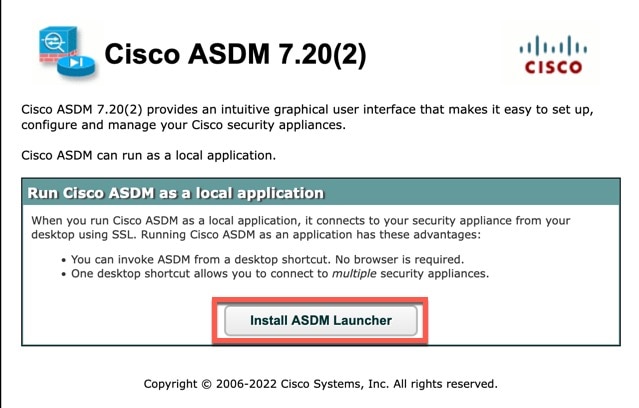
  1. Open the ASDM web page on the ASA: https://<asa_ip_address>.

  2. Click Install ASDM Launcher.

    Figure 1. Install ASDM Launcher
    Install ASDM Launcher
  3. Leave the username and password fields empty (for a new installation), and click OK.

    With no HTTPS authentication configured, you can gain access to ASDM with no username and the enable password, which is blank by default. When you enter the enable command at the CLI for the first time, you are prompted to change the password; this behavior is not enforced when you log into ASDM. We suggest that you change the enable password as soon as possible so that it does not remain blank. Note: If you enabled HTTPS authentication, enter your username and associated password. Even without authentication, if you enter a username and password at the login screen (instead of leaving the username blank), ASDM checks the local database for a match.

Self-signed certificate not valid due to a time and date mismatch with ASA

ASDM validates the self-signed SSL certificate, and if the ASA's date is not within the certificate's Issued On and Expires On date, ASDM will not launch. If there is a time and date mismatch, you will see the following error:
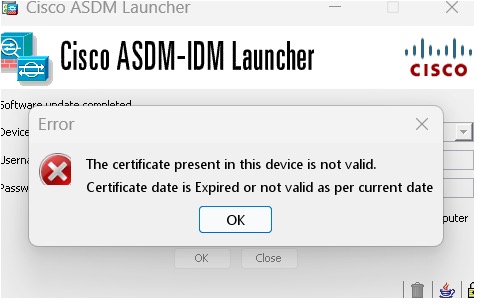
Figure 2. Certificate Not Valid
Certificate Not Valid

To fix the issue: Set the correct time on the ASA and reload.

To check the certificate dates, (example shown is Chrome):
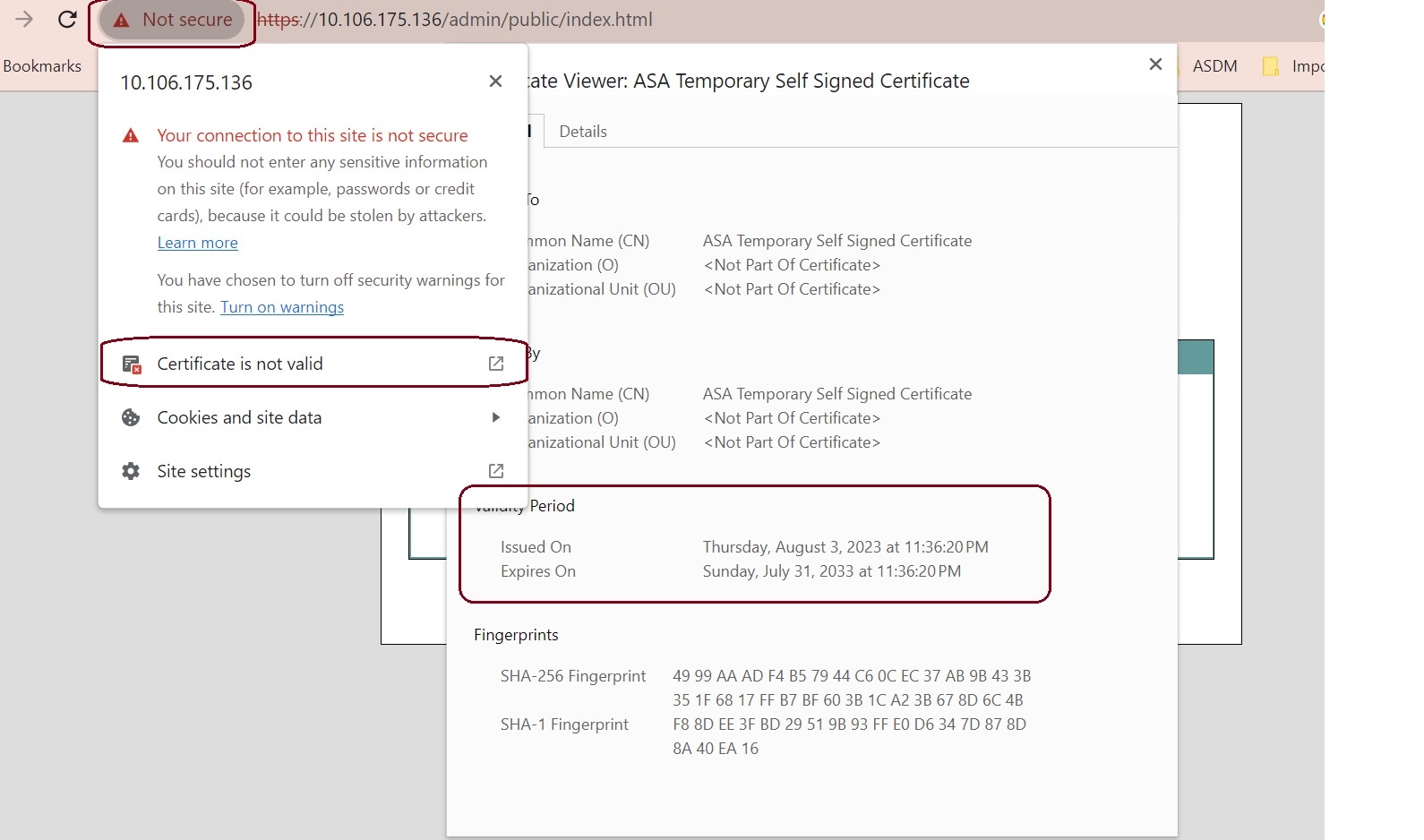
  1. Go to https://device_ip.

  2. Click the Not secure text in the menu bar.

  3. Click Certificate is not valid to open the Certificate Viewer.

  4. Check the Validity Period.

Figure 3. Certificate Viewer
Certificate Viewer

Windows Active Directory directory access

In some cases, Active Directory settings for Windows users may restrict access to program file locations needed to successfully launch ASDM on Windows. Access is needed to the following directories:

  • Desktop folder

  • C:\Windows\System32C:\Users\<username>\.asdm

  • C:\Program Files (x86)\Cisco Systems

If your Active Directory is restricting directory access, you need to request access from your Active Directory administrator.

Windows 10

"This app can't run on your PC" error message.

When you install the ASDM Launcher, Windows 10 might replace the ASDM shortcut target with the Windows Scripting Host path, which causes this error. To fix the shortcut target:

  1. Choose Start > Cisco ASDM-IDM Launcher, and right-click the Cisco ASDM-IDM Launcher application.

  2. Choose More > Open file location.

    Windows opens the directory with the shortcut icon.

  3. Right click the shortcut icon, and choose Properties.

  4. Change the Target to:

    C:\Windows\System32\wscript.exe invisible.vbs run.bat

  5. Click OK.

OS X

On OS X, you may be prompted to install Java the first time you run ASDM; follow the prompts as necessary. ASDM will launch after the installation completes.

OS X 10.8 and later

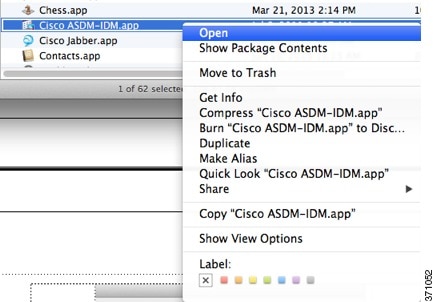
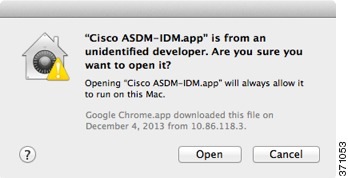
You need to allow ASDM to run because it is not signed with an Apple Developer ID. If you do not change your security preferences, you see an error screen.
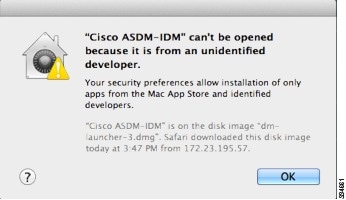
  1. To allow ASDM to run, right-click (or Ctrl-Click) the Cisco ASDM-IDM Launcher icon, and choose Open.

  2. You see a similar error screen; however, you can open ASDM from this screen. Click Open. The ASDM-IDM Launcher opens.

(ASA 5500 and ISA 3000) Requires Strong Encryption license (3DES/AES) on ASA

Note


Smart licensing models allow access with ASDM without the Strong Encryption license.

ASDM requires an SSL connection to the ASA. You can request a 3DES PAK license from Cisco:

  1. Go to https://www.cisco.com/go/license.

  2. Under Traditional Licenses, click Access LRP.

  3. Click Get Licenses and then choose IPS, Crypto, Other... from the drop-down list.

  4. Type ASA in to the Search by Keyword field.

  5. Select Cisco ASA 3DES/AES License in the Product list, and click Next.

  6. Enter the serial number of the ASA, and follow the prompts to request a 3DES/AES license for the ASA.

  • Self-signed certificate or an untrusted certificate

  • IPv6

  • Firefox and Safari

When the ASA uses a self-signed certificate or an untrusted certificate, Firefox and Safari are unable to add security exceptions when browsing using HTTPS over IPv6. See https://bugzilla.mozilla.org/show_bug.cgi?id=633001. This caveat affects all SSL connections originating from Firefox or Safari to the ASA (including ASDM connections). To avoid this caveat, configure a proper certificate for the ASA that is issued by a trusted certificate authority.

  • SSL encryption on the ASA must include both RC4-MD5 and RC4-SHA1 or disable SSL false start in Chrome.

  • Chrome

If you change the SSL encryption on the ASA to exclude both RC4-MD5 and RC4-SHA1 algorithms (these algorithms are enabled by default), then Chrome cannot launch ASDM due to the Chrome “SSL false start” feature. We suggest re-enabling one of these algorithms (see the Configuration > Device Management > Advanced > SSL Settings pane); or you can disable SSL false start in Chrome using the --disable-ssl-false-start flag according to Run Chromium with flags.

Hardware and Software Compatibility

For a complete list of supported hardware and software, see Cisco ASA Compatibility.

New Features

This section lists new features for each release.


Note


New, changed, and deprecated syslog messages are listed in the syslog message guide.


New Features in ASA 9.24(1)/ASDM 7.24(1)

Released: December 3, 2025

Feature

Description

Platform Features

Secure Firewall 220

The Secure Firewall 220 is an affordable security appliance for branch offices and remote locations, balancing cost and features.

Secure Firewall 6160, 6170

The Secure Firewall 6160 and 6170 are ultra-high-end firewalls for demanding data center and telecom networks. It has exceptional price-to-performance, modular capability, and high throughput.

ASA VirtualGrub bootloader upgraded with UEFI firmware and secure boot.

With the Grub bootloader upgrade from Grub 0.94 to Grub 2.12, we now support UEFI firmware with or without secure boot functionality, along with legacy BIOS mode. Secure boot functionality gives boot-level malware protection. New deployments also use GPT-partitioned images instead of MS-DOS-partitioned disks. If you upgrade, you cannot change to UEFI and secure boot; only new deployments can use the new options.

Note


After upgrading to 9.24, you cannot downgrade to an earlier version. To upgrade to later versions, you must first upgrade to 9.24.

ASA Virtual AWS dual-arm clustering

In dual-arm mode, after inspection, the ASA Virtual will NAT and forward outbound traffic from its outside interface directly to the internet via the Internet Gateway. Since outbound traffic is directly forwarded to the internet after inspection without making a round trip through the GWLB and the GWLB endpoint, the number of traffic hops is reduced by 2. This reduction is especially useful in providing a common egress path for a multi-VPC deployment.For dual-arm deployments, only egress traffic is supported.

ASA Virtual GCP clustering with autoscale

GCP clustering with autoscale is now supported for ASAv30, ASAv50, and ASAv100.

ASA VirtualOCI Ampere A1 ARM compute shape support

New shapes for OCI.

Note


For ASA Virtual on OCI, Arm instances may experience reduced throughput on legacy hypervisors (especially with SR-IOV enabled)—See https://docs.oracle.com/en-us/iaas/Content/Compute/known-issues.htm for more information. Contact OCI for support.

ASA VirtualKVM flow offload

Flow offload is now supported on the DPU for KVM.

ASA Virtual Nutanix support for AOS 6.8

Nutanix AOS 6.8 supports VPCs, similar toVPCs in public clouds.

ASA Virtual OpenStack support for Caracal

ASA Virtual deployment is supported on the Caracal release of OpenStack.

ASA Virtual MANA NIC Support

ASA Virtual supports MANA NIC hardware on Microsoft Azure for the following instances:

  • Standard_D8s_v5

  • Standard_D16s_v5

Firewall Features

Application Visibility and Control for the Secure Firewall 6100

Application Visibility and Control (AVC) makes it possible for you to write access control rules based on applications rather than just IP addresses and ports. AVC downloads the Vulnerability Database (VDB), which creates network-service objects and groups that you can use in access control rules. The objects define various applications, and the groups define application categories, so you can easily block applications or entire classes of connections without specifying IP address and port.

We introduced the following screens: Configuration > Firewall > Advanced > Enable AVC, Monitoring > Properties > AVC > Status, Monitoring > Properties > AVC > Top N, Monitoring > Properties > AVC > App Category, Monitoring > Properties > AVC > Allowed/Blocked Applications, Monitoring > Properties > Service Policy, Monitoring > Properties > Network Object > Object Group Network Service

Supported platforms: Secure Firewall 6100

High Availability and Scalability Features

No reboot required for changing the VPN mode

When changing the VPN mode between distributed and centralized, a reboot is no longer required. However, you now need to disable clustering on all nodes before changing the mode.

Data nodes can join the cluster concurrently

Formerly, the control node only allowed one data node to join the cluster at a time. If the configuration sync takes a long time, data nodes can take a long time to join. Concurrent join is enabled by default. If you have NAT and VPN distributed mode enabled, you cannot use concurrent join.

Added/modified screens:

  • Configuration > Device Management > High Availablility and Scalability > ASA Cluster

  • Monitoring > ASA Cluster > ASA Cluster Concurrent Join

MTU ping test on cluster node join provides more information by trying smaller MTUs

When a node joins the cluster, it checks MTU compatibility by sending a ping to the control node with a packet size matching the cluster control link MTU. If the ping fails, it tries the MTU divided by 2 and keeps dividing by 2 until an MTU ping is successful. A notification is generated so you can fix the MTU to a working value and try again. We recommend increasing the switch MTU size to the recommended value, but if you can't change the switch configuration, a working value for the cluster control link will let you form the cluster.

Added/modified screens: Monitoring > > ASA Cluster > Cluster Summary

Improved cluster control link health check with high CPU

When a cluster node CPU usage is high, the health check will be suspended, and the node will not be marked as unhealthy. You can configure at what CPU use threshold to suspend the health check.

Added/modified screens: Configuration > Device Management > High Availablility and Scalability > ASA Cluster

Clustering on the Secure Firewall 6100

You can cluster up to 4 Secure Firewall 4200 nodes in Spanned EtherChannel or Individual interface mode.

Block depletion monitoring in clustering

When block depletion occurs, the ASA collects troubleshooting logs and sends out a syslog. For clustering, the node will leave the cluster so the other nodes can handle the traffic. The ASA can also force a crash and reload to recover from depletion.

Dynamic PAT support for distributed site-to-site VPN mode

Distributed mode now supports dynamic PAT. However, interface PAT is still not supported.

Interface Features

Recursive DNS Server (RDNSS) and DNS Search List (DNSSL) options to advertise a list of DNS servers and domains to IPv6 clients

You can now configure Recursive DNS Server (RDNSS) and DNS Search List (DNSSL) options to provide DNS servers and domains to SLAAC clients using router advertisements.

New/modified screens:

Configuration > Device Setup > Interface Settings > Interfaces > Add Interface > IPv6

Administrative, Monitoring, and Troubleshooting Features

SSH X.509 certificate authentication

You can now use an X.509v3 certificate to authenticate a user for SSH (RFC 6187).

Note


This feature is not supported on the Firepower 4100/9300.

New/Modified screens:

  • Configuration > Device Management > Users/AAA > AAA Access > Authorization

  • Configuration > Device Management > Certificate Management > CA Certificates > Add/Edit Trustpoint > Advanced

  • Configuration > Device Management > Management Access > ASDM/HTTPS/Telnet/SSH

Also in 9.20(4).

AES-256-GCM SSH cipher

The ASA supports the AES-256-GCM cipher for SSH. It is enabled by default for all and high encryption levels.

New/Modified screens: Configuration > Device Management > Advanced > SSH Ciphers

Also in 9.20(4).

Linux kernel crash dump

The Linux kernel crash dump feature lets you debug kernel crash events and find the root cause. This feature is enabled by default.

New/Modified commands: show kernel crash-dump , kernel crash-dump , crashinfoforce kernel-dump

Root Shell Access Support Using Consent Token on ASA Virtual

ASA Virtual supports a new Consent Token mechanism that allows authorized users to obtain one-time access to the Linux root shell for troubleshooting or diagnostic purposes — without requiring the administrator password.

New/Modified commands: consent-token generate-challenge shell-access , consent-token accept-response shell-access

ASDM Features

ASDM 7.24 now requires Java 11

ASDM 7.24 now requires Java 11. For the Oracle version, which is the version bundled with the ASA image, you will need to install Oracle JDK 11: https://www.oracle.com/java/technologies/javase/jdk11-archive-downloads.html. Later versions are not compatible. To minimize risk and ensure better compatibility and stability with Java, we are taking a phased approach to moving off of Java 8, starting with this move to Java 11. If you upgrade to the ASDM Launcher 1.9(10) or later that comes with 7.24, you can still launch earlier versions of ASDM.

For the OpenJRE version, you do not need to install Java; it is built-in.

ASDM certificate authentication

ASDM Launcher 1.9(10), which comes with ASDM 7.24, now supports user certificate authentication. Previously, this feature was only supported with Java Web Start (discontinued in 7.18). Because the ASA commands were not deprecated in 9.18, you can configure earlier ASA versions to use certificate authentication when using any ASDM version with ASDM Launcher 1.9(10).

New/Modified screens:

  • ASDM Launcher login window.

  • Configuration > Device Management > Management Access > ASDM/HTTPS/Telnet/SSH

  • Configuration > Site-to-Site VPN > Advanced > IPSec > Certificate to Connection Map > Rules

  • Configuration > Device Management > Management Access > HTTP Certificate Rule

ASDM FIPS compliance

By default, ASDM starts in non-FIPS mode. To enable FIPS mode:

  • Windows—In the FIPS.conf file, change the fips_mode value to true. The FIPS.conf file is located in the installation directory of the ASDM Launcher.

  • MacOS—In the FIPS.plist file, change the fipsMode value to true. The FIPS.plist file is located in the Contents folder of the dm-launcher.

FIPS mode is only supported with ASDM 7.24 and later.

Note


It can take longer than three minutes to start the ASDM Launcher in FIPS mode due to a reverse DNS lookup failure. This delay occurs when your DNS server does not return a valid PTR record for a reverse DNS lookup, so ASDM falls back to the NetBIOS Name Service, which can add several minutes to the startup time.

New/Modified screens: ASDM Launcher login window.

New authentication method for the Upgrade Software from Cisco.com Wizard

The Cisco.com Authentication dialog box was replaced by the Cisco.com Device Activation dialog box using a newer authentication method for Cisco.com.

New/Modified screens: Tools > Check for ASA/ASDM Updates

VPN Features

SGT over VTI

VTI tunnels now support Cisco TrustSec SGT tags.

New/Modified screens:

  • Configuration > Device Setup > Interface Settings > Interfaces > VTI/DVTI Interface > Advanced > Secure Group Tagging

  • Configuration > Site-to-Site VPN > Network (client) Access > Advanced > IPsec > IKE Parameters > Secure Group Tagging

ECMP and BFD fault detection support for VTIs

One or more dynamic VTI interfaces can be part of an Equal-Cost Multi-Path (ECMP) zone. Using zones, traffic towards the spoke can be load-balanced. Bidirectional Forwarding Detection (BFD) link detection is faster, detecting faulty VTI links in few milliseconds or microseconds.

New/Modified commands: bfd template , vtemplate-bfd , vtemplate-zone-member , show zone , show conn all , show route

New/Modified screens for ECMP. There is no ASDM support for BFD on VTIs.

  • Configuration > Site-to-Site VPN > Advanced > Tunnel Group > Add > Dynamic VTI >

  • Configuration > Site-to-Site VPN > Connection Profiles > Advanced > Tunnel Group > Add > Dynamic VTI >

Loopback interface support for distributed site-to-site VPN

You can now create site-to-site VPN tunnels using loopback interfaces in distributed site-to-site mode. Unlike outside addresses that are tied to a location network, the loopback interfaces are not. This independence means you can move the address to another cluster and use routing protocols to propagate the new location to the upstream routers. The peer’s traffic would then be sent to the new location.

IPsec flow offload and DTLS crypto accelerator for the Secure Firewall 6100

Secure Firewall 6100 supports AES-GCM-128 and AES-GCM-256 ciphers only.

IPsec flow offload for the ASA Virtual on KVM

IPsec flow offload is now supported on the DPU for KVM.

Firewall Functional Overview

Firewalls protect inside networks from unauthorized access by users on an outside network. A firewall can also protect inside networks from each other, for example, by keeping a human resources network separate from a user network. If you have network resources that need to be available to an outside user, such as a web or FTP server, you can place these resources on a separate network behind the firewall, called a demilitarized zone (DMZ). The firewall allows limited access to the DMZ, but because the DMZ only includes the public servers, an attack there only affects the servers and does not affect the other inside networks. You can also control when inside users access outside networks (for example, access to the Internet), by allowing only certain addresses out, by requiring authentication or authorization, or by coordinating with an external URL filtering server.

When discussing networks connected to a firewall, the outside network is in front of the firewall, the inside network is protected and behind the firewall, and a DMZ, while behind the firewall, allows limited access to outside users. Because the ASA lets you configure many interfaces with varied security policies, including many inside interfaces, many DMZs, and even many outside interfaces if desired, these terms are used in a general sense only.

Security Policy Overview

A security policy determines which traffic is allowed to pass through the firewall to access another network. By default, the ASA allows traffic to flow freely from an inside network (higher security level) to an outside network (lower security level). You can apply actions to traffic to customize the security policy.

Permitting or Denying Traffic with Access Rules

You can apply access rules to limit traffic from inside to outside, or allow traffic from outside to inside. For bridge group interfaces, you can also apply an EtherType access rule to allow non-IP traffic.

Applying NAT

Some of the benefits of NAT include the following:

  • You can use private addresses on your inside networks. Private addresses are not routable on the Internet.

  • NAT hides the local addresses from other networks, so attackers cannot learn the real address of a host.

  • NAT can resolve IP routing problems by supporting overlapping IP addresses.

Protecting from IP Fragments

The ASA provides IP fragment protection. This feature performs full reassembly of all ICMP error messages and virtual reassembly of the remaining IP fragments that are routed through the ASA. Fragments that fail the security check are dropped and logged. Virtual reassembly cannot be disabled.

Applying HTTP, HTTPS, or FTP Filtering

Although you can use access lists to prevent outbound access to specific websites or FTP servers, configuring and managing web usage this way is not practical because of the size and dynamic nature of the Internet.

You can configure Cloud Web Security on the ASA. You can also use the ASA in conjunction with an external product such as the Cisco Web Security Appliance (WSA).

Applying Application Inspection

Inspection engines are required for services that embed IP addressing information in the user data packet or that open secondary channels on dynamically assigned ports. These protocols require the ASA to do a deep packet inspection.

Applying QoS Policies

Some network traffic, such as voice and streaming video, cannot tolerate long latency times. QoS is a network feature that lets you give priority to these types of traffic. QoS refers to the capability of a network to provide better service to selected network traffic.

Applying Connection Limits and TCP Normalization

You can limit TCP and UDP connections and embryonic connections. Limiting the number of connections and embryonic connections protects you from a DoS attack. The ASA uses the embryonic limit to trigger TCP Intercept, which protects inside systems from a DoS attack perpetrated by flooding an interface with TCP SYN packets. An embryonic connection is a connection request that has not finished the necessary handshake between source and destination.

TCP normalization is a feature consisting of advanced TCP connection settings designed to drop packets that do not appear normal.

Enabling Threat Detection

You can configure scanning threat detection and basic threat detection, and also how to use statistics to analyze threats.

Basic threat detection detects activity that might be related to an attack, such as a DoS attack, and automatically sends a system log message.

A typical scanning attack consists of a host that tests the accessibility of every IP address in a subnet (by scanning through many hosts in the subnet or sweeping through many ports in a host or subnet). The scanning threat detection feature determines when a host is performing a scan. Unlike IPS scan detection that is based on traffic signatures, the ASA scanning threat detection feature maintains an extensive database that contains host statistics that can be analyzed for scanning activity.

The host database tracks suspicious activity such as connections with no return activity, access of closed service ports, vulnerable TCP behaviors such as non-random IPID, and many more behaviors.

You can configure the ASA to send system log messages about an attacker or you can automatically shun the host.

Firewall Mode Overview

The ASA runs in two different firewall modes:

  • Routed

  • Transparent

In routed mode, the ASA is considered to be a router hop in the network.

In transparent mode, the ASA acts like a “bump in the wire,” or a “stealth firewall,” and is not considered a router hop. The ASA connects to the same network on its inside and outside interfaces in a "bridge group".

You might use a transparent firewall to simplify your network configuration. Transparent mode is also useful if you want the firewall to be invisible to attackers. You can also use a transparent firewall for traffic that would otherwise be blocked in routed mode. For example, a transparent firewall can allow multicast streams using an EtherType access list.

Routed mode supports Integrated Routing and Bridging, so you can also configure bridge groups in routed mode, and route between bridge groups and regular interfaces. In routed mode, you can replicate transparent mode functionality; if you do not need multiple context mode or clustering, you might consider using routed mode instead.

Stateful Inspection Overview

All traffic that goes through the ASA is inspected using the Adaptive Security Algorithm and either allowed through or dropped. A simple packet filter can check for the correct source address, destination address, and ports, but it does not check that the packet sequence or flags are correct. A filter also checks every packet against the filter, which can be a slow process.


Note


The TCP state bypass feature allows you to customize the packet flow.


A stateful firewall like the ASA, however, takes into consideration the state of a packet:

  • Is this a new connection?

    If it is a new connection, the ASA has to check the packet against access lists and perform other tasks to determine if the packet is allowed or denied. To perform this check, the first packet of the session goes through the “session management path,” and depending on the type of traffic, it might also pass through the “control plane path.”

    The session management path is responsible for the following tasks:

    • Performing the access list checks

    • Performing route lookups

    • Allocating NAT translations (xlates)

    • Establishing sessions in the “fast path”

    The ASA creates forward and reverse flows in the fast path for TCP traffic; the ASA also creates connection state information for connectionless protocols like UDP, ICMP (when you enable ICMP inspection), so that they can also use the fast path.


    Note


    For other IP protocols, like SCTP, the ASA does not create reverse path flows. As a result, ICMP error packets that refer to these connections are dropped.


    Some packets that require Layer 7 inspection (the packet payload must be inspected or altered) are passed on to the control plane path. Layer 7 inspection engines are required for protocols that have two or more channels: a data channel, which uses well-known port numbers, and a control channel, which uses different port numbers for each session. These protocols include FTP, H.323, and SNMP.

  • Is this an established connection?

    If the connection is already established, the ASA does not need to re-check packets; most matching packets can go through the “fast” path in both directions. The fast path is responsible for the following tasks:

    • IP checksum verification

    • Session lookup

    • TCP sequence number check

    • NAT translations based on existing sessions

    • Layer 3 and Layer 4 header adjustments

    Data packets for protocols that require Layer 7 inspection can also go through the fast path.

    Some established session packets must continue to go through the session management path or the control plane path. Packets that go through the session management path include HTTP packets that require inspection or content filtering. Packets that go through the control plane path include the control packets for protocols that require Layer 7 inspection.

VPN Functional Overview

A VPN is a secure connection across a TCP/IP network (such as the Internet) that appears as a private connection. This secure connection is called a tunnel. The ASA uses tunneling protocols to negotiate security parameters, create and manage tunnels, encapsulate packets, transmit or receive them through the tunnel, and unencapsulate them. The ASA functions as a bidirectional tunnel endpoint: it can receive plain packets, encapsulate them, and send them to the other end of the tunnel where they are unencapsulated and sent to their final destination. It can also receive encapsulated packets, unencapsulate them, and send them to their final destination. The ASA invokes various standard protocols to accomplish these functions.

The ASA performs the following functions:

  • Establishes tunnels

  • Negotiates tunnel parameters

  • Authenticates users

  • Assigns user addresses

  • Encrypts and decrypts data

  • Manages security keys

  • Manages data transfer across the tunnel

  • Manages data transfer inbound and outbound as a tunnel endpoint or router

The ASA invokes various standard protocols to accomplish these functions.

Security Context Overview

You can partition a single ASA into multiple virtual devices, known as security contexts. Each context is an independent device, with its own security policy, interfaces, and administrators. Multiple contexts are similar to having multiple standalone devices. Many features are supported in multiple context mode, including routing tables, firewall features, IPS, and management; however, some features are not supported. See the feature chapters for more information.

In multiple context mode, the ASA includes a configuration for each context that identifies the security policy, interfaces, and almost all the options you can configure on a standalone device. The system administrator adds and manages contexts by configuring them in the system configuration, which, like a single mode configuration, is the startup configuration. The system configuration identifies basic settings for the ASA. The system configuration does not include any network interfaces or network settings for itself; rather, when the system needs to access network resources (such as downloading the contexts from the server), it uses one of the contexts that is designated as the admin context.

The admin context is just like any other context, except that when a user logs into the admin context, then that user has system administrator rights and can access the system and all other contexts.

ASA Clustering Overview

ASA Clustering lets you group multiple ASAs together as a single logical device. A cluster provides all the convenience of a single device (management, integration into a network) while achieving the increased throughput and redundancy of multiple devices.

You perform all configuration (aside from the bootstrap configuration) on the control unit only; the configuration is then replicated to the member units.

Special, Deprecated, and Legacy Services

For some services, documentation is located outside of the main configuration guides and online help.

Special Services Guides

Special services allow the ASA to interoperate with other Cisco products; for example, by providing a security proxy for phone services (Unified Communications), or by providing Botnet traffic filtering in conjunction with the dynamic database from the Cisco update server, or by providing WCCP services for the Cisco Web Security Appliance. Some of these special services are covered in separate guides:

Deprecated Services

For deprecated features, see the configuration guide for your ASA version. Similarly, for redesigned features such as NAT between Version 8.2 and 8.3 or transparent mode interfaces between Version 8.3 and 8.4, refer to the configuration guide for your version. Although ASDM is backwards compatible with previous ASA releases, the configuration guide and online help only cover the latest release.

Legacy Services Guide

Legacy services are still supported on the ASA, however there may be better alternative services that you can use instead. Legacy services are covered in a separate guide:

Cisco ASA Legacy Feature Guide

This guide includes the following chapters:

  • Configuring RIP

  • AAA Rules for Network Access

  • Using Protection Tools, which includes Preventing IP Spoofing (ip verify reverse-path), Configuring the Fragment Size (fragment), Blocking Unwanted Connections (shun), Configuring TCP Options (for ASDM), and Configuring IP Audit for Basic IPS Support (ip audit).

  • Configuring Filtering Services