Install and upgrade Field Replaceable Units

The Cisco 8100 Series Secure Routers consist of Field-replaceable Units (FRUs) that can be quickly and easily removed and replaced if there is a need to do so. This section describes how to install the FRUs in the Cisco 8100 Series Secure Routers. The information is provided in the following sections:

Install a Pluggable Interface Module

Before you begin


Warning


Statement 1255—Laser Compliance Statement

Pluggable optical modules comply with IEC 60825-1 Ed. 3 and 21 CFR 1040.10 and 1040.11 with or without exception for conformance with IEC 60825-1 Ed. 3 as described in Laser Notice No. 56, dated May 8, 2019.


Procedure


Step 1

Insert and then gently push the Cellular pluggable into the pluggable slot of C8151-G2 or C8161-G2 until firmly fixed.

Example:
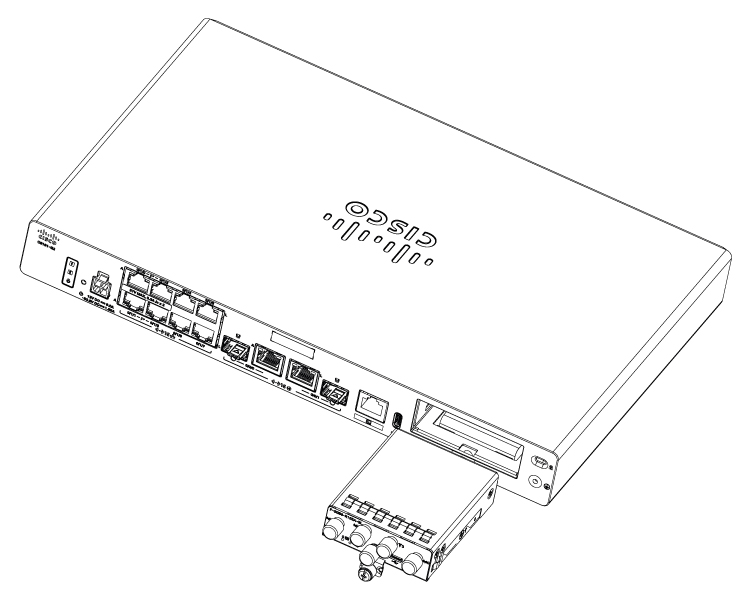
Figure 1. Pluggable Interface Module installation for C8151-G2 and C8161-G2

Step 2

Tighten the screw, the recommended torque is 10-12 in-lb.

Example:
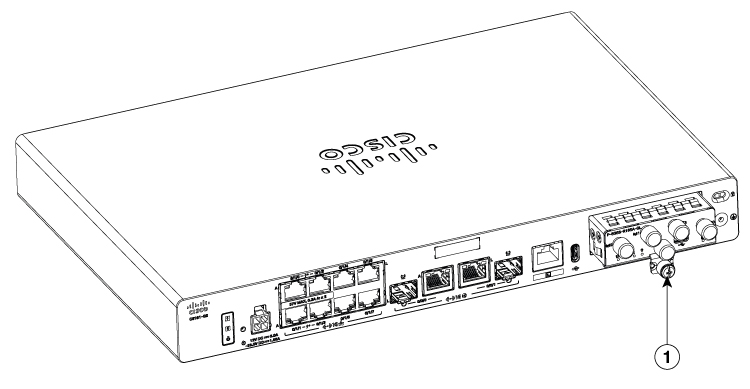
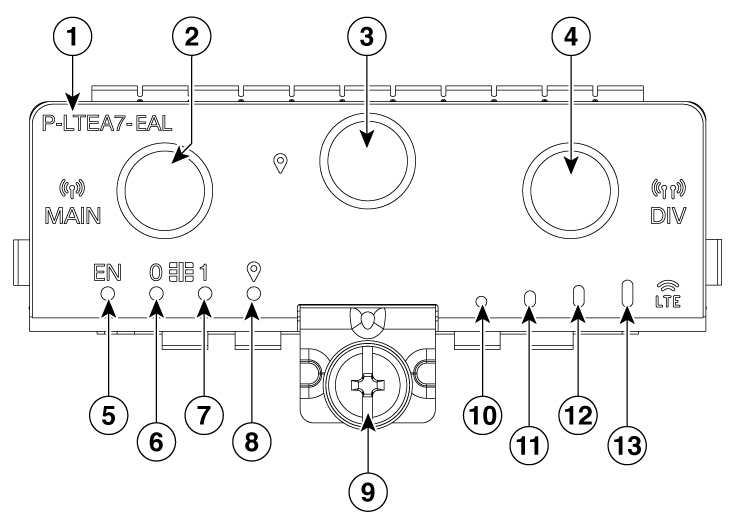
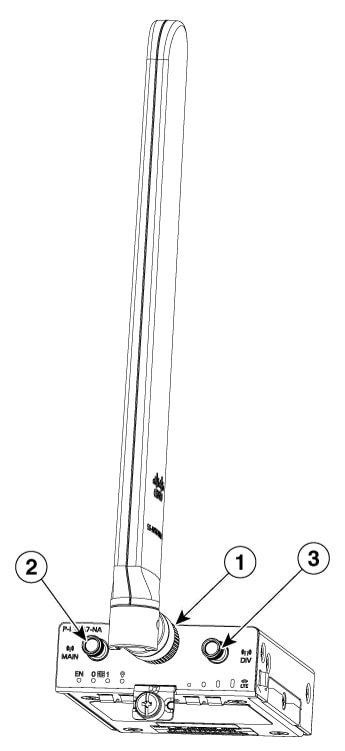
Figure 2. C8151-G2 and C8161-G2 with attached Pluggable Interface Module

1

Screw

Figure 3. LTE Pluggable Interface Module - P-LTEA7-EAL

1

Product Identification Number (PID)

2

Main antenna connector (SMA)

3

GPS connector (SMA)

4

Diversity antenna connector (SMA)

5

Enable LED

6

SIM 0 LED

7

SIM 1 LED

8

GPS LED

9

M3.5 thumbscrew

10

RSSI 0

11

RSSI 1

12

RSSI 2

13

RSSI 3

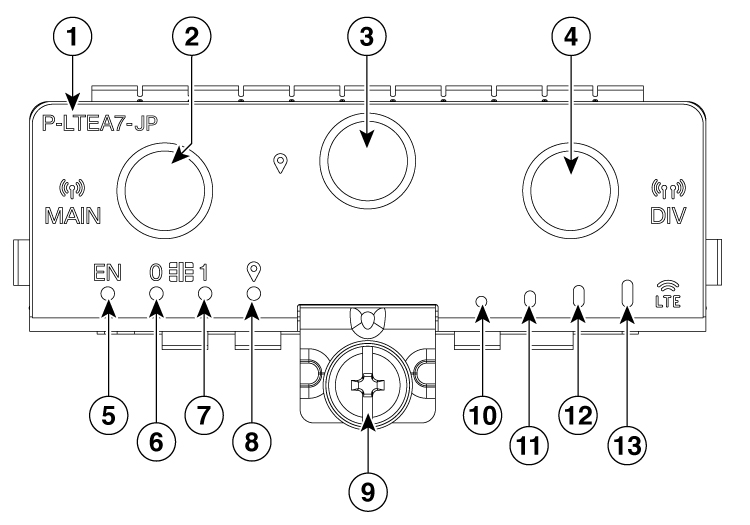
Figure 4. LTE Pluggable Interface Module - P-LTEA7-JP

1

Product Identification Number (PID)

2

Main antenna connector (SMA)

3

GPS connector (SMA)

4

Diversity antenna connector (SMA)

5

Enable LED

6

SIM 0 LED

7

SIM 1 LED

8

GPS LED

9

M3.5 thumbscrew

10

RSSI 0

11

RSSI 1

12

RSSI 2

13

RSSI 3

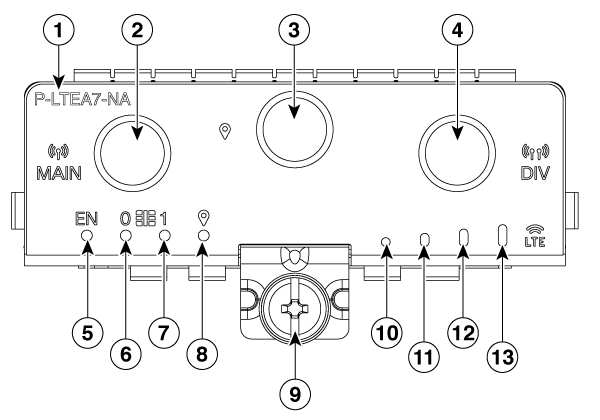
Figure 5. LTE Pluggable Interface Module - P-LTEA7-NA

1

PID

2

Main antenna slot (SMA)

3

GPS (SMA)

4

Diversity antenna slot (SMA)

5

Enable LED

6

SIM 0 LED

7

SIM 1 LED

8

GPS LED

9

M3.5 thumbscrew

10

RSSI 0

11

RSSI 1

12

RSSI 2

13

RSSI 3

Figure 6. 5G Pluggable Interface Module - P-5GS6-R16SA-GL

1

PID

2

Main antenna slot 1 (SMA)

3

GPS (SMA)

4

Antenna slot 3 (SMA, reception only)

5

Antenna slot 0 (SMA)

6

Antenna slot 2 (SMA)

7

Enable LED

8

SIM 0 LED

9

SIM 1 LED

10

GPS LED

11

M3.5 thumbscrew

12

Service LED


Insert antenna into the Pluggable Interface Module

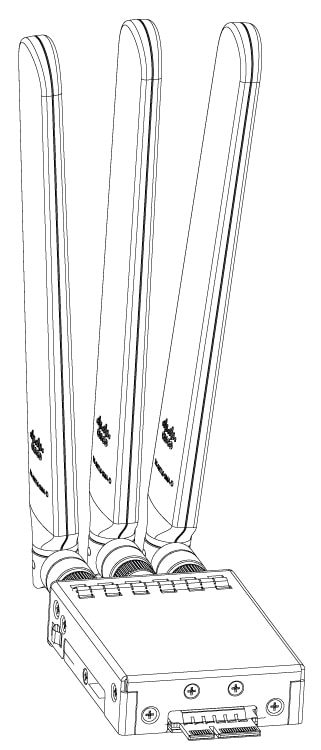
To insert the antenna in the Pluggable Interface Module, perform the following steps:

Procedure


Step 1

Insert and tighten antennas in the antenna slots as per the sequence mentioned in the figure.

Example:

Figure 7. Attaching the antennas

Note


You need to install antennas as per the sequence to get enough space to tighten antennas in all the antenna slots.

Step 2

After installing the antennas, adjust the antenna orientation by spacing out each of them equally until they are spread out. This is significant as it helps in getting higher RF performance.

Example:


Antenna connector details for embedded 5G devices

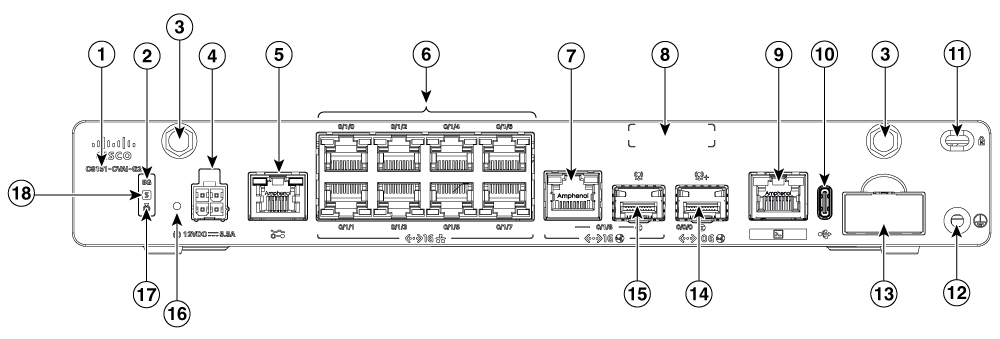
The antenna SMA connector (labeled as #3) enables connection to an external antenna, optimizing 5G performance on the C8151-CVAI-G2 and C8151-CVAP-G2 devices, as shown in the image.

Figure 8. C8151-CVAI-G2 and C8151-CVAP-G2 - Front view

RF band mapping for antenna ports

The following table lists the RF band mapping for antenna ports.

Table 1. RF band mapping for antenna ports for P-5GS6-R16SA-GL
Radio Access Technology (RAT)

Bands

Tx antennas

Rx antennas

GNSS antenna

-

-

Default

Alternate Path

ANT0

ANT1

ANT2

ANT3

GPS

5GNR Sub-6G

29

-

-

Y

-

Y

-

-

38, 41

ANT2

ANT0

Y

Y

Y

Y

-

48

ANT3

ANT1

Y

Y

Y

Y

-

75, 76

-

-

Y

Y

Y

Y

-

77, 78

ANT3

ANT1

ANT2

Y

Y

Y

Y

-

79

ANT3

ANT1

Y

Y

Y

Y

-

LB LTE/

5GNR Sub-6G

5, 8, 12, 13, 14, 17, 18, 19, 20, 26, 28, 71

ANT0

-

Y

-

Y

-

-

MB/HB LTE/ 5G NR Sub-6G

1, 2, 3, 4, 7, 25, 30, 39, 40, 66, 70

ANT0

-

Y

Y

Y

Y

-

LTE

29

-

-

Y

-

-

Y

-

34

ANT0

-

Y

-

Y

-

-

46

-

-

Y

-

-

Y

-

32

-

-

Y

Y

Y

Y

-

38

ANT0

-

Y

Y

Y

Y

-

41

ANT0

ANT2

Y

Y

Y

Y

-

42, 43, 48

ANT3

ANT1

Y

Y

Y

Y

-

WCDMA

1, 2, 4, 5, 8, 19

ANT0

-

Y

-

Y

-

-

GNSS

-

-

-

-

-

-

-

L1

LED behaviors

The following table lists the LED indicators and their behavior. The LEDs provide a visual indication of the status and the currently selected services.

LED indicators

LED

Color

Function

EN

Green, Yellow

Enable LED

  • Off: Cellular module power is off

  • Yellow: Module power is not functioning correctly

  • Green: Module power is on

SIM0

Green, Yellow

SIM0 LED

  • Off: SIM0 is not installed

  • Yellow: SIM0 is installed, but not active

  • Green: SIM0 installed and active

  • Green Blink: Cellular data activity

SIM1

Green, Yellow

SIM1 LED

  • Off: SIM1 is not installed

  • Yellow: SIM1 is installed, but not active

  • Green: SIM1 installed and active

  • Green Blink: Cellular data activity

GPS

Green, Yellow

GPS LED

  • Off: GPS is not configured

  • Yellow: Software is defined

  • Green: GPS is configured

  • Green Blink: GPS is functional

Service

Green, Yellow, Blue

Service indication LED (applicable for P-5GS6-R16SA-GL)

  • Yellow: 3G

  • Green: 4G LTE

  • Blue: 5G

RSSI

Green, Yellow

RSSI LED (applicable for P-LTEA7-NA, P-LTEA7-JP, P-LTEA7-EAL)

  • Green: 4G, LTE

  • Yellow: 3G

RSSI 0

  • Yellow: Very bad signal, 3G

  • Green: Very bad signal, 4G

RSSI 1

  • Yellow: Bad signal, 3G

  • Green: Bad signal, 4G

RSSI 2

  • Yellow: Good signal, 3G

  • Green: Good signal, 4G

RSSI 3

  • Yellow: Best signal, 3G

  • Green: Best signal, 4G

Insert Micro-SIM into a Pluggable Interface Module

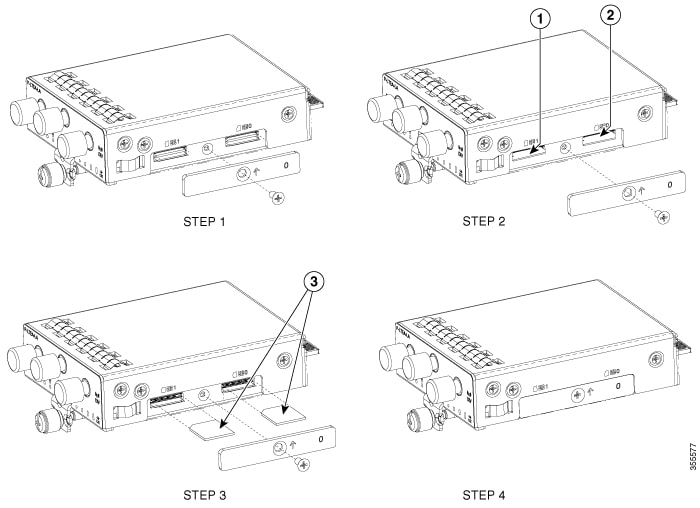
This section describes how to insert a Micro-SIM card into a Cellular Pluggable Module. To insert the Micro-SIM cards into a Cellular Pluggable Module, follow these instructions:

Procedure


Step 1

Place the pluggable module on its bottom side, remove the SIM door screw, use a #1 Philips screwdriver for removing the screws, and then carefully remove the Micro-SIM cover from the pluggable module.

Note


Ensure to use the correct tool for removing the Micro-SIM door.

Step 2

Slot 1 and slot 0 are the Micro-SIM slots.

Caution


Do not touch any part of the exposed PCB circuit area when the Micro-SIM cover is removed.

Step 3

Install SIM 0 and SIM 1 in their respective slots. SIM 0 or SIM 1 is marked on the pluggable interface module above the Micro-SIM cover. The SIM icons show the correct orientation required to install the SIM into each respective connector (SIM connectors are a push-push type). To install, insert the SIM card in the connector until you feel it click, then let go and the SIM is locked to the connector. To remove the SIM card, depress the SIM in the connector slot again until you feel the same click and let it go; the SIM connector should eject part way out of the connector. The SIM card can then be grabbed and removed. Secure the Micro-SIM cover with a screw, use a number 1 Philips screwdriver to secure the screw on the Micro-SIM cover. The recommended torque is 2.8 - 3.8 inch LBF.

Note


We recommend using industrial-grade SIM cards.

Step 4

You have now successfully inserted the Micro-SIM cards into the Cellular pluggable module. The marking on the Mirco-SIM door should align with Micro-SIM 0 on the pluggable module with the arrow pointing upward.

Example:

Figure 9. Insert the Micro-SIM cards

Install a Nano-SIM card into the router

This section describes how to install a nano-SIM card into embedded cellular systems. Install a nano-SIM card into the router using these instructions:

Procedure


Step 1

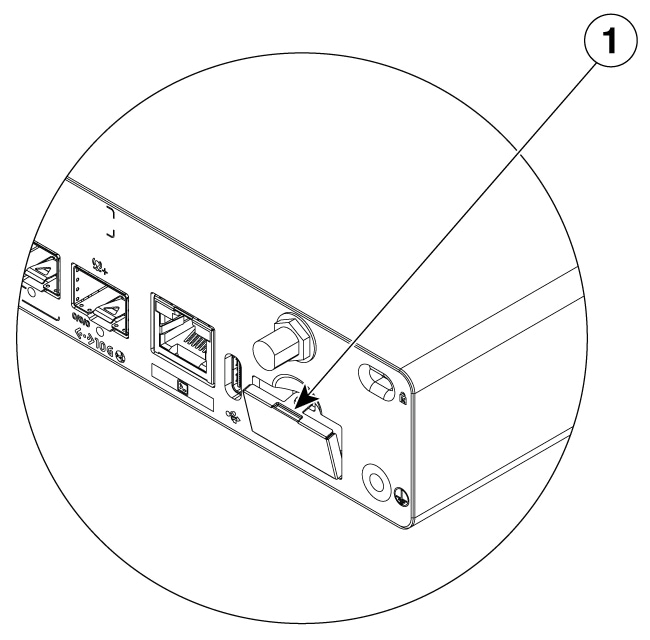
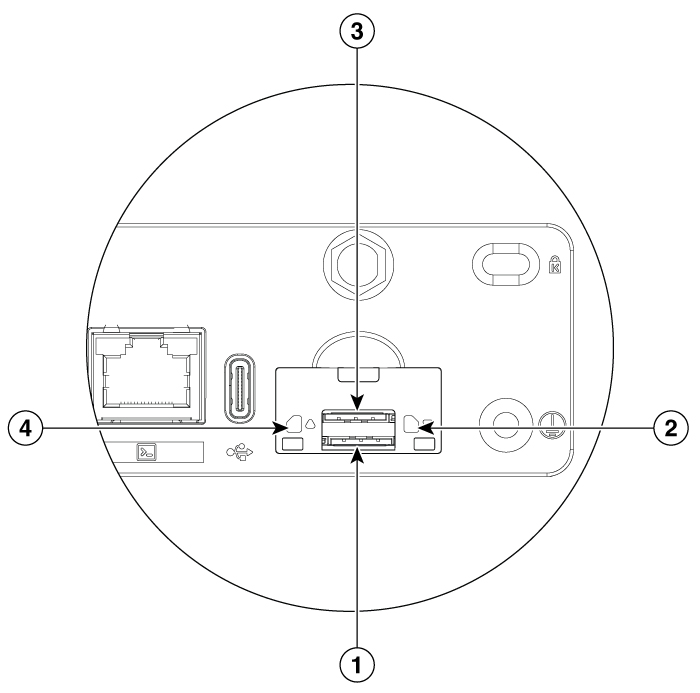
Press down on the top of the SIM slot cover and pull it away from the router until the top of the cover is free from the chassis.

Example:

Figure 10. Removing the SIM Slot Cover

1

SIM Slot Cover

Note


You may use a flat-head screwdriver to press down on the cover; however, ensure the screwdriver does not protrude into the router.

Step 2

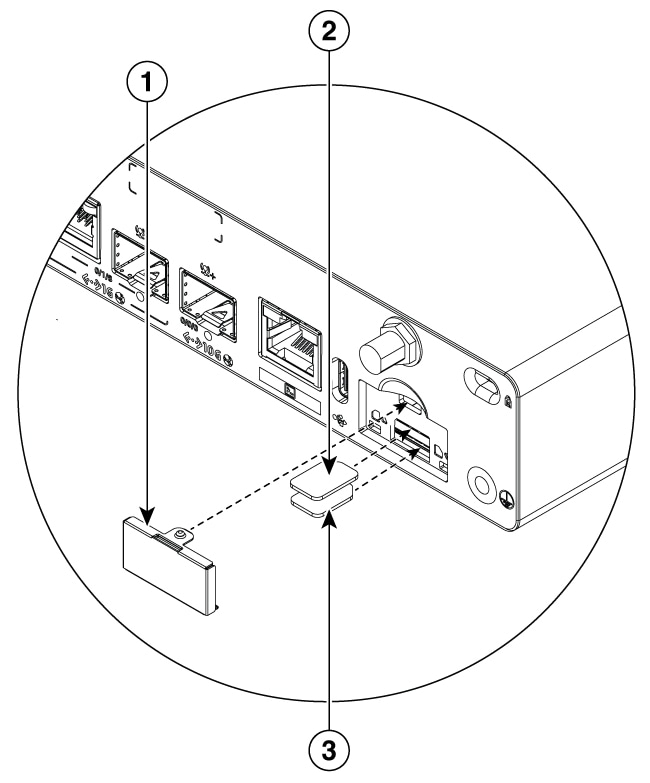
Remove the SIM slot cover from the chassis.

Example:

Figure 11. Nano-SIM Slot and Component Identification

1

SIM Slot Cover

2

Nano SIM 1

3

Nano SIM 0

Caution


Do not touch any part of the exposed printed circuit board (PCB) area while the nano-SIM cover is removed.

Note


Ensure the nano-SIM cards are inserted properly into the slot connector and are not wedged between the slot connector and the chassis opening, where they could be inserted incorrectly. Incorrect insertion may cause damage to the board and/or the nano-SIM card.

Step 3

Insert the nano-SIM cards into their respective slots as indicated by the orientation indicators on the chassis. To install a card, insert the nano-SIM card into the slot until it clicks and locks into the push-push connector. To remove the card, press the SIM card further into the slot until it clicks, then release it. The card will partially eject from the slot.

  1. SIM 0: Bottom slot

  2. SIM 1: Top slot

Example:

Figure 12. SIM Slot and Orientation Indicators

1

Nano SIM slot 0

2

Nano SIM 0 orientation indicator

3

Nano SIM slot 1

4

Nano SIM 1 orientation indicator

It is recommended to use industrial-grade SIM cards for these routers.

Step 4

Install the SIM slot cover by aligning the bottom securing tabs with the holes in the chassis. Then, press the top of the cover into the snap feature in the chassis.


The nano-SIM card is installed, and the router is ready for operation.