Performing Tasks on the IR800

The chapter explains how to use the Device Manager to perform tasks on the IR800.

Connecting to the IR800

You can use Device Manager in the following ways:

  • Operating with IoT-FND—–When you have IoT-FND operating in the network, you can connect to that system with Device Manager to download and update work orders. Work orders allow Device Manager to view status and perform tasks on the IR800. To operate in conjunction with IoT-FND, follow the steps in Setting Up the IoT-FND Connection.

  • Operating without IoT-FND—When you do not have IoT-FND operating in the network or do not want to connect to that system, use Device Manager to connect directly to a IR800 by either WiFi (with valid SSID and passphrase) or Ethernet to view status and perform tasks on the IR800.

Connecting to the Router with a Work Order

Before connecting to the router with a work order, you should be familiar with the information in Managing Work Orders.

To connect to the router with a work order, select a work order from the list on the Device Manager opening page and click Connect .


Note

The IR809 must have IPv6 option enabled to connect with work order.


Manually Connecting to the Router

You can connect to an IR809 by Ethernet, and connect to an IR829 by Ethernet or WiFi.

Connect to the Device Manager by employing one of the following methods:

  • Auto Discovered IPv6 address (preferred method for the field)

  • IPv4 address (such as 128.128.128.128)

  • IPv6 address (such as fe80::d81f:6402:2ae4:4ea8)

To connect to the Device Manager manually:

SUMMARY STEPS

  1. On the Device Manager opening page, click Connect Without Work Order .
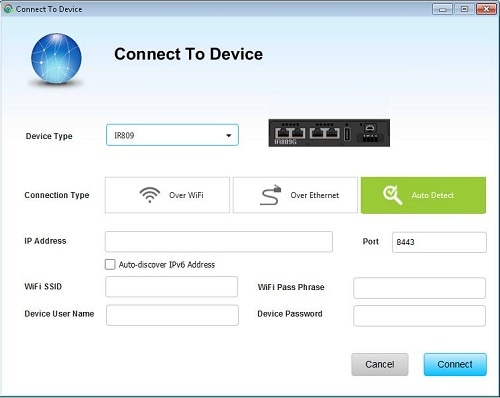
  2. In the Connect to Device dialog box, select the Device Type: IR809 or IR829 .
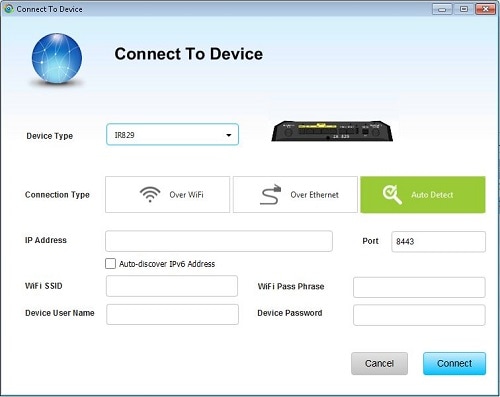
  3. Select the Connection Type: Over WiFi , Over Ethernet , or Auto Detect .
  4. Enter the router IP address and port, or select the check box to auto-discover the IP address.
  5. (WiFi only) Enter the SSID and pass phrase.
  6. Enter the user name and password.
  7. Click Connect . The Device Manager main page appears.

DETAILED STEPS


Step 1

On the Device Manager opening page, click Connect Without Work Order .

Step 2

In the Connect to Device dialog box, select the Device Type: IR809 or IR829 .

Step 3

Select the Connection Type: Over WiFi , Over Ethernet , or Auto Detect .

Step 4

Enter the router IP address and port, or select the check box to auto-discover the IP address.

Step 5

(WiFi only) Enter the SSID and pass phrase.

Step 6

Enter the user name and password.

Step 7

Click Connect . The Device Manager main page appears.


Testing Connectivity

You can confirm connectivity to a device from the IR800 through the Connectivity page.

Before you can check a device connection or route to a IR800, you must add the IPv4 or IPv6 address or hostname of the device (connection target) to Device Manager. All work orders have connection targets.

Adding a Device IP Address

To add a device IP address:

SUMMARY STEPS

  1. On the Device Manager main page, click the Connectivity tab.
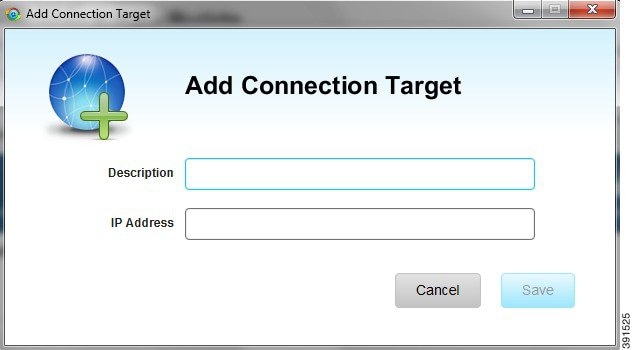
  2. On the Connectivity page, click Add Target to create a new target.
  3. In the Description field, enter a description for the device.
  4. In the IP Address field, enter the IP address (IPv4 or IPv6) of the device.
  5. Click Save . You can now test the connectivity to the device you just added to the Device Manager.

DETAILED STEPS


Step 1

On the Device Manager main page, click the Connectivity tab.

Step 2

On the Connectivity page, click Add Target to create a new target.

Step 3

In the Description field, enter a description for the device.

Step 4

In the IP Address field, enter the IP address (IPv4 or IPv6) of the device.

Step 5

Click Save . You can now test the connectivity to the device you just added to the Device Manager.


Pinging a Device IP Address

The Ping feature allows you to verify connectivity to a device by querying the target IP address.

To test connectivity between the router and the device:

SUMMARY STEPS

  1. On the Connectivity page, select the connection target and click Ping . A dialog box appears indicating that the router is attempting to ping the target IP address.
  2. Click OK to close the Ping dialog box.

DETAILED STEPS


Step 1

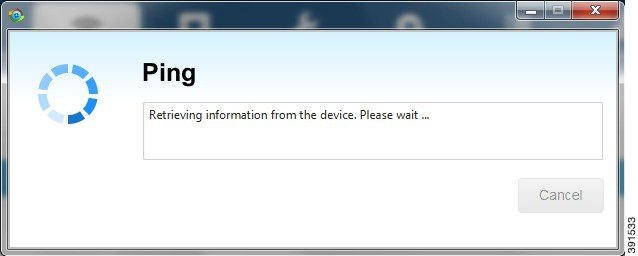
On the Connectivity page, select the connection target and click Ping . A dialog box appears indicating that the router is attempting to ping the target IP address.

When the system successfully pings the device, a dialog box appears indicating that the ping was successful.

If the system does not successfully ping a device, refer to Failed Ping.

Step 2

Click OK to close the Ping dialog box.


Failed Ping

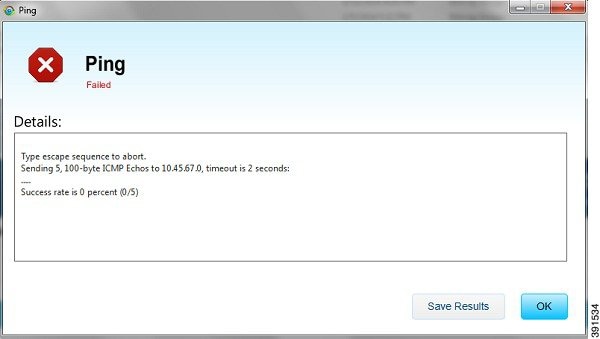
If the system does not successfully ping a device, a message appears showing the details of the failed ping attempt.

SUMMARY STEPS

  1. In the Ping error dialog box, review the reason for the error, then click OK or Save Results to save the output to a file on the laptop.
  2. Proceed to Tracing the Route of a Device IP Address.

DETAILED STEPS


Step 1

In the Ping error dialog box, review the reason for the error, then click OK or Save Results to save the output to a file on the laptop.

Step 2

Proceed to Tracing the Route of a Device IP Address.


Tracing the Route of a Device IP Address

When an IP address cannot be reached using Ping, you can use the Trace Route feature to check the route taken to reach the device IP address.

To trace the route of the IP address:

SUMMARY STEPS

  1. On the Connectivity page, click Trace Route for the listed connection target.
  2. If the trace route is successful, review the details and click Save Results or OK in the Trace Route dialog box.
  3. If the trace route is unsuccessful, proceed to Deleting or Editing a Device IP Address.

DETAILED STEPS


Step 1

On the Connectivity page, click Trace Route for the listed connection target.

Step 2

If the trace route is successful, review the details and click Save Results or OK in the Trace Route dialog box.

Step 3

If the trace route is unsuccessful, proceed to Deleting or Editing a Device IP Address.


Deleting or Editing a Device IP Address

After you have tested a target IP address and verified its connectivity, you can delete the device entry from the Device Manager. You can also delete or edit an IP address that the application identifies as incorrect during failed pings and trace route attempts.

To delete or edit a target IP address:

SUMMARY STEPS

  1. On the Connectivity page, select the listed connection target, and click Delete to remove the device from the list.
  2. To edit the device’s IP address, click Modify Target .
  3. In the Modify Connection Target dialog box, edit the IP address and click Save .

DETAILED STEPS


Step 1

On the Connectivity page, select the listed connection target, and click Delete to remove the device from the list.

Step 2

To edit the device’s IP address, click Modify Target .

Step 3

In the Modify Connection Target dialog box, edit the IP address and click Save .


Managing Interfaces

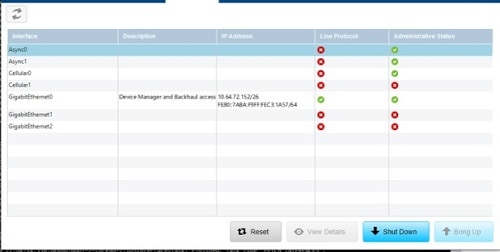
You can bring up or shut down an interface on the Interfaces page. You can also reset an interface and view interface details.

  • When the line protocol for an interface is up (a green check mark), the line protocol is currently active. When the line protocol for an interface is down (a red cross), it means the line protocol is not active.

  • When the administrative status for an interface is up (a green check mark), the administrator brought up the interface. When the administrative status for an interface is down (a red cross), the administrator took down the interface.

All interfaces installed within the IR800 display automatically.

Resetting an Interface

Resetting an interface shuts it down and then brings it up. To reset an interface:

SUMMARY STEPS

  1. On the Device Manager main page, click the Interfaces tab.
  2. On the Interfaces page, select an interface and click Reset .
  3. In the Reset Interface dialog box, click Yes to confirm the reset.

DETAILED STEPS


Step 1

On the Device Manager main page, click the Interfaces tab.

Step 2

On the Interfaces page, select an interface and click Reset .

Step 3

In the Reset Interface dialog box, click Yes to confirm the reset.


Viewing Details for an Interface

Select an interface and click View Details to display information including interface status, settings, and dynamic statistics. Information is updated every 5 seconds.

To view details for an interface:

SUMMARY STEPS

  1. On the Device Manager main page, click the Interfaces tab.
  2. On the Interfaces page, select an interface and click View Details .

DETAILED STEPS


Step 1

On the Device Manager main page, click the Interfaces tab.

Step 2

On the Interfaces page, select an interface and click View Details .


Bringing Up an Interface

When an interface is shut down for any reason, you can attempt to bring up the interface.

SUMMARY STEPS

  1. On the Device Manager main page, click the Interfaces tab.
  2. On the Interfaces page, select an interface and click Bring Up .
  3. In the Bring Up interface dialog box, click Yes to confirm bringing up the interface.

DETAILED STEPS


Step 1

On the Device Manager main page, click the Interfaces tab.

Step 2

On the Interfaces page, select an interface and click Bring Up .

Step 3

In the Bring Up interface dialog box, click Yes to confirm bringing up the interface.


Shutting Down an Interface


Note

You cannot shut down the interface on which the Device Manager communicates with the CGR 1000 because the connection would be lost.

To shut down an interface:

SUMMARY STEPS

  1. On the Device Manager main page, click the Interfaces tab.
  2. On the Interfaces page, select an interface and click Shut Down .
  3. In the Shut Down interface dialog box, click Yes to confirm shutting down the interface.

DETAILED STEPS


Step 1

On the Device Manager main page, click the Interfaces tab.

Step 2

On the Interfaces page, select an interface and click Shut Down .

Step 3

In the Shut Down interface dialog box, click Yes to confirm shutting down the interface.


Changing the Configuration

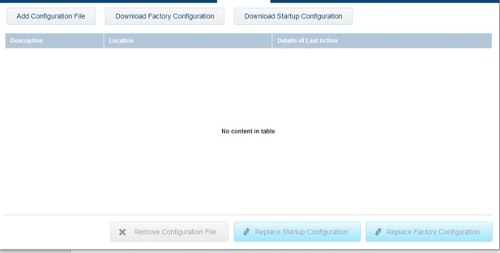
You can upload a router configuration file to the Device Manager and then use that file to replace the startup configuration or the express setup (factory configuration) of the IR800.


Note

In NMS mode, you can replace only the factory configuration. In non-NMS mode, you can replace both the startup and factory configuration.

You can also download the factory or startup configuration file from the router to your laptop.

Adding a Configuration File

To add a configuration file to Device Manager:

SUMMARY STEPS

  1. On the Device Manager main page, click the Config tab.
  2. Click Add Configuration File .
  3. In the Add Configuration File dialog box:

DETAILED STEPS


Step 1

On the Device Manager main page, click the Config tab.

Step 2

Click Add Configuration File .

Step 3

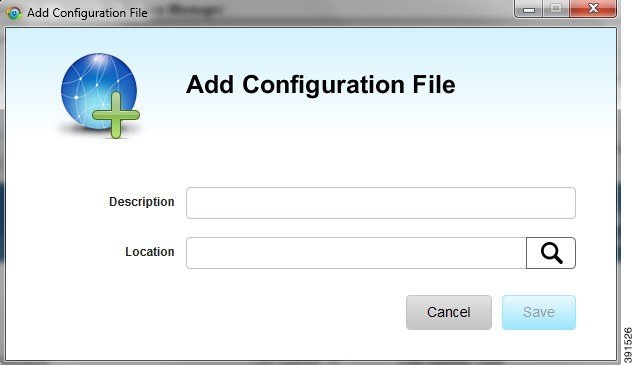
In the Add Configuration File dialog box:

  1. Enter a description for the configuration file that you are going to upload.

  2. Click Search to navigate to the configuration file location and select the file.

  3. Click Save .

    The file you selected is listed on the Config page.


Downloading a Configuration File

To download the factory configuration file or the startup configuration file to the Device Manager laptop:

SUMMARY STEPS

  1. On the Device Manager main page, click the Config tab.
  2. Click Download Factory Configuration or Download Startup Configuration .
  3. In the Save As dialog box, enter a file name and click Save . A message appears indicating that the output was saved successfully.

DETAILED STEPS


Step 1

On the Device Manager main page, click the Config tab.

Step 2

Click Download Factory Configuration or Download Startup Configuration .

Step 3

In the Save As dialog box, enter a file name and click Save . A message appears indicating that the output was saved successfully.


Replacing a Configuration File

After you add a configuration file to Device Manager (see Adding a Configuration File), you can find the file name listed on the Config page. You can use the file to update the startup configuration or the express setup (factory configuration).


Caution

Replacing the configuration file causes the router to reboot. All connections to the router are lost during the update. After this task starts, there is no way to cancel the event. Be careful when using this feature.


To replace the configuration file on the router:

SUMMARY STEPS

  1. On the Config page, select the configuration file that you want to install and click Replace Startup Configuration or Replace Factory Configuration .
  2. In the confirmation dialog box, click Yes to begin installing the router configuration file.

DETAILED STEPS


Step 1

On the Config page, select the configuration file that you want to install and click Replace Startup Configuration or Replace Factory Configuration .

Step 2

In the confirmation dialog box, click Yes to begin installing the router configuration file.

If an error message appears, the file did not upload to the router. Proceed to Removing a Configuration File.


Removing a Configuration File

After you update the router with the new configuration file, you can remove the file from Device Manager. You can also use this function to remove unwanted or duplicate configuration files.

To remove a configuration file:

SUMMARY STEPS

  1. On the Config page, select the configuration file you want to remove from the list.
  2. Click Remove Configuration File .
  3. In the dialog box that appears, click Yes to remove the file.

DETAILED STEPS


Step 1

On the Config page, select the configuration file you want to remove from the list.

Step 2

Click Remove Configuration File .

Step 3

In the dialog box that appears, click Yes to remove the file.


Updating the Firmware Image

The IR800 image bundle contains information that the router uses when starting up and operating. The only acceptable file format for the Cisco IR800 image file is a zip bundle, which contains a manifest file with information on versioning and files. Any missing files in the zip bundle cancels the update. You can find the official Cisco IR800 zip bundle on Cisco.com:

https://www.cisco.com/c/en/us/support/routers/800-series-industrial-routers/tsd-products-support-series-home.html

Adding an Image

To add an image file to Device Manager:

SUMMARY STEPS

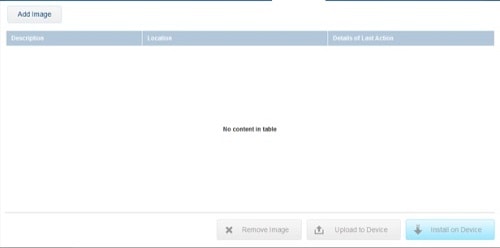
  1. On the Device Manager main page, click the Firmware tab.
  2. Click Add Image .
  3. In the Add Image dialog box:

DETAILED STEPS


Step 1

On the Device Manager main page, click the Firmware tab.

Step 2

Click Add Image .

Step 3

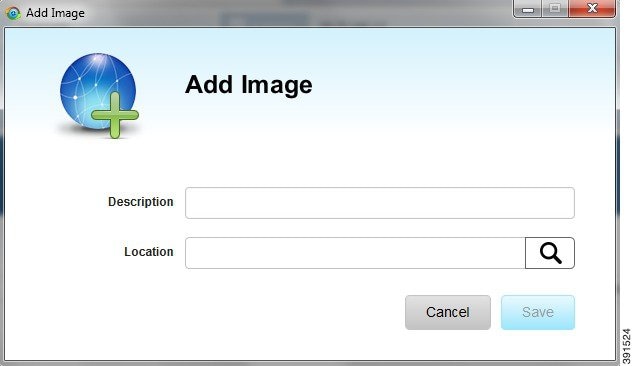
In the Add Image dialog box:

  1. Enter a description for the image that you are going to upload.

  2. Click Search to navigate to the image file location and select the file.

  3. Click Save .

    The file you select appears on the Firmware page.


Uploading an Image to the Router

The Upload to Device option allows you to upload and store a copy of a firmware image on the router without initiating an immediate image install. This capability allows operations personnel to use IoT-FND or a utility management tool to install and reboot the router when network conditions allow.

To upload an image to the router:

SUMMARY STEPS

  1. On the Device Manager main page, click the Firmware tab.
  2. If the firmware image that you want to install on the router is not listed on the Firmware page, add the image (see Adding an Image).
  3. On the Firmware page, select the router firmware image that you want to upload and click Upload to Device . The new image is stored on the router until you are ready to install the image on the router. (See Installing an Image.)

DETAILED STEPS


Step 1

On the Device Manager main page, click the Firmware tab.

Step 2

If the firmware image that you want to install on the router is not listed on the Firmware page, add the image (see Adding an Image).

Step 3

On the Firmware page, select the router firmware image that you want to upload and click Upload to Device . The new image is stored on the router until you are ready to install the image on the router. (See Installing an Image.)


Installing an Image


Caution

Be careful when using this feature. After this tasks starts, there is no way to cancel the event. Updating the router firmware image might take a while to complete and requires a reboot. All connections to the router are unavailable during the image update.


To install an image:

SUMMARY STEPS

  1. On the Firmware page, select the image file to install and click Install on Device .
  2. In the dialog box that appears, click Yes to exclude Guest OS from the installation.
  3. If you click Yes, Guest OS will not be upgraded.
  4. If the firmware image already exists in the router, you are prompted to confirm reinstalling the same image.
  5. In the confirmation dialog box, click Yes to begin the install process. After the router firmware update completes, the router reboots.

DETAILED STEPS


Step 1

On the Firmware page, select the image file to install and click Install on Device .

Step 2

In the dialog box that appears, click Yes to exclude Guest OS from the installation.

Step 3

If you click Yes, Guest OS will not be upgraded.

Step 4

If the firmware image already exists in the router, you are prompted to confirm reinstalling the same image.

Step 5

In the confirmation dialog box, click Yes to begin the install process. After the router firmware update completes, the router reboots.


Removing an Image

After you install an image, you can remove the image file from the Device Manager. You can also use the Remove image option to remove an image file.

To remove an image file:

SUMMARY STEPS

  1. On the Update Image page, select a image.
  2. Click Remove Image .
  3. In the dialog box that appears, click Yes to remove the image. A message warns you if the image has not yet been installed on the router.

DETAILED STEPS


Step 1

On the Update Image page, select a image.

Step 2

Click Remove Image .

Step 3

In the dialog box that appears, click Yes to remove the image. A message warns you if the image has not yet been installed on the router.


Retrieving Logs

You can retrieve real-time log events from the IR800 and view them on the Log page or save the information to a file.

You can specify either the system log or the tech support log for retrieval.

Retrieving and Saving Logs

To retrieve real-time log events from the router:

SUMMARY STEPS

  1. On the Device Manager main page, click the Log tab .
  2. On the Log page, select the report retrieval task from the Select Task drop-down menu:
  3. To save a copy of the retrieved log events displayed on the page, click Save.
  4. In the Save As dialog box, enter a file name and click Save . A message appears indicating that the output was saved successfully.
  5. To clear the output, click the black cross.

DETAILED STEPS


Step 1

On the Device Manager main page, click the Log tab .

Step 2

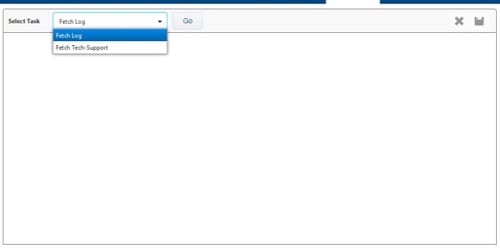
On the Log page, select the report retrieval task from the Select Task drop-down menu:

  • Fetch Log–Retrieves the output from the show logging command.

  • Fetch Tech-Support–Retrieves the output from the show tech-support command.

Step 3

To save a copy of the retrieved log events displayed on the page, click Save.

Step 4

In the Save As dialog box, enter a file name and click Save . A message appears indicating that the output was saved successfully.

Step 5

To clear the output, click the black cross.


Executing Commands

The Advanced page provides access to the IR800 CLI to fine-tune or troubleshoot the router. You must have admin privilege and be familiar with Cisco IOS commands. For details on supported commands, refer to the IR800 software configuration guides at:https://www.cisco.com/c/en/us/td/docs/routers/access/800/829/software/configuration/guide/b_IR800config.html.

SUMMARY STEPS

  1. On the Device Manager main page, click the Advanced tab.
  2. Enter Cisco IOS commands in the text input area at the bottom of the page as follows:
  3. Use the buttons above the output area for the following common commands:
  4. To save a copy of the output, click Save.
  5. In the Save As dialog box, enter a file name and click Save . A message appears indicating that the output was saved successfully.
  6. To clear the output, click the black cross.

DETAILED STEPS


Step 1

On the Device Manager main page, click the Advanced tab.

Step 2

Enter Cisco IOS commands in the text input area at the bottom of the page as follows:

  • To execute an exec command (for example, show Running Configuration ), type the command and click the execute button.

  • To execute multiple exec commands, type one command per line and click the execute button.

  • Use the up arrow to display the previous command.

  • Use the down arrow to display the next command.

  • To execute config commands, enclose all of the config commands between configure terminal and end commands, and click the execute button.

Command output appears in the output area above the text input area.

Step 3

Use the buttons above the output area for the following common commands:

  • Upload File

    —Upload a new image file to the router.
  • File Directory —Display the router file directory.

  • System Time —Display the current setting of the system clock for the router.

  • Reboot —Reboot the router.

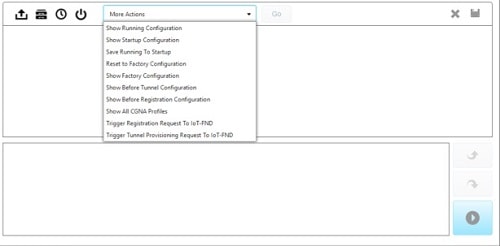
You can also select a command from the More Actions drop-down menu, then click Go . The following commands are available:

  • Show Running Configuration

  • Show Startup Configuration

  • Save Running to Startup

  • Reset to Factory Configuration

  • Show Factory Configuration

  • Show Before Tunnel Configuration

  • Show Before Registration Configuration

  • Show All CGNA Profiles

  • Trigger Registration Request to IoT-FND

  • Trigger Tunnel Provisioning Request to IoT-FND

Step 4

To save a copy of the output, click Save.

Step 5

In the Save As dialog box, enter a file name and click Save . A message appears indicating that the output was saved successfully.

Step 6

To clear the output, click the black cross.


Disconnecting from the IR800

After finishing your work on the IR800, click the left arrow on the left side of the menu tabs area on the main page to disconnect Device Manager from the router. Click Yes to confirm that you want to disconnect from the device. Device Manager disconnects and displays the Device Manager opening page.