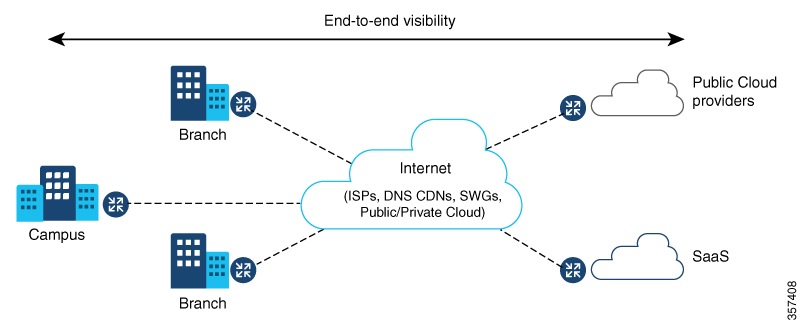
Use this workflow to install, configure, and launch the Cisco ThousandEyes Enterprise Agent application on your device.
To install and launch the application, perform these steps:
Before you begin
Create a new account on the Cisco ThousandEyes portal and generate the token. The Cisco ThousandEyes agent application uses this token to authenticate and check into the correct Cisco ThousandEyes account. If you receive a message stating that your token is invalid and you want to troubleshoot the issue, see Troubleshooting the Cisco ThousandEyes Application.
Note
If you configure the correct token and Domain Name Server (DNS) information, the device is discovered automatically.
Procedure
|
1. |
Enable the Cisco IOx application environment on the device.
config-transaction
iox
commit
|
|
2. |
If the IOx command is accepted, wait for a few seconds and check whether the IOx process is up and running by using the show iox command. The output must display that the show IOxman process is running.
Device #show iox

IOx Infrastructure Summary:
---------------------------
IOx service (CAF) 192.0.2.8     : Running
IOx service (HA)               : Not Supported
IOx service (IOxman)           : Running
IOx service (Sec storage)      : Not Supported
Libvirtd 1.3.4                 : Running
|
|
3. |
Ensure that the ThousandEyes application LXC tarball is available in the device's bootflash:. |
|
4. |
Create a virtual port group interface to enable the traffic path to the Cisco ThousandEyes application:
interface VirtualPortGroup 0
          ip address 192.0.2.22 255.255.255.0
        exit
|
|
5. |
Configure the app-hosting application with the generated token:
app-hosting appid te
app-vnic gateway1 virtualportgroup 0 guest-interface 0
guest-ipaddress 192.0.2.22 netmask 255.255.255.0
app-default-gateway 192.0.2.22 guest-interface 0
app-resource docker
prepend-pkg-opts Required to get the default run-time options from package.yaml
run-opts 1 "--hostname thousandeyes"
run-opts 2 "-e TEAGENT_ACCOUNT_TOKEN=<ThousandEyes token>"
run-opts 3 "-e TEAGENT_PROXY_TYPE=STATIC -e TEAGENT_PROXY_LOCATION=proxy.something.other:80"
name-server0 192.0.2.10 ISP’s DNS server
end
app-hosting appid te
app-resource docker
prepend-pkg-opts
run-opts 2 “--hostname
Note
You can use the proxy configuration only if the Cisco ThousandEyes agent does not have an internet access without a proxy. Also, the hostname is optional. If you do not provide the hostname during the installation, the device hostname is used as the Cisco ThousandEyes agent hostname. The device hostname is displayed on the Cisco ThousandEyes portal. The DNS name server information is optional. If the Cisco ThousandEyes agent uses a private IP address, ensure that you establish a connection to the device through NAT.
|
|
6. |
Configure the start command to run the application automatically when the application is installed on the device using the install command:
app-hosting appid te
         start
|
|
7. |
Install the ThousandEyes application:
app-hosting install appid <appid> package [bootflash: | harddisk: | https:]
Select a location to install the ThousandEyes application from these options:
Device# app-hosting install appid te package ?
bootflash: Package path ISR4K case if image is locally available in bootflash:
harddisk: Package path Cat8K case if image is locally available in M.2 USB
https: Package path Download over the internet if image is not locally present in router. URL to ThousandEyes site hosting agent image to be provided here
|
|
8. |
Check if the application is up and running:
Device#show app-hosting list
 App id                                   State
---------------------------------------------------------
  te                                       RUNNING
Note
If any of these steps fail, use the
show logging command and check the IOx error message. If the error message is about insufficient disk space, clean the storage media (bootflash or hard disk) to free up the space. Use the
show app-hosting resource command to check the CPU and disk memory.
|
The Cisco ThousandEyes application is successfully hosted and running on your device.