Subscriber Management

This chapter provides information about various types of subscriber sessions, namely IPoE and PPPoE, and IP addressing by DHCP. Also, on how the point-point frames are tunnelled across the network using the Layer 2 Tunneling Protocol.

Subscriber Session Overview

To enable subscribers to access the network resources, the network has to establish a session with the subscriber. A subscriber session represents the logical connection between the customer premise equipment (CPE) and the network resource. Each session establishment comprises the following phases:

  • Establishing a connection—in this phase CPE finds the cnBNG with which to communicate.

  • Authenticating and authorizing the subscriber—in this phase, cnBNG authenticates the subscribers and authorizes them to use the network. This phase is performed with the help of the RADIUS server.

  • Giving the subscriber an identity—in this phase, the subscriber is assigned an identity, the IP address.

  • Monitoring the session—in this phase, cnBNG ascertains that the session is up and running.

The subscriber sessions are established over the subscriber interfaces, which are virtual interfaces. It's possible to create only one interface for each subscriber session. A port can contain multiple VLANs, each of which can support multiple subscribers. cnBNG creates subscriber interfaces for each kind of session. These interfaces are named based on the parent interface, such as bundle-ether 2.100.pppoe312. The subscribers on bundle interfaces (or bundle-VLANs) allow redundancy and are managed on the cnBNG route processor (RP).

There are two mechanisms to establish a subscriber session, namely, IPoE and PPPoE.
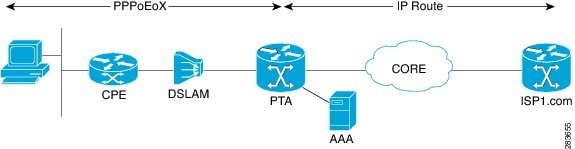
IPoE Session

In an Internet over Ethernet (IPoE) subscriber session, subscribers run IPv4 or IPv6 on the CPE device and connect to the cnBNG through a Layer-2 aggregation. IP subscriber sessions that connect through a Layer-2 aggregation network are called L2-connected. IPoE subscriber sessions are always terminated on cnBNG and then routed into the service provider network. IPoE relies on DHCP to assign the IP address.

Figure 1. IPoE Session


cnBNG supports both DHCP v4 and DHCP v6 subscriber sessions.

Limitations

The following are the limitations:

  • L3 routed subscribers are not supported.

  • Geo redundancy or subscriber redundancy is not supported.

  • Line card or physical port termination-based subscribers are not supported.

Configuration Example

Router#configure
Router(config)#interface Bundle-Ether1.1
Router(config-subif)#ipv4 point-to-point
Router(config-subif)#ipv4 unnumbered Loopback1
Router(config-subif)#ipv6 enable
Router(config-subif)#encapsulation dot1q 1
Router(config-subif)#ipsubscriber
Router(config-cnbng-nal-ipsub)#ipv4 l2-connected
Router(config-cnbng-nal-ipsub-l2conn)#initiator dhcp
Router(config-cnbng-nal-ipsub-l2conn)#exit
Router(config-cnbng-nal-ipsub)#ipv6 l2-connected
Router(config-cnbng-nal-ipsub-ipv6-l2conn)#initiator dhcp
Router(config-cnbng-nal-ipsub-ipv6-l2conn)#commit

Running Configuration


Router#show running-config interface be1.1
interface Bundle-Ether1.1
 ipv4 point-to-point
 ipv4 unnumbered Loopback1
 ipv6 enable
 encapsulation dot1q 1
 ipsubscriber
  ipv4 l2-connected
   initiator dhcp
  !
  ipv6 l2-connected
   initiator dhcp
  !
 !

PPP over Ethernet (PPPoE)

The Point-to-Point Protocol (PPP) is used for communications between two nodes, like a client and a server. The PPP provides a standard method for transporting multiprotocol datagrams over point-to-point links. It defines an encapsulation scheme, a link layer control protocol (LCP), and a set of network control protocols (NCPs) for different network protocols that can be transmitted over the PPP link.

One of the methods to establish PPP connection is by the use of PPPoE. In a PPPoE session, the PPP protocol runs between the CPE and cnBNG. The Home Gateway (which is part of the CPE) adds a PPP header (encapsulation) that is terminated at the cnBNG.

PPPoE Discovery

The PPPoE discovery-stage protocol consists of basic packet exchange between the subscriber and server (cnBNG). The following is the list of the various PPPoE Active Discovery (PAD) messages:

  • PPPoE Active Discovery Initiation (PADI)—The CPE broadcasts to initiate the process to discover cnBNG.

  • PPPoE Active Discovery Offer (PADO)—The cnBNG responds with an offer.

  • PPPoE Active Discovery Request (PADR)—The CPE requests to establish a connection.

  • PPPoE Active Discovery Session confirmation (PADS)—cnBNG accepts the request and responds by assigning a session identifier (Session-ID).

  • PPPoE Active Discovery Termination (PADT)—Either CPE or cnBNG terminates the session.

PPoE Sessions

The PPPoE sessions are of the following types:

  • PPPoE PPP Terminated sessions Terminated (PTA)

  • PPPoE L2TP Access Concentrator Sessions (LAC)

  • L2TP Network Server Sessions (LNS)

Majority of the digital subscriber line (DSL) broadband deployments use Point-to-Point Protocol over Ethernet (PPPoE) sessions to provide subscriber services. These sessions terminate the Point-to-Point Protocol (PPP) link and provide all the features, service, and billing on the same node. These sessions are called PPP Terminated (PTA) sessions. See PPPoE PPP Terminated and Aggregation Sessions (PPPoE-PTA).

There are some wireline subscriber deployments in the wholesale retail model where ISPs work with others to provide the access and core services separately. In such cases, the subscribers are tunneled between wholesale and retail ISPs using the Layer 2 Tunneling Protocol (L2TP), a client-server protocol. See L2TP Access Concentrator Sessions (LAC) and L2TP Network Server Sessions (LNS).


Note


For the functioning of PPP PTA and PPP LAC session, the RADIUS server must be set up to authenticate and forward sessions as necessary. There's no local authentication available on cnBNG.


PPPoE PPP Terminated and Aggregation Sessions (PPPoE-PTA)

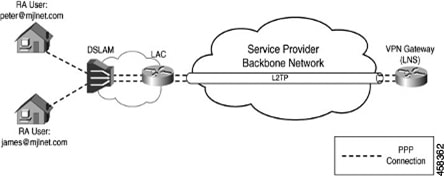
In a PPPoE-PPP Termination and Aggregation (PTA) session, the PPP encapsulation is terminated on cnBNG. After it’s terminated, cNBNG routes the traffic to the service provider using IP routing. A typical PTA session is depicted in this figure.

Figure 2. PPPoE-PTA Session


PPPoE session configuration information is contained in PPPoE profiles. After a profile is defined, it’s assigned to an access interface. Multiple PPPoE profiles can be created and assigned to multiple interfaces. A global PPPoE profile can also be created; the global profile serves as the default profile for any interface that has not been assigned a specific PPPoE profile.

The PPP PTA session is typically used in the Network Service Provider (retail) model where the same service operator provides the broadband connection to the subscriber and also manages the network services.

Limitations

The following are the limitations:

  • L3 routed subscribers are not supported.

  • Geo redundancy or subscriber redundancy is not supported.

  • Line card or physical port termination-based subscribers aren’t supported.

Configure PPPoE-PTA Session

The following section describes the steps to configure PPPoE-PTA sessions:

  • Configure the access-interface

  • Enable PPPoE

Configuration Example

Router#configure
Router(config)#interface Bundle-Ether1.1
Router(config-subif)#ipv4 point-to-point
Router(config-subif)#ipv4 unnumbered Loopback1
Router(config-subif)#ipv6 enable
Router(config-subif)#encapsulation dot1q 1

/* Enable PPPoE */
Router(config-subif)#pppoe enable
Router(config-subif)#commit

Running Configuration


Router#show running-config interface be1.1
interface Bundle-Ether1.1
 ipv4 point-to-point
 ipv4 unnumbered Loopback1
 ipv6 enable
 encapsulation dot1q 1

 pppoe enable
! 

L2TP Access Concentrator Sessions (LAC)

Table 1. Feature History Table

Feature Name

Release Information

Feature Description

Enable LAC on Cloud Native BNG

Release 25.2.1

You can now enable the cloud-native BNG user plane to act as an L2TP Access Concentrator (LAC) on these Cisco ASR 9000 5th Generation High-Density Ethernet line cards and fixed routers, facilitating the tunneling of point-to-point frames between a remote system or LAC client and an LNS.

Enable LAC on Cloud Native BNG

Release 7.4.2

This feature enables the cloud native BNG user plane to become an L2TP access concentrator (LAC), allowing you to tunnel point-to-point frames between the remote system or LAC client and an LNS located at a wholesaler. This functionality provides highly flexible deployments options to suit different customer use-cases and needs.

To enable this feature, use the l2tp enable command.

L2TP encapsulates and tunnels the PPP Layer 2 frames through a Layer 3 network. With L2TP, you can have a layer 2 connection to an access concentrator. The concentrator then tunnels individual PPP frames to the Network Access Server (NAS). This allows the processing of PPP packets on different devices. L2TP can be used to make all multilink channels terminate at a single NAS. Thus-allowing multilink operation even when the calls are spread across distinct physical NASs.

In cnBNG, L2TP uses the following two components to perform the hand-off task of the subscriber traffic to the Internet service provider (ISP).

  • L2TP Access Concentrator (LAC)—The L2TP enables subscribers to dial into the LAC, which extends the PPP session to the LNS. cnBNG provides LAC.

  • L2TP Network Server (LNS)—The L2TP extends PPP sessions over an arbitrary network to a remote network server that is, the LNS. The ISP provides LNS.

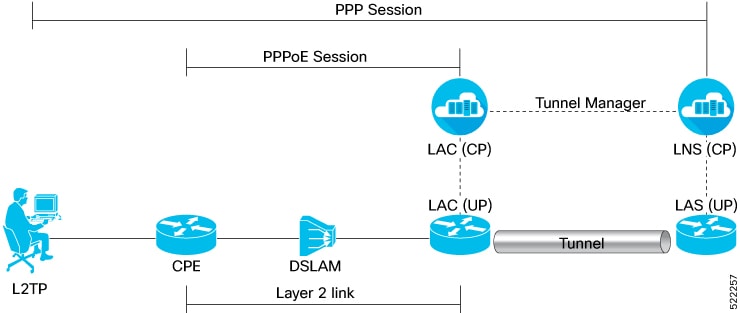
The following image depicts the overall topology of LAC and LNS:

Figure 3. Topology of LAC and LNS

The remote user initiates a PPP connection across the cloud to a LAC. The LAC acts as a client and then tunnels the PPP connection across the Internet to an LNS that acts as a server.

L2TP utilizes two types of messages, control messages and data messages. Control messages are used in the establishment, maintenance, and clearing of tunnels and calls. Data messages are used to encapsulate PPP frames over the tunnel.


   +-------------------+
   | PPP Frames        |
   +-------------------+    +-----------------------+
   | L2TP Data Messages|    | L2TP Control Messages |
   +-------------------+    +-----------------------+
   | L2TP Data Channel |    | L2TP Control Channel  |
   | (unreliable)      |    | (reliable)            |
   +------------------------------------------------+
   |      Packet Transport (UDP, FR, ATM)     |
   +------------------------------------------------+

PPP frames are passed over an unreliable data channel that is encapsulated first by an L2TP header. Then a Packet Transport such as UDP. Control messages are sent over a reliable L2TP Control Channel, which transmits packets in-band over the same Packet Transport.

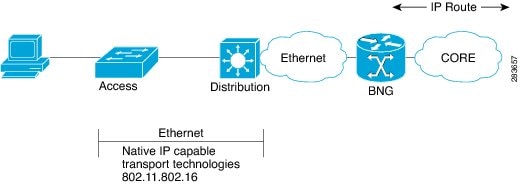
During a PPP LAC session, the PPPoE encapsulation terminates on cnBNG; however, the PPP packets travel beyond cnBNG to LNS through the L2TP tunnel. A typical LAC session is depicted in the following figure.

Figure 4. LAC Session

Both LAC and LNS sessions use L2TP protocol for negotiation and creation of L2TP sessions.

For more information on the LAC high-level work flow, see the L2TP Subscriber Management chapter in the Cloud Native BNG Control Plane Configuration Guide.

The PPP LAC session is used in the wholesaler model, where the network service provider is a separate entity from the local access network provider. In this kind of setup, the access network provider owns the LAC and the network service provider owns the LNS.

  • Network service provider performs access authentication, manage and provide IP addresses to subscribers, and are responsible for overall service.

  • The access network prover is responsible for providing the last-mile digital connectivity to the customer, and for passing on the subscriber traffic to the service provider.

Limitations for LAC Sessions

The following are the limitations for the LAC sessions:

  • Tunnel specific statistics are not supported.

  • LAC and LNS cannot coexist on the same node.

  • IPv6 L2TP tunnel is not supported.

  • L2TP tunnel keep alive or hello packet offload is not supported.

  • Setting of type of service is not supported.

  • Multicast group is not supported.

  • L2TP packet segmentation or reassemble is not supported.

  • The following features aren’t supported:

    • Access Control List (ACL)

    • Quality of Service (QoS)

    • Policy-based Routing (PBR)

    • Unicast Reverse Path Forwarding (uRPF)

    • ICMP unreachable

Configure LAC Sessions

This section describes how to configure the LAC session on the cnBNG user plane.

  • Enable L2TP

  • Establish PPPoE connection

Configuration Example

Enable L2TP:


Router#configure
Router(config)#cnbng-nal location 0/1/CPU0                                                                                             
Router(config-cnbng-nal-local)#hostidentifier RTR1                                                                                                    
Router(config-cnbng-nal-local)#up-server ipv4 192.0.2.1 gtp-port 15002 pfcp-port 15003 
vrf default                                                   
Router(config-cnbng-nal-local)#cp-server primary ipv4 198.51.100.1                                                                                    
Router(config-cnbng-nal-local)#enable-test-server                                                                                                     
Router(config-cnbng-nal-local)#disconnect-history file-logging-enable                                                                                 
Router(config-cnbng-nal-local)#cp-association retry-count 5                                                                                           
Router(config-cnbng-nal-local)#l2tp enable                                                                                                            
Router(config-cnbng-nal-local)#l2tp-tcp-mss-adjust 1400

Establish PPPoE connection:


Router(config-cnbng-nal-local)#interface Bundle-Ether1.1                                                                                         
Router(config-subif)#ipv4 address 192.11.1.1 255.255.255.0                                                                               
Router(config-subif)#ipv6 enable                                                                                                      
Router(config-subif)#encapsulation dot1q 1                                                                                            
Router(config-subif)#ppoe enable 
Router(config-subif)#commit
Router(config-subif)#exit
Router(config)#exit

Running Configuration


Router#show running-config

cnbng-nal location preconfigure 0/1/CPU0
 l2tp-tcp-mss-adjust 1400
 hostidentifier RTR1
 up-server ipv4 192.0.2.1 gtp-port 15002 pfcp-port 15003 vrf default
 cp-server primary ipv4 198.51.100.1
 disconnect-history file-logging-enable
 cp-association retry-count 5
 l2tp enable
 enable-test-server
!
interface Bundle-Ether1
!
interface Bundle-Ether1.1
 ipv4 address 192.11.1.1 255.255.255.0
 ipv6 enable
 encapsulation dot1q 1
 pppoe enable
!

L2TP Network Server Sessions (LNS)

Table 2. Feature History Table

Feature Name

Release Information

Feature Description

Shared policy database (SPD) support on bundle main interfaces

Release 25.3.1

You can now support a larger number of shaper-based subscribers on bundle main interfaces across all Cisco ASR 9000 5th Generation High-Density Ethernet line cards.

Enable LNS on Cloud Native BNG

Release 25.2.1

You can now enable the cloud-native BNG (cnBNG) to act as an L2TP Network Server (LNS), allowing the termination of tunnels or subscriber sessions initiated by the LAC client on the following Cisco ASR 9000 5th Generation High-Density Ethernet line cards:

This feature is also supported on these fixed routers:

Enable LNS on Cloud Native BNG

Release 7.4.2

This feature enables cloud native BNG (cnBNG) to act as an L2TP Network Server (LNS) located at the wholesaler and allows you to terminate the tunnel or the subscriber sessions initiated by the LAC client.

The cnBNG LNS solution offers control and user plane separation (CUPS) and cloud-native advantages for next-generation subscriber services in operator networks where subscribers connect directly to a retailer.

To enable this feature, use the lns enable command.

L2TP Network Server (LNS ) resides at one end of an L2TP tunnel and acts as a peer to the LAC. An LNS acts like an L2TP server that terminates the incoming tunnel from the L2TP LAC. An LNS is the logical termination point of the PPP session that is being tunneled from the client by the LAC.

LNS sessions are similar to PTA sessions in the overall functionality. Instead of the PPPoE protocol, here the First-Sign-Of-Life (FSOL) packets are the L2TP Incoming-Call-Request (ICRQ) messages.

For more information on the LNS high-level workflow, see the L2TP Subscriber Management chapter in the Cloud Native BNG Control Plane Configuration Guide.

Limitations for LNS Sessions

The following are the limitations for the LNS sessions:

  • IPv6 L2TP tunnel is not supported.

  • L2TP tunnel keep alive or hello packet offload is not supported.

  • Tunnel statistics are not supported.

  • Termination on non bundle-ether is not supported (for example, PWHE, physical interface).

  • Termination of the VLAN interface is not supported.

  • Supports parent interface only and not subinterface.

  • L2TP packet segmentation or reassemble is not supported.

  • Parent interface SVLAN policy must be different for other interfaces on the chassis.

  • The following features are not supported:

    • Unicast Reverse Path Forwarding (uRPF)

    • Lawful Intercept (LI)

  • If more than one bundle main interface (for example, BE1 and BE2) is configured with the same resource-id and their bundle members are from the same NP, the maximum number of subscribers that can be supported on that NP is limited to 1,500.

Configure LNS Sessions

This section describes how to configure the LNS session on the cnBNG user plane.

Configuration Example

To enable L2TP:


Router#configure
Router(config)#cnbng-nal location 0/0/CPU0
Router(config-cnbng-nal-local)#hostidentifier RTR1
Router(config-cnbng-nal-local)#up-server ipv4 192.0.2.1 gtp-port 15002 pfcp-port 15003 
vrf default 
Router(config-cnbng-nal-local)#cp-server primary ipv4 198.51.100.1
Router(config-cnbng-nal-local)#enable-test-server 
Router(config-cnbng-nal-local)#disconnect-history file-logging-enable 
Router(config-cnbng-nal-local)#cp-association retry-count 5
Router(config-cnbng-nal-local)#l2tp enable << Enble L2TP
Router(config-cnbng-nal-local)#commit
Router(config-cnbng-nal-local)#exit
Router(config)#

To establish the LNS session:

Router(config)#interface bundle-ether 1.1
Router(config-subif)#service-policy output SVLAN subscriber-parent subscriber-group 
resourceid 4 << To allow maximum capacicty on the linecard
Router(config-subif)#ipv4 address 192.5.1.1 255.255.255.0
Router(config-subif)#ipv6 enable 
Router(config-subif)#lns enable << Establish LNS session
Router(config-subif)#commit
Router(config-subif)#exit

Note


To allow maximum capacity on the linecard, we recommend you to use the service-policy output SVLAN subscriber-parent subscriber-group resourceid command in the main interface.


Running Configuration


Router#show running-config

cnbng-nal location preconfigure 0/0/CPU0
 hostidentifier RTR1
 up-server ipv4 192.0.2.1 gtp-port 15002 pfcp-port 15003 vrf default
 cp-server primary ipv4 198.51.100.1
 disconnect-history file-logging-enable
 cp-association retry-count 5
 l2tp enable
 enable-test-server
!
interface Bundle-Ether1.1
 service-policy output SVLAN subscriber-parent subscriber-group resourceid 4
 ipv4 address 192.11.1.1 255.255.255.0
 ipv6 enable
 lns enable
!

Enable SLAAC for PPPoE Subscriber Sessions

The PPPoE support for SLAAC is a network protocol functionality that

  • enables the use of the Point-to-Point Protocol over Ethernet (PPPoE) to establish network connections,

  • facilitates Stateless Address Autoconfiguration (SLAAC) for IPv6 addresses,

  • allows seamless integration of IPv6 address configuration in PPPoE environments, and

  • allows networks to function without requiring a DHCPv6 server, as periodic Router Advertisements (RA) inform hosts of the active prefixes on a link.

Table 3. Feature History Table

Feature Name

Release Information

Feature Description

Enable SLAAC for PPPoE Subscriber Sessions

Release 24.4.1

You can achieve seamless connectivity for Customer Premise Equipment (CPEs) using Stateless Address Auto-Configuration (SLAAC) with PPPoE for IPv6 address assignment.

This method enables CPEs to automatically configure IPv6 addresses without relying on a DHCP server.

By leveraging SLAAC, devices can self-assign addresses based on the IPv6 prefix from the router, simplifying address configuration and reducing administrative overhead.

Previously, PPPoE only supported DHCPv6 for IPv6 address assignment.

The feature introduces these changes:

CLI:

YANG Data Models:

Key Concepts

  • Point-to-Point Protocol over Ethernet (PPPoE): The PPPoE is a network protocol that encapsulates PPP frames inside Ethernet frames, enables multiple hosts on an Ethernet LAN to share a common internet connection while supporting IPv6 address configuration methods like DHCPv6 and SLAAC, and is often used by ISPs for authentication, session management, and scalable user connections. For more information on PPPoE, see PPP over Ethernet (PPPoE).

  • Stateless Address Autoconfiguration (SLAAC): The SLAAC is an IPv6 stateless autoconfiguration mechanism that enables hosts to configure addresses autonomously without requiring manual intervention or additional servers, allows routers to broadcast prefixes that identify subnets, and permits hosts to create unique interface identifiers to form their addresses when combined with these prefixes.

SLAAC versus DHCPv6

SLAAC and DHCPv6 are two methods for assigning IPv6 IANA addresses to devices on a network. Although DHCPv6 support has been available for PPPoE, starting with Cisco IOS XR Release 24.4.1, we have now extended PPPoE support to include SLAAC.

Attributes

SLAAC (Stateless Address Autoconfiguration)

DHCPv6

Definition

Devices generate their own IPv6 addresses using a combination of locally available information and information advertised by routers. Routers send Router Advertisements (RAs) containing network prefix information.

A DHCPv6 server assigns IPv6 addresses and provides configuration information to devices on the network. It can also handle Prefix Delegation (PD) for distributing network prefixes.

Key Attributes

  • No need for a dedicated server.

  • Minimal configuration required.

  • Requires a dedicated DHCPv6 server.

  • Provides centralized control over IP address assignment.

Where used

  • Small to medium-sized networks where ease of configuration is a priority.

  • Networks without a need for centralized control over IP address assignment.

  • Large networks where centralized management of IP addresses is necessary.

  • Networks that need to use prefix delegation for hierarchical address distribution.

Configure SLAAC for PPPoE Subscriber Sessions

Configure SLAAC as the IPv6 address protocol with PPPoE to allow routers to generate their IPv6 addresses autonomously.

Procedure


Step 1

Enable SLAAC for PPPoE subscriber sessions on the access interface.

Example:

Router#configure
Router(config)#interface Bundle-Ether1.1
Router(config-subif)# service-policy output spd subscriber-parent resource-id 0
Router(config-subif)#ipv4 point-to-point
Router(config-subif)#ipv4 unnumbered Loopback1
Router(config-subif)#ipv6 enable
Router(config-subif)#encapsulation dot1q 1
Router(config-subif)# cnbng-nal ipv6 nd
Router(config-cnbng-nal)# ra-initial 0 16
Router(config-cnbng-nal-ra)# slaac
Router(config-cnbng-nal-ra)#exit

Step 2

Enable PPPoE on the access interface.

Example:

Router#configure
Router(config)#interface Bundle-Ether1.1
Router(config-subif)#pppoe enable
Router(config-subif)#commit

Step 3

Verify the configuration using the show run configuration.

Example:

Router#show run inter be1.1
interface Bundle-Ether1.1
 service-policy output spd subscriber-parent resource-id 0
 ipv4 point-to-point
 ipv4 unnumbered Loopback101
 ipv6 enable
 encapsulation dot1q 1
 cnbng-nal ipv6 nd
  ra-initial 0 16
  slaac
 !
 pppoe enable
!

Step 4

Once the subscribers are up, verify the IPv6 SLAAC prefix:

Example:

Router#show cnbng-nal subscriber all detail internal 

=====================
Location: 0/RSP0/CPU0
=====================
Interface:                 Bundle-Ether1.1.pppoe2147483744
UPID:                      0x80000060
CPID:                      0x02239afc
Type:                      PPPoE
PPPOE Session Id:          00047194
PPP Params Info:
  Retry-count:             7
  Local-magic-number:      0xb6adb742
  peer-magic-number:       0xeac13140
  keep-alive-interval:     60
  MTU:                     0x000005dc
  Is-encap-string-ready:   TRUE
  Total KA Req Sent:       1550
  Total KA Resp Recv:      1550
  Total KA Req Recv:       0
  Total KA Resp Sent:      0
  PPP-flags:               0x00000000
IPv4 Address:              206.0.1.23
IPv4 Framed Route:        
IPv6 IANA Address:         ::
IPv6 IAPD Prefix:          ::/0
IPv6 Slaac Prefix:         901:0:0:xxxx::/64
CPE link local Address:    ::
IPv6 Framed Route:        
IPv4 State:                UP, Tue Oct 20 11:48:14 2024
IPv6 State:                UP, Tue Oct 20 11:48:14 2024
 
:
:
:
Attribute List: 0x55a6dfd0bc90
1:  ipv6-enable     len=  4  value= 1(1)
2:  nd-ra-initial   len=  3  value= 0.16
3:  nd-cnbng-ra-info len= 19  value= 901:0:0:xxxx::/64.1
4:  ip-vrf          len= 33  value= RJIL-VRF-OLT-MGMT
5:  inacl           len= 14  value= iACL_BNG_IPv4
6:  outacl          len= 14  value= iACL_BNG_IPv4
7:  ipv6_inacl      len= 14  value= iACL_BNG_IPv6
8:  ipv6_outacl     len= 14  value= iACL_BNG_IPv6
9:  strict-rpf      len=  4  value= 1(1)
10:  ipv6-strict-rpf len=  4  value= 1(1)
11:  ipv4-icmp-unreachable len=  4  value= 1(1)
12:  ipv6-unreachable len=  4  value= 1(1)
13:  ipv4-mtu        len=  4  value= 1492(5d4)
14:  ipv6-mtu        len=  4  value= 1492(5d4)
15:  ipv4-unnumbered len=  9  value= Loopback1
16:  sub-ipv4-gateway len= 12  value= 206.0.0.1/32
Last Transaction Result: SUCCESS
Session Accounting:        enabled

RADIUS-Based Policing - QoS shape-rate parameterization

RADIUS-Based Policing (RaBaPol) is a network management method that allows the activation of cnBNG subscriber services using customized parameters rather than default settings.

Table 4. Feature history

Feature Name

Release Information

Description

RADIUS-Based Policing - QoS shape-rate parameterization

Release 25.2.1 You can now dynamically manage your cnBNG subscriber services through RADIUS-based activation. With RADIUS-Based Policing (RaBaPol), you can customize service parameters, such as the QoS shape-rate, according to your requirements, giving you greater control over service management.

Parameterization of QoS shape-rate

RaBaPol supports the customization of the QoS shape-rate parameter. This parameter can be sent to the cnBNG Control Plane (CP) by the RADIUS server either during the initial connection setup as Cisco VSAs in an Access Accept message, or through Change of Authorization (CoA) messages.

Handling service changes and errors

If a service associated with a subscriber needs a change in the variable list, deactivate the current service using CoA Session-Disconnect and activate the updated service using CoA Session-Activate process. If an error occurs during feature activation, the cnBNG UP reverts all features and associated variable lists to their previous states.

Benefits of RADIUS-Based Policing

The RADIUS-Based Policing feature provides these benefits.

  • Dynamic activation: Enables dynamic and flexible service activation based on RADIUS messages.

  • QoS customization: Allows for the customization of QoS parameters to meet specific subscriber needs.

  • Policy merging: Supports the merging of QoS policies from multiple dynamic templates for a subscriber.

  • Error rollback: Provides rollback capabilities to previous states in case of errors during service activation.

Use case for QoS-based service activation

This use case illustrates how to manage and customize network QoS settings when a subscriber starts a session.

  1. Subscriber session initiation: A user starts a session with specific credentials and settings, such as a username, password, and protocol type. For example,

    user-cpe@abc.com         Password="abc"
                 Framed-Protocol=PPP,
                 Service-Type=Framed-User
                   .....
                    Cisco-avpair = "subscriber:sa=DEFAULT-QOS(shape-rate=120000)
    
  2. AAA server communication: The Authentication, Authorization, and Accounting (AAA) server sends an Access-Accept message to the cnBNG. This message specifies the service name, action type, and a list of variables with their values, like the QoS shape-rate.

  3. Policy configuration: The service name from the AAA message maps to a feature-template on the cnBNG's control plane, and the specified QoS shape-rate is used to override the default settings on the cnBNG's user plane. The policy merges these custom values with default values, retaining defaults where no specific values are provided.

  4. Service activation via CoA: Alternatively, service activation can be achieved using CoA, which involves removing the old policy and configuring a new, merged policy in the hardware.

Limitations of configuring RADIUS-Based Policing

This limitation applies to the RADIUS-Based Policing feature:

  • Service modifications with different RaBaPol configurations are not supported.

Configure QoS shape-rate parameterization

To establish QoS shape-rate parameterization, use the shape average $var_name = value command in the policy-map class configuration mode on the cnBNG User Plane (UP). This customization is feature-dependent and requires specific syntax and semantics. For QoS, a dollar sign ($) is added as a prefix to the shape-rate variable, and the default value, along with the variables, is configured in the policy-map definition.

Follow these steps to configure QoS shape-rate parameterization.

Procedure


Step 1

Define a feature template with the desired QoS configuration on the cnBNG CP.

Example:

config 
  profile feature-template feature_template_name 
    qos
         in-policy qos_input_policy_name 
         out-policy qos_output_policy_name 
         merge-level integer
     exit
  exit 
 

This is a sample configuration.


config
  profile feature-template DEFAULT-QOS
    qos
     in-policy hqos-policy1
     out-policy hqos-policy2
     merge-level 10
   exit
  exit

Step 2

Configure the policy map with a shape-rate value, on the cnBNG UP.

Example:

config
  policy-map policy_map_name
      class class-default
          shape average $shape-rate =  rate (units)
      exit
      end-policy-map
  exit     

This is a sample configuration.


config
  policy-map hqos-policy2
      class class-default
          shape average $shape-rate = 100000 kbps
      exit
      end-policy-map
  exit

This example enables QoS features for DEFAULT-QOS and configures the associated template with outgoing policies. The default value of shape-rate (the rate at which traffic is shaped) is set to 100000 kbps.

Step 3

Add the user profile to the USER file in the RADIUS server.

Example:

user-cpe@example.com         Password="abc"
               Framed-Protocol=PPP,
               Service-Type=Framed-User
                        .....
               Cisco-avpair = "subscriber:sa=DEFAULT-QOS(shape-rate=120000)”

This specified QoS shape-rate value (for example, 120000) overrides the default value configured on the cnBNG UP.

Step 4

Use the show subscriber session detail command on the Control Plane to verify the configuration.

Example:

show subscriber session detail 

subscriber-details 
{
  "subResponses": [
    {
      "subLabel": "16777218",
      "mac": "cc11.0000.0001",
      "acct-sess-id": "01000002",
      "upf": "asr9k-1",
      "port-id": "Bundle-Ether1",
      "up-subs-id": "1",
      "sesstype": "ppp",
      "state": "established",
      "subCreateTime": "Fri, 15 Nov 2024 03:34:47 UTC",
      "pppAuditId": 3,
      "transId": "2",
      "subcfgInfo": {
      "activatedServices": [
          {
            "serviceName": "DEFAULT-QOS",
            "serviceAttrs": {
              "attrs": {
                "accounting-list": "automation-aaaprofile",
                "acct-interval": "900",
                "service-acct-enabled": "true",
                "service-parameters": "shape-rate=120000",
                "sub-qos-policy-in": "hqos-policy1",
                "sub-qos-policy-out": "hqos-policy2"
              } 
} } ] } } ] }

Step 5

Use the show policy-map applied interface command on the User Plane to view sessions configured with RaBaPol.

Example:

bng# show policy-map applied interface Bundle-Ether1.1.pppoe100

Input policy-map applied to Bundle-Ether1.1.pppoe100:

  policy-map hqos-policy1
   class class-default
    police rate 200 kbps 
    ! 
   ! 

Output policy-map applied to Bundle-Ether1.1.pppoe100:

  policy-map hqos-policy2
   class class-default
    shape average $shape-rate = 100000 kbps 
   ! 

Shared Policy Instance

A shared policy instance (SPI) is a policy-driven QoS mechanism that

  • enables the allocation of a single set of QoS resources to groups of BNG subscriber sessions

  • allows these groups to share the allocated QoS resources collectively, and

  • facilitates efficient resource management for multiple BNG subscriber sessions.

Table 5. Feature History Table

Feature Name

Release Information

Feature Description

Shared Policy Instance

Release 25.4.1

You can now streamline QoS policy management and ensure consistent rate enforcement across subscriber sessions with different port speeds by configuring shaping or policing rates as percentages in QoS policies for both ingress and egress directions. This enhancement replaces the previous requirement of using absolute values and allows a single policy map to be applied across multiple interfaces.

Shared Policy Instance

Release 25.2.1 You can now allocate and share a single set of QoS resources across multiple cnBNG sub-interfaces and bundle sub-interfaces. By using a single QoS policy instance across multiple sub-interfaces, you can enable aggregate shaping to one rate, promoting streamlined bandwidth management.

Efficient QoS policy sharing across sub-interfaces

SPI allows you to share a single QoS policy instance among multiple sub-interfaces to maintain a unified rate through aggregate shaping. Sub-interfaces sharing the QoS policy must belong to the same physical interface. The number of sub-interfaces can range from two to the maximum supported by the port.

Addressing challenges with absolute shaper values for SPI

Before Release 25.4.1, SPI configurations only supported absolute shaper or policer values. This limitation created challenges in environments with varying access interface speeds, such as 1G, 10G, and 100G. In these cases, SPI parameters were tied to the fixed capacity of the parent subscriber session.

Release 25.4.1 introduces the ability to configure shaping and policing rates as percentages within QoS policies for both ingress and egress directions, effectively resolving this limitation. For details on configuring SPI with percentage-based QoS allocation, refer to Enable percentage-based QoS allocation for SPI.

Limitations of configuring Shared Policy Instance

Session consistency within S-VLAN interface

Sessions sharing the same SPI must remain within the same S-VLAN interface.

Session consistency within S-VLAN interface

Sessions sharing the same SPI must remain within the same S-VLAN interface.

Service accounting

Service accounting is not supported for services configured with an SPI.

SPI name change requirements

  • If you modify the policy-map associated with an SPI, you must also change the SPI name.

  • Avoid the following scenarios:

    • Applying a new policy with the same policy-map name but a different SPI name to a subscriber who already has an SPI policy applied. The system will reject this configuration.

    • Applying a new policy with a different policy-map name but the same SPI name. The system will reject this configuration as well.

Supported interfaces

  • The SPI feature is supported only for bundle subscribers.

CoA service-update request limitation

When a service policy with a user profile configuration that includes an SPI is enabled, you cannot simultaneously use an SPI in a CoA service-update request.

Percentage-based QoS allocation for shared policy instances

  • Configure percentage-based shaping and policing rates for QoS only if the subscriber has SPI enabled.

Configure Shared Policy Instance

To implement SPI, you must configure a complete hierarchical policy-map that includes both parent and child policies. The SPI name can be defined and linked to a feature template or downloaded from a RADIUS server.

There are two main ways to configure these policies:

Configure a QoS policy with SPI using a feature template

Follow these steps to configure a QoS policy with shared policy instance in the input and output direction using a feature template.

Procedure

Step 1

Define a feature template on the Control Plane (CP) that includes the SPI configuration.

Example:
config 
  profile feature-template feature_template_name 
    qos
         in-policy qos_input_policy_name 
           in-shared-policy-instance spi_name       
         out-policy qos_output_policy_name
           out-shared-policy-instance spi_name 
     exit
  exit 
 

This is a sample configuration on the cnBNG CP.


config
   profile feature-template DEFAULT-QOS
      qos    
         in-policy hqos-policy1 
           in-shared-policy-instance spi1
         out-policy hqos-policy2 
           out-shared-policy-instance spi2
     exit
  exit 

Step 2

Configure traffic policing on the cnBNG UP to monitor the traffic rate and apply actions (such as dropping or remarking packets) when the traffic exceeds the allowed limit.

Example:
config
  policy-map policy_map_name
      class class-default
          police rate value
      exit
      end-policy-map
  exit     

This is a sample configuration.

policy-map hqos-policy1
  class class-default
    police rate 1024 kbps
  exit
  end-policy-map
exit  

Step 3

Configure traffic shaping for a specific interface on the cnBNG UP.

Example:
config
  policy-map policy_map_name
      class class-default
          shape average value
      exit
      end-policy-map
  exit     

This is a sample configuration.


policy-map hqos-policy2
  class class-default
    shape average 4096 kbps
  exit
  end-policy-map
exit

Step 4

Use the show subscriber session detail command on the Control Plane to verify the configuration.

Example:
bng# show subscriber session detail
subscriber-details 
{
  "subResponses": [
    {
      "subLabel": "16777220",
      "mac": "0011.9400.0001",
      "acct-sess-id": "01000004",
      "upf": "asr9k-1",
      "port-id": "Bundle-Ether1.1",
      "up-subs-id": "3",
      "sesstype": "ppp",
      "state": "established",
      "subCreateTime": "Fri, 15 Nov 2024 04:18:51 UTC",
      "pppAuditId": 3,
      "transId": "2",
      "subcfgInfo": {
        "committedAttrs": {
        "activatedServices": [
          {
            "serviceName": "DEFAULT-QOS",
            "serviceAttrs": {
              "attrs": {
                "accounting-list": "aaaprofile",
                "acct-interval": "900",
                "service-acct-enabled": "true",
                "sub-qos-policy-in": "hqos-policy1",
                "sub-qos-policy-out": "hqos-policy2",
                "sub-qos-spi-in": "spi1",
                "sub-qos-spi-out": "spi2"
              }
            } } ] } ] }

Configure a QoS policy with SPI using a RADIUS server

Follow these steps to configure a QoS policy with SPI using a RADIUS server.

Procedure

Step 1

Configure a policy map that can be shared to one or more interfaces to specify a service policy, on the cnBNG UP.

Example:

Router# config
Router(config)# policy-map hqos-policy1
Router(config-pmap)# class class-default
Router(config-pmap-c)# police rate 1024 kbps
Router(config-pmap-c)# exit
Router(config-pmap)# end-policy-map
Router(config)# exit

Router(config)# policy-map hqos-policy2
Router(config-pmap)# class class-default
Router(config-pmap-c)# shape average 4096 kbps
Router(config-pmap-c)# exit
Router(config-pmap)# end-policy-map
Router(config)# exit      
      

This is a sample configuration.


config
  policy-map hqos-policy1
      class class-default
          police rate 1024 kbps
      !
      end-policy-map
  !  
  policy-map hqos-policy2
      class class-default
          shape average 4096 kbps
      !
      end-policy-map
  !

Step 2

Add the QoS policy with the SPI name to the USER file in the RADIUS server.

Example:
abc@example.com Cleartext-Password:= "xyz"
cisco-avpair += "sub-qos-policy-in=hqos-policy1 shared-policy-instance spi1",
cisco-avpair += "sub-qos-policy-out=hqos-policy2 shared-policy-instance spi2",

Step 3

Use the show subscriber session detail command to verify the configuration of a subscriber with a user-profile that includes both QoS and SPI settings, on the cnBNG CP.

Example:
bng# show subscriber session detail
subscriber-details 
      {
      "subResponses": [
      {
      "subLabel": "16777221",
      "mac": "cc11.0000.0001",
      "acct-sess-id": "01000005",
      "upf": "asr9k-1",
      "port-id": "Bundle-Ether1",
      "up-subs-id": "4",
      "sesstype": "ppp",
      "state": "established",
      "subCreateTime": "Fri, 15 Nov 2024 04:35:15 UTC",
      "pppAuditId": 3,
      "transId": "2",
      "subcfgInfo": {
        "committedAttrs": {
          "attrs": {
            "accounting-list": "aaaprofile",
            "acct-interval": "900",
            "addr-pool": "pool-ISP",
            "ppp-authentication": "pap,chap",
            "ppp-ipcp-reneg-ignore": "true",
            "ppp-ipv6cp-reneg-ignore": "true",
            "ppp-lcp-delay-seconds": "1",
            "ppp-lcp-reneg-ignore": "true",
            "service-type": "Framed(2)",
            "session-acct-enabled": "true",
            "sub-qos-policy-in": "hqos-policy1 shared-policy-instance spi1",
            "sub-qos-policy-out": "hqos-policy2 shared-policy-instance spi2",
            "vrf": "default"
          }
        } } } ] }

Step 4

Use the show cnbng-nal subscriber all detail command to display sessions with user-profile having QoS and SPI, on the cnBNG UP.

Example:
show cnbng-nal subscriber all detail
Interface:                 Bundle-Ether1.1.pppoe4
UPID:                      0x00000004
CPID:                      0x01000005
Type:                      PPPoE
PPPOE Session Id:          00000006

Attribute List: 0x175d470
1:  ipv4-unnumbered len=  9  value= Loopback0
2:  sub-qos-policy-in len= 59  value= hqos-policy1 shared-policy-instance spi1
3:  sub-qos-policy-out len= 63  value= hqos-policy2 shared-policy-instance spi2


Enable percentage-based QoS allocation for SPI

Procedure

Step 1

Define a feature-template on cnBNG CP to apply QoS policies using the shared policy instance mechanism. Associate them with specific SPI groups

This step defines the QoS policies and associates them with specific SPI groups (GRP1 and GRP2). Specify shaping or policing rates as percentages in these policies.

Example:
cnbng-cp(config)#profile feature-template default-qos
cnbng-cp(config)#qos
cnbng-cp(config)#in-policy policer-policy-in shared-policy-instance GRP1
cnbng-cp(config)#out-policy shaper-policy-out shared-policy-instance GRP2
cnbng-cp(config)#exit
cnbng-cp#exit

Step 2

Configure percentage-based rates in QoS policies on cnBNG UP.

Example:

Router-cnBNG-up#configure
Router-cnBNG-up(config-pmap)#policy-map policer-policy-in
Router-cnBNG-up(config-pmap)#class class-default
Router-cnBNG-up(config-pmap-c)#police rate percent 20 
Router-cnBNG-up(config-pmap-c-police)#exit
Router-cnBNG-up(config-pmap)#end-policy-map

Router-cnBNG-up#configure
Router-cnBNG-up(config)#policy-map shaper-policy-out
Router-cnBNG-up(config-pmap)#class class-default
Router-cnBNG-up(config-pmap-c)#shape average percent 30  
Router-cnBNG-up(config-pmap-c)#exit
Router-cnBNG-up(config-pmap)#end-policy-map

Step 3

Verify the configured rates for each subscriber to ensure the policies are applied successfully.

Example:

Router-cnBNG-up#show cnbng-nal subscriber all                                                                                                                                                                      
Tue Jun 17 05:04:03.274 UTC

Location: 0/RSP0/CPU0
Codes: CN - Connecting, CD - Connected, AC - Activated,
       ID - Idle, DN - Disconnecting, IN - Initializing
       UN - Unknown


CPID(hex)  Interface               State  Mac Address     Subscriber IP Addr / Prefix (Vrf) Ifhandle
---------------------------------------------------------------------------------------------------
1          BE1.1.pppoe2147531664   AC     1234.1234.aabb  100.0.0.1 (default) 0x2f060   
Session-count: 1


Router-cnBNG-up#show qos-ea interface BE1.1.pppoe2147531664 input member tenGigE 0/1/0/0 
Interface: TenGigE0_1_0_0 input policy: policer-policy-in
Total number of classes:   1
Total number of UBRL classes:  0
Total number of CAC classes:   0
-------------------------------------------------------
Policy name: policer-policy-in
Hierarchical depth 1
Interface type unknown
Interface rate 10000000 kbps
Port Shaper rate 0 kbps
Interface handle 0x0002F060
ul_ifh 0x060000C0, ul_id  0x00000000
uidb index 0xFFBB
qos_ifh 0x10002000ffbb
Local port 0, NP 0
Policy map id 0x1020, format 8, uidb index 0xFFBB
-------------------------------------------------------
 Index 0 Level 0 Class name class-default service_id 0x0 Policy name policer-policy-in
 Node flags: LEAF DEFAULT DEFAULT-ALL 
 Stats flags: policer-policy-in type 1 Max category 0 
 Node Config: 
 Police Color aware 0 Type 1 CIR/CBS/PIR/PBS: 2000000kbps/25000000B/0kbps/0B 
 Node Result: Class-based stats:Stat ID 0x00C68DCC  
 Queue: N/A Stat ID(Commit/Excess/Drop): 0x00000000/0x00000000/0x00000000 
 Police ID (Token/Conform/Exceed/Violate): 0x00200001/0x00C68DCC/0x00C68DCD/0x00C68DCE
-------------------------------------------------------

Router-cnBNG-up#show qos-ea interface BE1.1.pppoe2147531664 output member tenGigE 0/1/0/0
Tue Jun 17 05:04:35.338 UTC
Interface: TenGigE0_1_0_0 output policy: shaper-policy-out
Total number of classes:   1
Total number of UBRL classes:  0
Total number of CAC classes:   0
-------------------------------------------------------
Policy name: shaper-policy-out
Hierarchical depth 1
Interface type unknown
Interface rate 10000000 kbps
Port Shaper rate 0 kbps
Interface handle 0x0002F060
ul_ifh 0x060000C0, ul_id  0x00000000
uidb index 0xFFBB
qos_ifh 0x10802000ffbb
Local port 0, NP 0
Policy map id 0x1420, format 8, uidb index 0xFFBB
-------------------------------------------------------
 Index 0 Level 0 Class name class-default service_id 0x0 Policy name shaper-policy-out
 Node flags: LEAF Q_LEAF DEFAULT DEFAULT-ALL 
 Stats flags: Queuing enabled 
 Node Config: 
 Shape: CIR/CBS/PIR/PBS: 0kbps/37500000B/3000000kbps/37500000B 
 WFQ: BW/Sum of BW/Excess ratio: 0kbps/0kbps/1 
 Queue limit 37500000 Guarantee 0
 Node Result: Class-based stats:Stat ID 0x00C68DCF  
 Queue: Q-ID 0x0005e012 Stat ID(Commit/Excess/Drop): 0x00165222/0x00000000/0x009E0848 
-------------------------------------------------------

Enhanced subscriber routing with Framed-Route Tag and Preference attributes

Framed-Route is a routing attribute that

  • allows you to define specific IP prefixes and next hops for subscriber sessions

  • enables the use of additional attributes such as administrative distance (preference) and tag values, and

  • supports both IPv4 and IPv6 address families for flexible routing.

Table 6. Feature History

Feature Name

Release Information

Description

Enhanced subscriber routing with Framed-Route Tag and Preference attributes

Release 25.4.1

You can now get automatic route prioritization and failover to a backup path, ensuring reliable subscriber connectivity. This is achieved by using RADIUS attributes to assign static IPv4 or IPv6 routes with preference and tag values.

Supported Framed-Route formats

cnBNG supports several variations of the Framed-Route and Framed-IPv6-Route attributes, including the use of tag and preference (admin distance) fields.

Format example Description
192.168.100.0/24 0.0.0.0 Basic static route: Specifies a destination subnet and a next-hop IP address.
192.168.100.0/24 0.0.0.0 10 Static route with metric: Adds a route metric for path selection within routing protocols.
192.168.100.0/24 0.0.0.0 10 tag 123 Route with metric and tag: Includes a user-defined tag value for policy-based routing decisions.
192.168.100.0/24 0.0.0.0 10 tag 123 pref 100 Route with metric, tag, and preference: Specifies a metric, a tag, and an administrative distance (preference) to indicate the route’s priority.
192.168.100.0/24 0.0.0.0 10 pref 100 Route with metric and preference: Specifies a metric and administrative distance for prioritizing routes.
192.168.100.0/24 0.0.0.0 pref 100 Route with preference only: Sets an administrative distance to determine route selection priority.

The same flexibility applies for Framed-IPv6-Route attributes.

Processing multi-homed subscriber routing scenarios

Multi-homed subscriber routing ensures high availability and uninterrupted connectivity by leveraging multiple access links for a single subscriber.

Summary

The key components involved in this process are:

  • Subscriber device: A device that connects to the broadband network using multiple access links (for example, fiber for primary and wireless for backup).

  • cnBNG: A network gateway that anchors the subscriber device and advertises subscriber routes to the core network with distinct administrative distance (preference) values for different links.

  • Core network: A network infrastructure that selects the optimal path for subscriber traffic based on the administrative distance or preference values advertised by BNGs.

Workflow

These stages describe the process:

  1. The subscriber device establishes connections with two different BNGs, each associated with a separate access link.
  2. Under normal circumstances, the primary link (such as fiber) is used for subscriber traffic, as indicated by a lower administrative distance (higher preference).
  3. Both BNGs advertise the subscriber’s route to the core network, with their respective preference values.
  4. The core network uses the administrative distance to select the preferred route for downstream traffic, favoring the primary link when available.
  5. If the primary link fails, the backup link (such as mobile broadband) automatically becomes active, ensuring continued connectivity for the subscriber.
  6. The administrative distance or preference is dynamically set using RADIUS attributes provided by the AAA server, enabling flexible path prioritization.

Backward compatibility considerations

This table outlines how different combinations of CP and UP software versions affect Framed-Route processing and subscriber session behavior.
CP version UP version Framed-Route attributes CP behavior UP behavior
New (2025.03.0 or newer) Old (25.3.x or lower) With pref and tag CP encodes preference (pref) and tag into the framed route attributes as configured. UP cannot decode the pref attribute and ignores it; installs route with default metric (admin distance 1).
New (2025.03.0 or newer) Old (25.3.x or lower) Without pref/tag CP processes and forwards routes normally without the extra attributes. UP installs and uses the framed route as expected.
Old (2025.02.0 or lower) New (25.4.x or newer) With pref and tag CP cannot process unknown pref or tag attributes; drops the configuration and does not establish session. UP receives no route installation request because session is not established.
Old (2025.02.0 or lower) New (25.4.x or newer) Without pref/tag CP processes and forwards routes normally. UP installs and uses the framed route as expected.

Restrictions for configuring Framed-Routes tag and preference attributes

Follow these requirements when configuring Framed-Route preference and tag attributes on cnBNG:

  • Limit each subscriber to a maximum of 4 IPv4 framed routes and 4 IPv6 framed routes per address family.

  • Use only the supported attribute formats. Unsupported or invalid formats may cause route installation to fail.

  • If you specify the gateway as 0.0.0.0 (IPv4) or :: (IPv6), the system uses the subscriber’s IP address as the next-hop gateway by default.

  • If you omit the prefix length in the framed route, the cnBNG infers the length based on the IP class (Class A: /8, Class B: /16, Class C: /24).

  • Ensure only the active UP installs routes. The standby UP holds the information and installs routes only after a switchover.

  • Confirm that both the CP and UP are running compatible software versions that support framed route preference or tag attributes.

  • Do not use Framed-Route attributes in RADIUS accounting messages on cnBNG, as they are not supported.

  • When planning mixed deployments, always verify feature support and limits between different BNG platforms such as physical BNG or cnBNG, as they may vary.

Configure Framed-Route preference support

Enable and customize Framed-Route administrative distance (preference) handling on cnBNG UP.

By default, cnBNG uses the pref value as the administrative distance for framed routes. However, if you apply this configuration on the UP, the metric value received in the framed-route will be used as the administrative distance instead.

Procedure


Step 1

Use the framed-route-metric-as-distance command on the UP to enable the cnBNG use the metric value as the administrative distance.

Important


Apply this configuration when there are no subscriber sessions present on the router.

Example:


Router# configure
Router(config)# cnbng-nal location 0/RSP0/CPU0
Router(config-cnbng-nal-local)# framed-route-metric-as-distance 
Router(config-cnbng-nal-local)# exit

You do not need to execute any commands on the CP to configure this feature.

Step 2

Use the show subscriber session detail command command on the CP to view the framed route.

Example:

bng# show subscriber session detail | more
Thu Jun  12 04:00:23.852 UTC+00:00
subscriber-details
{
  "subResponses": [
      <snip>
      "subcfgInfo": {
        "committedAttrs": {
          "attrs": {
            "accounting-list": "automation-aaaprofile",
            "acct-interval": "2000",
            "addr-pool": "automation-poolv4",
            "ipv4-mtu": "1400",
            "ipv6-route": "vrf prefix-vrf 2001:db8:1::/64 vrf gw-vrf 2001:db8:100::1 100 tag 101 pref 200,2001:db8:2::/64 2001:db8:100::2 101 tag 12 pref 200,2001:db8:3::/64 0:0:0:0:0:0:0:0 pref 300 tag 444 199,2001:db8:4::/64 :: 103 tag 12 pref 400",
            "ppp-ipcp-reneg-ignore": "true",
            "ppp-ipv6cp-reneg-ignore": "true",
            "ppp-lcp-reneg-ignore": "true",
            "route": "vrf prefix-vrf 192.168.1.0/24 vrf gw-vrf 192.168.1.1 100 tag 101 pref 200,192.168.3.0/24 192.168.3.100 101 pref 200 tag 102,172.10.1.0 172.10.1.1 pref 200 tag 102 405,10.10.1.0 10.10.1.1 tag 102 555 pref 399",
            "session-acct-enabled": "true",
            "vrf": "automation-vrf"
          }
        },
        "activatedServices": [
          <snip>
        ]
      },
      <snip>
      "v4FramedRoute": [
        "vrf prefix-vrf 192.168.1.0/24 vrf gw-vrf 192.168.1.1 100 tag 101 pref 200",
        "192.168.3.0/24 192.168.3.100 101 pref 200 tag 102",
        "172.10.1.0 172.10.1.1 pref 200 tag 102 405",
        "10.10.1.0 10.10.1.1 tag 102 555 pref 399"
      ],
      "v6FramedRoute": [
        "vrf prefix-vrf 2001:db8:1::/64 vrf gw-vrf 2001:db8:100::1 100 tag 101 pref 200",
        "2001:db8:2::/64 2001:db8:100::2 101 tag 12 pref 200",
        "2001:db8:3::/64 0:0:0:0:0:0:0:0 pref 300 tag 444 199",
        "2001:db8:4::/64 :: 103 tag 12 pref 400"
      ],
      <snip>

Step 3

Use the show cnbng-nal subscriber all detail command on the UP to view the tag and admin distance in a framed-route session.

Example:

Router# show cnbng-nal subscriber all detail
IPv4 Framed Route:        
  Prefix:                  192.168.1.0/24
  Next Hop:                192.168.1.1
  Tag:                     101
  Metric:                  100
  Distance:                200
  Next Hop VRF:            abc
  Prefix:                  192.168.2.0/24
  Next Hop:                192.168.2.1
  Tag:                     101
  Metric:                  100
  Distance:                200
  Next Hop VRF:            abc
IPv6 IANA Address:         2001:DB8::7002
IPv6 IAPD Prefix:          ::/0
IPv6 Slaac Prefix:         ::/0
CPE link local Address:    ::
IPv6 Framed Route:        
  Prefix:                  2001:DB8:4004:800::/64
  Next Hop:                ::
  Tag:                     101
  Metric:                  120
  Distance:                71
  Next Hop VRF:            abc
  Prefix:                  2001:DB8:4700::/64
  Next Hop:                2001:DB8:35::35
  Tag:                     23
  Metric:                  99
  Distance:                0
  Next Hop VRF:            abc               

References

Framed-Routes align with these industry standards:

Geographical redundancy for L2TP sessions

Geographical redundancy for L2TP sessions is a redundancy framework for service providers that

  • extends existing Control Plane geographical redundancy (CP-GR) to L2TP tunnels and sessions

  • helps maintain session continuity and service availability during Control Plane (CP) failover events, and

  • enables seamless failover and recovery of L2TP tunnels and sessions without manual intervention.

This feature builds on existing redundancy capabilities for IPoE and PPPoE, now including L2TP tunnels and sessions. For more information, see the CP Geographical Redundancy chapter of Cloud Native BNG Control Plane Configuration Guide.

Table 7. Feature history table

Feature Name

Release Information

Description

Geographical redundancy for L2TP sessions

Release 25.4.1 You can now ensure continuous service and session availability for L2TP users during cnBNG CP failovers, minimizing disruption for end users. When a failover occurs, the CP automatically synchronizes critical L2TP tunnel and session state with the cnBNG User Plane (UP), keeping tunnels and sessions operational without manual intervention.

Limitations of configuring geographical redundancy for L2TP sessions

  • Do not reload or upgrade the cnBNG UP while L2TP tunnels and sessions are active. Reloading or upgrading will disconnect all active tunnels and sessions.

  • Use CP-GR for L2TP only on supported CP and UP variants.

  • Do not use Subscriber Redundancy Group (SRG) for L2TP LAC sessions, because it is not supported.

  • Do not use OpenShift deployment, because it is currently not supported.

Configure CP-GR support for L2TP tunnels and sessions

Enable GR for L2TP tunnels and sessions on the cnBNG UP to support failover protection across remote sites.

Procedure


Step 1

Enable GR for L2TP tunnels and sessions on the specific UP.

Example:

Router# configure
Router(config)# cnbng-nal location 0/RSP0/CPU0 
Router(config-cnbng-nal-local)# l2tp track-ns-nr

Step 2

Use the show cnbng-nal l2tp-tunnel command on the UP to display tunnel context details for a specific tunnel or all tunnels.

Example:

Router# show cnbng-nal l2tp-tunnel

Tunnel ID              NS              NR
=========             ====            ====
11                    500             501
12                    450             451

Step 3

Use the show l2tp-tunnel detail instance-id command on the CP to view the configuration and status of a specific L2TP tunnel.

Example:

bng# show l2tp-tunnel detail instance-id 1
Wed Jul  2  11:27:52.590 UTC+00:00
tunnel-details 
{
  "tunResponses": [
    {
      "state": "established",
      "profileName": "lns-prof1",
      "tunnelType": "lns",
      "sessionCount": 1,
      "IDs Allocated": 1,
      "routerID": "asr9k-lns",
      "srcIP": "41.41.41.1",
      "dstIP": "91.91.91.1",
      "localTunnelID": 39832,
      "remoteTunnelID": 6410,
      "tunnelClientAuthID": "Local-DC",
      "tunnelServerAuthID": "bng-lns"
    }
  ]
}

Step 4

Use the show l2tp-tunnel count instance-id command on the CP to view the total number of L2TP tunnels.

Example:

bng# show l2tp-tunnel count instance-id 1   
Thu Jul  3  15:55:02.172 UTC+00:00
tunnel-details 
{
  "tunnelCount": 8996
}

Step 5

Use the show subscriber lns count instance-id command on the CP to view the number of LNS sessions.

Example:

bng# show subscriber lns count instance-id 1
Thu Jul  3  15:55:04.665 UTC+00:00
subscriber-details 
{
  "sessionCount": 55964
}

To view the number of LAC sessions, use the show subscriber pppoe count instance-id command.

Step 6

Use the show subscriber lns detail instance-id command on the CP to view the detailed information about a specific LNS session.

Example:

bng# show subscriber lns detail instance-id 1
Mon Oct  20 06:30:27.240 UTC+00:00
subscriber-details 
{
  "subResponses": [
    {
      "state": "complete",
      "key": {
        "routerID": "asr9k-1",
        "portID": "Bundle-Ether10",
        "subLabel": "16777218",
        "upSubID": "1"
      },
      "flags": [
        "SM_START_DONE",
        "SM_ACTIVATE_DONE",
        "SM_UPDATE_DONE",
        "IPCP_UP",
        "IPV6CP_UP"
      ],
      "lcpInfo": {
        "state": "opened",
        "keepAliveInterval": 60,
        "keepAliveRetries": 5,
        "localMru": 1492,
        "peerMru": 1492,
        "localMagic": "0xe2ab84f",
        "peerMagic": "0xe2ab850",
        "authOption": "PAP",
        "authCompleted": true,
        "username": "cnbng"
      },
      "ipcpInfo": {
        "state": "opened",
        "peerIpv4Pool": "pool-ISP",
        "peerIpv4Address": "11.0.32.2",
        "peerIpv4Netmask": 22,
        "localIpv4Address": "11.0.32.1",
        "isIpamPoolIPaddr": true
      },
      "ipv6cpInfo": {
        "state": "opened",
        "localIntfID": "0x1",
        "peerIntfID": "0xcc11000000010001"
      },
      "lnsInfo": {
        "srcIP": "10.1.39.139",
        "dstIP": "10.1.34.52",
        "state": "established",
        "profileName": "l2tp-prof2",
        "tunnelClientAuthID": "bng-lac",
        "tunnelServerAuthID": "Local-DC",
        "callSerialNumber": 16777408,
        "localTunnelID": 12226,
        "localSessionID": 11428,
        "remoteTunnelID": 1017,
        "remoteSessionID": 24885
      },
      "sessionType": "lns",
      "vrf": "default",
      "AuditId": 4,
    }
  ]
}

To view details for a specific LAC session, use the show subscriber pppoe detail instance-id command.


Synchronize L2TP tunnels between CP and UP for CP-GR

Procedure


Step 1

Use the subscriber tunnel-synchronize upf command on the CP to manually trigger tunnel synchronization to UP after HA events.

Example:

bng# subscriber tunnel-synchronize upf upf1

Step 2

Use the show subscriber tunnel-synchronize upf command on the CP to view the tunnel synchronization status.

Example:

bng# show subscriber tunnel-synchronize upf asr9k-lns

Thu Jul  3  04:00:32.799 UTC+00:00
subscriber-details 
{
  "upf": "asr9k-lns",
  "total-tunnels": 10000,
  "passed-tunnels": 10000,
  "failed-tunnels": 0,
  "start-time": "2025-07-03 04:00:25.806",
  "end-time": "2025-07-03 04:00:26.098",
  "sync-time": "292 Milliseconds",
  "sync-status": "Sync Completed"
}