Configuration Guide for Cisco NCS 1014, IOS XR Releases 25.x.x

PDF

Configuration Guide for Cisco NCS 1014, IOS XR Releases 25.x.x

2.4T and 2.4TX card modes

Want to summarize with AI?

Log in

This section explains the characteristics and configuration modes for 2.4T and 2.4TX line cards , including trunk and client mappings, data rates, and muxponder modes.


This section helps you familiarize with the different card modes available in the 2.4T and 2.4TX cards , their corresponding data rates, baud rate of each data rate, and the step-by-step procedure to configure line card in muxponder modes with the QDD-4x100GE and QDD-400GE pluggables.

Available card modes

The 2.4T and 2.4TX line cards have two trunk ports (0 and 7) and six client ports (from 1 to 6) each. You can configure the line card in:

  • Muxponder slice: You can configure each trunk port independent of the other with different trunk rates. The client-to-trunk mapping is fixed. For Trunk 0, the client ports are 1 to 3. For Trunk 7, the client ports are 4 to 6.

  • Muxponder: You can configure both trunk ports with the same trunk rate. The client-to-trunk mapping is fixed.

    Note

    The 2.4T card does not support muxponder mode.


2.4T and 2.4TX card trunk pluggables and datarates

Coherent Interconnect Module 8

The 2.4T and 2.4TX cards support Coherent Interconnect Module 8 (CIM8) pluggables as trunk pluggables.

The Coherent Interconnect Module 8 (CIM8) is a pluggable, high-capacity multi-haul transceiver. The module can operate at line rates between 400G and 1200G in 100G increments. It utilizes a single optical carrier for both C-band and L-band operations.

CIM8-C-K9

CIM8-C-K9 is the C-band Coherent Interconnect module 8.

The frequency range supported on a 50 GHz or 100 MHz flex grid is from 1912500 to 1961000. Any frequency outside this range will trigger a "Port Pluggable Module Mismatched With Pre-Provisioned PPM" alarm, causing the link to go down.

From R25.3.1, there is no default frequency for the CIM8-C-K9. You must configure the frequency for the laser to be turned on.

CIM8-CE-K9

CIM8-CE-K9 includes a pre-amplifier (EDFA).

The frequency range supported on a 50 GHz or 100 MHz flex grid is from 1912500 to 1961000. Any frequency outside this range will trigger a "Port Pluggable Module Mismatched With Pre-Provisioned PPM" alarm, causing the link to go down.

Due to the inclusion of the pre-amplifier, the optical performance is enhanced compared to the CIM8-C-K9, enabling longer reach. From R25.3.1, there is no default frequency for the CIM8-CE-K9. You must configure the frequency for the laser to be turned on.

CIM8-LE-K9

This variant of the CIM8 supports the L-band spectrum and includes a pre-amplifier (EDFA).

The frequency range supported on a 100 MHz flex grid is from 1861500 to 1909250.Any frequency outside this range triggers a "Port Pluggable Module Mismatched With Pre-Provisioned PPM" alarm, causing the link to go down.

From R24.3.1 and later releases, if a C-band CIM8 is replaced with an LE CIM8 and the frequency is configured within the specified range, the traffic should resume seamlessly.

Note

From R25.3.1, there is no default frequency for any CIM8 pluggables. You must configure the frequency for the laser to be turned on.

If data path is configured and default frequency is not configured on a port, then Mandatory Configuration Missing alarm is raised on that optics port.

PID

Frequency range supported

CIM8-C-K9

1912500 to 1961000

CIM8-CE-K9

1912500 to 1961000

CIM8-LE-K9

1861500 to 1909250

This table shows the different pluggables and datarates that each pluggable supports.

PID

Cards supported

Supported rates
CIM8-C-K9 2.4T and 2.4TX 400G, 500G, 600G, 700G, 800G, 900G, 1000G, 1100G, 1200G
CIM8-CE-K9 2.4TX 400G, 500G, 600G, 700G, 800G, 900G, 1000G, 1100G, 1200G
CIM8-LE-K9 2.4TX 400G, 500G, 600G, 700G, 800G, 900G, 1000G

QPSK modulation in CIM8 pluggables for 400G trunk rate

QPSK modulation in CIM8 pluggables refers to a line-side signal configuration.

Until Release 25.2.1, the CIM8 pluggable supported only the PCS-based modulation format for line-side configurations. This format was enabled by default and could not be changed by the user. For a 400G trunk rate, the default setting is 128 GBd with PCS modulation.

From Release 25.3.1, CIM8 pluggables on the NCS1K4-2.4T-K9, NCS1K14-2.4T-X-K9, NCS1K14-2.4TXL-K9 and NCS1K14-2.4T-L-K9 cards support 400G QPSK modulation. When the user configures the baud rate to 118 GBd for a trunk rate of 400G, the system automatically selects QPSK modulation.

Table 1. Feature History

Feature Name

Release Information

Description

QPSK modulation support for 400G trunk rate

Cisco IOS XR Release 25.3.1

The NCS1K4-2.4T-K9, NCS1K14-2.4T-X-K9, NCS1K14-2.4TXL-K9, and NCS1K14-2.4T-L-K9 cards now support QPSK modulation configuration for 400G trunk rate on CIM8 pluggables at a baud rate of 118 GBd.

This enhancement delivers improved performance and extended reach for long-distance and subsea applications.


Verify QPSK modulation in CIM8 pluggables

You can confirm that QPSK modulation is correctly enabled and functioning on the CIM8 pluggables.

Procedure

Run the show controller controllertype R/S/I/P command to verify the QPSK modulation on the CIM8 pluggables for baud rate 118.

Example:


RP/0/RP0/CPU0:NE2063#show controllers optics 0/2/0/0 
Wed Aug 13 08:59:58.896 UTC
 Controller State: Up 
 Transport Admin State: In Service 
 Laser State: On 
 LED State: Green 
 Last link flapped: 00:13:23
 
 Optics Status 
         Optics Type:  CIM8 DWDM
         DWDM carrier Info: C BAND, MSA ITU Channel=1, Frequency=196.10THz,
         Wavelength=1528.773nm 

         Alarm Status:
         -------------
         Detected Alarms: None
         LOS/LOL/Fault Status:
         Alarm Statistics:
         -------------
         HIGH-RX-PWR = 0            LOW-RX-PWR = 2          
         HIGH-TX-PWR = 0            LOW-TX-PWR = 1          
         HIGH-LBC = 0               HIGH-DGD = 0          
         OOR-CD = 0                 OSNR = 3          
         WVL-OOL = 0                MEA  = 0          
         IMPROPER-REM = 0          
         TX-POWER-PROV-MISMATCH = 0          
         Laser Bias Current = 0.0 %
         Actual TX Power = 2.01 dBm 
         RX Power = 1.28 dBm 
         RX Signal Power = 1.35 dBm 
         Frequency Offset = -61 MHz 

         Performance Monitoring: Enable 

         THRESHOLD VALUES
         ----------------
         Parameter                 High Alarm  Low Alarm  High Warning  Low Warning
         ------------------------  ----------  ---------  ------------  -----------
         Rx Power Threshold(dBm)         13.0      -25.0           0.0          0.0
         Tx Power Threshold(dBm)          5.0      -13.0           0.0          0.0
         LBC Threshold(mA)                N/A        N/A          0.00         0.00

         LBC High Threshold = 90 % 
         Configured Tx Power = 2.00 dBm 
         Configured CD High Threshold = 600000 ps/nm 
         Configured CD lower Threshold = -600000 ps/nm 
         Configured OSNR lower Threshold = 14.50 dB 
         Configured DGD Higher Threshold = 103.00 ps 
         Baud Rate =  118.7111970000 GBd
         Bits per Symbol = 2.0000000000  bits/symbol 
         Modulation Type: QPSK 
         Chromatic Dispersion -1 ps/nm 
         Configured CD-MIN -10000 ps/nm  CD-MAX 90000 ps/nm 
         Polarization Mode Dispersion = 0.0 ps 
         Second Order Polarization Mode Dispersion = 40.00 ps^2 
         Optical Signal to Noise Ratio = 40.00 dB 
         SNR = 19.30 dB 
         Polarization Dependent Loss = 1.40 dB 
         Polarization Change Rate = 0.00 rad/s 
         Differential Group Delay = 2.00 ps 
         Filter Roll Off Factor : 0.100 
         Rx VOA Gain Offset : 0.00 dB
         NLEQ Compensation Mode : 0
         Cross Polarization Gain Mode : 10
         Proprietary Submarine Parameters
           Type : 1        Value : 0
           Type : 2        Value : 0
           Type : 3        Value : 0
           Type : 4        Value : 0
           Type : 5        Value : 10485760
           Type : 6        Value : 0
 Transceiver Vendor Details
         Form Factor            : CIM8
         Name                   : CISCO-ACACIA    
         Part Number            : 10-100471-02
         Rev Number             : A0 
         Serial Number          : ACA29160037
         PID                    : CIM8-C-K9
         VID                    : V02
         Firmware Version       : Major.Minor.Build
         Active                 : 80.140.8
         Inactive               : 80.130.21
         Date Code(yy/mm/dd)    : 25/04/10
         Fiber Connector Type: LC 
         Otn Application Code: Not Set 
         Sonet Application Code: Not Set 
         Ethernet Compliance Code: Not set 
 Transceiver Temperature : 38 Celsius
 
 AINS Soak                : None 
 AINS Timer               : 0h, 0m
 AINS remaining time      : 0 seconds

RP/0/RP0/CPU0:NE2063# 

Muxponder slice mode for 2.4T and 2.4TX cards

This section details the slice and ports supported on the 2.4T and 2.4TX cards.

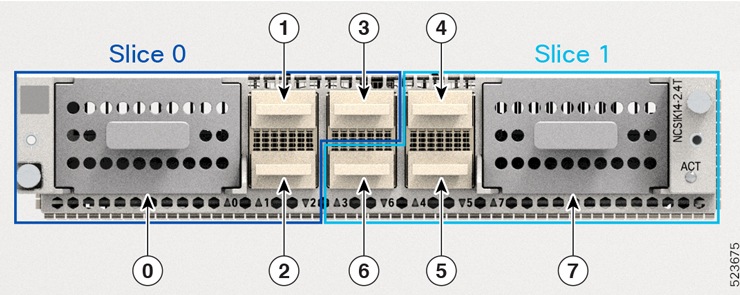
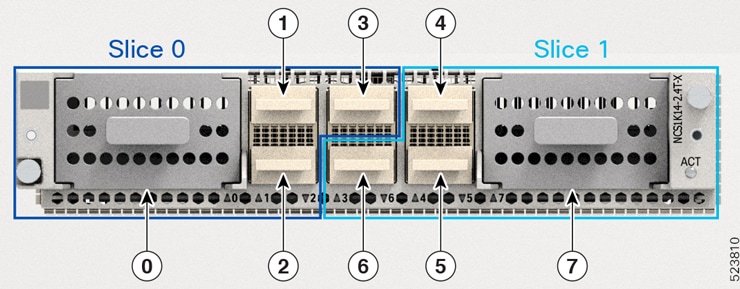
The line card is divided into two slices, namely, Slice 0 and Slice 1. Each slice contains a trunk port and three client ports. In this mode, the trunk ports operate independently, carrying different data rates. The slices enable the card to function as two different modules. For example, if you set the trunk as 400 G for Slice 0 and 600 G for Slice 1, then Trunk 0 delivers 400 G and Trunk 7 delivers 600 G.

Figure 1. 2.4T lne card slices and ports
2.4TX
Figure 2. line card slices and ports
Table 2. Client-to-trunk mapping in slice 0 and slice 1 modes

Slice 0

Slice 1

Trunk port

Client ports

Trunk port

Client ports

0

1, 2, 3

7

4, 5, 6


Data rate capabilities for 2.4T and 2.4TX cards in muxponder slice mode

The 2.4T and 2.4TX line cards support various trunk rates.
This table shows the releases from which the 2.4T and 2.4TX cards started supporting each trunk rate.
Table 3. Release-wise trunk rates supported by the 2.4T and 2.4TX cards

Trunk rate (G)

2.4T

2.4TX

400

7.11.1

24.1.1

500

—

24.1.1

600

7.11.1

24.1.1

700

-

24.2.1

800

7.11.1

24.1.1

900

-

24.2.1

1000

7.11.1

24.1.1

1100

-

24.2.1

1200

-

24.1.1


This section details the baud rate range for each trunk rate in the 2.4T and 2.4TX cards.

Baud rate ranges for each trunk rate in the 2.4T card

The 2.4T card carries signals at different trunk rates, with each trunk rate operating within a baud rate range.

In the Baud Rate Ranges for Each Trunk Rate in the 2.4T card table, you can find the recommended baud rate ranges to maintain the signal health for each trunk rate in the network.

Data rate per trunk (G)

Minimum baud rate (GBd)

Maximum baud rate (GBd)

400

43.34518

130.4647

500

49.61196

147.7235

600

59.53435

148.0555

700

69.45674

147.8182

800

79.37913

148.0555

900

89.30152

147.8709

1000

99.22392

148.0555

1100

109.1463

148.2068

1200

119.0687

148.0555

Data rate per trunk (G)

Minimum baud rate (GBd)

Maximum baud rate (GBd)

400

43.34518

130.4647

500

49.61196

147.7235

600

59.53435

148.0555

700

69.45674

147.8182

800

79.37913

148.0555

900

89.30152

147.8709

1000

99.22392

148.0555

1100

109.1463

148.2068

1200

119.0687

148.0555

Baud rate and bit rate range for each trunk rate in the 2.4TX card

The 2.4TX card carries trunk signals at different data rates. Each trunk data rate operates in a default baud rate. However, you can customize the baud rate within the recommended baud rate range based on your deployment scenario. To customize baud rate, see.

In the Baud Rate and Bit Rate Range for Each Trunk Rate in the 2.4TX Card table, you can find the recommended baud rate ranges to maintain the signal health for each trunk rate in the network. The table also features the bit per second information for the respective baud rates.

Table 4. Baud rate and bit rate range for each trunk rate in the 2.4TX card

Trunk data rate per trunk (G)

Minimum baud r ate (GBd)

Maximum baud rate (GBd)

Default baud rate (GBd)

Minimum bit per second (bps)

Maximum bit per second (bps)

400

43.34518

130.4647

127.931418

2.1

4.1

500

49.61196

147.7235

137.8340588

2.5

5

600

59.53435

148.0555

137.738007

2.8

5.1

700

69.45674

147.8182

138.08166

3.2

5

800

79.37913

148.0555

137.978388

3.5

5.1

900

89.30152

147.8709

137.89817

3.8

5.2

1000

99.22392

148.0555

137.834059

4.3

5.3

1100

109.1463

148.2068

137.78165

4.7

5.3

1200

119.0687

148.0555

137.738007

5.3

5.7


Customize baud rates

Customizing baud rates is to enable users to adjust the default baud rates for the 2.4T and 2.4TX cards, particularly when operating in muxponder mode. This customization allows for optimization of network bandwidth based on specific deployment scenarios and ensures that the baud rates align with the available bandwidth in the network.

The muxponder mode enables the 2.4T and 2.4TX cards to carry signals in default baud rates when you set up the trunk rate. However, you can customize the baud rates for each trunk rate based on the bandwidth in the network.

Use this task to customize the baud rates within the recommended range as per your deployment scenario.

Before you begin

  • Install these pluggable modules as required.

    • QDD-4x100G

    • QDD-400G

  • Enter the Cisco IOS XR configuration mode.

Procedure

  1. Locate the trunk optics controller for the 2.4T and 2.4TX cards.

    Example:

    RP/0/RP0/CPU0:ios(config)# controller optics 0/0/0/7
  2. Enter baud rate.

    Example:

    RP/0/RP0/CPU0:ios(config-Optics)# baud-rate 120.0000
  3. Save the changes.

    Example:

    RP/0/RP0/CPU0:ios(config-Optics)#commit

Client pluggables for configuring muxponder slice modes

This section provides details about the client pluggable combinations that you need to set up the client rate for each trunk rate in slice 0 and slice 1.

Pluggable combinations in muxponder slice modes

The client data rates and ports differ for each trunk rate in the muxponder slice 0 (Trunk 0) and muxponder slice 1 (Trunk 1) configurations. However, the type of client pluggable modules stays the same for both slice modes.

Note

The 2x 100 GE client rate is supported only on 2.TX cards.

Table 5. Trunk rate and client pluggable combinations for Slices 0 and Slice 1

Trunk rate (G) per trunk

Card support

Client rate

Client pluggable

Client ports

Slice 0

Slice 1

400

2.4T, 2.4TX

2x 100 GE

400 GE

QDD-400G 1

1

4

2x 100 GE

4x 100 GE

QDD-4x100G2

500

2.4T, 2.4TX

2x 100 GE

400 GE + 1x 100 GE

QDD-400G 1+ QDD-4x100G2

1, 2

4, 5

5x 100 GE

2x QDD-4x100G2

600

2.4T, 2.4TX

400 GE + 2x 100 GE

QDD-400G 1 + QDD-4x100G2

1, 2

4, 5

6x 100 GE

2x QDD-4x100G2

700

2.4T, 2.4TX

2x 100 GE

400 GE + 3x 100 GE

QDD-400G 1 + QDD-4x100G2

1, 2

4, 5

7x 100 GE

2x QDD-4x100G2

800

2.4T, 2.4TX

2x 100 GE

2x 400 GE

2x QDD-400G 1

1, 2

4, 5

400 GE + 4x 100 GE

QDD-400G 1 + QDD-4x100G2

8x 100 GE

2x QDD-4x100G2

900

2.4T, 2.4TX

2x 100 GE

2x 400 GE + 1x 100 GE

QDD-400G 1 + QDD-4x100G2

1, 2, 3

4, 5, 6

400 GE + 5x 100 GE

QDD-400G 3 + QDD-4x100G4

9x 100 GE 3x QDD-4x100G2

1000

2.4T, 2.4TX

2x 100 GE

2x 400GE + 2x 100 GE

2x QDD-400G 1 + 2x QDD-4x100G2

1, 2, 3

4, 5, 6

10x 100 GE

3x QDD-4x100G2

1100

2.4TX

2x 100 GE

2x 400 GE + 3x 100 GE

2x QDD-400G 1 + QDD-4x100G2

1, 2, 3

4, 5, 6

400 GE + 7x 100 GE

2x QDD-400G 1 + QDD-4x100G2

11x 100 GE

3x QDD-4x100G2

1200

2.4TX

3x 400 GE

3x QDD-400G 1

1, 2, 3

4, 5,6

2x 400 GE + 4x 100 GE

2x QDD-400G 1 + QDD-4x100G2

400 GE + 8x 100 GE

QDD-400G 1 + 2x QDD-4x100G2

12x 100 GE

3x QDD-4x100G2

6x 2X100 GE

6x QDD-2X100-CWDM4-S

1, 2, 3, 4, 5, 6

—

6x QDD-2X100-LR4-S

Make sure you use the appropriate values for client bitrate and trunk bitrate parameters when configuring the Muxponder slide mode using the hw-module command.

1 QDD-400G refers to QDD-400G-FR4-S, QDD-400G-LR4-S, QDD-400G-AOCxM, and QDD-400G-DR4-S pluggable modules.
2 QDD-4x100G refers to QDD-4X100G-LR-S, QDD-4X100G-FR-S, and QDD-400G-DR4-S pluggable modules.

Set up the client and trunk rate in the muxponder slice mode for 2.4T and 2.4TX cards

Set up the client and trunk rate in the muxponder slice mode for the 2.4T and 2.4TX cards to configure these cards to handle specific data rates for both the aggregated trunk and individual client ports.

Use this task to set up the client and trunk rate in the muxponder slice mode for the 2.4T and 2.4TX cards.

This task considers that you are setting up the 600-G data rate in one of the trunk ports of the 2.4T and 2.4TX cards. This scenario requires you to set the client rate for the client ports. Based on the client pluggable that you use, the client rate can change to 400-GE client, 100-GE client, or mixed client.

For more information on the the data rate on each client port, see Client pluggables for configuring muxponder slice modes .

Before you begin

  • Install these pluggables as required.

    • QDD-400G

    • QDD-4x100G

Procedure

  1. Specify the card location.

    Example:

    RP/0/RP0/CPU0:ios(config)#hw-module location 0/1/NXR0
  2. Configure the 2.4T or 2.4TX line card in the muxponder slice mode.

    For Trunk 0 port, enter the muxponder-slice 0 mode.

    Example:

    RP/0/RP0/CPU0:ios(config)# mxponder-slice 0

    For Trunk 1 port, enter the muxponder-slice 1 mode.

    Example:

    RP/0/RP0/CPU0:ios(config)# mxponder-slice 1
    Note

    You can configure both muxponder slice 0 and slice 1 modes when needed.

    For more information on how to configure muxponder slice mode with QDD-4x100GE and QDD-4x100GE pluggables, see the hw-module command.

  3. Set up the trunk rate for the 2.4T or 2.4TX card.

    Example:

    RP/0/RP0/CPU0:ios(config-hwmod-mxp)#trunk-rate 600G
  4. Set up the client rate based on the pluggables that you use.

    For the QDD-400G pluggable, run this command.

    Example:

    
    RP/0/RP0/CPU0:ios(config-hwmod-mxp)#
    client-port-rate 1 client-type 400GE
    RP/0/RP0/CPU0:ios(config-hwmod-mxp)#
    client-port-rate 2 client-type 400GE
    

    For the QDD-4x100G pluggable, run this command.

    Example:

    
    RP/0/RP0/CPU0:ios(config-hwmod-mxp)#
    client-port-rate 1 lane 1 client-type 100GE
    RP/0/RP0/CPU0:ios(config-hwmod-mxp)#
    client-port-rate 1 lane 2 client-type 100GE
    RP/0/RP0/CPU0:ios(config-hwmod-mxp)#
    client-port-rate 1 lane 3 client-type 100GE
    RP/0/RP0/CPU0:ios(config-hwmod-mxp)#
    client-port-rate 1 lane 4 client-type 100GE
    RP/0/RP0/CPU0:ios(config-hwmod-mxp)#
    client-port-rate 2 lane 1 client-type 100GE
    RP/0/RP0/CPU0:ios(config-hwmod-mxp)#
    client-port-rate 2 lane 2 client-type 100GE
    
    Note

    Use the lane keyword to set up the 100-GE client rate in the client ports.

    For the mixed client pluggable, use the combination of the QDD-400G and QDD-4x100G commands.

  5. Save the configuration and exit the muxponder slice mode.

    Example:

    Command
    
    RP/0/RP0/CPU0:ios(config-hwmod-mxp)#
    commit
    RP/0/RP0/CPU0:ios(config-hwmod-mxp)#
    exit
    RP/0/RP0/CPU0:ios(config)#
    exit
    
  6. Verify the 600-G data rate that you set up.

    This sample shows the 600-G data rate ( Trunk Bitrate: 600G ) set up in client ports 1 ( FourHundredGigECtrlr0/1/0/1 ) and 2 with breakout lanes 1 and 2 ( HundredGigECtrlr0/1/0/2/1 and HundredGigECtrlr0/1/0/2/2 ) using 400-GE and 100-GE client type pluggables ( Client Bitrate: MIXED ) in muxponder slice 0 ( Slice ID: 0 ).

    Example:

    
    RP/0/RP0/CPU0:ios#show hw-module location 0/1/NXR0 mxponder-slice 0
    Thu Nov 16 15:41:25.720 UTC
    Location:             0/1/NXR0
    Slice ID: 0 Client Bitrate: MIXED Trunk Bitrate: 600G
    Status:               Provisioned
    LLDP Drop Enabled:    FALSE
    ARP Snoop Enabled:    FALSE
    Client Port                     Mapper/Trunk Port          CoherentDSP0/1/0/0
    Traffic Split Percentage
    FourHundredGigECtrlr0/1/0/1 ODU-FLEX0/1/0/0/1 100 
       HundredGigECtrlr0/1/0/2/1 ODU-FLEX0/1/0/0/2/1 100 
       HundredGigECtrlr0/1/0/2/2 ODU-FLEX0/1/0/0/2/2 100
    

    This sample shows the 600-G data rate ( Trunk Bitrate: 600G ) set up in client ports 0 with breakout lanes 1 to 4 ( HundredGigECtrlr0/1/0/1/1 to HundredGigECtrlr0/1/0/1/4 ) and 1 ( HundredGigECtrlr0/1/0/2/1 ) using 100-GE client type pluggable ( Client Bitrate: 100GE ) in muxponder slice 0 ( Slice ID: 0 ).

    Example:

    
    RP/0/RP0/CPU0:ios#show hw-module location 0/1/NXR0 mxponder-slice 0
    Thu Nov 16 16:06:57.575 UTC
    Location:             0/1/NXR0
    Slice ID: 0 Client Bitrate: 100GE Trunk Bitrate: 600G
    Status:               Provisioned
    LLDP Drop Enabled:    FALSE
    ARP Snoop Enabled:    FALSE
    Client Port           Mapper/Trunk Port          CoherentDSP0/1/0/0
    Traffic Split Percentage
    HundredGigECtrlr0/1/0/1/1 ODU-FLEX0/1/0/0/1/1 100 
       HundredGigECtrlr0/1/0/1/2 ODU-FLEX0/1/0/0/1/2 100 
       HundredGigECtrlr0/1/0/1/3 ODU-FLEX0/1/0/0/1/3 100 
       HundredGigECtrlr0/1/0/1/4 ODU-FLEX0/1/0/0/1/4 100 
       HundredGigECtrlr0/1/0/2/1 ODU-FLEX0/1/0/0/2/1 100 
       HundredGigECtrlr0/1/0/2/2 ODU-FLEX0/1/0/0/2/2 100
    

Set up 2x100G clients in supported trunk rates in the muxponder slice mode

Use this task to set up 2x100G client pluggables in supported trunk rates in the muxponder slice mode on the supported line cards.

For more information on the data rate on each client port, see Client pluggables for configuring muxponder slice modes.

2x100G payload support on 2.4T and 2.4TX line cards was introduced across multiple releases. The following table lists the supported trunk rates, slices, and line cards.

Release Support
24.3.1 1200G trunk rate with support on slice 0 only on the 2.4T line card.
25.1.1 800G to 1100G trunk rates with support on slice 0 only on the 2.4T line card.
25.4.1 400G to 600G trunk rates with support on slices 0 and 1 on the 2.4T line card.

Before you begin

  • Install either of these pluggables in all 6 client ports.

    • QDD-2X100-CWDM4-S

    • QDD-2X100-LR4-S

Procedure

  1. Specify the card location.

    Example:

    RP/0/RP0/CPU0:ios(config)#hw-module location 0/1/NXR0
  2. Configure the line card in the muxponder slice mode.

    For 6x2x100 pluggables in 800G to 1200G trunk modes all client ports are in slice 0. Enter the muxponder-slice 0 mode.

    Example:

    RP/0/RP0/CPU0:ios(config)#mxponder-slice 0
  3. Set up the trunk rate for the 2.4TX cards.

    These examples show how to set up various trunk rates in the muxponder slice mode.

    Example:

    RP/0/RP0/CPU0:ios(config-hwmod-mxp)#trunk-rate 1200G

    Example:

    RP/0/RP0/CPU0:ios(config-hwmod-mxp)#trunk-rate 1100G

    Example:

    RP/0/RP0/CPU0:ios(config-hwmod-mxp)#trunk-rate 1000G

    Example:

    RP/0/RP0/CPU0:ios(config-hwmod-mxp)#trunk-rate 900G

    Example:

    RP/0/RP0/CPU0:ios(config-hwmod-mxp)#trunk-rate 800G
  4. Set up the client rate.

    For the 2X100G pluggables, run this command.

    Example:

    RP/0/RP0/CPU0:ios(config-hwmod-mxp)#client-rate 100GE 
  5. Save the configuration and exit the muxponder slice mode.

    Example:

    Command
    
    RP/0/RP0/CPU0:ios(config-hwmod-mxp)#commit
    RP/0/RP0/CPU0:ios(config-hwmod-mxp)#exit
    RP/0/RP0/CPU0:ios(config)#exit
  6. Verify the data rate that you set up.

    This sample shows the 800G data rate set up in the client ports 1, 2, 4, and 5.

    Example:

    
    RP/0/RP0/CPU0:ios#show hw-module location 0/1/NXR0 mxponder-slice 0                     
    Mon Aug 18 02:11:25.625 UTC
    
    Location:             0/1/NXR0
    Slice ID:             0
    Client Bitrate:       100GE
    Trunk  Bitrate:       800G
    Status:               Provisioned
    LLDP Drop Enabled:    FALSE
    ARP Snoop Enabled:    FALSE
    Client Port                     Mapper/Trunk Port          CoherentDSP0/1/0/0   
                                    Traffic Split Percentage
    
    HundredGigECtrlr0/1/0/1/1       ODU-FLEX0/1/0/0/1                             100
    HundredGigECtrlr0/1/0/1/5       ODU-FLEX0/1/0/0/2                             100
    HundredGigECtrlr0/1/0/2/1       ODU-FLEX0/1/0/0/3                             100
    HundredGigECtrlr0/1/0/2/5       ODU-FLEX0/1/0/0/4                             100
    HundredGigECtrlr0/1/0/4/1       ODU-FLEX0/1/0/0/5                             100
    HundredGigECtrlr0/1/0/4/5       ODU-FLEX0/1/0/0/6                             100
    HundredGigECtrlr0/1/0/5/1       ODU-FLEX0/1/0/0/7                             100
    HundredGigECtrlr0/1/0/5/5       ODU-FLEX0/1/0/0/8                             100
    

    This sample shows the 900G data rate set up in the client ports 1, 2, 3, 4, and 5.

    Example:

    
    RP/0/RP0/CPU0:ios#show hw-module location 0/1 mxponder-slice 0
    Mon Aug 18 02:15:28.412 UTC
    
    Location:             0/1/NXR0
    Slice ID:             0
    Client Bitrate:       100GE
    Trunk  Bitrate:       900G
    Status:               Provisioned
    LLDP Drop Enabled:    FALSE
    ARP Snoop Enabled:    FALSE
    Client Port                     Mapper/Trunk Port          CoherentDSP0/1/0/0   
                                    Traffic Split Percentage
    
    HundredGigECtrlr0/1/0/1/1       ODU-FLEX0/1/0/0/1                             100
    HundredGigECtrlr0/1/0/1/5       ODU-FLEX0/1/0/0/2                             100
    HundredGigECtrlr0/1/0/2/1       ODU-FLEX0/1/0/0/3                             100
    HundredGigECtrlr0/1/0/2/5       ODU-FLEX0/1/0/0/4                             100
    HundredGigECtrlr0/1/0/3/1       ODU-FLEX0/1/0/0/5                             100
    HundredGigECtrlr0/1/0/4/1       ODU-FLEX0/1/0/0/6                             100
    HundredGigECtrlr0/1/0/4/5       ODU-FLEX0/1/0/0/7                             100
    HundredGigECtrlr0/1/0/5/1       ODU-FLEX0/1/0/0/8                             100
    HundredGigECtrlr0/1/0/5/5       ODU-FLEX0/1/0/0/9                             100

    This sample shows the 1000G data rate set up in up in the client ports 1, 2, 3, 4, and 5.

    Example:

    
    RP/0/RP0/CPU0:ios#show hw-module location 0/1 mxponder-slice 0
    Mon Aug 18 02:15:48.811 UTC
    
    Location:             0/1/NXR0
    Slice ID:             0
    Client Bitrate:       100GE
    Trunk  Bitrate:       1000G
    Status:               Provisioned
    LLDP Drop Enabled:    FALSE
    ARP Snoop Enabled:    FALSE
    Client Port                     Mapper/Trunk Port          CoherentDSP0/1/0/0   
                                    Traffic Split Percentage
    
    HundredGigECtrlr0/1/0/1/1       ODU-FLEX0/1/0/0/1                             100
    HundredGigECtrlr0/1/0/1/5       ODU-FLEX0/1/0/0/2                             100
    HundredGigECtrlr0/1/0/2/1       ODU-FLEX0/1/0/0/3                             100
    HundredGigECtrlr0/1/0/2/5       ODU-FLEX0/1/0/0/4                             100
    HundredGigECtrlr0/1/0/3/1       ODU-FLEX0/1/0/0/5                             100
    HundredGigECtrlr0/1/0/3/5       ODU-FLEX0/1/0/0/6                             100
    HundredGigECtrlr0/1/0/4/1       ODU-FLEX0/1/0/0/7                             100
    HundredGigECtrlr0/1/0/4/5       ODU-FLEX0/1/0/0/8                             100
    HundredGigECtrlr0/1/0/5/1       ODU-FLEX0/1/0/0/9                             100
    HundredGigECtrlr0/1/0/5/5       ODU-FLEX0/1/0/0/10                            100

    This sample shows the 1100G data rate set up in 1, 2, 3, 4, 5, and 6 client ports.

    Example:

    
    RP/0/RP0/CPU0:ios#show hw-module location 0/1/NXR0 mxponder-slice 0
    Mon Aug 18 02:12:03.291 UTC
    
    Location:             0/1/NXR0
    Slice ID:             0
    Client Bitrate:       100GE
    Trunk  Bitrate:       1100G
    Status:               Provisioned
    LLDP Drop Enabled:    FALSE
    ARP Snoop Enabled:    FALSE
    Client Port                     Mapper/Trunk Port          CoherentDSP0/1/0/0   
                                    Traffic Split Percentage
    
    HundredGigECtrlr0/1/0/1/1       ODU-FLEX0/1/0/0/1                             100
    HundredGigECtrlr0/1/0/1/5       ODU-FLEX0/1/0/0/2                             100
    HundredGigECtrlr0/1/0/2/1       ODU-FLEX0/1/0/0/3                             100
    HundredGigECtrlr0/1/0/2/5       ODU-FLEX0/1/0/0/4                             100
    HundredGigECtrlr0/1/0/3/1       ODU-FLEX0/1/0/0/5                             100
    HundredGigECtrlr0/1/0/3/5       ODU-FLEX0/1/0/0/6                             100
    HundredGigECtrlr0/1/0/4/1       ODU-FLEX0/1/0/0/7                             100
    HundredGigECtrlr0/1/0/4/5       ODU-FLEX0/1/0/0/8                             100
    HundredGigECtrlr0/1/0/5/1       ODU-FLEX0/1/0/0/9                             100
    HundredGigECtrlr0/1/0/5/5       ODU-FLEX0/1/0/0/10                            100
    HundredGigECtrlr0/1/0/6/1       ODU-FLEX0/1/0/0/11                            100

    This sample shows the 1200G data rate set up in all 12 client ports.

    Example:

    
    RP/0/RP0/CPU0:ios#show hw-module location 0/2/NXR0 mxponder-slice 0
    Thu Nov 16 15:41:25.720 UTC
    Location:             0/2/NXR0
    Slice ID:             0
    Client Bit100GE
    Trunk  Bitrate:       1200G
    Status:               Provisioned
    rate:       LLDP Drop Enabled:    FALSE
    ARP Snoop Enabled:    FALSE
    Client Port                     Mapper/Trunk Port          CoherentDSP0/2/0/0   
                                    Traffic Split Percentage
    
    HundredGigECtrlr0/2/0/1/1       ODU-FLEX0/2/0/0/1                             100
    HundredGigECtrlr0/2/0/1/5       ODU-FLEX0/2/0/0/2                             100
    HundredGigECtrlr0/2/0/2/1       ODU-FLEX0/2/0/0/3                             100
    HundredGigECtrlr0/2/0/2/5       ODU-FLEX0/2/0/0/4                             100
    HundredGigECtrlr0/2/0/3/1       ODU-FLEX0/2/0/0/5                             100
    HundredGigECtrlr0/2/0/3/5       ODU-FLEX0/2/0/0/6                             100
    HundredGigECtrlr0/2/0/4/1       ODU-FLEX0/2/0/0/7                             100
    HundredGigECtrlr0/2/0/4/5       ODU-FLEX0/2/0/0/8                             100
    HundredGigECtrlr0/2/0/5/1       ODU-FLEX0/2/0/0/9                             100
    HundredGigECtrlr0/2/0/5/5       ODU-FLEX0/2/0/0/10                            100
    HundredGigECtrlr0/2/0/6/1       ODU-FLEX0/2/0/0/11                             100
    HundredGigECtrlr0/2/0/6/5       ODU-FLEX0/2/0/0/12                            100
    

Muxponder mode for 2.4TX card

The muxponder mode enables the 2.4TX card to split wavelengths in specific client ports between the two trunk ports. In the slice mode, the client ports that support wavelength splitting act the same as other client ports. However, in the muxponder mode, the 2.4TX card activates the split client ports. The shared client ports are client port 2 for 600G and client port 3 for 1000G.

How muxponder mode splits 400GE and 4x100GE client traffic

This use case explains the wavelength splitting for 600G trunk rate.

For 600G trunk rate, you must configure client port 1, 2, and 4 as 400GE or 4x100GE. Trunk 0 receives 400GE from port 1. Trunk 7 receives 400GE from port 4. As per split client configuration, port 2 gives 200GE to Trunk 0 and another 200GE to Trunk 7. In this way, both trunk ports deliver 600G trunk rate each.


  • Connect the port 0 and port 7 in the near end node to their respective port 0 and port 7 in the far end node.

  • Make sure the optic fibers connected to trunk ports 0 and 7 are the same length. The difference must be less than 500 m; otherwise, you'll lose traffic on the split port.


Data rate capabilities for the 2.4TX card card

Table 6. Feature History

Feature Name

Release Information

Description

Additional Muxponder Mode Trunk Rates for the NCS1K14-2.4T-X-K9 Line Card

Cisco IOS XR Release 24.3.1

The NCS1K14-2.4T-X-K9 line card now supports additional trunk rates of 500G and 900G in muxponder mode, enhancing flexibility and optimizing pluggable count alongside the existing 600G and 1000G rates.

To outline the data rate capabilities of the 2.4TX card card.

The 2.4TX card card supports different trunk rates.

Table 7. Release-wise trunk rates supported by the 2.4TX card cards

Trunk rate (G)

Release introduced

500

24.3.1

600

24.1.1

900G

24.3.1

1000G

24.1.1

Note

For 600G and 1000G trunk rates, in R24.1.1, the shared client port supports only 400GE client and from R24.3.1, the shared client port supports both 400GE and 4x100GE clients.


Client pluggables for configuring 2.4TX muxponder mode

Table 8. Feature History

Feature Name

Release Information

Description

100GE Channel Support for the 600G and 1000G Trunk Rate in NCS1K14-2.4T-X-K9 Muxponder Mode

Cisco IOS XR Release 24.3.1

The NCS1K14-2.4T-X-K9 line card now allows 100G breakout client support for 600G and 1000G trunk rate in muxponder mode. It features 4x100GE breakout channels in shared client ports, enabling easy integration with existing 100G networks using QDD-4X100G-LR-S, QDD-4X100G-FR-S, and QDD-400G-DR4-S pluggable modules. These channels offer high density and bandwidth efficiency without extra costs.

This section provides details about the client pluggable combinations that you need to set up the client rate for each trunk rate.

Client pluggable combinations in muxponder mode

The 2.4TX card muxponder mode supports various trunk rate per trunk with different client pluggable combinations.

Note

From R24.3.1, the 2.4TX card supports 100GE client traffic in the shared client port for both 600G and 1000G trunk rates.

The client channel rate in the table refers to both the total client rate and the client rate per channel in the client ports. For example, 2x 400GE + 2x 100GE indicates that the client traffic consists of two channels at 400GE each and two channels at 100GE each.

Table 9. 2.4TX card muxponder mode port configurations

Trunk rate (G) per trunk

Total configured trunk rate (G)

Client channel rate

Client pluggable

Shared client port

Client ports

500

1000

2x 400GE + 2x 100GE

2x QDD-400G + 1x QDD-4x100G

2

1, 4

1x 400GE + 6x 100GE

1x QDD-400G + 2x QDD-4x100G

10x 100GE

3x QDD-4x100G

600

1200

3x 400GE

3x QDD-400G

2

1, 4

2x 400GE + 4x 100GE

2x QDD-400G + 1x QDD-4x100G

1x 400GE + 8x 100GE

1x QDD-400G + 2x QDD-4x100G

900

1800

4x 400GE + 2x 100GE

4x QDD-400G + 1x QDD-4x100G

3

1, 2, 4, 5

3x 400GE + 6x 100GE

3x QDD-400G + 2x QDD-4x100G

2x 400GE + 10x 100GE

2x QDD-400G + 3x QDD-4x100G

1x 400GE + 14x 100GE

1x QDD-400G + 4x QDD-4x100G

18x 100GE

5x QDD-4x100G

1000

2000

5x 400GE

5x QDD-400G

3

1, 2, 4, 5

4x 400GE + 4x 100GE

4x QDD-400G + 1x QDD-4x100G

3x 400GE + 8x 100GE

3x QDD-400G + 2x QDD-4x100G

2x 400GE + 12x 100GE

2x QDD-400G + 3x QDD-4x100G

1x 400GE + 16x 100GE

1x QDD-400G + 4x QDD-4x100G

Understanding client rates per client port for each trunk rate

This table shows the sample client rate per client port for each trunk rate. This simplified matrix helps you understand the traffic flow in each client port. It also indicates the number of channels that each client port uses to deliver the client traffic. The type of pluggable module inserted in the shared client port determines the traffic rate through breakout and non-breakout channels.

You can customize the configuration by mixing and matching the client pluggable modules according to your requirements.

Table 10. Client rate traffic per trunk rate and client pluggable combinations

Trunk rate (G) per trunk

Client pluggable

Client rate (GE) per trunk 0 client ports

Client rate (GE) per shared client ports

Client rate (GE) per trunk 1 client ports

1 2 2

3

4

5

6

500

2x QDD-400G + 1x QDD-4x100G

400

-

2x 100

-

400

-

-

1x QDD-400G + 2x QDD-4x100G

400

-

2x 100 1

-

4x 100

-

-

3x QDD-4x100G

4x 100

-

2x 100 1

-

4x 100

-

-

600

3x QDD-400G

400

-

400 - 400

-

-

2x QDD-400G + 1x QDD-4x100G

400

-

4x 100 1

-

400

-

-

1x QDD-400G + 2x QDD-4x100G + 3x QDD-4x100G

400

-

4x 100 1

-

4x 100

-

-

900

4x QDD-400G + 1x QDD-4x100G

400

400

-

2x 100 1

400

400

-

3x QDD-400G + 2x QDD-4x100G

400

400

-

2x 100 1

400

4x 100

-

2x QDD-400G + 3x QDD-4x100G

400

400

-

2x 100 1

4x 100

4x 100

-

1x QDD-400G + 4x QDD-4x100G

400

4x 100

-

2x 100 1

4x 100

4x 100

-

5x QDD-4x100G

4x 100

4x 100

-

2x 100 1

4x 100

4x 100

-

1000

5x QDD-400G

400

400

-

400

400

400

-

4x QDD-400G + 1x QDD-4x100G

400

400

-

4x 100

400

400

-

3x QDD-400G + 2x QDD-4x100G

400

400

-

4x 100

400

4x 100

-

2x QDD-400G + 3x QDD-4x100G

400

400

-

4x 100

4x 100

4x 100

-

1x QDD-400G + 4x QDD-4x100G + 5x QDD-4x100G

400

4x 100

-

4x 100

4x 100

4x 100

-

1 In this shared port, the pluggable capacity is 400GE or 4x 100GE, but, for this trunk rate, the 2.4TX card card consumes only 2x 100GE client data.

Set up the client and trunk rate in the muxponder mode for the 2.4TX card

Use this task to configure a trunk rate in muxponder mode for the 2.4TX card card.

Note

This task considers that you’re setting up the 600G trunk rate in the muxponder mode for the 2.4TX card card. The commands and output shown are for 600G trunk rate. The commands and output change for other trunk rates.

This task uses a mix of client pluggable modules. For this task, the card has:

  • QDD-4x100G pluggable in shared client port 2, and

  • QDD-400G pluggable in client ports 1 and 4

Note

For the 600G trunk rate, the split port supports both 400GE and 4x100GE. For more information on required pluggable modules for other trunk rates, see Client pluggables for configuring 2.4TX muxponder mode .

Before you begin

  • Install the pluggables as required.

    • QDD-400G

    • QDD-4x100G

Procedure

  1. Specify the card location.

    Example:

    RP/0/RP0/CPU0:ios(config)# hw-module location 0/1/NXR0
  2. Enter the muxponder card mode.

    Example:

    RP/0/RP0/CPU0:ios(config-hwmod)#mxponder
  3. Set up the trunk rate.

    Example:

    RP/0/RP0/CPU0:ios(config-hwmod-mxp)# trunk-rate 600G
  4. Set up the client rate for the QDD-400G and QDD-4x100G pluggable modules.

    Example:

    
    RP/0/RP0/CPU0:ios(config-hwmod-mxp)#
    client-port-rate 1 client-type 400GE
    // QDD-400G pluggable in client port 1 
    RP/0/RP0/CPU0:ios(config-hwmod-mxp)#
    client-port-rate 2 lane 1 client-type 100GE
    // Enter lane for the QDD-4x100G pluggable in client port 2
     RP/0/RP0/CPU0:ios(config-hwmod-mxp)#
     client-port-rate 2 lane 2 client-type 100GE
    // Enter lane for the QDD-4x100G pluggable in client port 2
      RP/0/RP0/CPU0:ios(config-hwmod-mxp)#
     client-port-rate 2 lane 3 client-type 100GE
    // Enter lane for the QDD-4x100G pluggable in client port 2
     RP/0/RP0/CPU0:ios(config-hwmod-mxp)#
     client-port-rate 2 lane 4 client-type 100GE
    // Enter lane for the QDD-4x100G pluggable in client port 2
     RP/0/RP0/CPU0:ios(config-hwmod-mxp)#
     client-port-rate 4 client-type 400GE  
     
    Note

    Use the lane keyword to set up the 100GE client rate in the client ports.

  5. Save the configuration and exit the muxponder mode.

    Example:

    
    RP/0/RP0/CPU0:ios(config-hwmod-mxp)#
    commit
    RP/0/RP0/CPU0:ios(config-hwmod-mxp)#
    exit
    // Exits muxponder mode
    RP/0/RP0/CPU0:ios(config)#
    exit
    // Exits configuration moder
    
  6. Verify the 600G mixed client rate configured for the 2.4TX card muxponder mode.

    This sample shows the 600G data rate ( Trunk Bitrate: 600G ) set up in client ports 1 and 4 ( FourHundredGigECtrlr0/2/0/1 and FourHundredGigECtrlr0/2/0/4 ) and split client port 2 with breakout lanes 1 to 4 ( HundredGigECtrlr0/2/0/2/1 to HundredGigECtrlr0/2/0/2/4 ).

    Example:

    
    RP/0/RP0/CPU0:ios# show hw-module location 0/2/NXR0 mxponder
    Location:             0/2/NXR0
    Client Bitrate: MIXED Trunk Bitrate: 600G
    Status:               Provisioned
    LLDP Drop Enabled:    FALSE
    ARP Snoop Enabled:    FALSE
    Client Port                     Mapper/Trunk Port          CoherentDSP0/2/0/0   CoherentDSP0/2/0/7      
    Traffic Split Percentage
    FourHundredGigECtrlr0/2/0/1     ODU-FLEX0/2/0/0/1                             100                        0
    
    HundredGigECtrlr0/2/0/2/1 ODU-FLEX0/2/0/0/2/1 100 0 
    HundredGigECtrlr0/2/0/2/2 ODU-FLEX0/2/0/0/2/2 100 0 
    HundredGigECtrlr0/2/0/2/1 ODU-FLEX0/2/0/7/2/3 0 100 
    HundredGigECtrlr0/2/0/2/2 ODU-FLEX0/2/0/7/2/4 0 100
    FourHundredGigECtrlr0/2/0/4     ODU-FLEX0/2/0/7/4                               0                      100