Cisco Optical Site Manager Topology

This chapter describes the different Cisco Optical Site Manager views. In this chapter, you will also learn to add new racks.

Topology

The Topology page provides a visual and tabular representation that allows users to manage optical site configurations effectively. The page offers two distinct views for managing site configurations:

  • Rack View

  • Table View

Rack View

Provides a graphical representation of a rack, including nodes and cards. Users can hover over a device or node to display its name in a tooltip, aiding in quick identification.

Table View

Displays a detailed list of chassis with information such as node UIDs, rack numbers, chassis types, and descriptions. This view also allows users to add new racks, simplifying updates and management.
Create a rack

A rack serves as a container for other devices that are managed by Cisco Optical Site Manager.

Use this task to add a rack to Cisco Optical Site Manager.

Before you begin

Procedure


Step 1

Click Topology in the left panel.

The COSM Topology page appears.

Step 2

Click Add Rack.

The Add rack dialog box appears.

Step 3

Enter a rack ID in the Rack ID field.

You can enter any value from 1 through 32767.

Step 4

Click Apply.

The rack is added to the rack and table views.


Open the card view

Follow these steps to open the card in a card view.

Before you begin

Log into Cisco Optical Site Manager

Procedure


Step 1

Click Topology in the left panel.

The rack and Topology view appear.

Step 2

To open the card view, perform any of these steps:

  • Right-click the outer edge of the chassis or line card from the rack view and select Open.
  • Double-click the line card in the rack view.

The card view appears.


Identify a passive device associated with a USB

Identify a specific passive device associated with a USB port using the LED blink function.

Follow these steps to identify a passive device associated with a USB:

Before you begin

Procedure


Step 1

Click Topology in the left panel.

Step 2

Click the rack name in the rack view.

Step 3

Click the Provisioning tab.

Step 4

Click Passives to expand the section.

The table displays a list of passive devices.

Step 5

Select the check box corresponding to a device and click Edit.

After selecting a device, the USB Port field becomes editable.

Step 6

Select the USB port from the drop-down list.

Step 7

Click Apply.

Step 8

Perform one of these steps:

To

Click

start blinking the LED of the passive device

LED Blink

know the LED status of the associated device

LED Status

stop the LED blinking

LED Blink


View CPU and memory usage

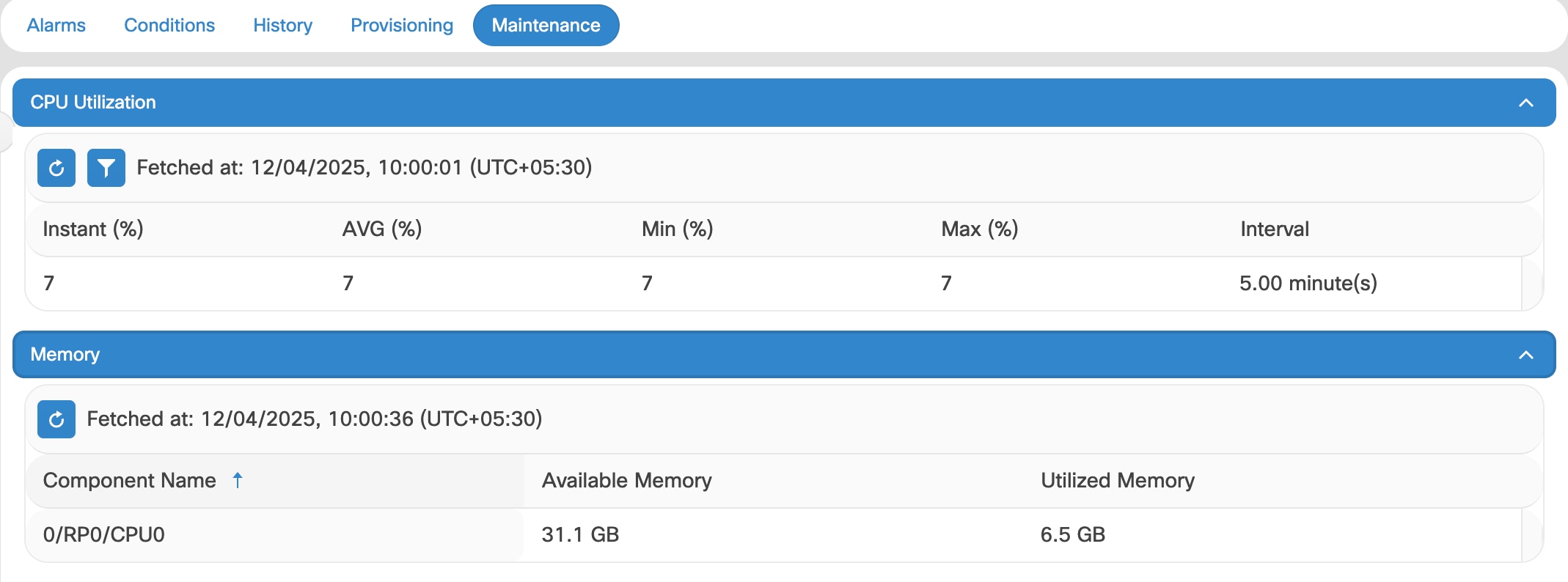
Monitor real-time CPU utilization and memory consumption on the device. This monitoring capability helps in quickly assessing the device's performance and identifying any resource bottlenecks or issues.

Table 1. Feature History

Feature Name

Release Information

Description

Real-Time CPU and Memory Monitoring

Cisco IOS XR release 25.4.1

You can now monitor real-time CPU usage and memory data in the CPU Utilization and Memory sections of the Maintenance tab. This helps you to quickly assess the device performance and take action as needed.

Figure 1. CPU and Memory Usage

Before you begin

Log into Cisco Optical Site Manager

Follow these steps to view the CPU usage and memory information:

Procedure


Step 1

Click Topology.

Step 2

Click the rack name from the rack view.

Step 3

To open the chassis or line card view, perform any of these steps:

  • Right-click the outer edge of the chassis or line card from the Rack view and select Open to open the chassis view.
  • Double-click the chassis or line card to open the chassis or line card view.

Step 4

Navigate to the Maintenance tab for your selected chassis or line card, then select CPU Utilization and Memory to view usage details.

For more details about the filed descriotions, see the Table 2 table.


You can now view real-time CPU and memory usage statistics for the selected device.

This table describes the fields displayed in the CPU Utilization and Memory sections:
Table 2. CPU Utilization and Memory field descriptions

Field

Description

CPU Utilization

Instant

Shows the current CPU utilization at the moment the data was fetched.

AVG

Displays the average CPU utilization calculated over the Interval .

Min

Indicates the lowest CPU usage recorded during the Interval .

Max

Indicates the highest CPU usage recorded during the Interval .

Memory

Component Name

Displays the specific device for which the memory details are shown.

Available Memory

Shows the total memory currently free and available for use by that device.

Utilized memory

Indicates the amount of memory currently in use by the device.

Interval

Specifies the time window (in minutes) used to collect and compute the CPU utilization statistics.

View voltage, temperature and current details

Table 3. Feature History

Feature Name

Release Information

Description

Environmental Monitoring in the Maintenance Tab

Cisco IOS XR release 25.1.1

The Maintenance tab now features an Environmental Monitoring section, providing real-time voltage, current, and temperature data for line cards and chassis. This addition simplifies device monitoring and management.

View the voltage, temperature, and current information of a device using the Cisco Optical Site Manager.

Cisco Optical Site Manager facilitates the monitoring of device voltage, temperature, and current to ensure stable operation, prevent overheating, and maintain safe and efficient device performance.

Follow these steps to view the voltage, temperature, and current information:

Before you begin

Log into Cisco Optical Site Manager

Procedure


Step 1

Click Topology in the left panel.

Step 2

Click the rack name from the rack view.

Step 3

To open the chassis or line card view, perform any of these steps:

  • Right-click the outer edge of the chassis or line card from the Rack view and select Open to open the chassis view.
  • Double-click the chassis or line card to open the chassis or line card view.

Step 4

Click the Maintenance tab.

Step 5

Click the Environmental Monitoring section to expand it.

Step 6

From the Type drop-down list, select any of these options to view the related information:

  • Voltage

  • Temperature

  • Current

  • Fan (Only available for Chassis)


View power monitoring parameters

You can view different power metrics of a chassis, such as total power consumption and maximum power, using Cisco Optical Site Manager.

Follow these steps to view the power monitoring parameters of a chassis:

Before you begin

Log into Cisco Optical Site Manager

Procedure


Step 1

Click Topology in the left panel.

The Topology page appears.

Step 2

Click the rack name from the rack view.

Step 3

To open the chassis view, perform any of these steps:

  • Right-click the outer edge of the chassis from the rack view and select Open.
  • Double-click the chassis.

Step 4

Click the Maintenance tab.

Step 5

Click the Power Monitoring section to expand it.

The chassis total power consumption and maximum power display.