Network Model Configuration—Cisco WAE UI

This section contains the following topics:

Cisco WAE UI Overview

The Cisco WAE UI provides an easy-to-use configuration tool for device and network access, network model creation, user management, agent configuration, and so on.

For basic network model configuration we recommend starting with the Network Model Composer. You can also choose to perform certain operations using the Expert Mode or the Cisco WAE CLI. Regardless of the interface you use, the last committed configuration is saved.

Note


Make sure that only a single session is active per user. Multiple sessions per user can create issues and is not recommended.


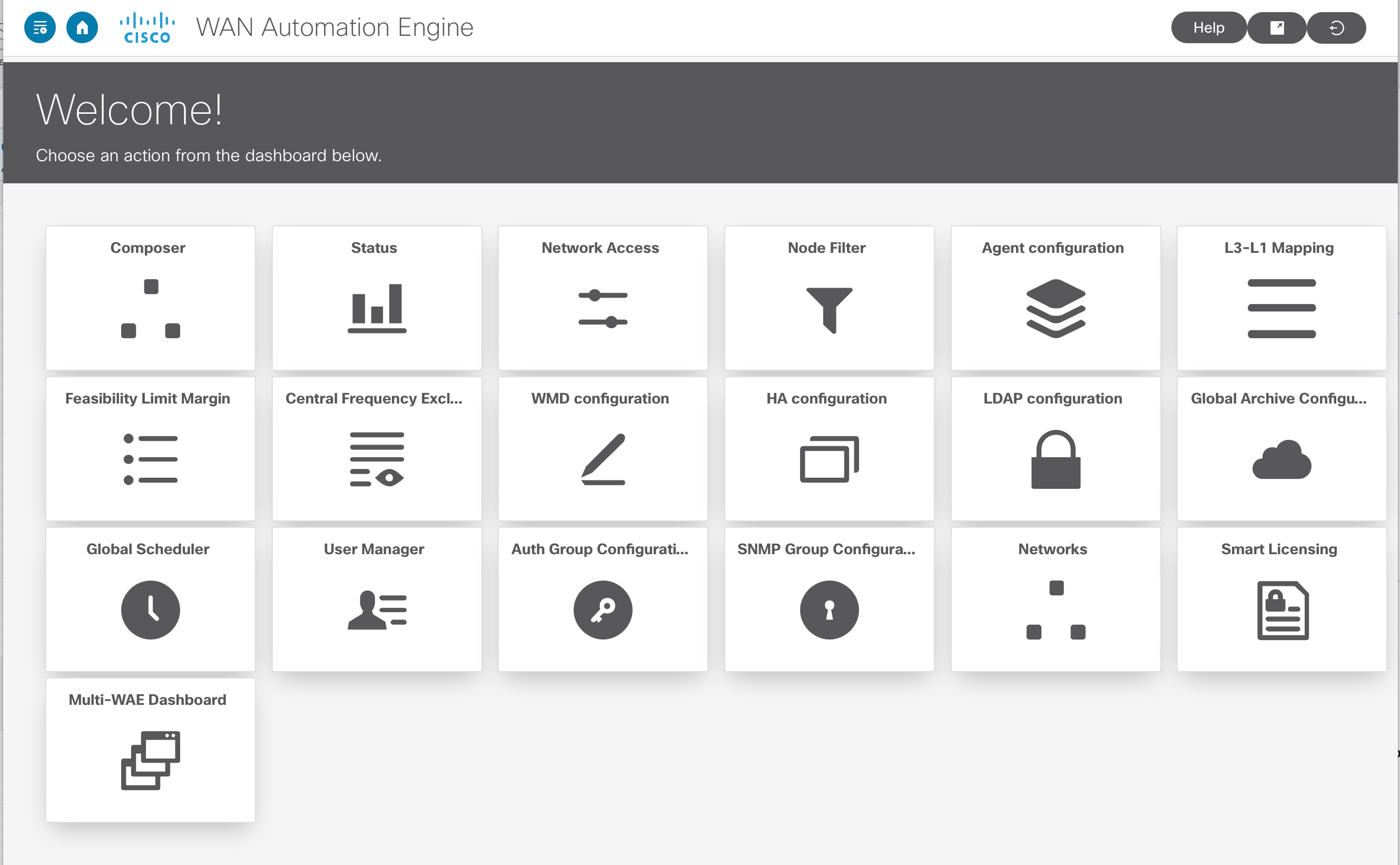
Icons

Description

For more information, see...

Returns you to the main Cisco WAE UI landing page.

Composer

Opens the Network Model Composer, which lets you create and build a network model.

Use the Network Model Composer

Status

The Status Dashboard helps to identify processes that cause system leaks or processes that completely use the resources.

Status Dashboard

Network Access

Opens the network access configuration page, which lets you configure global device and network credentials.

Configure Network Access Using the Cisco WAE UI

Node Filter

Open Node Filter page which lets you to exclude or include individual nodes from collection.

Configure the Node Filter using Cisco WAE UI

Agent Configuration

Opens the agent configuration page, which lets you create and modify agents.

Configure Agents Using the Cisco WAE UI

L3-L1 Mapping

Opens the L3-L1 mapping configuration page, which lets you create and modify L3-L1 node and circuit mappings for multilayer collection.

Configure L3-L1 Mapping Information

Feasibility Limit Margin

Opens the feasibility limit margin configuration page, which lets you set the acceptable quality of the L1 circuit path.

"L1 Circuit Wavelengths" topic in the Cisco WAE Design User Guide.

Central Frequency Excludelists

Opens the central frequency excludelist configuration page, which lets you define the list of frequency IDs that may not serve as central frequency IDs for L1 circuit paths.

"L1 Circuit Wavelengths" and "Central Frequency ID Excludelist" topic in the Cisco WAE Design User Guide.

WMD configuration

Opens the WMD configuration page, which lets you view WMD options such as debugging, rpc and application subscriber connections, demands, and so on. To edit these options, use the Expert Mode or WAE CLI or WAE UI.

Cisco WAE Modeling Daemon (WMD) Configuration

HA configuration

Opens the high availability (HA) configuration page, which lets you designate which nodes are used for HA.

Configure High Availability

LDAP configuration

Opens the LDAP configuration page, which lets you enable and configure LDAP details.

Global Archive Configuration

Opens Global Archive page from where plan files can be downloaded.

Download Plan Files

Global Scheduler

Opens Global Scheduler page which lets you to create a scheduled task.

Schedule Jobs Using the Network Model Composer

User Manager

Opens the user management page, which lets you add, modify, and delete users.

Manage Users

Auth Group Configuration

Opens Auth Group Configuration page which lets you create a new authorization group.

Configure Network Access Using the Cisco WAE UI

SNMP Group Configuration

Opens SNMP Group Configuration page which lets you create a new SNMP group.

Configure Network Access Using the Cisco WAE UI

Networks

Opens Networks page which lets you to create a standalone network.

Create a Standalone Network

Smart Licensing

Opens Smart Licensing page that allows you to enable and register smart license for Cisco WAE.

Cisco Smart Licensing

Multi WAE Dashboard

Opens Multi WAE Dashboard page that provides details related to different WAE instances.

Note


Multi WAE Dashboard is available only if Multi WAE is configured.

Multi WAE Collection

Toggles the main Cisco WAE UI navigation menu on the left (also called the left sidebar menu).

Launches the Online Help for Cisco WAE UI in a new tab.

Note


Documents are sometimes updated after original publication. Refer to the Cisco WAE User Guide document on Cisco.com for latest updates.

Launches the Expert Mode in another window.

Network Model Configuration—Expert Mode

Logs the current user out.

Configure a Network Model Using the Cisco WAE UI

This workflow describes the high-level steps to create a network model using the Cisco WAE UI and the Network Model Composer.

Step For more information, see...

1. Configure device credentials (network authgroups and SNMP groups).

Configure Network Access Using the Cisco WAE UI

2. (Optional) Create agents to collect specific information. Agents are needed for collecting information using SR-PCE or for multilayer collection.

Configure Agents Using the Cisco WAE UI

3. (Optional) Create a network which is not a DARE network

Create a Standalone Network

Use the Network Model Composer to do the following:

4. Create a network model and run topology collection.

Create a Network and Configure Topology Collection

5. Configure additional data collections using NIMOs.

Configure Additional NIMOs Using the Network Model Composer

6. Aggregate NIMOs to build a network.

Consolidate NIMO Collections Using the Network Model Composer

7. (Optional) Configure traffic collection and customer scripts to run in your network.

Run Traffic Collection or a Custom Script Using the Network Model Composer

8. (Optional) Configure archives.

Configure the Archive Using the Network Model Composer

9. (Optional) Create scheduling jobs to run network collections and agents.

Schedule Jobs Using the Network Model Composer

Configure Network Access Using the Cisco WAE UI

In this task, you are defining global device credentials by creating a network access profile.

Before you begin

Know the global network device credentials.

Procedure


Step 1

From the WAE UI, click Network Access.

Step 2

Click + Create Network Access.

Step 3

Enter the global device credentials:

  • Name—Enter a name for the network access profile.
  • Login Type—Choose which login protocol to use: SSH or Telnet. The SSH protocol is more secure. The Telnet protocol does not encrypt the username and password.
  • Authorization Group—Choose default or create a new authorization group. If creating a new authorization group, enter a name for it and applicable information in the fields that follow.

Note


You can also create a new Authorization Group directly from WAE UI. From Cisco WAE UI, select Auth Group Configuration and click Create Auth Group . Enter the details and click Save.

Step 4

Choose default or create a new SNMP group. If creating a new SNMP group, enter a name for it and select either SNMPv2c or SNMPv3.

Note


You can also create a new SNMP Group directly from WAE UI. From Cisco WAE UI, select SNMP Group Configuration and click Create SNMP Group. Enter the details and click Save.

  • If SNMPv2c, enter the SNMP RO community string that acts as a password. It is used to authenticate messages sent between the node and the seed router.
  • If SNMPv3, enter the following default credentials:

    • Security Level—Select one of the following:

      • noAuthNoPriv—Security level that does not provide authentication or encryption. This level is not supported for SNMPv3.

      • authNoPriv—Security level that provides authentication but does not provide encryption.

      • authPriv—Security level that provides both authentication and encryption.

    • Authentication Protocol and Password—Select one of the following:

      • md5—HMAC-MD5-96 authentication protocol

      • sha—HMAC-SHA-96 authentication protocol

    • Encryption Protocol and Password—The priv option offers a choice of DES or 128-bit AES encryption for SNMP security encryption. The priv option and the aes-128 token indicates that this privacy password is for generating a 128-bit AES key #.The AES priv password can have a minimum of eight characters. If the passphrases are specified in clear text, you can specify a maximum of 64 characters. If you use the localized key, you can specify a maximum of 130 characters.

Step 5

Click Save.

Step 6

(Optional) To add or edit nodes associated with these network access credentials, do the following:

  1. Click the Edit Node Access button and do one of the following:

    • To Export a node list, click .

    • To import a node list, click , and enter the CSV file path in file-path field and click Done. This overwrites nodes that were previously configured.

      Note


      Make sure that the CSV file is located on the server where WAE is installed.

    • To add a node, click , and enter node details.

    • To edit a node, select a node, click , and enter node details.

    • To delete a node, select a node, click .

    • To delete all nodes in bulk, click Delete All button.

  2. Click Done.

Step 7

Click Save.


What to do next

Use the Network Model Composer to create a network model.

Configure Agents Using the Cisco WAE UI

Agents perform information-gathering tasks and should be configured before certain network collection operations. This section describes how to configure agents using the Cisco WAE UI.

Procedure


Step 1

From the Cisco WAE UI, click Agent Configuration.

Step 2

Click Create New Agent.

Note


Telemetry and Netflow agents are created with default config. You cannot add a new telemetry or a netflow agent. However, you can change or delete the configuration by clicking on the card.

To delete other agents use the trash icon.

Step 3

Enter a name for the agent.

Step 4

From the Collector Type drop-down list, select a collector.

Step 5

Click Create Agent.

Step 6

On the next window, enter applicable agent configuration values. To view field descriptions, hover the mouse pointer over the field name.

Step 7

Click Save.

Step 8

To run the agent, click Actions > run-collection.


What to do next

Use the Network Model Composer to configure NIMOs to build a network model. For more information on NIMO types, see NIMO Descriptions.

Configure the Node Filter using Cisco WAE UI

Cisco WAE UI enables you to include or exclude individual nodes from collection.


Note


  • Node name/loopback IP can be added for node filter list, management IP must not be added in node filter IPs.

  • Node name works with ISIS.

  • OSPF database does not have node names, so filtering only works by IP address.

  • Node filter does not support Segment List hops.


Procedure


Step 1

From the Cisco WAE UI, click Node Filter.

Step 2

Click Create Node Filter.

Step 3

Enter the Name name for the Node Filter.

Step 4

Use the Regex option when multiple nodes are to be included/excluded with a single expression. Enter Regex and choose INCLUDE ONLY or EXCLUDE ONLY from Regex Filter dropdown.

Note


Choose IGNORE FILTER if using Node Filter option.

Step 5

Alternatively, instead of Regex, you can add IPs or node names for each node. For this choose INCLUDE ONLY or EXCLUDE ONLY from Node Filter dropdown.

Click Add New Node to list the nodes to be included or excluded. You can select multiple nodes using comma as a separator.

Note


Choose IGNORE FILTER if using Regex option.

Step 6

Click Save.


Create a Standalone Network

Use the following steps to create a separate network which is not a DARE network.

Procedure


Step 1

From the Cisco WAE UI, click Networks.

Step 2

Click Create New Network.

Step 3

Enter a name for the network.

Note


The network model name cannot be changed after it is entered.

Step 4

Click Create Network.

Note


After network creation, the type of network is 'unknown'. You need to configure the network.

Step 5

Click the new network that you just created.

Step 6

Click Choose NIMO Type and select a NIMO from the drop down list. Click Next.

Step 7

Click the Collector icon to configure collection.

Step 8

Enter applicable configuration details. Hover the mouse pointer over each field to view field descriptions.

Step 9

Click Save. You are brought back to the main network model window.

Step 10

Click Archive Config to archive the configuration.

  1. Enter the Archive Path

  2. In the Include NetInt Tables field, select true or false.

  3. Enter values for cleanup action.

  4. Click Save.

Note


Use different directories for different network archives. Using the same directory for multiple archives can cause loss/corruption of plan files.

Step 11

Click the Collector icon and click Actions.

Step 12

Click the button that will start the NIMO collection (typically "run-collection").


Use the Network Model Composer

The Network Model Composer hides the complexity of network model configuration. It provides a visual workflow to guide you from creating a network model using various NIMOs to setting up a schedule to run collections and configuring an archive to store the network model plan files.

The Network Model Composer provides the following general controls.

Add section on the right of the screen starts the process of creating a network model, an agent, a NIMO, a scheduled task, or an archive.

The numbered navigation at the top of the page displays where you are in the network model configuration process. As you complete each step, you may click on a step that you may want to skip or go back to.

The network model you are configuring - collections (NIMOs), scheduling tasks, or archives for is displayed on the left area followed by configured components (NIMOs, scheduling tasks, or archives) that have been created for the selected network model.

The configuration options for the selected component is displayed at the bottom.

Create a Network and Configure Topology Collection

The initial step in configuring a complete network model is to create a new network with topology collection. In this task, you are configuring a topology collection that will be the source network for additional network collections. After the initial collection, the node IP address table is populated and you can add management IP addresses. For more information on basic topology collections, see Basic Topology Collection.


Note


It is recommended that you configure network access and any necessary agents as described in Configure a Network Model Using the Cisco WAE UI before you use the Network Model Composer. However, you have the opportunity to configure network access and agents in the Network Model Composer.


Procedure


Step 1

From the Cisco WAE UI, click Network Model Composer.

Step 2

Click + Create New Network.

Step 3

Enter a network model name and click Create Network.

Note


The network model name cannot be changed after it is entered.

Step 4

Click Add Discovery Method.

Step 5

Enter a Name for the collector and select a NIMO from the Type dropdown.

To select from an existing network, click Existing network checkbox and choose Name and Type from the dropdown.

Note


Name of the collector must not include any space.

Step 6

Click + Add.

Step 7

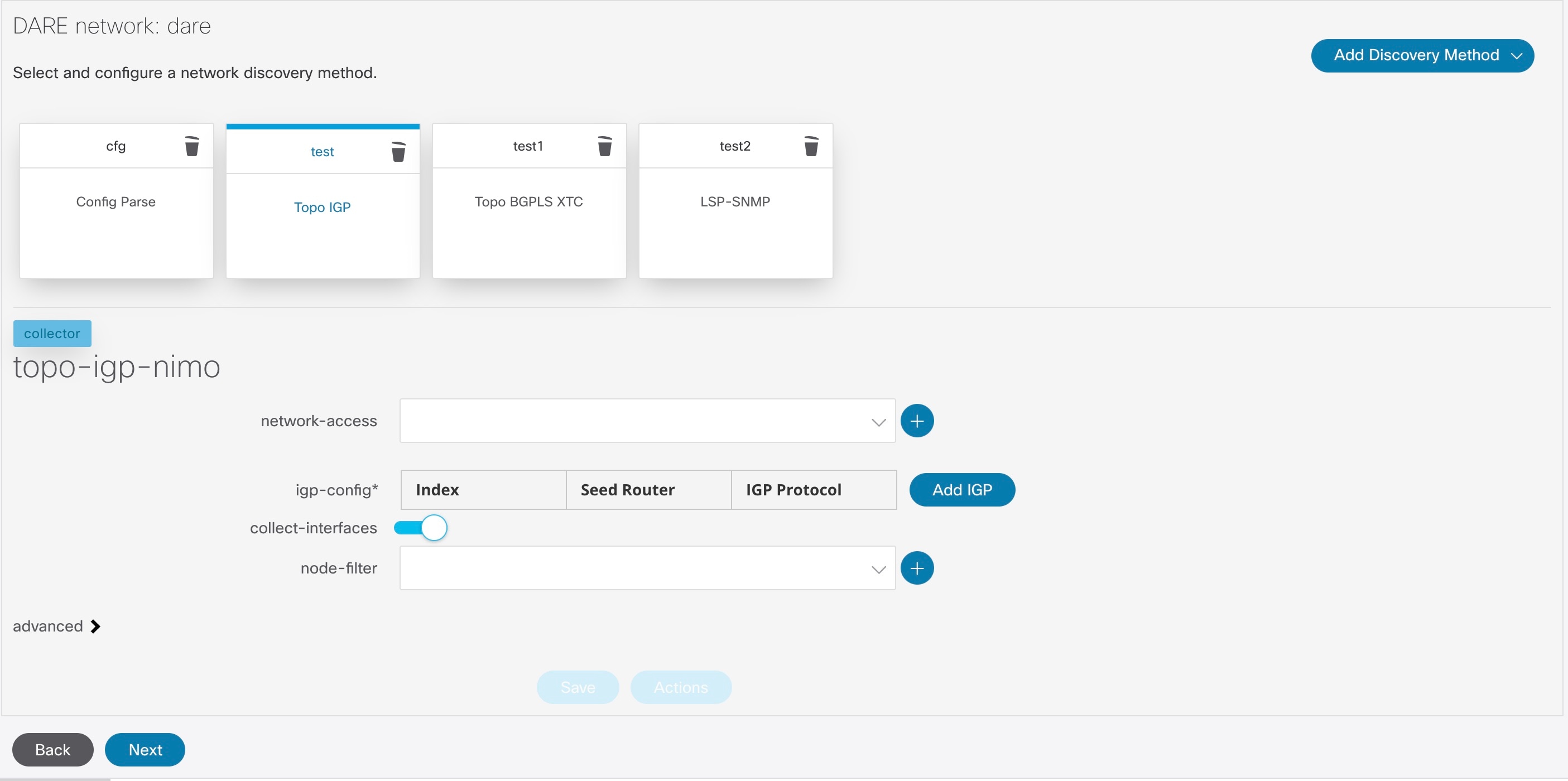
Click the topology icon (Topo IGP or Topo BGPLS XTC or SR Traffic Matrix) to configure collection.

Step 8

Enter applicable configuration details. Hover the mouse pointer over each field to view field descriptions.

Step 9

Select node-filter from the dropdown. If you have not defined a node-filter, click + and enter the details. Choose between Include Filter, Exclude Filter and Ignore Filter. See Configure the Node Filter using Cisco WAE UI

Step 10

Click Save. You are brought back to the main network model window.

Step 11

Click the topology icon (Topo IGP or Topo BGPLS XTC) again.

Step 12

Click Actions and select one of the following:

  • run collection or run-xtc-collection—Starts collection.
  • Update Node List—Allows you to delete, add, or edit existing nodes.
  • Done—Takes you back to the previous window.

Step 13

Click Save.


What to do next

You can configure more collections using other NIMOs to create a complete network model.

Configure Additional NIMOs Using the Network Model Composer

This topic describes the general procedure to configure additional NIMOs using the Network Model Composer. For NIMO descriptions, see NIMO Descriptions.


Note


  • The term "Collector" is displayed in the Network Model Composer when you are prompted to enter or select a NIMO. The terms NIMO and Collector are used interchangeably in the Network Model Composer.

  • Configure additional topology NIMOs at this step. It is recommended that non-topology NIMOs (layout, inventory, demand deduction, and so on) are configured in the external-executable-nimo after topology aggregation.


Before you begin

Confirm that the network model you are working with has a basic topology NIMO configured.

Procedure


Step 1

From the Cisco WAE UI, click Network Model Composer and click a network model that you want to configure a NIMO for.

Step 2

Click Add Discovery Method.

Step 3

Enter a Name for the collector and select a NIMO from the Type dropdown.

To select from an existing network, click Existing network checkbox and choose Name and Type from the dropdown.

Note


Name of the collector must not include any space.

Step 4

Click + Add.

Step 5

Click the Collector icon to configure collection.

Step 6

Enter applicable configuration details. Hover the mouse pointer over each field to view field descriptions.

Note


You can also refer to the Network Interface Modules (NIMOs) topic. This topic links to NIMOs and associated configuration options.

Step 7

Click Save. You are brought back to the main network model window.

Step 8

Click the Collector icon and click Actions.

Step 9

Click the button that will start the NIMO collection (typically "run-collection").


What to do next

You can do the following:

Consolidate NIMO Collections Using the Network Model Composer

After you configure multiple NIMOs, you will want to consolidate all the collection models to build a complete network model. After NIMO aggregation, you can collect traffic statistics (traffic-poll-nimo) and run custom scripts (external-executable-nimo) against your network model.

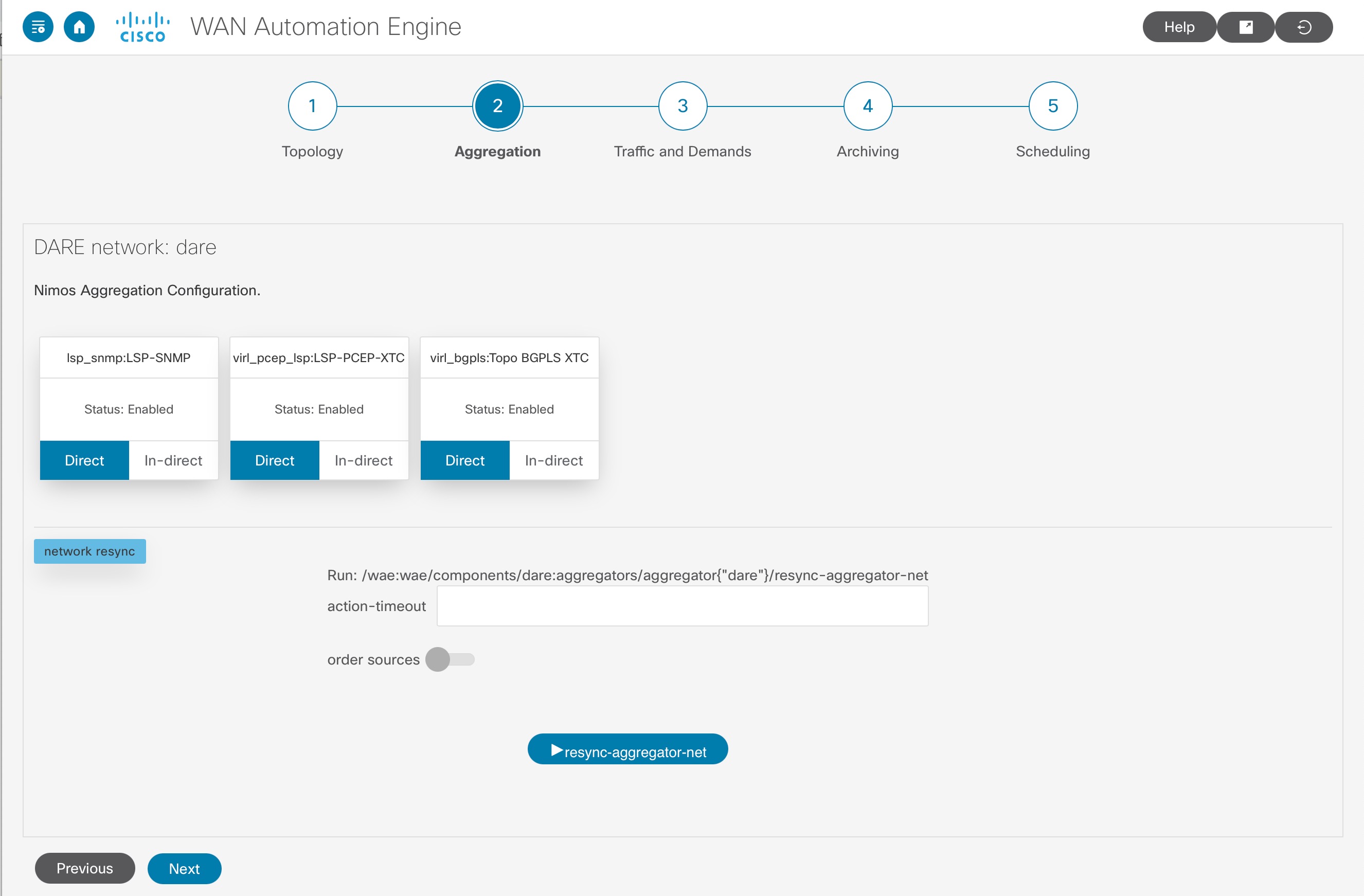
Figure 1. Network Model Composer—Aggregation

Procedure


Step 1

Click Network Model Composer and choose a network model.

Step 2

Click the Aggregation icon from the top navigation bar. The Aggregation page should look similar to the one above.

Step 3

By default, all NIMOs are included in the aggregation. To exclude any NIMOs from aggregation, click Indirect. Any changes on that collection model will not be included during aggregation.

Step 4

In the network rebuild section, you can choose to modify the order of the sources. Enable order source and use the arrows to change the order from the Ordered Sources list. For more information on aggregation, refer to the NIMO Collection Consolidation topic.


Run Traffic Collection or a Custom Script Using the Network Model Composer

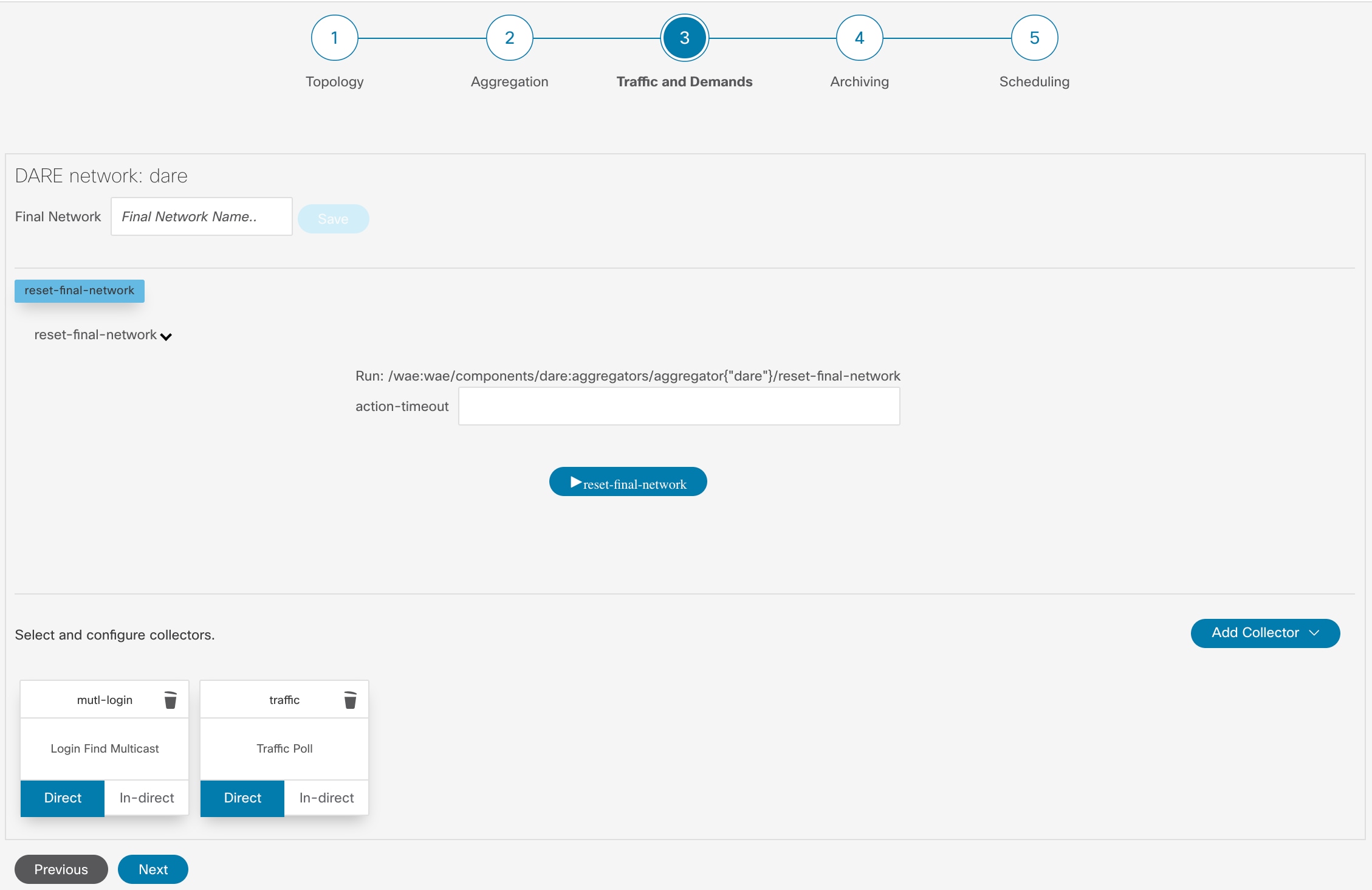
Figure 2. Network Model Composer—Traffic and Demands

Before you begin

Confirm you have completed the preliminary tasks described in Configure a Network Model Using the Cisco WAE UI and have aggregated collection models.

Procedure


Step 1

Click Network Model Composer and choose a network model.

Step 2

Click Traffic and Demands.

Step 3

(Optional) In the Final Network field, type a name to configure the final SAGE network and click Save.

Leave the Final Network field blank if you do not want to configure a SAGE network.

Note


Click reset-final-network to reset the final network.

Step 4

Click Add Collector.

Step 5

Enter a Name for the collector and select a NIMO from the Type dropdown.

To select from an existing network, click Existing network checkbox and choose Name and Type from the dropdown.

Note


Name of the collector must not include any space.

Step 6

Click Add. The new collector appears.

Step 7

Click the collector you just created.

Step 8

Enter applicable configuration details. Hover the mouse pointer over each field to view field descriptions.

Step 9

Click Save. You are brought back to the main network model window.


Configure the Archive Using the Network Model Composer

After creating a network model and running collections, you have the option to retrieve and view plan files. Plan files capture all relevant information about a network at a given time, and can include topology, traffic, routing, and related information.

The Archive is a repository for plan files. See also Configure the Archive Using the WAE CLI, which describes how to configure the Archive using the Cisco WAE CLI.


Note


To schedule archiving, see Schedule Jobs Using the Network Model Composer


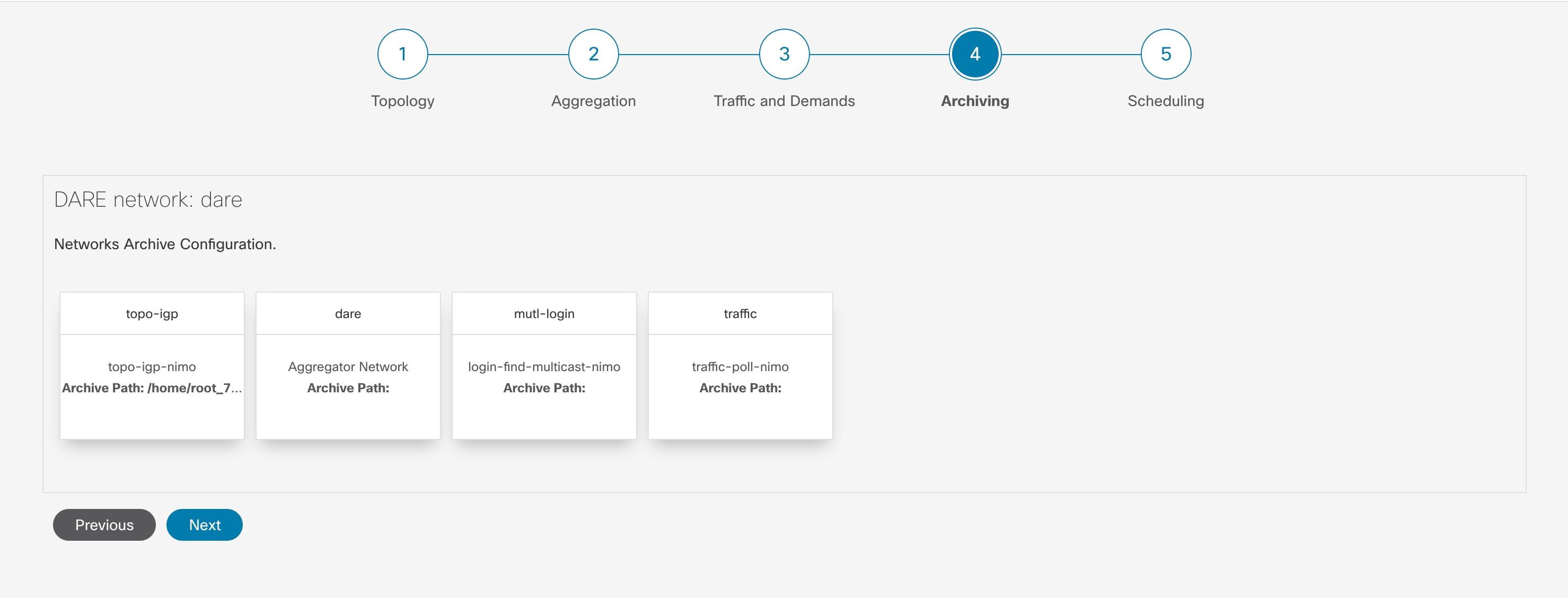
Figure 3. Network Model Composer - Archiving

Procedure


Step 1

Click Network Model Composer and choose a network model.

Step 2

Click Archiving.

Step 3

Click a NIMO or the network model you want to configure the archive for.

Step 4

The Archive path might be populated if they were configured when the network was initially created. If not, or if you want to change them, enter new values.

Step 5

Select the source that the Archive will retrieve from.

Step 6

In the Cleanup section, select a value for Enable field and enter Retain Number of Days value.

Step 7

Click Save.

Step 8

Click Enable to enable the archive.

Note


Archiving must be configured first before it is enabled.


Schedule Jobs Using the Network Model Composer

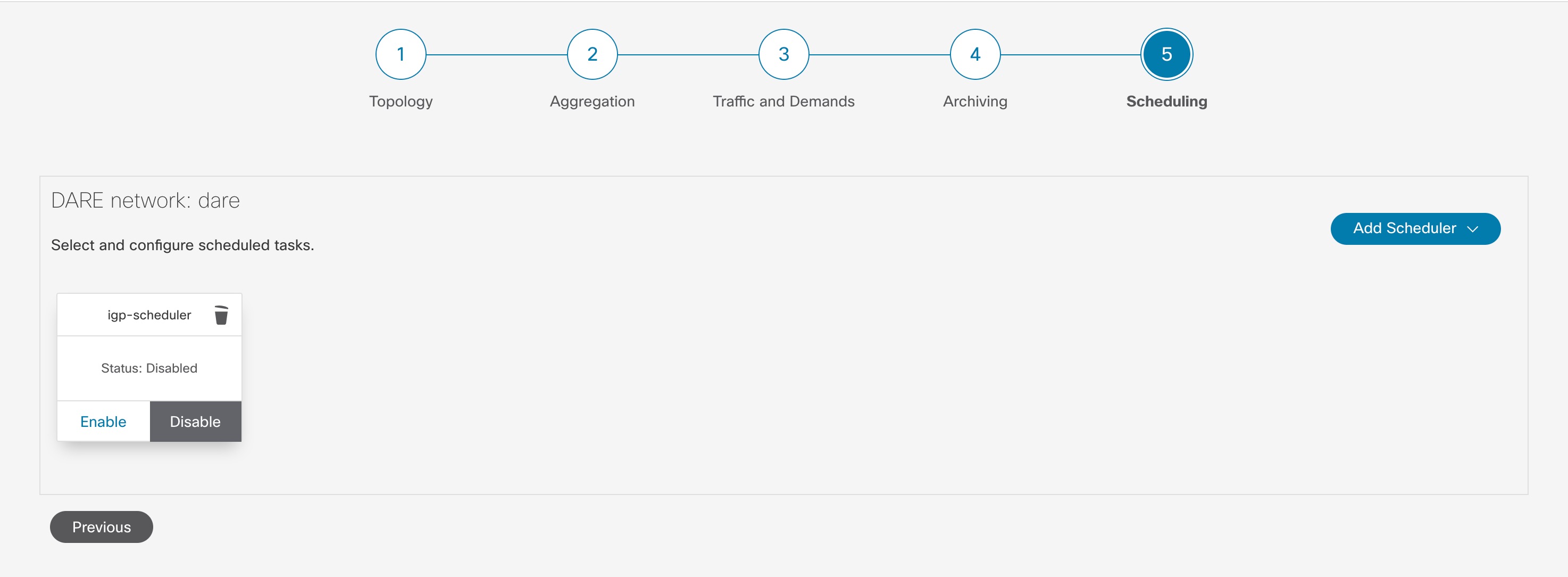
This procedure describes how to schedule different network collections and agents to run using the Network Model Composer. For more information on additional scheduling jobs and configuration options that can be configured using the Expert Mode, see Scheduler Configuration.

Figure 4. Network Model Composer - Scheduling

Procedure


Step 1

Click Network Model Composer and choose a network model.

Step 2

Click Scheduling.

You can also create a scheduled task directly from WAE UI. From Cisco WAE UI, select Global Scheduler and click + Create Scheduled Task. Enter a name for the scheduler and click Create Scheduled Task. Click the new scheduler you just created and enter the necessary details.

The Global Scheduler page lists all the schedulers that are configured irrespective of the network.

Step 3

Click Add Scheduler.

Step 4

Enter a name for the scheduling job.

Step 5

Click Add.

Step 6

Click the scheduling job icon.

Step 7

To add an action, click and enter an action name.

Step 8

Enter the order number in the order field.

Step 9

Choose whether the action will be performed on a NIMO or agent or an aggregated network.

Step 10

Select the NIMO or agent or Aggregated network from the drop-down list.

Step 11

If the action-type and path fields are not populated, enter applicable values.

Step 12

Click Save.

Step 13

(Optional) Add more actions.

Step 14

To add a trigger, click and enter a trigger name.

Step 15

Select Every. In the Run Every field, enter the time interval and select the appropriate unit of time.

If you are familiar with cron configuration, select Cron Expression and configure the time interval to run the actions.

Step 16

Click Save.

Step 17

Click Run Task.

Note

 
Each action is done in the order it is listed and configured.

Download Plan Files

The network model is saved in a plan file (.pln format) which can be downloaded.

Before you begin

Make sure that archive has been configured.

Procedure


Step 1

From the Cisco WAE UI, click Global Archive Configuration.

Step 2

Use TimeZone option to change the default value to your local time zone. For example, +530, -7, etc. Click Add Time Zone.

Note


This option only changes the way the plan files are displayed in the calendar in GUI. It does not change the timezone of the system or the file names.

Step 3

Click the network that you have configured for archiving.

Step 4

Month view of the calendar opens. Click the date for which you intend to download the plan file.

Step 5

Day view opens along with the list of .pln files that are archived.

Step 6

Click the .pln file to download the file.