AI Troubleshooting for Industrial Networks User Guide

PDF

AI Troubleshooting for Industrial Networks User Guide

Alert-first triage

Want to summarize with AI?

Log in

Use alerts, evidence, topology, and inventory to choose an approved action, resolve the issue, or hand it off with useful context.


AI Troubleshooting for Industrial Networks enables alert-first triage for both OT users and Admins. Both roles use the application to understand what happened and review the evidence it collected. Depending on their permissions, they can take an approved field or administrative action, resolve the alert, or hand it off with useful context.
Alert review and response

Summary

The alert investigation process moves through these stages:

Workflow

These are the stages of alert investigation process.

  1. Review and prioritize the alert.

  2. Open the alert thread.

  3. Read the report and review its evidence.

  4. Inspect topology or inventory when additional network context is needed.

  5. Use an available preset follow-up when another supported check is needed.

  6. Validate the recommendation against live plant conditions and site procedures.

  7. Complete the approved field action, resolve the alert, or hand it off with useful context.


Notes and limitations

OT users and Admins have different access to the same AI Troubleshooting for Industrial Networks features.
  • OT users can use only the available preset follow-ups. They cannot type or edit the message sent by a preset.

  • Both roles can view Topology and Inventory. OT users cannot add, edit, or remove inventory records, and passwords are not displayed. Only Admins can perform authorized inventory and topology changes.

  • When you select a device, you may see the Discuss this device option. OT users cannot use this feature even if the option is displayed. Only Admins can use it to start an AI conversation from a topology device.


Review and resolve an alert

Follow these steps to investigate an alert and resolve or hand off the issue.

Procedure

  1. From the AI Troubleshooting for Industrial Networks menu, choose Alerts.

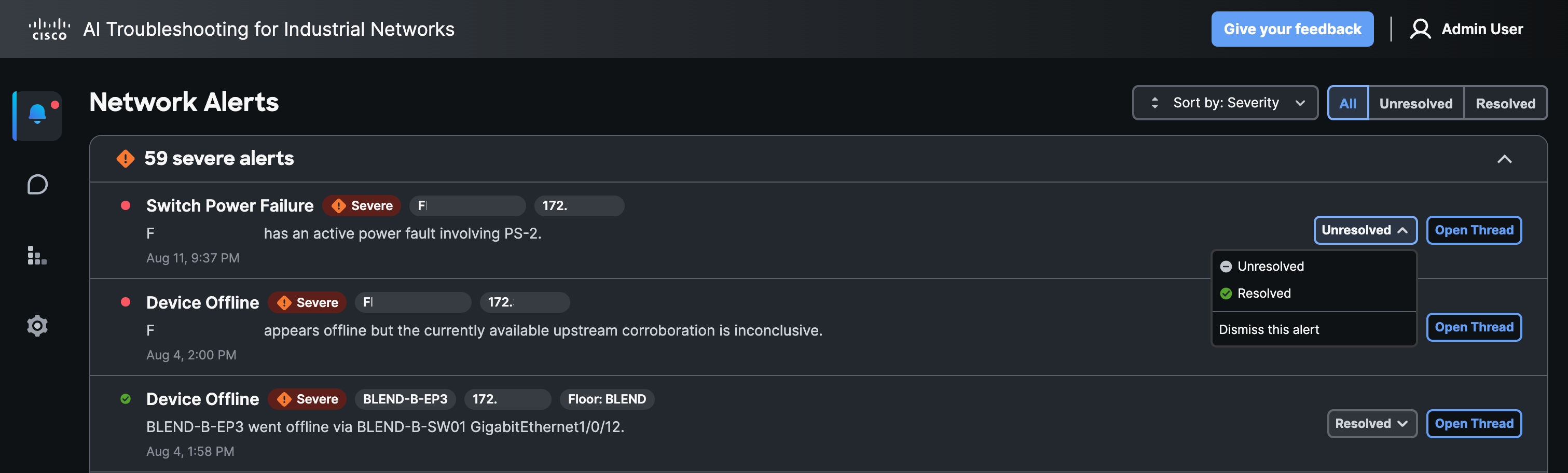
  2. Review the alert details. Confirm the issue title, severity, affected device, switch, endpoint, or IP address; visible custom-field badges; description; detection time; current status; and Open Thread option. Filter to Unresolved for active work, and sort by Severity or Status as needed.

    Figure 1. Alerts page showing alert filters and rows
  3. Select Open Thread for the alert that needs investigation. The associated thread keeps the alert, report, evidence, and investigation history together.

    The alert thread workspace is arranged from left to right: the threads list, the report and conversation panel, and the Topology panel. Drag a panel divider to resize it when available. Select the collapse or expand icon in a panel header to hide or restore that panel.

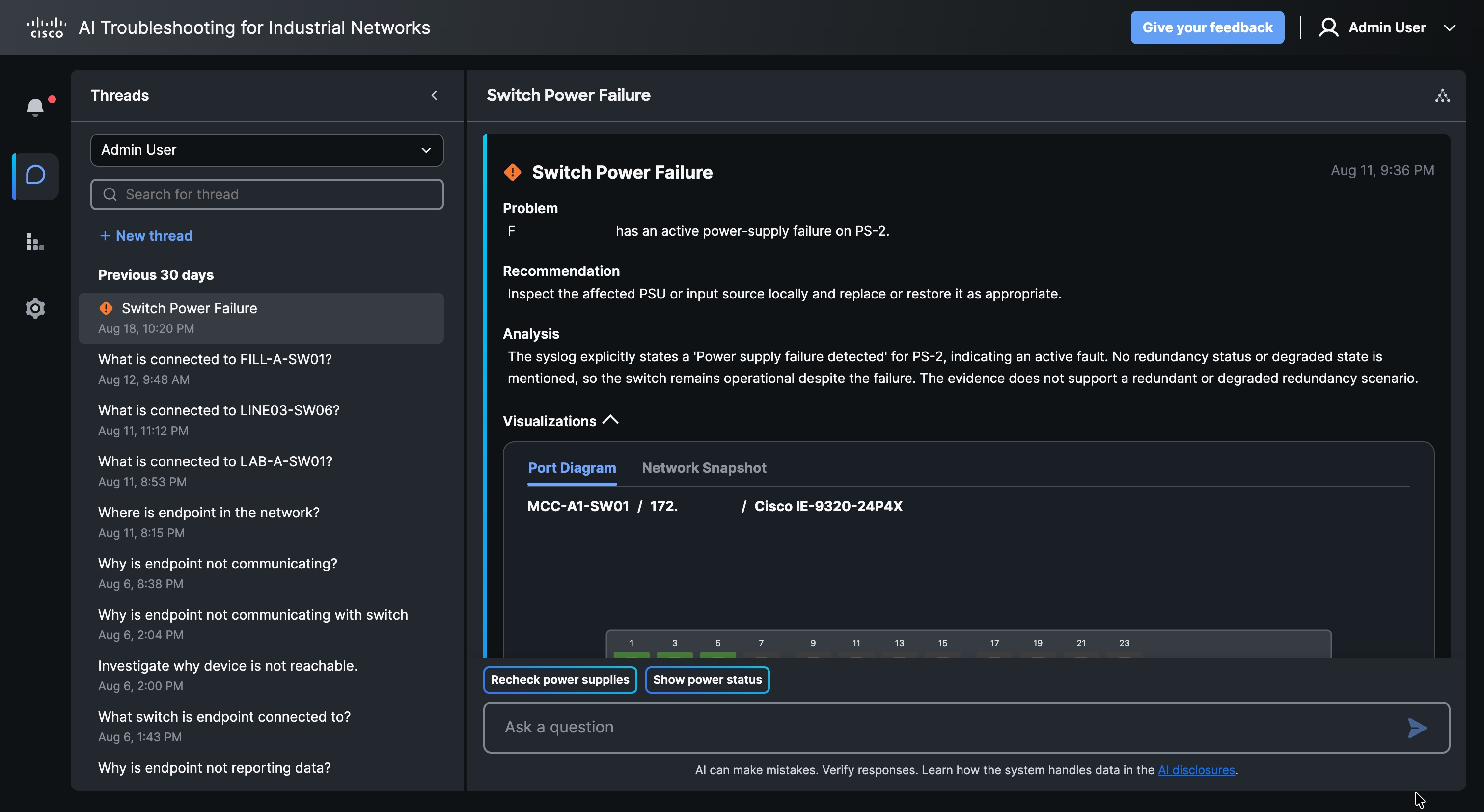
  4. Read the report's Problem and Recommendation sections first. Review Analysis, visualizations, and diagnostic evidence when you need more detail.

    1. Select Visualizations to inspect a Port Diagram or Network Snapshot
    2. Select How this was determined to review the diagnostic evidence.
    Figure 2. Alert thread report showing the Problem and Recommendation sections
    • Problem states what appears to be wrong.

    • Recommendation presents the recommended action and next steps.

    • Analysis explains what the available evidence does and does not establish.

  5. Choose your next step based on the provided information.

    If you need to...

    OT users

    Admins

    Run another supported check

    Select an available preset follow-up. You cannot edit the message.

    Select an available preset follow-up, or use the Admin chat composer with a supported prompt.

    Review network context

    Inspect Topology and Inventory in view-only mode. Ask an Admin to correct device or proxy records when needed.

    Inspect Topology and Inventory. Make authorized changes when needed.

    Investigate a device

    Review the device and its connected path. Do not use Discuss this device to start an AI conversation.

    Select Discuss this device when available, choose a supported prompt, and fill the required values.

    Continue an investigation that is not tied to an alert

    Provide the alert and investigation context to an Admin.

    Open Threads, select New Thread, and start a supported investigation.

    Complete the recommended action

    Verify the recommendation against live plant conditions and site procedures. Complete the approved field action or hand off the issue.

    Verify the recommendation against live plant conditions and site procedures. Complete the authorized action or continue the investigation.

    Close the issue

    Record the action taken and select Resolved when the issue is complete.

    Record the action taken and select Resolved when the issue is complete.

    Hand off the issue

    Include the alert, affected device, evidence, action taken, and current status.

    Include the alert, affected device, evidence, action taken, and current status when escalating or transferring ownership.

  6. Verify that the recommendation agrees with live plant conditions, source evidence, site procedures, and change-control requirements.

  7. For the alert, select Resolved when the issue is fully addressed.