Use this procedure to change the standby APIC type using the Cisco APIC GUI.
Use this procedure to change the standby APIC type using the Cisco APIC GUI.
Complete this procedure to change the standby type on Cisco APIC.
Before you begin
Ensure you have administrator access to the Cisco APIC interface.
Procedure
-
In the Fabric Wide Settings Policy page, select Warm or Cold as the Standby Type.
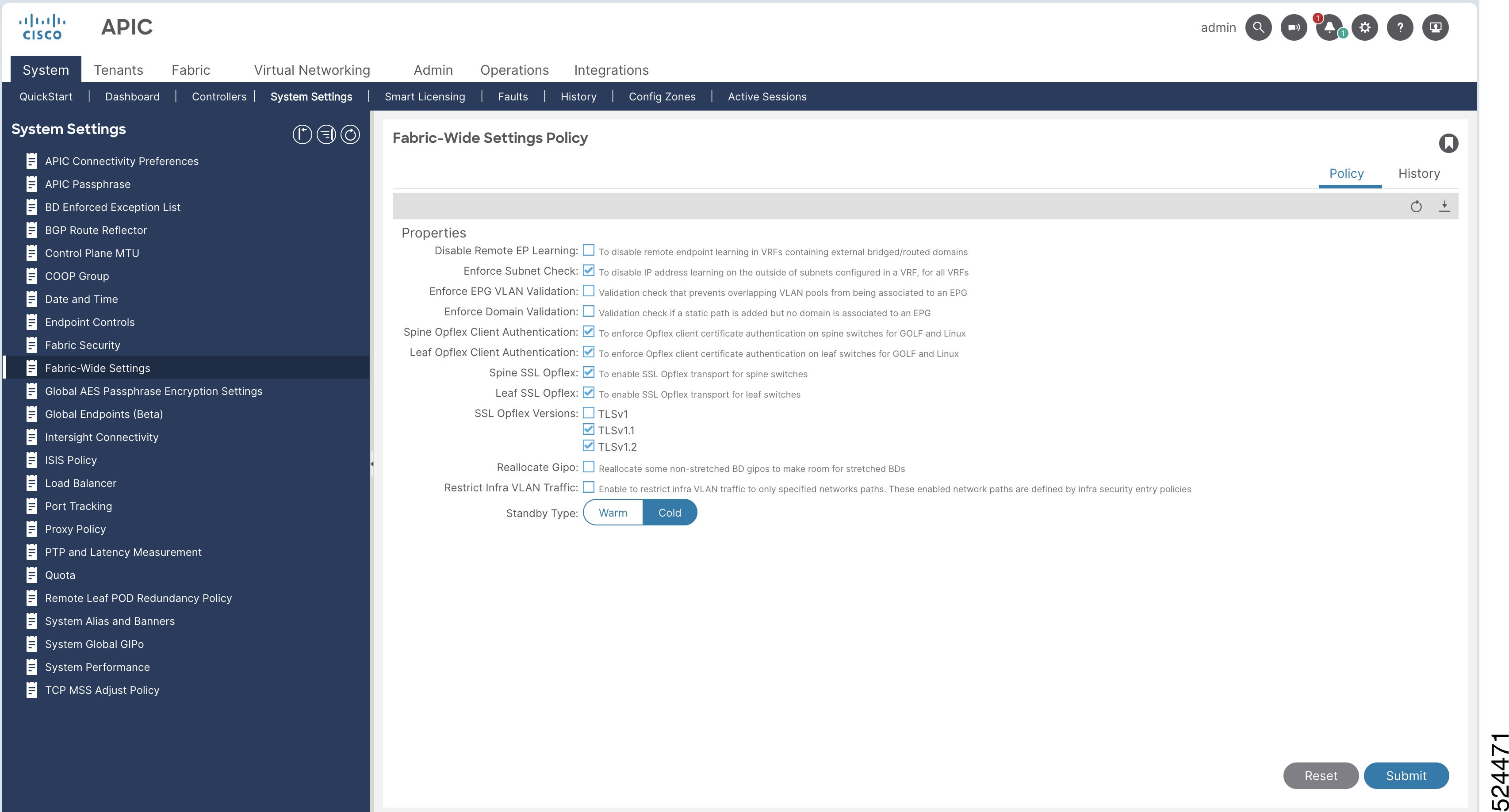
-
To verify the Warm Standby status:
- The Standby Type is displayed in the Cluster As Seen by Node pane.
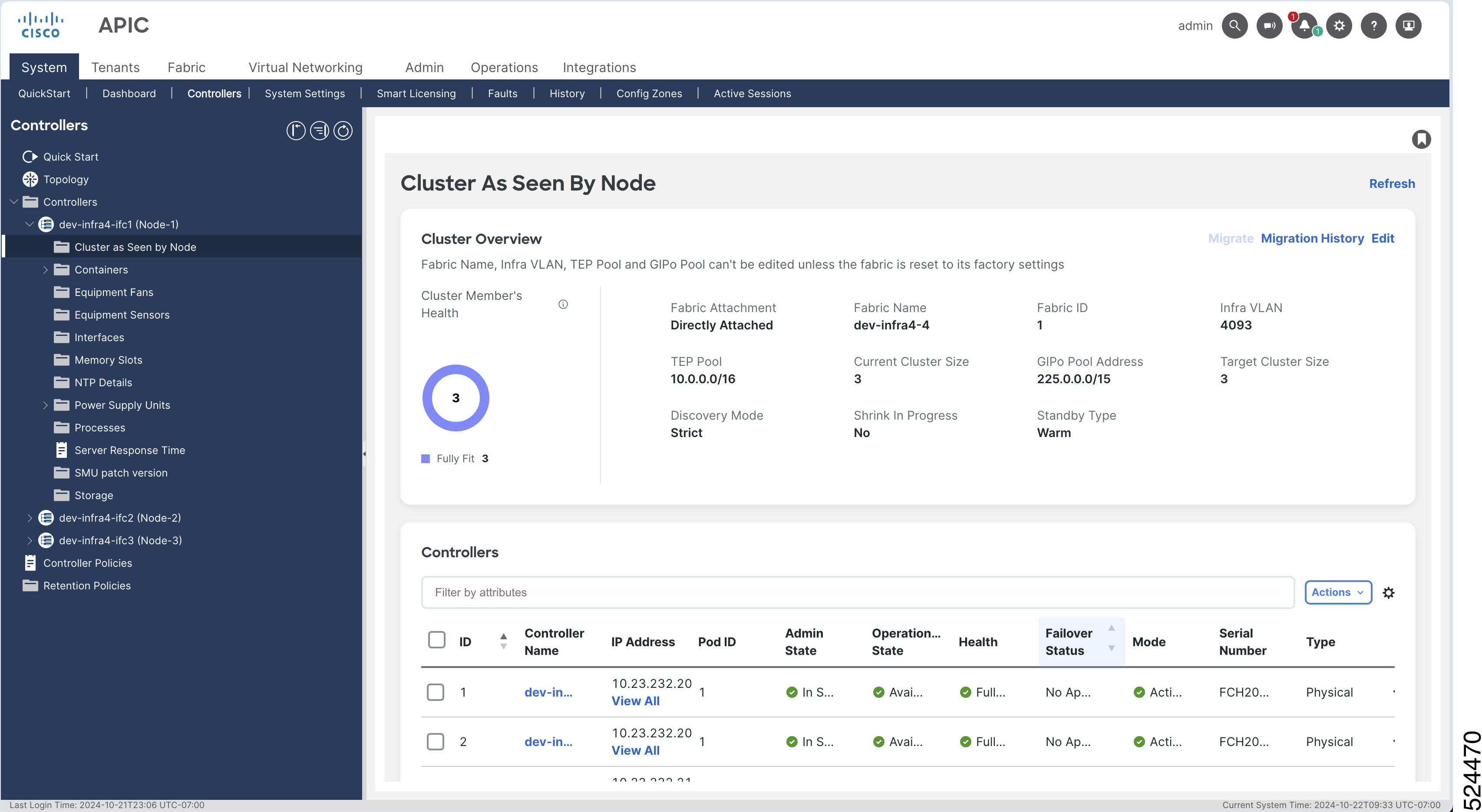
- The Standby Type is displayed in the Cluster As Seen by Node pane.
The selected standby APIC type is changed and the status is confirmed in the controllers view.