Cisco Catalyst Center Third-Generation Appliance Installation Guide, Release 3.2.x

PDF

Catalyst Center setup methods

Want to summarize with AI?

Log in

Overview

You can set up Catalyst Center using one of the available setup methods.

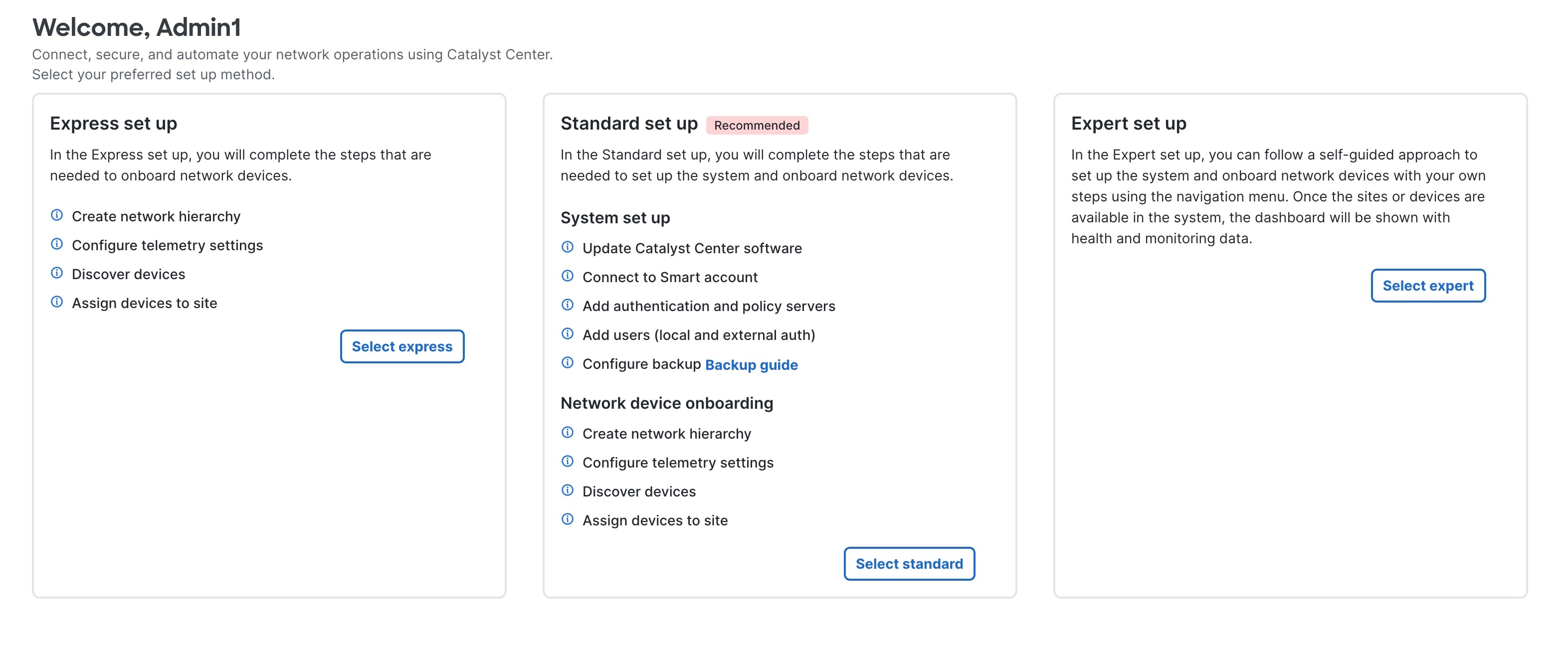
When you log in for the first time, the Quick Start workflow automatically starts. To view the enhanced setup methods, exit the Quick Start workflow and go to the default home page. The default home page displays the available setup methods.

If you have SUPER-ADMIN-ROLE or NETWORK-ADMIN-ROLE permissions, you can set up Catalyst Center using one of these methods:

  • Express setup: This setup helps you onboard network devices. For instructions, see Complete the express setup method.

  • Standard setup: This recommended setup helps you set up the system and onboard network devices. For instructions, see Complete the standard setup method.

  • Expert setup: This self-directed setup allows you to independently set up the system and onboard network devices. We recommend this option for expert users only. For instructions, see Complete the expert setup.

Note

If you start one setup method and later decide that you'd prefer to use a different setup method, you can change your selected method. Return to the default home page and click Select <setup method name> to start a different setup method.


Complete the express setup

Follow these steps to set up Catalyst Center using the express setup method.

Before you begin

Ensure that you successfully completed Log in to Catalyst Center for the first time.

Procedure

1.

From the home page, click Select express.

The express setup method starts and opens the Design > Network Hierarchy page. The Express set up slide-in pane displays the steps to complete this setup method.

Tip
  • We recommend that you complete the steps in the order that they are presented.

  • You can view the relevant page for any step by clicking Go to this step.

  • You can close the Express set up slide-in pane at any time by clicking Exit. In the dialog box, click Exit again.

  • After you complete at least one of the listed steps, you can reopen this slide-in pane by clicking Express set up in the top-right portion of Catalyst Center.

  • You can view all completed steps by scrolling to the end of this slide-in pane and opening the <Number of> steps completed section. To mark a completed step as incomplete, check the Mark as complete check box for that step. The step becomes incomplete, and the progress bar updates to reflect this change.

2.

Complete the create network hierarchy step.

  1. On the Design > Network Hierarchy page, create the network hierarchy—including areas, buildings, and floors.

    For instructions, refer to the "Design the Network Hierarchy" chapter in the Cisco Catalyst Center User Guide.

  2. Under Create network hierarchy, check the Mark as complete check box for this step.

    The progress bar updates and indicates that one of four steps is complete.

3.

Complete the telemetry settings step.

  1. Under Configure telemetry settings, click Go to this step.

  2. On the Design > Network Settings page for Telemetry, configure the required telemetry settings for telemetry data collection.

    For instructions, refer to "Configure syslog, SNMP traps, NetFlow Collector servers, and wired client data collection using telemetry" in the Cisco Catalyst Center User Guide.

  3. Under Configure telemetry settings, check the Mark as complete check box for this step.

    The progress bar updates and indicates that two of four steps are complete.

4.

Complete the discover devices step.

  1. Under Discover devices, click Go to this step.

    The onboard devices workflow begins.

  2. Discover your devices by completing the onboard devices workflow.

    For instructions, refer to "Do Discovery" in the Cisco Catalyst Center User Guide.

  3. Under Discover devices, check the Mark as complete check box for this step.

    The progress bar updates and indicates that three of four steps are complete.

5.

Complete the assign devices to site step.

  1. Under Assign devices to site, click Go to this step.

  2. On the Provision > Inventory page, assign your devices to the relevant sites.

    For instructions, refer to "Assign an unprovisioned device to a site" or "Assign a provisioned device to a different site" in the Cisco Catalyst Center User Guide.

  3. Under Assign devices to site, check the Mark as complete check box for this step.

    The progress bar updates and indicates that four of four steps are complete. A completion message summarizes the number of created sites and discovered devices.

6.

Click Launch home page to complete the express setup of Catalyst Center.

The home page displays when the express setup of Catalyst Center is complete.

Note

The system may take some time to display discovered devices on the home page.


Complete the standard setup

Follow these steps to set up Catalyst Center using the standard setup method.

Before you begin

Ensure that you successfully completed Log in to Catalyst Center for the first time.

Procedure

1.

From the home page, click Select standard.

The standard setup method starts and opens the System > Software Management page. The Standard set up slide-in pane displays the steps to complete this setup method.

Tip
  • We recommend that you complete the steps in the order that they are presented.

  • You can view the relevant page for any step by clicking Go to this step.

  • You can close the Standard set up slide-in pane at any time by clicking Exit. In the dialog box, click Exit again.

  • After you complete at least one of the listed steps, you can reopen this slide-in pane by clicking Standard set up in the top-right portion of Catalyst Center.

  • You can view all completed steps by scrolling to the bottom of this slide-in pane and opening the <Number of> steps completed section. To mark a completed step as incomplete, check the Mark as complete check box for that step. The step becomes incomplete, and the progress bar updates to reflect this change.

2.

Complete the update the Catalyst Center software step.

  1. On the System > Software Management page, update the Catalyst Center software to the latest recommended version.

    For instructions, refer to the Cisco Catalyst Center Upgrade Guide.

  2. Under Update Catalyst Center software, check the Mark as complete check box for this step.

    The progress bar updates and indicates that one of nine steps is complete.

3.

Complete the connect to smart account step.

  1. Under Connect to Smart account, click Go to this step.

  2. On the Smart Account page, connect your Cisco Smart Account to your Smart Licensing account.

    For instructions, refer to "Configure Smart Account" in the Cisco Catalyst Center Administrator Guide.

  3. Under Connect to Smart account, check the Mark as complete check box for this step.

    The progress bar updates and indicates that two of nine steps are complete.

4.

Complete the add authentication and policy servers step.

  1. Under Add authentication and policy servers, click Go to this step.

  2. On the Authentication and Policy Servers page, add either a Cisco Identity Services Engine (Cisco ISE) or AAA server.

    Catalyst Center uses AAA servers for user authentication or Cisco ISE for both user authentication and access control. For instructions, refer to "Configure authentication and policy servers" in the Cisco Catalyst Center Administrator Guide.

  3. Under Add authentication and policy servers, check the Mark as complete check box for this step.

    The progress bar updates and indicates that three of nine steps are complete.

5.

Complete the add users step.

  1. Under Add users (local and external auth), click Go to this step.

  2. On the User Management page, add the required users, so they can access Catalyst Center.

    For instructions, refer to "Create an internal user" in the Cisco Catalyst Center Administrator Guide.

  3. If your network requires using an external server for authentication and authorization of external users, enable external authentication.

    For instructions, refer to "Configure external authentication" in the Cisco Catalyst Center Administrator Guide.

  4. Under Add users (local and external auth), check the Mark as complete check box for this step.

    The progress bar updates and indicates that four of nine steps are complete.

6.

Complete the configure backup step.

  1. Under Configure backup, click Go to this step.

  2. On the System > Backup & Restore page, configure a remote server to back up your automation and Assurance data from Catalyst Center and connect a remote server to restore automation and Assurance data from Catalyst Center.

    For instructions, refer to "Configure the location to store backup files" and "Restore data from backups" in the Cisco Catalyst Center Administrator Guide.

  3. Under Configure backup, check the Mark as complete check box for this step.

    The progress bar updates and indicates that five of nine steps are complete.

7.

Complete the create network hierarchy step.

  1. Under Create network hierarchy, click Go to this step.

  2. On the Design > Network Hierarchy page, create the network hierarchy—including areas, buildings, and floors.

    For instructions, refer to the "Design the Network Hierarchy" chapter in the Cisco Catalyst Center User Guide.

  3. Under Create network hierarchy, check the Mark as complete check box for this step.

    The progress bar updates and indicates that six of nine steps are complete.

8.

Complete the telemetry settings step.

  1. Under Configure telemetry settings, click Go to this step.

  2. On the Design > Network Settings page for Telemetry, configure the required telemetry settings for telemetry data collection.

    For instructions, refer to "Configure syslog, SNMP traps, NetFlow Collector servers, and wired client data collection using telemetry" in the Cisco Catalyst Center User Guide.

  3. Under Configure telemetry settings, check the Mark as complete check box for this step.

    The progress bar updates and indicates that seven of nine steps are complete.

9.

Complete the discover devices step.

  1. Under Discover devices, click Go to this step.

    The onboard devices workflow begins.

  2. Discover your devices by completing the onboard devices workflow.

    For instructions, refer to "Do Discovery" in the Cisco Catalyst Center User Guide.

  3. Under Discover devices, check the Mark as complete check box for this step.

    The progress bar updates and indicates that eight of nine steps are complete.

10.

Complete the assign devices to site step.

  1. Under Assign devices to site, click Go to this step.

  2. On the Provision > Inventory page, assign your devices to the relevant sites.

    For instructions, refer to "Assign an unprovisioned device to a site" or "Assign a provisioned device to a different site" in the Cisco Catalyst Center User Guide.

  3. Under Assign devices to site, check the Mark as complete check box for this step.

    The progress bar updates and indicates that nine of nine steps are complete. A completion message summarizes the number of created sites and discovered devices.

11.

Click Launch home page to complete the standard setup of Catalyst Center.

The home page displays when the standard setup of Catalyst Center is complete.

Note

The system may take some time to display discovered devices on the home page.


Complete the expert setup

Follow these steps to set up Catalyst Center using the expert setup method.

Before you begin

Note

We recommend that only expert network administrators use this setup method. This method does not provide detailed setup instructions. The express and standard setup methods provide step-by-step instructions. For more information, see Catalyst Center setup methods.

Before you begin

Ensure that you successfully completed Log in to Catalyst Center for the first time.

Procedure

1.

From the home page, click Select expert.

2.

In the Expert set up dialog box, click Ok to continue.

3.

Set up Catalyst Center as required for your network.

For general instructions on setting up your network, consider referring to this information:

After you complete device discovery, the default home page is displayed—indicating that you completed the expert setup of Catalyst Center.