Cisco Catalyst Center ITSM Integration Guide, Release 3.1.x
Bias-Free Language
The documentation set for this product strives to use bias-free language. For the purposes of this documentation set, bias-free is defined as language that does not imply discrimination based on age, disability, gender, racial identity, ethnic identity, sexual orientation, socioeconomic status, and intersectionality. Exceptions may be present in the documentation due to language that is hardcoded in the user interfaces of the product software, language used based on RFP documentation, or language that is used by a referenced third-party product. Learn more about how Cisco is using Inclusive Language.
You can use closed loop automation to manage software images (SWIM) between Catalyst Center and ServiceNow. With closed-loop automation, you configure the provisioning of software device images in Catalyst Center. This configuration information is communicated directly from Catalyst Center to ServiceNow as an immediate or scheduled change request. The ServiceNow administrator reviews the change request and approves
or rejects it in ServiceNow. The acceptance or rejection of the change request is communicated back to Catalyst Center.
After receiving an approved change request from ServiceNow, Catalyst Center updates the software either immediately or at its scheduled time.
After Catalyst Center successfully performs the software update, it sends a task completion notification to ServiceNow. If the software update
fails, it sends a task failure notification to ServiceNow. You can then perform the software update manually in Catalyst Center.
Note
If the SWIM provisioning is stopped by the user in Catalyst Center during this process, a task termination notification is sent to ServiceNow.
Ensure that the Cisco Catalyst app (version 2.2.0) is installed in the ServiceNow instance. Complete these steps to enable SWIM closed loop automation between
Catalyst Center and ServiceNow:
Review the SWIM closed loop automation workflow to ensure that the required Catalyst Center admin and ServiceNow admin tasks are done for this feature. See SWIM closed loop automation workflow.
SWIM closed loop automation requirements
This table lists the requirements for SWIM closed loop automation.
Table 1. SWIM closed loop automation requirements
Software product, app, or procedure
Requirement
Catalyst Center
The latest Catalyst Center release.
ServiceNow
Any compatible version of ServiceNow mentioned on the ServiceNow Store website.
The Cisco Catalyst app must be installed in your ServiceNow instance by a ServiceNow administrator. The Cisco Catalyst app versions 2.1.1 and 2.0.1 are compatible with the Tokyo and Utah releases of ServiceNow. To use the Vancouver release
of ServiceNow, you must first upgrade the Cisco Catalyst app to the latest version, 2.2.0.
This table describes the SWIM closed loop automation workflow between Catalyst Center and ServiceNow.
Table 2. SWIM closed loop automation workflow
Step
Description
Step 1
The Catalyst Center admin configures the Image Repository to prepare for the provisioning of devices in the network.
Note
See the Manage Software Images chapter in the Cisco Catalyst Center User Guide for information about setting up the Image Repository, as well as to review the software image provisioning process.
Step 2
The Catalyst Center admin distributes the software image to one or more devices at the present time or schedules this activity for a later time.
Note
Before this step is done, ensure that the Automation Events for ITSM (ServiceNow) bundle is configured and activated.
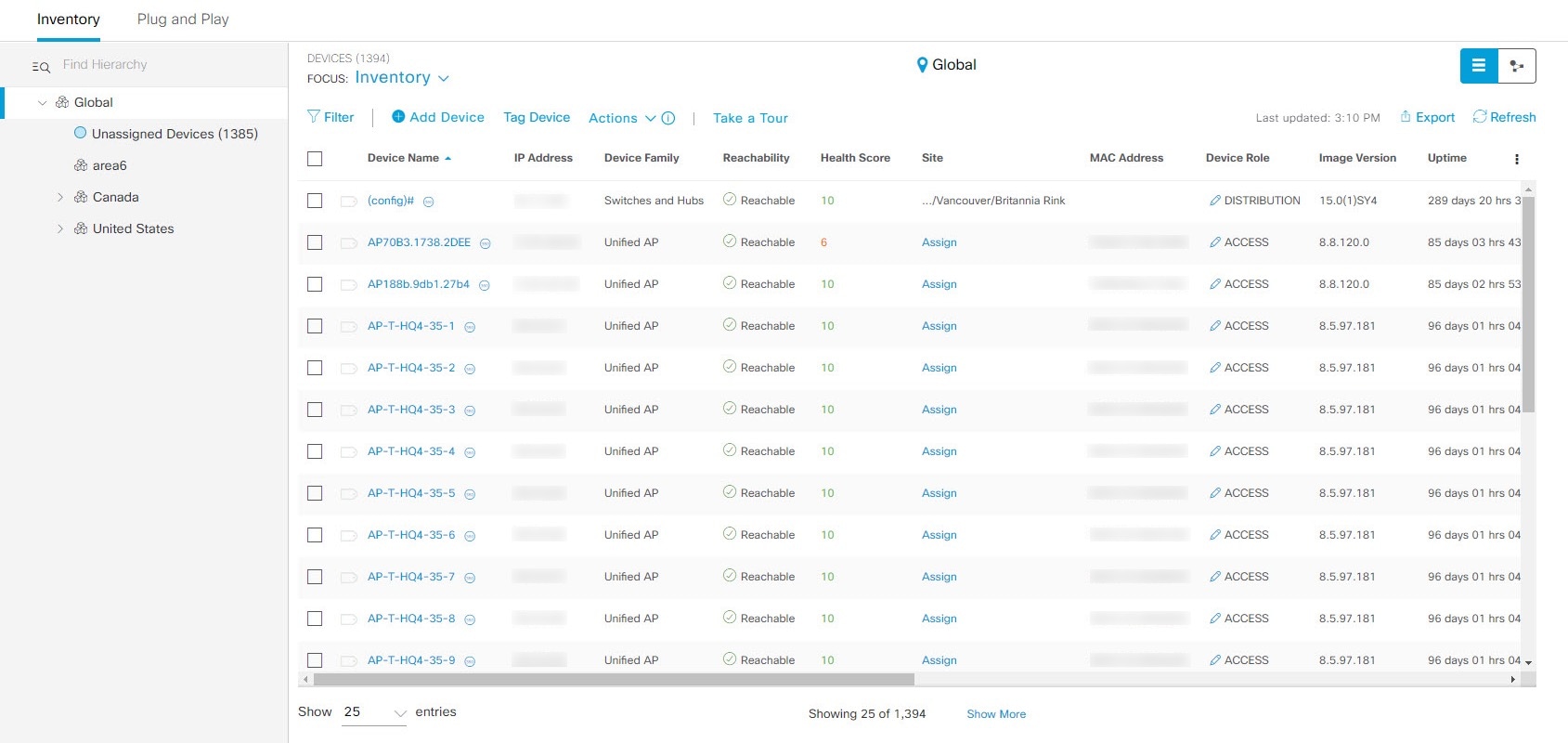
From the Catalyst Center home page, the admin clicks Provision> Inventory.
From the Focus drop-down list, the admin selects Software Images and selects the device with the image to upgrade.
From the Actions drop-down list, the admin chooses Software Images > Update Image and does these tasks:
Distribute: Clicks Now to start the distribution immediately or clicks Later to schedule the distribution at a specific time.
Clicks Next.
Activate: Clicks Now to start the activation immediately or clicks Later to schedule the activation at a specific time.
After a software image distribution is created in Catalyst Center a SWIM event is generated and sent directly to the ServiceNow ITSM as a change request ticket. This process uses APIs from
the Cisco Catalyst app. The initial status of the change request ticket is New.
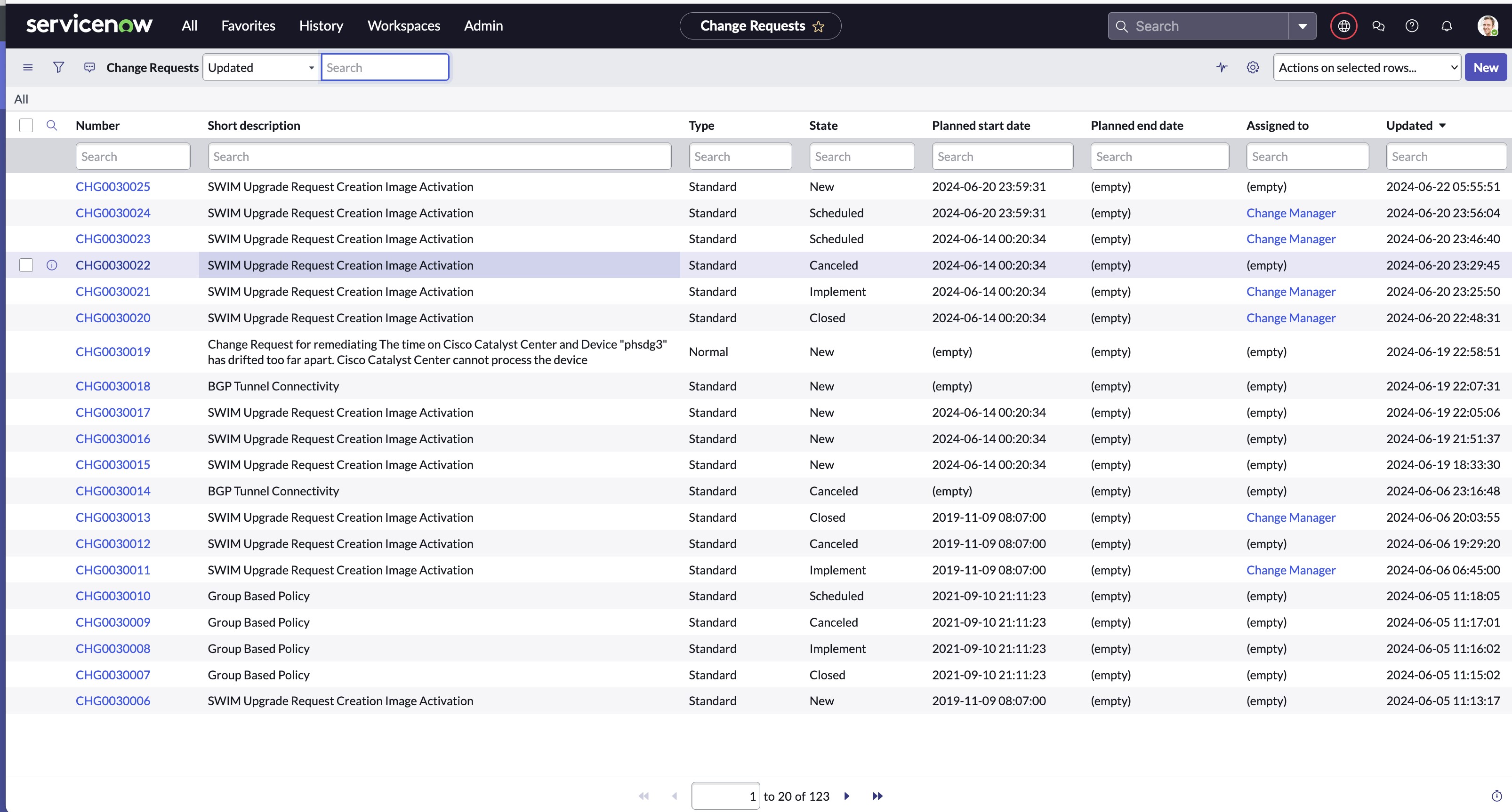
The SWIM event appears in the ServiceNow GUI in the ServiceNow Change Requests table.
Figure 2. ServiceNow Change Requests
Step 4
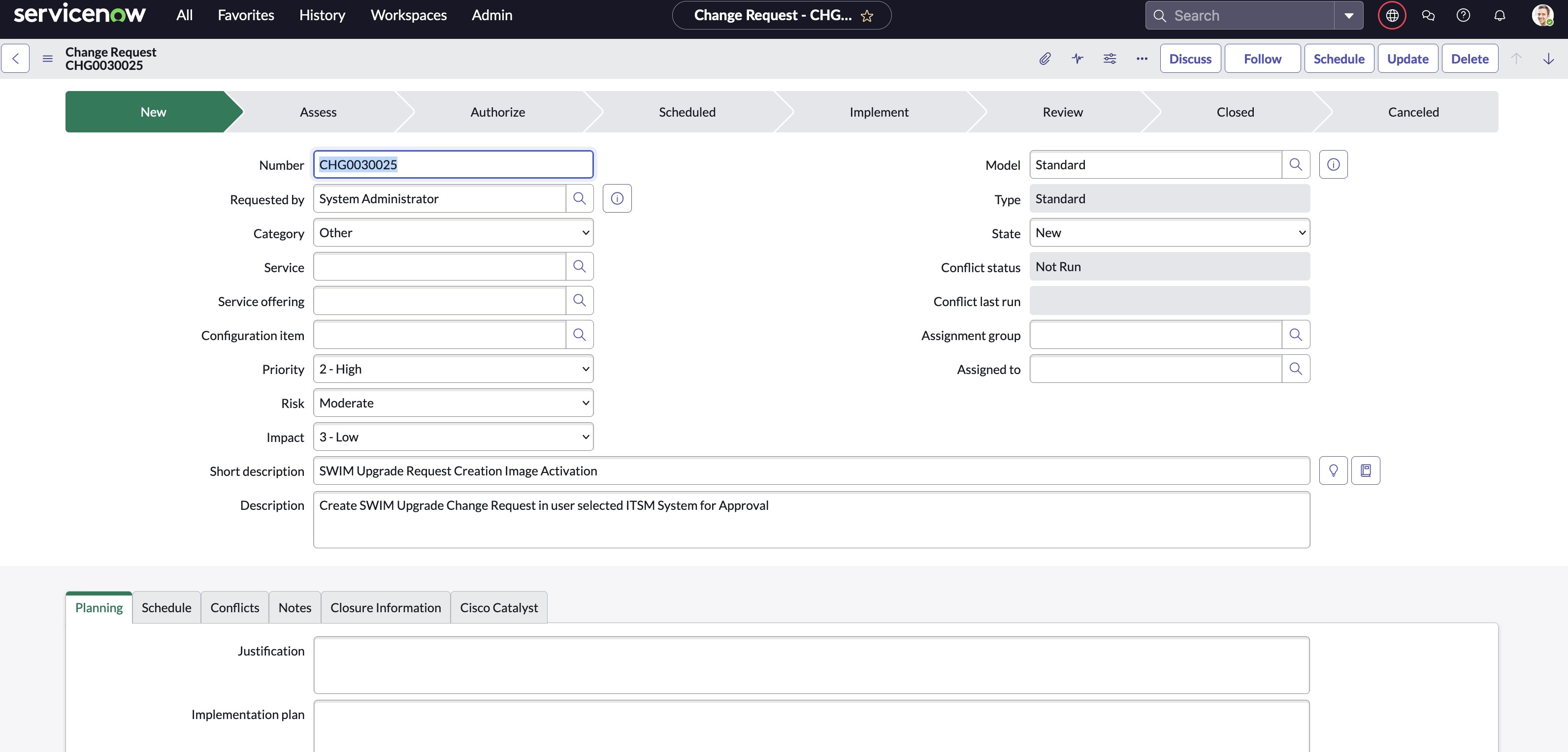
In the Change Requests table, the ServiceNow admin clicks the change request number (identifier) to open and review its status and data. In the
ServiceNow GUI, the admin can edit the change request. For example, the admin can change the State from 'New' to 'Scheduled' and enter 'Change Management' for the Assignment group. The ServiceNow admin can also identify the SWIM change request with information in the Short Description field.
Figure 3. Change Request
Step 5
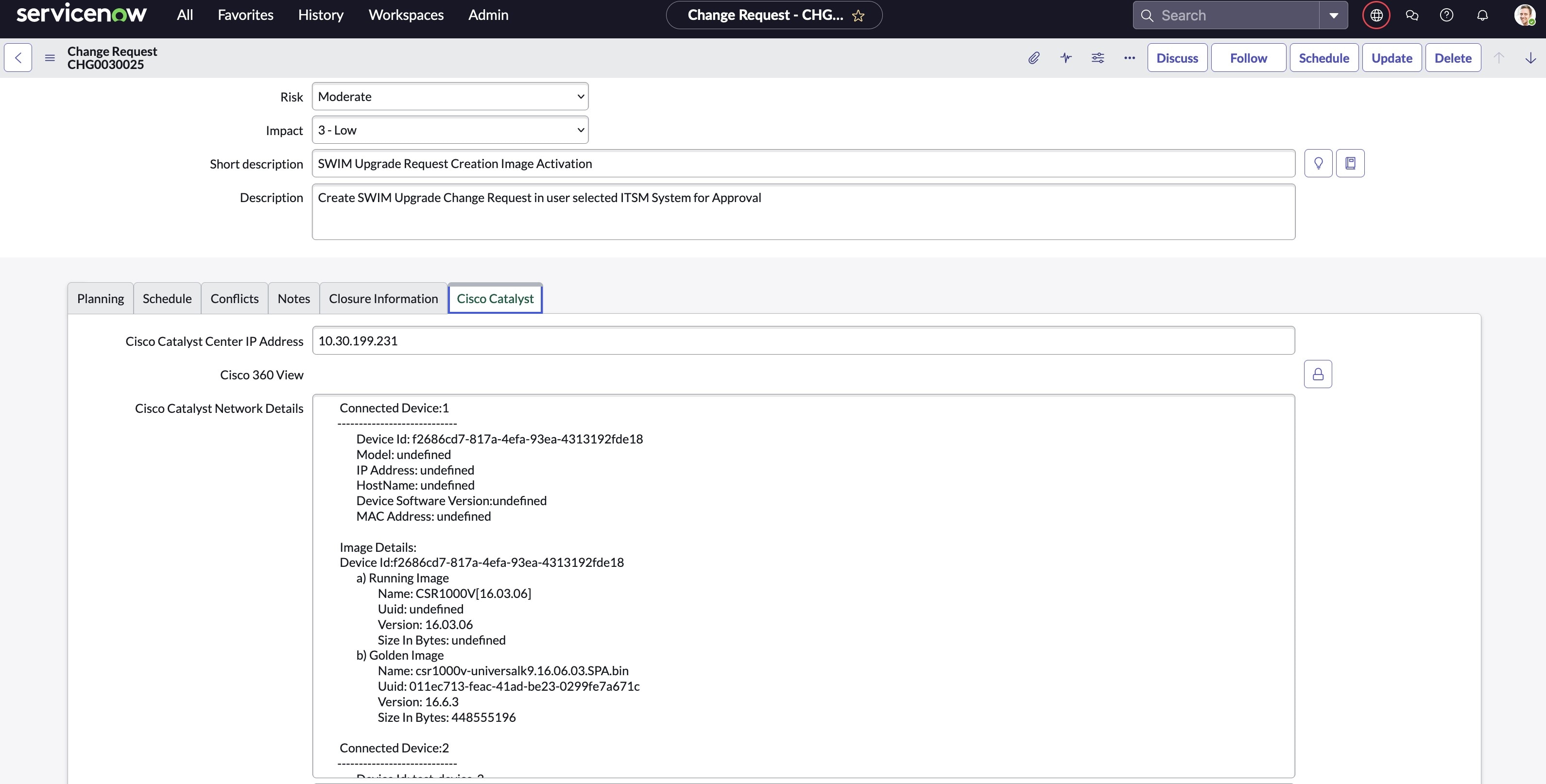
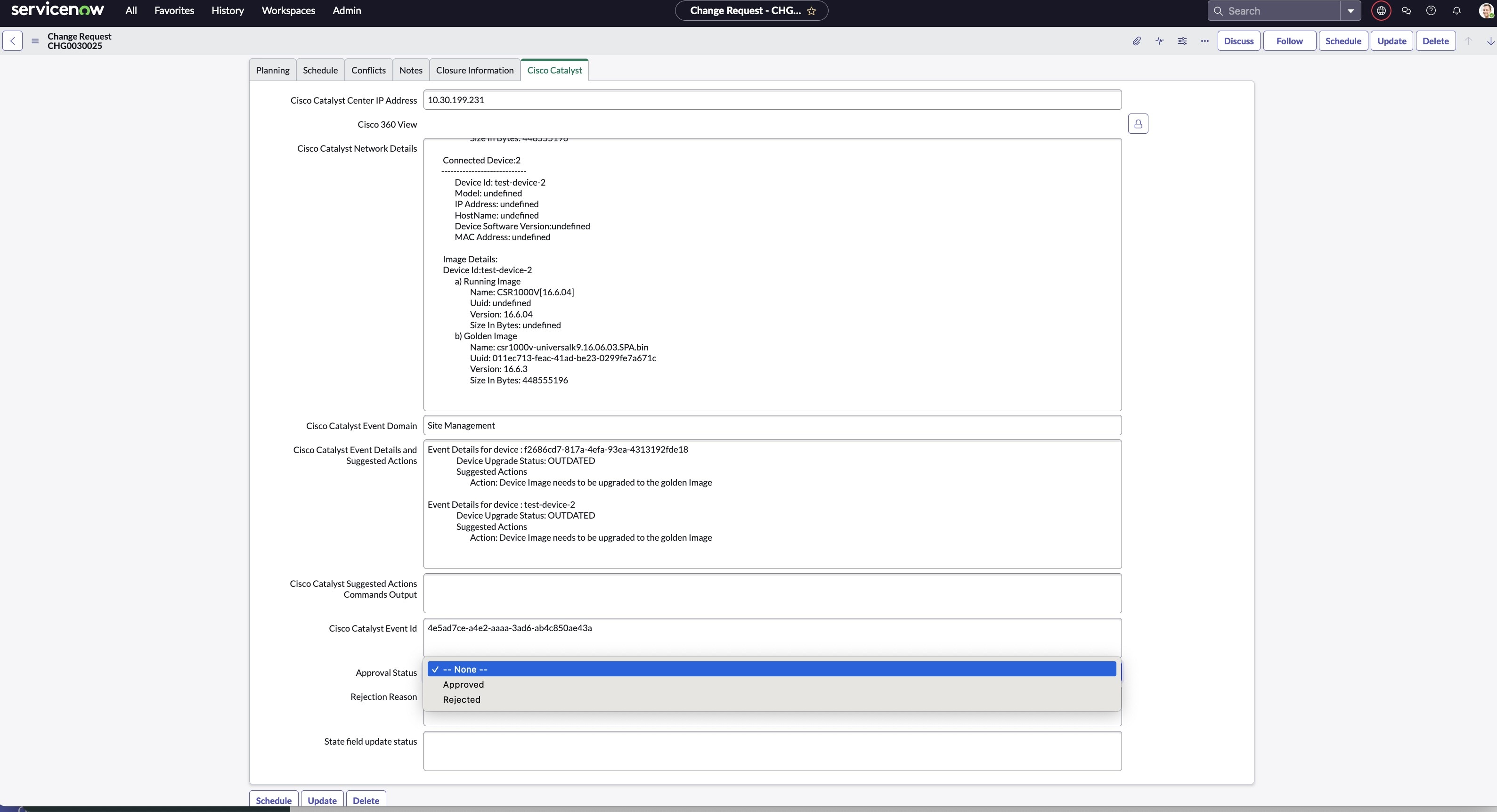
The ServiceNow admin now clicks the Cisco Catalyst tab in the change request. In this tab, you can view important additional data synchronized from Catalyst Center to ServiceNow.
Figure 4. Cisco Catalyst tab
Step 6
The ServiceNow admin now either approves or rejects the change request ticket in the ServiceNow GUI.
In the Cisco Catalyst tab, the ServiceNow admin clicks the Approval Status field and then clicks either Approved to approve the request or Rejected to reject the request.
Note
Before the change request is executed, it must be approved in ServiceNow. Only after an approval in ServiceNow will the change
request be executed in Catalyst Center.
Figure 5. Cisco Catalyst Approval Status field
Step 7
After the ServiceNow admin approves the ticket and the status of the change request is changed to Implement, a notification
is sent to Catalyst Center. If the ticket is rejected, the update is sent to Catalyst Center in Scheduled state and the ServiceNow ticket is automatically canceled.
Step 8
After a successful software image update in Catalyst Center, a notification (task completed) is sent back to ServiceNow. ServiceNow then closes the change request ticket. The change
request ticket closure is done through the use of APIs from the Cisco Catalyst app.
Note
If a software update fails, ServiceNow reports the failure so that the ServiceNow admin can manually take action on the change
request ticket. If a software update is terminated, the change request ticket is canceled in ServiceNow. Both failed and terminated
software image updates are reported through APIs from the Cisco Catalyst app.
Step 9
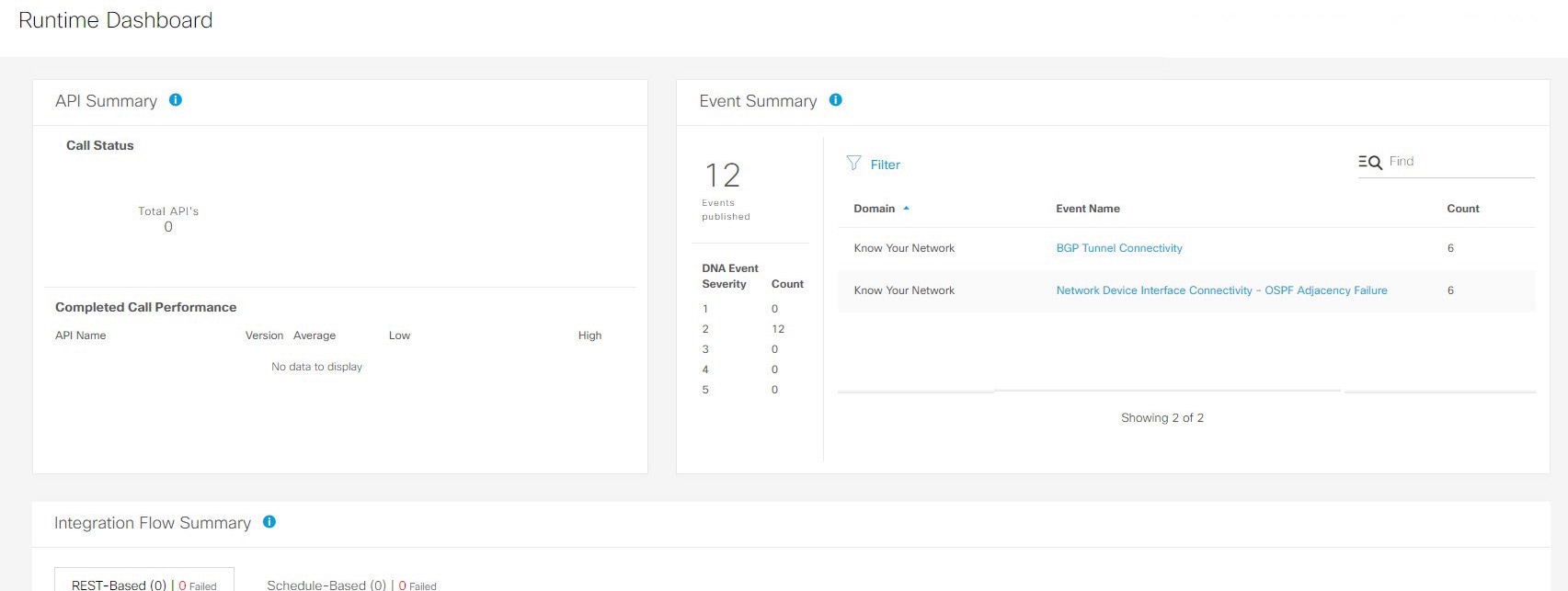
The Catalyst Center admin can review the SWIM event by choosing Runtime Dashboard > Event Summary.
Note
By clicking the individual events in the GUI window, the admin accesses additional GUI windows that permit direct access to
the event in ServiceNow.
Figure 6. Event Summary
Step 10
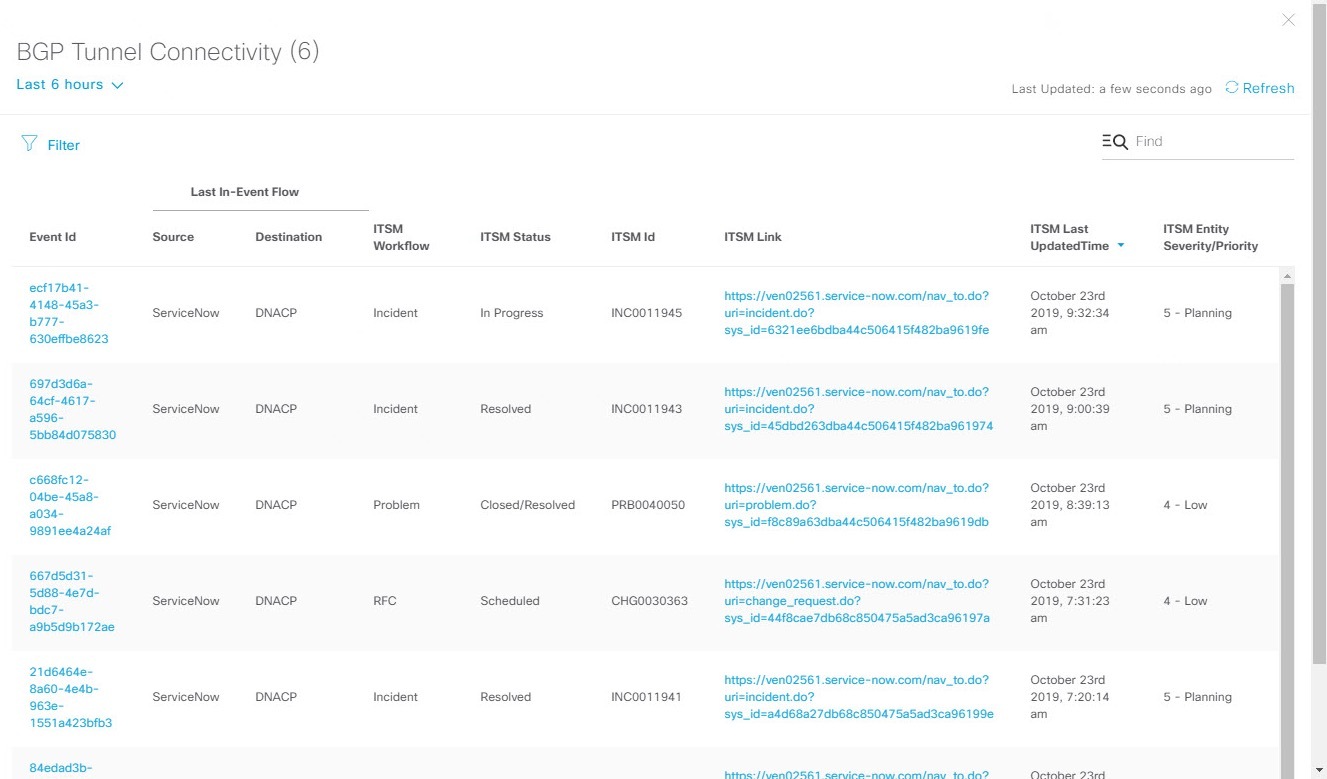
The Catalyst Center admin clicks an event name (link) to view additional detailed data.
Figure 7. Event history
Step 11
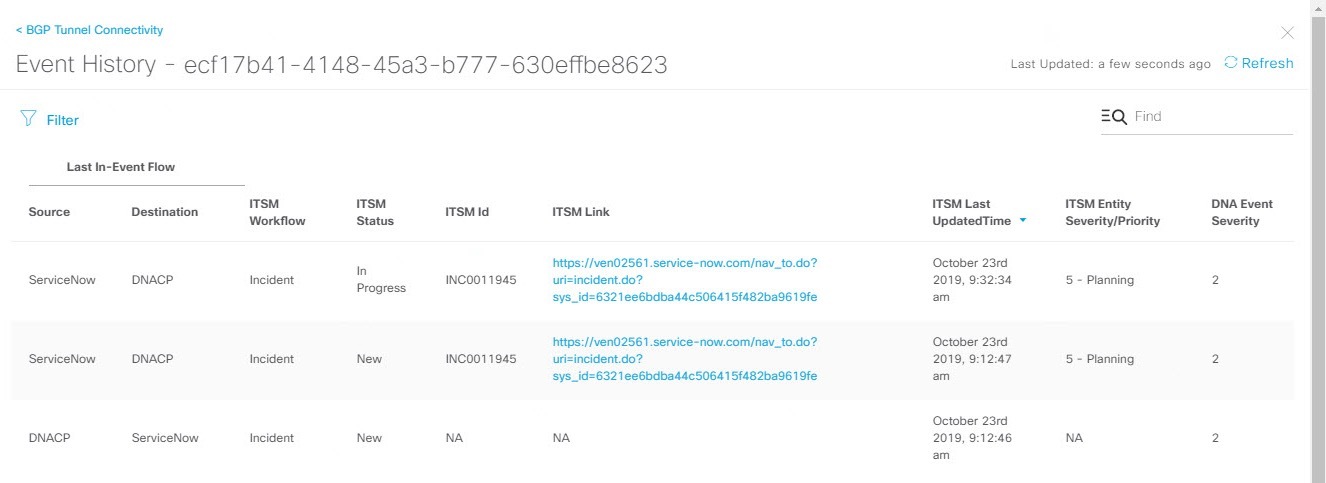
The Catalyst Center admin clicks an event ID number (link) to view only data associated with that specific event.
Figure 8. Event ID data
Step 12
The Catalyst Center admin clicks the ITSM Link to return to the ServiceNow Service Management GUI and specific incident.

 Feedback