Demand matrix
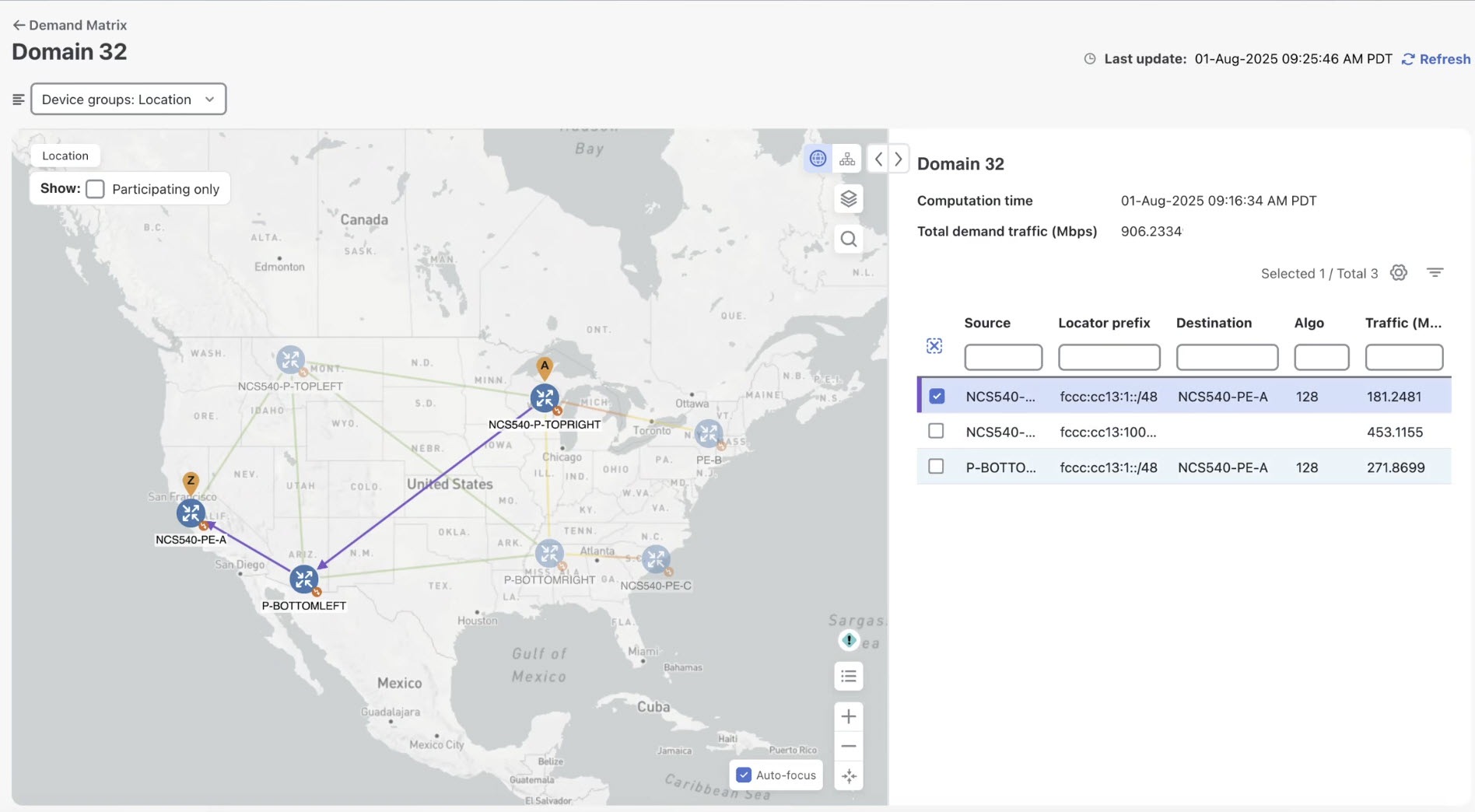
The Demand Matrix is a representation of the aggregate SRv6 traffic flows within a network domain. Each flow (demand) corresponds to the total SRv6 traffic entering the domain at a specific node and exiting at another, destined for a specific Locator. Demands are associated with specific destination SRv6 Locators, which define how traffic is forwarded within the domain based on any relevant flex-algo assigned to the Locator. The Demand Matrix, also referred to as the Deterministic Demand Matrix (DDM), provides
-
detailed, near real-time visibility into SRv6 traffic demands within IGP domains, and
-
granular insights into traffic patterns, traffic volume, and where potential bottlenecks may arise.
It achieves this by leveraging per-locator, per-egress interface counters from network devices. Refer to the Segment Routing v6 Configuration Guide for Cisco 8000 Series Routers, Cisco IOS XR Releases guide for information on how SRv6 locator counters track external and internal traffic flows and calculate net external traffic using the demand matrix.
Advantages of using DDM
Using DDM offers several key benefits for network monitoring, analysis, and planning:
-
Enhanced visibility: Gain clear insights into traffic flow demands across the network through the Crosswork Network Controller UI.
-
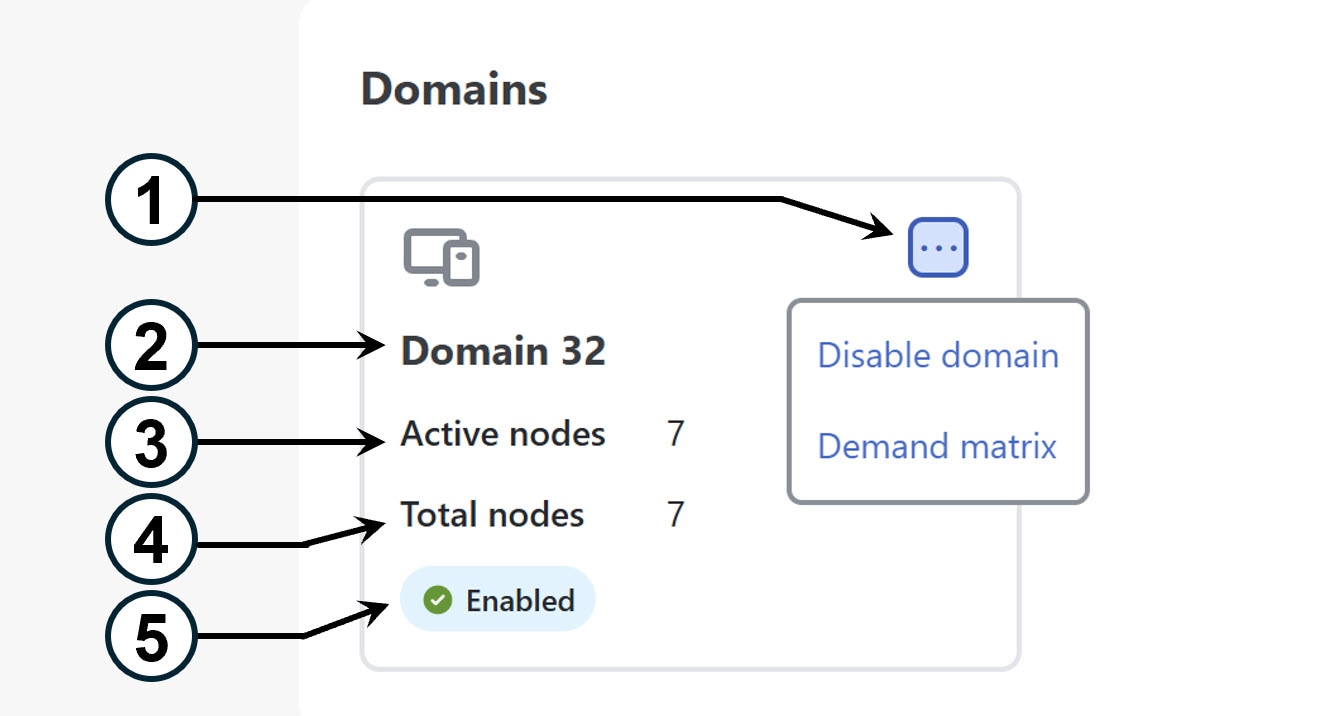
Per-Domain insights: Easily manage and monitor individual IGP domains. View metadata about active/total nodes and traffic reporting status within each domain.
-
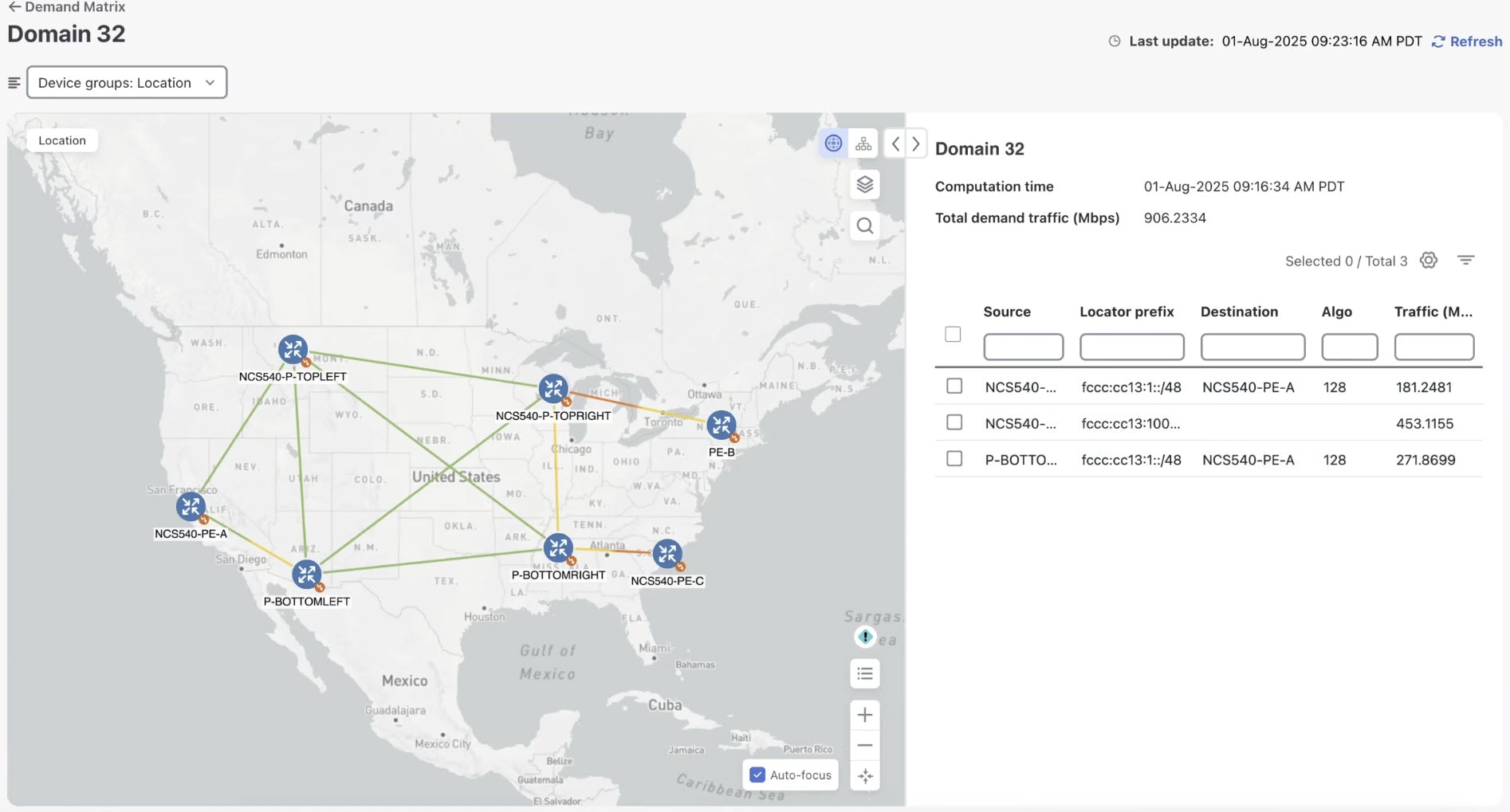
Effective Network Planning: Filter demands to view those routed over specific links or interfaces, supporting targeted troubleshooting and planning by identifying traffic distribution and potential bottlenecks.
How DDM Works
At its core, DDM continuously collects per-locator, per-egress interface (LOC.INT.E) counters directly from network devices. It uses this counter data, along with network topology to deterministically compute traffic demands for each IGP domain. These computed demands are then used to visualize traffic patterns overlaid on the topology map.
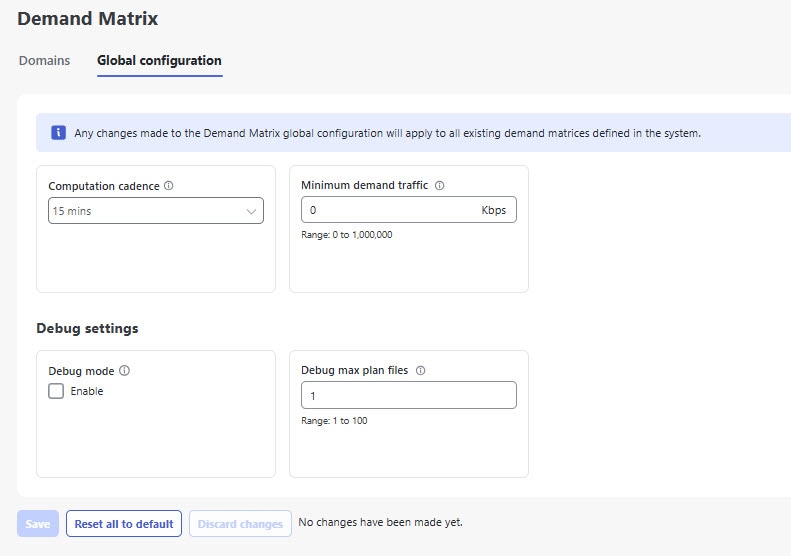
DDM uses a user-defined cadence to determine how often the demand matrices are updated. When a computation interval is reached, DDM retrieves the latest network topology to perform demand computation. Once computed, these demands are used for path visualization and detailed link views. DDM also records domain metadata, such as the total and active nodes, providing context on domain health and activity.
-
If a device misses sending a counter update, DDM uses the previously received counter records to continue computing demands, ensuring continuity.
-
DDM has two-cadence grace period to maintain operational stability. This period ensures that late-arriving counter updates are processed, and that demands (such as those from a removed node or link) or domains stay visible in the UI for up to two cadences before being cleared.


 and then click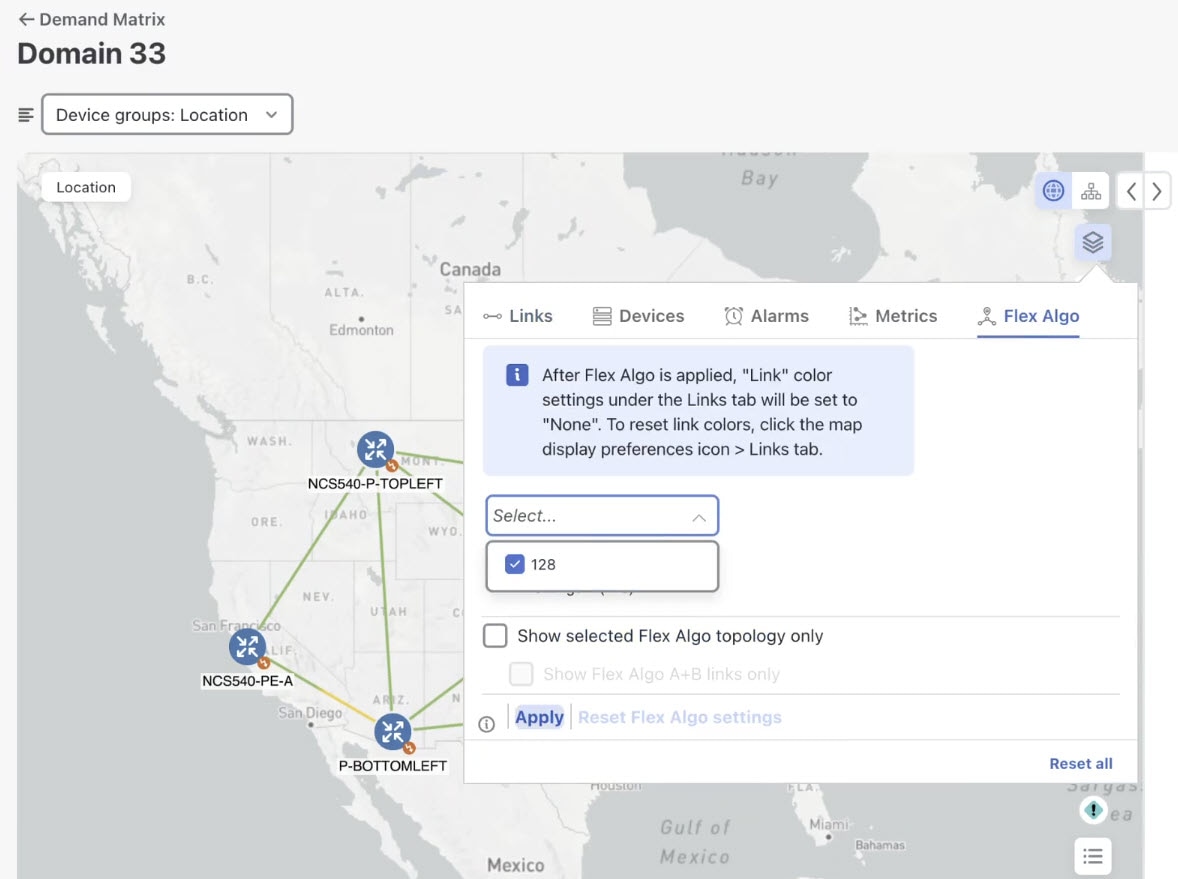
 Feedback