Local Congestion Mitigation (LCM)

Local congestion mitigation

Local Congestion Mitigation is a network optimization technique that:

  • monitors congestion as defined by the interface thresholds you specify and detects congestion on a configurable cadence (as opposed to a triggered event) by monitoring interface utilization and traffic thresholds,

  • computes shortest paths for tactical policies to divert minimal traffic from congested interfaces to alternate paths with sufficient bandwidth,

  • aims to keep as much traffic as possible on the original IGP path while mitigating congestion,

  • provides localized mitigation recommendations in surrounding interfaces (local interface-level optimization) within a domain, eliminating the need to simulate edge-to-edge traffic flows in the network through a full traffic matrix,

  • allows users to visually preview LCM recommendations before committing Tactical Traffic Engineering (TTE) SR policy deployments (feature available in Manual mode),

  • can automatically deploy Multiple Segment List (MSL) policies for devices that are fully gRPC MSL compliant based on specified thresholds (feature available in Automated mode),

  • supports automatic deletion of down, failed, or uncommitted LCM TTE policies to reduce network failure risks (see Auto Repair Solution and Adjacency Hop Type) in LCM configuration options),

  • collects TTE- SR policy and interface counters via SNMP and does not require Segment Routing Traffic Matrix (SR-TM), and

  • is designed for scalability and applicability in large networks with multiple IGP areas, because of its simpler path computation and limitation to specific network elements.

Refer to Example: Mitigate congestion on local interfaces to see how to use LCM in your network.

LCM - device and network requirements

These requirements ensure that LCM has full visibility into network traffic and the capability to steer traffic effectively.

Enable traffic monitoring for LCM

For LCM to properly evaluate congestion, LCM requires traffic statistics from interface and headend SR-TE policy traffic measurements.

To ensure LCM is receiving these traffic statistics:

Procedure


Step 1

Enable SNMP or gNMI: Enable SNMP or gNMI on the devices whose traffic you want to monitor, including the headend device. For more information on how to configure these protocols, see the specific device platform configuration guide, for example, Configuring SNMP support.

Step 2

Ensure device reachability: Confirm all monitored devices are reachable from the Crosswork Data Gateway.


Enable strict SID label for LCM usage

All devices in the LCM domain must have strict SID enabled. Complete these steps in this example to configure strict SID on devices running Cisco IOS XR and XE.

To ensure LCM is receiving these traffic statistics

Procedure


Step 1

Enable strict SID labels for all devices in the LCM domain

Cisco IOS XR with ISIS

router isis core
interface Loopback0
address-family ipv4 unicast
prefix-sid absolute 16003
prefix-sid strict-spf absolute 16503
!
address-family ipv6 unicast
!
!

Cisco IOS XR with OSPF

router ospf 100
area 0
mpls traffic-eng
segment-routing mpls
interface Loopback0
passive enable
prefix-sid absolute 16002
prefix-sid strict-spf absolute 16502
!

Cisco IOS XE

segment-routing mpls
!
connected-prefix-sid-map
address-family ipv4
<ipv4-address> absolute 16010 range 1
exit-address-family
address-family ipv4 strict-spf
<ipv4-address> absolute 16510 range 1
exit-address-family
!
!

Step 2

Enable segment routing with consistent SRGB

Enable segment routing on the headend device and confirm that all devices

  • use the same default SRGB range or a specified custom range.

  • have the maximum SID depth explicitly configured if there are devices along the path that impose restrictions on the label stack depth.

segment-routing
global-block 16000 80000
traffic-eng
maximum-sid-depth 8

Step 3

Configure SR-TE policies with strict SID labels

If there are existing SR policies, the headend device must be configured to use strict SPF SID labels.

For PCC-initiated or computed SR policies

segment-routing
traffic-eng
policy srte_c_8000_ep
color 8000 end-point ipv4 <ipv4-address>
candidate-paths
preference 100
dynamic
metric
type igp
!
!
constraints
segments
sid-algorithm 1

For PCE computed or delegated SR policies

policy srte_c_8001_ep_198.19.1.4
color 8001 end-point ipv4 198.19.1.4
candidate-paths
preference 100
dynamic
pcep
!
metric
type igp

PCE configuration for returning paths with strict SID only

pce
segment-routing
strict-sid-only

Enable traffic steering using autoroute

The headend device must support PCE-initiated SR-TE policies with autoroute steering, a feature supported in Cisco IOS XR devices and provisioned via Cisco Crosswork Network Controller 7.2 using gRPC policy provisioning. Note that LCM will not operate correctly if the headend is a Cisco NCS device and there is L2VPN traffic in the network.

To enable traffic steering into SR-TE policies with autoroute:

Procedure


Step 1

Configure the headend device with include ipv4 all and force-sr-include under the appropriate PCC profile.

Example configuration

segment-routing
traffic-eng
pcc
profile 10      ! Profile ID must match the value in LCM Configuration > Basic > Profile ID 
autoroute
include ipv4 all
force-sr-include

Note


The profile ID configured under the PCC profile must match the profile ID option set on the LCM Configuration page.

The profile ID identifies the PCC profile associated with the SR-TE policy provisioned by the PCE. This ID can be any integer from 1 to 65535, but it must match the profile ID used by the PCE to instantiate the policy. If the values do not match, the policy will not be activated. For example, if the PCE provisions a policy with profile ID 10, you must configure segment-routing traffic-eng pcc profile 10 autoroute force-sr-include on the headend router to enable autoroute announcement for that policy.

Step 2

Refer to the specific device platform configuration guide for more details (for example, Segment Routing Configuration Guide, Cisco IOS XE 17 (Cisco ASR 920 Series).


Equal cost multi-path support

The headend device must support Equal Cost Multi-Path (ECMP) across multiple parallel SR-TE policies. To confirm that a device can support SR-TE policies with ECMP, verify:

  • Segment Routing is enabled: Ensure Segment Routing is configured with a SRGB that matches the SRGB used by both the headend and tailend routers for SR-TE policies.

    Verify with show segment-routing mpls state

  • BGP-LS is enabled: Confirm that BGP-LS is configured to advertise and receive link-state information from the headend and tailend routers.

    Verify status with show bgp link-state link-state

    Verify link-state information with show bgp link-state link-state database

  • ECMP is enabled: Ensure ECMP is configured to load-balance traffic across multiple equal-cost paths.

    Verify ECMP routes with show ip route

    Verify the ECMP load-balancing algorithm with show ip cef

Prepare devices for gRPC policy management

To maximize LCM efficiency and improve performance, LCM can optionally provision SR-TE policies using weighted Multi-Segment Lists (MSL). This approach allows LCM solutions to typically consist of a single policy containing multiple weighted segment lists, enabling traffic detours without the need for parallel policies.

Weighted MSL LCM policies require gRPC policy provisioning instead of the legacy PCE-initiated method and are supported only on Cisco devices running IOS XR version 25.3.1 or later. This section details the additional configurations and requirements necessary to support these advanced capabilities across all participating devices.

  • Enable gRPC on all devices in the target domain.

  • Advertise SR MSL policies to BGP-LS peers and PCE neighbors.

  • Prevent reporting MSL policies in PCEP.

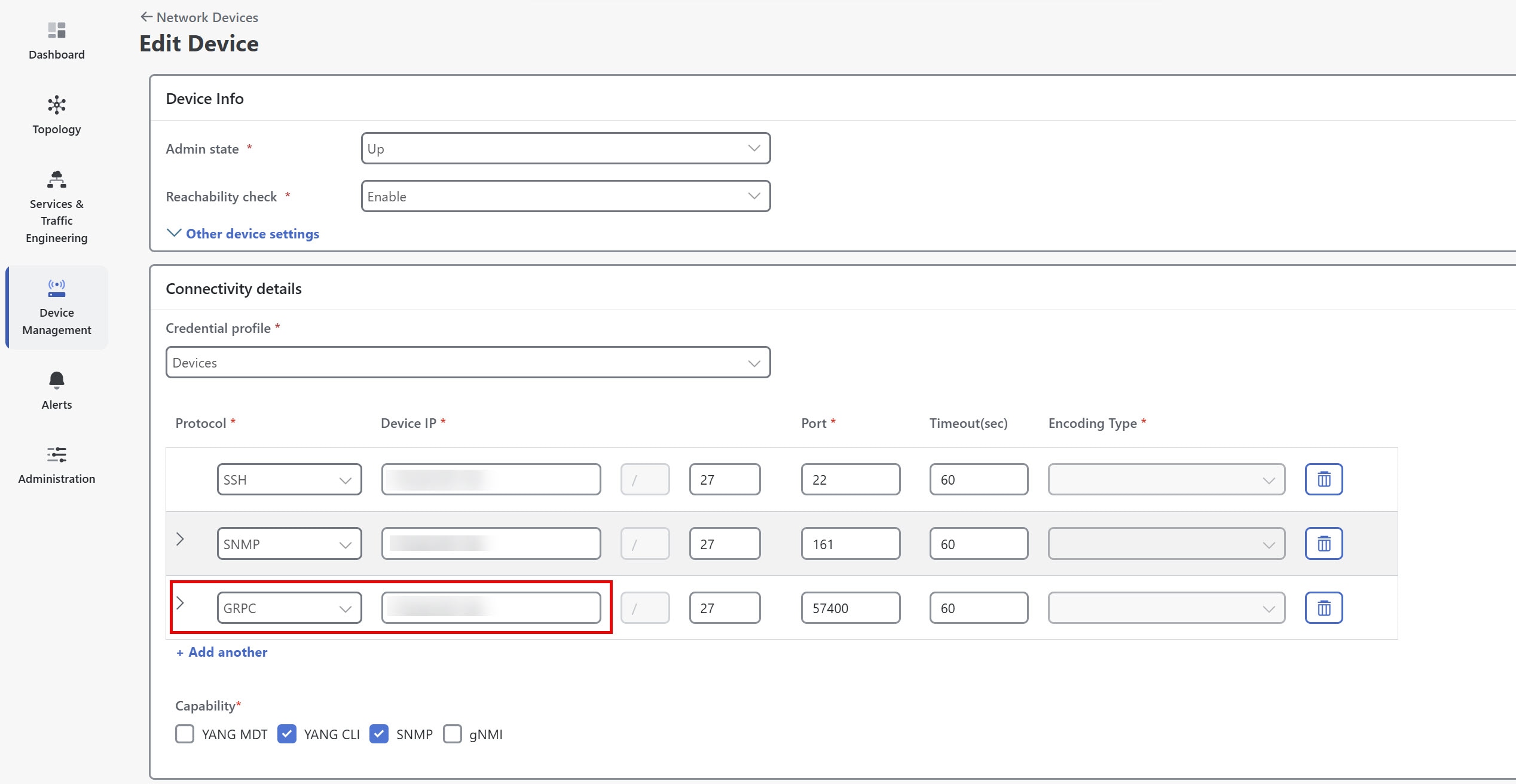
  • Add gRPC protocol connectivity to devices.

  • Create and assign "grpc_msl" or "GRPC_MSL" tag to devices.


Note


Ensure that devices with the gRPC port enabled are accessible from every Crosswork Network Controller node to support MSL policy deployment.


To leverage automated mode and support multiple segment lists with SR-TE, complete these steps:

Procedure


Step 1

Enable gRPC for SR-TE policy reporting

On devices running IOS XR version > 25.3.1, enable gRPC to allow policy services and communication.

RP/0/RP0/CPU0:L1-NCS5501#sh running-config grpc
grpc
  segment-routing
    traffic-eng
      policy-service
    !
  !
  port 57400
  no-tls

Step 2

Advertise SR MSL policies to BGP-LS peers and PCE neighbors

To provide full visibility and support network orchestration, SR MSL policies must be advertised via BGP-LS both to peers and to the PCE neighbor. This involves enabling reporting of SR MSL policies into the link-state database and configuring BGP sessions with the PCE neighbor in the link-state address family.

  1. Enable reporting of SR MSL policies to BGP-LS peers

    Configure your router to report both active and inactive SR MSL policies into the link-state database. This allows policies to be advertised via BGP-LS to controllers or peers. Use the following configuration snippet to enable reporting of all configured SR MSL policies

    RP/0/RP0/CPU0:L1-NCS5501#sh running-config segment-routing traffic-eng distribute link-state 
    segment-routing
      traffic-eng
        distribute link-state
          report-candidate-path-inactive
        !
      !
    !
                        
  2. Advertise SR MSL policies to PCE neighbor via BGP-LS

    Establish a BGP session with the PCE neighbor and configure the link-state address family to ensure the PCE can receive and learn all SR MSL policies from the router.

    Note


    The link-state address family must be configured on both the headend and the PCE for successful exchange.

    RP/0/RP0/CPU0:L1-NCS5501#sh running-config router bgp
    router bgp 60
      neighbor <NEIGHBOR_IP>   ! PCE neighbor
        remote-as 60
        update-source Loopback0
        address-family ipv4 unicast
          next-hop-self
        !
        address-family ipv6 unicast
        !
        address-family link-state link-state. ! Enable BGP-LS for SR MSL policy advertisement
        !
      ! 
    

Step 3

Prevent reporting MSL policies in PCEP

Since PCEP does not fully support MSL policies (it only advertises a single segment list, which can cause operational issues), it is recommended to remove the report-all command from the PCC configuration on the headend router. Use this configuration to prevent SR MSL policies from being reported via PCEP.

RP/0/RP0/CPU0:L4-NCS560#sh running-config segment-routing traffic-eng pcc 
segment-routing
  traffic-eng
    pcc
      source-address ipv4 192.100.0.4
      pce address ipv4 100.100.0.1
        precedence 25
      !
      pce address ipv4 100.100.0.2
        precedence 50
      !
      !  Remove the following line to prevent reporting MSL policies to PCE
      !  report-all
      redundancy pcc-centric
      profile 1981
        autoroute
          include ipv4 all
          force-sr-include
        !
      !
    !
  !
!

Step 4

Add gRPC protocol connectivity

In Device Management, ensure all devices in the target domain have gRPC protocol connectivity configured.

  1. You can add gRPC protocol in the device credential profile by navigating to Device Management > Network Devices.

  2. Edit each device as needed to add gRPC connectivity details.

    Figure 1. Edit devices for gRPC connectivity details

    Edit devices for gRPC connectivity details

Step 5

Create and assign "grpc_msl" or "GRPC_MSL" tag to devices

Note


LCM will only deploy an MSL policy if this tag is present. In Automated mode, PCE-initiated policies are not supported. In manual mode, if the tag is missing, LCM will deploy a PCE-initiated policy.

  1. Choose Administration > Tag Management > Add icon. This displays the Add tags pane.

  2. Choose the tag category from the Select tag category drop-down list or type a new category's name in the text field and click Add.

  3. In the Add tags for <category name>, create a "grpc_msl" or "GRPC_MSL" tag and press Enter.

  4. Click Save.

  5. Navigate to Device Management > Network Devices and select the devices you would like to tag.

  6. Click Modify tags icon. This displays the Edit tags pane.

  7. In the Associate tag field, type "grpc_msl" or "GRPC_MSL" tag that you created.

  8. Click on tag in the search result list to associate it with the device.

  9. Click Save.


Important considerations when using LCM

Review these important considerations to ensure proper setup, optimal operation, and secure management of LCM domains.

User roles and permissions

  • Ensure user roles have LCM task permissions for a domain before configuring LCM and committing recommendations. For more details on RBAC and user roles, see the Cisco Crosswork Network Controller Administration Guide.

  • Device Access Group (DAG) access is not supported by LCM. Users with LCM permissions can configure and commit LCM recommendations regardless of whether or not they have DAG access for any devices in that domain.

Supported network features and limitations

  • Do not steer LDP-labeled traffic into LCM autoroute TTE SR policies. LCM does not support LDP-labeled traffic.

  • Avoid using LCM on networks with Tree SID policies, as incomplete traffic measurements can distort calculations.

Domain management and device support

  • Limit domains to a maximum of 2000 devices for efficient LCM operation. A domain is identified by the IGP process and domain ID from the PCC router's configuration (link-state instance-id) used for BGP-LS advertisement.

  • LCM recommended solutions utilize resources within a single domain only.

  • If domain interfaces or links are removed or go down (LINK_DOWN state), either intentionally or unintentionally, LCM configuration and the Domain UI card (see Configure LCM) remain available until links are aged out, providing up to 4 hours for recovery.

  • Manually remove links from the UI if you need to force domain removal before the automatic aging period. The domain remains "ready for deletion" until the last link is removed.

Traffic evaluation and statistics

  • LCM evaluates network utilization on a regular, configurable cadence of 1 minute or more, with a default of 10 minutes. The cadence can be set lower to improve responsiveness but is typically equal to or greater than the SNMP polling interval.

  • The traffic statistics collection interval affects how quickly LCM can respond to topology changes and LSP deployments that affect interface and LSP traffic measurements. Be aware that LCM can take up to twice the statistics collection interval plus the LCM evaluation interval for recommendations to fully reflect changes. During this period, LCM recommendations may evolve as the traffic measurements are updated and eventually fully converge in Crosswork Network Controller.

ECMP handling and optimization eligibility

  • LCM uses ECMP across parallel TTE SR policies, assuming roughly equal splitting of traffic. Actual ECMP behavior depends on traffic patterns and aggregation. LCM can be configured to detect and notify about excessive uneven ECMP splitting.

  • To mitigate the effects of uneven ECMP, the overprovisioning factor is used in LCM. For more information, see Configure LCM.

  • Do not steer traffic from existing SR-TE policies into LCM TTE SR policies. Ensure existing non-LCM SR-TE policies do not use regular Algo-0 prefix SIDs. Any combination of Algo-1 Strict, Flexible Algorithm, or adjacency SIDs is recommended to prevent this traffic from being steered into LCM TTE SR policies.

High Availability (HA) and SR-PCE behavior

  • After an HA switchover, you can manually add missing interfaces that were previously monitored or update domain configuration options once the system stabilizes. Missing interfaces may occur if added after the last cluster data synchronization.

  • When an SR-PCE goes down, LCM enters a dormant stage, and remains so until all SR-PCEs are reconnected and their associated topologies are fully synchronized with the topology service. LCM does not have visibility into the state of the SR-PCE redundancy set.

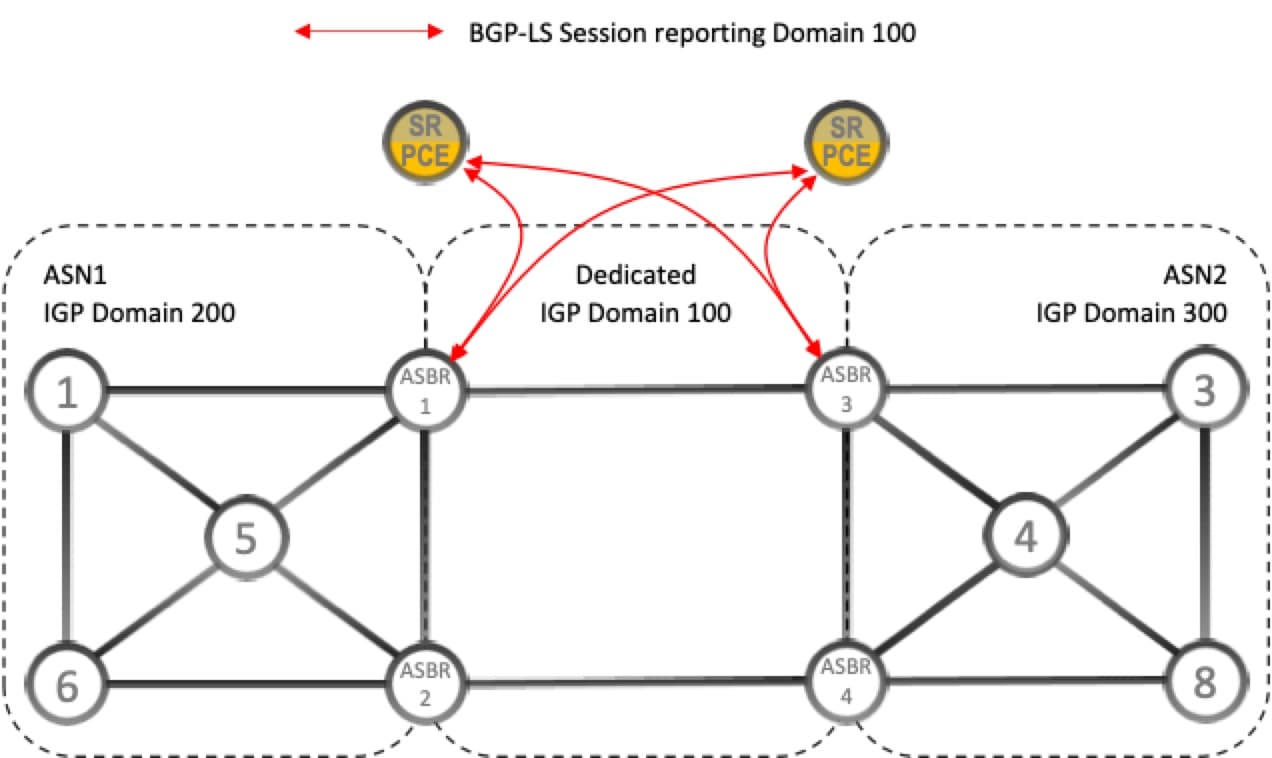
BGP-LS speaker placement for multiple AS networks with a dedicated IGP instance between ASBRs

Interdomain latency-optimized SR policy path computation refers to the process of finding the best routes between different networks (autonomous systems) using SR-PCE, aiming to minimize data travel delay or latency. This approach is especially important when egress peer engineering (EPE) is not supported.

  • Dedicated IGP instance: A dedicated Interior Gateway Protocol (IGP) instance can be configured between autonomous system border routers (ASBRs) across different autonomous system numbers (ASNs) to support this computation.

  • Topology reporting: Identifying ASBRs that report the topology via BGP-LS (Border Gateway Protocol Link State) is essential for accurate topology discovery.

  • BGP-LS configuration: At least one ASBR in each AS participating in the dedicated inter-AS IGP (for example, Domain 100) must have BGP-LS enabled to report the IGP between each ASBR.

  • BGP-LS identifier: Each ASBR must use the same BGP-LS identifier to report the domain.

  • Multiple ASBR support: Multiple ASBRs per AS can report BGP-LS topology, providing flexibility in topology reporting.

Figure 2. BGP-LS session reporting domain 100
BGP-LS session reporting domain 100

LCM calculation workflow

Summary

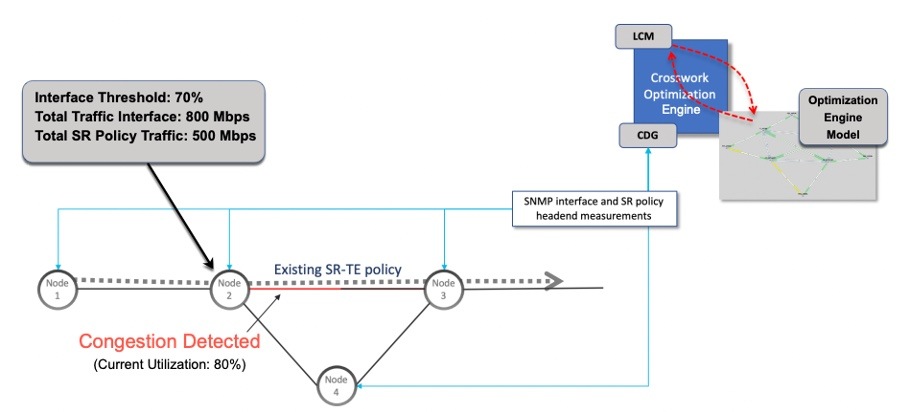
This example guides you through the process from congestion detection to the calculations performed by LCM before recommending tactical tunnel deployment. These calculations are conducted on a per-domain basis, enhancing scalability and enabling faster calculations for larger networks.

Figure 3. LCM configuration workflow example
LCM configuration workflow example

Workflow

  1. Analysis of network condition: LCM first analyzes the Optimization Engine Model, which is a real-time topology and traffic representation of the physical network, on a regular cadence. In this example, LCM detects congestion after a congestion check interval when Node 2 utilization exceeds the 70% utilization threshold.
  2. Calculation of eligible traffic: LCM calculates the amount of traffic eligible for diversion. LCM only diverts traffic that is not already routed on an existing SR policy or RSVP-TE tunnel (for example, unlabeled, IGP routed, or carried via FlexAlgo-0 SIDs). Traffic within an SR-TE policy is excluded from the LCM calculation and continues to travel over the original programmed path. LCM calculates the traffic eligible for diversion by subtracting the sum of traffic statistics for all SR-TE policies that flow over the interface from the total interface traffic. Total interface traffic – SR policy traffic and RSVP-TE tunnels = Eligible traffic that can be optimized This process must account for any ECMP splitting of SR policies to ensure the proper accounting of SR policy traffic. In this example, the total traffic on congested Node 2 is 800 Mbps, and the total traffic of all SR policies routed over Node 2 is 500 Mbps. So, the total traffic that LCM can divert is 800 Mbps – 500 Mbps = 300 Mbps
  3. Traffic diversion calculation: LCM determines the amount of traffic that must be sent over alternate paths by subtracting the threshold equivalent traffic from the total interface traffic. In this example, LCM must route 100 Mbps of 300 Mbps (eligible traffic) to another path. 800 Mbps – 700 Mbps (70% threshold) = 100 Mbps
  4. Over-provisioning factor (OPF): The OPF represents a percentage deducted from the congestion threshold during solution computation to provide utilization headroom and account for uneven ECMP traffic distribution. For example, with a congestion threshold of 80% and an OPF of 3%, the optimizer uses an effective threshold of 77% when computing solutions. The OPF can be set in the Advanced tab within the LCM Configuration window. For more information, see Configure LCM.
  5. Determination of TTE SR policies:
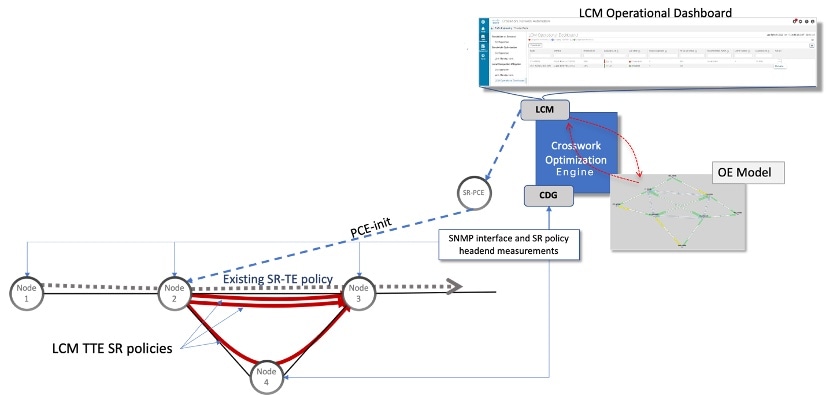
    • Multiple parallel tactical SR-TE policies: LCM calculates the number of TTE SR policies needed and their paths based on the traffic split ratio. The ratio of how much LCM-eligible traffic can stay on the shortest path to the amount that must be detoured will determine the number of TTE SR policies needed on the shortest versus alternate paths. In this example, LCM must divert one-third of the total eligible traffic (100Mbps out of 300Mbps) away from the congested link. Assuming perfect ECMP, LCM estimates that three tactical SR-TE policies are required to achieve this traffic split: one tactical SR-TE policy will take the diversion path and two tactical SR-TE policies will take the original path. There is sufficient capacity in the path between Node 2 and Node 4. Therefore, LCM recommends deploying three TTE SR policies (each expected to route approximately 100Mbps) from Node 2 to Node 3 via SR-PCE:
      • 2 TTE SR policies to take a direct path to Node 3 (200 Mbps)
      • 1 TTE SR policy takes hop via Node 4 (100 Mbps)
      These recommendations are displayed in the LCM operational dashboard
      Figure 4. LCM recommendation example
      LCM recommendation example
    • Single TTE SR policy with multiple weighted segment lists: LCM calculates a single tactical SR-TE policy per congested interface, which includes multiple weighted segment lists. Each segment list corresponds to a distinct path, and the weights determine the proportion of total traffic steered along each path. In this approach, instead of deploying multiple parallel SR-TE policies that split traffic roughly equally, LCM uses weights to precisely control traffic distribution across the shortest path and one or more detour paths. This reduces the number of policies needed and eliminates downstream ECMP effects caused by parallel policies. In our example, instead of deploying multiple parallel tactical SR-TE policies, LCM creates a single tactical SR-TE policy. This policy includes two weighted segment lists to control traffic distribution precisely.
      • One segment list corresponds to the shortest IGP path from Node 2 to Node 3, weighted to carry approximately 200 Mbps (two-thirds of the eligible traffic).
      • The other segment list corresponds to the detour path via Node 4, weighted to carry approximately 100 Mbps (one-third of the eligible traffic).
      This approach simplifies policy management and provides finer control over traffic engineering compared to multiple parallel policies. As traffic patterns change, LCM can dynamically adjust the weights of the segment lists within this single policy without adding or deleting policies, simplifying management.
  6. Monitoring and adjustments: LCM continuously monitors the deployed TTE policies and recommends modifications or deletions as needed in the LCM operational dashboard. LCM recommends deleting deployed TTE SR policies if the mitigated interface remains uncongested after their removed (minus a hold margin). This helps to avoid unnecessary TTE SR policy churn throughout the LCM operation.

Monitor LCM operations

The LCM dashboards and their monitoring roles include:

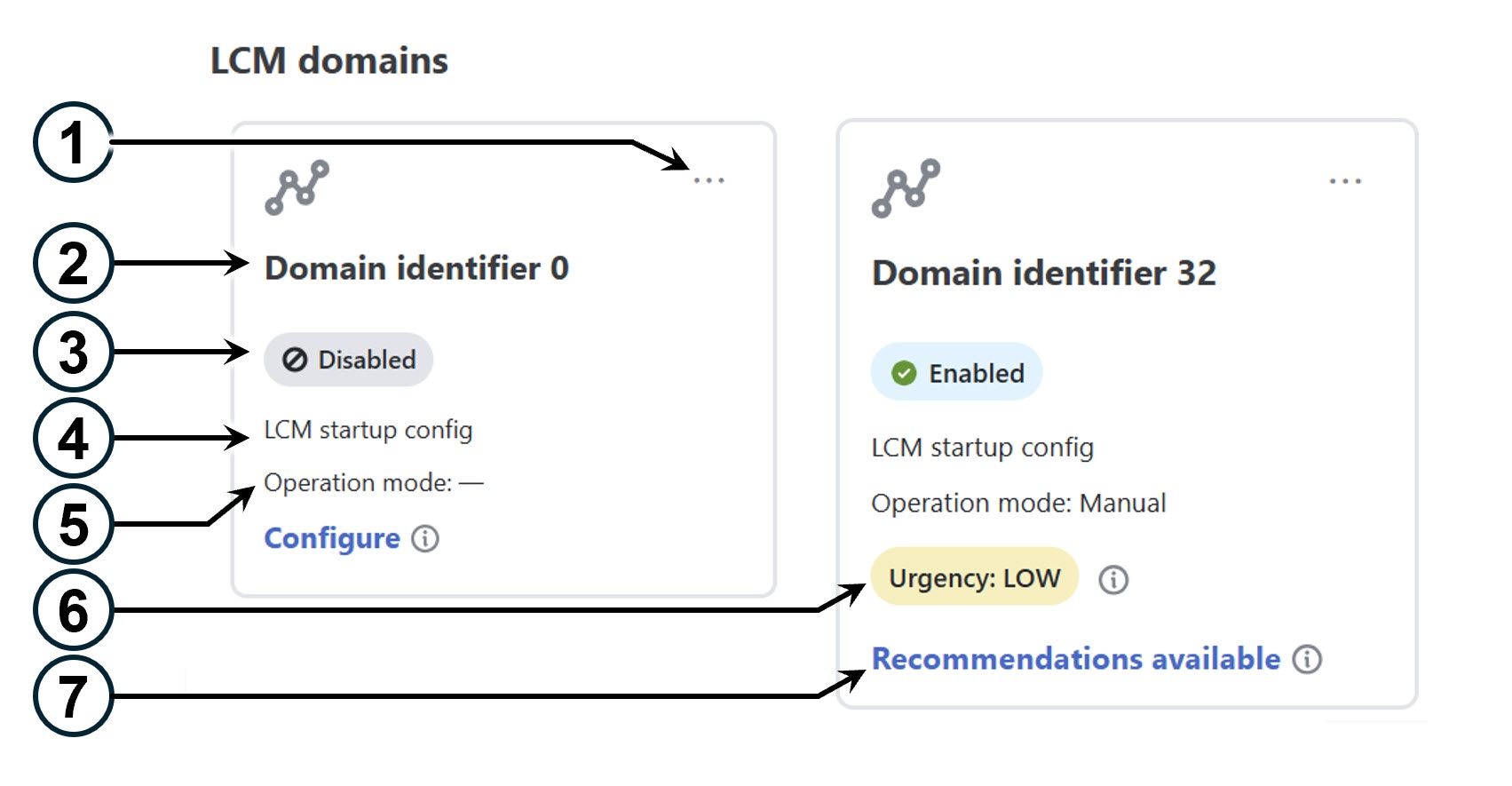
  • LCM domain dashboard: Displays all discovered domains with key information such as domain identifiers, LCM status, configuration descriptions, operation modes, and urgency levels. It also provides links to configure LCM if not set up and to view TTE policy recommendations when congestion is detected.

  • LCM operational dashboard: Displays congested interfaces based on configured utilization thresholds.

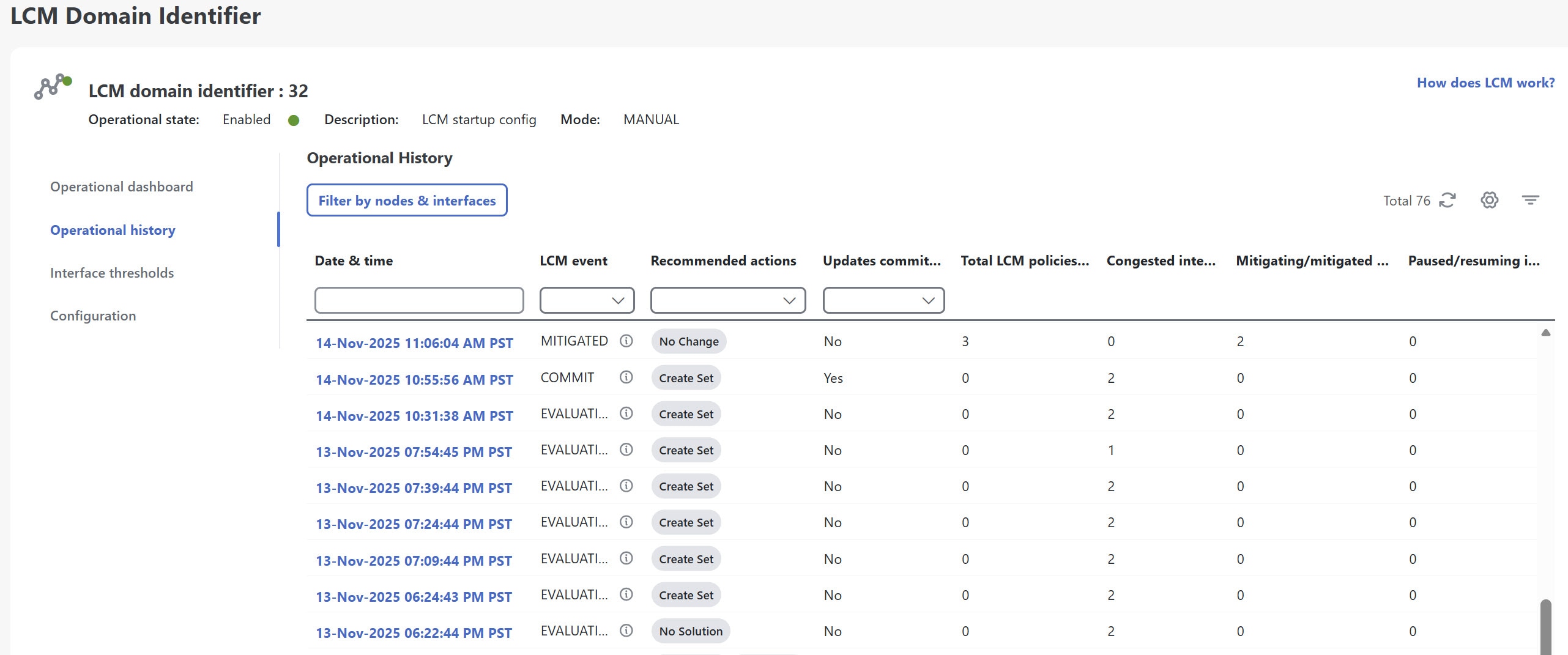
  • LCM operational history: Displays detailed, time-stamped snapshots after each key LCM event, such as evaluation, commit, pause or resume, and mitigated or degraded states, and provides a chronological, visual record of congestion management activities.

For information on how to use LCM in your network, see the Example: Mitigate congestion on local interfaces topic.

LCM domains dashboard

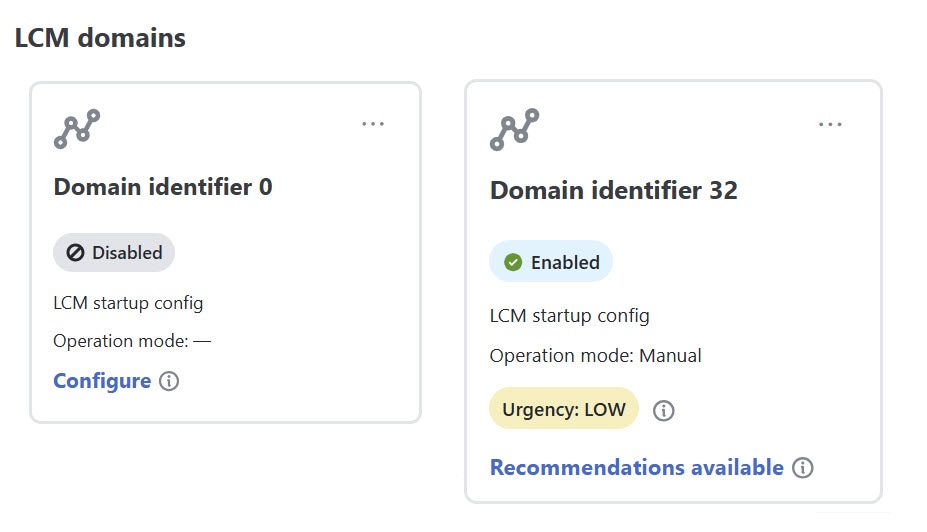
The LCM Domain dashboard (Services & Traffic Engineering > Local Congestion Mitigation) displays all the domains discovered by Crosswork Network Controller. A domain is an identifier assigned to an IGP process.

Figure 5. LCM domains dashboard
LCM domains dashboard
Callout No. Description

1

Main menu: Allows you to navigate to these pages:

2

Domain identifier: The domain ID is taken from the router configuration (link-state instance-id) that is used to advertise IGP with BGP-LS.

3

LCM status: Indicates whether LCM is enabled for the domain or if the domain can be deleted.

4

LCM configuration description: The description is defined on the LCM Configuration page. The default description is "LCM startup config".

5

Operation mode: Indicates if LCM is running in Automatic or Manual mode. The default is Manual mode.

  • Automated mode—LCM automatically deploys TE tunnel recommendations based on thresholds that a user configures. Automated Mode is only supported on fully gRPC MSL compliant domains.

  • Manual mode—This option requires a user to view the LCM Operational Dashboard and decide whether to commit TE tunnel recommendations.

6

Urgency: Indicates the importance of the recommendation deployment or action.

  • Low: Indicates that LCM instantiated policies can be removed because they are no longer needed or that no changes are required.

  • Medium: Indicates new or modified recommendations.

  • High: Indicates network failures and recommendations should be deployed. This is a candidate that can be addressed automatically if the Auto repair solution advanced option was enabled. See Configure LCM.

Dormant: This status appears when the domain is inactive. LCM does not perform any operations on dormant domains.

7

Configure: This link appears if LCM has not yet been configured. Click Configure to go to the LCM Configuration page.

Recommendations available: This link appears if LCM has detected congestion and has TTE policy recommendations. To view LCM recommendations, click the link to go to the LCM operational dashboard.

Delete: Indicates that the domain card can be removed from LCM monitoring.

LCM operational dashboard

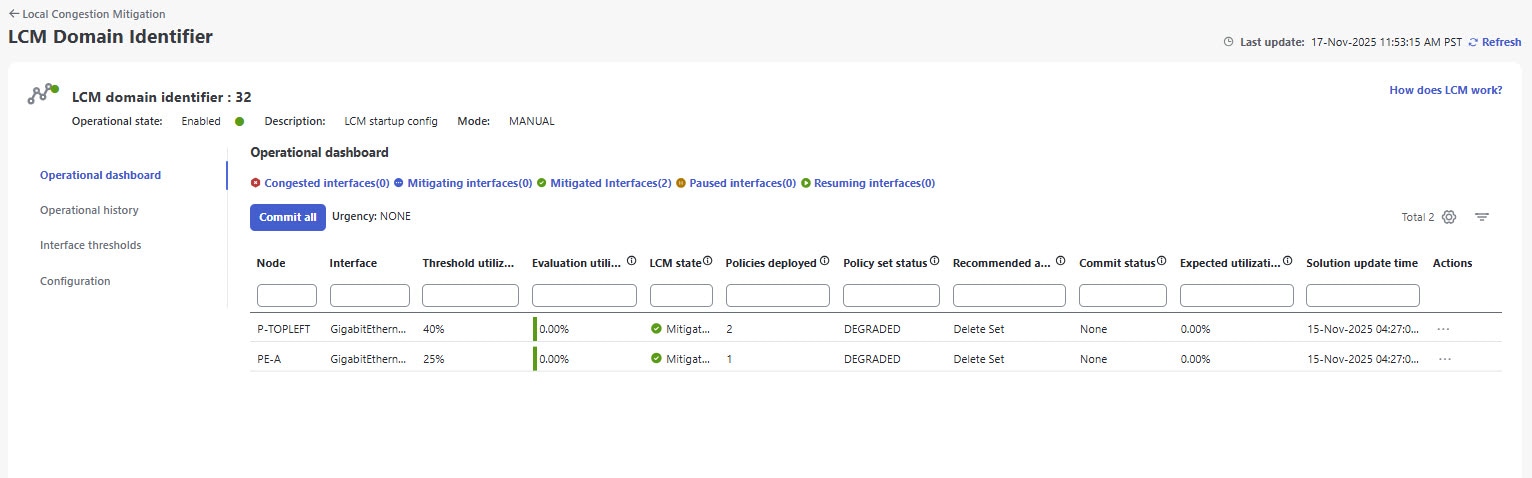
The LCM operational dashboard helps you preview the traffic engineering policies and path recommendations to mitigate congestion. Congested interfaces are those that exceed the configured utilization threshold.

Access LCM operational dashboard

To access LCM operational dashboard:

  1. From the main menu, choose Services & Traffic Engineering > Local Congestion Mitigation > Domain-ID > > Operational dashboard .
    Figure 6. LCM operational dashboard
    LCM operational dashboard

    Each interface lists details such as current utilization, recommended action, status, expected utilization after committing recommendations, and so on.

  2. Hover the mouse pointer over Field Help icon to view a description of the type of information each column provides. In the Actions column, you have these options:

    • Preview solution: This option opens the Recommended TTE policies preview page displaying the policies that LCM suggests for mitigating congestion. For headends that support MSL policies, you may see an MSL-based policy as a recommended solution.

    • View deployed policies: This option opens the Traffic Engineering - LCM deployed policy page displaying the various policies deployed to mitigate congestion. You can further click View details for each policy in the Actions menu to see the different paths and segments, along with detailed policy information.

    • Resume/Pause: Pause or resume an interface.

LCM states and dashboard behavior

Mitigated state: When LCM is in the Mitigated state, the dashboard displays the number of policies currently deployed to address previous congestion. It also provides recommended actions; for example, a "Delete Set" recommendation suggests removing these policies because congestion is no longer expected. The Commit status will show as None if the recommendation has not been committed, or Committed if it has been applied.

Congested state: When LCM detects congestion, the state changes to Congested. The dashboard shows recommended actions to remediate the congestion; for example, a "Create Set" recommendation advises deploying new policies. You can preview the new solution by selecting the Actions menu (More icon > Preview solution) before committing


Note


If LCM cannot find a solution (Recommended action - no solution), it may be due to constraints set in the LCM configuration. For more information, see Configure LCM.


Paused state: When LCM is in the Paused state, two events appear in the Operational history: one for the evaluation of policies for removal, and another for the commit of that removal. Similarly, when resuming policies, an evaluation event precedes the new commit event. If LCM is in a congestion check suspension interval, the operational history will display a resume event but will wait until the interval has passed before computing a new solution.

Recommendations are deployed as a set and require clicking Commit all to apply changes.

LCM operational history

The LCM operational history provides a powerful way to review and analyze LCM historical actions within your network. Events are generated at key points: during evaluation, when policies are committed or removed, when interfaces are paused or resumed, and when congestion states change. By capturing detailed, time-stamped snapshots after every key LCM events, it offers a chronological, visual record of congestion management activities. You can filter the data by nodes and interfaces to quickly locate relevant events. Historical records are retained based on a configurable setting (default is 30 days). This history enables auditing, troubleshooting, and operational review by showing:

  • Date & time of each event

  • Type of LCM event (commit, degraded, evaluation, mitigated, pause, and resume)

  • Recommended actions or next steps based on the event outcome

  • Configuration updates committed indicating whether the recommended changes were deployed to the network

  • Total LCM policies deployed

  • Number of congested interfaces

  • Number of mitigating/mitigated interfaces

  • Number of paused/resuming interfaces

  • Filtering options to narrow down event list to specific nodes and interfaces.

Access LCM operational history

To view LCM operational history:

  1. From the main menu, choose Services & Traffic Engineering > Local Congestion Mitigation > Domain-ID > > Operational history.

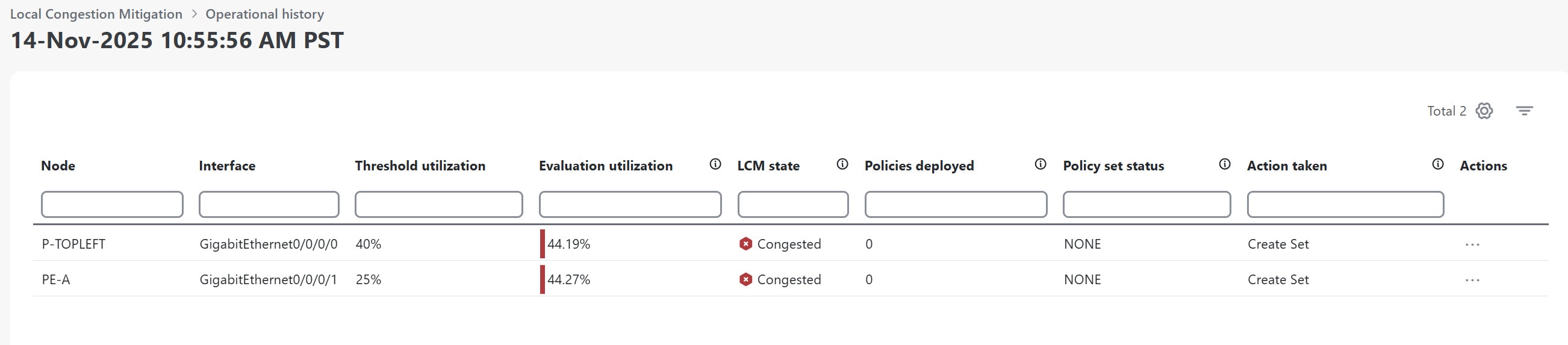
    Figure 7. LCM operational history
    LCM operational history

    The table rows show the operational history of LCM events. If an event is paused, it will remain in the paused state until there is user intervention. You can review paused policies in the operational dashboard and resume them as needed.

  2. Cick on any event in the table to see what the dashboard looked like at that specific point in time and as a result of that event. To better understand the information provided by the LCM operational history, let's click on the second row event (14-Nov-2025 10:55:56 AM PST) in the image above. It opens event details, where you can see that the interfaces were congested at 44% utilization.

    Figure 8. Operational history event snapshort
    Operational history event snapshort
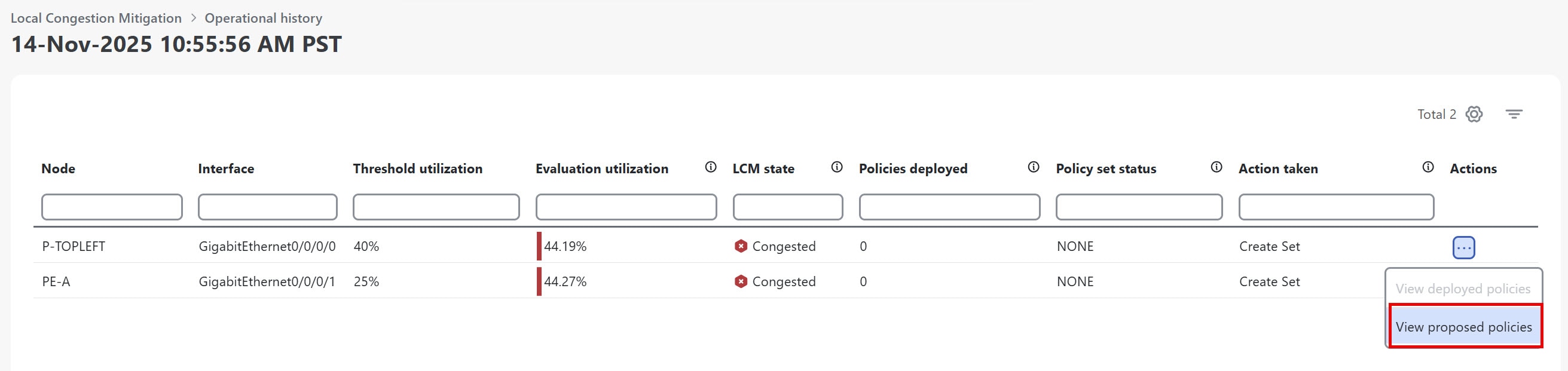
  3. Click More icon in the Actions column and select View proposed policies to visualize policies in a generated solution, giving you better insights of the past events.

    Figure 9. Operational history event snapshort - actions
    Operational history event snapshort - actions

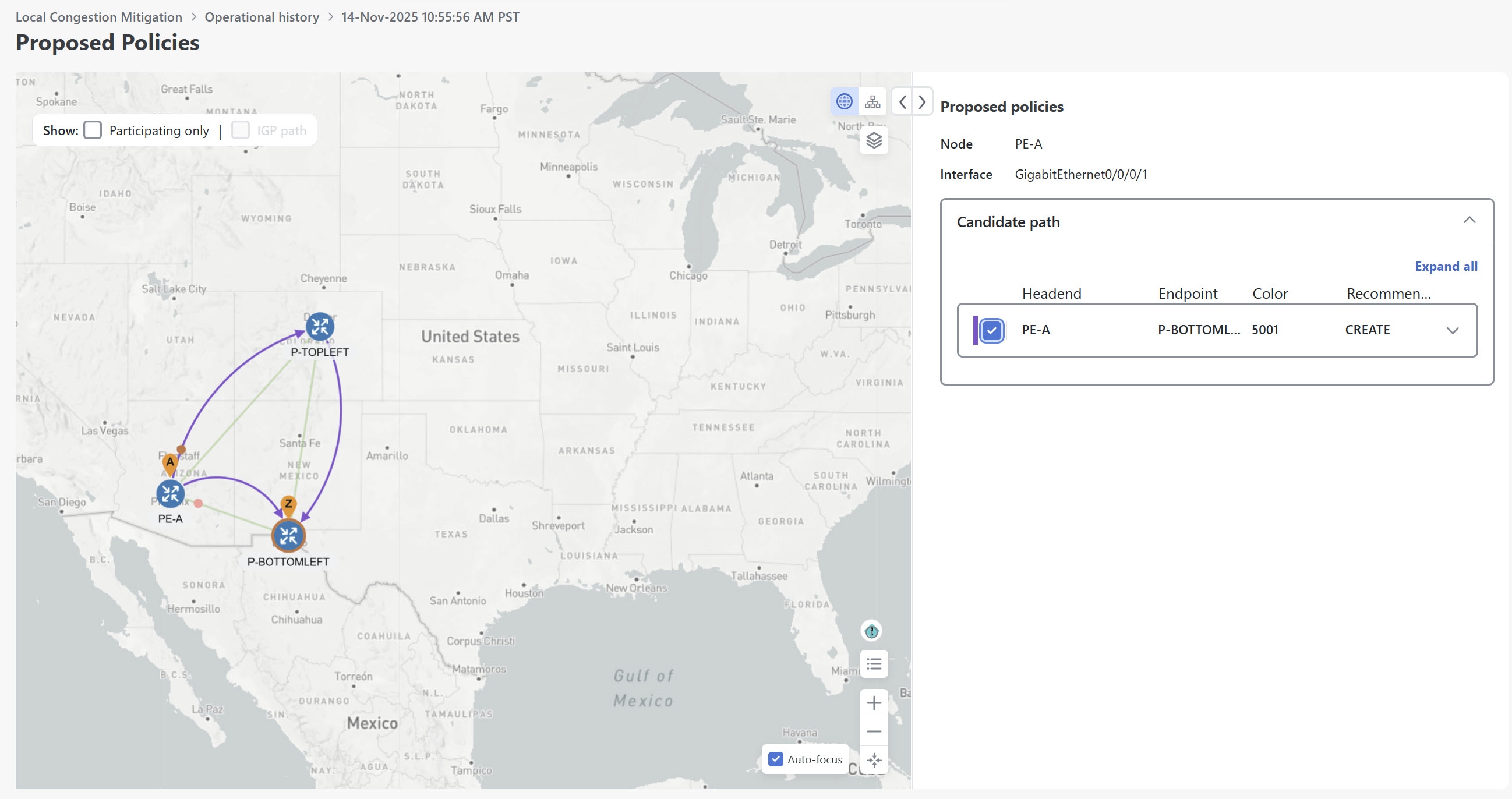
    The Proposed policies page displays the policies that were proposed to mitigate congestion for that event.

    Figure 10. Operational history event snapshort - proposed policies
    Operational history event snapshort - proposed policies
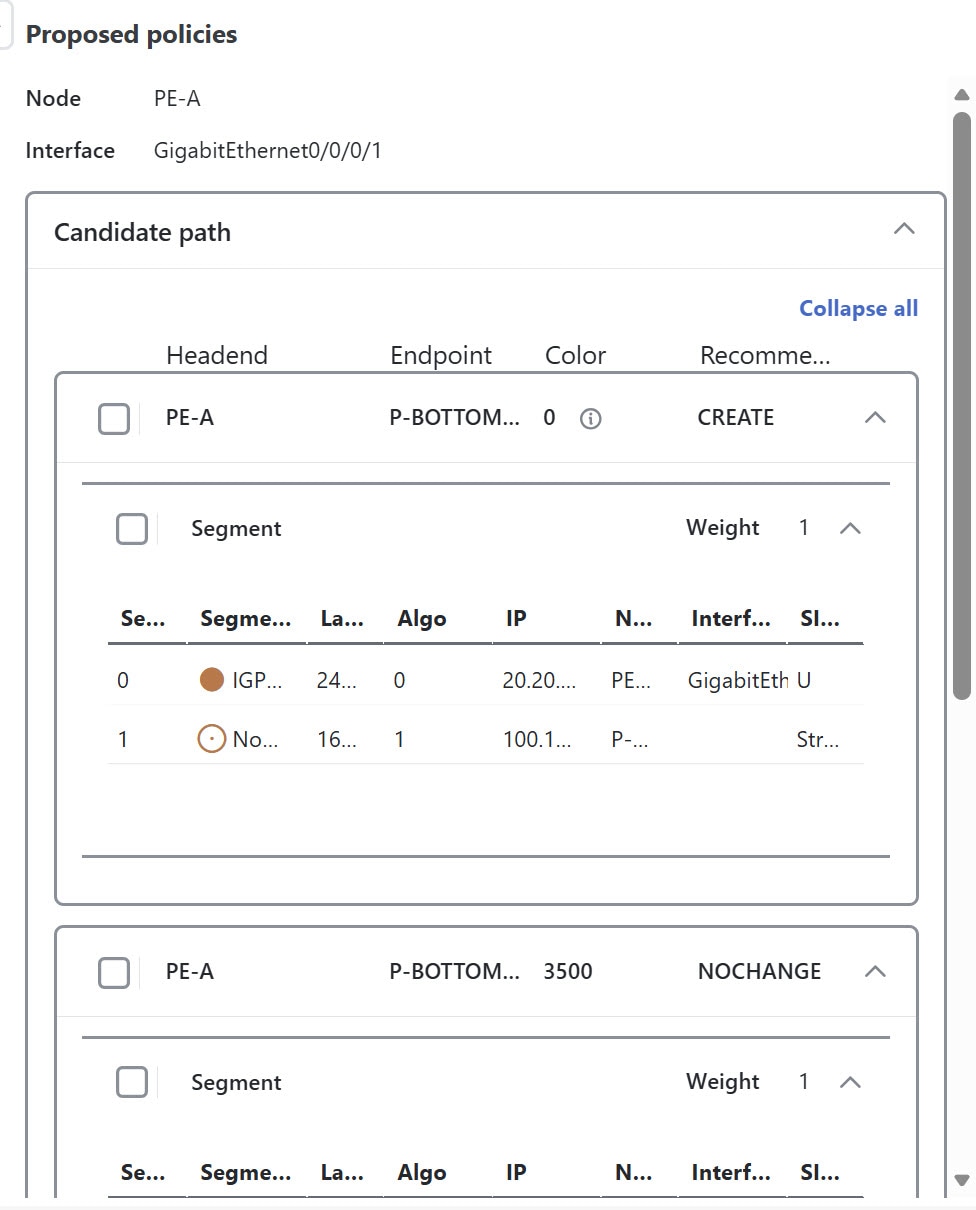
  4. In the Candidate Path area, click Expand All to view the proposed policies along with segment list details. For headends that support MSL policies, you may see MSL-based policies as a proposed solution.

    Figure 11. Proposed policy with multiple segment list

    Proposed policy with multiple segment list

LCM solution events

The LCM generation of events are tied closely to the states of evaluation, user actions, and congestion check intervals.

Table 1. LCM solution events and descriptions

LCM event

Description

Evaluation

Indicates that a new recommendation is available, after LCM detects congestion and computes mitigation policies. At this stage, you can pause or commit the solution.

Once the congestion check suspension interval has passed, depending on the action taken, the state will change to either mitigated if congestion is resolved, or degraded if issues persist.

Note


Policy preview colors may change after commit.

Commit

Indicates that the recommendations has been committed (deployed) to mitigate congestion.

Note


Policy preview colors may change if used by another policy.

Degraded

Indicates that the mitigation solution has not fully resolved congestion on the interface, or that congestion has worsened despite the committed policies.

Mitigated

Indicates that the committed recommendation has successfully resolved congestion after the congestion check suspension interval has passed. The interface is no longer congested.

Pause

Indicates that a request to pause the solution has been received. The interface is temporarily excluded from mitigation calculations.

Pausing triggers two events in operational history: one indicating the evaluation of the policies for removal, and another for the commit of that removal. LCM waits until the congestion check suspension interval has passed before computing the solution. The user can later resume the interface, which also generates a resume event.

Resume

Indicates that a request to resume the solution has been received. The interface is re-included in mitigation calculations. In the Operational history, you will see an evaluation event preceding the commit event. If LCM is in a congestion check suspension interval, the operational history will display a resume event but will wait until the interval has passed before computing the solution.

Temporarily exclude an interface from LCM

You can temporarily pause LCM from including an interface for mitigations in either Automated or Manual modes. When an interface is paused, it will no longer be considered as part of a recommendation, and any existing solutions that the interface participates in will be removed. Pausing operations in Automated mode may be necessary in many use cases, such as the following:

  • Where deployed solutions do not result in the intended resolution

  • When there is uneven ECMP traffic

  • When there are policies that do not carry traffic

  • When an interface is continuously throttling between different solutions

LCM may automatically pause an interface when certain anomalies are detected, for example, when there is:

  • No LCM SR policy traffic

  • Excessive imbalance in LCM policy traffic

  • Excessive LCM oscillations or removals per hour

In these circumstances, the user may perform a corrective action, and manually resume the interface.

Pause and resume an interface

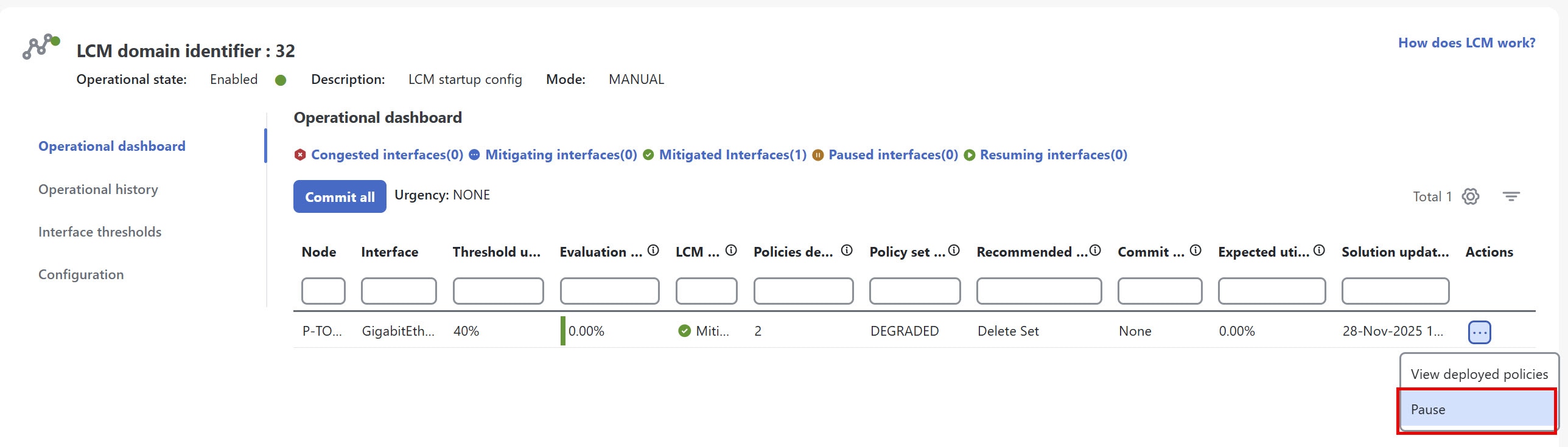
From the Actions column of the LCM Operational Dashboard, select Pause for the interface you would like to exclude from LCM calculations. To include the interface in LCM calculations again, select Resume.


Note


Pausing multiple interfaces at the same time may result in requests timing out. However, each request will be queued and displayed on the dashboard.


Figure 12. Pause interface

Pause interface

Mitigate congestion automatically

The LCM Automated mode allows the system to operate without user intervention by automatically making changes in the network. It enables continuous, closed-loop detection and mitigation of network congestion in domains where all devices are fully gRPC MSL compliant. To meet this requirement, each device in the target domain must support gRPC protocol connectivity and have the gRPC MSL tag applied to indicate compliance. When Automated mode is enabled, the system monitors network congestion and automatically applies or removes Multiple Segment Lists (MSL) policies to mitigate congestion based on configured thresholds, reducing the need for manual intervention.


Note


In Automated mode, LCM can deploy only Multiple Segment Lists (MSL) policies; PCE-initiated policies are not supported.


LCM also applies auto repair soluions in automated mode. It not only mitigates congestion but also identifies network issues and proactively addresses them.

Automated mode includes safeguards to detect excessive solution oscillation. If an interface experiences repeated deployment and removal of mitigation policies beyond the configured threshold, the system automatically pauses automated actions for that interface to maintain network stability.

Before you begin

  • Complete all requirements in the Prepare devices for gRPC policy management to ensure all devices in the target domain are gRPC-enabled.

  • Ensure you have created the "grpc_msl" or "GRPC_MSL" tag and assigned it to the compliant devices in Tag Management.


    Note


    LCM will only deploy an MSL policy if this tag is present. In Automated mode, PCE-initiated policies are not supported. In manual mode, if the tag is missing, LCM will deploy a PCE-initiated policy.


To enable Automated mode, complete these steps:

Procedure


Step 1

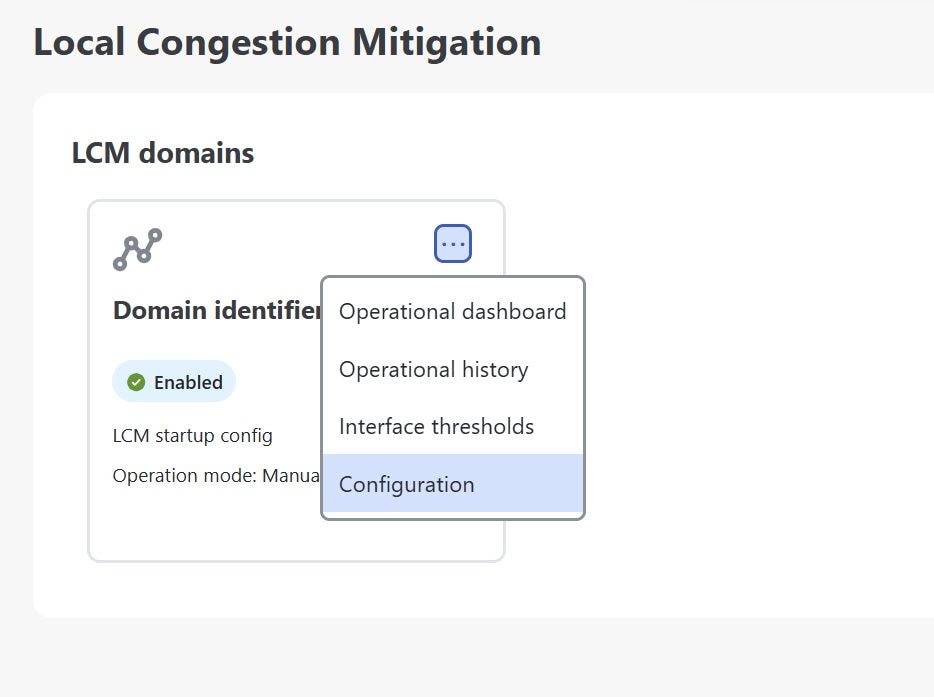
From the main menu, choose Services & Traffic Engineering > Local Congestion Mitigation > LCM-Domain-Card. Click More icon and then choose Configuration.

Step 2

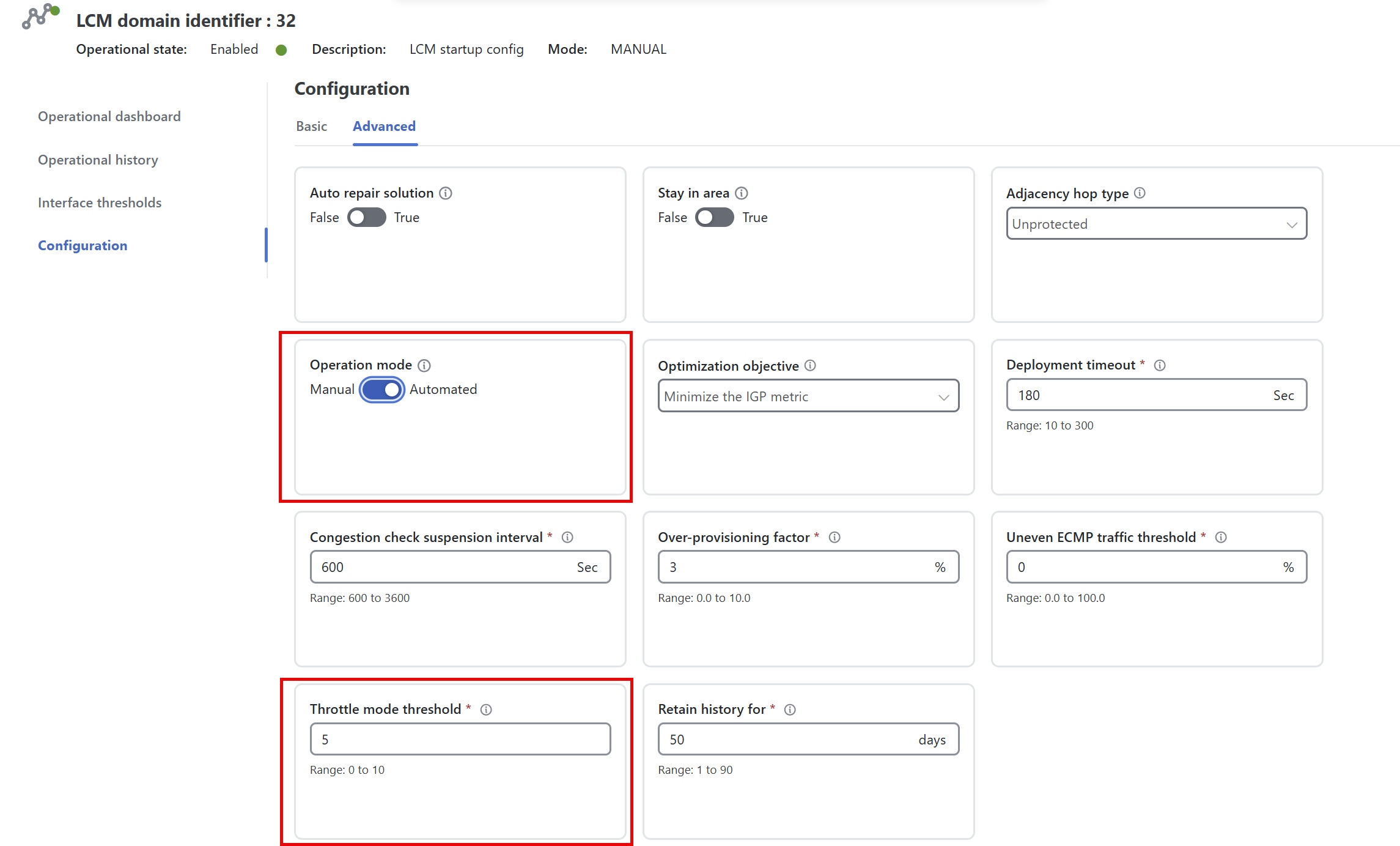
In the Advanced tab toggle the Operation mode option to Automated. If any device in the domain is missing the "grpc_msl" or "GRPC_MSL" tag or is not GRPC-configured, the system will prevent enabling Automated mode and display a list of non-compliant devices.

Figure 13. LCM configuration - Automated mode

LCM configuration - Automated mode

Step 3

In the Throttle mode threshold field, the maximum number of times LCM can apply or remove a solution on an interface within one hour. If policy changes on any interface exceed this threshold, LCM will pause automated actions for that interface and stop suggesting new solutions to maintain network stability. Paused events remain in this state until a user intervenes. You can review and resume paused policies from the operational dashboard as needed. Setting the value to 0 disables oscillation detection.

Step 4

Click Commit changes to save your configuration. After committing the configuration changes, LCM will display recommendations on the Operational dashboard if congestion occurs on any monitored interfaces.


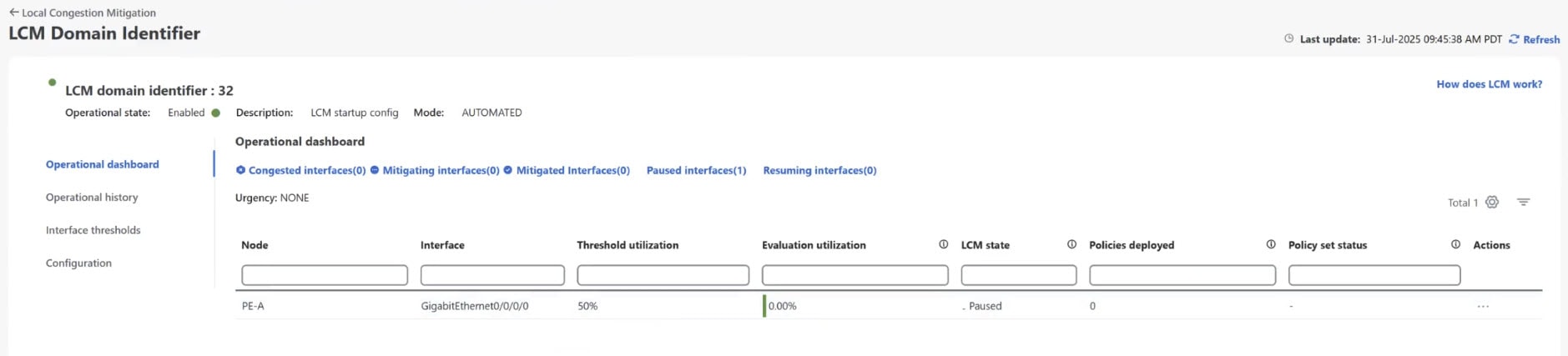
The LCM Operational dashboard displays the current interface and mitigation status that is associated with the domain. Automated mode will continuously monitor congestion and deploy or remove MSL policies as needed based on configured thresholds.

You can also review deployed policies and paused interfaces as needed.
Figure 14. LCM operational dashboard

LCM operational dashboard

Example: Mitigate congestion on local interfaces

In this example, we will enable LCM and monitor the congestion mitigation recommendations to deploy TTE SR policies when an interface’s utilization exceeds a defined threshold. We will preview the recommended TTE SR policies before committing them to mitigate the congestion. The example covers the following steps:

  1. View the uncongested network topology.

  2. Set utilization thresholds for individual interfaces.

  3. Enable and configure LCM in manual mode, which allows you to review recommended TTE policies before deciding whether to deploy them.

  4. After LCM detects congestion, view the recommendations on the Operational dashboard.

  5. Visually preview the recommended LCM TTE policies on the topology map.

  6. Commit and deploy all recommended LCM TTE policies to mitigate congestion.

  7. Verify that the LCM TTE policies have been successfully deployed.


Note


If you are viewing the HTML version of this guide, click on the images to view them in full size.


Procedure


Step 1

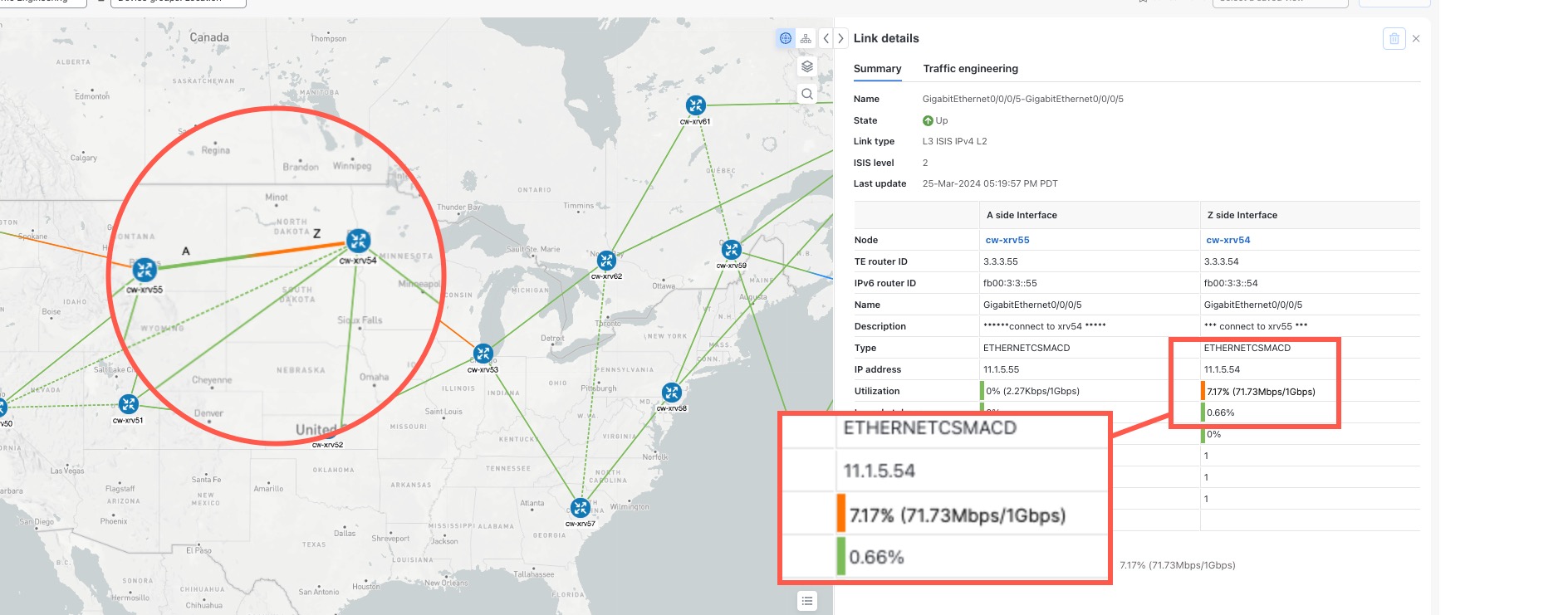
View initial topology and utilization prior to LCM configuration. In this example, note that the node cw-xrv54 has a utilization of 7.17%.

Figure 15. Initial utilization
Initial utilization

Step 2

Define any individual interface thresholds.

LCM allows you to configure a global utilization threshold that can be used for all interfaces. When traffic utilization surpasses the threshold, LCM will try to find bypass policies to remediate the congestion. You set the global utilization threshold on the LCM configuration page. However, if you want to define different thresholds for individual interfaces, we recommend defining them on the Customized interface threshold page before enabling LCM.

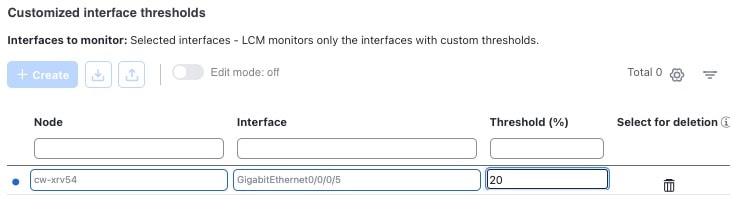
  1. In this example, we will define an individual interface threshold. Go to the Customized interface thresholds page (Services & Traffic Engineering > Local Congestion Mitigation > Domain-Identifier > > Interface thresholds). You can add interfaces individually or upload a CSV file with a list of nodes and interfaces with custom utilization thresholds. For more information, see Add individual interface thresholds.

    See the following example and note the defined threshold for cw-xrv54 with interface GigabitEthernet0/0/0/1 is 20%.

    Note


    The utilization thresholds in this example are extremely low and best used for lab environments.

    Figure 16. Customized interface thresholds
    Customized Interface Thresholds

    Note


    By default, LCM monitors all interfaces. This includes any individual thresholds that are imported to this page. The rest of the interfaces will be monitored using the global Utilization threshold defined on the LCM Configuration page.

  2. After adding interfaces and defining thresholds, click Save.

Step 3

Enable LCM and configure the global utilization thresholds.

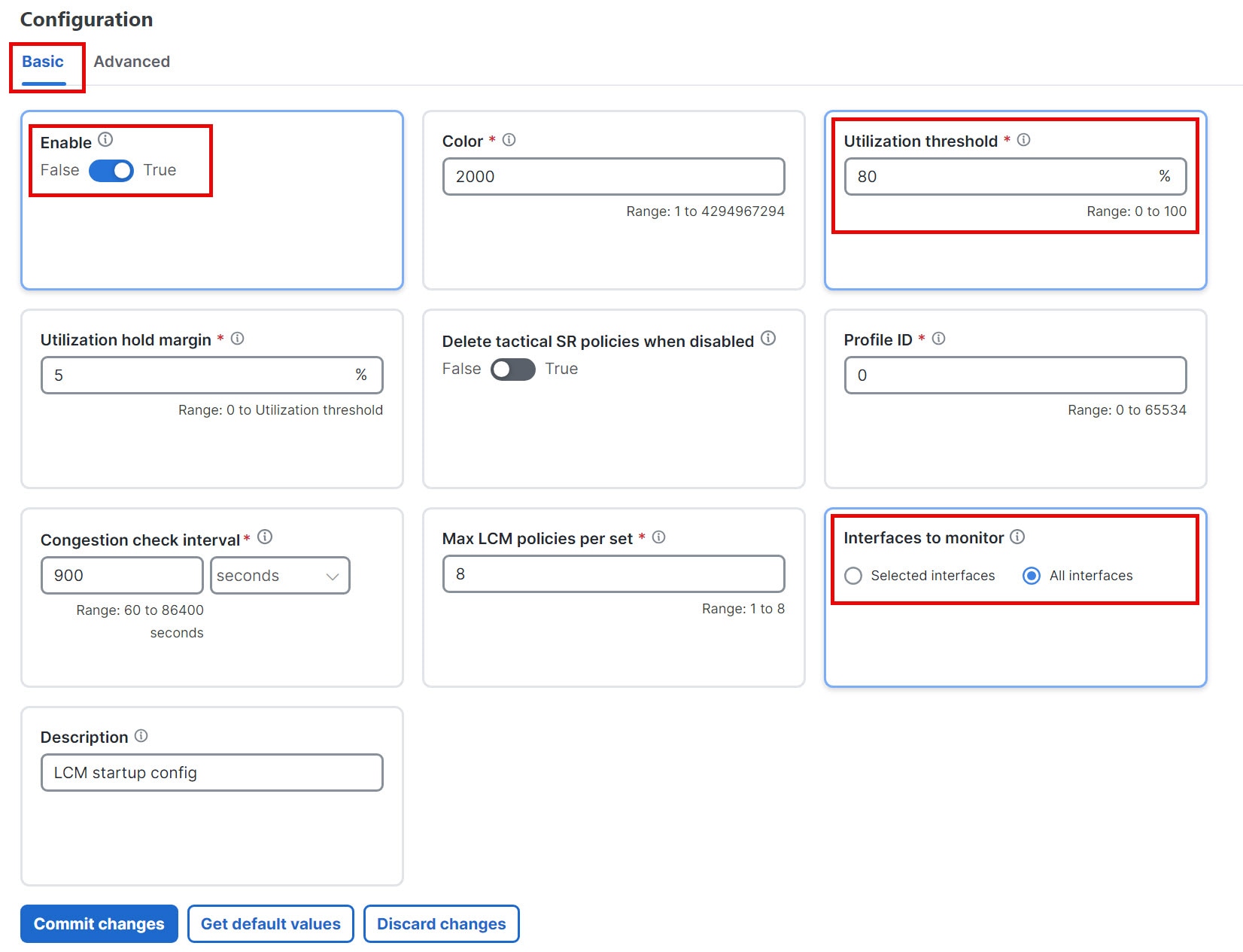
  1. From the main menu, choose Services & Traffic Engineering > Local Congestion Mitigation > Domain-Identifier and click Configuration. Toggle the Enable switch to True and configure other LCM options. In this example, the global threshold is set at 80%, and the Interfaces to monitor > All interfaces option is selected. In the Advanced tab, Operation mode is set to Manual. For more information on all the available options, see Configure LCM.

    Figure 17. LCM Configuration page
    LCM configuration page
  2. Click Commit changes to save your configuration. After committing the configuration changes, LCM will display recommendations on the Operational dashboard if congestion occurs on any monitored interfaces. LCM will not commit or deploy new TTE policies automatically when Manual mode is enabled. Later, you will be able to preview the recommended TTE policies and decide whether or not to commit and deploy them onto your network.

Step 4

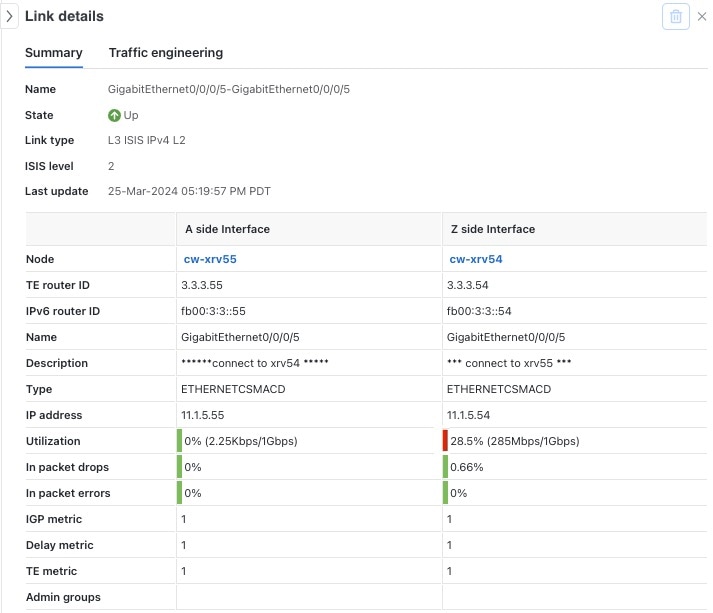
After some time, congestion occurs, surpassing the custom LCM threshold defined at 20% for node cw-xrv54 with interface GigabitEthernet0/0/0/5.

Figure 18. Observed congestion
Observed Congestion

Step 5

View TTE SR policy recommendations in the LCM Operational Dashboard.

  1. Navigate to Services & Traffic Engineering > Local Congestion Mitigation. When congestion is detected, the domain displays the urgency type and recommendations that are available. Click the question mark icons to display more information about the urgency type and when the most recent recommendation was given.

    Figure 19. Congested detected and LCM recommendations
    Congested detected and LCM recommendations
  2. (Optional) View LCM events.

    From the top-right corner of the Crosswork Network Controller UI, click Alarms Icon > Events tab to view LCM events. You can also monitor this window to view LCM events as they occur. You should see events for LCM recommendations, commit actions, and any exceptions.

  3. Open the Operational dashboard by navigating to Services & Traffic Engineering > Local Congestion Mitigation > Domain-Identifier > More icon > Operational dashboard.

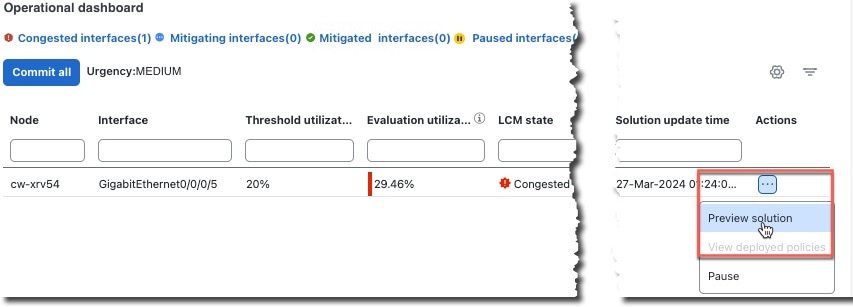
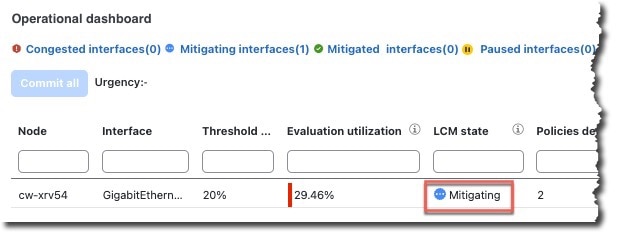
    The dashboard shows that cw-xrv54 utilization has surpassed 20% and is now at 29.46%. In the Recommended action column, LCM recommends the deployment of TTE policy solution sets (Recommended action - Create set) to address the congestion on the interface. For more information, see Monitor LCM operations.

    Note


    If LCM cannot find a solution (Recommended action - No solution), it may be due to constraints enabled when configuring LCM (Configure LCM).

  4. Before committing TTE policies, you can preview the deployment of each TTE policy solution set. Click More icon in the Actions column and choose Preview solution.

    Figure 20. Preview solution
    Preview solution

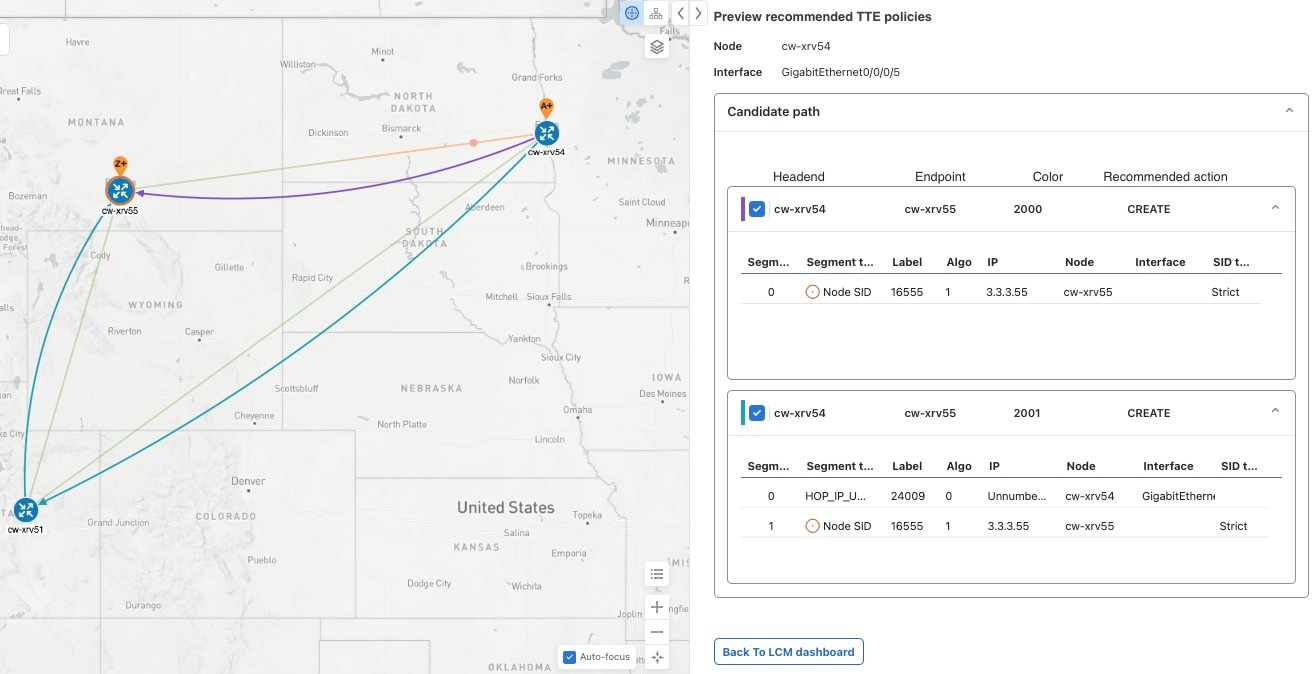
    The resulting window displays the node, interface, and the recommended action for each TTE policy. From the Preview window, you can select the individual TTE policies and view different aspects and information as you would normally on the topology map. You can expand each policy to view individual segments. After reviewing the potential implications on your network, you can decide whether or not to deploy the bypass policies that LCM recommends.

    The following figure shows the recommended TTE policies for node cw-xrv54.

    Figure 21. LCM TTE deployment preview
    LCM TTE deployment preview
  5. After you are done viewing the recommended TTE policies on the map, go back to the Operational dashboard and click Commit all. The LCM state column changes to Mitigating.

    Figure 22. Mitigating state
    LCM Operational dashboard

    Note


    All LCM recommendations per domain must be committed to mitigate congestion and produce the expected utilization as shown in the Operational dashboard. The mitigating solution is based on all LCM recommendations being committed because of dependencies between solution sets.

Step 6

Validate TTE SR policy deployments.

  1. Click Alarms Icon > Events tab. Note which LCM events are listed in the Events window.

    Note


    Crosswork Network Controller will report network events detected based on the policies and features you have enabled. For example, if a link drop causes an SR-TE policy to go down or if LCM detects congestion an event is displayed. These alerts are reported in the UI and, if desired, can be forwarded to third-party alerting/monitoring tools.

  2. Return to the Operational dashboard to see that the LCM state changes to Mitigated for all TTE policy solution sets.

    Note


    The LCM state change will take up to 2 times longer than the SNMP cadence.

  3. Confirm the TTE policy deployment by viewing the topology map.

    Click More icon in the Actions column and choose View deployed policies. The deployed policies are displayed in focus within the topology map.

Step 7

Remove the TTE SR policies based on the LCM recommendation.

  1. After some time, the deployed TTE SR policies may no longer be needed. This occurs if the utilization continues to stay under the threshold without the LCM-initiated TTE tunnels. If this is the case, LCM generates new recommended actions to delete the TTE SR policy sets.

  2. Click Commit all to remove the previously deployed TTE SR policies.

  3. Confirm the removal by viewing the topology map and SR Policy table.


In this scenario, we observed how LCM can be used to alleviate network traffic congestion. LCM automates tracking and calculations, reducing manual effort while still giving you control over whether to implement its congestion mitigation recommendations. You can preview recommendations and assess their potential impact on your network before deploying them. As traffic patterns change, LCM continuously monitors the deployed TTE SR-TE policies and determines if they remain necessary. If a policy is no longer needed, LCM will recommend deleting them.

Configure LCM

To enable and configure LCM:

Procedure


Step 1

From the main menu, choose Services & Traffic Engineering > Local Congestion Mitigation > Domain-identifier-card . Click More icon and then click Configuration .

Figure 23. LCM configuration

LCM configuration

Step 2

Set Enable to True.

Step 3

Enter the required information. Refer to the LCM configuration options section to view the description of each field.

Step 4

To save your configuration, click Commit changes. If congestion occurs on any monitored interfaces, LCM will display recommendations on the LCM Operational dashboard. Note that LCM will not automatically commit or deploy new TTE policies. You can preview the recommended TTE policies and then decide whether to commit and deploy them to your network.

Note


If LCM is enabled, but cannot find a solution (Recommended action - No solution), it may be due to constraints enabled on this page.


LCM configuration options

These tables provide information on the LCM configuration options available in the UI.

Basic LCM options

Table 2. Basic configuration options

Option

Description

Enable

Enables or disables the LCM function pack.

Color

Assigns color values sequentially to SR policies starting this value.

Utilization threshold

Sets the utilization percent at which LCM will consider an interface to be congested. This value applies to all interfaces unless you specify thresholds to individual interfaces on the Customized interface thresholds page.

Utilization hold margin

This value dampens the removal of deployed tactical SR policies. For example, if the utilization threshold is 90% and the utilization hold margin is 5%, then the tactical SR policy is removed from the network only when total interface utilization falls below 85% (90 - 5) without the tactical policy in place.

Delete tactical SR policies when disabled

Deletes all deployed tactical SR policies when LCM is disabled.

Profile ID

This is a required configuration to enable traffic steering onto LCM policies. Autoroute (steers traffic into the tactical SR-TE policies LCM creates) is applied to SR-TE policies through the proper Profile ID option that is set here to align with the configuration on the PCC associating that Profile ID with autoroute feature.

Congestion check interval (seconds)

Determines the interval at which LCM will evaluate the network for congestion. Under a steady state, when there are no recommendation commits, it uses this interval to re-evaluate the network to determine if changes are required. For example, if the interval is set to 600 seconds (10 minutes), LCM will evaluate the network every 10 minutes for new congestion and determine whether a new recommendation or modifications to existing recommendations are needed. Examples of modifications can include removal or updates to individual policies that were previously recommended. This option is typically set to greater than or equal to the SNMP polling cadence but can be set as low as 60 sec to improve responsiveness within the bounds imposed by the traffic collection interval.

Max LCM policies per set

The maximum number of tactical policies used to mitigate a single interface.

Interfaces to monitor

By default, this is set to Selected interfaces, and you will need to add thresholds to individual interfaces by importing a CSV file on the Customized interface thresholds page (Services & Traffic Engineering > Local Congestion Mitigation > domain-identifier > > Interface thresholds). Only interfaces defined on the Customized interface thresholds page will be monitored. If set to All interfaces, LCM will monitor the interfaces with custom thresholds that are uploaded on the Customized interface thresholds page and the rest of the interfaces using the Utilization threshold value configured on this page.

Description

Description for the domain identifier.

Advanced LCM options

Table 3. Advanced configuration options

Option

Description

Auto repair solution

If set to True, LCM will automatically delete any down, failed, or uncommitted LCM TTE policies. This option is mainly to address a failure in a policy.

If this option is disabled, and the Urgency status of the recommendation shown in the LCM Operational Dashboard is High, then the recommended solution is a candidate for the Auto repair solution. This means that a network failure will most likely occur if the solution is not deployed.

Stay in area

Restricts bypass LSP paths to stay within the mitigated area for OSPF or levels for ISIS.

Adjacency hop type (seconds)

If set to Protected, LCM will create SR policies using protected adjacency SIDs. This allows for Topology-Independent Loop-Free Alternate (TI-LFA) to compute a path for any adjacency failures.

This option should only be set to Protected if all nodes in the same IGP area as LCM is operating are strict SPF SID capable.

Operation mode

  • Automated mode—This option allows LCM to automatically deploy TE tunnel recommendations based on thresholds that a user configures.

  • Manual mode—This option requires a user to view the LCM Operational Dashboard and decide whether to commit TE tunnel recommendations.

Optimization objective

LCM calculates tactical SR policies based on the metric type chosen to minimize.

Deployment timeout

Enter the maximum number of seconds allowed to confirm deployment of tactical SR policies.

Congestion check suspension interval (seconds)

This interval determines the time to wait (after a Commit all is performed) before resuming congestion detection and mitigation. Since this interval should allow time for network model convergence, set the interval to no less than twice the SNMP collection cadence.

Over-provisioning factor (OPF)

This option reduces the congestion threshold by a set percentage during calculations to provide utilization margin and account for uneven ECMP traffic distribution. For example, with a congestion threshold of 80% and an OPF of 3%, the optimizer uses an effective threshold of 77% when computing solutions. The default value is 0.

Uneven ECMP traffic threshold

The percentage of sensitivity to detect uneven amounts of traffic across solution bypass tunnels.

Throttle mode threshold

In Automated mode, enter the number of times LCM throttles between solutions per hour until the interface is automatically paused.

Retain history for

The duration for which data is collected and retained before being deleted. The default value is 30 days. The deletion process occurs every 24 hours or when there is a change to the configured retention time.

Debug optimizer

Enable debug optimizer to log plan files to the Crosswork Network Controller file system. Files are saved to the maximum number of files you specify in Debug opt max plan files.

Maximum segment hops

Prior to using this option, you must create device tag groups to which you want to assign certain MSD values. For information on creating tags and assigning them to devices, see the Cisco Crosswork Network Controller Administration Guide.

When calculating bypass TTE policies, LCM uses the effective Maximum SID Depth (MSD) value (as entered here) for specified device tags. You can assign up to five device tags with specific MSD values.

A 0 value will not result in a solution. Setting a 0 value is equivalent to LCM monitoring and indicating when there is congestion in the network without providing a recommendation.

The system learns from SR-PCE the MSD for each platform advertising the hardware limit in the IGP and BGP-LS. It represents the hardware limit that can be imposed exclusive of any service/transport/special labels. Therefore, you may want to use this new option to assign less than the advertised MSD value that LCM can use for bypass TTE policy calculation. To view the MSD value for a device, navigate to the Traffic Engineering topology map and click on the device. From the Device details page, click SR-MPLS > > Prefixes > Expand all.

Affinity

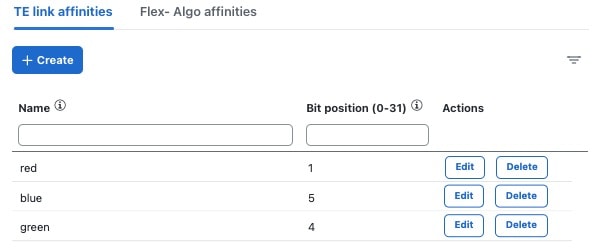
You can configure LCM to include or exclude links by using affinities to route data based on specific criteria. For example, if an affinity is excluded, LCM will try to alleviate a congested link by diverting traffic using paths that do not have that affinity. Affinities must already be configured on devices and then mapped using the Crosswork Network Controller UI in order to see the list of affinity names. See Example: Cisco IOS-XR affinity configuration and Configure link affinities.

Configure link affinities

Link affinities are attributes or tags associated with links. Link affinities help in directing traffic along preferred paths based on specific criteria, such as bandwidth availability, latency, or cost. The affinity configuration on interfaces simply turns on some bits. It is a 32-bit value, with each bit position (0–31) representing a link attribute. Affinity mappings can be colors representing a certain type of service profile (for example, low delay, high bandwidth, and so on). Crosswork Network Controller sends bit information to the SR-PCE during provisioning.

If you have any affinities you wish LCM to account for when provisioning policy paths, follow these steps:

Procedure


Step 1

Configure affinities on your devices. See Example: Cisco IOS-XR affinity configuration.

Step 2

Add affinities in Crosswork Network Controller.

Step 3

Configure LCM using the advanced affinity option.


Add individual interface thresholds

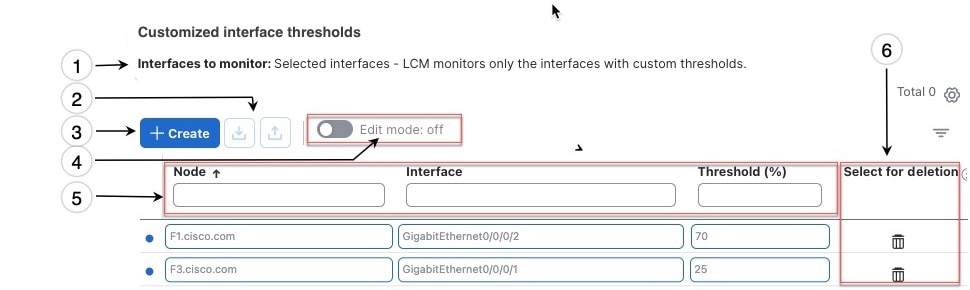
Networks have many different links (10G, 40G, 100G) that require different thresholds to be set. The Customized interface thresholds page allows you to manage and assign individual thresholds to nodes and interfaces.

Figure 25. Customized interface thresholds

Customized interface thresholds

Callout No.

Description

1

Interfaces to monitor: Displays the option that is currently configured on the LCM Configuration page.

2

Import CSV file: All interfaces currently in the table will be replaced with the data in the CSV file you import.

Export CSV file: All interfaces are exported to a CSV file. You cannot filter data for export.

3

+ Create: Click this button to add new interface threshold rows.

4

Edit mode: When Edit mode is ON, you can edit multiple fields in one session, then click Save.

5

Filter: By default, this row is available for you to enter text in which to filter content.

6

Select for deletion: Click Delete icon to delete the row. When Edit mode is ON, you can check multiple rows to delete, then click Save.

To assign specific threshold values for individual interfaces, complete these steps:

Procedure


Step 1

From the main menu, choose Services & Traffic Engineering > Local Congestion Mitigation > Domain-identifier > > Interface thresholds. Choose how you would like to add the interfaces.

  • Import CSV file: Edit a CSV file to include a list of interfaces and thresholds, then later import the file into LCM.

  • Add new interface: Manually add individual interfaces and thresholds.

Step 2

If you import a CSV file:

  1. Click the Download sample configuration file link.

  2. Click Cancel.

  3. Open and edit the configuration file (LCMLinkManagementTemplate.csv) you just downloaded. Replace the sample text with your specific node, interface, and threshold information.

  4. Rename and save the file.

  5. Navigate back to the Customized interface thresholds page.

  6. Click Import CSV file and navigate to the CSV file you just edited.

  7. Click Import.

Step 3

If you manually add individual interfaces:

  1. Click the first empty row and enter the appropriate node, interface, and threshold values.

    Figure 26. Add first interface
    Add First Interface
  2. Click + Create to add more interfaces.

Step 4

Confirm that the information appears correctly on the Customized interface thresholds page.

Note


To update the table, you can either turn on Edit Mode or import a CSV file that replaces all current data in the table.