Bandwidth on Demand
Bandwidth on Demand (BWoD) is a bandwidth-aware Path Computation Element (PCE) that:
-
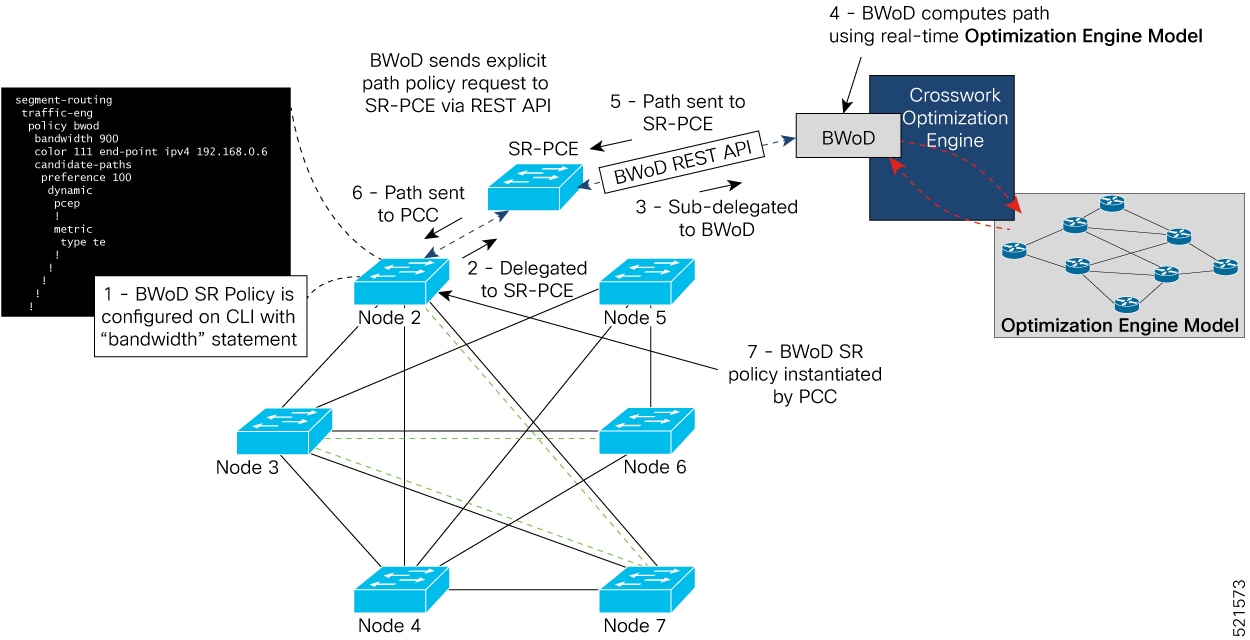
integrates with SR-PCE to compute SR policy paths meeting requested bandwidth requirements,
-
creates paths between endpoints in the network based on specific user-defined intents and dynamically maintains these bandwidth guarantees as network conditions change, and
-
supports both PCC-initiated (PCE-delegated) and PCE-initiated policies, providing soft bandwidth guarantees over SR policies.
Key features of BWoD
Key features of BWoD include:
-
Intent-based path computation: BWoD creates SR policy paths based on user-defined intents such as minimizing IGP cost, TE metrics, or latency.
-
Continuous monitoring and reoptimization: BWoD continuously monitors network conditions and automatically re-optimizes BWoD paths to ensure that total BWoD traffic on any interface does not exceed a configured threshold percentage.
 Note |
Functionality described within this section is only available with certain licensing options. |
Limitations of BWoD
BWoD does not track total interface utilization; therefore, interfaces can still become congested if combined BWoD and non-BWoD traffic exceed capacity. In addition, BWoD does not enforce the total amount of traffic entering a BWoD SR policy. BWoD policies may traverse Equal Cost Multi-Path (ECMP) paths assuming even traffic distribution, but actual ECMP distribution can be uneven, especially with large flows.
Important considerations when using BWoD
Consider the following information when using BWoD:
-
Write-access to the head-end device is required based on Device Access Groups and assigned user roles. Only BWoD admin users can modify BWoD configuration settings. See the Cisco Crosswork Network Controller Administration Guide.
-
If BWoD cannot find a path for a policy that guarantees its requested bandwidth, BWoD will attempt to find a best effort path if this option is enabled.
-
BWoD disables itself when an unexpected error is encountered to avoid network disruption.
-
BWoD temporarily pauses operation whenever the Optimization Engine model is unavailable due to an Optimization Engine restart or a rebuild of the topology from Topology Services. Any requests to BWoD during this time are rejected. When the model becomes available and BWoD receives two traffic updates from the Optimization Engine, BWoD will resume normal operation.
-
If the Policy Violation advanced field is set to Strict, then the SR Policy Traffic option should be set to Max Measured Requested.
-
After a switchover in a High Availability setup, BWoD policies created after the last cluster data synchronization will not be manageable and are considered orphaned TE policies. Crosswork Network Controller will display an alarm when it finds orphan TE policies (Administration > Alarms). You can use APIs to help clear these orphan policies so that they are manageable. For more information, see API documentation on Devnet.

 .
.


 Feedback