Configure Secure Web Appliance to Allow Guest Access
Available Languages
Contents
Introduction
This document describes steps to allow users who have not installed the decryption certificate to access the Internet via Secure Web Appliance (SWA).
Prerequisites
Requirements
Cisco recommends that you have knowledge of these topics:
- A physical or virtual SWA is installed.
- A license is activated or installed.
- The setup wizard is completed.
- Administrative access to the SWA Graphical User Interface (GUI).
Components Used
This document is not restricted to specific software and hardware versions.
The information in this document was created from the devices in a specific lab environment. All of the devices used in this document started with a cleared (default) configuration. If your network is live, ensure that you understand the potential impact of any command.
Scenario Overview
This article addresses a network access control scenario within the 10.10.10.0/24 Wi-Fi subnet. The environment consists of two distinct user groups requiring different security and access policies:
- Managed devices: Company-issued laptops that are fully authenticated and have the SWA decryption certificate installed. These devices are trusted and typically subject to standard corporate access policies.
- Unmanaged/Guest devices: Personal laptops and mobile devices that are unauthenticated and lack the SWA decryption certificate.
Objective
The company aims to implement restrictive web access policies for unmanaged devices, limiting their connectivity to a specific subset of allowed URLs while ensuring that corporate resources remain secure.
Configuration Steps
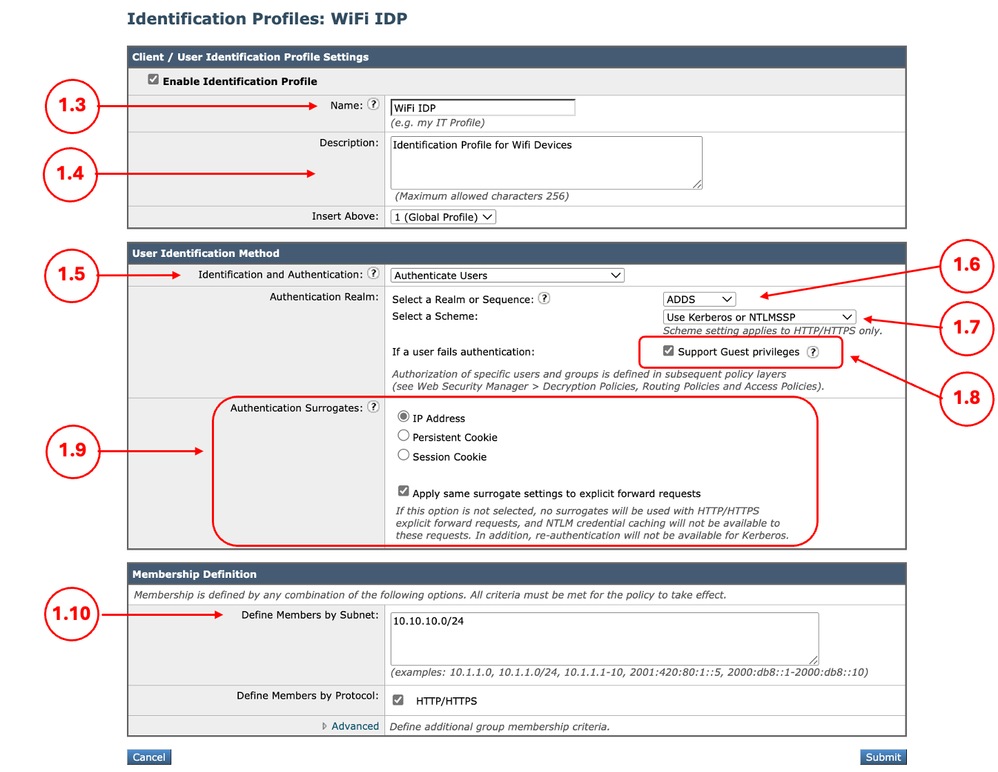
Step 1. Create Identification Profile. |
1.1. From the SWA GUI, navigate to Web Security Manager and select Identification Profile. 1.2. Click Add Identification Profile. 1.3. Define a Name for the Profile. 1.4. (Optional) Define the Description. 1.5. Choose Authenticate Users in Identification and Authentication. 1.6. Choose the Active Directory realm from Select a Realm or Sequence. 1.7. From Select a Scheme, select the desired authentication protocols. 1.8. Select the check box for Support Guest privileges. 1.9. (Optional) Depending on your design, you can enable Surrogate, by enabling the Apply same surrogate settings to explicit forward requests. 1.10. Define the IP address subnet in, Define Members by Subnet. 1.11.Submit and Commit the changes.
|
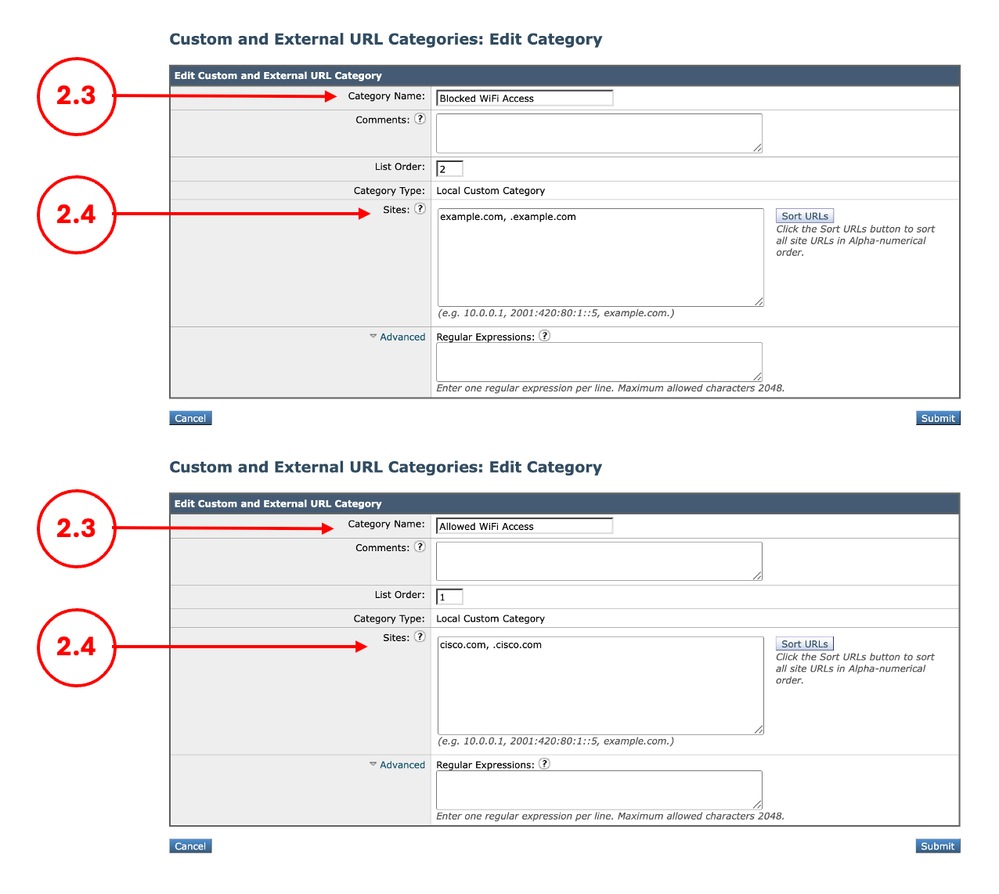
Step 2. (Optional) Create the Custom URL Categories for Allowed and Blocked URLs |
2.1. From the GUI Navigate to Web Security Manager and choose Custom and External URL Categories. 2.2. Click Add Category to create a new Custom URL Category. 2.3. Enter Name for the new category. 2.4. Define the domain and/or subdomains of the websites that you want to block the access. 2.5. Submit the changes. 2.6. Use the same steps to create a URL category for the website that you are allowing the access.
|
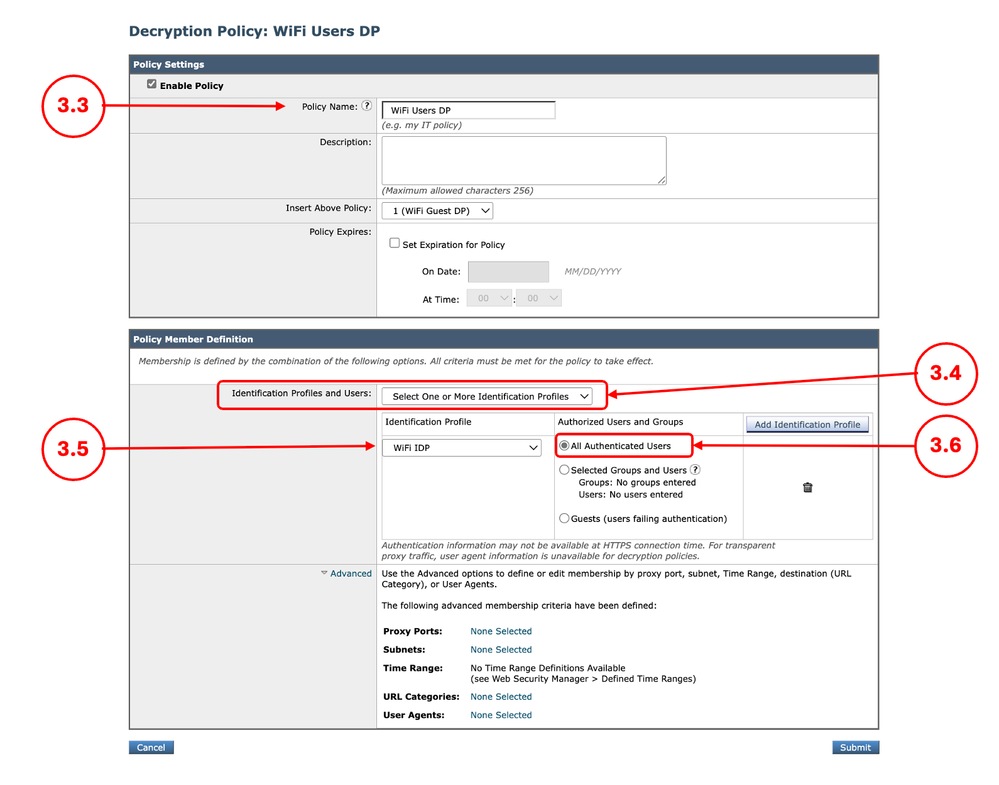
Step 3. Create Decryption Policy for Managed Devices |
3.1. From the GUI, Navigate to Web Security Manager and choose Decryption Policies 3.2. Click Add Policy. 3.3. Enter Name for the new policy. 3.4. Choose Select One or More Identification Profiles from Identification Profiles and Users drop down menu. 3.5. Select the Identification Profile that was created in Step 1. 3.6. Select All Authenticated Users. 3.7. Click Submit.
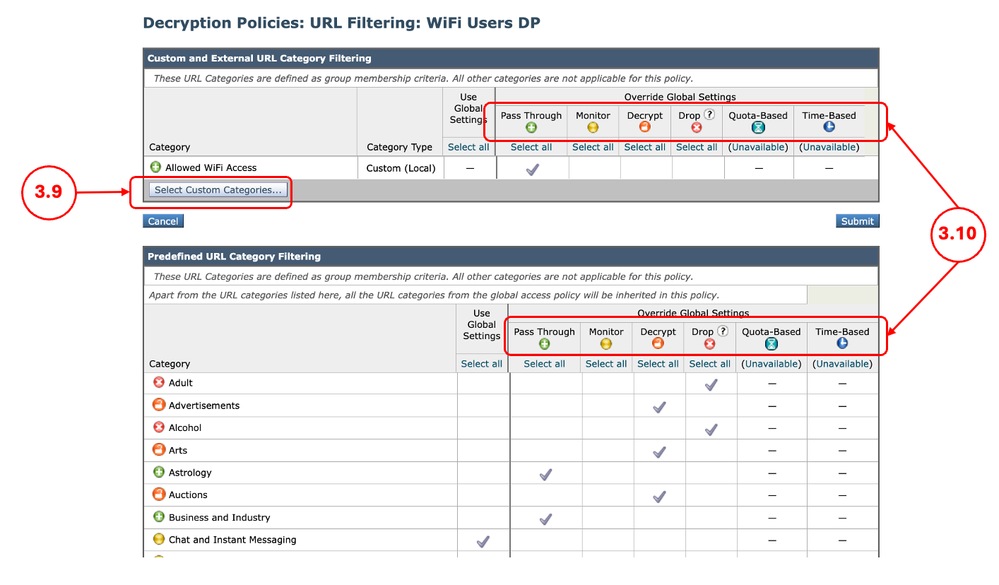
3.8. In Decryption Policies page, Click the URL Filtering link for the new policy for the new policy. 3.9. (Optional) You can add a custom URL category by clicking Select Custom Categories Select Custom Categories and choose Include in Policy in front of the category names 3.10. Configure the Action for each Custom and External URL Category Filtering and Predefined URL Category Filtering. 3.11. Click Submit
|
Step 4. Create Decryption Policy for Unmanaged Devices |
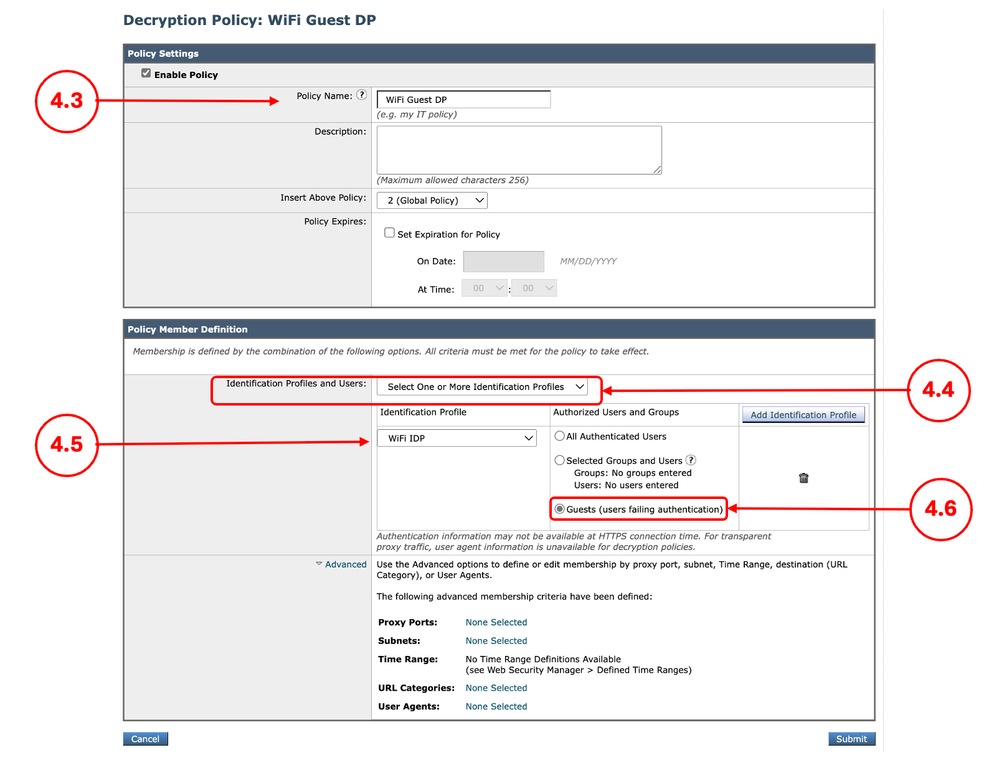
4.1. From the GUI, Navigate to Web Security Manager and choose Decryption Policies 4.2. Click Add Policy. 4.3. Enter Name for the new policy. 4.4. Choose Select One or More Identification Profiles from Identification Profiles and Users drop down menu. 4.5. Select the Identification Profile that was created in Step 1. 4.6. Select Guests (users failing authentication). 4.7. Click Submit.
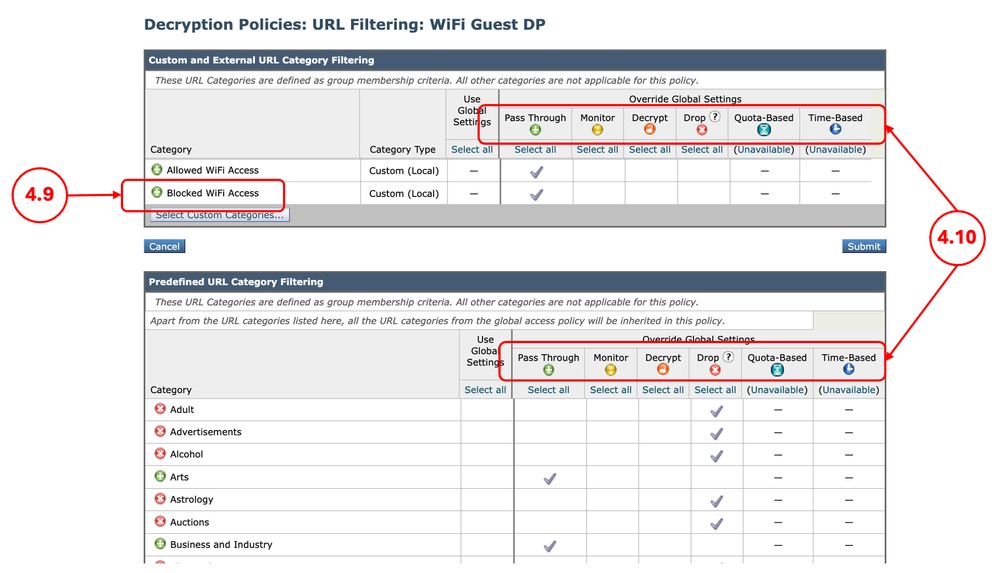
4.8. In Decryption Policies page, Click the URL Filtering link for the new policy for the new policy. 4.9. (Optional) You can add any Custom URL Category by click Select Custom Categories and choose Include in Policy in front of the category names 4.10. Configure the Action for each Custom and External URL Category Filtering and Predefined URL Category Filtering.
4.11. Scroll down to the Uncategorized URLs section and choose the proper action.
4.12. Click Submit. |
Step 5. Create Access Policy for Managed Devices |
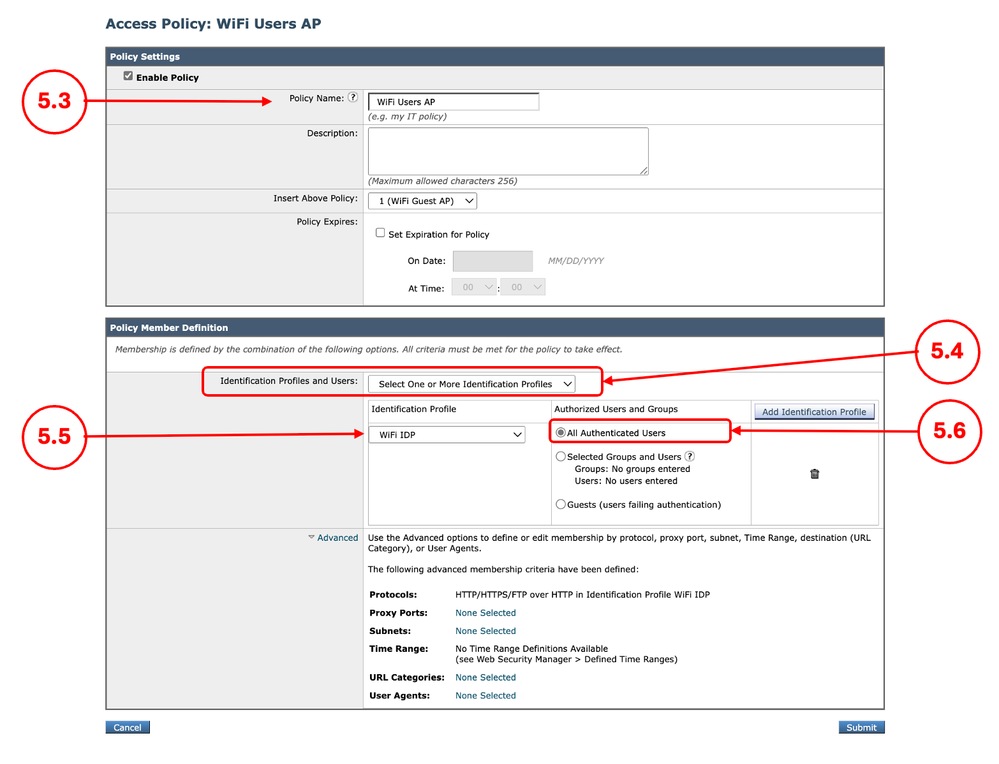
5.1. From the GUI, Navigate to Web Security Manager and choose Access Policies 5.2. Click Add Policy. 5.3. Enter Name for the new policy. 5.4. Choose Select One or More Identification Profiles from Identification Profiles and Users drop down menu. 5.5. Select the Identification Profile that was created in Step 1. 5.6. Select All Authenticated Users. 5.7. Click Submit.
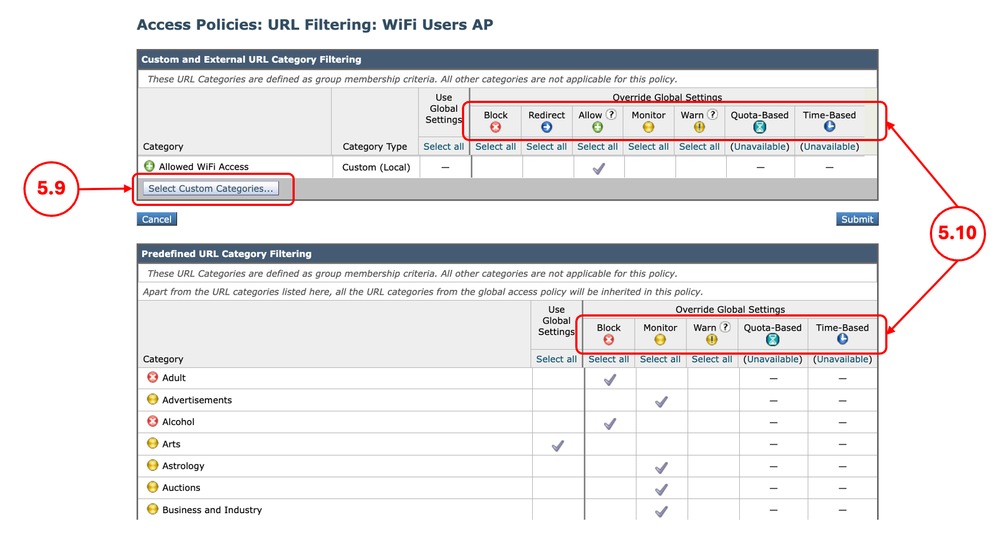
5.8. In Access Policies page, Click the URL Filtering link for the new policy. 5.9. (Optional) You can add any Custom URL Category by click Select Custom Categories and choose Include in Policy in front of the category names 5.10. Configure the Action for each Custom and External URL Category Filtering and Predefined URL Category Filtering.
5.11. Click Submit. |
Step 6. Create Access Policy for Unmanaged Devices |
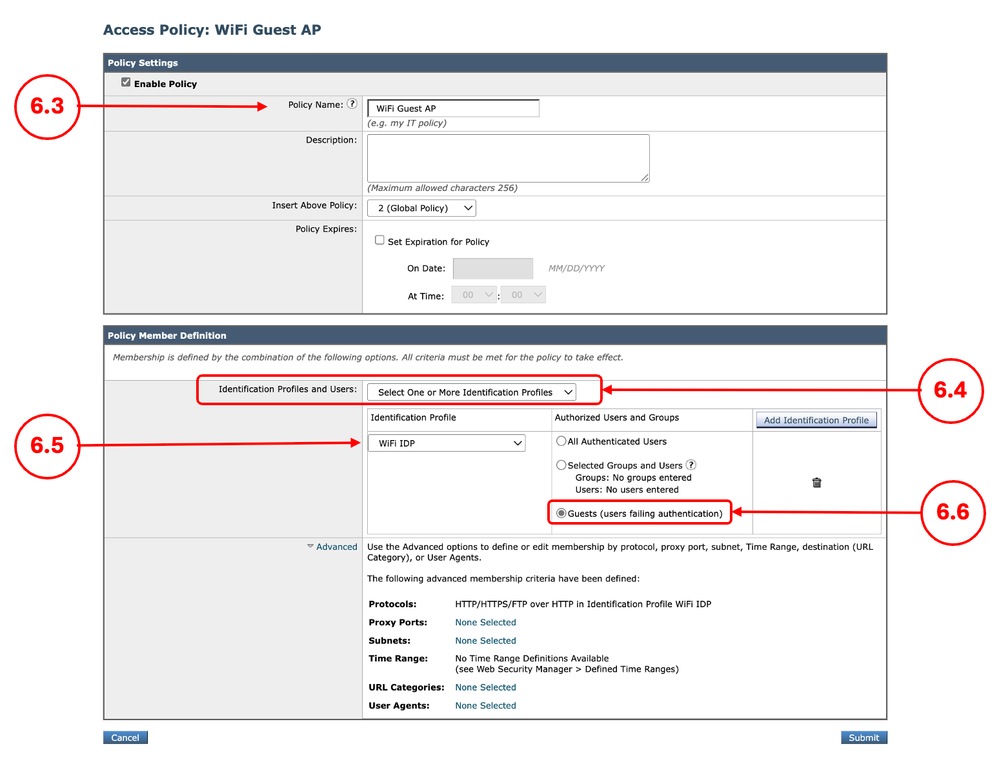
6.1. From the GUI, Navigate to Web Security Manager and choose Access Policies 6.2. Click Add Policy. 6.3. Enter Name for the new policy. 6.4. Choose Select One or More Identification Profiles from Identification Profiles and Users drop down menu. 6.5. Select the Identification Profile that was created in Step 1. 6.6. Select Guests (users failing authentication). 6.7. Click Submit.
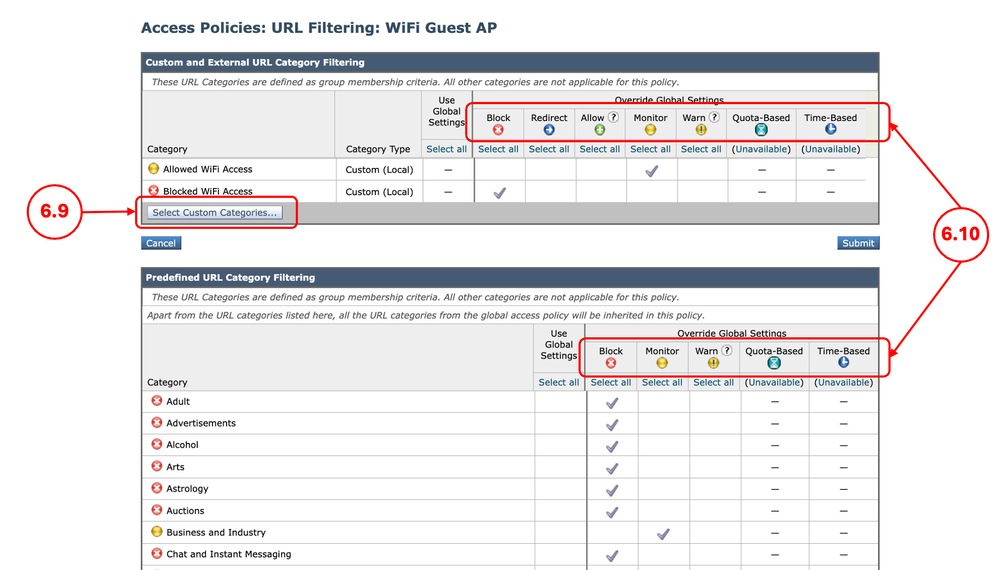
6.8. In Access Policies page, Click the URL Filtering link for the new policy. 6.9. (Optional) You can add any Custom URL Category by click Select Custom Categories and choose Include in Policy in front of the category names 6.10. Configure the Action for each Custom and External URL Category Filtering and Predefined URL Category Filtering. 6.11. Scroll down on the Uncategorized URLs section choose the proper action. 6.12. Click Submit |
Step 7. (Optional) Create Cisco Data Security Policy for Managed Devices |
7.1. From the GUI, Navigate to Web Security Manager and choose Cisco Data Security. 7.2. Click Add Policy. 7.3. Enter Name for the new policy. 7.4. Choose Select One or More Identification Profiles from Identification Profiles and Users drop down menu. 7.5. Select the Identification Profile that was created in Step 1. 7.6. Select All Authenticated Users.. 7.7. Click Submit.
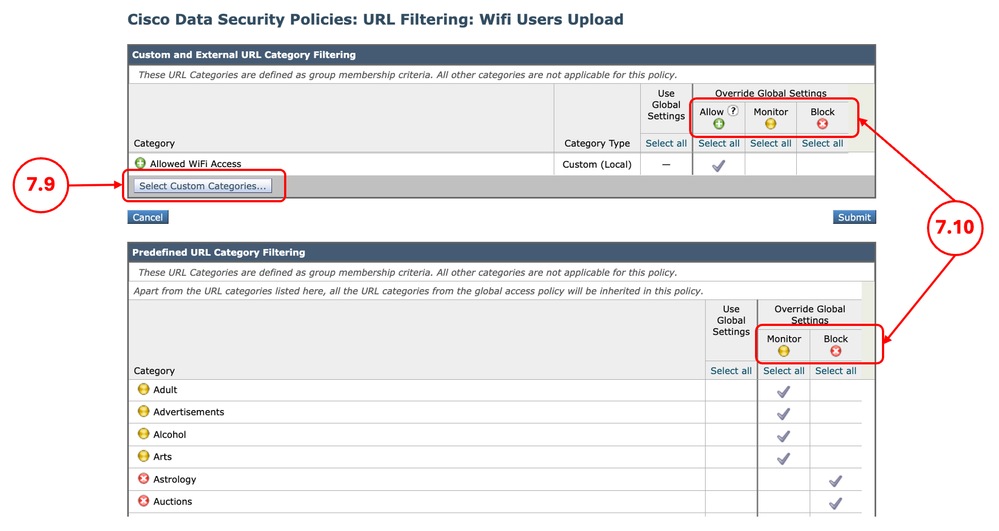
7.8. In Cisco Data Security Policies page, Click the URL Filtering link for the new policy. 7.9. (Optional) You can add any Custom URL Category by click Select Custom Categories and choose Include in Policy in front of the category names 7.10. Configure the Action for each Custom and External URL Category Filtering and Predefined URL Category Filtering.
7.11. Click Submit. |
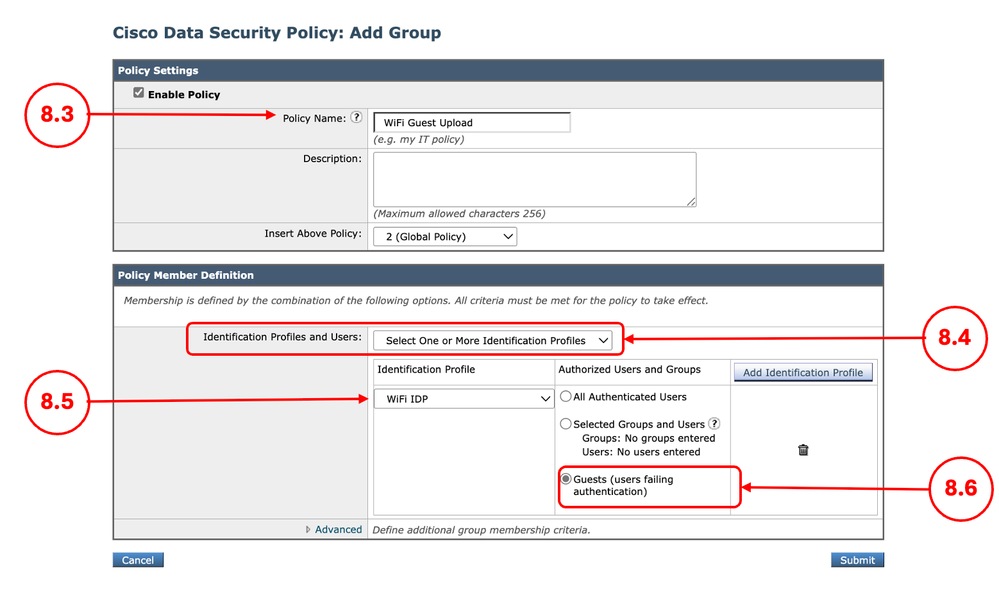
Step 8. (Optional) Create Cisco Data Security Policy for Unmanaged Devices |
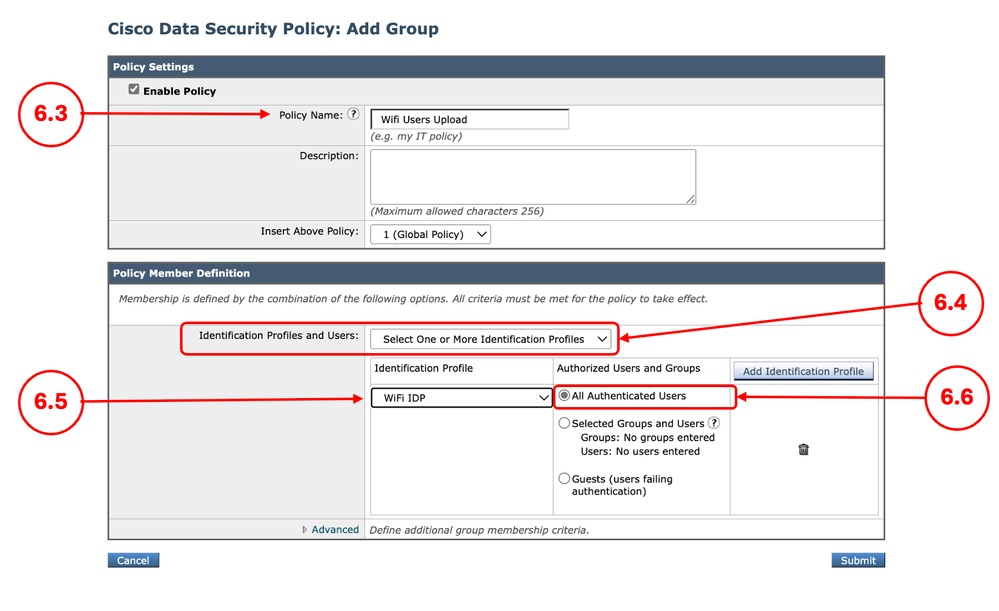
8.1. From the GUI, Navigate to Web Security Manager and choose Cisco Data Security. 8.2. Click Add Policy. 8.3. Enter Name for the new policy. 8.4. Choose Select One or More Identification Profiles from Identification Profiles and Users drop down menu. 8.5. Select the Identification Profile that was created in Step 1. 8.6. Select All Authenticated Users.. 8.7. Click Submit.
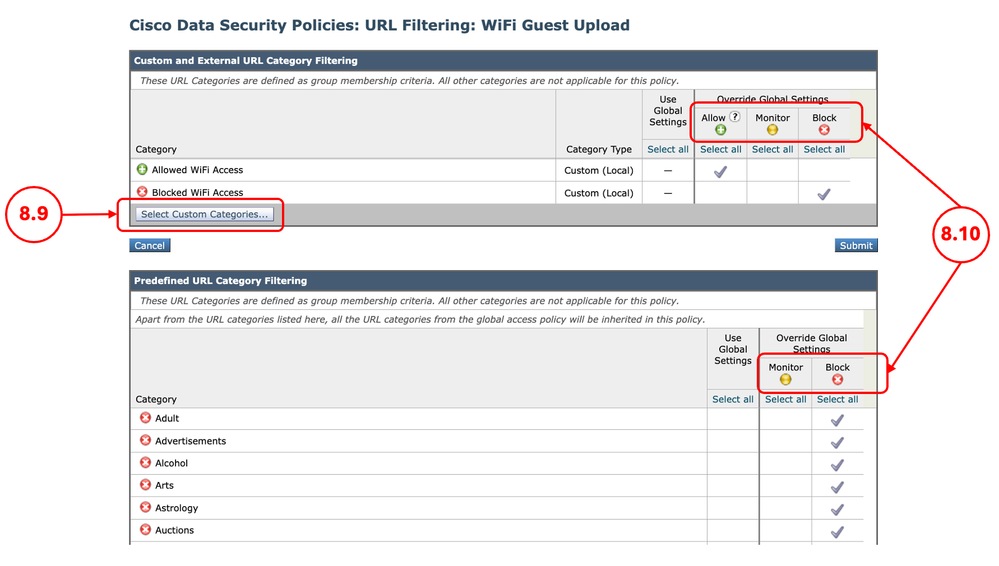
8.8. In Cisco Data Security Policies page, Click the URL Filtering link for the new policy. 8.9. (Optional) You can add any Custom URL Category by click Select Custom Categories and choose Include in Policy in front of the category names 8.10. Configure the Action for each Custom and External URL Category Filtering and Predefined URL Category Filtering.
8.11. Scroll down on the Uncategorized URLs section choose the proper action.
8.12. Click Submit |
Step 9. Save the Changes |
9.1. Commit the changes |



Related Content
- User Guide for AsyncOS 15.0 for Cisco Secure Web Appliance - LD (Limited Deployment) - Troubleshooti...
- Block Executable File Download in SWA
- Block Upload Traffic in Secure Web Appliance
- Block Traffic in Secure Web Appliance
- Bypass Authentication in Secure Web Appliance
- Configure Microsoft O365 Tenant Restriction in SWA
- Configure Secure Web Appliance Initial Setup
- Bypass Microsoft Updates Traffic in Secure Web Appliance
Revision History
| Revision | Publish Date | Comments |
|---|---|---|
3.0 |
05-Oct-2026
|
Recertification, formatting, grammar. |
2.0 |
29-Jul-2026
|
Initial Release |
1.0 |
24-Mar-2026
|
Initial Release |

 Feedback
Contact Cisco
- Open a Support Case

- (Requires a Cisco Service Contract)