Introduction
This document describes the process of configuring Secure Web Appliance (SWA) to block downloading executable files.
Prerequisites
Requirements
Cisco recommends knowledge of these topics:
- Access ToGraphic User Interface (GUI)of SWA
- Administrative Access to the SWA.
Components Used
This document is not restricted to specific software and hardware versions.
The information in this document was created from the devices in a specific lab environment. All of the devices used in this document started with a cleared (default) configuration. If your network is live, ensure that you understand the potential impact of any command.
Before you Begin
Cisco SWA can effectively block the download of executable files by inspecting the (Multipurpose Internet Mail Extensions) MIME type of web content. By identifying file types such as application/x-msdownload, application/x-msi and other related MIME types, SWA enforces policies that prevent executable from being delivered to users. In addition to MIME type detection, SWA can leverage file extension filtering, reputation-based analysis, and custom policy rules to further strengthen protection against unwanted or risky downloads. These capabilities help organizations maintain a secure browsing environment and reduce the risk of malware infections.
Tip: SWA cannot identify the MIME type of the file, unless the traffic is decrypted.
application/octet-stream is a generic MIME type used to indicate that a file contains binary data. It does not specify the nature of the file, so it can be used for any file that does not fit a more specific MIME type. This type is commonly assigned to executable files, installers, and other non-text files when the web server cannot determine a more precise type.
Configuration Steps
|
Step 1.Create a Custom URL Category for the website.
|
Step 1.1.From the GUI Navigate toWeb Security Manager and chooseCustom and External URL Categories.
Step 1.2.ClickAdd Category to create a new Custom URL Category.
Step 1.3.EnterNamefor the new category.
Step 1.4.Define the domain and/or subdomains of the website that you are trying to block upload traffic (In this example is cisco.local and all its subdomains).
Step 1.5.Submitthe changes.
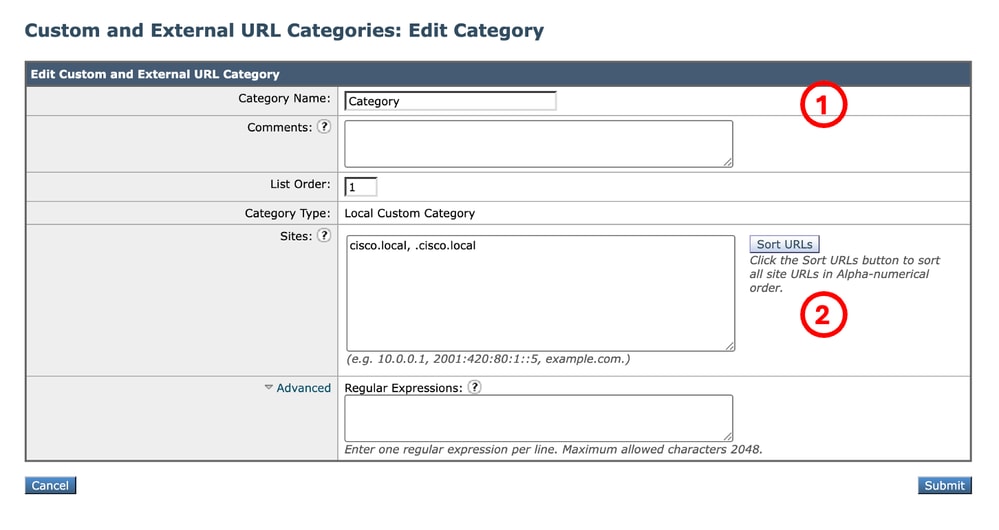 Image - Create Custom URL Category Image - Create Custom URL Category
Tip: For more information about how to configure Custom URL Categories, kindly visit: https://www.cisco.com/c/en/us/support/docs/security/secure-web-appliance-virtual/220557-configure-cu...
|
|
Step 2.Decrypt the traffic for the URL
|
Caution: Decrypting a large number of URLs can lead to performance degradation.
Step 2.1. From the GUI, Navigate toWeb Security Manager and chooseDecryption Policies
Step 2.2.Click Add Policy.
Step 2.3.EnterName for the new policy.
Step 2.4.(Optional) Select theIdentification Profile that you need this policy applies to.
Tip: (Optional) If you want to apply the policy for all users even if they are not authenticated, choose All Users (authenticated and unauthenticated users).
Step 2.5.FromPolicy Member Definition section, Click URL Categorieslinks to add the Custom URL Category.
Step 2.6.Select the URL Category that was created inStep 1.
Step 2.7.ClickSubmit.
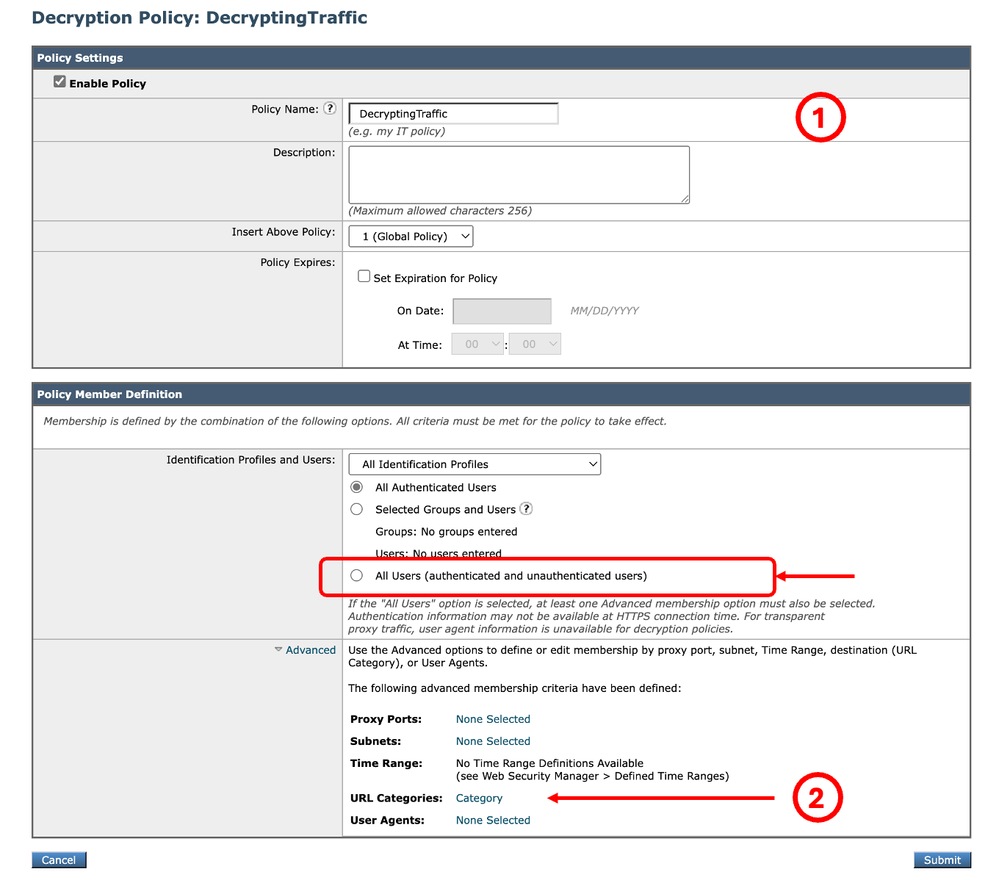 Image - Create a Decryption Policy Image - Create a Decryption Policy
Step 2.8.InDecryption Policies page, click the link fromURL Filtering for the new policy.
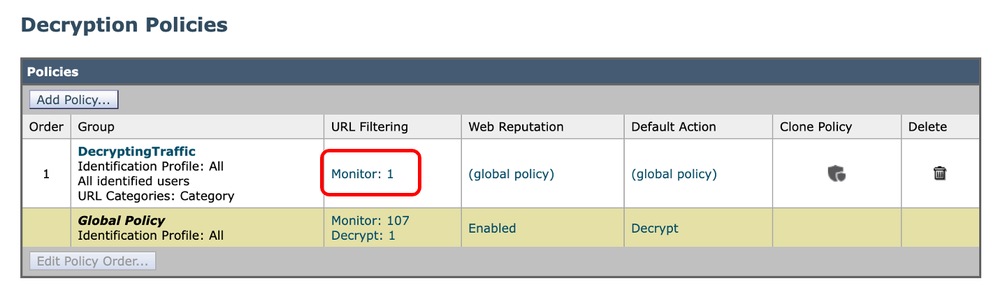 Image - Select the URL Filtering Image - Select the URL Filtering
Step 2.9.ChooseDecrypt as the action for Custom URL Category.
Step 2.10.ClickSubmit.
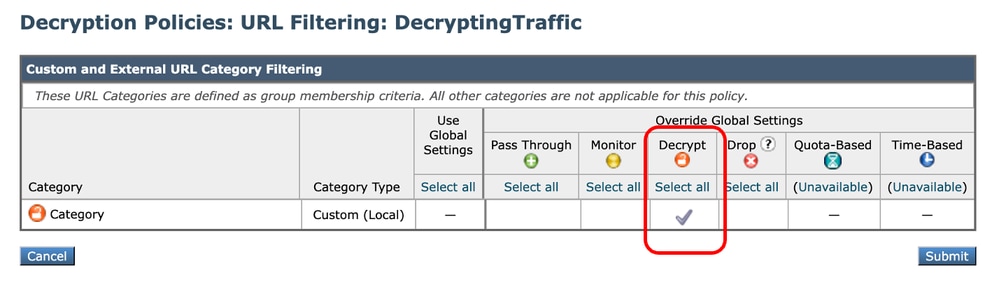 Image - Set Decrypt as Action Image - Set Decrypt as Action
|
|
Step 3.Block the Executable Files
|
Step 3.1.From the GUI, Navigate toWeb Security Manager and chooseAccess Policies.
Step 3.2.ClickAdd Policy.
Step 3.3.EnterName for the new policy.
Step 3.4.(Optional) Select theIdentification Profile that you need this policy applies to.
Tip: (Optional) If you want to apply the policy for all users even if they are not authenticated, choose All Users (authenticated and unauthenticated users).
Step 3.5.FromPolicy Member Definition section, Click URL Categories links to add the Custom URL Category.
Step 3.6.Select the URL Category that was created inStep 1.
Step 3.7.ClickSubmit.
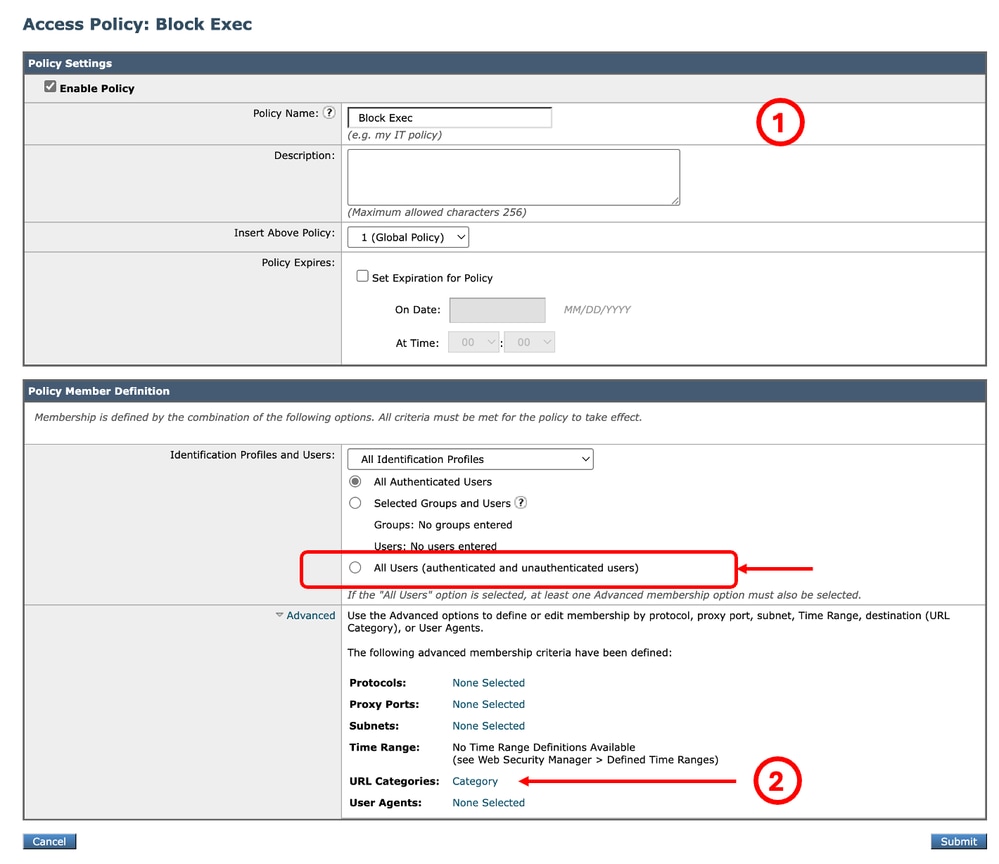 Image - Access Policy Image - Access Policy
Tip: For the reporting purpose, It is best to choose a name that is not same as any other Access/Decryption Policies.
Step 3.8.InAccess Policies page, make sure theURL Filtering action is set to Monitor.
Step 3.9. InAccess Policies page, click the link from Objects for the new policy.
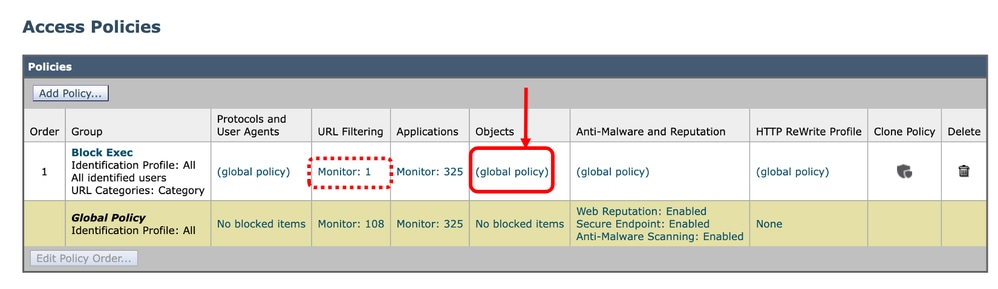 Image - Select the Objects Image - Select the Objects
Image - Select the URL Filtering
Step 3.10. From the drop down menu choose Define Custom Objects Blocking Settings.
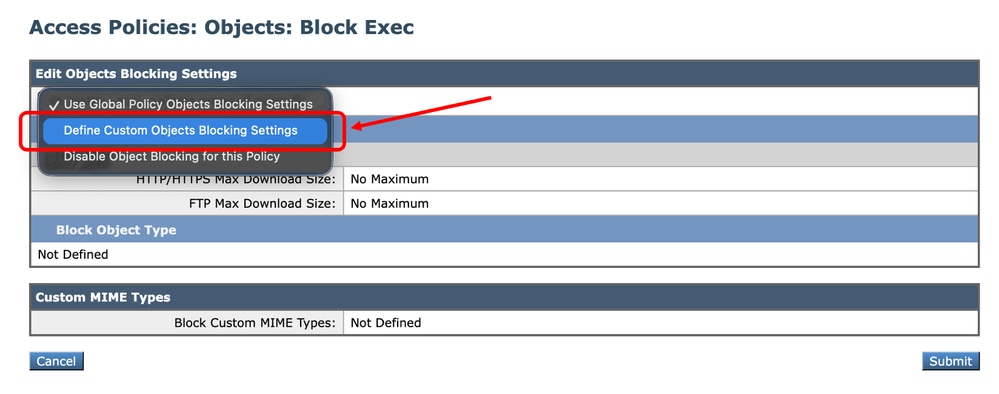 Image – Define Custom Objects Image – Define Custom Objects
Step 3.11.ClickExecutable Code to select the types of Objects you want to block.
Step 3.12.Click Installers to select the types of Objects you want to block.
Step 3.13. Additionally you can enter the MIME types of the files you want to block in the Custom MIME Types section.
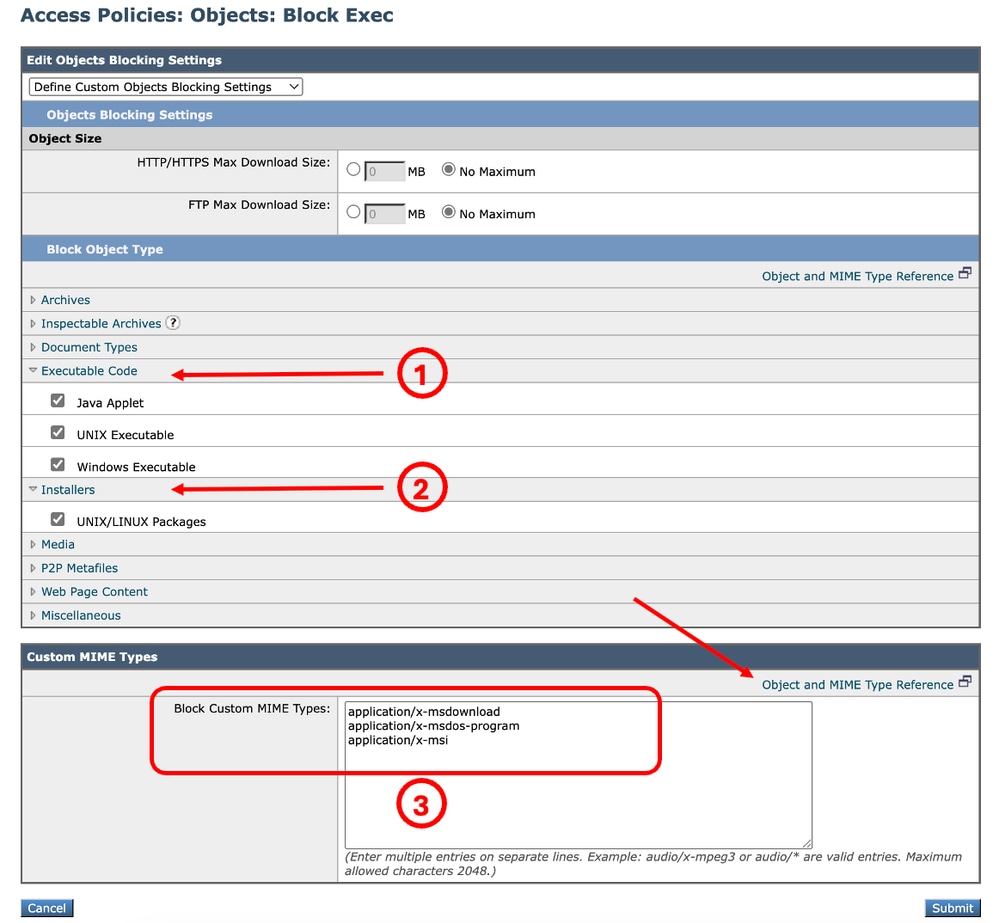 Image - Configuring Objects to Block Image - Configuring Objects to Block
Tip: To view the list of the MIME types, click Object and MIME Type Reference.
Step 3.14.Submit.
Step 3.15.Commit changes.
|
Validation of File Extension Blocking
In this example, when a user tries to download an executable file, this warning page is displayed:
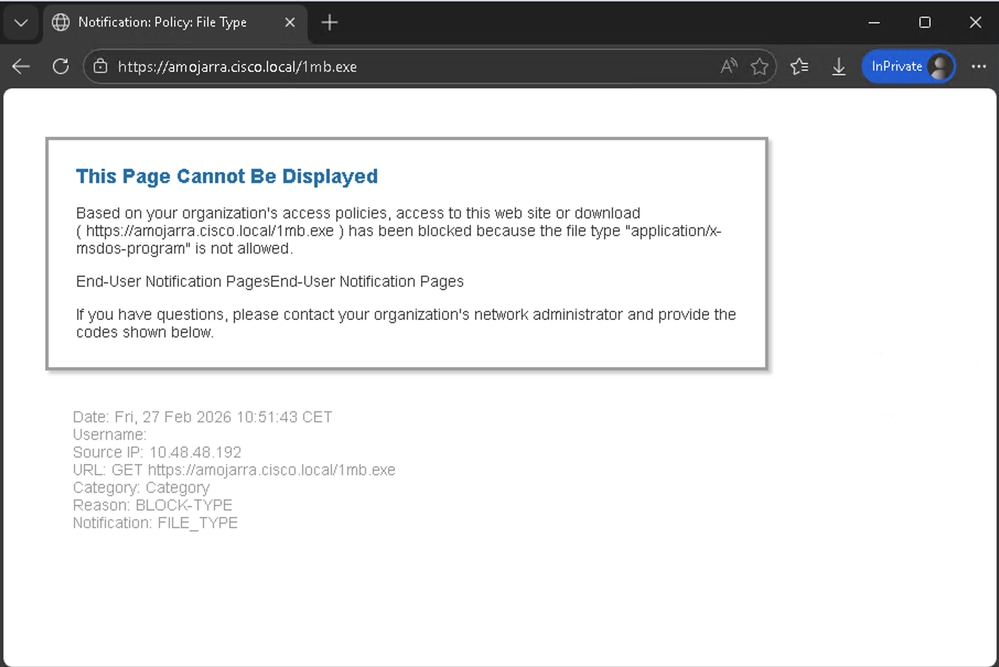 Image - Blocking Notification Page
Tip: To configure End User Notification (EUN) page, from the GUI navigate to Security Services and click End-User Notification and modify the End-User Notification Pages section.
From the access logs, you can see two log lines related to the traffic.
The first log line is related to the Decryption Policy (Name: DecryptingTraffic) that is decrypting the Traffic. The action is DECRYPT_CUSTOMCAT
The second Access Log line is related to the Access Policy (Name: Block_Exec) that we created in Step.3. The action is BLOCK_ADMIN_FILE_TYPE
| Policy |
Access Log |
|
Decryption Policy
|
1772186569.823 182 10.48.48.192 TCP_MISS_SSL/200 39 CONNECT tunnel://amojarra.cisco.local:443/ - DIRECT/amojarra.cisco.local - DECRYPT_CUSTOMCAT_7-DecryptingTraffic-DefaultGroup-NONE-NONE-NONE-LAB_Access-NONE <"C_Cate",-,-,"-",-,-,-,-,"-",-,-,-,"-",-,-,"-","-",-,-,"-",-,"-","-","-","-","-","-","-",1.71,0,-,"-","-",-,"-",-,-,"-","-",-,-,"-",-,-> - -
|
|
Access Policy
|
1772186576.735 2242 10.48.48.192 TCP_DENIED_SSL/403 0 GET https://amojarra.cisco.local:443/1mb.exe - DIRECT/amojarra.cisco.local application/x-msdos-program BLOCK_ADMIN_FILE_TYPE_12-Block_Exec-DefaultGroup-NONE-NONE-NONE-LAB_Access-NONE <"C_Cate",ns,0,"-",0,0,0,-,"-",-,-,-,"-",-,-,"-","-",-,-,"nc",-,"-","-","-","Unknown","Unknown","-","-",0.00,0,-,"Unknown","-",-,"-",-,-,"-","-",-,-,"-",-,-> - -
|
Related Information

 Feedback