Cyber Vision New UI

Cyber Vision New UI

A Cyber Vision New UI is an asset-based user interface that

  • organizes information around assets, which is a clearer representation of physical equipment, instead of discrete components or device entries,

  • aggregates multiple network identities (including interfaces, IP addresses, and MAC addresses) that belong to the same physical equipment, and

  • prioritizes the most relevant information, such as asset name, type, and version, to help users stay focused and reduce clutter.

Table 1. Feature History Table

Feature

Release Information

Feature Description

New UI

Release 5.3.x

Cisco Cyber Vision Center offers New UI that comprises simplified, structured views of assets, vulnerabilities, and alerts. The New UI includes a new method for automatically grouping assets using AI-based clustering. Click Go to Cyber Vision New UI in the top banner of your Center to get started.

Key differences between Classic UI and New UI

The Classic UI focuses on technical entities such as components and devices. Users need to manually define presets, such as baselines or monitoring sets. They often manage separate entries for each network identity, which results in complexity and confusion.

The Cyber Vision New UI connects the physical industrial environment and its digital representation. It visually groups all elements associated with a single physical equipment. Examples include production line equipment or customer installations.

Table 2. Contrast table

Feature

Classic UI

New UI

Entity focus

Components, devices

Assets—representation of physical equipment

Information grouping

Each network identity shown as a separate item

Multiple identities grouped by asset

User effort

Requires manual preset definitions

Provides automatic aggregation to improve clarity

Information display

Shows all details, often overwhelming

Displays only the most relevant attributes of each asset.

Assets

An asset is a network entity that

  • serves as a core physical component within an industrial network, such as a programmable logic controller (PLC), a switch, a controller, or a server,

  • may represent one or more modules with distinct identifiers, which may include serial number, reference, or type, even when MAC and IP addresses overlap; and

  • is defined, categorized, and managed according to established rules in Cisco Cyber Vision to ensure effective asset inventory and operations.

Modular assets: If an asset is modular, such as a chassis with multiple modules, its summary shows details including slot, model name, type, firmware version, and serial number. Each module, such as a CPU, communication module, or I/O module, appears as a separate block in the chassis view.

Table 3. Feature History Table

Feature

Release Information

Feature Description

Custom properties

Release 5.5.x

Add custom properties to Cisco Cyber Vision assets. You can view, add, and edit these properties, with strict validation rules enforced to maintain data integrity.

Search bar

Release 5.3.x

New UI contains a search bar in the global top banner. You can search for an asset by name, IP address, or MAC address.

Asset list CSV enhancements

Release 5.3.x

The CSV that you download from Cyber Vision Center includes a column that lists the sensors that have detected assets.

Asset interfaces

Assets use different network interfaces to communicate within the network. Interfaces may include MAC addresses, IP addresses, VLAN IDs, or combinations of these. The system collects interface properties from network traffic. It selects one interface as the primary interface for visualizations. If multiple interfaces exist, you can change which interface is primary. The asset list shows both the primary and additional interfaces for each asset.

Asset data management

The table presents the main functions available for managing asset data in the Assets page. It describes the specific capabilities and behavior of each function.

Function

Description

Delete assets

By default, the system deletes assets removed from the production line after 30 days.

You can manually delete assets detected due to misconfiguration. If sensors detect the assets again, the system may re-add them to the inventory.

Search for assets

Enter at least three characters from an asset’s name, IP address, or MAC address in the search bar to quickly locate details.

Export

Export all asset data to a CSV file. The export includes asset IDs so you can distinguish assets with the same name.

Filter asset data

Select Assets and use one of the these methods to manage the asset table:

  • Click Focus to sort the asset table by Default, Network, or Security.

  • Access the table settings menu to show or hide columns as needed.

Add custom properties to an asset

Custom properties feature allows you to add any custom property without content limitation on assets apart from current asset information.

Add custom properties such as:

  • owner name,

  • email, or

  • contact number

to individual assets for enhanced metadata management and operational efficiency.

Asset-level custom properties allow you to include information that is not inherited from the network, giving you granular control over asset metadata.

You cannot edit custom properties that you set for a network from the assets. Setting the custom property value at the network level overrides the value set at the asset level.

Before you begin

  • Ensure you have the Assets permission with read/write access.

Procedure


Step 1

From the main menu, click Assets.

Step 2

Click the asset that you want to add custom properites to.

Step 3

On Custom Properties, click Add/Edit.

Step 4

Enter a custom key and its corresponding value.

Example:

To add an owner name for an asset, set the key to "Owner" and the value to the owner's name.

To add multiple custom properties, repeat this step for each key-value pair.

Step 5

Click Save.


Organization hierarchies

Organization hierarchies are structural models that

  • group assets, sensors, and data sources within Cisco Cyber Vision Center,

  • arrange those entities in a hierarchical tree of levels (nodes), and

  • enable granular organization, management, and access control across multiple subdivisions.

Hierarchy management

  • Each node in the hierarchy is a level.

  • The system defines the Global level and places it at the top of the hierarchy. You cannot delete this level.

  • You can add, edit, or delete levels. However, if a level contains child levels or assigned entities such as sensors or PCAPs, the system prevents deletion.

  • The system supports nesting up to five sub-levels; after this limit, no additional levels can be added.

  • You can add, edit, or delete levels in the hierarchy through Configuration > Organization Hierarchy.

Assign multiple PCAP files to an organization hierarchy

Before you begin

  • Confirm you have appropriate permissions to assign PCAP files.

  • Ensure the required PCAP files have already been uploaded.

Assign multiple packet capture (PCAP) files to an organization hierarchy to enable automated asset creation in Cisco Cyber Vision.

Use this task to organize and manage multiple PCAP files for asset management within an organization hierarchy.

Follow these steps to assign multiple PCAP files to the organization hierarchy:

Procedure


Step 1

From the main menu, choose Configuration > PCAPs.

Step 2

Select the PCAP files you want to assign to an organization hierarchy.

Step 3

Click Assign Selected to Organization Hierarchy.

Step 4

Choose the appropriate organization hierarchy.

Step 5

Click Assign.


The selected PCAP files are assigned to the chosen organization hierarchy, automatically initiating asset creation in Cisco Cyber Vision.

Each PCAP initiates asset creation in Cisco Cyber Vision.

Vulnerabilities

A vulnerability is a system weakness that

  • enables attackers to gain unauthorized access or perform malicious actions,

  • results from flaws in system design, implementation, or configuration, and

  • requires mitigation through security measures to prevent exploitation.

Feature history table

Feature

Release Information

Feature Description

Bulk vulnerability acknowledgment for assets

Release 5.5.x

You can now acknowledge or unacknowledge multiple vulnerabilities at once from the asset vulnerability table. This change removes manual processing, saving time for asset security.

Asset vulnerability insights in New UI

Release 5.5.x

Cyber Vision Center matches asset properties against the knowledge database to detect vulnerabilities. You can view the matched asset properties in the New UI. This process provides clear, actionable insights into your security posture.

Vulnerability detection in Cyber Vision Center

Cyber Vision Center detects vulnerabilities on assets by matching their properties (such as vendor, reference, and firmware version) against a knowledge database of detection rules. This database regularly receives updates from external sources such as Computer Emergency Response Teams (CERTs), device manufacturers, and leading industry partners (e.g., Schneider and Siemens).

Key attributes of vulnerability detection:

  • The vulnerability detection process is automated and relies on the latest rule database updates.

  • Viewing asset vulnerability information allows security teams to assess risk exposure and prioritize remediation efforts.

To view the asset properties used for vulnerability detection in the system:

  • From the main menu, choose Assets.

  • Select the asset with vulnerabilities.

  • Click Vulnerabilities and select the relevant vulnerability.

Vulnerability scores

Vulnerability scores are indicative of the potential risk level and impact associated with specific vulnerabilities. Vulnerability scores include these scoring systems:

Cisco Security Risk Score (CSRS)

The Cisco Security Risk Score, which is powered by Cisco Vulnerability Management is represented on a scale from 0-100. It quantifies the risk of a vulnerability by looking beyond technical severity to understand how real-world attackers are leveraging the vulnerability in the wild—if at all. A variety of vulnerability and threat variables are considered when calculating this score, including predictive modeling to forecast the weaponization of vulnerabilities, the availability of recorded exploits or exploit kits, the presence of near real-time exploitation, and much more. Explore Cisco Vulnerability Management and the Cisco Security Risk Score at your own pace through a click-through product demo.

Common Vulnerability Scoring System (CVSS)

The Common Vulnerability Scoring System (CVSS) provides a way to capture the principal characteristics of a vulnerability and produce a numerical score reflecting its severity. The numerical score can then be translated into a qualitative representation (such as low, medium, high, and critical) to help organizations properly assess and prioritize their vulnerability management processes. For more information, see https://www.first.org/cvss/.

Vulnerabilities details

The Vulnerabilities page lists all identified vulnerabilities and their details.
Table 4. Vulnerability field descriptions

Field name

Description

Possible values/examples

CVE ID

CVE ID stands for Common Vulnerabilities and Exposures Identifier. It is a unique, standardized identifier assigned to publicly known cybersecurity vulnerabilities. This ID allows for consistent referencing of specific vulnerabilities across different security products and databases.

CVE-2023-20198

Name

This field provides a concise, descriptive title for the vulnerability.

Out-of-bounds Write Vulnerability in Rockwell ControlLogix Communication Modules

Cisco Security Risk Score (CSRS)

This is a proprietary risk assessment score developed by Cisco. It provides an evaluation of the vulnerability's severity and potential impact based on Cisco's internal analysis and threat intelligence. It's typically presented as a numerical score along with a severity level (e.g., High, Medium, Low).

  • 67-100: High vulnerability

  • 34-66: Medium severity vulnerability

  • 0-33: Low severity vulnerability

CVSS Score

It is the industry standard for assessing the severity of computer system security vulnerabilities. It provides a numerical score (0-10) and a qualitative severity rating (Low, Medium, High, Critical) based on various metrics like attack vector, complexity, impact on confidentiality, integrity, and availability. Security teams use CVSS scores to prioritize severe vulnerabilities and strengthen system security.

  • 9-10: Critical vulnerability

  • 7-8.9: High severity vulnerability

  • 4-6.9: Medium severity vulnerability

  • 0.1-3.9: Low severity vulnerability

MITRE ATT&CK® Tactics

Indicates whether the vulnerability can be associated with specific tactics from the MITRE ATT&CK® framework. Tactics represent the "why" of an attack (for example, gaining initial access, privilege escalation). A technique describes the specific actions or methods an attacker uses to achieve a tactic. Each tactic may be achieved through multiple techniques.

To view detailed information about the tactics and techniques associated with a specific vulnerability, click the CVE ID link and review the MITRE ATT&CK® section. The "3 Tactics matched" (for example) indicator suggests that the system has identified activities corresponding to three different MITRE ATT&CK tactics. Under each tactic, you can find one or more techniques used. For additional details, visit MITRE ATT&CK®.

Execution, Exfiltration, Persistence

Attack Vector

Describes the path or means by which an attacker can exploit the vulnerability. It indicates the context from which the vulnerability can be exploited (example, locally, over a network, physically).

Network, Adjacent Network, Local, Physical

Affected Assets

This number indicates how many of your monitored assets are currently identified as being vulnerable to this specific CVE. Clicking on the CVE ID provides a detailed list of these assets.

1 for CVE-2023-20198, 2 for CVE-2024-20437

Acknowledge or unacknowledge vulnerabilities for a single asset

Enable efficient management of security alerts by acknowledging or unacknowledging vulnerabilities detected for a single asset.

Perform this task to prioritize remediation efforts and maintain an accurate security dashboard. When you acknowledge a vulnerability, its alerts are removed from the Alerts dashboard. If you revert the acknowledgement, the alerts will appear in the Alerts dashboard again.

Before you begin

Ensure you have access to the Assets and Vulnerabilities dashboards in Cyber Vision Center. You may need to check your permissions under Admin > Users > Role Management.

Procedure


Step 1

From the main menu, choose Assets.

Step 2

Select an asset.

Step 3

Select the Vulnerabilities tab.

Step 4

To view an acknowledged vulnerability in the Alerts dashboard again and revert the acknowledgement:

  1. Check the checkboxes for the vulnerabilities you want to acknowledge.

    Check all the checkboxes to select all vulnerabilities at once.

  2. Click Acknowledge.

  3. Enter a comment if needed and confirm your acknowledgement.

Step 5

To unacknowledge vulnerabilities:

  1. Click Show Acknowledged to see acknowledged vulnerabilities.

  2. Check the checkboxes for the vulnerabilities you want to unacknowledge.

  3. Click Unacknowledge.


  • When you acknowledge a vulnerability, the system removes the alerts for that vulnerability from the Alerts dashboard.

  • When you revert an acknowledgement, the alerts reappear in the Alerts dashboard.

What to do next

View the Alerts dashboard to verify the updated status of vulnerabilities.

Acknowledge or unacknowledge multiple assets for a single vulnerability

Simplify vulnerability management by acknowledging or unacknowledging multiple affected assets in a single operation. This reduces the time required to process vulnerability changes across several assets.

Use this task when the same vulnerability is detected across multiple devices in your environment. Bulk acknowledgment or unacknowledgment helps keep your security status accurate without repeating actions for each asset.

Procedure


Step 1

From the main menu, choose Vulnerabilities.

Step 2

Select the vulnerability you want to manage.

Step 3

To acknowledge assets:

  1. In the Affected tab, check the checkboxes for the assets you want to acknowledge.

  2. Add a comment to provide context for the acknowledgment.

  3. Click Acknowledge selected assets and confirm.

Step 4

To unacknowledge assets:

  1. In the Acknowledged tab, check the checkboxes for the assets you want to unacknowledge.

  2. Click Unacknowledge.


The system acknowledges or unacknowledges the selected assets for the specified vulnerability.

What to do next

Review the updated vulnerability list to confirm the changes.

Communication maps

A communication map is a network visualization tool that

  • visually displays communication patterns among industrial assets,

  • enables filtering and grouping of assets by protocol, network, or functional group, and

  • supports investigation by providing details such as observed protocols, data exchange volumes, and source/destination asset information.

This functionality enables operational technology (OT) and information technology (IT) teams to quickly visualize and understand the communication context of industrial assets. It provides a clear visual reference to abnormal communications and potential risks.

Feature history table

Feature

Release Information

Feature Description

External IP country mapping

Release 5.5.x

You can view the countries of external IP addresses your asset connects with. Use this map to identify geographical locations and quickly decide which communications to investigate, improving your network insight and security.

ASN and ASN organization insight for external communications

Release 5.5.x

You can view ASN (Autonomous System Number) and ASN Organization information for external communications. Use this information to identify traffic sources and network owners so that you can quickly detect suspicious communications and reduce investigation time.

Communication maps and their filter enhancements

Release 5.4.x

Easily spot communications between assets, including those outside your active view. Communication maps highlight assets outside your active view filter with dotted lines.

External communications visibility

Release 5.4.x

View all communications between a selected asset and external entities. You can identify unexpected external communications that may expose your organization to attacks.

Group by network functionality in communications

Release 5.4.x

The communication map displays all communications between network groups and simplifies network interaction analysis.

See functional group–centric views of the communication map

Release 5.3.x

The communications map displays the communication activity between the configured functional groups. The communication links between groups are not actionable.

Using asset vendor names and icons

Release 5.3.x

In the New UI, communication maps include vendor icons that make asset identification easier.

Communication map features

The communication map offers multiple features to view and analyze network communications and subnet details:

You can access the communication map from the Communications page in the main menu. The map provides these features:

  • Displays all communications between networks

  • Shows subnet details for each map node

Table 5. Communication map features

Feature

Feature

Time filter

  • Use the time filter to focus on communications during specific periods for trend or activity analysis.

  • The Last week filter is enabled by default.

Protocol filter

  • The protocol filter lists all protocols used.

  • By default, all protocols are visible. However, Traffic-heavy Protocols are deselected to improve clarity. You can select them manually to display their data.

Show unknown (L2 Network)

Displays subnets that contain only MAC addresses without IP addresses.

Allow node rearrangement

Lets you rearrange nodes on the map for clarity. Rearrangements are temporary and are not saved after you leave the view.

Asset communication map features

The asset communication map shows all communications between a selected asset and other individual assets in your environment. It provides a detailed view of communication patterns, offers several useful filters, and supports multiple identification methods to help you analyze network communications easily.

Table 6. Features of the asset communication map

Feature

Description

Search

Lets you search for assets within the current map and view their communication details.

Time filter

  • Lets you focus on communications for specific time periods to analyze trends or activity.

  • The Last week filter is enabled by default.

Group communications

  • Lets you group assets by Network (subnet), Functional Group, or Country to organize the map.

    Note


    Before organizing, accept functional groups and define network groups.

  • Group nodes show communications between assets from the same group. Individual links show details of communication between groups: observed protocols, data exchange volumes, and information about the asset source or destination.

  • If an asset communicates with another asset you did not include in the active view filter, the map displays the node and links for that asset as a dotted line.

  • Non-communicating groups appear in grid view on the map.

Communication type

Filters the map by external or internal communications.

When parent and sub-domains exist in external communications, click the parent domain node in Map view to display communications between sub-domains. Breadcrumbs show your current location.

Protocol filter

  • Lists all protocols used between assets.

  • All protocols appear by default, but Traffic-Heavy Protocols are deselected to improve clarity.

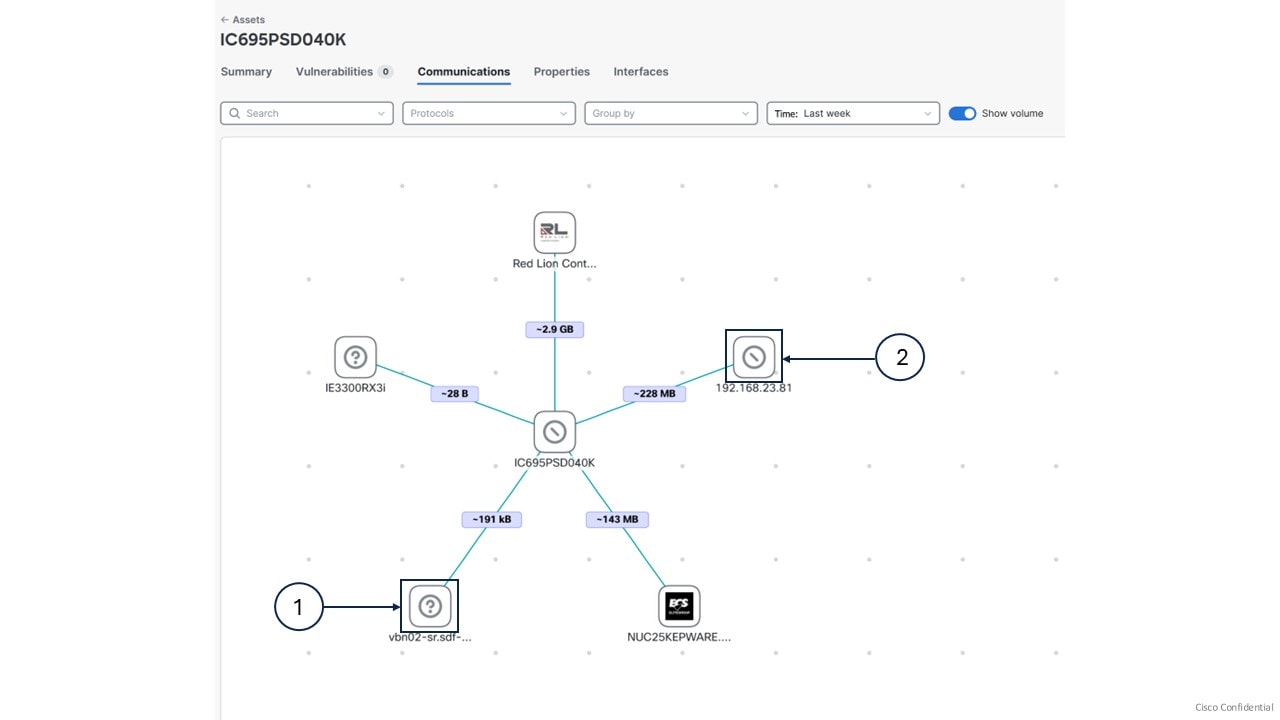
Assets identification

For each asset, the map shows the vendor icon and name. If this information is unavailable, you see the asset’s IP address or MAC address.

Figure 1. Icon descriptions

Icon

Description

(1)

This icon indicates that vendor information for the asset is unavailable.

(2)

This icon indicates that the vendor is known, but its icon is unavailable.

External communications in the New UI

The system classifies and displays external communications in the New UI using specific criteria.

Criteria for classifying external communications

External communication appears in the New UI when:

  • The communication is to or from networks that are explicitly marked as External in the Classic UI.

  • If no external networks are defined (in the Classic UI under Admin > Network Organization), any communication not assigned to an IT Internal or OT Internal network counts as external communication.

View external communications for an asset

Enable you to identify and analyze all external connections for a chosen asset.

Use this task to determine which external resources a specific asset interacts with, and to analyze communication details for monitoring or auditing.

Procedure

Step 1

From the main menu, select Assets.

Step 2

Click your asset that has external communications.

Step 3

Open the Communications tab for the selected asset..

Step 4

In the All Communications filter, select External to display only external communications in either map or list view.


All external communications associated with the selected asset are displayed, including details about each connection.

Filters and map indicators for monitoring external communications

Visualization and monitoring

When you visualize external communications, you can identify unexpected network paths that might expose your organization to external threats. Available filters for external connections include:

  • Country: Displays the country identified for the IP.

  • ASN: Displays unique ID assigned to a network or a group of networks managed by a single organization.

  • ASN Organization: Displays the origin organization that initiated the external communication.


Note


  • Country, ASN, and ASN Organization details are available only if your local center is enrolled in Cyber Vision Site Manager (CVSM) and an active cloud connection with Cisco exists.

  • In asset communications:

    • List view: The ASN and ASN Organization columns are disabled by default.

    • Map view: If external communications are available, the ASN Info field appears. It shows details for external communications (disabled by default).


Table 7. External communication indicators in map view

Visual indicators

Description

Single circle outside the node

Indicates one remote address communicating with your asset.

Multiple circles outside the node

Indicates that multiple remote addresses communicate with your asset.

Globe icon on the node

Indicates that IP to country mapping is unavailable or multiple countries are involved.

Node displays country's flag

Indicates that a single country has been identified.

Question mark icon in the node

Indicates an IP address without country mapping. The country column in list view shows Unknown. Some IPs cannot be resolved to a country based on available data feeds.

Asset clustering

Asset clustering is a functional grouping that

  • organizes assets based on their real-world network communication patterns,

  • distinguishes between Operational Technology (OT) and Information Technology (IT) assets for grouping, and

  • is generated automatically through algorithmic analysis.

Asset clustering simplifies asset management by creating groups that reflect actual communication behaviors in a network. The system suggests groupings, identifies transferable assets, and maintains cluster stability until network patterns change.

Table 8. Feature History Table

Feature

Release Information

Feature Description

Receive property-based and communication-based group suggestions from asset clustering algorithm

Release 5.3.x

Asset clustering algorithms suggest property-based groups (assets that share the same definition, network, or other properties), in addition to communication-based groups (assets that primarily communicate with each other).

Asset movement

  • Asset clustering helps to identify assets that can move between functional groups, those that can move to an ungrouped list, and ones that can move from the ungrouped list into a group.

  • The algorithm recommends which assets to transfer and then provides an updated list of functional groups.

Asset clustering suggests two types of functional groups to help organize your assets:

  • Communication-based groups: Consist of OT assets that primarily communicate with each other rather than with the broader network. These groups serve as OT process function groups to align with automation stations.

  • Property-based groups: Consist of assets that share common definitions, network attributes, or other properties.

Cluster assets into functional groups

Organize related assets into functional groups for easier management and monitoring.

Use asset clustering to group assets based on function or communication patterns. You can access asset clustering from configuration pages including Functional Group, Sensor Applications, Assets, or from an individual asset's detail page.

Follow these steps to perform asset clustering:

Procedure


Step 1

From the main menu, choose Configuration > Functional Groups.

Step 2

Click Start asset clustering.

The system suggests functional groups in the list.

Step 3

Click the Functional Group name to review group details.

Step 4

Click Map to view asset communications within the group.

Note


The lightning symbol indicates the most significant asset in the group.

Step 5

Click Edit Name to change the Functional Group name.

Step 6

Click Accept to create the functional group.


The assets are clustered into a new functional group.

What to do next

  • Accept or discard the suggested functional groups before you run clustering again.

  • If you click Discard, the system ungroups the recommended assets and includes them in the next clustering run.

Asset clustering methods

You can perform asset clustering for individual assets, groups, or sensors using several available methods. This table summarizes each method and its description:

Method

Description

For the set of assets

Use asset clustering to analyze a specific set of assets. This method excludes unrelated functional groups from the results.

From the main menu, choose Assets. Check the checkboxes of the assets, click More actions, and select Run asset clustering.

For a functional group

Perform focused asset clustering for a specific functional group.

Click the functional group name from the Functional Group column on the Assets page, click More actions, and select Run asset clustering.

For a sensor

Cluster assets detected by a specific sensor. This process improves data organization and analysis.

Select the sensors from Configuration > Sensor Management > Sensors and select Run asset clustering from More actions tab.

For an individual asset

Group similar assets by running the asset clustering function for a selected asset.

Click the asset name on the Assets page, click Functional group actions, and select Run asset clustering.

Functional group actions and descriptions

Understand the available actions you can perform on functional groups, as well as the effect of each action.

The table lists the functional group actions and their descriptions.

Action

Description

Lock functional group

When you lock the group, it stays out of asset clustering. While locked, no assets can be added or removed from the group during clustering operations.

From the Assets page, click the functional group name. Click More actions and select Lock Group.

Move asset from one functional group to another

You can manually adjust your functional group by moving assets between groups. The asset clustering process may not always be able to move assets automatically.

From the Assets page, check the checkboxes of the assets. Click More actions and select Add selected to group. Select the functional group from the list and click Add.

Delete the functional group

Permanently removes the specified group from the system. Assets in the deleted group are no longer associated with that group.

From the Assets page, click the functional group name and click Delete group.

Remove asset from functional group

Detaches an asset from its current functional group without moving it to another group.

Check the checkbox of the asset from the Assets page, click the More actions, and select Remove asset from group.

On the Assets page, select the checkbox for the asset. Click More actions and select Remove asset from group.


Note


To access the More actions field, accept or discard the suggested functional groups.


Alerts

Alerts are system-generated notifications that

  • indicate significant activity or irregularities detected within an industrial network,

  • categorize information based on type, associated data, and network components, and

  • provide warnings to help with security monitoring and response.

An alert is a notification that triggers when a user-defined rule’s condition is met. Cyber Vision sends alerts through Syslog when they are raised, cleared, or their status changes. For details about this configuration, see Enable or disable syslog notifications for an alert type.

You can acknowledge vulnerabilities on assets to clear corresponding alerts from the dashboard or revert acknowledgments to restore alerts.

Table 9. Feature History Table

Feature

Release Information

Feature Description

Inactive assets alert type

Release 5.5.x

Inactive assets alert type detects assets that stop communicating due to failure or misconfiguration. Define custom rules for the inactivity period to reduce manual monitoring.

Intrusion detection alert type

Release 5.5.x

Intrusion detection alert type monitors network traffic using the Snort intrusion detection system. It raises an alert when suspicious or malicious network activity is detected on monitored assets, based on Snort rules.

Assets with unexpected external communications alert type

Release 5.5.x

Assets with unexpected external communications alert type monitors asset communications. It raises an alert if an asset communicates to external IP addresses or domains.

Network-based organization hierarchy alert configuration

Release 5.4.x

You can configure alerts at the organization hierarchy level with one additional entity type: Organization Hierarchy (Networks).

The system changes all existing alert rules with the entity type Organization Hierarchy to Organization Hierarchy (Sensors) automatically.

Mute or unmute alert instances for prohibited vendor alert type

Release 5.4.x

You can use the mute and unmute feature to control prohibited vendor alerts. Mark alert instances as reviewed and not urgent so they remain in the system but are not active. Select the duration to mute an alert instance; after that period, the alert becomes active again.

Active and cleared alerts

Release 5.3.x

The Alerts page displays two types of alerts:

  • Active

  • Cleared

Pause alert creations

Release 5.3.x

You can pause an alert type in the Configure > Alerts

Change vulnerability scoring system for alerts

Release 5.3.x

The Cisco Security Risk Score is the default scoring system applied to alert configurations. However, you can choose to update an alert configuration to apply the CVSS scoring system instead.

Alert for severe vulnerabilities in monitored entities

Release 5.3.x

Create and edit rules for the Severe vulnerabilities in monitored entities alert based on the Cisco Security Risk Score or the CVSS score.

Alert for prohibited vendors

Release 5.3.x

The Configure > Alerts page contains a default alert for prohibited vendors. The alert rule is based on an editable list of prohibited vendors.

Alert types

Monitor and secure your assets using the alert types provided by Cyber Vision Center. Each alert type helps you identify vulnerabilities or unusual activity with specific rules. To access alert types, from the main menu choose Configuration > Alerts.

Alert type

Description

Severe vulnerabilities in monitored entities

  • Cyber Vision Center raises alerts when it detects high-severity vulnerabilities in your assets.

  • The default rule for this alert type is Default_OH_Global.

Prohibited vendors

  • Cyber Vision triggers alerts when your assets are linked to prohibited vendors.

  • The default rule for this alert type is Prohibited_list.

Inactive assets

  • Cyber Vision automatically detects assets that have stopped communicating due to failure or misconfiguration. It then alerts you about the issue.

  • Define rules to set the inactivity threshold for triggering alerts, reducing manual monitoring.

Intrusion Detection

  • This alert type monitors network traffic using the Snort intrusion detection system. Enable Intrusion Detection System (IDS) on a compatible sensor to activate Snort-based intrusion detection. See Enable IDS on a sensor.

  • The default rule for this alert type is Default_Snort_Global.

Assets with unexpected external communications

  • This alert type raises an alert if assets communicate with external IP addresses.

  • The default rule for this alert type is Default_Monitored_Asset_Types, which monitors external communications for all assets with type PLC, IED, or IO.

Alert stages and key attributes

Cyber Vision manages alerts by tracking their progression through defined stages. Alerts are organized by type, and rules specify when and how alerts are triggered.

Alert stages

You can monitor alerts as they move through distinct stages:

  • Active: Displays current unresolved alerts. Alerts stay active while the underlying problem exists.

  • Muted: When you mute alert instances related to the Prohibited vendors, Inactive assets, Intrusion Detection, and Assets with unexpected external communications alert types, those alerts appear in the Muted tab.

  • Cleared: After you resolve alerts, they appear in the Cleared tab. Cyber Vision keeps cleared alerts for a set number of days before removing them. The retention period is different for each type of alert. You can manually clear alert instances only for the Inactive assets and Assets with unexpected external communications alert types.

Alert details

To view the alert details, from the main menu choose Alerts.

Name

Description

Alert Type

Specifies the category of alert generated by the system. Each type shows the nature of the underlying issue detected.

Trigger

The values depend on the alert type. For example, they may indicate vulnerabilities or specific vendor names.

Instances

The number of assets impacted by the alert rule.

Severity

Severity levels include Critical, High, Medium, and Low. Use these levels to prioritize your response.

Triggered By

The alert category triggers the alert.

Last Detected

Shows the date and time when the alert was last triggered.


Note


The Alerts dashboard for the Assets with unexpected external communications alert type is relevant for last month only.


Alert type management options and allowed rule actions for each alert type

Alert type management options and permitted actions help you manage alerts for monitored entities and prohibited vendors.

Alert type management options include:

  • You can Pause or Resume all alert types except Intrusion Detection, from Configuration > Alerts.

  • Pause an alert type to temporarily stop new alerts. This action does not affect existing alerts.

  • Resume to re-enable new alert notifications.

  • You can enable Syslog Notification for any alert type to send generated alerts to the Syslog server.

Table 10. Permitted alert rule actions for each alert type

Alert Type

Permitted alert rule actions

Severe vulnerabilities in monitored entities

Create, edit, duplicate, or delete alert rules.

Prohibited vendors

Edit alert rules only.

Inactive assets

Create, edit, or delete alert rules.

Assets with unexpected external communications

Create, edit, duplicate, or delete alert rules.

Intrusion Detection

You cannot create new alert rules, nor edit, duplicate, or delete the existing default alert rule.

Use these options to manage alert rules and maintain oversight for different alert types in your organization.

Create alert rules for severe vulnerabilities in monitored entities

Enable proactive vulnerability monitoring by creating alert rules that trigger notifications for severe vulnerabilities within monitored assets.

Create alert rules under the Severe vulnerabilities in monitored entities alert type to automatically notify you when assets meet specific vulnerability criteria. This helps ensure timely response to critical security threats.

Procedure


Step 1

From the main menu, choose Configuration > Alerts.

Step 2

Select the Severe vulnerabilities in monitored entities alert type.

Step 3

Click Create new rule.

Step 4

Enter an Alert Rule Name, select the Severity and Entity type.

Entity types:

  • Functional Groups: Triggers alerts for assets associated with functional groups.

  • Organization Hierarchy (Sensors): Triggers alerts for assets linked to sensors assigned to the selected organization hierarchy levels.

  • Organization Hierarchy (Networks): Triggers alerts for assets linked to networks assigned to the selected organization hierarchy levels.

Step 5

On the Entity selection page, select organization hierarchy levels or functional groups.

  • If you select assets based on functional groups, check Include Ungrouped assets to include assets not in any functional group.

  • If you select assets based on organization hierarchy (Networks), check Assets seen in Unknown networks to include unidentified or unmapped assets.

  • If you select assets based on organization hierarchy (Sensors), check Assets seen by Unknown data sources to include unidentified or unmapped assets.

Note


The available Entity selection options depend on the Entity type you select in the Rule name and entity type step.

Step 6

In the Scoring system and threshold tab, select one scoring system:

  • For Cisco Security Risk Score, enter a threshold number between 34 and 100.

  • For CVSS, enter a threshold number between 7 and 10.

Note


Cisco Security Risk Score is the default, but you can select CVSS.

Step 7

Review your selections in the Summary and click Save.


The new alert rule appears on the Configuration > Alerts > Severe vulnerabilities in monitored entities page. You receive alerts when asset vulnerabilities match the new rule.

What to do next

  • Regularly review the Configuration > Alerts page to manage and update alert rules as needed.

  • To manage alert rules, navigate to Configuration > Alerts, select an alert type, and choose to edit, duplicate, or delete actions.

Create an alert rule for inactive assets

You receive timely notifications and can take action when assets have not communicated for a set timeframe.

You can monitor asset activity and automatically generate alerts when assets are inactive for longer than a set threshold.

Before you begin

Identify the assets you want to monitor.

Procedure


Step 1

From the main menu, choose Configuration > Alerts.

Step 2

Select the Inactive assets alert type.

Step 3

Click Create new rule.

Step 4

Specify the Alert Rule Name, Severity, and the timeframe for inactivity (Since inactive).

Note


You will receive an alert if an asset does not communicate within the selected period.

Step 5

Select the assets you want to monitor.

Step 6

View the summary and click Save.


When an asset is inactive for the specified period, the system triggers an alert. The Alerts page displays a summary of the alert and its instances.

Create an alert rule for external communications

You can establish an alert rule that enables the detection and notification of any monitored asset communicating externally, ensuring timely identification and response to potential security risks.

When an asset communicates with external IP addresses or domains, the alert rule triggers a notification in the Alerts dashboard. This allows you to manage asset security proactively.

Procedure


Step 1

From the main menu, choose Configuration > Alerts.

Step 2

Select the Assets with unexpected external communications alert type.

Step 3

Click Create new rule.

Step 4

Enter an Alert Rule Name and select Severity and Entity type.

Entity types include:

  • Organization Hierarchy (Sensors): Triggers alerts for assets linked to sensors assigned to the selected organization hierarchy levels.

  • Organization Hierarchy (Networks): Triggers alerts for assets linked to networks assigned to the selected organization hierarchy levels.

  • Asset Types: Triggers alerts for assets linked to the selected asset types.

Step 5

Select the relevant organization hierarchy levels or asset types in the Entity selection page.

To include unidentified or unmapped assets:

  • Select Assets seen by Unknown data sources for the Organization Hierarchy (Sensors) entity type.

  • Select Assets seen in Unknown networks for the Organization Hierarchy (Networks) entity type.

Note


The available Entity selection options depend on the Entity type you select in the Rule name and entity type step.

Step 6

Review your selections in the Summary and click Save.


The new alert rule appears under Configuration > Alerts > Assets with unexpected external communications alert type.

What to do next

  • Regularly review the Configuration > Alerts page to manage and update alert rules as needed.

  • Navigate to Configuration > Alerts, select the alert type, and choose the appropriate action to edit, duplicate, or delete alert rules.

Mute alert instances

Temporarily suppress non-critical alert instances so you do not need to review known, non-urgent alerts repeatedly.

Mute alerts for Prohibited vendors, Inactive assets, Intrusion Detection, and Assets with unexpected external communications alert types. This helps you focus on critical issues. The mute feature marks specific asset alerts as reviewed and not urgent. Muted alert instances remain in the system and are inactive until the mute period ends.

Procedure


Step 1

From the main menu, choose Alerts.

Step 2

On the Active tab, find the relevant alert type and click the alert Instances count.

Step 3

Select the alert instances you want to mute.

Step 4

Click Mute.

Step 5

Select the mute duration.

  • You can select from three available durations: Forever, For 7 days, or For 30 days.

  • To specify a custom period, select Custom and enter a number of days from 1 to 180.

Note


After the selected mute duration (except for Forever), alerts become active again.

Step 6

(Optional) Add a comment.

Step 7

Click Mute to confirm.


Muted alerts move from the Active tab to the Muted tab.

What to do next

  • To unmute an alert instance, go to Alerts > Muted, select the alert instance, and click Unmute.

  • After you unmute, the instance drawer of the active alert shows when it was last muted.

Clear alerts for specific assets

Clear resolved alerts from assets so the alert dashboard reflects current alerts only.

Perform this task when asset-related issues are resolved, but the system still lists alerts for those assets. Clearing alerts helps maintain accurate alert tracking.

Procedure


Step 1

From the main menu, choose Alerts > Active.

Step 2

Click the instance count for either the Inactive assets or Assets with unexpected external communications alert types.

Step 3

Select the asset you want to clear alerts for.

Step 4

Click Clear.


After you clear alerts, the system moves the selected alert from the Active tab to the Cleared tab to show that its alerts are cleared.

Syslog notification details for various alert types

The system sends syslog notifications to the configured syslog server when an alert is raised, cleared, or its status changes. Notifications include information that helps you track and investigate events.

Common syslog message fields

  • CEF:0

  • vendor: cisco

  • product: Cyber Vision

  • version: 2.0

  • event_class_id: alert_raised or alert_cleared

  • event_name: alert type name

  • severity id: numeric value based on the severity of the alert rule

  • cat: alert category

  • SCVAuthorId (optional): User ID if a user manually acknowledged an alert; empty if the system cleared the alert

  • alertRuleId: Alert rule UUID

  • alertId: Alert UUID

  • msg: Value changes based on alert type and event_class_id

  • assetId

  • assetName

  • assetFunctionalGroupId: Empty when the asset is ungrouped

  • center-id: UUID of the center

  • sensorNames

Table 11. Additional fields for specific alert types

Alert type

Fields

Severe vulnerabilities in monitored entities

  • vulnNumber: For example, CVE-2023-10025

  • vulnName

  • vulnCVSSscore

  • vulnCSRSscore

Prohibited vendors

  • vendorName: Listed when the alert involves prohibited vendors

These syslog notification details enable effective monitoring and response to system alerts of various types.

Enable or disable syslog notifications for alert types

You can manage whether the Cyber Vision Center sends syslog notifications for alerts of specific alert types to your configured syslog server.

Follow these steps to enable or disable syslog notifications for an alert type:

Before you begin

  • Ensure you have administrator access to Cyber Vision Center.

  • Confirm that a syslog server is configured. See Configure syslog.

Procedure


Step 1

From the Cyber Vision New UI, choose Configuration > Alerts.

Step 2

Select an alert type.

Step 3

Enable or disable Syslog Notification.


When you enable syslog notifications in the Cyber Vision Center, you receive syslog messages on the configured syslog server whenever the system raises (or unmutes), clears, or mutes an alert.

Filters

A filter is a New UI feature that

  • narrows the information displayed on core Cyber Vision pages,

  • allows users to focus on specific assets, network segments, or alerts, and

  • leaves configuration actions unaffected.

Table 12. Feature History Table

Feature

Release Information

Feature Description

Filter Cyber Vision Center data by organization hierarchy

Release 5.3.x

All the data views in New UI can be filtered by organization hierarchy, sensors, or networks associated with an asset.

At the top of the left menu, in the Organization filter, choose the hierarchy level you want to focus on.

Global is the default choice and covers all assets.

Filter data in Cyber Vision Center by active view filter

Release 5.3.x

A product-level banner in the New UI allows you to filter data on every page except configuration pages.

If you have not applied any filters, No filter applied is displayed.

Click Edit to apply one or more filters from functional group, network or sensor, asset type, and vendor categories.

Filter views in Cyber Vision New UI

Narrow the information displayed in Cyber Vision New UI by applying filters to the Dashboard, Alerts, Assets, Vulnerabilities, and Communications pages.

Use filters to focus on specific assets, network segments, or alerts in Cyber Vision. This action does not affect Configuration pages.

Use these steps to filter data in Cyber Vision:

Procedure


Step 1

From the main menu, choose Organization.

Step 2

Select either Sensors or Networks.

Note


The Sensors tab is selected by default.

  • To select all sensors or networks at a hierarchy level, select that level.

  • To choose specific sensors or networks from a selected hierarchy level: open the organization drawer again, open Sensor selection or Network selection, select items, then click Apply.

    Note


    To select assets not linked to sensors or networks, choose Unknown.

  • Use the search box to find sensors or networks by name.

Step 3

To clear your selected sensors or networks and return to the complete organization hierarchy, open the Organization Hierarchy drawer again and click the Reset selection icon.

Step 4

To edit the sensor or network selection for the selected organization hierarchy only, open the Organization Hierarchy drawer again and click the Edit selection icon.

Step 5

To refine your filter, click Edit on the active view bar.

Step 6

Use the Select buttons to add filters as needed.

Step 7

Click Apply to update or Reset to clear the filters.


The views show only data that matches your filter criteria.

What to do next

Review the filtered data on Dashboard, Alerts, Assets, Vulnerabilities, or Communications pages.

Network definitions

A network definition is a configuration element in Cyber Vision that

  • specifies which networks (IP ranges and VLANs) should be monitored,

  • allows classification of internal IT and OT assets to improve asset inventory accuracy, and

  • enables exclusion or grouping of assets for focused security assessments.

Table 13. Feature History Table

Feature

Release Information

Feature Description

Custom Properties

Release 5.5.x

Cisco Cyber Vision now supports custom properties to add and edit custom metadata to facilitating more efficient emergency response and maintenance operations.

Assign a network to an organization hierarchy

Release 5.3.x

Assign a network to an organization hierarchy level.

Network definition details

  • Cyber Vision includes network definitions preconfigured with the default RFC1918 addresses: 10.0.0.0/8, 172.16.0.0/12, and 192.168.0.0/16.

  • By default, all assets detected through PCAP analysis or sensors are grouped into a single network. To improve asset accuracy and relevance, assign network definitions to one of three network types:

    • OT Internal ((for devices such as PLCs and HMIs))

    • IT Internal (for laptops and other IT assets)

    • External (for assets that are excluded from inventory)

  • Network administrators choose network types and validate IP ranges to avoid duplication.

  • In the Classic UI, you can create new network definitions. In the New UI, you can only view and assign existing definitions.

Assign a network to an organization hierarchy

Assign a specific network to a designated level within the organization hierarchy. This action aligns management access and policy controls with the organizational structure.

Perform this task when you need to organize network resources, apply hierarchical policies, or update the organizational assignment for the network.

Follow these steps to assign a network to an organization hierarchy:

Before you begin

You must have Network Definition permission with read/write access.

Procedure


Step 1

From the main menu, choose Configuration > Network Definition.

Step 2

Locate the network you want to assign and click Assign.

Step 3

Select the appropriate organization hierarchy level.

Step 4

Click Assign to complete the assignment.


The selected network is now associated with the specified level in the organization hierarchy.

Add custom properties for networks

Efficient metadata management is achieved by associating custom properties directly with network-level assets.

Custom properties at the network level automatically propagate to all associated assets, ensuring consistency and reducing repetitive data entry. Properties defined at the network level cannot be edited at the asset level, preserving data integrity. Asset-level custom properties do not reflect the network level.

Before you begin

  • Ensure you have Network Definition permission with read/write access.

Procedure


Step 1

From the main menu, choose Configuration > Network Definition.

Step 2

Click the network to which you want to add custom properties to.

Step 3

Click Add/Edit Custom Properties.

Step 4

Enter a custom key and its corresponding value.

Example:

To add an owner name for a network, set the key to "Owner" and the value to the owner's name.

To add multiple custom properties, repeat this step for each key-value pair.

Step 5

Click Save.


The custom properties are assigned at the network level and automatically propagate to all associated assets, maintaining consistency across your environment.

What to do next

  • Note that custom properties set at the network level cannot be edited at the asset level.

Sensor management frameworks

A sensor management framework is a comprehensive platform that

  • coordinates the deployment, configuration, and operation of Cyber Vision sensors and hosts,

  • manages industrial network environments efficiently, and

  • streamlines sensor and host actions, including onboarding, monitoring, and control.

Host and sensor management

  • Host management: A host is the physical platform where a sensor IOx application runs. First, onboard and validate hosts. Then, deploy sensors to each host.

  • Sensors page management: The sensors page allows you to manage sensors and view sensor statistics, operations, and details for each deployed sensor.

Feature history table

Feature

Release Information

Feature Description

Enhancement of sensor health monitoring

Release 5.5.x

Monitor sensor health proactively with automated updates and deep insights. The sensor management system tracks each sensor's status and provides actionable updates, helping you resolve issues before they affect your operations. Use Advanced View to analyze performance trends and troubleshoot efficiently.

Sensor deployment overview

Cyber Vision sensors operate as IOx applications. They perform deep packet inspection (DPI) on industrial network traffic and send metadata to the Cyber Vision Center. You can automate sensor deployment through the Sensor Management Extension, which pushes applications to the host platform, or perform it manually. You can manage multiple sensors concurrently across the network.

Sensor actions

This table lists the available sensor actions you can use and describes how each helps you manage Cyber Vision sensors.

Action

Description

Redeploy

Send the IOx package to redeploy the sensor. You can reconfigure parts such as IP parameters.

Update

When a new Cyber Vision Center version is deployed, a new sensor version becomes available. Use Update to upgrade.

Assign to Organization Hierarchy

Map sensors to an organizational hierarchy to organize asset data and operational context.

Run Asset Clustering

Cluster assets detected by a sensor to improve data organization and analysis. See Asset clustering methods.

Change GPS Location

Manually update the GPS coordinates of the sensor to reflect its location.

Uninstall

Remove the sensor from the list and uninstall the application from IOx.

Host actions

This table lists the available host actions for managing Cyber Vision sensors and describes each action:

Action

Description

Host Status

Check the host readiness status to ensure IOx is running and enough disk space is available before you deploy sensors.

Deploy Sensor

Deploy the sensor application on the selected host.

Change Credentials

Update the username and password stored in the system to access the host.

Remove Host

Remove the host from the list.

Sensor health statuses and signals

Health statuses

You can view the current health status for each sensor. The status helps you decide when to take action.

Status

What this status means

Unknown

The sensor is managed by Classic UI.

Critical

The sensor has stopped communicating and is not sending data to the Center.

Needs Attention

The sensor is connected and sends data, but one or more health signals are outside the allowed thresholds. You may need to reconfigure the sensor or take other action.

Healthy

The sensor operates within normal parameters and no health signals are active.

Pending

The sensor is connected. The system updates the health status after it collects initial data. This process may take up to an hour.

To view the current health status for each sensor, from the main menu choose Configuration > Sensor Management.

Sensor health signals

When a sensor's health status is Needs Attention, the Cyber Vision Center provides these health signals to explain the issue and suggest mitigation steps.

Table 14. Health signals

Signal

What this signal means

With Time Drift

The time difference between the sensor and the Center exceeds the configured threshold.

Degraded Flow Health

The overall traffic from the sensor to the Center after connection is less than expected. You can use this information to decide if traffic integrity falls below the configured threshold.

Degraded Traffic Health

Unicast traffic is lower than expected. You see this signal when the ratio of unicast traffic to broadcast or multicast traffic is too low.

To view remediation details for a sensor with the Needs Attention health status:

  • Select the sensor in Configuration > Sensor Management.

  • Access the remediation card to see health signals, issue descriptions, sensor summaries, and mitigation steps.

For more information about system health, network metrics, and network interface bandwidth, see System statistics for Center and sensors.

Features of the sensor Advanced view

In the sensor Advanced view, you can:

  • Examine sensor behavioral trends and performance.

  • Troubleshoot sensor issues using real-time statistics.

Collection Details

Monitor sensor connection health, uptime, and network statistics, with options to filter by time periods.

Detail

Description

Connection Status

Provides sensor connection information with the Center, including online or offline status with date and time.

Link Status

Indicates two link statuses:

  • If the sensor is connected to the Center, the status is UP.

  • If the sensor is rebooted or restarted, the status is DOWN.

Time Drift

Calculates the time difference between sensor time and Center time when system information is received.

TX/RX Queue

TX and RX queues are memory buffers. They temporarily store outgoing (Transmit) and incoming (Receive) data packets. This helps manage traffic flow and prevents data loss between the network interface and the system Transmission Control Protocol/Internet Protocol (TCP/IP) stack.

Retransmits

Number of TCP retransmits to resend packets lost, corrupted, or unacknowledged during initial transmission. This ensures reliable and complete delivery.

TCP Connection - Connection Reset & TCP State

Displays the TCP connection status from the Center to the sensor and shows connection reset events. These events indicate port changes or reestablishments. The connection state may change rapidly with each reset.

Data Quality

Displays information about network traffic, packet distribution, and flow statistics.

Detail

Description

Flow Count

Shows the number of traffic flows over the selected period. Receiving traffic flows indicates good sensor health.

Total Bytes

Shows the total size of each packet within the selected interval.

Total Packets

Shows the packet count within the selected interval.

Protocol Distribution

Provides the count of TCP, UDP, and other protocols detected in the traffic.

Flow Type Distribution

Shows counts for traffic flow types such as Unicast, Broadcast, and Multicast.

Access the sensor advanced view

To access advanced sensor details:

  • From the main menu choose Configuration > Sensor Management and select the sensor, .

  • Click Advanced view.

Assign sensors to the Organization Hierarchy

Enable asset creation within Cyber Vision by mapping sensors to an organization hierarchy.

Use this task to map sensors in your environment to a defined organization hierarchy. This enables Cyber Vision to structure asset data and operational context according to organizational boundaries.

Procedure


Step 1

From the main menu, choose Configuration > Sensor Management > Sensors.

Step 2

Check the checkboxes of the sensors.

Step 3

Select Assign to Organization Hierarchy from the More actions list.

Step 4

Select the organization hierarchy you want to assign the sensors to.

Step 5

Click Assign to confirm.


Cyber Vision assigns the selected sensors to the organization hierarchy you specified. Each assigned sensor enables asset creation within Cyber Vision based on its organizational context.

System settings

System settings are core configuration features that

  • define external communication channels for the Cyber Vision Center,

  • secure and synchronize operational parameters, and

  • enable access to critical external services under controlled conditions.

Table 15. Cyber Vision Center system settings

Setting

Purpose

Date and Time

Date and time synchronization is essential for system stability. A Network Time Protocol (NTP) server ensures that the Cyber Vision Center and all connected sensors share the same time. Synchronized time is required for accurate logging and communication between devices. If an NTP server is unavailable, set the time manually. However, automated synchronization is highly recommended.

DNS (Domain Name System)

DNS operates as the network's directory service. It translates human-readable domain names into IP addresses required for communication. This setting enables Cyber Vision Center to resolve and connect to other systems by name.

Proxy

In secure environments, Cyber Vision is isolated from the internet to protect sensitive data. Some advanced features require Internet connectivity.

A proxy server allows Cyber Vision to safely access required external services or updates while protecting the internal network. Cyber Vision sends requests to the proxy server instead of connecting directly to the internet. The proxy handles communication and maintains security and functionality.

Feature history table

Feature

Release Information

Feature Description

Enhanced system connectivity and security settings

Release 5.5.x

The system offers intuitive user interface based settings to simplify administrative workflow. Date and time settings allow for precise time synchronization for the center and connected sensors. DNS management streamlines system access. Proxy configurations ensure secure, controlled connectivity in isolated environments.

Configure the date and time

Synchronize the date and time across your center and all connected sensors to ensure system stability and accurate logs.

Synchronize the date and time consistently for accurate logs and device communication. Use an NTP server to automate and maintain this process. If an NTP server is unavailable, manually configure the date and time.

Procedure


Step 1

From the main menu, choose Configuration > System > Date and Time.

Step 2

Select a method to configure the date and time.

Date and time method Steps to be taken
(Recommended) Connect to an NTP server
  1. Enable NTP Servers.

  2. Click Add New NTP Server.

  3. Enter the IP address or hostname of your NTP server.

  4. Optionally, enter a Key ID or AES-CMAC for secure authentication.

  5. Click Test Connection to verify configuration.

Note

 
  • You can delete added NTP servers as needed.

  • Click Reset changes to revert to your last saved settings.

Manually set the time, in UTC
  1. Enable Manually set time (UTC).

  2. Set the date and time manually, or click Get Browser Time to fetch the current time from your browser and populate the UTC field.

Step 3

Click Save Changes.


The system saves the date and time configuration.

What to do next

From the main menu, choose Configuration > System > Date and Time and verify the UTC time.

Configure proxy servers

Set up secure proxy connectivity for features that require external access, including Smart Licensing, SEA, XDR, and other integrations.

Many integrations and licensing features require external network access. Configuring proxy servers ensures that network traffic is securely routed to these services.

Before you begin

  • Obtain the IP address and port for your proxy server.

  • If your proxy requires authentication, have the username and password ready.

Procedure


Step 1

From the main menu, choose Configuration > System > Proxy.

Step 2

Enable the proxy feature.

Step 3

Enter the IP address (IPv4 or IPv6) and port details for your proxy server.

Step 4

If required, enter the username and password for proxy authentication.

Step 5

Click Test connection to verify proxy configuration.

Step 6

Click Save changes to apply the configuration.


You see a confirmation message for a successful proxy check. The system applies your proxy configuration and enables network connections through the proxy.

What to do next

  • If necessary, click Reset changes to restore previous settings.

  • Verify that external connectivity for integrations or license-related features continues to function properly.

Configure DNS servers

Ensure Cyber Vision Center can resolve hostnames to IP addresses for connectivity with other systems.

Configuration of Domain Name System (DNS) servers allows Cyber Vision Center to communicate with other systems that require hostname resolution.

Before you begin

Verify that you have the IP address of the DNS server.

Procedure


Step 1

From the main menu, choose Configuration > System > DNS.

Step 2

Click Add new DNS server.

Step 3

Enter the IP address of the DNS server.

You can add up to 4 DNS servers.

Step 4

Click Test connection to verify that Cyber Vision Center can reach the DNS server.

The system provides a clear notification if the connection fails.

Step 5

Click Save changes to apply the settings.


Cyber Vision Center uses the configured DNS servers to resolve hostnames to IP addresses. This setting enables Cyber Vision Center to communicate with other systems.

What to do next

If necessary, click Reset changes to revert to your previously saved settings. Verify external connectivity, such as integration or license connectivity, to ensure proper operation.

Use Cases

Filter PLCs by organization hierarchy

Organize and review your PLC assets based on the organization hierarchy.

Before you begin

  • Create your organization hierarchy.

  • Assign sensors, networks, and PCAP to your organization hierarchy.

Procedure


Step 1

From the main menu, choose Organization.

Step 2

Select Sensors or Networks.

Step 3

Select the organization level.

Step 4

Click Edit on the active view bar.

Step 5

Apply the Asset types filter for PLCs.

Step 6

Click Apply.


The list displays PLCs organized by the selected organization hierarchy level.

Acknowledge critical vulnerabilities

Acknowledge critical vulnerabilities with a CVSS score greater than 9.0 to declutter dashboards, and reduce alert noise.

Use this task when you need to focus on vulnerabilities of the highest severity for an asset by filtering and acknowledging them.

Before you begin

  • Ensure you have permission to view and acknowledge vulnerabilities.

Procedure


Step 1

From the main menu, choose Assets and click asset name.

Step 2

View the Vulnerabilities list for the selected asset.

Step 3

Click the filter icon of the table.

Step 4

Select Critical from the drop-down list in the CVSS Score column.

Step 5

Click Acknowledge.


When you acknowledge vulnerabilities, they no longer appear in dashboard counters and alerts. This simplifies ongoing risk management.

What to do next

Review acknowledged items periodically to ensure they remain appropriate.