How to Track Devices

Device Tracking

Devices Tracked by Cisco Spaces: Detect and Locate

Cisco Spaces: Detect and Locate can track the following devices within your network:

  • Wireless Clients

  • Interferers

  • Rogue APs

  • Radio-Frequency Identification (RFID) tags, and

  • Rogue Clients.

Enable or Disable Device Tracking in Cisco Spaces

Follow these steps to enable or disable the tracking of specific device types:

Procedure


Step 1

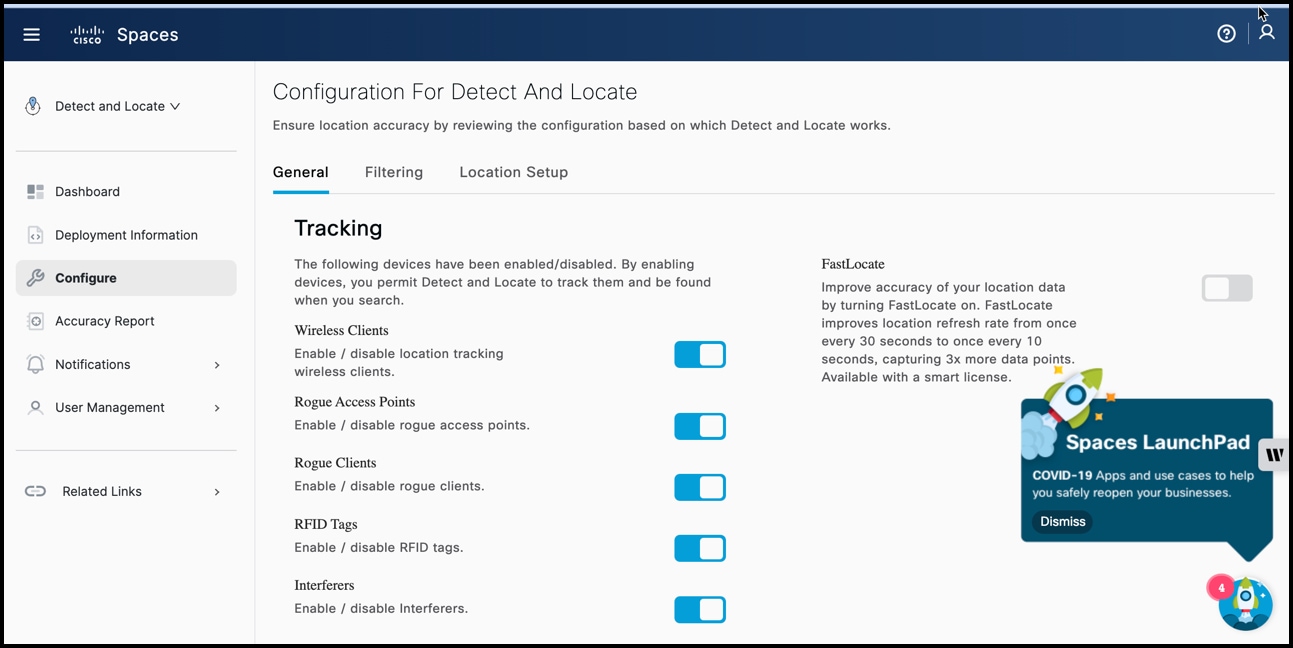
From the left navigation bar of the Detect and Locate dashboard, select Configure.

Step 2

Choose General.

  1. Here, you can choose to enable or disable the tracking of device types as needed.

Figure 1. Enable or Disable Specific Device Types

Device Visibility

Enable Device Visibility

Follow these steps to show or hide devices of a particular type:

Procedure


Step 1

Navigate to the Detect and Locate dashboard.

Step 2

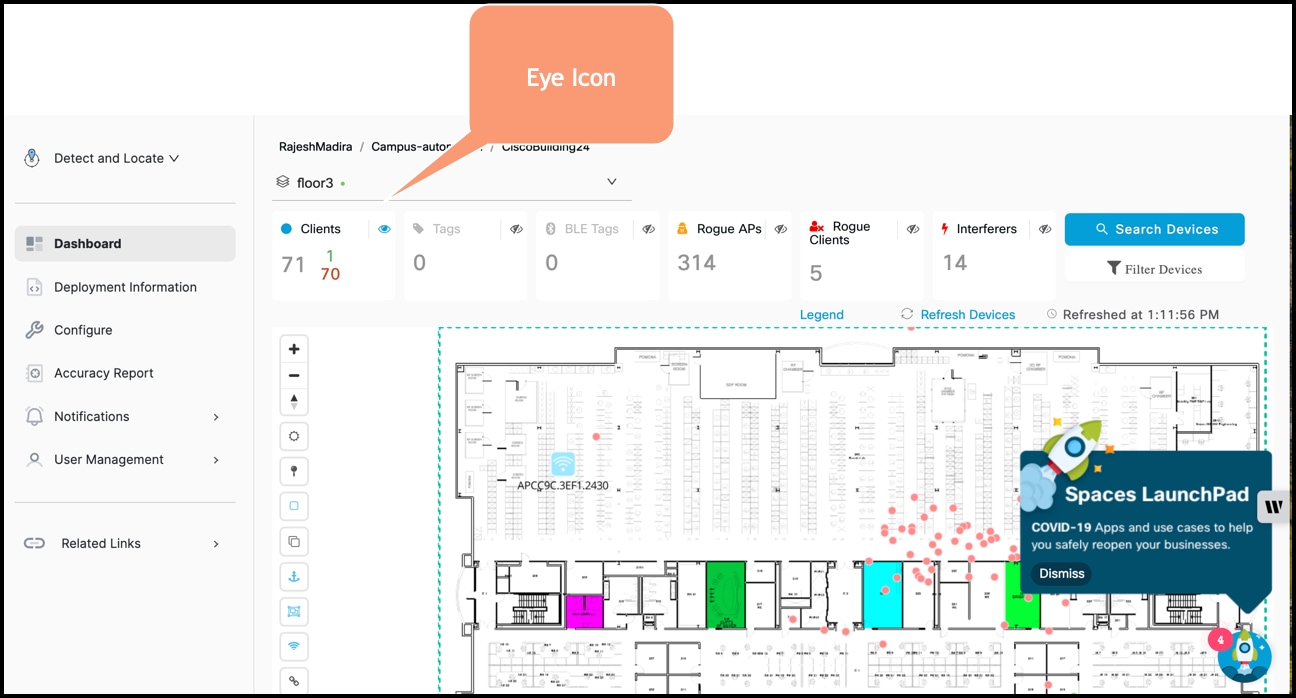
Click on the eye icon (Show/Hide button) corresponding to the respective device type.

Step 3

Ensure that the eye icon is enabled so that you can view the device type on the dashboard.

Figure 2. Enable or Disable the Visibility of Specific Device Types

View Enabled Device Types

Follow these steps to view the enabled device types:

Procedure


Step 1

Navigate to the Detect and Locate dashboard.

Step 2

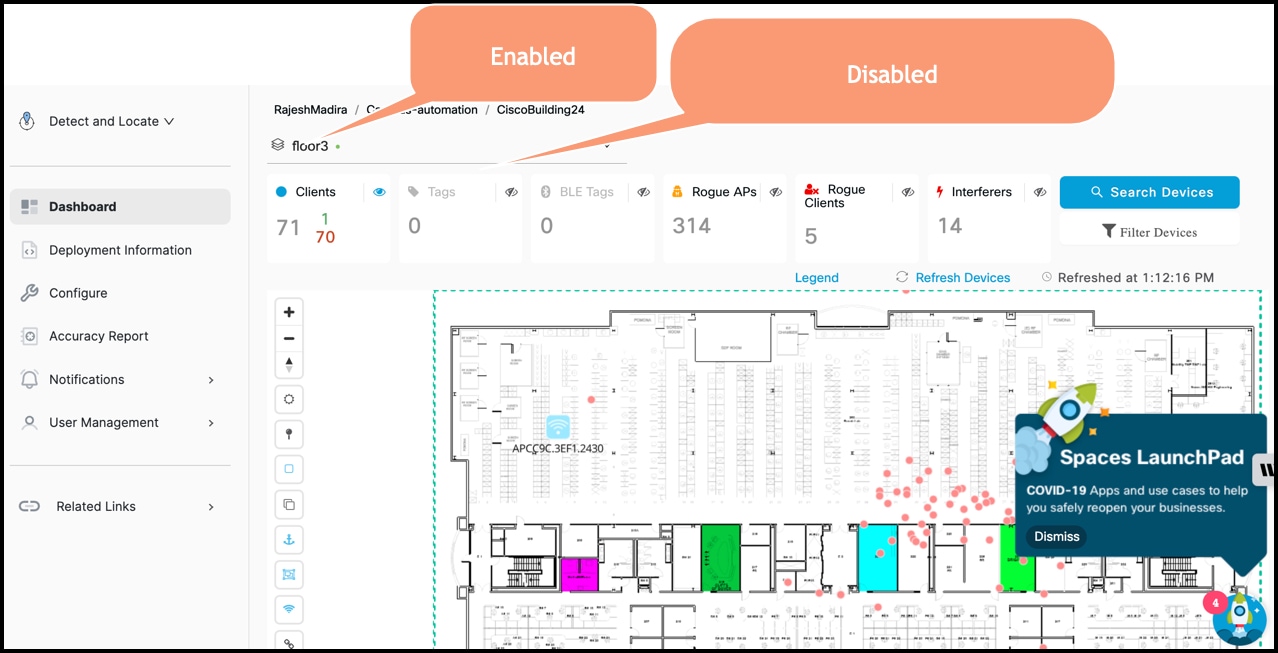
Check the current status of each device type to see which ones are enabled.

Figure 3. Check the Visibility Status of Device Types

Keep Devices Visible with Regular Updates

Detect and Locate uses a device eviction time of 10 minutes. Ensure that the following updates are received at this interval from the wireless controller:

  • Received Signal Strength Indicator (RSSI)
  • Angle of Arrival (AOA)
  • Information (Info), and
  • Statistics (Stats).

Eviction Times

If a device does not send updates within the ten-minute eviction time, Cisco Spaces removes the device from the system.

Filter Tracked Devices

Configure Cutoff for Location Accuracy

You can configure thresholds or cutoff at which you want the server to discard AP measurements. To configure thresholds and cutoffs.

Procedure


Step 1

Navigate to Configure > Location Setup.

Step 2

Enter the RSSI Cutoff (dBm) value in the corresponding field.

Step 3

Specify the desired RSSI cutoff value in dBm.


Configure Filter Values For Tracked Devices

Follow these steps to configure filtering parameters:

Procedure


Step 1

Configure filtering parameters from the CONFIGURE > Filtering tab.

Step 2

Specify the RSSI Cutoff value to filter out weak probing clients.

Step 3

Toggle the Exclude Probing Only client button to include or exclude probing-only clients.

Step 4

Toggle the Enable MAC Filtering button to enable or disable MAC filtering.

Step 5

Manage allowed SSIDs using the Allow Location SSID Filtering list.

Step 6

Manage disallowed SSIDs using the Disallowed Location SSID Filtering list.

Step 7

Toggle the Enable Locally Administered MAC Filtering button to enable or disable locally administered MAC filtering.


Parameters to Filter Tracked Devices

You can configure the parameters below to filter the devices that are tracked on the Detect and Locate dashboard:

  1. RSSI Cutoff: Specifies the cutoff value for filtering out weak probing clients.

  2. Exclude Probing Only client: Toggle button for including or excluding probing-only clients.

  3. Enable MAC Filtering: Toggle button for enabling or disabling MAC filtering.

  4. Allow Location SSID Filtering: List of allowed SSIDs.

  5. Disallowed Location SSID Filtering: List of disallowed SSIDs.

  6. Enable Locally Administered MAC Filtering: Toggle button for enabling or disabling locally administered MAC filtering.


Note


For more information about the SSID name validation (allowed and disallowed inputs) in the Configure > Filtering sections, see SSID Validation.


SSID Validation

Allowed SSID names for the list of allowed or disallowed values must be from 1 to 32 characters and may contain only printable ASCII characters.

SSID names support these ASCII characters:

  • Numerals: 48 through 57 hex (0 to 9)

  • Alphabets (uppercase): 65 through 90 hex (A to Z)

  • Alphabets (lowercase): 97 through 122 hex (a to z)

  • ASCII space: 20 hex

  • Printable special characters: 21 through 2F, 3A through 40, and 5B through 60 hex, that is: ! " # $ % & ' ( ) * + , - . / : ; < = > ? @ [ \ ] ^ _ ` { | } ~

Valid SSID names

Some valid SSID names are:

Table 1. Valid SSID examples

Valid SSID

Validation criteria

Home123

Uses only letters and numbers

Office_WiFi

Uses underscore (_)

Guest-Access!

Uses dash (-) and exclamation mark (!)

My WiFi 2026

Uses space and numbers

[Secure]Net*

Uses brackets and asterisk (*)

Cafe@Main$

Uses @ and $ special characters

Test#SSID

Uses hash (#)

!Welcome-Home!

Uses exclamation (!) and dash (-)

ABCDEFGHIJKLMNOPQRSTUVWXYZ123456

32 characters, within limit

{Dev}_Lab

Uses curly braces, underscore, and letters

1234567890

Numbers only

A_Z-a.z

Uses underscore (_), dash (-), dot (.)

Main$Net%2026

Uses dollar ($), percent (%), and numbers

Invalid SSID names

These characters are not supported in SSID names:

  • Non-ASCII characters

  • Emoji

  • Control characters (e.g., \n, \t)

  • Names longer than 32 chars

  • Do not use empty names.

  • Do not use non-printable or extended Unicode/emoji characters.

Some invalid SSID names are:

Table 2. Invalid SSID examples

Invalid SSID

Validation criteria

CaféWiFi

Contains non-ASCII character "é"

NetName😊

Contains emoji

WiFi/Name/Longer/Than/32/CharactersIsNotValid

Exceeds 32 characters

MyWiFi\nName

Contains control character (\n)

WiFi\tTab

Contains control character (\t)

(empty string)

Cannot be empty

SSID名称

Contains non-ASCII characters (Chinese)

شبكةواي فاي

Contains non-ASCII characters (Arabic)

WiFi🔒

Contains emoji

BestWiFiInBangalore*2026202620262026

Exceeds 32 characters