Asset Tracker

Asset Tracker

The Asset Tracker app in Cisco Spaces allows administrators and operators to search, monitor, categorize, and manage tracked assets across configured locations. Users can view assets in a list or map view, associate tags with assets, assign labels, create rules, configure notifications, manage role-based access, and review tag reports.

Cisco Asset Tags are hardware devices that can be attached to physical assets and used with supported Cisco Spaces infrastructure to determine asset location. For more information, refer to Cisco Asset Tag Hardware Installation Guide

The Asset Tracker app enables administrators and operators to associate Cisco Asset Tags with asset records and manage the associated assets, categories, rules, users, and reports.

The Cisco Asset Tracker mobile app enables authorized field users to onboard Cisco Asset Tags, locate assets, and confirm the physical tag associated with an asset. For more information, refer to Asset Tracker Mobile Application

The Cisco Asset Tag is an advanced asset location and management solution designed for enterprises. It seamlessly integrates with Cisco Spaces to provide precise, real-time tracking of valuable assets across your organization.

For more information, refer to these

The Asset Tracker app helps users manage tracked assets by category and location. Search across assets, switch between list and map views, define asset categories, manage users, and review tag reports.

On the Cisco Spaces dashboard, choose Asset Tracker app.
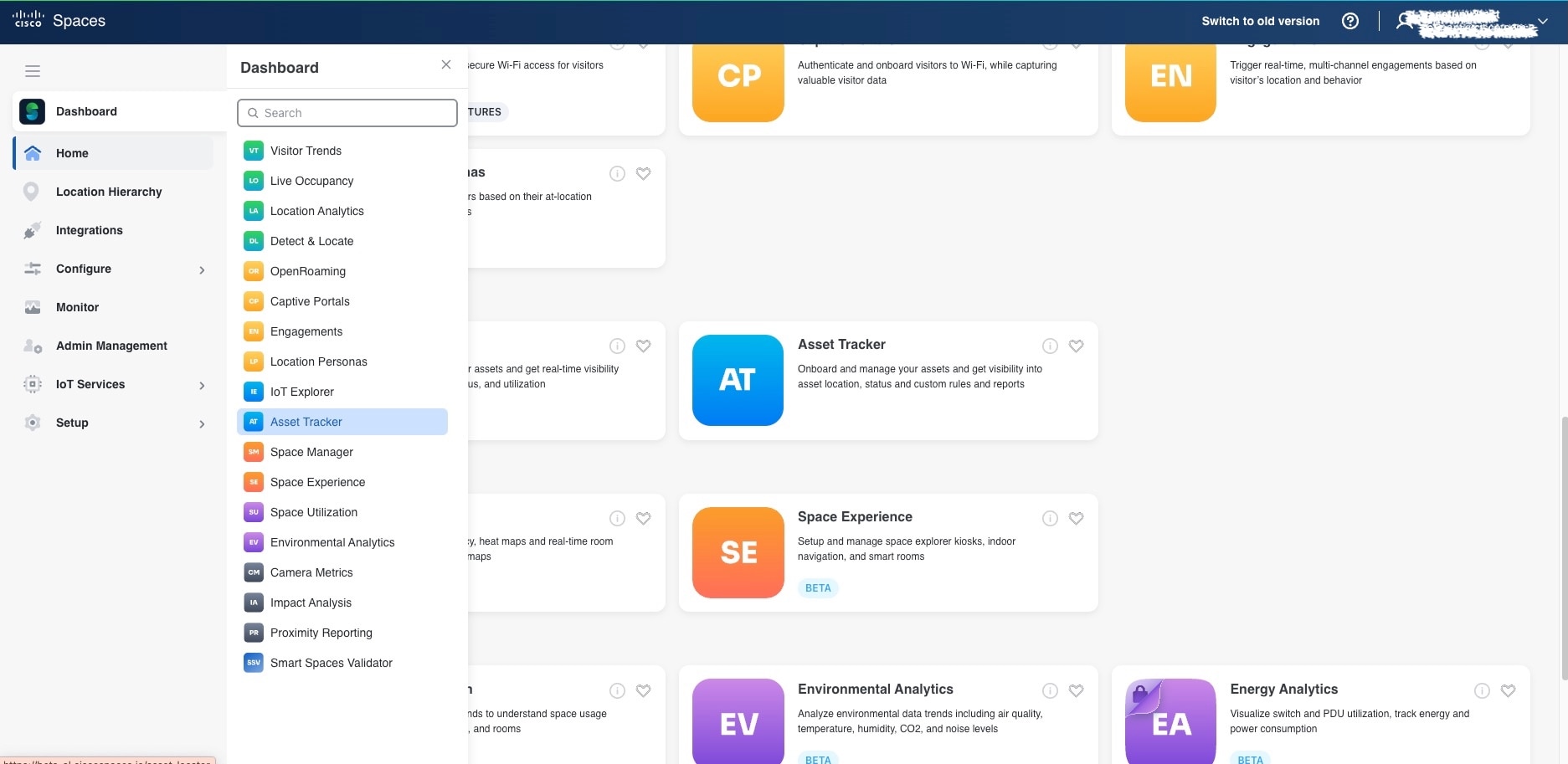
Figure 1. Asset Tracker
The Asset Tracker dashboard shows app navigation and overview information.

Licensing Requirements

The Asset Tracker App is tied to these Cisco Spaces licenses.

  • ADVANTAGE

  • UNLIMITED

  • PREMIER_CW

  • PREMIER_W

  • SMART OPERATION

Prerequisites

You can use the Asset Tracker app if your Cisco Spaces deployment meets these requirements:

  • Set up digital maps for each location where you need Asset Tracker.

  • Place access points on the map using AP Auto Locate or Network Map Calibration.

  • Configure the system to work with your wireless networks so Wi-Fi metrics and insights are collected.

  • Complete the Cisco Spaces location hierarchy for all your campuses, buildings, floors, and zones.

  • Activate IoT Services for each Asset Tracker location.

  • To use UWB-based asset location, activate UWB Location for each applicable building.

    On the Cisco Spaces dashboard, choose Configure > Location Compute.

    Supported UWB-capable access points must be assigned to the applicable floors and placed on the floor maps. Only eligible access points that are placed on a floor map appear in Location Compute.

    Associate each onboarded Cisco Asset Tag with an asset record before you expect the tag to appear in Asset Tracker.

    An onboarded but unassociated tag appears in IoT Services and Detect and Locate. However, it does not appear in Asset Tracker.


    Note


    If UWB Location is not activated, a Cisco Asset Tag that supports BLE and UWB continues to provide BLE data, but UWB-based location is unavailable through Cisco Spaces.


  • Make sure the Asset Tracker Dashboard application has Smart Ops or a higher license.

  • Make sure Cisco Asset Tags and the Asset Tracker mobile app have Spaces Premier licenses.

Asset Tracker App Feature

The Asset Tracker app provides a centralized view to search, monitor, categorize, and manage tracked assets across configured locations. View assets in list and map views, manage asset categories, associate tags, configure rules, control user access, and review tag reports.

Search

  • Search assets across configured locations.

  • Use filters and saved filters to narrow search results.

  • Switch between List view and Map view.

  • Review asset details, metadata, labels, last-heard timestamp, and floor map context.

Asset Categories

The Asset Categories area allows you to define asset types and manage assets, history, rules, and role access for each category. A category identifies the department, tracking type, map color, icon, and description for a group of assets.

  • Create categories before adding assets.

  • Choose the category tracking type, such as Individually tracked assets or Group-tracked assets.

  • Add assets manually or import assets in bulk using a CSV file.

  • Review category history and asset movement on the map.

  • Configure category-specific rules and notifications.

User Management

The User Management area allows administrators to create roles and invite users. Roles define the categories, locations, and permission levels that users can access.

  • Create roles for Asset Tracker administrators and operators.

  • Scope user access by category and location.

  • Invite users and assign the required role.

  • Use enterprise SSO where applicable.

  • Support A+ users whose Cisco Spaces roles include access to Asset Tracker and the applicable locations.

Reports

The Reports area allows you to review tag distribution by asset category, model, and location. The Tag Report dashboard provides chart views and an exportable report table.

  • Review tags by asset category.

  • Review tags by model.

  • Review tag distribution by floor or location.

  • Export report data using Export CSV.