Cisco Spaces Asset Tracker App
The Cisco Spaces Asset Tracker App is a location-based application that helps you:
-
Onboard and organize physical assets.
-
Associate assets with supported tags or Wi-Fi devices and view their current or historical locations.
-
Notify users or external systems when an asset enters a location, exits a location, or is not heard for a specified period.
For more information, refer to Cisco Spaces Asset Tracker App Configuration Guide.
The app combines asset inventory, location data, event rules, role-based access, and reports in the Cisco Spaces dashboard.
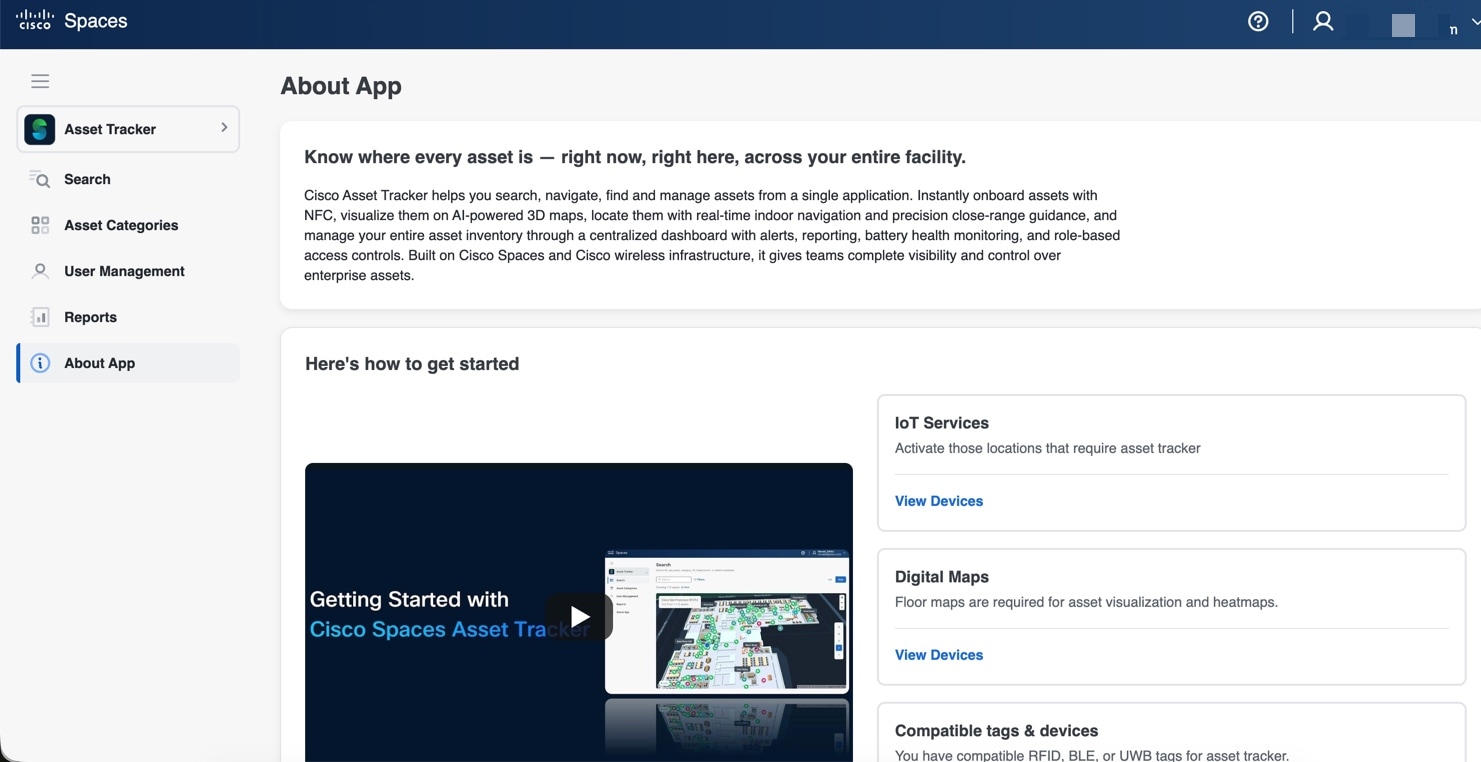
Primary work areas
The Cisco Spaces Asset Tracker App provides these primary work areas:
-
Assets: Search across all assets, filter the results, and switch between list and map views.
-
Categories: Define asset types and manage assets, history, rules, and role access for each category.
-
User Management: Create roles and invite users.
-
Reports: Review tag distribution by asset category, model, and location.
-
About App: View application information.
Intended audience
This information is for Cisco Spaces administrators and asset managers who configure categories, onboard assets, define monitoring rules, manage access, and review asset location data.
Licensing and access
Your Cisco Spaces account must have the Cisco Spaces Asset Tracker App enabled. The app supports the Advantage, Unlimited, Smart Operations, Premier, and Premier CW entitlements.
The mobile-app-only user option requires a Premier entitlement and appears only when your account supports the option.
Before you configure the app, verify that:
-
Your account has access to the Cisco Spaces Asset Tracker App.
-
The Cisco Spaces location hierarchy contains the required campuses, buildings, floors, and zones.
-
The tags or Wi-Fi devices that you want to associate are available to the account.
-
You have read-and-write permission for the required categories and locations.
-
You have the recipient details or API endpoint information required for rule actions.
Categories
A category is a user-defined grouping that determines how the Cisco Spaces Asset Tracker App handles a type of asset. You must create a category before you can add an asset. A category identifies its department, tracking type, map color, icon, and description.
The category color and icon identify its assets on maps. The category page also shows the number of assets and rules, the assigned department, the creation date, and the roles that have access.
For more information, refer to Cisco Spaces: Asset Tracker App Configuration Guide.
 Note |
Choose the category type carefully. It represents the tracking model for the assets that you add to the category. |
Assets and tag associations
An asset is a physical item represented by a unique Asset ID. A tag association connects that asset record to the MAC address from which Cisco Spaces receives location data.
A tag can be associated with only one asset at a time. You can associate a tag while you create an asset or later from the asset table. If you assign an already associated tag during asset creation, the app asks you to confirm the reassignment. Confirmation disassociates the tag from the previous asset and associates it with the new asset.
Deleting an asset also disassociates its tag. It does not delete the tag from Cisco Spaces.
Wi-Fi devices
The Cisco Spaces Asset Tracker App does not process every Wi-Fi client detected by Cisco Spaces. When you identify an asset as a Wi-Fi device, the app adds its MAC address to the set of clients that it monitors. This selection becomes available after you specify the MAC address.
Labels and custom metadata
Labels and custom metadata help you classify and filter assets. You can add labels from an asset record or include them in a bulk-import file. Rule criteria and Asset Search filters can use these values.
In use and Out of order are system-defined labels. You cannot create another label with either name.
Locations
The Cisco Spaces Asset Tracker App uses the Cisco Spaces location hierarchy. A hierarchy can include a campus, building, floor, and zone. The selected hierarchy level controls the information shown in maps, history, filters, and reports.
A location report displays information according to the selected level:
-
Selecting a root or campus shows the next relevant location level, such as buildings.
-
Selecting a building shows its floors.
-
Selecting a floor shows the floor and its zones. Assets on the floor but outside a zone remain grouped at the floor level.
-
Selecting a zone shows that zone.
Rules
A rule evaluates asset events at one or more locations and performs one or more actions. A rule contains:
-
A unique name.
-
A sense condition: Is not heard, Exits a location, or Enters a location.
-
One or more locations.
-
Optional metadata criteria.
-
An optional schedule.
-
One or more SMS, email, or API actions.
New rules are enabled when you save and publish them. You can disable a rule without deleting its configuration.
Roles
A role combines an access level with one or more categories and locations. A read-only role can view the selected resources. A read-and-write role can configure the selected resources. When you assign a role to a user, the role controls which category data and locations the user can access.
Configuration workflow
Configure the Cisco Spaces Asset Tracker App in this order:
-
Create one or more categories.
-
Add assets individually or import them from a CSV file.
-
Associate trackable assets with tag MAC addresses.
-
Add labels or custom metadata as needed.
-
Create location-based rules and notification actions.
-
Create roles for the required category and location access.
-
Invite users and assign roles.
-
Verify asset data in list, map, history, and report views.
 Feedback