Install the Optional Redundant Power Supply Module

Redundant power supply module

This table describes the components used with the optional Redundant Power Supply (RPS) module.

Table 1. Redundant power supply kits and components

Part number

Description

C9800-AC-110W

110W AC power supply (ordered with controller)

CW9800L-RPS

  • PWR-RPS-DC1

  • CW9800L-RPS-CAB

  • C9800-AC-110W

CW9800L RPS bundle

  • Redundant power supply module

  • 6-to-8-pin power cable, RPS

  • 110W AC power supply (second PSU for redundancy)

The RPS takes power inputs from two redundant PSUs and outputs a single power feed to the controller.

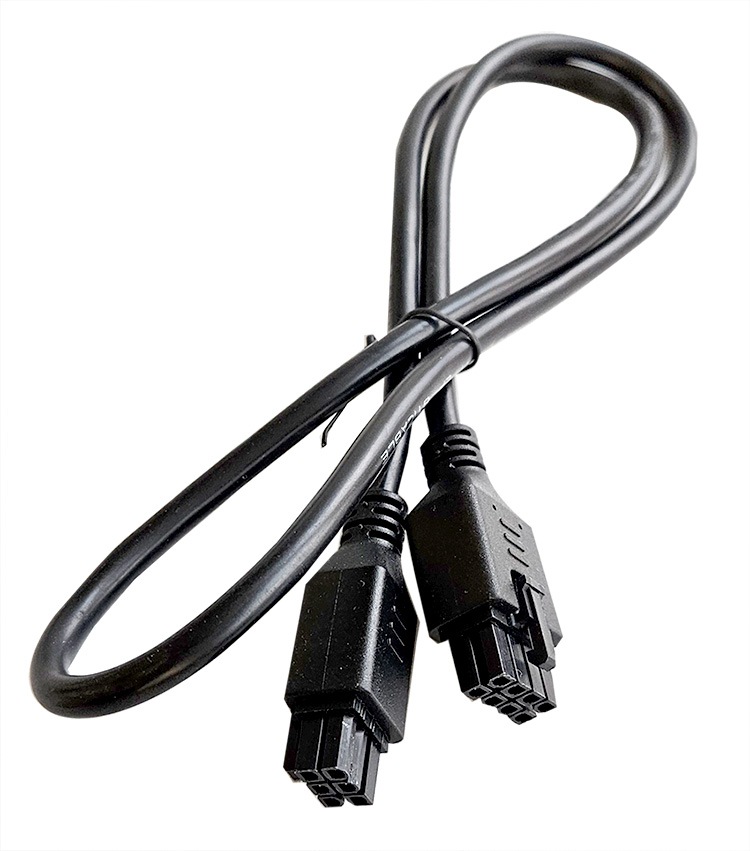
Figure 1. 6-to-8-Pin power cable

Installation guidelines

This section includes the installation guidelines for installating the RPS with the controller. Read this section before you start the installation procedure. Translations of the warning statements appear in the RCSI guide on Cisco.com.

Guidelines

Observe these guidelines when installing the RPS:


Warning


To reduce risk of electric shock or fire, installation of the equipment must comply with local and national electrical codes.


Note


A power supply that is only partially connected to the controller can disrupt the system operation.


The unit might have more than one power supply connection. To reduce the risk of electric shock, all connections must be removed to de-energize the unit.

For products with multiple power sources

Install the redundant power supply

Summary

The installation of a redundant power supply involves coordinating between power sources, the RPS module, connectors, and the controller. These components ensure continuous device operation by providing backup power in case of a primary power supply failure.

Workflow

  1. Connect the power cord to each power supply and to an AC outlet. Turn on the power source.
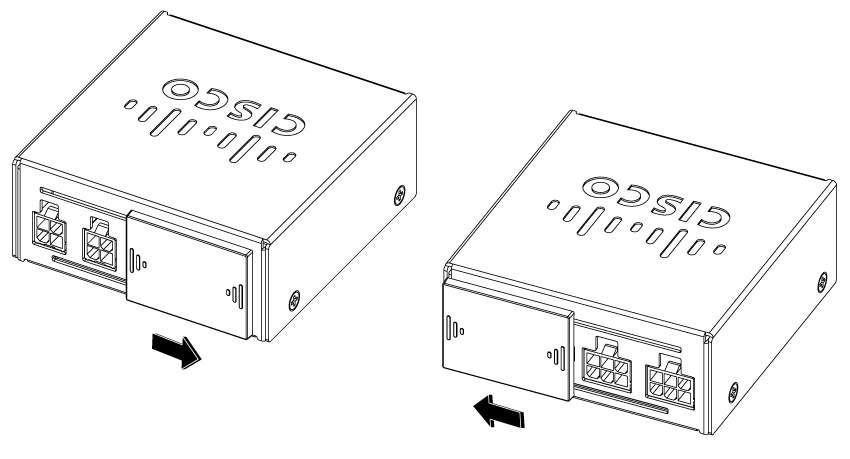
  2. On the RPS module, slide the grey plastic door all the way to the left to expose the two 6-pin input connectors. Refer to figure, "Input connectors on redundant power supply".
    Figure 2. Input connectors on the redundant power supply
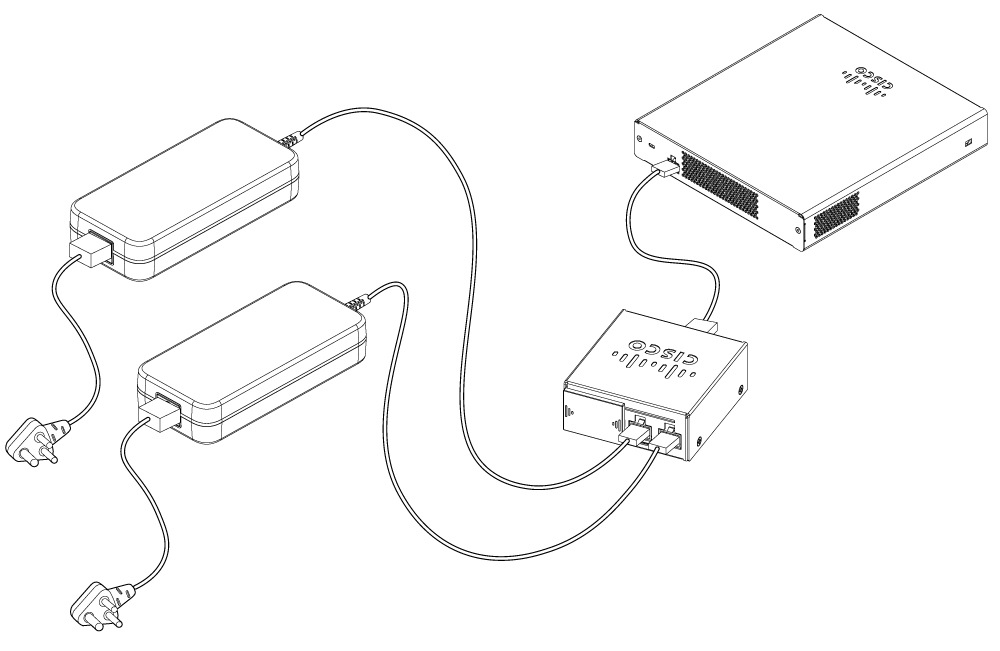
  3. Plug one DC cord from each power supply into each 6-pin connector on the RPS module. Refer to figure, "Desktop RPS connection".
    Figure 3. Desktop RPS connection
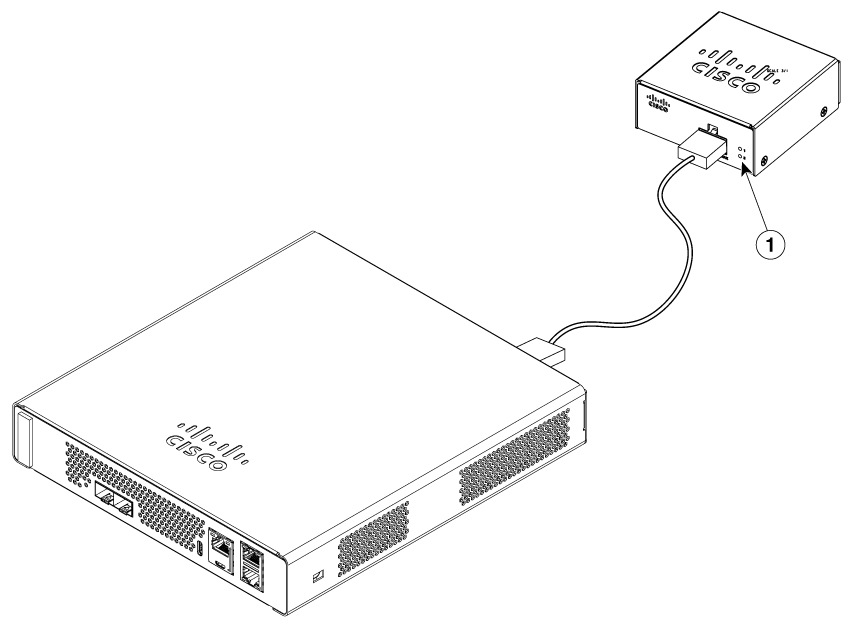
  4. Confirm that both LEDs on the RPS module are green, see figure CW9800L to RPS connection front view.
    Figure 4. CW9800L to RPS connection front view

    1

    RPS LEDs

    • Green: PSU ok and eFUSE on
    • Amber: PSU ok, eFUSE off
    • Off: PSU unplugged or PSU is not fucntioning
  5. Plug the 8-pin connector on the 6-to-8-Pin Power Cable into the 8-pin connector on the RPS module. Refer to figure, "Desktop RPS connection".
  6. Plug the 6-pin connector from the 6-to-8-Pin Power Cable into the 6-pin power entry connector on the controller. Refer to figure, "Desktop RPS connection".
  7. Confirm that the controller powers up normally.

Desktop installation

Desktop RPS installation follows the same procedure as installing the redundant power supply for connecting the components and cables. The power supplies used are:

  • the one that comes with the controller

  • the one that comes with the RPS kit.

Both the power supplies are similar.

Rack mount installation considerations

For rack mount installations, follow these steps to mount the RPS to the rack mount tray and route the cables properly.

Secure RPS to the CW9800L tray

Summary

The process of securing RPS units to CW9800L trays ensures the reliable installation and safe attachment of the power supply within the controller. Key components include the RPS unit, the CW9800L tray, screws for fastening, the hook tab, and the installer.

Workflow

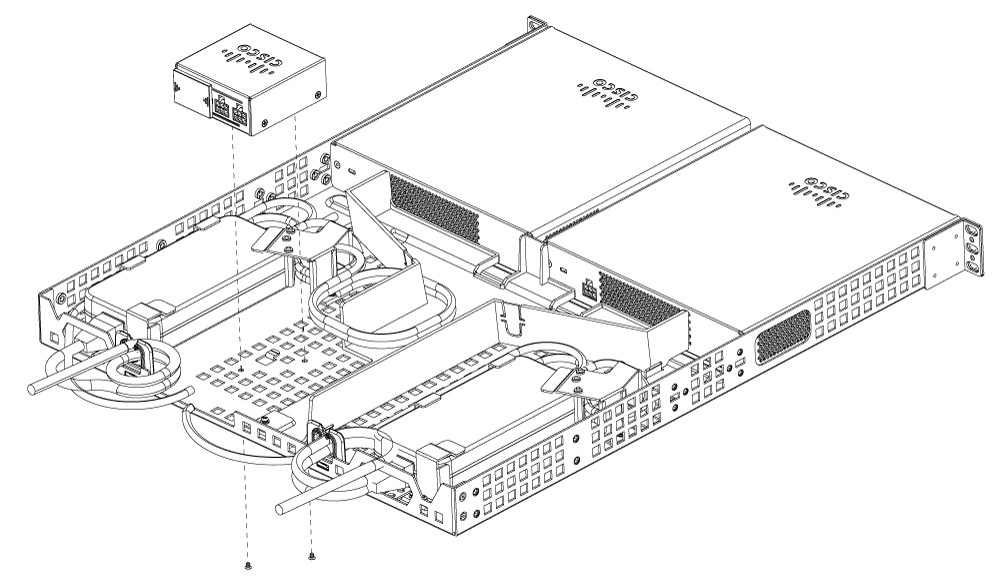
  1. Orient the RPS with the 8-pin connector towards the controller.
    Figure 5. Install RPS in the controller tray
  2. Place the RPS over the hook tab on the tray, and slide the RPS to the rear to engage the hook tab.
  3. Flip the tray over and secure the RPS to the tray with the two screws provided.

Route and secure cables in the rack mount tray

Summary

This process describes the correct method for routing and securing cables in a rack mount tray to ensure reliable and organized connections for power supplies and controllers.

Workflow

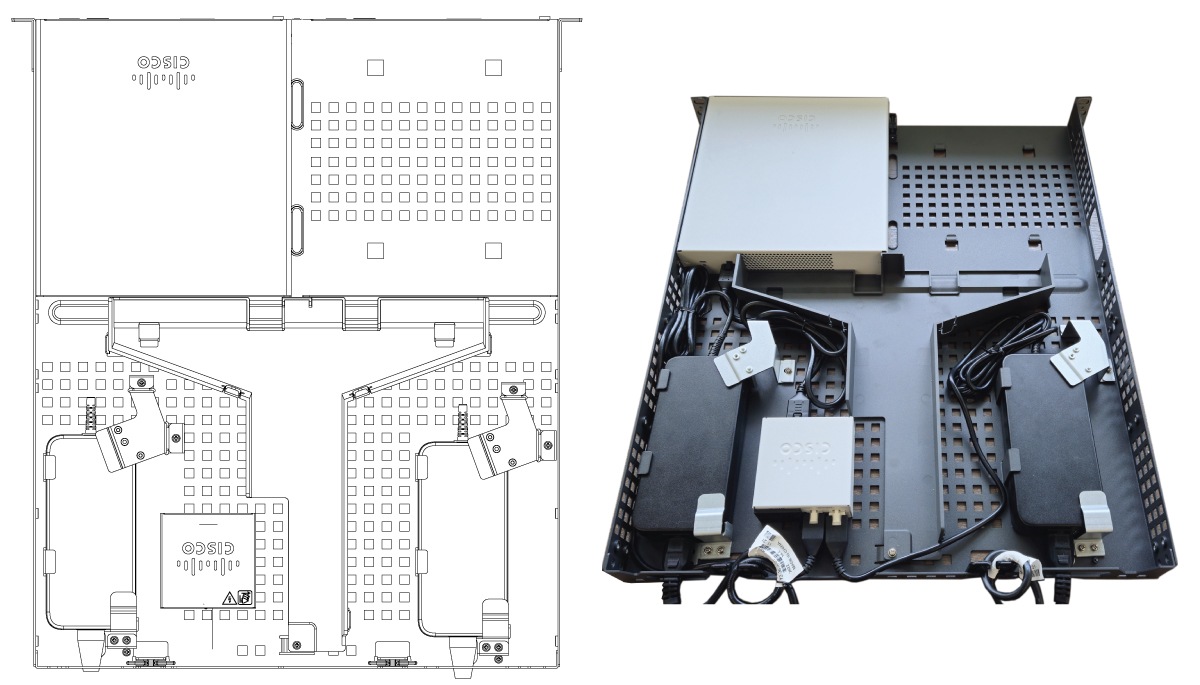
  1. Connect the 8-pin to 6-pin cable between the RPS and the controller. Plug the 8-pin end into the RPS. Bundle the excess length approximately as shown in the figure.
  2. Route the output cables from the PSUs through the tray to the input (rear-facing) side of the RPS, and plug them into the 6-pin connectors. Bundle the excess length approximately as shown in the figure.
  3. Connect the AC input power cables to the PSUs, and loop them through the cable clips at the rear of the tray as shown in the figure. This step helps to prevent accidental unplugging of the cables from the PSUs.
    Figure 6. Rack mount cable dressing

Verify connections

The power supplies are the same as mentioned in Installing the Power Supply. To verify that the power supply is connected to the power outlet, first turn on the power, then check the LED status. Refer to figure "LED Location" and table "Power Supply Adapter LED and Description" in Chapter 4 for LED location and status meanings.

When everything is connected and the AC source is on, both LEDs on the RPS module will be lit green.