IPv6 client address learning
A client address learning mechanism is a wireless controller feature that
-
identifies and stores IPv4 and IPv6 addresses for wireless clients
-
maintains the client's transition state during association and timeout, and
-
operates through monitoring relevant network protocols.
There are three ways for an IPv6 client to acquire IPv6 addresses:
-
Stateless Address Auto-Configuration (SLAAC)
-
Stateful DHCPv6
-
Static Configuration
In all of these methods, the IPv6 client always sends a Neighbor Solicitation Duplicate Address Detection (DAD) request to ensure that there is no duplicate IP address on the network. The device monitors Neighbor Discovery Protocol (NDP) and DHCPv6 packets from the client to learn its IP addresses.
Prerequisites for IPv6 client address learning
-
Before configuring IPv6 client address learning, configure the clients to support IPv6.
-
To enable wireless IPv6 client connectivity, the underlying wired network must support IPv6 routing and an address assignment mechanism, such as SLAAC or DHCPv6. The wireless LAN controller must have L2 adjacency to the IPv6 router.
 Note |
The AP learns the IPv6 client address based on the source IP address, even though neighbor advertisements can hold the remaining IPv6 addresses. The AP does not examine neighbor advertisements to learn the IPv6 address acquired by the client. This behavior occurs only with Apple clients and not with Microsoft Windows clients. |
Configure IPv6 interface on a switch (GUI)
Procedure
|
Step 1 |
Choose . |
|
Step 2 |
Click Add. |
|
Step 3 |
Enter VLAN Number, Description and MTU (Bytes). |
|
Step 4 |
Enable or disable the Admin Status toggle button. |
|
Step 5 |
In IP Options, check the IPv6 check box. |
|
Step 6 |
Select the type of Static address from the drop-down list and enter the static address. |
|
Step 7 |
Check or uncheck the DHCP, Autoconfig and Act as an IPv6 DHCP client check boxes. If you check the DHCP check box, the Rapid Commit check box is displayed. Check or uncheck the Rapid Commit check box. |
|
Step 8 |
Click Apply to Device. |
Configure IPv6 on Interface (CLI)
Before you begin
Enable IPv6 on the client and IPv6 support on the wired infrastructure.
Procedure
|
Step 1 |
Enable the privileged EXEC mode. Example:Enter your password, if prompted. |
|
Step 2 |
Enter the global configuration mode. Example: |
|
Step 3 |
Create an interface and enter the interface configuration mode. Example: |
|
Step 4 |
Configure IPv6 address on the GigabitEthernet interface using the link-local option. Example: |
|
Step 5 |
(Optional) Enable IPv6 on the GigabitEthernet interface. Example: |
|
Step 6 |
Exit interface mode. Example: |
Address assignment using SLAAC
A SLAAC address assignment is an IPv6 address configuration mechanism that
-
enables clients to automatically generate their own addresses based on a network prefix
-
provides plug-and-play connectivity without requiring manual configuration, and
-
utilizes router advertisements to communicate the IPv6 prefix and default gateway to clients.
SLAAC is configured as follows:
-
A host sends a Router Solicitation message.
-
The host waits for a Router Advertisement message.
-
The host takes the first 64 bits of the IPv6 prefix from the Router Advertisement message and combines it with the 64-bit EUI-64 address (in the case of Ethernet, this is created from the MAC address) to create a global unicast address. The host also uses the source IP address in the IP header of the Router Advertisement message as its default gateway.
-
IPv6 clients perform Duplicate Address Detection to ensure that randomly chosen addresses do not conflict with those of other clients.
Note |
The last 64 bits of the IPv6 address can be learned by using one of these algorithms:
|
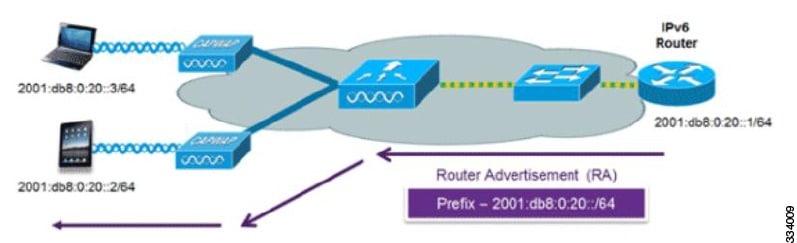
These Cisco IOS configuration commands from a Cisco-capable IPv6 router are used to enable SLAAC addressing and router advertisements:
ipv6 unicast-routing
				interface Vlan20
				description IPv6-SLAAC
				ip address 192.168.20.1 255.255.255.0
				ipv6 address FE80:DB8:0:20::1 linklocal
				ipv6 address 2001:DB8:0:20::1/64
				ipv6 enable
				end
Stateful DHCPv6 address assignment
A stateful DHCPv6 address assignment is an IPv6 address management method that
-
assigns unique IPv6 addresses to clients from a DHCPv6 pool
-
enables the router or external DHCPv6 server to manage address state and lease information, and
-
provides additional configuration details, including domain names and DNS servers.
There are two modes of operation for DHCPv6: Stateless and Stateful.
The DHCPv6 Stateless mode is used to provide clients with additional network information that is not available in the router advertisement, but not an IPv6 address, becuase this is already provided by SLAAC. This information includes the DNS domain name, DNS servers, and other DHCP vendor-specific options.
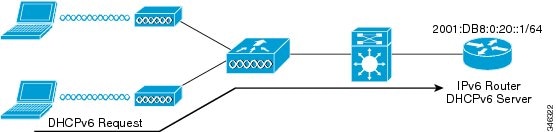
Configure the interface as shown to implement stateless DHCPv6 with SLAAC enabled on your Cisco IOS IPv6 router.
ipv6 unicast-routing
ipv6 dhcp pool IPV6_DHCPPOOL
address prefix 2001:db8:5:10::/64
domain-name cisco.com
dns-server 2001:db8:6:6::1
interface Vlan20
description IPv6-DHCP-Stateless
ip address 192.168.20.1 255.255.255.0
ipv6 nd other-config-flag
ipv6 dhcp server IPV6_DHCPPOOL
ipv6 address 2001:DB8:0:20::1/64
end
Configure DHCP pool on switch (GUI)
Procedure
|
Step 1 |
Choose . Click the Add button. The Create DHCP Pool dialog box appears. |
|
Step 2 |
Enter a pool name in the DHCP Pool Name field. The pool name must not exceed 236 characters. |
|
Step 3 |
Select either IPv4 or IPv6 from the IP Type drop-down list. |
|
Step 4 |
Enter an IP address in the Network field. |
|
Step 5 |
Select a subnet mask from the Subnet Mask drop-down list. |
|
Step 6 |
Enter an IP address in the Starting ip field amd enter an IP address in the Ending ip field. |
|
Step 7 |
(Optional) Set the status of the Reserved Only field to Enabled to reserve the DHCP pool. Select the desired option from the Lease drop-down list. |
|
Step 8 |
Selecting the User Defined option from the Lease drop-down list enables the (0-365 days), (0-23 hours), and (0-59 minutes) fields. Enter appropriate values. Click the Save & Apply to Device button. |
|
Step 9 |
For IPv6, enter the DNS Server, DNS Domain Name, and Ipv6 Address Allocation. |
Configure DHCP pool on Switch (CLI)
Follow the procedure given below to configure DHCP Pool on an interface:
Procedure
|
Step 1 |
Enable the privileged EXEC mode. Example:Enter your password if prompted. |
|
Step 2 |
Enter the global configuration mode. Example: |
|
Step 3 |
Enter the configuration mode and configure the IPv6 DHCP pool on the VLAN. Example: |
|
Step 4 |
Enter the configuration-DHCP mode and configure the address pool and its lifetime on a VLAN. Example: |
|
Step 5 |
Configure the DNS servers for the DHCP pool. Example: |
|
Step 6 |
Configure the domain name to complete unqualified host names. Example: |
|
Step 7 |
Return to the privileged EXEC mode. Example:Alternatively, you can also press Ctrl-Z to exit global configuration mode. |
Configure stateless auto address configuration without DHCP on Switch (CLI)
Procedure
|
Step 1 |
Enable the privileged EXEC mode. Example:Enter your password if prompted. |
|
Step 2 |
Enter the global configuration mode. Example: |
|
Step 3 |
Create an interface and enter the interface configuration mode. Example: |
|
Step 4 |
Configure IPv6 address on the GigabitEthernet interface using the link-local option. Example: |
|
Step 5 |
(Optional) Enable IPv6 on the GigabitEthernet interface. Example: |
|
Step 6 |
Ensure the attached hosts do not use stateful autoconfiguration to obtain addresses. Example: |
|
Step 7 |
Ensure the attached hosts do not use stateful autoconfiguration to obtain non-address options from DHCP (domain etc). Example: |
|
Step 8 |
Return to the privileged EXEC mode. Example:Alternatively, you can also press Ctrl-Z to exit global configuration mode. |
Configure stateless auto address configuration with DHCP on Switch
Procedure
|
Step 1 |
Enable the privileged EXEC mode and enter the global configuration mode. Example:Enter your password if prompted. |
|
Step 2 |
Create an interface and enter the interface configuration mode. Example: |
|
Step 3 |
Configure IPv6 address on the GigabitEthernet interface using the link-local option. Example: |
|
Step 4 |
Configure IPv6 address on the GigabitEthernet interface using the link-local option. Example: |
|
Step 5 |
(Optional) Enable IPv6 on the GigabitEthernet interface. Example: |
|
Step 6 |
Specify a subnet prefix. Example: |
|
Step 7 |
Ensure the attached hosts do not use stateful autoconfiguration to obtain addresses. Example: |
|
Step 8 |
Ensure the attached hosts do not use stateful autoconfiguration to obtain non-address options from DHCP (domain etc). Example: |
|
Step 9 |
Display the configuration parameters and exit the interface mode. Example: |
Configure stateless address auto configuration without DHCP on Switch (CLI)
Procedure
|
Step 1 |
Enable the privileged EXEC mode. Example:Enter your password if prompted. |
|
Step 2 |
Enter the global configuration mode. Example: |
|
Step 3 |
Create an interface and enter the interface configuration mode. Example: |
|
Step 4 |
Configure IPv6 address on the GigabitEthernet interface using the link-local option. Example: |
|
Step 5 |
(Optional) Enable IPv6 on the GigabitEthernet interface. Example: |
|
Step 6 |
Ensure the attached hosts do not use stateful autoconfiguration to obtain addresses. Example: |
|
Step 7 |
Ensure the attached hosts do not use stateful autoconfiguration to obtain non-address options from DHCP (domain etc). Example: |
|
Step 8 |
Return to the privileged EXEC mode. Example:Alternatively, you can also press Ctrl-Z to exit global configuration mode. |
Router solicitation
A router solicitation message is a network communication signal that
-
is issued by a host controller to locate local routers
-
prompts routers to transmit Router Advertisement messages, and
-
facilitates the host in obtaining routing information or performing stateless auto-configuration.
Router Advertisements are transmitted periodically. The host triggers an immediate Router Advertisement using a Router Solicitation, for example, when it boots or after a restart operation.
Router advertisement
A Router advertisement is a type of message
-
that is sent by IPv6 routers either periodically or in response to Router Solicitation messages from hosts, and
-
communicates essential information such as network prefixes, default gateway availability, and configuration flags.
Router advertisement messages enable hosts to perform stateless autoconfiguration and update their routing tables with current network settings.
Router advertisement guard
A router advertisement guard is a security feature that
-
examines incoming router advertisement messages from IPv6 devices
-
drops unwanted or rogue router advertisements coming from wireless clients, and
-
protects legitimate IPv6 routers and the network from misconfigured or malicious IPv6 clients.
By default, RA guard is always enabled on the controller.
-
Port on which the frame is received
-
IPv6 source address
-
Prefix list
-
Trusted or Untrusted ports for receiving the router advertisement guard messages
-
Trusted/Untrusted IPv6 source addresses of the router advertisement sender
-
Trusted/Untrusted Prefix list and Prefix ranges
-
Router preference
Router advertisement throttling
A router advertisement throttle is a network control mechanism that
-
enforces limits on the frequency of router advertisement (RA) packets sent toward the wireless network
-
ensures routers that send multiple RA packets are restricted to a minimum frequency required for IPv6 client connectivity, and
-
maintains uninterrupted IPv6 connectivity for new or roaming clients by allowing RA packets in response to Router Solicitation (RS) packets.
If a client sends an RS packet, the router sends an RA back to the client. The controller allows this RA to pass and delivers it as a unicast message to the client. This process ensures that new or roaming clients are not affected by RA throttling.
Configure RA throttle policy (CLI)
Configure RA Throttle policy to allow the enforce the limits
Procedure
|
Step 1 |
Enter the global configuration mode. Example: |
|
Step 2 |
Define the router advertisement (RA) throttler policy name and enter IPv6 RA throttle policy configuration mode. Example: |
|
Step 3 |
Configure the throttle period in an IPv6 RA throttler policy. Example: |
|
Step 4 |
Limit multicast RAs per VLAN per throttle period. Example: |
|
Step 5 |
Limit the number of multicast RAs per device per throttle period in an RA throttler policy. Example: |
Apply RA throttle policy on VLAN (GUI)
Procedure
|
Step 1 |
Choose . |
|
Step 2 |
Click Add. The Add RA Throttle Policy dialog box appears. |
|
Step 3 |
Enter a name for the policy in the Name field. |
|
Step 4 |
Select the desired option from the Medium Type drop-down list. |
|
Step 5 |
Enter a value in the Throttle Period field. RA throttling takes place only after the Max Through limit is reached for the VLAN or the Allow At-Most value is reached for a particular router. |
|
Step 6 |
Enter a value for the Max Through field, which is the maximum number of RA packets on a VLAN that can be sent before throttling takes place. The No Limit option allows an unlimited number of RA packets through with no throttling. |
|
Step 7 |
Choose an Interval Option. The device acts differently based on the RFC 3775 value set in IPv6 RA packets. Options include:
|
|
Step 8 |
Enter the minimum number of RA packets per router that can be sent as multicast before throttling takes place in the At Least Multicast RAs field. |
|
Step 9 |
Enter the maximum number of RA packets per router that can be sent as multicast before throttling takes place in the At Most Multicast RAs field. The No Limit option allows an unlimited number of RA packets through the router. Click the Add & Apply to Device button. |
Apply RA throttle policy on a VLAN (CLI)
Applying the RA Throttle policy on a VLAN. Enabling RA throttling reduces the frequency of router advertisement packets while still maintaining IPv6 client connectivity.
Procedure
|
Step 1 |
Enter the global configuration mode. Example: |
|
Step 2 |
Configure a VLAN or a collection of VLANs and enter the VLAN configuration mode. Example: |
|
Step 3 |
Attach an IPv6 RA throttler policy to a VLAN or a collection of VLANs. Example: |
Neighbor discovery
IPv6 Neighbor Discovery (ND) is a suite of messages and processes
-
that allows devices on an IPv6 network to discover neighbors, determine their link-layer addresses, identify routers, and
-
maintain information about routes and reachability replacing several IPv4 mechanisms, including the Address Resolution Protocol (ARP), ICMP Router Discovery, and ICMP Redirect.
IPv6 neighbor discovery inspection analyzes neighbor discovery messages to build a trusted binding table database. IPv6 Neighbor Discovery packets that do not comply with requirements are dropped. The neighbor binding table in the tracks each IPv6 address and its associated MAC address. The table removes clients according to the neighbor-binding timers.
Neighbor discovery suppression
A neighbor discovery suppression mechanism is a network optimization feature that
-
caches IPv6 addresses of wireless clients when they reach RUN state
-
selectively converts multicast Neighbor Solicitation (NS) requests to unicast or replies directly, depending on configuration, and
-
forwards NS multicast requests to the wired side when the target address is not in the device’s cache.
The same behavior applies to ARP requests for IPv4 addresses, where the device maintains the IPv4 address of the wireless client in the cache.
If neither configuration is enabled, and the device receives a Non-DAD or DAD NS multicast searching for an IPv6 address, and the target address is known to the device and belongs to one of its clients, the device converts the multicast NS to a unicast NS. It replaces the destination MAC address with the client’s MAC address and forwards the unicast packet to the client.
If full proxy is enabled, and the device receives a Non-DAD or DAD NS multicast searching for an IPv6 address, and the target address is known to the device and belongs to one of its clients, the device replies with an NA message on behalf of the client.
Use the ipv6 nd proxy command to enable or disable DAD or full proxy.
When the device receives an DAD-NS multicast looking for an IPv6 address, and if the target address is known to the device and belongs to one of its clients, the device will reply with an NA message on behalf of the client.
If the device receives a DAD-NS multicast searching for an IPv6 address, and the target address is known to the device and belongs to one of its clients, the device replies with an NA message on behalf of the client.
If the device does not have the IPv6 address of a wireless client, it does not respond with NA; instead, it forwards the NS packet to the wired side. This is because all wireless client IPv6 addresses and their corresponding MAC addresses should be available in the controller. If an IPv6 address required by the NS is not available, the address is assumed not to belong to a wireless client, so the request is forwarded to the wired side.
 Feedback